using IronPdf;

// Disable local disk access or cross-origin requests
Installation.EnableWebSecurity = true;

// Instantiate Renderer
var renderer = new ChromePdfRenderer();

// Create a PDF from a HTML string using C#
var pdf = renderer.RenderHtmlAsPdf("<h1>Hello World</h1>");

// Export to a file or Stream
pdf.SaveAs("output.pdf");

// Advanced Example with HTML Assets
// Load external html assets: Images, CSS and JavaScript.
// An optional BasePath 'C:\site\assets\' is set as the file location to load assets from
var myAdvancedPdf = renderer.RenderHtmlAsPdf("<img src='icons/iron.png'>", @"C:\site\assets\");
myAdvancedPdf.SaveAs("html-with-assets.pdf");
using IronPdf;// Disable local disk access or cross-origin requestsInstallation.EnableWebSecurity = true;// Instantiate Renderervar renderer = new ChromePdfRenderer();// Create a PDF from a HTML string using C#var pdf = renderer.RenderHtmlAsPdf("<h1>Hello World</h1>");// Export to a file or Streampdf.SaveAs("output.pdf");// Advanced Example with HTML Assets// Load external html assets: Images, CSS and JavaScript.// An optional BasePath 'C:\site\assets\' is set as the file location to load assets fromvar myAdvancedPdf = renderer.RenderHtmlAsPdf("<img src='icons/iron.png'>", @"C:\site\assets\");myAdvancedPdf.SaveAs("html-with-assets.pdf");
Jeśli jesteś programistą, prawdopodobnie napotkałeś problemy podczas próby odczytania tekstu z pliku PDF. Być może dotyczy Cię jedna lub więcej z poniższych sytuacji:
Tworzysz aplikację, która pobiera dwa dokumenty PDF jako dane wejściowe i wyszukuje podobieństwa między nimi.
Możesz odczytywać pliki PDF i wyświetlać dane w polu tekstowym C# za pomocą zaledwie dwóch linii kodu. Tak, wystarczą tylko dwie linijki kodu. Można również wyodrębnić wszystkie obrazy z plików PDF. Ponadto możesz utworzyć inny dokument z tymi obrazami lub wyświetlić je w swojej aplikacji zgodnie z własnymi wymaganiami.
Pokażemy Ci, jak to się robi.
Możemy postępować krok po kroku, korzystając z aplikacji, aby wybrać dowolne pliki PDF, a następnie wyświetlić ich zawartość.
Poniższe kroki pokazują, jak odczytywać pliki PDF w języku C#:
Poniższe kroki pokazują, jak odczytywać pliki PDF w języku C#
Wybierz konkretną drukarkę do druku i ustaw rozdzielczość
Sprawdź wydruk PDF z drukarki
Śledź swoje procesy drukowania, używając C#
Wymagana wiedza wstępna:
Podstawowa wiedza o programowaniu w C#
Podstawowa wiedza o kontrolkach GUI w C#
Zaprojektowałem ten samouczek w taki sposób, że nawet osoba bez zaplecza programistycznego będzie mogła się rozwinąć.
Kto powinien to przeczytać
Każdy nowicjusz uczący się C# powinien wiedzieć, jak czytać pliki PDF używając IronPDF, ponieważ to jest coś, co na pewno wykorzystasz w swojej karierze.
Profesjonalni programiści również powinni to przeczytać, aby móc zrozumieć bibliotekę IronPDF, która pomaga nam czytać, generować i manipulować dokumentami PDF.
Teraz, jak możemy używać tej biblioteki w naszym projekcie, aby czytać plik PDF?
Używam aplikacji Windows Forms do demonstracji. Możesz użyć aplikacji konsolowej, aplikacji WPF lub aplikacji webowej ASP.NET według swoich preferencji.
Inną dużą zaletą biblioteki IronPDF jest to, że może być używana zarówno z C#, jak i VB.NET.
Zacznijmy demonstrację bez dalszej zwłoki.
Step #1: Create a Visual Studio Project
Otwórz program Visual Studio. Używam Visual Studio 2019.
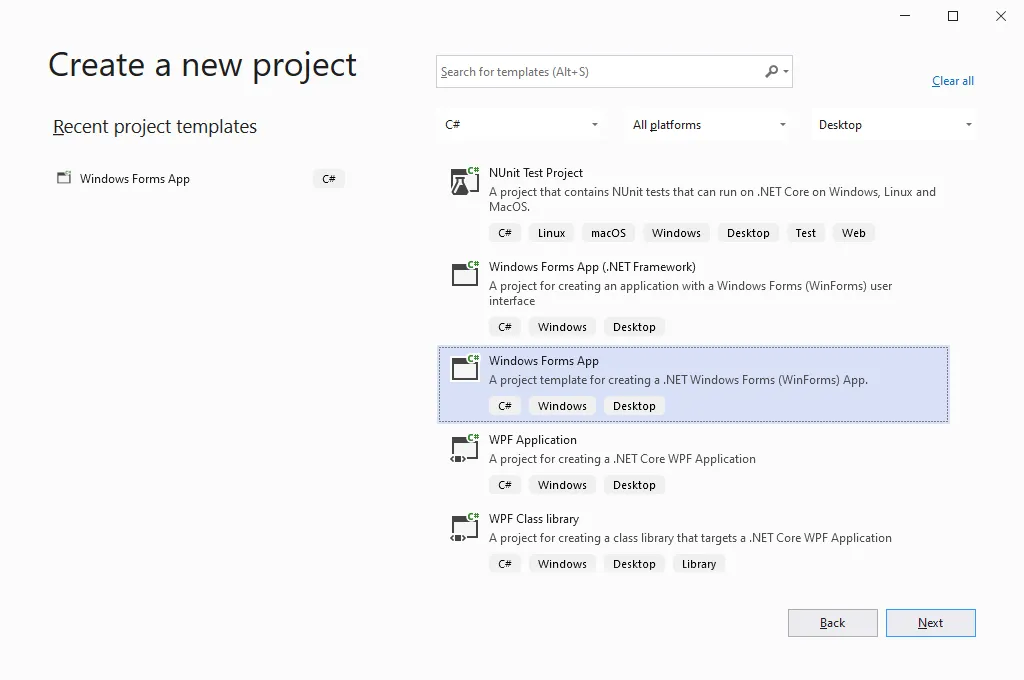
Kliknij 'Stwórz nowy projekt':
Stwórz nowy projekt
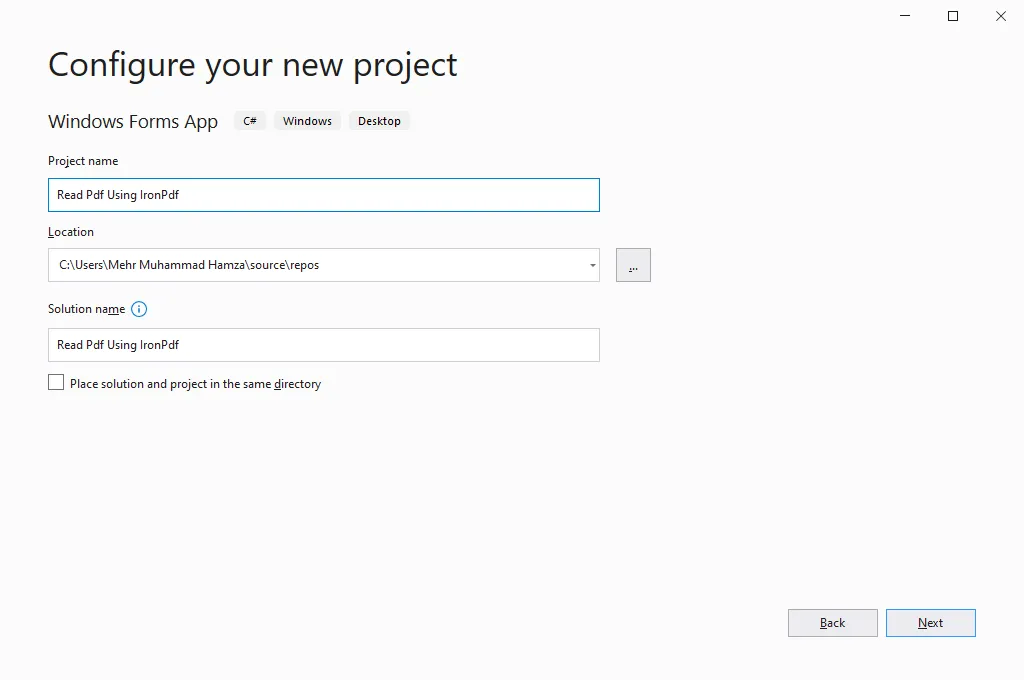
Teraz wybierz aplikację Windows Forms z szablonu, naciśnij 'Dalej', a pojawi się następne okno. Wpisz nazwę projektu. Napisałem 'Czytanie PDF za pomocą IronPDF'.
Konfiguracja projektu przez Visual Studio
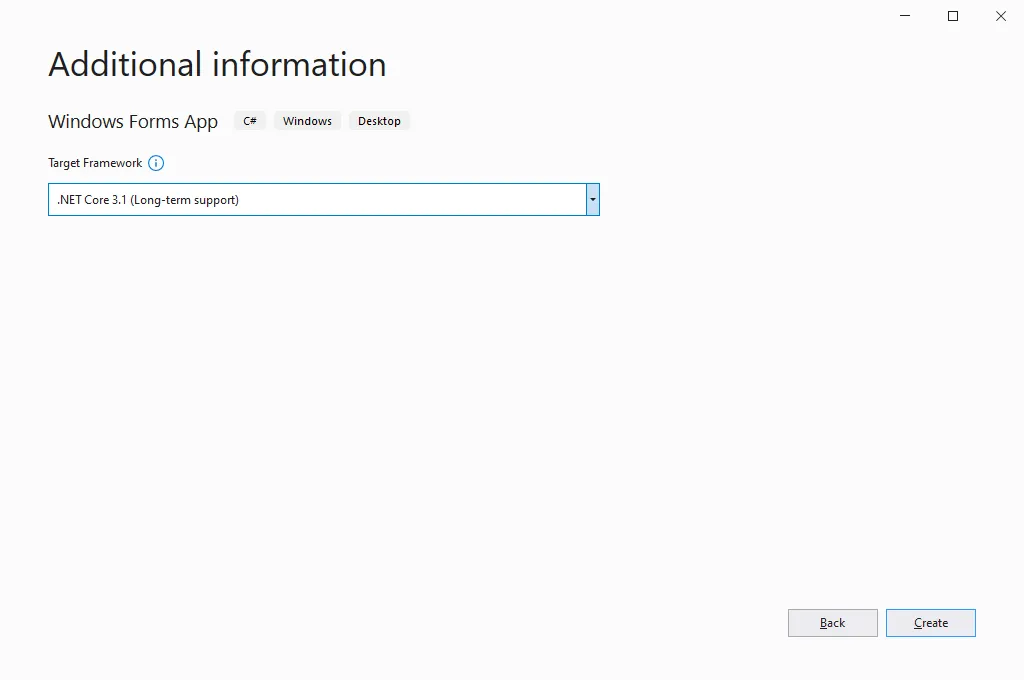
Teraz kliknij 'Dalej', a pojawi się następne okno. Wybierz '.NET Core 3.1' z listy rozwijanej.
Wersja .NET Core 3.1
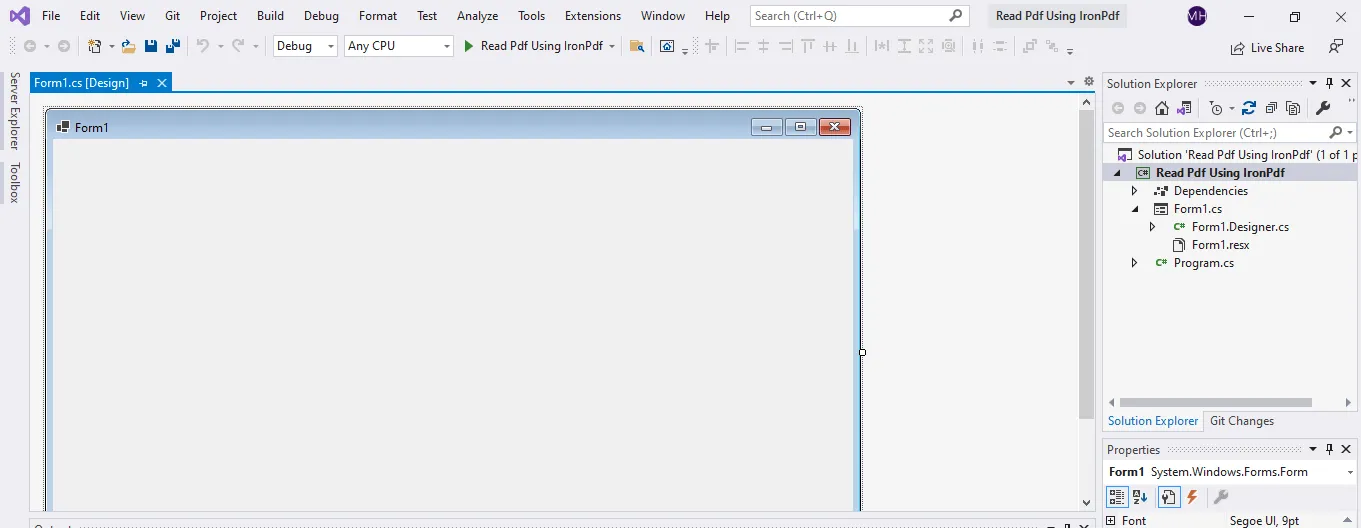
Kliknij przycisk 'Utwórz', a Projekt zostanie utworzony, jak pokazano poniżej.
Początkowy etap nowej aplikacji Windows Forms
Step #2: Install the IronPDF NuGet Package
Kliknij Menu Projekt z paska Menu, a pojawi się lista rozwijana. Wybierz Opcje Zarządzania Pakietami NuGet i kliknij ją. Pojawi się następujące okno:
Menedżer pakietów NuGet
Teraz kliknij na "Przeglądaj". Pojawi się następujące okno:
Interfejs użytkownika menedżera pakietów NuGet
Wpisz IronPDF w polu wyszukiwania i naciśnij "Enter". Pojawi się następujące okno:
Rozwiązanie NuGet
Wybierz i kliknij na IronPDF. Pojawi się następujące okno:
Zainstaluj darmowy IronPDF
Naciśnij przycisk "Install" i poczekaj na zakończenie instalacji. Po pomyślnej instalacji pojawi się następne okno:
IronPDF for .NET
Naciśnij przycisk "Ok", i jesteś gotowy do działania.
Uwaga: Istnieją inne sposoby pobierania Pakietu NuGet. Można także zainstalować IronPdf używając Konsoli Menedżera Pakietów; aby to zrobić, otwórz konsolę Menedżera Pakietów i napisz następujący kod:
Gdy Projekt jest stworzony i Pakiet NuGet zainstalowany, następnym krokiem jest zaprojektowanie Aplikacji Windows Forms, która poprosi użytkownika o przeglądanie pliku i wyświetlenie jego zawartości.
Otwórz Projekt Design Form1:
Interfejs użytkownika Design Form1
Kliknij na pasku narzędzi po lewej stronie okna:
Interfejs użytkownika Toolbox dla etykiety i TextBox
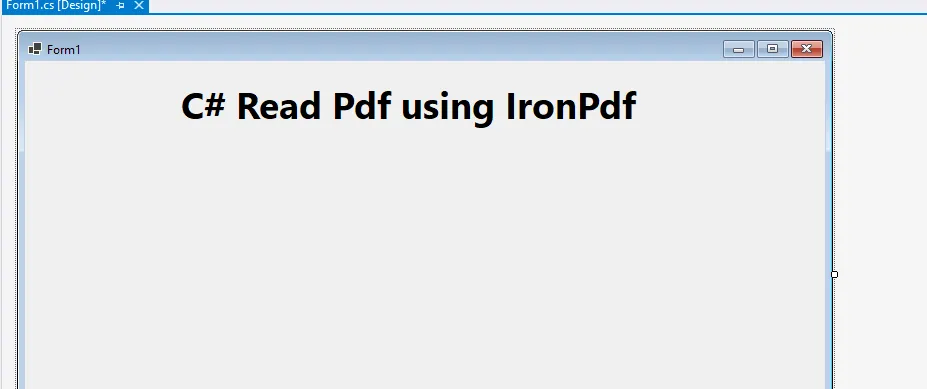
Wyszukaj "Etykieta", a następnie przeciągnij i upuść ją do Projekt Design.
Nazwij etykietę. Tutaj nazwałem ją "C# Odczytaj PDF przy użyciu IronPDF".
Interfejs użytkownika Form1 z dodaną etykietą
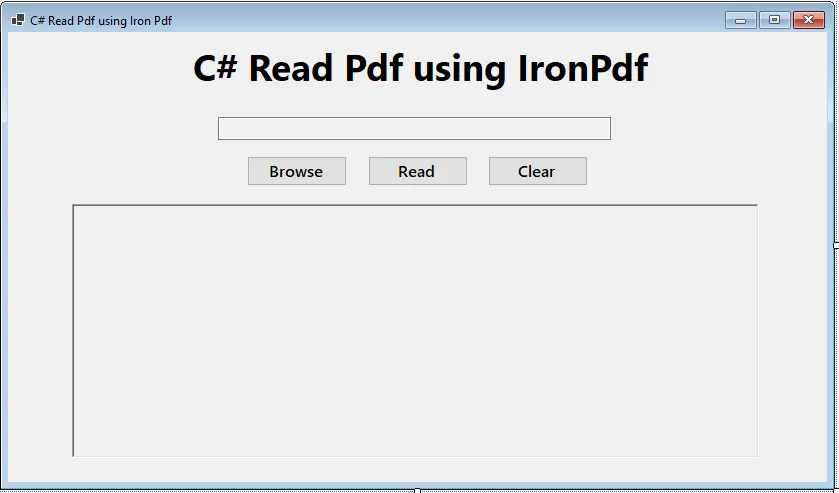
Następnie przeciągnij i upuść jedno pole tekstowe (do pokazania ścieżki do pliku), trzy przyciski (jeden do przeglądania plików, jeden do czytania plików PDF przy użyciu IronPDF i trzeci przycisk do "Wyczyść pole Tekstowe"), oraz jeden RichTextBox (do czytania i wyświetlania zawartości pliku).
Ustaw właściwość "Read Only" dla TextBox i RichTextBox na "False". To umożliwi użytkownikowi tylko czytać zawartość i ścieżki do plików.
w pełni zaprojektowany Form1
Step #4: Add the Back-end Code for Browsing PDF Files
Dwukrotnie kliknij "Przeglądaj" i pojawi się następne okno:
Private Sub Browse_Click(ByVal sender AsObject, ByVal e AsEventArgs)End Sub
Private Sub Browse_Click(ByVal sender As Object, ByVal e As EventArgs)
End Sub
Następnie napisz następujący kod wewnątrz funkcji Browse_Click:
private voidBrowse_Click(object sender, EventArgs e){ // Initialize and configure OpenFileDialog OpenFileDialog browseFile = new OpenFileDialog {InitialDirectory = @"D:\",Title = "Browse Pdf Files",CheckFileExists = true,CheckPathExists = true,DefaultExt = "pdf",Filter = "pdf files (*.pdf)|*.pdf",FilterIndex = 2,RestoreDirectory = true,ReadOnlyChecked = true,ShowReadOnly = true }; // Show the dialog and get result if (browseFile.ShowDialog() == DialogResult.OK) { // Set the text box with the selected file pathFilePath.Text = browseFile.FileName; }}
private void Browse_Click(object sender, EventArgs e)
{
    // Initialize and configure OpenFileDialog
    OpenFileDialog browseFile = new OpenFileDialog
    {
        InitialDirectory = @"D:\",
        Title = "Browse Pdf Files",
        CheckFileExists = true,
        CheckPathExists = true,
        DefaultExt = "pdf",
        Filter = "pdf files (*.pdf)|*.pdf",
        FilterIndex = 2,
        RestoreDirectory = true,
        ReadOnlyChecked = true,
        ShowReadOnly = true
    };

    // Show the dialog and get result
    if (browseFile.ShowDialog() == DialogResult.OK)
    {
        // Set the text box with the selected file path
        FilePath.Text = browseFile.FileName;
    }
}
Private Sub Browse_Click(ByVal sender AsObject, ByVal e AsEventArgs) ' Initialize and configure OpenFileDialog Dim browseFile As New OpenFileDialogWith { .InitialDirectory = "D:\", .Title = "Browse Pdf Files", .CheckFileExists = True, .CheckPathExists = True, .DefaultExt = "pdf", .Filter = "pdf files (*.pdf)|*.pdf", .FilterIndex = 2, .RestoreDirectory = True, .ReadOnlyChecked = True, .ShowReadOnly = True } ' Show the dialog and get result If browseFile.ShowDialog() = DialogResult.OKThen ' Set the text box with the selected file pathFilePath.Text = browseFile.FileName End IfEnd Sub
Private Sub Browse_Click(ByVal sender As Object, ByVal e As EventArgs)
	' Initialize and configure OpenFileDialog
	Dim browseFile As New OpenFileDialog With {
		.InitialDirectory = "D:\",
		.Title = "Browse Pdf Files",
		.CheckFileExists = True,
		.CheckPathExists = True,
		.DefaultExt = "pdf",
		.Filter = "pdf files (*.pdf)|*.pdf",
		.FilterIndex = 2,
		.RestoreDirectory = True,
		.ReadOnlyChecked = True,
		.ShowReadOnly = True
	}

	' Show the dialog and get result
	If browseFile.ShowDialog() = DialogResult.OK Then
		' Set the text box with the selected file path
		FilePath.Text = browseFile.FileName
	End If
End Sub
OpenFileDialog tworzy instancję kontrolki File Dialog aplikacji Windows Forms App.
Ustawiłem początkową ścieżkę na dysk D; można ustawić dowolną.
Ustawiłem DefaultExt = "pdf", ponieważ musimy jedynie przeczytać plik PDF.
Użyłem filtru, który spowoduje, że okno dialogowe przeglądania plików pokaże tylko plik PDF do wyboru.
Kiedy użytkownik kliknie "Ok", zostanie wyświetlona ścieżka do pliku w polu Ścieżka do Pliku.
Uruchommy rozwiązanie i przetestujmy przycisk "Przeglądaj".
Interfejs użytkownika Form1
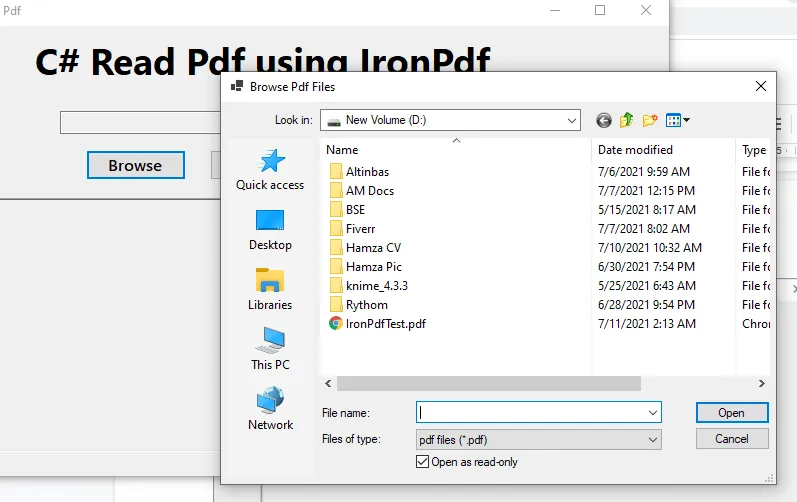
Naciśnij przycisk "Przeglądaj" i pojawi się następne okno:
dialog Przeglądaj Plik do wyboru pliku PDF
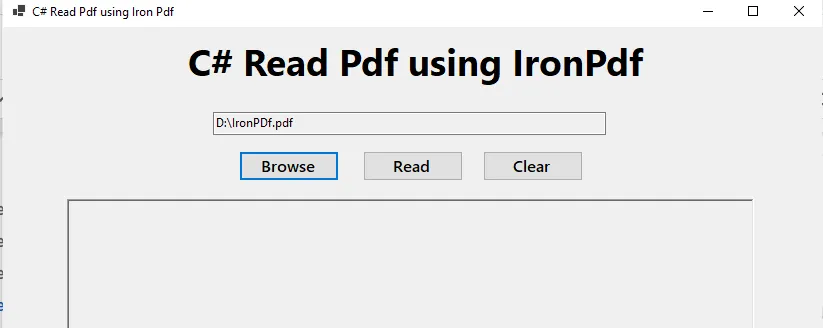
Wybierz plik (wybieram IronPDFTest.pdf) i naciśnij "Otwórz". Pojawi się następujące okno.
PDF w C#
Teraz napiszmy kod za przyciskiem "Read" do odczytania pliku.
Step #5: Add the Back-end Code for Reading PDF Documents using IronPDF
Może myślisz, że kod do czytania pliku PDF będzie skomplikowany i trudny do napisania i zrozumienia.
Nie martw się. IronPDF upraszcza wszystko i sprawia, że to bardzo proste. Możemy łatwo odczytać plik PDF za pomocą tylko dwóch linii kodu.
Przejdź do Projekt Design Form1 i "dwukrotnie kliknij" na przycisk "Czytaj". Pojawi się następujące okno:
Private Sub Read_Click(ByVal sender AsObject, ByVal e AsEventArgs)End Sub
Private Sub Read_Click(ByVal sender As Object, ByVal e As EventArgs)
End Sub
Dodaj przestrzeń nazw using IronPdf, aby zaimportować bibliotekę IronPDF:
using System;using IronPdf;
using System;
using IronPdf;
ImportsSystemImportsIronPdf
Imports System
Imports IronPdf
Napisz następujący kod wewnątrz funkcji Read_Click:
private voidRead_Click(object sender, EventArgs e){ // Read the PDF file using IronPdf using PdfDocument pdf = PdfDocument.FromFile(FilePath.Text); // Extract and display the text from the PDFFileContent.Text = pdf.ExtractAllText(); }
private void Read_Click(object sender, EventArgs e)
{
    // Read the PDF file using IronPdf
    using PdfDocument pdf = PdfDocument.FromFile(FilePath.Text);

    // Extract and display the text from the PDF
    FileContent.Text = pdf.ExtractAllText();
}
Private Sub Read_Click(sender AsObject, e AsEventArgs) HandlesMyBase.Click ' Read the PDF file using IronPdfUsing pdf AsPdfDocument = PdfDocument.FromFile(FilePath.Text) ' Extract and display the text from the PDFFileContent.Text = pdf.ExtractAllText()EndUsingEnd Sub
Private Sub Read_Click(sender As Object, e As EventArgs) Handles MyBase.Click
    ' Read the PDF file using IronPdf
    Using pdf As PdfDocument = PdfDocument.FromFile(FilePath.Text)
        ' Extract and display the text from the PDF
        FileContent.Text = pdf.ExtractAllText()
    End Using
End Sub
FilePath to nazwa pola tekstowego wyświetlającego lokalizację dokumentu PDF, który chcemy przeczytać. Lokalizację pliku otrzymamy dynamicznie.
ExtractAllText przy użyciu IronPDF jest funkcją IronPDF, która wyodrębnia wszystkie dane z PDF. Dane te zostaną wyświetlone w RichTextBox i nazwane jako "Zawartość Pliku".
Następnie napiszmy kod za "Przycisk Wyczyść". To tylko dodatkowy przedmiot, jeśli chcesz wyczyścić ekran po przeczytaniu dokumentu PDF.
Dwukrotnie kliknij "Przycisk Wyczyść", a zostaniesz przeniesiony do następującego kodu:
voidClear_Click(object sender, EventArgs e){}
void Clear_Click(object sender, EventArgs e)
{
}
Private Sub Clear_Click(ByVal sender AsObject, ByVal e AsEventArgs)End Sub
Private Sub Clear_Click(ByVal sender As Object, ByVal e As EventArgs)
End Sub
Napisz następujący kod wewnątrz funkcji Clear_Click:
voidClear_Click(object sender, EventArgs e){ // Clear the file path and content display fieldsFileContent.Text = "";FilePath.Text = "";}
Private Sub Clear_Click(ByVal sender AsObject, ByVal e AsEventArgs) ' Clear the file path and content display fieldsFileContent.Text = ""FilePath.Text = ""End Sub
Private Sub Clear_Click(ByVal sender As Object, ByVal e As EventArgs)
	' Clear the file path and content display fields
	FileContent.Text = ""
	FilePath.Text = ""
End Sub
Uruchom Rozwiązanie
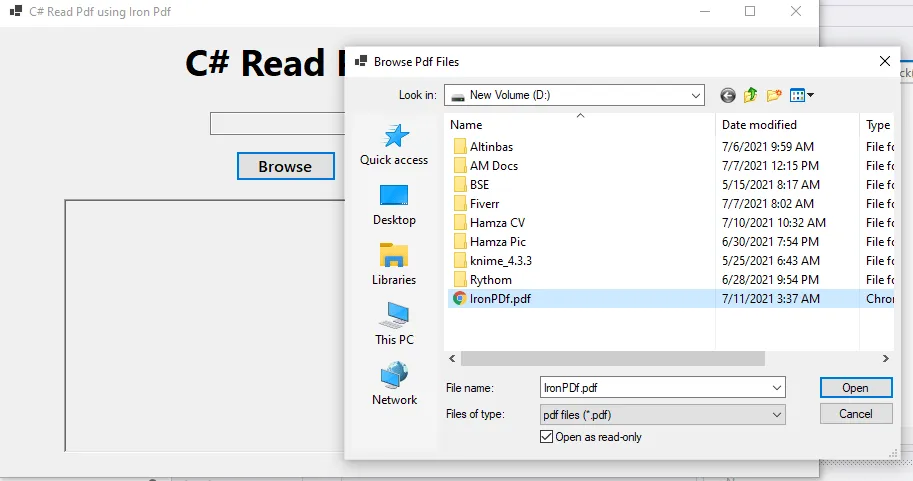
Kliknij przycisk "Przeglądaj" i wybierz dokument, który chcesz przeczytać. W moim przypadku czytam plik IronPDF.pdf jako przykład:
dokumenty PDF
Naciśnij przycisk "Otwórz" i pojawi się następujące okno:
Aplikacja z wybranym plikiem PDF
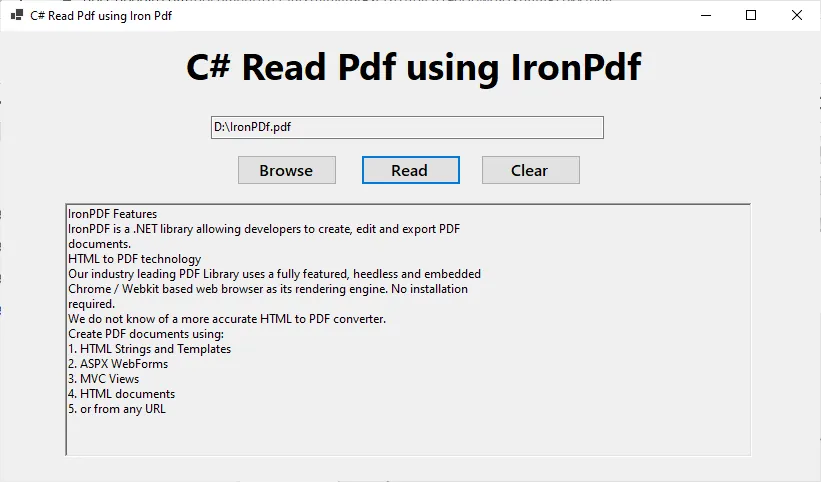
Naciśnij przycisk "Czytaj". Odczyta plik i wyświetli zawartość, jak pokazano poniżej.
Wyświetl tekst zawartości PDF
Podsumowanie
To jest przykładowe rozwiązanie. Bez względu na to, ile stron, obrazów czy tekstu znajduje się w twoich plikach PDF, IronPDF wyodrębni wszystkie teksty i obrazy do twojego użycia w dowolnym celu. Po prostu musisz zdobyć licencję na bibliotekę i zacząć jej używać.
To kończy tutorial. Mam nadzieję, że wszystko zrozumiałeś, a jeśli masz jakieś pytania, nie krępuj się zamieścić ich w sekcji komentarzy.
Możesz pobrać plik zip projektu. Jeśli chcesz kupić cały pakiet produktów Iron Software, nasza specjalna oferta oznacza, że teraz możesz zakupić wszystkie za cenę zaledwie dwóch licencji Lite.
Curtis Chau posiada tytuł licencjata z informatyki (Uniwersytet Carleton) i specjalizuje się w front-endowym rozwoju, z ekspertką w Node.js, TypeScript, JavaScript i React. Pasjonuje się tworzeniem intuicyjnych i estetycznie przyjemnych interfejsów użytkownika, Curtis cieszy się pracą z nowoczesnymi frameworkami i tworzeniem dobrze zorganizowanych, atrakcyjnych wizualnie podręczników.





 Stwórz nowy projekt
 Konfiguracja projektu przez Visual Studio
 Wersja .NET Core 3.1
 Początkowy etap nowej aplikacji Windows Forms
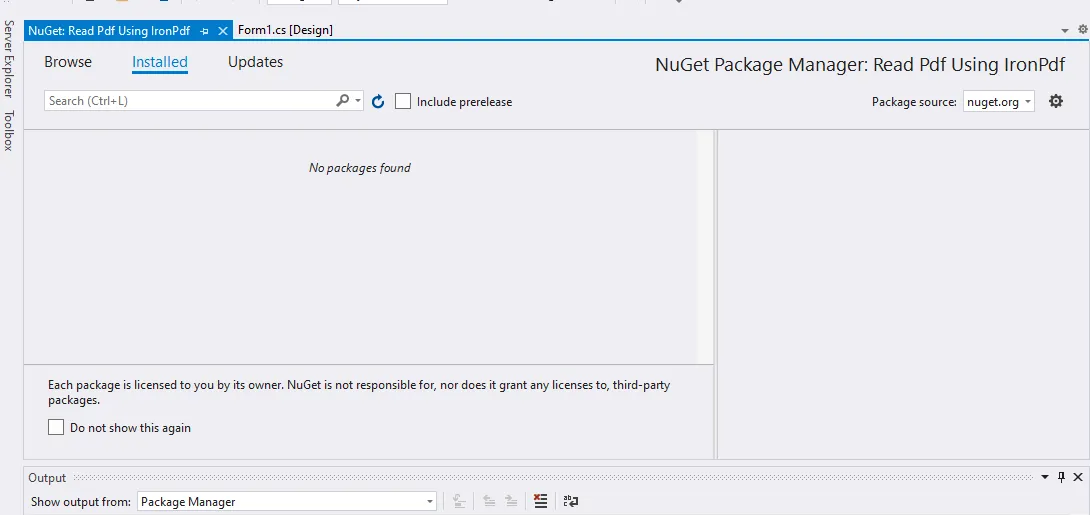 Menedżer pakietów NuGet
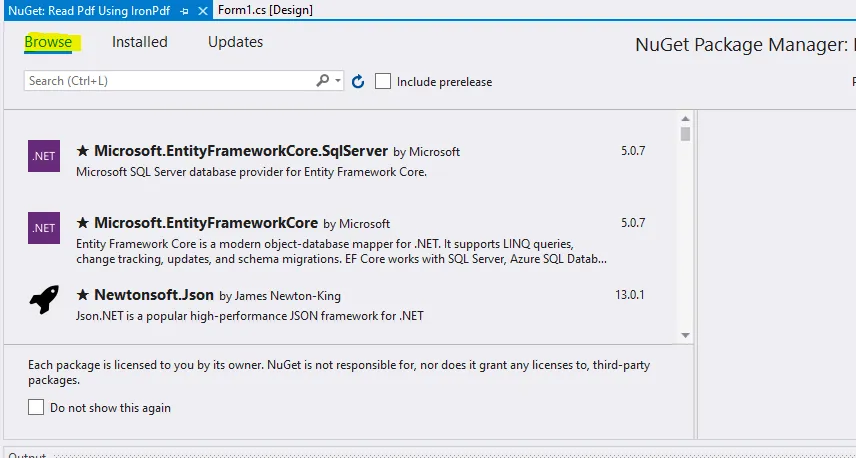 Interfejs użytkownika menedżera pakietów NuGet
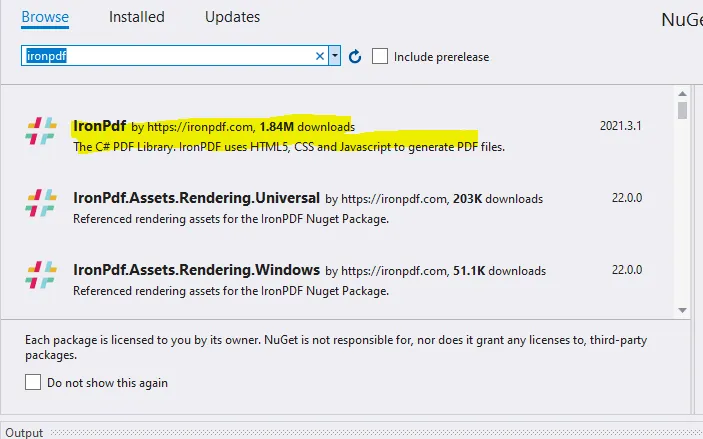 Rozwiązanie NuGet
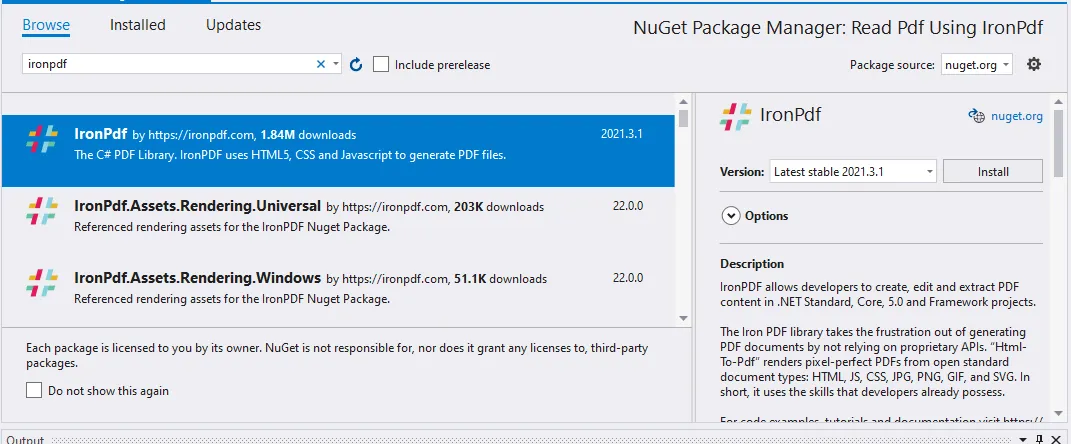 Zainstaluj darmowy IronPDF
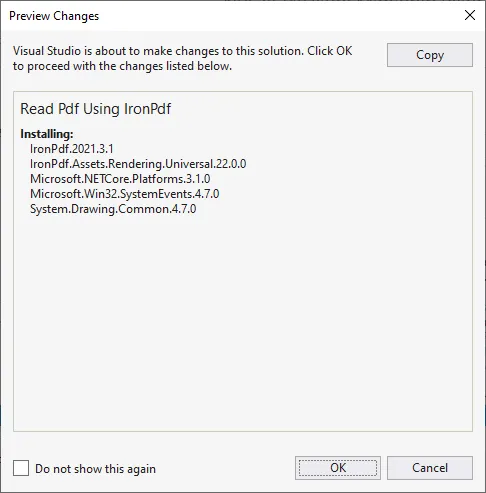 IronPDF for .NET
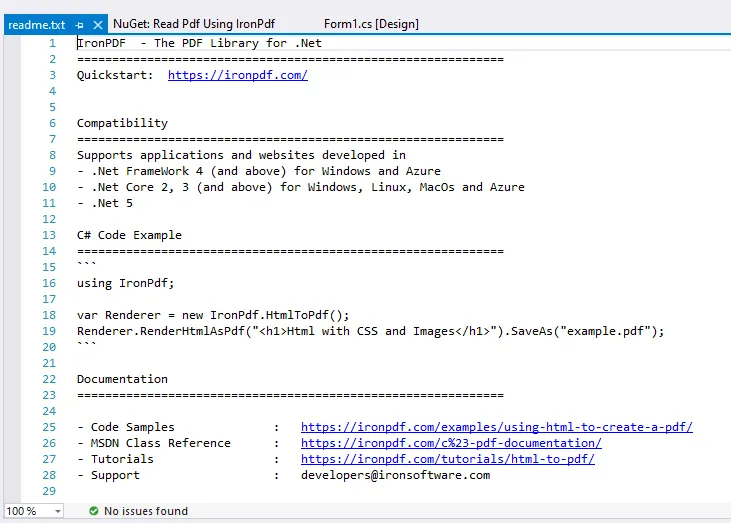 plik readme IronPDF z przykładowym kodem
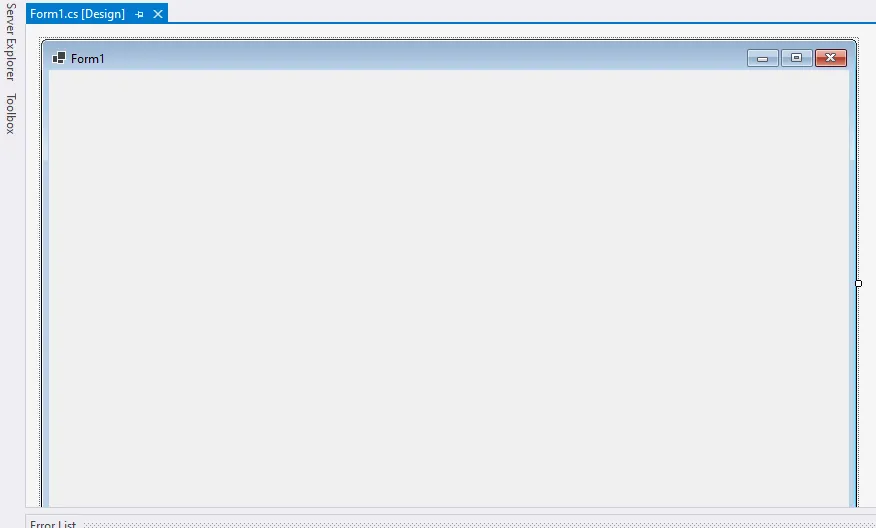 Interfejs użytkownika Design Form1
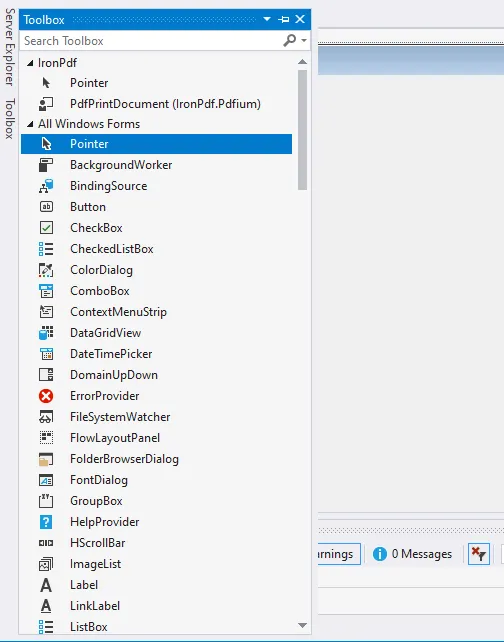 Interfejs użytkownika Toolbox dla etykiety i TextBox
 Interfejs użytkownika Form1 z dodaną etykietą
 w pełni zaprojektowany Form1
 dialog Przeglądaj Plik do wyboru pliku PDF
 PDF w C#
 dokumenty PDF
 Wyświetl tekst zawartości PDF

















