Bu makale, C#'taki FileStream sınıfına ve dosyalar üzerinde okuma ve yazma işlemlerini gerçekleştirmenize nasıl yardımcı olduğuna odaklanacaktır. Pratik örnekleri inceleyeceğiz, FileStream'in temel olarak nasıl çalıştığını anlayacağız ve dosya verilerini verimli bir şekilde yönetmeyi öğreneceğiz. Bu kılavuz, C#'ta dosya işlemlerine yeni başlayanlara yöneliktir, bu nedenle dil, C# ve IronPDF kütüphanesine giriş yapılırken, yeni başlayanlar için uygun kalırken dosyalarla çalışma konusunda ayrıntılı talimatlar sunacaktır.
FileStream Nedir?
C#'taki FileStream sınıfı, baytlar kullanarak dosyaları yönetmenin bir yolunu sağlar. Dosyalar üzerinde okuma ve yazma işlemleri ile çalışır, dosya içeriğiyle doğrudan etkileşimde bulunmanıza olanak tanır. Bu, özellikle bayt dizilerini işlerken giriş/çıkış görevlerinde dosyalarla çalışırken özellikle yararlıdır.
FileStream Kullanım Durumları
FileStream şunlar için idealdir:
- Dosyalardan veya dosyalara doğrudan ikili veri okuma ve yazma.
- Büyük dosyaları verimli bir şekilde yönetme.
- Asenkron dosya işlemlerini gerçekleştirme.
- Belleği verimli kullanarak sistem kaynaklarını yönetme.
Temel Örnek
İşte bir dosyayı açma, veri yazma ve sonra FileStream kullanarak okuma işlemini gösteren basit bir örnek:
using System;
using System.IO;

public class Example
{
    public static void Main()
    {
        string path = "example.txt";

        // Creating a FileStream object to handle the file. The file handle is acquired here.
        using (FileStream fileStream = new FileStream(path, FileMode.Create, FileAccess.Write))
        {
            byte[] data = System.Text.Encoding.UTF8.GetBytes("Hello, FileStream!");
            // Write data to file
            fileStream.Write(data, 0, data.Length);
        }

        // Read from the file
        using (FileStream fileStream = new FileStream(path, FileMode.Open, FileAccess.Read))
        {
            byte[] buffer = new byte[1024];
            int bytesRead = fileStream.Read(buffer, 0, buffer.Length);
            string text = System.Text.Encoding.UTF8.GetString(buffer, 0, bytesRead);
            Console.WriteLine(text);
        }
    }
}
using System;
using System.IO;

public class Example
{
    public static void Main()
    {
        string path = "example.txt";

        // Creating a FileStream object to handle the file. The file handle is acquired here.
        using (FileStream fileStream = new FileStream(path, FileMode.Create, FileAccess.Write))
        {
            byte[] data = System.Text.Encoding.UTF8.GetBytes("Hello, FileStream!");
            // Write data to file
            fileStream.Write(data, 0, data.Length);
        }

        // Read from the file
        using (FileStream fileStream = new FileStream(path, FileMode.Open, FileAccess.Read))
        {
            byte[] buffer = new byte[1024];
            int bytesRead = fileStream.Read(buffer, 0, buffer.Length);
            string text = System.Text.Encoding.UTF8.GetString(buffer, 0, bytesRead);
            Console.WriteLine(text);
        }
    }
}
Imports System
Imports System.IO
Public Class Example
Public Shared Sub Main()
Dim path As String = "example.txt"
' Creating a FileStream object to handle the file. The file handle is acquired here.
Using fileStream As New FileStream(path, FileMode.Create, FileAccess.Write)
Dim data As Byte() = System.Text.Encoding.UTF8.GetBytes("Hello, FileStream!")
' Write data to file
fileStream.Write(data, 0, data.Length)
End Using
' Read from the file
Using fileStream As New FileStream(path, FileMode.Open, FileAccess.Read)
Dim buffer As Byte() = New Byte(1023) {}
Dim bytesRead As Integer = fileStream.Read(buffer, 0, buffer.Length)
Dim text As String = System.Text.Encoding.UTF8.GetString(buffer, 0, bytesRead)
Console.WriteLine(text)
End Using
End Sub
End Class
Imports System
Imports System.IO

Public Class Example
    Public Shared Sub Main()
        Dim path As String = "example.txt"

        ' Creating a FileStream object to handle the file. The file handle is acquired here.
        Using fileStream As New FileStream(path, FileMode.Create, FileAccess.Write)
            Dim data As Byte() = System.Text.Encoding.UTF8.GetBytes("Hello, FileStream!")
            ' Write data to file
            fileStream.Write(data, 0, data.Length)
        End Using

        ' Read from the file
        Using fileStream As New FileStream(path, FileMode.Open, FileAccess.Read)
            Dim buffer As Byte() = New Byte(1023) {}
            Dim bytesRead As Integer = fileStream.Read(buffer, 0, buffer.Length)
            Dim text As String = System.Text.Encoding.UTF8.GetString(buffer, 0, bytesRead)
            Console.WriteLine(text)
        End Using
    End Sub
End Class
Bu örnek, dosya okuma ve yazma işlemlerini yönetmek için bir FileStream nesnesi oluşturmayı göstermektedir. FileStream sınıfı baytları doğrudan okur ve yazar, bu da onu büyük dosyalar veya ikili verilerle çalışmak için uygun hale getirir. Metin ve baytlar arasında dönüştürmek için Encoding kullandık.
FileStream ile Veri Yazma
Bir dosyaya veri yazmak için Yazma (Write) yöntemini kullanacaksınız. İşte bunun nasıl çalıştığını daha ayrıntılı açıklayan bir örnek:
using System;
using System.IO;

public class FileWriteExample
{
    public static void Main()
    {
        string path = "output.txt";

        // Creating a FileStream object to write data to the file
        using (FileStream fileStream = new FileStream(path, FileMode.Create, FileAccess.Write))
        {
            byte[] buffer = System.Text.Encoding.UTF8.GetBytes("Writing data to FileStream.");
            int offset = 0;
            int count = buffer.Length;

            // Writing data to the file
            fileStream.Write(buffer, offset, count);
        }
    }
}
using System;
using System.IO;

public class FileWriteExample
{
    public static void Main()
    {
        string path = "output.txt";

        // Creating a FileStream object to write data to the file
        using (FileStream fileStream = new FileStream(path, FileMode.Create, FileAccess.Write))
        {
            byte[] buffer = System.Text.Encoding.UTF8.GetBytes("Writing data to FileStream.");
            int offset = 0;
            int count = buffer.Length;

            // Writing data to the file
            fileStream.Write(buffer, offset, count);
        }
    }
}
Imports System
Imports System.IO
Public Class FileWriteExample
Public Shared Sub Main()
Dim path As String = "output.txt"
' Creating a FileStream object to write data to the file
Using fileStream As New FileStream(path, FileMode.Create, FileAccess.Write)
Dim buffer As Byte() = System.Text.Encoding.UTF8.GetBytes("Writing data to FileStream.")
Dim offset As Integer = 0
Dim count As Integer = buffer.Length
' Writing data to the file
fileStream.Write(buffer, offset, count)
End Using
End Sub
End Class
Imports System
Imports System.IO

Public Class FileWriteExample
    Public Shared Sub Main()
        Dim path As String = "output.txt"

        ' Creating a FileStream object to write data to the file
        Using fileStream As New FileStream(path, FileMode.Create, FileAccess.Write)
            Dim buffer As Byte() = System.Text.Encoding.UTF8.GetBytes("Writing data to FileStream.")
            Dim offset As Integer = 0
            Dim count As Integer = buffer.Length

            ' Writing data to the file
            fileStream.Write(buffer, offset, count)
        End Using
    End Sub
End Class
Bu kodda, bir dizeyi UTF8 kodlaması kullanarak bir bayt dizisine dönüştürüyoruz. Yazma (Write) yöntemi, bayt dizisini dosyadaki mevcut konumdan (ofset tarafından belirlenir) başlayarak belirtilen bayt sayısını yazar.
- FileMode.Create, aynı ada sahip olan herhangi bir mevcut dosya üzerine yazarak yeni bir dosya oluşturur.
- FileAccess.Write, FileStream'e yazma izinleri verir.
FileStream ile Veri Okuma
Şimdi, FileStream kullanarak bir dosyadan veri okumanın nasıl yapılacağını inceleyelim.
using System;
using System.IO;

public class FileReadExample
{
    public static void Main()
    {
        // File path
        string path = "output.txt";

        // File Stream Object
        using (FileStream fileStream = new FileStream(path, FileMode.Open, FileAccess.Read))
        {
            byte[] buffer = new byte[1024];
            int bytesRead = fileStream.Read(buffer, 0, buffer.Length);
            // Output Stream
            string output = System.Text.Encoding.UTF8.GetString(buffer, 0, bytesRead);
            Console.WriteLine(output);
        }
    }
}
using System;
using System.IO;

public class FileReadExample
{
    public static void Main()
    {
        // File path
        string path = "output.txt";

        // File Stream Object
        using (FileStream fileStream = new FileStream(path, FileMode.Open, FileAccess.Read))
        {
            byte[] buffer = new byte[1024];
            int bytesRead = fileStream.Read(buffer, 0, buffer.Length);
            // Output Stream
            string output = System.Text.Encoding.UTF8.GetString(buffer, 0, bytesRead);
            Console.WriteLine(output);
        }
    }
}
Imports System
Imports System.IO
Public Class FileReadExample
Public Shared Sub Main()
' File path
Dim path As String = "output.txt"
' File Stream Object
Using fileStream As New FileStream(path, FileMode.Open, FileAccess.Read)
Dim buffer(1023) As Byte
Dim bytesRead As Integer = fileStream.Read(buffer, 0, buffer.Length)
' Output Stream
Dim output As String = System.Text.Encoding.UTF8.GetString(buffer, 0, bytesRead)
Console.WriteLine(output)
End Using
End Sub
End Class
Imports System
Imports System.IO

Public Class FileReadExample
	Public Shared Sub Main()
		' File path
		Dim path As String = "output.txt"

		' File Stream Object
		Using fileStream As New FileStream(path, FileMode.Open, FileAccess.Read)
			Dim buffer(1023) As Byte
			Dim bytesRead As Integer = fileStream.Read(buffer, 0, buffer.Length)
			' Output Stream
			Dim output As String = System.Text.Encoding.UTF8.GetString(buffer, 0, bytesRead)
			Console.WriteLine(output)
		End Using
	End Sub
End Class
Bu örnekte:
- FileMode.Open, mevcut bir dosyayı açar.
- Okuma (Read) yöntemi, belirli bir bayt sayısını (tampon boyutuna göre belirlenir) okur ve bunları bayt dizisi tamponuna depolar.
- Bayt verilerini tekrar bir string'e dönüştürmek için
Encoding.UTF8.GetString kullanırız.
FileStream ile Dosya Erişimini Yönetme
FileStream sınıfı, dosyaların erişimini kontrol eder ve ince ayarlı dosya tutamaçları ve sistem kaynakları yönetimi sağlar. FileStream kullanırken, stream'in kullanım sonrasında uygun şekilde temizlenmesi önemlidir; ya Close() manuel çağırılarak ya da stream otomatik olarak temizleyen using ifadesi kullanılarak.
Dosya Konumunu Yönetme
Bir dosyayı okuduğunuzda ya da yazdığınızda, FileStream dosya içindeki güncel konumu takip eder. Bu konuma Position özelliği kullanarak erişebilirsiniz:
fileStream.Position = 0; // Move to the beginning of the file
fileStream.Position = 0; // Move to the beginning of the file
fileStream.Position = 0 ' Move to the beginning of the file
fileStream.Position = 0 ' Move to the beginning of the file
Asenkron İşlemler İçin FileStream Kullanma
FileStream, başka işlemlerin dosya işlemleri gerçekleştirilirken çalışmasına izin vererek performansı artıran asenkron okuma ve yazma işlemleri için kullanılabilir. İşte asenkron okumayı gösteren temel bir örnek:
using System;
using System.IO;
using System.Threading.Tasks;

public class AsyncReadExample
{
    public static async Task Main()
    {
        // Specified Path
        string path = "output.txt";

        using (FileStream fileStream = new FileStream(path, FileMode.Open, FileAccess.Read, FileShare.None, 4096, true))
        {
            byte[] buffer = new byte[1024];
            int bytesRead = await fileStream.ReadAsync(buffer, 0, buffer.Length);
            string result = System.Text.Encoding.UTF8.GetString(buffer, 0, bytesRead);
            Console.WriteLine(result);
        }
    }
}
using System;
using System.IO;
using System.Threading.Tasks;

public class AsyncReadExample
{
    public static async Task Main()
    {
        // Specified Path
        string path = "output.txt";

        using (FileStream fileStream = new FileStream(path, FileMode.Open, FileAccess.Read, FileShare.None, 4096, true))
        {
            byte[] buffer = new byte[1024];
            int bytesRead = await fileStream.ReadAsync(buffer, 0, buffer.Length);
            string result = System.Text.Encoding.UTF8.GetString(buffer, 0, bytesRead);
            Console.WriteLine(result);
        }
    }
}
Imports System
Imports System.IO
Imports System.Threading.Tasks
Public Class AsyncReadExample
Public Shared Async Function Main() As Task
' Specified Path
Dim path As String = "output.txt"
Using fileStream As New FileStream(path, FileMode.Open, FileAccess.Read, FileShare.None, 4096, True)
Dim buffer(1023) As Byte
Dim bytesRead As Integer = Await fileStream.ReadAsync(buffer, 0, buffer.Length)
Dim result As String = System.Text.Encoding.UTF8.GetString(buffer, 0, bytesRead)
Console.WriteLine(result)
End Using
End Function
End Class
Imports System
Imports System.IO
Imports System.Threading.Tasks

Public Class AsyncReadExample
    Public Shared Async Function Main() As Task
        ' Specified Path
        Dim path As String = "output.txt"

        Using fileStream As New FileStream(path, FileMode.Open, FileAccess.Read, FileShare.None, 4096, True)
            Dim buffer(1023) As Byte
            Dim bytesRead As Integer = Await fileStream.ReadAsync(buffer, 0, buffer.Length)
            Dim result As String = System.Text.Encoding.UTF8.GetString(buffer, 0, bytesRead)
            Console.WriteLine(result)
        End Using
    End Function
End Class
ReadAsync metodu, verileri asenkron olarak okur. FileAccess.Read ve FileMode.Open parametreleri, dosyaya nasıl erişileceğini kontrol eder.
Hata İşleme Örneği
FileStream ile çalışırken, yürütme hatalarını önlemek ve sistem kaynaklarını doğru şekilde yönetmek için hata işleme oldukça önemlidir. Dosyalara okurken veya yazarken hata işlemek için bir desen:
using System;
using System.IO;

public class ExceptionHandlingExample
{
    public static void Main()
    {
        string path = "nonexistentfile.txt";

        try
        {
            using (FileStream fileStream = new FileStream(path, FileMode.Open, FileAccess.Read))
            {
                byte[] buffer = new byte[1024];
                int bytesRead = fileStream.Read(buffer, 0, buffer.Length);
                Console.WriteLine("Bytes Read: " + bytesRead);
            }
        }
        catch (FileNotFoundException e)
        {
            Console.WriteLine($"Exception: {e.Message}");
        }
    }
}
using System;
using System.IO;

public class ExceptionHandlingExample
{
    public static void Main()
    {
        string path = "nonexistentfile.txt";

        try
        {
            using (FileStream fileStream = new FileStream(path, FileMode.Open, FileAccess.Read))
            {
                byte[] buffer = new byte[1024];
                int bytesRead = fileStream.Read(buffer, 0, buffer.Length);
                Console.WriteLine("Bytes Read: " + bytesRead);
            }
        }
        catch (FileNotFoundException e)
        {
            Console.WriteLine($"Exception: {e.Message}");
        }
    }
}
Imports System
Imports System.IO
Public Class ExceptionHandlingExample
Public Shared Sub Main()
Dim path As String = "nonexistentfile.txt"
Try
Using fileStream As New FileStream(path, FileMode.Open, FileAccess.Read)
Dim buffer(1023) As Byte
Dim bytesRead As Integer = fileStream.Read(buffer, 0, buffer.Length)
Console.WriteLine("Bytes Read: " & bytesRead)
End Using
Catch e As FileNotFoundException
Console.WriteLine($"Exception: {e.Message}")
End Try
End Sub
End Class
Imports System
Imports System.IO

Public Class ExceptionHandlingExample
    Public Shared Sub Main()
        Dim path As String = "nonexistentfile.txt"

        Try
            Using fileStream As New FileStream(path, FileMode.Open, FileAccess.Read)
                Dim buffer(1023) As Byte
                Dim bytesRead As Integer = fileStream.Read(buffer, 0, buffer.Length)
                Console.WriteLine("Bytes Read: " & bytesRead)
            End Using
        Catch e As FileNotFoundException
            Console.WriteLine($"Exception: {e.Message}")
        End Try
    End Sub
End Class
FileStream sınıfı, özellikle büyük dosyalarla çalışırken daha hızlı performans sağlamak amacıyla bir tamponlama mekanizması içerir. Bir tampon kullanarak, veriler geçici olarak bellekte depolanır, devamlı disk erişim ihtiyacını azaltır.
using System;
using System.IO;

public class BufferingExample
{
    public static void Main()
    {
        string path = "bufferedfile.txt";
        byte[] data = System.Text.Encoding.UTF8.GetBytes("Buffered FileStream example.");

        using (FileStream fileStream = new FileStream(path, FileMode.Create, FileAccess.Write, FileShare.None, 4096, FileOptions.WriteThrough))
        {
            fileStream.Write(data, 0, data.Length);
        }
    }
}
using System;
using System.IO;

public class BufferingExample
{
    public static void Main()
    {
        string path = "bufferedfile.txt";
        byte[] data = System.Text.Encoding.UTF8.GetBytes("Buffered FileStream example.");

        using (FileStream fileStream = new FileStream(path, FileMode.Create, FileAccess.Write, FileShare.None, 4096, FileOptions.WriteThrough))
        {
            fileStream.Write(data, 0, data.Length);
        }
    }
}
Imports System
Imports System.IO
Public Class BufferingExample
Public Shared Sub Main()
Dim path As String = "bufferedfile.txt"
Dim data As Byte() = System.Text.Encoding.UTF8.GetBytes("Buffered FileStream example.")
Using fileStream As New FileStream(path, FileMode.Create, FileAccess.Write, FileShare.None, 4096, FileOptions.WriteThrough)
fileStream.Write(data, 0, data.Length)
End Using
End Sub
End Class
Imports System
Imports System.IO

Public Class BufferingExample
    Public Shared Sub Main()
        Dim path As String = "bufferedfile.txt"
        Dim data As Byte() = System.Text.Encoding.UTF8.GetBytes("Buffered FileStream example.")

        Using fileStream As New FileStream(path, FileMode.Create, FileAccess.Write, FileShare.None, 4096, FileOptions.WriteThrough)
            fileStream.Write(data, 0, data.Length)
        End Using
    End Sub
End Class
Burada, FileOptions.WriteThrough, verilerin ek bir tamponlamaya gerek kalmadan doğrudan dosyaya yazılmasını sağlar. Ancak, performansı ayarlamak için tampon boyutunu kontrol edebilirsiniz.
IronPDF Tanıtımı
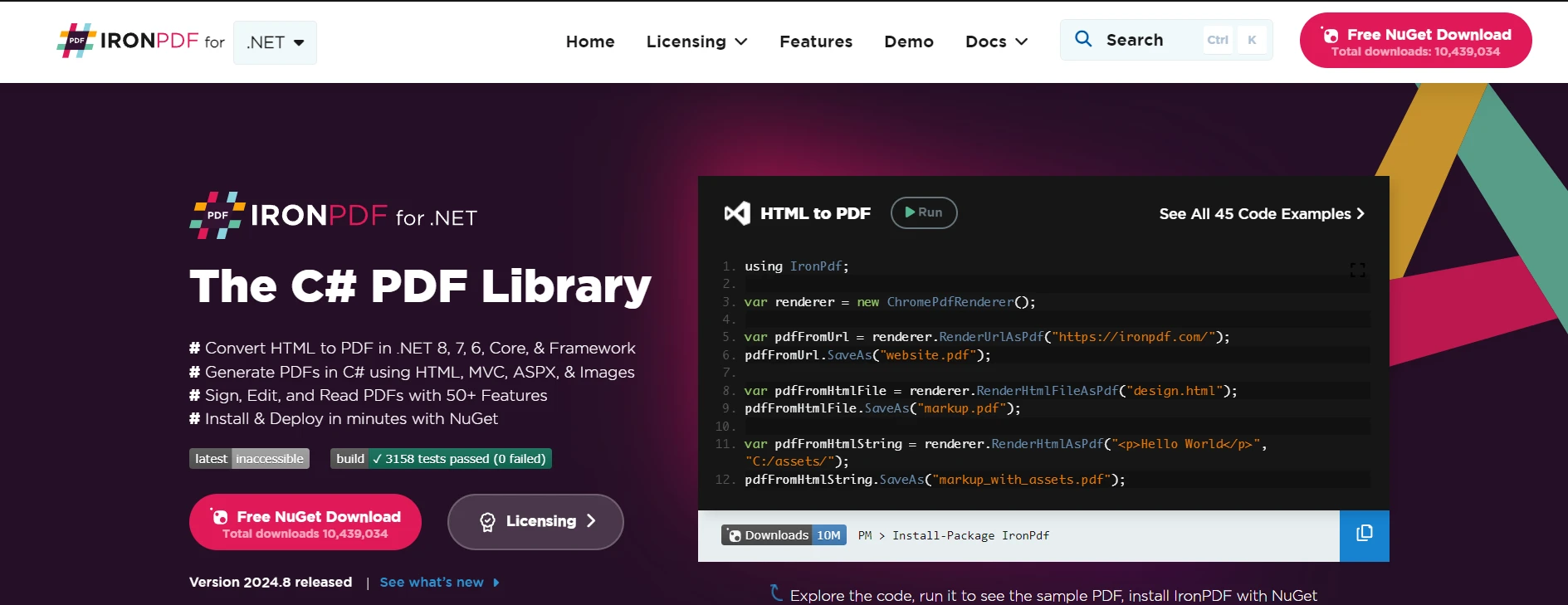
IronPDF, .NET uygulamalarındaki PDF belgelerini oluşturma, düzenleme ve manipüle etme için güçlü bir C# PDF kütüphanesidir. Geliştiriciler, IronPDF kullanarak HTML, resimler ve hatta ham metin gibi çeşitli girdilerden PDF oluşturabilirler. Filigran, birleştirme, bölme ve şifre koruması gibi özelliklerle IronPDF, web ve masaüstü uygulamalarında PDF çıktısını hassas bir kontrol ile ideal hale getirir.
IronPDF ve FileStream
IronPDF kullanarak bir PDF oluşturma ve bunu bir FileStreame kaydetme örneği burada. Bu, IronPDF'in FileStream ile sorunsuz entegrasyonunu ve geliştiricilerin PDF oluşturmayı ve kaydetmeyi programatik olarak kontrol etmelerini sağlar.
using System;
using System.IO;
using IronPdf;

public class IronPDFExample
{
    public static void Main()
    {
        // Define the file path
        string path = "output.pdf";

        // Create an HTML string that we want to convert to PDF
        var htmlContent = "<h1>IronPDF Example</h1><p>This PDF was generated using IronPDF and saved with FileStream.</p>";

        // Initialize IronPDF's ChromePdfRenderer to render HTML as PDF
        var renderer = new ChromePdfRenderer();

        // Generate the PDF from the HTML string
        var pdfDocument = renderer.RenderHtmlAsPdf(htmlContent);

        // Use FileStream to save the generated PDF
        using (FileStream fileStream = new FileStream(path, FileMode.Create, FileAccess.Write))
        {
            pdfDocument.SaveAs(fileStream);
        }

        Console.WriteLine("PDF created and saved successfully.");
    }
}
using System;
using System.IO;
using IronPdf;

public class IronPDFExample
{
    public static void Main()
    {
        // Define the file path
        string path = "output.pdf";

        // Create an HTML string that we want to convert to PDF
        var htmlContent = "<h1>IronPDF Example</h1><p>This PDF was generated using IronPDF and saved with FileStream.</p>";

        // Initialize IronPDF's ChromePdfRenderer to render HTML as PDF
        var renderer = new ChromePdfRenderer();

        // Generate the PDF from the HTML string
        var pdfDocument = renderer.RenderHtmlAsPdf(htmlContent);

        // Use FileStream to save the generated PDF
        using (FileStream fileStream = new FileStream(path, FileMode.Create, FileAccess.Write))
        {
            pdfDocument.SaveAs(fileStream);
        }

        Console.WriteLine("PDF created and saved successfully.");
    }
}
Imports System
Imports System.IO
Imports IronPdf
Public Class IronPDFExample
Public Shared Sub Main()
' Define the file path
Dim path As String = "output.pdf"
' Create an HTML string that we want to convert to PDF
Dim htmlContent = "<h1>IronPDF Example</h1><p>This PDF was generated using IronPDF and saved with FileStream.</p>"
' Initialize IronPDF's ChromePdfRenderer to render HTML as PDF
Dim renderer = New ChromePdfRenderer()
' Generate the PDF from the HTML string
Dim pdfDocument = renderer.RenderHtmlAsPdf(htmlContent)
' Use FileStream to save the generated PDF
Using fileStream As New FileStream(path, FileMode.Create, FileAccess.Write)
pdfDocument.SaveAs(fileStream)
End Using
Console.WriteLine("PDF created and saved successfully.")
End Sub
End Class
Imports System
Imports System.IO
Imports IronPdf

Public Class IronPDFExample
    Public Shared Sub Main()
        ' Define the file path
        Dim path As String = "output.pdf"

        ' Create an HTML string that we want to convert to PDF
        Dim htmlContent = "<h1>IronPDF Example</h1><p>This PDF was generated using IronPDF and saved with FileStream.</p>"

        ' Initialize IronPDF's ChromePdfRenderer to render HTML as PDF
        Dim renderer = New ChromePdfRenderer()

        ' Generate the PDF from the HTML string
        Dim pdfDocument = renderer.RenderHtmlAsPdf(htmlContent)

        ' Use FileStream to save the generated PDF
        Using fileStream As New FileStream(path, FileMode.Create, FileAccess.Write)
            pdfDocument.SaveAs(fileStream)
        End Using

        Console.WriteLine("PDF created and saved successfully.")
    End Sub
End Class
Sonuç
C#'taki FileStream sınıfı, dosya giriş ve çıkışını yönetmek için güçlü işlevsellik sunar. Geliştiricilere, dosya içinde güncel pozisyonu kontrol etme, verileri verimli bir şekilde okuma ve yazma ve bayt dizileri, dosya yolları ve akış yönetiminin nasıl birleştiğini anlama yoluyla asenkron çalışabilme olanağı tanır. IronPDF ile birlikte kullanılan FileStream, geliştiricilere .NET uygulamalarında PDF'leri verimli bir şekilde yönetme esnekliği sağlar. Raporlar oluşturuyor, dosyalar kaydediyor ya da dinamik içerik yönetiyorsanız, bu kombinasyon PDF belgelerini oluşturma ve saklama üzerinde hassas kontrol sunar.
IronPDF, ücretsiz deneme ve $999 lisanslama ücreti sunarak profesyonel PDF oluşturma ihtiyaçları için rekabetçi bir çözüm sunar.













