



Updated April 23, 2026
Bridging CLI Simplicity & .NET : Using Curl DotNet with IronPDF
Jacob Mellor has bridged this gap with CurlDotNet, a library created to bring the familiarity of cURL to the .NET ecosystem.
Read More

This article will focus on the FileStream class in C# and how it helps you perform read and write operations on files. We'll explore practical examples, understand how the FileStream works at its core, and learn how to manage file data efficiently. This guide is aimed at those new to file handling in C#, so the language will remain beginner-friendly while providing detailed instructions on working with files in C# and an introduction to the IronPDF library as well.
The FileStream class in C# provides a way to handle files using bytes. It works with read and write operations on files, allowing you to interact with file contents directly. This is particularly useful when working with files for input/output tasks, especially when manipulating byte arrays.
FileStream is ideal for:
Here's a simple example to open a file, write data, and then read it using FileStream:
using System;
using System.IO;

public class Example
{
    public static void Main()
    {
        string path = "example.txt";

        // Creating a FileStream object to handle the file. The file handle is acquired here.
        using (FileStream fileStream = new FileStream(path, FileMode.Create, FileAccess.Write))
        {
            byte[] data = System.Text.Encoding.UTF8.GetBytes("Hello, FileStream!");
            // Write data to file
            fileStream.Write(data, 0, data.Length);
        }

        // Read from the file
        using (FileStream fileStream = new FileStream(path, FileMode.Open, FileAccess.Read))
        {
            byte[] buffer = new byte[1024];
            int bytesRead = fileStream.Read(buffer, 0, buffer.Length);
            string text = System.Text.Encoding.UTF8.GetString(buffer, 0, bytesRead);
            Console.WriteLine(text);
        }
    }
}Imports System
Imports System.IO
Public Class Example
Public Shared Sub Main()
Dim path As String = "example.txt"
' Creating a FileStream object to handle the file. The file handle is acquired here.
Using fileStream As New FileStream(path, FileMode.Create, FileAccess.Write)
Dim data As Byte() = System.Text.Encoding.UTF8.GetBytes("Hello, FileStream!")
' Write data to file
fileStream.Write(data, 0, data.Length)
End Using
' Read from the file
Using fileStream As New FileStream(path, FileMode.Open, FileAccess.Read)
Dim buffer As Byte() = New Byte(1023) {}
Dim bytesRead As Integer = fileStream.Read(buffer, 0, buffer.Length)
Dim text As String = System.Text.Encoding.UTF8.GetString(buffer, 0, bytesRead)
Console.WriteLine(text)
End Using
End Sub
End ClassThis example demonstrates creating a FileStream object to handle file read and write operations. The FileStream class reads and writes bytes directly, making it suitable for handling large files or binary data. We used Encoding to convert between text and bytes.
To write data to a file, you'll use the Write method. Here's an example that explains how it works in more detail:
using System;
using System.IO;

public class FileWriteExample
{
    public static void Main()
    {
        string path = "output.txt";

        // Creating a FileStream object to write data to the file
        using (FileStream fileStream = new FileStream(path, FileMode.Create, FileAccess.Write))
        {
            byte[] buffer = System.Text.Encoding.UTF8.GetBytes("Writing data to FileStream.");
            int offset = 0;
            int count = buffer.Length;

            // Writing data to the file
            fileStream.Write(buffer, offset, count);
        }
    }
}Imports System
Imports System.IO
Public Class FileWriteExample
Public Shared Sub Main()
Dim path As String = "output.txt"
' Creating a FileStream object to write data to the file
Using fileStream As New FileStream(path, FileMode.Create, FileAccess.Write)
Dim buffer As Byte() = System.Text.Encoding.UTF8.GetBytes("Writing data to FileStream.")
Dim offset As Integer = 0
Dim count As Integer = buffer.Length
' Writing data to the file
fileStream.Write(buffer, offset, count)
End Using
End Sub
End ClassIn this code, we convert a string to a byte array using UTF8 encoding. The Write method writes the byte array to the file starting from the current position (determined by the offset) and writing the specified number of bytes.
Now, let's explore how to read data from a file using FileStream.
using System;
using System.IO;

public class FileReadExample
{
    public static void Main()
    {
        // File path
        string path = "output.txt";

        // File Stream Object
        using (FileStream fileStream = new FileStream(path, FileMode.Open, FileAccess.Read))
        {
            byte[] buffer = new byte[1024];
            int bytesRead = fileStream.Read(buffer, 0, buffer.Length);
            // Output Stream
            string output = System.Text.Encoding.UTF8.GetString(buffer, 0, bytesRead);
            Console.WriteLine(output);
        }
    }
}Imports System
Imports System.IO
Public Class FileReadExample
Public Shared Sub Main()
' File path
Dim path As String = "output.txt"
' File Stream Object
Using fileStream As New FileStream(path, FileMode.Open, FileAccess.Read)
Dim buffer(1023) As Byte
Dim bytesRead As Integer = fileStream.Read(buffer, 0, buffer.Length)
' Output Stream
Dim output As String = System.Text.Encoding.UTF8.GetString(buffer, 0, bytesRead)
Console.WriteLine(output)
End Using
End Sub
End ClassIn this example:
Encoding.UTF8.GetString to convert the byte data back to a string.The FileStream class controls files' access, allowing for fine-tuned file handles and system resources management. When using FileStream, it's vital to ensure the stream is properly disposed of after use, either by calling Close() manually or using the using statement that automatically disposes of the stream.
Every time you read or write to a file, the FileStream keeps track of the current position within the file. You can access this position using the Position property:
fileStream.Position = 0; // Move to the beginning of the filefileStream.Position = 0 ' Move to the beginning of the fileFileStream can be used for asynchronous read and write operations, improving performance by allowing other processes to run while the file operations are performed. Here's a basic example of asynchronous reading:
using System;
using System.IO;
using System.Threading.Tasks;

public class AsyncReadExample
{
    public static async Task Main()
    {
        // Specified Path
        string path = "output.txt";

        using (FileStream fileStream = new FileStream(path, FileMode.Open, FileAccess.Read, FileShare.None, 4096, true))
        {
            byte[] buffer = new byte[1024];
            int bytesRead = await fileStream.ReadAsync(buffer, 0, buffer.Length);
            string result = System.Text.Encoding.UTF8.GetString(buffer, 0, bytesRead);
            Console.WriteLine(result);
        }
    }
}Imports System
Imports System.IO
Imports System.Threading.Tasks
Public Class AsyncReadExample
Public Shared Async Function Main() As Task
' Specified Path
Dim path As String = "output.txt"
Using fileStream As New FileStream(path, FileMode.Open, FileAccess.Read, FileShare.None, 4096, True)
Dim buffer(1023) As Byte
Dim bytesRead As Integer = Await fileStream.ReadAsync(buffer, 0, buffer.Length)
Dim result As String = System.Text.Encoding.UTF8.GetString(buffer, 0, bytesRead)
Console.WriteLine(result)
End Using
End Function
End ClassThe ReadAsync method reads the data asynchronously. The FileAccess.Read and FileMode.Open parameters control how the file is accessed.
When working with FileStream, handling exceptions is essential to avoid runtime errors and properly manage system resources. Here's a pattern for handling exceptions when reading or writing to files:
using System;
using System.IO;

public class ExceptionHandlingExample
{
    public static void Main()
    {
        string path = "nonexistentfile.txt";

        try
        {
            using (FileStream fileStream = new FileStream(path, FileMode.Open, FileAccess.Read))
            {
                byte[] buffer = new byte[1024];
                int bytesRead = fileStream.Read(buffer, 0, buffer.Length);
                Console.WriteLine("Bytes Read: " + bytesRead);
            }
        }
        catch (FileNotFoundException e)
        {
            Console.WriteLine($"Exception: {e.Message}");
        }
    }
}Imports System
Imports System.IO
Public Class ExceptionHandlingExample
Public Shared Sub Main()
Dim path As String = "nonexistentfile.txt"
Try
Using fileStream As New FileStream(path, FileMode.Open, FileAccess.Read)
Dim buffer(1023) As Byte
Dim bytesRead As Integer = fileStream.Read(buffer, 0, buffer.Length)
Console.WriteLine("Bytes Read: " & bytesRead)
End Using
Catch e As FileNotFoundException
Console.WriteLine($"Exception: {e.Message}")
End Try
End Sub
End ClassThe FileStream class includes a buffering mechanism that allows for faster performance, especially when working with large files. Using a buffer, data is temporarily stored in memory, reducing the need for constant disk access.
using System;
using System.IO;

public class BufferingExample
{
    public static void Main()
    {
        string path = "bufferedfile.txt";
        byte[] data = System.Text.Encoding.UTF8.GetBytes("Buffered FileStream example.");

        using (FileStream fileStream = new FileStream(path, FileMode.Create, FileAccess.Write, FileShare.None, 4096, FileOptions.WriteThrough))
        {
            fileStream.Write(data, 0, data.Length);
        }
    }
}Imports System
Imports System.IO
Public Class BufferingExample
Public Shared Sub Main()
Dim path As String = "bufferedfile.txt"
Dim data As Byte() = System.Text.Encoding.UTF8.GetBytes("Buffered FileStream example.")
Using fileStream As New FileStream(path, FileMode.Create, FileAccess.Write, FileShare.None, 4096, FileOptions.WriteThrough)
fileStream.Write(data, 0, data.Length)
End Using
End Sub
End ClassHere, FileOptions.WriteThrough ensures that data is written directly to the file, bypassing additional buffering. However, you can control the buffer size for performance tuning.
IronPDF is a robust C# PDF library for creating, editing, and manipulating PDF documents within .NET applications. Developers can generate PDFs from various inputs such as HTML, images, and even raw text using IronPDF. With features like watermarking, merging, splitting, and password protection, IronPDF is ideal for web and desktop applications with precise control over PDF output.
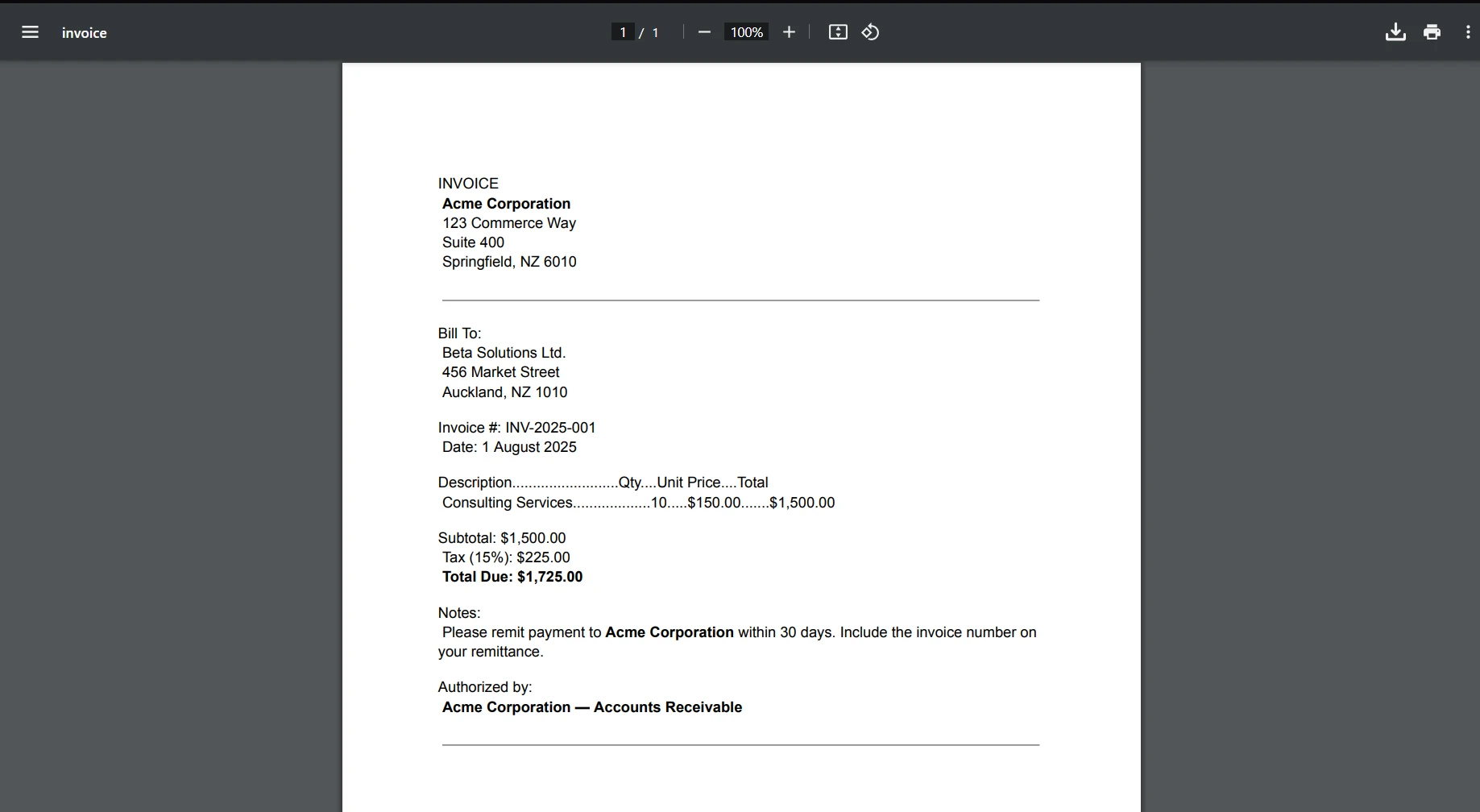
Here's an example of generating a PDF using IronPDF and saving it to a FileStream. This demonstrates how IronPDF integrates smoothly with FileStream, allowing developers to programmatically control the creation and saving of PDFs.
using System;
using System.IO;
using IronPdf;

public class IronPDFExample
{
    public static void Main()
    {
        // Define the file path
        string path = "output.pdf";

        // Create an HTML string that we want to convert to PDF
        var htmlContent = "<h1>IronPDF Example</h1><p>This PDF was generated using IronPDF and saved with FileStream.</p>";

        // Initialize IronPDF's ChromePdfRenderer to render HTML as PDF
        var renderer = new ChromePdfRenderer();

        // Generate the PDF from the HTML string
        var pdfDocument = renderer.RenderHtmlAsPdf(htmlContent);

        // Use FileStream to save the generated PDF
        using (FileStream fileStream = new FileStream(path, FileMode.Create, FileAccess.Write))
        {
            pdfDocument.SaveAs(fileStream);
        }

        Console.WriteLine("PDF created and saved successfully.");
    }
}Imports System
Imports System.IO
Imports IronPdf
Public Class IronPDFExample
Public Shared Sub Main()
' Define the file path
Dim path As String = "output.pdf"
' Create an HTML string that we want to convert to PDF
Dim htmlContent = "<h1>IronPDF Example</h1><p>This PDF was generated using IronPDF and saved with FileStream.</p>"
' Initialize IronPDF's ChromePdfRenderer to render HTML as PDF
Dim renderer = New ChromePdfRenderer()
' Generate the PDF from the HTML string
Dim pdfDocument = renderer.RenderHtmlAsPdf(htmlContent)
' Use FileStream to save the generated PDF
Using fileStream As New FileStream(path, FileMode.Create, FileAccess.Write)
pdfDocument.SaveAs(fileStream)
End Using
Console.WriteLine("PDF created and saved successfully.")
End Sub
End ClassThe FileStream class in C# offers powerful functionality for managing file input and output. It allows developers to read and write data efficiently, control the current position within a file, and work asynchronously by understanding how byte arrays, file paths, and stream handling work together. Using FileStream in combination with IronPDF provides developers with the flexibility to handle PDFs efficiently within .NET applications. Whether you're generating reports, saving files, or handling dynamic content, this combination offers fine control over creating and storing PDF documents.
IronPDF offers a free trial and a $999 licensing fee, making it a competitive solution for professional PDF generation needs.

Jacob Mellor is Chief Technology Officer at Iron Software and a visionary engineer pioneering C# PDF technology. As the original developer behind Iron Software's core codebase, he has shaped the company's product architecture since its inception, transforming it alongside CEO Cameron Rimington into a 50+ person company serving NASA, Tesla, and global government agencies.

IronPDF is a part of IRONSUITE
10 .NET API products for your office documents

When you need your PDF to look like HTML, fast.


