




已更新 2026年5月8日
生成每月账户报表(PDF 文档)
using IronPDF C# PDF 库,开发人员可以在 .NET 项目中将 HTML 转换为可靠的 PDF 文件,而无需依赖外部服务。
阅读更多

从各种文件类型创建 PDF 文档是将原始文件编译为易于阅读版本的极佳方式。例如,您可能会将作品集显示为网页,但希望将其转换为易于展示的 PDF 文件,与潜在雇主分享。 或者,您可能有充满重要数据的图表,想要作为报告的一部分显示,使用 PDF 转换器,您可以将报告和图表转换为 PDF 并将它们合并为一个易于共享的文档。
今天,我们将学习如何使用 C# 将文件转换为 PDF 格式。 我们还将了解IronPDF,一个强大的 .NET PDF 库,以及如何使用它进行 PDF 转换。 无论您处理的是 HTML、图像还是其他文档,IronPDF 都提供了一种简单高效的方式以编程方式创建和操作 PDF 文件。
IronPDF 是一个行业标准库,简化了 PDF 的创建和转换。 它支持将多种格式转换为 PDF,例如 HTML、图像,甚至其他 PDF。 关键特性包括:
***高保真 PDF 渲染:**由于 IronPDF 对现代 Web 标准有着强大的支持,因此能够持续地从 HTML 和网页等 Web 内容生成高质量的 PDF。
在我们开始使用 IronPDF 将文件转换为 PDF 文档之前,我们必须安装它,并在我们的项目中进行设置。 值得庆幸的是,由于 IronPDF 的简易实施,这可以在短时间内完成。要安装 IronPDF 库,您可以在 NuGet 包管理器控制台中运行以下命令:
或者,您可以使用为解决方案管理 NuGet 包进行安装:
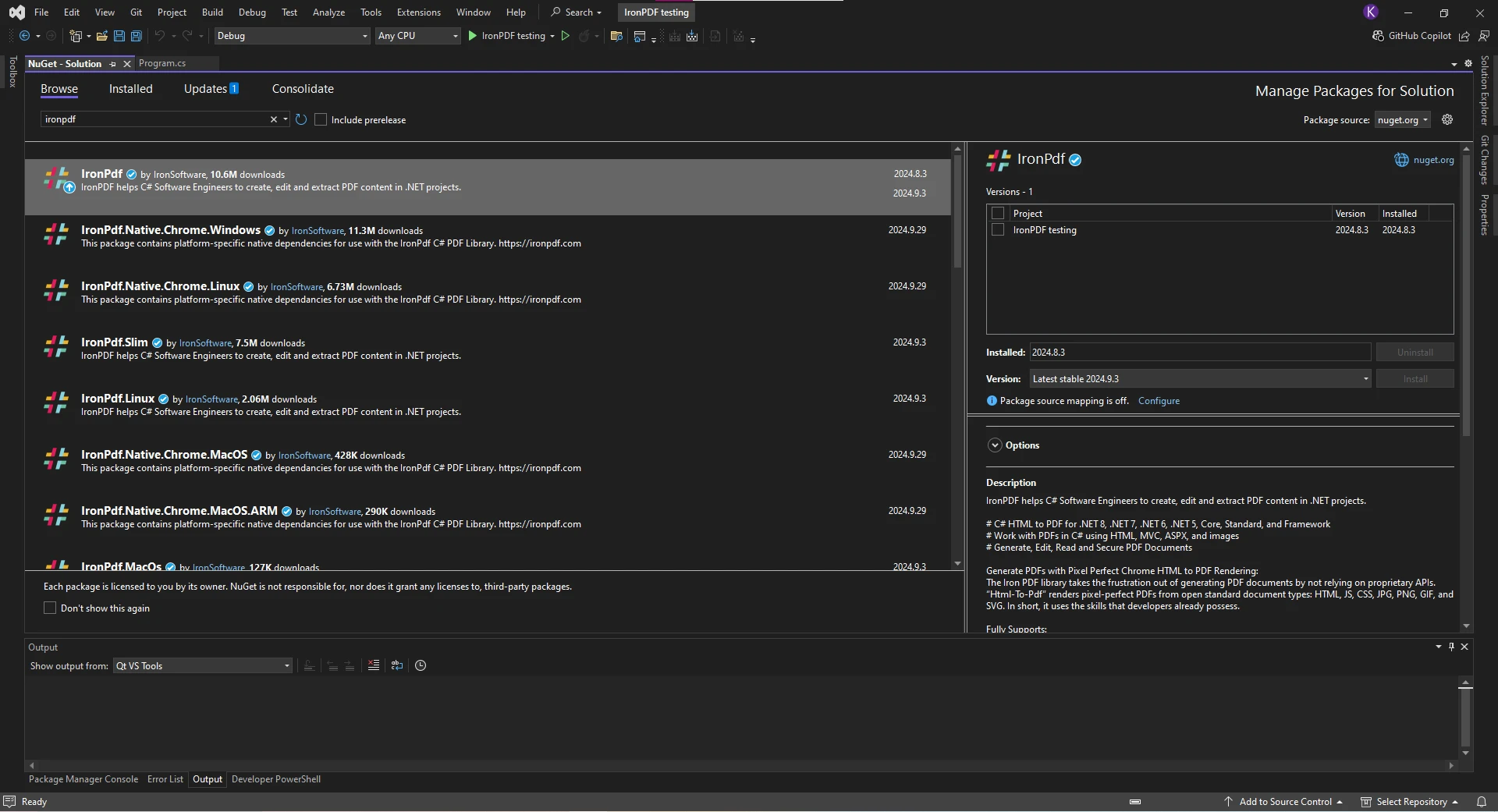
现在,我们可以看看 IronPDF 如何处理来自不同文件类型的 PDF 转换。如我们之前提到的,IronPDF 是一个强大的 PDF 库,能够处理来自多种文件类型的 PDF 转换。这使其在需要将不仅仅是 HTML 转换为 PDF 的情况下异常多才多艺,而很多其他 PDF 库多专注于这一点。 使用 IronPDF,您可以在一个地方完成所有转换,而无需安装额外的库。
PDF 转换最常见的情况之一是将 HTML 内容转换为 PDF 文档,IronPDF 使这个过程无缝进行。 在本例中,我们将转换 HTML 字符串,但对于 HTML 文档、HTML 页面或 HTML 文件,过程是相似的。 首先,我们将创建一个ChromePdfRenderer实例来将我们的 HTML 内容渲染为 PDF。 然后,使用**RenderHtmlAsPdf()**,我们可以将 HTML 内容转换为 PDF,最后保存 PDF。
using IronPdf;

class Program
{
    static void Main(string[] args)
    {
        // HTML content to convert
        string html = "<h1>This Document was Converted using IronPDF</h1><p>This document was converted from HTML content</p>";

        // Instantiate the ChromePdfRenderer class
        ChromePdfRenderer renderer = new ChromePdfRenderer();

        // Render the HTML content into a PDF document
        PdfDocument pdf = renderer.RenderHtmlAsPdf(html);

        // Save the rendered PDF document to a file
        pdf.SaveAs("html-to-pdf.pdf");
    }
}Imports IronPdf
Module Program
Sub Main(args As String())
' HTML content to convert
Dim html As String = "<h1>This Document was Converted using IronPDF</h1><p>This document was converted from HTML content</p>"
' Instantiate the ChromePdfRenderer class
Dim renderer As New ChromePdfRenderer()
' Render the HTML content into a PDF document
Dim pdf As PdfDocument = renderer.RenderHtmlAsPdf(html)
' Save the rendered PDF document to a file
pdf.SaveAs("html-to-pdf.pdf")
End Sub
End Module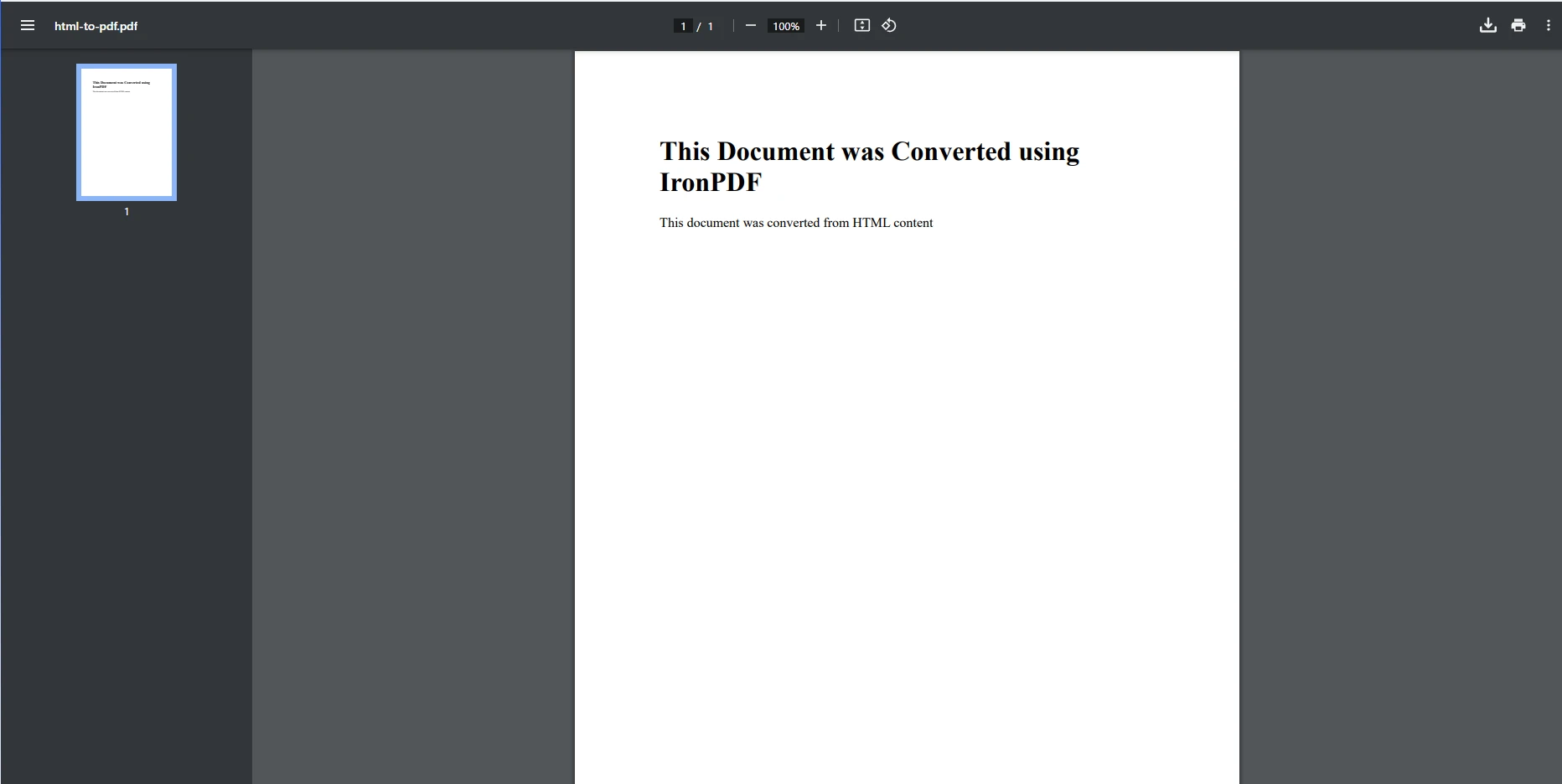
PDF 转换的另一种常见方法是将 URL 转换为 PDF。 这样,我们可以捕获整个网页作为像素完美的 PDF。 使用 URL https://www.nuget.org/packages/IronPdf/,我们将利用ChromePdfRenderer类和 IronPDF 对现代 Web 标准的支持仅用几行代码即可生成高质量的 PDF。
using System;
using IronPdf;

class Program
{
    static void Main(string[] args)
    {
        // Instantiate the ChromePdfRenderer
        ChromePdfRenderer renderer = new ChromePdfRenderer();

        // Render the URL content into a PDF
        PdfDocument pdf = renderer.RenderUrlAsPdf("https://www.nuget.org/packages/IronPdf/");

        // Save the PDF to a file
        pdf.SaveAs("url-to-pdf.pdf");
    }
}Imports System
Imports IronPdf
Module Program
Sub Main(args As String())
' Instantiate the ChromePdfRenderer
Dim renderer As New ChromePdfRenderer()
' Render the URL content into a PDF
Dim pdf As PdfDocument = renderer.RenderUrlAsPdf("https://www.nuget.org/packages/IronPdf/")
' Save the PDF to a file
pdf.SaveAs("url-to-pdf.pdf")
End Sub
End Module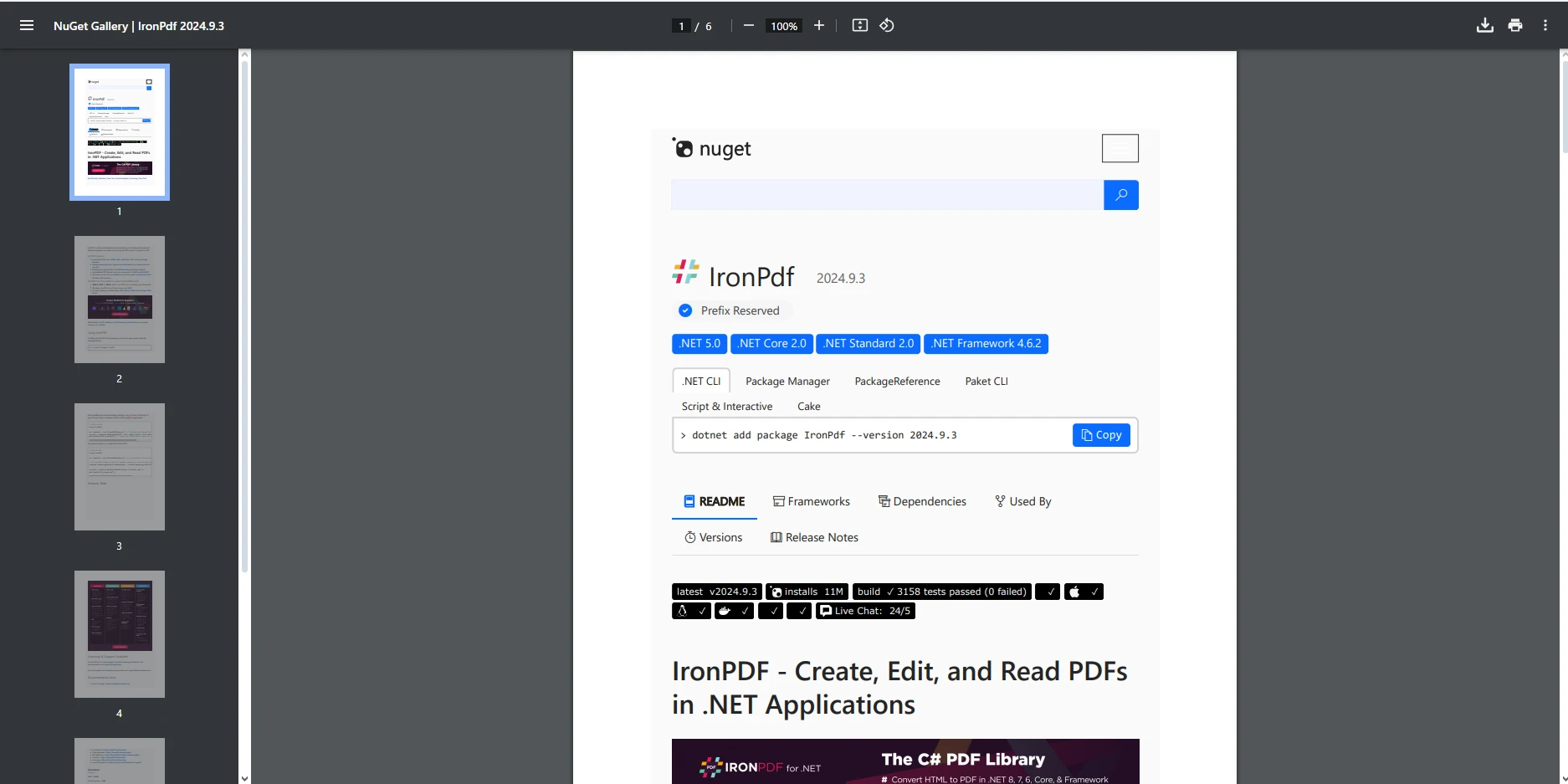
IronPDF 还支持将图像文件类型(如 PNG、JPG 和 GIF)转换为 PDF。 这是将多个图像编译成一个文档的好方法。 在我们的示例中,我们将取三个不同的图像,每个图像格式不同,并将它们转换为新的 PDF,最后合并到一个 PDF 中,以演示如何将多个图像转换为同一个 PDF。 ImageToPdfConverter类用于执行图像的转换。
using System.Collections.Generic;
using IronPdf;

class Program
{
    static void Main(string[] args)
    {
        // Define image file paths
        string jpgFile = "image-jpg.jpg";
        string pngFile = "image-png.png";
        string gifFile = "image-gif.gif";

        // Convert each image to a separate PDF document
        PdfDocument pdfA = ImageToPdfConverter.ImageToPdf(gifFile);
        PdfDocument pdfB = ImageToPdfConverter.ImageToPdf(pngFile);
        PdfDocument pdfC = ImageToPdfConverter.ImageToPdf(jpgFile);

        // Combine all the PDFs into a single document
        List<PdfDocument> pdfFiles = new List<PdfDocument> { pdfA, pdfB, pdfC };
        PdfDocument mergedPdf = PdfDocument.Merge(pdfFiles);

        // Save the merged PDF document to a file
        mergedPdf.SaveAs("images-to-pdf.pdf");
    }
}Imports System.Collections.Generic
Imports IronPdf
Class Program
Shared Sub Main(args As String())
' Define image file paths
Dim jpgFile As String = "image-jpg.jpg"
Dim pngFile As String = "image-png.png"
Dim gifFile As String = "image-gif.gif"
' Convert each image to a separate PDF document
Dim pdfA As PdfDocument = ImageToPdfConverter.ImageToPdf(gifFile)
Dim pdfB As PdfDocument = ImageToPdfConverter.ImageToPdf(pngFile)
Dim pdfC As PdfDocument = ImageToPdfConverter.ImageToPdf(jpgFile)
' Combine all the PDFs into a single document
Dim pdfFiles As New List(Of PdfDocument) From {pdfA, pdfB, pdfC}
Dim mergedPdf As PdfDocument = PdfDocument.Merge(pdfFiles)
' Save the merged PDF document to a file
mergedPdf.SaveAs("images-to-pdf.pdf")
End Sub
End Class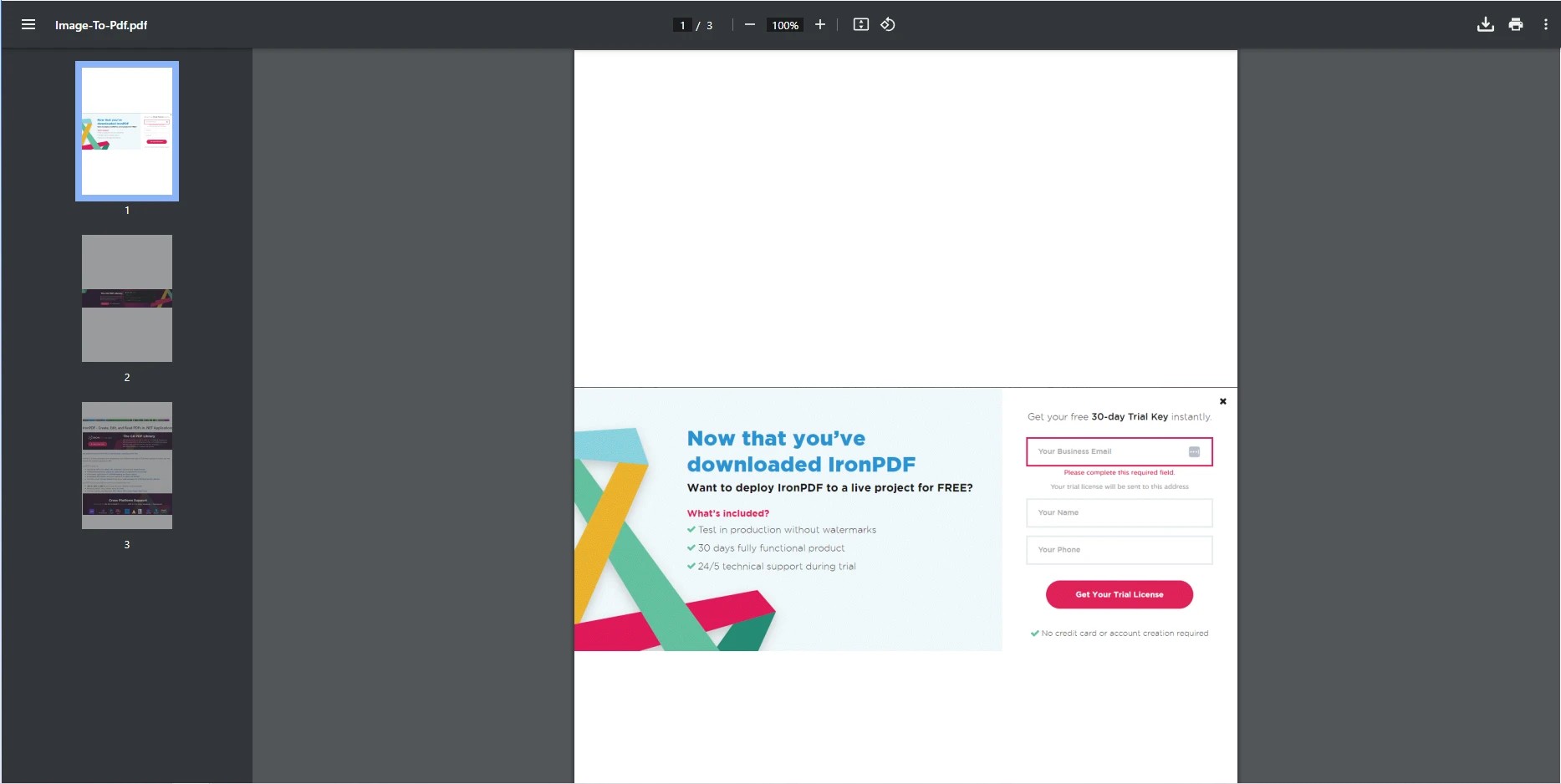
IronPDF 处理 DOCX 到 PDF 的转换无缝,仅需几行代码。 首先,我们将创建一个新的DocxToPdfRenderer类实例,然后使用**RenderDocxAsPdf()**转换 DOCX 文件,最后保存 PDF。
using IronPdf;

class Program
{
    static void Main(string[] args)
    {
        // Instantiate the DocxToPdfRenderer
        DocxToPdfRenderer renderer = new DocxToPdfRenderer();

        // Convert the DOCX file to a PDF
        PdfDocument pdf = renderer.RenderDocxAsPdf("Meeting notes.docx");

        // Save the converted PDF document
        pdf.SaveAs("docx-to-pdf.pdf");
    }
}Imports IronPdf
Module Program
Sub Main(args As String())
' Instantiate the DocxToPdfRenderer
Dim renderer As New DocxToPdfRenderer()
' Convert the DOCX file to a PDF
Dim pdf As PdfDocument = renderer.RenderDocxAsPdf("Meeting notes.docx")
' Save the converted PDF document
pdf.SaveAs("docx-to-pdf.pdf")
End Sub
End Module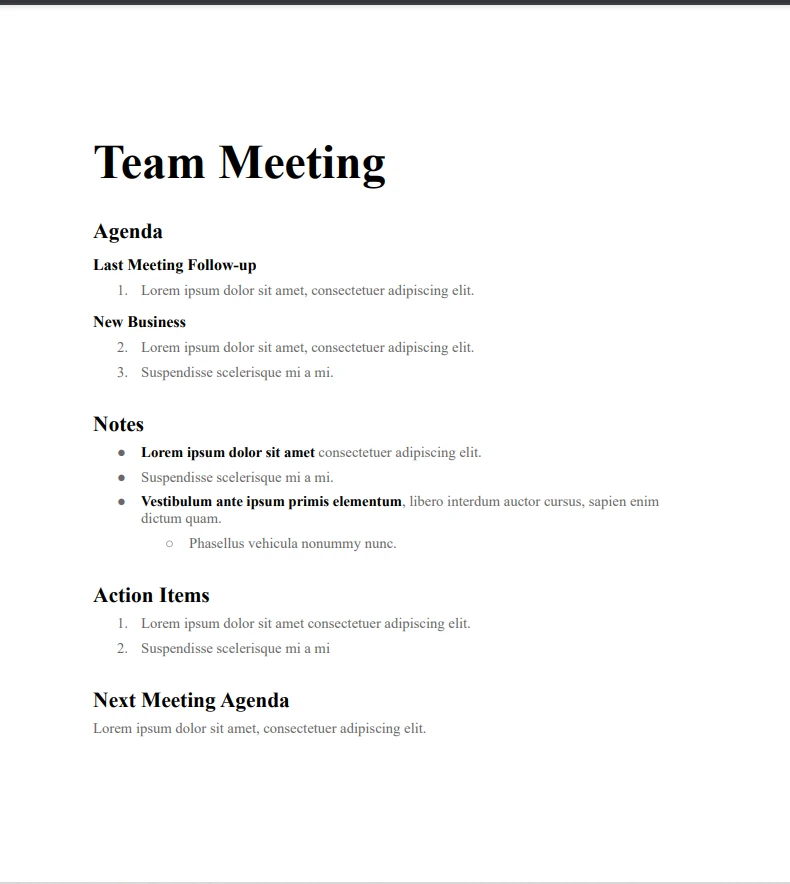
在当今的数字环境中,将文档转换为像 PDF 这样全球通用的格式对于确保一致性、可移植性和专业展示至关重要。 使用 IronPDF,将强大的 C# PDF 转换功能集成到您的应用程序中不仅高效,而且极其灵活。
在本教程中,我们演示了如何轻松地将 HTML 文件、网页、图像、URL 甚至 DOCX 文件转换为精致的专业 PDF。 但这只是冰山一角。IronPDF 提供了丰富的功能,不仅限于基本转换,例如:
准备好将您的文档处理提升到新的水平了吗? 立即通过免费试用IronPDF 开始实验,并在您的 C# 项目中释放 PDF 操作的全部潜力。
欲了解更多高级功能、优化和实用示例,请访问官方 IronPDF 文档,并加入一个正在改变现代应用程序中 PDF 处理方式的开发者社区。

Curtis Chau 拥有卡尔顿大学的计算机科学学士学位,专注于前端开发,精通 Node.js、TypeScript、JavaScript 和 React。他热衷于打造直观且美观的用户界面,喜欢使用现代框架并创建结构良好、视觉吸引力强的手册。

当您需要PDF看起来像HTML时,速度快。















