




已更新 2026年5月8日
生成每月账户报表(PDF 文档)
using IronPDF C# PDF 库,开发人员可以在 .NET 项目中将 HTML 转换为可靠的 PDF 文件,而无需依赖外部服务。
阅读更多

在 ASP.NET Core 中上传和下载 PDF 文件需要处理二进制数据、管理控制器操作,以及(可选地)在存储或交付之前在服务器端处理文档。 借助IronPDF ,您不仅可以进行简单的文件存储,还可以添加水印、从 HTML 生成 PDF,并将处理后的文档返回给用户,所有操作都可以在您现有的 MVC 流程中完成。本指南将引导您使用 .NET 10 和 C# 逐步构建完整的上传/下载工作流。
在编写任何上传或下载逻辑之前,请使用 NuGet 包管理器或 .NET CLI 将 IronPDF 添加到您的项目中。 在包管理器控制台中使用Install-Package IronPdf,或运行下方的CLI命令来搭建一个新的MVC项目并一次性添加所有所需的包。
dotnet new mvc -n PdfManager --framework net10.0
cd PdfManager
dotnet add package IronPdf
dotnet add package Microsoft.EntityFrameworkCore.Sqlite
dotnet add package Microsoft.EntityFrameworkCore.Design安装后,IronPDF提供PdfDocument用于加载和操作现有文件,以及一系列编辑工具,包括水印、印章和数字签名。 您可以查看完整的IronPDF NuGet 包页面,了解版本历史记录和兼容性说明。
将存储路径常数添加到ApplicationDbContext注册到依赖注入容器中。 在您编写任何PDF特定逻辑之前,您的项目结构将包括一个Data/ApplicationDbContext.cs。
任何 PDF 上传系统的基础都是一个映射到数据库表的模型类。 以下 C# 记录捕获了基本字段——文件名、内容类型、原始二进制数据和上传时间戳。
public class PdfFileModel
{
    public int Id { get; set; }
    public string FileName { get; set; } = string.Empty;
    public string ContentType { get; set; } = "application/pdf";
    public byte[] FileData { get; set; } = Array.Empty<byte>();
    public DateTime UploadedDate { get; set; } = DateTime.UtcNow;
}Public Class PdfFileModel
Public Property Id As Integer
Public Property FileName As String = String.Empty
Public Property ContentType As String = "application/pdf"
Public Property FileData As Byte() = Array.Empty(Of Byte)()
Public Property UploadedDate As DateTime = DateTime.UtcNow
End ClassFileData将PDF存储为一个二进制大对象(BLOB)。 这种方法将文档保留在数据库中,使备份更简单,查询更直接。 对于高容量场景或大型文件,可以考虑仅在数据库中存储文件路径,并将二进制文件写入云存储桶,例如Azure Blob Storage或Amazon S3 。
通过在您的DbSet<PdfFileModel>属性,将模型注册到EF Core。
using Microsoft.EntityFrameworkCore;

public class ApplicationDbContext : DbContext
{
    public ApplicationDbContext(DbContextOptions<ApplicationDbContext> options)
        : base(options) { }

    public DbSet<PdfFileModel> PdfFiles { get; set; }
}Imports Microsoft.EntityFrameworkCore
Public Class ApplicationDbContext
Inherits DbContext
Public Sub New(options As DbContextOptions(Of ApplicationDbContext))
MyBase.New(options)
End Sub
Public Property PdfFiles As DbSet(Of PdfFileModel)
End Class运行dotnet ef database update来创建模式。 Entity Framework Core自动将byte[]映射到SQL Server中的BLOB列——无需手动SQL。
处理上传的控制器动作从HTML表单中使用IFormFile参数。 该动作将流读入一个MemoryStream,转换为字节数组,并通过Entity Framework Core持久化结果。
using Microsoft.AspNetCore.Mvc;
using Microsoft.EntityFrameworkCore;

public class PdfController : Controller
{
    private readonly ApplicationDbContext _context;

    public PdfController(ApplicationDbContext context)
    {
        _context = context;
    }

    [HttpPost]
    public async Task<IActionResult> Upload(IFormFile file)
    {
        if (file is null || file.Length == 0)
            return BadRequest("No file selected.");

        if (!file.ContentType.Equals("application/pdf", StringComparison.OrdinalIgnoreCase))
            return BadRequest("Only PDF files are accepted.");

        using var stream = new MemoryStream();
        await file.CopyToAsync(stream);

        var pdfFile = new PdfFileModel
        {
            FileName = Path.GetFileName(file.FileName),
            ContentType = file.ContentType,
            FileData = stream.ToArray(),
            UploadedDate = DateTime.UtcNow
        };

        _context.PdfFiles.Add(pdfFile);
        await _context.SaveChangesAsync();

        return RedirectToAction(nameof(Index));
    }

    public async Task<IActionResult> Index()
    {
        var files = await _context.PdfFiles
            .Select(f => new { f.Id, f.FileName, f.UploadedDate })
            .ToListAsync();
        return View(files);
    }
}Imports Microsoft.AspNetCore.Mvc
Imports Microsoft.EntityFrameworkCore
Imports System.IO
Imports System.Threading.Tasks
Public Class PdfController
Inherits Controller
Private ReadOnly _context As ApplicationDbContext
Public Sub New(context As ApplicationDbContext)
_context = context
End Sub
<HttpPost>
Public Async Function Upload(file As IFormFile) As Task(Of IActionResult)
If file Is Nothing OrElse file.Length = 0 Then
Return BadRequest("No file selected.")
End If
If Not file.ContentType.Equals("application/pdf", StringComparison.OrdinalIgnoreCase) Then
Return BadRequest("Only PDF files are accepted.")
End If
Using stream As New MemoryStream()
Await file.CopyToAsync(stream)
Dim pdfFile As New PdfFileModel With {
.FileName = Path.GetFileName(file.FileName),
.ContentType = file.ContentType,
.FileData = stream.ToArray(),
.UploadedDate = DateTime.UtcNow
}
_context.PdfFiles.Add(pdfFile)
Await _context.SaveChangesAsync()
End Using
Return RedirectToAction(NameOf(Index))
End Function
Public Async Function Index() As Task(Of IActionResult)
Dim files = Await _context.PdfFiles _
.Select(Function(f) New With {f.Id, f.FileName, f.UploadedDate}) _
.ToListAsync()
Return View(files)
End Function
End Class处理内容前务必验证内容类型。 检查file.ContentType防止用户意外上传非PDF内容。 为了更强的验证,请读取流的前四个字节并验证PDF的魔术数(%PDF)。 您还应该在复制流之前通过检查file.Length来强制执行最大文件大小——通常为10 MB以用于一般文档工作流程。
触发此动作的HTML表单需要两个属性:enctype="multipart/form-data"。 如果没有指定编码类型,浏览器会将文件名作为纯文本而不是二进制内容发送。 在指向<input type="file" name="file" accept=".pdf" />元素和一个提交按钮。
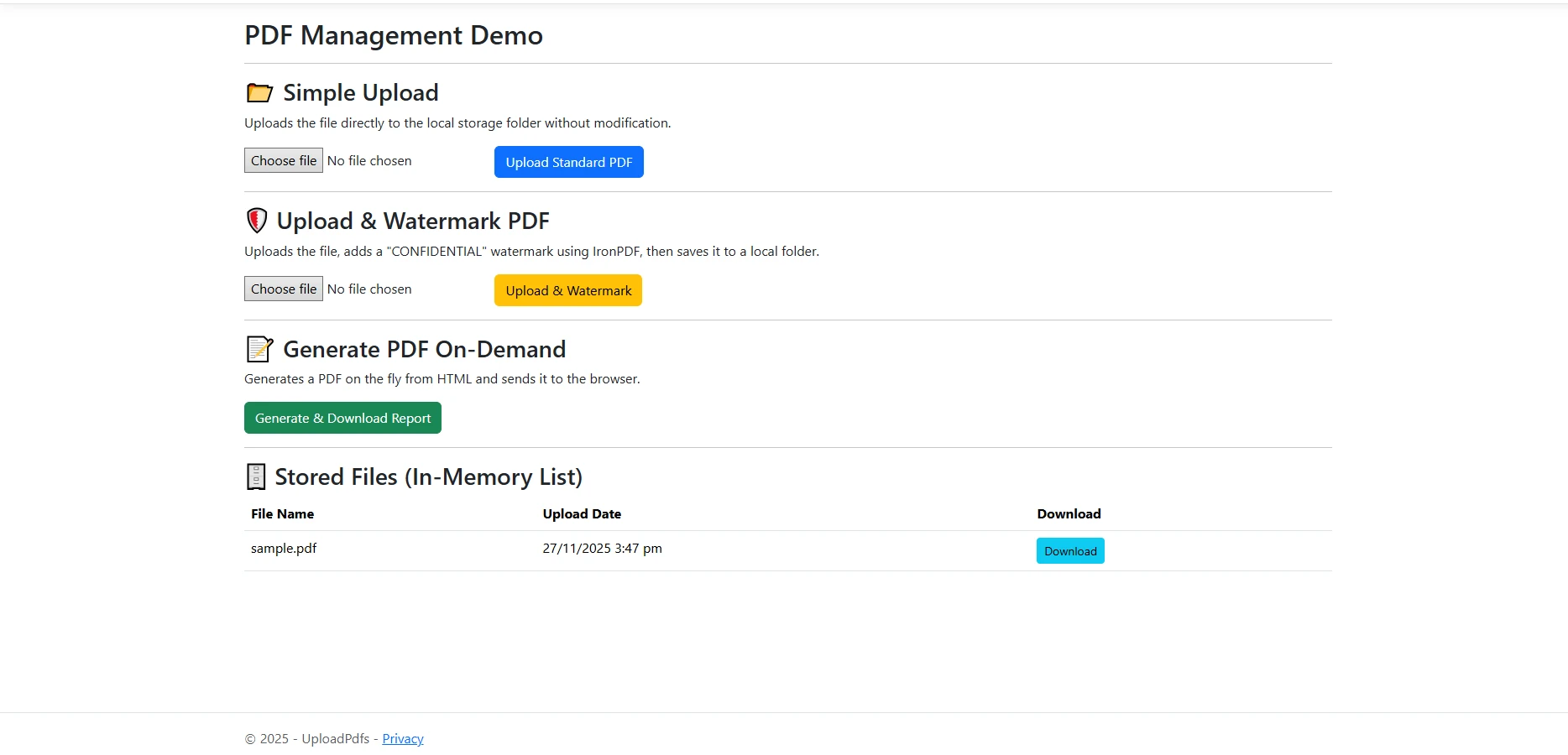
在存储之前对服务器端文件进行处理是IronPDF 水印功能最实用的用途之一。 您可以在每个传入文档到达数据库之前,为其添加"机密"标签、公司徽标或"草稿"通知。
[HttpPost]
public async Task<IActionResult> UploadWithWatermark(IFormFile file)
{
    if (file is null || file.Length == 0)
        return BadRequest("No file selected.");

    using var stream = new MemoryStream();
    await file.CopyToAsync(stream);
    byte[] originalBytes = stream.ToArray();

    // Load the uploaded file into IronPDF
    var pdf = new IronPdf.PdfDocument(originalBytes);

    // Apply an HTML watermark centered on every page
    pdf.ApplyWatermark(
        "<h2 style='color:red;opacity:0.4'>CONFIDENTIAL</h2>",
        rotation: 45,
        opacity: 60,
        verticalAlignment: IronPdf.Editing.VerticalAlignment.Middle,
        horizontalAlignment: IronPdf.Editing.HorizontalAlignment.Center
    );

    var pdfFile = new PdfFileModel
    {
        FileName = Path.GetFileName(file.FileName),
        ContentType = "application/pdf",
        FileData = pdf.BinaryData,
        UploadedDate = DateTime.UtcNow
    };

    _context.PdfFiles.Add(pdfFile);
    await _context.SaveChangesAsync();

    return RedirectToAction(nameof(Index));
}Imports System.IO
Imports System.Threading.Tasks
Imports Microsoft.AspNetCore.Mvc
<HttpPost>
Public Async Function UploadWithWatermark(file As IFormFile) As Task(Of IActionResult)
If file Is Nothing OrElse file.Length = 0 Then
Return BadRequest("No file selected.")
End If
Using stream As New MemoryStream()
Await file.CopyToAsync(stream)
Dim originalBytes As Byte() = stream.ToArray()
' Load the uploaded file into IronPDF
Dim pdf = New IronPdf.PdfDocument(originalBytes)
' Apply an HTML watermark centered on every page
pdf.ApplyWatermark(
"<h2 style='color:red;opacity:0.4'>CONFIDENTIAL</h2>",
rotation:=45,
opacity:=60,
verticalAlignment:=IronPdf.Editing.VerticalAlignment.Middle,
horizontalAlignment:=IronPdf.Editing.HorizontalAlignment.Center
)
Dim pdfFile As New PdfFileModel With {
.FileName = Path.GetFileName(file.FileName),
.ContentType = "application/pdf",
.FileData = pdf.BinaryData,
.UploadedDate = DateTime.UtcNow
}
_context.PdfFiles.Add(pdfFile)
Await _context.SaveChangesAsync()
Return RedirectToAction(NameOf(Index))
End Using
End FunctionIronPDF的ApplyWatermark方法接受一个HTML字符串,这意味着您的水印可以包含任何有效的HTML和内联CSS——渐变、自定义字体、旋转的文字,甚至嵌入的SVG图标。 opacity控制透明度,从0(不可见)到100(完全不透明)。
除了水印,同一PdfDocument对象还提供方法,添加页眉和页脚、盖章图像和编辑现有表单字段。 您可以在调用pdf.BinaryData以检索最终字节数组之前,链接多个处理步骤。
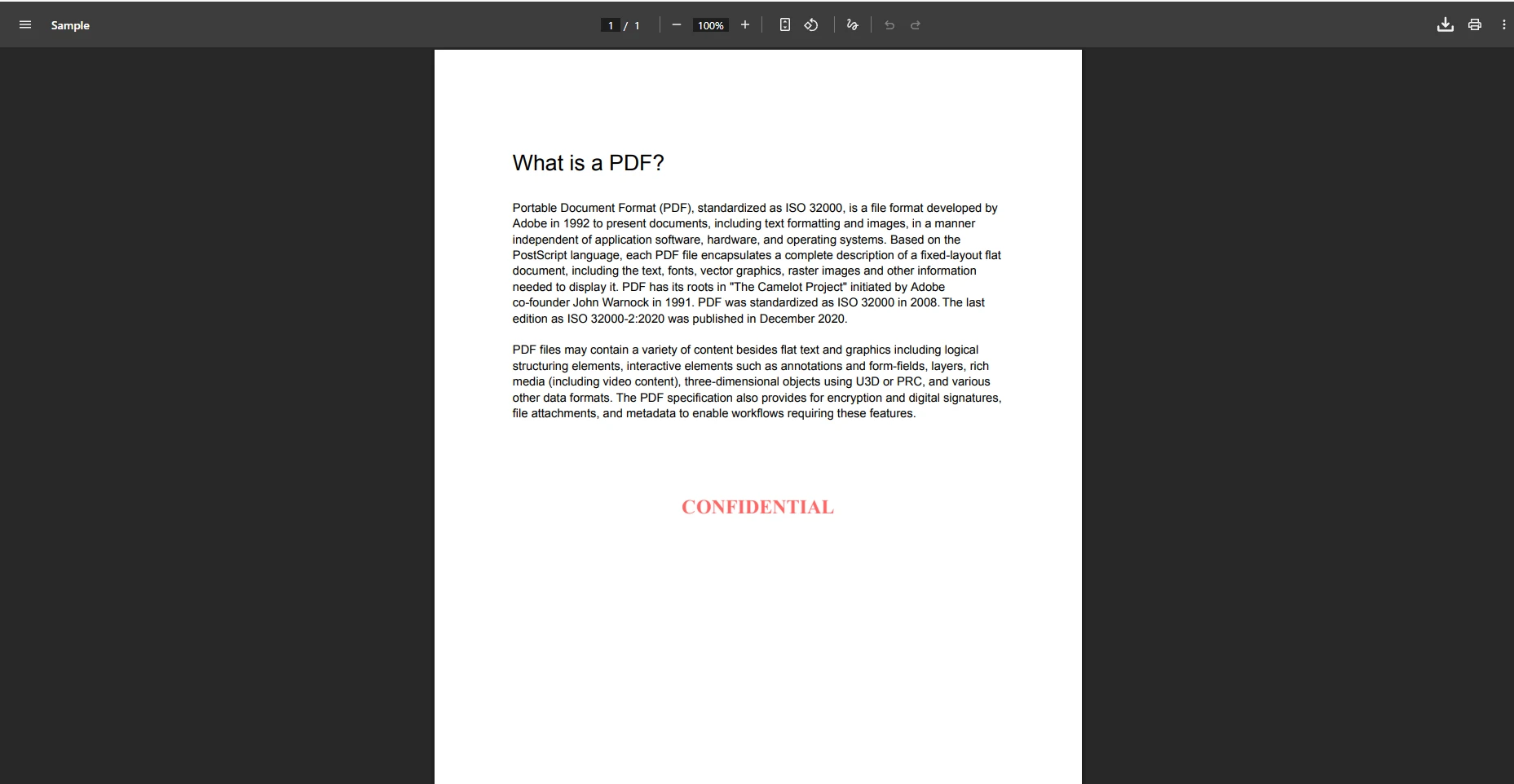
为了将存储的PDF返回给浏览器,请通过ID检索记录并返回一个FileResult。 ASP.NET Core Content-Type头并触发浏览器的下载对话框,带有原始文件名。
public async Task<IActionResult> Download(int id)
{
    var pdfFile = await _context.PdfFiles.FindAsync(id);

    if (pdfFile is null)
        return NotFound();

    return File(pdfFile.FileData, pdfFile.ContentType, pdfFile.FileName);
}Imports System.Threading.Tasks
Imports Microsoft.AspNetCore.Mvc
Public Async Function Download(id As Integer) As Task(Of IActionResult)
Dim pdfFile = Await _context.PdfFiles.FindAsync(id)
If pdfFile Is Nothing Then
Return NotFound()
End If
Return File(pdfFile.FileData, pdfFile.ContentType, pdfFile.FileName)
End FunctionIndex动作检索所有存储的文件记录并将它们传递给Razor视图。 一个简单的 HTML 表格会显示每条记录的文件名、上传日期和下载链接。
<table class="content__data-table" data-content-table>
    <caption>Uploaded PDF Files</caption>
    <thead>
        <tr>
            <th>File Name</th>
            <th>Uploaded</th>
            <th>Action</th>
        </tr>
    </thead>
    <tbody>
        @foreach (var item in Model)
        {
            <tr>
                <td>@item.FileName</td>
                <td>@item.UploadedDate.ToString("yyyy-MM-dd HH:mm")</td>
                <td><a href="/Pdf/Download/@item.Id">Download</a></td>
            </tr>
        }
    </tbody>
</table>netContent-Type: application/pdf和Content-Disposition: attachment; 文件名="..." 标头。 如果您希望浏览器内联打开PDF而不是提示下载,请使用Content-Disposition: attachment指令。
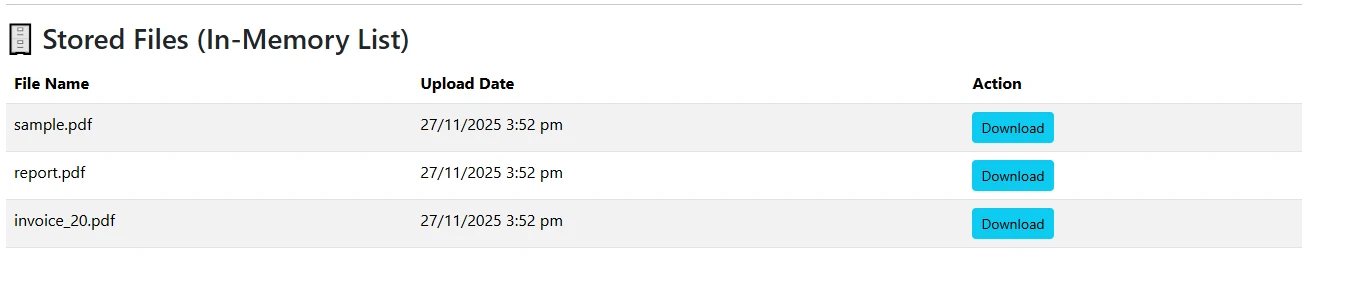
对于大型部署,在数据库中存储原始二进制数据会增加行大小,并可能降低查询速度。 另一种方法是将文件写入磁盘上的目录(或云提供商),而只在数据库中存储相对路径。 用System.IO.File.ReadAllBytesAsync(path)。 两条路径都在控制器中的同一个return File(...)调用处汇合。
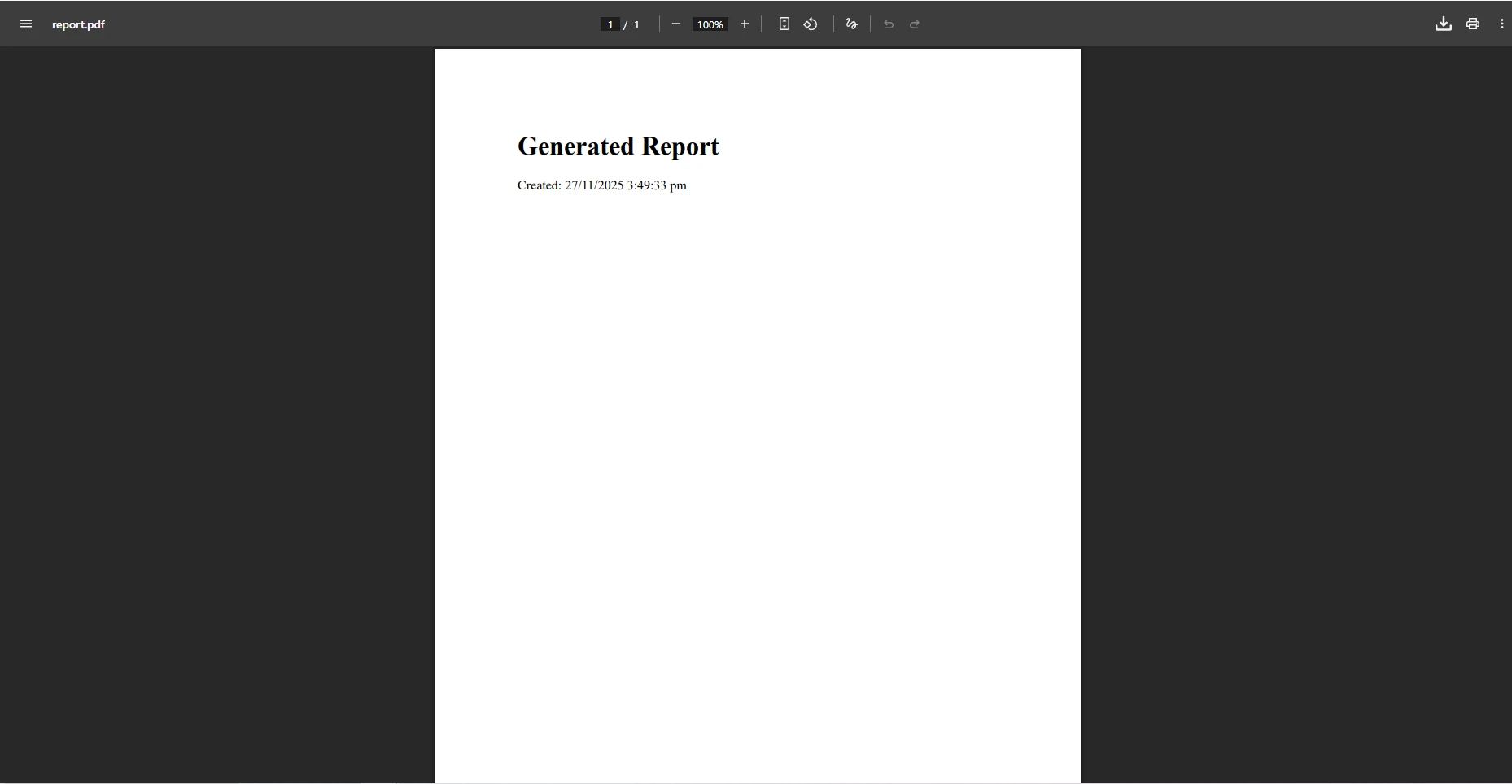
您不仅限于提供预先存储的文件。 IronPDF 的 HTML 转 PDF 功能允许您在请求时根据数据动态生成文档——适用于发票、报告、证书和数据导出。
public IActionResult GenerateInvoice(int orderId)
{
    // Build HTML content from your data model
    string html = $@"
        <html>
        <body style='font-family: Arial, sans-serif; padding: 40px;'>
            <h1>Invoice #{orderId}</h1>
            <p>Generated: {DateTime.UtcNow:yyyy-MM-dd HH:mm} UTC</p>
            <table border='1' cellpadding='8'>
                <tr><th>Item</th><th>Qty</th><th>Price</th></tr>
                <tr><td>IronPDF License</td><td>1</td><td>$999</td></tr>
            </table>
        </body>
        </html>";

    var renderer = new IronPdf.ChromePdfRenderer();
    using var pdf = renderer.RenderHtmlAsPdf(html);

    return File(pdf.BinaryData, "application/pdf", $"invoice-{orderId}.pdf");
}Public Function GenerateInvoice(orderId As Integer) As IActionResult
' Build HTML content from your data model
Dim html As String = $"
<html>
<body style='font-family: Arial, sans-serif; padding: 40px;'>
<h1>Invoice #{orderId}</h1>
<p>Generated: {DateTime.UtcNow:yyyy-MM-dd HH:mm} UTC</p>
<table border='1' cellpadding='8'>
<tr><th>Item</th><th>Qty</th><th>Price</th></tr>
<tr><td>IronPDF License</td><td>1</td><td>$999</td></tr>
</table>
</body>
</html>"
Dim renderer = New IronPdf.ChromePdfRenderer()
Using pdf = renderer.RenderHtmlAsPdf(html)
Return File(pdf.BinaryData, "application/pdf", $"invoice-{orderId}.pdf")
End Using
End FunctionChromePdfRenderer使用驱动Google Chrome的同一Chromium渲染引擎产生像素精确的输出。 这意味着任何可以在浏览器中显示的 CSS(flexbox 布局、网格、自定义字体、SVG 图表)都可以在生成的 PDF 中正确呈现。 在调用RenderingOptions属性设置纸张大小、边距和方向。
对于更复杂的文档,将完整URL传递给RenderUrlAsPdf而不是HTML字符串。 IronPDF 将在无头浏览器中加载页面,执行 JavaScript,应用样式,并将完全渲染的 DOM 转换为 PDF。 查看HTML 转 PDF 转换指南,了解完整的渲染选项,包括自定义页眉、页脚和页码标记。
除了单文件操作之外,您可能还需要将多个上传的文档合并为一个文档。 IronPDF的PDF合并功能接受一个PdfDocument对象列表并返回一个合并后的文件。
public async Task<IActionResult> MergeAll()
{
    var allFiles = await _context.PdfFiles.ToListAsync();

    if (allFiles.Count < 2)
        return BadRequest("At least two files are required for merging.");

    var documents = allFiles
        .Select(f => new IronPdf.PdfDocument(f.FileData))
        .ToList();

    using var merged = IronPdf.PdfDocument.Merge(documents);

    return File(merged.BinaryData, "application/pdf", "merged.pdf");
}Imports System.Threading.Tasks
Imports Microsoft.AspNetCore.Mvc
Public Async Function MergeAll() As Task(Of IActionResult)
Dim allFiles = Await _context.PdfFiles.ToListAsync()
If allFiles.Count < 2 Then
Return BadRequest("At least two files are required for merging.")
End If
Dim documents = allFiles _
.Select(Function(f) New IronPdf.PdfDocument(f.FileData)) _
.ToList()
Using merged = IronPdf.PdfDocument.Merge(documents)
Return File(merged.BinaryData, "application/pdf", "merged.pdf")
End Using
End Function反向操作——提取部分页面——使用CopyPages。 从存储的字节加载一个FileResult返回。 这种模式适用于分页预览、拆分多节报告或提取封面页以生成缩略图。 您还可以在将合并或拆分后的输出提供给用户之前,对其进行数字签名。
大型 PDF 文件需要在 ASP.NET Core 中间件级别进行额外配置。 默认情况下,请求体大小限制设置为大约 28 MB。 为了提高它,调用Limits.MaxRequestBodySize——都设为您想要的字节数,比如50 MB的builder.Build()之前。
除了尺寸限制,请将这些安全措施应用到每个上传端点:验证内容类型头,检查流的第一字节以获取%PDF魔术数,使用IronPDF的文档检查API扫描嵌入的脚本,并将处理后的文件存储在web根目录之外,以便它们不会直接作为静态内容提供。 ASP.NET Core 安全文档涵盖了其他强化技术,包括防伪令牌验证和病毒扫描集成。
当文件超过10 MB时,在处理之前将整个流读入一个MemoryStream可能会显著增加内存使用。 在可能的情况下,使用IronPdf.PdfDocument.FromStream直接从请求流中加载,或写入临时文件路径并从磁盘加载:
string tempPath = Path.GetTempFileName();
await using (var fs = System.IO.File.Create(tempPath))
{
    await file.CopyToAsync(fs);
}

using var pdf = new IronPdf.PdfDocument(tempPath);
// process...
System.IO.File.Delete(tempPath);Imports System.IO
Imports IronPdf
Dim tempPath As String = Path.GetTempFileName()
Using fs As FileStream = System.IO.File.Create(tempPath)
Await file.CopyToAsync(fs)
End Using
Using pdf As PdfDocument = New IronPdf.PdfDocument(tempPath)
' process...
End Using
System.IO.File.Delete(tempPath)这种模式可以保持较低的堆分配量,并且非常适合后台处理队列,在 HTTP 响应发送后,文件会异步处理。 请查阅IronPDF 文档,了解更多异步处理模式。
现在,您已经拥有了在由 IronPDF 支持的 ASP.NET Core MVC 应用程序中上传、处理、存储和下载 PDF 文件的完整基础。 接下来,请参考以下方向来扩展工作流程。
扩展处理能力。IronPDF支持填写和读取 PDF 表单字段,使用PDF 文本提取 API提取文本和图像,以及将PDF 页面转换为图像以进行缩略图预览。 这些功能中的每一个都集成到上面所示的同一控制器模式中。
添加数字签名。在存储之前,使用 X.509 证书对生成或上传的每个文档进行数字签名。 签名后的 PDF 文件包含防篡改元数据,满足多项合规性要求。
将存储扩展到云端。用Azure Blob Storage或Amazon S3参考替换本地byte[]数据库列。 将处理后的字节上传到云存储并添加水印,只在数据库中保存 URI——这大大减少了数据库行的大小,并实现了 CDN 交付。
立即开始免费试用。访问IronPDF 试用许可页面,获取可体验全部功能的 30 天评估密钥。 您还可以浏览完整的IronPDF 功能概述,了解 .NET 应用程序中可用的全部 PDF 功能,或者在准备进行生产部署时查阅定价和许可页面。

Curtis Chau 拥有卡尔顿大学的计算机科学学士学位,专注于前端开发,精通 Node.js、TypeScript、JavaScript 和 React。他热衷于打造直观且美观的用户界面,喜欢使用现代框架并创建结构良好、视觉吸引力强的手册。

IronPDF 是 IRONSUITE的一部分
10 个 .NET API 产品用于您的办公文档

当您需要PDF看起来像HTML时,速度快。




