




已更新 2026年9月4日
產生每月帳戶報表(PDF 文件)
using IronPDF C# PDF 庫,開發人員可以在 .NET 專案中將 HTML 轉換為可靠的 PDF 文件,而無需依賴外部服務。
閱讀更多

在ASP.NET Core中上傳和下載PDF文件需要處理二進位資料、管理控制器操作,並可選擇在儲存或傳送之前在伺服器端進行文件處理。 使用IronPDF,您可以超越簡單的文件儲存在現有的MVC管道中應用浮水印、從HTML生成PDF,並將處理後的文件返回給使用者。本指南將逐步引導您使用.NET 10在C#中建立完整的上傳下載工作流程。
在撰寫任何上傳或下載邏輯之前,使用NuGet套件管理器或.NET CLI將IronPDF新增到您的專案中。 在套件管理器控制台中使用Install-Package IronPdf,或運行下面的CLI指令來模擬一個新的MVC專案,並同時新增所有必需的套件。
dotnet new mvc -n PdfManager --framework net10.0
cd PdfManager
dotnet add package IronPdf
dotnet add package Microsoft.EntityFrameworkCore.Sqlite
dotnet add package Microsoft.EntityFrameworkCore.Design安裝完成後,IronPDF提供存取PdfDocument用於載入和操作現有文件,以及一系列編輯工具,包括浮水印、印章和數位簽名。 您可以查看完整的IronPDF NuGet套件頁面以獲取版本歷史和相容性說明。
新增一個儲存路徑常量到ApplicationDbContext註冊到依賴注入容器中。 在撰寫任何特定於PDF的邏輯之前,您的專案結構將包括Data/ApplicationDbContext.cs。
任何PDF上傳系統的基礎是一個與資料庫表對應的模型類。 以下C#記錄捕捉了基本欄位——文件名、內容型別、原始二進位資料和上傳時間戳。
public class PdfFileModel
{
    public int Id { get; set; }
    public string FileName { get; set; } = string.Empty;
    public string ContentType { get; set; } = "application/pdf";
    public byte[] FileData { get; set; } = Array.Empty<byte>();
    public DateTime UploadedDate { get; set; } = DateTime.UtcNow;
}Public Class PdfFileModel
Public Property Id As Integer
Public Property FileName As String = String.Empty
Public Property ContentType As String = "application/pdf"
Public Property FileData As Byte() = Array.Empty(Of Byte)()
Public Property UploadedDate As DateTime = DateTime.UtcNow
End ClassFileData將PDF儲存為大二進位物件(BLOB)。 這種方法使文件在資料庫中獨立存在,備份更簡單,查詢更直接。 針對高容量場景或大文件,考慮將文件路徑僅儲存在資料庫中,並將二進位寫入如Azure Blob Storage或Amazon S3的雲儲存桶。
透過將ApplicationDbContext來使用EF Core註冊模型:
using Microsoft.EntityFrameworkCore;

public class ApplicationDbContext : DbContext
{
    public ApplicationDbContext(DbContextOptions<ApplicationDbContext> options)
        : base(options) { }

    public DbSet<PdfFileModel> PdfFiles { get; set; }
}Imports Microsoft.EntityFrameworkCore
Public Class ApplicationDbContext
Inherits DbContext
Public Sub New(options As DbContextOptions(Of ApplicationDbContext))
MyBase.New(options)
End Sub
Public Property PdfFiles As DbSet(Of PdfFileModel)
End Class運行dotnet ef database update以建立結構。 Entity Framework Core自動將byte[]映射到SQL Server中的BLOB列——無需手動SQL。
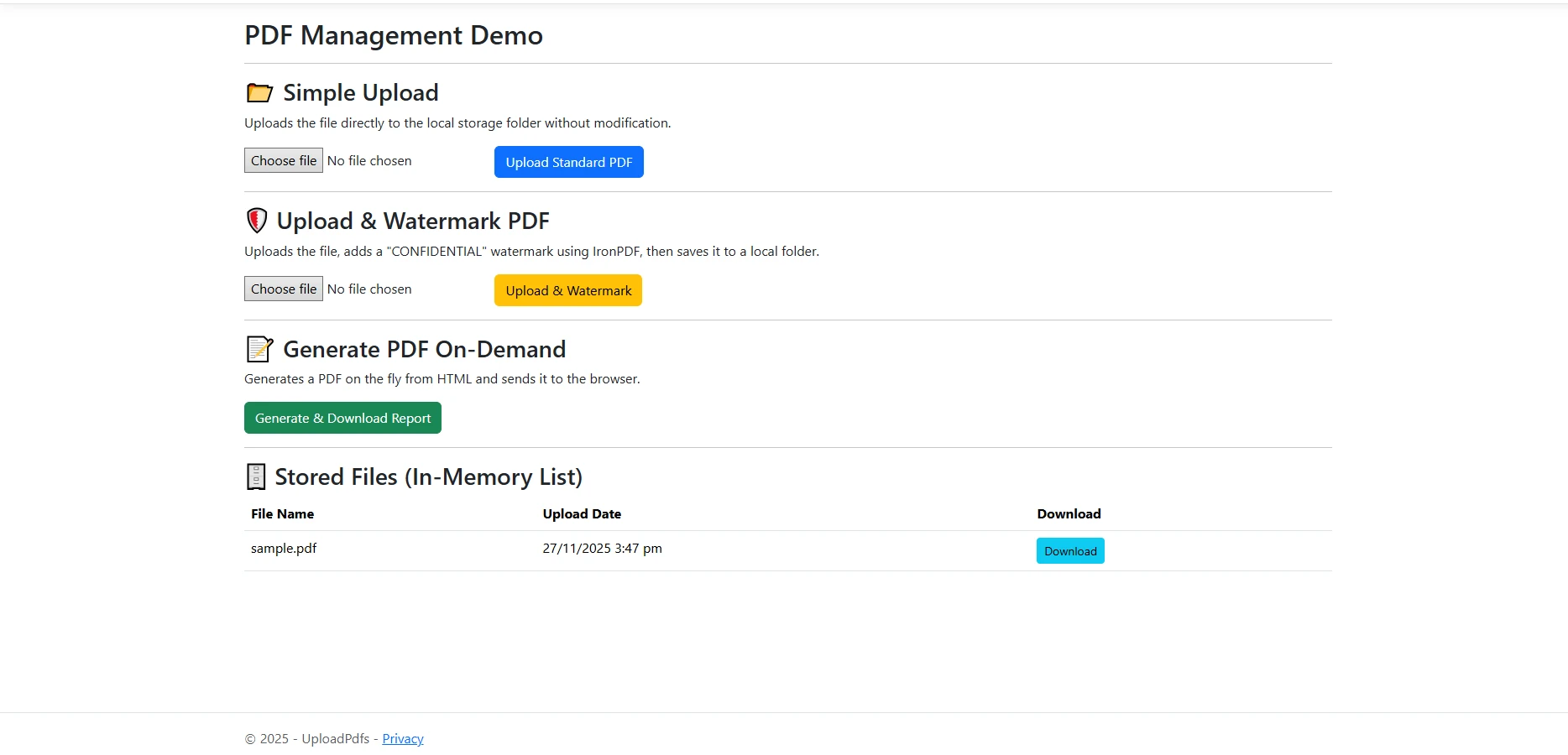
處理上傳的控制器操作從HTML表單使用IFormFile參數。 該操作讀取流入MemoryStream,轉換為位元組陣列,並透過Entity Framework Core持久化結果。
using Microsoft.AspNetCore.Mvc;
using Microsoft.EntityFrameworkCore;

public class PdfController : Controller
{
    private readonly ApplicationDbContext _context;

    public PdfController(ApplicationDbContext context)
    {
        _context = context;
    }

    [HttpPost]
    public async Task<IActionResult> Upload(IFormFile file)
    {
        if (file is null || file.Length == 0)
            return BadRequest("No file selected.");

        if (!file.ContentType.Equals("application/pdf", StringComparison.OrdinalIgnoreCase))
            return BadRequest("Only PDF files are accepted.");

        using var stream = new MemoryStream();
        await file.CopyToAsync(stream);

        var pdfFile = new PdfFileModel
        {
            FileName = Path.GetFileName(file.FileName),
            ContentType = file.ContentType,
            FileData = stream.ToArray(),
            UploadedDate = DateTime.UtcNow
        };

        _context.PdfFiles.Add(pdfFile);
        await _context.SaveChangesAsync();

        return RedirectToAction(nameof(Index));
    }

    public async Task<IActionResult> Index()
    {
        var files = await _context.PdfFiles
            .Select(f => new { f.Id, f.FileName, f.UploadedDate })
            .ToListAsync();
        return View(files);
    }
}Imports Microsoft.AspNetCore.Mvc
Imports Microsoft.EntityFrameworkCore
Imports System.IO
Imports System.Threading.Tasks
Public Class PdfController
Inherits Controller
Private ReadOnly _context As ApplicationDbContext
Public Sub New(context As ApplicationDbContext)
_context = context
End Sub
<HttpPost>
Public Async Function Upload(file As IFormFile) As Task(Of IActionResult)
If file Is Nothing OrElse file.Length = 0 Then
Return BadRequest("No file selected.")
End If
If Not file.ContentType.Equals("application/pdf", StringComparison.OrdinalIgnoreCase) Then
Return BadRequest("Only PDF files are accepted.")
End If
Using stream As New MemoryStream()
Await file.CopyToAsync(stream)
Dim pdfFile As New PdfFileModel With {
.FileName = Path.GetFileName(file.FileName),
.ContentType = file.ContentType,
.FileData = stream.ToArray(),
.UploadedDate = DateTime.UtcNow
}
_context.PdfFiles.Add(pdfFile)
Await _context.SaveChangesAsync()
End Using
Return RedirectToAction(NameOf(Index))
End Function
Public Async Function Index() As Task(Of IActionResult)
Dim files = Await _context.PdfFiles _
.Select(Function(f) New With {f.Id, f.FileName, f.UploadedDate}) _
.ToListAsync()
Return View(files)
End Function
End Class在處理之前務必驗證內容型別。 檢查file.ContentType可以防止使用者意外上傳非PDF內容。 為了更強的驗證,讀取流的前四個位元組並驗證PDF魔法數(%PDF)。 您還應該強制執行最大文件大小──通常為一般文件工作流程的10 MB──在複製流之前檢查file.Length。
觸發此操作的HTML表單需要兩個屬性:enctype="multipart/form-data"。 沒有編碼型別,瀏覽器將文件名作為純文字而非二進位內容發送。 在指向<input type="file" name="file" accept=".pdf" />元素和提交按鈕。
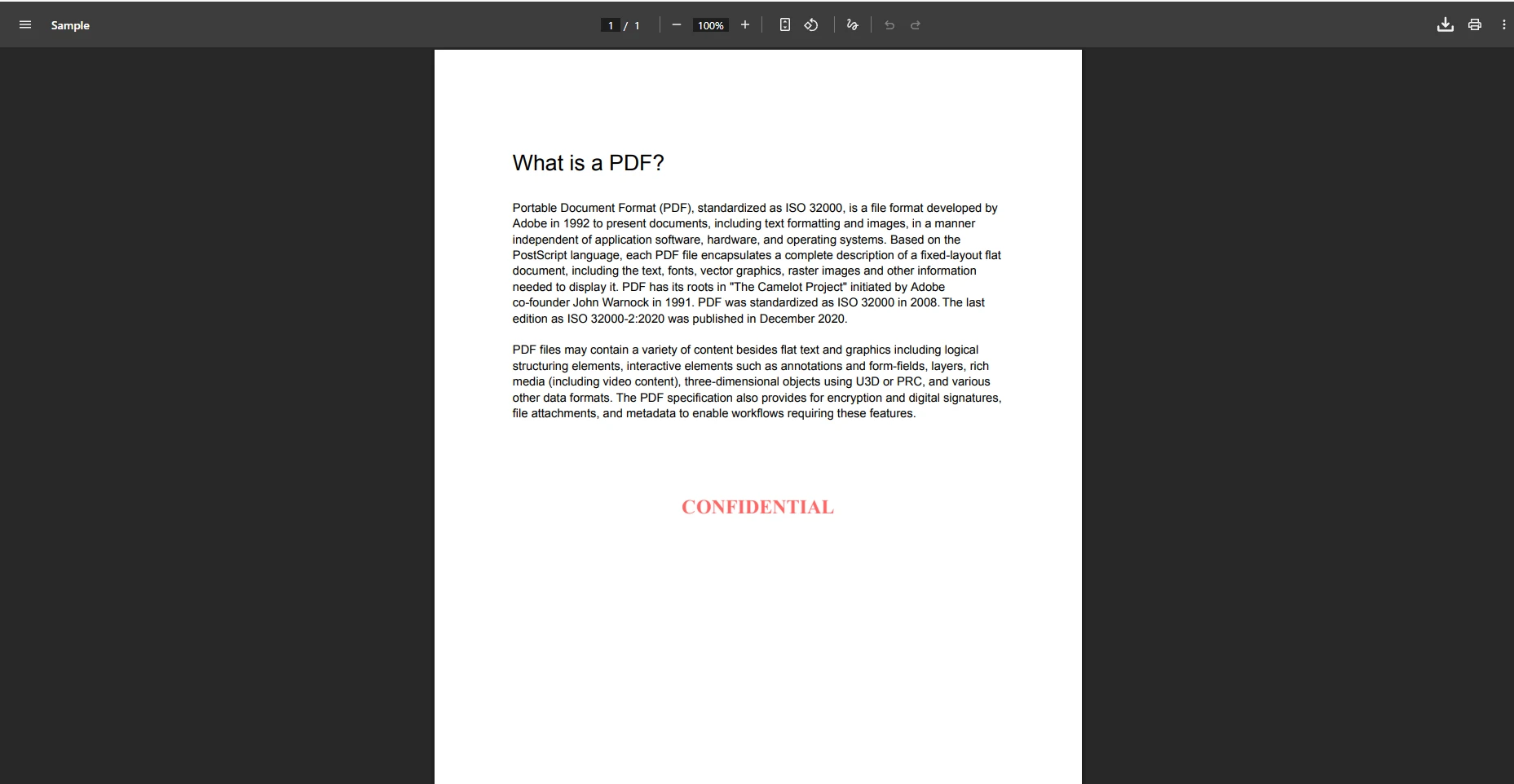
儲存前在伺服器端處理文件是IronPDF浮水印功能的最實用的用例之一。 在位元組到達資料庫之前,您可以將"機密"標籤、公司標誌或"草稿"通知蓋章在每個進行中的文件上。
[HttpPost]
public async Task<IActionResult> UploadWithWatermark(IFormFile file)
{
    if (file is null || file.Length == 0)
        return BadRequest("No file selected.");

    using var stream = new MemoryStream();
    await file.CopyToAsync(stream);
    byte[] originalBytes = stream.ToArray();

    // Load the uploaded file into IronPDF
    var pdf = new IronPdf.PdfDocument(originalBytes);

    // Apply an HTML watermark centered on every page
    pdf.ApplyWatermark(
        "<h2 style='color:red;opacity:0.4'>CONFIDENTIAL</h2>",
        rotation: 45,
        opacity: 60,
        verticalAlignment: IronPdf.Editing.VerticalAlignment.Middle,
        horizontalAlignment: IronPdf.Editing.HorizontalAlignment.Center
    );

    var pdfFile = new PdfFileModel
    {
        FileName = Path.GetFileName(file.FileName),
        ContentType = "application/pdf",
        FileData = pdf.BinaryData,
        UploadedDate = DateTime.UtcNow
    };

    _context.PdfFiles.Add(pdfFile);
    await _context.SaveChangesAsync();

    return RedirectToAction(nameof(Index));
}Imports System.IO
Imports System.Threading.Tasks
Imports Microsoft.AspNetCore.Mvc
<HttpPost>
Public Async Function UploadWithWatermark(file As IFormFile) As Task(Of IActionResult)
If file Is Nothing OrElse file.Length = 0 Then
Return BadRequest("No file selected.")
End If
Using stream As New MemoryStream()
Await file.CopyToAsync(stream)
Dim originalBytes As Byte() = stream.ToArray()
' Load the uploaded file into IronPDF
Dim pdf = New IronPdf.PdfDocument(originalBytes)
' Apply an HTML watermark centered on every page
pdf.ApplyWatermark(
"<h2 style='color:red;opacity:0.4'>CONFIDENTIAL</h2>",
rotation:=45,
opacity:=60,
verticalAlignment:=IronPdf.Editing.VerticalAlignment.Middle,
horizontalAlignment:=IronPdf.Editing.HorizontalAlignment.Center
)
Dim pdfFile As New PdfFileModel With {
.FileName = Path.GetFileName(file.FileName),
.ContentType = "application/pdf",
.FileData = pdf.BinaryData,
.UploadedDate = DateTime.UtcNow
}
_context.PdfFiles.Add(pdfFile)
Await _context.SaveChangesAsync()
Return RedirectToAction(NameOf(Index))
End Using
End FunctionIronPDF的ApplyWatermark方法接受HTML字串,這意味著您的浮水印可以包含任何有效的HTML和內聯CSS──漸層、自定義字體、旋轉文字,甚至嵌入的SVG圖標。 該opacity控制透明度,從0(不可見)到100(完全不透明)。
除了浮水印,相同的PdfDocument物件還公開了新增頁眉和頁腳、加蓋圖像和編輯現有表單欄位的方法。 您可以在呼叫pdf.BinaryData以檢索最終位元組陣列之前連結多個處理步驟。
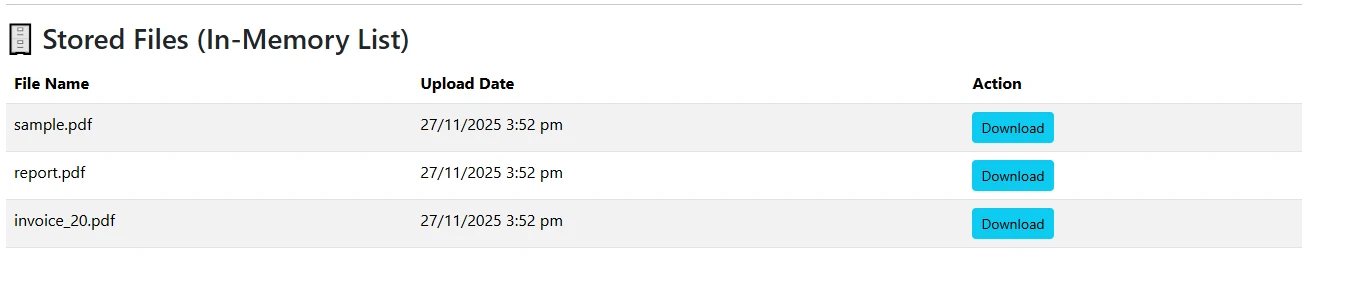
要將儲存的PDF返回給瀏覽器,請透過ID檢索記錄並返回FileResult。 ASP.NET Core的Content-Type標頭,並透過原始文件名觸發瀏覽器的下載對話框。
public async Task<IActionResult> Download(int id)
{
    var pdfFile = await _context.PdfFiles.FindAsync(id);

    if (pdfFile is null)
        return NotFound();

    return File(pdfFile.FileData, pdfFile.ContentType, pdfFile.FileName);
}Imports System.Threading.Tasks
Imports Microsoft.AspNetCore.Mvc
Public Async Function Download(id As Integer) As Task(Of IActionResult)
Dim pdfFile = Await _context.PdfFiles.FindAsync(id)
If pdfFile Is Nothing Then
Return NotFound()
End If
Return File(pdfFile.FileData, pdfFile.ContentType, pdfFile.FileName)
End FunctionIndex動作檢索所有儲存的文件記錄並將其傳遞給Razor視圖。 一個簡單的HTML表格渲染每個記錄的文件名、上傳日期和下載錨點。
<table class="content__data-table" data-content-table>
    <caption>Uploaded PDF Files</caption>
    <thead>
        <tr>
            <th>File Name</th>
            <th>Uploaded</th>
            <th>Action</th>
        </tr>
    </thead>
    <tbody>
        @foreach (var item in Model)
        {
            <tr>
                <td>@item.FileName</td>
                <td>@item.UploadedDate.ToString("yyyy-MM-dd HH:mm")</td>
                <td><a href="/Pdf/Download/@item.Id">Download</a></td>
            </tr>
        }
    </tbody>
</table>netContent-Type: application/pdf和 Content-Disposition: attachment; filename="..."標頭。 如果您希望瀏覽器內聯開啟PDF而不是提示下載,請使用Content-Disposition: attachment指示。
對於大規模部署,將原始二進位資料儲存在資料庫中會增加行的大小,並可能會減慢查詢速度。 另一個選擇是將文件寫入磁碟上的目錄——或雲提供商——並僅在資料庫中儲存相對路徑。 用System.IO.File.ReadAllBytesAsync(path)。 兩條路徑在控制器內合併為同一個return File(...)調用。
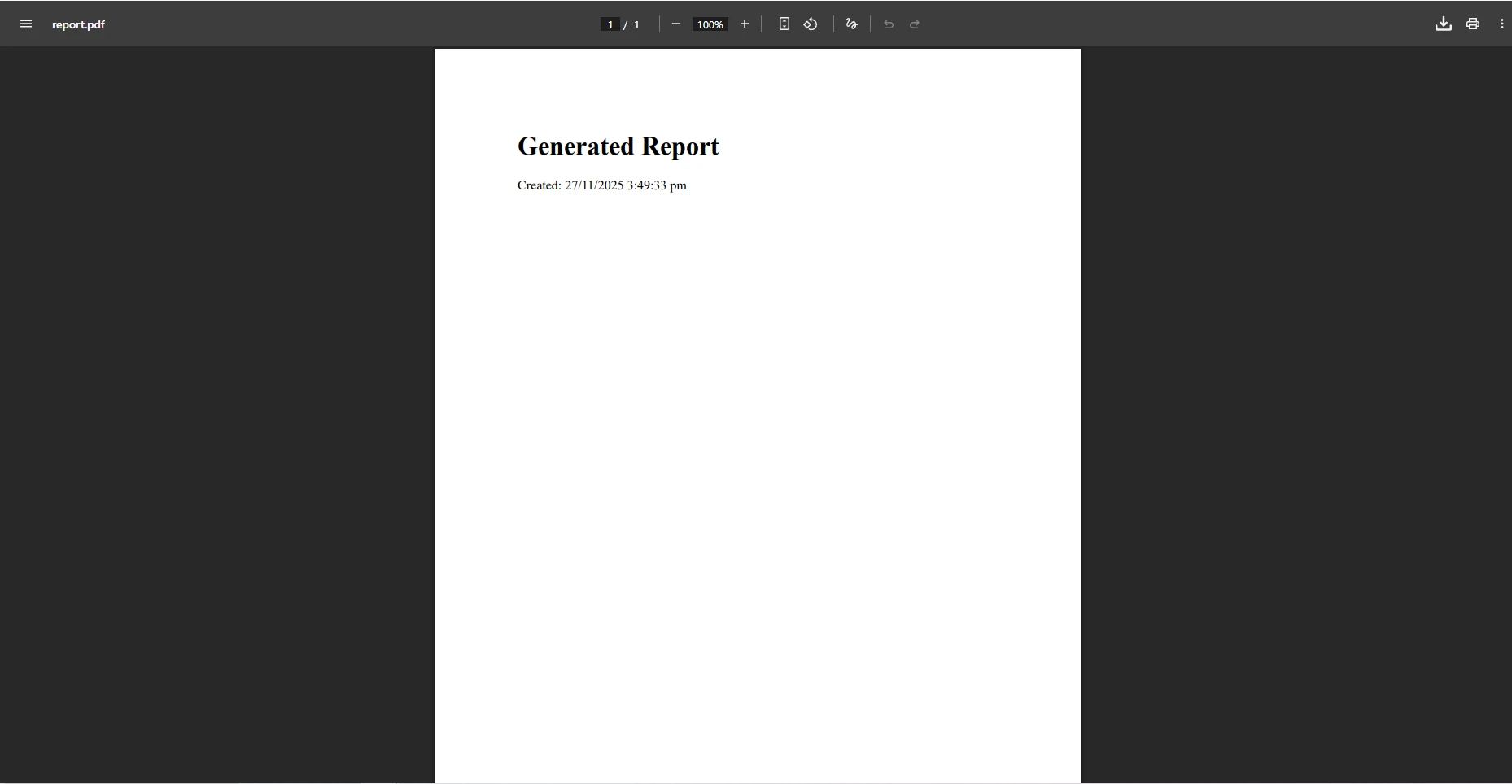
您不限於提供預先儲存的文件。 IronPDF的HTML轉PDF轉換可讓您從請求時的資料動態生成文件──對於發票、報告、證書和資料匯出非常有用。
public IActionResult GenerateInvoice(int orderId)
{
    // Build HTML content from your data model
    string html = $@"
        <html>
        <body style='font-family: Arial, sans-serif; padding: 40px;'>
            <h1>Invoice #{orderId}</h1>
            <p>Generated: {DateTime.UtcNow:yyyy-MM-dd HH:mm} UTC</p>
            <table border='1' cellpadding='8'>
                <tr><th>Item</th><th>Qty</th><th>Price</th></tr>
                <tr><td>IronPDF License</td><td>1</td><td>$999</td></tr>
            </table>
        </body>
        </html>";

    var renderer = new IronPdf.ChromePdfRenderer();
    using var pdf = renderer.RenderHtmlAsPdf(html);

    return File(pdf.BinaryData, "application/pdf", $"invoice-{orderId}.pdf");
}Public Function GenerateInvoice(orderId As Integer) As IActionResult
' Build HTML content from your data model
Dim html As String = $"
<html>
<body style='font-family: Arial, sans-serif; padding: 40px;'>
<h1>Invoice #{orderId}</h1>
<p>Generated: {DateTime.UtcNow:yyyy-MM-dd HH:mm} UTC</p>
<table border='1' cellpadding='8'>
<tr><th>Item</th><th>Qty</th><th>Price</th></tr>
<tr><td>IronPDF License</td><td>1</td><td>$999</td></tr>
</table>
</body>
</html>"
Dim renderer = New IronPdf.ChromePdfRenderer()
Using pdf = renderer.RenderHtmlAsPdf(html)
Return File(pdf.BinaryData, "application/pdf", $"invoice-{orderId}.pdf")
End Using
End FunctionChromePdfRenderer使用相同的Chromium渲染引擎(由Google Chrome驅動)產生像素精確的輸出。 這意味著您可以在瀏覽器中顯示的任何CSS──flexbox佈局、網格、自定義字體、SVG圖表──都能正確渲染在生成的PDF中。 您可以設置紙張大小、邊距和方向,透過RenderHtmlAsPdf之前進行設置。
對於更複雜的文件,傳遞完整的URL至RenderUrlAsPdf而不是HTML字串。 IronPDF將在無頭瀏覽器中載入頁面,執行JavaScript,應用樣式,並將完全渲染的DOM轉換為PDF。 瀏覽HTML到PDF轉換指南以獲取完整的渲染選項,包,括自定義頁眉、頁腳和頁碼標記。
除了單個文件操作,您可能需要將幾個上傳的文件合併為一個。 IronPDF的合併PDF功能接受一個PdfDocument物件列表並返回單個合併文件。
public async Task<IActionResult> MergeAll()
{
    var allFiles = await _context.PdfFiles.ToListAsync();

    if (allFiles.Count < 2)
        return BadRequest("At least two files are required for merging.");

    var documents = allFiles
        .Select(f => new IronPdf.PdfDocument(f.FileData))
        .ToList();

    using var merged = IronPdf.PdfDocument.Merge(documents);

    return File(merged.BinaryData, "application/pdf", "merged.pdf");
}Imports System.Threading.Tasks
Imports Microsoft.AspNetCore.Mvc
Public Async Function MergeAll() As Task(Of IActionResult)
Dim allFiles = Await _context.PdfFiles.ToListAsync()
If allFiles.Count < 2 Then
Return BadRequest("At least two files are required for merging.")
End If
Dim documents = allFiles _
.Select(Function(f) New IronPdf.PdfDocument(f.FileData)) _
.ToList()
Using merged = IronPdf.PdfDocument.Merge(documents)
Return File(merged.BinaryData, "application/pdf", "merged.pdf")
End Using
End Function反向操作──提取部分頁面──使用CopyPages。 從儲存的位元組中載入PdfDocument.BinaryData。 此模式對分頁預覽、拆分多段報告或提取封面頁以生成縮略圖很有用。 在提供給使用者之前,您也可以在合併或拆分輸出上應用數位簽名。
大PDF文件在ASP.NET Core中介軟體層需要更多配置。 預設情況下,請求正文大小限制設置為大約28 MB。 為了提高它,呼叫50 * 1024 * 1024為50 MB──在builder.Build()之前。
除了尺寸限制,對每個上傳端點應用這些安全措施:驗證內容型別標頭,檢查流的前幾個位元以查找%PDF魔法數,使用IronPDF的文件檢查API掃描嵌入腳本,並將處理過的文件儲存到Web根之外,這樣它們不會被直接作為靜態內容提供。 ASP.NET Core安全文件涵蓋包括防偽令牌驗證和病毒掃描整合的附加加固技術。
當文件超過10 MB時,在處理前將整個流讀取到MemoryStream中可能會顯著增加記憶體使用。 使用IronPdf.PdfDocument.FromStream從請求流中直接載入(如果可能),或寫入臨時文件路徑並從磁碟載入:
string tempPath = Path.GetTempFileName();
await using (var fs = System.IO.File.Create(tempPath))
{
    await file.CopyToAsync(fs);
}

using var pdf = new IronPdf.PdfDocument(tempPath);
// process...
System.IO.File.Delete(tempPath);Imports System.IO
Imports IronPdf
Dim tempPath As String = Path.GetTempFileName()
Using fs As FileStream = System.IO.File.Create(tempPath)
Await file.CopyToAsync(fs)
End Using
Using pdf As PdfDocument = New IronPdf.PdfDocument(tempPath)
' process...
End Using
System.IO.File.Delete(tempPath)此模式保持堆記憶體分配低,並可很好地與後台處理隊列協作,其中文件在HTTP響應已發送後以異步方式處理。 瀏覽IronPDF文件以獲取更多異步處理模式。
您現在擁有了一個完整的基礎設施,用於在由IronPDF支持的ASP.NET Core MVC應用程式中上載、處理、儲存和下載PDF文件。 從這裡出發,考慮下面的方向來擴展工作流程。
擴展處理能力。 IronPDF支持填寫和讀取PDF表單欄位,使用PDF文字提取API提取文字和圖像,以及將PDF頁面轉換為圖像用於縮略圖預覽。 這些功能都與上面顯示的同一控制器模式整合。
新增數位簽名。 在儲存前使用X.509證書為每個生成或上傳的文件新增數位簽名。 簽名PDF包含能夠滿足許多合規要求的防篡改元資料。
將儲存擴展到雲端。 用Azure Blob Storage或Amazon S3引用替換本地byte[]資料庫欄位。 在新增浮水印後將處理過的位元組上載到雲儲存,並僅在資料庫中儲存URI──這樣大大減少了資料庫行的大小,並能實現CDN傳送。
開始免費試用。 存取IronPDF試用授權頁面以獲取30天評估金鑰,享受完整功能存取。 您還可以瀏覽完整的IronPDF功能總覽以了解在您的.NET應用程式中可用的PDF功能的完整範圍,或者在準備好生產部署時查閱定價和授權頁面。

Curtis Chau擁有Carleton大學的電腦科學學士學位,專精於前端開發,擁有Node.js、TypeScript、JavaScript和React的專業知識。Curtis熱衷於建立直觀且美觀的使用者介面,喜愛使用現代框架並建立結構良好、視覺吸引力的手冊。

IronPDF 是 IRONSUITE 的一部分
10 款適用於辦公室文件的 .NET API 產品

當您需要您的PDF看起來像HTML一樣快速。




