



Updated September 2, 2026
HTML to PDF in C#: Benchmarking 7 .NET Libraries (2026)
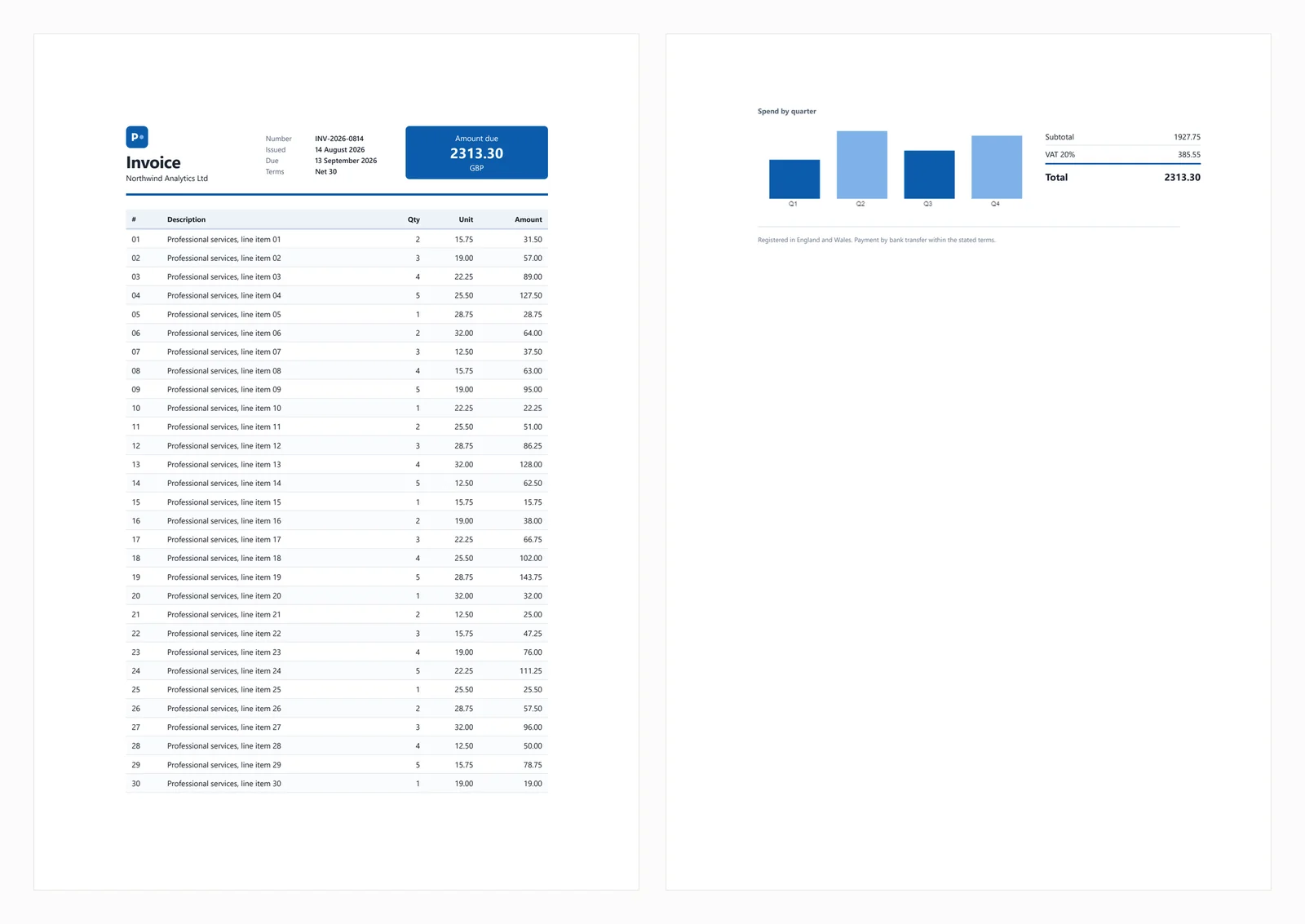
Compare 7 C# HTML to PDF libraries on .NET 10 for cold start, throughput, memory and rendering accuracy. Only 3 rendered the test invoice correctly.
Read More

When building modern .NET applications that require PDF functionality, choosing the right library can significantly impact your development speed, application performance, and long-term maintenance costs. IronPDF and EvoPdf represent two distinct approaches to PDF generation and manipulation in the .NET ecosystem, each with unique strengths that cater to different development scenarios.
This comparison examines both libraries across critical dimensions including rendering accuracy, API design, performance considerations, platform compatibility, and total cost of ownership. Whether you're building a high-volume document processing system, signing documents, or simply converting HTML reports to PDF, understanding these differences will help you make an informed decision that aligns with your technical requirements and budget constraints.
Before diving into detailed comparisons, here's an overview of how these libraries compare across key categories that matter most to .NET developers:
| Category | Feature/Aspect | IronPDF | EvoPdf | Key Advantage |
|---|---|---|---|---|
| Core Architecture | Design Philosophy | Simplicity-first, intuitive APIs | Granular control over conversion settings | Depends on team preference |
| API Complexity | Simple methods like RenderHtmlAsPdf() | Converter class with methods like ConvertHtml() | Both: Single-call conversion | |
| Platform Support | Cross-Platform | Windows, Linux, macOS via platform-specific NuGet packages | EvoPdf Next: Windows, Linux, macOS via per-platform NuGet packages; EvoPdf Classic: Windows, plus a cross-platform client that calls a separately hosted EVO PDF Server | Both: Cross-platform local rendering (EvoPdf Next) |
| .NET Versions | .NET 10, 9, 8, 7, 6, 5, Core 3.1+, Standard 2.0, Framework 4.6.2+ | Next: .NET 10, 9, 8, 7, 6, Standard 2.0, Framework 4.6.2+; Classic: Framework 2.0+ | Both: Modern framework support | |
| Operating Systems | Windows, Linux, macOS, Docker, Azure, AWS | Windows, Linux, macOS, Docker, Azure (EvoPdf Next) | Both: Docker and cloud support | |
| HTML to PDF | Rendering Engine | Chromium (CEF 109 in the standard package; CEF 131 in IronPdf.UpdatedChrome) | Chromium 142 (EvoPdf Next); EVO's own engine (EvoPdf Classic) | Both: Chromium-based |
| CSS3/HTML5 Support | Depends on the bundled Chromium version: on Windows, 109 in the standard package and 131 in IronPdf.UpdatedChrome (e.g. Tailwind CSS v4 needs Chrome 111 or later) | Next: flexbox, grid, ES2015+, web fonts | Both: Depends on engine version | |
| JavaScript Execution | JavaScript support with render delay | JavaScript support with conversion delay | Both: Dynamic content | |
| Security & Encryption | Encryption Levels | RC4-128, AES-128, AES-256 | RC4-40, RC4-128, AES-128, AES-256 | Both: AES-256 available |
| Permission Options | Granular permission controls | Granular permissions (print, copy, edit, annotate, fill forms, assemble) | Both: Granular control | |
| Digital Signatures | Integrated, visual signatures | Visible signatures with image and timestamp support | Both: Visual signatures | |
| Content Manipulation | Redaction Method | True content removal, one-line API | No redaction feature documented | IronPDF: Built-in redaction |
| Watermarking | HTML/CSS based, full styling | HTML templates for watermarks and stamps | Both: HTML-based | |
| Stamping | Unified stamper classes | HTML stamps via templates | IronPDF: Dedicated stamper classes | |
| File Conversions | DOCX to PDF | Built-in DocxToPdfRenderer | Included in EVO PDF Toolkit (Deployment license: $650), not in the HTML to PDF license | IronPDF: Included in base license |
| Developer Experience | Code Examples | 100+ ready-to-run samples | Code samples on GitHub, online demo | IronPDF: Extensive resources |
| Documentation | Tutorials, how-tos, videos, API reference | Documentation, API reference, support FAQ | IronPDF: Multiple learning paths | |
| Performance | Concurrency | Async rendering methods | Async methods (EvoPdf Next); persistent renderer for parallel conversions | Both: Concurrent workloads |
| Licensing & Pricing | Entry Level | Lite: $999 (1 dev, 1 project) | Deployment: $450 (1 application on 1 server, unlimited developers, no redistribution) | EvoPdf: Lower initial cost |
| Team License | Plus: $1,499 (3 devs, 3 projects) | Neither tier counts developers; Company: $1,200 (unlimited applications and servers) | EvoPdf: Price does not depend on team size | |
| Redistribution | +$1,999 royalty-free (OEM/SaaS); a public API that exposes IronPDF needs an SDK license | Company License only; not as a standalone conversion service or SDK | EvoPdf: Included in Company License | |
| Suite Option | Iron Suite Lite: $2,998 (10 products; 1 developer, 1 location, 1 project) | EVO PDF Toolkit Company: $1,400 | Different scope: Iron Suite adds OCR, barcode and Office tools | |
| Support | Support Included | Yes: 24/5 live chat; 24/7 support with Premium Support (included during the trial) | Yes, first year (standard or priority, by license) | Both: Support included |
| Best For | Use Cases | Modern web apps, complex PDFs, redaction | HTML, Word and Excel to PDF with company-wide licensing | Context-dependent |
Note. EvoPdf offers competitive pricing for large teams. IronPDF includes built-in redaction and DOCX to PDF conversion in its base license.
IronPDF is a .NET PDF library designed with developer productivity at its core. Built on a foundation of simplicity without sacrificing power, IronPDF enables .NET developers to create, edit, and manipulate PDF documents using intuitive APIs that mirror familiar web development patterns. The library's standout feature is its Chromium-based rendering engine, which runs JavaScript and loads web fonts; how much modern CSS it handles depends on the Chromium version you ship. The standard IronPdf package bundles Chromium 109 for compatibility with older Windows Servers; the Windows-only IronPdf.UpdatedChrome package bundles Chromium 131 and handles newer CSS features such as subgrid correctly, but it does not support 32-bit processes, Windows Server 2012 or SingleProcess mode, so the two packages are not interchangeable on every target.
The library is aimed at applications that render HTML documents, manipulate existing PDFs, and protect documents with encryption, signatures and redaction. Its extensive feature set includes not just basic PDF generation, but advanced capabilities like digital signatures, form filling, OCR integration through IronOCR, and document format conversions such as DOCX to PDF. IronPDF's cross-platform compatibility extends beyond simple framework support, running on Windows, Linux, macOS, Docker containers, and cloud platforms like Azure and AWS.
EvoPdf focuses on HTML to PDF conversion with an emphasis on customization and control. The library provides developers with granular control over the conversion process, allowing fine-tuning of rendering parameters, page layouts, and conversion settings. EvoPdf ships in two editions: EvoPdf Next, which uses a Chromium-based rendering engine (Chromium 142, according to EVO PDF) and runs on Windows, Linux and macOS, and EvoPdf Classic, which uses EVO's own rendering engine and runs on Windows. The EVO PDF Toolkit adds Word, Excel, RTF and Markdown to PDF conversion as well as PDF processing components.
A notable EvoPdf strength is its licensing: neither license tier counts developers, and the Company license covers unlimited applications and servers and includes redistribution inside your own applications. For high-volume server workloads, EvoPdf Next documents a persistent renderer mode that keeps the rendering engine running between conversions. The library also supports ASP.NET scenarios such as converting pages that require authentication cookies.
IronPDF runs on several .NET versions, operating systems and cloud platforms:
IronPDF ships its Chromium binaries in platform-specific NuGet packages (IronPdf for Windows, IronPdf.Linux, IronPdf.MacOs and IronPdf.MacOs.ARM). On Linux, IronPDF attempts to install missing system dependencies automatically by default; this requires sudo rights, and otherwise the dependencies are installed manually. This keeps deployment steps short for most environments.
EvoPdf supports a similar range of .NET versions, with platform support that depends on the edition:
EvoPdf Next provides native local rendering on Windows, Linux and macOS. An application built on EvoPdf Classic that needs to run on Linux or macOS can either move to EvoPdf Next, for which EVO PDF publishes a Classic to Next migration guide, or keep Classic rendering on a separate EVO PDF Server and call it through the client library.
Every code example in this article is a complete .NET 8 console program: create a project with dotnet new console, add the NuGet package named in the example's first comment, and replace Program.cs with the example. The examples declare their own using directives, so they build with or without implicit usings. They were compiled and run against IronPdf 2026.9.2, EvoPdf.HtmlToPdf 14.0.2 and EvoPdf.PdfSecurity 14.0.2. IronPDF needs a license key, such as a free trial key, set through IronPdf.License.LicenseKey or an IronPdf.LicenseKey entry in appsettings.json. EvoPdf runs without a key and adds an evaluation watermark to the output.
The most fundamental feature of both libraries is HTML to PDF conversion, and their APIs take different approaches.
// NuGet: Install-Package IronPdf
using IronPdf;
using IronPdf.Engines.Chrome;
using IronPdf.Rendering;

var renderer = new ChromePdfRenderer
{
    RenderingOptions = new ChromePdfRenderOptions
    {
        EnableJavaScript = true,

        // Page margins in millimetres
        MarginTop = 20,
        MarginBottom = 20,
        MarginLeft = 15,
        MarginRight = 15,

        CssMediaType = PdfCssMediaType.Print,
        ViewPortWidth = 1920,
        FitToPaperMode = FitToPaperModes.Automatic
    }
};

// Render only after the page calls window.ironpdf.notifyRender(), or after 10 seconds at most
renderer.RenderingOptions.WaitFor.JavaScript(10000);

// The page loads Chart.js and a Google Font from their CDNs, so the renderer needs network access
var htmlContent = @"
<!DOCTYPE html>
<html>
<head>
    <link href='https://fonts.googleapis.com/css2?family=Roboto:wght@300;400;700&display=swap' rel='stylesheet'>
    <style>
        body { font-family: 'Roboto', sans-serif; }
        .chart-container { width: 100%; height: 400px; }
        @media print {
            .no-print { display: none; }
        }
    </style>
    <script src='https://cdn.jsdelivr.net/npm/chart.js@4.4.1/dist/chart.umd.min.js'></script>
</head>
<body>
    <h1>Dynamic Sales Report</h1>
    <div class='chart-container'>
        <canvas id='salesChart'></canvas>
    </div>
    <script>
        new Chart(document.getElementById('salesChart'), {
            type: 'line',
            data: {
                labels: ['Jan', 'Feb', 'Mar', 'Apr', 'May'],
                datasets: [{
                    label: 'Sales 2025',
                    data: [65, 78, 90, 81, 96],
                    borderColor: 'rgb(75, 192, 192)',
                    tension: 0.4
                }]
            },
            // No animation, so the chart is fully drawn when the constructor returns
            options: { animation: false }
        });
        window.ironpdf.notifyRender();
    </script>
</body>
</html>";

using var pdf = renderer.RenderHtmlAsPdf(htmlContent);
pdf.SaveAs("sales-report.pdf");This IronPDF example shows:
WaitFor.JavaScript() waits for the page to call window.ironpdf.notifyRender() instead of guessing with a fixed delayCssMediaType.Print applies the page's @media print rules// NuGet: Install-Package EvoPdf.HtmlToPdf (EvoPdf Classic, Windows)
using System.IO;
using EvoPdf;
HtmlToPdfConverter converter = new HtmlToPdfConverter();
// Production use needs a license key. Leave this line out to evaluate:
// the output then carries an evaluation watermark. An invalid key makes the conversion throw.
// converter.LicenseKey = "<your EvoPdf license key>";
converter.PdfDocumentOptions.PdfPageSize = PdfPageSize.A4;
converter.PdfDocumentOptions.PdfPageOrientation = PdfPageOrientation.Portrait;
// EvoPdf margins are in points (1/72 inch): 57 pt is about 20 mm, 43 pt about 15 mm,
// matching the IronPDF example above, whose margins are in millimetres
converter.PdfDocumentOptions.TopMargin = 57;
converter.PdfDocumentOptions.BottomMargin = 57;
converter.PdfDocumentOptions.LeftMargin = 43;
converter.PdfDocumentOptions.RightMargin = 43;
converter.JavaScriptEnabled = true;
converter.ConversionDelay = 2; // seconds
// For pages behind HTTP authentication, also set
// converter.AuthenticationOptions.Username and .Password
// Convert HTML string
string htmlString = @"
<html>
<head>
<style>
body { font-family: Arial, sans-serif; }
table { border-collapse: collapse; width: 100%; }
th, td { border: 1px solid #ddd; padding: 8px; }
</style>
</head>
<body>
<h1>Invoice</h1>
<table>
<tr>
<th>Item</th>
<th>Quantity</th>
<th>Price</th>
</tr>
<tr>
<td>Product A</td>
<td>5</td>
<td>$50.00</td>
</tr>
</table>
</body>
</html>";
// Perform conversion
byte[] pdfBytes = converter.ConvertHtml(htmlString, "");
// Save to file
File.WriteAllBytes("invoice.pdf", pdfBytes);EvoPdf's converter follows a configure-then-convert pattern: set PdfDocumentOptions, then call ConvertHtml() or ConvertUrl(). Every EvoPdf example in this article uses the EvoPdf Classic API (EvoPdf.HtmlToPdf package), which renders on Windows. EvoPdf Next, the Chromium-based edition, is a separate set of NuGet packages with its own API: for example, its license key is set once per process on the static Licensing.LicenseKey property. EVO documents support in Next for flexbox, grid, ES2015+ JavaScript and web fonts.
Security is paramount when dealing with sensitive documents. Both libraries offer password protection, permission controls and encryption.
// NuGet: Install-Package IronPdf
using System;
using IronPdf;
using IronPdf.Editing;
using IronPdf.Security;
using IronPdf.Signing;
using IronSoftware.Drawing;

using var pdf = PdfDocument.FromFile("confidential-report.pdf");

// Finish every content change before signing
pdf.ApplyWatermark("<h2 style='color:red; opacity:0.5;'>CONFIDENTIAL</h2>",
    45, VerticalAlignment.Middle, HorizontalAlignment.Center);

// Descriptive document properties (these do not restrict access)
pdf.MetaData.Author = "Finance Team";
pdf.MetaData.Title = "Quarterly Report (Internal)";
pdf.MetaData.ModifiedDate = DateTime.UtcNow;

// Owner password: required to change the permissions below
pdf.SecuritySettings.OwnerPassword = "owner-password";

// User password: required to open the document
pdf.SecuritySettings.UserPassword = "user-password";

pdf.SecuritySettings.AllowUserCopyPasteContentForAccessibility = false;
pdf.SecuritySettings.AllowUserAnnotations = false;
pdf.SecuritySettings.AllowUserCopyPasteContent = false;
pdf.SecuritySettings.AllowUserFormData = true;
pdf.SecuritySettings.AllowUserEdits = PdfEditSecurity.NoEdit;
pdf.SecuritySettings.AllowUserPrinting = PdfPrintSecurity.PrintLowQuality;
pdf.SecuritySettings.EncryptionType = PdfEncryptionType.Aes_256;

// Visible digital signature: image file, page index, and position/size on the page
var signature = new PdfSignature("certificate.pfx", "cert-password")
{
    SigningReason = "Document Approval",
    SigningLocation = "Head Office",
    SigningContact = "security@example.com",
    SignatureImage = new PdfSignatureImage("signature.png", 0, new Rectangle(100, 100, 200, 50))
};
pdf.Sign(signature);

// The signature is applied when the file is saved
pdf.SaveAs("secured-document.pdf");IronPDF's security features shown here:
// NuGet: Install-Package EvoPdf.PdfSecurity
// (licensed with the EVO PDF Toolkit; not included in the standalone HTML to PDF license)
using EvoPdf.PdfSecurity;

PdfSecurityOptions securityOptions = new PdfSecurityOptions();

// Set basic security parameters
securityOptions.UserPassword = "user123";
securityOptions.OwnerPassword = "owner456";
securityOptions.EncryptionAlgorithm = EncryptionAlgorithm.AES;
securityOptions.KeySize = EncryptionKeySize.EncryptKey256Bit;

// Configure permissions
securityOptions.CanPrint = true;
securityOptions.CanCopyContent = false;
securityOptions.CanEditContent = false;
securityOptions.CanEditAnnotations = false;
securityOptions.CanFillFormFields = true;
securityOptions.CanAssembleDocument = false;

// Apply security to existing PDF
PdfSecurityManager securityManager = new PdfSecurityManager(securityOptions);
securityManager.SaveSecuredPdfToFile("input.pdf", "secured-output.pdf");EvoPdf covers the same core controls: user and owner passwords, encryption, and permissions for printing, copying, editing, annotations, form filling and document assembly. EVO documents the algorithm (RC4 or AES) and the key size (40, 128 or 256 bits) as separate settings; in our tests with version 14.0.2, RC4 with 40 or 128-bit keys and AES with 128 or 256-bit keys produced the expected encryption, so use AES-128 or AES-256; RC4 is a legacy algorithm. With the standalone HTML to PDF license, the converter's own PdfSecurityOptions apply the same protection while the PDF is being generated, without the separate PDF Security component.
Permanently removing sensitive text before a document is shared is a common requirement in applications that handle personal data. Redaction is one building block for that work; on its own it does not make an application compliant with regulations such as GDPR, HIPAA or CCPA.
// NuGet: Install-Package IronPdf
using IronPdf;
using IronSoftware.Drawing;

// This example expects a PDF with at least three pages
using var pdf = PdfDocument.FromFile("customer-records.pdf");

// 1. Redact a specific value on every page
pdf.RedactTextOnAllPages("123-45-6789");

// 2. Redact a word on specific pages (zero-based page indexes)
pdf.RedactTextOnPages(new[] { 0, 1, 2 }, "Confidential", CaseSensitive: false);

// 3. Redact a rectangular region on the first page
pdf.RedactRegionOnPage(0, new RectangleF(100, 200, 300, 50));

// 4. Replace a complete sensitive value with a label instead of drawing a black box
pdf.RedactTextOnAllPages("ACCT-0042-7781", DrawRectangles: false, ReplacementText: "[REDACTED]");

pdf.SaveAs("redacted-records.pdf");IronPDF's redaction capabilities include:
Text redaction matches text in the page content. Text inside images, such as a scanned page, is not matched; a region redaction covers a fixed area regardless of what is in it. EvoPdf does not document a redaction feature.
Both libraries support PDF forms, but with different approaches to creation and manipulation.
// NuGet: Install-Package IronPdf
using System;
using IronPdf;

// Create a new PDF with an HTML form
var html = @"
<html>
<body>
    <h2>Employee Information Form</h2>
    <form>
        <label>Full Name:</label>
        <input type='text' name='fullName' required />

        <label>Email:</label>
        <input type='email' name='email' required />

        <label>Department:</label>
        <select name='department'>
            <option value=''>Select Department</option>
            <option value='IT'>Information Technology</option>
            <option value='HR'>Human Resources</option>
            <option value='Sales'>Sales</option>
        </select>

        <label>Start Date:</label>
        <input type='text' name='startDate' placeholder='YYYY-MM-DD' />

        <label>
            <input type='checkbox' name='agreement' />
            I agree to the terms and conditions
        </label>

        <button type='submit'>Submit</button>
    </form>
</body>
</html>";

var renderer = new ChromePdfRenderer
{
    RenderingOptions = new ChromePdfRenderOptions
    {
        CreatePdfFormsFromHtml = true // Enable form field creation
    }
};

using var pdf = renderer.RenderHtmlAsPdf(html);

// Programmatically fill form fields
pdf.Form.FindFormField("fullName").Value = "John Doe";
pdf.Form.FindFormField("email").Value = "john.doe@example.com";
// A dropdown takes one of its displayed choices, not the HTML option value ("IT")
pdf.Form.FindFormField("department").Value = "Information Technology";
pdf.Form.FindFormField("startDate").Value = DateTime.Now.ToString("yyyy-MM-dd");
// "Yes" is the checkbox's checked state
pdf.Form.FindFormField("agreement").Value = "Yes";

// Make specific fields read-only
pdf.Form.FindFormField("email").ReadOnly = true;

// Save as fillable form
pdf.SaveAs("fillable-form.pdf");

// Or flatten the form (convert to static content)
pdf.Flatten();
pdf.SaveAs("completed-form.pdf");IronPDF's form handling features:
Performance characteristics vary significantly based on document complexity and use case:
// NuGet: Install-Package IronPdf
using System;
using System.Diagnostics;
using System.Linq;
using System.Threading;
using System.Threading.Tasks;
using IronPdf;

// Timing harness for a batch of documents. Replace the generated HTML with your own templates.
const int documentCount = 100;
const int maxConcurrency = 4;

var htmlDocuments = Enumerable.Range(1, documentCount)
    .Select(i => $"<html><body><h1>Invoice {i}</h1><p>Amount due: {i * 10} USD</p></body></html>")
    .ToList();

var renderer = new ChromePdfRenderer
{
    RenderingOptions = new ChromePdfRenderOptions
    {
        EnableJavaScript = false // static content only
    }
};

// Cap how many renders run at once instead of starting every render immediately
using var gate = new SemaphoreSlim(maxConcurrency);
var stopwatch = Stopwatch.StartNew();

var tasks = htmlDocuments.Select(async (html, index) =>
{
    await gate.WaitAsync();
    try
    {
        using var pdf = await renderer.RenderHtmlAsPdfAsync(html);
        pdf.SaveAs($"invoice-{index + 1}.pdf");
    }
    finally
    {
        gate.Release();
    }
});
await Task.WhenAll(tasks);

stopwatch.Stop();
Console.WriteLine($"Documents: {documentCount}, at most {maxConcurrency} at a time");
Console.WriteLine($"Total elapsed: {stopwatch.ElapsedMilliseconds} ms");
// Elapsed time divided by the document count: an amortized figure, not the latency of one request
Console.WriteLine($"Amortized time per document: {stopwatch.ElapsedMilliseconds / (double)documentCount:F1} ms");
// Resident memory of this process only, sampled once at the end; the Chromium helper
// processes are not included, and this is not the peak
Console.WriteLine($"Working set of this process at end: {Process.GetCurrentProcess().WorkingSet64 / 1024 / 1024} MB");This article presents no comparative benchmark: results depend on templates, hardware and deployment, so measure with your own. Documented levers for each library:
RenderHtmlAsPdfAsync, with your own limit on how many renders run at onceGlobalSettings.HtmlRendererMode set to PersistentProcess (the default) keeps one rendering engine process running between conversions, and ProcessPerConversion starts one per conversion; conversions can run in parallel, each with its own converter, and GlobalSettings.MaxParallelConversions limits how many run at onceConvertHtmlAsync and ConvertUrlAsync for async/await codeIronPDF offers various pricing options including Lite, Plus, and Professional licenses, with the option for royalty-free redistribution. The licensing model is designed to scale with your team and project needs (pricing as of September 2026):
EVO PDF Toolkit and the standalone HTML to PDF converter each offer two license tiers, Deployment and Company (pricing as of September 2026; verify current pricing at evopdf.com/buy). The HTML to PDF license covers both the Next and Classic converters; the other components, such as PDF Security, are only included in the Toolkit.
Each scenario below states its deployment assumptions, because both vendors price by scope as well as by team size:
An often-underestimated factor in PDF library selection is support for modern CSS frameworks. With Bootstrap, Tailwind CSS, and Foundation widely used in web development, your library's ability to handle these frameworks directly impacts development efficiency and output quality.
IronPDF's Chromium engine renders CSS frameworks as the bundled Chromium version does, so check a framework's browser requirements against the package you ship:
subgrid, overflow: hidden edge cases and custom line heights, renders correctly only with IronPdf.UpdatedChrome, which IronPDF also recommends when Bootstrap or Tailwind pages render slowly. IronPdf.UpdatedChrome does not support 32-bit processes, Windows Server 2012 or SingleProcess mode, so confirm your deployment targets before switching.Code Example: Bootstrap Timeline Component
// NuGet: Install-Package IronPdf
using IronPdf;

var renderer = new ChromePdfRenderer();

string bootstrapTimeline = @"
<!DOCTYPE html>
<html>
<head>
    <link href='https://cdn.jsdelivr.net/npm/bootstrap@5.3.0/dist/css/bootstrap.min.css' rel='stylesheet'>
    <style>
        .timeline { position: relative; padding: 20px 0; }
        .timeline::before {
            content: '';
            position: absolute;
            left: 50%;
            width: 2px;
            height: 100%;
            background: #dee2e6;
        }
        .timeline-item { position: relative; margin: 20px 0; }
    </style>
</head>
<body>
    <div class='container py-5'>
        <h2 class='text-center mb-5'>Project Timeline</h2>
        <div class='timeline'>
            <div class='timeline-item'>
                <div class='row'>
                    <div class='col-md-6'>
                        <div class='card shadow-sm'>
                            <div class='card-body'>
                                <h5 class='card-title'>Phase 1: Planning</h5>
                                <p class='text-muted'>Q1 2025</p>
                                <p class='card-text'>Initial project scope and requirements gathering completed.</p>
                                <span class='badge bg-success'>Completed</span>
                            </div>
                        </div>
                    </div>
                </div>
            </div>
            <!-- Additional timeline items... -->
        </div>
    </div>
</body>
</html>";

// The page loads Bootstrap from a CDN, so the renderer needs network access
using var pdf = renderer.RenderHtmlAsPdf(bootstrapTimeline);
pdf.SaveAs("project-timeline.pdf");EvoPdf's two editions handle modern CSS differently:
Development Impact: If your application uses Bootstrap or Tailwind extensively and you need PDFs that match your web interface, test your real templates with each library's trial. With Chromium-based engines on both sides (IronPDF and EvoPdf Next), differences are more likely to come from the engine version and configuration than from framework support.
For more on CSS framework compatibility, see the Bootstrap & Flexbox CSS Guide.
IronPDF provides documentation, 24/5 live chat, 24/7 engineering support with Premium Support, video tutorials, and regular updates. The support ecosystem includes:
EvoPdf provides documentation and support through:
The main difference is the breadth of IronPDF's educational content (tutorials, how-to guides and videos) alongside 24/5 live chat and 24/7 support with Premium Support.
IronPDF excels in scenarios requiring:
1. Modern Web Application Integration
2. Documents with Sensitive Content
3. Complex Document Processing
4. Cross-Platform Deployment
Example: Protecting a Generated Report
// NuGet: Install-Package IronPdf
using System.Net;
using IronPdf;
using IronPdf.Security;
using IronPdf.Signing;

var patient = new PatientRecord("P-10442", "Jane <Q.> Doe & Family", "123-45-6789", "open-sesame");

// HTML-encode text values, so characters such as & and < print as text instead of changing the markup
var html = $@"
<html>
<body>
    <h1>Patient Summary</h1>
    <p>Patient ID: {WebUtility.HtmlEncode(patient.PatientId)}</p>
    <p>Name: {WebUtility.HtmlEncode(patient.Name)}</p>
    <p>SSN: {WebUtility.HtmlEncode(patient.Ssn)}</p>
</body>
</html>";

var renderer = new ChromePdfRenderer();
using var pdf = renderer.RenderHtmlAsPdf(html);

// Remove the SSN from the page content wherever it appears
pdf.RedactTextOnAllPages(patient.Ssn);

// Descriptive document properties
pdf.MetaData.Author = "Records System";
pdf.MetaData.Title = $"Patient Summary {patient.PatientId}";

// Require a password to open the file, restrict copying, and encrypt with AES-256
pdf.SecuritySettings.UserPassword = patient.AccessCode;
pdf.SecuritySettings.OwnerPassword = "records-owner-password";
pdf.SecuritySettings.AllowUserCopyPasteContent = false;
pdf.SecuritySettings.AllowUserPrinting = PdfPrintSecurity.FullPrintRights;
pdf.SecuritySettings.EncryptionType = PdfEncryptionType.Aes_256;

// Sign last, so changes made to the file after signing can be detected
pdf.Sign(new PdfSignature("records-cert.pfx", "password")
{
    SigningReason = "Record export",
    SigningLocation = "Records Department"
});

pdf.SaveAs("patient-summary.pdf");

record PatientRecord(string PatientId, string Name, string Ssn, string AccessCode);These are document-processing building blocks. Whether an application meets a regulation such as HIPAA also depends on how it stores, transmits and controls access to the data, which no PDF setting establishes on its own.
EvoPdf is well-suited for:
1. HTML to PDF Conversion
2. Budget-Conscious Teams
3. Specific Server Environments
4. High-Volume Conversions
Real-World Example: Invoice Generation System
// NuGet: Install-Package EvoPdf.HtmlToPdf  (EvoPdf Classic, Windows)
using System;
using System.Globalization;
using System.IO;
using System.Net;
using EvoPdf;

var invoice = new InvoiceData("INV-2026-0042", new DateTime(2026, 9, 1), "Smith & Sons <Ltd>", 1250.00m);

var converter = new HtmlToPdfConverter
{
    // LicenseKey = "<your EvoPdf license key>",
    JavaScriptEnabled = false, // not needed for static invoices
    ConversionDelay = 0
};
converter.PdfDocumentOptions.PdfPageSize = PdfPageSize.A4;
converter.PdfDocumentOptions.TopMargin = 30;    // points
converter.PdfDocumentOptions.BottomMargin = 30; // points

string template =
    "<html><body><h1>Invoice {{InvoiceNumber}}</h1>" +
    "<p>Date: {{Date}}</p><p>Customer: {{CustomerName}}</p><p>Total: {{Total}}</p></body></html>";

// HTML-encode text values, so characters such as & and < print as text instead of changing the markup
string html = template
    .Replace("{{InvoiceNumber}}", WebUtility.HtmlEncode(invoice.InvoiceNumber))
    .Replace("{{Date}}", invoice.Date.ToString("yyyy-MM-dd"))
    .Replace("{{CustomerName}}", WebUtility.HtmlEncode(invoice.CustomerName))
    .Replace("{{Total}}", invoice.Total.ToString("C", CultureInfo.GetCultureInfo("en-US")));

File.WriteAllBytes($"invoice-{invoice.InvoiceNumber}.pdf", converter.ConvertHtml(html, ""));

record InvoiceData(string InvoiceNumber, DateTime Date, string CustomerName, decimal Total);Both libraries benefit from proper configuration and usage patterns:
// NuGet: Install-Package IronPdf
using System;
using System.IO;
using System.Linq;
using System.Threading;
using System.Threading.Tasks;
using IronPdf;
using IronPdf.Engines.Chrome;
using IronPdf.Rendering;

// Global engine settings: set once at startup, before the first render
Installation.ChromeGpuMode = ChromeGpuModes.Disabled; // servers usually have no GPU
// Set to false only if the Linux dependencies are already installed in your image
Installation.LinuxAndDockerDependenciesAutoConfig = false;

var service = new PdfService(maxConcurrency: 4);
var pages = Enumerable.Range(1, 8).Select(i => $"<h1>Report {i}</h1>");
byte[][] results = await Task.WhenAll(pages.Select(service.GeneratePdfAsync));

for (int i = 0; i < results.Length; i++)
    File.WriteAllBytes($"report-{i + 1}.pdf", results[i]);
Console.WriteLine($"Generated {results.Length} PDFs");

public class PdfService
{
    private readonly ChromePdfRenderer _renderer;
    private readonly SemaphoreSlim _gate;

    public PdfService(int maxConcurrency)
    {
        // Caps how many renders run at once
        _gate = new SemaphoreSlim(maxConcurrency);

        _renderer = new ChromePdfRenderer
        {
            RenderingOptions = new ChromePdfRenderOptions
            {
                EnableJavaScript = false, // only if the pages need no JavaScript
                CssMediaType = PdfCssMediaType.Screen,
                Timeout = 30 // seconds
            }
        };
    }

    public async Task<byte[]> GeneratePdfAsync(string html)
    {
        await _gate.WaitAsync();
        try
        {
            using var pdf = await _renderer.RenderHtmlAsPdfAsync(html);
            return pdf.BinaryData;
        }
        finally
        {
            _gate.Release();
        }
    }
}
// NuGet: Install-Package EvoPdf.HtmlToPdf (EvoPdf Classic, Windows)
using System;
using System.IO;
using System.Linq;
using System.Threading;
using System.Threading.Tasks;
using EvoPdf;
var service = new EvoPdfService(maxConcurrency: 4);
var pages = Enumerable.Range(1, 8).Select(i => $"<h1>Report {i}</h1>");
byte[][] results = await Task.WhenAll(pages.Select(service.GeneratePdfAsync));
for (int i = 0; i < results.Length; i++)
File.WriteAllBytes($"evopdf-report-{i + 1}.pdf", results[i]);
Console.WriteLine($"Generated {results.Length} PDFs");
public class EvoPdfService
{
private readonly SemaphoreSlim _gate;
// Caps how many conversions run at once
public EvoPdfService(int maxConcurrency) => _gate = new SemaphoreSlim(maxConcurrency);
public async Task<byte[]> GeneratePdfAsync(string html)
{
await _gate.WaitAsync();
try
{
// A new converter for each conversion, as EVO documents for parallel conversions
var converter = new HtmlToPdfConverter
{
// LicenseKey = "<your EvoPdf license key>",
JavaScriptEnabled = false,
ConversionDelay = 0
};
// The Classic API is synchronous, so run it on a thread-pool thread
return await Task.Run(() => converter.ConvertHtml(html, ""));
}
finally
{
_gate.Release();
}
}
}The semaphore is what limits concurrency in both examples. In EvoPdf Next, GlobalSettings.MaxParallelConversions sets the same kind of limit inside the library, and the persistent renderer keeps the rendering engine process running between conversions.
Production code needs to handle rendering failures, such as a page that cannot be loaded:
// NuGet: Install-Package IronPdf
using System;
using System.IO;
using System.Threading.Tasks;
using IronPdf;
using IronPdf.Exceptions;

// Write IronPDF's own diagnostics to a log file
IronPdf.Logging.Logger.LogFilePath = "ironpdf.log";
IronPdf.Logging.Logger.LoggingMode = IronPdf.Logging.Logger.LoggingModes.All;

var renderer = new ChromePdfRenderer();
renderer.RenderingOptions.Timeout = 60; // seconds

byte[] page = await TryRenderUrlAsync(renderer, "https://example.com/");
if (page != null)
{
    File.WriteAllBytes("example.pdf", page);
    Console.WriteLine($"Rendered {page.Length} bytes");
}

// A host that does not resolve makes the render throw, which exercises the error path
byte[] missing = await TryRenderUrlAsync(renderer, "https://nonexistent.invalid/");
Console.WriteLine(missing == null ? "Second render failed and was handled" : "Second render succeeded");

// Returns the PDF bytes, or null if the page could not be rendered
static async Task<byte[]> TryRenderUrlAsync(ChromePdfRenderer renderer, string url)
{
    try
    {
        using var pdf = await renderer.RenderUrlAsPdfAsync(url);
        if (pdf.PageCount == 0)
        {
            Console.Error.WriteLine($"No pages rendered for {url}");
            return null;
        }
        return pdf.BinaryData;
    }
    catch (IronPdfNativeException ex)
    {
        // Raised by the rendering engine, for example when the page cannot be loaded
        Console.Error.WriteLine($"Rendering failed for {url}: {ex.Message}");
        return null;
    }
}A statement that should not change after approval can combine a watermark, restricted permissions and a signature:
// NuGet: Install-Package IronPdf
using System;
using IronPdf;
using IronPdf.Editing;
using IronPdf.Security;
using IronPdf.Signing;
using IronSoftware.Drawing;

var renderer = new ChromePdfRenderer();
using var pdf = renderer.RenderHtmlAsPdf(
    "<h1>Quarterly Statement: Q3 2026</h1>" +
    "<table><tr><td>Revenue</td><td>1,250,000</td></tr><tr><td>Expenses</td><td>980,000</td></tr></table>");

// Mark the document as a draft
pdf.ApplyWatermark(@"
    <div style='color: rgba(0,0,0,0.1); font-size: 120px; transform: rotate(-45deg); font-family: Arial;'>
        DRAFT
    </div>", 30, VerticalAlignment.Middle, HorizontalAlignment.Center);

// Descriptive document properties: useful for search and filing, not a record of who changed what
pdf.MetaData.Author = "Financial Reporting System";
pdf.MetaData.Keywords = "Quarterly Statement, Q3 2026";
pdf.MetaData.CustomProperties.Add("ReportPeriod", "2026-Q3");
pdf.MetaData.CustomProperties.Add("GeneratedAt", DateTime.UtcNow.ToString("O"));

// Restrict editing; the owner password is needed to change these permissions
pdf.SecuritySettings.OwnerPassword = "finance-owner-password";
pdf.SecuritySettings.AllowUserEdits = PdfEditSecurity.NoEdit;
pdf.SecuritySettings.AllowUserCopyPasteContent = true;
pdf.SecuritySettings.AllowUserPrinting = PdfPrintSecurity.FullPrintRights;
pdf.SecuritySettings.EncryptionType = PdfEncryptionType.Aes_256;

// Sign last: readers can then detect changes made after signing
pdf.Sign(new PdfSignature("financial-cert.pfx", "password")
{
    SigningReason = "Statement approval",
    SigningLocation = "Finance Department",
    // Visible signature image on the first page
    SignatureImage = new PdfSignatureImage("cfo-signature.png", 0, new Rectangle(50, 50, 200, 60))
});

pdf.SaveAs("quarterly-statement.pdf");The signature makes later changes detectable and the permissions discourage editing; neither is, on its own, a compliance control or an audit trail of who did what.
E-commerce platforms need fast, reliable invoice generation:
// NuGet: Install-Package IronPdf
using System;
using System.Globalization;
using System.Linq;
using System.Net;
using IronPdf;
using IronPdf.Rendering;

var order = new Order("INV-1001", new DateTime(2026, 9, 1), new[]
{
    new OrderItem("Widget <Deluxe> & Co. edition", 2, 19.99m),
    new OrderItem("Gift wrap", 1, 4.50m)
});

var renderer = new ChromePdfRenderer
{
    RenderingOptions = new ChromePdfRenderOptions
    {
        MarginTop = 10,    // millimetres
        MarginBottom = 10,
        PaperSize = PdfPaperSize.A4
    }
};

var usd = CultureInfo.GetCultureInfo("en-US");

// HTML-encode text values, so characters such as & and < print as text instead of changing the markup
string rows = string.Concat(order.Items.Select(item => $@"
        <tr>
            <td>{WebUtility.HtmlEncode(item.Name)}</td>
            <td>{item.Quantity}</td>
            <td>{item.Price.ToString("C", usd)}</td>
            <td>{item.Total.ToString("C", usd)}</td>
        </tr>"));

var html = $@"
<html>
<head>
    <style>
        body {{ font-family: Arial, sans-serif; }}
        .invoice-header {{ background: #f0f0f0; padding: 20px; }}
        table {{ width: 100%; border-collapse: collapse; }}
        th, td {{ padding: 10px; border-bottom: 1px solid #ddd; text-align: left; }}
    </style>
</head>
<body>
    <div class='invoice-header'>
        <h1>Invoice #{WebUtility.HtmlEncode(order.InvoiceNumber)}</h1>
        <p>Date: {order.Date:yyyy-MM-dd}</p>
    </div>
    <table>
        <tr><th>Item</th><th>Quantity</th><th>Price</th><th>Total</th></tr>
        {rows}
        <tr><td colspan='3'><strong>Total</strong></td><td><strong>{order.Total.ToString("C", usd)}</strong></td></tr>
    </table>
    <p>Thank you for your business!</p>
</body>
</html>";

using var pdf = await renderer.RenderHtmlAsPdfAsync(html);
pdf.SaveAs($"invoice-{order.InvoiceNumber}.pdf");

record OrderItem(string Name, int Quantity, decimal Price)
{
    public decimal Total => Price * Quantity;
}

record Order(string InvoiceNumber, DateTime Date, OrderItem[] Items)
{
    public decimal Total => Items.Sum(item => item.Total);
}If you're considering switching between libraries, here's a migration approach:
// NuGet: Install-Package EvoPdf.HtmlToPdf  (EvoPdf Classic, Windows)
// NuGet: Install-Package IronPdf
using System.IO;
using EvoPdf;
using IronPdf;
using IronPdf.Rendering;

string url = "https://example.com/";

// EvoPdf pattern
HtmlToPdfConverter evoPdfConverter = new HtmlToPdfConverter();
evoPdfConverter.PdfDocumentOptions.PdfPageSize = PdfPageSize.A4;
File.WriteAllBytes("evopdf.pdf", evoPdfConverter.ConvertUrl(url));

// Equivalent IronPDF pattern
var ironPdfRenderer = new ChromePdfRenderer
{
    RenderingOptions = new ChromePdfRenderOptions
    {
        PaperSize = PdfPaperSize.A4
    }
};
using (var pdf = ironPdfRenderer.RenderUrlAsPdf(url))
{
    File.WriteAllBytes("ironpdf.pdf", pdf.BinaryData);
}

// During a gradual migration, both libraries can sit behind one interface
IPdfConverter converter = new IronPdfAdapter();
File.WriteAllBytes("adapter.pdf", converter.ConvertUrlToPdf(url));

public interface IPdfConverter
{
    byte[] ConvertHtmlToPdf(string html);
    byte[] ConvertUrlToPdf(string url);
}

public class IronPdfAdapter : IPdfConverter
{
    private readonly ChromePdfRenderer _renderer = new ChromePdfRenderer();

    public byte[] ConvertHtmlToPdf(string html)
    {
        using var pdf = _renderer.RenderHtmlAsPdf(html);
        return pdf.BinaryData;
    }

    public byte[] ConvertUrlToPdf(string url)
    {
        using var pdf = _renderer.RenderUrlAsPdf(url);
        return pdf.BinaryData;
    }
}

public class EvoPdfAdapter : IPdfConverter
{
    private readonly HtmlToPdfConverter _converter = new HtmlToPdfConverter();

    public byte[] ConvertHtmlToPdf(string html)
    {
        return _converter.ConvertHtml(html, "");
    }

    public byte[] ConvertUrlToPdf(string url)
    {
        return _converter.ConvertUrl(url);
    }
}Both IronPDF and EvoPdf serve important roles in the .NET PDF library ecosystem, but they target different use cases and development philosophies.
Choose IronPDF when you need:
Choose EvoPdf when you need:
The decision ultimately depends on your specific requirements, budget constraints, and long-term scalability needs. For modern applications that need PDF manipulation beyond generation, such as built-in redaction and DOCX conversion, IronPDF's feature set and documentation make it a strong investment. EvoPdf is a viable option as well, particularly for teams that value its company-wide licensing and included redistribution.
Consider starting with the 30-day free trial of IronPDF to evaluate its capabilities in your specific use case. The trial provides access to IronPDF features, allowing you to make an informed decision based on actual performance in your environment.
Remember that the true cost of a PDF library extends beyond the license price - factor in development time, maintenance overhead, and the potential need for additional features as your application grows. Choose the library that not only meets your current needs but can scale with your future requirements.

Jacob Mellor is Chief Technology Officer at Iron Software and a visionary engineer pioneering C# PDF technology. As the original developer behind Iron Software's core codebase, he has shaped the company's product architecture since its inception, transforming it alongside CEO Cameron Rimington into a 50+ person company serving NASA, Tesla, and global government agencies.

IronPDF is a part of IRONSUITE
10 .NET API products for your office documents











When you need your PDF to look like HTML, fast.


