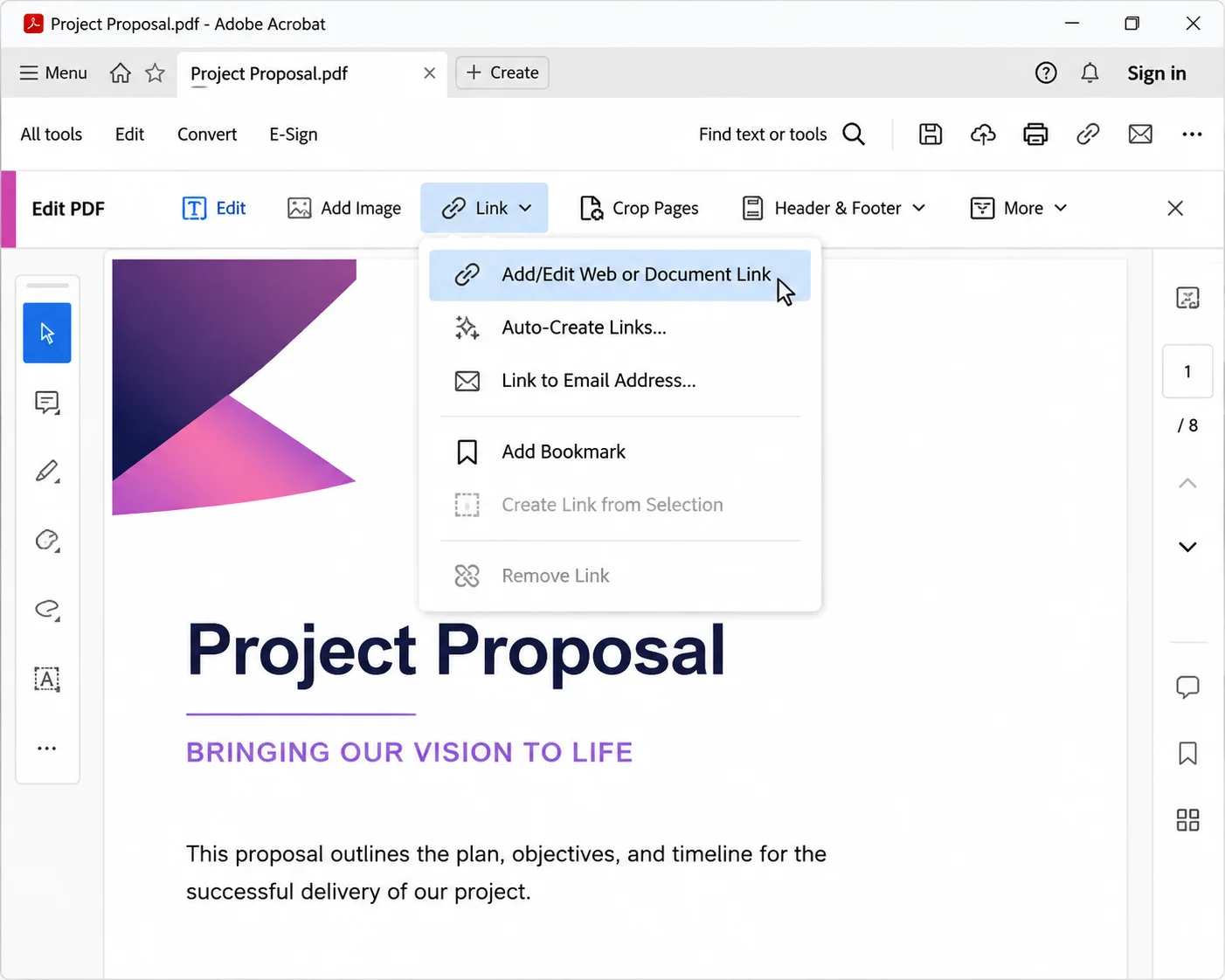
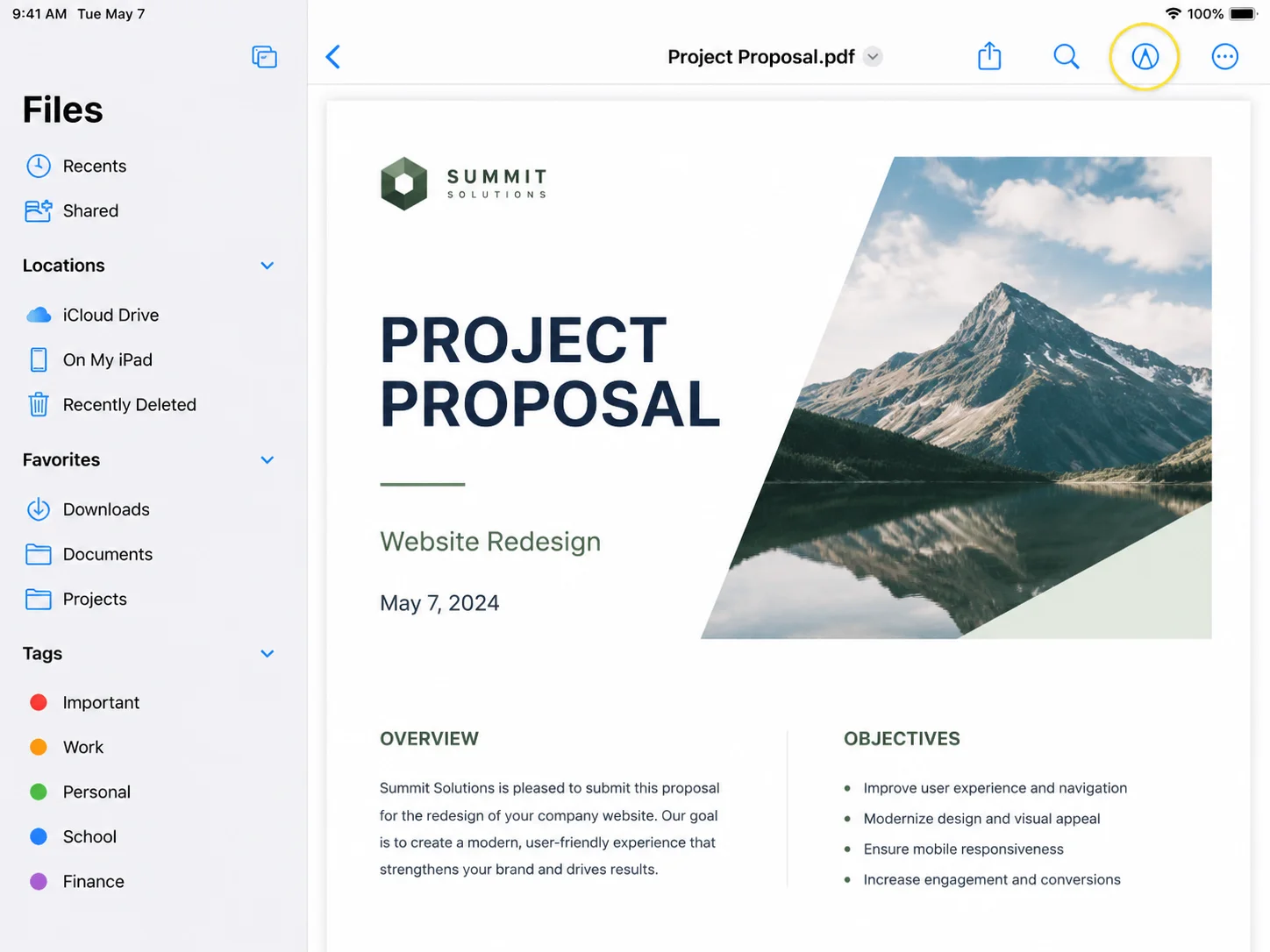
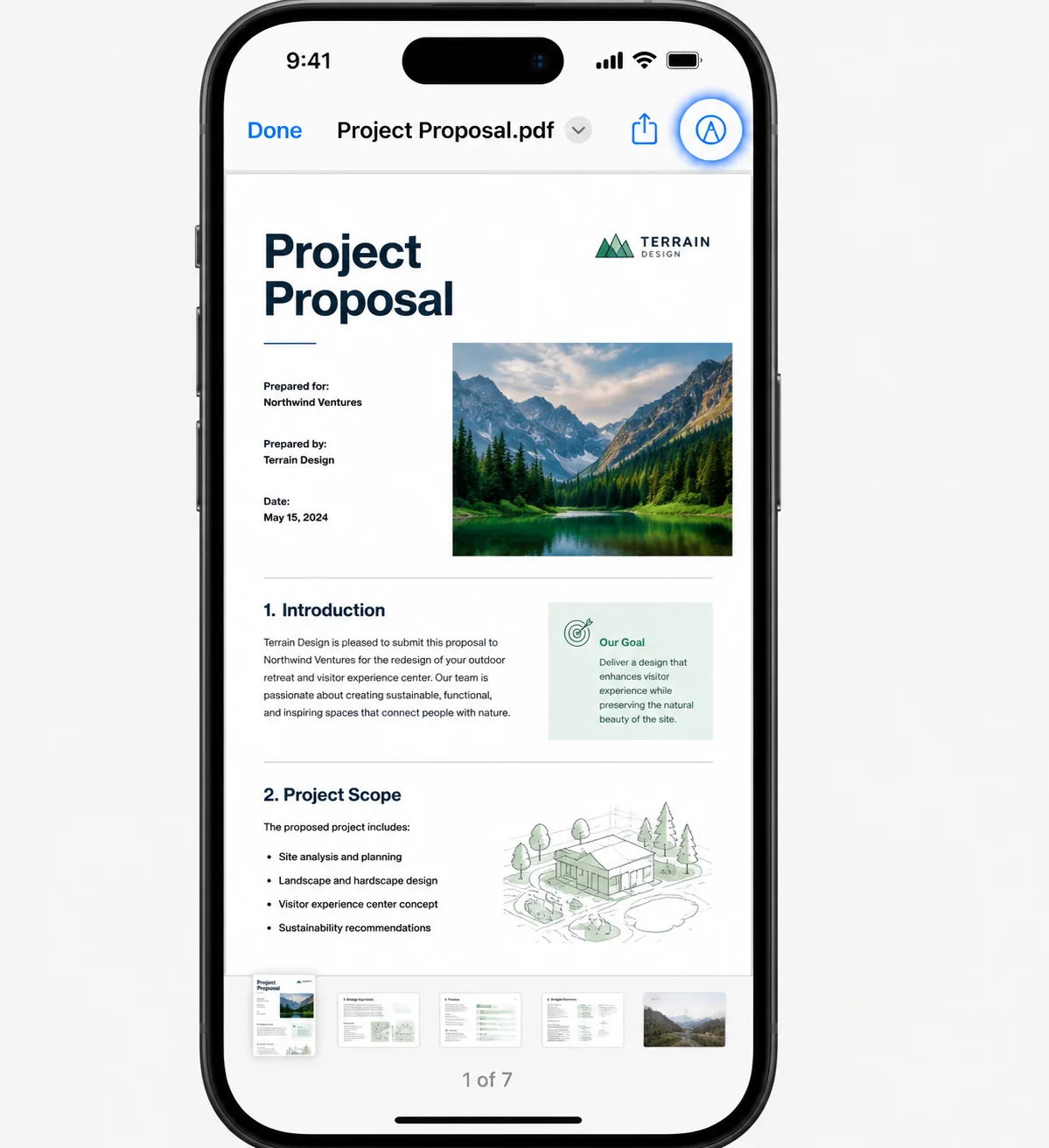
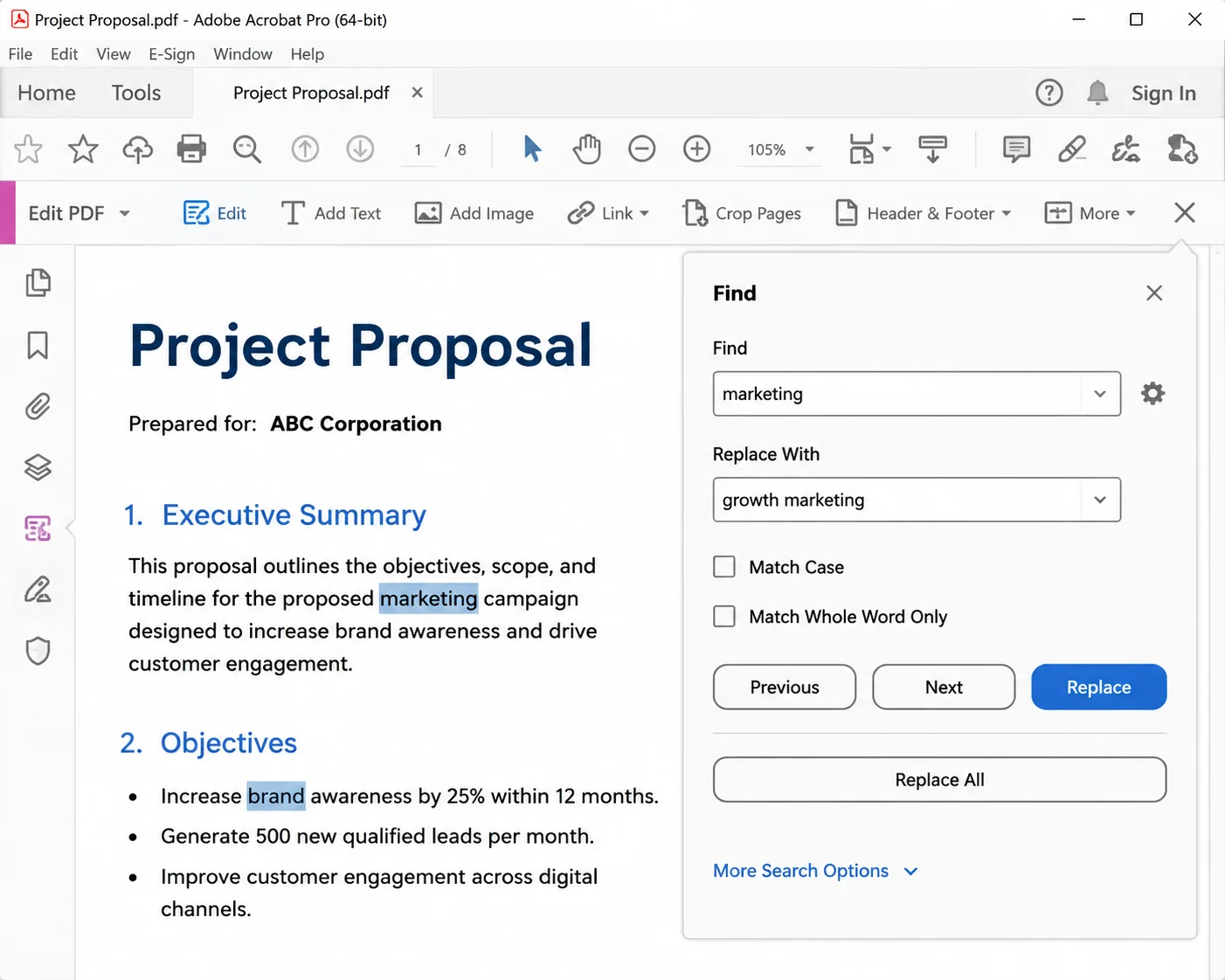
The quickest way to create a link to a PDF is with the Link tool in Adobe Acrobat: open the PDF, select Edit in the left toolbar (in older versions, Tools > Edit PDF), choose Link > Add/Edit Web or Document Link, drag a rectangle over the text or image that should become clickable, paste the URL into the Enter a URL for this link field, select OK, and save the file. That creates a live hyperlink inside the PDF.
That covers the most common version of the task, although the phrase "how to create a link to a pdf" usually points to two separate jobs. One is adding clickable hyperlinks inside a PDF so readers can open a website, start an email, or jump to another page in the same document. The other is creating a shareable link to the PDF file itself so coworkers or clients can open it in a browser instead of receiving a large attachment. Both are useful when you need faster document navigation, cleaner sharing, and better control over access to sensitive files. Both are covered below, along with batch link creation, free and paid PDF editors, embedding options, permission settings, troubleshooting when links stop working, and programmatic PDF generation with IronPDF. Teams who eventually need this handled at scale can review the PDF editing tutorials that walk through the same operations programmatically.
The examples here fit the people who deal with business documents every day - proposals, reports, invoices, onboarding packs, and product sheets - and need the same linking workflow to work across Windows, macOS, or web-based tools. For documents that also need merging, stamping, or password protection alongside the linking work, the HTML to PDF conversion guide and the PDF security overview cover those adjacent tasks in the same style.
This is the default route and the one most support articles describe.
- Open the PDF in Acrobat Pro or Acrobat Standard on the computer.
- Select Edit in the left panel, or go to Tools > Edit PDF.
- Select Link > Add/Edit Web or Document Link. The cursor turns into a crosshair.
- Drag a box over the words, logo, or button graphic that should be clickable.
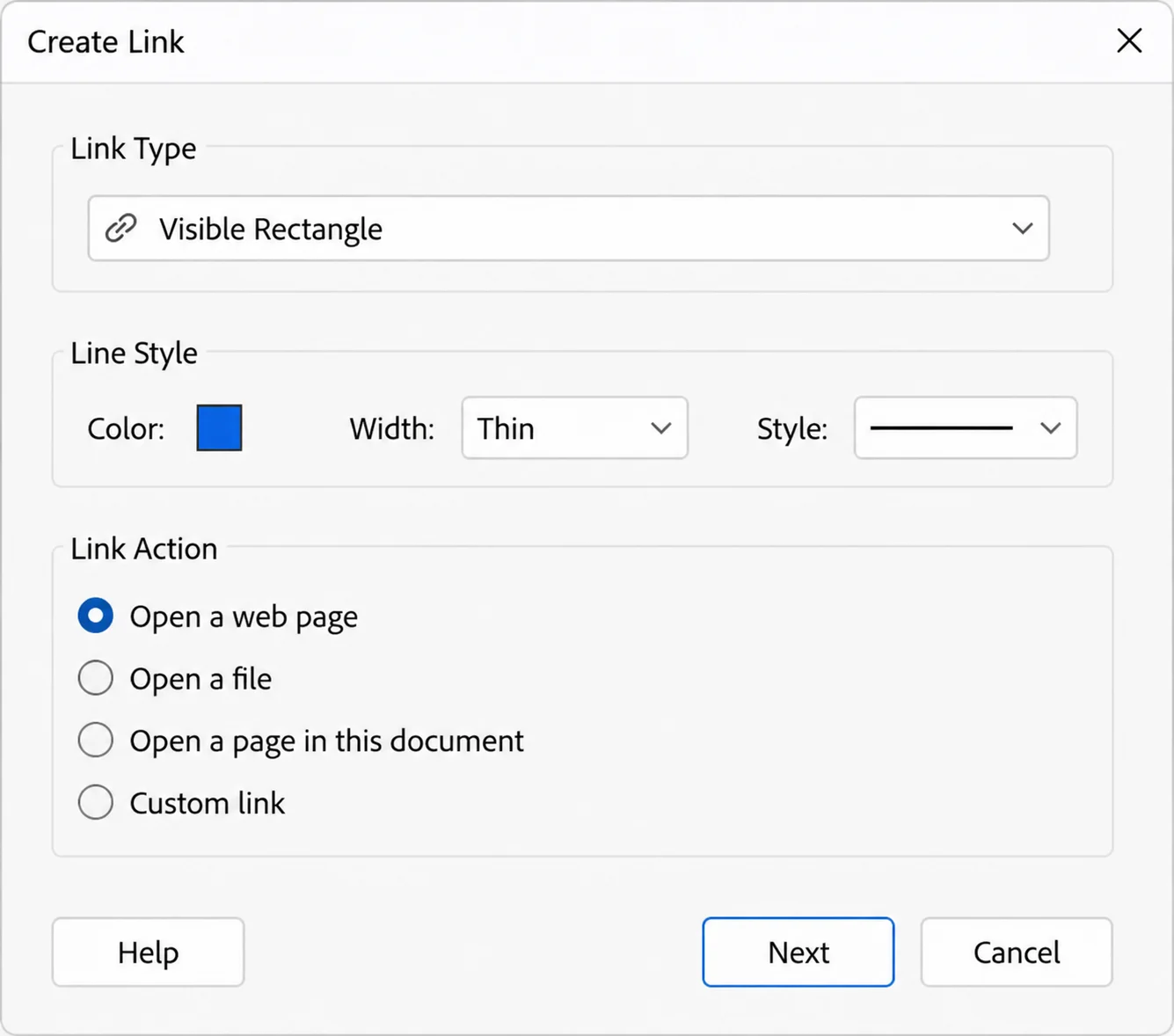
- In the Create Link dialog, choose a link appearance. Invisible Rectangle keeps the page clean; Visible Rectangle is useful when the clickable area needs to be obvious.
- Under Link Action, choose Open a web page, then select Next.
- Paste the full address, including https, and select OK.
- Save the file with Ctrl + S (Cmd + S on macOS).
Link Action also offers Go to a page view, which creates an internal jump to a specific page in the same document, and Open a file, which points to a file stored alongside the PDF.
Method 2: Auto Create Links from URLs (Best for Long Documents)
When a report already contains dozens of typed web addresses as plain text, converting them one at a time wastes an afternoon. Acrobat can generate all of them at once.
- Go to Tools > Edit PDF > Link.
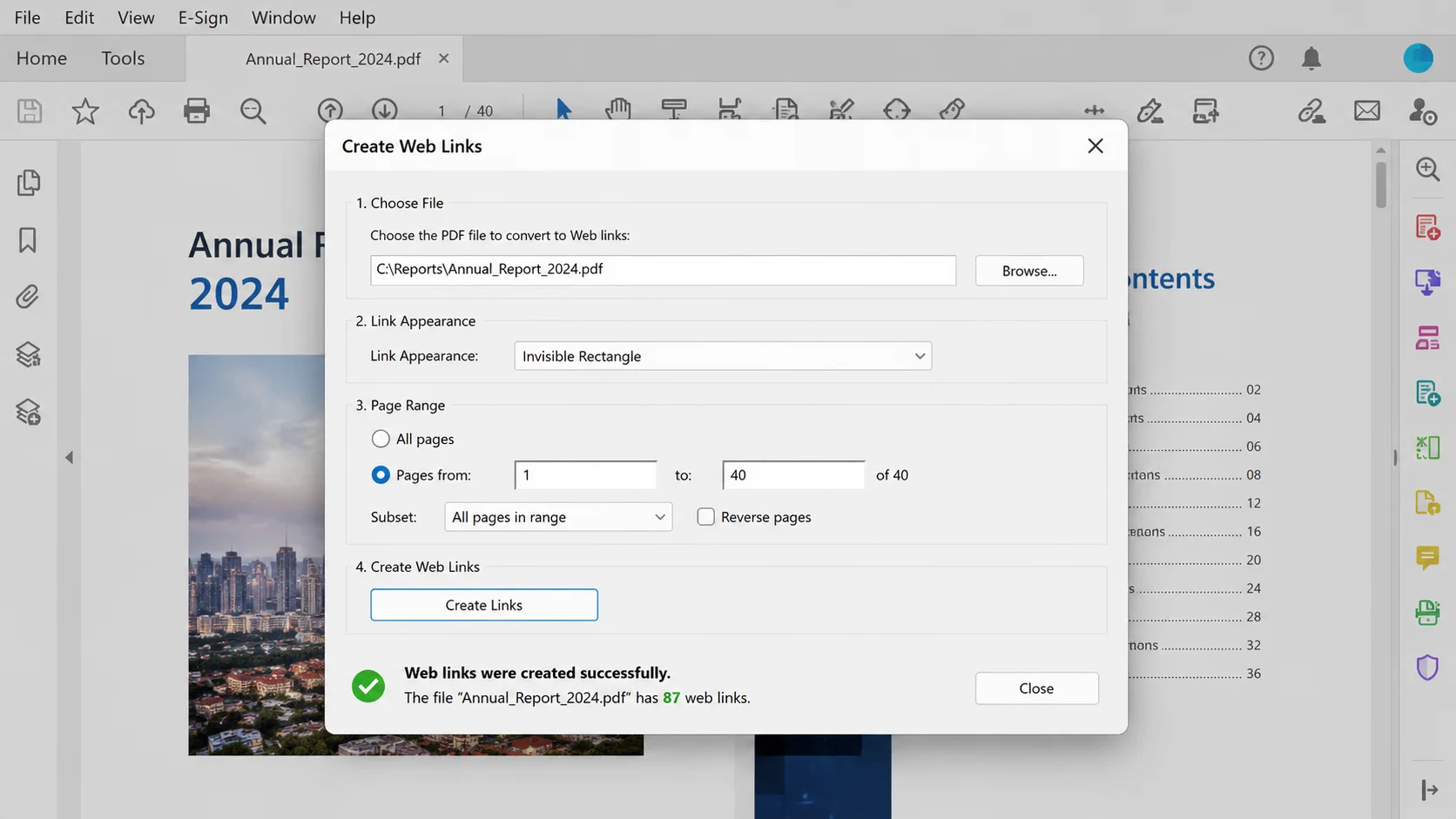
- Select Auto Create Web Links from URLs.
- Choose All for the entire document, or specify a range of pages.
- Select OK. A confirmation message reports how many links were created.
Acrobat only recognises text that looks like a URL, so entries written as "visit our site" stay untouched. Anything starting with www. or http gets picked up.
Method 3: Add the Links in Word or Google Docs Before Exporting
Building links in the source file is faster and more reliable than adding them after the convert step, because the text stays editable throughout.
In Microsoft Word:
- Select the text or insert images that should carry the link, then highlight the object.
- Press Ctrl + K to open the Insert Hyperlink dialog.
- Paste the address and select OK.
- Go to File > Save As, choose PDF, then select Options.
- Confirm that Create bookmarks using: Headings is ticked if internal navigation is required, and set the optimisation option to Standard (publishing online and printing) rather than Minimum size.
In Google Docs:
- Select the text and press Ctrl + K.
- Enter the address and press Apply.
- Go to File > Download > PDF Document (.pdf).
Google Docs preserves every hyperlink on export by default, with no extra settings to configure. Anyone who needs to convert a PDF back into an editable document later can reverse the process through Google Drive, which opens uploaded PDFs in Docs format.
| --- |
Once a link exists, the fastest way to change it is the context menu. With the Link tool active, right-click any existing rectangle and select Properties to change the destination, Edit Link to redraw the clickable area, or Delete to remove it. Selecting several rectangles while holding Shift allows the appearance of a whole group to be standardised in one pass.
In Acrobat's newer interface, highlighting a run of text and using right-click also exposes Create Link directly, which skips the toolbar entirely.
| --- |
Method 5: Keyboard Shortcuts Worth Learning
Acrobat allows single key accelerators to be switched on under Edit > Preferences > General > Use single key accelerators to access tools, which makes tool switching considerably faster during long editing sessions.
| --- |
Method 6: Free and Online PDF Editors
Acrobat Pro is a paid product, so several free options handle the same task without a licence.
- Sejda PDF Editor offers a Links tool in the browser with a daily free allowance, plus tools to sign, fill forms, and leave comments.
- PDFescape supports adding link areas and choosing between a web address and a page jump.
- LibreOffice Draw opens PDFs directly on the desktop with no need to install anything else if the suite is already present. Select the text, choose Insert > Hyperlink, then export with File > Export as PDF.
- Preview on macOS does not add hyperlinks, so Mac users without Acrobat generally rely on the browser tools above or on Pages, which supports hyperlinks before export.
Most of these tools also edit a PDF online in other ways: rotate pages, insert images, add comments, and convert PDF files into Word or Excel format. Any document containing client data should stay on the local device rather than passing through a browser upload, particularly under GDPR or HIPAA obligations.
| --- |
Method 7: Linking to a Specific Page Inside a PDF
Most guides stop at linking to the file. Pointing readers at page 14 of a 60 page handbook is possible with a parameter appended to the PDF URL:
https://example.com/handbook.pdf#page=14
https://example.com/handbook.pdf#page=14
Text
Other parameters can be combined with an ampersand:
- #page=14&zoom=150 opens the page at 150 percent magnification.
- #search=refund policy opens the file with the phrase highlighted.
- #nameddest=appendix jumps to a named destination created in Acrobat under Tools > Edit PDF > More > Add a Named Destination.
Browser support varies. Chrome, Edge, and Firefox handle #page= reliably, while some mobile viewers ignore everything after the hash and open page one instead.
| --- |
Method 8: Creating a Shareable Link to a PDF File
For distribution rather than in document navigation, the PDF has to be hosted online so it carries its own address, and to create a hyperlink to it the file needs its own unique URL. Every major cloud storage account handles this in a few clicks.
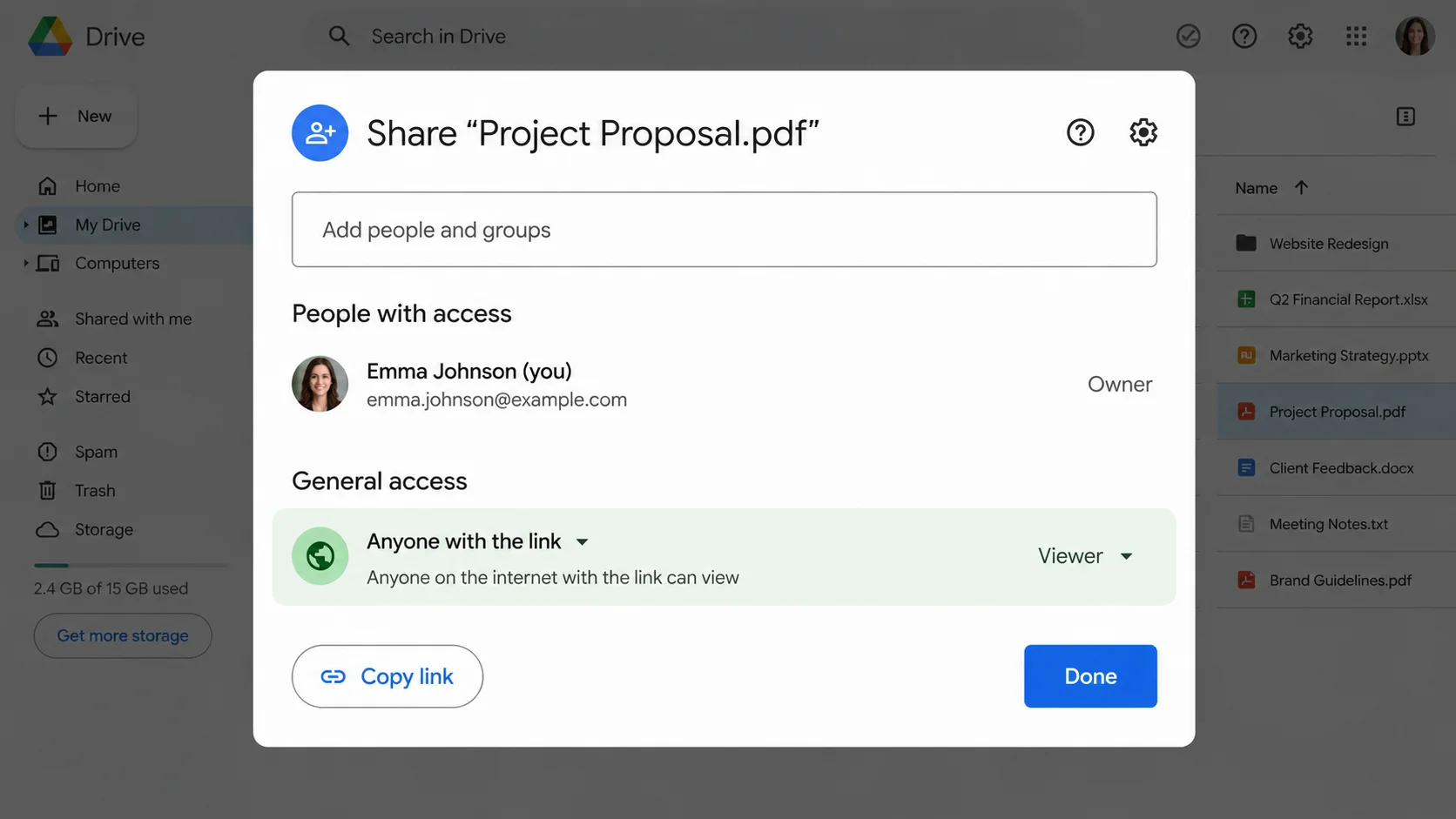
Google Drive: sign in to the account, then upload your PDF or use PDF drag and drop straight into the browser window. Right-click the file, select Share > General access > Anyone with the link, set the role to Viewer, then select Copy link. Drive generates a unique shareable link that works on any device.
OneDrive or SharePoint: Right-click the file, select Share, choose whether the shareable URL works for anyone or only for people inside the organisation, then copy it.
Dropbox: Hover over the file and select Copy link. Appending ?dl=1 to a Dropbox address turns it into a direct link that will force download instead of opening a preview page.
Temporary file hosts such as WeTransfer are useful for quick sharing, but links often expire after 7 days and, depending on the service, may last only 7 to 30 days.
A website or CMS: upload the PDF through the media library, copy the file address, then attach it to text with the editor's link button. You can also embed that link into your website or app when distributing documents through owned platforms. Adding target="_blank" in the HTML opens the file in a new tab and keeps the original page open.
Once the PDF link exists, it travels anywhere: post it on an intranet page, drop it into a project tracker, or send it through messaging apps. Shared links replace email attachments entirely, which matters when a proposal deck runs past the 25 MB limit most mail servers enforce.
The below image shows Google Drive share dialog with General access set to "Anyone with the link".
Method 9: Controlling Who Opens the Link
Easy sharing creates a second problem: a link that circulates further than intended. Departments that share PDFs containing salary data, pricing, or personal records need controls on top of the address, and sharing permissions provide them.
- Manage access per person. Instead of "anyone with the link", add named colleagues and set each to Viewer, Commenter, or Editor. Access can be revoked later without moving the file.
- Set expiration dates. Google Workspace, OneDrive for Business, and Dropbox Professional all support expiry on shared links, which suits tenders and time limited offers.
- Add password protection to the link: Dropbox and OneDrive can password protect a shared address so the recipient needs both the URL and a passphrase.
- Add password protection to the file itself: In Acrobat, go to File > Protect Using Password, then choose whether the password applies to viewing or to editing. This layer travels with the document even after it is downloaded, which is why important documents such as payroll summaries and signed contracts usually carry both protections.
- Disable download, print, and copy - Most cloud platforms offer a viewer only mode that stops recipients saving a local copy.
| --- |
Method 10: QR Codes and Embedded Viewers
Two options extend the same shareable URL into other contexts.
QR codes convert the link into a scannable image for print material, conference banners, and packaging. Any free generator accepts the address and returns a PNG that can be dropped into a design file. Because the code simply resolves to the URL, updating the file in cloud storage keeps every printed code current.
Embedding places the document inside a webpage instead of sending visitors away from it. Google Drive provides ready made embed code under File > Share > Embed item, and the same result is achievable with a plain HTML iframe pointing at the PDF address. Readers scroll the document in place, and the page keeps them on the site.
| --- |
Common Issues and Troubleshooting
Links disappear after converting from Word. The usual cause is the Minimum size (publishing online) option, or printing to PDF through a virtual printer driver, which flattens everything into a static image. Use File > Save As > PDF with the Standard optimisation setting instead.
The link works in Acrobat but not in the browser. Browser viewers occasionally ignore link actions that point at local files. Absolute addresses beginning with https behave consistently everywhere.
The clickable area sits in the wrong place: Link rectangles are anchored to page coordinates rather than to the text. Editing the text afterwards leaves the rectangle behind. Redraw it with Link > Add/Edit Web or Document Link.
Nothing is clickable on a scanned document: Scans are images, so the text carries no structure. Running OCR through Tools > Scan & OCR > Recognise Text makes the text selectable, after which link rectangles can be drawn normally.
Acrobat blocks the destination when clicked - Security settings control external addresses. Adjust them under Edit > Preferences > Trust Manager > Change Settings, then allow the specific domain.
The file refuses to be edited - A permissions password prevents changes. The owner password is required to unlock editing, and the current restrictions can be reviewed under File > Properties > Security.
The shared link asks for a sign in. The default on most corporate accounts is organisation only access. Switch the setting to "Anyone with the link" if external recipients need to open it.
Email clients strip the link. Some gateways rewrite or remove addresses inside attachments. Sharing a cloud URL avoids the rewriting entirely.
Links break after the file moves: Relative paths pointing at neighbouring files fail once the PDF is emailed or uploaded. Use full web addresses for anything that leaves the local folder.
| --- |
Handling Links Automatically with IronPDF
Manual editing suits a handful of documents. Once the same invoice, certificate, or statement has to be produced thousands of times with a customer specific link inside it, the work belongs in a generation step instead. IronPDF builds PDFs from HTML, which means standard anchor tags arrive in the finished file as working hyperlinks:
using IronPdf;

var renderer = new ChromePdfRenderer();

string html = @"
    <h1>Quarterly Statement</h1>
    <p>Live figures are available on the
       <a href='https://example.com/dashboard'>reporting dashboard</a>.</p>
    <p><a href='#appendix'>Jump to the appendix</a></p>
    <h2 id='appendix'>Appendix</h2>";

PdfDocument pdf = renderer.RenderHtmlAsPdf(html);
pdf.SaveAs("statement-with-links.pdf");
using IronPdf;

var renderer = new ChromePdfRenderer();

string html = @"
    <h1>Quarterly Statement</h1>
    <p>Live figures are available on the
       <a href='https://example.com/dashboard'>reporting dashboard</a>.</p>
    <p><a href='#appendix'>Jump to the appendix</a></p>
    <h2 id='appendix'>Appendix</h2>";

PdfDocument pdf = renderer.RenderHtmlAsPdf(html);
pdf.SaveAs("statement-with-links.pdf");
C#
Both link types survive the render: the external address opens in a browser, and the anchor jumps to the matching section inside the document.
Summary
Acrobat's Link tool remains the quickest route for a single hyperlink, Auto Create Web Links from URLs clears a long document in seconds, and adding each hyperlink in Word or Google Docs before export avoids the problem altogether. Page level addressing with #page= covers the precision cases that most guides skip, while cloud storage, QR codes, and embedded viewers handle distribution once the file is hosted online. Layering sharing permissions and password protection on top keeps important documents in the right hands. For recurring paperwork, generating the file with every link already in place removes the editing step permanently. The IronPDF how-to library and the HTML to PDF walkthrough cover the generation side in more detail, and a free trial is available for teams testing the approach against their own templates.