using IronPdf;

// Disable local disk access or cross-origin requests
Installation.EnableWebSecurity = true;

// Instantiate Renderer
var renderer = new ChromePdfRenderer();

// Create a PDF from a HTML string using C#
var pdf = renderer.RenderHtmlAsPdf("<h1>Hello World</h1>");

// Export to a file or Stream
pdf.SaveAs("output.pdf");

// Advanced Example with HTML Assets
// Load external html assets: Images, CSS and JavaScript.
// An optional BasePath 'C:\site\assets\' is set as the file location to load assets from
var myAdvancedPdf = renderer.RenderHtmlAsPdf("<img src='icons/iron.png'>", @"C:\site\assets\");
myAdvancedPdf.SaveAs("html-with-assets.pdf");
using IronPdf;// Disable local disk access or cross-origin requestsInstallation.EnableWebSecurity = true;// Instantiate Renderervar renderer = new ChromePdfRenderer();// Create a PDF from a HTML string using C#var pdf = renderer.RenderHtmlAsPdf("<h1>Hello World</h1>");// Export to a file or Streampdf.SaveAs("output.pdf");// Advanced Example with HTML Assets// Load external html assets: Images, CSS and JavaScript.// An optional BasePath 'C:\site\assets\' is set as the file location to load assets fromvar myAdvancedPdf = renderer.RenderHtmlAsPdf("<img src='icons/iron.png'>", @"C:\site\assets\");myAdvancedPdf.SaveAs("html-with-assets.pdf");
Displaying PDF documents within ASP.NET panel controls is a common requirement for document management systems, report viewers, and invoice displays. IronPDF solves this through server-side rendering that eliminates client-side dependencies and works consistently across all browsers and platforms.
When you need to embed PDFs inside your ASP.NET Core web application, the standard approach of relying on browser plugins or client-side libraries creates fragility. Plugin restrictions in enterprise environments, inconsistent browser behavior, and poor mobile support all undermine the user experience. A server-side approach removes every one of those pain points.
[IronPDF](https://ironpdf.com/) handles PDF generation and delivery entirely on the server, so the browser receives a standard PDF byte stream with the correct MIME type -- no plugins required, no browser-specific workarounds needed.
## How Does Server-Side PDF Rendering Work in ASP.NET?
[IronPDF](https://ironpdf.com/docs/) shifts PDF rendering entirely to the server using a Headless Chrome engine. Your controller generates or retrieves a PDF document, converts it to a byte array, and streams it to the browser with an `inline` Content-Disposition header. The browser's built-in PDF viewer then displays the document inside an `<iframe>` embedded in your panel.
This fundamental shift eliminates traditional pain points:
- No Adobe Reader or browser extension required on the client machine
- Consistent rendering regardless of the user's operating system or browser version
- Full programmatic control over document content, layout, and styling
- Works in enterprise environments where IT policies block plugin installations
The library's [Chrome rendering engine](https://ironpdf.com/how-to/ironpdf-2021-chrome-rendering-engine-eap/) produces pixel-perfect output from HTML, URL, and raw content sources. You control every aspect of the output -- paper size, margins, headers, footers, and CSS media type -- before the PDF ever reaches the client.
IronPDF also supports [cross-platform deployment](https://ironpdf.com/get-started/installation-overview/) on Windows, Linux, and macOS servers, making it suitable for cloud-hosted ASP.NET applications running on [Azure](https://ironpdf.com/get-started/azure/) or [AWS](https://ironpdf.com/get-started/aws/), as well as containerized environments using [Docker](https://ironpdf.com/get-started/ironpdf-docker/).
## How Do You Set Up the NuGet Package?
Open Visual Studio, right-click your project in Solution Explorer, and select **Manage NuGet Packages**. Search for `IronPdf` and install it. Alternatively, run this command in the Package Manager Console:
```bash
:ProductInstall
```
You can also use the .NET CLI with `dotnet add package IronPdf`. Once installed, add `using IronPdf;` at the top of your controller or service class to access the library's namespace.
For optimal PDF delivery, configure your `Program.cs` to serve static files and set up routing:
```csharp
var builder = WebApplication.CreateBuilder(args);

builder.Services.AddControllersWithViews();
builder.Services.AddRazorPages();

var app = builder.Build();

app.UseStaticFiles();
app.UseRouting();

app.MapControllerRoute(
    name: "default",
    pattern: "{controller=Home}/{action=Index}/{id?}");

app.Run();
```
The `AddControllersWithViews()` registration enables both API endpoints and view rendering -- both are needed when you want to serve PDF content through dedicated controller actions and display it inside Razor view panels. For full configuration details, consult the [IronPDF API documentation](https://ironpdf.com/object-reference/api/).
## How Do You Display a PDF File Directly Inside a Panel?
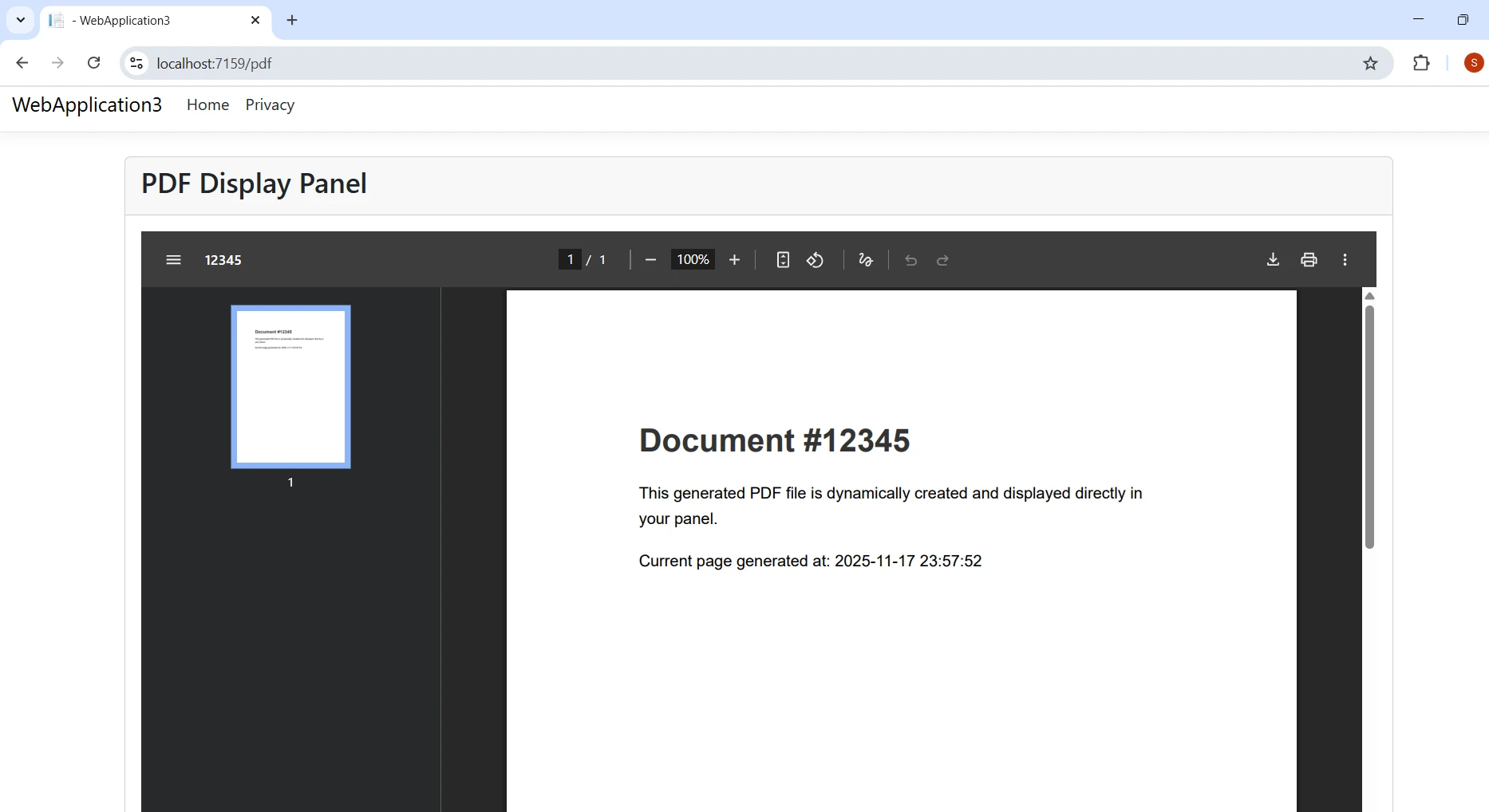
The core pattern is straightforward: a controller action generates a PDF, converts it to bytes, sets the `Content-Disposition` header to `inline`, and returns a `File` result. An `<iframe>` in the Razor view points to that endpoint.
Here is a complete controller implementation:
```csharp
[ApiController]
[Route("api/[controller]")]
public class PdfPanelController : ControllerBase
{
    [HttpGet("display/{documentId}")]
    public IActionResult DisplayPdfInPanel(string documentId)
    {
        var renderer = new ChromePdfRenderer();

        string filename = $"document_{documentId}.pdf";

        var htmlContent = $@"
            <html>
            <head>
                <style>
                    body {{ font-family: Arial, sans-serif; margin: 40px; }}
                    h1 {{ color: #333; }}
                    .content {{ line-height: 1.6; }}
                </style>
            </head>
            <body>
                <h1>Document #{documentId}</h1>
                <div class='content'>
                    <p>This PDF is generated dynamically and displayed inline in your panel.</p>
                    <p>Generated at: {DateTime.Now:yyyy-MM-dd HH:mm:ss}</p>
                </div>
            </body>
            </html>";

        using var pdfDocument = renderer.RenderHtmlAsPdf(htmlContent);

        byte[] pdfBytes = pdfDocument.BinaryData;

        Response.Headers.Append("Content-Disposition", $"inline; filename={filename}");

        return File(pdfBytes, "application/pdf");
    }
}
```
The `ChromePdfRenderer` class is the primary entry point for server-side rendering. It accepts HTML content, converts it using a Headless Chrome browser, and returns a `PdfDocument` object. The `BinaryData` property exposes the raw bytes for streaming.
Setting `Content-Disposition` to `inline` is the critical step for panel display. Without it, the browser prompts for a download instead of rendering inside the `<iframe>`. You can also [add headers and footers](https://ironpdf.com/how-to/headers-and-footers/) to every page, or control [page orientation](https://ironpdf.com/how-to/page-orientation-rotation/) and [custom margins](https://ironpdf.com/how-to/custom-margins/) through `RenderingOptions`.
To embed this endpoint in a Razor panel, create an `<iframe>` pointing to the controller route:
```csharp
@page
@model IndexModel
<div class="container mt-4">
<div class="card">
<div class="card-header">
<h3>PDF Display Panel</h3>
</div>
<div class="card-body">
<div class="pdf-panel" style="height: 600px;">
<iframe src="/api/PdfPanel/display/12345"
width="100%"
height="100%"
frameborder="0">
</iframe>
</div>
</div>
</div>
</div>
```
The `<iframe>` requests the PDF from your controller endpoint. The browser's built-in PDF viewer takes over from there, displaying the document at full panel width and height without any client-side libraries or plugins.
### What Does the Generated PDF Look Like?
## How Do You Load PDFs Dynamically with AJAX?
Static `<iframe>` sources work well for fixed content, but many applications need to load PDFs based on user actions -- clicking a record in a data grid, submitting a form, or selecting a report type. An AJAX-driven approach handles these scenarios without full page reloads.
The controller action accepts a request body and returns the PDF as a base64 string:
```csharp
[HttpPost("generate")]
public async Task<IActionResult> GenerateDynamicPdf([FromBody] PdfRequestModel request)
{
try
{
var renderer = new ChromePdfRenderer();
renderer.RenderingOptions.PaperSize = IronPdf.Rendering.PdfPaperSize.A4;
renderer.RenderingOptions.MarginTop = 20;
renderer.RenderingOptions.MarginBottom = 20;
renderer.RenderingOptions.MarginLeft = 20;
renderer.RenderingOptions.MarginRight = 20;
var htmlBuilder = new StringBuilder();
htmlBuilder.Append("<html><body>");
htmlBuilder.Append($"<h2>{request.Title}</h2>");
htmlBuilder.Append($"<div>{request.Content}</div>");
if (request.IncludeData)
{
htmlBuilder.Append("<table border='1' style='width:100%;'>");
foreach (var item in request.DataItems)
{
htmlBuilder.Append($"<tr><td>{item.Key}</td><td>{item.Value}</td></tr>");
}
htmlBuilder.Append("</table>");
}
htmlBuilder.Append("</body></html>");
var pdfDocument = await Task.Run(() =>
renderer.RenderHtmlAsPdf(htmlBuilder.ToString()));
var base64Pdf = Convert.ToBase64String(pdfDocument.BinaryData);
return Ok(new { success = true, pdfData = base64Pdf });
}
catch (Exception ex)
{
return BadRequest(new { success = false, error = ex.Message });
}
}
```
The `RenderingOptions` block lets you configure paper size, margins, and [CSS media type](https://ironpdf.com/how-to/html-to-pdf-responsive-css/) before rendering. According to [Microsoft's ASP.NET Core documentation](https://learn.microsoft.com/en-us/aspnet/core/), asynchronous patterns are essential for maintaining responsive interfaces under load. Wrapping the synchronous render call in `Task.Run` keeps the request thread free while the Chrome engine processes the HTML.
The base64 response lets the JavaScript client update the `<iframe>` source directly without a page reload:
```javascript
fetch('/api/PdfPanel/generate', {
method: 'POST',
headers: { 'Content-Type': 'application/json' },
body: JSON.stringify(requestData)
})
.then(response => response.json())
.then(result => {
if (result.success) {
const iframe = document.getElementById('pdf-frame');
iframe.src = 'data:application/pdf;base64,' + result.pdfData;
}
});
```
This pattern works well for [Razor Pages](https://ironpdf.com/how-to/cshtml-to-pdf-razor/) and MVC views alike. For advanced use cases, IronPDF also supports [asynchronous rendering](https://ironpdf.com/how-to/async/) natively, so you can use `RenderHtmlAsPdfAsync` directly instead of `Task.Run`.
## How Do You Handle Different PDF Source Types?
IronPDF can generate PDFs from three primary sources: HTML strings, local HTML files, and external URLs. Each suits different scenarios.
### How Do You Convert HTML Templates to PDFs?
Template-based generation is the most common pattern in enterprise ASP.NET applications. You maintain HTML templates with placeholder tokens, inject data at runtime, and render the result:
```csharp
[HttpGet("from-html")]
public IActionResult GenerateFromHtmlString(string reportType)
{
var renderer = new ChromePdfRenderer();
var htmlTemplate = GetHtmlTemplate(reportType);
var userName = User?.Identity?.Name ?? "Unknown";
var processedHtml = htmlTemplate
.Replace("{{DATE}}", DateTime.Now.ToString("yyyy-MM-dd"))
.Replace("{{USER}}", userName)
.Replace("{{REPORT_TYPE}}", reportType);
renderer.RenderingOptions.CssMediaType = IronPdf.Rendering.PdfCssMediaType.Print;
using var pdf = renderer.RenderHtmlAsPdf(processedHtml);
pdf.SaveAs(Path.Combine(Directory.GetCurrentDirectory(), "wwwroot", $"{reportType}.pdf"));
return File(pdf.BinaryData, "application/pdf");
}
private string GetHtmlTemplate(string reportType)
{
return @"
<html>
<head><title>{{REPORT_TYPE}} Report</title></head>
<body>
<h1>{{REPORT_TYPE}} Report</h1>
<p>Date: {{DATE}}</p>
<p>User: {{USER}}</p>
<div>Report content goes here.</div>
</body>
</html>";
}
```
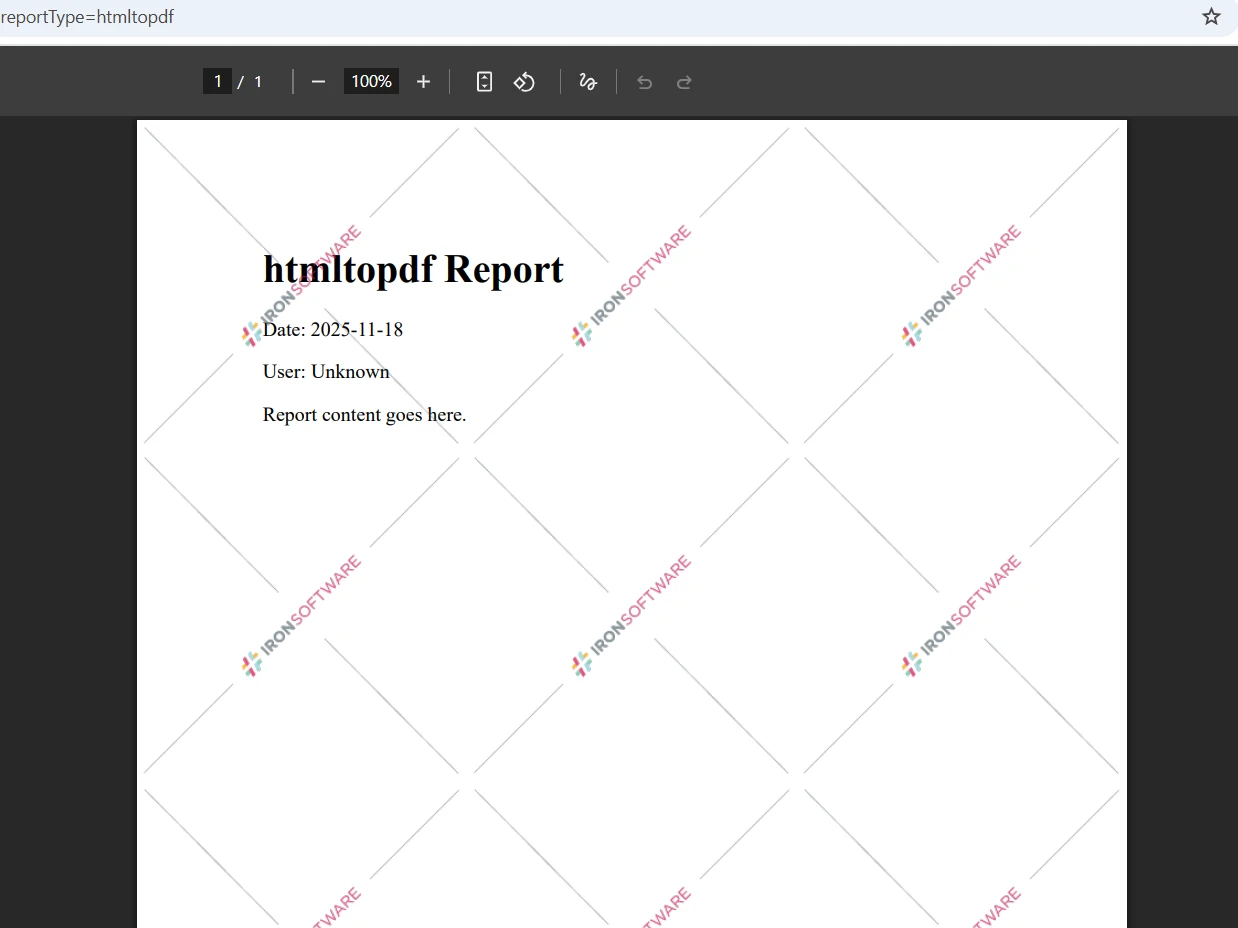
`CssMediaType.Print` ensures the PDF uses print-specific CSS rules, which typically removes navigation bars, sidebars, and other screen-only elements. This produces cleaner output when your HTML templates are shared between web views and PDF generation. You can also apply [custom watermarks](https://ironpdf.com/how-to/custom-watermark/) or background images for branding. For complex layouts, [page break control](https://ironpdf.com/how-to/html-to-pdf-page-breaks/) lets you specify exactly where new pages begin.
### What Does HTML Template PDF Output Look Like?
### How Do You Generate PDFs from External URLs?
For capturing external web pages -- competitor analysis, regulatory filings, or content from third-party services -- IronPDF can render any publicly accessible URL:
```csharp
[HttpGet("from-url")]
public async Task<IActionResult> GenerateFromUrl(string encodedUrl)
{
var url = HttpUtility.UrlDecode(encodedUrl);
var renderer = new ChromePdfRenderer();
renderer.RenderingOptions.ViewPortWidth = 1920;
renderer.RenderingOptions.EnableJavaScript = true;
renderer.RenderingOptions.WaitFor.RenderDelay(2000);
using var pdf = await renderer.RenderUrlAsPdfAsync(url);
Response.Headers.Append("Content-Disposition", "inline; filename=webpage.pdf");
return File(pdf.BinaryData, "application/pdf");
}
```
The `ViewPortWidth` setting determines how wide the headless browser renders the page before converting to PDF. A 1920-pixel viewport captures modern responsive layouts at desktop resolution. The [render delay](https://ironpdf.com/how-to/waitfor/) gives JavaScript-heavy single-page applications time to finish their initialization before the screenshot is taken.
For more advanced capture scenarios, IronPDF supports [JavaScript execution control](https://ironpdf.com/how-to/javascript-to-pdf/), [cookie passing](https://ironpdf.com/how-to/cookies/) for authenticated pages, and [viewport zoom adjustments](https://ironpdf.com/how-to/viewport-zoom/).
## How Do You Manage Memory and Performance?
PDF generation is resource-intensive. Each call to `ChromePdfRenderer` creates a Headless Chrome process, and each `PdfDocument` object holds the rendered bytes in memory. Proper disposal prevents resource leaks and keeps memory consumption predictable under load.
Always use `using` statements with `PdfDocument`:
```csharp
public IActionResult OptimizedPdfGeneration()
{
var renderer = new ChromePdfRenderer();
renderer.RenderingOptions.CreatePdfFormsFromHtml = false;
var processedHtml = GetHtmlTemplate("report")
.Replace("{{DATE}}", DateTime.Now.ToString("yyyy-MM-dd"))
.Replace("{{USER}}", "Test")
.Replace("{{REPORT_TYPE}}", "Report");
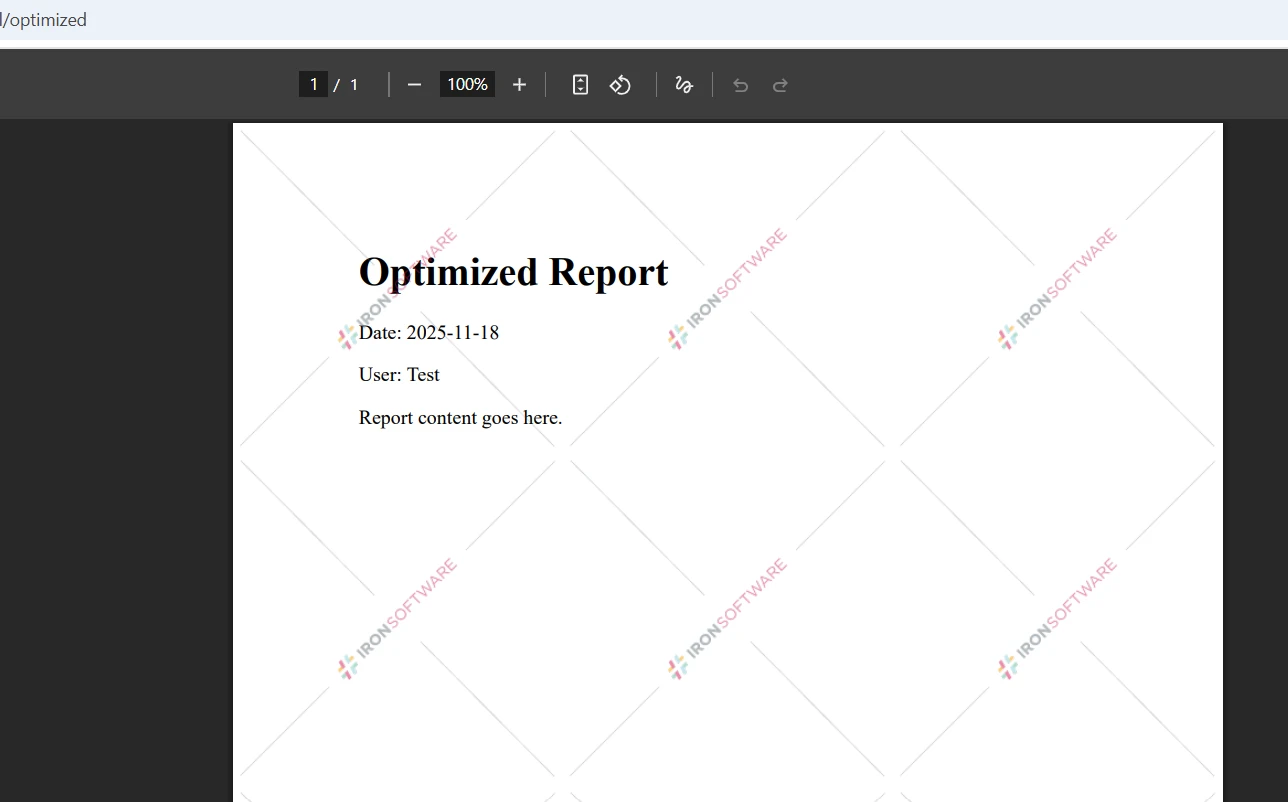
using var pdf = renderer.RenderHtmlAsPdf(processedHtml);
byte[] pdfBytes = pdf.BinaryData;
pdf.SaveAs("output.pdf");
return File(pdfBytes, "application/pdf");
}
```
The `using` statement ensures the `PdfDocument` object is disposed immediately after you extract the byte array, even if an exception occurs downstream. For applications that generate PDFs frequently, consider these additional strategies:
- **Caching:** Store frequently requested PDFs in memory cache or on disk. Use `IMemoryCache` to cache the byte array keyed by a document identifier and timestamp.
- **Streaming:** For very large documents, use [PDF memory streams](https://ironpdf.com/how-to/pdf-memory-stream/) instead of byte arrays to avoid allocating large contiguous memory blocks.
- **Linearization:** Enable [linearized (fast web view) output](https://ironpdf.com/how-to/linearize-pdf/) so browsers can begin rendering before the full file downloads.
- **Compression:** Apply [PDF compression](https://ironpdf.com/how-to/pdf-compression/) to reduce file size when serving documents over constrained network connections.
The [IronPDF performance guide](https://ironpdf.com/troubleshooting/ironpdf-performance-assistance/) covers additional optimization strategies for high-throughput scenarios.
### What Does Optimized PDF Output Produce?
## How Do You Ensure Security and Cross-Browser Compatibility?
Security and reliability both deserve attention before you deploy PDF panel display to production.
**Input validation:** Always sanitize dynamic content before injecting it into HTML templates. Unsanitized user input rendered through the Chrome engine can expose your server to SSRF and XSS attacks. Use established HTML encoding libraries or restrict accepted characters to a safe allowlist.
**Access control:** Protect your PDF endpoints behind [authentication and authorization middleware](https://learn.microsoft.com/en-us/aspnet/core/security/authorization/introduction). A URL like `/api/PdfPanel/display/12345` that returns a document without checking the caller's identity is a data exposure risk. Apply `[Authorize]` attributes and validate that the authenticated user has permission to access the requested document ID.
**MIME type configuration:** Always return `application/pdf` as the content type. Browsers that receive an incorrect MIME type may trigger a download dialog or refuse to render inline. Verify your application's MIME type mappings include PDF if you are also serving static PDF files from `wwwroot`.
**Cross-browser inline display:** Modern browsers -- Chrome, Firefox, Edge, and Safari -- all support inline PDF display through the `Content-Disposition: inline` header. The [W3C Content Security Policy specification](https://www.w3.org/TR/CSP3/) provides guidance on frame-ancestors directives if your panels embed PDFs from different origins. IronPDF's server-side rendering eliminates most browser rendering inconsistencies because PDF generation happens independently of the client.
**Error handling:** Wrap PDF generation in try-catch blocks and return meaningful HTTP status codes. A 500 response with no body is difficult to diagnose. Return a structured error object so client-side code can display a user-friendly message rather than a broken `<iframe>`.
For document security, IronPDF supports [password protection and permissions](https://ironpdf.com/how-to/pdf-permissions-passwords/), [digital signatures](https://ironpdf.com/how-to/signing/), and [PDF/A compliance](https://ironpdf.com/how-to/pdfa/) for archival requirements.
## What Are Your Next Steps?
You now have a working pattern for displaying PDFs in ASP.NET panels: install IronPDF, create a controller action that generates a PDF and returns it with `Content-Disposition: inline`, and embed the endpoint in an `<iframe>` inside your Razor panel. From there, the AJAX pattern lets you load documents dynamically in response to user actions without page reloads.
Start a [free trial of IronPDF](https://ironpdf.com/licensing/) to test these patterns in your own project -- no credit card required. The trial includes full access to all features, including HTML-to-PDF rendering, URL capture, and advanced PDF manipulation.
Once you have basic display working, consider these natural extensions:
- [Merge or split PDF files](https://ironpdf.com/how-to/merge-or-split-pdfs/) for document assembly workflows
- [Create fillable PDF forms](https://ironpdf.com/how-to/create-forms/) from HTML forms
- [Add digital signatures](https://ironpdf.com/how-to/signing/) for document authentication
- [Edit existing PDFs](https://ironpdf.com/tutorials/csharp-edit-pdf-complete-tutorial/) to stamp, annotate, or redact content
- [Convert HTML to PDF](https://ironpdf.com/tutorials/html-to-pdf/) with full CSS and JavaScript support for complex report layouts
The [IronPDF documentation](https://ironpdf.com/docs/) covers each of these capabilities in depth, with complete code examples and configuration reference.
Displaying PDF documents within ASP.NET panel controls is a common requirement for document management systems, report viewers, and invoice displays. IronPDF solves this through server-side rendering that eliminates client-side dependencies and works consistently across all browsers and platforms.
When you need to embed PDFs inside your ASP.NET Core web application, the standard approach of relying on browser plugins or client-side libraries creates fragility. Plugin restrictions in enterprise environments, inconsistent browser behavior, and poor mobile support all undermine the user experience. A server-side approach removes every one of those pain points.
IronPDF handles PDF generation and delivery entirely on the server, so the browser receives a standard PDF byte stream with the correct MIME type -- no plugins required, no browser-specific workarounds needed.
How Does Server-Side PDF Rendering Work in ASP.NET?
IronPDF shifts PDF rendering entirely to the server using a Headless Chrome engine. Your controller generates or retrieves a PDF document, converts it to a byte array, and streams it to the browser with an inline Content-Disposition header. The browser's built-in PDF viewer then displays the document inside an <iframe> embedded in your panel.
This fundamental shift eliminates traditional pain points:
No Adobe Reader or browser extension required on the client machine
Consistent rendering regardless of the user's operating system or browser version
Full programmatic control over document content, layout, and styling
Works in enterprise environments where IT policies block plugin installations
The library's Chrome rendering engine produces pixel-perfect output from HTML, URL, and raw content sources. You control every aspect of the output -- paper size, margins, headers, footers, and CSS media type -- before the PDF ever reaches the client.
IronPDF also supports cross-platform deployment on Windows, Linux, and macOS servers, making it suitable for cloud-hosted ASP.NET applications running on Azure or AWS, as well as containerized environments using Docker.
How Do You Set Up the NuGet Package?
Open Visual Studio, right-click your project in Solution Explorer, and select Manage NuGet Packages. Search for IronPdf and install it. Alternatively, run this command in the Package Manager Console:
PM > Install-Package IronPdf
Install-Package IronPdf
You can also use the .NET CLI with dotnet add package IronPdf. Once installed, add using IronPdf; at the top of your controller or service class to access the library's namespace.
For optimal PDF delivery, configure your Program.cs to serve static files and set up routing:
The AddControllersWithViews() registration enables both API endpoints and view rendering -- both are needed when you want to serve PDF content through dedicated controller actions and display it inside Razor view panels. For full configuration details, consult the IronPDF API documentation.
How Do You Display a PDF File Directly Inside a Panel?
The core pattern is straightforward: a controller action generates a PDF, converts it to bytes, sets the Content-Disposition header to inline, and returns a File result. An <iframe> in the Razor view points to that endpoint.
Here is a complete controller implementation:
[ApiController][Route("api/[controller]")]public class PdfPanelController : ControllerBase{ [HttpGet("display/{documentId}")] public IActionResultDisplayPdfInPanel(string documentId) { var renderer = new ChromePdfRenderer(); string filename = $"document_{documentId}.pdf"; var htmlContent = $@" <html> <head> <style> body {{ font-family: Arial, sans-serif; margin: 40px; }} h1 {{ color: #333; }} .content {{ line-height: 1.6; }} </style> </head> <body> <h1>Document #{documentId}</h1> <div class='content'> <p>This PDF is generated dynamically and displayed inline in your panel.</p> <p>Generated at: {DateTime.Now:yyyy-MM-dd HH:mm:ss}</p> </div> </body> </html>"; using var pdfDocument = renderer.RenderHtmlAsPdf(htmlContent); byte[] pdfBytes = pdfDocument.BinaryData;Response.Headers.Append("Content-Disposition", $"inline; filename={filename}"); returnFile(pdfBytes, "application/pdf"); }}
[ApiController]
[Route("api/[controller]")]
public class PdfPanelController : ControllerBase
{
    [HttpGet("display/{documentId}")]
    public IActionResult DisplayPdfInPanel(string documentId)
    {
        var renderer = new ChromePdfRenderer();

        string filename = $"document_{documentId}.pdf";

        var htmlContent = $@"
            <html>
            <head>
                <style>
                    body {{ font-family: Arial, sans-serif; margin: 40px; }}
                    h1 {{ color: #333; }}
                    .content {{ line-height: 1.6; }}
                </style>
            </head>
            <body>
                <h1>Document #{documentId}</h1>
                <div class='content'>
                    <p>This PDF is generated dynamically and displayed inline in your panel.</p>
                    <p>Generated at: {DateTime.Now:yyyy-MM-dd HH:mm:ss}</p>
                </div>
            </body>
            </html>";

        using var pdfDocument = renderer.RenderHtmlAsPdf(htmlContent);

        byte[] pdfBytes = pdfDocument.BinaryData;

        Response.Headers.Append("Content-Disposition", $"inline; filename={filename}");

        return File(pdfBytes, "application/pdf");
    }
}
ImportsMicrosoft.AspNetCore.MvcImportsSystem<ApiController><Route("api/[controller]")>Public Class PdfPanelControllerInheritsControllerBase <HttpGet("display/{documentId}")> Public Function DisplayPdfInPanel(documentId AsString) AsIActionResult Dim renderer = New ChromePdfRenderer() Dim filename AsString = $"document_{documentId}.pdf" Dim htmlContent AsString = $" <html> <head> <style> body {{ font-family: Arial, sans-serif; margin: 40px; }} h1 {{ color: #333; }} .content {{ line-height: 1.6; }} </style> </head> <body> <h1>Document #{documentId}</h1> <div class='content'> <p>This PDF is generated dynamically and displayed inline in your panel.</p> <p>Generated at: {DateTime.Now:yyyy-MM-dd HH:mm:ss}</p> </div> </body> </html>"Using pdfDocument = renderer.RenderHtmlAsPdf(htmlContent) Dim pdfBytes AsByte() = pdfDocument.BinaryData Response.Headers.Append("Content-Disposition", $"inline; filename={filename}") ReturnFile(pdfBytes, "application/pdf")EndUsing End FunctionEnd Class
Imports Microsoft.AspNetCore.Mvc
Imports System

<ApiController>
<Route("api/[controller]")>
Public Class PdfPanelController
    Inherits ControllerBase

    <HttpGet("display/{documentId}")>
    Public Function DisplayPdfInPanel(documentId As String) As IActionResult
        Dim renderer = New ChromePdfRenderer()

        Dim filename As String = $"document_{documentId}.pdf"

        Dim htmlContent As String = $"
            <html>
            <head>
                <style>
                    body {{ font-family: Arial, sans-serif; margin: 40px; }}
                    h1 {{ color: #333; }}
                    .content {{ line-height: 1.6; }}
                </style>
            </head>
            <body>
                <h1>Document #{documentId}</h1>
                <div class='content'>
                    <p>This PDF is generated dynamically and displayed inline in your panel.</p>
                    <p>Generated at: {DateTime.Now:yyyy-MM-dd HH:mm:ss}</p>
                </div>
            </body>
            </html>"

        Using pdfDocument = renderer.RenderHtmlAsPdf(htmlContent)
            Dim pdfBytes As Byte() = pdfDocument.BinaryData

            Response.Headers.Append("Content-Disposition", $"inline; filename={filename}")

            Return File(pdfBytes, "application/pdf")
        End Using
    End Function
End Class
The ChromePdfRenderer class is the primary entry point for server-side rendering. It accepts HTML content, converts it using a Headless Chrome browser, and returns a PdfDocument object. The BinaryData property exposes the raw bytes for streaming.
Setting Content-Disposition to inline is the critical step for panel display. Without it, the browser prompts for a download instead of rendering inside the <iframe>. You can also add headers and footers to every page, or control page orientation and custom margins through RenderingOptions.
To embed this endpoint in a Razor panel, create an <iframe> pointing to the controller route:
The provided code is a Razor page markup, which is not directly translatable toVB.NET as it is not C# code. Razor pages are used in ASP.NETCorefor creating dynamic web pages and are written in a combination of HTML and C#.If you need to convert the C# logic within a Razor page toVB.NET, you would typically focus on the code-behind file or any C# code embedded within the Razor markup. However, the provided snippet contains only HTML and Razor directives without any C# logic to convert.If you have a specific C# code-behind logic or embedded C# code within a Razor page that you need to convert toVB.NET, please provide that portion, and I can assist with the conversion.
The provided code is a Razor page markup, which is not directly translatable to VB.NET as it is not C# code. Razor pages are used in ASP.NET Core for creating dynamic web pages and are written in a combination of HTML and C#.

If you need to convert the C# logic within a Razor page to VB.NET, you would typically focus on the code-behind file or any C# code embedded within the Razor markup. However, the provided snippet contains only HTML and Razor directives without any C# logic to convert.

If you have a specific C# code-behind logic or embedded C# code within a Razor page that you need to convert to VB.NET, please provide that portion, and I can assist with the conversion.
The <iframe> requests the PDF from your controller endpoint. The browser's built-in PDF viewer takes over from there, displaying the document at full panel width and height without any client-side libraries or plugins.
What Does the Generated PDF Look Like?
How Do You Load PDFs Dynamically with AJAX?
Static <iframe> sources work well for fixed content, but many applications need to load PDFs based on user actions -- clicking a record in a data grid, submitting a form, or selecting a report type. An AJAX-driven approach handles these scenarios without full page reloads.
The controller action accepts a request body and returns the PDF as a base64 string:
ImportsSystem.TextImportsSystem.Threading.TasksImportsMicrosoft.AspNetCore.Mvc<HttpPost("generate")>PublicAsync Function GenerateDynamicPdf(<FromBody> request AsPdfRequestModel) AsTask(OfIActionResult)Try Dim renderer = New ChromePdfRenderer() renderer.RenderingOptions.PaperSize = IronPdf.Rendering.PdfPaperSize.A4 renderer.RenderingOptions.MarginTop = 20 renderer.RenderingOptions.MarginBottom = 20 renderer.RenderingOptions.MarginLeft = 20 renderer.RenderingOptions.MarginRight = 20 Dim htmlBuilder = New StringBuilder() htmlBuilder.Append("<html><body>") htmlBuilder.Append($"<h2>{request.Title}</h2>") htmlBuilder.Append($"<div>{request.Content}</div>") If request.IncludeDataThen htmlBuilder.Append("<table border='1' style='width:100%;'>") For Each item Inrequest.DataItems htmlBuilder.Append($"<tr><td>{item.Key}</td><td>{item.Value}</td></tr>") Next htmlBuilder.Append("</table>") End If htmlBuilder.Append("</body></html>") Dim pdfDocument = AwaitTask.Run(Function() renderer.RenderHtmlAsPdf(htmlBuilder.ToString())) Dim base64Pdf = Convert.ToBase64String(pdfDocument.BinaryData) ReturnOk(New With {Key .success = True, Key .pdfData = base64Pdf})Catch ex AsException ReturnBadRequest(New With {Key .success = False, Key .error = ex.Message})EndTryEnd Function
Imports System.Text
Imports System.Threading.Tasks
Imports Microsoft.AspNetCore.Mvc

<HttpPost("generate")>
Public Async Function GenerateDynamicPdf(<FromBody> request As PdfRequestModel) As Task(Of IActionResult)
    Try
        Dim renderer = New ChromePdfRenderer()

        renderer.RenderingOptions.PaperSize = IronPdf.Rendering.PdfPaperSize.A4
        renderer.RenderingOptions.MarginTop = 20
        renderer.RenderingOptions.MarginBottom = 20
        renderer.RenderingOptions.MarginLeft = 20
        renderer.RenderingOptions.MarginRight = 20

        Dim htmlBuilder = New StringBuilder()
        htmlBuilder.Append("<html><body>")
        htmlBuilder.Append($"<h2>{request.Title}</h2>")
        htmlBuilder.Append($"<div>{request.Content}</div>")

        If request.IncludeData Then
            htmlBuilder.Append("<table border='1' style='width:100%;'>")
            For Each item In request.DataItems
                htmlBuilder.Append($"<tr><td>{item.Key}</td><td>{item.Value}</td></tr>")
            Next
            htmlBuilder.Append("</table>")
        End If

        htmlBuilder.Append("</body></html>")

        Dim pdfDocument = Await Task.Run(Function() renderer.RenderHtmlAsPdf(htmlBuilder.ToString()))

        Dim base64Pdf = Convert.ToBase64String(pdfDocument.BinaryData)

        Return Ok(New With {Key .success = True, Key .pdfData = base64Pdf})
    Catch ex As Exception
        Return BadRequest(New With {Key .success = False, Key .error = ex.Message})
    End Try
End Function
The RenderingOptions block lets you configure paper size, margins, and CSS media type before rendering. According to Microsoft's ASP.NET Core documentation, asynchronous patterns are essential for maintaining responsive interfaces under load. Wrapping the synchronous render call in Task.Run keeps the request thread free while the Chrome engine processes the HTML.
The base64 response lets the JavaScript client update the <iframe> source directly without a page reload:
This pattern works well for Razor Pages and MVC views alike. For advanced use cases, IronPDF also supports asynchronous rendering natively, so you can use RenderHtmlAsPdfAsync directly instead of Task.Run.
How Do You Handle Different PDF Source Types?
IronPDF can generate PDFs from three primary sources: HTML strings, local HTML files, and external URLs. Each suits different scenarios.
How Do You Convert HTML Templates to PDFs?
Template-based generation is the most common pattern in enterprise ASP.NET applications. You maintain HTML templates with placeholder tokens, inject data at runtime, and render the result:
[HttpGet("from-html")]public IActionResultGenerateFromHtmlString(string reportType){ var renderer = new ChromePdfRenderer(); var htmlTemplate = GetHtmlTemplate(reportType); var userName = User?.Identity?.Name ?? "Unknown"; var processedHtml = htmlTemplate .Replace("{{DATE}}", DateTime.Now.ToString("yyyy-MM-dd")) .Replace("{{USER}}", userName) .Replace("{{REPORT_TYPE}}", reportType); renderer.RenderingOptions.CssMediaType = IronPdf.Rendering.PdfCssMediaType.Print; using var pdf = renderer.RenderHtmlAsPdf(processedHtml); pdf.SaveAs(Path.Combine(Directory.GetCurrentDirectory(), "wwwroot", $"{reportType}.pdf")); returnFile(pdf.BinaryData, "application/pdf");}private stringGetHtmlTemplate(string reportType){ return @" <html> <head><title>{{REPORT_TYPE}} Report</title></head> <body> <h1>{{REPORT_TYPE}} Report</h1> <p>Date: {{DATE}}</p> <p>User: {{USER}}</p> <div>Report content goes here.</div> </body> </html>";}
[HttpGet("from-html")]
public IActionResult GenerateFromHtmlString(string reportType)
{
    var renderer = new ChromePdfRenderer();

    var htmlTemplate = GetHtmlTemplate(reportType);

    var userName = User?.Identity?.Name ?? "Unknown";

    var processedHtml = htmlTemplate
        .Replace("{{DATE}}", DateTime.Now.ToString("yyyy-MM-dd"))
        .Replace("{{USER}}", userName)
        .Replace("{{REPORT_TYPE}}", reportType);

    renderer.RenderingOptions.CssMediaType = IronPdf.Rendering.PdfCssMediaType.Print;

    using var pdf = renderer.RenderHtmlAsPdf(processedHtml);

    pdf.SaveAs(Path.Combine(Directory.GetCurrentDirectory(), "wwwroot", $"{reportType}.pdf"));

    return File(pdf.BinaryData, "application/pdf");
}

private string GetHtmlTemplate(string reportType)
{
    return @"
        <html>
        <head><title>{{REPORT_TYPE}} Report</title></head>
        <body>
            <h1>{{REPORT_TYPE}} Report</h1>
            <p>Date: {{DATE}}</p>
            <p>User: {{USER}}</p>
            <div>Report content goes here.</div>
        </body>
        </html>";
}
ImportsSystemImportsMicrosoft.AspNetCore.MvcImportsIronPdfImportsSystem.IO<HttpGet("from-html")>Public Function GenerateFromHtmlString(reportType AsString) AsIActionResult Dim renderer As New ChromePdfRenderer() Dim htmlTemplate AsString = GetHtmlTemplate(reportType) Dim userName AsString = If(User?.Identity?.Name, "Unknown") Dim processedHtml AsString = htmlTemplate _ .Replace("{{DATE}}", DateTime.Now.ToString("yyyy-MM-dd")) _ .Replace("{{USER}}", userName) _ .Replace("{{REPORT_TYPE}}", reportType) renderer.RenderingOptions.CssMediaType = IronPdf.Rendering.PdfCssMediaType.PrintUsing pdf = renderer.RenderHtmlAsPdf(processedHtml) pdf.SaveAs(Path.Combine(Directory.GetCurrentDirectory(), "wwwroot", $"{reportType}.pdf")) ReturnFile(pdf.BinaryData, "application/pdf")EndUsingEnd FunctionPrivate Function GetHtmlTemplate(reportType AsString) AsString Return " <html> <head><title>{{REPORT_TYPE}} Report</title></head> <body> <h1>{{REPORT_TYPE}} Report</h1> <p>Date: {{DATE}}</p> <p>User: {{USER}}</p> <div>Report content goes here.</div> </body> </html>"End Function
Imports System
Imports Microsoft.AspNetCore.Mvc
Imports IronPdf
Imports System.IO

<HttpGet("from-html")>
Public Function GenerateFromHtmlString(reportType As String) As IActionResult
    Dim renderer As New ChromePdfRenderer()

    Dim htmlTemplate As String = GetHtmlTemplate(reportType)

    Dim userName As String = If(User?.Identity?.Name, "Unknown")

    Dim processedHtml As String = htmlTemplate _
        .Replace("{{DATE}}", DateTime.Now.ToString("yyyy-MM-dd")) _
        .Replace("{{USER}}", userName) _
        .Replace("{{REPORT_TYPE}}", reportType)

    renderer.RenderingOptions.CssMediaType = IronPdf.Rendering.PdfCssMediaType.Print

    Using pdf = renderer.RenderHtmlAsPdf(processedHtml)
        pdf.SaveAs(Path.Combine(Directory.GetCurrentDirectory(), "wwwroot", $"{reportType}.pdf"))
        Return File(pdf.BinaryData, "application/pdf")
    End Using
End Function

Private Function GetHtmlTemplate(reportType As String) As String
    Return "
        <html>
        <head><title>{{REPORT_TYPE}} Report</title></head>
        <body>
            <h1>{{REPORT_TYPE}} Report</h1>
            <p>Date: {{DATE}}</p>
            <p>User: {{USER}}</p>
            <div>Report content goes here.</div>
        </body>
        </html>"
End Function
CssMediaType.Print ensures the PDF uses print-specific CSS rules, which typically removes navigation bars, sidebars, and other screen-only elements. This produces cleaner output when your HTML templates are shared between web views and PDF generation. You can also apply custom watermarks or background images for branding. For complex layouts, page break control lets you specify exactly where new pages begin.
What Does HTML Template PDF Output Look Like?
How Do You Generate PDFs from External URLs?
For capturing external web pages -- competitor analysis, regulatory filings, or content from third-party services -- IronPDF can render any publicly accessible URL:
[HttpGet("from-url")]public async Task<IActionResult> GenerateFromUrl(string encodedUrl){ var url = HttpUtility.UrlDecode(encodedUrl); var renderer = new ChromePdfRenderer(); renderer.RenderingOptions.ViewPortWidth = 1920; renderer.RenderingOptions.EnableJavaScript = true; renderer.RenderingOptions.WaitFor.RenderDelay(2000); using var pdf = await renderer.RenderUrlAsPdfAsync(url);Response.Headers.Append("Content-Disposition", "inline; filename=webpage.pdf"); returnFile(pdf.BinaryData, "application/pdf");}
[HttpGet("from-url")]
public async Task<IActionResult> GenerateFromUrl(string encodedUrl)
{
    var url = HttpUtility.UrlDecode(encodedUrl);

    var renderer = new ChromePdfRenderer();

    renderer.RenderingOptions.ViewPortWidth = 1920;
    renderer.RenderingOptions.EnableJavaScript = true;
    renderer.RenderingOptions.WaitFor.RenderDelay(2000);

    using var pdf = await renderer.RenderUrlAsPdfAsync(url);

    Response.Headers.Append("Content-Disposition", "inline; filename=webpage.pdf");

    return File(pdf.BinaryData, "application/pdf");
}
ImportsSystem.WebImportsMicrosoft.AspNetCore.Mvc<HttpGet("from-url")>PublicAsync Function GenerateFromUrl(encodedUrl AsString) AsTask(OfIActionResult) Dim url = HttpUtility.UrlDecode(encodedUrl) Dim renderer = New ChromePdfRenderer() renderer.RenderingOptions.ViewPortWidth = 1920 renderer.RenderingOptions.EnableJavaScript = True renderer.RenderingOptions.WaitFor.RenderDelay(2000)Using pdf = Await renderer.RenderUrlAsPdfAsync(url) Response.Headers.Append("Content-Disposition", "inline; filename=webpage.pdf") ReturnFile(pdf.BinaryData, "application/pdf")EndUsingEnd Function
Imports System.Web
Imports Microsoft.AspNetCore.Mvc

<HttpGet("from-url")>
Public Async Function GenerateFromUrl(encodedUrl As String) As Task(Of IActionResult)
    Dim url = HttpUtility.UrlDecode(encodedUrl)

    Dim renderer = New ChromePdfRenderer()

    renderer.RenderingOptions.ViewPortWidth = 1920
    renderer.RenderingOptions.EnableJavaScript = True
    renderer.RenderingOptions.WaitFor.RenderDelay(2000)

    Using pdf = Await renderer.RenderUrlAsPdfAsync(url)
        Response.Headers.Append("Content-Disposition", "inline; filename=webpage.pdf")
        Return File(pdf.BinaryData, "application/pdf")
    End Using
End Function
The ViewPortWidth setting determines how wide the headless browser renders the page before converting to PDF. A 1920-pixel viewport captures modern responsive layouts at desktop resolution. The render delay gives JavaScript-heavy single-page applications time to finish their initialization before the screenshot is taken.
PDF generation is resource-intensive. Each call to ChromePdfRenderer creates a Headless Chrome process, and each PdfDocument object holds the rendered bytes in memory. Proper disposal prevents resource leaks and keeps memory consumption predictable under load.
Always use using statements with PdfDocument:
public IActionResultOptimizedPdfGeneration(){ var renderer = new ChromePdfRenderer(); renderer.RenderingOptions.CreatePdfFormsFromHtml = false; var processedHtml = GetHtmlTemplate("report") .Replace("{{DATE}}", DateTime.Now.ToString("yyyy-MM-dd")) .Replace("{{USER}}", "Test") .Replace("{{REPORT_TYPE}}", "Report"); using var pdf = renderer.RenderHtmlAsPdf(processedHtml); byte[] pdfBytes = pdf.BinaryData; pdf.SaveAs("output.pdf"); returnFile(pdfBytes, "application/pdf");}
public IActionResult OptimizedPdfGeneration()
{
    var renderer = new ChromePdfRenderer();
    renderer.RenderingOptions.CreatePdfFormsFromHtml = false;

    var processedHtml = GetHtmlTemplate("report")
        .Replace("{{DATE}}", DateTime.Now.ToString("yyyy-MM-dd"))
        .Replace("{{USER}}", "Test")
        .Replace("{{REPORT_TYPE}}", "Report");

    using var pdf = renderer.RenderHtmlAsPdf(processedHtml);

    byte[] pdfBytes = pdf.BinaryData;
    pdf.SaveAs("output.pdf");

    return File(pdfBytes, "application/pdf");
}
ImportsSystemImportsMicrosoft.AspNetCore.MvcPublic Class PdfControllerInheritsController Public Function OptimizedPdfGeneration() AsIActionResult Dim renderer = New ChromePdfRenderer() renderer.RenderingOptions.CreatePdfFormsFromHtml = False Dim processedHtml = GetHtmlTemplate("report") _ .Replace("{{DATE}}", DateTime.Now.ToString("yyyy-MM-dd")) _ .Replace("{{USER}}", "Test") _ .Replace("{{REPORT_TYPE}}", "Report")Using pdf = renderer.RenderHtmlAsPdf(processedHtml) Dim pdfBytes AsByte() = pdf.BinaryData pdf.SaveAs("output.pdf") ReturnFile(pdfBytes, "application/pdf")EndUsing End Function Private Function GetHtmlTemplate(templateName AsString) AsString ' Placeholder for the actual implementation ReturnString.Empty End FunctionEnd Class
Imports System
Imports Microsoft.AspNetCore.Mvc

Public Class PdfController
    Inherits Controller

    Public Function OptimizedPdfGeneration() As IActionResult
        Dim renderer = New ChromePdfRenderer()
        renderer.RenderingOptions.CreatePdfFormsFromHtml = False

        Dim processedHtml = GetHtmlTemplate("report") _
            .Replace("{{DATE}}", DateTime.Now.ToString("yyyy-MM-dd")) _
            .Replace("{{USER}}", "Test") _
            .Replace("{{REPORT_TYPE}}", "Report")

        Using pdf = renderer.RenderHtmlAsPdf(processedHtml)
            Dim pdfBytes As Byte() = pdf.BinaryData
            pdf.SaveAs("output.pdf")

            Return File(pdfBytes, "application/pdf")
        End Using
    End Function

    Private Function GetHtmlTemplate(templateName As String) As String
        ' Placeholder for the actual implementation
        Return String.Empty
    End Function
End Class
The using statement ensures the PdfDocument object is disposed immediately after you extract the byte array, even if an exception occurs downstream. For applications that generate PDFs frequently, consider these additional strategies:
Caching: Store frequently requested PDFs in memory cache or on disk. Use IMemoryCache to cache the byte array keyed by a document identifier and timestamp.
Streaming: For very large documents, use PDF memory streams instead of byte arrays to avoid allocating large contiguous memory blocks.
Compression: Apply PDF compression to reduce file size when serving documents over constrained network connections.
The IronPDF performance guide covers additional optimization strategies for high-throughput scenarios.
What Does Optimized PDF Output Produce?
How Do You Ensure Security and Cross-Browser Compatibility?
Security and reliability both deserve attention before you deploy PDF panel display to production.
Input validation: Always sanitize dynamic content before injecting it into HTML templates. Unsanitized user input rendered through the Chrome engine can expose your server to SSRF and XSS attacks. Use established HTML encoding libraries or restrict accepted characters to a safe allowlist.
Access control: Protect your PDF endpoints behind authentication and authorization middleware. A URL like /api/PdfPanel/display/12345 that returns a document without checking the caller's identity is a data exposure risk. Apply [Authorize] attributes and validate that the authenticated user has permission to access the requested document ID.
MIME type configuration: Always return application/pdf as the content type. Browsers that receive an incorrect MIME type may trigger a download dialog or refuse to render inline. Verify your application's MIME type mappings include PDF if you are also serving static PDF files from wwwroot.
Cross-browser inline display: Modern browsers -- Chrome, Firefox, Edge, and Safari -- all support inline PDF display through the Content-Disposition: inline header. The W3C Content Security Policy specification provides guidance on frame-ancestors directives if your panels embed PDFs from different origins. IronPDF's server-side rendering eliminates most browser rendering inconsistencies because PDF generation happens independently of the client.
Error handling: Wrap PDF generation in try-catch blocks and return meaningful HTTP status codes. A 500 response with no body is difficult to diagnose. Return a structured error object so client-side code can display a user-friendly message rather than a broken <iframe>.
You now have a working pattern for displaying PDFs in ASP.NET panels: install IronPDF, create a controller action that generates a PDF and returns it with Content-Disposition: inline, and embed the endpoint in an <iframe> inside your Razor panel. From there, the AJAX pattern lets you load documents dynamically in response to user actions without page reloads.
Start a free trial of IronPDF to test these patterns in your own project -- no credit card required. The trial includes full access to all features, including HTML-to-PDF rendering, URL capture, and advanced PDF manipulation.
Once you have basic display working, consider these natural extensions:
Curtis Chau holds a Bachelor’s degree in Computer Science (Carleton University) and specializes in front-end development with expertise in Node.js, TypeScript, JavaScript, and React. Passionate about crafting intuitive and aesthetically pleasing user interfaces, Curtis enjoys working with modern frameworks and creating well-structured, visually appealing manuals.





























