using IronPdf;

// Disable local disk access or cross-origin requests
Installation.EnableWebSecurity = true;

// Instantiate Renderer
var renderer = new ChromePdfRenderer();

// Create a PDF from a HTML string using C#
var pdf = renderer.RenderHtmlAsPdf("<h1>Hello World</h1>");

// Export to a file or Stream
pdf.SaveAs("output.pdf");

// Advanced Example with HTML Assets
// Load external html assets: Images, CSS and JavaScript.
// An optional BasePath 'C:\site\assets\' is set as the file location to load assets from
var myAdvancedPdf = renderer.RenderHtmlAsPdf("<img src='icons/iron.png'>", @"C:\site\assets\");
myAdvancedPdf.SaveAs("html-with-assets.pdf");
using IronPdf;// Disable local disk access or cross-origin requestsInstallation.EnableWebSecurity = true;// Instantiate Renderervar renderer = new ChromePdfRenderer();// Create a PDF from a HTML string using C#var pdf = renderer.RenderHtmlAsPdf("<h1>Hello World</h1>");// Export to a file or Streampdf.SaveAs("output.pdf");// Advanced Example with HTML Assets// Load external html assets: Images, CSS and JavaScript.// An optional BasePath 'C:\site\assets\' is set as the file location to load assets fromvar myAdvancedPdf = renderer.RenderHtmlAsPdf("<img src='icons/iron.png'>", @"C:\site\assets\");myAdvancedPdf.SaveAs("html-with-assets.pdf");
PM >Install-Package IronPdf
Install-Package IronPdf
USING IRONPDF
Add Header and Footer in PDF Using iTextSharp and IronPDF in C# with Example
## Adding Headers and Footers to PDF Documents in C#
Adding headers and footers to PDF documents is essential for creating professional reports, invoices, and business documents. Developers searching for iText solutions using `PdfPageEventHelper` and the `OnEndPage` method will find that modern .NET libraries offer significantly simpler approaches to achieve the same results.
This guide demonstrates how to add headers and footers in PDF files using C#, comparing the traditional iText approach with [IronPDF](https://ironpdf.com/)'s concise API. By the end, you will understand both implementations -- from creating a new `Document` to generating the final PDF file -- and can choose the approach that best fits your project requirements.

## Why Do PDF Headers and Footers Matter in Professional Documents?
Headers and footers serve critical functions in professional PDF documents. They provide consistent branding through image logos, enable page navigation with page numbers, display important metadata like dates and document titles, and establish document authenticity through timestamps and version information.
In enterprise environments, headers and footers often carry legal significance. Financial reports require timestamps for audit trails. Contracts need page numbering to ensure completeness. Internal documents may require confidentiality notices on every page. Meeting these requirements programmatically requires a PDF library that reliably handles page-level content injection.
Key reasons to add headers and footers programmatically include:
- **Audit compliance** -- timestamps and version numbers on every page satisfy regulatory requirements
- **Brand consistency** -- company logos and styling applied uniformly across all generated documents
- **Navigation** -- page numbers and section titles help readers locate information quickly
- **Authenticity** -- author name, creation date, and document ID prevent disputes over document integrity
## How Do You Add a Text Header and Footer in C#?
[IronPDF](https://ironpdf.com/) provides the most direct approach for adding headers and footers to PDF documents in .NET applications. Using the `ChromePdfRenderer` class combined with either `TextHeaderFooter` or `HtmlHeaderFooter`, you can generate headers and footers with minimal code -- no need to create separate cells or manage a `contentbyte` object manually.
Before writing any code, add IronPDF to your project using NuGet:
```shell
:ProductInstall
```
The library requires no external dependencies and works immediately after installation. It targets .NET 5, 6, 7, 8, and 10, and runs on Windows, Linux, and macOS without platform-specific configuration.
In older iText patterns, developers created helper methods such as `private static void AddContent()` to manually inject header and footer logic. IronPDF eliminates the need for such boilerplate entirely.
Here is a complete example that adds both a text header and a footer to a PDF file:
```csharp
using IronPdf;

// Initialize the PDF renderer
var renderer = new ChromePdfRenderer();

// Configure the text header
renderer.RenderingOptions.TextHeader = new TextHeaderFooter
{
    CenterText = "Quarterly Sales Report",
    DrawDividerLine = true,
    FontSize = 14
};

// Configure the text footer with page number and date
renderer.RenderingOptions.TextFooter = new TextHeaderFooter
{
    LeftText = "{date}",
    RightText = "Page {page} of {total-pages}",
    DrawDividerLine = true,
    FontSize = 10
};

// Set margins to accommodate header and footer
renderer.RenderingOptions.MarginTop = 25;
renderer.RenderingOptions.MarginBottom = 25;

// Generate PDF from HTML content
var pdf = renderer.RenderHtmlAsPdf("<h1>Sales Data</h1><p>Content goes here...</p>");
pdf.SaveAs("report-with-headers.pdf");
```
The `TextHeaderFooter` class provides properties for positioning text on the left, center, or right of the header or footer area. The `DrawDividerLine` property adds a professional separator line between the header or footer and the main document content. Mergeable fields like `{page}`, `{total-pages}`, and `{date}` automatically populate with dynamic values during PDF generation.
IronPDF handles margin calculations automatically, ensuring headers and footers do not overlap with your document content. The [TextHeaderFooter class](https://ironpdf.com/object-reference/api/IronPdf.TextHeaderFooter.html) supports font types from `IronSoftware.Drawing.FontTypes`, giving you control over typography without external dependencies.
### Output
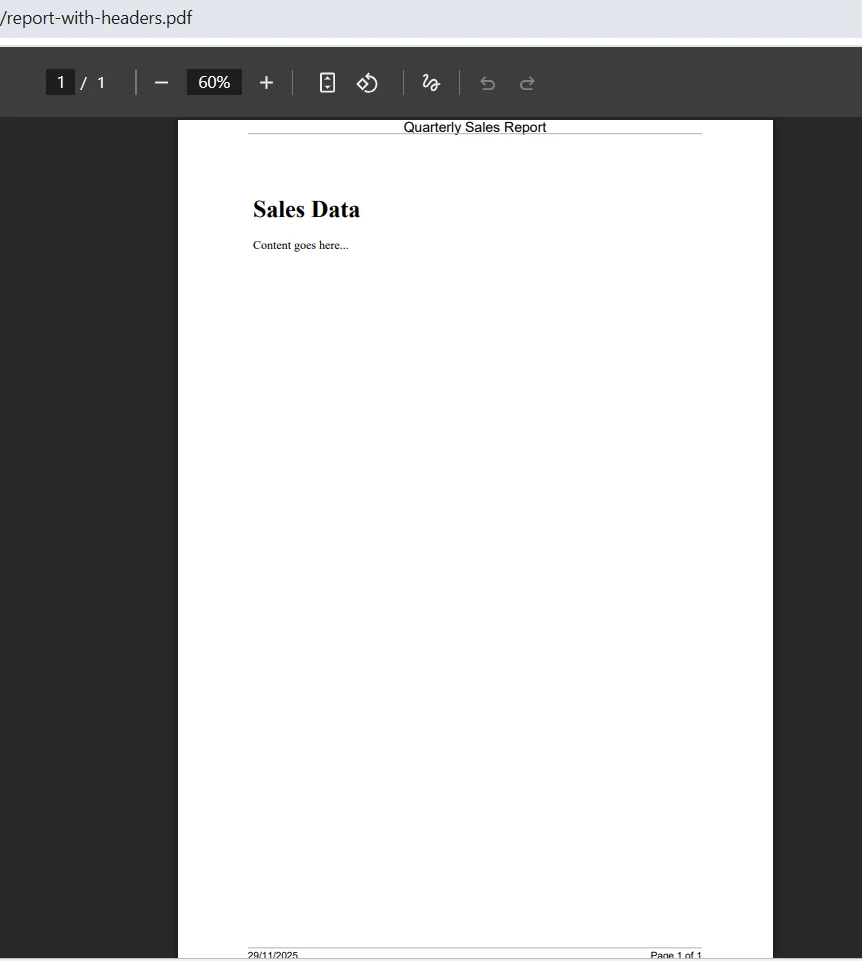
Notice how the entire implementation fits in a single code block with clear, readable property assignments. There is no need to create a separate class file, calculate pixel positions, or manage canvas objects. The library abstracts these complexities, letting you focus on the content rather than the mechanics of PDF generation.
## How Do You Create HTML-Styled Headers and Footers?
For more sophisticated designs, IronPDF's [HtmlHeaderFooter class](https://ironpdf.com/object-reference/api/IronPdf.HtmlHeaderFooter.html) enables full HTML and CSS styling. This approach is particularly valuable when headers need to include an image logo, complex layouts, or brand-specific styling -- without manually creating `PdfPCell` objects or using `new Phrase` constructors.
```csharp
using IronPdf;
using System;
var renderer = new ChromePdfRenderer();
// Create an HTML header with logo and styling
renderer.RenderingOptions.HtmlHeader = new HtmlHeaderFooter
{
HtmlFragment = @"
<div style='width: 100%; font-family: Arial, sans-serif;'>
<img src='logo.png' style='height: 30px; float: left;' />
<span style='float: right; font-size: 12px; color: #666;'>
Confidential Document
</span>
</div>",
MaxHeight = 25,
DrawDividerLine = true,
BaseUrl = new Uri(@"C:\assets\").AbsoluteUri
};
// Create an HTML footer with page numbering
renderer.RenderingOptions.HtmlFooter = new HtmlHeaderFooter
{
HtmlFragment = @"
<div style='text-align: center; font-size: 10px; color: #999;'>
<span>Generated on {date} at {time}</span>
<br/>
<span>Page {page} of {total-pages}</span>
</div>",
MaxHeight = 20
};
renderer.RenderingOptions.MarginTop = 30;
renderer.RenderingOptions.MarginBottom = 25;
var pdf = renderer.RenderHtmlAsPdf("<h1>Project Proposal</h1><p>Document content...</p>");
pdf.SaveAs("styled-document.pdf");
```
This sample code showcases how HTML headers can incorporate images alongside text. The `BaseUrl` property establishes the root path for resolving relative image URLs, making it simple to include company logos or other graphics. The `MaxHeight` property ensures the header does not exceed specified dimensions, maintaining consistent document layouts.
The mergeable fields (`{page}`, `{total-pages}`, `{url}`, `{date}`, `{time}`, `{html-title}`, `{pdf-title}`) work identically in HTML headers and footers, providing dynamic content insertion without additional code. For guidance on implementing various header styles, see the [Headers and Footers How-To Guide](https://ironpdf.com/how-to/headers-and-footers/).
The HTML approach shines when creating branded documents. Marketing teams can provide HTML templates that developers integrate directly, ensuring pixel-perfect reproduction of approved designs. CSS properties like `font-family`, `color`, `background-color`, and `border` work as expected, enabling sophisticated visual treatments that would require extensive low-level code in other libraries.
## How Can You Add Headers to Existing PDF Documents?
A common requirement involves adding headers and footers to PDF files that already exist -- whether they are uploaded documents, merged files, or PDFs generated by other systems. IronPDF handles this scenario with the `AddHtmlHeaders` and `AddHtmlFooters` methods.
```csharp
using IronPdf;
// Load an existing PDF document
var pdf = PdfDocument.FromFile("customer-profile.pdf");
// Define the header to add
var header = new HtmlHeaderFooter
{
HtmlFragment = "<div style='text-align: center;'>REVISED COPY - {date}</div>",
MaxHeight = 20
};
// Define the footer to add
var footer = new HtmlHeaderFooter
{
HtmlFragment = "<div style='text-align: right;'>Page {page}</div>",
MaxHeight = 15
};
// Apply headers and footers to all pages
pdf.AddHtmlHeaders(header);
pdf.AddHtmlFooters(footer);
pdf.SaveAs("document-with-new-headers.pdf");
```
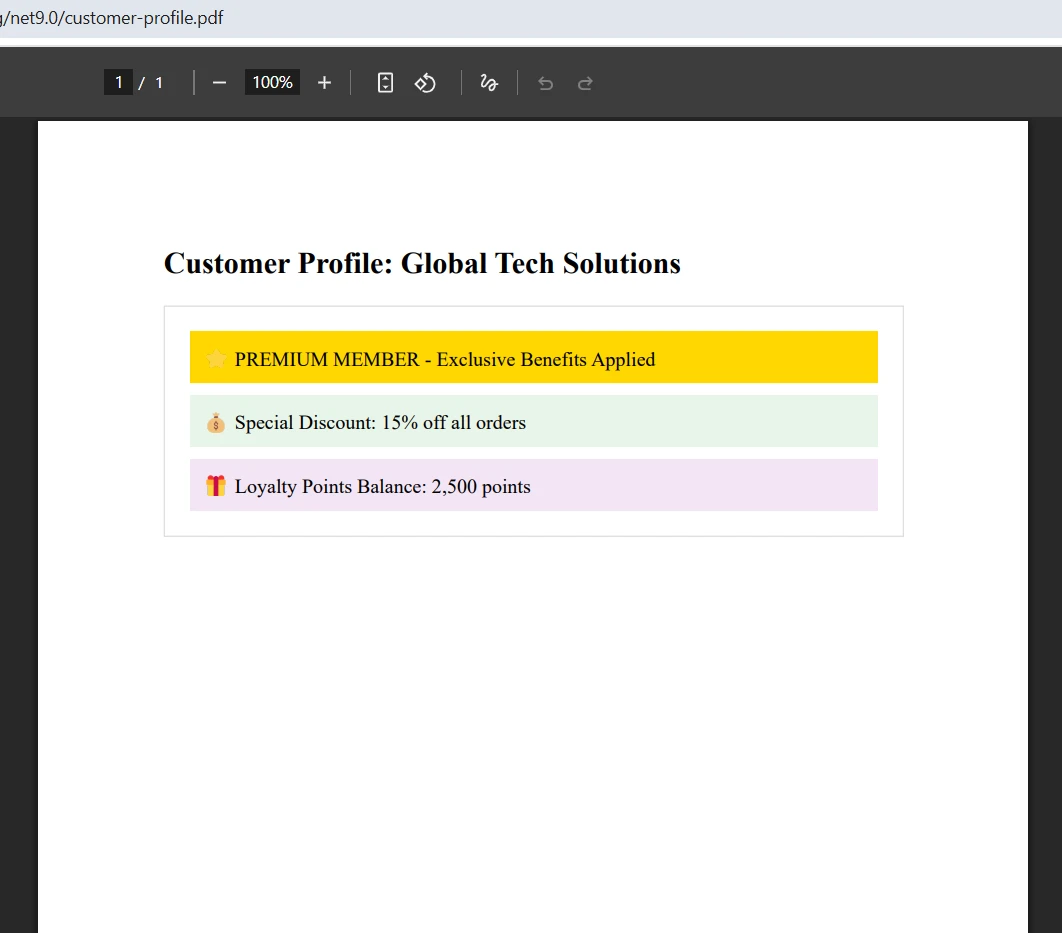
The `PdfDocument` class represents a loaded or rendered PDF and provides methods for post-rendering modifications. This separation between rendering and modification enables workflows where PDF documents pass through multiple processing stages. The `AddHtmlHeaders` method automatically applies the header to every page, though you can also target [specific pages](https://ironpdf.com/examples/adding-headers-and-footers-advanced/) by passing a collection of page indices.
### Input
### Output
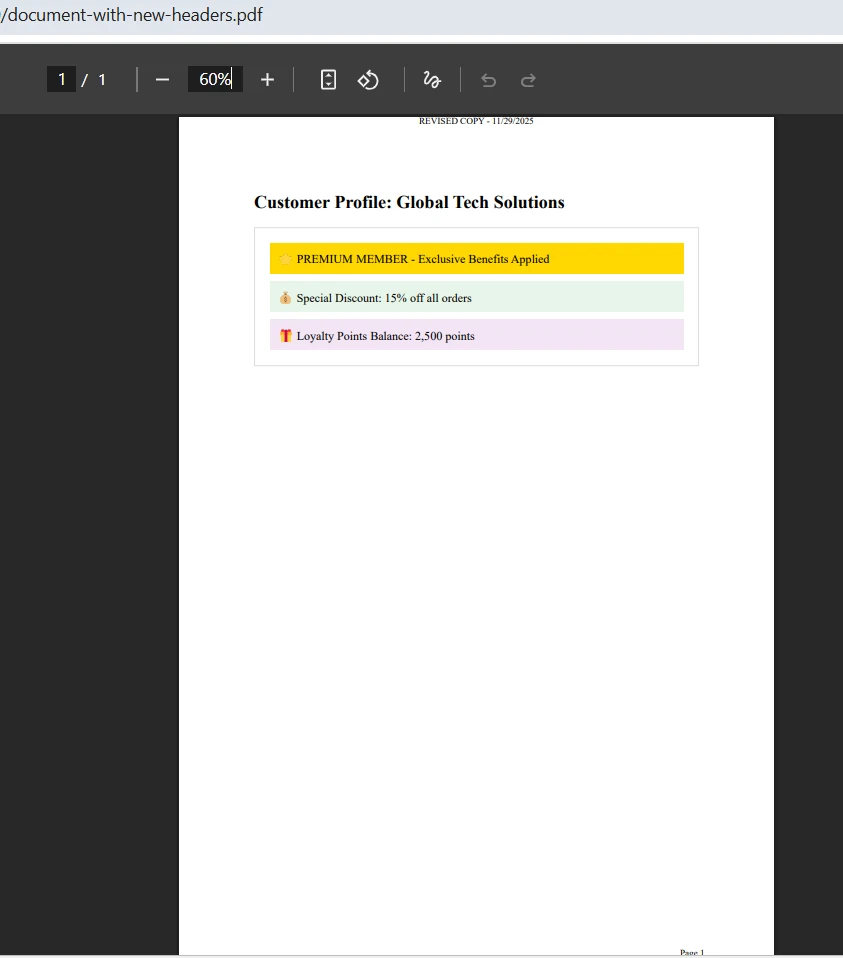
This capability proves invaluable in document management systems that receive PDF files from various sources, such as scanned documents, user uploads, or third-party API responses. IronPDF standardizes the branding or page numbering before distribution or archival.
## How Do You Add Different Headers on Different Pages?
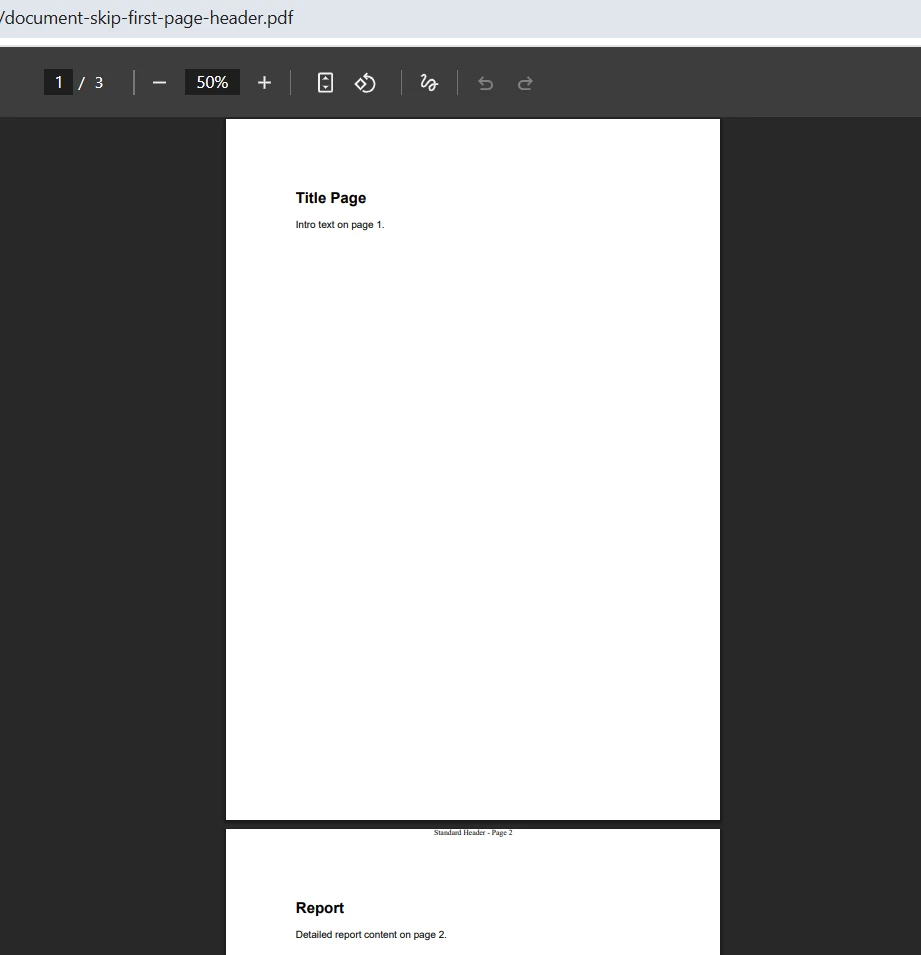
Some documents require the first page to have a different header (or no header at all), while subsequent pages use a standard format. IronPDF supports this through page-index-based header application -- no need to check conditions inside `void OnEndPage` handlers or manage loop counters manually:
```csharp
using IronPdf;
using System.Collections.Generic;
using System.Linq;
using System.Text;
var renderer = new ChromePdfRenderer();
// Build multi-page HTML with print page-breaks between pages
var pages = new List<string>
{
"<section><h1>Title Page</h1><p>Intro text on page 1.</p></section>",
"<section><h2>Report</h2><p>Detailed report content on page 2.</p></section>",
"<section><h2>Appendix</h2><p>Appendix content on page 3.</p></section>"
};
var sb = new StringBuilder();
sb.AppendLine("<!doctype html><html><head><meta charset='utf-8'>");
sb.AppendLine("<style>");
sb.AppendLine(" body { font-family: Arial, sans-serif; margin: 20px; }");
sb.AppendLine(" .page-break { page-break-after: always; }");
sb.AppendLine("</style>");
sb.AppendLine("</head><body>");
for (int i = 0; i < pages.Count; i++)
{
sb.AppendLine(pages[i]);
if (i < pages.Count - 1)
sb.AppendLine("<div class='page-break'></div>");
}
sb.AppendLine("</body></html>");
var pdf = renderer.RenderHtmlAsPdf(sb.ToString());
// Create the standard header for pages 2 onwards
var standardHeader = new HtmlHeaderFooter
{
HtmlFragment = "<div style='text-align: center;'>Standard Header - Page {page}</div>",
MaxHeight = 20
};
// Apply to all pages except the first (index 0)
var pageIndices = Enumerable.Range(1, pdf.PageCount - 1).ToList();
pdf.AddHtmlHeaders(standardHeader, 1, pageIndices);
pdf.SaveAs("document-skip-first-page-header.pdf");
```
The second parameter in `AddHtmlHeaders` specifies the starting page number for the `{page}` mergeable field, while the third parameter accepts a collection of page indices to receive the header. This granular control enables complex document layouts without convoluted conditional logic. The [Advanced Headers and Footers example](https://ironpdf.com/examples/adding-headers-and-footers-advanced/) covers additional scenarios, including odd/even page differentiation.
### Output
## How Do You Implement Dynamic Content Beyond Page Numbers?
The mergeable fields system supports several dynamic values that automatically populate during rendering. The following table lists all available fields and their meanings:
<table class="content__data-table" data-content-table>
<caption>Mergeable Fields Supported in IronPDF Headers and Footers</caption>
<thead>
<tr>
<th>Field</th>
<th>Value Inserted</th>
<th>Typical Use</th>
</tr>
</thead>
<tbody>
<tr>
<td><code>{page}</code></td>
<td>Current page number</td>
<td>Footers showing "Page 3"</td>
</tr>
<tr>
<td><code>{total-pages}</code></td>
<td>Total page count</td>
<td>Footers showing "Page 3 of 10"</td>
</tr>
<tr>
<td><code>{date}</code></td>
<td>Current date in local format</td>
<td>Audit timestamps, report dates</td>
</tr>
<tr>
<td><code>{time}</code></td>
<td>Current time in local format</td>
<td>Regulatory compliance footers</td>
</tr>
<tr>
<td><code>{html-title}</code></td>
<td>Content of the HTML <code><title></code> tag</td>
<td>Document headers showing the page title</td>
</tr>
<tr>
<td><code>{pdf-title}</code></td>
<td>PDF document metadata title</td>
<td>Branded footers with document name</td>
</tr>
<tr>
<td><code>{url}</code></td>
<td>Source URL when rendering from a web address</td>
<td>Archival footers for web content</td>
</tr>
</tbody>
</table>
For truly dynamic content -- values determined at runtime -- you can construct the HTML fragment string with interpolated values before assigning it to the `HtmlFragment` property. This approach enables headers that include database-retrieved values, user information, or calculated data:
```csharp
using IronPdf;
string userName = GetCurrentUserName();
string documentVersion = "v2.3.1";
var renderer = new ChromePdfRenderer();
renderer.RenderingOptions.HtmlHeader = new HtmlHeaderFooter
{
HtmlFragment = $"<div style='font-size:10px;'>Prepared by: {userName} " +
$"| Version: {documentVersion} " +
"| Page {page} of {total-pages}</div>",
MaxHeight = 20
};
var pdf = renderer.RenderHtmlAsPdf("<h1>Annual Report</h1><p>Body content here.</p>");
pdf.SaveAs("dynamic-header-report.pdf");
```
Note that the `{page}` and `{total-pages}` tokens are left as plain strings within the C# string concatenation -- not inside the interpolated portion. During PDF rendering, IronPDF replaces those tokens automatically. This pattern works for any runtime value: user names from Active Directory, document IDs from a database, version strings from your build pipeline, or calculated totals from your reporting engine.
The combination of mergeable fields and string interpolation enables sophisticated footer designs common in business documents. Legal departments often require footers showing document title, date, and page count. Financial reports may need timestamps for regulatory compliance. These requirements are met without custom code for each document type.
## What Does the iText Approach Look Like?
Developers familiar with iText (the successor to iText) know that adding headers and footers requires implementing event handlers. The library uses a page event system where you create a class that responds to document lifecycle events like `OnEndPage` and `OnCloseDocument`.
Here is how the same header and footer implementation looks with iText, using the `ITextEvents` pattern:
```csharp
using iText.Kernel.Pdf;
using iText.Layout;
using iText.Layout.Element;
using iText.Kernel.Events;
using iText.Kernel.Geom;
using iText.Layout.Properties;
// Event handler class for headers and footers -- similar to PdfPageEventHelper
public class ITextEvents : IEventHandler
{
private string _header;
public string Header
{
get { return _header; }
set { _header = value; }
}
public void HandleEvent(Event currentEvent)
{
PdfDocumentEvent docEvent = (PdfDocumentEvent)currentEvent;
PdfDocument pdfDoc = docEvent.GetDocument();
PdfPage page = docEvent.GetPage();
Rectangle pageSize = page.GetPageSize();
// Create a new PdfCanvas for the contentbyte object
PdfCanvas pdfCanvas = new PdfCanvas(
page.NewContentStreamBefore(),
page.GetResources(),
pdfDoc);
Canvas canvas = new Canvas(pdfCanvas, pageSize);
// Add header text at calculated position
canvas.ShowTextAligned(
new Paragraph("Quarterly Sales Report"),
pageSize.GetWidth() / 2,
pageSize.GetTop() - 20,
TextAlignment.CENTER);
// Add footer with page number
int pageNumber = pdfDoc.GetPageNumber(page);
canvas.ShowTextAligned(
new Paragraph($"Page {pageNumber}"),
pageSize.GetWidth() / 2,
pageSize.GetBottom() + 20,
TextAlignment.CENTER);
canvas.Close();
}
}
// Usage in main code
var writer = new PdfWriter("report.pdf");
var pdfDoc = new PdfDocument(writer);
var document = new Document(pdfDoc);
// Register the event handler for END_PAGE
pdfDoc.AddEventHandler(PdfDocumentEvent.END_PAGE, new ITextEvents());
document.Add(new Paragraph("Sales Data"));
document.Add(new Paragraph("Content goes here..."));
document.Close();
```
This implementation demonstrates the fundamental architectural difference between the two libraries. iText requires creating a separate handler class that implements `IEventHandler` (similar to the legacy `PdfPageEventHelper`), manually calculating page positions using float coordinates, and managing the `PdfCanvas` and `Canvas` objects for drawing operations. The handler receives events for each page through the `END_PAGE` event type -- a detail that trips up many developers who mistakenly use `START_PAGE`.
### Output
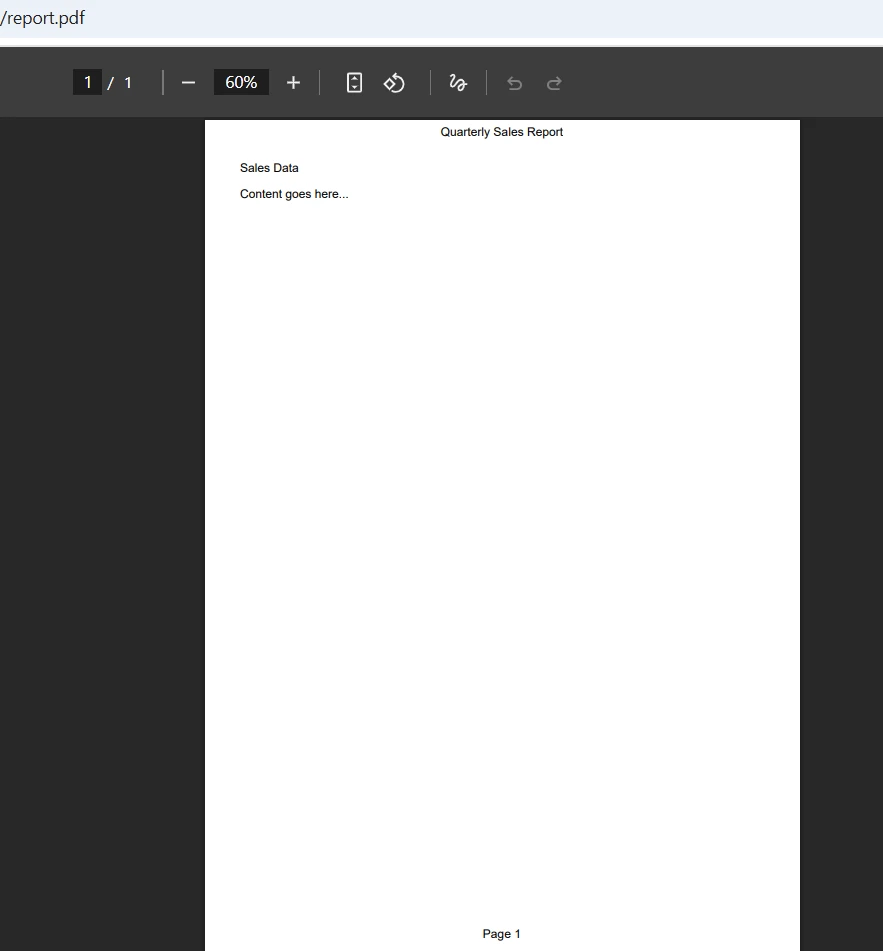
The coordinate system in iText originates from the bottom-left corner of the page, requiring explicit calculations for positioning. Getting the final number of pages requires additional complexity with `PdfTemplate` patterns that are filled in during `OnCloseDocument` -- a pattern that adds more boilerplate code to an already involved workflow.
For developers coming from web development backgrounds, this coordinate-based approach feels foreign compared to the declarative HTML/CSS model. Each positioning decision requires understanding page dimensions, margin offsets, and text measurement -- concerns that are abstracted away in HTML-based approaches.
iText also operates under AGPL licensing, meaning applications using iText or iText must be open-source unless a commercial license is purchased. This is an important consideration when choosing between libraries for commercial projects.
## How Do the Two Approaches Compare?
The differences become clearer when you look at specific capabilities side-by-side. The following table summarizes the key distinctions:
<table class="content__data-table" data-content-table>
<caption>IronPDF vs iText Header and Footer Feature Comparison</caption>
<thead>
<tr>
<th>Feature</th>
<th>IronPDF</th>
<th>iText / iText</th>
</tr>
</thead>
<tbody>
<tr>
<td>Implementation style</td>
<td>Property assignment on renderer options</td>
<td>Event handler class implementing IEventHandler</td>
</tr>
<tr>
<td>HTML/CSS support</td>
<td>Full HTML and CSS via HtmlHeaderFooter</td>
<td>No native HTML support; requires low-level canvas drawing</td>
</tr>
<tr>
<td>Page number totals</td>
<td>Automatic via <code>{total-pages}</code> field</td>
<td>Requires PdfTemplate filled in OnCloseDocument</td>
</tr>
<tr>
<td>Image in header</td>
<td>Standard HTML <code><img></code> tag with BaseUrl</td>
<td>Requires Image object and manual positioning</td>
</tr>
<tr>
<td>Add to existing PDF</td>
<td>AddHtmlHeaders / AddHtmlFooters methods</td>
<td>Requires re-processing through stamper or event loop</td>
</tr>
<tr>
<td>Per-page targeting</td>
<td>List of page indices passed to method</td>
<td>Conditional logic inside event handler</td>
</tr>
<tr>
<td>License model</td>
<td>Commercial with free trial</td>
<td>AGPL (open-source) or commercial</td>
</tr>
<tr>
<td>Cross-platform</td>
<td>Windows, Linux, macOS; Docker ready</td>
<td>Windows, Linux, macOS</td>
</tr>
</tbody>
</table>
The development experience also differs significantly when troubleshooting issues. IronPDF's HTML-based approach means you can preview your header design in a browser before integrating it into your PDF generation code. If something looks wrong, you can adjust the HTML and CSS using familiar browser developer tools. With iText, debugging positioning issues requires generating test PDFs repeatedly and manually measuring coordinates.
The HTML-based approach means you can apply existing web development skills directly. Any layout achievable with HTML and CSS works in IronPDF headers and footers, from flexbox arrangements to image grids. The [HTML Headers and Footers example](https://ironpdf.com/examples/html-headers-and-footers/) demonstrates additional styling possibilities.
### Customizing Header and Footer Appearance
Fine-tuning headers and footers involves several properties that affect positioning and visual presentation. The `TextHeaderFooter` class provides these customization options:
```csharp
using IronPdf;
using IronSoftware.Drawing;
var renderer = new ChromePdfRenderer();
var footer = new TextHeaderFooter
{
LeftText = "Confidential",
CenterText = "{pdf-title}",
RightText = "Page {page} of {total-pages}",
Font = FontTypes.Arial,
FontSize = 9,
DrawDividerLine = true,
DrawDividerLineColor = Color.Gray
};
renderer.RenderingOptions.TextFooter = footer;
renderer.RenderingOptions.MarginBottom = 20;
var pdf = renderer.RenderHtmlAsPdf("<h1>Board Report</h1><p>Executive summary content.</p>");
pdf.SaveAs("board-report.pdf");
```
The `Font` property accepts values from `IronSoftware.Drawing.FontTypes`, including Helvetica, Arial, Courier, and Times New Roman. The `DrawDividerLine` property adds a professional horizontal rule between the footer and the main content. You can customize the line color using `DrawDividerLineColor` to match your brand colors or document theme.
For HTML-based headers and footers, the `LoadStylesAndCSSFromMainHtmlDocument` property optionally inherits styles from the main document being rendered, ensuring visual consistency between headers and body content. This is particularly useful when your main document uses custom CSS that should also apply to the header and footer regions.
### Cross-Platform and Container Deployments
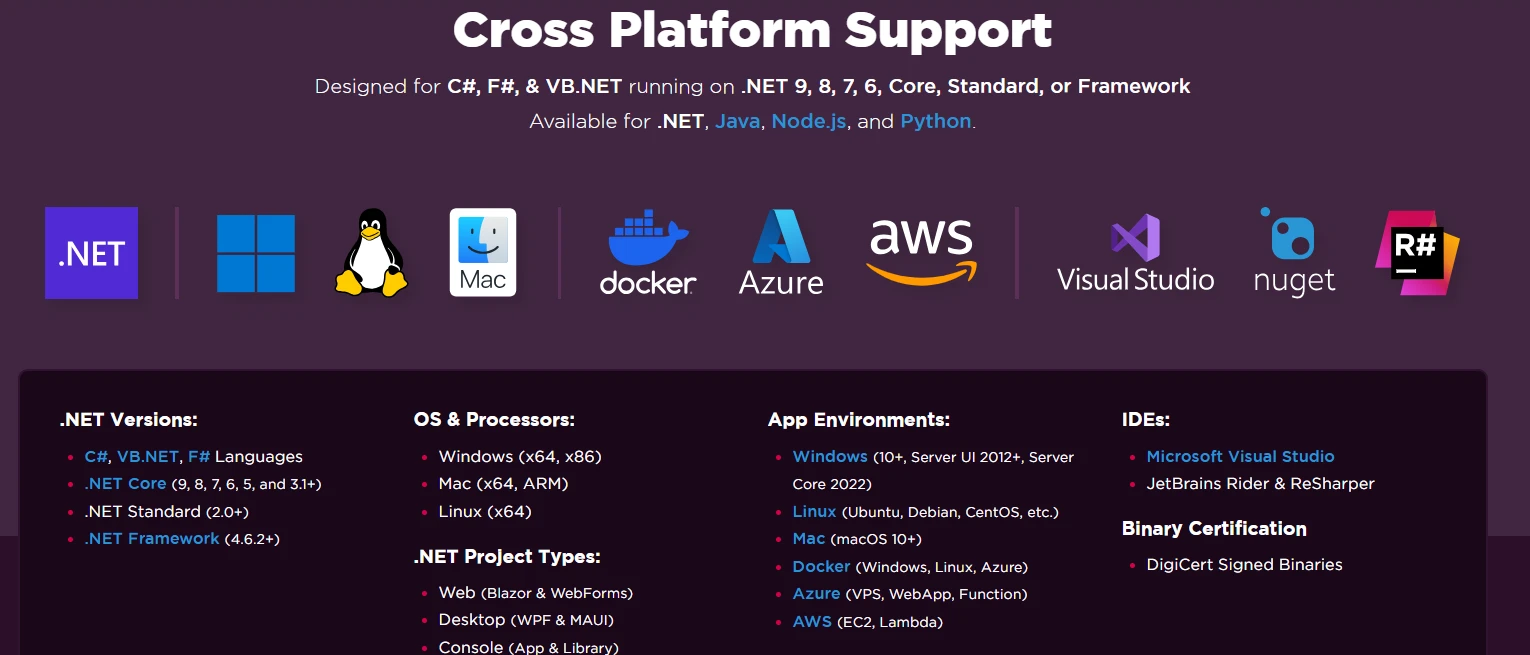
Modern .NET applications often deploy to Linux containers, Azure App Services, or AWS Lambda functions. IronPDF supports cross-platform deployment across Windows, Linux, and macOS without requiring additional configuration. The library works in Docker containers out of the box, making it suitable for microservices architectures and cloud-native applications.
This cross-platform capability extends to the header and footer functionality -- the same code that generates PDFs with headers on a Windows development machine produces identical output when deployed to a Linux production server. There is no need to install additional fonts, configure rendering engines, or handle platform-specific code paths.
For teams running containerized workloads, the [IronPDF Docker deployment documentation](https://ironpdf.com/get-started/linux/) provides configuration guidance for various base images and orchestration platforms. The library's consistent behavior across environments eliminates a common source of bugs in PDF generation workflows.
According to [Microsoft's .NET documentation](https://learn.microsoft.com/en-us/dotnet/core/deploying/), containerized .NET applications benefit from consistent runtime behavior across environments -- a principle that IronPDF's rendering engine reinforces for PDF generation tasks. Similarly, [Docker's official documentation](https://docs.docker.com/get-started/) explains best practices for containerizing .NET workloads that apply directly to PDF generation services.
The [iText documentation](https://itextpdf.com/resources/api-documentation) also confirms cross-platform support, but the additional complexity of its event-driven model means that debugging cross-platform rendering issues can be more involved than with a declarative HTML-based approach.
## What Are Your Next Steps?
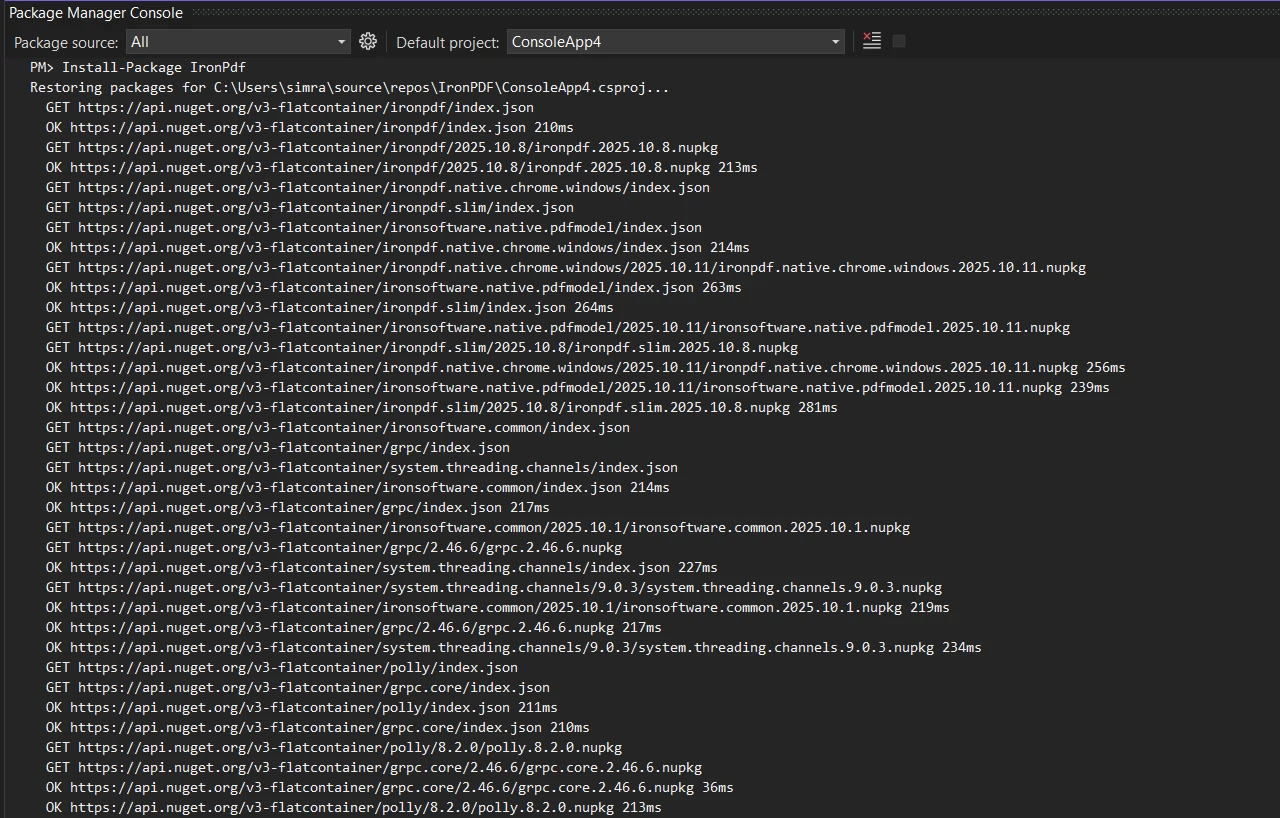
Implementing headers and footers in your PDF documents takes just a few minutes with IronPDF. Install the library via NuGet Package Manager:
```shell
:ProductInstall
```
From here, these resources will help you go further:
- **[Getting Started documentation](https://ironpdf.com/docs/)** -- covers the full range of PDF generation and manipulation capabilities
- **[Headers and Footers How-To Guide](https://ironpdf.com/how-to/headers-and-footers/)** -- step-by-step instructions for all header and footer scenarios
- **[HTML Headers and Footers example](https://ironpdf.com/examples/html-headers-and-footers/)** -- ready-to-run code samples for HTML-based headers
- **[Advanced Headers and Footers example](https://ironpdf.com/examples/adding-headers-and-footers-advanced/)** -- per-page targeting and odd/even page differentiation
- **[TextHeaderFooter API reference](https://ironpdf.com/object-reference/api/IronPdf.TextHeaderFooter.html)** -- complete property list for text-based headers and footers
- **[HtmlHeaderFooter API reference](https://ironpdf.com/object-reference/api/IronPdf.HtmlHeaderFooter.html)** -- full API for HTML-based headers and footers
- **[Docker deployment guide](https://ironpdf.com/get-started/linux/)** -- configuration for Linux containers and cloud environments
- **[IronPDF licensing options](https://ironpdf.com/licensing/)** -- plans for individual developers through to enterprise teams
[Start your free trial](trial-license) to test header and footer implementations in your own projects. The trial includes all features with no time limit on functionality, allowing you to evaluate the library against your real-world PDF document requirements before committing to a license.
Adding headers and footers to PDF documents in C# ranges from straightforward to involved, depending on your library choice. While iText provides low-level control through event handlers and canvas operations, IronPDF delivers the same functionality through an API that applies familiar HTML and CSS concepts. For developers prioritizing rapid implementation and maintainable code, IronPDF reduces header and footer implementation from dozens of lines -- including handler classes, cell configurations, and table structures -- to just a few property assignments.
Adding headers and footers to PDF documents is essential for creating professional reports, invoices, and business documents. Developers searching for iText solutions using PdfPageEventHelper and the OnEndPage method will find that modern .NET libraries offer significantly simpler approaches to achieve the same results.
This guide demonstrates how to add headers and footers in PDF files using C#, comparing the traditional iText approach with IronPDF's concise API. By the end, you will understand both implementations -- from creating a new Document to generating the final PDF file -- and can choose the approach that best fits your project requirements.
Why Do PDF Headers and Footers Matter in Professional Documents?
Headers and footers serve critical functions in professional PDF documents. They provide consistent branding through image logos, enable page navigation with page numbers, display important metadata like dates and document titles, and establish document authenticity through timestamps and version information.
In enterprise environments, headers and footers often carry legal significance. Financial reports require timestamps for audit trails. Contracts need page numbering to ensure completeness. Internal documents may require confidentiality notices on every page. Meeting these requirements programmatically requires a PDF library that reliably handles page-level content injection.
Key reasons to add headers and footers programmatically include:
Audit compliance -- timestamps and version numbers on every page satisfy regulatory requirements
Brand consistency -- company logos and styling applied uniformly across all generated documents
Navigation -- page numbers and section titles help readers locate information quickly
Authenticity -- author name, creation date, and document ID prevent disputes over document integrity
How Do You Add a Text Header and Footer in C#?
IronPDF provides the most direct approach for adding headers and footers to PDF documents in .NET applications. Using the ChromePdfRenderer class combined with either TextHeaderFooter or HtmlHeaderFooter, you can generate headers and footers with minimal code -- no need to create separate cells or manage a contentbyte object manually.
Before writing any code, add IronPDF to your project using NuGet:
PM > Install-Package IronPdf
Install-Package IronPdf
The library requires no external dependencies and works immediately after installation. It targets .NET 5, 6, 7, 8, and 10, and runs on Windows, Linux, and macOS without platform-specific configuration.
In older iText patterns, developers created helper methods such as private static void AddContent() to manually inject header and footer logic. IronPDF eliminates the need for such boilerplate entirely.
Here is a complete example that adds both a text header and a footer to a PDF file:
using IronPdf;// Initialize the PDF renderervar renderer = new ChromePdfRenderer();// Configure the text headerrenderer.RenderingOptions.TextHeader = new TextHeaderFooter{CenterText = "Quarterly Sales Report",DrawDividerLine = true,FontSize = 14};// Configure the text footer with page number and daterenderer.RenderingOptions.TextFooter = new TextHeaderFooter{LeftText = "{date}",RightText = "Page {page} of {total-pages}",DrawDividerLine = true,FontSize = 10};// Set margins to accommodate header and footerrenderer.RenderingOptions.MarginTop = 25;renderer.RenderingOptions.MarginBottom = 25;// Generate PDF from HTML contentvar pdf = renderer.RenderHtmlAsPdf("<h1>Sales Data</h1><p>Content goes here...</p>");pdf.SaveAs("report-with-headers.pdf");
using IronPdf;

// Initialize the PDF renderer
var renderer = new ChromePdfRenderer();

// Configure the text header
renderer.RenderingOptions.TextHeader = new TextHeaderFooter
{
    CenterText = "Quarterly Sales Report",
    DrawDividerLine = true,
    FontSize = 14
};

// Configure the text footer with page number and date
renderer.RenderingOptions.TextFooter = new TextHeaderFooter
{
    LeftText = "{date}",
    RightText = "Page {page} of {total-pages}",
    DrawDividerLine = true,
    FontSize = 10
};

// Set margins to accommodate header and footer
renderer.RenderingOptions.MarginTop = 25;
renderer.RenderingOptions.MarginBottom = 25;

// Generate PDF from HTML content
var pdf = renderer.RenderHtmlAsPdf("<h1>Sales Data</h1><p>Content goes here...</p>");
pdf.SaveAs("report-with-headers.pdf");
ImportsIronPdf' Initialize the PDF rendererDim renderer = New ChromePdfRenderer()' Configure the text headerrenderer.RenderingOptions.TextHeader = New TextHeaderFooterWith { .CenterText = "Quarterly Sales Report", .DrawDividerLine = True, .FontSize = 14}' Configure the text footer with page number and daterenderer.RenderingOptions.TextFooter = New TextHeaderFooterWith { .LeftText = "{date}", .RightText = "Page {page} of {total-pages}", .DrawDividerLine = True, .FontSize = 10}' Set margins to accommodate header and footerrenderer.RenderingOptions.MarginTop = 25renderer.RenderingOptions.MarginBottom = 25' Generate PDF from HTML contentDim pdf = renderer.RenderHtmlAsPdf("<h1>Sales Data</h1><p>Content goes here...</p>")pdf.SaveAs("report-with-headers.pdf")
Imports IronPdf

' Initialize the PDF renderer
Dim renderer = New ChromePdfRenderer()

' Configure the text header
renderer.RenderingOptions.TextHeader = New TextHeaderFooter With {
    .CenterText = "Quarterly Sales Report",
    .DrawDividerLine = True,
    .FontSize = 14
}

' Configure the text footer with page number and date
renderer.RenderingOptions.TextFooter = New TextHeaderFooter With {
    .LeftText = "{date}",
    .RightText = "Page {page} of {total-pages}",
    .DrawDividerLine = True,
    .FontSize = 10
}

' Set margins to accommodate header and footer
renderer.RenderingOptions.MarginTop = 25
renderer.RenderingOptions.MarginBottom = 25

' Generate PDF from HTML content
Dim pdf = renderer.RenderHtmlAsPdf("<h1>Sales Data</h1><p>Content goes here...</p>")
pdf.SaveAs("report-with-headers.pdf")
The TextHeaderFooter class provides properties for positioning text on the left, center, or right of the header or footer area. The DrawDividerLine property adds a professional separator line between the header or footer and the main document content. Mergeable fields like {page}, {total-pages}, and {date} automatically populate with dynamic values during PDF generation.
IronPDF handles margin calculations automatically, ensuring headers and footers do not overlap with your document content. The TextHeaderFooter class supports font types from IronSoftware.Drawing.FontTypes, giving you control over typography without external dependencies.
Output
Notice how the entire implementation fits in a single code block with clear, readable property assignments. There is no need to create a separate class file, calculate pixel positions, or manage canvas objects. The library abstracts these complexities, letting you focus on the content rather than the mechanics of PDF generation.
How Do You Create HTML-Styled Headers and Footers?
For more sophisticated designs, IronPDF's HtmlHeaderFooter class enables full HTML and CSS styling. This approach is particularly valuable when headers need to include an image logo, complex layouts, or brand-specific styling -- without manually creating PdfPCell objects or using new Phrase constructors.
using IronPdf;using System;var renderer = new ChromePdfRenderer();// Create an HTML header with logo and stylingrenderer.RenderingOptions.HtmlHeader = new HtmlHeaderFooter{HtmlFragment = @" <div style='width: 100%; font-family: Arial, sans-serif;'> <img src='logo.png' style='height: 30px; float: left;' /> <span style='float: right; font-size: 12px; color: #666;'> Confidential Document </span> </div>",MaxHeight = 25,DrawDividerLine = true,BaseUrl = new Uri(@"C:\assets\").AbsoluteUri};// Create an HTML footer with page numberingrenderer.RenderingOptions.HtmlFooter = new HtmlHeaderFooter{HtmlFragment = @" <div style='text-align: center; font-size: 10px; color: #999;'> <span>Generated on {date} at {time}</span> <br/> <span>Page {page} of {total-pages}</span> </div>",MaxHeight = 20};renderer.RenderingOptions.MarginTop = 30;renderer.RenderingOptions.MarginBottom = 25;var pdf = renderer.RenderHtmlAsPdf("<h1>Project Proposal</h1><p>Document content...</p>");pdf.SaveAs("styled-document.pdf");
using IronPdf;
using System;

var renderer = new ChromePdfRenderer();

// Create an HTML header with logo and styling
renderer.RenderingOptions.HtmlHeader = new HtmlHeaderFooter
{
    HtmlFragment = @"
        <div style='width: 100%; font-family: Arial, sans-serif;'>
            <img src='logo.png' style='height: 30px; float: left;' />
            <span style='float: right; font-size: 12px; color: #666;'>
                Confidential Document
            </span>
        </div>",
    MaxHeight = 25,
    DrawDividerLine = true,
    BaseUrl = new Uri(@"C:\assets\").AbsoluteUri
};

// Create an HTML footer with page numbering
renderer.RenderingOptions.HtmlFooter = new HtmlHeaderFooter
{
    HtmlFragment = @"
        <div style='text-align: center; font-size: 10px; color: #999;'>
            <span>Generated on {date} at {time}</span>
            <br/>
            <span>Page {page} of {total-pages}</span>
        </div>",
    MaxHeight = 20
};

renderer.RenderingOptions.MarginTop = 30;
renderer.RenderingOptions.MarginBottom = 25;

var pdf = renderer.RenderHtmlAsPdf("<h1>Project Proposal</h1><p>Document content...</p>");
pdf.SaveAs("styled-document.pdf");
ImportsIronPdfImportsSystemDim renderer As New ChromePdfRenderer()' Create an HTML header with logo and stylingrenderer.RenderingOptions.HtmlHeader = New HtmlHeaderFooterWith { .HtmlFragment = " <div style='width: 100%; font-family: Arial, sans-serif;'> <img src='logo.png' style='height: 30px; float: left;' /> <span style='float: right; font-size: 12px; color: #666;'> Confidential Document </span> </div>", .MaxHeight = 25, .DrawDividerLine = True, .BaseUrl = New Uri("C:\assets\").AbsoluteUri}' Create an HTML footer with page numberingrenderer.RenderingOptions.HtmlFooter = New HtmlHeaderFooterWith { .HtmlFragment = " <div style='text-align: center; font-size: 10px; color: #999;'> <span>Generated on {date} at {time}</span> <br/> <span>Page {page} of {total-pages}</span> </div>", .MaxHeight = 20}renderer.RenderingOptions.MarginTop = 30renderer.RenderingOptions.MarginBottom = 25Dim pdf = renderer.RenderHtmlAsPdf("<h1>Project Proposal</h1><p>Document content...</p>")pdf.SaveAs("styled-document.pdf")
Imports IronPdf
Imports System

Dim renderer As New ChromePdfRenderer()

' Create an HTML header with logo and styling
renderer.RenderingOptions.HtmlHeader = New HtmlHeaderFooter With {
    .HtmlFragment = "
        <div style='width: 100%; font-family: Arial, sans-serif;'>
            <img src='logo.png' style='height: 30px; float: left;' />
            <span style='float: right; font-size: 12px; color: #666;'>
                Confidential Document
            </span>
        </div>",
    .MaxHeight = 25,
    .DrawDividerLine = True,
    .BaseUrl = New Uri("C:\assets\").AbsoluteUri
}

' Create an HTML footer with page numbering
renderer.RenderingOptions.HtmlFooter = New HtmlHeaderFooter With {
    .HtmlFragment = "
        <div style='text-align: center; font-size: 10px; color: #999;'>
            <span>Generated on {date} at {time}</span>
            <br/>
            <span>Page {page} of {total-pages}</span>
        </div>",
    .MaxHeight = 20
}

renderer.RenderingOptions.MarginTop = 30
renderer.RenderingOptions.MarginBottom = 25

Dim pdf = renderer.RenderHtmlAsPdf("<h1>Project Proposal</h1><p>Document content...</p>")
pdf.SaveAs("styled-document.pdf")
This sample code showcases how HTML headers can incorporate images alongside text. The BaseUrl property establishes the root path for resolving relative image URLs, making it simple to include company logos or other graphics. The MaxHeight property ensures the header does not exceed specified dimensions, maintaining consistent document layouts.
The mergeable fields ({page}, {total-pages}, {url}, {date}, {time}, {html-title}, {pdf-title}) work identically in HTML headers and footers, providing dynamic content insertion without additional code. For guidance on implementing various header styles, see the Headers and Footers How-To Guide.
The HTML approach shines when creating branded documents. Marketing teams can provide HTML templates that developers integrate directly, ensuring pixel-perfect reproduction of approved designs. CSS properties like font-family, color, background-color, and border work as expected, enabling sophisticated visual treatments that would require extensive low-level code in other libraries.
How Can You Add Headers to Existing PDF Documents?
A common requirement involves adding headers and footers to PDF files that already exist -- whether they are uploaded documents, merged files, or PDFs generated by other systems. IronPDF handles this scenario with the AddHtmlHeaders and AddHtmlFooters methods.
using IronPdf;// Load an existing PDF documentvar pdf = PdfDocument.FromFile("customer-profile.pdf");// Define the header to addvar header = new HtmlHeaderFooter{HtmlFragment = "<div style='text-align: center;'>REVISED COPY - {date}</div>",MaxHeight = 20};// Define the footer to addvar footer = new HtmlHeaderFooter{HtmlFragment = "<div style='text-align: right;'>Page {page}</div>",MaxHeight = 15};// Apply headers and footers to all pagespdf.AddHtmlHeaders(header);pdf.AddHtmlFooters(footer);pdf.SaveAs("document-with-new-headers.pdf");
using IronPdf;

// Load an existing PDF document
var pdf = PdfDocument.FromFile("customer-profile.pdf");

// Define the header to add
var header = new HtmlHeaderFooter
{
    HtmlFragment = "<div style='text-align: center;'>REVISED COPY - {date}</div>",
    MaxHeight = 20
};

// Define the footer to add
var footer = new HtmlHeaderFooter
{
    HtmlFragment = "<div style='text-align: right;'>Page {page}</div>",
    MaxHeight = 15
};

// Apply headers and footers to all pages
pdf.AddHtmlHeaders(header);
pdf.AddHtmlFooters(footer);
pdf.SaveAs("document-with-new-headers.pdf");
ImportsIronPdf' Load an existing PDF documentDim pdf = PdfDocument.FromFile("customer-profile.pdf")' Define the header to addDim header As New HtmlHeaderFooterWith { .HtmlFragment = "<div style='text-align: center;'>REVISED COPY - {date}</div>", .MaxHeight = 20}' Define the footer to addDim footer As New HtmlHeaderFooterWith { .HtmlFragment = "<div style='text-align: right;'>Page {page}</div>", .MaxHeight = 15}' Apply headers and footers to all pagespdf.AddHtmlHeaders(header)pdf.AddHtmlFooters(footer)pdf.SaveAs("document-with-new-headers.pdf")
Imports IronPdf

' Load an existing PDF document
Dim pdf = PdfDocument.FromFile("customer-profile.pdf")

' Define the header to add
Dim header As New HtmlHeaderFooter With {
    .HtmlFragment = "<div style='text-align: center;'>REVISED COPY - {date}</div>",
    .MaxHeight = 20
}

' Define the footer to add
Dim footer As New HtmlHeaderFooter With {
    .HtmlFragment = "<div style='text-align: right;'>Page {page}</div>",
    .MaxHeight = 15
}

' Apply headers and footers to all pages
pdf.AddHtmlHeaders(header)
pdf.AddHtmlFooters(footer)
pdf.SaveAs("document-with-new-headers.pdf")
The PdfDocument class represents a loaded or rendered PDF and provides methods for post-rendering modifications. This separation between rendering and modification enables workflows where PDF documents pass through multiple processing stages. The AddHtmlHeaders method automatically applies the header to every page, though you can also target specific pages by passing a collection of page indices.
Input
Output
This capability proves invaluable in document management systems that receive PDF files from various sources, such as scanned documents, user uploads, or third-party API responses. IronPDF standardizes the branding or page numbering before distribution or archival.
How Do You Add Different Headers on Different Pages?
Some documents require the first page to have a different header (or no header at all), while subsequent pages use a standard format. IronPDF supports this through page-index-based header application -- no need to check conditions inside void OnEndPage handlers or manage loop counters manually:
using IronPdf;using System.Collections.Generic;using System.Linq;using System.Text;var renderer = new ChromePdfRenderer();// Build multi-page HTML with print page-breaks between pagesvar pages = new List<string>{ "<section><h1>Title Page</h1><p>Intro text on page 1.</p></section>", "<section><h2>Report</h2><p>Detailed report content on page 2.</p></section>", "<section><h2>Appendix</h2><p>Appendix content on page 3.</p></section>"};var sb = new StringBuilder();sb.AppendLine("<!doctype html><html><head><meta charset='utf-8'>");sb.AppendLine("<style>");sb.AppendLine(" body { font-family: Arial, sans-serif; margin: 20px; }");sb.AppendLine(" .page-break { page-break-after: always; }");sb.AppendLine("</style>");sb.AppendLine("</head><body>");for (int i = 0; i < pages.Count; i++){ sb.AppendLine(pages[i]); if (i < pages.Count - 1) sb.AppendLine("<div class='page-break'></div>");}sb.AppendLine("</body></html>");var pdf = renderer.RenderHtmlAsPdf(sb.ToString());// Create the standard header for pages 2 onwardsvar standardHeader = new HtmlHeaderFooter{HtmlFragment = "<div style='text-align: center;'>Standard Header - Page {page}</div>",MaxHeight = 20};// Apply to all pages except the first (index 0)var pageIndices = Enumerable.Range(1, pdf.PageCount - 1).ToList();pdf.AddHtmlHeaders(standardHeader, 1, pageIndices);pdf.SaveAs("document-skip-first-page-header.pdf");
using IronPdf;
using System.Collections.Generic;
using System.Linq;
using System.Text;

var renderer = new ChromePdfRenderer();

// Build multi-page HTML with print page-breaks between pages
var pages = new List<string>
{
    "<section><h1>Title Page</h1><p>Intro text on page 1.</p></section>",
    "<section><h2>Report</h2><p>Detailed report content on page 2.</p></section>",
    "<section><h2>Appendix</h2><p>Appendix content on page 3.</p></section>"
};

var sb = new StringBuilder();
sb.AppendLine("<!doctype html><html><head><meta charset='utf-8'>");
sb.AppendLine("<style>");
sb.AppendLine("  body { font-family: Arial, sans-serif; margin: 20px; }");
sb.AppendLine("  .page-break { page-break-after: always; }");
sb.AppendLine("</style>");
sb.AppendLine("</head><body>");

for (int i = 0; i < pages.Count; i++)
{
    sb.AppendLine(pages[i]);
    if (i < pages.Count - 1)
        sb.AppendLine("<div class='page-break'></div>");
}
sb.AppendLine("</body></html>");

var pdf = renderer.RenderHtmlAsPdf(sb.ToString());

// Create the standard header for pages 2 onwards
var standardHeader = new HtmlHeaderFooter
{
    HtmlFragment = "<div style='text-align: center;'>Standard Header - Page {page}</div>",
    MaxHeight = 20
};

// Apply to all pages except the first (index 0)
var pageIndices = Enumerable.Range(1, pdf.PageCount - 1).ToList();
pdf.AddHtmlHeaders(standardHeader, 1, pageIndices);
pdf.SaveAs("document-skip-first-page-header.pdf");
ImportsIronPdfImportsSystem.Collections.GenericImportsSystem.LinqImportsSystem.TextDim renderer As New ChromePdfRenderer()' Build multi-page HTML with print page-breaks between pagesDim pages As New List(OfString) From { "<section><h1>Title Page</h1><p>Intro text on page 1.</p></section>", "<section><h2>Report</h2><p>Detailed report content on page 2.</p></section>", "<section><h2>Appendix</h2><p>Appendix content on page 3.</p></section>"}Dim sb As New StringBuilder()sb.AppendLine("<!doctype html><html><head><meta charset='utf-8'>")sb.AppendLine("<style>")sb.AppendLine(" body { font-family: Arial, sans-serif; margin: 20px; }")sb.AppendLine(" .page-break { page-break-after: always; }")sb.AppendLine("</style>")sb.AppendLine("</head><body>")For i AsInteger = 0 To pages.Count - 1 sb.AppendLine(pages(i)) If i < pages.Count - 1 Then sb.AppendLine("<div class='page-break'></div>") End IfNextsb.AppendLine("</body></html>")Dim pdf = renderer.RenderHtmlAsPdf(sb.ToString())' Create the standard header for pages 2 onwardsDim standardHeader As New HtmlHeaderFooterWith { .HtmlFragment = "<div style='text-align: center;'>Standard Header - Page {page}</div>", .MaxHeight = 20}' Apply to all pages except the first (index 0)Dim pageIndices = Enumerable.Range(1, pdf.PageCount - 1).ToList()pdf.AddHtmlHeaders(standardHeader, 1, pageIndices)pdf.SaveAs("document-skip-first-page-header.pdf")
Imports IronPdf
Imports System.Collections.Generic
Imports System.Linq
Imports System.Text

Dim renderer As New ChromePdfRenderer()

' Build multi-page HTML with print page-breaks between pages
Dim pages As New List(Of String) From {
    "<section><h1>Title Page</h1><p>Intro text on page 1.</p></section>",
    "<section><h2>Report</h2><p>Detailed report content on page 2.</p></section>",
    "<section><h2>Appendix</h2><p>Appendix content on page 3.</p></section>"
}

Dim sb As New StringBuilder()
sb.AppendLine("<!doctype html><html><head><meta charset='utf-8'>")
sb.AppendLine("<style>")
sb.AppendLine("  body { font-family: Arial, sans-serif; margin: 20px; }")
sb.AppendLine("  .page-break { page-break-after: always; }")
sb.AppendLine("</style>")
sb.AppendLine("</head><body>")

For i As Integer = 0 To pages.Count - 1
    sb.AppendLine(pages(i))
    If i < pages.Count - 1 Then
        sb.AppendLine("<div class='page-break'></div>")
    End If
Next
sb.AppendLine("</body></html>")

Dim pdf = renderer.RenderHtmlAsPdf(sb.ToString())

' Create the standard header for pages 2 onwards
Dim standardHeader As New HtmlHeaderFooter With {
    .HtmlFragment = "<div style='text-align: center;'>Standard Header - Page {page}</div>",
    .MaxHeight = 20
}

' Apply to all pages except the first (index 0)
Dim pageIndices = Enumerable.Range(1, pdf.PageCount - 1).ToList()
pdf.AddHtmlHeaders(standardHeader, 1, pageIndices)
pdf.SaveAs("document-skip-first-page-header.pdf")
The second parameter in AddHtmlHeaders specifies the starting page number for the {page} mergeable field, while the third parameter accepts a collection of page indices to receive the header. This granular control enables complex document layouts without convoluted conditional logic. The Advanced Headers and Footers example covers additional scenarios, including odd/even page differentiation.
Output
How Do You Implement Dynamic Content Beyond Page Numbers?
The mergeable fields system supports several dynamic values that automatically populate during rendering. The following table lists all available fields and their meanings:
Mergeable Fields Supported in IronPDF Headers and Footers
Field
Value Inserted
Typical Use
{page}
Current page number
Footers showing "Page 3"
{total-pages}
Total page count
Footers showing "Page 3 of 10"
{date}
Current date in local format
Audit timestamps, report dates
{time}
Current time in local format
Regulatory compliance footers
{html-title}
Content of the HTML <title> tag
Document headers showing the page title
{pdf-title}
PDF document metadata title
Branded footers with document name
{url}
Source URL when rendering from a web address
Archival footers for web content
For truly dynamic content -- values determined at runtime -- you can construct the HTML fragment string with interpolated values before assigning it to the HtmlFragment property. This approach enables headers that include database-retrieved values, user information, or calculated data:
using IronPdf;string userName = GetCurrentUserName();string documentVersion = "v2.3.1";var renderer = new ChromePdfRenderer();renderer.RenderingOptions.HtmlHeader = new HtmlHeaderFooter{HtmlFragment = $"<div style='font-size:10px;'>Prepared by: {userName} " + $"| Version: {documentVersion} " + "| Page {page} of {total-pages}</div>",MaxHeight = 20};var pdf = renderer.RenderHtmlAsPdf("<h1>Annual Report</h1><p>Body content here.</p>");pdf.SaveAs("dynamic-header-report.pdf");
using IronPdf;

string userName = GetCurrentUserName();
string documentVersion = "v2.3.1";

var renderer = new ChromePdfRenderer();

renderer.RenderingOptions.HtmlHeader = new HtmlHeaderFooter
{
    HtmlFragment = $"<div style='font-size:10px;'>Prepared by: {userName} " +
                   $"| Version: {documentVersion} " +
                   "| Page {page} of {total-pages}</div>",
    MaxHeight = 20
};

var pdf = renderer.RenderHtmlAsPdf("<h1>Annual Report</h1><p>Body content here.</p>");
pdf.SaveAs("dynamic-header-report.pdf");
ImportsIronPdfDim userName AsString = GetCurrentUserName()Dim documentVersion AsString = "v2.3.1"Dim renderer As New ChromePdfRenderer()renderer.RenderingOptions.HtmlHeader = New HtmlHeaderFooterWith { .HtmlFragment = $"<div style='font-size:10px;'>Prepared by: {userName} " & $"| Version: {documentVersion} " & "| Page {page} of {total-pages}</div>", .MaxHeight = 20}Dim pdf = renderer.RenderHtmlAsPdf("<h1>Annual Report</h1><p>Body content here.</p>")pdf.SaveAs("dynamic-header-report.pdf")
Imports IronPdf

Dim userName As String = GetCurrentUserName()
Dim documentVersion As String = "v2.3.1"

Dim renderer As New ChromePdfRenderer()

renderer.RenderingOptions.HtmlHeader = New HtmlHeaderFooter With {
    .HtmlFragment = $"<div style='font-size:10px;'>Prepared by: {userName} " &
                    $"| Version: {documentVersion} " &
                    "| Page {page} of {total-pages}</div>",
    .MaxHeight = 20
}

Dim pdf = renderer.RenderHtmlAsPdf("<h1>Annual Report</h1><p>Body content here.</p>")
pdf.SaveAs("dynamic-header-report.pdf")
Note that the {page} and {total-pages} tokens are left as plain strings within the C# string concatenation -- not inside the interpolated portion. During PDF rendering, IronPDF replaces those tokens automatically. This pattern works for any runtime value: user names from Active Directory, document IDs from a database, version strings from your build pipeline, or calculated totals from your reporting engine.
The combination of mergeable fields and string interpolation enables sophisticated footer designs common in business documents. Legal departments often require footers showing document title, date, and page count. Financial reports may need timestamps for regulatory compliance. These requirements are met without custom code for each document type.
What Does the iText Approach Look Like?
Developers familiar with iText (the successor to iText) know that adding headers and footers requires implementing event handlers. The library uses a page event system where you create a class that responds to document lifecycle events like OnEndPage and OnCloseDocument.
Here is how the same header and footer implementation looks with iText, using the ITextEvents pattern:
using iText.Kernel.Pdf;using iText.Layout;using iText.Layout.Element;using iText.Kernel.Events;using iText.Kernel.Geom;using iText.Layout.Properties;// Event handler class for headers and footers -- similar to PdfPageEventHelperpublic class ITextEvents : IEventHandler{ private string _header; public stringHeader { get { return _header; } set { _header = value; } } public voidHandleEvent(Event currentEvent) { PdfDocumentEvent docEvent = (PdfDocumentEvent)currentEvent; PdfDocument pdfDoc = docEvent.GetDocument(); PdfPage page = docEvent.GetPage(); Rectangle pageSize = page.GetPageSize(); // Create a new PdfCanvas for the contentbyte object PdfCanvas pdfCanvas = new PdfCanvas( page.NewContentStreamBefore(), page.GetResources(), pdfDoc); Canvas canvas = new Canvas(pdfCanvas, pageSize); // Add header text at calculated position canvas.ShowTextAligned( new Paragraph("Quarterly Sales Report"), pageSize.GetWidth() / 2, pageSize.GetTop() - 20,TextAlignment.CENTER); // Add footer with page number int pageNumber = pdfDoc.GetPageNumber(page); canvas.ShowTextAligned( new Paragraph($"Page {pageNumber}"), pageSize.GetWidth() / 2, pageSize.GetBottom() + 20,TextAlignment.CENTER); canvas.Close(); }}// Usage in main codevar writer = new PdfWriter("report.pdf");var pdfDoc = new PdfDocument(writer);var document = new Document(pdfDoc);// Register the event handler for END_PAGEpdfDoc.AddEventHandler(PdfDocumentEvent.END_PAGE, new ITextEvents());document.Add(new Paragraph("Sales Data"));document.Add(new Paragraph("Content goes here..."));document.Close();
using iText.Kernel.Pdf;
using iText.Layout;
using iText.Layout.Element;
using iText.Kernel.Events;
using iText.Kernel.Geom;
using iText.Layout.Properties;

// Event handler class for headers and footers -- similar to PdfPageEventHelper
public class ITextEvents : IEventHandler
{
    private string _header;
    public string Header
    {
        get { return _header; }
        set { _header = value; }
    }

    public void HandleEvent(Event currentEvent)
    {
        PdfDocumentEvent docEvent = (PdfDocumentEvent)currentEvent;
        PdfDocument pdfDoc = docEvent.GetDocument();
        PdfPage page = docEvent.GetPage();
        Rectangle pageSize = page.GetPageSize();

        // Create a new PdfCanvas for the contentbyte object
        PdfCanvas pdfCanvas = new PdfCanvas(
            page.NewContentStreamBefore(),
            page.GetResources(),
            pdfDoc);
        Canvas canvas = new Canvas(pdfCanvas, pageSize);

        // Add header text at calculated position
        canvas.ShowTextAligned(
            new Paragraph("Quarterly Sales Report"),
            pageSize.GetWidth() / 2,
            pageSize.GetTop() - 20,
            TextAlignment.CENTER);

        // Add footer with page number
        int pageNumber = pdfDoc.GetPageNumber(page);
        canvas.ShowTextAligned(
            new Paragraph($"Page {pageNumber}"),
            pageSize.GetWidth() / 2,
            pageSize.GetBottom() + 20,
            TextAlignment.CENTER);

        canvas.Close();
    }
}

// Usage in main code
var writer = new PdfWriter("report.pdf");
var pdfDoc = new PdfDocument(writer);
var document = new Document(pdfDoc);

// Register the event handler for END_PAGE
pdfDoc.AddEventHandler(PdfDocumentEvent.END_PAGE, new ITextEvents());

document.Add(new Paragraph("Sales Data"));
document.Add(new Paragraph("Content goes here..."));
document.Close();
Imports iText.Kernel.PdfImports iText.LayoutImports iText.Layout.ElementImports iText.Kernel.EventsImports iText.Kernel.GeomImports iText.Layout.Properties' Event handler class for headers and footers -- similar to PdfPageEventHelperPublic Class ITextEventsImplementsIEventHandler Private _header AsString Public Property HeaderAsString Get Return _headerEnd Get Set(value AsString) _header = valueEnd Set End Property Public Sub HandleEvent(currentEvent As [Event]) ImplementsIEventHandler.HandleEvent Dim docEvent AsPdfDocumentEvent = CType(currentEvent, PdfDocumentEvent) Dim pdfDoc AsPdfDocument = docEvent.GetDocument() Dim page AsPdfPage = docEvent.GetPage() Dim pageSize AsRectangle = page.GetPageSize() ' Create a new PdfCanvas for the contentbyte object Dim pdfCanvas As New PdfCanvas(page.NewContentStreamBefore(), page.GetResources(), pdfDoc) Dim canvas As New Canvas(pdfCanvas, pageSize) ' Add header text at calculated position canvas.ShowTextAligned(New Paragraph("Quarterly Sales Report"), pageSize.GetWidth() / 2, pageSize.GetTop() - 20, TextAlignment.CENTER) ' Add footer with page number Dim pageNumber AsInteger = pdfDoc.GetPageNumber(page) canvas.ShowTextAligned(New Paragraph($"Page {pageNumber}"), pageSize.GetWidth() / 2, pageSize.GetBottom() + 20, TextAlignment.CENTER) canvas.Close() End SubEnd Class' Usage in main codeDim writer As New PdfWriter("report.pdf")Dim pdfDoc As New PdfDocument(writer)Dim document As New Document(pdfDoc)' Register the event handler for END_PAGEpdfDoc.AddEventHandler(PdfDocumentEvent.END_PAGE, New ITextEvents())document.Add(New Paragraph("Sales Data"))document.Add(New Paragraph("Content goes here..."))document.Close()
Imports iText.Kernel.Pdf
Imports iText.Layout
Imports iText.Layout.Element
Imports iText.Kernel.Events
Imports iText.Kernel.Geom
Imports iText.Layout.Properties

' Event handler class for headers and footers -- similar to PdfPageEventHelper
Public Class ITextEvents
    Implements IEventHandler

    Private _header As String
    Public Property Header As String
        Get
            Return _header
        End Get
        Set(value As String)
            _header = value
        End Set
    End Property

    Public Sub HandleEvent(currentEvent As [Event]) Implements IEventHandler.HandleEvent
        Dim docEvent As PdfDocumentEvent = CType(currentEvent, PdfDocumentEvent)
        Dim pdfDoc As PdfDocument = docEvent.GetDocument()
        Dim page As PdfPage = docEvent.GetPage()
        Dim pageSize As Rectangle = page.GetPageSize()

        ' Create a new PdfCanvas for the contentbyte object
        Dim pdfCanvas As New PdfCanvas(page.NewContentStreamBefore(), page.GetResources(), pdfDoc)
        Dim canvas As New Canvas(pdfCanvas, pageSize)

        ' Add header text at calculated position
        canvas.ShowTextAligned(New Paragraph("Quarterly Sales Report"), pageSize.GetWidth() / 2, pageSize.GetTop() - 20, TextAlignment.CENTER)

        ' Add footer with page number
        Dim pageNumber As Integer = pdfDoc.GetPageNumber(page)
        canvas.ShowTextAligned(New Paragraph($"Page {pageNumber}"), pageSize.GetWidth() / 2, pageSize.GetBottom() + 20, TextAlignment.CENTER)

        canvas.Close()
    End Sub
End Class

' Usage in main code
Dim writer As New PdfWriter("report.pdf")
Dim pdfDoc As New PdfDocument(writer)
Dim document As New Document(pdfDoc)

' Register the event handler for END_PAGE
pdfDoc.AddEventHandler(PdfDocumentEvent.END_PAGE, New ITextEvents())

document.Add(New Paragraph("Sales Data"))
document.Add(New Paragraph("Content goes here..."))
document.Close()
This implementation demonstrates the fundamental architectural difference between the two libraries. iText requires creating a separate handler class that implements IEventHandler (similar to the legacy PdfPageEventHelper), manually calculating page positions using float coordinates, and managing the PdfCanvas and Canvas objects for drawing operations. The handler receives events for each page through the END_PAGE event type -- a detail that trips up many developers who mistakenly use START_PAGE.
Output
The coordinate system in iText originates from the bottom-left corner of the page, requiring explicit calculations for positioning. Getting the final number of pages requires additional complexity with PdfTemplate patterns that are filled in during OnCloseDocument -- a pattern that adds more boilerplate code to an already involved workflow.
For developers coming from web development backgrounds, this coordinate-based approach feels foreign compared to the declarative HTML/CSS model. Each positioning decision requires understanding page dimensions, margin offsets, and text measurement -- concerns that are abstracted away in HTML-based approaches.
iText also operates under AGPL licensing, meaning applications using iText or iText must be open-source unless a commercial license is purchased. This is an important consideration when choosing between libraries for commercial projects.
How Do the Two Approaches Compare?
The differences become clearer when you look at specific capabilities side-by-side. The following table summarizes the key distinctions:
IronPDF vs iText Header and Footer Feature Comparison
Feature
IronPDF
iText / iText
Implementation style
Property assignment on renderer options
Event handler class implementing IEventHandler
HTML/CSS support
Full HTML and CSS via HtmlHeaderFooter
No native HTML support; requires low-level canvas drawing
Page number totals
Automatic via {total-pages} field
Requires PdfTemplate filled in OnCloseDocument
Image in header
Standard HTML <img> tag with BaseUrl
Requires Image object and manual positioning
Add to existing PDF
AddHtmlHeaders / AddHtmlFooters methods
Requires re-processing through stamper or event loop
Per-page targeting
List of page indices passed to method
Conditional logic inside event handler
License model
Commercial with free trial
AGPL (open-source) or commercial
Cross-platform
Windows, Linux, macOS; Docker ready
Windows, Linux, macOS
The development experience also differs significantly when troubleshooting issues. IronPDF's HTML-based approach means you can preview your header design in a browser before integrating it into your PDF generation code. If something looks wrong, you can adjust the HTML and CSS using familiar browser developer tools. With iText, debugging positioning issues requires generating test PDFs repeatedly and manually measuring coordinates.
The HTML-based approach means you can apply existing web development skills directly. Any layout achievable with HTML and CSS works in IronPDF headers and footers, from flexbox arrangements to image grids. The HTML Headers and Footers example demonstrates additional styling possibilities.
Customizing Header and Footer Appearance
Fine-tuning headers and footers involves several properties that affect positioning and visual presentation. The TextHeaderFooter class provides these customization options:
using IronPdf;using IronSoftware.Drawing;var renderer = new ChromePdfRenderer();var footer = new TextHeaderFooter{LeftText = "Confidential",CenterText = "{pdf-title}",RightText = "Page {page} of {total-pages}",Font = FontTypes.Arial,FontSize = 9,DrawDividerLine = true,DrawDividerLineColor = Color.Gray};renderer.RenderingOptions.TextFooter = footer;renderer.RenderingOptions.MarginBottom = 20;var pdf = renderer.RenderHtmlAsPdf("<h1>Board Report</h1><p>Executive summary content.</p>");pdf.SaveAs("board-report.pdf");
using IronPdf;
using IronSoftware.Drawing;

var renderer = new ChromePdfRenderer();

var footer = new TextHeaderFooter
{
    LeftText = "Confidential",
    CenterText = "{pdf-title}",
    RightText = "Page {page} of {total-pages}",
    Font = FontTypes.Arial,
    FontSize = 9,
    DrawDividerLine = true,
    DrawDividerLineColor = Color.Gray
};

renderer.RenderingOptions.TextFooter = footer;
renderer.RenderingOptions.MarginBottom = 20;

var pdf = renderer.RenderHtmlAsPdf("<h1>Board Report</h1><p>Executive summary content.</p>");
pdf.SaveAs("board-report.pdf");
ImportsIronPdfImportsIronSoftware.DrawingDim renderer As New ChromePdfRenderer()Dim footer As New TextHeaderFooterWith { .LeftText = "Confidential", .CenterText = "{pdf-title}", .RightText = "Page {page} of {total-pages}", .Font = FontTypes.Arial, .FontSize = 9, .DrawDividerLine = True, .DrawDividerLineColor = Color.Gray}renderer.RenderingOptions.TextFooter = footerrenderer.RenderingOptions.MarginBottom = 20Dim pdf = renderer.RenderHtmlAsPdf("<h1>Board Report</h1><p>Executive summary content.</p>")pdf.SaveAs("board-report.pdf")
Imports IronPdf
Imports IronSoftware.Drawing

Dim renderer As New ChromePdfRenderer()

Dim footer As New TextHeaderFooter With {
    .LeftText = "Confidential",
    .CenterText = "{pdf-title}",
    .RightText = "Page {page} of {total-pages}",
    .Font = FontTypes.Arial,
    .FontSize = 9,
    .DrawDividerLine = True,
    .DrawDividerLineColor = Color.Gray
}

renderer.RenderingOptions.TextFooter = footer
renderer.RenderingOptions.MarginBottom = 20

Dim pdf = renderer.RenderHtmlAsPdf("<h1>Board Report</h1><p>Executive summary content.</p>")
pdf.SaveAs("board-report.pdf")
The Font property accepts values from IronSoftware.Drawing.FontTypes, including Helvetica, Arial, Courier, and Times New Roman. The DrawDividerLine property adds a professional horizontal rule between the footer and the main content. You can customize the line color using DrawDividerLineColor to match your brand colors or document theme.
For HTML-based headers and footers, the LoadStylesAndCSSFromMainHtmlDocument property optionally inherits styles from the main document being rendered, ensuring visual consistency between headers and body content. This is particularly useful when your main document uses custom CSS that should also apply to the header and footer regions.
Cross-Platform and Container Deployments
Modern .NET applications often deploy to Linux containers, Azure App Services, or AWS Lambda functions. IronPDF supports cross-platform deployment across Windows, Linux, and macOS without requiring additional configuration. The library works in Docker containers out of the box, making it suitable for microservices architectures and cloud-native applications.
This cross-platform capability extends to the header and footer functionality -- the same code that generates PDFs with headers on a Windows development machine produces identical output when deployed to a Linux production server. There is no need to install additional fonts, configure rendering engines, or handle platform-specific code paths.
For teams running containerized workloads, the IronPDF Docker deployment documentation provides configuration guidance for various base images and orchestration platforms. The library's consistent behavior across environments eliminates a common source of bugs in PDF generation workflows.
According to Microsoft's .NET documentation, containerized .NET applications benefit from consistent runtime behavior across environments -- a principle that IronPDF's rendering engine reinforces for PDF generation tasks. Similarly, Docker's official documentation explains best practices for containerizing .NET workloads that apply directly to PDF generation services.
The iText documentation also confirms cross-platform support, but the additional complexity of its event-driven model means that debugging cross-platform rendering issues can be more involved than with a declarative HTML-based approach.
What Are Your Next Steps?
Implementing headers and footers in your PDF documents takes just a few minutes with IronPDF. Install the library via NuGet Package Manager:
PM > Install-Package IronPdf
Install-Package IronPdf
From here, these resources will help you go further:
Start your free trial to test header and footer implementations in your own projects. The trial includes all features with no time limit on functionality, allowing you to evaluate the library against your real-world PDF document requirements before committing to a license.
Adding headers and footers to PDF documents in C# ranges from straightforward to involved, depending on your library choice. While iText provides low-level control through event handlers and canvas operations, IronPDF delivers the same functionality through an API that applies familiar HTML and CSS concepts. For developers prioritizing rapid implementation and maintainable code, IronPDF reduces header and footer implementation from dozens of lines -- including handler classes, cell configurations, and table structures -- to just a few property assignments.
Curtis Chau holds a Bachelor’s degree in Computer Science (Carleton University) and specializes in front-end development with expertise in Node.js, TypeScript, JavaScript, and React. Passionate about crafting intuitive and aesthetically pleasing user interfaces, Curtis enjoys working with modern frameworks and creating well-structured, visually appealing manuals.

































