using IronPdf;

// Disable local disk access or cross-origin requests
Installation.EnableWebSecurity = true;

// Instantiate Renderer
var renderer = new ChromePdfRenderer();

// Create a PDF from a HTML string using C#
var pdf = renderer.RenderHtmlAsPdf("<h1>Hello World</h1>");

// Export to a file or Stream
pdf.SaveAs("output.pdf");

// Advanced Example with HTML Assets
// Load external html assets: Images, CSS and JavaScript.
// An optional BasePath 'C:\site\assets\' is set as the file location to load assets from
var myAdvancedPdf = renderer.RenderHtmlAsPdf("<img src='icons/iron.png'>", @"C:\site\assets\");
myAdvancedPdf.SaveAs("html-with-assets.pdf");
using IronPdf;// Disable local disk access or cross-origin requestsInstallation.EnableWebSecurity = true;// Instantiate Renderervar renderer = new ChromePdfRenderer();// Create a PDF from a HTML string using C#var pdf = renderer.RenderHtmlAsPdf("<h1>Hello World</h1>");// Export to a file or Streampdf.SaveAs("output.pdf");// Advanced Example with HTML Assets// Load external html assets: Images, CSS and JavaScript.// An optional BasePath 'C:\site\assets\' is set as the file location to load assets fromvar myAdvancedPdf = renderer.RenderHtmlAsPdf("<img src='icons/iron.png'>", @"C:\site\assets\");myAdvancedPdf.SaveAs("html-with-assets.pdf");
PM >Install-Package IronPdf
Install-Package IronPdf
ENTWICKLER-UPDATES
C# Directory.GetFiles (Wie es funktioniert: Ein Leitfaden für Entwickler)
C# `out` Parameter. Indem diese Funktionalität mit IronPDF kombiniert wird, können Entwickler PDF-Workflows in großem Umfang automatisieren. Zum Beispiel können Sie `Directory.GetFiles` verwenden, um alle PDF-Dateien in einem Ordner zu finden, und diese dann stapelweise mit [IronPDF](https://ironpdf.com) für Aufgaben wie Zusammenführen, Hinzufügen von Anmerkungen oder Erstellen von Berichten verarbeiten. Diese Kombination ermöglicht optimierte Abläufe, insbesondere wenn es darum geht, viele Dateien im Dateisystem zu verarbeiten.
### Was ist IronPDF?
[IronPDF](https://ironpdf.com) ist eine robuste .NET-Bibliothek, die Entwicklern Werkzeuge bietet, um nahtlos mit PDF-Dateien zu arbeiten. Mit IronPDF können Sie PDFs erstellen, bearbeiten, zusammenführen, aufteilen und manipulieren, indem Sie einfache und intuitive Methoden verwenden. Es umfasst leistungsstarke Funktionen wie [HTML-zu-PDF-Konvertierung](/how-to/html-string-to-pdf/), erweiterte Stilgestaltung und Metadaten-Verarbeitung. Für .NET-Entwickler, die an Anwendungen arbeiten, die PDF-Verarbeitung erfordern, ist IronPDF ein unverzichtbares Werkzeug, das Workflows optimiert und die Produktivität steigert.
## Einstieg
### Installation von IronPDF
#### NuGet-Paket-Installation
Um zu beginnen, fügen Sie IronPDF über NuGet zu Ihrem Projekt hinzu:
1. Öffnen Sie Ihr Projekt in Visual Studio.
2. Gehen Sie zum Menü **Tools** und wählen Sie **NuGet-Paket-Manager** > **Pakete für Lösung verwalten**.
3. Suchen Sie im NuGet-Paket-Manager nach IronPDF.
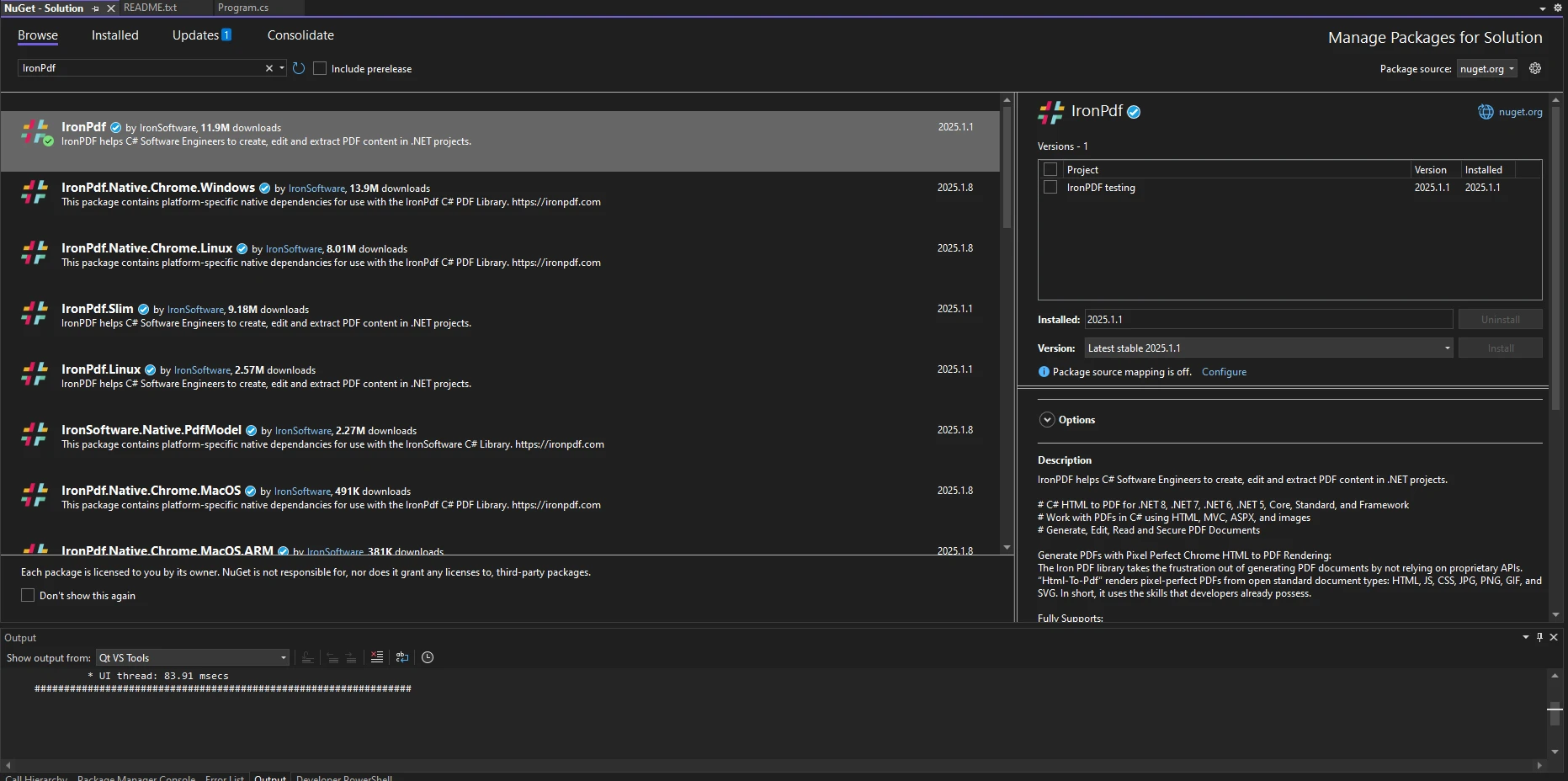
4. Installieren Sie die neueste Version von IronPDF.
Alternativ verwenden Sie die NuGet-Paket-Manager-Konsole:
```shell
:ProductInstall
```
### Basics of Directory.GetFiles in C#
Die `Directory.GetFiles` Methode ist Teil des `System.IO` Namespace und wird verwendet, um Dateinamen aus einem Dateisystem abzurufen. Diese Methode, ein öffentlicher statischer Zeichenfolgenmember der Directory-Klasse, vereinfacht den Zugriff auf Dateipfade. Zum Beispiel:
```csharp
string[] pdfFiles = Directory.GetFiles("C:\\Documents\\PDFs", "*.pdf");
```
Dieses Code-Snippet ruft alle PDF-Dateien im aktuellen Verzeichnis ab. Durch die Kombination dieser Methode mit IronPDF können Sie automatisierte Lösungen zur Verarbeitung mehrerer Dateien gleichzeitig erstellen. Sie können auch ein bestimmtes Suchmuster anwenden, das als Zeichenfolgenmuster definiert ist, um Dateien basierend auf ihren Erweiterungen oder Namen zu filtern.
Sie können Ihre Logik zur Dateiabfrage weiter verfeinern, indem Sie Suchoptionen angeben, wie z.B. das Einbeziehen von Suchunterverzeichnissen:
```csharp
string[] pdfFiles = Directory.GetFiles("C:\\Documents\\PDFs", "*.pdf", SearchOption.AllDirectories);
```
Dies stellt sicher, dass Dateien in verschachtelten Ordnern ebenfalls eingeschlossen werden, wobei der absolute Pfad jeder Datei abgerufen wird, und macht den Ansatz vielseitig für verschiedene Szenarien.
## Praktische Anwendungsfälle
### PDF-Dateien aus einem Verzeichnis abrufen und verarbeiten
#### Beispiel: Laden aller PDF-Dateien zur Verarbeitung
Mit `Directory.GetFiles` können Sie über alle PDF-Dateien in einem Verzeichnis iterieren und sie mit IronPDF verarbeiten:
```csharp
string[] pdfFiles = Directory.GetFiles("C:\\Documents\\PDFs", "*.pdf");
foreach (string file in pdfFiles)
{
    // Load the PDF with IronPDF
    var pdf = PdfDocument.FromFile(file);
    Console.WriteLine($"Processing file: {Path.GetFileName(file)}");
}
```
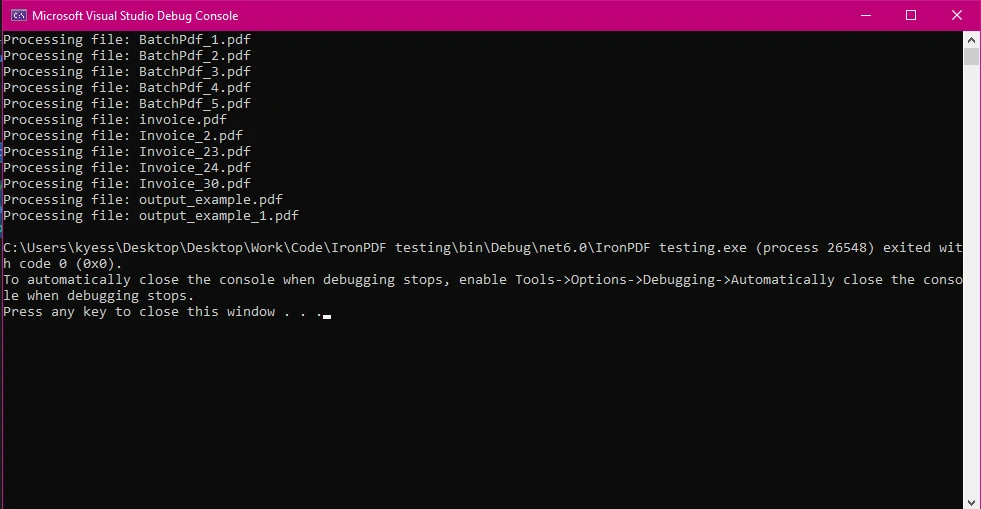
Dieses Beispiel zeigt, wie mehrere PDFs aus einem Verzeichnis zur Verarbeitung geladen werden. Sobald sie geladen sind, können Sie verschiedene Operationen durchführen, wie das Extrahieren von Text, das Hinzufügen von Anmerkungen oder das Erstellen neuer PDFs basierend auf ihrem Inhalt.
### Filtern von Dateien mithilfe von Suchmustern
#### Beispiel: Auswählen von PDFs nach Name oder Datum
Sie können `Directory.GetFiles` mit LINQ kombinieren, um Dateien basierend auf Kriterien wie Erstellungs- oder Änderungsdatum zu filtern:
```csharp
string[] pdfFiles = Directory.GetFiles("C:\\Documents\\PDFs", "*.pdf");
var recentFiles = pdfFiles.Where(file => File.GetLastWriteTime(file) > DateTime.Now.AddDays(-7));
foreach (string file in recentFiles)
{
Console.WriteLine($"Recent file: {Path.GetFileName(file)}");
}
```
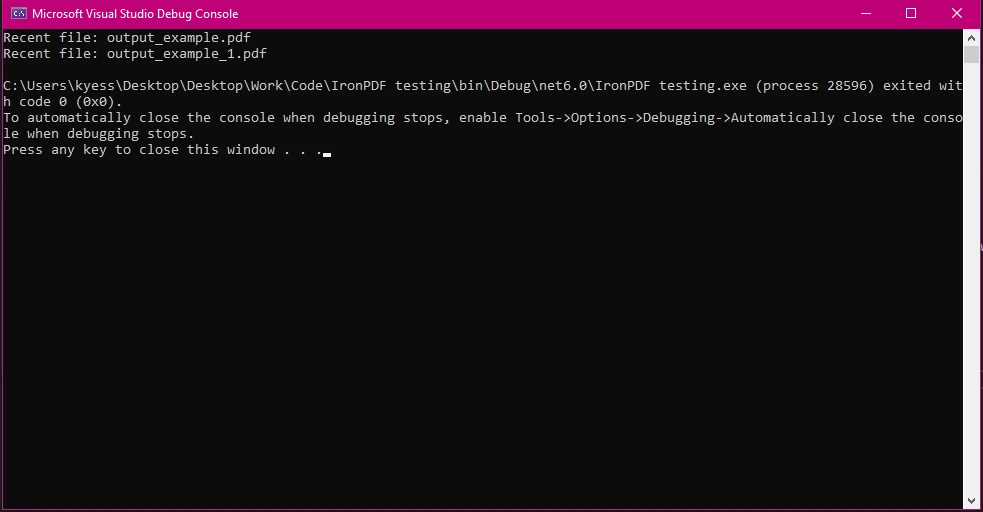
Dieser Ansatz stellt sicher, dass nur relevante Dateien verarbeitet werden und spart Zeit und Rechenressourcen. Beispielsweise könnten Sie diese Methode verwenden, um nur die neuesten Rechnungen oder in der letzten Woche erstellten Berichte zu verarbeiten.
### Batch-Operationen mit IronPDF und Directory.GetFiles
#### Beispiel: Mehrere PDFs anhängen
Sie können mehrere PDFs aus einem Verzeichnis zu einer einzigen Datei zusammenfügen:
```csharp
string[] pdfFiles = Directory.GetFiles("C:\\Documents\\PDFs", "*.pdf");
var pdfAppend = new PdfDocument(200, 200);
foreach (string file in pdfFiles)
{
var pdf = PdfDocument.FromFile(file);
pdfAppend.AppendPdf(pdf);
}
pdfAppend.SaveAs("LargePdf.pdf");
Console.WriteLine("PDFs Appended successfully!");
```
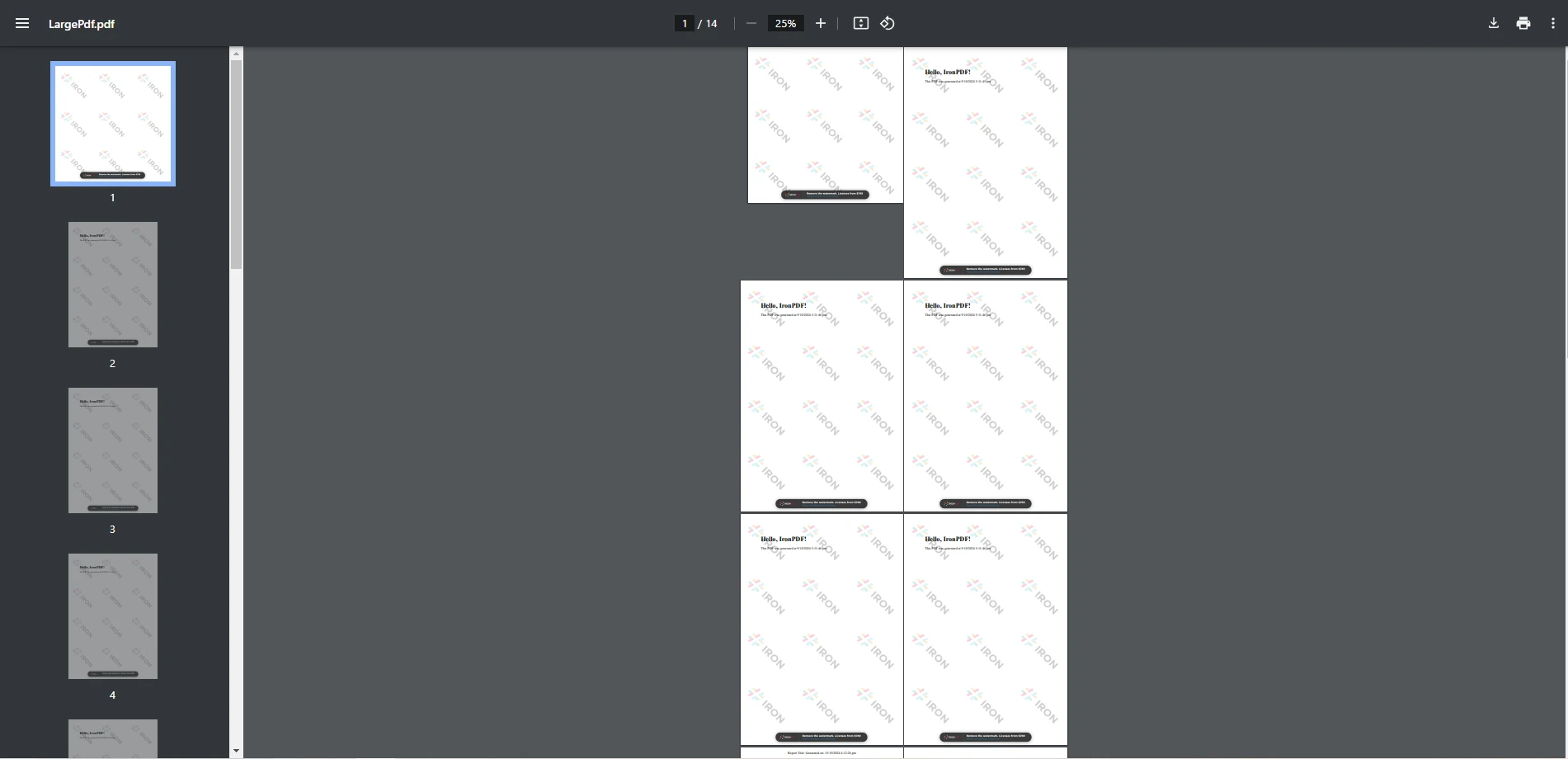
Dieser Ansatz ist besonders nützlich für das Erstellen von konsolidierten Berichten, das Archivieren mehrerer Dokumente oder das Vorbereiten von Präsentationen. Durch die Automatisierung dieses Prozesses können Sie große Sammlungen von Dateien mühelos handhaben.
## Schrittweise Implementierung
### Einrichten des Projekts
#### Code-Schnipsel: IronPDF initialisieren und mit PDF-Dateien arbeiten
Der folgende Code zeigt, wie IronPDF zusammen mit Directory.GetFiles verwendet werden kann, um PDF-Dokumente zu laden und zu bearbeiten.
```csharp
using IronPdf;
using System;
using System.IO;
class Program
{
static void Main()
{
// Retrieve all PDF file paths from the specified directory
string[] pdfFiles = Directory.GetFiles("C:\\Users\\kyess\\Documents\\PDFs", "*.pdf");
// Initialize a PdfDocument
var pdfAppend = new PdfDocument(200, 200);
// Create a text annotation to add to each PDF
TextAnnotation annotation = new TextAnnotation(0)
{
Contents = "Processed by IronPDF",
X = 50,
Y = 50,
};
// Iterate over each file path, load, annotate, and save
foreach (string file in pdfFiles)
{
var pdf = PdfDocument.FromFile(file);
pdf.Annotations.Add(annotation);
pdf.SaveAs(file);
}
}
}
```
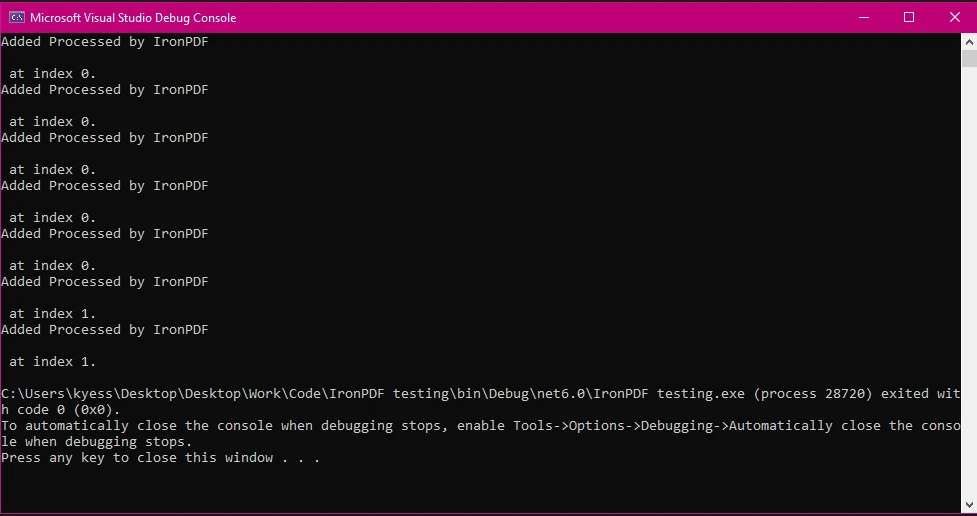
### Konsolenausgabe
### Erklärung
Dieser Code zeigt, wie alle PDF-Dateien in einem angegebenen Verzeichnis mit IronPDF in C# eine Textanmerkung hinzufügen. Das Programm beginnt damit, alle PDF-Dateipfade aus dem angegebenen Ordner mit der `Directory.GetFiles` Methode abzurufen, die auf einem String-Pfad basiert, um das Verzeichnis anzugeben und das Filtern nach Dateierweiterung unterstützt, und gibt ein Array von String-Dateinamen zurück, das die Pfade aller PDF-Dateien mit der ".pdf" Erweiterung enthält.
Als nächstes initialisiert der Code ein `PdfDocument` Objekt (`pdfAppend`) mit den Abmessungen 200x200, obwohl diese spezielle Instanz nicht direkt in der Schleife verwendet wird. Anschließend wird ein `TextAnnotation` mit dem Text "Processed by IronPDF" an den Koordinaten (50, 50) erstellt. Diese Anmerkung wird zu jeder PDF-Datei hinzugefügt.
In der foreach-Schleife iteriert das Programm durch jeden Dateipfad im `pdfFiles` Array. Für jede Datei wird das PDF mit `PdfDocument.FromFile(file)` geladen, die zuvor erstellte Anmerkung zur Annotationssammlung des PDFs hinzugefügt und das aktualisierte PDF dann mit `pdf.SaveAs(file)` an seinem absoluten Pfad gespeichert.
Dieser Prozess stellt sicher, dass jede PDF im angegebenen Verzeichnis die gleiche Anmerkung erhält und mit der Anmerkung gespeichert wird.
## Leistungstipps und bewährte Praktiken
### Optimierung des Dateiabrufs mit Directory.GetFiles
Verwenden Sie asynchrone Methoden wie `Directory.EnumerateFiles` für eine bessere Leistung bei großen Verzeichnissen.
### Effizientes Verwalten großer Mengen von Dateien
Verarbeiten Sie Dateien in kleineren Batches, um den Speicherverbrauch zu reduzieren:
```csharp
foreach (var batch in pdfFiles.Batch(10))
{
foreach (string file in batch)
{
var pdf = PdfDocument.FromFile(file);
// Process PDF
}
}
```
### Fehlerbehandlung bei der Dateiverarbeitung und PDF-Erzeugung
Fassen Sie die Dateiverarbeitung in einem Try-Catch-Block zusammen, um Ausnahmen zu handhaben:
```csharp
try
{
var pdf = PdfDocument.FromFile(file);
// Process PDF
}
catch (Exception ex)
{
Console.WriteLine($"Error processing {file}: {ex.Message}");
}
```
## Abschluss
Die Kombination der Leistungsfähigkeit von `Directory.GetFiles` mit IronPDF ermöglicht es Entwicklern, PDF-Dateien effizient im großen Maßstab zu verwalten und zu verarbeiten. Mit diesem Ansatz werden Aufgaben wie Batchverarbeitung, Zusammenführung, Filterung und Transformation von PDFs nahtlos, wodurch der manuelle Aufwand erheblich reduziert und die Produktivität verbessert wird. Durch die Nutzung der erweiterten Fähigkeiten von IronPDF, einschließlich Hinzufügen von Kopfzeilen, Metadaten und Styling, können Entwickler hochwertige, professionelle PDF-Dokumente erstellen, die auf ihre Anforderungen zugeschnitten sind.
In diesem Leitfaden haben wir erkundet, wie man `Directory.GetFiles` verwendet, um PDFs mit IronPDF abzurufen und zu manipulieren. Vom Einrichten eines Projekts bis zur Implementierung praktischer Anwendungsfälle haben wir wesentliche Techniken behandelt, die in realen Szenarien angewendet werden können. Ob Sie an der Automatisierung von Dokument-Workflows arbeiten oder die Funktionalität Ihrer .NET-Anwendungen verbessern möchten, diese Kombination bietet eine robuste und skalierbare Lösung.
Wenn Sie bereit sind, tiefer in IronPDF einzutauchen und erweiterte Funktionen zu erkunden, ziehen Sie in Betracht, auf die [offizielle Dokumentation](/docs/) zu verweisen, um die Bibliothek in Ihren eigenen Projekten zu testen.
C# out Parameter. Indem diese Funktionalität mit IronPDF kombiniert wird, können Entwickler PDF-Workflows in großem Umfang automatisieren. Zum Beispiel können Sie Directory.GetFiles verwenden, um alle PDF-Dateien in einem Ordner zu finden, und diese dann stapelweise mit IronPDF für Aufgaben wie Zusammenführen, Hinzufügen von Anmerkungen oder Erstellen von Berichten verarbeiten. Diese Kombination ermöglicht optimierte Abläufe, insbesondere wenn es darum geht, viele Dateien im Dateisystem zu verarbeiten.
Was ist IronPDF?
IronPDF ist eine robuste .NET-Bibliothek, die Entwicklern Werkzeuge bietet, um nahtlos mit PDF-Dateien zu arbeiten. Mit IronPDF können Sie PDFs erstellen, bearbeiten, zusammenführen, aufteilen und manipulieren, indem Sie einfache und intuitive Methoden verwenden. Es umfasst leistungsstarke Funktionen wie HTML-zu-PDF-Konvertierung, erweiterte Stilgestaltung und Metadaten-Verarbeitung. Für .NET-Entwickler, die an Anwendungen arbeiten, die PDF-Verarbeitung erfordern, ist IronPDF ein unverzichtbares Werkzeug, das Workflows optimiert und die Produktivität steigert.
Einstieg
Installation von IronPDF
NuGet-Paket-Installation
Um zu beginnen, fügen Sie IronPDF über NuGet zu Ihrem Projekt hinzu:
Öffnen Sie Ihr Projekt in Visual Studio.
Gehen Sie zum Menü Tools und wählen Sie NuGet-Paket-Manager > Pakete für Lösung verwalten.
Suchen Sie im NuGet-Paket-Manager nach IronPDF.
Installieren Sie die neueste Version von IronPDF.
Alternativ verwenden Sie die NuGet-Paket-Manager-Konsole:
PM > Install-Package IronPdf
Install-Package IronPdf
Basics of Directory.GetFiles in C#
Die Directory.GetFiles Methode ist Teil des System.IO Namespace und wird verwendet, um Dateinamen aus einem Dateisystem abzurufen. Diese Methode, ein öffentlicher statischer Zeichenfolgenmember der Directory-Klasse, vereinfacht den Zugriff auf Dateipfade. Zum Beispiel:
Dim pdfFiles() AsString = Directory.GetFiles("C:\Documents\PDFs", "*.pdf")
Dim pdfFiles() As String = Directory.GetFiles("C:\Documents\PDFs", "*.pdf")
Dieses Code-Snippet ruft alle PDF-Dateien im aktuellen Verzeichnis ab. Durch die Kombination dieser Methode mit IronPDF können Sie automatisierte Lösungen zur Verarbeitung mehrerer Dateien gleichzeitig erstellen. Sie können auch ein bestimmtes Suchmuster anwenden, das als Zeichenfolgenmuster definiert ist, um Dateien basierend auf ihren Erweiterungen oder Namen zu filtern.
Sie können Ihre Logik zur Dateiabfrage weiter verfeinern, indem Sie Suchoptionen angeben, wie z.B. das Einbeziehen von Suchunterverzeichnissen:
Dim pdfFiles() AsString = Directory.GetFiles("C:\Documents\PDFs", "*.pdf", SearchOption.AllDirectories)
Dim pdfFiles() As String = Directory.GetFiles("C:\Documents\PDFs", "*.pdf", SearchOption.AllDirectories)
Dies stellt sicher, dass Dateien in verschachtelten Ordnern ebenfalls eingeschlossen werden, wobei der absolute Pfad jeder Datei abgerufen wird, und macht den Ansatz vielseitig für verschiedene Szenarien.
Praktische Anwendungsfälle
PDF-Dateien aus einem Verzeichnis abrufen und verarbeiten
Beispiel: Laden aller PDF-Dateien zur Verarbeitung
Mit Directory.GetFiles können Sie über alle PDF-Dateien in einem Verzeichnis iterieren und sie mit IronPDF verarbeiten:
string[] pdfFiles = Directory.GetFiles("C:\\Documents\\PDFs", "*.pdf");foreach (string file in pdfFiles){ // Load the PDF with IronPDF var pdf = PdfDocument.FromFile(file);Console.WriteLine($"Processing file: {Path.GetFileName(file)}");}
string[] pdfFiles = Directory.GetFiles("C:\\Documents\\PDFs", "*.pdf");
foreach (string file in pdfFiles)
{
    // Load the PDF with IronPDF
    var pdf = PdfDocument.FromFile(file);
    Console.WriteLine($"Processing file: {Path.GetFileName(file)}");
}
Dim pdfFiles() AsString = Directory.GetFiles("C:\Documents\PDFs", "*.pdf")For Each file AsStringIn pdfFiles ' Load the PDF with IronPDF Dim pdf = PdfDocument.FromFile(file)Console.WriteLine($"Processing file: {Path.GetFileName(file)}")Next file
Dim pdfFiles() As String = Directory.GetFiles("C:\Documents\PDFs", "*.pdf")
For Each file As String In pdfFiles
	' Load the PDF with IronPDF
	Dim pdf = PdfDocument.FromFile(file)
	Console.WriteLine($"Processing file: {Path.GetFileName(file)}")
Next file
Dieses Beispiel zeigt, wie mehrere PDFs aus einem Verzeichnis zur Verarbeitung geladen werden. Sobald sie geladen sind, können Sie verschiedene Operationen durchführen, wie das Extrahieren von Text, das Hinzufügen von Anmerkungen oder das Erstellen neuer PDFs basierend auf ihrem Inhalt.
Filtern von Dateien mithilfe von Suchmustern
Beispiel: Auswählen von PDFs nach Name oder Datum
Sie können Directory.GetFiles mit LINQ kombinieren, um Dateien basierend auf Kriterien wie Erstellungs- oder Änderungsdatum zu filtern:
Dim pdfFiles() AsString = Directory.GetFiles("C:\Documents\PDFs", "*.pdf")Dim recentFiles = pdfFiles.Where(Function(file) File.GetLastWriteTime(file) > DateTime.Now.AddDays(-7))For Each file AsStringIn recentFilesConsole.WriteLine($"Recent file: {Path.GetFileName(file)}")Next file
Dim pdfFiles() As String = Directory.GetFiles("C:\Documents\PDFs", "*.pdf")
Dim recentFiles = pdfFiles.Where(Function(file) File.GetLastWriteTime(file) > DateTime.Now.AddDays(-7))
For Each file As String In recentFiles
	Console.WriteLine($"Recent file: {Path.GetFileName(file)}")
Next file
Dieser Ansatz stellt sicher, dass nur relevante Dateien verarbeitet werden und spart Zeit und Rechenressourcen. Beispielsweise könnten Sie diese Methode verwenden, um nur die neuesten Rechnungen oder in der letzten Woche erstellten Berichte zu verarbeiten.
Batch-Operationen mit IronPDF und Directory.GetFiles
Beispiel: Mehrere PDFs anhängen
Sie können mehrere PDFs aus einem Verzeichnis zu einer einzigen Datei zusammenfügen:
string[] pdfFiles = Directory.GetFiles("C:\\Documents\\PDFs", "*.pdf");var pdfAppend = new PdfDocument(200, 200);foreach (string file in pdfFiles){ var pdf = PdfDocument.FromFile(file); pdfAppend.AppendPdf(pdf);}pdfAppend.SaveAs("LargePdf.pdf");Console.WriteLine("PDFs Appended successfully!");
string[] pdfFiles = Directory.GetFiles("C:\\Documents\\PDFs", "*.pdf");
var pdfAppend = new PdfDocument(200, 200);
foreach (string file in pdfFiles)
{
    var pdf = PdfDocument.FromFile(file);
    pdfAppend.AppendPdf(pdf);
}
pdfAppend.SaveAs("LargePdf.pdf");
Console.WriteLine("PDFs Appended successfully!");
Dim pdfFiles() AsString = Directory.GetFiles("C:\Documents\PDFs", "*.pdf")Dim pdfAppend = New PdfDocument(200, 200)For Each file AsStringIn pdfFiles Dim pdf = PdfDocument.FromFile(file) pdfAppend.AppendPdf(pdf)Next filepdfAppend.SaveAs("LargePdf.pdf")Console.WriteLine("PDFs Appended successfully!")
Dim pdfFiles() As String = Directory.GetFiles("C:\Documents\PDFs", "*.pdf")
Dim pdfAppend = New PdfDocument(200, 200)
For Each file As String In pdfFiles
	Dim pdf = PdfDocument.FromFile(file)
	pdfAppend.AppendPdf(pdf)
Next file
pdfAppend.SaveAs("LargePdf.pdf")
Console.WriteLine("PDFs Appended successfully!")
Dieser Ansatz ist besonders nützlich für das Erstellen von konsolidierten Berichten, das Archivieren mehrerer Dokumente oder das Vorbereiten von Präsentationen. Durch die Automatisierung dieses Prozesses können Sie große Sammlungen von Dateien mühelos handhaben.
Schrittweise Implementierung
Einrichten des Projekts
Code-Schnipsel: IronPDF initialisieren und mit PDF-Dateien arbeiten
Der folgende Code zeigt, wie IronPDF zusammen mit Directory.GetFiles verwendet werden kann, um PDF-Dokumente zu laden und zu bearbeiten.
using IronPdf;using System;using System.IO;class Program{ static voidMain() { // Retrieve all PDF file paths from the specified directory string[] pdfFiles = Directory.GetFiles("C:\\Users\\kyess\\Documents\\PDFs", "*.pdf"); // Initialize a PdfDocument var pdfAppend = new PdfDocument(200, 200); // Create a text annotation to add to each PDF TextAnnotation annotation = new TextAnnotation(0) {Contents = "Processed by IronPDF",X = 50,Y = 50, }; // Iterate over each file path, load, annotate, and save foreach (string file in pdfFiles) { var pdf = PdfDocument.FromFile(file); pdf.Annotations.Add(annotation); pdf.SaveAs(file); } }}
using IronPdf;
using System;
using System.IO;

class Program
{
    static void Main()
    {
        // Retrieve all PDF file paths from the specified directory
        string[] pdfFiles = Directory.GetFiles("C:\\Users\\kyess\\Documents\\PDFs", "*.pdf");

        // Initialize a PdfDocument
        var pdfAppend = new PdfDocument(200, 200);

        // Create a text annotation to add to each PDF
        TextAnnotation annotation = new TextAnnotation(0)
        {
            Contents = "Processed by IronPDF",
            X = 50,
            Y = 50,
        };

        // Iterate over each file path, load, annotate, and save
        foreach (string file in pdfFiles)
        {
            var pdf = PdfDocument.FromFile(file);
            pdf.Annotations.Add(annotation);
            pdf.SaveAs(file);
        }
    }
}
ImportsIronPdfImportsSystemImportsSystem.IOFriend Class ProgramShared Sub Main() ' Retrieve all PDF file paths from the specified directory Dim pdfFiles() AsString = Directory.GetFiles("C:\Users\kyess\Documents\PDFs", "*.pdf") ' Initialize a PdfDocument Dim pdfAppend = New PdfDocument(200, 200) ' Create a text annotation to add to each PDF Dim annotation As New TextAnnotation(0) With { .Contents = "Processed by IronPDF", .X = 50, .Y = 50 } ' Iterate over each file path, load, annotate, and save For Each file AsStringIn pdfFiles Dim pdf = PdfDocument.FromFile(file) pdf.Annotations.Add(annotation) pdf.SaveAs(file) Next file End SubEnd Class
Imports IronPdf
Imports System
Imports System.IO

Friend Class Program
	Shared Sub Main()
		' Retrieve all PDF file paths from the specified directory
		Dim pdfFiles() As String = Directory.GetFiles("C:\Users\kyess\Documents\PDFs", "*.pdf")

		' Initialize a PdfDocument
		Dim pdfAppend = New PdfDocument(200, 200)

		' Create a text annotation to add to each PDF
		Dim annotation As New TextAnnotation(0) With {
			.Contents = "Processed by IronPDF",
			.X = 50,
			.Y = 50
		}

		' Iterate over each file path, load, annotate, and save
		For Each file As String In pdfFiles
			Dim pdf = PdfDocument.FromFile(file)
			pdf.Annotations.Add(annotation)
			pdf.SaveAs(file)
		Next file
	End Sub
End Class
Konsolenausgabe
Erklärung
Dieser Code zeigt, wie alle PDF-Dateien in einem angegebenen Verzeichnis mit IronPDF in C# eine Textanmerkung hinzufügen. Das Programm beginnt damit, alle PDF-Dateipfade aus dem angegebenen Ordner mit der Directory.GetFiles Methode abzurufen, die auf einem String-Pfad basiert, um das Verzeichnis anzugeben und das Filtern nach Dateierweiterung unterstützt, und gibt ein Array von String-Dateinamen zurück, das die Pfade aller PDF-Dateien mit der ".pdf" Erweiterung enthält.
Als nächstes initialisiert der Code ein PdfDocument Objekt (pdfAppend) mit den Abmessungen 200x200, obwohl diese spezielle Instanz nicht direkt in der Schleife verwendet wird. Anschließend wird ein TextAnnotation mit dem Text "Processed by IronPDF" an den Koordinaten (50, 50) erstellt. Diese Anmerkung wird zu jeder PDF-Datei hinzugefügt.
In der foreach-Schleife iteriert das Programm durch jeden Dateipfad im pdfFiles Array. Für jede Datei wird das PDF mit PdfDocument.FromFile(file) geladen, die zuvor erstellte Anmerkung zur Annotationssammlung des PDFs hinzugefügt und das aktualisierte PDF dann mit pdf.SaveAs(file) an seinem absoluten Pfad gespeichert.
Dieser Prozess stellt sicher, dass jede PDF im angegebenen Verzeichnis die gleiche Anmerkung erhält und mit der Anmerkung gespeichert wird.
Leistungstipps und bewährte Praktiken
Optimierung des Dateiabrufs mit Directory.GetFiles
Verwenden Sie asynchrone Methoden wie Directory.EnumerateFiles für eine bessere Leistung bei großen Verzeichnissen.
Effizientes Verwalten großer Mengen von Dateien
Verarbeiten Sie Dateien in kleineren Batches, um den Speicherverbrauch zu reduzieren:
foreach (var batch in pdfFiles.Batch(10)){ foreach (string file in batch) { var pdf = PdfDocument.FromFile(file); // Process PDF }}
foreach (var batch in pdfFiles.Batch(10))
{
    foreach (string file in batch)
    {
        var pdf = PdfDocument.FromFile(file);
        // Process PDF
    }
}
For Each batch In pdfFiles.Batch(10) For Each file AsStringIn batch Dim pdf = PdfDocument.FromFile(file) ' Process PDF Next fileNext batch
For Each batch In pdfFiles.Batch(10)
	For Each file As String In batch
		Dim pdf = PdfDocument.FromFile(file)
		' Process PDF
	Next file
Next batch
Fehlerbehandlung bei der Dateiverarbeitung und PDF-Erzeugung
Fassen Sie die Dateiverarbeitung in einem Try-Catch-Block zusammen, um Ausnahmen zu handhaben:
try{ var pdf = PdfDocument.FromFile(file); // Process PDF}catch (Exception ex){Console.WriteLine($"Error processing {file}: {ex.Message}");}
try
{
    var pdf = PdfDocument.FromFile(file);
    // Process PDF
}
catch (Exception ex)
{
    Console.WriteLine($"Error processing {file}: {ex.Message}");
}
Try Dim pdf = PdfDocument.FromFile(file) ' Process PDFCatch ex AsExceptionConsole.WriteLine($"Error processing {file}: {ex.Message}")EndTry
Try
	Dim pdf = PdfDocument.FromFile(file)
	' Process PDF
Catch ex As Exception
	Console.WriteLine($"Error processing {file}: {ex.Message}")
End Try
Abschluss
Die Kombination der Leistungsfähigkeit von Directory.GetFiles mit IronPDF ermöglicht es Entwicklern, PDF-Dateien effizient im großen Maßstab zu verwalten und zu verarbeiten. Mit diesem Ansatz werden Aufgaben wie Batchverarbeitung, Zusammenführung, Filterung und Transformation von PDFs nahtlos, wodurch der manuelle Aufwand erheblich reduziert und die Produktivität verbessert wird. Durch die Nutzung der erweiterten Fähigkeiten von IronPDF, einschließlich Hinzufügen von Kopfzeilen, Metadaten und Styling, können Entwickler hochwertige, professionelle PDF-Dokumente erstellen, die auf ihre Anforderungen zugeschnitten sind.
In diesem Leitfaden haben wir erkundet, wie man Directory.GetFiles verwendet, um PDFs mit IronPDF abzurufen und zu manipulieren. Vom Einrichten eines Projekts bis zur Implementierung praktischer Anwendungsfälle haben wir wesentliche Techniken behandelt, die in realen Szenarien angewendet werden können. Ob Sie an der Automatisierung von Dokument-Workflows arbeiten oder die Funktionalität Ihrer .NET-Anwendungen verbessern möchten, diese Kombination bietet eine robuste und skalierbare Lösung.
Wenn Sie bereit sind, tiefer in IronPDF einzutauchen und erweiterte Funktionen zu erkunden, ziehen Sie in Betracht, auf die offizielle Dokumentation zu verweisen, um die Bibliothek in Ihren eigenen Projekten zu testen.
Jacob Mellor ist Chief Technology Officer bei Iron Software und ein visionärer Ingenieur, der Pionierarbeit in der C# PDF-Technologie leistet. Als der ursprüngliche Entwickler hinter der Kern-Codebasis von Iron Software hat er die Produktarchitektur des Unternehmens seit seiner Gründung geprägt und es zusammen mit CEO Cameron Rimington in ein Unternehmen mit mehr als 50 Mitarbeitern verwandelt, das die NASA, Tesla und globale Regierungsbehörden beliefert.




























