




已更新 2026年4月23日
在 .NET 中用 Microsoft.Extensions.AI 簡化 LLM 整合
AI 正在改變軟體開發,但將大型語言模型 (LLM) 整合到 .NET 中一直很複雜。利用 IronPdf.AI 將 AI 整合推向更遠,為 .NET 應用程式帶來由 OpenAI 驅動的 PDF 解析、資料擷取和內容總結。
閱讀更多

C# out 參數。 通過將此功能與IronPDF配對,開發人員可以大規模自動化PDF工作流程。 例如,您可以使用Directory.GetFiles來定位資料夾中的所有PDF文件,然後使用IronPDF批量處理它們,進行合併、新增註釋或生成報告等任務。 此組合允許對操作進行精簡,特別是在處理文件系統中的多個文件時。
IronPDF是功能強大的.NET程式庫,提供開發人員利用PDF文件無縫作業的工具。 使用IronPDF,您可以建立、編輯、合併、分割和操作PDF文件,方法簡單直觀。 它包括強大的功能,例如HTML到PDF的轉換、高級樣式和元資料處理。 對於需要PDF處理的.NET開發人員來說,IronPDF是精簡工作流程並提高生產力的寶貴工具。
首先,通過NuGet將IronPDF新增到您的專案中:
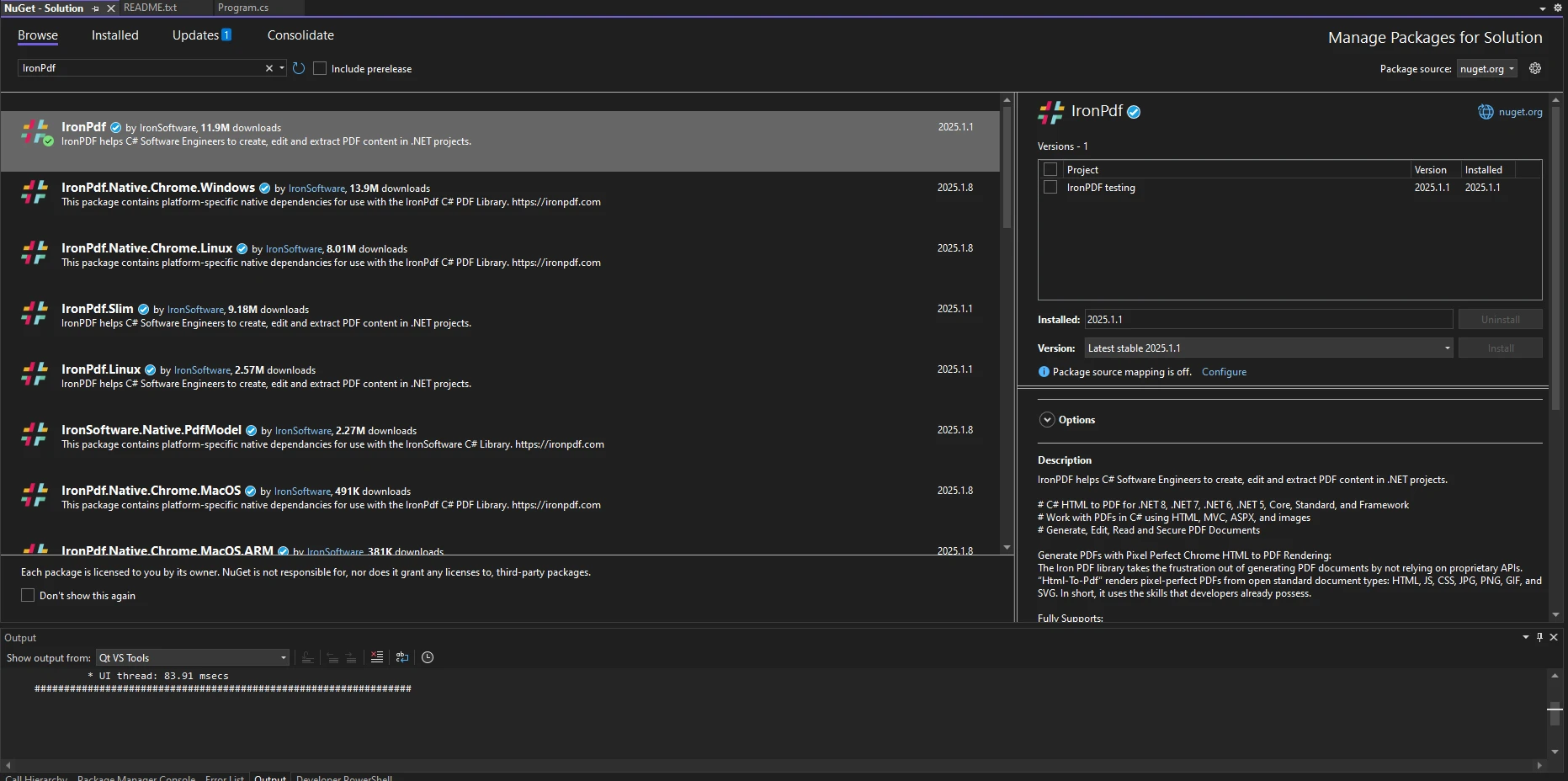
或者,使用NuGet包管理器控制台:
System.IO命名空間的一部分,用於從文件系統檢索文件名。 此方法是Directory類的公共靜態字串成員,簡化了文件路徑的存取。 例如:
string[] pdfFiles = Directory.GetFiles("C:\\Documents\\PDFs", "*.pdf");Dim pdfFiles() As String = Directory.GetFiles("C:\Documents\PDFs", "*.pdf")此程式碼片段檢索當前目錄中的所有PDF文件。 通過將此方法與IronPDF結合使用,您可以建立自動化的解決方案來一次處理多個文件。 您還可以應用指定的搜尋模式(定義為字串模式)來根據擴展名或名稱篩選文件。
您可以通過指定搜尋選項進一步完善文件檢索邏輯,例如包括搜尋子目錄:
string[] pdfFiles = Directory.GetFiles("C:\\Documents\\PDFs", "*.pdf", SearchOption.AllDirectories);Dim pdfFiles() As String = Directory.GetFiles("C:\Documents\PDFs", "*.pdf", SearchOption.AllDirectories)這確保了巢狀文件夾中的文件也被包括在內,檢索每個文件的絕對路徑,並使該方法適用於各種場景。
使用Directory.GetFiles,您可以遍歷目錄中的所有PDF文件並使用IronPDF進行處理:
string[] pdfFiles = Directory.GetFiles("C:\\Documents\\PDFs", "*.pdf");
foreach (string file in pdfFiles)
{
    // Load the PDF with IronPDF
    var pdf = PdfDocument.FromFile(file);
    Console.WriteLine($"Processing file: {Path.GetFileName(file)}");
}Dim pdfFiles() As String = Directory.GetFiles("C:\Documents\PDFs", "*.pdf")
For Each file As String In pdfFiles
' Load the PDF with IronPDF
Dim pdf = PdfDocument.FromFile(file)
Console.WriteLine($"Processing file: {Path.GetFileName(file)}")
Next file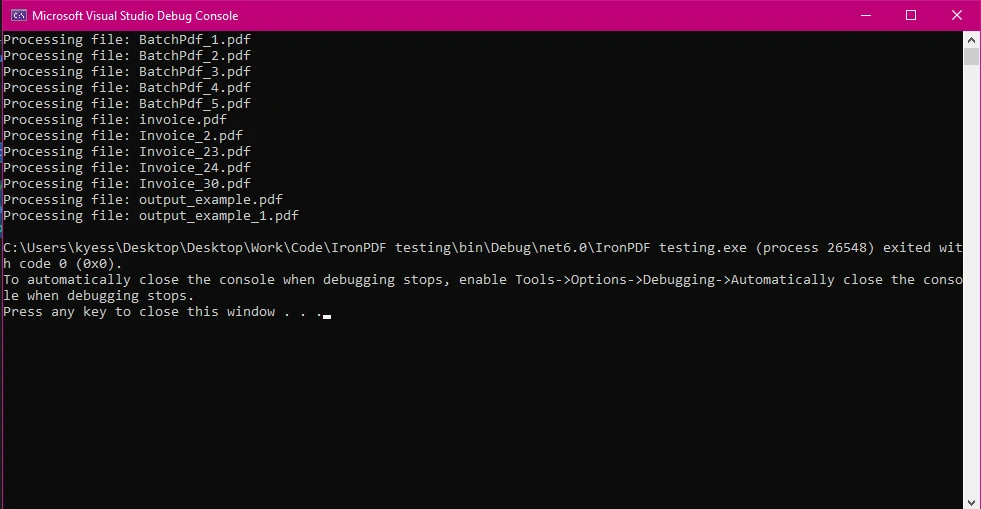
此範例展示了如何從目錄中載入多個PDF進行處理。 載入後,您可以執行一系列操作,例如提取文字、新增註釋或根據內容生成新的PDF。
您可以將Directory.GetFiles與LINQ結合使用,根據建立或修改日期等標準篩選文件:
string[] pdfFiles = Directory.GetFiles("C:\\Documents\\PDFs", "*.pdf");
var recentFiles = pdfFiles.Where(file => File.GetLastWriteTime(file) > DateTime.Now.AddDays(-7));
foreach (string file in recentFiles)
{
    Console.WriteLine($"Recent file: {Path.GetFileName(file)}");
}Dim pdfFiles() As String = Directory.GetFiles("C:\Documents\PDFs", "*.pdf")
Dim recentFiles = pdfFiles.Where(Function(file) File.GetLastWriteTime(file) > DateTime.Now.AddDays(-7))
For Each file As String In recentFiles
Console.WriteLine($"Recent file: {Path.GetFileName(file)}")
Next file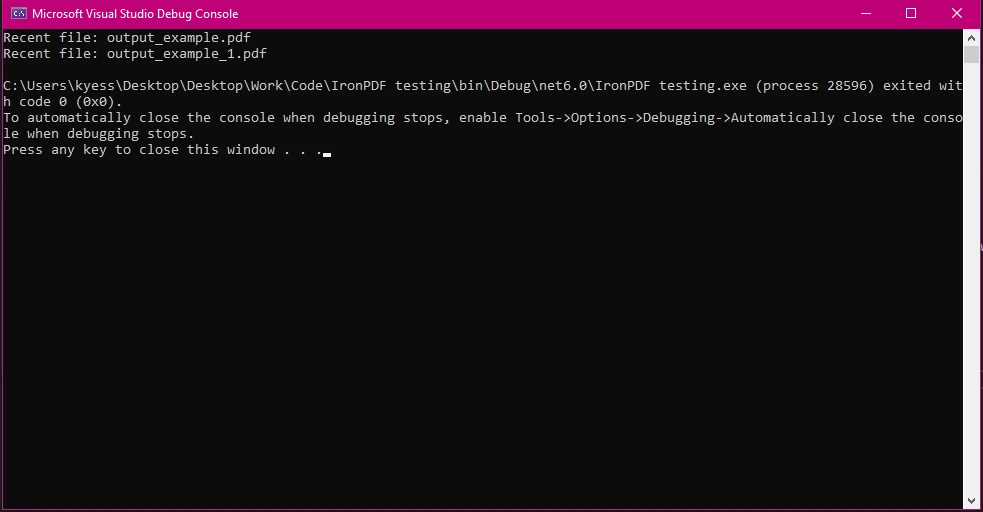
此方法確保只有相關文件被處理,節省時間和計算資源。 例如,您可以使用此方法只處理最近一周內生成的最新發票或報告。
您可以將目錄中的多個PDF附加到一個文件中:
string[] pdfFiles = Directory.GetFiles("C:\\Documents\\PDFs", "*.pdf");
var pdfAppend = new PdfDocument(200, 200);
foreach (string file in pdfFiles)
{
    var pdf = PdfDocument.FromFile(file);
    pdfAppend.AppendPdf(pdf);
}
pdfAppend.SaveAs("LargePdf.pdf");
Console.WriteLine("PDFs Appended successfully!");Dim pdfFiles() As String = Directory.GetFiles("C:\Documents\PDFs", "*.pdf")
Dim pdfAppend = New PdfDocument(200, 200)
For Each file As String In pdfFiles
Dim pdf = PdfDocument.FromFile(file)
pdfAppend.AppendPdf(pdf)
Next file
pdfAppend.SaveAs("LargePdf.pdf")
Console.WriteLine("PDFs Appended successfully!")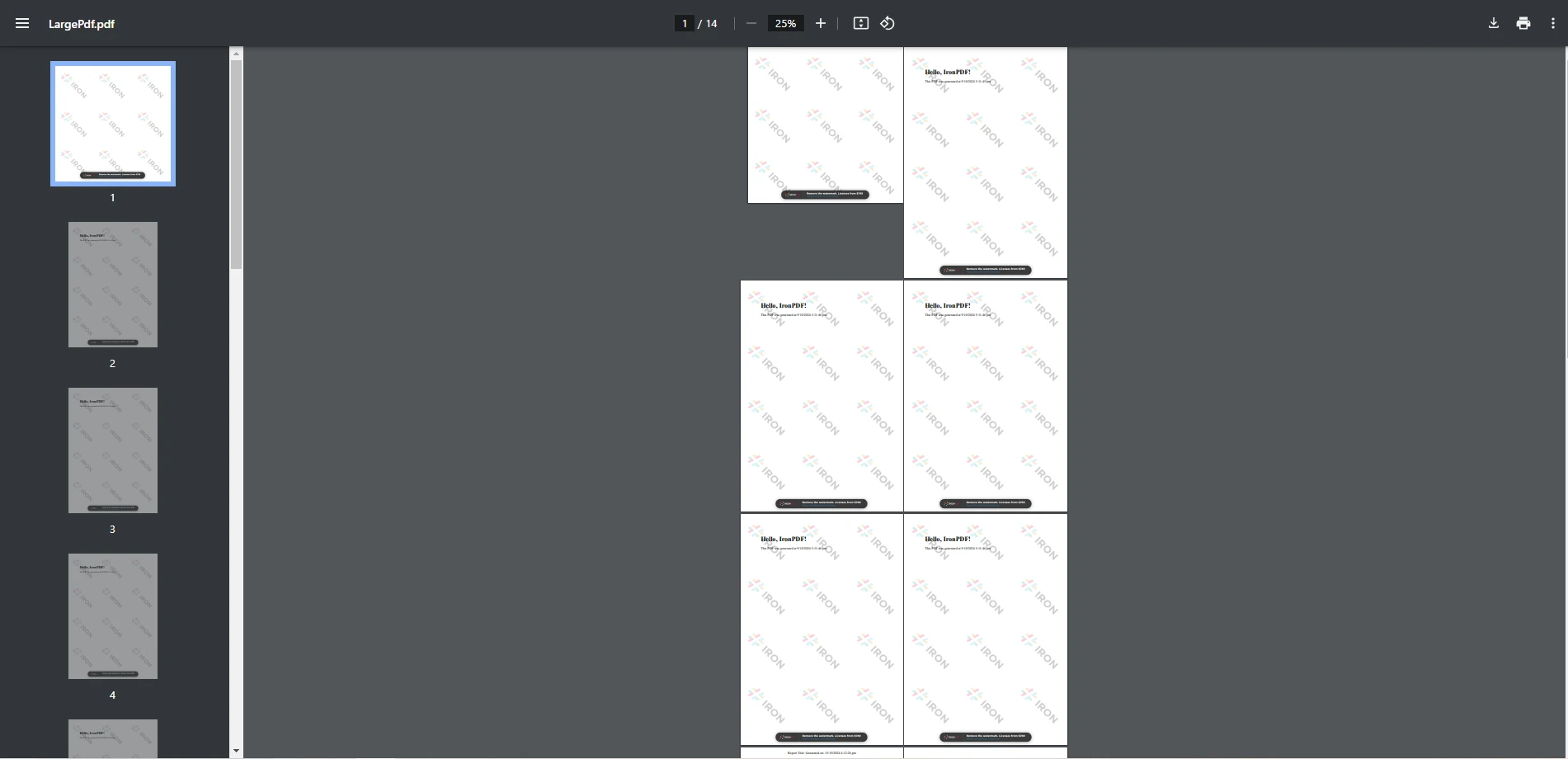
此方法特別適用於建立合併的報告、存檔多個文件或準備演示文稿。 通過自動化此過程,您可以輕鬆處理大量文件集合。
以下程式碼展示了如何將IronPDF與Directory.GetFiles一起使用,以載入和處理PDF文件。
using IronPdf;
using System;
using System.IO;

class Program
{
    static void Main()
    {
        // Retrieve all PDF file paths from the specified directory
        string[] pdfFiles = Directory.GetFiles("C:\\Users\\kyess\\Documents\\PDFs", "*.pdf");

        // Initialize a PdfDocument
        var pdfAppend = new PdfDocument(200, 200);

        // Create a text annotation to add to each PDF
        TextAnnotation annotation = new TextAnnotation(0)
        {
            Contents = "Processed by IronPDF",
            X = 50,
            Y = 50,
        };

        // Iterate over each file path, load, annotate, and save
        foreach (string file in pdfFiles)
        {
            var pdf = PdfDocument.FromFile(file);
            pdf.Annotations.Add(annotation);
            pdf.SaveAs(file);
        }
    }
}Imports IronPdf
Imports System
Imports System.IO
Friend Class Program
Shared Sub Main()
' Retrieve all PDF file paths from the specified directory
Dim pdfFiles() As String = Directory.GetFiles("C:\Users\kyess\Documents\PDFs", "*.pdf")
' Initialize a PdfDocument
Dim pdfAppend = New PdfDocument(200, 200)
' Create a text annotation to add to each PDF
Dim annotation As New TextAnnotation(0) With {
.Contents = "Processed by IronPDF",
.X = 50,
.Y = 50
}
' Iterate over each file path, load, annotate, and save
For Each file As String In pdfFiles
Dim pdf = PdfDocument.FromFile(file)
pdf.Annotations.Add(annotation)
pdf.SaveAs(file)
Next file
End Sub
End Class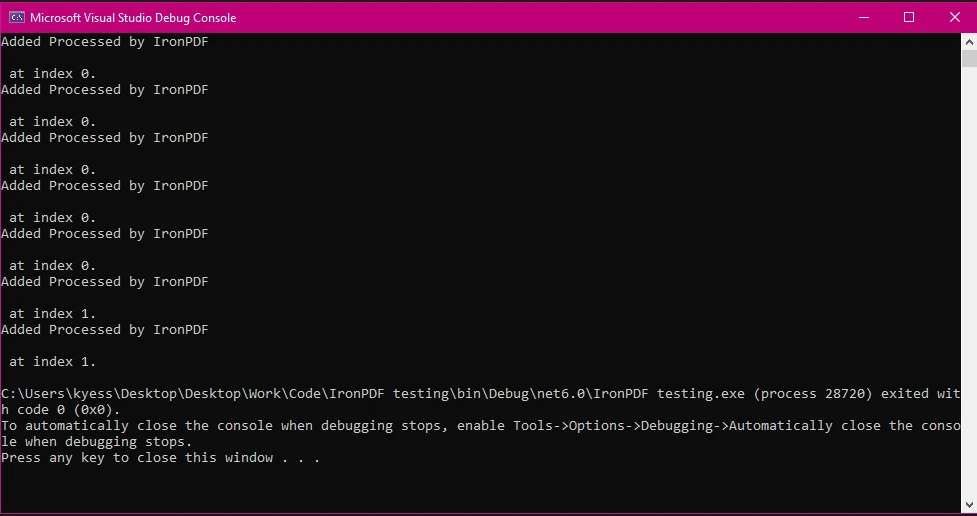
此程式碼展示了如何使用IronPDF在C#中對指定目錄中的所有PDF文件新增文字註釋。 程式開始時,使用Directory.GetFiles方法從提供的文件夾中檢索所有PDF文件路徑,該方法依賴字串路徑來指定目錄,支持按文件擴展名篩選,返回包含所有帶有".pdf"擴展名的PDF文件路徑的字串文件名陣列。
接下來,程式碼初始化一個TextAnnotation,其中包含文字"Processed by IronPDF",位置為座標(50,50)。 此註釋將新增到每個PDF文件中。
在foreach迴圈中,程式遍歷pdfFiles陣列中的每個文件路徑。 對於每個文件,它使用pdf.SaveAs(file)將更新後的PDF保存回其絕對路徑。
此過程確保每個指定目錄中的PDF都接收相同的註釋並以包含註釋的方式保存。
對於大目錄,使用異步方法如Directory.EnumerateFiles以獲得更好的性能。
分批處理文件以減少記憶體消耗:
foreach (var batch in pdfFiles.Batch(10))
{
    foreach (string file in batch)
    {
        var pdf = PdfDocument.FromFile(file);
        // Process PDF
    }
}For Each batch In pdfFiles.Batch(10)
For Each file As String In batch
Dim pdf = PdfDocument.FromFile(file)
' Process PDF
Next file
Next batch將文件處理包裹在try-catch塊中,以處理例外情況:
try
{
    var pdf = PdfDocument.FromFile(file);
    // Process PDF
}
catch (Exception ex)
{
    Console.WriteLine($"Error processing {file}: {ex.Message}");
}Try
Dim pdf = PdfDocument.FromFile(file)
' Process PDF
Catch ex As Exception
Console.WriteLine($"Error processing {file}: {ex.Message}")
End Try結合Directory.GetFiles與IronPDF的強大功能,開發人員可以高效地管理和處理大規模的PDF檔案。 通過這種方法,批量處理、合併、篩選和轉換PDF等任務變得無縫,顯著減少手動工作和提高生產力。 通過利用IronPDF的高級功能,包括新增標題、元資料和樣式,開發人員可以建立符合自身需求的高質量、專業的PDF文件。
在本指南中,我們介紹了如何使用Directory.GetFiles來檢索和操作IronPDF中使用的PDF。 從建立專案到實作實際應用案例,我們涵蓋了可應用於現實世界情境的基本技術。 無論您是在自動化文件工作流程還是增強您的.NET應用程式的功能,此組合都提供了強大且可擴展的解決方案。
如果您準備深入研究IronPDF並探索其高級功能,請考慮參考官方文件,讓您可以在自己的專案中測試該程式庫。

Jacob Mellor是Iron Software的首席技術官,一位在C# PDF技術上開創先河的遠見工程師。作為Iron Software核心程式碼庫的原開發者,他從創立以來就一直在塑造公司的產品架構,與首席執行官Cameron Rimington一起將公司轉變為服務於NASA、特斯拉和全球政府公司的50多名人員的公司。



IronPDF 是 IRONSUITE 的一部分
10 款適用於辦公室文件的 .NET API 產品

當您需要您的PDF看起來像HTML一樣快速。












