


C#將字符串轉換為泡泡(開發者工作方式)

語音氣泡是強調文字、註解文件或在 PDF 中製作漫畫風格效果的絕佳方式。 無論您是要在報告中加入註解、產生說明指南或建立互動式文件,語音氣泡都可以增強 PDF 的可讀性和視覺吸引力。
在本文中,我們將探討如何使用 IronPDF 在 C# 中將字串變數轉換為語氣泡。 IronPDF 是一個功能強大的 .NET 函式庫,可以輕鬆地將 HTML 和 CSS 轉換成 PDF,因此非常適合從任何給定的 C# 字串動態地呈現造型語氣泡。 讓我們深入瞭解!
IronPDF:功能強大的 .NET PDF 函式庫。
那麼,為什麼IronPDF? IronPDF 是一個功能強大的 C# 函式庫,旨在讓 PDF 檔案的程式化工作變得輕而易舉。 使用它,您可以輕鬆地從 HTML、圖片、DOCX檔案等產生 PDF 文件。 或者,也許您正在尋找一種工具,可以有效率且有效地處理 PDF安全性,或用於編輯現有的 PDF 文件。 無論是什麼樣的任務,IronPDF 都能幫您解決,它是一個包羅萬象的函式庫,幾乎可以解決任何 PDF 相關的任務,而不需要第三方函式庫。
設定專案
安裝 IronPDF。
首先,透過 NuGet 安裝 IronPDF。 在 Visual Studio 中開啟 Package Manager Console 並執行:
Install-Package IronPdf
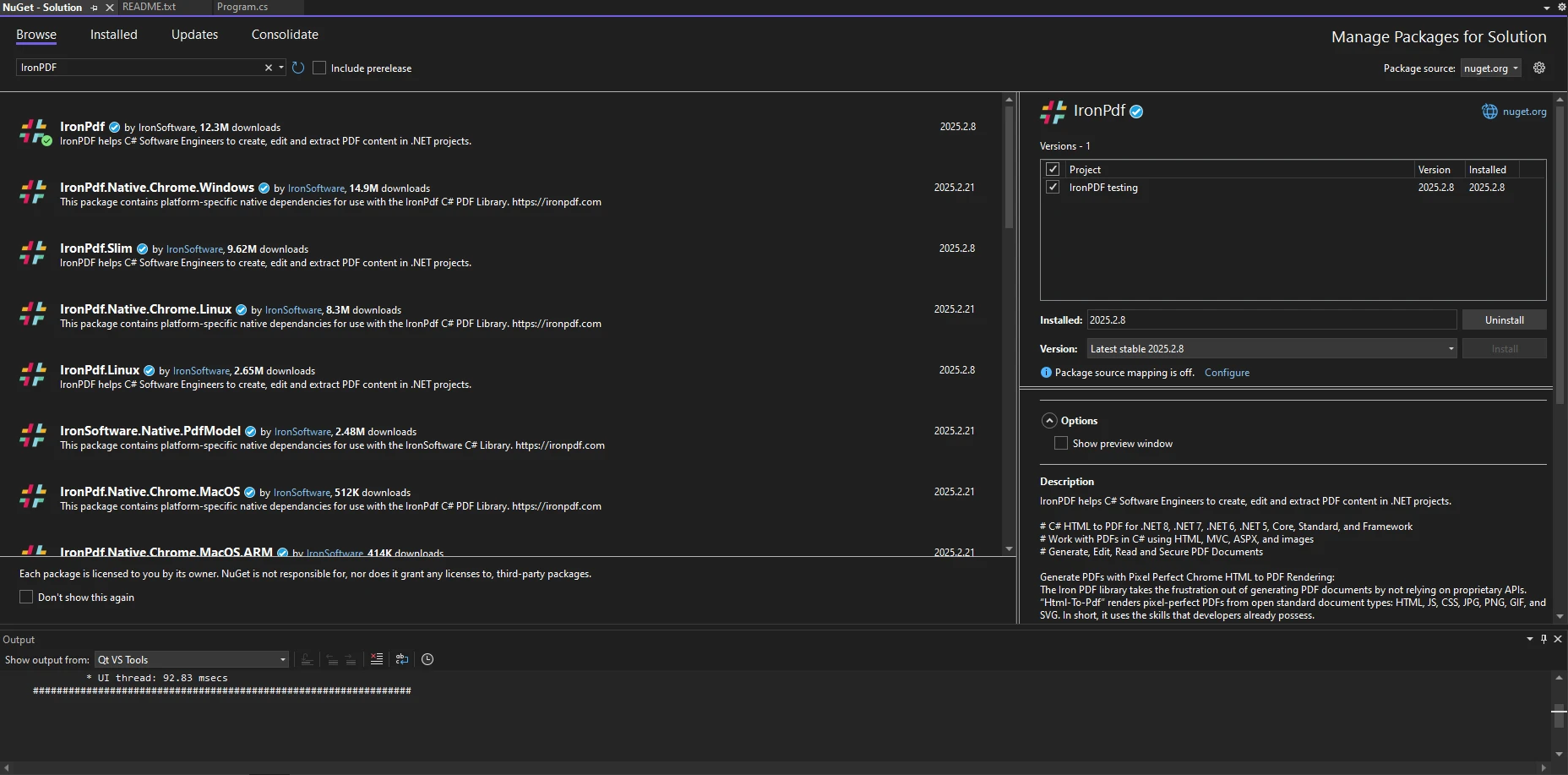
另外,您也可以透過 Visual Studio 中的 NuGet Package Manager 來安裝,方法是搜尋 IronPDF,然後按一下"安裝"。
安裝完成後,請確保您的 C# 檔案中包含下列命名空間:
using IronPdf;using IronPdf;Imports IronPdf瞭解 PDF 中的語音氣泡
語音氣泡通常使用 HTML 和 CSS 建立。 它們由一個具有圓角邊緣的文字容器和一個指向講者的小尾巴組成。 使用 IronPDF,我們可以將這些語氣泡產生為 HTML 元素,並將其呈現在 PDF 內。
使用語音氣泡的資料類型工作。
將字串值解析成數字類型
有時候,我們可能需要將使用者的輸入轉換成雙值,以便動態設定語音氣泡的尺寸。 我們可以使用解析法來達成這個目標:
string widthInput = "150.5";
double bubbleWidth = double.Parse(widthInput);
string widthInput = "150.5";
double bubbleWidth = double.Parse(widthInput);Dim widthInput As String = "150.5"
Dim bubbleWidth As Double = Double.Parse(widthInput)這允許根據使用者的輸入動態調整氣泡的大小。
使用布林值顯示選項
boolean 值可用於切換語音氣泡是否應該可見:
bool showBubble = true;
if (showBubble)
{
    Console.WriteLine("Speech bubble is visible");
}
bool showBubble = true;
if (showBubble)
{
Console.WriteLine("Speech bubble is visible");
}Dim showBubble As Boolean = True
If showBubble Then
Console.WriteLine("Speech bubble is visible")
End If使用 IronPDF 將字串轉換為語音泡泡。
為語音氣泡建立 HTML 模板
由於 IronPDF 支援 HTML-to-PDF轉換,因此我們可以使用 HTML 和 CSS 建立一個簡單的語氣泡。 要將字串變數轉換成 PDF 文件,您需要確保先建立一個新的 ChromePdfRenderer 實例。
using IronPdf;

class Program
{
    static void Main()
    {
        // Create a new PDF renderer instance
        ChromePdfRenderer renderer = new ChromePdfRenderer();

        // HTML and CSS content for the speech bubble
        string htmlContent =
            "<div class='bubble'>Hello, this is a speech bubble!</div>" +
            "<style>" +
            ".bubble { display: inline-block; background: #f0f0f0; border-radius: 10px; padding: 10px 15px; position: relative; font-family: Arial, sans-serif; }" +
            ".bubble::after { content: ''; position: absolute; bottom: -10px; left: 20px; border-width: 10px; border-style: solid; border-color: #f0f0f0 transparent transparent transparent; }" +
            "</style>";

        // Render the HTML to a PDF
        PdfDocument pdf = renderer.RenderHtmlAsPdf(htmlContent);

        // Save the PDF file
        pdf.SaveAs("speechBubble.pdf");
    }
}
using IronPdf;
class Program
{
static void Main()
{
// Create a new PDF renderer instance
ChromePdfRenderer renderer = new ChromePdfRenderer();
// HTML and CSS content for the speech bubble
string htmlContent =
"<div class='bubble'>Hello, this is a speech bubble!</div>" +
"<style>" +
".bubble { display: inline-block; background: #f0f0f0; border-radius: 10px; padding: 10px 15px; position: relative; font-family: Arial, sans-serif; }" +
".bubble::after { content: ''; position: absolute; bottom: -10px; left: 20px; border-width: 10px; border-style: solid; border-color: #f0f0f0 transparent transparent transparent; }" +
"</style>";
// Render the HTML to a PDF
PdfDocument pdf = renderer.RenderHtmlAsPdf(htmlContent);
// Save the PDF file
pdf.SaveAs("speechBubble.pdf");
}
}Imports IronPdf
Friend Class Program
Shared Sub Main()
' Create a new PDF renderer instance
Dim renderer As New ChromePdfRenderer()
' HTML and CSS content for the speech bubble
Dim htmlContent As String = "<div class='bubble'>Hello, this is a speech bubble!</div>" & "<style>" & ".bubble { display: inline-block; background: #f0f0f0; border-radius: 10px; padding: 10px 15px; position: relative; font-family: Arial, sans-serif; }" & ".bubble::after { content: ''; position: absolute; bottom: -10px; left: 20px; border-width: 10px; border-style: solid; border-color: #f0f0f0 transparent transparent transparent; }" & "</style>"
' Render the HTML to a PDF
Dim pdf As PdfDocument = renderer.RenderHtmlAsPdf(htmlContent)
' Save the PDF file
pdf.SaveAs("speechBubble.pdf")
End Sub
End ClassPDF 輸出。
 。
。
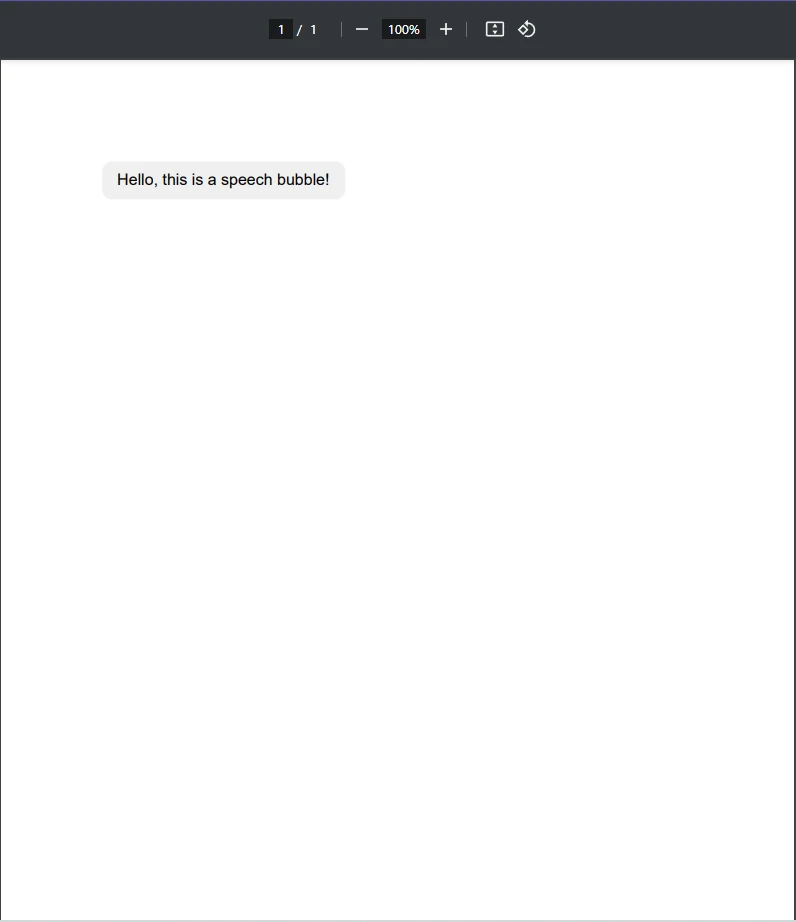
如您所見,我們已建立了一個字串變數,其中包含將用於在 PDF 文件中渲染語音氣泡的 HTML 和 CSS 內容。 接著,我們使用 ChromePdfRenderer 類中的 RenderHtmlAsPdf 方法,將此字串渲染為 PDF 文件,然後再儲存。
按照這些步驟,您將產生一個包含文字 "Hello,this is a speech bubble!" 的新 PDF 文件,並已掌握從簡單字串產生 PDF 的基本知識。
自訂語音氣泡
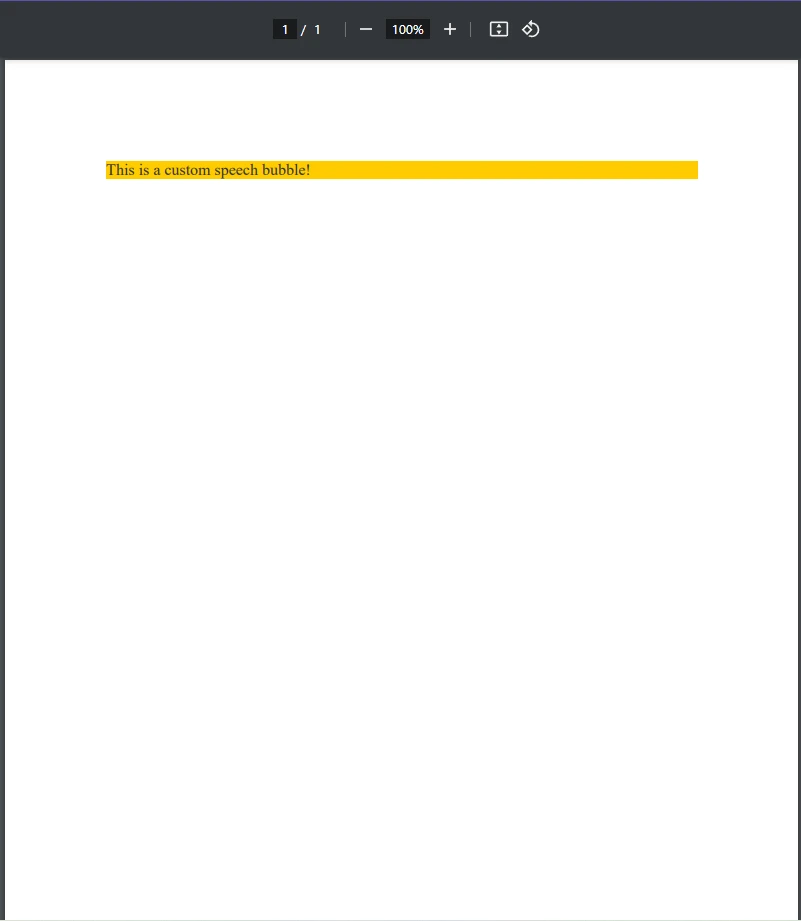
如果您想要做的事情不僅僅是在 PDF 中加入基本的語氣泡,那該怎麼辦? 讓我們來看看如何使用 CSS 自訂語音氣泡。 您可以透過調整 CSS 來修改氣泡的顏色、大小和位置。 以下是我們改變背景顏色和文字大小的範例:
.bubble {
  background: #ffcc00;
  color: #333;
  font-size: 16px;
}
如果您需要 動態文字,您可以用 C# 變數取代靜態文字,最終的程式碼會像這樣:
using IronPdf;

class Program
{
    static void Main()
    {
        // Create a new PDF renderer instance
        ChromePdfRenderer renderer = new ChromePdfRenderer();

        // User input for the dynamic speech bubble content
        string userInput = "This is a custom speech bubble!";

        // HTML and CSS content for the speech bubble with dynamic text
        string dynamicHtml =
            $"<div class='bubble'>{userInput}</div>" +
            "<style>" +
            ".bubble {background: #ffcc00; color: #333; font-size: 16px; }" +
            "</style>";

        // Render the HTML to a PDF
        PdfDocument pdf = renderer.RenderHtmlAsPdf(dynamicHtml);

        // Save the PDF file
        pdf.SaveAs("speechBubble.pdf");
    }
}
using IronPdf;
class Program
{
static void Main()
{
// Create a new PDF renderer instance
ChromePdfRenderer renderer = new ChromePdfRenderer();
// User input for the dynamic speech bubble content
string userInput = "This is a custom speech bubble!";
// HTML and CSS content for the speech bubble with dynamic text
string dynamicHtml =
$"<div class='bubble'>{userInput}</div>" +
"<style>" +
".bubble {background: #ffcc00; color: #333; font-size: 16px; }" +
"</style>";
// Render the HTML to a PDF
PdfDocument pdf = renderer.RenderHtmlAsPdf(dynamicHtml);
// Save the PDF file
pdf.SaveAs("speechBubble.pdf");
}
}Imports IronPdf
Friend Class Program
Shared Sub Main()
' Create a new PDF renderer instance
Dim renderer As New ChromePdfRenderer()
' User input for the dynamic speech bubble content
Dim userInput As String = "This is a custom speech bubble!"
' HTML and CSS content for the speech bubble with dynamic text
Dim dynamicHtml As String = $"<div class='bubble'>{userInput}</div>" & "<style>" & ".bubble {background: #ffcc00; color: #333; font-size: 16px; }" & "</style>"
' Render the HTML to a PDF
Dim pdf As PdfDocument = renderer.RenderHtmlAsPdf(dynamicHtml)
' Save the PDF file
pdf.SaveAs("speechBubble.pdf")
End Sub
End ClassPDF 輸出。
進階功能
在現有的 PDF 上覆蓋氣泡
有時候,您可能想要在現有的 PDF 中加入語音氣泡,而不是產生新的 PDF。 IronPDF 允許您以 watermark 的形式將 HTML 元素覆蓋到現有的 PDF 上。
using IronPdf;

class Program
{
    public static void Main()
    {
        // Load an existing PDF document
        PdfDocument pdf = PdfDocument.FromFile("existing.pdf");

        // HTML and CSS content for the new speech bubble
        string newBubble =
            "<div class='bubble'>New Comment</div>" +
            "<style>" +
            ".bubble { display: inline-block; background: #f0f0f0; border-radius: 10px; padding: 10px 15px; position: relative; font-family: Arial, sans-serif; }" +
            ".bubble::after { content: ''; position: absolute; bottom: -10px; left: 20px; border-width: 10px; border-style: solid; border-color: #f0f0f0 transparent transparent transparent; }" +
            "</style>";

        // Apply the speech bubble as a watermark on the existing PDF
        pdf.ApplyWatermark(newBubble);

        // Save the updated PDF file
        pdf.SaveAs("updated.pdf");
    }
}
using IronPdf;
class Program
{
public static void Main()
{
// Load an existing PDF document
PdfDocument pdf = PdfDocument.FromFile("existing.pdf");
// HTML and CSS content for the new speech bubble
string newBubble =
"<div class='bubble'>New Comment</div>" +
"<style>" +
".bubble { display: inline-block; background: #f0f0f0; border-radius: 10px; padding: 10px 15px; position: relative; font-family: Arial, sans-serif; }" +
".bubble::after { content: ''; position: absolute; bottom: -10px; left: 20px; border-width: 10px; border-style: solid; border-color: #f0f0f0 transparent transparent transparent; }" +
"</style>";
// Apply the speech bubble as a watermark on the existing PDF
pdf.ApplyWatermark(newBubble);
// Save the updated PDF file
pdf.SaveAs("updated.pdf");
}
}Imports IronPdf
Friend Class Program
Public Shared Sub Main()
' Load an existing PDF document
Dim pdf As PdfDocument = PdfDocument.FromFile("existing.pdf")
' HTML and CSS content for the new speech bubble
Dim newBubble As String = "<div class='bubble'>New Comment</div>" & "<style>" & ".bubble { display: inline-block; background: #f0f0f0; border-radius: 10px; padding: 10px 15px; position: relative; font-family: Arial, sans-serif; }" & ".bubble::after { content: ''; position: absolute; bottom: -10px; left: 20px; border-width: 10px; border-style: solid; border-color: #f0f0f0 transparent transparent transparent; }" & "</style>"
' Apply the speech bubble as a watermark on the existing PDF
pdf.ApplyWatermark(newBubble)
' Save the updated PDF file
pdf.SaveAs("updated.pdf")
End Sub
End ClassPDF 輸出。
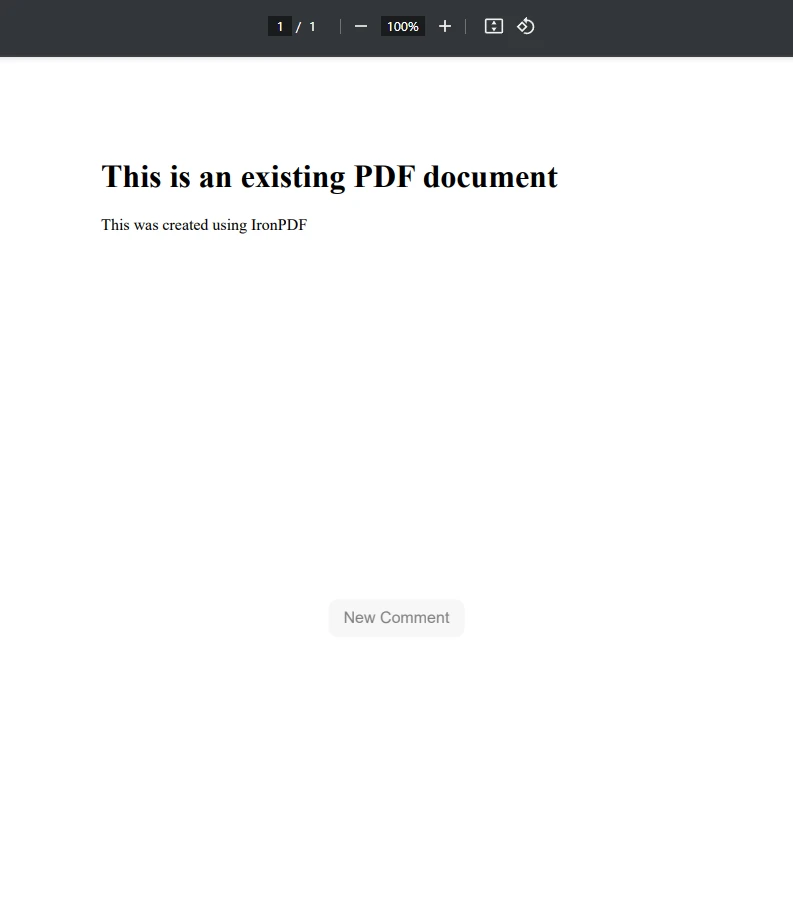 。
。
正如您在上述程式碼範例中所看到的,我們首先使用 PdfDocument.FromFile() 載入現有的 PDF 文件,並計劃在其中加入新的語音氣泡。 接著,我們使用簡單的 HTML 和 CSS,在 HTML 內容的 newBubble 字串表示中建立語音氣泡。 最後,我們只需要利用 ApplyWatermark 方法,就可以將這個新的氣泡套用到 PDF 上。
使用 IronPDF 的水印工具等工具可讓開發人員輕鬆地將 HTML 內容套用至現有的 PDF 文件。
從資料產生語音氣泡
如果您需要根據使用者輸入、資料庫或 API 動態建立語音氣泡,您可以迴圈您的資料並產生多個語音氣泡。
using IronPdf;

class Program
{
    static void Main()
    {
        // Create a new PDF renderer instance
        ChromePdfRenderer renderer = new ChromePdfRenderer();

        // List of messages to convert into speech bubbles
        List<string> messages = new List<string> { "Hello!", "How are you?", "This is IronPDF!" };
        string htmlBubbles = "";

        // Generate HTML for each message
        foreach (var msg in messages)
        {
            htmlBubbles += $"<div class='bubble'>{msg}</div>";
        }

        // Render the HTML to a PDF
        var pdf = renderer.RenderHtmlAsPdf(htmlBubbles);

        // Save the PDF file
        pdf.SaveAs("updated.pdf");
    }
}
using IronPdf;
class Program
{
static void Main()
{
// Create a new PDF renderer instance
ChromePdfRenderer renderer = new ChromePdfRenderer();
// List of messages to convert into speech bubbles
List<string> messages = new List<string> { "Hello!", "How are you?", "This is IronPDF!" };
string htmlBubbles = "";
// Generate HTML for each message
foreach (var msg in messages)
{
htmlBubbles += $"<div class='bubble'>{msg}</div>";
}
// Render the HTML to a PDF
var pdf = renderer.RenderHtmlAsPdf(htmlBubbles);
// Save the PDF file
pdf.SaveAs("updated.pdf");
}
}Imports IronPdf
Friend Class Program
Shared Sub Main()
' Create a new PDF renderer instance
Dim renderer As New ChromePdfRenderer()
' List of messages to convert into speech bubbles
Dim messages As New List(Of String) From {"Hello!", "How are you?", "This is IronPDF!"}
Dim htmlBubbles As String = ""
' Generate HTML for each message
For Each msg In messages
htmlBubbles &= $"<div class='bubble'>{msg}</div>"
Next msg
' Render the HTML to a PDF
Dim pdf = renderer.RenderHtmlAsPdf(htmlBubbles)
' Save the PDF file
pdf.SaveAs("updated.pdf")
End Sub
End ClassPDF 輸出。
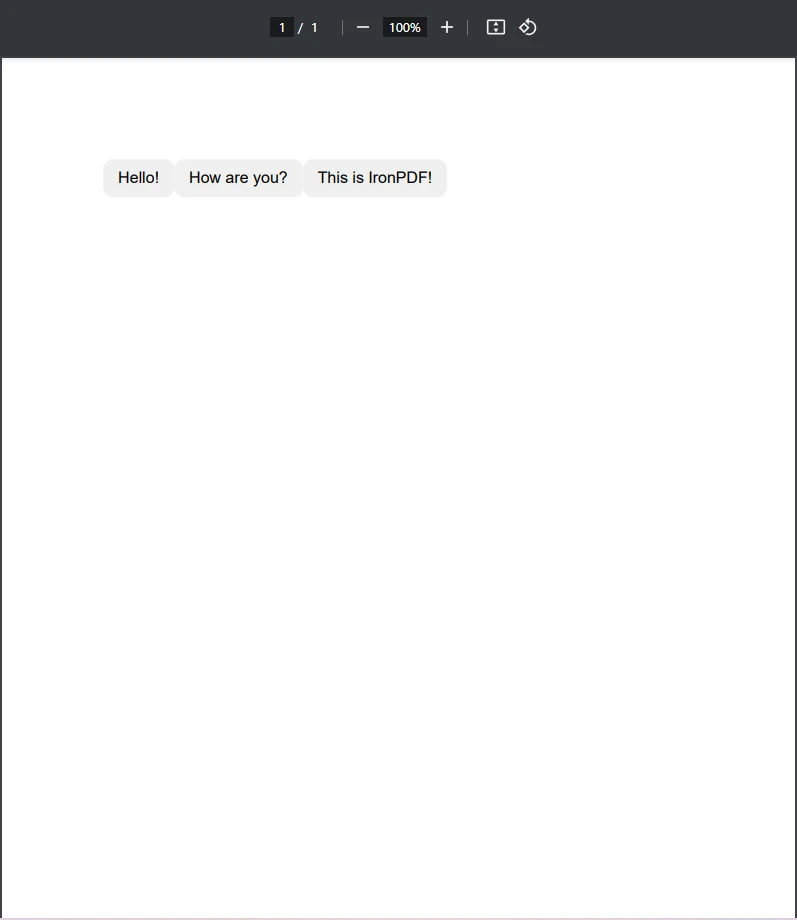 。
。
此程式碼透過使用 foreach 循環將 List 中的字串轉換為語音氣泡。透過使用類似的方法將字串轉換成 PDF 文件上的語音氣泡,您可以輕鬆地將聊天記錄、通知、甚至自動報告等資料轉換成容易顯示的語音氣泡。
處理特定文化的格式化資訊
在解析使用者輸入時,我們可能需要考慮特定文化的格式資訊,尤其是數值。
using System.Globalization;

string value = "1,234.56";
double number = double.Parse(value, CultureInfo.InvariantCulture);
using System.Globalization;
string value = "1,234.56";
double number = double.Parse(value, CultureInfo.InvariantCulture);Imports System.Globalization
Private value As String = "1,234.56"
Private number As Double = Double.Parse(value, CultureInfo.InvariantCulture)無論地區設定為何,這都能確保一致的數字格式。
在語音氣泡處理中使用整數值
指定整數變數
我們可以宣告一個 int 變數來儲存語音氣泡的計數器:
int i = 0;
for (i = 0; i < 5; i++)
{
    Console.WriteLine($"Generating speech bubble {i + 1}");
}
int i = 0;
for (i = 0; i < 5; i++)
{
Console.WriteLine($"Generating speech bubble {i + 1}");
}Dim i As Integer = 0
For i = 0 To 4
Console.WriteLine($"Generating speech bubble {i + 1}")
Next i將字串解析為整數值
如果我們需要將字串輸入解析為整數結果,我們可以使用parse 方法:
string input = "42";
int result = int.Parse(input);
string input = "42";
int result = int.Parse(input);Dim input As String = "42"
Dim result As Integer = Integer.Parse(input)這可確保文字輸入能轉換成有效的格式,即可用的數值格式變數。
建立語音氣泡產生器類別
為了保持程式碼的結構化,我們可以定義一個公開類別來產生語音氣泡:
public class SpeechBubbleGenerator
{
    // Method to generate HTML for a speech bubble
    public string GenerateBubble(string text)
    {
        return $"<div class='bubble'>{text}</div>";
    }
}
public class SpeechBubbleGenerator
{
// Method to generate HTML for a speech bubble
public string GenerateBubble(string text)
{
return $"<div class='bubble'>{text}</div>";
}
}Public Class SpeechBubbleGenerator
' Method to generate HTML for a speech bubble
Public Function GenerateBubble(ByVal text As String) As String
Return $"<div class='bubble'>{text}</div>"
End Function
End Class使用此類型,我們可以有效率地建立多個語音氣泡。
結論
語音氣泡可增加 PDF 的清晰度和風格,是註解、評論和互動文件的理想選擇。 透過使用 IronPDF,您可以使用 HTML 和 CSS 輕鬆產生這些氣泡,同時利用 C# 進行客製化和自動化。 無論您是將它們覆蓋到現有的 PDF 上,或是建立動態文件,IronPDF 都能提供靈活有效的方法,讓您輕鬆地將字串轉換成可讀的語音氣泡,用於 PDF 文件。
如果您正在尋找功能強大的 .NET PDF 解決方案,請嘗試 IronPDF 並開始使用動態、具視覺吸引力的內容增強您的 PDF!
常見問題解答
如何在 C# 中將字串變數轉換為對話氣泡?
您可以使用 HTML 和 CSS 在 C# 中設計和轉換字串變數為對話氣泡。這樣的 .NET PDF 程式庫,如 IronPDF,可以幫助將這些樣式元素渲染為 PDF。
安裝 .NET PDF 程式庫以創建對話氣泡的步驟是什麼?
要安裝 .NET PDF 程式庫,您可以在 Visual Studio 中使用 NuGet 套件管理器,透過在套件管理器控制台中執行 Install-Package IronPDF,或在 NuGet 套件管理器 GUI 中搜尋。
如何使用 HTML 和 CSS 在 PDF 中創建對話氣泡?
可以使用 HTML 和 CSS 設計對話氣泡,方法是製作具有圓角邊緣和尾巴的文字容器。然後可以使用 .NET 程式庫將這些元素渲染為 PDF。
在 PDF 中可以動態調整對話氣泡的大小嗎?
是的,可以根據使用者輸入或資料使用 CSS 與 .NET PDF 程式庫相結合動態調整對話氣泡的大小,並在 PDF 中渲染更改。
如何在現有 PDF 上覆蓋對話氣泡?
可以使用 .NET PDF 程式庫在現有 PDF 上覆蓋對話氣泡,方法是將 HTML 元素作為浮水印或覆蓋層應用到 PDF 文件中。
我可以從使用者輸入或資料庫資料生成對話氣泡嗎?
使用 .NET PDF 程式庫,可以從使用者輸入或資料庫資料動態生成對話氣泡,透過迭代資料並相應地渲染氣泡。
對於 PDF 中的對話氣泡,有哪些自訂選項?
您可以透過修改 CSS 屬性如顏色、大小、文字樣式和位置來自訂 PDF 中的對話氣泡,從而實現個性化外觀。
如何在 C# 中利用 SpeechBubbleGenerator 類別?
可以創建一個 SpeechBubbleGenerator 類別來封裝生成對話氣泡的邏輯,提供一個結構化且可重用的方式來處理 C# 中的氣泡創建。
.NET 程式庫對於 C# 中的 PDF 生成有什麼優勢?
使用 .NET 程式庫為 C# 進行 PDF 生成提供了彈性和效率,使開發者能夠直接從 C# 程式碼創建動態且視覺上吸引人的內容,例如對話氣泡。


















 免費開始使用
 免費開始使用
 預約免費現場演示





 無需信用卡或創建帳戶










