




업데이트됨 2026년 4월 23일
.NET에서 Microsoft.Extensions.AI로 LLM 통합 간소화
AI는 소프트웨어 개발을 변혁하고 있으나, 대규모 언어 모델(LLM)을 .NET에 통합하는 것은 지금까지 복잡했습니다. 현대에는 OpenAI 기반 PDF 파싱, 데이터 추출 및 콘텐츠 요약을 .NET 애플리케이션에 가져오는 IronPdf.AI로 AI 통합을 더욱 확장하세요.
더 읽어보기

말풍선은 텍스트를 강조하고 문서를 주석 처리하거나 PDF에서 만화 스타일의 효과를 만드는 훌륭한 방법입니다. 보고서에 의견을 추가하거나 교육용 가이드를 생성하거나 대화형 문서를 생성할 때, 말풍선은 PDF의 가독성과 시각적 매력을 향상시킬 수 있습니다.
이 기사에서는 IronPDF을 사용하여 C#에서 문자열 변수를 말풍선으로 변환하는 방법을 탐구할 것입니다. IronPDF는 HTML과 CSS를 PDF로 쉽게 변환할 수 있게 해주는 강력한 .NET 라이브러리로, 어떤 주어진 C# 문자열에서도 스타일이 적용된 말풍선을 동적으로 렌더링할 수 있어 이상적입니다. 자, 시작해 볼까요!
그렇다면 왜 IronPDF일까요? IronPDF는 프로그래밍 방식으로 PDF 파일을 다루기 쉽게 설계된 강력한 C# 라이브러리입니다. 이를 사용하여 HTML, 이미지, DOCX 파일 등을 PDF 문서로 쉽게 생성할 수 있습니다. 또는 PDF 보안을 효과적이고 효율적으로 관리하거나 기존 PDF 문서를 편집할 수 있는 도구를 찾고 있을 수도 있습니다. 어떤 작업이든 IronPDF는 타사 라이브러리가 필요 없이 대부분의 PDF 관련 작업에 대한 솔루션을 제공하는 포괄적인 라이브러리로서 지원합니다.
시작하려면 NuGet을 통해 IronPDF를 설치하세요. Visual Studio에서 패키지 관리자 콘솔을 열고 다음을 실행하세요:
또는 Visual Studio의 NuGet 패키지 관리자에서 IronPDF를 검색한 후 "설치"를 클릭하여 설치할 수 있습니다.
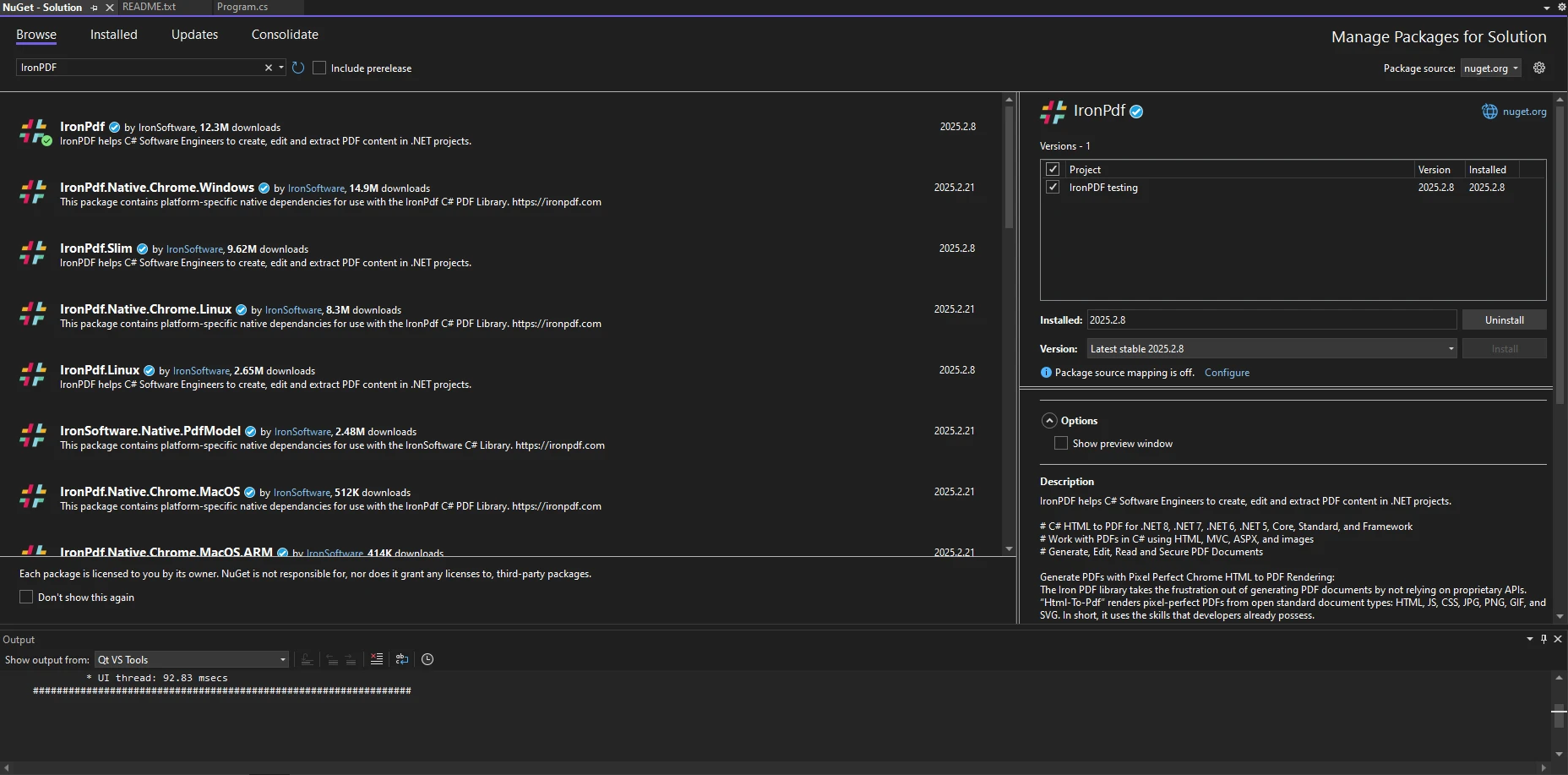
설치 후, C# 파일에 다음 네임스페이스가 포함되어 있는지 확인하세요:
using IronPdf;Imports IronPdf말풍선은 일반적으로 HTML과 CSS를 사용하여 생성됩니다. 이는 둥근 모서리의 텍스트 컨테이너와 화자를 가리키는 작은 꼬리로 구성됩니다. IronPDF를 사용하여 이러한 말풍선을 HTML 요소로 생성하고 PDF 내에 렌더링할 수 있습니다.
때때로, 사용자 입력을 말풍선의 크기를 동적으로 설정하기 위해 double 값으로 변환해야 할 수도 있습니다. 이를 달성하기 위해 파싱 방법을 사용할 수 있습니다:
string widthInput = "150.5";
double bubbleWidth = double.Parse(widthInput);Dim widthInput As String = "150.5"
Dim bubbleWidth As Double = Double.Parse(widthInput)이렇게 하면 사용자 입력에 따라 버블을 동적으로 크기 조정할 수 있습니다.
Boolean 값을 사용하여 말풍선이 표시되어야 하는지를 전환할 수 있습니다:
bool showBubble = true;
if (showBubble)
{
    Console.WriteLine("Speech bubble is visible");
}Dim showBubble As Boolean = True
If showBubble Then
Console.WriteLine("Speech bubble is visible")
End IfIronPDF가 HTML-to-PDF 변환을 지원하기 때문에, HTML과 CSS를 사용하여 간단한 말풍선을 만들 수 있습니다. 문자열 변수를 PDF 문서로 변환하려면 먼저 새로운 ChromePdfRenderer 인스턴스를 생성해야 합니다.
using IronPdf;

class Program
{
    static void Main()
    {
        // Create a new PDF renderer instance
        ChromePdfRenderer renderer = new ChromePdfRenderer();

        // HTML and CSS content for the speech bubble
        string htmlContent =
            "<div class='bubble'>Hello, this is a speech bubble!</div>" +
            "<style>" +
            ".bubble { display: inline-block; background: #f0f0f0; border-radius: 10px; padding: 10px 15px; position: relative; font-family: Arial, sans-serif; }" +
            ".bubble::after { content: ''; position: absolute; bottom: -10px; left: 20px; border-width: 10px; border-style: solid; border-color: #f0f0f0 transparent transparent transparent; }" +
            "</style>";

        // Render the HTML to a PDF
        PdfDocument pdf = renderer.RenderHtmlAsPdf(htmlContent);

        // Save the PDF file
        pdf.SaveAs("speechBubble.pdf");
    }
}Imports IronPdf
Friend Class Program
Shared Sub Main()
' Create a new PDF renderer instance
Dim renderer As New ChromePdfRenderer()
' HTML and CSS content for the speech bubble
Dim htmlContent As String = "<div class='bubble'>Hello, this is a speech bubble!</div>" & "<style>" & ".bubble { display: inline-block; background: #f0f0f0; border-radius: 10px; padding: 10px 15px; position: relative; font-family: Arial, sans-serif; }" & ".bubble::after { content: ''; position: absolute; bottom: -10px; left: 20px; border-width: 10px; border-style: solid; border-color: #f0f0f0 transparent transparent transparent; }" & "</style>"
' Render the HTML to a PDF
Dim pdf As PdfDocument = renderer.RenderHtmlAsPdf(htmlContent)
' Save the PDF file
pdf.SaveAs("speechBubble.pdf")
End Sub
End Class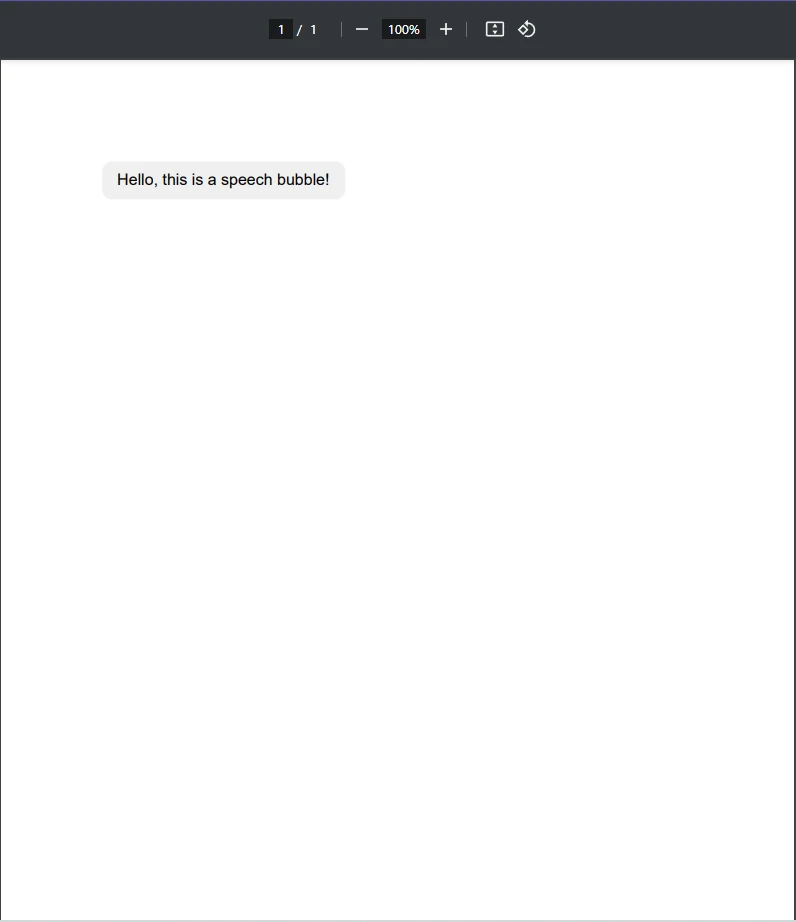
보시다시피, HTML과 CSS 콘텐츠를 포함하는 문자열 변수를 만들어 PDF 문서에 말풍선을 렌더링하는 데 사용됩니다. 그런 다음, RenderHtmlAsPdf 메서드를 사용하여 이 문자열을 PDF 문서로 렌더링하고, 저장합니다.
이 단계를 따르면 새로운 PDF 문서에 **"안녕하세요, 이것은 말풍선입니다!"**라는 텍스트가 포함된 PDF 문서를 생성하고, 간단한 문자열에서 PDF를 생성하는 기본을 마스터하게 될 것입니다.
PDF에 기본적인 말풍선 추가 외에 다른 것을 하고 싶다면 어떻게 할까요? CSS를 사용하여 말풍선을 사용자가 원하는 대로 맞춤화하는 방법을 살펴봅시다. CSS를 조정하여 말풍선의 색상, 크기 및 위치를 수정할 수 있습니다. 다음은 배경 색상과 텍스트 크기를 변경하는 예제입니다:
.bubble {
  background: #ffcc00;
  color: #333;
  font-size: 16px;
}동적 텍스트가 필요하다면, 고정된 문자열을 C# 변수로 교체하면 최종 코드가 이렇게 보입니다:
using IronPdf;

class Program
{
    static void Main()
    {
        // Create a new PDF renderer instance
        ChromePdfRenderer renderer = new ChromePdfRenderer();

        // User input for the dynamic speech bubble content
        string userInput = "This is a custom speech bubble!";

        // HTML and CSS content for the speech bubble with dynamic text
        string dynamicHtml =
            $"<div class='bubble'>{userInput}</div>" +
            "<style>" +
            ".bubble {background: #ffcc00; color: #333; font-size: 16px; }" +
            "</style>";

        // Render the HTML to a PDF
        PdfDocument pdf = renderer.RenderHtmlAsPdf(dynamicHtml);

        // Save the PDF file
        pdf.SaveAs("speechBubble.pdf");
    }
}Imports IronPdf
Friend Class Program
Shared Sub Main()
' Create a new PDF renderer instance
Dim renderer As New ChromePdfRenderer()
' User input for the dynamic speech bubble content
Dim userInput As String = "This is a custom speech bubble!"
' HTML and CSS content for the speech bubble with dynamic text
Dim dynamicHtml As String = $"<div class='bubble'>{userInput}</div>" & "<style>" & ".bubble {background: #ffcc00; color: #333; font-size: 16px; }" & "</style>"
' Render the HTML to a PDF
Dim pdf As PdfDocument = renderer.RenderHtmlAsPdf(dynamicHtml)
' Save the PDF file
pdf.SaveAs("speechBubble.pdf")
End Sub
End Class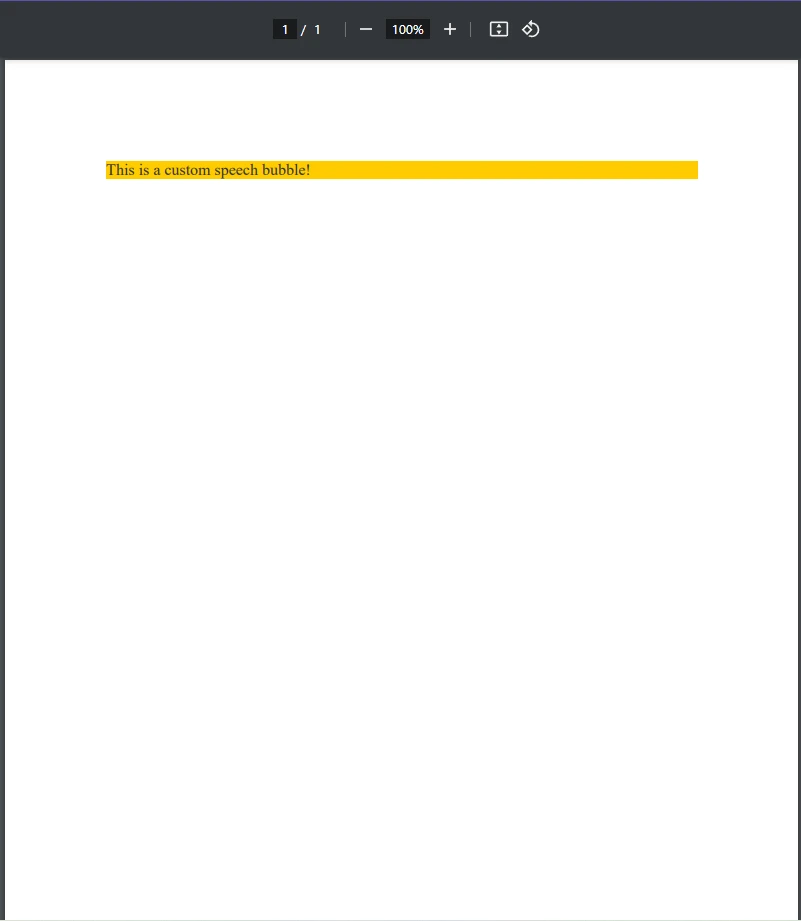
때때로, 새로운 하나를 생성하는 대신에 기존 PDF에 말풍선을 추가하고 싶을 수 있습니다. IronPDF를 사용하여 워터마크 형태로 HTML 요소를 기존 PDF에 오버레이할 수 있습니다.
using IronPdf;

class Program
{
    public static void Main()
    {
        // Load an existing PDF document
        PdfDocument pdf = PdfDocument.FromFile("existing.pdf");

        // HTML and CSS content for the new speech bubble
        string newBubble =
            "<div class='bubble'>New Comment</div>" +
            "<style>" +
            ".bubble { display: inline-block; background: #f0f0f0; border-radius: 10px; padding: 10px 15px; position: relative; font-family: Arial, sans-serif; }" +
            ".bubble::after { content: ''; position: absolute; bottom: -10px; left: 20px; border-width: 10px; border-style: solid; border-color: #f0f0f0 transparent transparent transparent; }" +
            "</style>";

        // Apply the speech bubble as a watermark on the existing PDF
        pdf.ApplyWatermark(newBubble);

        // Save the updated PDF file
        pdf.SaveAs("updated.pdf");
    }
}Imports IronPdf
Friend Class Program
Public Shared Sub Main()
' Load an existing PDF document
Dim pdf As PdfDocument = PdfDocument.FromFile("existing.pdf")
' HTML and CSS content for the new speech bubble
Dim newBubble As String = "<div class='bubble'>New Comment</div>" & "<style>" & ".bubble { display: inline-block; background: #f0f0f0; border-radius: 10px; padding: 10px 15px; position: relative; font-family: Arial, sans-serif; }" & ".bubble::after { content: ''; position: absolute; bottom: -10px; left: 20px; border-width: 10px; border-style: solid; border-color: #f0f0f0 transparent transparent transparent; }" & "</style>"
' Apply the speech bubble as a watermark on the existing PDF
pdf.ApplyWatermark(newBubble)
' Save the updated PDF file
pdf.SaveAs("updated.pdf")
End Sub
End Class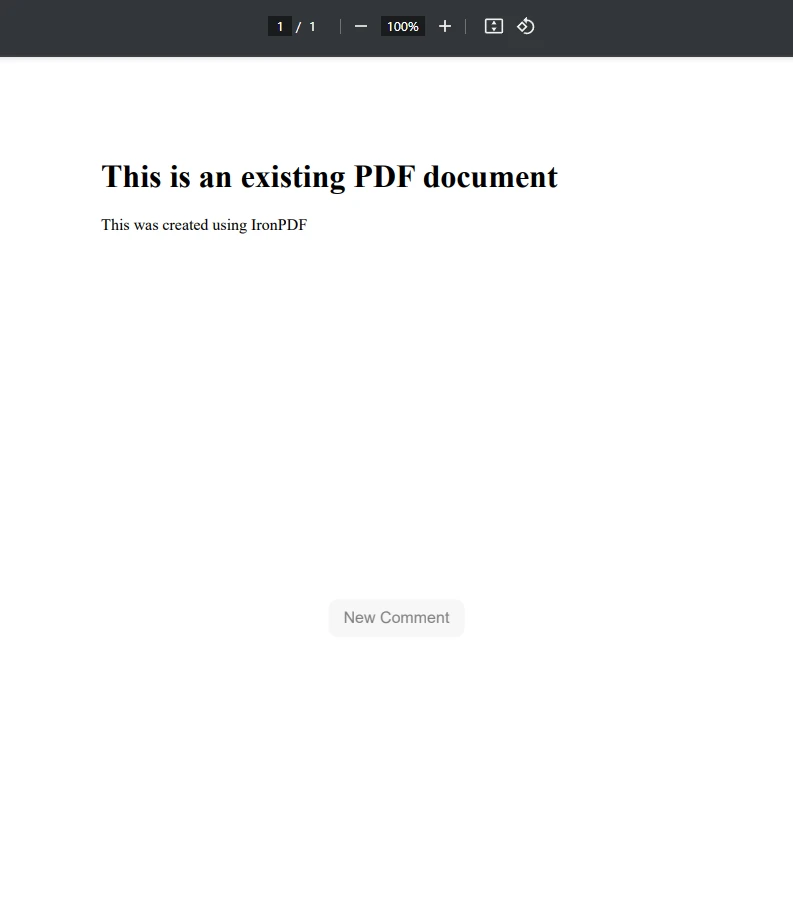
위의 코드 예제에서 볼 수 있듯이, 먼저 **PdfDocument.FromFile()**을 사용하여 기존 PDF 문서를 로드합니다. 여기에 새로운 말풍선을 추가할 예정입니다. 그런 다음 간단한 HTML과 CSS를 사용하여 새로운 newBubble HTML 콘텐츠의 문자열 표현에서 말풍선을 만들었습니다. 마지막으로, PDF에 이 새로운 말풍선을 적용하기 위해 필요한 것은 ApplyWatermark 메서드를 사용하는 것뿐입니다.
IronPDF의 워터마크 도구와 같은 도구를 사용하면 개발자가 기존 PDF 문서에 HTML 콘텐츠를 쉽게 적용할 수 있습니다.
사용자 입력, 데이터베이스 또는 API에 기반하여 동적으로 말풍선을 생성해야 하는 경우, 데이터를 반복 처리하여 여러 말풍선을 생성할 수 있습니다.
using IronPdf;

class Program
{
    static void Main()
    {
        // Create a new PDF renderer instance
        ChromePdfRenderer renderer = new ChromePdfRenderer();

        // List of messages to convert into speech bubbles
        List<string> messages = new List<string> { "Hello!", "How are you?", "This is IronPDF!" };
        string htmlBubbles = "";

        // Generate HTML for each message
        foreach (var msg in messages)
        {
            htmlBubbles += $"<div class='bubble'>{msg}</div>";
        }

        // Render the HTML to a PDF
        var pdf = renderer.RenderHtmlAsPdf(htmlBubbles);

        // Save the PDF file
        pdf.SaveAs("updated.pdf");
    }
}Imports IronPdf
Friend Class Program
Shared Sub Main()
' Create a new PDF renderer instance
Dim renderer As New ChromePdfRenderer()
' List of messages to convert into speech bubbles
Dim messages As New List(Of String) From {"Hello!", "How are you?", "This is IronPDF!"}
Dim htmlBubbles As String = ""
' Generate HTML for each message
For Each msg In messages
htmlBubbles &= $"<div class='bubble'>{msg}</div>"
Next msg
' Render the HTML to a PDF
Dim pdf = renderer.RenderHtmlAsPdf(htmlBubbles)
' Save the PDF file
pdf.SaveAs("updated.pdf")
End Sub
End Class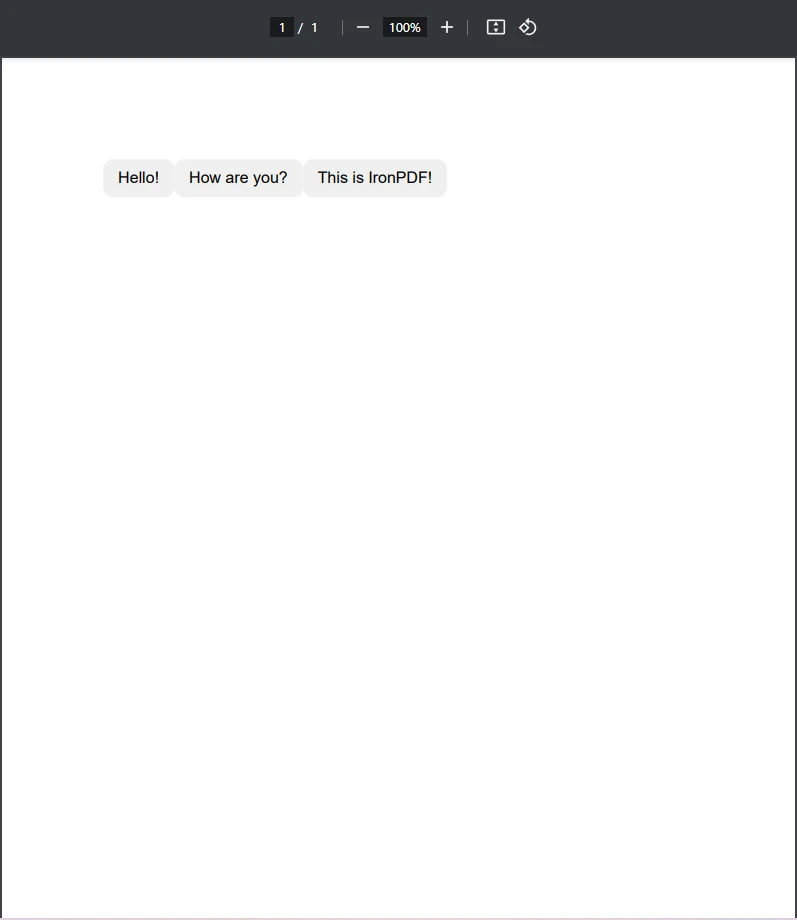
이 코드는 문자열을 목록에서 말풍선으로 변환하는 기능을 foreach 루프를 사용하여 수행합니다. 이렇게 문자열을 PDF 문서의 말풍선으로 변환하는 방법을 사용하면 채팅 기록, 알림, 또는 자동 생성된 보고서 같은 데이터를 쉽게 표시할 수 있는 말풍선으로 변환할 수 있습니다.
사용자 입력을 구문 분석할 때, 특히 숫자 값에 대해 문화권에 따라 다른 형식 정보를 고려해야 할 수 있습니다.
using System.Globalization;

string value = "1,234.56";
double number = double.Parse(value, CultureInfo.InvariantCulture);Imports System.Globalization
Private value As String = "1,234.56"
Private number As Double = Double.Parse(value, CultureInfo.InvariantCulture)이것은 지역 설정에 관계없이 일관된 숫자 형식을 보장합니다.
우리는 int 변수를 선언하여 말풍선에 대한 카운터를 저장할 수 있습니다:
int i = 0;
for (i = 0; i < 5; i++)
{
    Console.WriteLine($"Generating speech bubble {i + 1}");
}Dim i As Integer = 0
For i = 0 To 4
Console.WriteLine($"Generating speech bubble {i + 1}")
Next i문자열 입력을 int 결과로 구문 분석해야 하는 경우, **parse 메서드:**를 사용할 수 있습니다.
string input = "42";
int result = int.Parse(input);Dim input As String = "42"
Dim result As Integer = Integer.Parse(input)이것은 텍스트 입력이 유효한 형식으로 변환되고, 사용 가능한 숫자 형식 변수의 형태로 변환되도록 보장합니다.
코드를 구조화하기 위해, 말풍선 생성을 위한 공용 클래스를 정의할 수 있습니다:
public class SpeechBubbleGenerator
{
    // Method to generate HTML for a speech bubble
    public string GenerateBubble(string text)
    {
        return $"<div class='bubble'>{text}</div>";
    }
}Public Class SpeechBubbleGenerator
' Method to generate HTML for a speech bubble
Public Function GenerateBubble(ByVal text As String) As String
Return $"<div class='bubble'>{text}</div>"
End Function
End Class이 클래스를 사용하여 여러 말풍선을 효율적으로 생성할 수 있습니다.
말풍선은 PDF에 명확성과 스타일을 더하여 주석, 댓글, 인터랙티브 문서에 이상적입니다. IronPDF를 사용하면 C#을 사용한 사용자 정의 및 자동화를 통해 HTML 및 CSS로 쉽게 이 말풍선을 생성할 수 있습니다. 기존 PDF에 말풍선을 오버레이 하거나 동적 문서를 생성할 때 IronPDF는 문자열을 PDF 문서에 쉽게 읽을 수 있는 말풍선으로 변환할 수 있는 유연하고 효율적인 접근 방식을 제공합니다.
강력한 .NET용 PDF 솔루션을 찾고 있다면 IronPDF를 사용해 보고 동적이고 시각적으로 매력적인 콘텐츠로 PDF를 향상시켜 보세요!

제이콥 멜러는 Iron Software의 최고 기술 책임자(CTO)이자 C# PDF 기술을 개척한 선구적인 엔지니어입니다. Iron Software의 핵심 코드베이스를 최초로 개발한 그는 창립 초기부터 회사의 제품 아키텍처를 설계해 왔으며, CEO인 캐머런 리밍턴과 함께 회사를 NASA, 테슬라, 그리고 전 세계 정부 기관에 서비스를 제공하는 50명 이상의 직원을 보유한 기업으로 성장시켰습니다.



IronPDF는 IRON SUITE 의 일부입니다.
10개의 .NET API 제품, 당신의 사무 문서를 위해











PDF 파일을 HTML처럼 빠르게 변환해야 할 때.


