Este tutorial utilizará IronPDF para C# .NET para convertir PDF a imágenes JPG.
IronPDF - Biblioteca .NET
IronPDF para .NET es una biblioteca que permite a los usuarios crear, editar y gestionar archivos PDF. Es muy popular entre los desarrolladores de C# debido a su componente de generación de PDF, que les permite trabajar con archivos PDF sin tener Adobe Acrobat instalado. IronPDF for .NET permite la conversión entre diferentes formatos como HTML a PDF, URL a PDF e Imágenes a PDF.
También soporta la adición de encabezados y pies de página personalizados, firmas digitales, anotaciones y adjuntos, contraseñas de usuario y propietario, y otras opciones de seguridad. IronPDF tiene un motor rápido de Chromium para una mejor experiencia de renderizado. Renderiza un PDF con precisión de píxel. También proporciona soporte completo para multithreading y soporte asíncrono.
Ahora, la siguiente sección discutirá cómo convertir el formato PDF a formatos de imagen como PNG o JPG programáticamente usando IronPDF.
Requisitos previos
Antes de comenzar, se recomienda descargar desde el sitio web oficial de Visual Studio e instalar la última versión de Visual Studio. Esto es necesario para construir aplicaciones en C#, ayudando a configurar el entorno .NET y prepararse para crear un convertidor de PDF a JPG.
Instalación de IronPDF
Para instalar IronPDF, hay múltiples maneras:
- Puede descargar IronPDF usando el Administrador de Paquetes NuGet en su proyecto de C# creado con Visual Studio. Acceda al Administrador de Paquetes NuGet desde Herramientas o clic derecho en el Explorador de Soluciones. Busca el paquete IronPDF e instálalo.
- Otra forma de instalar IronPDF es descargándolo directamente de la página de NuGet de IronPDF.
Convertir archivos PDF en imágenes con IronPDF
Cargar documento PDF
Para cargar un archivo PDF desde una ubicación local en este proyecto, IronPDF proporciona un método FromFile presente en la clase PdfDocument . El siguiente ejemplo de código ayuda a abrir un archivo PDF existente para su edición:
using IronPdf;

// Load the PDF document from a local path
PdfDocument pdf = PdfDocument.FromFile("Example.pdf");
using IronPdf;

// Load the PDF document from a local path
PdfDocument pdf = PdfDocument.FromFile("Example.pdf");
Imports IronPdf
' Load the PDF document from a local path
Private pdf As PdfDocument = PdfDocument.FromFile("Example.pdf")
Imports IronPdf

' Load the PDF document from a local path
Private pdf As PdfDocument = PdfDocument.FromFile("Example.pdf")
Convertir documentos PDF en imágenes
Ahora, el archivo está abierto para editar. IronPDF proporciona un método RasterizeToImageFiles para convertir páginas PDF al formato de imagen. Con la siguiente línea de código, es muy fácil convertir todo el documento PDF en imágenes JPG usando el método Rasterize de IronPDF.
// Convert all pages of the PDF into JPG images and save them to the specified folder
pdf.RasterizeToImageFiles(@"C:\image\folder\*.jpg");
// Convert all pages of the PDF into JPG images and save them to the specified folder
pdf.RasterizeToImageFiles(@"C:\image\folder\*.jpg");
' Convert all pages of the PDF into JPG images and save them to the specified folder
pdf.RasterizeToImageFiles("C:\image\folder\*.jpg")
' Convert all pages of the PDF into JPG images and save them to the specified folder
pdf.RasterizeToImageFiles("C:\image\folder\*.jpg")
Los archivos convertidos del código anterior se guardarán en la ruta dada. El PDF contiene 562 páginas, y IronPDF no tarda nada en convertir todas las páginas del PDF en imágenes JPG. El método RasterizeToImageFiles hace todo el trabajo duro, y el nombre de las imágenes es un dígito que comienza en 1 y se incrementa en cada página.
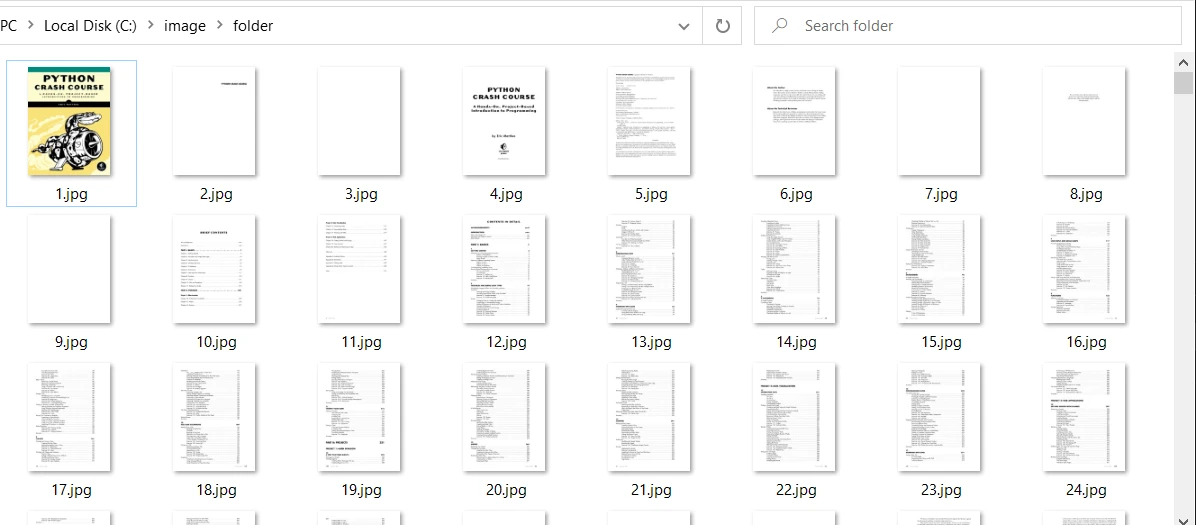 Las imágenes extraídas del archivo PDF
Convertir páginas PDF específicas
El método RasterizeToImageFiles también proporciona otras opciones para tener más control sobre la conversión de páginas PDF a JPG. El siguiente código ayuda a convertir páginas de PDF en un rango desde la página 11 hasta la 21.
using System.Collections.Generic;
using System.Linq;

// Set the Page Range
IEnumerable<int> pageIndexes = Enumerable.Range(10, 11); // Corrected range to cover pages 11 to 21

// Path, PageIndexes, ImageType and Dimensions may be specified
pdf.RasterizeToImageFiles(@"C:\image\folder\example_pdf_image_*.jpg", pageIndexes, 850, 650, IronPdf.Imaging.ImageType.Default, 300);
using System.Collections.Generic;
using System.Linq;

// Set the Page Range
IEnumerable<int> pageIndexes = Enumerable.Range(10, 11); // Corrected range to cover pages 11 to 21

// Path, PageIndexes, ImageType and Dimensions may be specified
pdf.RasterizeToImageFiles(@"C:\image\folder\example_pdf_image_*.jpg", pageIndexes, 850, 650, IronPdf.Imaging.ImageType.Default, 300);
Imports System.Collections.Generic
Imports System.Linq

' Set the Page Range
Private pageIndexes As IEnumerable(Of Integer) = Enumerable.Range(10, 11) ' Corrected range to cover pages 11 to 21

' Path, PageIndexes, ImageType and Dimensions may be specified
pdf.RasterizeToImageFiles("C:\image\folder\example_pdf_image_*.jpg", pageIndexes, 850, 650, IronPdf.Imaging.ImageType.Default, 300)
Imports System.Collections.Generic
Imports System.Linq

' Set the Page Range
Private pageIndexes As IEnumerable(Of Integer) = Enumerable.Range(10, 11) ' Corrected range to cover pages 11 to 21

' Path, PageIndexes, ImageType and Dimensions may be specified
pdf.RasterizeToImageFiles("C:\image\folder\example_pdf_image_*.jpg", pageIndexes, 850, 650, IronPdf.Imaging.ImageType.Default, 300)
En el ejemplo anterior de convertir un rango de páginas PDF a JPG usando IronPDF, muchas cosas están ocurriendo. Vamos a revisarlas una por una.
- Primer Parámetro: Se proporciona como cadena una ruta válida con una extensión de imagen opcional.
- Segundo parámetro:
pageIndexes proporciona un rango de páginas que debe convertirse a imágenes JPG mediante programación.
- Tercer Parámetro: Especifica el ancho máximo de la imagen en píxeles.
- Cuarto Parámetro: Especifica la altura máxima de la imagen en píxeles.
- Quinto Parámetro: El tipo de imagen predeterminado guardará las imágenes en formato PNG si no se menciona la extensión en la ruta. Otros formatos disponibles incluyen PNG, GIF, TIFF, JPG y Bitmap.
- Sexto Parámetro: Establece la resolución deseada de los archivos de imagen de salida. Excepto por Windows, el DPI será ignorado en Linux y macOS.
La salida de conversión a JPG será:
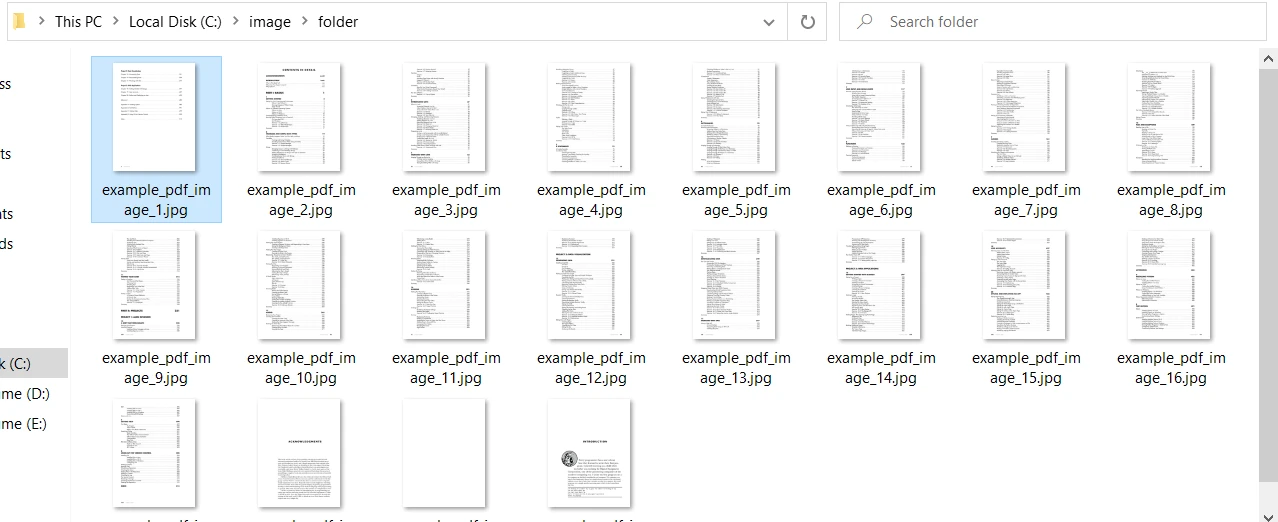 Las imágenes extraídas con más control
Convertir URL en PDF y luego PDF en imágenes
A veces es necesario capturar los productos listados en un sitio web como imágenes para algún propósito. Digamos que hay cientos de productos listados en una página web. Tomar capturas de pantalla será una tarea tediosa y que consume tiempo. IronPDF ofrece la facilidad de convertir una URL a PDF y usar el documento PDF generado para guardar cada página en una imagen.
El siguiente código toma la página de un sitio web de Amazon como URL y la renderiza en un PDF con precisión de píxel. Después de eso, cada página del PDF generado se convierte en un archivo JPG separado.
using IronPdf;

// Create a PDF renderer using the Chromium rendering engine
ChromePdfRenderer renderer = new ChromePdfRenderer();

// Render the URL to a PDF document
PdfDocument pdf = renderer.RenderUrlAsPdf("https://www.amazon.com/?tag=hp2-brobookmark-us-20");

// Convert each page of the PDF to separate JPG image files
pdf.RasterizeToImageFiles(@"C:\image\folder\amazon_pdf_image_*.jpg");
using IronPdf;

// Create a PDF renderer using the Chromium rendering engine
ChromePdfRenderer renderer = new ChromePdfRenderer();

// Render the URL to a PDF document
PdfDocument pdf = renderer.RenderUrlAsPdf("https://www.amazon.com/?tag=hp2-brobookmark-us-20");

// Convert each page of the PDF to separate JPG image files
pdf.RasterizeToImageFiles(@"C:\image\folder\amazon_pdf_image_*.jpg");
Imports IronPdf
' Create a PDF renderer using the Chromium rendering engine
Private renderer As New ChromePdfRenderer()
' Render the URL to a PDF document
Private pdf As PdfDocument = renderer.RenderUrlAsPdf("https://www.amazon.com/?tag=hp2-brobookmark-us-20")
' Convert each page of the PDF to separate JPG image files
pdf.RasterizeToImageFiles("C:\image\folder\amazon_pdf_image_*.jpg")
Imports IronPdf

' Create a PDF renderer using the Chromium rendering engine
Private renderer As New ChromePdfRenderer()

' Render the URL to a PDF document
Private pdf As PdfDocument = renderer.RenderUrlAsPdf("https://www.amazon.com/?tag=hp2-brobookmark-us-20")

' Convert each page of the PDF to separate JPG image files
pdf.RasterizeToImageFiles("C:\image\folder\amazon_pdf_image_*.jpg")
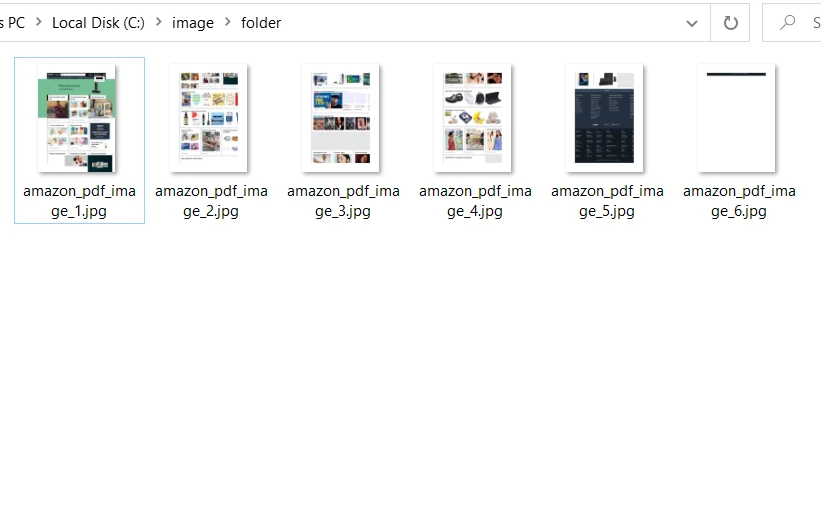 Imágenes extraídas de un sitio web de Amazon
Conclusión
Este artículo demostró cómo convertir documentos PDF en imágenes JPG usando IronPDF para el .NET Framework. El método RasterizeToImageFiles produce imágenes que contienen el número de página junto con el nombre del documento, como se muestra en los ejemplos de código anteriores. IronPDF puede convertir páginas de PDF en imágenes en diferentes formatos: PNG, JPG, GIF, y muchos más.
La Biblioteca IronPDF proporciona un control total sobre el formato de imagen de salida, dimensiones y resolución a sus usuarios. IronPDF también ofrece otras herramientas PDF como rotar páginas PDF, cambiar texto PDF, establecer márgenes, etc. Para saber más sobre IronPDF for .NET y acceder a características adicionales para manipular archivos PDF, por favor consulte los siguientes ejemplos de IronPDF para manipulación de PDF. Para más información sobre cómo convertir PDF a imágenes en diferentes formatos, visite estos ejemplos de código para la conversión a JPG de IronPDF.
La Biblioteca .NET de IronPDF es gratuita para el desarrollo, pero necesita ser licenciada para uso comercial en la Página de Licencias de Iron Software.
Descargue el Archivo Zip de IronPDF for .NET Library y pruébelo.























