



Actualizado 21 de abril de 2026
Cómo Convertir TIFF A PDF en Java
Esta guía integral te llevará a través de los pasos sobre cómo convertir imágenes TIFF a PDF sin problemas en Java usando IronPDF.
Leer más

Este artículo demostrará cómo usar IronPDF para trabajar con documentos PDF y también proteger nuevos archivos con una contraseña de usuario.
IronPDF Java PDF Library es una biblioteca Java para trabajar con documentos PDF. Ofrece una amplia gama de características para generar y manipular PDF, incluyendo la capacidad de añadir texto, imágenes y otros tipos de contenido, y controlar el diseño y formato del documento. También proporciona una serie de características importantes para proteger el contenido del PDF, como usar funciones de protección por contraseña en IronPDF.
Para usar IronPDF para trabajar con PDFs en un proyecto Java Maven, necesitarás asegurarte de que tienes los siguientes requisitos previos:
Java Development Kit (JDK): Debe estar instalada en tu computadora una versión actual de Java. Si no tienes archivos JAR, descarga el último JDK desde el sitio web de Oracle.
Maven: Maven es una importante herramienta de automatización de compilación para proyectos Java, necesaria para gestionar el proyecto y sus dependencias. Descarga Maven o el archivo JAR desde el sitio web de Apache Maven si no lo tienes instalado.
IronPDF for Java Library: También necesitarás la biblioteca IronPDF for Java, que se añadirá a tu proyecto Maven como una dependencia. Esto se puede hacer agregando la siguiente dependencia al archivo pom.xml de su proyecto. Maven lo descargará e instalará automáticamente en el proyecto.
<dependency>
    <groupId>com.ironsoftware</groupId>
    <artifactId>ironpdf</artifactId>
    <version>YOUR_VERSION_HERE</version>
</dependency>Dependencia Slf4j: Añadir la dependencia Slf4j en el archivo pom.xml.
<dependency>
    <groupId>org.slf4j</groupId>
    <artifactId>slf4j-simple</artifactId>
    <version>2.0.3</version>
</dependency>Una vez que hayas configurado tu programa Java con capacidad de protección por contraseña para PDFs, estás listo para usar IronPDF para proteger un archivo PDF con protección por contraseña.
Primero, importa las clases necesarias de IronPDF en tu código Java. Añade el siguiente código al comienzo del archivo "Main.java":
import com.ironsoftware.ironpdf.PdfDocument;
import com.ironsoftware.ironpdf.metadata.MetadataManager;
import com.ironsoftware.ironpdf.security.PdfPrintSecurity;
import com.ironsoftware.ironpdf.security.SecurityManager;
import com.ironsoftware.ironpdf.security.SecurityOptions;

import java.io.IOException;
import java.nio.file.Paths;
import java.util.Date;Ahora, en el método principal, ingrese su clave de licencia utilizando el método setLicenseKey de IronPDF.
// Set your IronPDF license key
License.setLicenseKey("Your license key");El siguiente fragmento de código abrirá un documento que fue encriptado con la contraseña "password":
// Load an encrypted PDF file using its password
PdfDocument pdf = PdfDocument.fromFile(Paths.get("encrypted.pdf"), "secretPassword");En el fragmento de código anterior, se abre un archivo PDF encriptado con la contraseña "password".
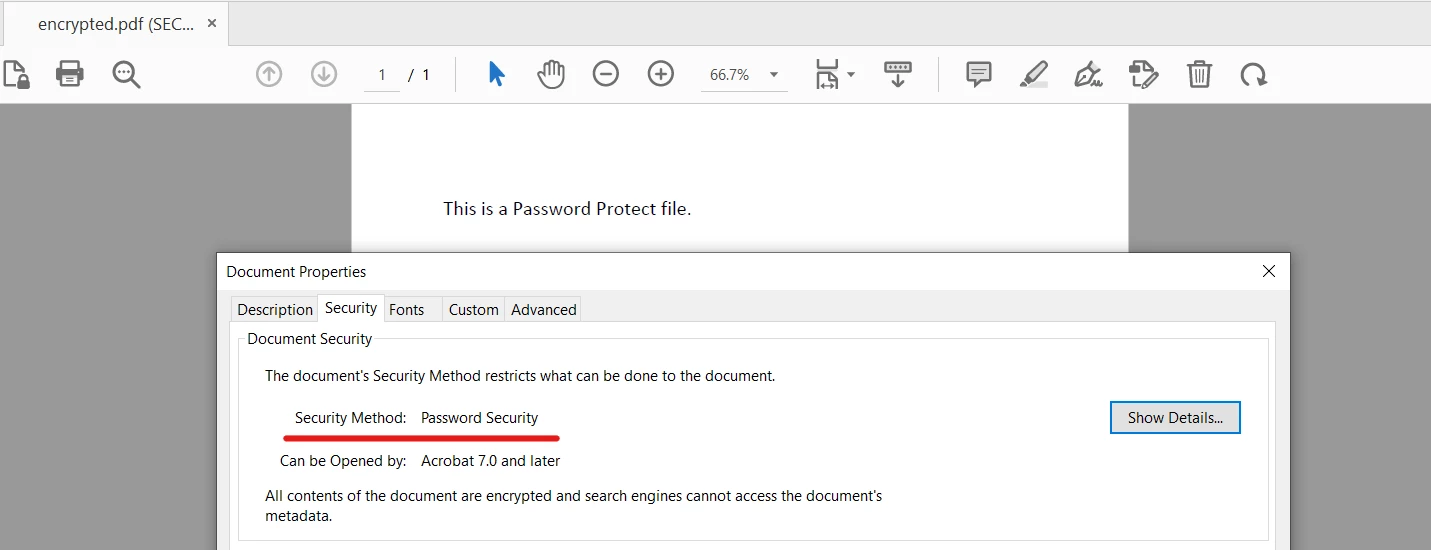 Abrir un documento PDF encriptado
Cambiemos la contraseña del propietario del archivo "encrypted.pdf", que se abrió en el paso anterior. El siguiente código ayuda a lograr esta tarea:
// Change or set the document owner password
SecurityManager securityManager = pdf.getSecurity();
// Remove existing passwords and encryption from the document
securityManager.removePasswordsAndEncryption();
// Set a new password for the document
securityManager.setPassword("secret-key");El primer paso es eliminar la contraseña utilizando el método removePasswordsAndEncryption, y luego establecer una nueva contraseña utilizando el método setPassword.
Finalmente, guarda el documento PDF con la siguiente línea de código:
// Save the secured PDF document
pdf.saveAs(Paths.get("assets/secured.pdf"));El archivo de salida ahora se abre con la contraseña "secret-key".
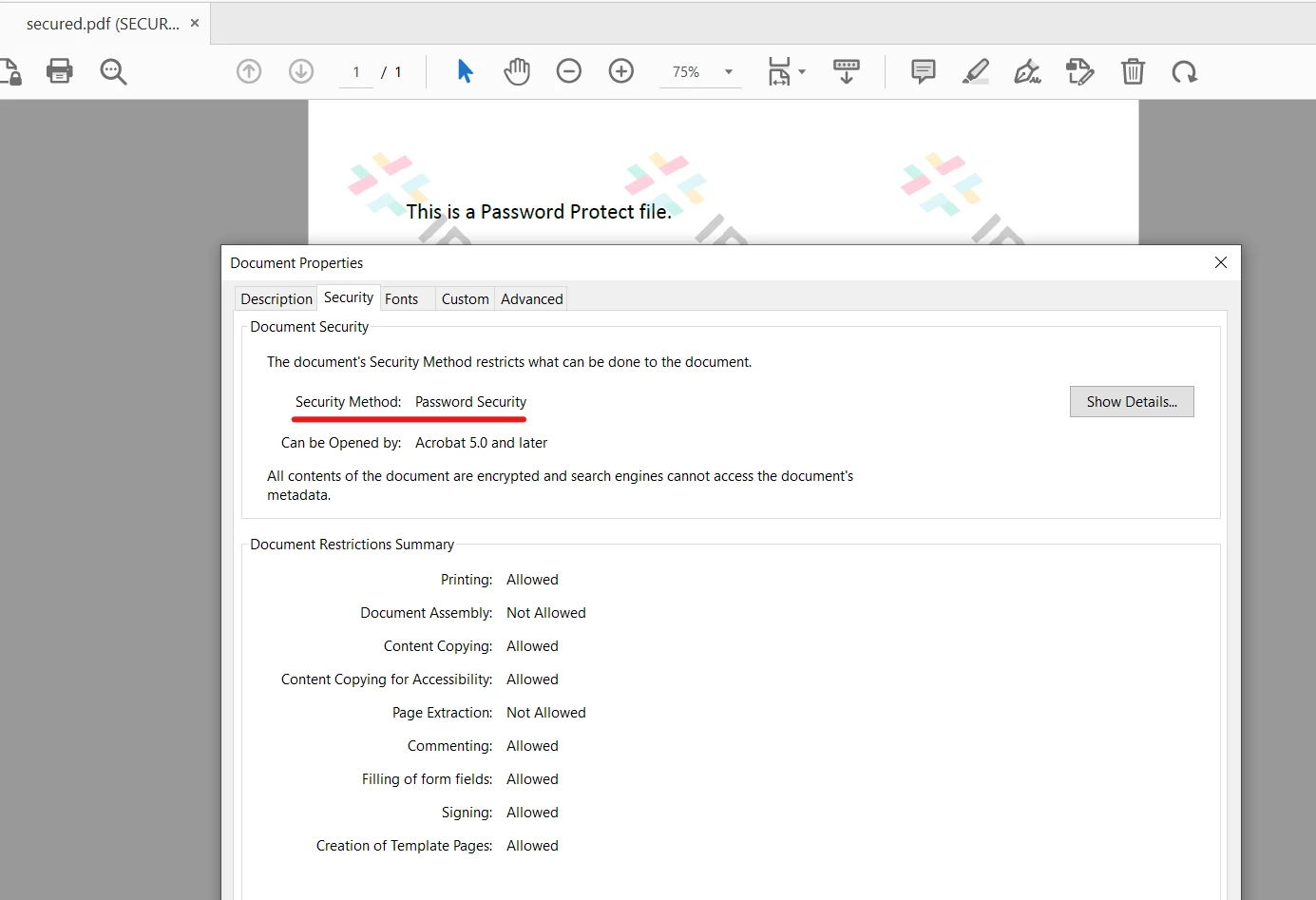 Documento PDF Recién encriptado
Opciones de seguridad importantes se pueden configurar fácilmente con IronPDF en Java utilizando la clase SecurityOptions. El código a continuación hace que el PDF sea de solo lectura y no permite a los usuarios copiar, pegar e imprimir, y establece contraseñas para el propietario y el usuario.
// Configure security options for the PDF document
SecurityOptions securityOptions = new SecurityOptions();
securityOptions.setAllowUserCopyPasteContent(false);
securityOptions.setAllowUserAnnotations(false);
securityOptions.setAllowUserPrinting(PdfPrintSecurity.NO_PRINT);
securityOptions.setAllowUserFormData(false);

SecurityManager securityManager = pdf.getSecurity();
// Apply the specified security options to the PDF
securityManager.setSecurityOptions(securityOptions);Esto establecerá todas las opciones de seguridad necesarias para el documento PDF.
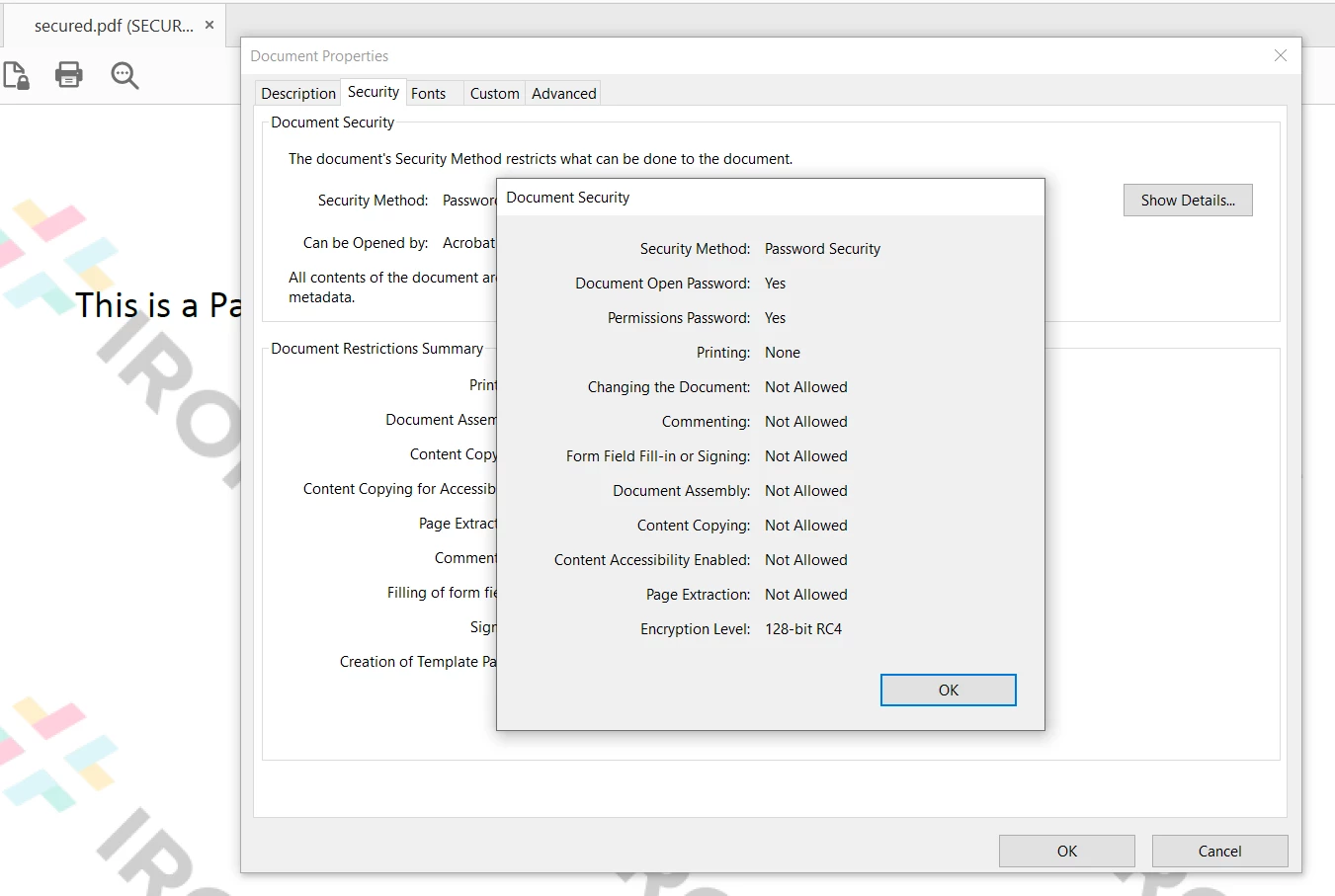 Nuevas Configuraciones de Seguridad del PDF
Este artículo explicó cómo abrir un documento PDF existente y añadir protección por contraseña usando la Biblioteca IronPDF for Java en Java. IronPDF facilita mucho trabajar con archivos PDF en Java. Ya sea que desees crear un nuevo documento o hacer un visor de PDF, IronPDF ayuda a lograr esta tarea con una sola línea de código. El motor de IronPDF está bien adaptado para el lenguaje de programación Java, ya que es rápido y eficiente en memoria. Con IronPDF, puedes establecer una contraseña de usuario junto con la contraseña del propietario. Proporciona opciones de protección completas junto con otras características como convertir a PDF desde otros formatos con IronPDF, dividir documentos con IronPDF, y fusionar documentos con IronPDF.
IronPDF puede usarse gratuitamente en una prueba gratuita de IronPDF y puede licenciarse para uso comercial con IronPDF. Su paquete lite empieza desde $999. Descarga IronPDF y pruébalo.

Curtis Chau tiene una licenciatura en Ciencias de la Computación (Carleton University) y se especializa en el desarrollo front-end con experiencia en Node.js, TypeScript, JavaScript y React. Apasionado por crear interfaces de usuario intuitivas y estéticamente agradables, disfruta trabajando con frameworks modernos y creando manuales bien estructurados y visualmente atractivos.



IronPDF es parte de IRONSUITE
10 productos API .NET para tus documentos de oficina











Cuando necesitas que tu PDF se parezca al HTML, rápido.

