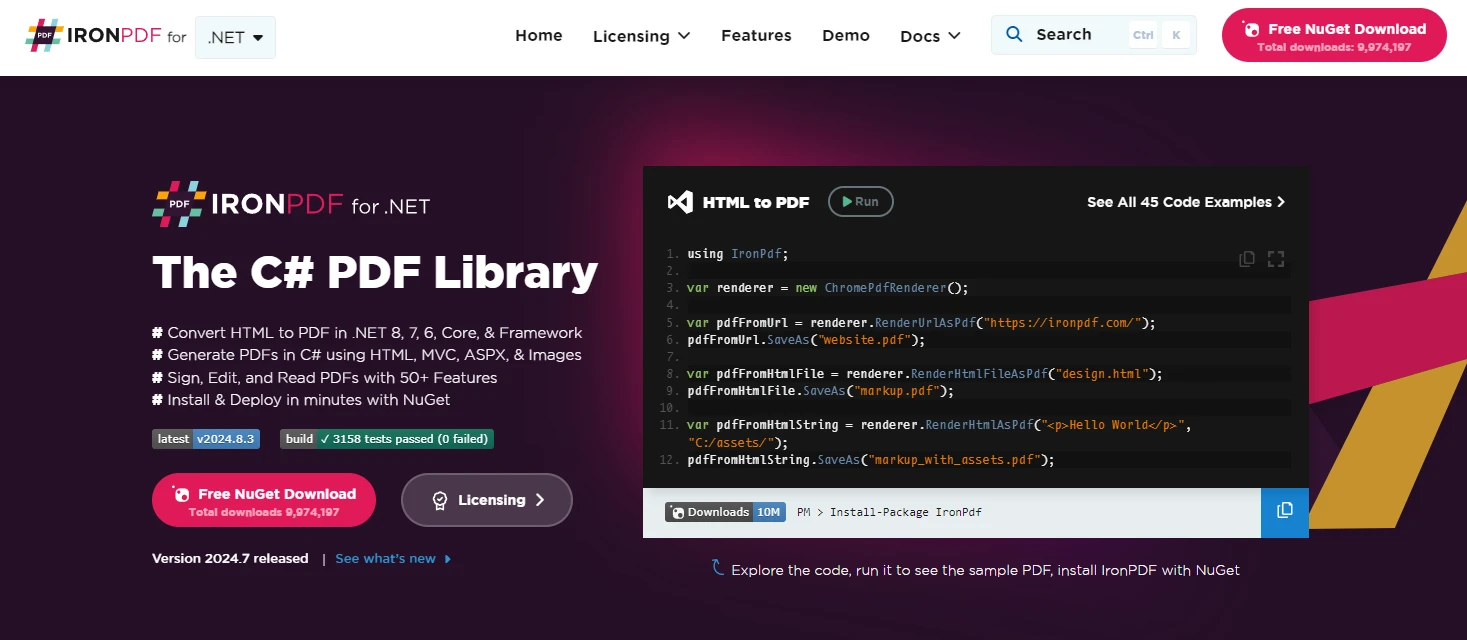
using IronPdf;

// Disable local disk access or cross-origin requests
Installation.EnableWebSecurity = true;

// Instantiate Renderer
var renderer = new ChromePdfRenderer();

// Create a PDF from a HTML string using C#
var pdf = renderer.RenderHtmlAsPdf("<h1>Hello World</h1>");

// Export to a file or Stream
pdf.SaveAs("output.pdf");

// Advanced Example with HTML Assets
// Load external html assets: Images, CSS and JavaScript.
// An optional BasePath 'C:\site\assets\' is set as the file location to load assets from
var myAdvancedPdf = renderer.RenderHtmlAsPdf("<img src='icons/iron.png'>", @"C:\site\assets\");
myAdvancedPdf.SaveAs("html-with-assets.pdf");
using IronPdf;// Disable local disk access or cross-origin requestsInstallation.EnableWebSecurity = true;// Instantiate Renderervar renderer = new ChromePdfRenderer();// Create a PDF from a HTML string using C#var pdf = renderer.RenderHtmlAsPdf("<h1>Hello World</h1>");// Export to a file or Streampdf.SaveAs("output.pdf");// Advanced Example with HTML Assets// Load external html assets: Images, CSS and JavaScript.// An optional BasePath 'C:\site\assets\' is set as the file location to load assets fromvar myAdvancedPdf = renderer.RenderHtmlAsPdf("<img src='icons/iron.png'>", @"C:\site\assets\");myAdvancedPdf.SaveAs("html-with-assets.pdf");
dotnet user-secrets set "APITemplate:ApiKey" "YOUR-API-KEY-HERE"
dotnet user-secrets set "APITemplate:ApiKey" "YOUR-API-KEY-HERE"
SHELL
5.私のコードでは、APIキーでHttpClientをセットアップしました:。
using System.Net.Http;using System.Net.Http.Headers;var client = new HttpClient();client.DefaultRequestHeaders.Add("X-API-KEY", Configuration["APITemplate:ApiKey"]);
using System.Net.Http;
using System.Net.Http.Headers;

var client = new HttpClient();
client.DefaultRequestHeaders.Add("X-API-KEY", Configuration["APITemplate:ApiKey"]);
ImportsSystem.Net.HttpImportsSystem.Net.Http.HeadersPrivate client = New HttpClient()client.DefaultRequestHeaders.Add("X-API-KEY", Configuration("APITemplate:ApiKey"))
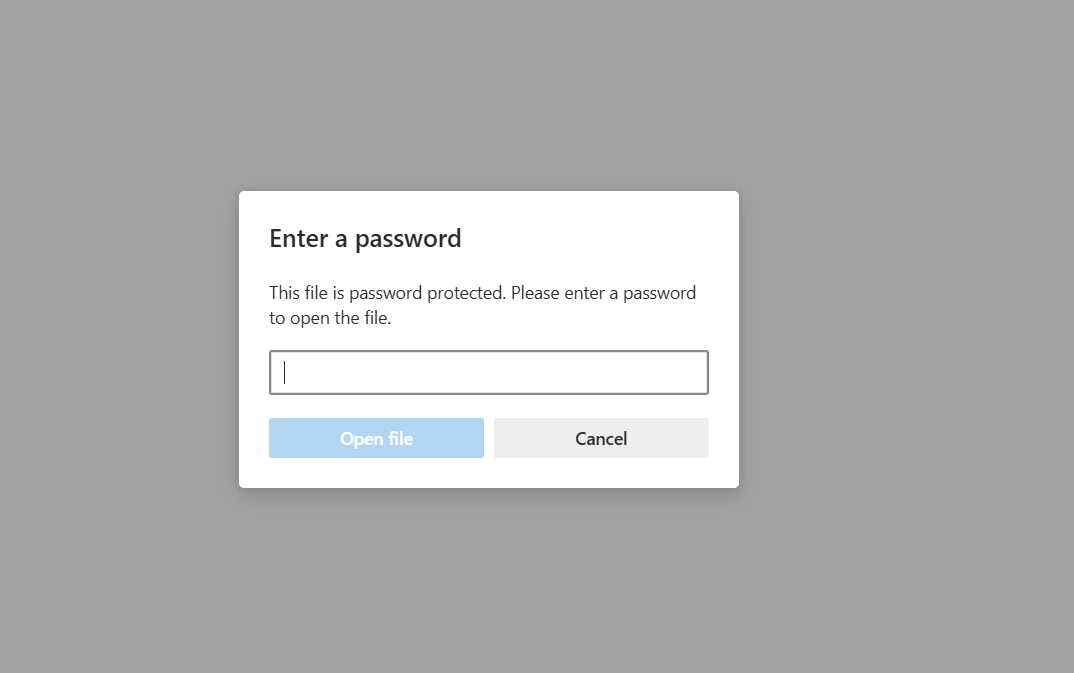
var pdf = PdfDocument.FromFile("input.pdf");// Set user password (for opening the document)pdf.Password = "user_password";// Set owner password (for editing, printing, etc.)pdf.OwnerPassword = "owner_password";// Set specific permissionspdf.SecuritySettings.AllowUserPrinting = IronPdf.Security.PdfPrintSecurity.NoPrint;pdf.SecuritySettings.AllowUserCopyPasteContent = false;pdf.SecuritySettings.AllowUserEdits = IronPdf.Security.PdfEditSecurity.NoEdit;pdf.SaveAs("highly_secured.pdf");
var pdf = PdfDocument.FromFile("input.pdf");
// Set user password (for opening the document)
pdf.Password = "user_password";
// Set owner password (for editing, printing, etc.)
pdf.OwnerPassword = "owner_password";
// Set specific permissions
pdf.SecuritySettings.AllowUserPrinting = IronPdf.Security.PdfPrintSecurity.NoPrint;
pdf.SecuritySettings.AllowUserCopyPasteContent = false;
pdf.SecuritySettings.AllowUserEdits = IronPdf.Security.PdfEditSecurity.NoEdit;
pdf.SaveAs("highly_secured.pdf");
Dim pdf = PdfDocument.FromFile("input.pdf")' Set user password (for opening the document)pdf.Password = "user_password"' Set owner password (for editing, printing, etc.)pdf.OwnerPassword = "owner_password"' Set specific permissionspdf.SecuritySettings.AllowUserPrinting = IronPdf.Security.PdfPrintSecurity.NoPrintpdf.SecuritySettings.AllowUserCopyPasteContent = Falsepdf.SecuritySettings.AllowUserEdits = IronPdf.Security.PdfEditSecurity.NoEditpdf.SaveAs("highly_secured.pdf")
Dim pdf = PdfDocument.FromFile("input.pdf")
' Set user password (for opening the document)
pdf.Password = "user_password"
' Set owner password (for editing, printing, etc.)
pdf.OwnerPassword = "owner_password"
' Set specific permissions
pdf.SecuritySettings.AllowUserPrinting = IronPdf.Security.PdfPrintSecurity.NoPrint
pdf.SecuritySettings.AllowUserCopyPasteContent = False
pdf.SecuritySettings.AllowUserEdits = IronPdf.Security.PdfEditSecurity.NoEdit
pdf.SaveAs("highly_secured.pdf")
Try Dim pdf = PdfDocument.FromFile("encrypted.pdf", "user_password") pdf.SecuritySettings.RemovePasswordsAndEncryption() pdf.SaveAs("decrypted.pdf")Console.WriteLine("PDF decrypted successfully!")Catch ex AsExceptionConsole.WriteLine($"Decryption failed: {ex.Message}")EndTry
Try
	Dim pdf = PdfDocument.FromFile("encrypted.pdf", "user_password")
	pdf.SecuritySettings.RemovePasswordsAndEncryption()
	pdf.SaveAs("decrypted.pdf")
	Console.WriteLine("PDF decrypted successfully!")
Catch ex As Exception
	Console.WriteLine($"Decryption failed: {ex.Message}")
End Try
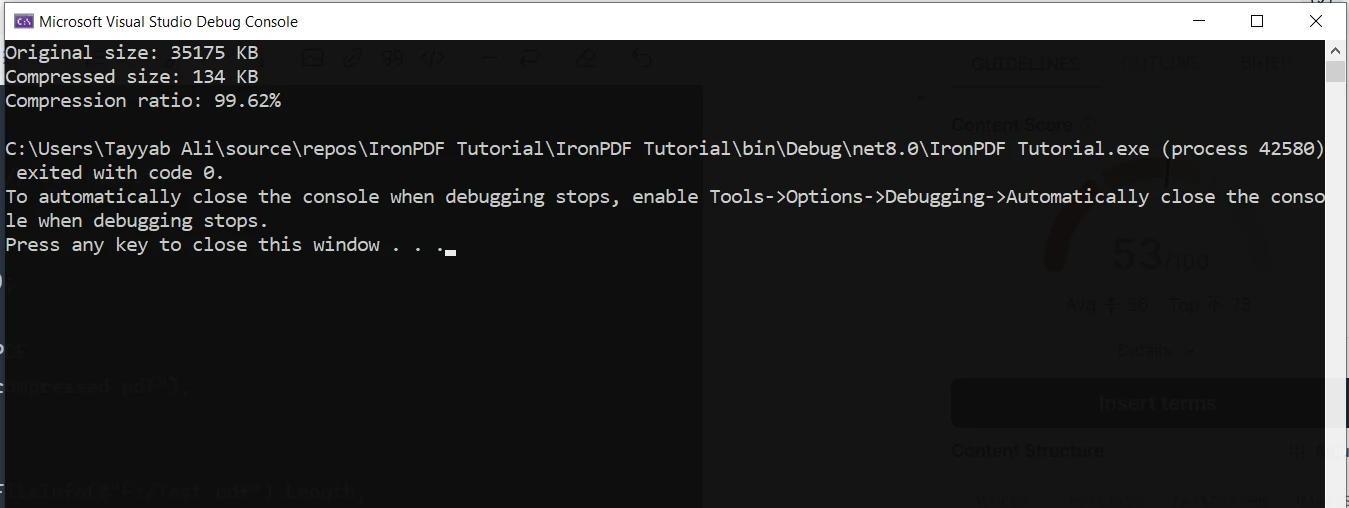
1.メールの添付ファイル: PDF をメールで送信するときは、添付ファイルのサイズ制限を超えないように圧縮します。
2. **Web アプリケーション:**ユーザーがダウンロードする必要がある PDF の場合、圧縮によって読み込み時間と帯域幅の使用量を削減できます。
3.**アーカイブ:**大量の PDF を長期保存する場合、圧縮によってストレージ コストが大幅に削減されます。
あるプロジェクトでは、法律事務所の文書管理システムを担当しました。 PDF 形式のケースファイルが数千もあり、その多くはファイルサイズが大きいスキャン文書でした。 この圧縮技法を実装することによって、私たちはストレージ要件において重大な削減を達成し、クラウドストレージの請求書において意味のある節約をもたらしました。
using IronPdf;using IronPdf.Signing;var renderer = new ChromePdfRenderer();var pdf = PdfDocument.FromFile(@"F:/Contract.pdf");var signature = new IronPdf.Signing.PdfSignature(@"F:/Iron.pfx", "123"){ // Step 3. Optional signing options and a handwritten signature graphicSigningContact = "support@ironsoftware.com",SigningLocation = "New York, USA",SigningReason = "Signing PDF"};pdf.Sign(signature);pdf.SaveAs(@"F:/signed.pdf");
using IronPdf;
using IronPdf.Signing;

var renderer = new ChromePdfRenderer();
var pdf = PdfDocument.FromFile(@"F:/Contract.pdf");
var signature = new IronPdf.Signing.PdfSignature(@"F:/Iron.pfx", "123")
{
    // Step 3. Optional signing options and a handwritten signature graphic
    SigningContact = "support@ironsoftware.com",
    SigningLocation = "New York, USA",
    SigningReason = "Signing PDF"
};
pdf.Sign(signature);
pdf.SaveAs(@"F:/signed.pdf");
ImportsIronPdfImportsIronPdf.SigningPrivate renderer = New ChromePdfRenderer()Private pdf = PdfDocument.FromFile("F:/Contract.pdf")Private signature = New IronPdf.Signing.PdfSignature("F:/Iron.pfx", "123") With { .SigningContact = "support@ironsoftware.com", .SigningLocation = "New York, USA", .SigningReason = "Signing PDF"}pdf.Sign(signature)pdf.SaveAs("F:/signed.pdf")
Imports IronPdf
Imports IronPdf.Signing

Private renderer = New ChromePdfRenderer()
Private pdf = PdfDocument.FromFile("F:/Contract.pdf")
Private signature = New IronPdf.Signing.PdfSignature("F:/Iron.pfx", "123") With {
	.SigningContact = "support@ironsoftware.com",
	.SigningLocation = "New York, USA",
	.SigningReason = "Signing PDF"
}
pdf.Sign(signature)
pdf.SaveAs("F:/signed.pdf")
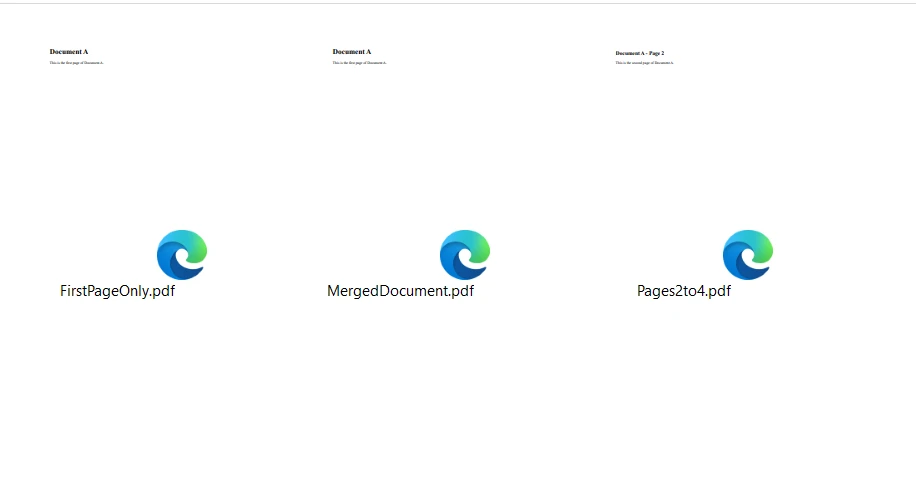
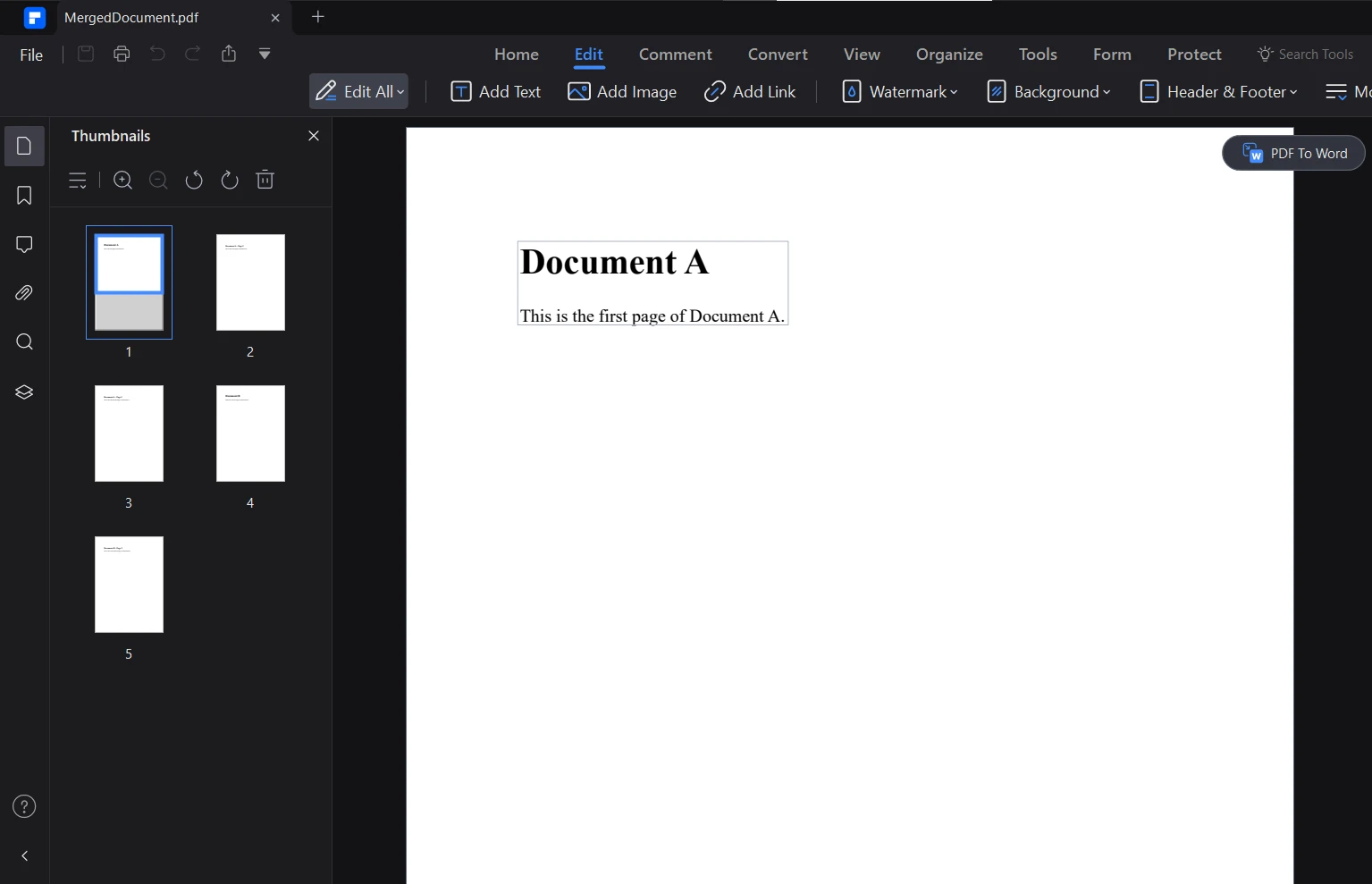
using IronPdf;class Program{ static voidMain(string[] args) { // Create first PDF with three pages const string html_a = @" <h1>Document A</h1> <p>This is the first page of Document A.</p> <div style='page-break-after: always;'></div> <h2>Document A - Page 2</h2> <p>This is the second page of Document A.</p> <div style='page-break-after: always;'></div> <h2>Document A - Page 3</h2> <p>This is the third and final page of Document A.</p>"; // Create second PDF with two pages const string html_b = @" <h1>Document B</h1> <p>Welcome to the first page of Document B.</p> <div style='page-break-after: always;'></div> <h2>Document B - Page 2</h2> <p>This is the second and last page of Document B.</p>"; // Render HTML to PDF var renderer = new ChromePdfRenderer(); var pdfdoc_a = renderer.RenderHtmlAsPdf(html_a); var pdfdoc_b = renderer.RenderHtmlAsPdf(html_b); // Merge PDFs var merged = PdfDocument.Merge(pdfdoc_a, pdfdoc_b); merged.SaveAs(@"F:/IronPdf/MergedDocument.pdf");Console.WriteLine("Merged PDF created: MergedDocument.pdf"); // Load the merged PDF var pdf = PdfDocument.FromFile(@"F:/IronPdf/MergedDocument.pdf"); // Extract the first page var firstPage = pdf.CopyPage(0); firstPage.SaveAs(@"F:/IronPdf/FirstPageOnly.pdf");Console.WriteLine("First page extracted: FirstPageOnly.pdf"); // Extract pages 2 to 4 (note: index starts at 0) var middlePages = pdf.CopyPages(1, 3); middlePages.SaveAs(@"F:/IronPdf/Pages2to4.pdf");Console.WriteLine("Pages 2 to 4 extracted: Pages2to4.pdf");Console.WriteLine("Process completed. Press any key to exit.");Console.ReadKey(); }}
using IronPdf;
class Program
{
    static void Main(string[] args)
    {
        // Create first PDF with three pages
        const string html_a = @"
            <h1>Document A</h1>
            <p>This is the first page of Document A.</p>
            <div style='page-break-after: always;'></div>
            <h2>Document A - Page 2</h2>
            <p>This is the second page of Document A.</p>
            <div style='page-break-after: always;'></div>
            <h2>Document A - Page 3</h2>
            <p>This is the third and final page of Document A.</p>";
        // Create second PDF with two pages
        const string html_b = @"
            <h1>Document B</h1>
            <p>Welcome to the first page of Document B.</p>
            <div style='page-break-after: always;'></div>
            <h2>Document B - Page 2</h2>
            <p>This is the second and last page of Document B.</p>";
        // Render HTML to PDF
        var renderer = new ChromePdfRenderer();
        var pdfdoc_a = renderer.RenderHtmlAsPdf(html_a);
        var pdfdoc_b = renderer.RenderHtmlAsPdf(html_b);
        // Merge PDFs
        var merged = PdfDocument.Merge(pdfdoc_a, pdfdoc_b);
        merged.SaveAs(@"F:/IronPdf/MergedDocument.pdf");
        Console.WriteLine("Merged PDF created: MergedDocument.pdf");
        // Load the merged PDF
        var pdf = PdfDocument.FromFile(@"F:/IronPdf/MergedDocument.pdf");
        // Extract the first page
        var firstPage = pdf.CopyPage(0);
        firstPage.SaveAs(@"F:/IronPdf/FirstPageOnly.pdf");
        Console.WriteLine("First page extracted: FirstPageOnly.pdf");
        // Extract pages 2 to 4 (note: index starts at 0)
        var middlePages = pdf.CopyPages(1, 3);
        middlePages.SaveAs(@"F:/IronPdf/Pages2to4.pdf");
        Console.WriteLine("Pages 2 to 4 extracted: Pages2to4.pdf");
        Console.WriteLine("Process completed. Press any key to exit.");
        Console.ReadKey();
    }
}
ImportsIronPdfFriend Class ProgramShared Sub Main(ByVal args() AsString) ' Create first PDF with three pages Const html_a AsString = " <h1>Document A</h1> <p>This is the first page of Document A.</p> <div style='page-break-after: always;'></div> <h2>Document A - Page 2</h2> <p>This is the second page of Document A.</p> <div style='page-break-after: always;'></div> <h2>Document A - Page 3</h2> <p>This is the third and final page of Document A.</p>" ' Create second PDF with two pages Const html_b AsString = " <h1>Document B</h1> <p>Welcome to the first page of Document B.</p> <div style='page-break-after: always;'></div> <h2>Document B - Page 2</h2> <p>This is the second and last page of Document B.</p>" ' Render HTML to PDF Dim renderer = New ChromePdfRenderer() Dim pdfdoc_a = renderer.RenderHtmlAsPdf(html_a) Dim pdfdoc_b = renderer.RenderHtmlAsPdf(html_b) ' Merge PDFs Dim merged = PdfDocument.Merge(pdfdoc_a, pdfdoc_b) merged.SaveAs("F:/IronPdf/MergedDocument.pdf")Console.WriteLine("Merged PDF created: MergedDocument.pdf") ' Load the merged PDF Dim pdf = PdfDocument.FromFile("F:/IronPdf/MergedDocument.pdf") ' Extract the first page Dim firstPage = pdf.CopyPage(0) firstPage.SaveAs("F:/IronPdf/FirstPageOnly.pdf")Console.WriteLine("First page extracted: FirstPageOnly.pdf") ' Extract pages 2 to 4 (note: index starts at 0) Dim middlePages = pdf.CopyPages(1, 3) middlePages.SaveAs("F:/IronPdf/Pages2to4.pdf")Console.WriteLine("Pages 2 to 4 extracted: Pages2to4.pdf")Console.WriteLine("Process completed. Press any key to exit.")Console.ReadKey() End SubEnd Class
Imports IronPdf
Friend Class Program
	Shared Sub Main(ByVal args() As String)
		' Create first PDF with three pages
		Const html_a As String = "
            <h1>Document A</h1>
            <p>This is the first page of Document A.</p>
            <div style='page-break-after: always;'></div>
            <h2>Document A - Page 2</h2>
            <p>This is the second page of Document A.</p>
            <div style='page-break-after: always;'></div>
            <h2>Document A - Page 3</h2>
            <p>This is the third and final page of Document A.</p>"
		' Create second PDF with two pages
		Const html_b As String = "
            <h1>Document B</h1>
            <p>Welcome to the first page of Document B.</p>
            <div style='page-break-after: always;'></div>
            <h2>Document B - Page 2</h2>
            <p>This is the second and last page of Document B.</p>"
		' Render HTML to PDF
		Dim renderer = New ChromePdfRenderer()
		Dim pdfdoc_a = renderer.RenderHtmlAsPdf(html_a)
		Dim pdfdoc_b = renderer.RenderHtmlAsPdf(html_b)
		' Merge PDFs
		Dim merged = PdfDocument.Merge(pdfdoc_a, pdfdoc_b)
		merged.SaveAs("F:/IronPdf/MergedDocument.pdf")
		Console.WriteLine("Merged PDF created: MergedDocument.pdf")
		' Load the merged PDF
		Dim pdf = PdfDocument.FromFile("F:/IronPdf/MergedDocument.pdf")
		' Extract the first page
		Dim firstPage = pdf.CopyPage(0)
		firstPage.SaveAs("F:/IronPdf/FirstPageOnly.pdf")
		Console.WriteLine("First page extracted: FirstPageOnly.pdf")
		' Extract pages 2 to 4 (note: index starts at 0)
		Dim middlePages = pdf.CopyPages(1, 3)
		middlePages.SaveAs("F:/IronPdf/Pages2to4.pdf")
		Console.WriteLine("Pages 2 to 4 extracted: Pages2to4.pdf")
		Console.WriteLine("Process completed. Press any key to exit.")
		Console.ReadKey()
	End Sub
End Class
using IronPdf;using System;// Load the combined formPdfDocument pdf = PdfDocument.FromFile(@"F:/completeForm.pdf");// Handle radio buttonsvar radioForm = pdf.Form.FindFormField("traveltype");radioForm.Value = "Airplane";// Handle checkboxvar checkboxForm = pdf.Form.FindFormField("taskCompleted");checkboxForm.Value = "Yes";// Handle comboboxvar comboboxForm = pdf.Form.FindFormField("priority");comboboxForm.Value = "Low";// Print out all the available choices for comboboxforeach (var choice in comboboxForm.Choices){Console.WriteLine(choice);}// Handle text inputspdf.Form.FindFormField("firstname").Value = "John";pdf.Form.FindFormField("lastname").Value = "Smith";// Handle text areapdf.Form.FindFormField("address").Value = "Iron Software\r\n205 N. Michigan Ave.";// Save the edited PDFpdf.SaveAs(@"F:/completeFormEdited.pdf");
using IronPdf;
using System;

// Load the combined form
PdfDocument pdf = PdfDocument.FromFile(@"F:/completeForm.pdf");

// Handle radio buttons
var radioForm = pdf.Form.FindFormField("traveltype");
radioForm.Value = "Airplane";

// Handle checkbox
var checkboxForm = pdf.Form.FindFormField("taskCompleted");
checkboxForm.Value = "Yes";

// Handle combobox
var comboboxForm = pdf.Form.FindFormField("priority");
comboboxForm.Value = "Low";

// Print out all the available choices for combobox
foreach (var choice in comboboxForm.Choices)
{
    Console.WriteLine(choice);
}

// Handle text inputs
pdf.Form.FindFormField("firstname").Value = "John";
pdf.Form.FindFormField("lastname").Value = "Smith";

// Handle text area
pdf.Form.FindFormField("address").Value = "Iron Software\r\n205 N. Michigan Ave.";

// Save the edited PDF
pdf.SaveAs(@"F:/completeFormEdited.pdf");
ImportsMicrosoft.VisualBasicImportsIronPdfImportsSystem' Load the combined formPrivate pdf AsPdfDocument = PdfDocument.FromFile("F:/completeForm.pdf")' Handle radio buttonsPrivate radioForm = pdf.Form.FindFormField("traveltype")radioForm.Value = "Airplane"' Handle checkboxDim checkboxForm = pdf.Form.FindFormField("taskCompleted")checkboxForm.Value = "Yes"' Handle comboboxDim comboboxForm = pdf.Form.FindFormField("priority")comboboxForm.Value = "Low"' Print out all the available choices for comboboxFor Each choice In comboboxForm.ChoicesConsole.WriteLine(choice)Next choice' Handle text inputspdf.Form.FindFormField("firstname").Value = "John"pdf.Form.FindFormField("lastname").Value = "Smith"' Handle text areapdf.Form.FindFormField("address").Value = "Iron Software" & vbCrLf & "205 N. Michigan Ave."' Save the edited PDFpdf.SaveAs("F:/completeFormEdited.pdf")
Imports Microsoft.VisualBasic
Imports IronPdf
Imports System

' Load the combined form
Private pdf As PdfDocument = PdfDocument.FromFile("F:/completeForm.pdf")

' Handle radio buttons
Private radioForm = pdf.Form.FindFormField("traveltype")
radioForm.Value = "Airplane"

' Handle checkbox
Dim checkboxForm = pdf.Form.FindFormField("taskCompleted")
checkboxForm.Value = "Yes"

' Handle combobox
Dim comboboxForm = pdf.Form.FindFormField("priority")
comboboxForm.Value = "Low"

' Print out all the available choices for combobox
For Each choice In comboboxForm.Choices
	Console.WriteLine(choice)
Next choice

' Handle text inputs
pdf.Form.FindFormField("firstname").Value = "John"
pdf.Form.FindFormField("lastname").Value = "Smith"

' Handle text area
pdf.Form.FindFormField("address").Value = "Iron Software" & vbCrLf & "205 N. Michigan Ave."

' Save the edited PDF
pdf.SaveAs("F:/completeFormEdited.pdf")
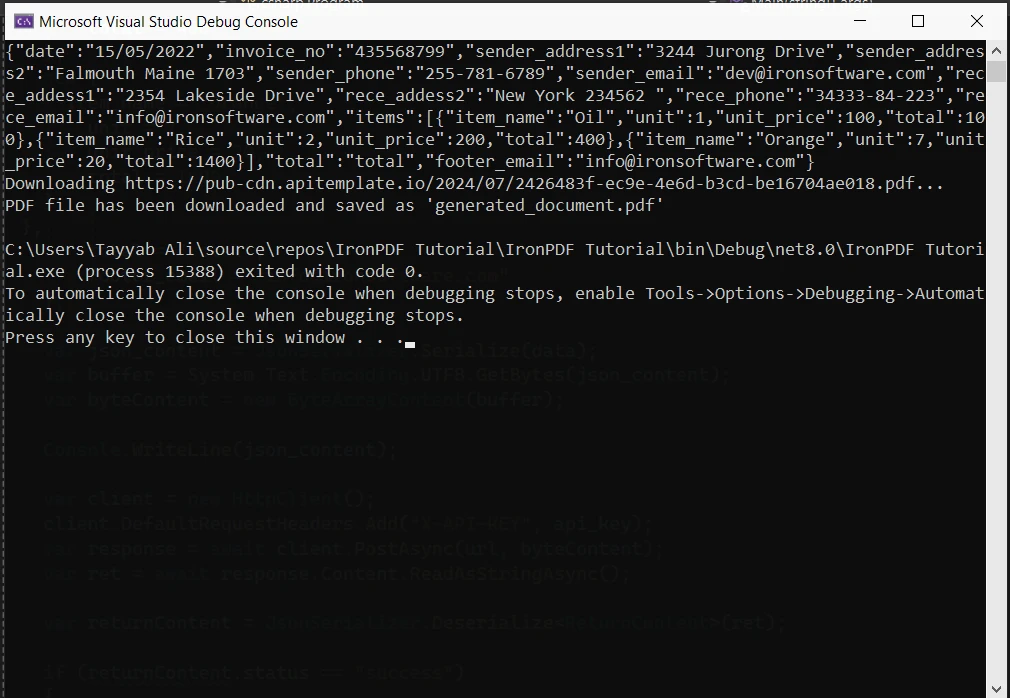
using System;using System.IO;using System.Net.Http;using System.Text.Json;using System.Threading.Tasks;namespace csharp{ class ReturnContent { public string download_url { get; set; } public string status { get; set; } } class Program { static async TaskMain(string[] args) { var api_key = "a9e4MjA2NTg6MTc3Njk6Uk1ZSzVjTWs1T3d6VE9Mdw="; var template_id = "bf077b23b4a407ae"; var url = $"https://rest.apitemplate.io/v2/create-pdf?template_id={template_id}"; var data = new { date = "15/05/2022", invoice_no = "435568799", sender_address1 = "3244 Jurong Drive", sender_address2 = "Falmouth Maine 1703", sender_phone = "255-781-6789", sender_email = "dev@ironsoftware.com", rece_addess1 = "2354 Lakeside Drive", rece_addess2 = "New York 234562 ", rece_phone = "34333-84-223", rece_email = "info@ironsoftware.com", items = new[] { new { item_name = "Oil", unit = 1, unit_price = 100, total = 100 }, new { item_name = "Rice", unit = 2, unit_price = 200, total = 400 }, new { item_name = "Orange", unit = 7, unit_price = 20, total = 1400 } }, total = "total", footer_email = "info@ironsoftware.com" }; var json_content = JsonSerializer.Serialize(data); var buffer = System.Text.Encoding.UTF8.GetBytes(json_content); var byteContent = new ByteArrayContent(buffer);Console.WriteLine(json_content); var client = new HttpClient(); client.DefaultRequestHeaders.Add("X-API-KEY", api_key); var response = await client.PostAsync(url, byteContent); var ret = await response.Content.ReadAsStringAsync(); var returnContent = JsonSerializer.Deserialize<ReturnContent>(ret); if (returnContent.status == "success") {Console.WriteLine($"Downloading {returnContent.download_url}..."); var download_response = await client.GetAsync(returnContent.download_url); using (var stream = await download_response.Content.ReadAsStreamAsync()) { var fileInfo = new FileInfo(@"F:/generated_document.pdf"); using (var fileStream = fileInfo.OpenWrite()) { await stream.CopyToAsync(fileStream); } }Console.WriteLine("PDF file has been downloaded and saved as 'generated_document.pdf'"); } } }}
using System;
using System.IO;
using System.Net.Http;
using System.Text.Json;
using System.Threading.Tasks;

namespace csharp
{
    class ReturnContent
    {
        public string download_url { get; set; }
        public string status { get; set; }
    }

    class Program
    {
        static async Task Main(string[] args)
        {
            var api_key = "a9e4MjA2NTg6MTc3Njk6Uk1ZSzVjTWs1T3d6VE9Mdw=";
            var template_id = "bf077b23b4a407ae";
            var url = $"https://rest.apitemplate.io/v2/create-pdf?template_id={template_id}";
            var data = new
            {
                date = "15/05/2022",
                invoice_no = "435568799",
                sender_address1 = "3244 Jurong Drive",
                sender_address2 = "Falmouth Maine 1703",
                sender_phone = "255-781-6789",
                sender_email = "dev@ironsoftware.com",
                rece_addess1 = "2354 Lakeside Drive",
                rece_addess2 = "New York 234562 ",
                rece_phone = "34333-84-223",
                rece_email = "info@ironsoftware.com",
                items = new[]
                {
                    new { item_name = "Oil", unit = 1, unit_price = 100, total = 100 },
                    new { item_name = "Rice", unit = 2, unit_price = 200, total = 400 },
                    new { item_name = "Orange", unit = 7, unit_price = 20, total = 1400 }
                },
                total = "total",
                footer_email = "info@ironsoftware.com"
            };
            var json_content = JsonSerializer.Serialize(data);
            var buffer = System.Text.Encoding.UTF8.GetBytes(json_content);
            var byteContent = new ByteArrayContent(buffer);
            Console.WriteLine(json_content);
            var client = new HttpClient();
            client.DefaultRequestHeaders.Add("X-API-KEY", api_key);
            var response = await client.PostAsync(url, byteContent);
            var ret = await response.Content.ReadAsStringAsync();
            var returnContent = JsonSerializer.Deserialize<ReturnContent>(ret);
            if (returnContent.status == "success")
            {
                Console.WriteLine($"Downloading {returnContent.download_url}...");
                var download_response = await client.GetAsync(returnContent.download_url);
                using (var stream = await download_response.Content.ReadAsStreamAsync())
                {
                    var fileInfo = new FileInfo(@"F:/generated_document.pdf");
                    using (var fileStream = fileInfo.OpenWrite())
                    {
                        await stream.CopyToAsync(fileStream);
                    }
                }
                Console.WriteLine("PDF file has been downloaded and saved as 'generated_document.pdf'");
            }
        }
    }
}
ImportsSystemImportsSystem.IOImportsSystem.Net.HttpImportsSystem.Text.JsonImportsSystem.Threading.TasksNamespace csharpFriend Class ReturnContent Public Property download_url() AsString Public Property status() AsString End ClassFriend Class ProgramSharedAsync Function Main(ByVal args() AsString) AsTask Dim api_key = "a9e4MjA2NTg6MTc3Njk6Uk1ZSzVjTWs1T3d6VE9Mdw=" Dim template_id = "bf077b23b4a407ae" Dim url = $"https://rest.apitemplate.io/v2/create-pdf?template_id={template_id}" Dim data = New With {Key .date = "15/05/2022",Key .invoice_no = "435568799",Key .sender_address1 = "3244 Jurong Drive",Key .sender_address2 = "Falmouth Maine 1703",Key .sender_phone = "255-781-6789",Key .sender_email = "dev@ironsoftware.com",Key .rece_addess1 = "2354 Lakeside Drive",Key .rece_addess2 = "New York 234562 ",Key .rece_phone = "34333-84-223",Key .rece_email = "info@ironsoftware.com",Key .items = { New With {Key .item_name = "Oil",Key .unit = 1,Key .unit_price = 100,Key .total = 100 }, New With {Key .item_name = "Rice",Key .unit = 2,Key .unit_price = 200,Key .total = 400 }, New With {Key .item_name = "Orange",Key .unit = 7,Key .unit_price = 20,Key .total = 1400 } },Key .total = "total",Key .footer_email = "info@ironsoftware.com" } Dim json_content = JsonSerializer.Serialize(data) Dim buffer = System.Text.Encoding.UTF8.GetBytes(json_content) Dim byteContent = New ByteArrayContent(buffer)Console.WriteLine(json_content) Dim client = New HttpClient() client.DefaultRequestHeaders.Add("X-API-KEY", api_key) Dim response = Await client.PostAsync(url, byteContent) Dim ret = Awaitresponse.Content.ReadAsStringAsync() Dim returnContent = JsonSerializer.Deserialize(OfReturnContent)(ret) If returnContent.status = "success" ThenConsole.WriteLine($"Downloading {returnContent.download_url}...") Dim download_response = Await client.GetAsync(returnContent.download_url)Using stream = Await download_response.Content.ReadAsStreamAsync() Dim fileInfo As New FileInfo("F:/generated_document.pdf")Using fileStream = fileInfo.OpenWrite()Await stream.CopyToAsync(fileStream)EndUsingEndUsingConsole.WriteLine("PDF file has been downloaded and saved as 'generated_document.pdf'") End If End Function End ClassEndNamespace
Imports System
Imports System.IO
Imports System.Net.Http
Imports System.Text.Json
Imports System.Threading.Tasks

Namespace csharp
	Friend Class ReturnContent
		Public Property download_url() As String
		Public Property status() As String
	End Class

	Friend Class Program
		Shared Async Function Main(ByVal args() As String) As Task
			Dim api_key = "a9e4MjA2NTg6MTc3Njk6Uk1ZSzVjTWs1T3d6VE9Mdw="
			Dim template_id = "bf077b23b4a407ae"
			Dim url = $"https://rest.apitemplate.io/v2/create-pdf?template_id={template_id}"
			Dim data = New With {
				Key .date = "15/05/2022",
				Key .invoice_no = "435568799",
				Key .sender_address1 = "3244 Jurong Drive",
				Key .sender_address2 = "Falmouth Maine 1703",
				Key .sender_phone = "255-781-6789",
				Key .sender_email = "dev@ironsoftware.com",
				Key .rece_addess1 = "2354 Lakeside Drive",
				Key .rece_addess2 = "New York 234562 ",
				Key .rece_phone = "34333-84-223",
				Key .rece_email = "info@ironsoftware.com",
				Key .items = {
					New With {
						Key .item_name = "Oil",
						Key .unit = 1,
						Key .unit_price = 100,
						Key .total = 100
					},
					New With {
						Key .item_name = "Rice",
						Key .unit = 2,
						Key .unit_price = 200,
						Key .total = 400
					},
					New With {
						Key .item_name = "Orange",
						Key .unit = 7,
						Key .unit_price = 20,
						Key .total = 1400
					}
				},
				Key .total = "total",
				Key .footer_email = "info@ironsoftware.com"
			}
			Dim json_content = JsonSerializer.Serialize(data)
			Dim buffer = System.Text.Encoding.UTF8.GetBytes(json_content)
			Dim byteContent = New ByteArrayContent(buffer)
			Console.WriteLine(json_content)
			Dim client = New HttpClient()
			client.DefaultRequestHeaders.Add("X-API-KEY", api_key)
			Dim response = Await client.PostAsync(url, byteContent)
			Dim ret = Await response.Content.ReadAsStringAsync()
			Dim returnContent = JsonSerializer.Deserialize(Of ReturnContent)(ret)
			If returnContent.status = "success" Then
				Console.WriteLine($"Downloading {returnContent.download_url}...")
				Dim download_response = Await client.GetAsync(returnContent.download_url)
				Using stream = Await download_response.Content.ReadAsStreamAsync()
					Dim fileInfo As New FileInfo("F:/generated_document.pdf")
					Using fileStream = fileInfo.OpenWrite()
						Await stream.CopyToAsync(fileStream)
					End Using
				End Using
				Console.WriteLine("PDF file has been downloaded and saved as 'generated_document.pdf'")
			End If
		End Function
	End Class
End Namespace
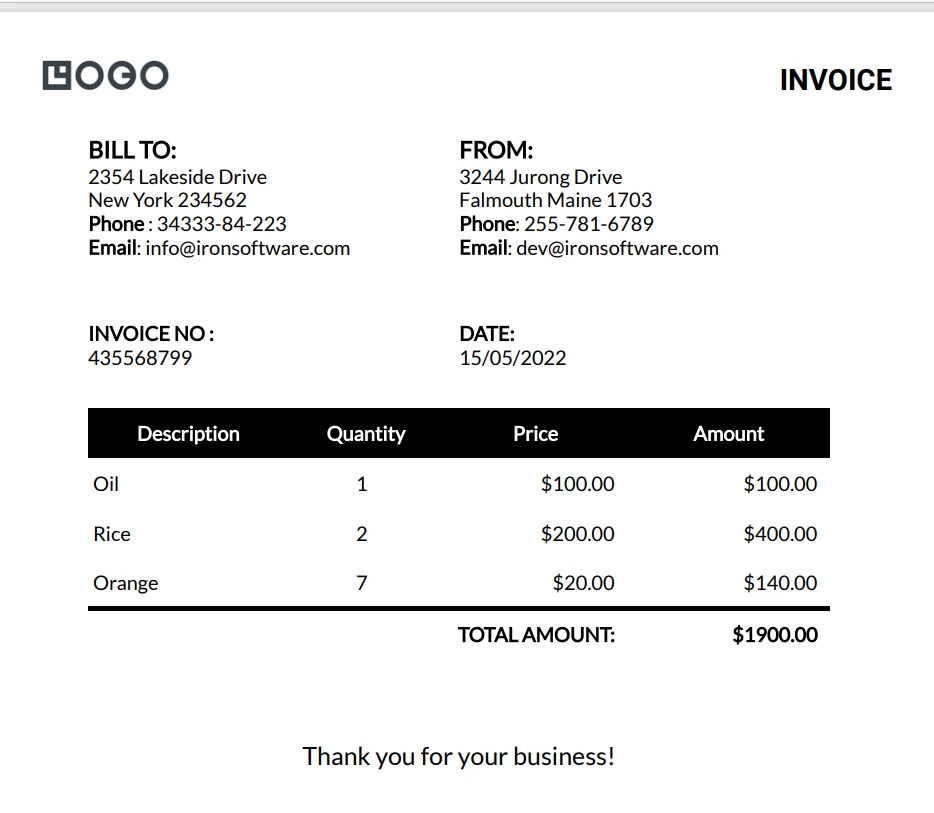
これが生成されたPDFドキュメントです:
バルクPDF生成
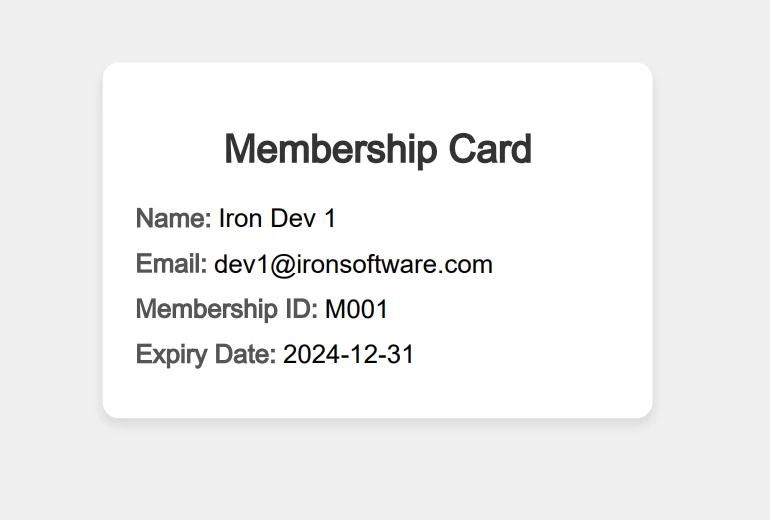
APITemplate の一括 PDF 生成機能は、1 回の API 呼び出しで複数のドキュメントを作成する場合に大きな利点となります。 以下は、私がどのように使用したかのより詳細な例です:
using System;using System.IO;using System.Net.Http;using System.Text.Json;using System.Threading.Tasks;using System.Collections.Generic;namespace csharp{ class ReturnContent { public string download_url { get; set; } public string status { get; set; } } class Program { static async TaskMain(string[] args) { var api_key = "a9e4MjA2NTg6MTc3Njk6Uk1ZSzVjTWs1T3d6VE9Mdw="; var template_id = "d4f77b23b4ab09fa"; var url = $"https://rest.apitemplate.io/v2/create-pdf?template_id={template_id}"; var membershipCards = new List<object> { new { name = "Iron Dev 1", email = "dev1@ironsoftware.com", membership_id = "M001", expiry_date = "2024-12-31" }, new { name = "Iron Dev 2", email = "dev2@ironsoftware.com", membership_id = "M002", expiry_date = "2025-06-30" }, new { name = "Iron Dev 3", email = "dev3@ironsoftware.com", membership_id = "M003", expiry_date = "2024-09-15" } }; var client = new HttpClient(); client.DefaultRequestHeaders.Add("X-API-KEY", api_key); for (int i = 0; i < membershipCards.Count; i++) { var json_content = JsonSerializer.Serialize(membershipCards[i]); var buffer = System.Text.Encoding.UTF8.GetBytes(json_content); var byteContent = new ByteArrayContent(buffer);Console.WriteLine($"Creating PDF for {((dynamic)membershipCards[i]).name}..."); var response = await client.PostAsync(url, byteContent); var ret = await response.Content.ReadAsStringAsync(); var returnContent = JsonSerializer.Deserialize<ReturnContent>(ret); if (returnContent.status == "success") {Console.WriteLine($"Downloading {returnContent.download_url}..."); var download_response = await client.GetAsync(returnContent.download_url); using (var stream = await download_response.Content.ReadAsStreamAsync()) { var fileInfo = new FileInfo($"F:/membership_card_{i + 1}.pdf"); using (var fileStream = fileInfo.OpenWrite()) { await stream.CopyToAsync(fileStream); } }Console.WriteLine($"PDF file has been downloaded and saved as 'membership_card_{i + 1}.pdf'"); } else {Console.WriteLine($"Failed to create PDF for {((dynamic)membershipCards[i]).name}. Status: {returnContent.status}"); } } } }}
using System;
using System.IO;
using System.Net.Http;
using System.Text.Json;
using System.Threading.Tasks;
using System.Collections.Generic;

namespace csharp
{
    class ReturnContent
    {
        public string download_url { get; set; }
        public string status { get; set; }
    }

    class Program
    {
        static async Task Main(string[] args)
        {
            var api_key = "a9e4MjA2NTg6MTc3Njk6Uk1ZSzVjTWs1T3d6VE9Mdw=";
            var template_id = "d4f77b23b4ab09fa";
            var url = $"https://rest.apitemplate.io/v2/create-pdf?template_id={template_id}";
            var membershipCards = new List<object>
            {
                new { name = "Iron Dev 1", email = "dev1@ironsoftware.com", membership_id = "M001", expiry_date = "2024-12-31" },
                new { name = "Iron Dev 2", email = "dev2@ironsoftware.com", membership_id = "M002", expiry_date = "2025-06-30" },
                new { name = "Iron Dev 3", email = "dev3@ironsoftware.com", membership_id = "M003", expiry_date = "2024-09-15" }
            };
            var client = new HttpClient();
            client.DefaultRequestHeaders.Add("X-API-KEY", api_key);
            for (int i = 0; i < membershipCards.Count; i++)
            {
                var json_content = JsonSerializer.Serialize(membershipCards[i]);
                var buffer = System.Text.Encoding.UTF8.GetBytes(json_content);
                var byteContent = new ByteArrayContent(buffer);
                Console.WriteLine($"Creating PDF for {((dynamic)membershipCards[i]).name}...");
                var response = await client.PostAsync(url, byteContent);
                var ret = await response.Content.ReadAsStringAsync();
                var returnContent = JsonSerializer.Deserialize<ReturnContent>(ret);
                if (returnContent.status == "success")
                {
                    Console.WriteLine($"Downloading {returnContent.download_url}...");
                    var download_response = await client.GetAsync(returnContent.download_url);
                    using (var stream = await download_response.Content.ReadAsStreamAsync())
                    {
                        var fileInfo = new FileInfo($"F:/membership_card_{i + 1}.pdf");
                        using (var fileStream = fileInfo.OpenWrite())
                        {
                            await stream.CopyToAsync(fileStream);
                        }
                    }
                    Console.WriteLine($"PDF file has been downloaded and saved as 'membership_card_{i + 1}.pdf'");
                }
                else
                {
                    Console.WriteLine($"Failed to create PDF for {((dynamic)membershipCards[i]).name}. Status: {returnContent.status}");
                }
            }
        }
    }
}
'INSTANT VB NOTE: 'Option Strict Off' is used here since dynamic typing is used:OptionStrictOffImportsSystemImportsSystem.IOImportsSystem.Net.HttpImportsSystem.Text.JsonImportsSystem.Threading.TasksImportsSystem.Collections.GenericNamespace csharpFriend Class ReturnContent Public Property download_url() AsString Public Property status() AsString End ClassFriend Class ProgramSharedAsync Function Main(ByVal args() AsString) AsTask Dim api_key = "a9e4MjA2NTg6MTc3Njk6Uk1ZSzVjTWs1T3d6VE9Mdw=" Dim template_id = "d4f77b23b4ab09fa" Dim url = $"https://rest.apitemplate.io/v2/create-pdf?template_id={template_id}" Dim membershipCards = New List(OfObject) From { New With {Key .name = "Iron Dev 1",Key .email = "dev1@ironsoftware.com",Key .membership_id = "M001",Key .expiry_date = "2024-12-31" }, New With {Key .name = "Iron Dev 2",Key .email = "dev2@ironsoftware.com",Key .membership_id = "M002",Key .expiry_date = "2025-06-30" }, New With {Key .name = "Iron Dev 3",Key .email = "dev3@ironsoftware.com",Key .membership_id = "M003",Key .expiry_date = "2024-09-15" } } Dim client = New HttpClient() client.DefaultRequestHeaders.Add("X-API-KEY", api_key) For i AsInteger = 0 To membershipCards.Count - 1 Dim json_content = JsonSerializer.Serialize(membershipCards(i)) Dim buffer = System.Text.Encoding.UTF8.GetBytes(json_content) Dim byteContent = New ByteArrayContent(buffer)'INSTANT VB NOTE: In the following line, Instant VB substituted 'Object' for 'dynamic' - this will work in VB with Option Strict Off:Console.WriteLine($"Creating PDF for {CType(membershipCards(i), Object).name}...") Dim response = Await client.PostAsync(url, byteContent) Dim ret = Awaitresponse.Content.ReadAsStringAsync() Dim returnContent = JsonSerializer.Deserialize(OfReturnContent)(ret) If returnContent.status = "success" ThenConsole.WriteLine($"Downloading {returnContent.download_url}...") Dim download_response = Await client.GetAsync(returnContent.download_url)Using stream = Await download_response.Content.ReadAsStreamAsync() Dim fileInfo As New FileInfo($"F:/membership_card_{i + 1}.pdf")Using fileStream = fileInfo.OpenWrite()Await stream.CopyToAsync(fileStream)EndUsingEndUsingConsole.WriteLine($"PDF file has been downloaded and saved as 'membership_card_{i + 1}.pdf'") Else'INSTANT VB NOTE: In the following line, Instant VB substituted 'Object' for 'dynamic' - this will work in VB with Option Strict Off:Console.WriteLine($"Failed to create PDF for {CType(membershipCards(i), Object).name}. Status: {returnContent.status}") End If Next i End Function End ClassEndNamespace
'INSTANT VB NOTE: 'Option Strict Off' is used here since dynamic typing is used:
Option Strict Off

Imports System
Imports System.IO
Imports System.Net.Http
Imports System.Text.Json
Imports System.Threading.Tasks
Imports System.Collections.Generic

Namespace csharp
	Friend Class ReturnContent
		Public Property download_url() As String
		Public Property status() As String
	End Class

	Friend Class Program
		Shared Async Function Main(ByVal args() As String) As Task
			Dim api_key = "a9e4MjA2NTg6MTc3Njk6Uk1ZSzVjTWs1T3d6VE9Mdw="
			Dim template_id = "d4f77b23b4ab09fa"
			Dim url = $"https://rest.apitemplate.io/v2/create-pdf?template_id={template_id}"
			Dim membershipCards = New List(Of Object) From {
				New With {
					Key .name = "Iron Dev 1",
					Key .email = "dev1@ironsoftware.com",
					Key .membership_id = "M001",
					Key .expiry_date = "2024-12-31"
				},
				New With {
					Key .name = "Iron Dev 2",
					Key .email = "dev2@ironsoftware.com",
					Key .membership_id = "M002",
					Key .expiry_date = "2025-06-30"
				},
				New With {
					Key .name = "Iron Dev 3",
					Key .email = "dev3@ironsoftware.com",
					Key .membership_id = "M003",
					Key .expiry_date = "2024-09-15"
				}
			}
			Dim client = New HttpClient()
			client.DefaultRequestHeaders.Add("X-API-KEY", api_key)
			For i As Integer = 0 To membershipCards.Count - 1
				Dim json_content = JsonSerializer.Serialize(membershipCards(i))
				Dim buffer = System.Text.Encoding.UTF8.GetBytes(json_content)
				Dim byteContent = New ByteArrayContent(buffer)
'INSTANT VB NOTE: In the following line, Instant VB substituted 'Object' for 'dynamic' - this will work in VB with Option Strict Off:
				Console.WriteLine($"Creating PDF for {CType(membershipCards(i), Object).name}...")
				Dim response = Await client.PostAsync(url, byteContent)
				Dim ret = Await response.Content.ReadAsStringAsync()
				Dim returnContent = JsonSerializer.Deserialize(Of ReturnContent)(ret)
				If returnContent.status = "success" Then
					Console.WriteLine($"Downloading {returnContent.download_url}...")
					Dim download_response = Await client.GetAsync(returnContent.download_url)
					Using stream = Await download_response.Content.ReadAsStreamAsync()
						Dim fileInfo As New FileInfo($"F:/membership_card_{i + 1}.pdf")
						Using fileStream = fileInfo.OpenWrite()
							Await stream.CopyToAsync(fileStream)
						End Using
					End Using
					Console.WriteLine($"PDF file has been downloaded and saved as 'membership_card_{i + 1}.pdf'")
				Else
'INSTANT VB NOTE: In the following line, Instant VB substituted 'Object' for 'dynamic' - this will work in VB with Option Strict Off:
					Console.WriteLine($"Failed to create PDF for {CType(membershipCards(i), Object).name}. Status: {returnContent.status}")
				End If
			Next i
		End Function
	End Class
End Namespace
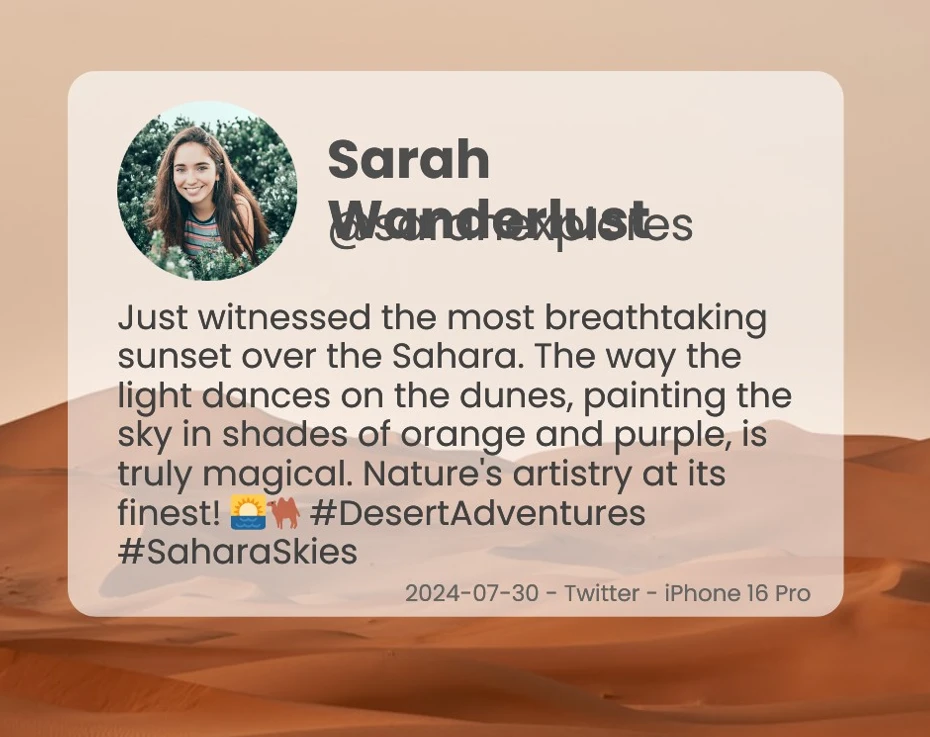
using System;using System.IO;using System.Net.Http;using System.Text;using System.Text.Json;using System.Threading.Tasks;namespace csharp{ class ReturnContent { public string download_url { get; set; } public string status { get; set; } } class Program { static async TaskMain(string[] args) { var api_key = "a9e4MjA2NTg6MTc3Njk6Uk1ZSzVjTWs1T3d6VE9Mdw="; var template_id = "f4377b23b4aeeed0"; var url = $"https://rest.apitemplate.io/v2/create-image?template_id={template_id}"; var json_content = @"{ ""overrides"": [ { ""name"": ""rect_image_bg"", ""stroke"": ""grey"", ""src"": ""https://images.unsplash.com/photo-1542401886-65d6c61db217?crop=entropy&cs=tinysrgb&fit=max&fm=jpg&ixid=MnwxOTc1MDZ8MHwxfHNlYXJjaHwzfHxkZXNlcnR8ZW58MHwwfHx8MTYyMTUxOTI2OA&ixlib=rb-1.2.1&q=80&w=1080"" }, { ""name"": ""rect_container"", ""stroke"": ""grey"", ""backgroundColor"": ""rgba(255, 255, 255, 0.62)"" }, { ""name"": ""text_quote"", ""text"": ""Just witnessed the most breathtaking sunset over the Sahara. The way the light dances on the dunes, painting the sky in shades of orange and purple, is truly magical. Nature's artistry at its finest! #DesertAdventures #SaharaSkies"", ""textBackgroundColor"": ""rgba(246, 243, 243, 0)"", ""color"": ""#414141"" }, { ""name"": ""text_footer"", ""text"": ""2024-07-30 - Twitter - iPhone 16 Pro"", ""textBackgroundColor"": ""rgba(246, 243, 243, 0)"", ""color"": ""#666666"" }, { ""name"": ""circle_profile"", ""stroke"": ""grey"", ""src"": ""https://images.unsplash.com/photo-1520998116484-6eeb2f72b5b9?crop=entropy&cs=tinysrgb&fit=max&fm=jpg&ixid=MnwxOTc1MDZ8MHwxfHNlYXJjaHw2Mnx8aGFwcHl8ZW58MHwwfHx8MTYyMTY5MjkwNw&ixlib=rb-1.2.1&q=80&w=1080"" }, { ""name"": ""text_name"", ""text"": ""Sarah Wanderlust"", ""textBackgroundColor"": ""rgba(246, 243, 243, 0)"", ""color"": ""#4E4E4E"" }, { ""name"": ""text_twitter"", ""text"": ""@sarahexplores"", ""textBackgroundColor"": ""rgba(246, 243, 243, 0)"", ""color"": ""#4E4E4E"" } ]}"; var buffer = System.Text.Encoding.UTF8.GetBytes(json_content); var byteContent = new ByteArrayContent(buffer);Console.WriteLine(json_content); var client = new HttpClient(); client.DefaultRequestHeaders.Add("X-API-KEY", api_key); var response = await client.PostAsync(url, byteContent); var ret = await response.Content.ReadAsStringAsync(); var returnContent = JsonSerializer.Deserialize<ReturnContent>(ret); if (returnContent.status == "success") {Console.WriteLine($"Downloading {returnContent.download_url}..."); var download_response = await client.GetAsync(returnContent.download_url); using (var stream = await download_response.Content.ReadAsStreamAsync()) { var fileInfo = new FileInfo("image.jpeg"); using (var fileStream = fileInfo.OpenWrite()) { await stream.CopyToAsync(fileStream); } } } } }}
using System;
using System.IO;
using System.Net.Http;
using System.Text;
using System.Text.Json;
using System.Threading.Tasks;

namespace csharp
{
    class ReturnContent
    {
        public string download_url { get; set; }
        public string status { get; set; }
    }

    class Program
    {
        static async Task Main(string[] args)
        {
            var api_key = "a9e4MjA2NTg6MTc3Njk6Uk1ZSzVjTWs1T3d6VE9Mdw=";
            var template_id = "f4377b23b4aeeed0";
            var url = $"https://rest.apitemplate.io/v2/create-image?template_id={template_id}";
            var json_content = @"{
    ""overrides"": [
        {
            ""name"": ""rect_image_bg"",
            ""stroke"": ""grey"",
            ""src"": ""https://images.unsplash.com/photo-1542401886-65d6c61db217?crop=entropy&cs=tinysrgb&fit=max&fm=jpg&ixid=MnwxOTc1MDZ8MHwxfHNlYXJjaHwzfHxkZXNlcnR8ZW58MHwwfHx8MTYyMTUxOTI2OA&ixlib=rb-1.2.1&q=80&w=1080""
        },
        {
            ""name"": ""rect_container"",
            ""stroke"": ""grey"",
            ""backgroundColor"": ""rgba(255, 255, 255, 0.62)""
        },
        {
            ""name"": ""text_quote"",
            ""text"": ""Just witnessed the most breathtaking sunset over the Sahara. The way the light dances on the dunes, painting the sky in shades of orange and purple, is truly magical. Nature's artistry at its finest!  #DesertAdventures #SaharaSkies"",
            ""textBackgroundColor"": ""rgba(246, 243, 243, 0)"",
            ""color"": ""#414141""
        },
        {
            ""name"": ""text_footer"",
            ""text"": ""2024-07-30 - Twitter - iPhone 16 Pro"",
            ""textBackgroundColor"": ""rgba(246, 243, 243, 0)"",
            ""color"": ""#666666""
        },
        {
            ""name"": ""circle_profile"",
            ""stroke"": ""grey"",
            ""src"": ""https://images.unsplash.com/photo-1520998116484-6eeb2f72b5b9?crop=entropy&cs=tinysrgb&fit=max&fm=jpg&ixid=MnwxOTc1MDZ8MHwxfHNlYXJjaHw2Mnx8aGFwcHl8ZW58MHwwfHx8MTYyMTY5MjkwNw&ixlib=rb-1.2.1&q=80&w=1080""
        },
        {
            ""name"": ""text_name"",
            ""text"": ""Sarah Wanderlust"",
            ""textBackgroundColor"": ""rgba(246, 243, 243, 0)"",
            ""color"": ""#4E4E4E""
        },
        {
            ""name"": ""text_twitter"",
            ""text"": ""@sarahexplores"",
            ""textBackgroundColor"": ""rgba(246, 243, 243, 0)"",
            ""color"": ""#4E4E4E""
        }
    ]
}";
            var buffer = System.Text.Encoding.UTF8.GetBytes(json_content);
            var byteContent = new ByteArrayContent(buffer);
            Console.WriteLine(json_content);
            var client = new HttpClient();
            client.DefaultRequestHeaders.Add("X-API-KEY", api_key);
            var response = await client.PostAsync(url, byteContent);
            var ret = await response.Content.ReadAsStringAsync();
            var returnContent = JsonSerializer.Deserialize<ReturnContent>(ret);
            if (returnContent.status == "success")
            {
                Console.WriteLine($"Downloading {returnContent.download_url}...");
                var download_response = await client.GetAsync(returnContent.download_url);
                using (var stream = await download_response.Content.ReadAsStreamAsync())
                {
                    var fileInfo = new FileInfo("image.jpeg");
                    using (var fileStream = fileInfo.OpenWrite())
                    {
                        await stream.CopyToAsync(fileStream);
                    }
                }
            }
        }
    }
}
ImportsSystemImportsSystem.IOImportsSystem.Net.HttpImportsSystem.TextImportsSystem.Text.JsonImportsSystem.Threading.TasksNamespace csharpFriend Class ReturnContent Public Property download_url() AsString Public Property status() AsString End ClassFriend Class ProgramSharedAsync Function Main(ByVal args() AsString) AsTask Dim api_key = "a9e4MjA2NTg6MTc3Njk6Uk1ZSzVjTWs1T3d6VE9Mdw=" Dim template_id = "f4377b23b4aeeed0" Dim url = $"https://rest.apitemplate.io/v2/create-image?template_id={template_id}" Dim json_content = "{ ""overrides"": [ { ""name"": ""rect_image_bg"", ""stroke"": ""grey"", ""src"": ""https://images.unsplash.com/photo-1542401886-65d6c61db217?crop=entropy&cs=tinysrgb&fit=max&fm=jpg&ixid=MnwxOTc1MDZ8MHwxfHNlYXJjaHwzfHxkZXNlcnR8ZW58MHwwfHx8MTYyMTUxOTI2OA&ixlib=rb-1.2.1&q=80&w=1080"" }, { ""name"": ""rect_container"", ""stroke"": ""grey"", ""backgroundColor"": ""rgba(255, 255, 255, 0.62)"" }, { ""name"": ""text_quote"", ""text"": ""Just witnessed the most breathtaking sunset over the Sahara. The way the light dances on the dunes, painting the sky in shades of orange and purple, is truly magical. Nature's artistry at its finest! #DesertAdventures #SaharaSkies"", ""textBackgroundColor"": ""rgba(246, 243, 243, 0)"", ""color"": ""#414141"" }, { ""name"": ""text_footer"", ""text"": ""2024-07-30 - Twitter - iPhone 16 Pro"", ""textBackgroundColor"": ""rgba(246, 243, 243, 0)"", ""color"": ""#666666"" }, { ""name"": ""circle_profile"", ""stroke"": ""grey"", ""src"": ""https://images.unsplash.com/photo-1520998116484-6eeb2f72b5b9?crop=entropy&cs=tinysrgb&fit=max&fm=jpg&ixid=MnwxOTc1MDZ8MHwxfHNlYXJjaHw2Mnx8aGFwcHl8ZW58MHwwfHx8MTYyMTY5MjkwNw&ixlib=rb-1.2.1&q=80&w=1080"" }, { ""name"": ""text_name"", ""text"": ""Sarah Wanderlust"", ""textBackgroundColor"": ""rgba(246, 243, 243, 0)"", ""color"": ""#4E4E4E"" }, { ""name"": ""text_twitter"", ""text"": ""@sarahexplores"", ""textBackgroundColor"": ""rgba(246, 243, 243, 0)"", ""color"": ""#4E4E4E"" } ]}" Dim buffer = System.Text.Encoding.UTF8.GetBytes(json_content) Dim byteContent = New ByteArrayContent(buffer)Console.WriteLine(json_content) Dim client = New HttpClient() client.DefaultRequestHeaders.Add("X-API-KEY", api_key) Dim response = Await client.PostAsync(url, byteContent) Dim ret = Awaitresponse.Content.ReadAsStringAsync() Dim returnContent = JsonSerializer.Deserialize(OfReturnContent)(ret) If returnContent.status = "success" ThenConsole.WriteLine($"Downloading {returnContent.download_url}...") Dim download_response = Await client.GetAsync(returnContent.download_url)Using stream = Await download_response.Content.ReadAsStreamAsync() Dim fileInfo As New FileInfo("image.jpeg")Using fileStream = fileInfo.OpenWrite()Await stream.CopyToAsync(fileStream)EndUsingEndUsing End If End Function End ClassEndNamespace
Imports System
Imports System.IO
Imports System.Net.Http
Imports System.Text
Imports System.Text.Json
Imports System.Threading.Tasks

Namespace csharp
	Friend Class ReturnContent
		Public Property download_url() As String
		Public Property status() As String
	End Class

	Friend Class Program
		Shared Async Function Main(ByVal args() As String) As Task
			Dim api_key = "a9e4MjA2NTg6MTc3Njk6Uk1ZSzVjTWs1T3d6VE9Mdw="
			Dim template_id = "f4377b23b4aeeed0"
			Dim url = $"https://rest.apitemplate.io/v2/create-image?template_id={template_id}"
			Dim json_content = "{
    ""overrides"": [
        {
            ""name"": ""rect_image_bg"",
            ""stroke"": ""grey"",
            ""src"": ""https://images.unsplash.com/photo-1542401886-65d6c61db217?crop=entropy&cs=tinysrgb&fit=max&fm=jpg&ixid=MnwxOTc1MDZ8MHwxfHNlYXJjaHwzfHxkZXNlcnR8ZW58MHwwfHx8MTYyMTUxOTI2OA&ixlib=rb-1.2.1&q=80&w=1080""
        },
        {
            ""name"": ""rect_container"",
            ""stroke"": ""grey"",
            ""backgroundColor"": ""rgba(255, 255, 255, 0.62)""
        },
        {
            ""name"": ""text_quote"",
            ""text"": ""Just witnessed the most breathtaking sunset over the Sahara. The way the light dances on the dunes, painting the sky in shades of orange and purple, is truly magical. Nature's artistry at its finest!  #DesertAdventures #SaharaSkies"",
            ""textBackgroundColor"": ""rgba(246, 243, 243, 0)"",
            ""color"": ""#414141""
        },
        {
            ""name"": ""text_footer"",
            ""text"": ""2024-07-30 - Twitter - iPhone 16 Pro"",
            ""textBackgroundColor"": ""rgba(246, 243, 243, 0)"",
            ""color"": ""#666666""
        },
        {
            ""name"": ""circle_profile"",
            ""stroke"": ""grey"",
            ""src"": ""https://images.unsplash.com/photo-1520998116484-6eeb2f72b5b9?crop=entropy&cs=tinysrgb&fit=max&fm=jpg&ixid=MnwxOTc1MDZ8MHwxfHNlYXJjaHw2Mnx8aGFwcHl8ZW58MHwwfHx8MTYyMTY5MjkwNw&ixlib=rb-1.2.1&q=80&w=1080""
        },
        {
            ""name"": ""text_name"",
            ""text"": ""Sarah Wanderlust"",
            ""textBackgroundColor"": ""rgba(246, 243, 243, 0)"",
            ""color"": ""#4E4E4E""
        },
        {
            ""name"": ""text_twitter"",
            ""text"": ""@sarahexplores"",
            ""textBackgroundColor"": ""rgba(246, 243, 243, 0)"",
            ""color"": ""#4E4E4E""
        }
    ]
}"
			Dim buffer = System.Text.Encoding.UTF8.GetBytes(json_content)
			Dim byteContent = New ByteArrayContent(buffer)
			Console.WriteLine(json_content)
			Dim client = New HttpClient()
			client.DefaultRequestHeaders.Add("X-API-KEY", api_key)
			Dim response = Await client.PostAsync(url, byteContent)
			Dim ret = Await response.Content.ReadAsStringAsync()
			Dim returnContent = JsonSerializer.Deserialize(Of ReturnContent)(ret)
			If returnContent.status = "success" Then
				Console.WriteLine($"Downloading {returnContent.download_url}...")
				Dim download_response = Await client.GetAsync(returnContent.download_url)
				Using stream = Await download_response.Content.ReadAsStreamAsync()
					Dim fileInfo As New FileInfo("image.jpeg")
					Using fileStream = fileInfo.OpenWrite()
						Await stream.CopyToAsync(fileStream)
					End Using
				End Using
			End If
		End Function
	End Class
End Namespace
using System;using System.IO;using System.Net.Http;using System.Text;using System.Text.Json;using System.Threading.Tasks;namespace csharp{ class ReturnContent { public string download_url { get; set; } public string status { get; set; } } class Program { static async TaskMain(string[] args) { var api_key = "API-Key"; var template_id = "Template-Key"; var url = $"https://rest.apitemplate.io/v2/create-image?template_id={template_id}"; var json_content = @"{ ""overrides"": [ { ""name"": ""background-color"", ""stroke"": ""grey"", ""backgroundColor"": ""#FFFFFF"" }, { ""name"": ""qr_1"", ""content"": ""http://ironpdf.com/"", ""backgroundColor"": ""white"", ""color"": ""#000000"" } ]}"; var buffer = System.Text.Encoding.UTF8.GetBytes(json_content); var byteContent = new ByteArrayContent(buffer); //Console.WriteLine(json_content); var client = new HttpClient(); client.DefaultRequestHeaders.Add("X-API-KEY", api_key); var response = await client.PostAsync(url, byteContent); var ret = await response.Content.ReadAsStringAsync(); var returnContent = JsonSerializer.Deserialize<ReturnContent>(ret);Console.WriteLine(returnContent.status); if (returnContent.status == "success") {Console.WriteLine($"Downloading {returnContent.download_url}..."); var download_response = await client.GetAsync(returnContent.download_url); using (var stream = await download_response.Content.ReadAsStreamAsync()) { var fileInfo = new FileInfo(@"F:/QRimage.jpeg"); using (var fileStream = fileInfo.OpenWrite()) { await stream.CopyToAsync(fileStream); } } } } }}
using System;
using System.IO;
using System.Net.Http;
using System.Text;
using System.Text.Json;
using System.Threading.Tasks;

namespace csharp
{
    class ReturnContent
    {
        public string download_url { get; set; }
        public string status { get; set; }
    }

    class Program
    {
        static async Task Main(string[] args)
        {
            var api_key = "API-Key";
            var template_id = "Template-Key";
            var url = $"https://rest.apitemplate.io/v2/create-image?template_id={template_id}";
            var json_content = @"{
    ""overrides"": [
        {
            ""name"": ""background-color"",
            ""stroke"": ""grey"",
            ""backgroundColor"": ""#FFFFFF""
        },
        {
            ""name"": ""qr_1"",
            ""content"": ""http://ironpdf.com/"",
            ""backgroundColor"": ""white"",
            ""color"": ""#000000""
        }
    ]
}";
            var buffer = System.Text.Encoding.UTF8.GetBytes(json_content);
            var byteContent = new ByteArrayContent(buffer);
            //Console.WriteLine(json_content);
            var client = new HttpClient();
            client.DefaultRequestHeaders.Add("X-API-KEY", api_key);
            var response = await client.PostAsync(url, byteContent);
            var ret = await response.Content.ReadAsStringAsync();
            var returnContent = JsonSerializer.Deserialize<ReturnContent>(ret);
            Console.WriteLine(returnContent.status);
            if (returnContent.status == "success")
            {
                Console.WriteLine($"Downloading {returnContent.download_url}...");
                var download_response = await client.GetAsync(returnContent.download_url);
                using (var stream = await download_response.Content.ReadAsStreamAsync())
                {
                    var fileInfo = new FileInfo(@"F:/QRimage.jpeg");
                    using (var fileStream = fileInfo.OpenWrite())
                    {
                        await stream.CopyToAsync(fileStream);
                    }
                }
            }
        }
    }
}
ImportsSystemImportsSystem.IOImportsSystem.Net.HttpImportsSystem.TextImportsSystem.Text.JsonImportsSystem.Threading.TasksNamespace csharpFriend Class ReturnContent Public Property download_url() AsString Public Property status() AsString End ClassFriend Class ProgramSharedAsync Function Main(ByVal args() AsString) AsTask Dim api_key = "API-Key" Dim template_id = "Template-Key" Dim url = $"https://rest.apitemplate.io/v2/create-image?template_id={template_id}" Dim json_content = "{ ""overrides"": [ { ""name"": ""background-color"", ""stroke"": ""grey"", ""backgroundColor"": ""#FFFFFF"" }, { ""name"": ""qr_1"", ""content"": ""http://ironpdf.com/"", ""backgroundColor"": ""white"", ""color"": ""#000000"" } ]}" Dim buffer = System.Text.Encoding.UTF8.GetBytes(json_content) Dim byteContent = New ByteArrayContent(buffer) 'Console.WriteLine(json_content); Dim client = New HttpClient() client.DefaultRequestHeaders.Add("X-API-KEY", api_key) Dim response = Await client.PostAsync(url, byteContent) Dim ret = Awaitresponse.Content.ReadAsStringAsync() Dim returnContent = JsonSerializer.Deserialize(OfReturnContent)(ret)Console.WriteLine(returnContent.status) If returnContent.status = "success" ThenConsole.WriteLine($"Downloading {returnContent.download_url}...") Dim download_response = Await client.GetAsync(returnContent.download_url)Using stream = Await download_response.Content.ReadAsStreamAsync() Dim fileInfo As New FileInfo("F:/QRimage.jpeg")Using fileStream = fileInfo.OpenWrite()Await stream.CopyToAsync(fileStream)EndUsingEndUsing End If End Function End ClassEndNamespace
Imports System
Imports System.IO
Imports System.Net.Http
Imports System.Text
Imports System.Text.Json
Imports System.Threading.Tasks

Namespace csharp
	Friend Class ReturnContent
		Public Property download_url() As String
		Public Property status() As String
	End Class

	Friend Class Program
		Shared Async Function Main(ByVal args() As String) As Task
			Dim api_key = "API-Key"
			Dim template_id = "Template-Key"
			Dim url = $"https://rest.apitemplate.io/v2/create-image?template_id={template_id}"
			Dim json_content = "{
    ""overrides"": [
        {
            ""name"": ""background-color"",
            ""stroke"": ""grey"",
            ""backgroundColor"": ""#FFFFFF""
        },
        {
            ""name"": ""qr_1"",
            ""content"": ""http://ironpdf.com/"",
            ""backgroundColor"": ""white"",
            ""color"": ""#000000""
        }
    ]
}"
			Dim buffer = System.Text.Encoding.UTF8.GetBytes(json_content)
			Dim byteContent = New ByteArrayContent(buffer)
			'Console.WriteLine(json_content);
			Dim client = New HttpClient()
			client.DefaultRequestHeaders.Add("X-API-KEY", api_key)
			Dim response = Await client.PostAsync(url, byteContent)
			Dim ret = Await response.Content.ReadAsStringAsync()
			Dim returnContent = JsonSerializer.Deserialize(Of ReturnContent)(ret)
			Console.WriteLine(returnContent.status)
			If returnContent.status = "success" Then
				Console.WriteLine($"Downloading {returnContent.download_url}...")
				Dim download_response = Await client.GetAsync(returnContent.download_url)
				Using stream = Await download_response.Content.ReadAsStreamAsync()
					Dim fileInfo As New FileInfo("F:/QRimage.jpeg")
					Using fileStream = fileInfo.OpenWrite()
						Await stream.CopyToAsync(fileStream)
					End Using
				End Using
			End If
		End Function
	End Class
End Namespace
1.**ベーシック プラン:**多くの場合、月あたりの API 呼び出し回数が制限された低価格から始まります。 小規模なプロジェクトや、PDF生成のニーズが最小限のビジネスに適しています。
2.**標準プラン:**このプランには、より多くの API 呼び出しと追加機能が含まれており、中規模企業向けです。
3.**エンタープライズ プラン:**大量ユーザー向けにカスタマイズされたこのプランは、最も多くの API 呼び出しと、優先サポートやカスタム統合などのプレミアム機能を提供します。
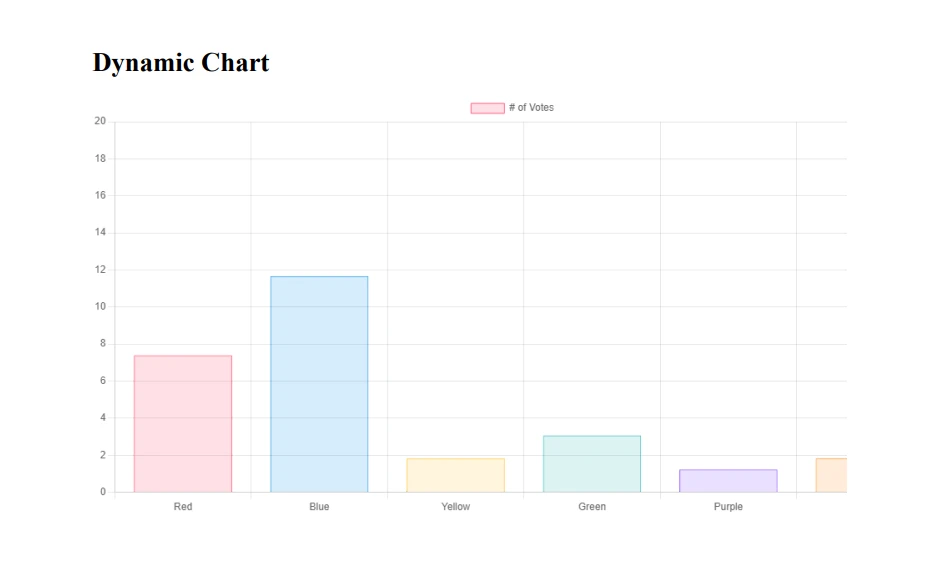
using IronPdf;var renderer = new ChromePdfRenderer();var html = @"<html><head> <style> body { font-family: Arial, sans-serif; } .header { color: #0066cc; font-size: 24px; } .content { margin-top: 20px; } </style></head><body> <div class='header'>Dynamic Report</div> <div class='content'> <p>This report was generated on: <script>document.write(new Date().toLocaleString());</script></p> <p>Lorem ipsum dolor sit amet, consectetur adipiscing elit.</p> </div></body></html>";var pdf = renderer.RenderHtmlAsPdf(html);pdf.SaveAs("IronPDF_report.pdf");
using IronPdf;

var renderer = new ChromePdfRenderer();
var html = @"
<html>
<head>
    <style>
        body { font-family: Arial, sans-serif; }
        .header { color: #0066cc; font-size: 24px; }
        .content { margin-top: 20px; }
    </style>
</head>
<body>
    <div class='header'>Dynamic Report</div>
    <div class='content'>
        <p>This report was generated on: <script>document.write(new Date().toLocaleString());</script></p>
        <p>Lorem ipsum dolor sit amet, consectetur adipiscing elit.</p>
    </div>
</body>
</html>";
var pdf = renderer.RenderHtmlAsPdf(html);
pdf.SaveAs("IronPDF_report.pdf");
ImportsIronPdfPrivate renderer = New ChromePdfRenderer()Private html = "<html><head> <style> body { font-family: Arial, sans-serif; } .header { color: #0066cc; font-size: 24px; } .content { margin-top: 20px; } </style></head><body> <div class='header'>Dynamic Report</div> <div class='content'> <p>This report was generated on: <script>document.write(new Date().toLocaleString());</script></p> <p>Lorem ipsum dolor sit amet, consectetur adipiscing elit.</p> </div></body></html>"Private pdf = renderer.RenderHtmlAsPdf(html)pdf.SaveAs("IronPDF_report.pdf")
Imports IronPdf

Private renderer = New ChromePdfRenderer()
Private html = "
<html>
<head>
    <style>
        body { font-family: Arial, sans-serif; }
        .header { color: #0066cc; font-size: 24px; }
        .content { margin-top: 20px; }
    </style>
</head>
<body>
    <div class='header'>Dynamic Report</div>
    <div class='content'>
        <p>This report was generated on: <script>document.write(new Date().toLocaleString());</script></p>
        <p>Lorem ipsum dolor sit amet, consectetur adipiscing elit.</p>
    </div>
</body>
</html>"
Private pdf = renderer.RenderHtmlAsPdf(html)
pdf.SaveAs("IronPDF_report.pdf")
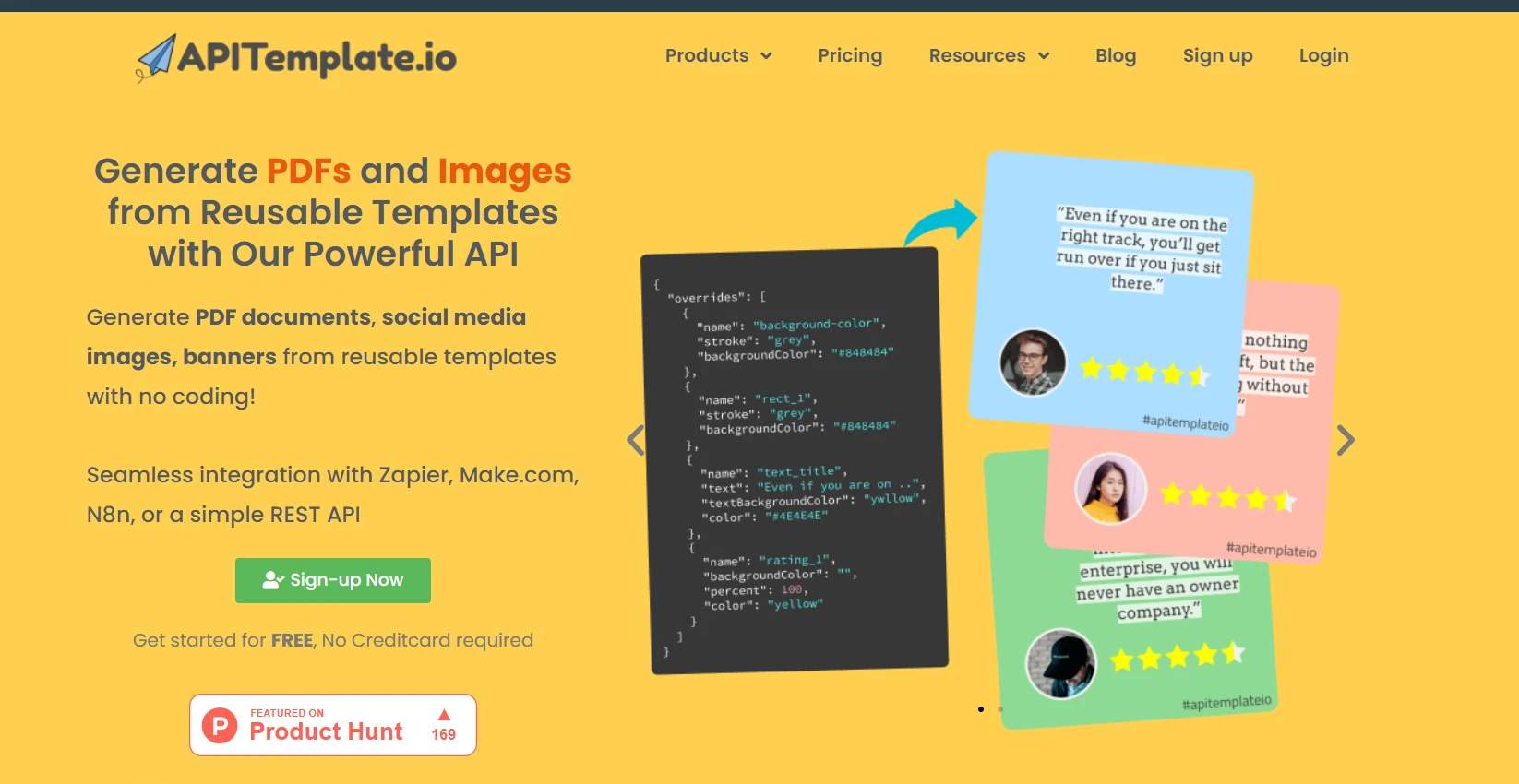
アピテンプレート
using System.Net.Http;using System.Text.Json;var apiKey = "your_api_key";var templateId = "your_template_id";var url = $"https://rest.apitemplate.io/v2/create-pdf?template_id={templateId}";var data = new{ header = "Dynamic Report", content = "Lorem ipsum dolor sit amet, consectetur adipiscing elit.", date = DateTime.Now.ToShortDateString()};var json = JsonSerializer.Serialize(data);var content = new StringContent(json, System.Text.Encoding.UTF8, "application/json");using var client = new HttpClient();client.DefaultRequestHeaders.Add("X-API-KEY", apiKey);var response = await client.PostAsync(url, content);var pdfBytes = await response.Content.ReadAsByteArrayAsync();File.WriteAllBytes("APITemplate_report.pdf", pdfBytes);
using System.Net.Http;
using System.Text.Json;

var apiKey = "your_api_key";
var templateId = "your_template_id";
var url = $"https://rest.apitemplate.io/v2/create-pdf?template_id={templateId}";
var data = new
{
    header = "Dynamic Report",
    content = "Lorem ipsum dolor sit amet, consectetur adipiscing elit.",
    date = DateTime.Now.ToShortDateString()
};
var json = JsonSerializer.Serialize(data);
var content = new StringContent(json, System.Text.Encoding.UTF8, "application/json");
using var client = new HttpClient();
client.DefaultRequestHeaders.Add("X-API-KEY", apiKey);
var response = await client.PostAsync(url, content);
var pdfBytes = await response.Content.ReadAsByteArrayAsync();
File.WriteAllBytes("APITemplate_report.pdf", pdfBytes);
ImportsSystem.Net.HttpImportsSystem.Text.JsonPrivate apiKey = "your_api_key"Private templateId = "your_template_id"Private url = $"https://rest.apitemplate.io/v2/create-pdf?template_id={templateId}"Private data = New With {Key .header = "Dynamic Report",Key .content = "Lorem ipsum dolor sit amet, consectetur adipiscing elit.",Key .date = DateTime.Now.ToShortDateString()}Private json = JsonSerializer.Serialize(data)Private content = New StringContent(json, System.Text.Encoding.UTF8, "application/json")Private client = New HttpClient()client.DefaultRequestHeaders.Add("X-API-KEY", apiKey)Dim response = Await client.PostAsync(url, content)Dim pdfBytes = Awaitresponse.Content.ReadAsByteArrayAsync()File.WriteAllBytes("APITemplate_report.pdf", pdfBytes)
Imports System.Net.Http
Imports System.Text.Json

Private apiKey = "your_api_key"
Private templateId = "your_template_id"
Private url = $"https://rest.apitemplate.io/v2/create-pdf?template_id={templateId}"
Private data = New With {
	Key .header = "Dynamic Report",
	Key .content = "Lorem ipsum dolor sit amet, consectetur adipiscing elit.",
	Key .date = DateTime.Now.ToShortDateString()
}
Private json = JsonSerializer.Serialize(data)
Private content = New StringContent(json, System.Text.Encoding.UTF8, "application/json")
Private client = New HttpClient()
client.DefaultRequestHeaders.Add("X-API-KEY", apiKey)
Dim response = Await client.PostAsync(url, content)
Dim pdfBytes = Await response.Content.ReadAsByteArrayAsync()
File.WriteAllBytes("APITemplate_report.pdf", pdfBytes)
主な違い
JavaScriptサポート: IronPDF はHTML 内で for JavaScript実行を完全にサポートしており、動的なコンテンツの生成 (例の現在の日付など) を可能にします。 APITemplateでは通常、すべてのデータを前もって提供する必要があります。