


如何在C++中查看PDF文件

作為C#開發人員,我經常在專案中遇到生成和處理PDF的挑戰。 對於高效、可靠且易於整合的PDF解決方案的需求是我們領域中常見的問題。 這就是為什麼我決定探索APITemplate和IronPDF,這兩款熱門工具承諾簡化C#應用程式中的PDF相關任務。
在這篇文章中,我將分享我使用APITemplate和IronPDF的親身體驗,並比較它們的功能、性能和整合能力。 我的目標是為您提供清晰、公正的分析,以幫助您為您的下個專案做出明智的決策。 當我第一次接觸APITemplate和IronPDF時,我被它們在C#開發中解決PDF相關挑戰的潛力所吸引。 讓我們來看看這些工具分別提供了什麼。
APITemplate
APITemplate是一項雲端服務,專注於從模板生成PDF和圖像。 它提供了一個API,允許開發人員通過將JSON資料發送到預定義模板來建立文件和圖形。 在我最初的測試中,我發現使用APITemplate是簡單明瞭的。 我可以使用他們的網頁介面建立一個模板,然後使用他們的API從我的C#應用程式中填入資料。
APITemplate的主要功能
基於模板的生成
APITemplate的核心優勢在於其基於模板的方法。 我可以建立可重複使用的文件和圖像模板,這樣能為我節省很多重複性任務的時間。 它還提供了一個MarkDown模板編輯器,用於生成PDF。 您可以生成與Zapier和其他第三方整合的可重複使用模板的PDF。
JSON資料整合
JSON資料整合是我經常使用的一個功能。 它使您能夠使用JSON資料來填入模板。 這使得它與我的C#應用程式的整合變得特別容易,因為我可以將我的物件序列化為JSON並發送到API。
API控制臺
API控制臺功能對我來說節省了很多時間。 通過它,我可以直接從其網站預覽和測試API調用,這有助於我在將其實現在我的C#程式碼中之前進行除錯和微調請求。
可定制的頁眉和頁腳
能夠在我的PDF中新增自定義頁眉和頁腳非常有價值,特別是在建立專業報告或發票時。 我可以輕鬆地包含頁碼、日期或公司標誌。
IronPDF
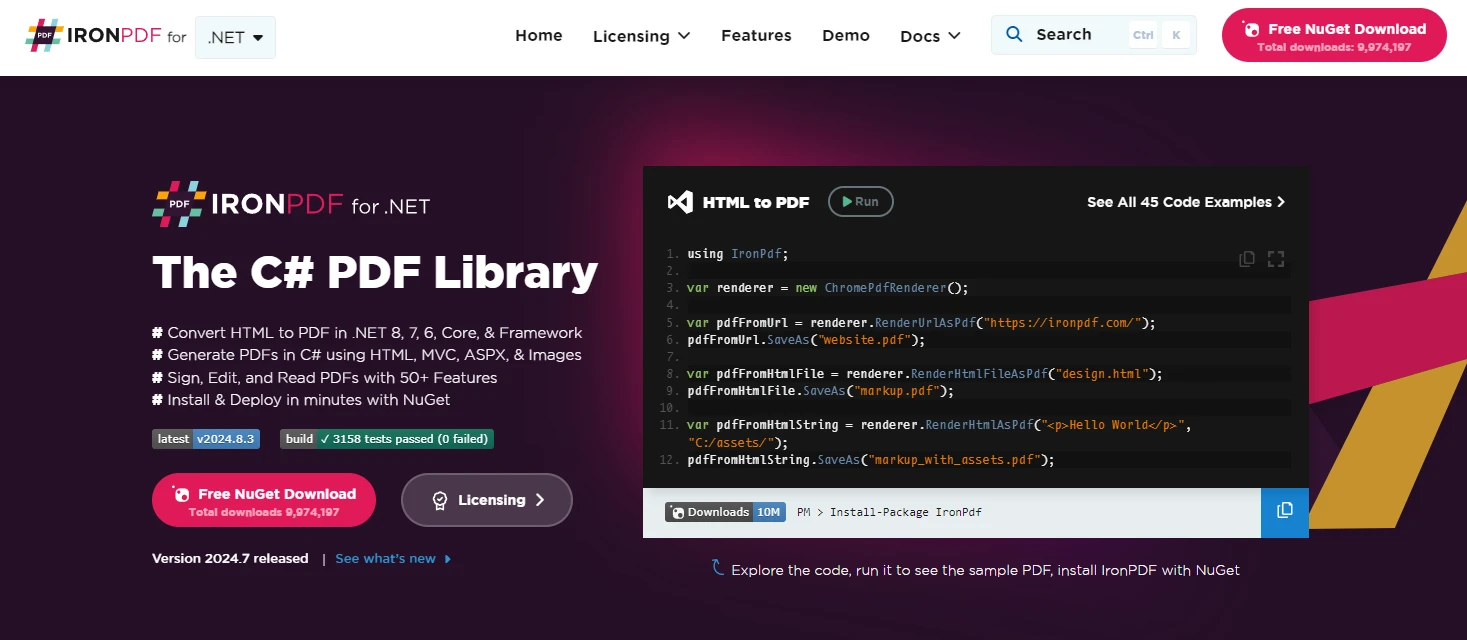
IronPDF,另一方面,是一個專為C#應用程式中的PDF處理設計的.NET程式庫。 它提供了一系列功能,包括PDF建立、編輯和轉換。 其突出功能之一是能夠從HTML生成PDF,這對於基於Web的應用程式來說非常有用。
我第一次使用IronPDF的經驗是通過NuGet安裝並直接整合到我的C#專案中。 其API整合過程非常順暢,這意味著我能夠在短時間內在我的專案中運行它。我對自己能夠輕鬆地以程式方式建立PDF而不依賴於外部服務感到驚訝。
我注意到的主要區別是APITemplate在從預定義模板建立文件方面表現出色,而IronPDF則在C#程式碼中提供更大的自定義PDF處理靈活性。 APITemplate的雲端性質意味著您無需擔心PDF生成的伺服器資源,但它需要網路連接。 IronPDF作為本地程式庫,可以離線工作,但會使用您的伺服器資源。
IronPDF的主要功能
從HTML建立PDF
IronPDF尤其擅長從HTML內容生成PDF。 我廣泛使用過這個功能來動態生成報告和文件。 這就像將HTML字串或甚至URL傳遞給程式庫一樣簡單。 IronPDF對現代Web標準的廣泛支援意味著每一個我從HTML內容生成的PDF都是高品質的文件。
PDF操控
這個功能使我能夠程式化編輯現有的PDF。 我可以向PDF文件中新增文字、圖像甚至新頁面,這對於更新報告或表格非常有用。
PDF合併和拆分
在處理大型文件時,我發現這個功能特別有用。 IronPDF使得合併多個PDF為一個或將單個PDF拆分為多個文件變得很容易。
文字提取
當我需要從PDF中提取文字內容以進行分析或建立索引時,IronPDF的文字提取功能就派上了用場。 它能很好地處理各種PDF佈局,讓資料提取變得簡便。
表單填寫
對於涉及自動化表單填寫的專案,IronPDF的表單填寫功能非常有用。 我可以程式化填寫PDF表單,從而節省手動資料輸入的時間。
數位簽名
在我的許多專案中,安全性非常重要。 IronPDF允許我在PDF中新增數位簽名,從而提高文件的真實性和安全性。
密碼保護
在處理敏感文件時,我使用IronPDF為PDF新增密碼保護。 這對於確保我的機密資訊保持安全非常有幫助。
PDF到影像轉換
有時候我需要將PDF頁面轉換為影像進行預覽或縮圖。 IronPDF使這個過程變得簡單,只需我輸入幾行程式碼並支援多種圖片格式。
跨平台相容性
作為在跨平台專案中工作的.NET開發人員,我很欣賞IronPDF能夠無縫運行在不同的操作系統上,這要歸功於其.NET Standard的支援。
為您的C#專案設置IronPDF和APITemplate
在C#專案中設置這些工具相對簡單。 根據我的經驗,我將帶您完成IronPDF和APITemplate的設置過程。
IronPDF
要在我的C#專案中設置IronPDF,我遵循以下步驟:
-
在Visual Studio中打開我的專案。
-
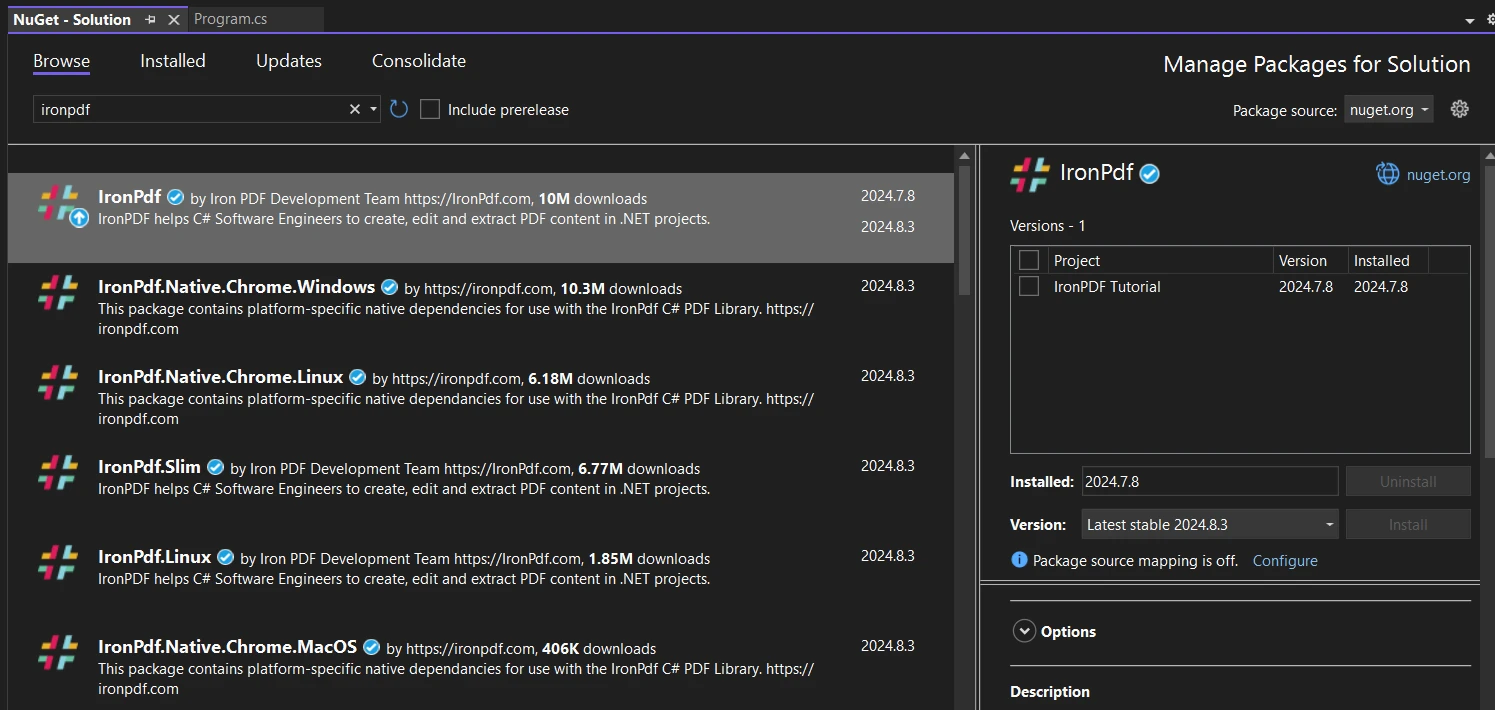
使用NuGet包管理器安裝IronPDF。 我使用NuGet包管理器或包管理器控制台。
- 在NuGet包管理器中搜索IronPDF並安裝它。
-
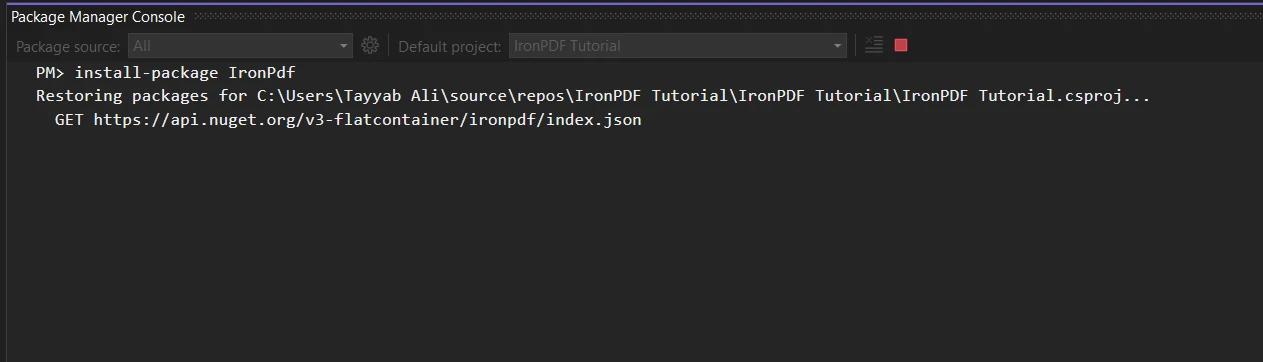
或可選,在包管理器控制台中運行:
Install-Package IronPdf
-
安裝後,我在C#文件的頂部新增必要的using語句:
using IronPdf;using IronPdf;Imports IronPdf$vbLabelText $csharpLabel -
要激活授權,我在應用程式啟動時新增這行:
IronPdf.License.LicenseKey = "YOUR-LICENSE-KEY-HERE";IronPdf.License.LicenseKey = "YOUR-LICENSE-KEY-HERE";IronPdf.License.LicenseKey = "YOUR-LICENSE-KEY-HERE"$vbLabelText $csharpLabel
就是這樣! 現在我可以開始在我的程式碼中使用IronPDF了。
APITemplate
對於APITemplate,設置過程有些不同,因為它是一個基於Web的API:
- 首先,我在他們的網站上註冊一個APITemplate帳號。
- 註冊後,我導航到API部分以獲取我的API密鑰。
-
在我的C#專案中,我不需要安裝任何特定的包。 我通常使用內建的HttpClient來進行API調用。
-
我安全地儲存API密鑰。 在開發中,我可能會使用使用者機密:
dotnet user-secrets set "APITemplate:ApiKey" "YOUR-API-KEY-HERE"dotnet user-secrets set "APITemplate:ApiKey" "YOUR-API-KEY-HERE"SHELL -
在我的程式碼中,我設置HttpClient並使用API密鑰:
using System.Net.Http;
using System.Net.Http.Headers;

var client = new HttpClient();
client.DefaultRequestHeaders.Add("X-API-KEY", Configuration["APITemplate:ApiKey"]);
using System.Net.Http; using System.Net.Http.Headers; var client = new HttpClient(); client.DefaultRequestHeaders.Add("X-API-KEY", Configuration["APITemplate:ApiKey"]);Imports System.Net.Http Imports System.Net.Http.Headers Private client = New HttpClient() client.DefaultRequestHeaders.Add("X-API-KEY", Configuration("APITemplate:ApiKey"))$vbLabelText $csharpLabel - 現在我已準備好進行APITemplate的API調用。
對於這個專案,我將使用APITemplate官方提供的GitHub範例專案,這個專案已經配置完成,您只需新增模板密鑰。 這些設置完成後,我可以在我的C#專案中開始使用IronPDF和APITemplate。 IronPDF在我的應用程式中本地運行,而APITemplate需要網路連接才能與其伺服器通信。
IronPDF與APITemplate的高級功能
作為C#開發人員,我有機會探索IronPDF和APITemplate。 讓我們看看它們的一些給我留下深刻印象的高級功能。
IronPDF高級功能
支持JavaScript的HTML到PDF轉換
IronPDF的HTML到PDF轉換非常令人印象深刻。它不僅渲染靜態HTML,還能處理JavaScript。 在處理動態網頁內容時,這對我來說是一個顯著的優勢。
這裡有一個我如何使用它的快速範例:
var Renderer = new ChromePdfRenderer();
string htmlContent = @"
    <html>
    <body>
        <h1>Dynamic Chart</h1>
        <canvas id='myChart'></canvas>
        <script src='https://cdn.jsdelivr.net/npm/chart.js'></script>
        <script>
            var ctx = document.getElementById('myChart').getContext('2d');
            new Chart(ctx, {
                type: 'bar',
                data: {
                    labels: ['Red', 'Blue', 'Yellow', 'Green', 'Purple', 'Orange'],
                    datasets: [{
                        label: '# of Votes',
                        data: [12, 19, 3, 5, 2, 3],
                        backgroundColor: [
                            'rgba(255, 99, 132, 0.2)',
                            'rgba(54, 162, 235, 0.2)',
                            'rgba(255, 206, 86, 0.2)',
                            'rgba(75, 192, 192, 0.2)',
                            'rgba(153, 102, 255, 0.2)',
                            'rgba(255, 159, 64, 0.2)'
                        ],
                        borderColor: [
                            'rgba(255, 99, 132, 1)',
                            'rgba(54, 162, 235, 1)',
                            'rgba(255, 206, 86, 1)',
                            'rgba(75, 192, 192, 1)',
                            'rgba(153, 102, 255, 1)',
                            'rgba(255, 159, 64, 1)'
                        ],
                        borderWidth: 1
                    }]
                },
                options: {
                    scales: {
                        y: {
                            beginAtZero: true
                        }
                    }
                }
            });
        </script>
    </body>
    </html>";
var PDF = Renderer.RenderHtmlAsPdf(htmlContent);
PDF.SaveAs("dynamic_chart.pdf");
var Renderer = new ChromePdfRenderer();
string htmlContent = @"
<html>
<body>
<h1>Dynamic Chart</h1>
<canvas id='myChart'></canvas>
<script src='https://cdn.jsdelivr.net/npm/chart.js'></script>
<script>
var ctx = document.getElementById('myChart').getContext('2d');
new Chart(ctx, {
type: 'bar',
data: {
labels: ['Red', 'Blue', 'Yellow', 'Green', 'Purple', 'Orange'],
datasets: [{
label: '# of Votes',
data: [12, 19, 3, 5, 2, 3],
backgroundColor: [
'rgba(255, 99, 132, 0.2)',
'rgba(54, 162, 235, 0.2)',
'rgba(255, 206, 86, 0.2)',
'rgba(75, 192, 192, 0.2)',
'rgba(153, 102, 255, 0.2)',
'rgba(255, 159, 64, 0.2)'
],
borderColor: [
'rgba(255, 99, 132, 1)',
'rgba(54, 162, 235, 1)',
'rgba(255, 206, 86, 1)',
'rgba(75, 192, 192, 1)',
'rgba(153, 102, 255, 1)',
'rgba(255, 159, 64, 1)'
],
borderWidth: 1
}]
},
options: {
scales: {
y: {
beginAtZero: true
}
}
}
});
</script>
</body>
</html>";
var PDF = Renderer.RenderHtmlAsPdf(htmlContent);
PDF.SaveAs("dynamic_chart.pdf");Dim Renderer = New ChromePdfRenderer()
Dim htmlContent As String = "
<html>
<body>
<h1>Dynamic Chart</h1>
<canvas id='myChart'></canvas>
<script src='https://cdn.jsdelivr.net/npm/chart.js'></script>
<script>
var ctx = document.getElementById('myChart').getContext('2d');
new Chart(ctx, {
type: 'bar',
data: {
labels: ['Red', 'Blue', 'Yellow', 'Green', 'Purple', 'Orange'],
datasets: [{
label: '# of Votes',
data: [12, 19, 3, 5, 2, 3],
backgroundColor: [
'rgba(255, 99, 132, 0.2)',
'rgba(54, 162, 235, 0.2)',
'rgba(255, 206, 86, 0.2)',
'rgba(75, 192, 192, 0.2)',
'rgba(153, 102, 255, 0.2)',
'rgba(255, 159, 64, 0.2)'
],
borderColor: [
'rgba(255, 99, 132, 1)',
'rgba(54, 162, 235, 1)',
'rgba(255, 206, 86, 1)',
'rgba(75, 192, 192, 1)',
'rgba(153, 102, 255, 1)',
'rgba(255, 159, 64, 1)'
],
borderWidth: 1
}]
},
options: {
scales: {
y: {
beginAtZero: true
}
}
}
});
</script>
</body>
</html>"
Dim PDF = Renderer.RenderHtmlAsPdf(htmlContent)
PDF.SaveAs("dynamic_chart.pdf")這段程式碼生成一個使用Chart.js動態圖表的PDF。 JavaScript在PDF建立過程中被執行,結果是一個包含渲染圖表的PDF。 我用這個功能建立動態報告,其中資料經常變更,免除了我手動更新圖表和圖形的不便。
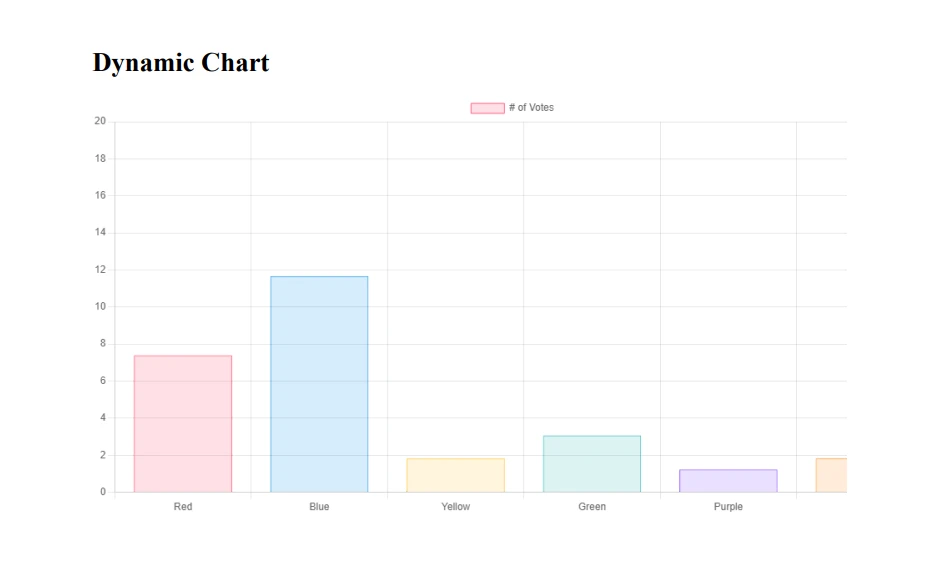
能夠包含外部腳本,例如這個例子中的Chart.js,意味著我可以使用強大的JavaScript程式庫在我的PDF中創造豐富的動態內容。 此外,這個功能允許我在HTML中使用CSS和自適應設計技術,以確保生成的PDF在各種裝置和列印格式上都看起來很棒。 我甚至使用媒體查詢從相同的HTML源建立了適合螢幕查看和列印的PDF。
PDF加密與解密
在許多涉及敏感資訊的專案中,安全性至關重要。 IronPDF的加密和解密功能在這些情況下非常有價值。
var pdf = PdfDocument.FromFile("input.pdf");
// Set user password (for opening the document)
pdf.Password = "user_password";
// Set owner password (for editing, printing, etc.)
pdf.OwnerPassword = "owner_password";
// Set specific permissions
pdf.SecuritySettings.AllowUserPrinting = IronPdf.Security.PdfPrintSecurity.NoPrint;
pdf.SecuritySettings.AllowUserCopyPasteContent = false;
pdf.SecuritySettings.AllowUserEdits = IronPdf.Security.PdfEditSecurity.NoEdit;
pdf.SaveAs("highly_secured.pdf");
var pdf = PdfDocument.FromFile("input.pdf");
// Set user password (for opening the document)
pdf.Password = "user_password";
// Set owner password (for editing, printing, etc.)
pdf.OwnerPassword = "owner_password";
// Set specific permissions
pdf.SecuritySettings.AllowUserPrinting = IronPdf.Security.PdfPrintSecurity.NoPrint;
pdf.SecuritySettings.AllowUserCopyPasteContent = false;
pdf.SecuritySettings.AllowUserEdits = IronPdf.Security.PdfEditSecurity.NoEdit;
pdf.SaveAs("highly_secured.pdf");Dim pdf = PdfDocument.FromFile("input.pdf")
' Set user password (for opening the document)
pdf.Password = "user_password"
' Set owner password (for editing, printing, etc.)
pdf.OwnerPassword = "owner_password"
' Set specific permissions
pdf.SecuritySettings.AllowUserPrinting = IronPdf.Security.PdfPrintSecurity.NoPrint
pdf.SecuritySettings.AllowUserCopyPasteContent = False
pdf.SecuritySettings.AllowUserEdits = IronPdf.Security.PdfEditSecurity.NoEdit
pdf.SaveAs("highly_secured.pdf")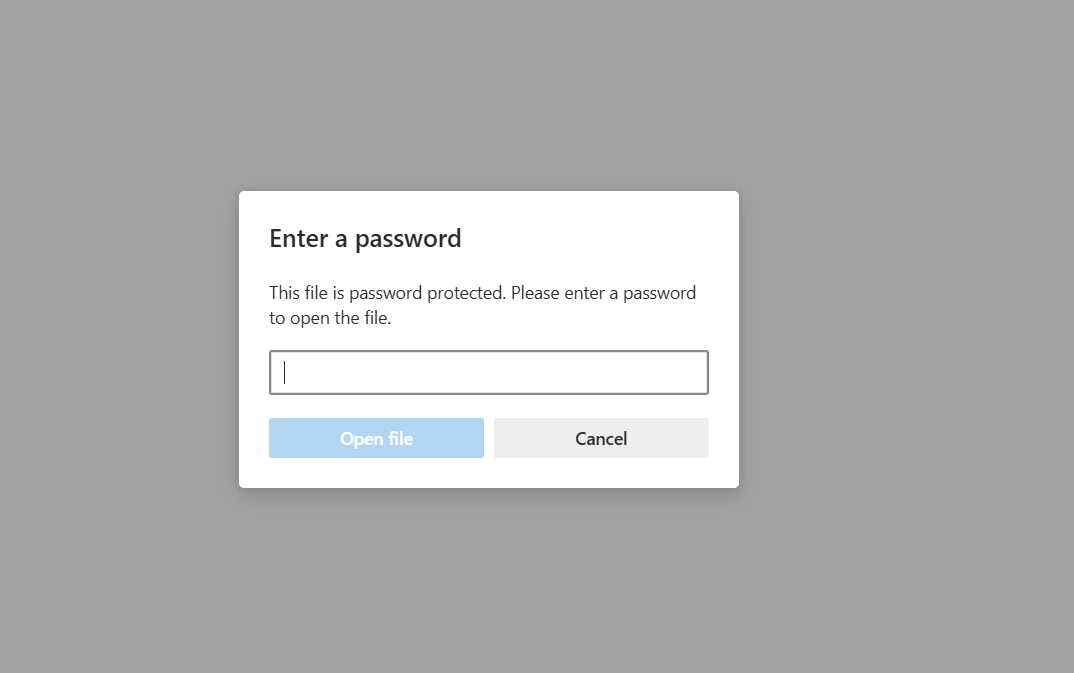
這段程式碼不僅使用使用者密碼加密PDF,還設置了一個擁有者密碼,並對權限進行了細粒度控制。 我可以明確規定使用者能夠和無法對PDF進行的操作,比如列印或複製內容。
至於解密,我經常用這個方法:
try
{
    var pdf = PdfDocument.FromFile("encrypted.pdf", "user_password");
    pdf.SecuritySettings.RemovePasswordsAndEncryption();
    pdf.SaveAs("decrypted.pdf");
    Console.WriteLine("PDF decrypted successfully!");
}
catch (Exception ex)
{
    Console.WriteLine($"Decryption failed: {ex.Message}");
}
try
{
var pdf = PdfDocument.FromFile("encrypted.pdf", "user_password");
pdf.SecuritySettings.RemovePasswordsAndEncryption();
pdf.SaveAs("decrypted.pdf");
Console.WriteLine("PDF decrypted successfully!");
}
catch (Exception ex)
{
Console.WriteLine($"Decryption failed: {ex.Message}");
}Try
Dim pdf = PdfDocument.FromFile("encrypted.pdf", "user_password")
pdf.SecuritySettings.RemovePasswordsAndEncryption()
pdf.SaveAs("decrypted.pdf")
Console.WriteLine("PDF decrypted successfully!")
Catch ex As Exception
Console.WriteLine($"Decryption failed: {ex.Message}")
End Try這段程式碼嘗試以使用者密碼打開加密的PDF,移除所有安全限制,並將其保存為新的、未加密的文件。try-catch塊有助於處理密碼可能不正確的情況。
我在各種情況下使用過這些功能,例如建立安全的文件管理系統,讓不同的使用者對PDF有不同的存取等級。 例如,在一個醫療記錄系統中,我確保敏感的病人資訊被加密,只能由授權人員存取。
PDF壓縮
在處理大量PDF文件時,文件大小成為一個關鍵因素。 IronPDF的壓縮功能在管理儲存和頻寬限制方面為我提供了極大的幫助。
這是我如何使用壓縮技術的更高級範例:
using IronPdf;
using System.IO;
using PdfDocument = IronPdf.PdfDocument;

var PDF = PdfDocument.FromFile(@"F:/Test.pdf");
// Compress images
PDF.CompressImages(80); // 80% quality
// Compress fonts
PDF.CompressStructTree();
// Save the compressed PDF
PDF.SaveAs(@"F:/highly_compressed.pdf");
// Compare file sizes
var originalSize = new FileInfo(@"F:/Test.pdf").Length;
var compressedSize = new FileInfo(@"F:/highly_compressed.pdf").Length;
var compressionRatio = (1 - (double)compressedSize / originalSize) * 100;
Console.WriteLine($"Original size: {originalSize / 1024} KB");
Console.WriteLine($"Compressed size: {compressedSize / 1024} KB");
Console.WriteLine($"Compression ratio: {compressionRatio:F2}%");
using IronPdf;
using System.IO;
using PdfDocument = IronPdf.PdfDocument;
var PDF = PdfDocument.FromFile(@"F:/Test.pdf");
// Compress images
PDF.CompressImages(80); // 80% quality
// Compress fonts
PDF.CompressStructTree();
// Save the compressed PDF
PDF.SaveAs(@"F:/highly_compressed.pdf");
// Compare file sizes
var originalSize = new FileInfo(@"F:/Test.pdf").Length;
var compressedSize = new FileInfo(@"F:/highly_compressed.pdf").Length;
var compressionRatio = (1 - (double)compressedSize / originalSize) * 100;
Console.WriteLine($"Original size: {originalSize / 1024} KB");
Console.WriteLine($"Compressed size: {compressedSize / 1024} KB");
Console.WriteLine($"Compression ratio: {compressionRatio:F2}%");Imports IronPdf
Imports System.IO
Imports PdfDocument = IronPdf.PdfDocument
Private PDF = PdfDocument.FromFile("F:/Test.pdf")
' Compress images
PDF.CompressImages(80) ' 80% quality
' Compress fonts
PDF.CompressStructTree()
' Save the compressed PDF
PDF.SaveAs("F:/highly_compressed.pdf")
' Compare file sizes
Dim originalSize = (New FileInfo("F:/Test.pdf")).Length
Dim compressedSize = (New FileInfo("F:/highly_compressed.pdf")).Length
Dim compressionRatio = (1 - CDbl(compressedSize) / originalSize) * 100
Console.WriteLine($"Original size: {originalSize \ 1024} KB")
Console.WriteLine($"Compressed size: {compressedSize \ 1024} KB")
Console.WriteLine($"Compression ratio: {compressionRatio:F2}%")這就是結果:
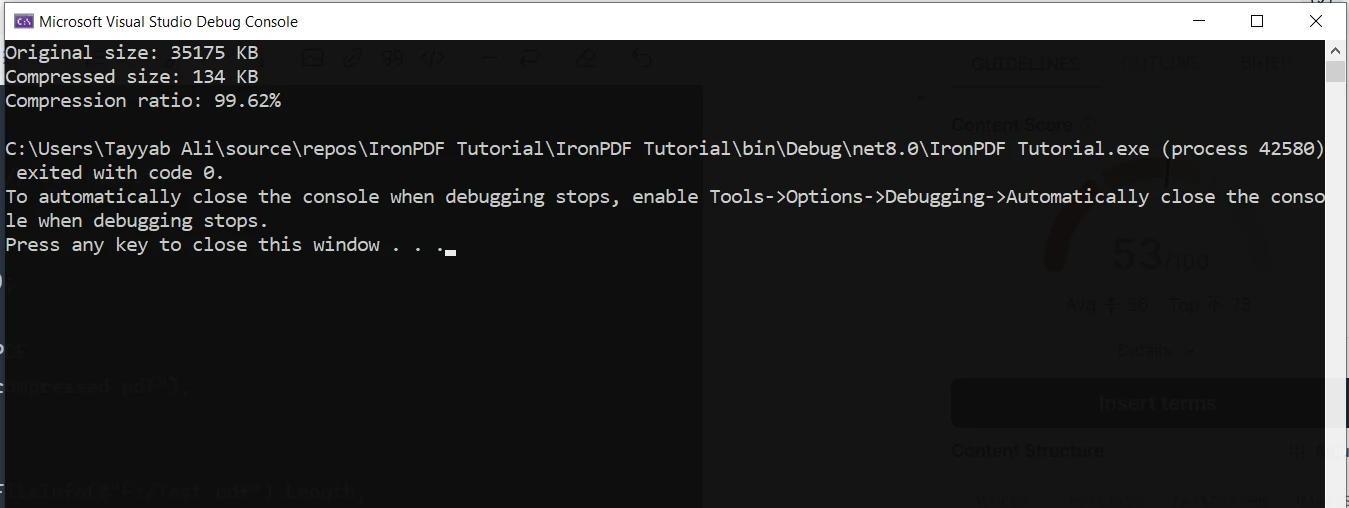
我發現這些技術的組合在減小文件大小方面效果顯著,且不會顯著影響質量。
我在各種情況下使用過這個功能:
- 電子郵件附件:當通過電子郵件發送PDF時,我會壓縮它們以確保它們不會超過附件大小限制。
- 網頁應用程式:對於需要由使用者下載的PDF,壓縮有助於減少載入時間和頻寬使用。
- 存檔:在長期保留中儲存大量PDF時,壓縮大大降低了儲存成本。
在一個專案中,我為一家律師事務所開發了一個文件管理系統。 他們有數千個PDF格式的案卷,其中許多是掃描文件,文件大小很大。 通過實施這種壓縮技術,我們在儲存需求方面取得了顯著的減少,從而在他們的雲儲存賬單上實現了實質性的成本節省。
數位簽名
給PDF新增數位簽名是一個必備功能,對於許多業務流程來說,可確保文件的真實性和不可否認性。 IronPDF使這一複雜的工作變得出人意料地簡單。 這裡有一個我實現數位簽名功能的更詳細的範例:
using IronPdf;
using IronPdf.Signing;

var renderer = new ChromePdfRenderer();
var pdf = PdfDocument.FromFile(@"F:/Contract.pdf");
var signature = new IronPdf.Signing.PdfSignature(@"F:/Iron.pfx", "123")
{
    // Step 3. Optional signing options and a handwritten signature graphic
    SigningContact = "support@ironsoftware.com",
    SigningLocation = "New York, USA",
    SigningReason = "Signing PDF"
};
pdf.Sign(signature);
pdf.SaveAs(@"F:/signed.pdf");
using IronPdf;
using IronPdf.Signing;
var renderer = new ChromePdfRenderer();
var pdf = PdfDocument.FromFile(@"F:/Contract.pdf");
var signature = new IronPdf.Signing.PdfSignature(@"F:/Iron.pfx", "123")
{
// Step 3. Optional signing options and a handwritten signature graphic
SigningContact = "support@ironsoftware.com",
SigningLocation = "New York, USA",
SigningReason = "Signing PDF"
};
pdf.Sign(signature);
pdf.SaveAs(@"F:/signed.pdf");Imports IronPdf
Imports IronPdf.Signing
Private renderer = New ChromePdfRenderer()
Private pdf = PdfDocument.FromFile("F:/Contract.pdf")
Private signature = New IronPdf.Signing.PdfSignature("F:/Iron.pfx", "123") With {
.SigningContact = "support@ironsoftware.com",
.SigningLocation = "New York, USA",
.SigningReason = "Signing PDF"
}
pdf.Sign(signature)
pdf.SaveAs("F:/signed.pdf")我在一些實際應用中使用過這個功能:
- 合約管理系統:我們為一家公司實施了這個系統,這家公司需要以電子方式發送和接收已簽署的合約。 數位簽名確保了合約的法律有效性。
- 醫療記錄系統:在一個醫療應用程式中,我們使用數位簽名來允許醫生簽署病歷和處方。
- 政府文件處理:對於一個政府機構,我們實施了一個系統,允許官方文件可以被數位簽署。
PDF拆分和合併
能夠拆分和合併PDF是我在文件管理系統中經常使用的基本功能。 IronPDF對這些功能的實現既強大又靈活。 這是關於拆分和合併PDF的一個更高級的範例:
using IronPdf;
class Program
{
    static void Main(string[] args)
    {
        // Create first PDF with three pages
        const string html_a = @"
            <h1>Document A</h1>
            <p>This is the first page of Document A.</p>
            <div style='page-break-after: always;'></div>
            <h2>Document A - Page 2</h2>
            <p>This is the second page of Document A.</p>
            <div style='page-break-after: always;'></div>
            <h2>Document A - Page 3</h2>
            <p>This is the third and final page of Document A.</p>";
        // Create second PDF with two pages
        const string html_b = @"
            <h1>Document B</h1>
            <p>Welcome to the first page of Document B.</p>
            <div style='page-break-after: always;'></div>
            <h2>Document B - Page 2</h2>
            <p>This is the second and last page of Document B.</p>";
        // Render HTML to PDF
        var renderer = new ChromePdfRenderer();
        var pdfdoc_a = renderer.RenderHtmlAsPdf(html_a);
        var pdfdoc_b = renderer.RenderHtmlAsPdf(html_b);
        // Merge PDFs
        var merged = PdfDocument.Merge(pdfdoc_a, pdfdoc_b);
        merged.SaveAs(@"F:/IronPdf/MergedDocument.pdf");
        Console.WriteLine("Merged PDF created: MergedDocument.pdf");
        // Load the merged PDF
        var pdf = PdfDocument.FromFile(@"F:/IronPdf/MergedDocument.pdf");
        // Extract the first page
        var firstPage = pdf.CopyPage(0);
        firstPage.SaveAs(@"F:/IronPdf/FirstPageOnly.pdf");
        Console.WriteLine("First page extracted: FirstPageOnly.pdf");
        // Extract pages 2 to 4 (note: index starts at 0)
        var middlePages = pdf.CopyPages(1, 3);
        middlePages.SaveAs(@"F:/IronPdf/Pages2to4.pdf");
        Console.WriteLine("Pages 2 to 4 extracted: Pages2to4.pdf");
        Console.WriteLine("Process completed. Press any key to exit.");
        Console.ReadKey();
    }
}
using IronPdf;
class Program
{
static void Main(string[] args)
{
// Create first PDF with three pages
const string html_a = @"
<h1>Document A</h1>
<p>This is the first page of Document A.</p>
<div style='page-break-after: always;'></div>
<h2>Document A - Page 2</h2>
<p>This is the second page of Document A.</p>
<div style='page-break-after: always;'></div>
<h2>Document A - Page 3</h2>
<p>This is the third and final page of Document A.</p>";
// Create second PDF with two pages
const string html_b = @"
<h1>Document B</h1>
<p>Welcome to the first page of Document B.</p>
<div style='page-break-after: always;'></div>
<h2>Document B - Page 2</h2>
<p>This is the second and last page of Document B.</p>";
// Render HTML to PDF
var renderer = new ChromePdfRenderer();
var pdfdoc_a = renderer.RenderHtmlAsPdf(html_a);
var pdfdoc_b = renderer.RenderHtmlAsPdf(html_b);
// Merge PDFs
var merged = PdfDocument.Merge(pdfdoc_a, pdfdoc_b);
merged.SaveAs(@"F:/IronPdf/MergedDocument.pdf");
Console.WriteLine("Merged PDF created: MergedDocument.pdf");
// Load the merged PDF
var pdf = PdfDocument.FromFile(@"F:/IronPdf/MergedDocument.pdf");
// Extract the first page
var firstPage = pdf.CopyPage(0);
firstPage.SaveAs(@"F:/IronPdf/FirstPageOnly.pdf");
Console.WriteLine("First page extracted: FirstPageOnly.pdf");
// Extract pages 2 to 4 (note: index starts at 0)
var middlePages = pdf.CopyPages(1, 3);
middlePages.SaveAs(@"F:/IronPdf/Pages2to4.pdf");
Console.WriteLine("Pages 2 to 4 extracted: Pages2to4.pdf");
Console.WriteLine("Process completed. Press any key to exit.");
Console.ReadKey();
}
}Imports IronPdf
Friend Class Program
Shared Sub Main(ByVal args() As String)
' Create first PDF with three pages
Const html_a As String = "
<h1>Document A</h1>
<p>This is the first page of Document A.</p>
<div style='page-break-after: always;'></div>
<h2>Document A - Page 2</h2>
<p>This is the second page of Document A.</p>
<div style='page-break-after: always;'></div>
<h2>Document A - Page 3</h2>
<p>This is the third and final page of Document A.</p>"
' Create second PDF with two pages
Const html_b As String = "
<h1>Document B</h1>
<p>Welcome to the first page of Document B.</p>
<div style='page-break-after: always;'></div>
<h2>Document B - Page 2</h2>
<p>This is the second and last page of Document B.</p>"
' Render HTML to PDF
Dim renderer = New ChromePdfRenderer()
Dim pdfdoc_a = renderer.RenderHtmlAsPdf(html_a)
Dim pdfdoc_b = renderer.RenderHtmlAsPdf(html_b)
' Merge PDFs
Dim merged = PdfDocument.Merge(pdfdoc_a, pdfdoc_b)
merged.SaveAs("F:/IronPdf/MergedDocument.pdf")
Console.WriteLine("Merged PDF created: MergedDocument.pdf")
' Load the merged PDF
Dim pdf = PdfDocument.FromFile("F:/IronPdf/MergedDocument.pdf")
' Extract the first page
Dim firstPage = pdf.CopyPage(0)
firstPage.SaveAs("F:/IronPdf/FirstPageOnly.pdf")
Console.WriteLine("First page extracted: FirstPageOnly.pdf")
' Extract pages 2 to 4 (note: index starts at 0)
Dim middlePages = pdf.CopyPages(1, 3)
middlePages.SaveAs("F:/IronPdf/Pages2to4.pdf")
Console.WriteLine("Pages 2 to 4 extracted: Pages2to4.pdf")
Console.WriteLine("Process completed. Press any key to exit.")
Console.ReadKey()
End Sub
End Class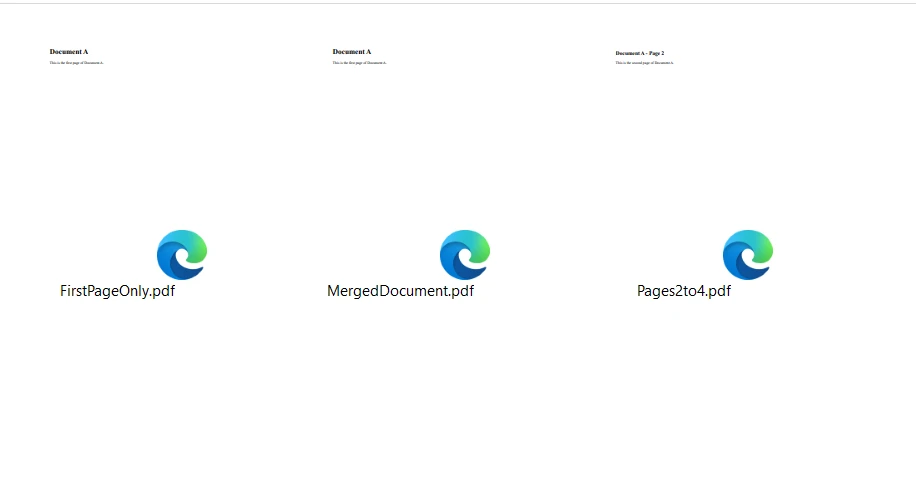
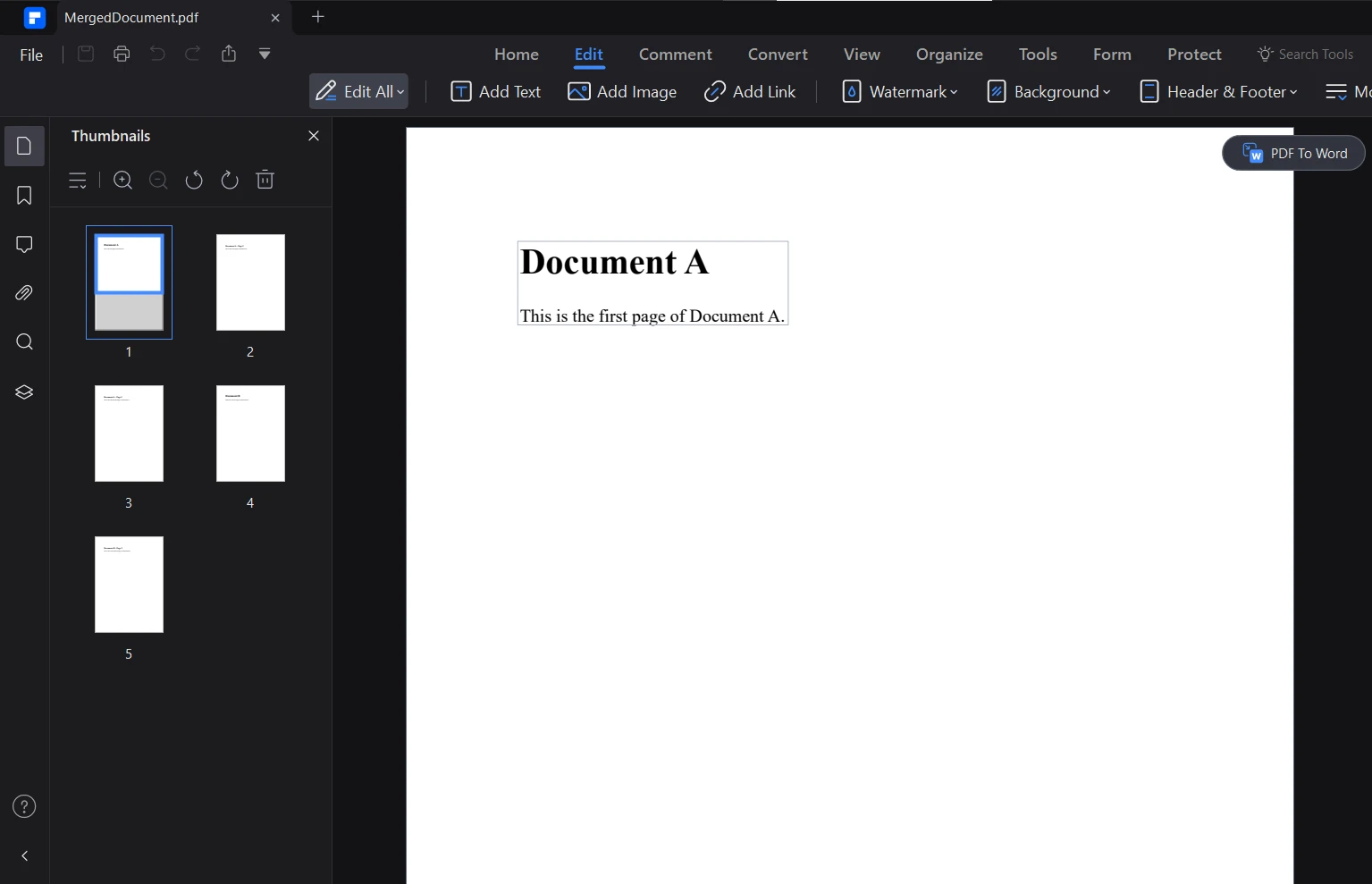
這就是由程式碼生成的合併文件:
表單填寫
自動化表單填寫在我的許多專案中節省了大量時間。 IronPDF允許我程式化填寫PDF表單,這對於處理大量表單或建立個性化文件非常有價值。 這是關於表單填寫的一個更全面的範例:
using IronPdf;
using System;

// Load the combined form
PdfDocument pdf = PdfDocument.FromFile(@"F:/completeForm.pdf");

// Handle radio buttons
var radioForm = pdf.Form.FindFormField("traveltype");
radioForm.Value = "Airplane";

// Handle checkbox
var checkboxForm = pdf.Form.FindFormField("taskCompleted");
checkboxForm.Value = "Yes";

// Handle combobox
var comboboxForm = pdf.Form.FindFormField("priority");
comboboxForm.Value = "Low";

// Print out all the available choices for combobox
foreach (var choice in comboboxForm.Choices)
{
    Console.WriteLine(choice);
}

// Handle text inputs
pdf.Form.FindFormField("firstname").Value = "John";
pdf.Form.FindFormField("lastname").Value = "Smith";

// Handle text area
pdf.Form.FindFormField("address").Value = "Iron Software\r\n205 N. Michigan Ave.";

// Save the edited PDF
pdf.SaveAs(@"F:/completeFormEdited.pdf");
using IronPdf;
using System;
// Load the combined form
PdfDocument pdf = PdfDocument.FromFile(@"F:/completeForm.pdf");
// Handle radio buttons
var radioForm = pdf.Form.FindFormField("traveltype");
radioForm.Value = "Airplane";
// Handle checkbox
var checkboxForm = pdf.Form.FindFormField("taskCompleted");
checkboxForm.Value = "Yes";
// Handle combobox
var comboboxForm = pdf.Form.FindFormField("priority");
comboboxForm.Value = "Low";
// Print out all the available choices for combobox
foreach (var choice in comboboxForm.Choices)
{
Console.WriteLine(choice);
}
// Handle text inputs
pdf.Form.FindFormField("firstname").Value = "John";
pdf.Form.FindFormField("lastname").Value = "Smith";
// Handle text area
pdf.Form.FindFormField("address").Value = "Iron Software\r\n205 N. Michigan Ave.";
// Save the edited PDF
pdf.SaveAs(@"F:/completeFormEdited.pdf");Imports Microsoft.VisualBasic
Imports IronPdf
Imports System
' Load the combined form
Private pdf As PdfDocument = PdfDocument.FromFile("F:/completeForm.pdf")
' Handle radio buttons
Private radioForm = pdf.Form.FindFormField("traveltype")
radioForm.Value = "Airplane"
' Handle checkbox
Dim checkboxForm = pdf.Form.FindFormField("taskCompleted")
checkboxForm.Value = "Yes"
' Handle combobox
Dim comboboxForm = pdf.Form.FindFormField("priority")
comboboxForm.Value = "Low"
' Print out all the available choices for combobox
For Each choice In comboboxForm.Choices
Console.WriteLine(choice)
Next choice
' Handle text inputs
pdf.Form.FindFormField("firstname").Value = "John"
pdf.Form.FindFormField("lastname").Value = "Smith"
' Handle text area
pdf.Form.FindFormField("address").Value = "Iron Software" & vbCrLf & "205 N. Michigan Ave."
' Save the edited PDF
pdf.SaveAs("F:/completeFormEdited.pdf")我在一些實際應用中使用過這個功能:
-
人事入職系統:我們建立了一個系統,根據HR資料庫的資訊,自動填寫新員工需填寫的文書工作,從而節省大量手動資料輸入的時間。
-
保險理賠處理:對於一家保險公司,我們建立了一個系統,根據保單持有人的資訊預填充理賠表單,大大加快了理賠提交過程。
-
學校申請系統:在一個教育專案中,我們實現了一個系統,根據學生資料填寫學校申請表,使申請過程對學生和管理人員都更加輕鬆。
- 稅單生成:對於一家會計公司,我們建立了一個系統,根據客戶財務資料自動填寫稅單,減少了稅務季的錯誤並節省了時間。
能夠以程式方式填寫表單已成為自動化許多業務流程的一個關鍵因素,為我節省了大量時間,並減少了手動資料輸入帶來的錯誤。
浮水印
對PDF新增浮水印通常是品牌化、安全性或狀態指示的必要步驟。 IronPDF提供了靈活的浮水印功能,在許多專案中我都覺得很有用。 這裡有一個更詳細的我如何使用浮水印的範例:
using IronPdf;
using IronSoftware.Drawing;
string watermarkHtml = @"
<img style='width: 250px;' src='https://ironsoftware.com/img/products/ironpdf-logo-text-dotnet.svg'>
<h1>Iron Software</h1>";
ChromePdfRenderer renderer = new ChromePdfRenderer();
PdfDocument pdf = renderer.RenderHtmlAsPdf("<h1>Watermark</h1>");
// Apply watermark with 45 degrees rotation and 70% opacity
pdf.ApplyWatermark(watermarkHtml, rotation: 30, opacity: 90);
pdf.SaveAs("watermarkOpacity&Rotation.pdf");using IronPdf;
using IronSoftware.Drawing;
string watermarkHtml = @"
<img style='width: 250px;' src='https://ironsoftware.com/img/products/ironpdf-logo-text-dotnet.svg'>
<h1>Iron Software</h1>";
ChromePdfRenderer renderer = new ChromePdfRenderer();
PdfDocument pdf = renderer.RenderHtmlAsPdf("<h1>Watermark</h1>");
// Apply watermark with 45 degrees rotation and 70% opacity
pdf.ApplyWatermark(watermarkHtml, rotation: 30, opacity: 90);
pdf.SaveAs("watermarkOpacity&Rotation.pdf");Imports IronPdf
Imports IronSoftware.Drawing
Private watermarkHtml As String = "
<img style='width: 250px;' src='https://ironsoftware.com/img/products/ironpdf-logo-text-dotnet.svg'>
<h1>Iron Software</h1>"
Private renderer As New ChromePdfRenderer()
Private pdf As PdfDocument = renderer.RenderHtmlAsPdf("<h1>Watermark</h1>")
' Apply watermark with 45 degrees rotation and 70% opacity
pdf.ApplyWatermark(watermarkHtml, rotation:= 30, opacity:= 90)
pdf.SaveAs("watermarkOpacity&Rotation.pdf")
APITemplate高級功能
動態模板生成
APITemplate的動態模板生成是一個強大功能,允許使用自訂JSON資料建立高度可定制的文件。 APITemplate的API支援動態組件。 您可以獲得程式碼的PDF和圖像輸出。 在API控制台中,我能夠使用所見即所得編輯器輕鬆生成PDF文件。
讓我們來看看我在專案中如何使用這個功能。
using System;
using System.IO;
using System.Net.Http;
using System.Text.Json;
using System.Threading.Tasks;

namespace csharp
{
    class ReturnContent
    {
        public string download_url { get; set; }
        public string status { get; set; }
    }

    class Program
    {
        static async Task Main(string[] args)
        {
            var api_key = "a9e4MjA2NTg6MTc3Njk6Uk1ZSzVjTWs1T3d6VE9Mdw=";
            var template_id = "bf077b23b4a407ae";
            var url = $"https://rest.apitemplate.io/v2/create-pdf?template_id={template_id}";
            var data = new
            {
                date = "15/05/2022",
                invoice_no = "435568799",
                sender_address1 = "3244 Jurong Drive",
                sender_address2 = "Falmouth Maine 1703",
                sender_phone = "255-781-6789",
                sender_email = "dev@ironsoftware.com",
                rece_addess1 = "2354 Lakeside Drive",
                rece_addess2 = "New York 234562 ",
                rece_phone = "34333-84-223",
                rece_email = "info@ironsoftware.com",
                items = new[]
                {
                    new { item_name = "Oil", unit = 1, unit_price = 100, total = 100 },
                    new { item_name = "Rice", unit = 2, unit_price = 200, total = 400 },
                    new { item_name = "Orange", unit = 7, unit_price = 20, total = 1400 }
                },
                total = "total",
                footer_email = "info@ironsoftware.com"
            };
            var json_content = JsonSerializer.Serialize(data);
            var buffer = System.Text.Encoding.UTF8.GetBytes(json_content);
            var byteContent = new ByteArrayContent(buffer);
            Console.WriteLine(json_content);
            var client = new HttpClient();
            client.DefaultRequestHeaders.Add("X-API-KEY", api_key);
            var response = await client.PostAsync(url, byteContent);
            var ret = await response.Content.ReadAsStringAsync();
            var returnContent = JsonSerializer.Deserialize<ReturnContent>(ret);
            if (returnContent.status == "success")
            {
                Console.WriteLine($"Downloading {returnContent.download_url}...");
                var download_response = await client.GetAsync(returnContent.download_url);
                using (var stream = await download_response.Content.ReadAsStreamAsync())
                {
                    var fileInfo = new FileInfo(@"F:/generated_document.pdf");
                    using (var fileStream = fileInfo.OpenWrite())
                    {
                        await stream.CopyToAsync(fileStream);
                    }
                }
                Console.WriteLine("PDF file has been downloaded and saved as 'generated_document.pdf'");
            }
        }
    }
}
using System;
using System.IO;
using System.Net.Http;
using System.Text.Json;
using System.Threading.Tasks;
namespace csharp
{
class ReturnContent
{
public string download_url { get; set; }
public string status { get; set; }
}
class Program
{
static async Task Main(string[] args)
{
var api_key = "a9e4MjA2NTg6MTc3Njk6Uk1ZSzVjTWs1T3d6VE9Mdw=";
var template_id = "bf077b23b4a407ae";
var url = $"https://rest.apitemplate.io/v2/create-pdf?template_id={template_id}";
var data = new
{
date = "15/05/2022",
invoice_no = "435568799",
sender_address1 = "3244 Jurong Drive",
sender_address2 = "Falmouth Maine 1703",
sender_phone = "255-781-6789",
sender_email = "dev@ironsoftware.com",
rece_addess1 = "2354 Lakeside Drive",
rece_addess2 = "New York 234562 ",
rece_phone = "34333-84-223",
rece_email = "info@ironsoftware.com",
items = new[]
{
new { item_name = "Oil", unit = 1, unit_price = 100, total = 100 },
new { item_name = "Rice", unit = 2, unit_price = 200, total = 400 },
new { item_name = "Orange", unit = 7, unit_price = 20, total = 1400 }
},
total = "total",
footer_email = "info@ironsoftware.com"
};
var json_content = JsonSerializer.Serialize(data);
var buffer = System.Text.Encoding.UTF8.GetBytes(json_content);
var byteContent = new ByteArrayContent(buffer);
Console.WriteLine(json_content);
var client = new HttpClient();
client.DefaultRequestHeaders.Add("X-API-KEY", api_key);
var response = await client.PostAsync(url, byteContent);
var ret = await response.Content.ReadAsStringAsync();
var returnContent = JsonSerializer.Deserialize<ReturnContent>(ret);
if (returnContent.status == "success")
{
Console.WriteLine($"Downloading {returnContent.download_url}...");
var download_response = await client.GetAsync(returnContent.download_url);
using (var stream = await download_response.Content.ReadAsStreamAsync())
{
var fileInfo = new FileInfo(@"F:/generated_document.pdf");
using (var fileStream = fileInfo.OpenWrite())
{
await stream.CopyToAsync(fileStream);
}
}
Console.WriteLine("PDF file has been downloaded and saved as 'generated_document.pdf'");
}
}
}
}Imports System
Imports System.IO
Imports System.Net.Http
Imports System.Text.Json
Imports System.Threading.Tasks
Namespace csharp
Friend Class ReturnContent
Public Property download_url() As String
Public Property status() As String
End Class
Friend Class Program
Shared Async Function Main(ByVal args() As String) As Task
Dim api_key = "a9e4MjA2NTg6MTc3Njk6Uk1ZSzVjTWs1T3d6VE9Mdw="
Dim template_id = "bf077b23b4a407ae"
Dim url = $"https://rest.apitemplate.io/v2/create-pdf?template_id={template_id}"
Dim data = New With {
Key .date = "15/05/2022",
Key .invoice_no = "435568799",
Key .sender_address1 = "3244 Jurong Drive",
Key .sender_address2 = "Falmouth Maine 1703",
Key .sender_phone = "255-781-6789",
Key .sender_email = "dev@ironsoftware.com",
Key .rece_addess1 = "2354 Lakeside Drive",
Key .rece_addess2 = "New York 234562 ",
Key .rece_phone = "34333-84-223",
Key .rece_email = "info@ironsoftware.com",
Key .items = {
New With {
Key .item_name = "Oil",
Key .unit = 1,
Key .unit_price = 100,
Key .total = 100
},
New With {
Key .item_name = "Rice",
Key .unit = 2,
Key .unit_price = 200,
Key .total = 400
},
New With {
Key .item_name = "Orange",
Key .unit = 7,
Key .unit_price = 20,
Key .total = 1400
}
},
Key .total = "total",
Key .footer_email = "info@ironsoftware.com"
}
Dim json_content = JsonSerializer.Serialize(data)
Dim buffer = System.Text.Encoding.UTF8.GetBytes(json_content)
Dim byteContent = New ByteArrayContent(buffer)
Console.WriteLine(json_content)
Dim client = New HttpClient()
client.DefaultRequestHeaders.Add("X-API-KEY", api_key)
Dim response = Await client.PostAsync(url, byteContent)
Dim ret = Await response.Content.ReadAsStringAsync()
Dim returnContent = JsonSerializer.Deserialize(Of ReturnContent)(ret)
If returnContent.status = "success" Then
Console.WriteLine($"Downloading {returnContent.download_url}...")
Dim download_response = Await client.GetAsync(returnContent.download_url)
Using stream = Await download_response.Content.ReadAsStreamAsync()
Dim fileInfo As New FileInfo("F:/generated_document.pdf")
Using fileStream = fileInfo.OpenWrite()
Await stream.CopyToAsync(fileStream)
End Using
End Using
Console.WriteLine("PDF file has been downloaded and saved as 'generated_document.pdf'")
End If
End Function
End Class
End Namespace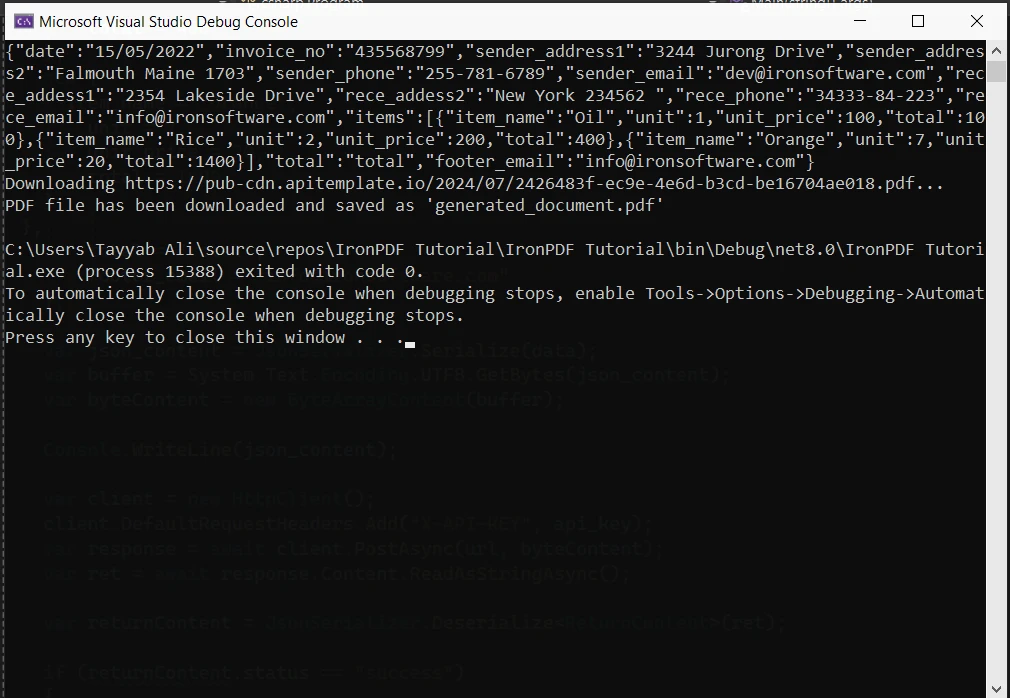
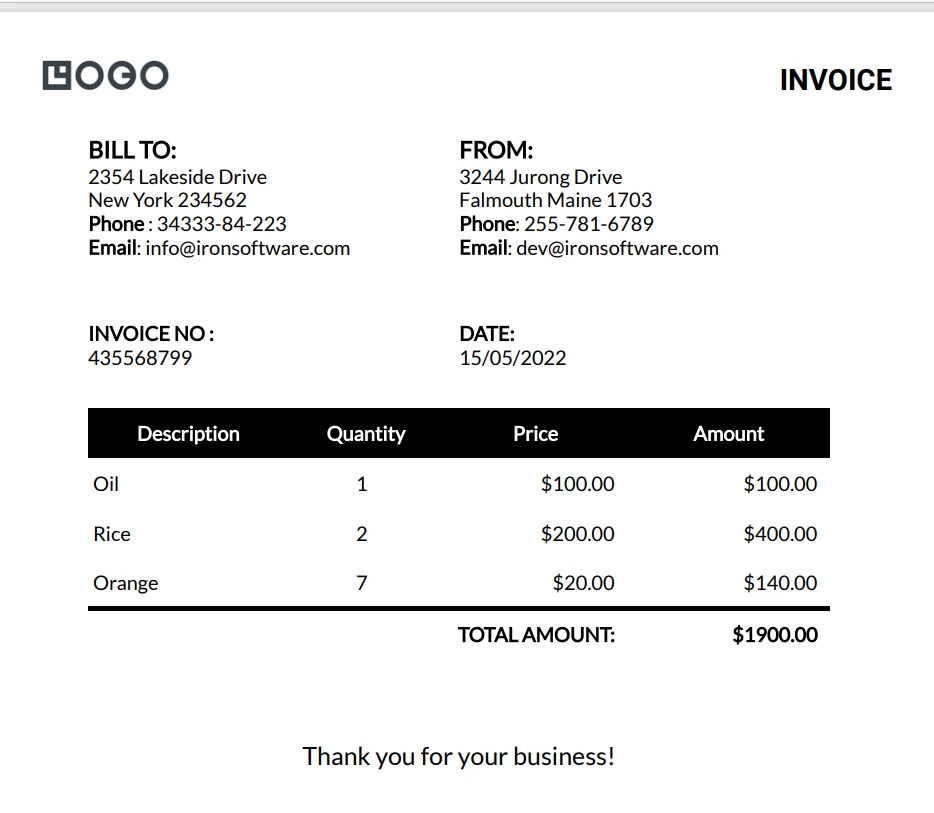
這是生成的PDF文件:
批量PDF生成
APITemplate的批量PDF生成功能在建立多個文件時顯著優勢。 這是一個更詳細的我如何使用它的範例:
using System;
using System.IO;
using System.Net.Http;
using System.Text.Json;
using System.Threading.Tasks;
using System.Collections.Generic;

namespace csharp
{
    class ReturnContent
    {
        public string download_url { get; set; }
        public string status { get; set; }
    }

    class Program
    {
        static async Task Main(string[] args)
        {
            var api_key = "a9e4MjA2NTg6MTc3Njk6Uk1ZSzVjTWs1T3d6VE9Mdw=";
            var template_id = "d4f77b23b4ab09fa";
            var url = $"https://rest.apitemplate.io/v2/create-pdf?template_id={template_id}";
            var membershipCards = new List<object>
            {
                new { name = "Iron Dev 1", email = "dev1@ironsoftware.com", membership_id = "M001", expiry_date = "2024-12-31" },
                new { name = "Iron Dev 2", email = "dev2@ironsoftware.com", membership_id = "M002", expiry_date = "2025-06-30" },
                new { name = "Iron Dev 3", email = "dev3@ironsoftware.com", membership_id = "M003", expiry_date = "2024-09-15" }
            };
            var client = new HttpClient();
            client.DefaultRequestHeaders.Add("X-API-KEY", api_key);
            for (int i = 0; i < membershipCards.Count; i++)
            {
                var json_content = JsonSerializer.Serialize(membershipCards[i]);
                var buffer = System.Text.Encoding.UTF8.GetBytes(json_content);
                var byteContent = new ByteArrayContent(buffer);
                Console.WriteLine($"Creating PDF for {((dynamic)membershipCards[i]).name}...");
                var response = await client.PostAsync(url, byteContent);
                var ret = await response.Content.ReadAsStringAsync();
                var returnContent = JsonSerializer.Deserialize<ReturnContent>(ret);
                if (returnContent.status == "success")
                {
                    Console.WriteLine($"Downloading {returnContent.download_url}...");
                    var download_response = await client.GetAsync(returnContent.download_url);
                    using (var stream = await download_response.Content.ReadAsStreamAsync())
                    {
                        var fileInfo = new FileInfo($"F:/membership_card_{i + 1}.pdf");
                        using (var fileStream = fileInfo.OpenWrite())
                        {
                            await stream.CopyToAsync(fileStream);
                        }
                    }
                    Console.WriteLine($"PDF file has been downloaded and saved as 'membership_card_{i + 1}.pdf'");
                }
                else
                {
                    Console.WriteLine($"Failed to create PDF for {((dynamic)membershipCards[i]).name}. Status: {returnContent.status}");
                }
            }
        }
    }
}
using System;
using System.IO;
using System.Net.Http;
using System.Text.Json;
using System.Threading.Tasks;
using System.Collections.Generic;
namespace csharp
{
class ReturnContent
{
public string download_url { get; set; }
public string status { get; set; }
}
class Program
{
static async Task Main(string[] args)
{
var api_key = "a9e4MjA2NTg6MTc3Njk6Uk1ZSzVjTWs1T3d6VE9Mdw=";
var template_id = "d4f77b23b4ab09fa";
var url = $"https://rest.apitemplate.io/v2/create-pdf?template_id={template_id}";
var membershipCards = new List<object>
{
new { name = "Iron Dev 1", email = "dev1@ironsoftware.com", membership_id = "M001", expiry_date = "2024-12-31" },
new { name = "Iron Dev 2", email = "dev2@ironsoftware.com", membership_id = "M002", expiry_date = "2025-06-30" },
new { name = "Iron Dev 3", email = "dev3@ironsoftware.com", membership_id = "M003", expiry_date = "2024-09-15" }
};
var client = new HttpClient();
client.DefaultRequestHeaders.Add("X-API-KEY", api_key);
for (int i = 0; i < membershipCards.Count; i++)
{
var json_content = JsonSerializer.Serialize(membershipCards[i]);
var buffer = System.Text.Encoding.UTF8.GetBytes(json_content);
var byteContent = new ByteArrayContent(buffer);
Console.WriteLine($"Creating PDF for {((dynamic)membershipCards[i]).name}...");
var response = await client.PostAsync(url, byteContent);
var ret = await response.Content.ReadAsStringAsync();
var returnContent = JsonSerializer.Deserialize<ReturnContent>(ret);
if (returnContent.status == "success")
{
Console.WriteLine($"Downloading {returnContent.download_url}...");
var download_response = await client.GetAsync(returnContent.download_url);
using (var stream = await download_response.Content.ReadAsStreamAsync())
{
var fileInfo = new FileInfo($"F:/membership_card_{i + 1}.pdf");
using (var fileStream = fileInfo.OpenWrite())
{
await stream.CopyToAsync(fileStream);
}
}
Console.WriteLine($"PDF file has been downloaded and saved as 'membership_card_{i + 1}.pdf'");
}
else
{
Console.WriteLine($"Failed to create PDF for {((dynamic)membershipCards[i]).name}. Status: {returnContent.status}");
}
}
}
}
}'INSTANT VB NOTE: 'Option Strict Off' is used here since dynamic typing is used:
Option Strict Off
Imports System
Imports System.IO
Imports System.Net.Http
Imports System.Text.Json
Imports System.Threading.Tasks
Imports System.Collections.Generic
Namespace csharp
Friend Class ReturnContent
Public Property download_url() As String
Public Property status() As String
End Class
Friend Class Program
Shared Async Function Main(ByVal args() As String) As Task
Dim api_key = "a9e4MjA2NTg6MTc3Njk6Uk1ZSzVjTWs1T3d6VE9Mdw="
Dim template_id = "d4f77b23b4ab09fa"
Dim url = $"https://rest.apitemplate.io/v2/create-pdf?template_id={template_id}"
Dim membershipCards = New List(Of Object) From {
New With {
Key .name = "Iron Dev 1",
Key .email = "dev1@ironsoftware.com",
Key .membership_id = "M001",
Key .expiry_date = "2024-12-31"
},
New With {
Key .name = "Iron Dev 2",
Key .email = "dev2@ironsoftware.com",
Key .membership_id = "M002",
Key .expiry_date = "2025-06-30"
},
New With {
Key .name = "Iron Dev 3",
Key .email = "dev3@ironsoftware.com",
Key .membership_id = "M003",
Key .expiry_date = "2024-09-15"
}
}
Dim client = New HttpClient()
client.DefaultRequestHeaders.Add("X-API-KEY", api_key)
For i As Integer = 0 To membershipCards.Count - 1
Dim json_content = JsonSerializer.Serialize(membershipCards(i))
Dim buffer = System.Text.Encoding.UTF8.GetBytes(json_content)
Dim byteContent = New ByteArrayContent(buffer)
'INSTANT VB NOTE: In the following line, Instant VB substituted 'Object' for 'dynamic' - this will work in VB with Option Strict Off:
Console.WriteLine($"Creating PDF for {CType(membershipCards(i), Object).name}...")
Dim response = Await client.PostAsync(url, byteContent)
Dim ret = Await response.Content.ReadAsStringAsync()
Dim returnContent = JsonSerializer.Deserialize(Of ReturnContent)(ret)
If returnContent.status = "success" Then
Console.WriteLine($"Downloading {returnContent.download_url}...")
Dim download_response = Await client.GetAsync(returnContent.download_url)
Using stream = Await download_response.Content.ReadAsStreamAsync()
Dim fileInfo As New FileInfo($"F:/membership_card_{i + 1}.pdf")
Using fileStream = fileInfo.OpenWrite()
Await stream.CopyToAsync(fileStream)
End Using
End Using
Console.WriteLine($"PDF file has been downloaded and saved as 'membership_card_{i + 1}.pdf'")
Else
'INSTANT VB NOTE: In the following line, Instant VB substituted 'Object' for 'dynamic' - this will work in VB with Option Strict Off:
Console.WriteLine($"Failed to create PDF for {CType(membershipCards(i), Object).name}. Status: {returnContent.status}")
End If
Next i
End Function
End Class
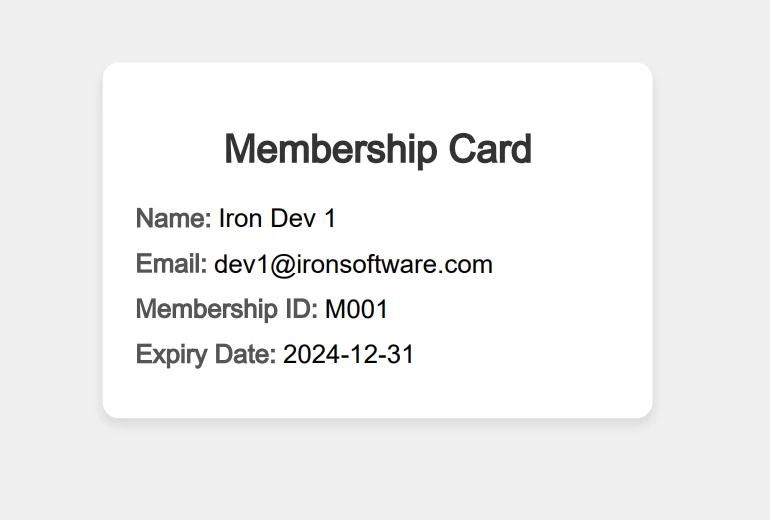
End Namespace這段程式碼在一個API調用中生成了多個會員卡。 每張卡都使用個別會員資訊進行定制。 這就是程式碼生成的一張卡:
影像生成
雖然PDF生成是APITemplate的主要功能,但其影像生成功能同樣令人印象深刻。您可以使用圖像模板在控制臺中生成社交媒體圖像。 它還提供了一個響應式圖像智慧裁剪。橫幅生成API與影像API相同。 這是一個我如何使用它的更複雜範例:
using System;
using System.IO;
using System.Net.Http;
using System.Text;
using System.Text.Json;
using System.Threading.Tasks;

namespace csharp
{
    class ReturnContent
    {
        public string download_url { get; set; }
        public string status { get; set; }
    }

    class Program
    {
        static async Task Main(string[] args)
        {
            var api_key = "a9e4MjA2NTg6MTc3Njk6Uk1ZSzVjTWs1T3d6VE9Mdw=";
            var template_id = "f4377b23b4aeeed0";
            var url = $"https://rest.apitemplate.io/v2/create-image?template_id={template_id}";
            var json_content = @"{
    ""overrides"": [
        {
            ""name"": ""rect_image_bg"",
            ""stroke"": ""grey"",
            ""src"": ""https://images.unsplash.com/photo-1542401886-65d6c61db217?crop=entropy&cs=tinysrgb&fit=max&fm=jpg&ixid=MnwxOTc1MDZ8MHwxfHNlYXJjaHwzfHxkZXNlcnR8ZW58MHwwfHx8MTYyMTUxOTI2OA&ixlib=rb-1.2.1&q=80&w=1080""
        },
        {
            ""name"": ""rect_container"",
            ""stroke"": ""grey"",
            ""backgroundColor"": ""rgba(255, 255, 255, 0.62)""
        },
        {
            ""name"": ""text_quote"",
            ""text"": ""Just witnessed the most breathtaking sunset over the Sahara. The way the light dances on the dunes, painting the sky in shades of orange and purple, is truly magical. Nature's artistry at its finest!  #DesertAdventures #SaharaSkies"",
            ""textBackgroundColor"": ""rgba(246, 243, 243, 0)"",
            ""color"": ""#414141""
        },
        {
            ""name"": ""text_footer"",
            ""text"": ""2024-07-30 - Twitter - iPhone 16 Pro"",
            ""textBackgroundColor"": ""rgba(246, 243, 243, 0)"",
            ""color"": ""#666666""
        },
        {
            ""name"": ""circle_profile"",
            ""stroke"": ""grey"",
            ""src"": ""https://images.unsplash.com/photo-1520998116484-6eeb2f72b5b9?crop=entropy&cs=tinysrgb&fit=max&fm=jpg&ixid=MnwxOTc1MDZ8MHwxfHNlYXJjaHw2Mnx8aGFwcHl8ZW58MHwwfHx8MTYyMTY5MjkwNw&ixlib=rb-1.2.1&q=80&w=1080""
        },
        {
            ""name"": ""text_name"",
            ""text"": ""Sarah Wanderlust"",
            ""textBackgroundColor"": ""rgba(246, 243, 243, 0)"",
            ""color"": ""#4E4E4E""
        },
        {
            ""name"": ""text_twitter"",
            ""text"": ""@sarahexplores"",
            ""textBackgroundColor"": ""rgba(246, 243, 243, 0)"",
            ""color"": ""#4E4E4E""
        }
    ]
}";
            var buffer = System.Text.Encoding.UTF8.GetBytes(json_content);
            var byteContent = new ByteArrayContent(buffer);
            Console.WriteLine(json_content);
            var client = new HttpClient();
            client.DefaultRequestHeaders.Add("X-API-KEY", api_key);
            var response = await client.PostAsync(url, byteContent);
            var ret = await response.Content.ReadAsStringAsync();
            var returnContent = JsonSerializer.Deserialize<ReturnContent>(ret);
            if (returnContent.status == "success")
            {
                Console.WriteLine($"Downloading {returnContent.download_url}...");
                var download_response = await client.GetAsync(returnContent.download_url);
                using (var stream = await download_response.Content.ReadAsStreamAsync())
                {
                    var fileInfo = new FileInfo("image.jpeg");
                    using (var fileStream = fileInfo.OpenWrite())
                    {
                        await stream.CopyToAsync(fileStream);
                    }
                }
            }
        }
    }
}
using System;
using System.IO;
using System.Net.Http;
using System.Text;
using System.Text.Json;
using System.Threading.Tasks;
namespace csharp
{
class ReturnContent
{
public string download_url { get; set; }
public string status { get; set; }
}
class Program
{
static async Task Main(string[] args)
{
var api_key = "a9e4MjA2NTg6MTc3Njk6Uk1ZSzVjTWs1T3d6VE9Mdw=";
var template_id = "f4377b23b4aeeed0";
var url = $"https://rest.apitemplate.io/v2/create-image?template_id={template_id}";
var json_content = @"{
""overrides"": [
{
""name"": ""rect_image_bg"",
""stroke"": ""grey"",
""src"": ""https://images.unsplash.com/photo-1542401886-65d6c61db217?crop=entropy&cs=tinysrgb&fit=max&fm=jpg&ixid=MnwxOTc1MDZ8MHwxfHNlYXJjaHwzfHxkZXNlcnR8ZW58MHwwfHx8MTYyMTUxOTI2OA&ixlib=rb-1.2.1&q=80&w=1080""
},
{
""name"": ""rect_container"",
""stroke"": ""grey"",
""backgroundColor"": ""rgba(255, 255, 255, 0.62)""
},
{
""name"": ""text_quote"",
""text"": ""Just witnessed the most breathtaking sunset over the Sahara. The way the light dances on the dunes, painting the sky in shades of orange and purple, is truly magical. Nature's artistry at its finest! #DesertAdventures #SaharaSkies"",
""textBackgroundColor"": ""rgba(246, 243, 243, 0)"",
""color"": ""#414141""
},
{
""name"": ""text_footer"",
""text"": ""2024-07-30 - Twitter - iPhone 16 Pro"",
""textBackgroundColor"": ""rgba(246, 243, 243, 0)"",
""color"": ""#666666""
},
{
""name"": ""circle_profile"",
""stroke"": ""grey"",
""src"": ""https://images.unsplash.com/photo-1520998116484-6eeb2f72b5b9?crop=entropy&cs=tinysrgb&fit=max&fm=jpg&ixid=MnwxOTc1MDZ8MHwxfHNlYXJjaHw2Mnx8aGFwcHl8ZW58MHwwfHx8MTYyMTY5MjkwNw&ixlib=rb-1.2.1&q=80&w=1080""
},
{
""name"": ""text_name"",
""text"": ""Sarah Wanderlust"",
""textBackgroundColor"": ""rgba(246, 243, 243, 0)"",
""color"": ""#4E4E4E""
},
{
""name"": ""text_twitter"",
""text"": ""@sarahexplores"",
""textBackgroundColor"": ""rgba(246, 243, 243, 0)"",
""color"": ""#4E4E4E""
}
]
}";
var buffer = System.Text.Encoding.UTF8.GetBytes(json_content);
var byteContent = new ByteArrayContent(buffer);
Console.WriteLine(json_content);
var client = new HttpClient();
client.DefaultRequestHeaders.Add("X-API-KEY", api_key);
var response = await client.PostAsync(url, byteContent);
var ret = await response.Content.ReadAsStringAsync();
var returnContent = JsonSerializer.Deserialize<ReturnContent>(ret);
if (returnContent.status == "success")
{
Console.WriteLine($"Downloading {returnContent.download_url}...");
var download_response = await client.GetAsync(returnContent.download_url);
using (var stream = await download_response.Content.ReadAsStreamAsync())
{
var fileInfo = new FileInfo("image.jpeg");
using (var fileStream = fileInfo.OpenWrite())
{
await stream.CopyToAsync(fileStream);
}
}
}
}
}
}Imports System
Imports System.IO
Imports System.Net.Http
Imports System.Text
Imports System.Text.Json
Imports System.Threading.Tasks
Namespace csharp
Friend Class ReturnContent
Public Property download_url() As String
Public Property status() As String
End Class
Friend Class Program
Shared Async Function Main(ByVal args() As String) As Task
Dim api_key = "a9e4MjA2NTg6MTc3Njk6Uk1ZSzVjTWs1T3d6VE9Mdw="
Dim template_id = "f4377b23b4aeeed0"
Dim url = $"https://rest.apitemplate.io/v2/create-image?template_id={template_id}"
Dim json_content = "{
""overrides"": [
{
""name"": ""rect_image_bg"",
""stroke"": ""grey"",
""src"": ""https://images.unsplash.com/photo-1542401886-65d6c61db217?crop=entropy&cs=tinysrgb&fit=max&fm=jpg&ixid=MnwxOTc1MDZ8MHwxfHNlYXJjaHwzfHxkZXNlcnR8ZW58MHwwfHx8MTYyMTUxOTI2OA&ixlib=rb-1.2.1&q=80&w=1080""
},
{
""name"": ""rect_container"",
""stroke"": ""grey"",
""backgroundColor"": ""rgba(255, 255, 255, 0.62)""
},
{
""name"": ""text_quote"",
""text"": ""Just witnessed the most breathtaking sunset over the Sahara. The way the light dances on the dunes, painting the sky in shades of orange and purple, is truly magical. Nature's artistry at its finest! #DesertAdventures #SaharaSkies"",
""textBackgroundColor"": ""rgba(246, 243, 243, 0)"",
""color"": ""#414141""
},
{
""name"": ""text_footer"",
""text"": ""2024-07-30 - Twitter - iPhone 16 Pro"",
""textBackgroundColor"": ""rgba(246, 243, 243, 0)"",
""color"": ""#666666""
},
{
""name"": ""circle_profile"",
""stroke"": ""grey"",
""src"": ""https://images.unsplash.com/photo-1520998116484-6eeb2f72b5b9?crop=entropy&cs=tinysrgb&fit=max&fm=jpg&ixid=MnwxOTc1MDZ8MHwxfHNlYXJjaHw2Mnx8aGFwcHl8ZW58MHwwfHx8MTYyMTY5MjkwNw&ixlib=rb-1.2.1&q=80&w=1080""
},
{
""name"": ""text_name"",
""text"": ""Sarah Wanderlust"",
""textBackgroundColor"": ""rgba(246, 243, 243, 0)"",
""color"": ""#4E4E4E""
},
{
""name"": ""text_twitter"",
""text"": ""@sarahexplores"",
""textBackgroundColor"": ""rgba(246, 243, 243, 0)"",
""color"": ""#4E4E4E""
}
]
}"
Dim buffer = System.Text.Encoding.UTF8.GetBytes(json_content)
Dim byteContent = New ByteArrayContent(buffer)
Console.WriteLine(json_content)
Dim client = New HttpClient()
client.DefaultRequestHeaders.Add("X-API-KEY", api_key)
Dim response = Await client.PostAsync(url, byteContent)
Dim ret = Await response.Content.ReadAsStringAsync()
Dim returnContent = JsonSerializer.Deserialize(Of ReturnContent)(ret)
If returnContent.status = "success" Then
Console.WriteLine($"Downloading {returnContent.download_url}...")
Dim download_response = Await client.GetAsync(returnContent.download_url)
Using stream = Await download_response.Content.ReadAsStreamAsync()
Dim fileInfo As New FileInfo("image.jpeg")
Using fileStream = fileInfo.OpenWrite()
Await stream.CopyToAsync(fileStream)
End Using
End Using
End If
End Function
End Class
End Namespace
此範例生成了一個具有動態內容、自定義背景色和嵌入產品圖像的產品促銷圖像。
QR Code生成
APITemplate內建的QR code生成功能大大增強了我的許多專案。 您可以將資料URL放在QR code內容的位置。 這是一個我如何使用它的更複雜範例:
using System;
using System.IO;
using System.Net.Http;
using System.Text;
using System.Text.Json;
using System.Threading.Tasks;

namespace csharp
{
    class ReturnContent
    {
        public string download_url { get; set; }
        public string status { get; set; }
    }

    class Program
    {
        static async Task Main(string[] args)
        {
            var api_key = "API-Key";
            var template_id = "Template-Key";
            var url = $"https://rest.apitemplate.io/v2/create-image?template_id={template_id}";
            var json_content = @"{
    ""overrides"": [
        {
            ""name"": ""background-color"",
            ""stroke"": ""grey"",
            ""backgroundColor"": ""#FFFFFF""
        },
        {
            ""name"": ""qr_1"",
            ""content"": ""http://ironpdf.com/"",
            ""backgroundColor"": ""white"",
            ""color"": ""#000000""
        }
    ]
}";
            var buffer = System.Text.Encoding.UTF8.GetBytes(json_content);
            var byteContent = new ByteArrayContent(buffer);
            //Console.WriteLine(json_content);
            var client = new HttpClient();
            client.DefaultRequestHeaders.Add("X-API-KEY", api_key);
            var response = await client.PostAsync(url, byteContent);
            var ret = await response.Content.ReadAsStringAsync();
            var returnContent = JsonSerializer.Deserialize<ReturnContent>(ret);
            Console.WriteLine(returnContent.status);
            if (returnContent.status == "success")
            {
                Console.WriteLine($"Downloading {returnContent.download_url}...");
                var download_response = await client.GetAsync(returnContent.download_url);
                using (var stream = await download_response.Content.ReadAsStreamAsync())
                {
                    var fileInfo = new FileInfo(@"F:/QRimage.jpeg");
                    using (var fileStream = fileInfo.OpenWrite())
                    {
                        await stream.CopyToAsync(fileStream);
                    }
                }
            }
        }
    }
}
using System;
using System.IO;
using System.Net.Http;
using System.Text;
using System.Text.Json;
using System.Threading.Tasks;
namespace csharp
{
class ReturnContent
{
public string download_url { get; set; }
public string status { get; set; }
}
class Program
{
static async Task Main(string[] args)
{
var api_key = "API-Key";
var template_id = "Template-Key";
var url = $"https://rest.apitemplate.io/v2/create-image?template_id={template_id}";
var json_content = @"{
""overrides"": [
{
""name"": ""background-color"",
""stroke"": ""grey"",
""backgroundColor"": ""#FFFFFF""
},
{
""name"": ""qr_1"",
""content"": ""http://ironpdf.com/"",
""backgroundColor"": ""white"",
""color"": ""#000000""
}
]
}";
var buffer = System.Text.Encoding.UTF8.GetBytes(json_content);
var byteContent = new ByteArrayContent(buffer);
//Console.WriteLine(json_content);
var client = new HttpClient();
client.DefaultRequestHeaders.Add("X-API-KEY", api_key);
var response = await client.PostAsync(url, byteContent);
var ret = await response.Content.ReadAsStringAsync();
var returnContent = JsonSerializer.Deserialize<ReturnContent>(ret);
Console.WriteLine(returnContent.status);
if (returnContent.status == "success")
{
Console.WriteLine($"Downloading {returnContent.download_url}...");
var download_response = await client.GetAsync(returnContent.download_url);
using (var stream = await download_response.Content.ReadAsStreamAsync())
{
var fileInfo = new FileInfo(@"F:/QRimage.jpeg");
using (var fileStream = fileInfo.OpenWrite())
{
await stream.CopyToAsync(fileStream);
}
}
}
}
}
}Imports System
Imports System.IO
Imports System.Net.Http
Imports System.Text
Imports System.Text.Json
Imports System.Threading.Tasks
Namespace csharp
Friend Class ReturnContent
Public Property download_url() As String
Public Property status() As String
End Class
Friend Class Program
Shared Async Function Main(ByVal args() As String) As Task
Dim api_key = "API-Key"
Dim template_id = "Template-Key"
Dim url = $"https://rest.apitemplate.io/v2/create-image?template_id={template_id}"
Dim json_content = "{
""overrides"": [
{
""name"": ""background-color"",
""stroke"": ""grey"",
""backgroundColor"": ""#FFFFFF""
},
{
""name"": ""qr_1"",
""content"": ""http://ironpdf.com/"",
""backgroundColor"": ""white"",
""color"": ""#000000""
}
]
}"
Dim buffer = System.Text.Encoding.UTF8.GetBytes(json_content)
Dim byteContent = New ByteArrayContent(buffer)
'Console.WriteLine(json_content);
Dim client = New HttpClient()
client.DefaultRequestHeaders.Add("X-API-KEY", api_key)
Dim response = Await client.PostAsync(url, byteContent)
Dim ret = Await response.Content.ReadAsStringAsync()
Dim returnContent = JsonSerializer.Deserialize(Of ReturnContent)(ret)
Console.WriteLine(returnContent.status)
If returnContent.status = "success" Then
Console.WriteLine($"Downloading {returnContent.download_url}...")
Dim download_response = Await client.GetAsync(returnContent.download_url)
Using stream = Await download_response.Content.ReadAsStreamAsync()
Dim fileInfo As New FileInfo("F:/QRimage.jpeg")
Using fileStream = fileInfo.OpenWrite()
Await stream.CopyToAsync(fileStream)
End Using
End Using
End If
End Function
End Class
End Namespace
文件和支援
作為經常從事PDF建立和操縱的C#開發人員,我發現文件品質和支援可以成就或摧毀一個專案。 讓我們看看我對IronPDF和APITemplate的文件和支援的經驗。
IronPDF
文件
IronPDF的文件全面且組織良好,這在我的專案中為我提供了很大幫助。 這裡是我生ITableView.xlsx的詳細分析:IronPDF的文件可以在ironpdf.com/docs/找到,非常豐富。這裡有一些我欣賞的關鍵點:
-
入門指南:文件以清晰的步驟引導如何通過NuGet安裝IronPDF並建立您的第一個PDF開始。 這在我初期專案中幫助我快速上手。
-
API參考:API參考非常完善,涵蓋所有類別和方法。 每個條目都包含C#範例,我在實施特定功能時覺得非常寶貴。
-
程式碼範例:在文件中有許多程式碼片段和完整範例。 這些在我需要實施更複雜的PDF操作時特別有幫助。
-
教程和指南:IronPDF提供了詳細的常見任務教程,例如從HTML建立PDF,新增浮水印或使用表單。 這些為我在更高級的使用情況下提供了指導。
- 疑難排解部分:文件中包括一個疑難排解部分,處理常見問題。 這在我遇到錯誤或意外行為時節省了我不少時間。
支援
IronPDF的聯絡方式也很迅速,我的經驗中,支援通道非常有幫助:
-
電子郵件支援:當我遇到複雜問題時,我使用了他們的電子郵件支援。 響應時間通常在24小時內,支援團隊對產品的了解非常透徹。
-
社區論壇:IronPDF維護一個社區論壇,開發人員可以在這裡提出問題和分享解決方案。 我在這裡找到了一些問題答案,並根據我的經驗提供了一些解決方案。
-
Stack Overflow:IronPDF團隊積極監控Stack Overflow上的[IronPDF]標籤。 我在那裡發布的問題得到了很有幫助的回答。
-
定期更新:IronPDF經常發布修復漏洞和新功能的更新。 變更記錄詳細,幫助我了解每個版本的新內容或更改。
- 遷移指南:當主要版本之間出現重大變更時,IronPDF會提供遷移指南。 這對我之後將我的專案更新到更新版本的程式庫至關重要。
APITemplate
APITemplate的文件和支援結構與IronPDF不同,反映了它作為雲端服務的特性。這是我的經歷:
文件
APITemplate的文件可在apitemplate.io/reference/api-reference.html找到,重點是API使用。 這是一些關鍵點:
-
API參考:文件提供了清晰的API參考,詳細說明所有可用的端點、所需參數和響應格式。 在將APITemplate整合到我的C#應用程式中時,這是我的首要資源。
- 身份驗證:有一個專門的身份驗證部分,清楚地解釋了如何使用API密鑰。 當我最初開始使用該服務時,這是至關重要的。
支援
APITemplate的支援結構更傾向於電子郵件支援:
-
電子郵件支援:當我有問題或疑問時,我使用了他們的電子郵件支援。 響應時間通常在1-2個工作日之內。
- FAQ部分:文件包括一個FAQ部分,用來解決常見問題。 遇到問題時,這經常是我第一個尋找答案的地方。
與IronPDF一起使用Bootstrap 5來製作分析儀表板
IronPDF的Chrome V8渲染引擎在呈現現代Bootstrap 5佈局方面表現出色,這使得它非常適合生成具有業務指標和資料可視化的PDF報告。 與APITemplate的基於API的方法不同,IronPDF直接處理HTML,完全支援CSS3,包括flexbox、CSS Grid和自訂屬性。
using IronPdf;

var renderer = new ChromePdfRenderer();

string analyticsDashboard = @"
<!DOCTYPE html>
<html>
<head>
    <meta charset='utf-8'>
    <meta name='viewport' content='width=device-width, initial-scale=1'>
    <link href='https://cdn.jsdelivr.net/npm/bootstrap@5.3.0/dist/css/bootstrap.min.css' rel='stylesheet'>
    <style>
        .metric-card {
            transition: transform 0.2s;
            border-left: 4px solid #0d6efd;
        }
        .metric-card:hover { transform: translateY(-5px); }
        .trend-up { color: #198754; }
        .trend-down { color: #dc3545; }
        @media print {
            .metric-card { page-break-inside: avoid; }
        }
    </style>
</head>
<body class='bg-light'>
    <div class='container py-5'>
        <div class='row mb-4'>
            <div class='col-12'>
                <div class='card shadow-sm'>
                    <div class='card-body'>
                        <h1 class='display-6 mb-0'>Performance Dashboard</h1>
                        <p class='text-muted mb-0'>Q4 2024 Analytics Overview</p>
                    </div>
                </div>
            </div>
        </div>

        <div class='row g-4 mb-4'>
            <div class='col-md-3'>
                <div class='card metric-card shadow-sm h-100'>
                    <div class='card-body'>
                        <h6 class='text-muted text-uppercase mb-2'>Total Revenue</h6>
                        <h2 class='display-6 mb-3'>$2.4M</h2>
                        <div class='progress' style='height: 6px;'>
                            <div class='progress-bar bg-success' style='width: 85%'></div>
                        </div>
                        <small class='trend-up'>↑ 18% from last quarter</small>
                    </div>
                </div>
            </div>
            <div class='col-md-3'>
                <div class='card metric-card shadow-sm h-100'>
                    <div class='card-body'>
                        <h6 class='text-muted text-uppercase mb-2'>Active Users</h6>
                        <h2 class='display-6 mb-3'>48,592</h2>
                        <div class='progress' style='height: 6px;'>
                            <div class='progress-bar bg-primary' style='width: 72%'></div>
                        </div>
                        <small class='trend-up'>↑ 12% growth rate</small>
                    </div>
                </div>
            </div>
            <div class='col-md-3'>
                <div class='card metric-card shadow-sm h-100'>
                    <div class='card-body'>
                        <h6 class='text-muted text-uppercase mb-2'>Conversion Rate</h6>
                        <h2 class='display-6 mb-3'>3.8%</h2>
                        <div class='progress' style='height: 6px;'>
                            <div class='progress-bar bg-warning' style='width: 38%'></div>
                        </div>
                        <small class='trend-down'>↓ 2% needs attention</small>
                    </div>
                </div>
            </div>
            <div class='col-md-3'>
                <div class='card metric-card shadow-sm h-100'>
                    <div class='card-body'>
                        <h6 class='text-muted text-uppercase mb-2'>Satisfaction</h6>
                        <h2 class='display-6 mb-3'>4.7/5</h2>
                        <div class='progress' style='height: 6px;'>
                            <div class='progress-bar bg-success' style='width: 94%'></div>
                        </div>
                        <small class='trend-up'>↑ Excellent rating</small>
                    </div>
                </div>
            </div>
        </div>

        <div class='card shadow-sm'>
            <div class='card-body'>
                <h5 class='card-title mb-3'>Top Performing Products</h5>
                <div class='table-responsive'>
                    <table class='table table-hover'>
                        <thead class='table-light'>
                            <tr>
                                <th>Product</th>
                                <th>Revenue</th>
                                <th>Units</th>
                                <th>Trend</th>
                            </tr>
                        </thead>
                        <tbody>
                            <tr>
                                <td><strong>Enterprise Suite</strong></td>
                                <td>$1,240,000</td>
                                <td>2,150</td>
                                <td><span class='badge bg-success'>+22%</span></td>
                            </tr>
                            <tr>
                                <td><strong>Professional Plan</strong></td>
                                <td>$820,000</td>
                                <td>4,890</td>
                                <td><span class='badge bg-success'>+15%</span></td>
                            </tr>
                            <tr>
                                <td><strong>Starter Package</strong></td>
                                <td>$340,000</td>
                                <td>8,240</td>
                                <td><span class='badge bg-warning'>+5%</span></td>
                            </tr>
                        </tbody>
                    </table>
                </div>
            </div>
        </div>
    </div>
</body>
</html>";

var pdf = renderer.RenderHtmlAsPdf(analyticsDashboard);
pdf.SaveAs("analytics-dashboard.pdf");
using IronPdf;
var renderer = new ChromePdfRenderer();
string analyticsDashboard = @"
<!DOCTYPE html>
<html>
<head>
<meta charset='utf-8'>
<meta name='viewport' content='width=device-width, initial-scale=1'>
<link href='https://cdn.jsdelivr.net/npm/bootstrap@5.3.0/dist/css/bootstrap.min.css' rel='stylesheet'>
<style>
.metric-card {
transition: transform 0.2s;
border-left: 4px solid #0d6efd;
}
.metric-card:hover { transform: translateY(-5px); }
.trend-up { color: #198754; }
.trend-down { color: #dc3545; }
@media print {
.metric-card { page-break-inside: avoid; }
}
</style>
</head>
<body class='bg-light'>
<div class='container py-5'>
<div class='row mb-4'>
<div class='col-12'>
<div class='card shadow-sm'>
<div class='card-body'>
<h1 class='display-6 mb-0'>Performance Dashboard</h1>
<p class='text-muted mb-0'>Q4 2024 Analytics Overview</p>
</div>
</div>
</div>
</div>
<div class='row g-4 mb-4'>
<div class='col-md-3'>
<div class='card metric-card shadow-sm h-100'>
<div class='card-body'>
<h6 class='text-muted text-uppercase mb-2'>Total Revenue</h6>
<h2 class='display-6 mb-3'>$2.4M</h2>
<div class='progress' style='height: 6px;'>
<div class='progress-bar bg-success' style='width: 85%'></div>
</div>
<small class='trend-up'>↑ 18% from last quarter</small>
</div>
</div>
</div>
<div class='col-md-3'>
<div class='card metric-card shadow-sm h-100'>
<div class='card-body'>
<h6 class='text-muted text-uppercase mb-2'>Active Users</h6>
<h2 class='display-6 mb-3'>48,592</h2>
<div class='progress' style='height: 6px;'>
<div class='progress-bar bg-primary' style='width: 72%'></div>
</div>
<small class='trend-up'>↑ 12% growth rate</small>
</div>
</div>
</div>
<div class='col-md-3'>
<div class='card metric-card shadow-sm h-100'>
<div class='card-body'>
<h6 class='text-muted text-uppercase mb-2'>Conversion Rate</h6>
<h2 class='display-6 mb-3'>3.8%</h2>
<div class='progress' style='height: 6px;'>
<div class='progress-bar bg-warning' style='width: 38%'></div>
</div>
<small class='trend-down'>↓ 2% needs attention</small>
</div>
</div>
</div>
<div class='col-md-3'>
<div class='card metric-card shadow-sm h-100'>
<div class='card-body'>
<h6 class='text-muted text-uppercase mb-2'>Satisfaction</h6>
<h2 class='display-6 mb-3'>4.7/5</h2>
<div class='progress' style='height: 6px;'>
<div class='progress-bar bg-success' style='width: 94%'></div>
</div>
<small class='trend-up'>↑ Excellent rating</small>
</div>
</div>
</div>
</div>
<div class='card shadow-sm'>
<div class='card-body'>
<h5 class='card-title mb-3'>Top Performing Products</h5>
<div class='table-responsive'>
<table class='table table-hover'>
<thead class='table-light'>
<tr>
<th>Product</th>
<th>Revenue</th>
<th>Units</th>
<th>Trend</th>
</tr>
</thead>
<tbody>
<tr>
<td><strong>Enterprise Suite</strong></td>
<td>$1,240,000</td>
<td>2,150</td>
<td><span class='badge bg-success'>+22%</span></td>
</tr>
<tr>
<td><strong>Professional Plan</strong></td>
<td>$820,000</td>
<td>4,890</td>
<td><span class='badge bg-success'>+15%</span></td>
</tr>
<tr>
<td><strong>Starter Package</strong></td>
<td>$340,000</td>
<td>8,240</td>
<td><span class='badge bg-warning'>+5%</span></td>
</tr>
</tbody>
</table>
</div>
</div>
</div>
</div>
</body>
</html>";
var pdf = renderer.RenderHtmlAsPdf(analyticsDashboard);
pdf.SaveAs("analytics-dashboard.pdf");Imports IronPdf
Dim renderer As New ChromePdfRenderer()
Dim analyticsDashboard As String = "
<!DOCTYPE html>
<html>
<head>
<meta charset='utf-8'>
<meta name='viewport' content='width=device-width, initial-scale=1'>
<link href='https://cdn.jsdelivr.net/npm/bootstrap@5.3.0/dist/css/bootstrap.min.css' rel='stylesheet'>
<style>
.metric-card {
transition: transform 0.2s;
border-left: 4px solid #0d6efd;
}
.metric-card:hover { transform: translateY(-5px); }
.trend-up { color: #198754; }
.trend-down { color: #dc3545; }
@media print {
.metric-card { page-break-inside: avoid; }
}
</style>
</head>
<body class='bg-light'>
<div class='container py-5'>
<div class='row mb-4'>
<div class='col-12'>
<div class='card shadow-sm'>
<div class='card-body'>
<h1 class='display-6 mb-0'>Performance Dashboard</h1>
<p class='text-muted mb-0'>Q4 2024 Analytics Overview</p>
</div>
</div>
</div>
</div>
<div class='row g-4 mb-4'>
<div class='col-md-3'>
<div class='card metric-card shadow-sm h-100'>
<div class='card-body'>
<h6 class='text-muted text-uppercase mb-2'>Total Revenue</h6>
<h2 class='display-6 mb-3'>$2.4M</h2>
<div class='progress' style='height: 6px;'>
<div class='progress-bar bg-success' style='width: 85%'></div>
</div>
<small class='trend-up'>↑ 18% from last quarter</small>
</div>
</div>
</div>
<div class='col-md-3'>
<div class='card metric-card shadow-sm h-100'>
<div class='card-body'>
<h6 class='text-muted text-uppercase mb-2'>Active Users</h6>
<h2 class='display-6 mb-3'>48,592</h2>
<div class='progress' style='height: 6px;'>
<div class='progress-bar bg-primary' style='width: 72%'></div>
</div>
<small class='trend-up'>↑ 12% growth rate</small>
</div>
</div>
</div>
<div class='col-md-3'>
<div class='card metric-card shadow-sm h-100'>
<div class='card-body'>
<h6 class='text-muted text-uppercase mb-2'>Conversion Rate</h6>
<h2 class='display-6 mb-3'>3.8%</h2>
<div class='progress' style='height: 6px;'>
<div class='progress-bar bg-warning' style='width: 38%'></div>
</div>
<small class='trend-down'>↓ 2% needs attention</small>
</div>
</div>
</div>
<div class='col-md-3'>
<div class='card metric-card shadow-sm h-100'>
<div class='card-body'>
<h6 class='text-muted text-uppercase mb-2'>Satisfaction</h6>
<h2 class='display-6 mb-3'>4.7/5</h2>
<div class='progress' style='height: 6px;'>
<div class='progress-bar bg-success' style='width: 94%'></div>
</div>
<small class='trend-up'>↑ Excellent rating</small>
</div>
</div>
</div>
</div>
<div class='card shadow-sm'>
<div class='card-body'>
<h5 class='card-title mb-3'>Top Performing Products</h5>
<div class='table-responsive'>
<table class='table table-hover'>
<thead class='table-light'>
<tr>
<th>Product</th>
<th>Revenue</th>
<th>Units</th>
<th>Trend</th>
</tr>
</thead>
<tbody>
<tr>
<td><strong>Enterprise Suite</strong></td>
<td>$1,240,000</td>
<td>2,150</td>
<td><span class='badge bg-success'>+22%</span></td>
</tr>
<tr>
<td><strong>Professional Plan</strong></td>
<td>$820,000</td>
<td>4,890</td>
<td><span class='badge bg-success'>+15%</span></td>
</tr>
<tr>
<td><strong>Starter Package</strong></td>
<td>$340,000</td>
<td>8,240</td>
<td><span class='badge bg-warning'>+5%</span></td>
</tr>
</tbody>
</table>
</div>
</div>
</div>
</div>
</body>
</html>"
Dim pdf = renderer.RenderHtmlAsPdf(analyticsDashboard)
pdf.SaveAs("analytics-dashboard.pdf")這段程式碼生成了一個專業的分析儀表板PDF,其中包含指標卡、進度條和響應式表格。 IronPDF的Chrome引擎完美渲染了Bootstrap的flexbox佈局、陰影和懸停效果—這些功能在基於API的服務如APITemplate中需要大量自訂工作。
與APITemplate的關鍵優勢:
- 直接HTML渲染,完全支援Bootstrap
- 無需API調用或模板配置
- 完整的CSS3相容,包括動畫
- 無需外部依賴,離線處理
有關Bootstrap PDF生成的更多資訊,請參閱HTML to PDF Bootstrap指南。
許可證
IronPDF定價和許可
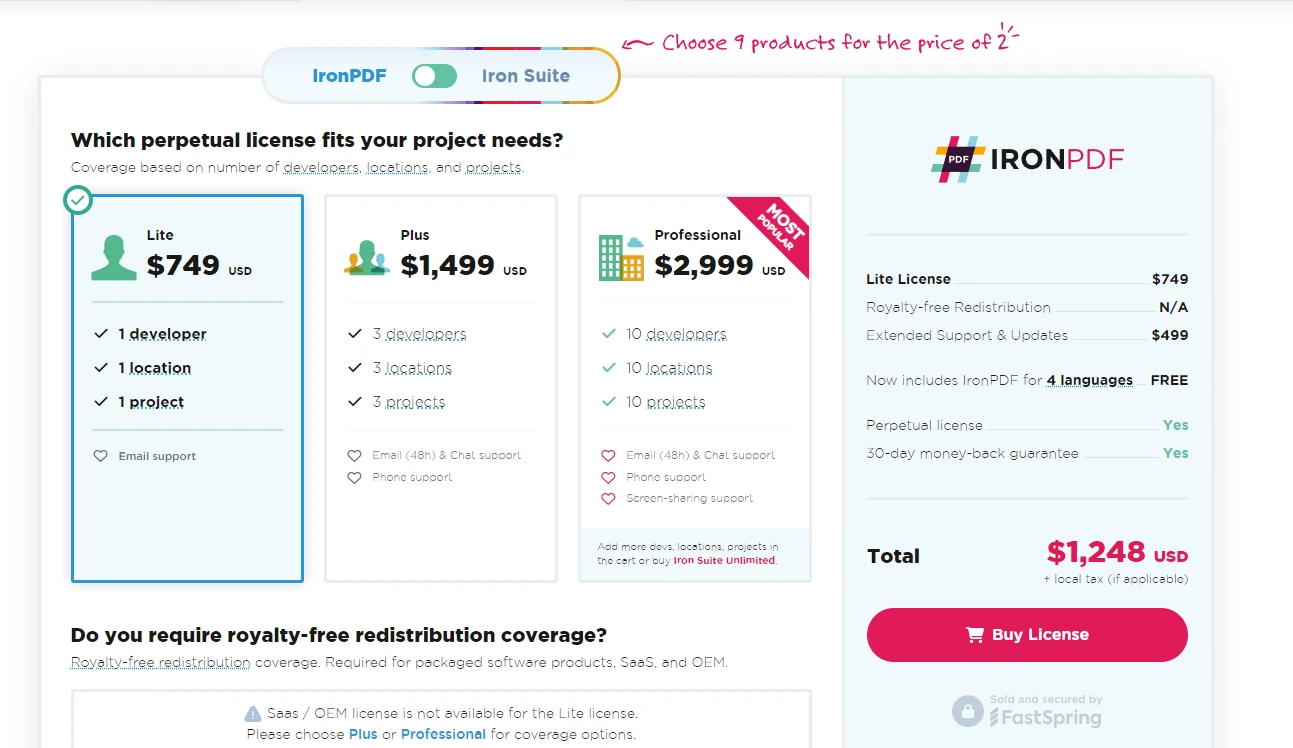
IronPDF提供多種定價等級以滿足不同需求:
- Lite:價格為$999,適合單位開發者從事單個專案。 這是一次性收費,使其對於小型專案或個人開發者來說是一個經濟實惠的選擇。
- Plus:價格為$1,499,此選項支援最多10名開發者、10個地點和10個專案。 這個級別也包括一次性收費,提供了對於小型到中型團隊的更多靈活性。
- Professional:價格為$2,399,該級別提供更廣泛的部署權限,適合具備更苛刻的專案需求的大型團隊。
- Unlimited:價格為$4,799,該級別允許無限開發者、地點和專案。 對於需要無限制使用的過程,這是大型團隊和企業的理想選擇。
IronPDF還為大型組織和需要將PDF功能整合到商業產品中的公司提供企業和OEM再分發許可。 還提供了免費試用以便測試。
APITemplate定價和許可
APITemplate提供了不同的方法,其API生成PDF服務通常基於API調用數量進行定價,這對於不同的使用模式更具彈性:
- 基本計畫:通常從較低的價格起,提供有限的每月API調用數量。 這適合有最低PDF生成需求的小型專案或企業。
- 標準計畫:此計畫包括更多API調用和其他功能,適合中型企業。
- 企業計畫:量身定製以應對高容量使用者,此計畫提供最多的API調用和高級功能,如優先支援和自訂整合。
APITemplate的許可模式以更直接地與每月或年度訂閱模式相關聯。
主要差異
- 定價模式:IronPDF採用一次性收費模式,對於持續、大量使用時,可能在長期內更具成本效益。 另一方面,APITemplate採用訂閱模式,對於使用更具彈性和可擴展性。
- 支援和更新:IronPDF包含購入後一年內的支援和更新,並有選項來延長此期間。 在APITemplate的訂閱計畫中通常包括持續的支援和更新。
為什麼應該選擇IronPDF?
IronPDF和APITemplate都可以從HTML內容生成PDF,但IronPDF的實現更為健全和靈活。 這裡是一些比較:
IronPDF
using IronPdf;

var renderer = new ChromePdfRenderer();
var html = @"
<html>
<head>
    <style>
        body { font-family: Arial, sans-serif; }
        .header { color: #0066cc; font-size: 24px; }
        .content { margin-top: 20px; }
    </style>
</head>
<body>
    <div class='header'>Dynamic Report</div>
    <div class='content'>
        <p>This report was generated on: <script>document.write(new Date().toLocaleString());</script></p>
        <p>Lorem ipsum dolor sit amet, consectetur adipiscing elit.</p>
    </div>
</body>
</html>";
var pdf = renderer.RenderHtmlAsPdf(html);
pdf.SaveAs("IronPDF_report.pdf");
using IronPdf;
var renderer = new ChromePdfRenderer();
var html = @"
<html>
<head>
<style>
body { font-family: Arial, sans-serif; }
.header { color: #0066cc; font-size: 24px; }
.content { margin-top: 20px; }
</style>
</head>
<body>
<div class='header'>Dynamic Report</div>
<div class='content'>
<p>This report was generated on: <script>document.write(new Date().toLocaleString());</script></p>
<p>Lorem ipsum dolor sit amet, consectetur adipiscing elit.</p>
</div>
</body>
</html>";
var pdf = renderer.RenderHtmlAsPdf(html);
pdf.SaveAs("IronPDF_report.pdf");Imports IronPdf
Private renderer = New ChromePdfRenderer()
Private html = "
<html>
<head>
<style>
body { font-family: Arial, sans-serif; }
.header { color: #0066cc; font-size: 24px; }
.content { margin-top: 20px; }
</style>
</head>
<body>
<div class='header'>Dynamic Report</div>
<div class='content'>
<p>This report was generated on: <script>document.write(new Date().toLocaleString());</script></p>
<p>Lorem ipsum dolor sit amet, consectetur adipiscing elit.</p>
</div>
</body>
</html>"
Private pdf = renderer.RenderHtmlAsPdf(html)
pdf.SaveAs("IronPDF_report.pdf")APITemplate
using System.Net.Http;
using System.Text.Json;

var apiKey = "your_api_key";
var templateId = "your_template_id";
var url = $"https://rest.apitemplate.io/v2/create-pdf?template_id={templateId}";
var data = new
{
    header = "Dynamic Report",
    content = "Lorem ipsum dolor sit amet, consectetur adipiscing elit.",
    date = DateTime.Now.ToShortDateString()
};
var json = JsonSerializer.Serialize(data);
var content = new StringContent(json, System.Text.Encoding.UTF8, "application/json");
using var client = new HttpClient();
client.DefaultRequestHeaders.Add("X-API-KEY", apiKey);
var response = await client.PostAsync(url, content);
var pdfBytes = await response.Content.ReadAsByteArrayAsync();
File.WriteAllBytes("APITemplate_report.pdf", pdfBytes);
using System.Net.Http;
using System.Text.Json;
var apiKey = "your_api_key";
var templateId = "your_template_id";
var url = $"https://rest.apitemplate.io/v2/create-pdf?template_id={templateId}";
var data = new
{
header = "Dynamic Report",
content = "Lorem ipsum dolor sit amet, consectetur adipiscing elit.",
date = DateTime.Now.ToShortDateString()
};
var json = JsonSerializer.Serialize(data);
var content = new StringContent(json, System.Text.Encoding.UTF8, "application/json");
using var client = new HttpClient();
client.DefaultRequestHeaders.Add("X-API-KEY", apiKey);
var response = await client.PostAsync(url, content);
var pdfBytes = await response.Content.ReadAsByteArrayAsync();
File.WriteAllBytes("APITemplate_report.pdf", pdfBytes);Imports System.Net.Http
Imports System.Text.Json
Private apiKey = "your_api_key"
Private templateId = "your_template_id"
Private url = $"https://rest.apitemplate.io/v2/create-pdf?template_id={templateId}"
Private data = New With {
Key .header = "Dynamic Report",
Key .content = "Lorem ipsum dolor sit amet, consectetur adipiscing elit.",
Key .date = DateTime.Now.ToShortDateString()
}
Private json = JsonSerializer.Serialize(data)
Private content = New StringContent(json, System.Text.Encoding.UTF8, "application/json")
Private client = New HttpClient()
client.DefaultRequestHeaders.Add("X-API-KEY", apiKey)
Dim response = Await client.PostAsync(url, content)
Dim pdfBytes = Await response.Content.ReadAsByteArrayAsync()
File.WriteAllBytes("APITemplate_report.pdf", pdfBytes)主要差異
- JavaScript支援:IronPDF完全支援HTML中的JavaScript執行,以便動態內容生成(如範例中的當前日期)。 APITemplate一般要求在前端提供所有資料。
- CSS靈活性:使用IronPDF,您可以直接在HTML中完全控制CSS樣式。 APITemplate通常要求使用預定的、具有有限自定義選項的模板。
- 性能:IronPDF在本地處理HTML,對於複雜文件,生成PDF更快。 APITemplate的雲端方法可能會引入延遲。
- 離線能力:IronPDF可離線工作,這對於網路連接有限或高安全需求的應用很有用。 APITemplate始終需要網路連接。
- 動態內容:IronPDF允許動態生成內容,而APITemplate通常需要預先定義的模板結構。
- 客製化:IronPDF提供更多對PDF生成過程的細緻控制,包括頁面大小、邊距和其他PDF特定設置選項。
- 一致性:IronPDF確保跨不同環境的渲染一致性,因為它使用其渲染引擎。APITemplate的輸出可能會根據其伺服器配置有所不同。
結論
在與IronPDF和APITemplate廣泛合作多個C#專案後,我漸漸認識到每個工具的獨特強項。 然而,對於我大多數PDF相關的任務,IronPDF一直證明了它是更好的選擇。APITemplate雖然有其優勢,特別是在簡單、基於模板的文件生成方面,但我發現IronPDF的多樣性使它能夠同樣有效地處理這些任務,並且在需要時也能為更複雜的PDF操作提供強大的支持能力。
總而言之,雖然這兩個工具各有其用途,但IronPDF一直被證明是處理C#開發中的PDF操作時更強大、靈活且具有成本效益的解決方案。 其強大的功能集、優越的性能和全面的支援使其成為我處理任何PDF相關任務的不二之選,無論是最簡單的文件生成還是最複雜的PDF操作。
常見問題
雲端和程式庫為基礎的PDF生成工具有哪些主要區別?
像 APITemplate 這樣的雲端工具通過 API 調用提供 PDF 生成,並需要網路連接。相比之下,像 IronPDF 這樣的程式庫為基礎的工具是整合在您的 C# 應用程式中,允許離線 PDF 處理並提供更多PDF建立和自定義的控制。
IronPDF 如何在 C# 應用程式中處理 HTML 到 PDF 的轉換?
IronPDF 允許使用RenderHtmlAsPdf等方法進行無縫的 HTML 到 PDF 的轉換。它完全支持現代網頁標準,包括 CSS 和 JavaScript,確保將網頁內容高品質地呈現為 PDF。
我可以使用IronPDF來動態生成PDF內容嗎?
可以,IronPDF 支持 JavaScript 執行,從而在 PDF 中實現動態內容生成。這對於直接從具有動態資料的網頁建立互動式 PDF 特別有用。
使用IronPDF優於基於訂閱的服務的優勢有哪些?
IronPDF 提供一次性授權費用,為長期使用提供了一個具成本效益的解決方案。它允許離線操作,並提供廣泛的 PDF 處理功能,這可以比基於訂閱的服務例如APITemplate更加靈活和強大。
using IronPDF 的開發者可以得到什麼樣的支援?
IronPDF 提供通過詳細的文件的綜合支援,包括指南、API 參考和程式碼範例。開發者還可以通過電子郵件支援、社群論壇,以及像 Stack Overflow 的平台上的監控尋求幫助。
IronPDF 支援跨平台開發嗎?
支持,IronPDF 相容 .NET Standard,支援跨平台開發。這確保了開發者可以將 IronPDF 無縫整合到不同操作系統上的專案中。
IronPDF 如何確保生成的 PDF 的安全性?
IronPDF 包括 PDF 加密和解密的功能,允許開發者使用密碼和數位簽名來保護文件。這些功能有助於維持 PDF 文件的機密性和完整性。
使用IronPDF的一些常見故障排除提示有哪些?
遇到 IronPDF 的問題時,請確保所有依賴項均正確安裝和更新。查看文件中有關相容性和配置設定的部分,並檢查樣例程式碼以驗證實作做法。如問題持續,仍有支援團隊可協助。









 免費開始
免費開始 免費開始
免費開始 預訂免費直播演示
















