



更新日 2026年4月23日
Microsoft.Extensions.AIを使用した .NET での LLM 統合の簡素化
AI はソフトウェア開発を変革していますが、.NET への大規模言語モデル (LLM) の統合はこれまで複雑でした。IronPdf.AI を使用して AI 統合をさらに進め、OpenAI を活用した PDF 解析、データ抽出、およびコンテンツの要約を .NET アプリケーションにもたらします。
詳しく読む

過去にユーザーがファイルを共有したいと望んだとき、Soulseekが最良の選択肢でした。しかし、公式クライアントが維持されなくなったため、現在はその代わりとなるクライアントを探す必要があります。 その代替の1つがSoulseek.NETです。
Soulseek.NETは、Windows上で主に動作するファイル共有アプリケーションであり、元のSoulseekの代替クライアントとして際立っており、ユーザーがファイルやコンテンツ全体を共有するための現代的なソリューションを提供します。 音楽から他のデジタルコンテンツまで、特に独立系アーティストや希少でユニークな、または見つけにくい音楽トラックを求める愛好家に対応して、他のユーザーとの間ですべてのファイルを交換することを容易にします。 元のクライアントと異なり、Soulseek.NETは、モダンなインターフェースと強化された機能を提供し、音楽愛好家に愛されたSoulseekのコア機能を維持しています。
現在、Soulseek.NETがファイル共有の深層をナビゲートするのに対し、IronPDF .NET 向けは異なるプレイヤーとして、.NETアプリケーション内でのPDF管理に焦点を当てています。 どちらも強力で、開発ツールキット内で異なる目的を果たします。
この旅路では、単にライブラリーを学んでいるだけではありません。 Soulseek.NETでのファイル共有からIronPDFでのドキュメント管理まで、.NETプロジェクトのための新たな可能性の世界を開いています。
C#コードを通じて、デジタルコンテンツの宝庫であるSoulseekネットワーク全体にアクセスすることを想像してみてください。 それがSoulseek.NETです。 .NET Standardクライアントライブラリとして開発されており、Soulseekのファイル共有ネットワークにプログラム的にアクセスする力を提供します。 それを際立たせるのはSoulseekプロトコルに焦点を当てており、かつては公式のSoulseekクライアントに限定されていた相互作用を可能にすることです。
そのコアには、Soulseek.NETは障壁を取り除くことにあります。 開発者が.NETアプリケーション内でSoulseekネットワークを介してファイルを検索、共有、ダウンロードできるようにします。 これにより、カスタムファイル共有ソリューションを作成したり、既存のソフトウェアにユニークなコンテンツソーシング機能を統合したりするための可能性の領域が開かれます。
Soulseek.NETは音楽の検索エンジンのように機能し、ユーザーが探しているすべてのファイルを見つけることができるようにし、許可を受けた著作権マテリアルを求めている場合でも、他のユーザーが共有している希少なトラックを求めている場合でも同様です。
最初のステップは、この強力なライブラリを.NETプロジェクトに統合することです。 NuGetのおかげでプロセスは簡単です。 NuGetはプロジェクトにライブラリを追加するのを簡単にするパッケージマネージャであり、Soulseek.NETはそこで簡単に入手可能です。
Visual Studioでプロジェクトを開きます。 その後、ソリューションエクスプローラーに移動し、プロジェクトを右クリックして"NuGetパッケージの管理"を選択します。"NuGetパッケージマネージャー"で"Soulseek.NET"を検索してインストールします。 このシングルアクションで、ネットワークへの接続、ファイル検索、ダウンロードの開始など、Soulseek.NETの機能をプロジェクトに装備します。
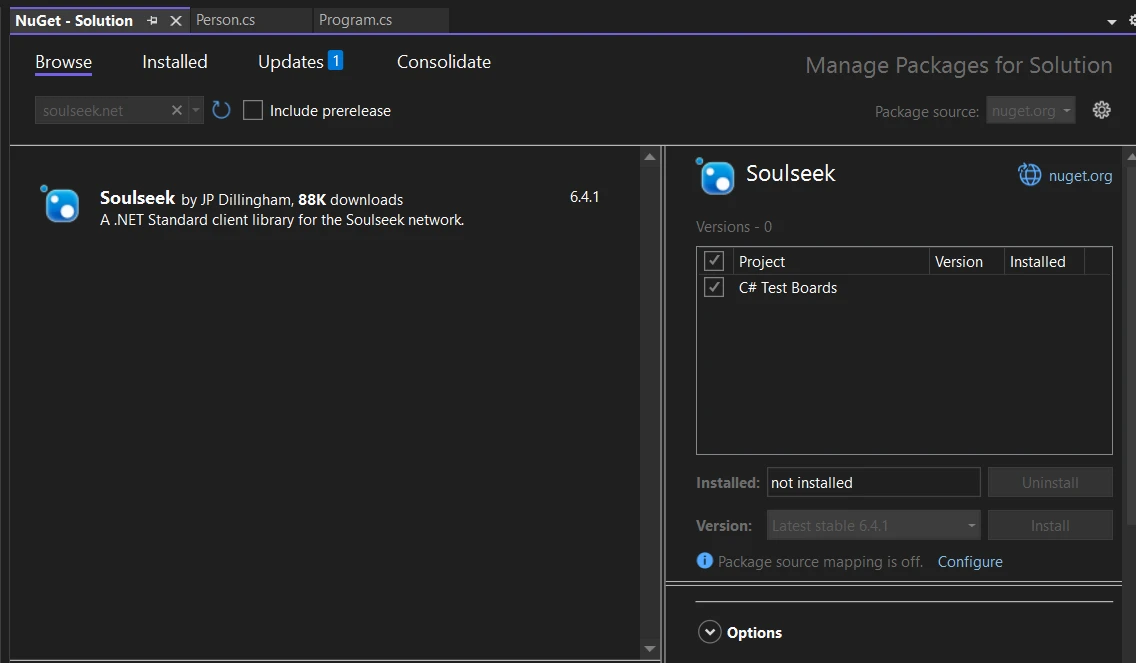
Soulseek.NETがプロジェクトの一部になったら、コードを書き始める準備が整います。 つなげて、Soulseekネットワークに接続してファイル検索を行う基本的な例を見てみましょう。 この例はSoulseek.NETのシンプルさと強力さを際立たせます。
using Soulseek;
// Initialize the Soulseek client
var client = new SoulseekClient();

// Connect to the Soulseek server with your credentials
await client.ConnectAsync("YourUsername", "YourPassword");

// Perform a search for a specific file
// Assuming the method returns a tuple, deconstruct it to get the responses part.
var (search, responses) = await client.SearchAsync(SearchQuery.FromText("your search query"));

// Iterate through the search responses
foreach (var response in responses)
{
    Console.WriteLine($"Found file: {response.Files.FirstOrDefault()?.Filename}");
}Imports Soulseek
' Initialize the Soulseek client
Private client = New SoulseekClient()
' Connect to the Soulseek server with your credentials
Await client.ConnectAsync("YourUsername", "YourPassword")
' Perform a search for a specific file
' Assuming the method returns a tuple, deconstruct it to get the responses part.
'INSTANT VB TODO TASK: VB has no equivalent to C# deconstruction declarations:
var(search, responses) = await client.SearchAsync(SearchQuery.FromText("your search query"))
' Iterate through the search responses
For Each response In responses
Console.WriteLine($"Found file: {response.Files.FirstOrDefault()?.Filename}")
Next responseこのコードスニペットは、Soulseekネットワークに解接続し検索を実行する方法を示します。 SearchAsyncメソッドは、Soulseek.NETの柔軟性を示し、探しているものを詳細に検索できるようにします。
Soulseek.NETをさらに深く掘り下げると、Soulseekネットワークとの対話を変革する一連の機能が明らかになります。 これらの機能をいくつか紹介し、サンプルのC#コードを用いてそれぞれを示します。
Soulseek.NETを活用する第一歩は、Soulseekサーバーへの接続を確立することです。 この接続は、検索やダウンロードのためにネットワークとやり取りするためのアプリケーションを可能にします。
var client = new SoulseekClient();
await client.ConnectAsync("YourUsername", "YourPassword");Dim client = New SoulseekClient()
Await client.ConnectAsync("YourUsername", "YourPassword")このスニペットは、新しいSoulseekクライアントを初期化し、Soulseekクレデンシャルを使用してサーバーに接続します。 簡単ですよね?
接続が確立されたら、ファイルをネットワーク上で検索できます。 Soulseek.NETは柔軟な検索インターフェースを提供し、詳細な基準を指定できます。
IEnumerable<SearchResponse> responses = await client.SearchAsync(SearchQuery.FromText("search term"));
foreach (var response in responses)
{
    Console.WriteLine($"Files found: {response.FileCount}");
}Dim responses As IEnumerable(Of SearchResponse) = Await client.SearchAsync(SearchQuery.FromText("search term"))
For Each response In responses
Console.WriteLine($"Files found: {response.FileCount}")
Next responseこのコードは"search term"という用語に一致するファイルをネットワーク上で検索し、各レスポンスで見つかったファイル数を出力します。
ファイルを見つけるのは一つのこと; ダウンロードすることが本当のアクションの始まりです。 ファイルを見つけたら、ダウンロードする方法は次のとおりです。
var file = responses.SelectMany(r => r.Files).FirstOrDefault();
if (file != null)
{
    byte[] fileData = await client.DownloadAsync(file.Username, file.Filename, file.Size);
    // Save fileData to a file
}Dim file = responses.SelectMany(Function(r) r.Files).FirstOrDefault()
If file IsNot Nothing Then
Dim fileData() As Byte = Await client.DownloadAsync(file.Username, file.Filename, file.Size)
' Save fileData to a file
End Ifこのスニペットは、検索結果から最初のファイルをダウンロードする方法を示しています。少なくとも1つのファイルが見つかったと仮定します。
最近の更新により、Soulseekは検索をフィルタリングするのに役立つ除外された検索フレーズのリストを送信し始めました。 これに対処することで、検索がネットワークポリシーに準拠することを保証できます。
client.ExcludedSearchPhrasesReceived += (sender, e) =>
{
    Console.WriteLine("Excluded phrases: " + string.Join(", ", e.Phrases));
    // Adjust your search queries based on these phrases
};AddHandler client.ExcludedSearchPhrasesReceived, Sub(sender, e)
Console.WriteLine("Excluded phrases: " & String.Join(", ", e.Phrases))
' Adjust your search queries based on these phrases
End Subこのイベントハンドラーは、サーバーから送信された除外フレーズをログに記録し、それに応じて検索を洗練させることができます。
この強化された機能セットは、音楽愛好者に愛されるコア機能を維持するだけでなく、合法性を持ってファイルをシームレスに共有する能力を拡張し、豊かでユーザーフレンドリーな体験を保証します。
IronPDF ライブラリは、.NET アプリケーション内で PDF コンテンツを作成、編集、抽出するための多目的ライブラリです。 HTMLからPDFを作成することができます。 PDF 作成プロセスを簡素化し、視覚的に魅力的にするオプションを追加します。 多くの人々にとって、複雑な PDF タスクを管理可能な C# コードに簡素化するため、使われる定番です。 PDF ファイル構造の詳細に深入りすることなく、PDF 操作のためのオールインワンツールキットとして考えてください。
Soulseekで作業していると想像してください。これは、ユーザーの活動やデータ分析に基づいてレポートや文書を生成する必要があるプロジェクトです。 これは、レポートを共有または保存する必要があるアプリケーションに非常に便利です。互換性の問題を心配せずに、普遍的にアクセス可能な形式で。 まずはじめに、IronPDFをプロジェクトに追加する必要があります。
Visual Studioを使用している場合は、NuGet Package Managerを通じてこれを行うことができます。 パッケージマネージャーコンソールで以下のコマンドを実行してください: 次のコマンドをパッケージマネージャーコンソールで実行してください:
SoulseekはユーザーデータからPDFレポートを生成し、このレポートを既存のサマリドキュメントとマージする必要があります。
このシナリオにより、Soulseekが現実世界のアプリケーションでIronPDFとどのように相互作用するかを見ることができます。 このコードは、IronPDFをSoulseekのようなプロジェクトに統合し、プラットフォームの機能を強化し、意味のある方法でユーザーのアクティビティを報告および文書化するためにPDF生成および操作機能を追加する方法を示します。
using IronPdf;
using System;
using System.Linq;

namespace SoulSneekWithIronPDF
{
    public class SoulSneekPDFReportGenerator
    {
        public void GenerateAndMergeUserReport(int userId)
        {
            // Example data retrieval from SoulSneek's data store
            var userData = GetUserActivityData(userId);

            // Convert user data to HTML for PDF generation
            var htmlContent = ConvertUserDataToHtml(userData);

            // Generate PDF from HTML content
            var renderer = new ChromePdfRenderer();
            var monthlyReportPdf = renderer.RenderHtmlAsPdf(htmlContent);

            // Save the new PDF temporarily
            var tempPdfPath = $"tempReportForUser{userId}.pdf";
            monthlyReportPdf.SaveAs(tempPdfPath);

            // Assume there's an existing yearly summary PDF we want to append this report to
            var yearlySummaryPdfPath = $"yearlySummaryForUser{userId}.pdf";

            // Merge the new report with the yearly summary
            var yearlySummaryPdf = new PdfDocument(yearlySummaryPdfPath);
            var updatedYearlySummary = PdfDocument.Merge(monthlyReportPdf, yearlySummaryPdf);

            // Save the updated yearly summary
            var updatedYearlySummaryPath = $"updatedYearlySummaryForUser{userId}.pdf";
            updatedYearlySummary.SaveAs(updatedYearlySummaryPath);

            // Clean up the temporary file
            System.IO.File.Delete(tempPdfPath);

            Console.WriteLine($"Updated yearly summary report for user {userId} has been generated and saved to {updatedYearlySummaryPath}.");
        }

        private string ConvertUserDataToHtml(dynamic userData)
        {
            // Simulating converting user data to HTML string
            // In a real application, this would involve HTML templating based on user data
            return $"<h1>Monthly Activity Report</h1><p>User {userData.UserId} watched {userData.MoviesWatched} movies and listened to {userData.SongsListened} songs last month.</p>";
        }

        private dynamic GetUserActivityData(int userId)
        {
            // In a real app, this will query a database
            return new
            {
                UserId = userId,
                MoviesWatched = new Random().Next(1, 20), // Simulated data
                SongsListened = new Random().Next(20, 100) // Simulated data
            };
        }
    }
}Imports IronPdf
Imports System
Namespace SoulSneekWithIronPDF
Public Class SoulSneekPDFReportGenerator
Public Sub GenerateAndMergeUserReport(userId As Integer)
' Example data retrieval from SoulSneek's data store
Dim userData = GetUserActivityData(userId)
' Convert user data to HTML for PDF generation
Dim htmlContent = ConvertUserDataToHtml(userData)
' Generate PDF from HTML content
Dim renderer = New ChromePdfRenderer()
Dim monthlyReportPdf = renderer.RenderHtmlAsPdf(htmlContent)
' Save the new PDF temporarily
Dim tempPdfPath = $"tempReportForUser{userId}.pdf"
monthlyReportPdf.SaveAs(tempPdfPath)
' Assume there's an existing yearly summary PDF we want to append this report to
Dim yearlySummaryPdfPath = $"yearlySummaryForUser{userId}.pdf"
' Merge the new report with the yearly summary
Dim yearlySummaryPdf = New PdfDocument(yearlySummaryPdfPath)
Dim updatedYearlySummary = PdfDocument.Merge(monthlyReportPdf, yearlySummaryPdf)
' Save the updated yearly summary
Dim updatedYearlySummaryPath = $"updatedYearlySummaryForUser{userId}.pdf"
updatedYearlySummary.SaveAs(updatedYearlySummaryPath)
' Clean up the temporary file
System.IO.File.Delete(tempPdfPath)
Console.WriteLine($"Updated yearly summary report for user {userId} has been generated and saved to {updatedYearlySummaryPath}.")
End Sub
Private Function ConvertUserDataToHtml(userData As Object) As String
' Simulating converting user data to HTML string
' In a real application, this would involve HTML templating based on user data
Return $"<h1>Monthly Activity Report</h1><p>User {userData.UserId} watched {userData.MoviesWatched} movies and listened to {userData.SongsListened} songs last month.</p>"
End Function
Private Function GetUserActivityData(userId As Integer) As Object
' In a real app, this will query a database
Return New With {
.UserId = userId,
.MoviesWatched = (New Random()).Next(1, 20), ' Simulated data
.SongsListened = (New Random()).Next(20, 100) ' Simulated data
}
End Function
End Class
End Namespaceこのコードは、Soulseek のようなプロジェクトに IronPDF を統合して、PDF 生成と操作機能を追加し、ユーザー活動を意味のある方法で報告および文書化するプラットフォームの能力を向上させる方法を示しています。
Soulseek.NET と IronPDF は、.NET アプリケーションを向上させる際に異なるが補完的な役割を果たします。 Soulseek.NET は、Soulseek ネットワーク内で直接ファイル共有を促進します。 それとは逆に、IronPDF は PDF 管理に焦点を当てており、PDF ドキュメントを簡単に生成、変更、および結合する機能を提供します。 これらは一緒になって、.NET 開発で達成できる範囲を広げ、複雑なファイル共有から詳細なドキュメント管理に至るまでの解決策を提供します。 IronPDFはIronPDFの無料トライアルを提供しており、$999から始まり、多様な開発ニーズと予算に対応します。

ジェイコブ・メラーはIron Softwareの最高技術責任者(CTO)であり、C# PDFテクノロジーを開拓する先見的なエンジニアです。Iron Softwareのコアコードベースを支えるオリジナル開発者として、彼は創業以来、会社の製品アーキテクチャを形成し、CEOのCameron Rimingtonとともに、会社をNASA、Tesla、および世界的な政府機関にサービスを提供する50人以上の会社に変えました。1999年にロンドンで最初のソフトウェアビジネスを開業し、2005年に最初 for .NETコンポーネントを作成した後、Microsoftのエコシステム全体で複雑な問題を解決することを専門としました。

IronPDF はIRONSUITEの一部です
オフィス文書向けの.NET API製品10個

PDFがHTMLのように見える必要があるとき、迅速に。












