




업데이트됨 2026년 4월 23일
.NET에서 Microsoft.Extensions.AI로 LLM 통합 간소화
AI는 소프트웨어 개발을 변혁하고 있으나, 대규모 언어 모델(LLM)을 .NET에 통합하는 것은 지금까지 복잡했습니다. 현대에는 OpenAI 기반 PDF 파싱, 데이터 추출 및 콘텐츠 요약을 .NET 애플리케이션에 가져오는 IronPdf.AI로 AI 통합을 더욱 확장하세요.
더 읽어보기

과거에 사용자가 파일을 공유하고자 할 때, Soulseek이 최고의 선택이었습니다. 그러나 공식 클라이언트가 더 이상 유지보수되지 않기 때문에, 오늘날 사용자는 그 자리를 대신할 대체 클라이언트를 찾아야 합니다. 대체 클라이언트 중 하나는 Soulseek.NET입니다.
Soulseek.NET은 주로 Windows에서 운영되는 파일 공유 애플리케이션으로, 원래의 Soulseek에 대한 주요 대체 클라이언트로서, 사용자가 파일 및 전체 콘텐츠를 공유할 수 있는 현대적인 솔루션을 제공합니다. 음악에서 다른 형태의 디지털 콘텐츠에 이르기까지 모든 파일 교환을 촉진하며, 특히 독립 아티스트와 희귀하거나 독특하거나 찾기 어려운 음악 트랙을 추구하는 열성 팬들에게 맞춰져 있습니다. 원래 클라이언트와 달리, Soulseek.NET은 현대적인 인터페이스와 향상된 기능을 제공하면서도 음악 애호가들 사이에서 Soulseek을 인기 있게 한 핵심 기능을 유지합니다.
이제 Soulseek.NET이 파일 공유의 깊이를 탐색하는 모든 것인 반면, IronPDF .NET용는 .NET 애플리케이션 내에서 PDF 관리를 중점으로 하는 다른 플레이어로 등장합니다. 둘 다 강력하며, 둘 다 개발자의 도구 세트 내에서 독특한 목적을 제공합니다.
이 여정에서, 당신은 단지 한 라이브러리에 대해 배우고 있는 것이 아닙니다. 당신은 .NET 프로젝트에 대한 새로운 가능성의 세계를 여는 것입니다. Soulseek.NET을 통한 파일 공유부터 IronPDF로의 문서 관리까지.
C# 코드로 전체 Soulseek 네트워크, 즉 디지털 콘텐츠의 보물 창고에 접근할 수 있다고 상상해보세요. 그것이 당신을 위한 Soulseek.NET입니다. .NET Standard 클라이언트 라이브러리로 개발되어, 프로그래밍 방식으로 Soulseek 파일 공유 네트워크에 접근할 수 있는 힘을 제공합니다. 이를 차별화하는 것은 Soulseek 프로토콜에 중점을 두고 있어, 한때 공식 Soulseek 클라이언트에 국한되었던 상호작용을 가능하게 한다는 점입니다.
Soulseek.NET의 본질은 장벽을 제거하는 것입니다. 개발자가 .NET 애플리케이션 내에서 Soulseek 네트워크를 통해 파일을 검색, 공유 및 다운로드할 수 있게 합니다. 이것은 맞춤형 파일 공유 솔루션을 생성하거나 기존 소프트웨어에 독특한 콘텐츠 소싱 기능을 통합할 가능성의 세계를 엽니다.
Soulseek.NET은 사용자들이 원하는 파일을 찾을 수 있도록 하는 음악 검색 엔진처럼 작동하여, 사용자가 사용 허가를 받은 저작물이나 다른 사용자들이 공유하는 희귀한 트랙을 찾을 수 있게 해줍니다.
첫 번째 단계는 이 강력한 라이브러리를 .NET 프로젝트에 통합하는 것입니다. NuGet 덕분에 그 과정은 간단합니다. NuGet은 프로젝트에 라이브러리를 추가하는 것을 간소화하는 패키지 매니저이며, Soulseek.NET은 거기에서 쉽게 구할 수 있습니다.
먼저 Visual Studio에서 프로젝트를 엽니다. 그런 다음 솔루션 탐색기로 이동하여 프로젝트를 마우스 오른쪽 버튼으로 클릭하고 'NuGet 패키지 관리'를 선택합니다. 'NuGet 패키지 관리자'에서 'Soulseek.NET'을 검색하여 설치합니다. 이 단일 작업으로 프로젝트는 Soulseek.NET의 기능, 즉 네트워크에 연결하고, 파일을 검색하며, 다운로드를 시작할 수 있는 기능을 갖추게 됩니다.
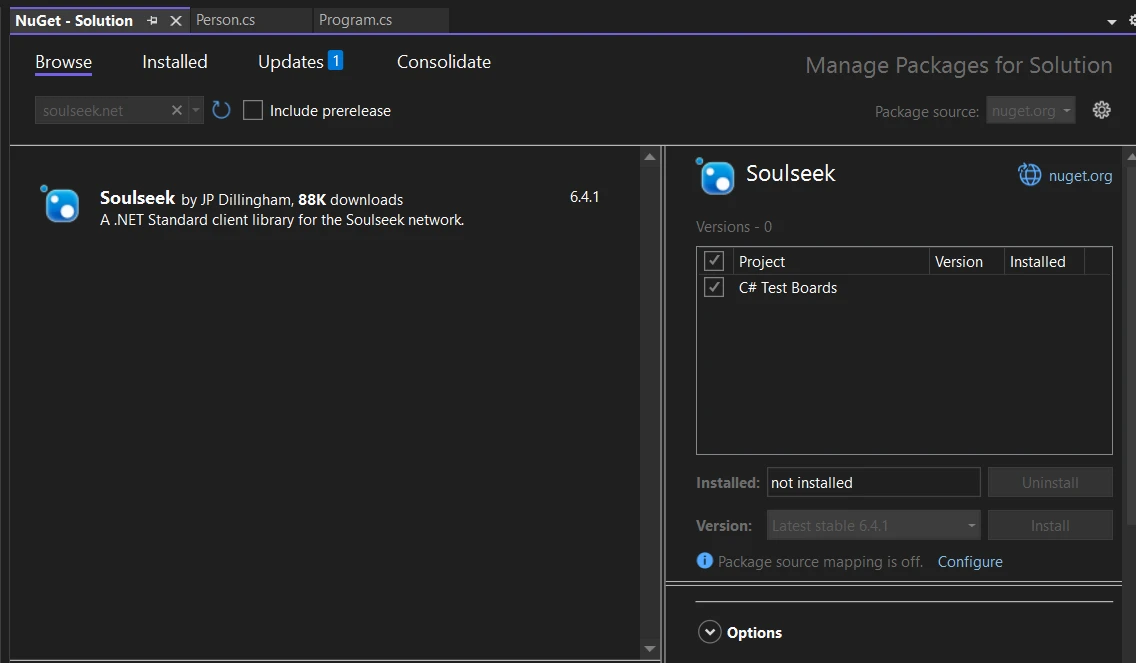
Soulseek.NET이 프로젝트의 일부가 되면, 코드를 작성할 준비가 됩니다. Soulseek 네트워크에 연결하고 파일 검색을 수행하는 기본 예제를 실행해 봅시다. 이 예제는 Soulseek.NET의 간단함과 강력함을 강조합니다.
using Soulseek;
// Initialize the Soulseek client
var client = new SoulseekClient();

// Connect to the Soulseek server with your credentials
await client.ConnectAsync("YourUsername", "YourPassword");

// Perform a search for a specific file
// Assuming the method returns a tuple, deconstruct it to get the responses part.
var (search, responses) = await client.SearchAsync(SearchQuery.FromText("your search query"));

// Iterate through the search responses
foreach (var response in responses)
{
    Console.WriteLine($"Found file: {response.Files.FirstOrDefault()?.Filename}");
}Imports Soulseek
' Initialize the Soulseek client
Private client = New SoulseekClient()
' Connect to the Soulseek server with your credentials
Await client.ConnectAsync("YourUsername", "YourPassword")
' Perform a search for a specific file
' Assuming the method returns a tuple, deconstruct it to get the responses part.
'INSTANT VB TODO TASK: VB has no equivalent to C# deconstruction declarations:
var(search, responses) = await client.SearchAsync(SearchQuery.FromText("your search query"))
' Iterate through the search responses
For Each response In responses
Console.WriteLine($"Found file: {response.Files.FirstOrDefault()?.Filename}")
Next response이 코드 스니펫은 Soulseek 네트워크에 연결하고 검색을 실행하는 방법을 보여줍니다. SearchAsync 메서드는 Soulseek.NET의 유연성을 보여주며, 원하는 것을 정확히 찾기 위한 세부 쿼리를 허용합니다.
Soulseek.NET을 깊이 파고들면 Soulseek 네트워크와 상호작용 방법을 변형시키는 기능 모음이 드러납니다. 이 기능들을 탐색하고, 시작할 수 있도록 각 기능을 C# 코드 스니펫과 함께 시연해 봅시다.
Soulseek.NET을 활용하는 첫 번째 단계는 Soulseek 서버에 연결을 설정하는 것입니다. 이 연결은 검색 및 다운로드를 위해 네트워크와 애플리케이션 상호작용을 가능하게 합니다.
var client = new SoulseekClient();
await client.ConnectAsync("YourUsername", "YourPassword");Dim client = New SoulseekClient()
Await client.ConnectAsync("YourUsername", "YourPassword")이 스니펫은 새로운 Soulseek 클라이언트를 초기화하고 Soulseek 자격 증명을 사용하여 서버에 연결합니다. 간단하죠?
연결된 후에는 네트워크에서 파일을 검색할 수 있습니다. Soulseek.NET은 상세한 기준을 지정할 수 있는 유연한 검색 인터페이스를 제공합니다.
IEnumerable<SearchResponse> responses = await client.SearchAsync(SearchQuery.FromText("search term"));
foreach (var response in responses)
{
    Console.WriteLine($"Files found: {response.FileCount}");
}Dim responses As IEnumerable(Of SearchResponse) = Await client.SearchAsync(SearchQuery.FromText("search term"))
For Each response In responses
Console.WriteLine($"Files found: {response.FileCount}")
Next response이 코드는 '검색어'와 일치하는 파일을 네트워크에서 검색하고 각 응답에서 발견된 파일의 수를 출력합니다.
파일을 찾는 것은 하나의 일입니다; 다운로드하는 것이 진정한 행동의 시작입니다. 파일을 찾은 후 이를 다운로드할 수 있는 방법은 다음과 같습니다.
var file = responses.SelectMany(r => r.Files).FirstOrDefault();
if (file != null)
{
    byte[] fileData = await client.DownloadAsync(file.Username, file.Filename, file.Size);
    // Save fileData to a file
}Dim file = responses.SelectMany(Function(r) r.Files).FirstOrDefault()
If file IsNot Nothing Then
Dim fileData() As Byte = Await client.DownloadAsync(file.Username, file.Filename, file.Size)
' Save fileData to a file
End If이 스니펫은 검색 결과에서 첫 번째 파일을 다운로드하는 방법을 보여주며, 파일을 적어도 하나는 찾았다고 가정합니다.
최근 업데이트로 Soulseek는 검색 필터링을 돕기 위해 제외된 검색 구문 목록을 보내기 시작했습니다. 이를 처리하면 검색이 네트워크 정책을 준수할 수 있게 합니다.
client.ExcludedSearchPhrasesReceived += (sender, e) =>
{
    Console.WriteLine("Excluded phrases: " + string.Join(", ", e.Phrases));
    // Adjust your search queries based on these phrases
};AddHandler client.ExcludedSearchPhrasesReceived, Sub(sender, e)
Console.WriteLine("Excluded phrases: " & String.Join(", ", e.Phrases))
' Adjust your search queries based on these phrases
End Sub이 이벤트 핸들러는 서버에서 전송된 제외 구문을 기록하여 검색을 적절히 조정할 수 있게 해줍니다.
이 강화된 기능 세트는 음악 애호가들이 좋아하는 핵심 기능을 유지할 뿐만 아니라, 합법적으로 원활하게 파일을 공유할 수 있는 능력을 확장하여 풍부하고 사용자 친화적인 경험을 보장합니다.
IronPDF 라이브러리는 개발자들이 .NET 애플리케이션 내에서 PDF 콘텐츠를 생성하고, 편집하고, 추출할 수 있게 해주는 다재다능한 라이브러리입니다. HTML에서 PDF 생성을 허용합니다. PDF 생성 과정을 간소화하고 시각적으로 매력적으로 만들 수 있는 옵션을 추가합니다. 복잡한 PDF 작업을 관리 가능한 C# 코드로 간소화하기 때문에 많은 사람들의 기본 선택입니다. PDF 파일 구조의 복잡한 부분에 얽매이지 않고 PDF 조작을 위한 만능 도구라고 생각하세요.
여러분이 사용자 활동 또는 데이터 분석을 기반으로 보고서나 문서를 생성해야 하는 Soulseek 프로젝트에서 작업 중이라고 상상해 보세요. IronPDF를 통합하면 이러한 문서를 직접 PDF 형식으로 생성할 수 있습니다. 특히 호환성 문제를 걱정하지 않고 모든 사람이 접근 가능한 형식으로 보고서를 공유하거나 저장해야 하는 애플리케이션에 유용합니다.
가장 먼저 해야 할 일은 프로젝트에 IronPDF를 추가하는 것입니다. Visual Studio를 사용 중이라면 NuGet 패키지 관리자를 통해 추가할 수 있습니다. 패키지 관리자 콘솔에서 다음 명령을 실행하세요:
이 명령은 IronPDF의 최신 버전을 가져와 설치하고, 프로젝트의 필요한 모든 종속성을 설정합니다.
Soulseek는 사용자 데이터에서 PDF 보고서를 생성한 다음 이를 기존 요약 문서와 병합해야 합니다. 이 시나리오는 Soulseek가 실제 응용 프로그램에서 IronPDF와 어떻게 상호작용할 수 있는지를 볼 수 있는 기회를 줄 것입니다.
using IronPdf;
using System;
using System.Linq;

namespace SoulSneekWithIronPDF
{
    public class SoulSneekPDFReportGenerator
    {
        public void GenerateAndMergeUserReport(int userId)
        {
            // Example data retrieval from SoulSneek's data store
            var userData = GetUserActivityData(userId);

            // Convert user data to HTML for PDF generation
            var htmlContent = ConvertUserDataToHtml(userData);

            // Generate PDF from HTML content
            var renderer = new ChromePdfRenderer();
            var monthlyReportPdf = renderer.RenderHtmlAsPdf(htmlContent);

            // Save the new PDF temporarily
            var tempPdfPath = $"tempReportForUser{userId}.pdf";
            monthlyReportPdf.SaveAs(tempPdfPath);

            // Assume there's an existing yearly summary PDF we want to append this report to
            var yearlySummaryPdfPath = $"yearlySummaryForUser{userId}.pdf";

            // Merge the new report with the yearly summary
            var yearlySummaryPdf = new PdfDocument(yearlySummaryPdfPath);
            var updatedYearlySummary = PdfDocument.Merge(monthlyReportPdf, yearlySummaryPdf);

            // Save the updated yearly summary
            var updatedYearlySummaryPath = $"updatedYearlySummaryForUser{userId}.pdf";
            updatedYearlySummary.SaveAs(updatedYearlySummaryPath);

            // Clean up the temporary file
            System.IO.File.Delete(tempPdfPath);

            Console.WriteLine($"Updated yearly summary report for user {userId} has been generated and saved to {updatedYearlySummaryPath}.");
        }

        private string ConvertUserDataToHtml(dynamic userData)
        {
            // Simulating converting user data to HTML string
            // In a real application, this would involve HTML templating based on user data
            return $"<h1>Monthly Activity Report</h1><p>User {userData.UserId} watched {userData.MoviesWatched} movies and listened to {userData.SongsListened} songs last month.</p>";
        }

        private dynamic GetUserActivityData(int userId)
        {
            // In a real app, this will query a database
            return new
            {
                UserId = userId,
                MoviesWatched = new Random().Next(1, 20), // Simulated data
                SongsListened = new Random().Next(20, 100) // Simulated data
            };
        }
    }
}Imports IronPdf
Imports System
Namespace SoulSneekWithIronPDF
Public Class SoulSneekPDFReportGenerator
Public Sub GenerateAndMergeUserReport(userId As Integer)
' Example data retrieval from SoulSneek's data store
Dim userData = GetUserActivityData(userId)
' Convert user data to HTML for PDF generation
Dim htmlContent = ConvertUserDataToHtml(userData)
' Generate PDF from HTML content
Dim renderer = New ChromePdfRenderer()
Dim monthlyReportPdf = renderer.RenderHtmlAsPdf(htmlContent)
' Save the new PDF temporarily
Dim tempPdfPath = $"tempReportForUser{userId}.pdf"
monthlyReportPdf.SaveAs(tempPdfPath)
' Assume there's an existing yearly summary PDF we want to append this report to
Dim yearlySummaryPdfPath = $"yearlySummaryForUser{userId}.pdf"
' Merge the new report with the yearly summary
Dim yearlySummaryPdf = New PdfDocument(yearlySummaryPdfPath)
Dim updatedYearlySummary = PdfDocument.Merge(monthlyReportPdf, yearlySummaryPdf)
' Save the updated yearly summary
Dim updatedYearlySummaryPath = $"updatedYearlySummaryForUser{userId}.pdf"
updatedYearlySummary.SaveAs(updatedYearlySummaryPath)
' Clean up the temporary file
System.IO.File.Delete(tempPdfPath)
Console.WriteLine($"Updated yearly summary report for user {userId} has been generated and saved to {updatedYearlySummaryPath}.")
End Sub
Private Function ConvertUserDataToHtml(userData As Object) As String
' Simulating converting user data to HTML string
' In a real application, this would involve HTML templating based on user data
Return $"<h1>Monthly Activity Report</h1><p>User {userData.UserId} watched {userData.MoviesWatched} movies and listened to {userData.SongsListened} songs last month.</p>"
End Function
Private Function GetUserActivityData(userId As Integer) As Object
' In a real app, this will query a database
Return New With {
.UserId = userId,
.MoviesWatched = (New Random()).Next(1, 20), ' Simulated data
.SongsListened = (New Random()).Next(20, 100) ' Simulated data
}
End Function
End Class
End Namespace이 코드는 PDF 생성 및 조작 기능을 추가하여 Soulseek와 같은 프로젝트에 IronPDF를 통합하고, 플랫폼의 사용자 활동 보고 및 문서화 기능을 의미 있게 강화하는 방법을 보여줍니다.
Soulseek.NET과 IronPDF는 .NET 애플리케이션을 강화하는 데 서로 다른데도 서로 보완적인 역할을 제공합니다. Soulseek.NET은 Soulseek 네트워크 내에서 직접 파일 공유를 촉진합니다. 반면에 IronPDF는 PDF 관리에 중점을 두며, PDF 문서를 쉽고 간편하게 생성, 수정, 병합할 수 있는 기능을 제공합니다. 함께 사용하면 .NET 개발에서 성취할 수 있는 범위를 확장하며, 복잡한 파일 공유부터 상세한 문서 관리까지 솔루션을 제공합니다. IronPDF는 IronPDF의 무료 체험판을 제공하며, $999에서 시작하여 다양한 개발 요구와 예산에 맞습니다.

제이콥 멜러는 Iron Software의 최고 기술 책임자(CTO)이자 C# PDF 기술을 개척한 선구적인 엔지니어입니다. Iron Software의 핵심 코드베이스를 최초로 개발한 그는 창립 초기부터 회사의 제품 아키텍처를 설계해 왔으며, CEO인 캐머런 리밍턴과 함께 회사를 NASA, 테슬라, 그리고 전 세계 정부 기관에 서비스를 제공하는 50명 이상의 직원을 보유한 기업으로 성장시켰습니다.



IronPDF는 IRON SUITE 의 일부입니다.
10개의 .NET API 제품, 당신의 사무 문서를 위해











PDF 파일을 HTML처럼 빠르게 변환해야 할 때.


