



已更新 2026年4月23日
简化 .NET 与 Microsoft.Extensions.AI 的 LLM 集成
AI正在改变软件开发,但将大型语言模型(LLM)集成到.NET中直到现在一直很复杂。通过IronPdf.AI,将AI集成更进一步,该产品为.NET应用程序带来了OpenAI驱动的PDF解析、数据提取和内容摘要。
阅读更多

过去,当用户想要分享文件时,Soulseek 是首选。然而,由于官方客户端已不再维护,如今用户必须寻找替代客户端来取而代之; 其中一个这样的替代是 Soulseek.NET。
Soulseek.NET 是一个主要在 Windows 上运行的文件共享应用程序,作为原始 Soulseek 的重要替代客户端,为用户提供了一个现代化的文件分享解决方案。 它促进了音乐到其他形式数字内容的所有文件的交换,特别适合独立艺术家和爱好者寻找稀有、独特或难以寻找的音乐曲目。 与原始客户端不同,Soulseek.NET 提供现代界面和增强功能,同时保持了让 Soulseek 成为音乐爱好者最爱的核心功能。
现在,虽然 Soulseek.NET 专注于探索文件分享的深度,IronPDF 适用于 .NET 是一个不同的玩家,专注于 .NET 应用程序中的 PDF 管理。 两者都很强大,并且在您的开发工具包中服务于不同的目的。
在这次旅程中,您不仅仅是在了解一个库。 您正在为您的 .NET 项目解锁一个新的可能性领域,从使用 Soulseek.NET 的文件共享到使用 IronPDF 的文档管理。
想象一下,您可以通过 C# 代码访问整个 Soulseek 网络,这是一座数字内容的宝库。 这就是 Soulseek.NET 为您做的。 开发为一个 .NET Standard客户端库,它为您提供程序化接触 Soulseek 文件共享网络的能力。 使其与众不同的是其对 Soulseek 协议的专注,使曾经仅限于官方 Soulseek 客户端的互动成为可能。
本质上,Soulseek.NET 是为了消除障碍。 它允许开发人员在其 .NET 应用程序中直接通过 Soulseek 网络搜索、共享和下载文件。 这为创建自定义文件共享解决方案或将独特内容来源功能集成到现有软件中打开了可能性的大门。
Soulseek.NET 就像是音乐的搜索引擎,允许用户找到他们正在寻找的所有文件,无论是他们已获权限的受版权保护的材料还是其他用户分享的稀有曲目。
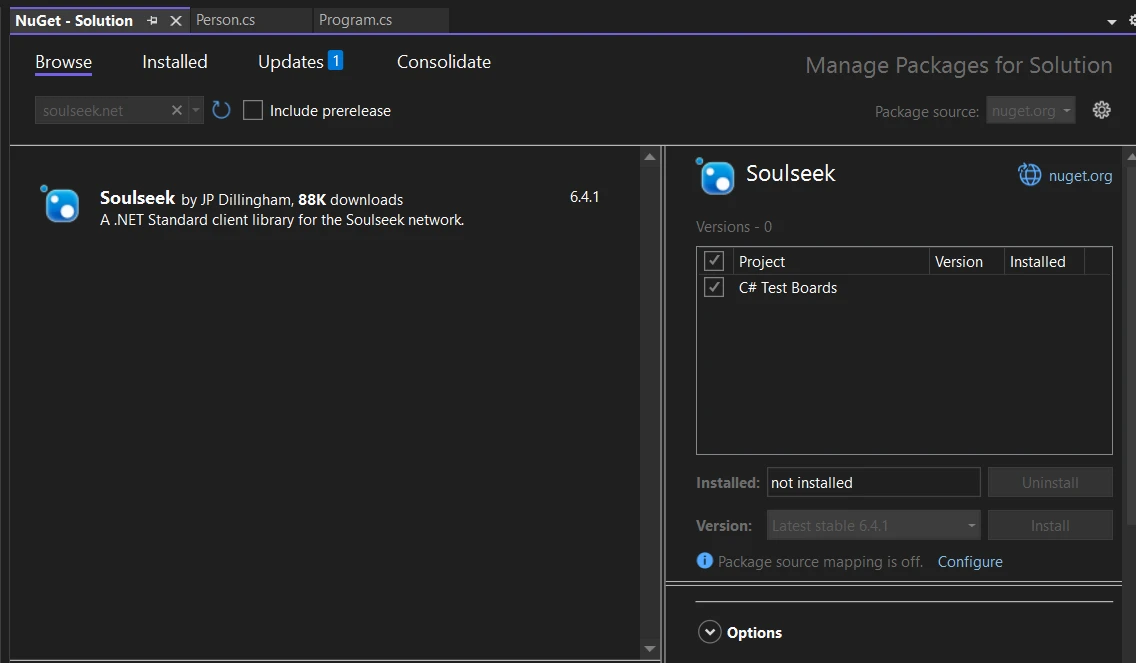
第一步是将这个强大的库集成到您的 .NET 项目中。 得益于 NuGet,此过程相当简单。 NuGet 是一个简化将库添加到项目的包管理器,并且 Soulseek.NET 可以在上面轻松获取。
首先在 Visual Studio 中打开您的项目。 然后,导航到解决方案资源管理器,右键单击您的项目,然后选择"管理 NuGet 包"。在"NuGet 包管理器"中,搜索"Soulseek.NET"并安装它。 此操作为您的项目配备了 Soulseek.NET 的功能,包括连接到网络、搜索文件和启动下载。
一旦 Soulseek.NET 成为您项目的一部分,您就可以开始编写一些代码。 让我们通过一个简单的示例来连接到 Soulseek 网络并执行文件搜索。 这个例子展示了 Soulseek.NET 的简单性和强大功能。
using Soulseek;
// Initialize the Soulseek client
var client = new SoulseekClient();

// Connect to the Soulseek server with your credentials
await client.ConnectAsync("YourUsername", "YourPassword");

// Perform a search for a specific file
// Assuming the method returns a tuple, deconstruct it to get the responses part.
var (search, responses) = await client.SearchAsync(SearchQuery.FromText("your search query"));

// Iterate through the search responses
foreach (var response in responses)
{
    Console.WriteLine($"Found file: {response.Files.FirstOrDefault()?.Filename}");
}Imports Soulseek
' Initialize the Soulseek client
Private client = New SoulseekClient()
' Connect to the Soulseek server with your credentials
Await client.ConnectAsync("YourUsername", "YourPassword")
' Perform a search for a specific file
' Assuming the method returns a tuple, deconstruct it to get the responses part.
'INSTANT VB TODO TASK: VB has no equivalent to C# deconstruction declarations:
var(search, responses) = await client.SearchAsync(SearchQuery.FromText("your search query"))
' Iterate through the search responses
For Each response In responses
Console.WriteLine($"Found file: {response.Files.FirstOrDefault()?.Filename}")
Next response这个代码片段展示了如何连接到 Soulseek 网络并执行搜索。 SearchAsync方法展示了Soulseek.NET的灵活性,允许进行详细查询以找到您所寻找的确切内容。
深入研究 Soulseek.NET 展现了一套使您与 Soulseek 网络互动的功能。 让我们探讨一些这些功能,并通过一段 C# 代码片段展示每一个功能以帮助您入门。
利用 Soulseek.NET 的第一步是建立与 Soulseek 服务器的连接。 这种连接使您的应用程序能够与网络进行搜索和下载的互动。
var client = new SoulseekClient();
await client.ConnectAsync("YourUsername", "YourPassword");Dim client = New SoulseekClient()
Await client.ConnectAsync("YourUsername", "YourPassword")这个片段初始化了一个新的 Soulseek 客户端并用您的 Soulseek 凭证连接到服务器。 很简单,对吗?
连接后,您可以在网络上搜索文件。 Soulseek.NET 提供灵活的搜索界面,允许您指定详细的标准。
IEnumerable<SearchResponse> responses = await client.SearchAsync(SearchQuery.FromText("search term"));
foreach (var response in responses)
{
    Console.WriteLine($"Files found: {response.FileCount}");
}Dim responses As IEnumerable(Of SearchResponse) = Await client.SearchAsync(SearchQuery.FromText("search term"))
For Each response In responses
Console.WriteLine($"Files found: {response.FileCount}")
Next response这个代码在网络上搜索匹配"搜索词"的文件,并在每个响应中打印出找到的文件数量。
找到文件是一回事; 下载它们才是实际操作开始的地方。 以下是您如何在找到文件后下载它。
var file = responses.SelectMany(r => r.Files).FirstOrDefault();
if (file != null)
{
    byte[] fileData = await client.DownloadAsync(file.Username, file.Filename, file.Size);
    // Save fileData to a file
}Dim file = responses.SelectMany(Function(r) r.Files).FirstOrDefault()
If file IsNot Nothing Then
Dim fileData() As Byte = Await client.DownloadAsync(file.Username, file.Filename, file.Size)
' Save fileData to a file
End If这个片段展示了从您的搜索结果中下载第一个文件,假设您至少找到了一个文件。
随着最近的更新,Soulseek 开始发送一系列排除的搜索短语以帮助过滤搜索。 处理这些短语可以确保您的搜索符合网络政策。
client.ExcludedSearchPhrasesReceived += (sender, e) =>
{
    Console.WriteLine("Excluded phrases: " + string.Join(", ", e.Phrases));
    // Adjust your search queries based on these phrases
};AddHandler client.ExcludedSearchPhrasesReceived, Sub(sender, e)
Console.WriteLine("Excluded phrases: " & String.Join(", ", e.Phrases))
' Adjust your search queries based on these phrases
End Sub这个事件处理程序记录服务器发来的排除短语,使您能够相应地优化您的搜索。
这一增强的功能集不仅保持了音乐爱好者钟爱的核心功能,并且扩大了无缝合法分享文件的能力,确保丰富且用户友好的体验。
IronPDF 库 是一个通用库,使开发人员能够在 .NET 应用程序中创建、编辑和提取 PDF 内容。 它允许您从HTML创建PDF。 它简化了 PDF 创建过程,并增加了使其在视觉上吸引人的选项。 它是许多人的首选,因为它将复杂的 PDF 任务简化为可管理的 C# 代码。 可以将其想象成您用于 PDF 操作的全能工具包,而无需深入分析其文件结构的复杂性。
想象一下,您正在处理 Soulseek 项目,需要根据用户活动或数据分析生成报告或文件。 通过合并 IronPDF,您可以直接以 PDF 格式生成这些文件。 这对于需要以普遍可访问格式分享或存储报告的应用程序尤其有用,无需担心兼容性问题。
首先,您需要将 IronPDF 添加到您的项目中。 如果您使用的是 Visual Studio,您可以通过 NuGet 包管理器进行操作。 只需在您的包管理器控制台中运行以下命令:
此命令获取并安装最新版本的 IronPDF,并为您的项目设置所有必要的依赖关系。
Soulseek 需要从用户数据生成 PDF 报告,然后将此报告与现有摘要文档合并。 这一情景将使我们有机会看到 Soulseek 如何在现实应用中与 IronPDF 互动。
using IronPdf;
using System;
using System.Linq;

namespace SoulSneekWithIronPDF
{
    public class SoulSneekPDFReportGenerator
    {
        public void GenerateAndMergeUserReport(int userId)
        {
            // Example data retrieval from SoulSneek's data store
            var userData = GetUserActivityData(userId);

            // Convert user data to HTML for PDF generation
            var htmlContent = ConvertUserDataToHtml(userData);

            // Generate PDF from HTML content
            var renderer = new ChromePdfRenderer();
            var monthlyReportPdf = renderer.RenderHtmlAsPdf(htmlContent);

            // Save the new PDF temporarily
            var tempPdfPath = $"tempReportForUser{userId}.pdf";
            monthlyReportPdf.SaveAs(tempPdfPath);

            // Assume there's an existing yearly summary PDF we want to append this report to
            var yearlySummaryPdfPath = $"yearlySummaryForUser{userId}.pdf";

            // Merge the new report with the yearly summary
            var yearlySummaryPdf = new PdfDocument(yearlySummaryPdfPath);
            var updatedYearlySummary = PdfDocument.Merge(monthlyReportPdf, yearlySummaryPdf);

            // Save the updated yearly summary
            var updatedYearlySummaryPath = $"updatedYearlySummaryForUser{userId}.pdf";
            updatedYearlySummary.SaveAs(updatedYearlySummaryPath);

            // Clean up the temporary file
            System.IO.File.Delete(tempPdfPath);

            Console.WriteLine($"Updated yearly summary report for user {userId} has been generated and saved to {updatedYearlySummaryPath}.");
        }

        private string ConvertUserDataToHtml(dynamic userData)
        {
            // Simulating converting user data to HTML string
            // In a real application, this would involve HTML templating based on user data
            return $"<h1>Monthly Activity Report</h1><p>User {userData.UserId} watched {userData.MoviesWatched} movies and listened to {userData.SongsListened} songs last month.</p>";
        }

        private dynamic GetUserActivityData(int userId)
        {
            // In a real app, this will query a database
            return new
            {
                UserId = userId,
                MoviesWatched = new Random().Next(1, 20), // Simulated data
                SongsListened = new Random().Next(20, 100) // Simulated data
            };
        }
    }
}Imports IronPdf
Imports System
Namespace SoulSneekWithIronPDF
Public Class SoulSneekPDFReportGenerator
Public Sub GenerateAndMergeUserReport(userId As Integer)
' Example data retrieval from SoulSneek's data store
Dim userData = GetUserActivityData(userId)
' Convert user data to HTML for PDF generation
Dim htmlContent = ConvertUserDataToHtml(userData)
' Generate PDF from HTML content
Dim renderer = New ChromePdfRenderer()
Dim monthlyReportPdf = renderer.RenderHtmlAsPdf(htmlContent)
' Save the new PDF temporarily
Dim tempPdfPath = $"tempReportForUser{userId}.pdf"
monthlyReportPdf.SaveAs(tempPdfPath)
' Assume there's an existing yearly summary PDF we want to append this report to
Dim yearlySummaryPdfPath = $"yearlySummaryForUser{userId}.pdf"
' Merge the new report with the yearly summary
Dim yearlySummaryPdf = New PdfDocument(yearlySummaryPdfPath)
Dim updatedYearlySummary = PdfDocument.Merge(monthlyReportPdf, yearlySummaryPdf)
' Save the updated yearly summary
Dim updatedYearlySummaryPath = $"updatedYearlySummaryForUser{userId}.pdf"
updatedYearlySummary.SaveAs(updatedYearlySummaryPath)
' Clean up the temporary file
System.IO.File.Delete(tempPdfPath)
Console.WriteLine($"Updated yearly summary report for user {userId} has been generated and saved to {updatedYearlySummaryPath}.")
End Sub
Private Function ConvertUserDataToHtml(userData As Object) As String
' Simulating converting user data to HTML string
' In a real application, this would involve HTML templating based on user data
Return $"<h1>Monthly Activity Report</h1><p>User {userData.UserId} watched {userData.MoviesWatched} movies and listened to {userData.SongsListened} songs last month.</p>"
End Function
Private Function GetUserActivityData(userId As Integer) As Object
' In a real app, this will query a database
Return New With {
.UserId = userId,
.MoviesWatched = (New Random()).Next(1, 20), ' Simulated data
.SongsListened = (New Random()).Next(20, 100) ' Simulated data
}
End Function
End Class
End Namespace这个代码展示了如何将 IronPDF 集成到像 Soulseek 这样的项目中,以添加 PDF 生成和操作功能,增强平台在报告和文档用户活动方面的能力。
Soulseek.NET 和 IronPDF 在增强 .NET 应用程序方面服务于不同但互补的角色。 Soulseek.NET 通过 Soulseek 网络促进直接文件共享。 相反,IronPDF 专注于 PDF 管理,提供生成、修改和轻松合并 PDF 文档的能力。 它们共同扩大了 .NET 开发中可以实现的范围,提供从复杂文件共享到详细文档管理的解决方案。 IronPDF提供IronPDF免费试用,起价为$999,满足多样化的开发需求和预算。

Jacob Mellor 是 Iron Software 的首席技术官,也是一位开创 C# PDF 技术的有远见的工程师。作为 Iron Software 核心代码库的原始开发者,他从公司成立之初就开始塑造公司的产品架构,与首席执行官 Cameron Rimington 一起将公司转变为一家拥有 50 多名员工的公司,为 NASA、特斯拉和全球政府机构提供服务。
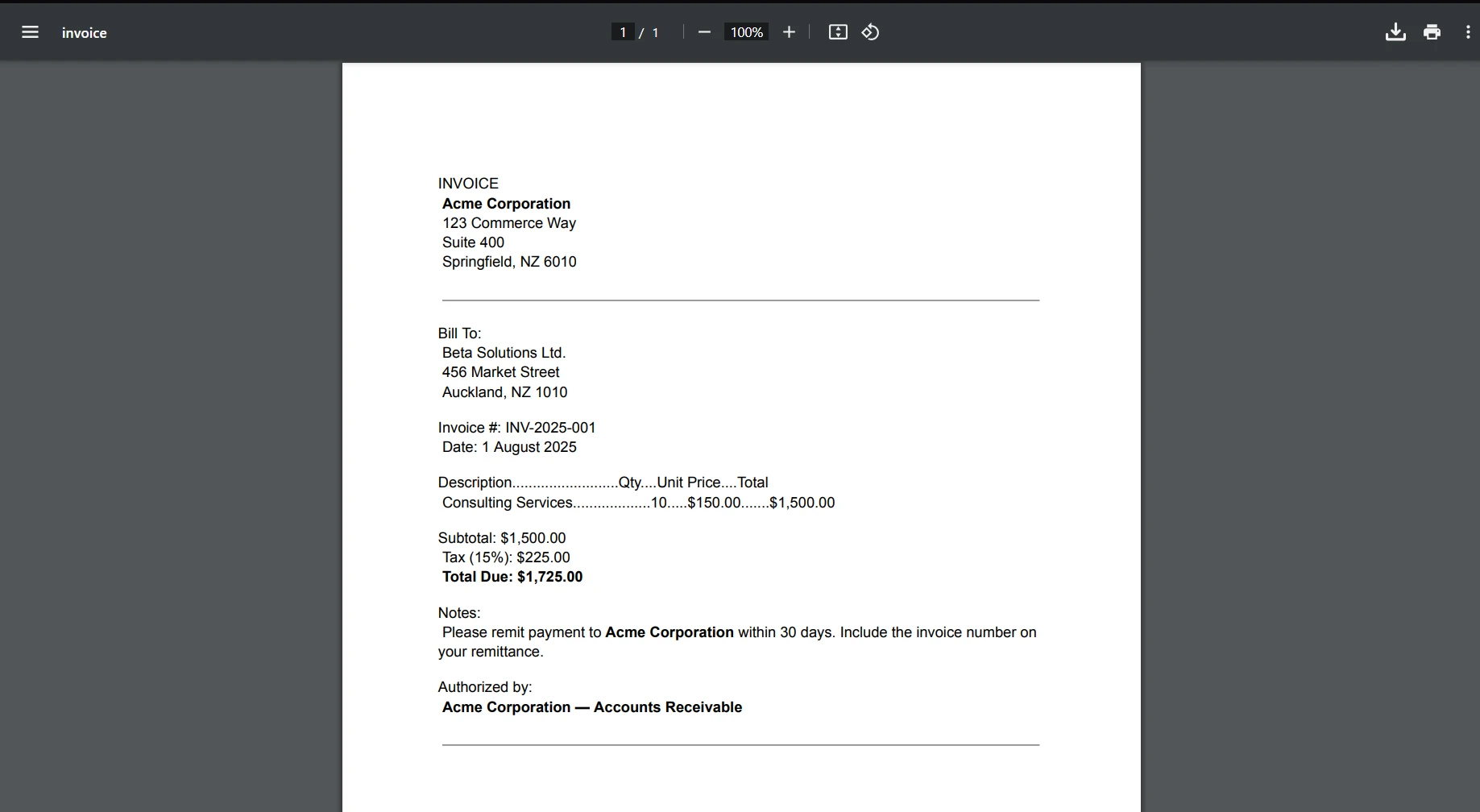

当您需要PDF看起来像HTML时,速度快。













