


更新日 2026年4月21日
JavaScript PDF エディタ(開発者向けチュートリアル)
この詳細ガイドでは、IronPDF が提供する強力な機能を使用して、JavaScript PDF エディタを構築する複雑さを解き明かす旅に乗り出します。
詳しく読む

React アプリケーションから PDF ドキュメントを作成するチュートリアルへようこそ! このチュートリアルでは、さまざまなライブラリを使ってPDFを生成し、Reactコンポーネントから直接PDFファイルを作成する人気のjsPDFライブラリの使い方を学びます。 それでは、始めましょう!
PDF(Portable Document Format)は、ドキュメントのレイアウトとフォーマットを保持しながら共有および印刷するために広く使用されているファイル形式です。 React の Web 開発者として、請求書、レポート、販売契約などの PDF ドキュメントを React アプリケーションから直接生成する必要があるシナリオに遭遇するかもしれません。
React アプリケーションで PDF ドキュメントを作成することは、特に新しいフィールドの場合は大変な作業です。 幸いなことに、このプロセスを大幅に簡素化するサードパーティのライブラリがいくつかあります。 各ライブラリには独自の機能とユーティリティが用意されており、さまざまなユースケースに対応しています。 これらのライブラリについてさらに詳しく見ていきましょう。
JavaScriptからPDFファイルを生成するために、開発者の間で広く人気のあるライブラリです。 主なセールスポイントの 1 つはそのシンプルさです。 その構文と使用法は非常に簡単で、HTML コンテンツをすぐに PDF ファイルに変換できます。
このライブラリは、フォントサイズや色の変更からページの向きやサイズの調整まで、PDFのフォーマットとレイアウトを制御することができます。jsPDFは、ブラウザとサーバーの両方の環境で動作する堅牢なソリューションであり、幅広いJavaScriptアプリケーションに最適です。
pdfmakeは、純粋なJavaScriptでのクライアント/サーバーサイドのPDF印刷ソリューションとして際立っています。 このライブラリは、包括的な API と柔軟なレイアウトオプションのおかげで、より複雑な PDF を作成するための優れた選択肢です。 pdfmakeを使用すると、シンプルなJavaScriptオブジェクトを使用して文書の内容と構造を定義し、それを有効なPDF文書に変換できます。
React-PDFは、Reactコンポーネントを使用してPDFファイルを作成するための強力な機能を提供するユニークなライブラリです。 JavaScript オブジェクトでドキュメント構造を手動で記述する代わりに、再利用可能なコンポーネントとプロップスを使用して、通常の React アプリケーションを構築するように PDF を作成できます。 IronPDF の Web サイトには、React-PDF ライブラリを使用した PDF の作成に関するチュートリアルがあります。
3つのライブラリはすべて、ReactでPDFドキュメントを生成するための強力なツールを提供しますが、このチュートリアルではその簡潔さ、柔軟性、コミュニティでの広い採用率のためにjsPDFを使用します。 初心者にとって参入障壁が低く、その堅牢な機能セットにより多くのユースケースに適した選択となります。 jsPDFで学ぶ原則は、PDFを生成するためのしっかりとした基礎を提供し、プロジェクトが要求する場合に他のライブラリをより簡単に習得することができます。
このチュートリアルに飛び込む前に、スムーズに進めるために必要なツールと知識が十分に装備されていることを確認することが重要です。 このチュートリアルの前提条件は次のとおりです。
まず第一に、単一ページ アプリケーションを構築するための人気のある JavaScript ライブラリである React の基本的な理解が必要です。 React の JSX(JavaScript XML)、コンポーネント、状態、プロパティといった概念に精通している必要があります。
また、React アプリケーションを構築するための開発環境をコンピューターに設定しておく必要があります。 これには、テキストエディタまたは統合開発環境 (IDE) が含まれます。 Visual Studio Code、Atom、Sublime Text などのテキスト エディターはすべて優れたオプションです。
プロジェクトとその依存関係を管理するために、Node.js および npm (Node Package Manager) を使用します。 コンピューターに Node.js がインストールされていることを確認してください。 Node.jsは、サーバーでJavaScriptを実行するため for JavaScriptランタイムです。 これには npm がインストールされているので、プロジェクトに必要なライブラリを管理できます。
次の端末コマンドを実行して Node.js と npm がインストールされているかどうかを確認できます。
node -v
npm -vこれらのコマンドは、システムにインストールされている Node.js および npm のバージョンを表示します。 インストールされていない場合やバージョンが古い場合は、公式ダウンロードページから最新の長期サポート (LTS) バージョンの Node.js をダウンロードしてインストールする必要があります。
React プロジェクトのセットアップを開始しましょう。 ターミナルを開き、プロジェクトを作成したいディレクトリに移動します。 次のコマンドを実行して、新しい React アプリケーションを作成します。
npx create-react-app pdf-from-react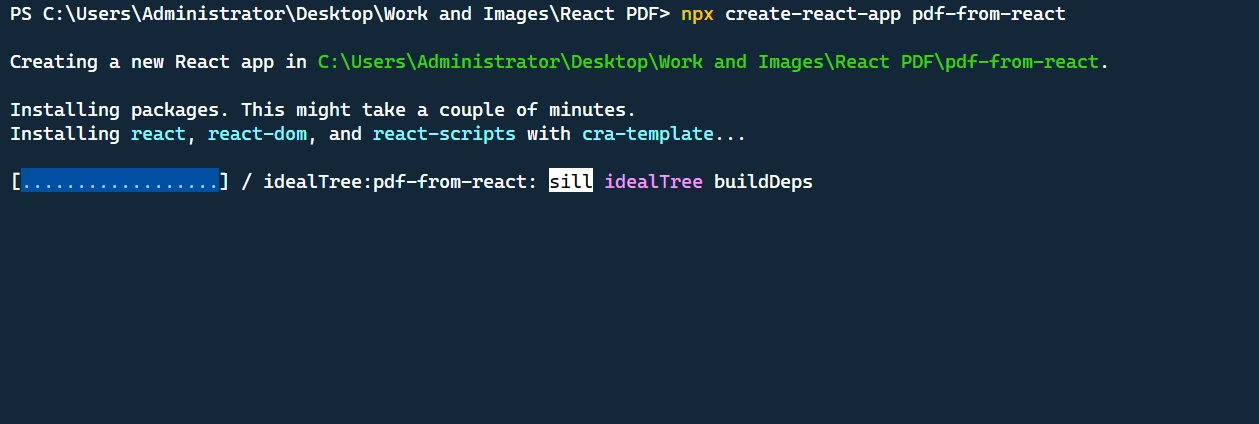
このコマンドは、pdf-from-reactという名前の新しいディレクトリを作成し、基本的なReactプロジェクト構造を持たせます。
次に、プロジェクトディレクトリに移動します。
cd pdf-from-reactこれで、コードエディタでプロジェクトを開いて実装を進めることができます。
まず、必要なパッケージをインストールする必要があります。 次のターミナルコマンドを使用して、react, react-dom, @mui/material, and jspdfをインストールします。
npm install jspdf @mui/material @emotion/react @emotion/styled @mui/icons-materialアプリケーションに必要な依存関係をインポートすることから始めます。 これには、Material-UIライブラリからのさまざまなコンポーネント、PDF生成のためのjsPDFライブラリ、およびスタイリングユーティリティが含まれます。
import React, { useState } from "react";
import "./App.css";
import {
  Button,
  TextField,
  Box,
  Container,
  Typography,
  Table,
  TableBody,
  TableCell,
  TableContainer,
  TableHead,
  TableRow,
  Paper,
  IconButton,
  Snackbar,
  Alert,
} from "@mui/material";
import Grid from "@mui/material/Grid";
import DeleteIcon from "@mui/icons-material/Delete";
import jsPDF from "jspdf";
import { styled } from "@mui/material/styles";
import { tableCellClasses } from "@mui/material/TableCell";当社のアプリに一貫したクロスブラウザ動作を追加するために、StyledTableRowを作成しました。
const StyledTableCell = styled(TableCell)(({ theme }) => ({
[`&.${tableCellClasses.head}`]: {
backgroundColor: theme.palette.common.black,
color: theme.palette.common.white,
},
[`&.${tableCellClasses.body}`]: {
fontSize: 14,
},
}));
const StyledTableRow = styled(TableRow)(({ theme }) => ({
"&:nth-of-type(odd)": {
backgroundColor: theme.palette.action.hover,
},
"&:last-child td, &:last-child th": {
border: 0,
},
}));アプリケーションの主要なコンポーネントはAppコンポーネントです。 次の状態変数を持っています: customerName および errorは必要に応じてエラーメッセージを表示します。
function App() {
// State variables
const [customerName, setCustomerName] = useState("");
const [customerAddress, setCustomerAddress] = useState("");
const [items, setItems] = useState([{ name: "", quantity: "", price: "" }]);
const [error, setError] = useState(false);このコードブロックでは、ユーザーの操作を処理するための関数を定義しました: アイテムの詳細を変更し、新しいアイテムを追加し、アイテムを削除します。 handleItemChange関数は、ユーザーが修正したときに項目のプロパティを更新します。 deleteItem関数はリストから項目を削除します。
const handleItemChange = (index, event) => {
let newItems = [...items];
newItems[index][event.target.name] = event.target.value;
setItems(newItems);
};
const addItem = () => {
setItems([...items, { name: "", quantity: "", price: "" }]);
};
const deleteItem = (index) => {
let newItems = [...items];
newItems.splice(index, 1);
setItems(newItems);
};以下はgenerateInvoice関数コードです:
// Generate invoice
const generateInvoice = () => {
// Validate the input fields
if (
!customerName ||
!customerAddress ||
items.some((item) => !item.name || !item.quantity || !item.price)
) {
setError(true);
return;
}
// Create a new jsPDF instance
let doc = new jsPDF("p", "pt");
// Add invoice header
doc.setFontSize(24);
doc.text("Invoice", 40, 60);
doc.setFontSize(10);
doc.text("Invoice Number: 123456", 40, 90);
doc.text("Date: " + new Date().toDateString(), 40, 110);
doc.text(`Customer Name: ${customerName}`, 40, 130);
doc.text(`Customer Address: ${customerAddress}`, 40, 150);
// Add items section
doc.setFontSize(14);
doc.text("Items:", 40, 200);
doc.line(40, 210, 550, 210);
// Add item details
doc.setFontSize(12);
let yOffset = 240;
let total = 0;
items.forEach((item) => {
let itemTotal = item.quantity * item.price;
total += itemTotal;
doc.text(`Item: ${item.name}`, 40, yOffset);
doc.text(`Quantity: ${item.quantity}`, 200, yOffset);
doc.text(`Price: $${item.price}`, 300, yOffset);
doc.text(`Total: $${itemTotal}`, 400, yOffset);
yOffset += 20;
});
// Add total
doc.line(40, yOffset, 550, yOffset);
doc.setFontSize(14);
doc.text(`Total: $${total}`, 400, yOffset + 30);
// Save the generated PDF as "invoice.pdf"
doc.save("invoice.pdf");
// Reset error state
setError(false);
};generateInvoice関数内で、最初に入力フィールドの検証を行い、顧客名、顧客住所、項目詳細が記入されていることを確認します。 これらのフィールドのいずれかが空である場合、trueに設定し、早めにリターンします。
次に、new jsPDF("p", "pt")によって作成します。 最初の引数"pt"は測定単位をポイントとして指定します。
次に、PDF ドキュメントにコンテンツを追加し始めます。 フォントサイズをdoc.textメソッドを使用してページ上の特定の座標にテキストを追加します。 インボイスのヘッダーに、タイトル、インボイス番号、日付、顧客名、顧客住所を追加します。
ヘッダーの後、doc.lineを使ってフォントサイズを設定し、項目をヘッダーから分離する線を追加して"Items"セクションを追加します。 次に、total変数で更新します。
各項目に対して、項目名、数量、価格、および項目合計をPDF文書に追加するためにdoc.textを使用します。 各項目に対して次の行に移動するためにyOffset変数を増加させます。 最後に、合計額を右下に追加し、doc.textを使用してアイテムを合計から分離する線を追加します。
コンテンツが追加された後、doc.save("invoice.pdf")を使用して生成されたPDFをユーザーのコンピュータに"invoice.pdf"として保存します。 最後に、falseにリセットして、以前の検証エラーをクリアします。
return文は、レンダリングプロセスを処理するJSXコードを含んでいます。 これには、顧客名と住所の入力フィールド、アイテムの詳細を入力するためのテーブル、アイテムを追加してインボイスを生成するためのボタン、およびバリデーションエラーを表示するためのエラースナックバーが含まれています。
Material-UIライブラリのコンポーネントを使用して、Button, TextField, Box, Container, Typography, Table, TableBody, TableCell, TableContainer, TableHead, TableRow, Paper, IconButton, Snackbar, and Alertのようなコンポーネントを使用して基本コンポーネントを作成します。 これらのコンポーネントは、フォームフィールド、テーブル、ボタン、およびエラーメッセージを作成するために使用されます。
return (
<Container maxWidth="md">
<Box sx={{my: 4}}>
<Typography variant="h3" component="h1" gutterBottom>
Create Invoice
</Typography>
{/* Customer Name and Address fields */}
<Grid container spacing={3}>
<Grid item xs={6}>
<TextField
label="Customer Name"
fullWidth
margin="normal"
value={customerName}
onChange={(e) => setCustomerName(e.target.value)}
/>
</Grid>
<Grid item xs={6}>
<TextField
label="Customer Address"
fullWidth
margin="normal"
value={customerAddress}
onChange={(e) => setCustomerAddress(e.target.value)}
/>
</Grid>
</Grid>
{/* Items table */}
<TableContainer component={Paper}>
<Table sx={{minWidth: 700}} aria-label="invoice table">
<TableHead>
<TableRow>
<StyledTableCell>Item Name</StyledTableCell>
<StyledTableCell align="left">Quantity</StyledTableCell>
<StyledTableCell align="left">Price</StyledTableCell>
<StyledTableCell align="left">Action</StyledTableCell>
</TableRow>
</TableHead>
<TableBody>
{items.map((item, index) => (
<StyledTableRow key={index}>
<StyledTableCell component="th" scope="row">
<TextField
fullWidth
value={item.name}
onChange={(event) => handleItemChange(index, event)}
name="name"
/>
</StyledTableCell>
<StyledTableCell align="right">
<TextField
fullWidth
value={item.quantity}
onChange={(event) => handleItemChange(index, event)}
name="quantity"
/>
</StyledTableCell>
<StyledTableCell align="right">
<TextField
fullWidth
value={item.price}
onChange={(event) => handleItemChange(index, event)}
name="price"
/>
</StyledTableCell>
<StyledTableCell align="right">
<IconButton onClick={() => deleteItem(index)}>
<DeleteIcon />
</IconButton>
</StyledTableCell>
</StyledTableRow>
))}
</TableBody>
</Table>
</TableContainer>
{/* Buttons */}
<Box mt={2} display="flex" gap={2}>
<Button variant="contained" onClick={addItem}>
Add Item
</Button>
<Button variant="outlined" color="success" onClick={generateInvoice}>
Generate Invoice
</Button>
</Box>
</Box>
{/* Error Snackbar */}
<Snackbar
open={error}
autoHideDuration={6000}
onClose={() => setError(false)}
anchorOrigin={{vertical: "top", horizontal: "right"}}
>
<Alert onClose={() => setError(false)} severity="error">
Please fill in all required fields.
</Alert>
</Snackbar>
</Container>
);プロジェクトにコピー&ペーストできる完全なApp.jsコードはこちらです:
import React, { useState } from "react";
import "./App.css";
import {
  Button,
  TextField,
  Box,
  Container,
  Typography,
  Table,
  TableBody,
  TableCell,
  TableContainer,
  TableHead,
  TableRow,
  Paper,
  IconButton,
  Snackbar,
  Alert,
} from "@mui/material";
import Grid from "@mui/material/Grid";
import DeleteIcon from "@mui/icons-material/Delete";
import jsPDF from "jspdf";
import { styled } from "@mui/material/styles";
import { tableCellClasses } from "@mui/material/TableCell";
const StyledTableCell = styled(TableCell)(({ theme }) => ({
  [`&.${tableCellClasses.head}`]: {
    backgroundColor: theme.palette.common.black,
    color: theme.palette.common.white,
  },
  [`&.${tableCellClasses.body}`]: {
    fontSize: 14,
  },
}));

const StyledTableRow = styled(TableRow)(({ theme }) => ({
  "&:nth-of-type(odd)": {
    backgroundColor: theme.palette.action.hover,
  },
  "&:last-child td, &:last-child th": {
    border: 0,
  },
}));
function App() {
  // State variables
  const [customerName, setCustomerName] = useState("");
  const [customerAddress, setCustomerAddress] = useState("");
  const [items, setItems] = useState([{ name: "", quantity: "", price: "" }]);
  const [error, setError] = useState(false);
// Event handler for item changes
const handleItemChange = (index, event) => {
let newItems = [...items];
newItems[index][event.target.name] = event.target.value;
setItems(newItems);
};
// Add new item to the list
const addItem = () => {
setItems([...items, { name: "", quantity: "", price: "" }]);
};
// Delete an item from the list
const deleteItem = (index) => {
let newItems = [...items];
newItems.splice(index, 1);
setItems(newItems);
};
// Generate invoice
const generateInvoice = () => {
  // Validate the input fields
  if (
    !customerName ||
    !customerAddress ||
    items.some((item) => !item.name || !item.quantity || !item.price)
  ) {
    setError(true);
    return;
  }

  // Create a new jsPDF instance
  let doc = new jsPDF("p", "pt");

  // Add invoice header
  doc.setFontSize(24);
  doc.text("Invoice", 40, 60);
  doc.setFontSize(10);
  doc.text("Invoice Number: 123456", 40, 90);
  doc.text("Date: " + new Date().toDateString(), 40, 110);
  doc.text(`Customer Name: ${customerName}`, 40, 130);
  doc.text(`Customer Address: ${customerAddress}`, 40, 150);

  // Add items section
  doc.setFontSize(14);
  doc.text("Items:", 40, 200);
  doc.line(40, 210, 550, 210);

  // Add item details
  doc.setFontSize(12);
  let yOffset = 240;
  let total = 0;

  items.forEach((item) => {
    let itemTotal = item.quantity * item.price;
    total += itemTotal;

    doc.text(`Item: ${item.name}`, 40, yOffset);
    doc.text(`Quantity: ${item.quantity}`, 200, yOffset);
    doc.text(`Price: $${item.price}`, 300, yOffset);
    doc.text(`Total: $${itemTotal}`, 400, yOffset);

    yOffset += 20;
  });

  // Add total
  doc.line(40, yOffset, 550, yOffset);
  doc.setFontSize(14);
  doc.text(`Total: $${total}`, 400, yOffset + 30);

  // Save the generated PDF as "invoice.pdf"
  doc.save("invoice.pdf");

  // Reset error state
  setError(false);
};
return (
  <Container maxWidth="md">
    <Box sx={{my: 4}}>
      <Typography variant="h3" component="h1" gutterBottom>
        Create Invoice
      </Typography>

      {/* Customer Name and Address fields */}
      <Grid container spacing={3}>
        <Grid item xs={6}>
          <TextField
            label="Customer Name"
            fullWidth
            margin="normal"
            value={customerName}
            onChange={(e) => setCustomerName(e.target.value)}
          />
        </Grid>
        <Grid item xs={6}>
          <TextField
            label="Customer Address"
            fullWidth
            margin="normal"
            value={customerAddress}
            onChange={(e) => setCustomerAddress(e.target.value)}
          />
        </Grid>
      </Grid>

      {/* Items table */}
      <TableContainer component={Paper}>
        <Table sx={{minWidth: 700}} aria-label="invoice table">
          <TableHead>
            <TableRow>
              <StyledTableCell>Item Name</StyledTableCell>
              <StyledTableCell align="left">Quantity</StyledTableCell>
              <StyledTableCell align="left">Price</StyledTableCell>
              <StyledTableCell align="left">Action</StyledTableCell>
            </TableRow>
          </TableHead>
          <TableBody>
            {items.map((item, index) => (
              <StyledTableRow key={index}>
                <StyledTableCell component="th" scope="row">
                  <TextField
                    fullWidth
                    value={item.name}
                    onChange={(event) => handleItemChange(index, event)}
                    name="name"
                  />
                </StyledTableCell>
                <StyledTableCell align="right">
                  <TextField
                    fullWidth
                    value={item.quantity}
                    onChange={(event) => handleItemChange(index, event)}
                    name="quantity"
                  />
                </StyledTableCell>
                <StyledTableCell align="right">
                  <TextField
                    fullWidth
                    value={item.price}
                    onChange={(event) => handleItemChange(index, event)}
                    name="price"
                  />
                </StyledTableCell>
                <StyledTableCell align="right">
                  <IconButton onClick={() => deleteItem(index)}>
                    <DeleteIcon />
                  </IconButton>
                </StyledTableCell>
              </StyledTableRow>
            ))}
          </TableBody>
        </Table>
      </TableContainer>

      {/* Buttons */}
      <Box mt={2} display="flex" gap={2}>
        <Button variant="contained" onClick={addItem}>
          Add Item
        </Button>
        <Button variant="outlined" color="success" onClick={generateInvoice}>
          Generate Invoice
        </Button>
      </Box>
    </Box>

    {/* Error Snackbar */}
    <Snackbar
      open={error}
      autoHideDuration={6000}
      onClose={() => setError(false)}
      anchorOrigin={{vertical: "top", horizontal: "right"}}
    >
      <Alert onClose={() => setError(false)} severity="error">
        Please fill in all required fields.
      </Alert>
    </Snackbar>
  </Container>
);
}
export default App;以下はApp.cssコードです:
@import url('https://fonts.googleapis.com/css2?family=Poppins:wght@400;700&display=swap');
.App {
  text-align: center;
}

.App-logo {
  height: 40vmin;
  pointer-events: none;
}

@media (prefers-reduced-motion: no-preference) {
  .App-logo {
    animation: App-logo-spin infinite 20s linear;
  }
}

h1,
h2,
h3,
h4,
h5,
h6 {
  font-weight: bold;
  /* This is the weight for bold in Poppins */
  color: #FF6347;
  /* This is the color Tomato. Replace with your preferred color */
}

body {
  font-family: 'Poppins', sans-serif;
  background-color: #E9F8F4;
}

.App-header {
  background-color: #282c34;
  min-height: 100vh;
  display: flex;
  flex-direction: column;
  align-items: center;
  justify-content: center;
  font-size: calc(10px + 2vmin);
  color: white;
}

.App-link {
  color: #61dafb;
}

@keyframes App-logo-spin {
  from {
    transform: rotate(0deg);
  }
  to {
    transform: rotate(360deg);
  }
}PDF 生成機能をテストするには、端末で次のコマンドを実行します。
npm startこれにより開発サーバーが起動し、ブラウザの**http://localhost:3000**でアプリケーションを表示できます。
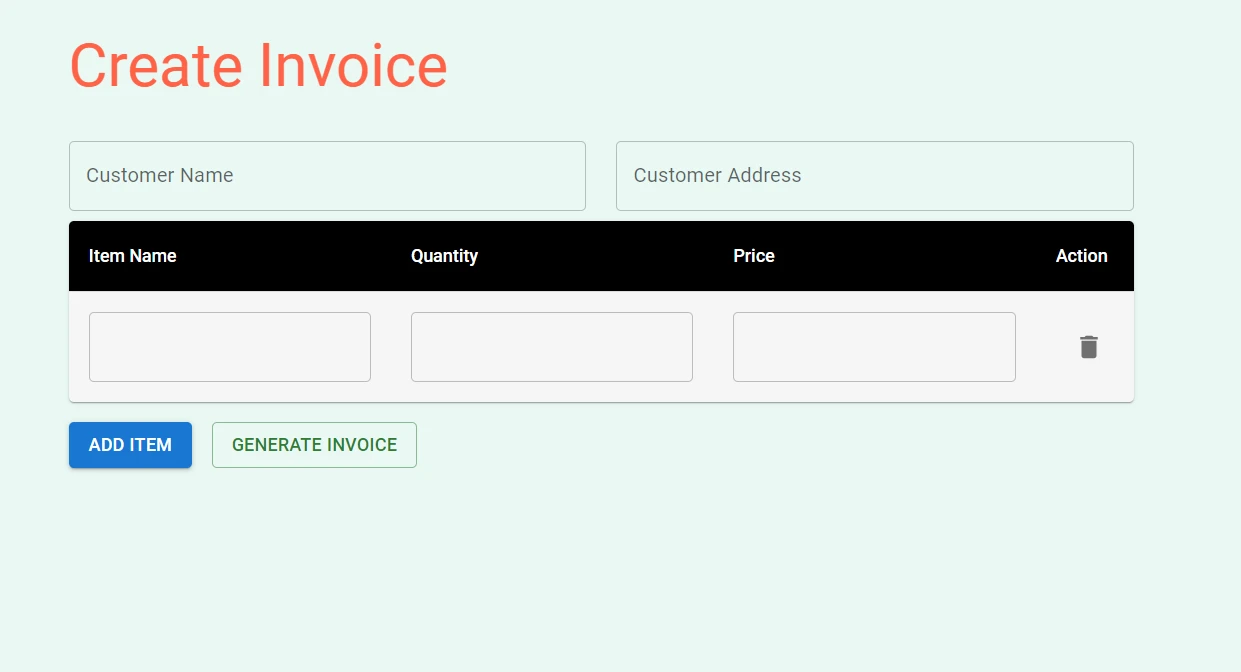
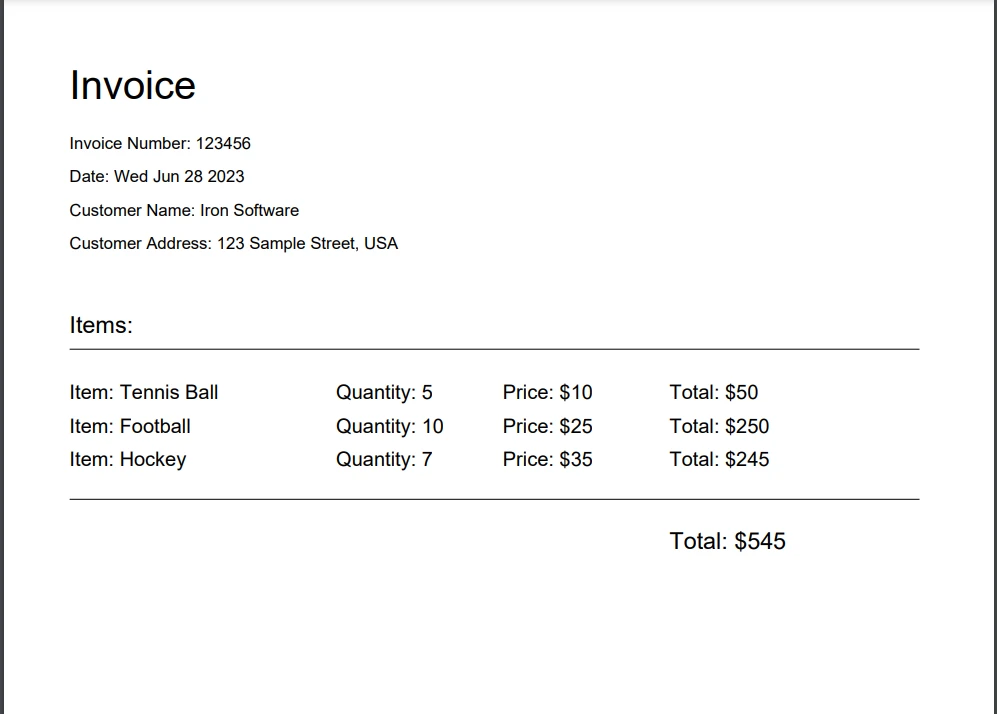
入力フィールドに顧客名、住所、アイテムの詳細を入力し、"Generate Invoice"ボタンをクリックします。 PDF ファイルはコンピュータにダウンロードされ、開いて生成された請求書のフルページ表示を確認できます。
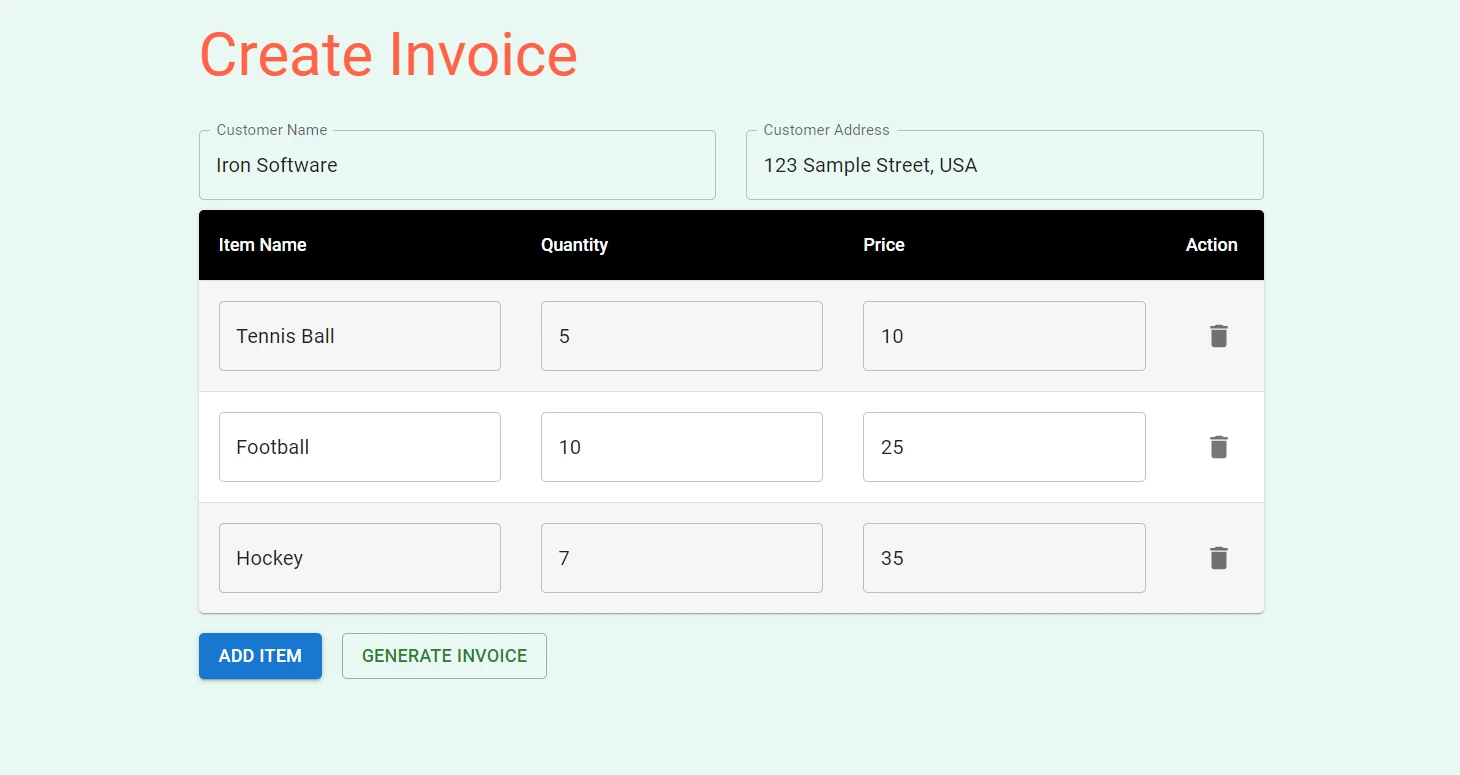
"Generate Invoice" ボタンをクリックすると、PDF ファイルが生成されます。
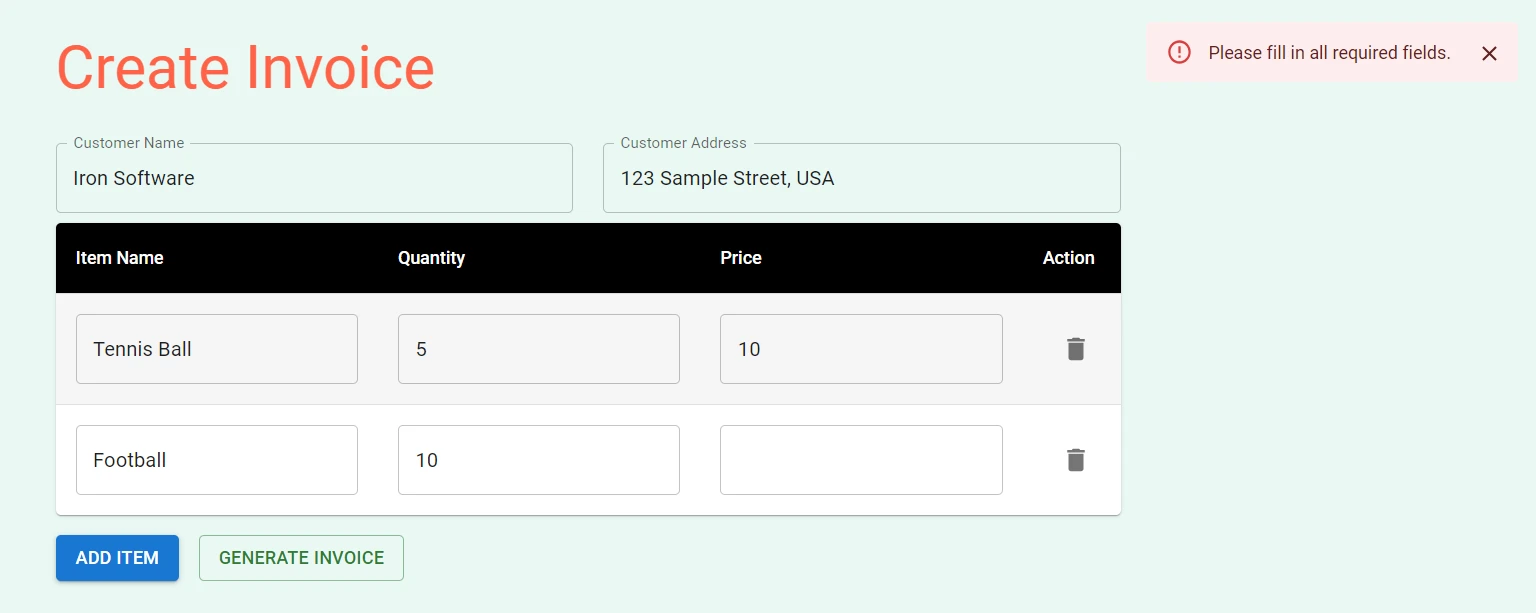
空白のフィールドで PDF を生成しようとすると、右上隅にエラーメッセージが表示されます。
IronPDF Node.js 向け は、正確性、使いやすさ、速度に優れた包括的な Node.js PDF ライブラリです。 HTML、URL、およびReactの画像から直接PDFを生成、編集、フォーマットするための広範な機能を提供します。 Windows、MacOS、Linux、Docker、AzureやAWSなどのクラウドプラットフォームを含むさまざまなプラットフォームをサポートしているため、IronPDFはクロスプラットフォームの互換性を保証します。 直観的なAPIを備えているため、開発者は迅速にPDF生成と操作をNode.jsプロジェクトに統合することができます。
IronPDF Node.js の注目すべき機能には、ピクセル単位のレンダリング、広範なフォーマットオプション、PDF のマージや分割、注釈の追加、PDF フォームの作成などの高度な編集機能が含まれます。
HTML ファイル、HTML ストリング、および URL から PDF ドキュメントを生成する例を以下に示します。
import { PdfDocument } from "@ironsoftware/ironpdf";

(async () => {
  const pdfFromUrl = await PdfDocument.fromUrl("https://getbootstrap.com/");
  await pdfFromUrl.saveAs("website.pdf");

  const pdfFromHtmlFile = await PdfDocument.fromHtml("design.html");
  await pdfFromHtmlFile.saveAs("markup.pdf");

  const pdfFromHtmlString = await PdfDocument.fromHtml("<p>Hello World</p>");
  await pdfFromHtmlString.saveAs("markup_with_assets.pdf");
})();PDF に関連するタスクに関する詳細なコード例については、この IronPDF コード例のページをご覧ください。
結論として、React アプリケーションでの PDF の作成は威圧的である必要はありません。 適切なツールと明確な理解があれば、美しい構造化された PDF ドキュメントを簡単に生成できます。 jsPDF, pdfmake, そしてReact-PDFのようなさまざまなライブラリを調査し、それぞれが独自の強みとユニークな機能を持っています。
IronPDF のフレームワーク用の簡単な統合プロセスとライブラリに関する素晴らしいドキュメント、そして応答性の高い技術サポートにより、開発者は迅速に立ち上げることができ、Node.js アプリケーションでプロフェッショナル品質の PDF を生成するための最適な選択です。
IronPDF では、その完全な機能の無料トライアルを提供しています。 また、C# .NET、Java、Python などの他の言語でも利用できます。 IronPDFのウェブサイトにアクセスして、詳細をご覧ください。

Curtis Chauは、カールトン大学でコンピュータサイエンスの学士号を取得し、Node.js、TypeScript、JavaScript、およびReactに精通したフロントエンド開発を専門としています。直感的で美しいユーザーインターフェースを作成することに情熱を持ち、Curtisは現代のフレームワークを用いた開発や、構造の良い視覚的に魅力的なマニュアルの作成を楽しんでいます。

IronPDF はIRONSUITEの一部です
オフィス文書向けの.NET API製品10個

PDFがHTMLのように見える必要があるとき、迅速に。











