using IronPdf;

// Disable local disk access or cross-origin requests
Installation.EnableWebSecurity = true;

// Instantiate Renderer
var renderer = new ChromePdfRenderer();

// Create a PDF from a HTML string using C#
var pdf = renderer.RenderHtmlAsPdf("<h1>Hello World</h1>");

// Export to a file or Stream
pdf.SaveAs("output.pdf");

// Advanced Example with HTML Assets
// Load external html assets: Images, CSS and JavaScript.
// An optional BasePath 'C:\site\assets\' is set as the file location to load assets from
var myAdvancedPdf = renderer.RenderHtmlAsPdf("<img src='icons/iron.png'>", @"C:\site\assets\");
myAdvancedPdf.SaveAs("html-with-assets.pdf");
using IronPdf;// Disable local disk access or cross-origin requestsInstallation.EnableWebSecurity = true;// Instantiate Renderervar renderer = new ChromePdfRenderer();// Create a PDF from a HTML string using C#var pdf = renderer.RenderHtmlAsPdf("<h1>Hello World</h1>");// Export to a file or Streampdf.SaveAs("output.pdf");// Advanced Example with HTML Assets// Load external html assets: Images, CSS and JavaScript.// An optional BasePath 'C:\site\assets\' is set as the file location to load assets fromvar myAdvancedPdf = renderer.RenderHtmlAsPdf("<img src='icons/iron.png'>", @"C:\site\assets\");myAdvancedPdf.SaveAs("html-with-assets.pdf");
C# 개발자로서 프로젝트 내에서 PDF를 생성하고 조작하는 데 도전에 직면한 적이 많았습니다. 효율적이고 신뢰할 수 있으며 쉽게 통합할 수 있는 PDF 솔루션에 대한 필요성은 우리 분야에서 공통적인 문제입니다. 그렇기 때문에 C# 애플리케이션에서 PDF 관련 작업을 간소화하겠다고 약속하는 두 가지 인기 있는 도구인 APITemplate와 IronPDF를 탐색하기로 결정했습니다.
이 글에서는 APITemplate와 IronPDF을 직접 사용해 본 경험을 공유하면서 그들의 기능, 성능 및 통합 기능을 비교해 보겠습니다. 제 목표는 다음 프로젝트를 위해 정보에 기반한 결정을 내릴 수 있도록 명확하고 편견 없는 분석을 제공하는 것입니다. APITemplate와 IronPDF를 처음 접했을 때, PDF 관련 과제를 해결할 수 있는 잠재력에 관심을 가지게 되었습니다. 각 도구가 제공하는 내용을 살펴보겠습니다.
APITemplate
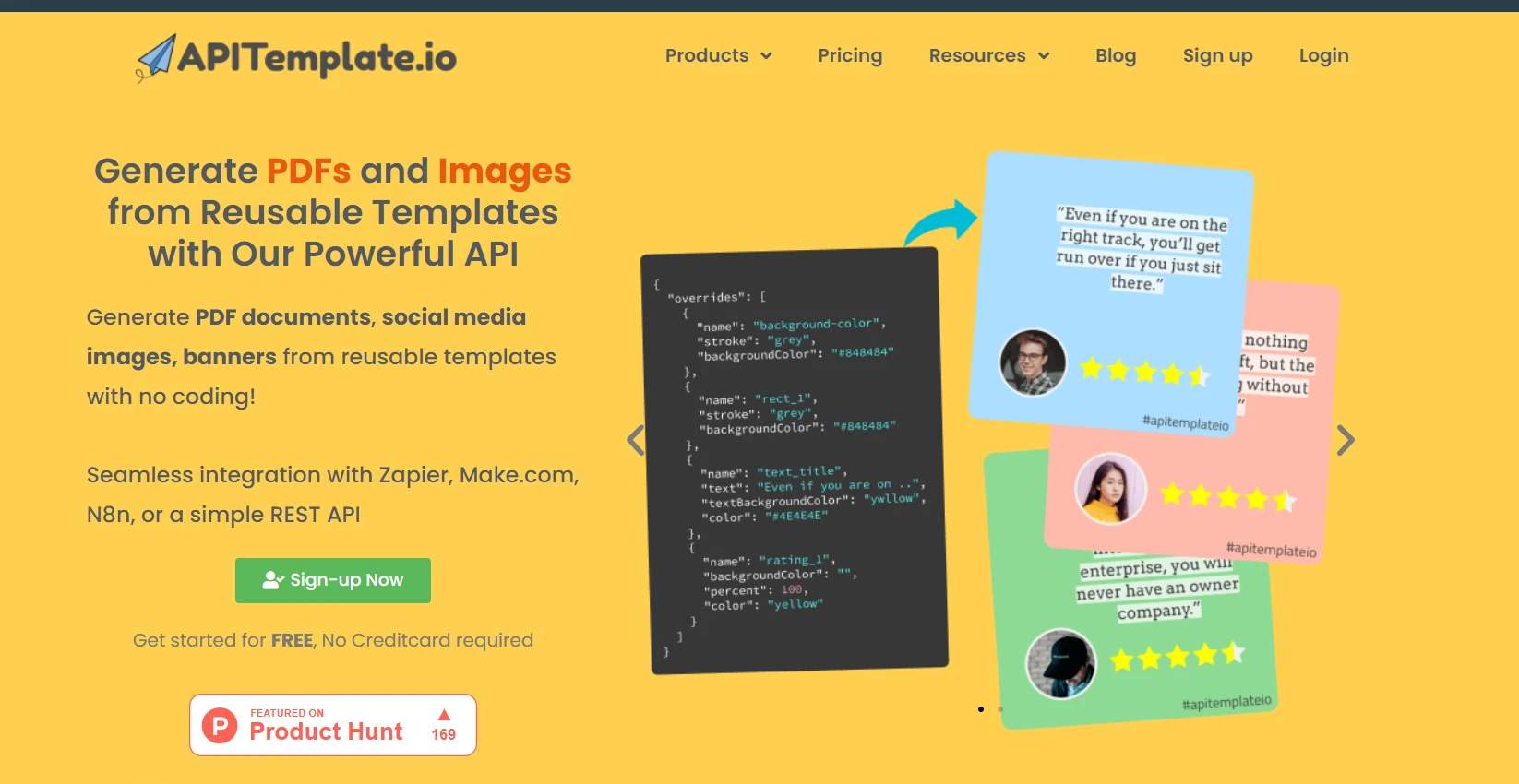
APITemplate은 템플릿에서 PDF와 이미지를 생성하는 데 중점을 둔 클라우드 기반 서비스입니다. 개발자가 미리 정의된 템플릿에 JSON 데이터를 전송하여 문서와 그래픽을 생성할 수 있는 API를 제공합니다. 초기 테스트에서 APITemplate가 사용하기에 간단하다는 것을 알게 되었습니다. 웹 인터페이스를 사용하여 템플릿을 생성한 후 API를 사용하여 C# 애플리케이션의 데이터로 이를 채울 수 있었습니다.
APITemplate의 주요 기능
템플릿 기반 생성
APITemplate의 핵심 강점은 템플릿 기반 접근 방식에 있습니다. 문서와 이미지를 위한 재사용 가능한 템플릿을 만들 수 있어 반복적인 작업에 많은 시간을 절약하게 됩니다. 또한 PDF 생성을 위한 마크다운 템플릿 편집기를 제공합니다. Zapier 및 다른 제3자와 통합된 재사용 가능한 템플릿에서 PDF를 생성할 수 있습니다.
JSON 데이터 통합
JSON 데이터 통합은 제가 자주 사용하는 기능 중 하나입니다. 템플릿을 JSON 데이터로 채울 수 있는 기능을 제공합니다. 이것은 C# 애플리케이션과 통합하는 것을 매우 쉽게 합니다. 객체를 JSON으로 직렬화하여 API에 보낼 수 있기 때문입니다.
API 콘솔
API 콘솔 기능은 시간을 절약해 주었습니다. 이를 통해 웹사이트에서 API 호출을 직접 미리 보고 테스트하여 C# 코드에 구현하기 전에 요청을 디버그하고 세부 조정할 수 있었습니다.
커스터마이즈 가능한 헤더 및 푸터
PDF에 사용자 정의한 헤더와 푸터를 추가할 수 있는 기능은 특히 전문적인 보고서나 청구서를 작성할 때 유용했습니다. 페이지 번호, 날짜, 회사 로고 등을 쉽게 포함할 수 있습니다.
IronPDF
IronPDF는 C# 애플리케이션 내에서 PDF 조작을 위해 특별히 설계된 .NET 라이브러리입니다. PDF 생성, 편집, 변환을 비롯한 다양한 기능을 제공합니다. 가장 눈에 띄는 기능 중 하나는 HTML에서 PDF를 생성할 수 있는 능력으로, 이는 웹 기반 애플리케이션에서 매우 유용할 수 있습니다.
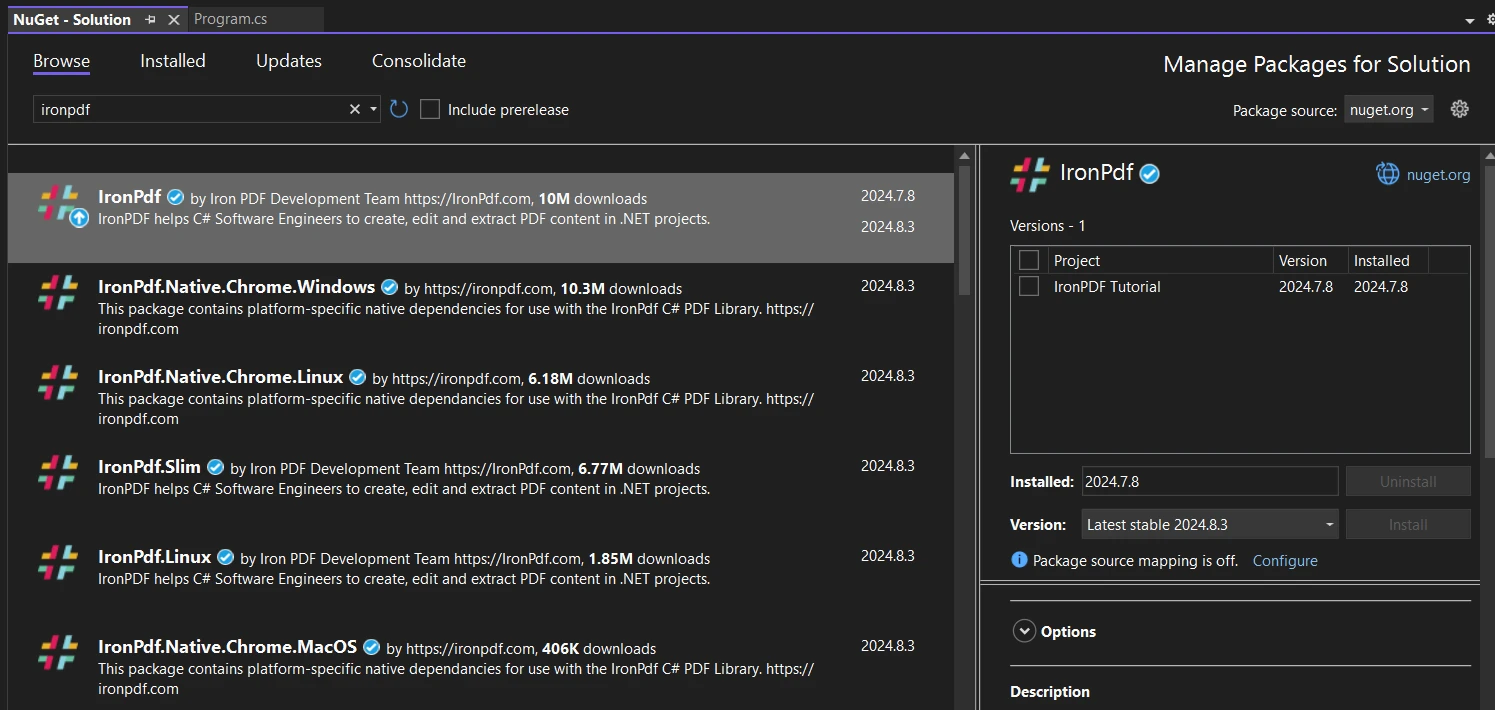
IronPDF와 처음 경험한 것은 NuGet를 통해 설치하고 C# 프로젝트에 직접 통합한 것이었습니다. 그 API 통합 과정은 매우 매끄러워서, 프로젝트 내에서 즉시 실행할 수 있었습니다. 외부 서비스에 의존하지 않고 프로그래밍 방식으로 PDF를 쉽게 생성할 수 있다는 점이 인상적이었습니다.
눈에 띄는 주요 차이점은 APITemplate이 미리 정의된 템플릿에서 문서를 생성하는 데 뛰어난 반면, IronPDF는 C# 코드 내에서 맞춤형 PDF 조작에 더 많은 유연성을 제공한다는 것입니다. APITemplate의 클라우드 기반 특성은 PDF 생성을 위해 서버 리소스를 걱정할 필요가 없다는 것을 의미하지만, 인터넷 연결이 필요합니다. IronPDF는 로컬 라이브러리로서 오프라인에서 작동할 수 있지만 서버의 리소스를 사용합니다.
IronPDF 의 주요 기능
HTML에서 PDF 생성
IronPDF는 HTML 콘텐츠에서 PDF를 생성하는 데 뛰어납니다. 저는 이 기능을 광범위하게 사용하여 동적으로 보고서 및 문서를 생성했습니다. HTML 문자열, 심지어 URL을 라이브러리에 전달하는 것만큼 간단합니다. IronPDF의 현대 웹 표준에 대한 광범위한 지원 덕분에, 저는 HTML 콘텐츠에서 생성한 각 PDF가 고품질 문서로 나왔습니다.
PDF 조작
이 기능을 사용하면 기존 PDF를 프로그래밍 방식으로 편집할 수 있습니다. PDF 문서에 텍스트, 이미지 또는 새로운 페이지를 추가할 수 있어 보고서나 양식을 업데이트하는 데 매우 유용합니다.
PDF 병합 및 분할
특히 큰 문서 작업을 할 때 이 기능이 매우 유용했습니다. IronPDF는 여러 PDF를 하나로 결합하거나 단일 PDF를 여러 파일로 분할하는 것을 쉽게 만들어 줍니다.
텍스트 추출
분석 또는 인덱싱을 위해 PDF에서 텍스트 내용을 추출해야 할 때 IronPDF의 텍스트 추출 기능이 유용합니다. 다양한 PDF 레이아웃을 잘 처리하여 데이터 추출이 용이합니다.
양식 채우기
자동 양식 완성을 포함한 프로젝트에는 IronPDF의 양식 채우기 기능이 매우 유용합니다. 프로그래밍 방식으로 PDF 양식을 작성하여 수작업 데이터 입력에 소요되는 시간을 절약할 수 있습니다.
디지털 서명
보안은 제 프로젝트에서 매우 중요합니다. IronPDF를 사용하면 PDF에 디지털 서명을 추가하여 문서의 진위성과 보안을 강화할 수 있습니다.
비밀번호 보호
민감한 문서를 다룰 때는 PDF에 암호 보호를 추가하기 위해 IronPDF를 사용합니다. 이것은 기밀 정보를 안전하게 보호하는 데 매우 도움이 됩니다.
PDF를 이미지로 변환
미리보기나 축소판을 위해 PDF 페이지를 이미지로 변환해야 할 때가 있습니다. IronPDF는 이 과정을 간단하게 만들어 주며, 몇 줄의 코드만으로 다양한 이미지 형식을 지원합니다.
크로스 플랫폼 호환성
.NET 개발자로서 크로스 플랫폼 프로젝트를 진행하면서 IronPDF가 .NET Standard 지원 덕분에 다양한 운영 체제에서 원활하게 작동하는 점을 높이 평가합니다.
IronPDF 및 APITemplate를 C# 프로젝트에 설정
C# 프로젝트에서 이 도구들을 설정하는 것은 상당히 간단합니다. 제 경험을 바탕으로 IronPDF와 APITemplate의 설정 과정을 안내해 드리겠습니다.
IronPDF
C# 프로젝트에서 IronPDF를 설정하려면 다음 단계를 따릅니다:
Visual Studio에서 내 프로젝트를 엽니다.
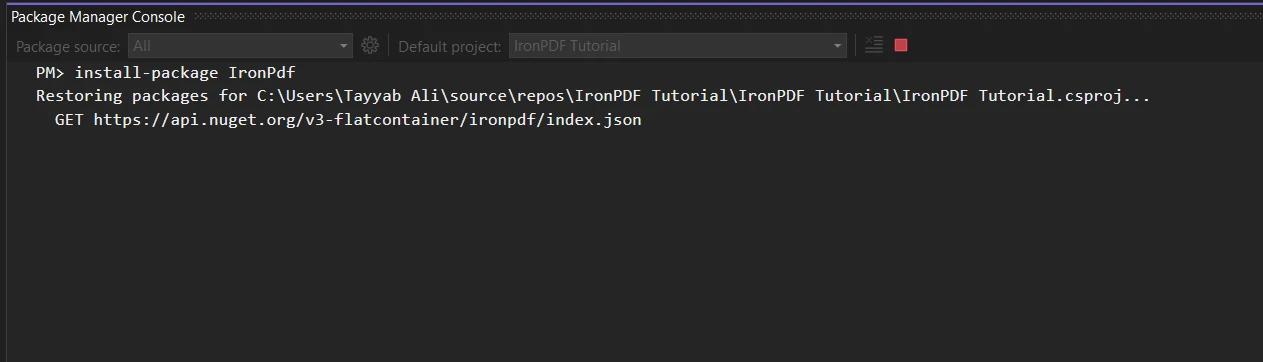
NuGet 패키지 관리자를 사용하여 IronPDF를 설치합니다. NuGet 패키지 관리자 또는 패키지 관리자 콘솔을 사용할 수 있습니다.
C# 프로젝트에서 특정 패키지를 설치할 필요가 없습니다. 저는 주로 내장된 HttpClient를 사용하여 API 호출을 합니다.
API 키를 안전하게 저장합니다. 개발 중에는 사용자 비밀을 사용할 수 있습니다:
dotnet user-secrets set "APITemplate:ApiKey" "YOUR-API-KEY-HERE"
dotnet user-secrets set "APITemplate:ApiKey" "YOUR-API-KEY-HERE"
SHELL
코드에서 API 키를 사용하여 HttpClient를 설정합니다:
using System.Net.Http;using System.Net.Http.Headers;var client = new HttpClient();client.DefaultRequestHeaders.Add("X-API-KEY", Configuration["APITemplate:ApiKey"]);
using System.Net.Http;
using System.Net.Http.Headers;

var client = new HttpClient();
client.DefaultRequestHeaders.Add("X-API-KEY", Configuration["APITemplate:ApiKey"]);
ImportsSystem.Net.HttpImportsSystem.Net.Http.HeadersPrivate client = New HttpClient()client.DefaultRequestHeaders.Add("X-API-KEY", Configuration("APITemplate:ApiKey"))
이 프로젝트에서는 APITemplate의 공식 샘플 GitHub 프로젝트를 사용할 것이며, 템플릿 키만 추가하면 됩니다. 이 설정이 완료되면 C# 프로젝트에서 IronPDF와 APITemplate를 모두 사용할 수 있습니다. IronPDF는 애플리케이션 내에서 로컬로 작동하고, APITemplate는 서버와 통신하기 위해 인터넷 연결이 필요합니다.
IronPDF와 APITemplate의 고급 기능
C# 개발자로서 IronPDF와 APITemplate를 모두 탐구할 기회가 있었습니다. 제가 인상 깊게 느낀 고급 기능 몇 가지를 살펴보겠습니다.
IronPDF 고급 기능
JavaScript 지원 HTML to PDF 변환
IronPDF의 HTML to PDF 변환은 인상적입니다. 정적 HTML을 렌더링할 뿐만 아니라 JavaScript도 처리할 수 있습니다. 이는 동적 웹 콘텐츠를 처리할 때 중요한 이점이었습니다.
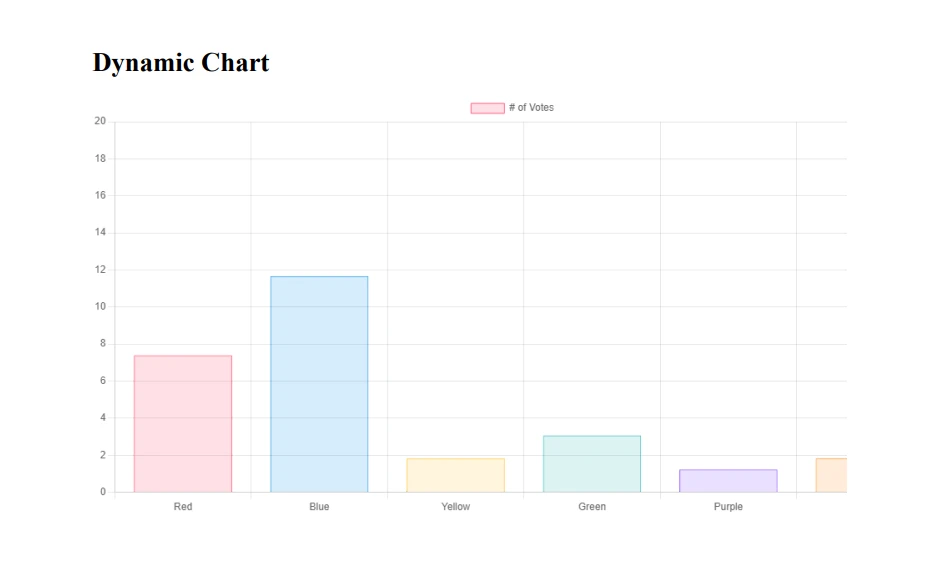
이 코드는 Chart.js를 사용하여 동적 차트를 포함한 PDF를 생성합니다. PDF 생성 과정에서 JavaScript가 실행되어 렌더링된 차트가 포함된 PDF가 생성됩니다. 데이터가 자주 변경되는 동적 보고서를 생성하는 데 이를 사용하여 차트와 그래프를 수동으로 업데이트하는 수고를 덜었습니다.
외부 스크립트를 포함할 수 있는 기능, 이 예제에서는 Chart.js와 같이 강력한 JavaScript 라이브러리를 사용하여 PDF 내에 풍부하고 동적인 콘텐츠를 생성할 수 있습니다. 또한, 이 기능은 HTML에서 CSS와 반응형 디자인 기술을 사용할 수 있도록 하여 다양한 장치와 인쇄 형식에서 결과 PDF가 훌륭하게 보이도록 보장합니다. 미디어 쿼리를 사용하여 동일한 HTML 소스에서 화면 보기 및 인쇄에 최적화된 PDF를 생성하기도 했습니다.
PDF 암호화 및 암호 해독
민감한 정보를 다룰 때 보안은 많은 프로젝트에서 매우 중요합니다. IronPDF의 암호화 및 암호 해독 기능은 이러한 시나리오에서 매우 가치가 있었습니다.
var pdf = PdfDocument.FromFile("input.pdf");// Set user password (for opening the document)pdf.Password = "user_password";// Set owner password (for editing, printing, etc.)pdf.OwnerPassword = "owner_password";// Set specific permissionspdf.SecuritySettings.AllowUserPrinting = IronPdf.Security.PdfPrintSecurity.NoPrint;pdf.SecuritySettings.AllowUserCopyPasteContent = false;pdf.SecuritySettings.AllowUserEdits = IronPdf.Security.PdfEditSecurity.NoEdit;pdf.SaveAs("highly_secured.pdf");
var pdf = PdfDocument.FromFile("input.pdf");
// Set user password (for opening the document)
pdf.Password = "user_password";
// Set owner password (for editing, printing, etc.)
pdf.OwnerPassword = "owner_password";
// Set specific permissions
pdf.SecuritySettings.AllowUserPrinting = IronPdf.Security.PdfPrintSecurity.NoPrint;
pdf.SecuritySettings.AllowUserCopyPasteContent = false;
pdf.SecuritySettings.AllowUserEdits = IronPdf.Security.PdfEditSecurity.NoEdit;
pdf.SaveAs("highly_secured.pdf");
Dim pdf = PdfDocument.FromFile("input.pdf")' Set user password (for opening the document)pdf.Password = "user_password"' Set owner password (for editing, printing, etc.)pdf.OwnerPassword = "owner_password"' Set specific permissionspdf.SecuritySettings.AllowUserPrinting = IronPdf.Security.PdfPrintSecurity.NoPrintpdf.SecuritySettings.AllowUserCopyPasteContent = Falsepdf.SecuritySettings.AllowUserEdits = IronPdf.Security.PdfEditSecurity.NoEditpdf.SaveAs("highly_secured.pdf")
Dim pdf = PdfDocument.FromFile("input.pdf")
' Set user password (for opening the document)
pdf.Password = "user_password"
' Set owner password (for editing, printing, etc.)
pdf.OwnerPassword = "owner_password"
' Set specific permissions
pdf.SecuritySettings.AllowUserPrinting = IronPdf.Security.PdfPrintSecurity.NoPrint
pdf.SecuritySettings.AllowUserCopyPasteContent = False
pdf.SecuritySettings.AllowUserEdits = IronPdf.Security.PdfEditSecurity.NoEdit
pdf.SaveAs("highly_secured.pdf")
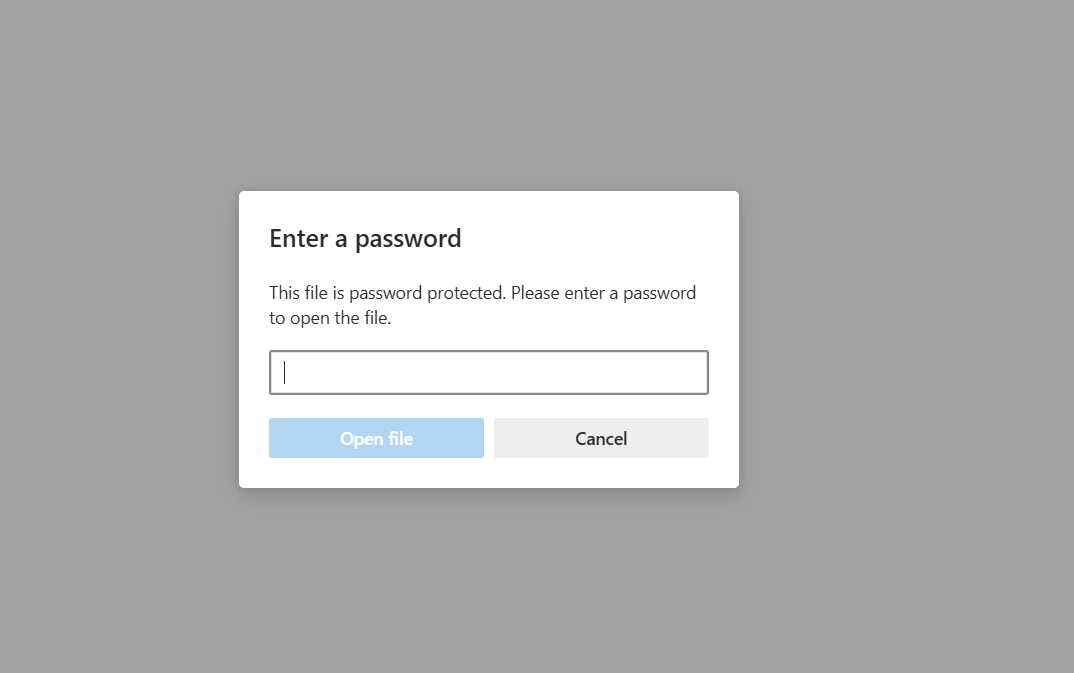
이 코드는 사용자 비밀번호로 PDF를 암호화할 뿐만 아니라 권한에 대한 세밀한 제어를 통해 소유자 비밀번호도 설정합니다. 사용자가 PDF로 무엇을 할 수 있는지, 예를 들어 인쇄하거나 콘텐츠를 복사할 수 있는지 등을 정확히 지정할 수 있습니다.
암호 해독을 위해 자주 사용하는 접근 방식입니다:
try{ var pdf = PdfDocument.FromFile("encrypted.pdf", "user_password"); pdf.SecuritySettings.RemovePasswordsAndEncryption(); pdf.SaveAs("decrypted.pdf");Console.WriteLine("PDF decrypted successfully!");}catch (Exception ex){Console.WriteLine($"Decryption failed: {ex.Message}");}
Try Dim pdf = PdfDocument.FromFile("encrypted.pdf", "user_password") pdf.SecuritySettings.RemovePasswordsAndEncryption() pdf.SaveAs("decrypted.pdf")Console.WriteLine("PDF decrypted successfully!")Catch ex AsExceptionConsole.WriteLine($"Decryption failed: {ex.Message}")EndTry
Try
	Dim pdf = PdfDocument.FromFile("encrypted.pdf", "user_password")
	pdf.SecuritySettings.RemovePasswordsAndEncryption()
	pdf.SaveAs("decrypted.pdf")
	Console.WriteLine("PDF decrypted successfully!")
Catch ex As Exception
	Console.WriteLine($"Decryption failed: {ex.Message}")
End Try
이 코드는 사용자 비밀번호로 암호화된 PDF를 열려고 시도하고, 모든 보안 제한을 제거하며, 새로운 암호화되지 않은 파일로 저장합니다. try-catch 블록을 통해 비밀번호가 잘못되었을 수 있는 경우를 처리합니다.
이러한 기능을 다양한 시나리오에서 사용하여, 예를 들어 서로 다른 사용자가 PDF에 대한 다른 접근 수준을 가질 수 있는 안전한 문서 관리 시스템을 생성했습니다. 예를 들어, 의료 기록 시스템에서는 민감한 환자 정보를 암호화하여 허가된 직원만 접근할 수 있도록 보장했습니다.
PDF 압축
많은 수의 PDF를 다룰 때 파일 크기는 중요한 요소가 됩니다. IronPDF의 압축 기능은 저장 및 대역폭 제약 관리에서 구세주가 되었습니다.
Imports IronPdf
Imports System.IO
Imports PdfDocument = IronPdf.PdfDocument

Private PDF = PdfDocument.FromFile("F:/Test.pdf")
' Compress images
PDF.CompressImages(80) ' 80% quality
' Compress fonts
PDF.CompressStructTree()
' Save the compressed PDF
PDF.SaveAs("F:/highly_compressed.pdf")
' Compare file sizes
Dim originalSize = (New FileInfo("F:/Test.pdf")).Length
Dim compressedSize = (New FileInfo("F:/highly_compressed.pdf")).Length
Dim compressionRatio = (1 - CDbl(compressedSize) / originalSize) * 100
Console.WriteLine($"Original size: {originalSize \ 1024} KB")
Console.WriteLine($"Compressed size: {compressedSize \ 1024} KB")
Console.WriteLine($"Compression ratio: {compressionRatio:F2}%")
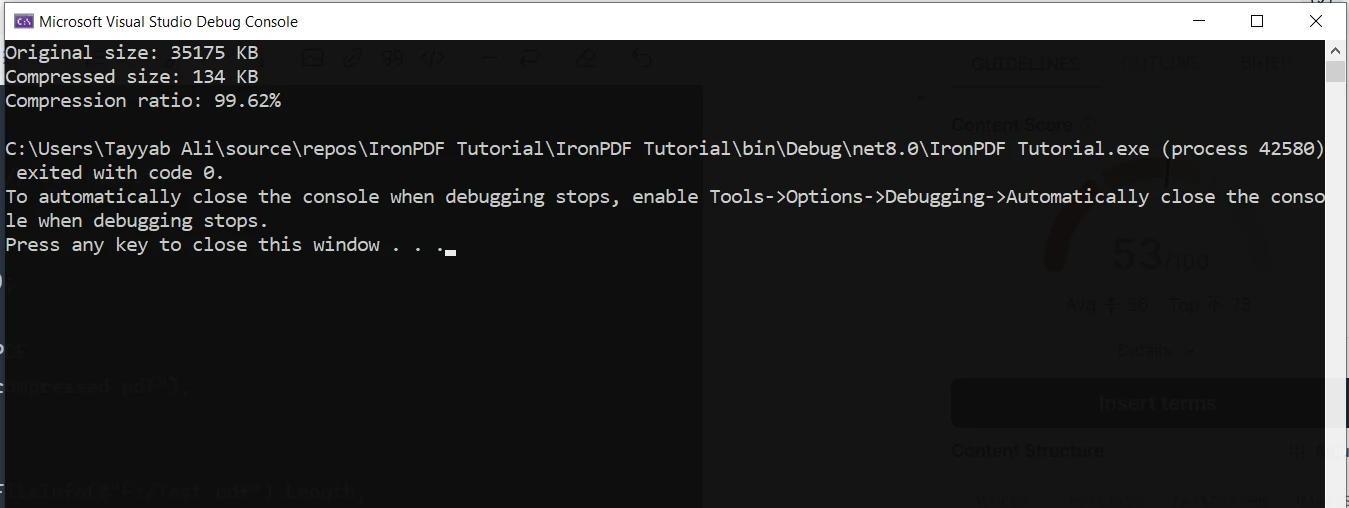
여기 결과가 있습니다:
이 기술 조합은 파일 크기를 크게 감소시키면서 품질에 크게 영향을 미치지 않는 데 매우 효과적이었습니다.
이 기능을 다양한 상황에서 사용했습니다:
이메일 첨부 파일: 이메일로 PDF를 보낼 때 파일 크기 제한을 초과하지 않도록 압축합니다.
웹 애플리케이션: 사용자가 다운로드해야 하는 PDF의 경우, 압축을 통해 로딩 시간과 대역폭 사용량을 줄입니다.
아카이빙: 대량의 PDF를 장기간 보관할 때, 압축을 통해 저장 비용을 크게 줄입니다.
한 프로젝트에서 법률 회사의 문서 관리 시스템 작업을 하였습니다. 그들은 PDF 형식의 수천 개의 사건 파일을 가지고 있었으며, 많은 파일이 큰 용량의 스캔된 문서였습니다. 이 압축 기술을 구현함으로써 우리는 클라우드 저장소 요금에서 비용 절감을 의미 있는 것으로 이끌어낸 저장 요구 사항에서 상당한 절감을 달성했습니다.
디지털 서명
디지털 서명을 PDF에 추가하는 것은 많은 비즈니스 프로세스에서 문서의 진위성과 부인 방지를 보장하기 위한 필수 기능입니다. IronPDF는 이 복잡한 작업을 놀랍도록 간단하게 만듭니다. 디지털 서명을 구현하는 더 자세한 예제입니다:
using IronPdf;using IronPdf.Signing;var renderer = new ChromePdfRenderer();var pdf = PdfDocument.FromFile(@"F:/Contract.pdf");var signature = new IronPdf.Signing.PdfSignature(@"F:/Iron.pfx", "123"){ // Step 3. Optional signing options and a handwritten signature graphicSigningContact = "support@ironsoftware.com",SigningLocation = "New York, USA",SigningReason = "Signing PDF"};pdf.Sign(signature);pdf.SaveAs(@"F:/signed.pdf");
using IronPdf;
using IronPdf.Signing;

var renderer = new ChromePdfRenderer();
var pdf = PdfDocument.FromFile(@"F:/Contract.pdf");
var signature = new IronPdf.Signing.PdfSignature(@"F:/Iron.pfx", "123")
{
    // Step 3. Optional signing options and a handwritten signature graphic
    SigningContact = "support@ironsoftware.com",
    SigningLocation = "New York, USA",
    SigningReason = "Signing PDF"
};
pdf.Sign(signature);
pdf.SaveAs(@"F:/signed.pdf");
ImportsIronPdfImportsIronPdf.SigningPrivate renderer = New ChromePdfRenderer()Private pdf = PdfDocument.FromFile("F:/Contract.pdf")Private signature = New IronPdf.Signing.PdfSignature("F:/Iron.pfx", "123") With { .SigningContact = "support@ironsoftware.com", .SigningLocation = "New York, USA", .SigningReason = "Signing PDF"}pdf.Sign(signature)pdf.SaveAs("F:/signed.pdf")
Imports IronPdf
Imports IronPdf.Signing

Private renderer = New ChromePdfRenderer()
Private pdf = PdfDocument.FromFile("F:/Contract.pdf")
Private signature = New IronPdf.Signing.PdfSignature("F:/Iron.pfx", "123") With {
	.SigningContact = "support@ironsoftware.com",
	.SigningLocation = "New York, USA",
	.SigningReason = "Signing PDF"
}
pdf.Sign(signature)
pdf.SaveAs("F:/signed.pdf")
이 기능을 여러 실제 응용 프로그램에서 사용했습니다:
계약 관리 시스템: 서명된 계약서를 전자적으로 보내고 받을 필요가 있는 회사에 이를 구현했습니다. 디지털 서명은 계약의 법적 유효성을 보장했습니다.
의료 기록 시스템: 의료 애플리케이션에서는 디지털 서명을 사용하여 의사들이 환자 기록과 처방전을 승인할 수 있도록 했습니다.
정부 문서 처리: 정부 기관의 경우, 공식 문서를 디지털 서명할 수 있는 시스템을 구현했습니다.
PDF 분할 및 병합
PDF 분할 및 병합 기능은 문서 관리 시스템에서 자주 사용하는 기본 기능입니다. IronPDF의 이들 기능 구현은 강력하고 유연합니다. 다음은 PDF를 분할 및 병합하는 더 고급 예제입니다.
using IronPdf;class Program{ static voidMain(string[] args) { // Create first PDF with three pages const string html_a = @" <h1>Document A</h1> <p>This is the first page of Document A.</p> <div style='page-break-after: always;'></div> <h2>Document A - Page 2</h2> <p>This is the second page of Document A.</p> <div style='page-break-after: always;'></div> <h2>Document A - Page 3</h2> <p>This is the third and final page of Document A.</p>"; // Create second PDF with two pages const string html_b = @" <h1>Document B</h1> <p>Welcome to the first page of Document B.</p> <div style='page-break-after: always;'></div> <h2>Document B - Page 2</h2> <p>This is the second and last page of Document B.</p>"; // Render HTML to PDF var renderer = new ChromePdfRenderer(); var pdfdoc_a = renderer.RenderHtmlAsPdf(html_a); var pdfdoc_b = renderer.RenderHtmlAsPdf(html_b); // Merge PDFs var merged = PdfDocument.Merge(pdfdoc_a, pdfdoc_b); merged.SaveAs(@"F:/IronPdf/MergedDocument.pdf");Console.WriteLine("Merged PDF created: MergedDocument.pdf"); // Load the merged PDF var pdf = PdfDocument.FromFile(@"F:/IronPdf/MergedDocument.pdf"); // Extract the first page var firstPage = pdf.CopyPage(0); firstPage.SaveAs(@"F:/IronPdf/FirstPageOnly.pdf");Console.WriteLine("First page extracted: FirstPageOnly.pdf"); // Extract pages 2 to 4 (note: index starts at 0) var middlePages = pdf.CopyPages(1, 3); middlePages.SaveAs(@"F:/IronPdf/Pages2to4.pdf");Console.WriteLine("Pages 2 to 4 extracted: Pages2to4.pdf");Console.WriteLine("Process completed. Press any key to exit.");Console.ReadKey(); }}
using IronPdf;
class Program
{
    static void Main(string[] args)
    {
        // Create first PDF with three pages
        const string html_a = @"
            <h1>Document A</h1>
            <p>This is the first page of Document A.</p>
            <div style='page-break-after: always;'></div>
            <h2>Document A - Page 2</h2>
            <p>This is the second page of Document A.</p>
            <div style='page-break-after: always;'></div>
            <h2>Document A - Page 3</h2>
            <p>This is the third and final page of Document A.</p>";
        // Create second PDF with two pages
        const string html_b = @"
            <h1>Document B</h1>
            <p>Welcome to the first page of Document B.</p>
            <div style='page-break-after: always;'></div>
            <h2>Document B - Page 2</h2>
            <p>This is the second and last page of Document B.</p>";
        // Render HTML to PDF
        var renderer = new ChromePdfRenderer();
        var pdfdoc_a = renderer.RenderHtmlAsPdf(html_a);
        var pdfdoc_b = renderer.RenderHtmlAsPdf(html_b);
        // Merge PDFs
        var merged = PdfDocument.Merge(pdfdoc_a, pdfdoc_b);
        merged.SaveAs(@"F:/IronPdf/MergedDocument.pdf");
        Console.WriteLine("Merged PDF created: MergedDocument.pdf");
        // Load the merged PDF
        var pdf = PdfDocument.FromFile(@"F:/IronPdf/MergedDocument.pdf");
        // Extract the first page
        var firstPage = pdf.CopyPage(0);
        firstPage.SaveAs(@"F:/IronPdf/FirstPageOnly.pdf");
        Console.WriteLine("First page extracted: FirstPageOnly.pdf");
        // Extract pages 2 to 4 (note: index starts at 0)
        var middlePages = pdf.CopyPages(1, 3);
        middlePages.SaveAs(@"F:/IronPdf/Pages2to4.pdf");
        Console.WriteLine("Pages 2 to 4 extracted: Pages2to4.pdf");
        Console.WriteLine("Process completed. Press any key to exit.");
        Console.ReadKey();
    }
}
ImportsIronPdfFriend Class ProgramShared Sub Main(ByVal args() AsString) ' Create first PDF with three pages Const html_a AsString = " <h1>Document A</h1> <p>This is the first page of Document A.</p> <div style='page-break-after: always;'></div> <h2>Document A - Page 2</h2> <p>This is the second page of Document A.</p> <div style='page-break-after: always;'></div> <h2>Document A - Page 3</h2> <p>This is the third and final page of Document A.</p>" ' Create second PDF with two pages Const html_b AsString = " <h1>Document B</h1> <p>Welcome to the first page of Document B.</p> <div style='page-break-after: always;'></div> <h2>Document B - Page 2</h2> <p>This is the second and last page of Document B.</p>" ' Render HTML to PDF Dim renderer = New ChromePdfRenderer() Dim pdfdoc_a = renderer.RenderHtmlAsPdf(html_a) Dim pdfdoc_b = renderer.RenderHtmlAsPdf(html_b) ' Merge PDFs Dim merged = PdfDocument.Merge(pdfdoc_a, pdfdoc_b) merged.SaveAs("F:/IronPdf/MergedDocument.pdf")Console.WriteLine("Merged PDF created: MergedDocument.pdf") ' Load the merged PDF Dim pdf = PdfDocument.FromFile("F:/IronPdf/MergedDocument.pdf") ' Extract the first page Dim firstPage = pdf.CopyPage(0) firstPage.SaveAs("F:/IronPdf/FirstPageOnly.pdf")Console.WriteLine("First page extracted: FirstPageOnly.pdf") ' Extract pages 2 to 4 (note: index starts at 0) Dim middlePages = pdf.CopyPages(1, 3) middlePages.SaveAs("F:/IronPdf/Pages2to4.pdf")Console.WriteLine("Pages 2 to 4 extracted: Pages2to4.pdf")Console.WriteLine("Process completed. Press any key to exit.")Console.ReadKey() End SubEnd Class
Imports IronPdf
Friend Class Program
	Shared Sub Main(ByVal args() As String)
		' Create first PDF with three pages
		Const html_a As String = "
            <h1>Document A</h1>
            <p>This is the first page of Document A.</p>
            <div style='page-break-after: always;'></div>
            <h2>Document A - Page 2</h2>
            <p>This is the second page of Document A.</p>
            <div style='page-break-after: always;'></div>
            <h2>Document A - Page 3</h2>
            <p>This is the third and final page of Document A.</p>"
		' Create second PDF with two pages
		Const html_b As String = "
            <h1>Document B</h1>
            <p>Welcome to the first page of Document B.</p>
            <div style='page-break-after: always;'></div>
            <h2>Document B - Page 2</h2>
            <p>This is the second and last page of Document B.</p>"
		' Render HTML to PDF
		Dim renderer = New ChromePdfRenderer()
		Dim pdfdoc_a = renderer.RenderHtmlAsPdf(html_a)
		Dim pdfdoc_b = renderer.RenderHtmlAsPdf(html_b)
		' Merge PDFs
		Dim merged = PdfDocument.Merge(pdfdoc_a, pdfdoc_b)
		merged.SaveAs("F:/IronPdf/MergedDocument.pdf")
		Console.WriteLine("Merged PDF created: MergedDocument.pdf")
		' Load the merged PDF
		Dim pdf = PdfDocument.FromFile("F:/IronPdf/MergedDocument.pdf")
		' Extract the first page
		Dim firstPage = pdf.CopyPage(0)
		firstPage.SaveAs("F:/IronPdf/FirstPageOnly.pdf")
		Console.WriteLine("First page extracted: FirstPageOnly.pdf")
		' Extract pages 2 to 4 (note: index starts at 0)
		Dim middlePages = pdf.CopyPages(1, 3)
		middlePages.SaveAs("F:/IronPdf/Pages2to4.pdf")
		Console.WriteLine("Pages 2 to 4 extracted: Pages2to4.pdf")
		Console.WriteLine("Process completed. Press any key to exit.")
		Console.ReadKey()
	End Sub
End Class
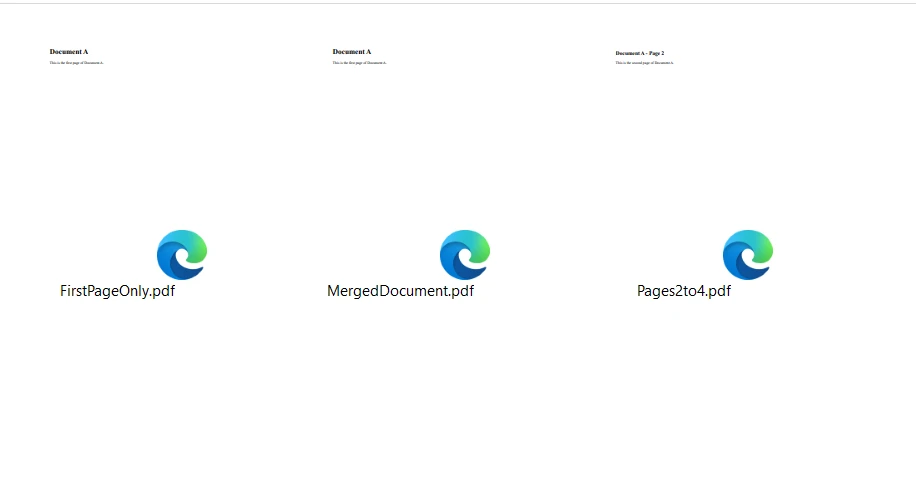
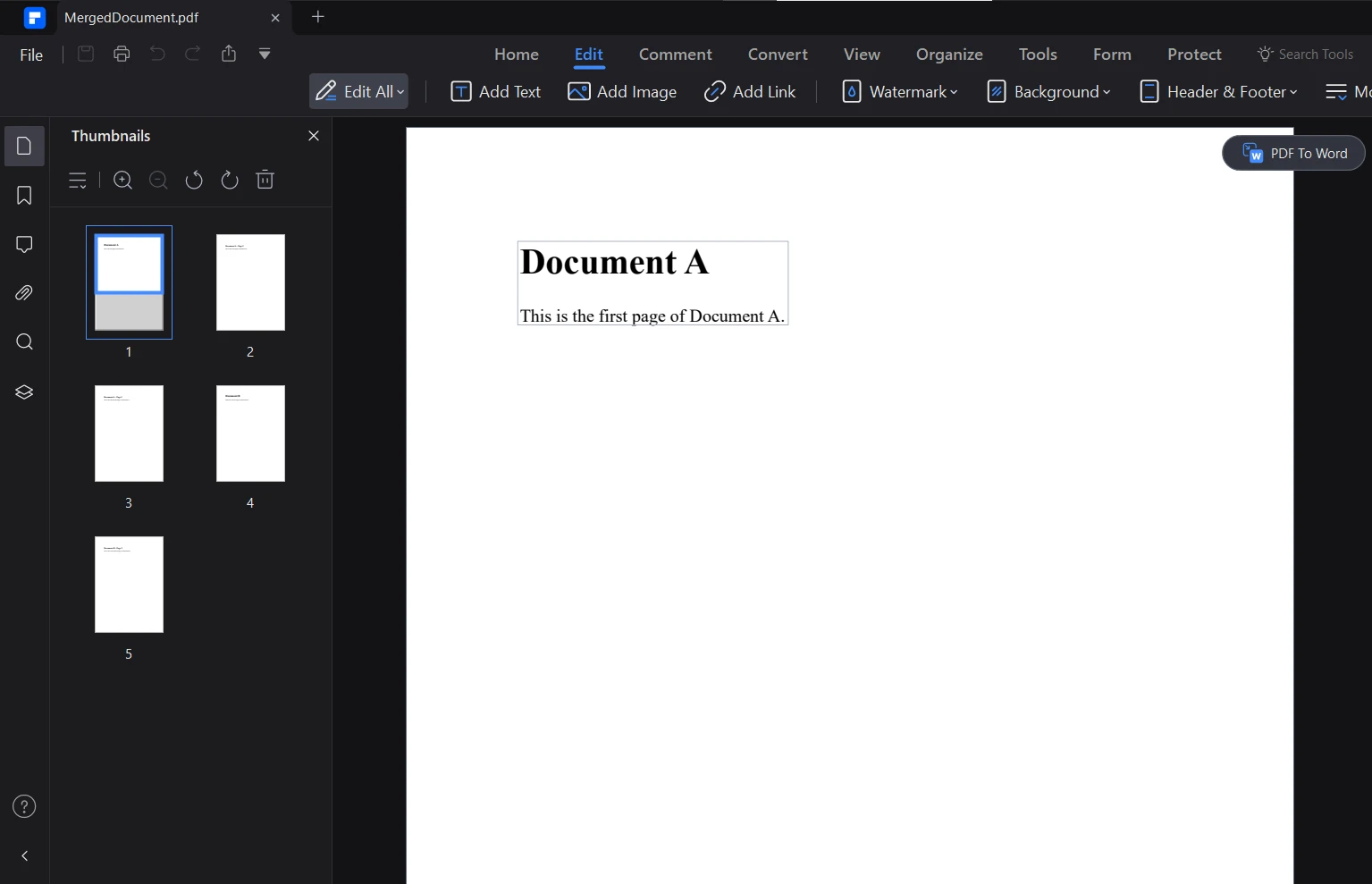
코드로 생성된 병합 문서는 다음과 같습니다:
양식 채우기
양식 채우기 자동화는 많은 프로젝트에서 시간을 크게 절약해 주었습니다. IronPDF를 사용하면 프로그램적으로 PDF 양식을 채울 수 있어 대량의 양식을 처리하거나 맞춤형 문서를 만드는 데 매우 귀중합니다. 다음은 양식 채우기의 더 포괄적인 예제입니다:
using IronPdf;using System;// Load the combined formPdfDocument pdf = PdfDocument.FromFile(@"F:/completeForm.pdf");// Handle radio buttonsvar radioForm = pdf.Form.FindFormField("traveltype");radioForm.Value = "Airplane";// Handle checkboxvar checkboxForm = pdf.Form.FindFormField("taskCompleted");checkboxForm.Value = "Yes";// Handle comboboxvar comboboxForm = pdf.Form.FindFormField("priority");comboboxForm.Value = "Low";// Print out all the available choices for comboboxforeach (var choice in comboboxForm.Choices){Console.WriteLine(choice);}// Handle text inputspdf.Form.FindFormField("firstname").Value = "John";pdf.Form.FindFormField("lastname").Value = "Smith";// Handle text areapdf.Form.FindFormField("address").Value = "Iron Software\r\n205 N. Michigan Ave.";// Save the edited PDFpdf.SaveAs(@"F:/completeFormEdited.pdf");
using IronPdf;
using System;

// Load the combined form
PdfDocument pdf = PdfDocument.FromFile(@"F:/completeForm.pdf");

// Handle radio buttons
var radioForm = pdf.Form.FindFormField("traveltype");
radioForm.Value = "Airplane";

// Handle checkbox
var checkboxForm = pdf.Form.FindFormField("taskCompleted");
checkboxForm.Value = "Yes";

// Handle combobox
var comboboxForm = pdf.Form.FindFormField("priority");
comboboxForm.Value = "Low";

// Print out all the available choices for combobox
foreach (var choice in comboboxForm.Choices)
{
    Console.WriteLine(choice);
}

// Handle text inputs
pdf.Form.FindFormField("firstname").Value = "John";
pdf.Form.FindFormField("lastname").Value = "Smith";

// Handle text area
pdf.Form.FindFormField("address").Value = "Iron Software\r\n205 N. Michigan Ave.";

// Save the edited PDF
pdf.SaveAs(@"F:/completeFormEdited.pdf");
ImportsMicrosoft.VisualBasicImportsIronPdfImportsSystem' Load the combined formPrivate pdf AsPdfDocument = PdfDocument.FromFile("F:/completeForm.pdf")' Handle radio buttonsPrivate radioForm = pdf.Form.FindFormField("traveltype")radioForm.Value = "Airplane"' Handle checkboxDim checkboxForm = pdf.Form.FindFormField("taskCompleted")checkboxForm.Value = "Yes"' Handle comboboxDim comboboxForm = pdf.Form.FindFormField("priority")comboboxForm.Value = "Low"' Print out all the available choices for comboboxFor Each choice In comboboxForm.ChoicesConsole.WriteLine(choice)Next choice' Handle text inputspdf.Form.FindFormField("firstname").Value = "John"pdf.Form.FindFormField("lastname").Value = "Smith"' Handle text areapdf.Form.FindFormField("address").Value = "Iron Software" & vbCrLf & "205 N. Michigan Ave."' Save the edited PDFpdf.SaveAs("F:/completeFormEdited.pdf")
Imports Microsoft.VisualBasic
Imports IronPdf
Imports System

' Load the combined form
Private pdf As PdfDocument = PdfDocument.FromFile("F:/completeForm.pdf")

' Handle radio buttons
Private radioForm = pdf.Form.FindFormField("traveltype")
radioForm.Value = "Airplane"

' Handle checkbox
Dim checkboxForm = pdf.Form.FindFormField("taskCompleted")
checkboxForm.Value = "Yes"

' Handle combobox
Dim comboboxForm = pdf.Form.FindFormField("priority")
comboboxForm.Value = "Low"

' Print out all the available choices for combobox
For Each choice In comboboxForm.Choices
	Console.WriteLine(choice)
Next choice

' Handle text inputs
pdf.Form.FindFormField("firstname").Value = "John"
pdf.Form.FindFormField("lastname").Value = "Smith"

' Handle text area
pdf.Form.FindFormField("address").Value = "Iron Software" & vbCrLf & "205 N. Michigan Ave."

' Save the edited PDF
pdf.SaveAs("F:/completeFormEdited.pdf")
이 기능을 여러 실제 응용 프로그램에서 사용했습니다:
HR 온보딩 시스템: HR 데이터베이스의 정보에 기반해 신규 직원의 서류 작업을 자동으로 채워서 수작업으로 데이터를 입력하는 시간을 절약했습니다.
보험 청구 처리: 보험 회사의 경우, 정책자의 정보를 사전 입력하여 청구 양식을 채우는 시스템을 구축하여 청구 제출 과정을 크게 가속화했습니다.
학교 신청 시스템: 교육 프로젝트에서 학생 데이터를 기반으로 학교 신청 양식을 작성하는 시스템을 구현하여 학생과 행정 직원 모두에게 신청 과정을 용이하게 했습니다.
세금 양식 생성: 회계 법인에서 고객의 재무 데이터를 기반으로 세금 양식을 자동으로 채우는 시스템을 만들어 세금 시즌 동안 오류를 줄이고 시간을 절약했습니다.
프로그램적으로 양식을 채우는 기능은 많은 비즈니스 프로세스 자동화의 주요 요소가 되었으며, 수작업 데이터 입력의 오류를 줄이고 시간을 상당히 절약하게 해줍니다.
워터마킹
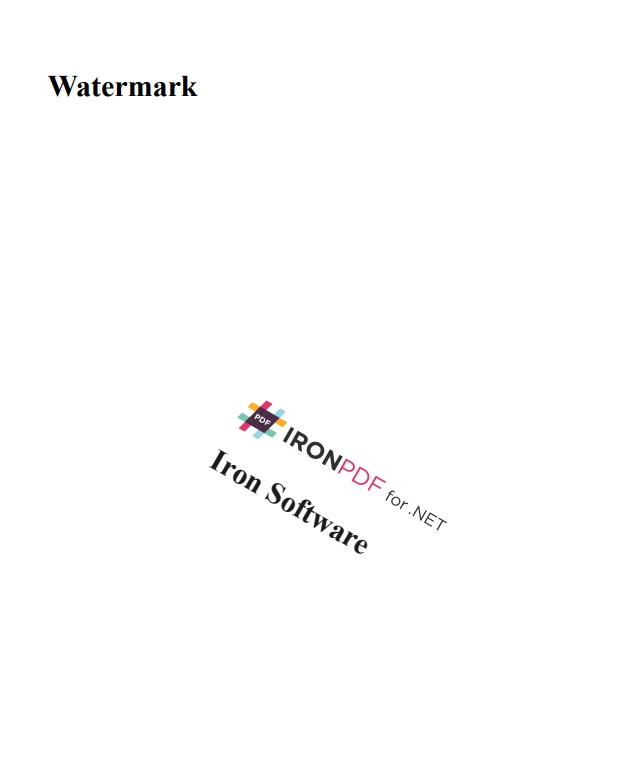
브랜딩, 보안, 상태 표시를 위해 PDF에 워터마크를 추가하는 것이 종종 필요합니다. IronPDF는 여러 프로젝트에서 유용하다고 느낀 유연한 워터마킹 기능을 제공합니다. 다음은 내가 워터마킹을 사용하는 더 자세한 예제입니다:
using IronPdf;using IronSoftware.Drawing;string watermarkHtml = @"<img style='width: 250px;' src='https://ironsoftware.com/img/products/ironpdf-logo-text-dotnet.svg'><h1>Iron Software</h1>";ChromePdfRenderer renderer = new ChromePdfRenderer();PdfDocument pdf = renderer.RenderHtmlAsPdf("<h1>Watermark</h1>");// Apply watermark with 45 degrees rotation and 70% opacitypdf.ApplyWatermark(watermarkHtml, rotation: 30, opacity: 90);pdf.SaveAs("watermarkOpacity&Rotation.pdf");
using IronPdf;
using IronSoftware.Drawing;
string watermarkHtml = @"
<img style='width: 250px;' src='https://ironsoftware.com/img/products/ironpdf-logo-text-dotnet.svg'>
<h1>Iron Software</h1>";
ChromePdfRenderer renderer = new ChromePdfRenderer();
PdfDocument pdf = renderer.RenderHtmlAsPdf("<h1>Watermark</h1>");
// Apply watermark with 45 degrees rotation and 70% opacity
pdf.ApplyWatermark(watermarkHtml, rotation: 30, opacity: 90);
pdf.SaveAs("watermarkOpacity&Rotation.pdf");
ImportsIronPdfImportsIronSoftware.DrawingPrivate watermarkHtml AsString = "<img style='width: 250px;' src='https://ironsoftware.com/img/products/ironpdf-logo-text-dotnet.svg'><h1>Iron Software</h1>"Private renderer As New ChromePdfRenderer()Private pdf AsPdfDocument = renderer.RenderHtmlAsPdf("<h1>Watermark</h1>")' Apply watermark with 45 degrees rotation and 70% opacitypdf.ApplyWatermark(watermarkHtml, rotation:= 30, opacity:= 90)pdf.SaveAs("watermarkOpacity&Rotation.pdf")
Imports IronPdf
Imports IronSoftware.Drawing
Private watermarkHtml As String = "
<img style='width: 250px;' src='https://ironsoftware.com/img/products/ironpdf-logo-text-dotnet.svg'>
<h1>Iron Software</h1>"
Private renderer As New ChromePdfRenderer()
Private pdf As PdfDocument = renderer.RenderHtmlAsPdf("<h1>Watermark</h1>")
' Apply watermark with 45 degrees rotation and 70% opacity
pdf.ApplyWatermark(watermarkHtml, rotation:= 30, opacity:= 90)
pdf.SaveAs("watermarkOpacity&Rotation.pdf")
APITemplate 고급 기능
동적 템플릿 생성
APITemplate의 동적 템플릿 생성은 사용자 지정 JSON 데이터를 사용하여 매우 맞춤화된 문서를 생성할 수 있는 강력한 기능입니다. APITemplate의 API는 동적 구성 요소를 지원합니다. 코드의 PDF와 이미지 출력 모두를 얻을 수 있습니다. API 콘솔에서 내가 WYSIWYG 편집기를 사용하여 PDF 문서를 쉽게 생성할 수 있었습니다.
내 프로젝트에서 이것을 어떻게 사용했는지 탐색해 봅시다.
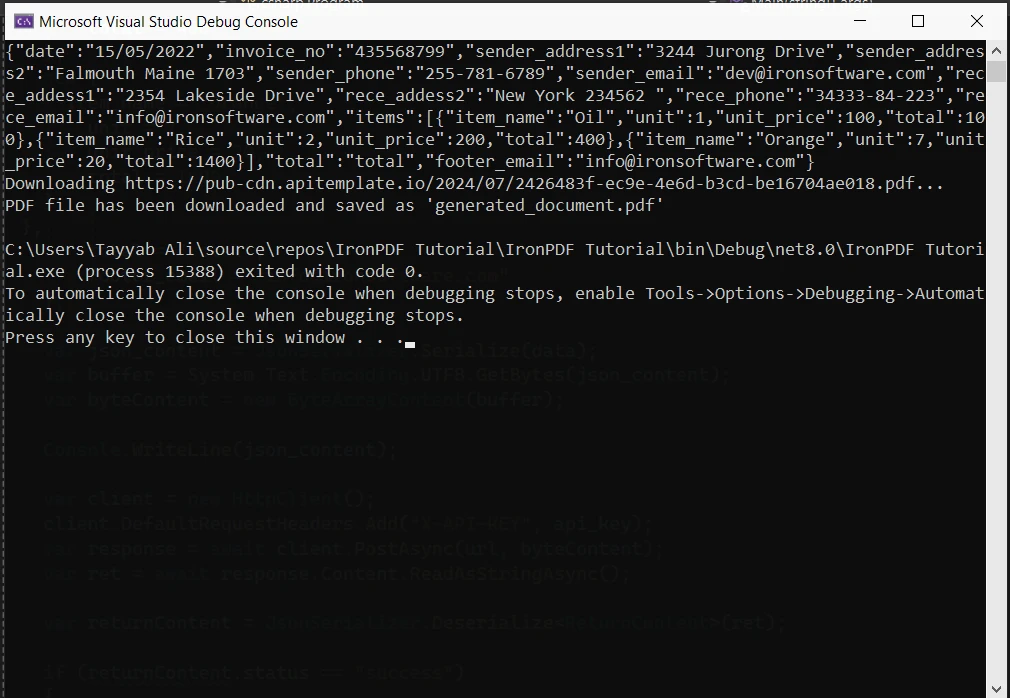
using System;using System.IO;using System.Net.Http;using System.Text.Json;using System.Threading.Tasks;namespace csharp{ class ReturnContent { public string download_url { get; set; } public string status { get; set; } } class Program { static async TaskMain(string[] args) { var api_key = "a9e4MjA2NTg6MTc3Njk6Uk1ZSzVjTWs1T3d6VE9Mdw="; var template_id = "bf077b23b4a407ae"; var url = $"https://rest.apitemplate.io/v2/create-pdf?template_id={template_id}"; var data = new { date = "15/05/2022", invoice_no = "435568799", sender_address1 = "3244 Jurong Drive", sender_address2 = "Falmouth Maine 1703", sender_phone = "255-781-6789", sender_email = "dev@ironsoftware.com", rece_addess1 = "2354 Lakeside Drive", rece_addess2 = "New York 234562 ", rece_phone = "34333-84-223", rece_email = "info@ironsoftware.com", items = new[] { new { item_name = "Oil", unit = 1, unit_price = 100, total = 100 }, new { item_name = "Rice", unit = 2, unit_price = 200, total = 400 }, new { item_name = "Orange", unit = 7, unit_price = 20, total = 1400 } }, total = "total", footer_email = "info@ironsoftware.com" }; var json_content = JsonSerializer.Serialize(data); var buffer = System.Text.Encoding.UTF8.GetBytes(json_content); var byteContent = new ByteArrayContent(buffer);Console.WriteLine(json_content); var client = new HttpClient(); client.DefaultRequestHeaders.Add("X-API-KEY", api_key); var response = await client.PostAsync(url, byteContent); var ret = await response.Content.ReadAsStringAsync(); var returnContent = JsonSerializer.Deserialize<ReturnContent>(ret); if (returnContent.status == "success") {Console.WriteLine($"Downloading {returnContent.download_url}..."); var download_response = await client.GetAsync(returnContent.download_url); using (var stream = await download_response.Content.ReadAsStreamAsync()) { var fileInfo = new FileInfo(@"F:/generated_document.pdf"); using (var fileStream = fileInfo.OpenWrite()) { await stream.CopyToAsync(fileStream); } }Console.WriteLine("PDF file has been downloaded and saved as 'generated_document.pdf'"); } } }}
using System;
using System.IO;
using System.Net.Http;
using System.Text.Json;
using System.Threading.Tasks;

namespace csharp
{
    class ReturnContent
    {
        public string download_url { get; set; }
        public string status { get; set; }
    }

    class Program
    {
        static async Task Main(string[] args)
        {
            var api_key = "a9e4MjA2NTg6MTc3Njk6Uk1ZSzVjTWs1T3d6VE9Mdw=";
            var template_id = "bf077b23b4a407ae";
            var url = $"https://rest.apitemplate.io/v2/create-pdf?template_id={template_id}";
            var data = new
            {
                date = "15/05/2022",
                invoice_no = "435568799",
                sender_address1 = "3244 Jurong Drive",
                sender_address2 = "Falmouth Maine 1703",
                sender_phone = "255-781-6789",
                sender_email = "dev@ironsoftware.com",
                rece_addess1 = "2354 Lakeside Drive",
                rece_addess2 = "New York 234562 ",
                rece_phone = "34333-84-223",
                rece_email = "info@ironsoftware.com",
                items = new[]
                {
                    new { item_name = "Oil", unit = 1, unit_price = 100, total = 100 },
                    new { item_name = "Rice", unit = 2, unit_price = 200, total = 400 },
                    new { item_name = "Orange", unit = 7, unit_price = 20, total = 1400 }
                },
                total = "total",
                footer_email = "info@ironsoftware.com"
            };
            var json_content = JsonSerializer.Serialize(data);
            var buffer = System.Text.Encoding.UTF8.GetBytes(json_content);
            var byteContent = new ByteArrayContent(buffer);
            Console.WriteLine(json_content);
            var client = new HttpClient();
            client.DefaultRequestHeaders.Add("X-API-KEY", api_key);
            var response = await client.PostAsync(url, byteContent);
            var ret = await response.Content.ReadAsStringAsync();
            var returnContent = JsonSerializer.Deserialize<ReturnContent>(ret);
            if (returnContent.status == "success")
            {
                Console.WriteLine($"Downloading {returnContent.download_url}...");
                var download_response = await client.GetAsync(returnContent.download_url);
                using (var stream = await download_response.Content.ReadAsStreamAsync())
                {
                    var fileInfo = new FileInfo(@"F:/generated_document.pdf");
                    using (var fileStream = fileInfo.OpenWrite())
                    {
                        await stream.CopyToAsync(fileStream);
                    }
                }
                Console.WriteLine("PDF file has been downloaded and saved as 'generated_document.pdf'");
            }
        }
    }
}
ImportsSystemImportsSystem.IOImportsSystem.Net.HttpImportsSystem.Text.JsonImportsSystem.Threading.TasksNamespace csharpFriend Class ReturnContent Public Property download_url() AsString Public Property status() AsString End ClassFriend Class ProgramSharedAsync Function Main(ByVal args() AsString) AsTask Dim api_key = "a9e4MjA2NTg6MTc3Njk6Uk1ZSzVjTWs1T3d6VE9Mdw=" Dim template_id = "bf077b23b4a407ae" Dim url = $"https://rest.apitemplate.io/v2/create-pdf?template_id={template_id}" Dim data = New With {Key .date = "15/05/2022",Key .invoice_no = "435568799",Key .sender_address1 = "3244 Jurong Drive",Key .sender_address2 = "Falmouth Maine 1703",Key .sender_phone = "255-781-6789",Key .sender_email = "dev@ironsoftware.com",Key .rece_addess1 = "2354 Lakeside Drive",Key .rece_addess2 = "New York 234562 ",Key .rece_phone = "34333-84-223",Key .rece_email = "info@ironsoftware.com",Key .items = { New With {Key .item_name = "Oil",Key .unit = 1,Key .unit_price = 100,Key .total = 100 }, New With {Key .item_name = "Rice",Key .unit = 2,Key .unit_price = 200,Key .total = 400 }, New With {Key .item_name = "Orange",Key .unit = 7,Key .unit_price = 20,Key .total = 1400 } },Key .total = "total",Key .footer_email = "info@ironsoftware.com" } Dim json_content = JsonSerializer.Serialize(data) Dim buffer = System.Text.Encoding.UTF8.GetBytes(json_content) Dim byteContent = New ByteArrayContent(buffer)Console.WriteLine(json_content) Dim client = New HttpClient() client.DefaultRequestHeaders.Add("X-API-KEY", api_key) Dim response = Await client.PostAsync(url, byteContent) Dim ret = Awaitresponse.Content.ReadAsStringAsync() Dim returnContent = JsonSerializer.Deserialize(OfReturnContent)(ret) If returnContent.status = "success" ThenConsole.WriteLine($"Downloading {returnContent.download_url}...") Dim download_response = Await client.GetAsync(returnContent.download_url)Using stream = Await download_response.Content.ReadAsStreamAsync() Dim fileInfo As New FileInfo("F:/generated_document.pdf")Using fileStream = fileInfo.OpenWrite()Await stream.CopyToAsync(fileStream)EndUsingEndUsingConsole.WriteLine("PDF file has been downloaded and saved as 'generated_document.pdf'") End If End Function End ClassEndNamespace
Imports System
Imports System.IO
Imports System.Net.Http
Imports System.Text.Json
Imports System.Threading.Tasks

Namespace csharp
	Friend Class ReturnContent
		Public Property download_url() As String
		Public Property status() As String
	End Class

	Friend Class Program
		Shared Async Function Main(ByVal args() As String) As Task
			Dim api_key = "a9e4MjA2NTg6MTc3Njk6Uk1ZSzVjTWs1T3d6VE9Mdw="
			Dim template_id = "bf077b23b4a407ae"
			Dim url = $"https://rest.apitemplate.io/v2/create-pdf?template_id={template_id}"
			Dim data = New With {
				Key .date = "15/05/2022",
				Key .invoice_no = "435568799",
				Key .sender_address1 = "3244 Jurong Drive",
				Key .sender_address2 = "Falmouth Maine 1703",
				Key .sender_phone = "255-781-6789",
				Key .sender_email = "dev@ironsoftware.com",
				Key .rece_addess1 = "2354 Lakeside Drive",
				Key .rece_addess2 = "New York 234562 ",
				Key .rece_phone = "34333-84-223",
				Key .rece_email = "info@ironsoftware.com",
				Key .items = {
					New With {
						Key .item_name = "Oil",
						Key .unit = 1,
						Key .unit_price = 100,
						Key .total = 100
					},
					New With {
						Key .item_name = "Rice",
						Key .unit = 2,
						Key .unit_price = 200,
						Key .total = 400
					},
					New With {
						Key .item_name = "Orange",
						Key .unit = 7,
						Key .unit_price = 20,
						Key .total = 1400
					}
				},
				Key .total = "total",
				Key .footer_email = "info@ironsoftware.com"
			}
			Dim json_content = JsonSerializer.Serialize(data)
			Dim buffer = System.Text.Encoding.UTF8.GetBytes(json_content)
			Dim byteContent = New ByteArrayContent(buffer)
			Console.WriteLine(json_content)
			Dim client = New HttpClient()
			client.DefaultRequestHeaders.Add("X-API-KEY", api_key)
			Dim response = Await client.PostAsync(url, byteContent)
			Dim ret = Await response.Content.ReadAsStringAsync()
			Dim returnContent = JsonSerializer.Deserialize(Of ReturnContent)(ret)
			If returnContent.status = "success" Then
				Console.WriteLine($"Downloading {returnContent.download_url}...")
				Dim download_response = Await client.GetAsync(returnContent.download_url)
				Using stream = Await download_response.Content.ReadAsStreamAsync()
					Dim fileInfo As New FileInfo("F:/generated_document.pdf")
					Using fileStream = fileInfo.OpenWrite()
						Await stream.CopyToAsync(fileStream)
					End Using
				End Using
				Console.WriteLine("PDF file has been downloaded and saved as 'generated_document.pdf'")
			End If
		End Function
	End Class
End Namespace
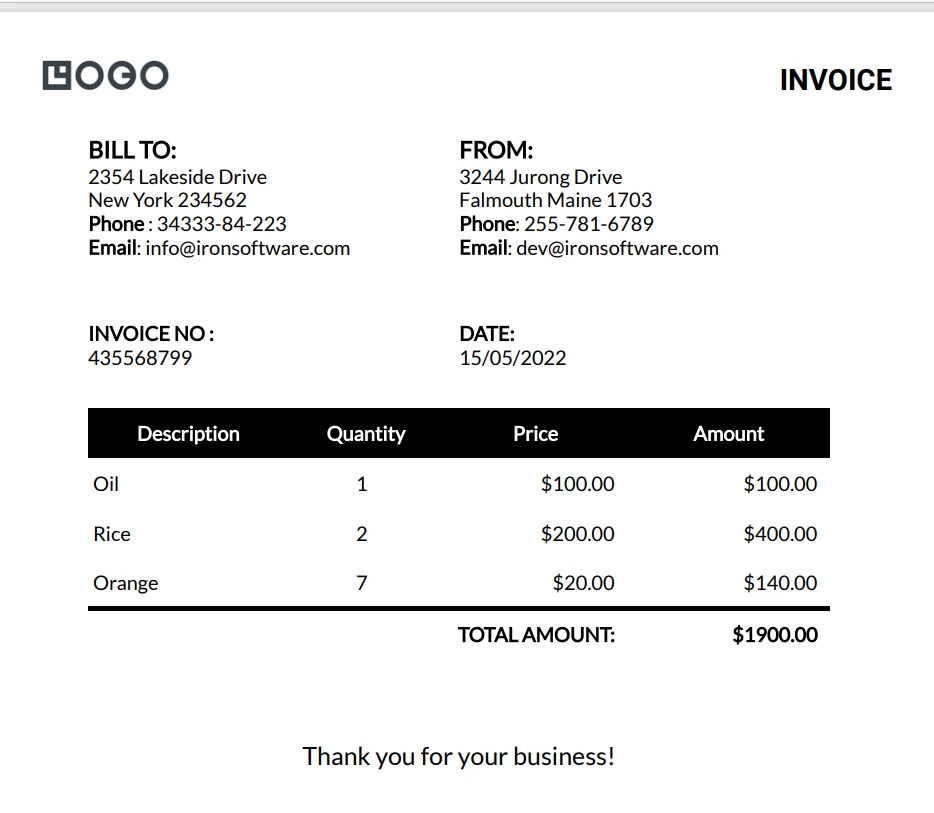
이것이 생성된 PDF 문서입니다:
대량 PDF 생성
APITemplate의 대량 PDF 생성 기능은 한 번의 API 호출로 여러 문서를 생성할 때 중요한 이점입니다. 다음은 내가 그것을 사용한 더 자세한 예제입니다:
using System;using System.IO;using System.Net.Http;using System.Text.Json;using System.Threading.Tasks;using System.Collections.Generic;namespace csharp{ class ReturnContent { public string download_url { get; set; } public string status { get; set; } } class Program { static async TaskMain(string[] args) { var api_key = "a9e4MjA2NTg6MTc3Njk6Uk1ZSzVjTWs1T3d6VE9Mdw="; var template_id = "d4f77b23b4ab09fa"; var url = $"https://rest.apitemplate.io/v2/create-pdf?template_id={template_id}"; var membershipCards = new List<object> { new { name = "Iron Dev 1", email = "dev1@ironsoftware.com", membership_id = "M001", expiry_date = "2024-12-31" }, new { name = "Iron Dev 2", email = "dev2@ironsoftware.com", membership_id = "M002", expiry_date = "2025-06-30" }, new { name = "Iron Dev 3", email = "dev3@ironsoftware.com", membership_id = "M003", expiry_date = "2024-09-15" } }; var client = new HttpClient(); client.DefaultRequestHeaders.Add("X-API-KEY", api_key); for (int i = 0; i < membershipCards.Count; i++) { var json_content = JsonSerializer.Serialize(membershipCards[i]); var buffer = System.Text.Encoding.UTF8.GetBytes(json_content); var byteContent = new ByteArrayContent(buffer);Console.WriteLine($"Creating PDF for {((dynamic)membershipCards[i]).name}..."); var response = await client.PostAsync(url, byteContent); var ret = await response.Content.ReadAsStringAsync(); var returnContent = JsonSerializer.Deserialize<ReturnContent>(ret); if (returnContent.status == "success") {Console.WriteLine($"Downloading {returnContent.download_url}..."); var download_response = await client.GetAsync(returnContent.download_url); using (var stream = await download_response.Content.ReadAsStreamAsync()) { var fileInfo = new FileInfo($"F:/membership_card_{i + 1}.pdf"); using (var fileStream = fileInfo.OpenWrite()) { await stream.CopyToAsync(fileStream); } }Console.WriteLine($"PDF file has been downloaded and saved as 'membership_card_{i + 1}.pdf'"); } else {Console.WriteLine($"Failed to create PDF for {((dynamic)membershipCards[i]).name}. Status: {returnContent.status}"); } } } }}
using System;
using System.IO;
using System.Net.Http;
using System.Text.Json;
using System.Threading.Tasks;
using System.Collections.Generic;

namespace csharp
{
    class ReturnContent
    {
        public string download_url { get; set; }
        public string status { get; set; }
    }

    class Program
    {
        static async Task Main(string[] args)
        {
            var api_key = "a9e4MjA2NTg6MTc3Njk6Uk1ZSzVjTWs1T3d6VE9Mdw=";
            var template_id = "d4f77b23b4ab09fa";
            var url = $"https://rest.apitemplate.io/v2/create-pdf?template_id={template_id}";
            var membershipCards = new List<object>
            {
                new { name = "Iron Dev 1", email = "dev1@ironsoftware.com", membership_id = "M001", expiry_date = "2024-12-31" },
                new { name = "Iron Dev 2", email = "dev2@ironsoftware.com", membership_id = "M002", expiry_date = "2025-06-30" },
                new { name = "Iron Dev 3", email = "dev3@ironsoftware.com", membership_id = "M003", expiry_date = "2024-09-15" }
            };
            var client = new HttpClient();
            client.DefaultRequestHeaders.Add("X-API-KEY", api_key);
            for (int i = 0; i < membershipCards.Count; i++)
            {
                var json_content = JsonSerializer.Serialize(membershipCards[i]);
                var buffer = System.Text.Encoding.UTF8.GetBytes(json_content);
                var byteContent = new ByteArrayContent(buffer);
                Console.WriteLine($"Creating PDF for {((dynamic)membershipCards[i]).name}...");
                var response = await client.PostAsync(url, byteContent);
                var ret = await response.Content.ReadAsStringAsync();
                var returnContent = JsonSerializer.Deserialize<ReturnContent>(ret);
                if (returnContent.status == "success")
                {
                    Console.WriteLine($"Downloading {returnContent.download_url}...");
                    var download_response = await client.GetAsync(returnContent.download_url);
                    using (var stream = await download_response.Content.ReadAsStreamAsync())
                    {
                        var fileInfo = new FileInfo($"F:/membership_card_{i + 1}.pdf");
                        using (var fileStream = fileInfo.OpenWrite())
                        {
                            await stream.CopyToAsync(fileStream);
                        }
                    }
                    Console.WriteLine($"PDF file has been downloaded and saved as 'membership_card_{i + 1}.pdf'");
                }
                else
                {
                    Console.WriteLine($"Failed to create PDF for {((dynamic)membershipCards[i]).name}. Status: {returnContent.status}");
                }
            }
        }
    }
}
'INSTANT VB NOTE: 'Option Strict Off' is used here since dynamic typing is used:OptionStrictOffImportsSystemImportsSystem.IOImportsSystem.Net.HttpImportsSystem.Text.JsonImportsSystem.Threading.TasksImportsSystem.Collections.GenericNamespace csharpFriend Class ReturnContent Public Property download_url() AsString Public Property status() AsString End ClassFriend Class ProgramSharedAsync Function Main(ByVal args() AsString) AsTask Dim api_key = "a9e4MjA2NTg6MTc3Njk6Uk1ZSzVjTWs1T3d6VE9Mdw=" Dim template_id = "d4f77b23b4ab09fa" Dim url = $"https://rest.apitemplate.io/v2/create-pdf?template_id={template_id}" Dim membershipCards = New List(OfObject) From { New With {Key .name = "Iron Dev 1",Key .email = "dev1@ironsoftware.com",Key .membership_id = "M001",Key .expiry_date = "2024-12-31" }, New With {Key .name = "Iron Dev 2",Key .email = "dev2@ironsoftware.com",Key .membership_id = "M002",Key .expiry_date = "2025-06-30" }, New With {Key .name = "Iron Dev 3",Key .email = "dev3@ironsoftware.com",Key .membership_id = "M003",Key .expiry_date = "2024-09-15" } } Dim client = New HttpClient() client.DefaultRequestHeaders.Add("X-API-KEY", api_key) For i AsInteger = 0 To membershipCards.Count - 1 Dim json_content = JsonSerializer.Serialize(membershipCards(i)) Dim buffer = System.Text.Encoding.UTF8.GetBytes(json_content) Dim byteContent = New ByteArrayContent(buffer)'INSTANT VB NOTE: In the following line, Instant VB substituted 'Object' for 'dynamic' - this will work in VB with Option Strict Off:Console.WriteLine($"Creating PDF for {CType(membershipCards(i), Object).name}...") Dim response = Await client.PostAsync(url, byteContent) Dim ret = Awaitresponse.Content.ReadAsStringAsync() Dim returnContent = JsonSerializer.Deserialize(OfReturnContent)(ret) If returnContent.status = "success" ThenConsole.WriteLine($"Downloading {returnContent.download_url}...") Dim download_response = Await client.GetAsync(returnContent.download_url)Using stream = Await download_response.Content.ReadAsStreamAsync() Dim fileInfo As New FileInfo($"F:/membership_card_{i + 1}.pdf")Using fileStream = fileInfo.OpenWrite()Await stream.CopyToAsync(fileStream)EndUsingEndUsingConsole.WriteLine($"PDF file has been downloaded and saved as 'membership_card_{i + 1}.pdf'") Else'INSTANT VB NOTE: In the following line, Instant VB substituted 'Object' for 'dynamic' - this will work in VB with Option Strict Off:Console.WriteLine($"Failed to create PDF for {CType(membershipCards(i), Object).name}. Status: {returnContent.status}") End If Next i End Function End ClassEndNamespace
'INSTANT VB NOTE: 'Option Strict Off' is used here since dynamic typing is used:
Option Strict Off

Imports System
Imports System.IO
Imports System.Net.Http
Imports System.Text.Json
Imports System.Threading.Tasks
Imports System.Collections.Generic

Namespace csharp
	Friend Class ReturnContent
		Public Property download_url() As String
		Public Property status() As String
	End Class

	Friend Class Program
		Shared Async Function Main(ByVal args() As String) As Task
			Dim api_key = "a9e4MjA2NTg6MTc3Njk6Uk1ZSzVjTWs1T3d6VE9Mdw="
			Dim template_id = "d4f77b23b4ab09fa"
			Dim url = $"https://rest.apitemplate.io/v2/create-pdf?template_id={template_id}"
			Dim membershipCards = New List(Of Object) From {
				New With {
					Key .name = "Iron Dev 1",
					Key .email = "dev1@ironsoftware.com",
					Key .membership_id = "M001",
					Key .expiry_date = "2024-12-31"
				},
				New With {
					Key .name = "Iron Dev 2",
					Key .email = "dev2@ironsoftware.com",
					Key .membership_id = "M002",
					Key .expiry_date = "2025-06-30"
				},
				New With {
					Key .name = "Iron Dev 3",
					Key .email = "dev3@ironsoftware.com",
					Key .membership_id = "M003",
					Key .expiry_date = "2024-09-15"
				}
			}
			Dim client = New HttpClient()
			client.DefaultRequestHeaders.Add("X-API-KEY", api_key)
			For i As Integer = 0 To membershipCards.Count - 1
				Dim json_content = JsonSerializer.Serialize(membershipCards(i))
				Dim buffer = System.Text.Encoding.UTF8.GetBytes(json_content)
				Dim byteContent = New ByteArrayContent(buffer)
'INSTANT VB NOTE: In the following line, Instant VB substituted 'Object' for 'dynamic' - this will work in VB with Option Strict Off:
				Console.WriteLine($"Creating PDF for {CType(membershipCards(i), Object).name}...")
				Dim response = Await client.PostAsync(url, byteContent)
				Dim ret = Await response.Content.ReadAsStringAsync()
				Dim returnContent = JsonSerializer.Deserialize(Of ReturnContent)(ret)
				If returnContent.status = "success" Then
					Console.WriteLine($"Downloading {returnContent.download_url}...")
					Dim download_response = Await client.GetAsync(returnContent.download_url)
					Using stream = Await download_response.Content.ReadAsStreamAsync()
						Dim fileInfo As New FileInfo($"F:/membership_card_{i + 1}.pdf")
						Using fileStream = fileInfo.OpenWrite()
							Await stream.CopyToAsync(fileStream)
						End Using
					End Using
					Console.WriteLine($"PDF file has been downloaded and saved as 'membership_card_{i + 1}.pdf'")
				Else
'INSTANT VB NOTE: In the following line, Instant VB substituted 'Object' for 'dynamic' - this will work in VB with Option Strict Off:
					Console.WriteLine($"Failed to create PDF for {CType(membershipCards(i), Object).name}. Status: {returnContent.status}")
				End If
			Next i
		End Function
	End Class
End Namespace
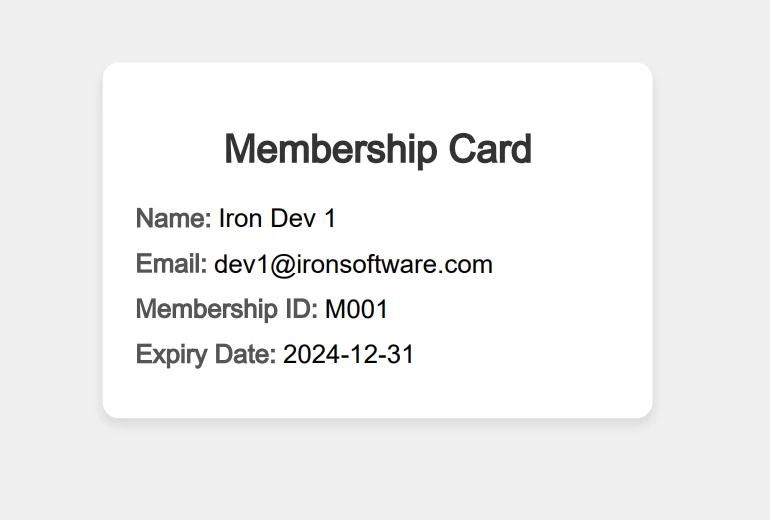
이 코드는 하나의 API 호출로 여러 멤버십 카드를 생성합니다. 각 카드는 개별 회원 정보를 사용하여 사용자 정의됩니다. 이 코드로 생성된 하나의 카드는 다음과 같습니다:
이미지 생성
PDF 생성이 APITemplate의 주요 초점이지만, 이미지 생성 기능도 마찬가지로 인상적입니다. 콘솔에서 이미지 템플릿을 사용하여 소셜 미디어 이미지를 생성할 수 있습니다. 또한 반응형 이미지 스마트 크롭을 제공합니다. 배너 생성 API는 이미지 API와 동일합니다. 내가 그것을 사용하는 더 복잡한 예제는 다음과 같습니다:
using System;using System.IO;using System.Net.Http;using System.Text;using System.Text.Json;using System.Threading.Tasks;namespace csharp{ class ReturnContent { public string download_url { get; set; } public string status { get; set; } } class Program { static async TaskMain(string[] args) { var api_key = "a9e4MjA2NTg6MTc3Njk6Uk1ZSzVjTWs1T3d6VE9Mdw="; var template_id = "f4377b23b4aeeed0"; var url = $"https://rest.apitemplate.io/v2/create-image?template_id={template_id}"; var json_content = @"{ ""overrides"": [ { ""name"": ""rect_image_bg"", ""stroke"": ""grey"", ""src"": ""https://images.unsplash.com/photo-1542401886-65d6c61db217?crop=entropy&cs=tinysrgb&fit=max&fm=jpg&ixid=MnwxOTc1MDZ8MHwxfHNlYXJjaHwzfHxkZXNlcnR8ZW58MHwwfHx8MTYyMTUxOTI2OA&ixlib=rb-1.2.1&q=80&w=1080"" }, { ""name"": ""rect_container"", ""stroke"": ""grey"", ""backgroundColor"": ""rgba(255, 255, 255, 0.62)"" }, { ""name"": ""text_quote"", ""text"": ""Just witnessed the most breathtaking sunset over the Sahara. The way the light dances on the dunes, painting the sky in shades of orange and purple, is truly magical. Nature's artistry at its finest! #DesertAdventures #SaharaSkies"", ""textBackgroundColor"": ""rgba(246, 243, 243, 0)"", ""color"": ""#414141"" }, { ""name"": ""text_footer"", ""text"": ""2024-07-30 - Twitter - iPhone 16 Pro"", ""textBackgroundColor"": ""rgba(246, 243, 243, 0)"", ""color"": ""#666666"" }, { ""name"": ""circle_profile"", ""stroke"": ""grey"", ""src"": ""https://images.unsplash.com/photo-1520998116484-6eeb2f72b5b9?crop=entropy&cs=tinysrgb&fit=max&fm=jpg&ixid=MnwxOTc1MDZ8MHwxfHNlYXJjaHw2Mnx8aGFwcHl8ZW58MHwwfHx8MTYyMTY5MjkwNw&ixlib=rb-1.2.1&q=80&w=1080"" }, { ""name"": ""text_name"", ""text"": ""Sarah Wanderlust"", ""textBackgroundColor"": ""rgba(246, 243, 243, 0)"", ""color"": ""#4E4E4E"" }, { ""name"": ""text_twitter"", ""text"": ""@sarahexplores"", ""textBackgroundColor"": ""rgba(246, 243, 243, 0)"", ""color"": ""#4E4E4E"" } ]}"; var buffer = System.Text.Encoding.UTF8.GetBytes(json_content); var byteContent = new ByteArrayContent(buffer);Console.WriteLine(json_content); var client = new HttpClient(); client.DefaultRequestHeaders.Add("X-API-KEY", api_key); var response = await client.PostAsync(url, byteContent); var ret = await response.Content.ReadAsStringAsync(); var returnContent = JsonSerializer.Deserialize<ReturnContent>(ret); if (returnContent.status == "success") {Console.WriteLine($"Downloading {returnContent.download_url}..."); var download_response = await client.GetAsync(returnContent.download_url); using (var stream = await download_response.Content.ReadAsStreamAsync()) { var fileInfo = new FileInfo("image.jpeg"); using (var fileStream = fileInfo.OpenWrite()) { await stream.CopyToAsync(fileStream); } } } } }}
using System;
using System.IO;
using System.Net.Http;
using System.Text;
using System.Text.Json;
using System.Threading.Tasks;

namespace csharp
{
    class ReturnContent
    {
        public string download_url { get; set; }
        public string status { get; set; }
    }

    class Program
    {
        static async Task Main(string[] args)
        {
            var api_key = "a9e4MjA2NTg6MTc3Njk6Uk1ZSzVjTWs1T3d6VE9Mdw=";
            var template_id = "f4377b23b4aeeed0";
            var url = $"https://rest.apitemplate.io/v2/create-image?template_id={template_id}";
            var json_content = @"{
    ""overrides"": [
        {
            ""name"": ""rect_image_bg"",
            ""stroke"": ""grey"",
            ""src"": ""https://images.unsplash.com/photo-1542401886-65d6c61db217?crop=entropy&cs=tinysrgb&fit=max&fm=jpg&ixid=MnwxOTc1MDZ8MHwxfHNlYXJjaHwzfHxkZXNlcnR8ZW58MHwwfHx8MTYyMTUxOTI2OA&ixlib=rb-1.2.1&q=80&w=1080""
        },
        {
            ""name"": ""rect_container"",
            ""stroke"": ""grey"",
            ""backgroundColor"": ""rgba(255, 255, 255, 0.62)""
        },
        {
            ""name"": ""text_quote"",
            ""text"": ""Just witnessed the most breathtaking sunset over the Sahara. The way the light dances on the dunes, painting the sky in shades of orange and purple, is truly magical. Nature's artistry at its finest!  #DesertAdventures #SaharaSkies"",
            ""textBackgroundColor"": ""rgba(246, 243, 243, 0)"",
            ""color"": ""#414141""
        },
        {
            ""name"": ""text_footer"",
            ""text"": ""2024-07-30 - Twitter - iPhone 16 Pro"",
            ""textBackgroundColor"": ""rgba(246, 243, 243, 0)"",
            ""color"": ""#666666""
        },
        {
            ""name"": ""circle_profile"",
            ""stroke"": ""grey"",
            ""src"": ""https://images.unsplash.com/photo-1520998116484-6eeb2f72b5b9?crop=entropy&cs=tinysrgb&fit=max&fm=jpg&ixid=MnwxOTc1MDZ8MHwxfHNlYXJjaHw2Mnx8aGFwcHl8ZW58MHwwfHx8MTYyMTY5MjkwNw&ixlib=rb-1.2.1&q=80&w=1080""
        },
        {
            ""name"": ""text_name"",
            ""text"": ""Sarah Wanderlust"",
            ""textBackgroundColor"": ""rgba(246, 243, 243, 0)"",
            ""color"": ""#4E4E4E""
        },
        {
            ""name"": ""text_twitter"",
            ""text"": ""@sarahexplores"",
            ""textBackgroundColor"": ""rgba(246, 243, 243, 0)"",
            ""color"": ""#4E4E4E""
        }
    ]
}";
            var buffer = System.Text.Encoding.UTF8.GetBytes(json_content);
            var byteContent = new ByteArrayContent(buffer);
            Console.WriteLine(json_content);
            var client = new HttpClient();
            client.DefaultRequestHeaders.Add("X-API-KEY", api_key);
            var response = await client.PostAsync(url, byteContent);
            var ret = await response.Content.ReadAsStringAsync();
            var returnContent = JsonSerializer.Deserialize<ReturnContent>(ret);
            if (returnContent.status == "success")
            {
                Console.WriteLine($"Downloading {returnContent.download_url}...");
                var download_response = await client.GetAsync(returnContent.download_url);
                using (var stream = await download_response.Content.ReadAsStreamAsync())
                {
                    var fileInfo = new FileInfo("image.jpeg");
                    using (var fileStream = fileInfo.OpenWrite())
                    {
                        await stream.CopyToAsync(fileStream);
                    }
                }
            }
        }
    }
}
ImportsSystemImportsSystem.IOImportsSystem.Net.HttpImportsSystem.TextImportsSystem.Text.JsonImportsSystem.Threading.TasksNamespace csharpFriend Class ReturnContent Public Property download_url() AsString Public Property status() AsString End ClassFriend Class ProgramSharedAsync Function Main(ByVal args() AsString) AsTask Dim api_key = "a9e4MjA2NTg6MTc3Njk6Uk1ZSzVjTWs1T3d6VE9Mdw=" Dim template_id = "f4377b23b4aeeed0" Dim url = $"https://rest.apitemplate.io/v2/create-image?template_id={template_id}" Dim json_content = "{ ""overrides"": [ { ""name"": ""rect_image_bg"", ""stroke"": ""grey"", ""src"": ""https://images.unsplash.com/photo-1542401886-65d6c61db217?crop=entropy&cs=tinysrgb&fit=max&fm=jpg&ixid=MnwxOTc1MDZ8MHwxfHNlYXJjaHwzfHxkZXNlcnR8ZW58MHwwfHx8MTYyMTUxOTI2OA&ixlib=rb-1.2.1&q=80&w=1080"" }, { ""name"": ""rect_container"", ""stroke"": ""grey"", ""backgroundColor"": ""rgba(255, 255, 255, 0.62)"" }, { ""name"": ""text_quote"", ""text"": ""Just witnessed the most breathtaking sunset over the Sahara. The way the light dances on the dunes, painting the sky in shades of orange and purple, is truly magical. Nature's artistry at its finest! #DesertAdventures #SaharaSkies"", ""textBackgroundColor"": ""rgba(246, 243, 243, 0)"", ""color"": ""#414141"" }, { ""name"": ""text_footer"", ""text"": ""2024-07-30 - Twitter - iPhone 16 Pro"", ""textBackgroundColor"": ""rgba(246, 243, 243, 0)"", ""color"": ""#666666"" }, { ""name"": ""circle_profile"", ""stroke"": ""grey"", ""src"": ""https://images.unsplash.com/photo-1520998116484-6eeb2f72b5b9?crop=entropy&cs=tinysrgb&fit=max&fm=jpg&ixid=MnwxOTc1MDZ8MHwxfHNlYXJjaHw2Mnx8aGFwcHl8ZW58MHwwfHx8MTYyMTY5MjkwNw&ixlib=rb-1.2.1&q=80&w=1080"" }, { ""name"": ""text_name"", ""text"": ""Sarah Wanderlust"", ""textBackgroundColor"": ""rgba(246, 243, 243, 0)"", ""color"": ""#4E4E4E"" }, { ""name"": ""text_twitter"", ""text"": ""@sarahexplores"", ""textBackgroundColor"": ""rgba(246, 243, 243, 0)"", ""color"": ""#4E4E4E"" } ]}" Dim buffer = System.Text.Encoding.UTF8.GetBytes(json_content) Dim byteContent = New ByteArrayContent(buffer)Console.WriteLine(json_content) Dim client = New HttpClient() client.DefaultRequestHeaders.Add("X-API-KEY", api_key) Dim response = Await client.PostAsync(url, byteContent) Dim ret = Awaitresponse.Content.ReadAsStringAsync() Dim returnContent = JsonSerializer.Deserialize(OfReturnContent)(ret) If returnContent.status = "success" ThenConsole.WriteLine($"Downloading {returnContent.download_url}...") Dim download_response = Await client.GetAsync(returnContent.download_url)Using stream = Await download_response.Content.ReadAsStreamAsync() Dim fileInfo As New FileInfo("image.jpeg")Using fileStream = fileInfo.OpenWrite()Await stream.CopyToAsync(fileStream)EndUsingEndUsing End If End Function End ClassEndNamespace
Imports System
Imports System.IO
Imports System.Net.Http
Imports System.Text
Imports System.Text.Json
Imports System.Threading.Tasks

Namespace csharp
	Friend Class ReturnContent
		Public Property download_url() As String
		Public Property status() As String
	End Class

	Friend Class Program
		Shared Async Function Main(ByVal args() As String) As Task
			Dim api_key = "a9e4MjA2NTg6MTc3Njk6Uk1ZSzVjTWs1T3d6VE9Mdw="
			Dim template_id = "f4377b23b4aeeed0"
			Dim url = $"https://rest.apitemplate.io/v2/create-image?template_id={template_id}"
			Dim json_content = "{
    ""overrides"": [
        {
            ""name"": ""rect_image_bg"",
            ""stroke"": ""grey"",
            ""src"": ""https://images.unsplash.com/photo-1542401886-65d6c61db217?crop=entropy&cs=tinysrgb&fit=max&fm=jpg&ixid=MnwxOTc1MDZ8MHwxfHNlYXJjaHwzfHxkZXNlcnR8ZW58MHwwfHx8MTYyMTUxOTI2OA&ixlib=rb-1.2.1&q=80&w=1080""
        },
        {
            ""name"": ""rect_container"",
            ""stroke"": ""grey"",
            ""backgroundColor"": ""rgba(255, 255, 255, 0.62)""
        },
        {
            ""name"": ""text_quote"",
            ""text"": ""Just witnessed the most breathtaking sunset over the Sahara. The way the light dances on the dunes, painting the sky in shades of orange and purple, is truly magical. Nature's artistry at its finest!  #DesertAdventures #SaharaSkies"",
            ""textBackgroundColor"": ""rgba(246, 243, 243, 0)"",
            ""color"": ""#414141""
        },
        {
            ""name"": ""text_footer"",
            ""text"": ""2024-07-30 - Twitter - iPhone 16 Pro"",
            ""textBackgroundColor"": ""rgba(246, 243, 243, 0)"",
            ""color"": ""#666666""
        },
        {
            ""name"": ""circle_profile"",
            ""stroke"": ""grey"",
            ""src"": ""https://images.unsplash.com/photo-1520998116484-6eeb2f72b5b9?crop=entropy&cs=tinysrgb&fit=max&fm=jpg&ixid=MnwxOTc1MDZ8MHwxfHNlYXJjaHw2Mnx8aGFwcHl8ZW58MHwwfHx8MTYyMTY5MjkwNw&ixlib=rb-1.2.1&q=80&w=1080""
        },
        {
            ""name"": ""text_name"",
            ""text"": ""Sarah Wanderlust"",
            ""textBackgroundColor"": ""rgba(246, 243, 243, 0)"",
            ""color"": ""#4E4E4E""
        },
        {
            ""name"": ""text_twitter"",
            ""text"": ""@sarahexplores"",
            ""textBackgroundColor"": ""rgba(246, 243, 243, 0)"",
            ""color"": ""#4E4E4E""
        }
    ]
}"
			Dim buffer = System.Text.Encoding.UTF8.GetBytes(json_content)
			Dim byteContent = New ByteArrayContent(buffer)
			Console.WriteLine(json_content)
			Dim client = New HttpClient()
			client.DefaultRequestHeaders.Add("X-API-KEY", api_key)
			Dim response = Await client.PostAsync(url, byteContent)
			Dim ret = Await response.Content.ReadAsStringAsync()
			Dim returnContent = JsonSerializer.Deserialize(Of ReturnContent)(ret)
			If returnContent.status = "success" Then
				Console.WriteLine($"Downloading {returnContent.download_url}...")
				Dim download_response = Await client.GetAsync(returnContent.download_url)
				Using stream = Await download_response.Content.ReadAsStreamAsync()
					Dim fileInfo As New FileInfo("image.jpeg")
					Using fileStream = fileInfo.OpenWrite()
						Await stream.CopyToAsync(fileStream)
					End Using
				End Using
			End If
		End Function
	End Class
End Namespace
이 예제는 동적 콘텐츠, 사용자 지정 배경 색상 및 포함된 제품 이미지와 함께 제품 프로모션 이미지를 생성합니다.
QR 코드 생성
APITemplate의 내장 QR 코드 생성 기능은 많은 프로젝트에 크게 기여했습니다. 데이터 URL을 QR 코드 콘텐츠 대신에 넣을 수 있습니다. 내가 그것을 사용하는 더 복잡한 예제는 다음과 같습니다:
using System;using System.IO;using System.Net.Http;using System.Text;using System.Text.Json;using System.Threading.Tasks;namespace csharp{ class ReturnContent { public string download_url { get; set; } public string status { get; set; } } class Program { static async TaskMain(string[] args) { var api_key = "API-Key"; var template_id = "Template-Key"; var url = $"https://rest.apitemplate.io/v2/create-image?template_id={template_id}"; var json_content = @"{ ""overrides"": [ { ""name"": ""background-color"", ""stroke"": ""grey"", ""backgroundColor"": ""#FFFFFF"" }, { ""name"": ""qr_1"", ""content"": ""http://ironpdf.com/"", ""backgroundColor"": ""white"", ""color"": ""#000000"" } ]}"; var buffer = System.Text.Encoding.UTF8.GetBytes(json_content); var byteContent = new ByteArrayContent(buffer); //Console.WriteLine(json_content); var client = new HttpClient(); client.DefaultRequestHeaders.Add("X-API-KEY", api_key); var response = await client.PostAsync(url, byteContent); var ret = await response.Content.ReadAsStringAsync(); var returnContent = JsonSerializer.Deserialize<ReturnContent>(ret);Console.WriteLine(returnContent.status); if (returnContent.status == "success") {Console.WriteLine($"Downloading {returnContent.download_url}..."); var download_response = await client.GetAsync(returnContent.download_url); using (var stream = await download_response.Content.ReadAsStreamAsync()) { var fileInfo = new FileInfo(@"F:/QRimage.jpeg"); using (var fileStream = fileInfo.OpenWrite()) { await stream.CopyToAsync(fileStream); } } } } }}
using System;
using System.IO;
using System.Net.Http;
using System.Text;
using System.Text.Json;
using System.Threading.Tasks;

namespace csharp
{
    class ReturnContent
    {
        public string download_url { get; set; }
        public string status { get; set; }
    }

    class Program
    {
        static async Task Main(string[] args)
        {
            var api_key = "API-Key";
            var template_id = "Template-Key";
            var url = $"https://rest.apitemplate.io/v2/create-image?template_id={template_id}";
            var json_content = @"{
    ""overrides"": [
        {
            ""name"": ""background-color"",
            ""stroke"": ""grey"",
            ""backgroundColor"": ""#FFFFFF""
        },
        {
            ""name"": ""qr_1"",
            ""content"": ""http://ironpdf.com/"",
            ""backgroundColor"": ""white"",
            ""color"": ""#000000""
        }
    ]
}";
            var buffer = System.Text.Encoding.UTF8.GetBytes(json_content);
            var byteContent = new ByteArrayContent(buffer);
            //Console.WriteLine(json_content);
            var client = new HttpClient();
            client.DefaultRequestHeaders.Add("X-API-KEY", api_key);
            var response = await client.PostAsync(url, byteContent);
            var ret = await response.Content.ReadAsStringAsync();
            var returnContent = JsonSerializer.Deserialize<ReturnContent>(ret);
            Console.WriteLine(returnContent.status);
            if (returnContent.status == "success")
            {
                Console.WriteLine($"Downloading {returnContent.download_url}...");
                var download_response = await client.GetAsync(returnContent.download_url);
                using (var stream = await download_response.Content.ReadAsStreamAsync())
                {
                    var fileInfo = new FileInfo(@"F:/QRimage.jpeg");
                    using (var fileStream = fileInfo.OpenWrite())
                    {
                        await stream.CopyToAsync(fileStream);
                    }
                }
            }
        }
    }
}
ImportsSystemImportsSystem.IOImportsSystem.Net.HttpImportsSystem.TextImportsSystem.Text.JsonImportsSystem.Threading.TasksNamespace csharpFriend Class ReturnContent Public Property download_url() AsString Public Property status() AsString End ClassFriend Class ProgramSharedAsync Function Main(ByVal args() AsString) AsTask Dim api_key = "API-Key" Dim template_id = "Template-Key" Dim url = $"https://rest.apitemplate.io/v2/create-image?template_id={template_id}" Dim json_content = "{ ""overrides"": [ { ""name"": ""background-color"", ""stroke"": ""grey"", ""backgroundColor"": ""#FFFFFF"" }, { ""name"": ""qr_1"", ""content"": ""http://ironpdf.com/"", ""backgroundColor"": ""white"", ""color"": ""#000000"" } ]}" Dim buffer = System.Text.Encoding.UTF8.GetBytes(json_content) Dim byteContent = New ByteArrayContent(buffer) 'Console.WriteLine(json_content); Dim client = New HttpClient() client.DefaultRequestHeaders.Add("X-API-KEY", api_key) Dim response = Await client.PostAsync(url, byteContent) Dim ret = Awaitresponse.Content.ReadAsStringAsync() Dim returnContent = JsonSerializer.Deserialize(OfReturnContent)(ret)Console.WriteLine(returnContent.status) If returnContent.status = "success" ThenConsole.WriteLine($"Downloading {returnContent.download_url}...") Dim download_response = Await client.GetAsync(returnContent.download_url)Using stream = Await download_response.Content.ReadAsStreamAsync() Dim fileInfo As New FileInfo("F:/QRimage.jpeg")Using fileStream = fileInfo.OpenWrite()Await stream.CopyToAsync(fileStream)EndUsingEndUsing End If End Function End ClassEndNamespace
Imports System
Imports System.IO
Imports System.Net.Http
Imports System.Text
Imports System.Text.Json
Imports System.Threading.Tasks

Namespace csharp
	Friend Class ReturnContent
		Public Property download_url() As String
		Public Property status() As String
	End Class

	Friend Class Program
		Shared Async Function Main(ByVal args() As String) As Task
			Dim api_key = "API-Key"
			Dim template_id = "Template-Key"
			Dim url = $"https://rest.apitemplate.io/v2/create-image?template_id={template_id}"
			Dim json_content = "{
    ""overrides"": [
        {
            ""name"": ""background-color"",
            ""stroke"": ""grey"",
            ""backgroundColor"": ""#FFFFFF""
        },
        {
            ""name"": ""qr_1"",
            ""content"": ""http://ironpdf.com/"",
            ""backgroundColor"": ""white"",
            ""color"": ""#000000""
        }
    ]
}"
			Dim buffer = System.Text.Encoding.UTF8.GetBytes(json_content)
			Dim byteContent = New ByteArrayContent(buffer)
			'Console.WriteLine(json_content);
			Dim client = New HttpClient()
			client.DefaultRequestHeaders.Add("X-API-KEY", api_key)
			Dim response = Await client.PostAsync(url, byteContent)
			Dim ret = Await response.Content.ReadAsStringAsync()
			Dim returnContent = JsonSerializer.Deserialize(Of ReturnContent)(ret)
			Console.WriteLine(returnContent.status)
			If returnContent.status = "success" Then
				Console.WriteLine($"Downloading {returnContent.download_url}...")
				Dim download_response = Await client.GetAsync(returnContent.download_url)
				Using stream = Await download_response.Content.ReadAsStreamAsync()
					Dim fileInfo As New FileInfo("F:/QRimage.jpeg")
					Using fileStream = fileInfo.OpenWrite()
						Await stream.CopyToAsync(fileStream)
					End Using
				End Using
			End If
		End Function
	End Class
End Namespace
문서 및 지원
PDF 생성 및 조작을 자주 하는 C# 개발자로서 문서화와 지원의 품질이 프로젝트의 성공과 실패를 좌우할 수 있다는 것을 발견했습니다. IronPDF와 APITemplate의 문서화 및 지원에 대한 제 경험을 탐구해 봅시다.
IronPDF
문서
IronPDF의 문서화는 포괄적이며 잘 구조화되어 있어 제 프로젝트에 큰 도움이 되었습니다. 여기 제 경험의 자세한 내역이 있습니다: IronPDF 문서는 https://ironpdf.com/docs/에서 확인할 수 있으며 매우 상세합니다. 제가 특별히 감사했던 몇 가지 주요 측면은 다음과 같습니다:
시작 가이드: 문서는 NuGet을 통해 IronPDF를 설치하고 첫 번째 PDF를 생성하는 방법에 대한 명확한 단계별 가이드로 시작합니다. 이는 초기 프로젝트에서 빠르게 시작하는 데 도움이 되었습니다.
API 참조: API 참조는 모든 클래스와 메서드를 포괄적으로 다룹니다. 각 항목에는 C# 예제가 포함되어 있어 특정 기능을 구현할 때 매우 유용했습니다.
코드 예제: 문서 전체에 수많은 코드 스니펫과 전체 예제가 포함되어 있습니다. 이는 좀 더 복잡한 PDF 작업을 구현할 때 특히 도움이 되었습니다.
자습서 및 방법 가이드: IronPDF는 HTML에서 PDF 생성, 워터마크 추가, 양식 작업 같은 일반적인 작업에 대한 상세한 자습서를 제공합니다. 이 가이드는 좀 더 고급 사용 사례를 통해 저를 안내했습니다.
문제 해결 섹션: 문서에는 일반적인 문제를 다루는 문제 해결 섹션이 포함되어 있습니다. 오류나 예기치 않은 동작을 만났을 때 시간 절약에 도움이 되었습니다.
API 참조: 문서는 사용 가능한 모든 엔드포인트, 필요한 매개변수 및 응답 형식을 명확하게 설명하는 API 참조를 제공합니다. C# 애플리케이션에 APITemplate를 통합할 때 주로 참고하는 리소스였습니다.
인증: API 키를 사용하는 방법을 명확하게 설명하는 인증에 대한 전용 섹션이 있습니다. 서비스를 처음 사용할 때 이는 필수적이었습니다.
지원
APITemplate의 지원 구조는 이메일 지원에 더 집중되어 있습니다:
이메일 지원: 문제나 질문이 있을 때 이메일 지원을 사용했습니다. 응답 시간은 일반적으로 1~2 영업일 이내였습니다.
FAQ 섹션: 문서에는 일반적인 질문을 다루는 FAQ 섹션이 포함되어 있습니다. 문제에 직면했을 때 종종 첫 번째로 찾아보는 곳이었습니다.
IronPDF와 Bootstrap 5를 활용한 분석 대시보드
IronPDF의 Chrome V8 렌더링 엔진은 현대적인 Bootstrap 5 레이아웃을 렌더링하는 데 뛰어나며, 비즈니스 지표와 데이터 시각화로 PDF 보고서를 생성하는 데 이상적입니다. APITemplate의 API 기반 접근 방식과 달리, IronPDF는 flexbox, CSS Grid 및 사용자 정의 속성을 포함한 전체 CSS3 지원을 통해 HTML을 직접 처리합니다.
이 코드는 메트릭 카드, 진행 막대 및 반응형 테이블이 포함된 전문적인 분석 대시보드 PDF를 생성합니다. IronPDF의 Chrome 엔진은 Bootstrap의 flexbox 레이아웃, 그림자 및 호버 효과를 완벽하게 렌더링합니다 - 이는 APITemplate와 같은 API 기반 서비스로는 상당한 커스텀 작업이 필요한 기능입니다.
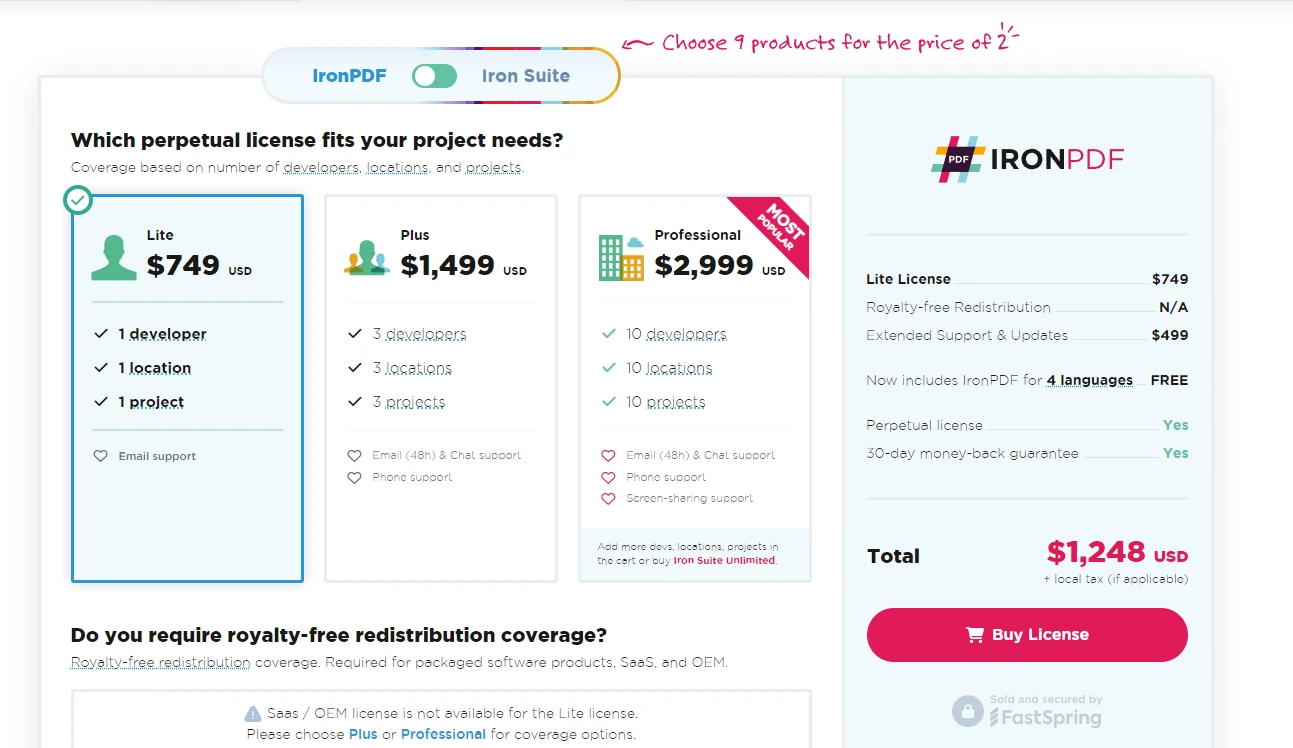
Lite: $999 가격으로, 이 계층은 하나의 프로젝트를 작업하는 단일 개발자에게 적합합니다. 이것은 일회성 요금으로, 소규모 프로젝트나 개인 개발자에게 경제적인 옵션입니다.
Plus: $1,499에서, 이 옵션은 최대 10명의 개발자, 10개의 위치, 10개의 프로젝트를 지원합니다. 이 티어는 또한 일회성 요금이 포함되며, 소규모부터 중간 규모의 팀에 대해 더 많은 유연성을 제공합니다.
Professional: $2,399에 대해, 이 계층은 더 많은 배포 권한을 제공하며, 더 요구가 많은 프로젝트 요구에 맞춘 대규모 팀에 적합합니다.
Unlimited: $4,799에서, 이 계층은 무제한의 개발자, 위치, 프로젝트를 허용합니다. 이는 대규모 팀과 제한 없이 광범위한 사용이 필요한 기업에게 이상적입니다.
IronPDF는 더 큰 조직이나 상업 제품에 PDF 기능을 통합해야 하는 이들을 위해 기업 및 OEM 재배포 라이선스도 제공합니다. 무료 체험판을 테스트할 수도 있습니다.
APITemplate 가격 및 라이선스
APITemplate는 API 기반의 PDF 생성 서비스로 다른 접근 방식을 제공합니다. 가격은 일반적으로 API 호출 수를 기반으로 하여 다양한 사용 패턴에 대해 더 유연합니다:
Basic Plan: 일반적으로 월별 제한된 수의 API 호출과 함께 저렴한 가격에서 시작합니다. 이는 소규모 프로젝트나 최소한의 PDF 생성 요구가 있는 기업에 적합합니다.
Standard Plan: 이 계획은 더 많은 API 호출과 추가 기능을 포함하여 중간 규모의 기업에 적합합니다.
Enterprise Plan: 대량 사용자에게 맞춘 이 계획은 가장 많은 API 호출과 우선 지원, 사용자 지정 통합 같은 프리미엄 기능을 제공합니다.
APITemplate의 라이선스는 일반적으로 월간 또는 연간 구독 모델에 연결되어 간단합니다.
주요 차이점
가격 모델: IronPDF는 일회성 요금 모델을 사용하여, 특히 지속적인 고용량 사용 시 장기적으로 경제적일 수 있습니다. 반면 APITemplate는 구독 기반 모델을 사용하여, 사용량에 맞춰 더 유연하고 확장 가능합니다.
지원 및 업데이트: IronPDF는 구매 시 1년의 지원 및 업데이트를 포함하며, 기간 연장 옵션이 있습니다. APITemplate의 구독 계획은 일반적으로 패키지의 일부로 지속적인 지원 및 업데이트를 포함합니다.
왜 IronPDF를 선택해야 합니까?
IronPDF와 APITemplate 모두 HTML 콘텐츠에서 PDF를 생성할 수 있는 기능을 제공하지만, IronPDF의 구현은 더 견고하고 유연합니다. 비교는 다음과 같습니다:
IronPDF
using IronPdf;var renderer = new ChromePdfRenderer();var html = @"<html><head> <style> body { font-family: Arial, sans-serif; } .header { color: #0066cc; font-size: 24px; } .content { margin-top: 20px; } </style></head><body> <div class='header'>Dynamic Report</div> <div class='content'> <p>This report was generated on: <script>document.write(new Date().toLocaleString());</script></p> <p>Lorem ipsum dolor sit amet, consectetur adipiscing elit.</p> </div></body></html>";var pdf = renderer.RenderHtmlAsPdf(html);pdf.SaveAs("IronPDF_report.pdf");
using IronPdf;

var renderer = new ChromePdfRenderer();
var html = @"
<html>
<head>
    <style>
        body { font-family: Arial, sans-serif; }
        .header { color: #0066cc; font-size: 24px; }
        .content { margin-top: 20px; }
    </style>
</head>
<body>
    <div class='header'>Dynamic Report</div>
    <div class='content'>
        <p>This report was generated on: <script>document.write(new Date().toLocaleString());</script></p>
        <p>Lorem ipsum dolor sit amet, consectetur adipiscing elit.</p>
    </div>
</body>
</html>";
var pdf = renderer.RenderHtmlAsPdf(html);
pdf.SaveAs("IronPDF_report.pdf");
ImportsIronPdfPrivate renderer = New ChromePdfRenderer()Private html = "<html><head> <style> body { font-family: Arial, sans-serif; } .header { color: #0066cc; font-size: 24px; } .content { margin-top: 20px; } </style></head><body> <div class='header'>Dynamic Report</div> <div class='content'> <p>This report was generated on: <script>document.write(new Date().toLocaleString());</script></p> <p>Lorem ipsum dolor sit amet, consectetur adipiscing elit.</p> </div></body></html>"Private pdf = renderer.RenderHtmlAsPdf(html)pdf.SaveAs("IronPDF_report.pdf")
Imports IronPdf

Private renderer = New ChromePdfRenderer()
Private html = "
<html>
<head>
    <style>
        body { font-family: Arial, sans-serif; }
        .header { color: #0066cc; font-size: 24px; }
        .content { margin-top: 20px; }
    </style>
</head>
<body>
    <div class='header'>Dynamic Report</div>
    <div class='content'>
        <p>This report was generated on: <script>document.write(new Date().toLocaleString());</script></p>
        <p>Lorem ipsum dolor sit amet, consectetur adipiscing elit.</p>
    </div>
</body>
</html>"
Private pdf = renderer.RenderHtmlAsPdf(html)
pdf.SaveAs("IronPDF_report.pdf")
APITemplate
using System.Net.Http;using System.Text.Json;var apiKey = "your_api_key";var templateId = "your_template_id";var url = $"https://rest.apitemplate.io/v2/create-pdf?template_id={templateId}";var data = new{ header = "Dynamic Report", content = "Lorem ipsum dolor sit amet, consectetur adipiscing elit.", date = DateTime.Now.ToShortDateString()};var json = JsonSerializer.Serialize(data);var content = new StringContent(json, System.Text.Encoding.UTF8, "application/json");using var client = new HttpClient();client.DefaultRequestHeaders.Add("X-API-KEY", apiKey);var response = await client.PostAsync(url, content);var pdfBytes = await response.Content.ReadAsByteArrayAsync();File.WriteAllBytes("APITemplate_report.pdf", pdfBytes);
using System.Net.Http;
using System.Text.Json;

var apiKey = "your_api_key";
var templateId = "your_template_id";
var url = $"https://rest.apitemplate.io/v2/create-pdf?template_id={templateId}";
var data = new
{
    header = "Dynamic Report",
    content = "Lorem ipsum dolor sit amet, consectetur adipiscing elit.",
    date = DateTime.Now.ToShortDateString()
};
var json = JsonSerializer.Serialize(data);
var content = new StringContent(json, System.Text.Encoding.UTF8, "application/json");
using var client = new HttpClient();
client.DefaultRequestHeaders.Add("X-API-KEY", apiKey);
var response = await client.PostAsync(url, content);
var pdfBytes = await response.Content.ReadAsByteArrayAsync();
File.WriteAllBytes("APITemplate_report.pdf", pdfBytes);
ImportsSystem.Net.HttpImportsSystem.Text.JsonPrivate apiKey = "your_api_key"Private templateId = "your_template_id"Private url = $"https://rest.apitemplate.io/v2/create-pdf?template_id={templateId}"Private data = New With {Key .header = "Dynamic Report",Key .content = "Lorem ipsum dolor sit amet, consectetur adipiscing elit.",Key .date = DateTime.Now.ToShortDateString()}Private json = JsonSerializer.Serialize(data)Private content = New StringContent(json, System.Text.Encoding.UTF8, "application/json")Private client = New HttpClient()client.DefaultRequestHeaders.Add("X-API-KEY", apiKey)Dim response = Await client.PostAsync(url, content)Dim pdfBytes = Awaitresponse.Content.ReadAsByteArrayAsync()File.WriteAllBytes("APITemplate_report.pdf", pdfBytes)
Imports System.Net.Http
Imports System.Text.Json

Private apiKey = "your_api_key"
Private templateId = "your_template_id"
Private url = $"https://rest.apitemplate.io/v2/create-pdf?template_id={templateId}"
Private data = New With {
	Key .header = "Dynamic Report",
	Key .content = "Lorem ipsum dolor sit amet, consectetur adipiscing elit.",
	Key .date = DateTime.Now.ToShortDateString()
}
Private json = JsonSerializer.Serialize(data)
Private content = New StringContent(json, System.Text.Encoding.UTF8, "application/json")
Private client = New HttpClient()
client.DefaultRequestHeaders.Add("X-API-KEY", apiKey)
Dim response = Await client.PostAsync(url, content)
Dim pdfBytes = Await response.Content.ReadAsByteArrayAsync()
File.WriteAllBytes("APITemplate_report.pdf", pdfBytes)
주요 차이점
JavaScript 지원: IronPDF는 HTML 내에서 JavaScript 실행을 완벽하게 지원하여 동적 콘텐츠 생성이 가능합니다(예: 예제의 현재 날짜). APITemplate는 일반적으로 모든 데이터를 사전에 제공해야 합니다.
CSS 유연성: IronPDF를 통해 HTML에서 직접 CSS 스타일링을 완전히 제어할 수 있습니다. APITemplate는 종종 제한된 사용자 지정 옵션이 있는 미리 정의된 템플릿을 요구합니다.
성능: IronPDF는 HTML을 로컬에서 처리하여 특히 복잡한 문서에 대해 더 빠른 PDF 생성을 제공할 수 있습니다. APITemplate의 클라우드 기반 접근 방식은 지연을 초래할 수 있습니다.
오프라인 기능: IronPDF는 오프라인에서도 작동하여 인터넷 연결이 제한적이거나 높은 보안 요구 사항이 있는 응용 프로그램에 유용합니다. APITemplate는 항상 인터넷 연결이 필요합니다.
동적 콘텐츠: IronPDF는 실시간 동적 콘텐츠 생성을 허용하는 반면, APITemplate는 일반적으로 사전 정의된 템플릿 구조를 필요로 합니다.
사용자 지정: IronPDF는 PDF 생성 프로세스에 대한 세부적인 제어를 제공하여 페이지 크기, 여백, 기타 PDF 관련 설정을 포함한 옵션을 제공합니다.
일관성: IronPDF는 자체 렌더링 엔진을 사용하여 다양한 환경에서 일관된 렌더링을 보장합니다. APITemplate의 출력은 그들의 서버 구성에 따라 달라질 수 있습니다.
결론
다양한 C# 프로젝트에서 IronPDF와 APITemplate를 광범위하게 사용한 후, 각 도구의 고유한 강점을 이해하게 되었습니다. 그러나 대부분의 PDF 관련 작업에서 IronPDF는 일관되게 우수한 선택임을 증명했습니다. APITemplate는 특히 간단한 템플릿 기반 문서 생성에 대한 장점이 있지만, IronPDF의 다재다능함이 이러한 작업을 효과적으로 처리하는 동시에 필요에 따라 더 복잡한 PDF 작업을 수행할 수 있는 능력을 제공합니다.
결론적으로, 두 도구 모두 제자리를 가지고 있지만, IronPDF는 C# 개발에서 PDF 조작을 위한 더 강력하고 유연하며 비용 효율적인 솔루션임을 증명했습니다. 그 강력한 기능 세트, 뛰어난 성능, 종합적인 지원은 가장 단순한 문서 생성에서 복잡한 PDF 조작에 이르는 모든 PDF 관련 작업에 대한 나의 선택이 되었습니다.
참고해 주세요: APITemplate는 해당 소유자의 등록 상표입니다. 이 사이트는 APITemplate와 관련이 없으며, APITemplate의 승인이나 후원을 받지 않았습니다. 모든 제품명, 로고 및 브랜드는 해당 소유자의 자산입니다. 비교는 정보 제공 목적으로만 사용되며, 작성 시점에 공개적으로 이용 가능한 정보를 반영합니다.
커티스 차우는 칼턴 대학교에서 컴퓨터 과학 학사 학위를 취득했으며, Node.js, TypeScript, JavaScript, React를 전문으로 하는 프론트엔드 개발자입니다. 직관적이고 미적으로 뛰어난 사용자 인터페이스를 만드는 데 열정을 가진 그는 최신 프레임워크를 활용하고, 잘 구성되고 시각적으로 매력적인 매뉴얼을 제작하는 것을 즐깁니다.