using IronPdf;

// Disable local disk access or cross-origin requests
Installation.EnableWebSecurity = true;

// Instantiate Renderer
var renderer = new ChromePdfRenderer();

// Create a PDF from a HTML string using C#
var pdf = renderer.RenderHtmlAsPdf("<h1>Hello World</h1>");

// Export to a file or Stream
pdf.SaveAs("output.pdf");

// Advanced Example with HTML Assets
// Load external html assets: Images, CSS and JavaScript.
// An optional BasePath 'C:\site\assets\' is set as the file location to load assets from
var myAdvancedPdf = renderer.RenderHtmlAsPdf("<img src='icons/iron.png'>", @"C:\site\assets\");
myAdvancedPdf.SaveAs("html-with-assets.pdf");
using IronPdf;// Disable local disk access or cross-origin requestsInstallation.EnableWebSecurity = true;// Instantiate Renderervar renderer = new ChromePdfRenderer();// Create a PDF from a HTML string using C#var pdf = renderer.RenderHtmlAsPdf("<h1>Hello World</h1>");// Export to a file or Streampdf.SaveAs("output.pdf");// Advanced Example with HTML Assets// Load external html assets: Images, CSS and JavaScript.// An optional BasePath 'C:\site\assets\' is set as the file location to load assets fromvar myAdvancedPdf = renderer.RenderHtmlAsPdf("<img src='icons/iron.png'>", @"C:\site\assets\");myAdvancedPdf.SaveAs("html-with-assets.pdf");
이 비교에서는 PDF 생성, 조작 및 렌더링을 위한 두 가지 .NET 라이브러리인IronPDF와 PDFium .NET SDK를 아키텍처, 기능 범위 및 라이선스 측면에서 살펴봅니다. 두 라이브러리 모두 PDF를 생성하고 처리할 수 있지만, 렌더링 모델과 API 인터페이스는 상당히 다릅니다.
## PDFium .NET 이란 무엇인가요?
PDFium.NET은 파일을 PDF(이동식 문서 포맷)로 생성, 수정 및 볼 수 있도록 사용됩니다. 웹 서버에서 동적 PDF 생성을 위한 고급 C#/VB.NET API를 제공하며, 기존 데스크톱 또는 웹 애플리케이션에 **PDF로 저장** 기능을 구현합니다.
PDFium.NET의 탁월한 기능은 다음과 같습니다:
- 처음부터 또는 스캔한 이미지 모음에서 PDF 생성
- 편집, 분할, 병합 및 PDF 조작을 위한 준비된 도구 바, 텍스트 추출 포함
- 단독으로 사용 가능한 Winforms 또는 WPF PDF 뷰어 컨트롤 내장 및 줌 지원
- .NET 2.0+, .NET 6, Standard, Core, Mono, Microsoft Azure 지원
- 또한 Windows XP 및 Mac OS에서 작동
- PDF 렌더링 기능 전 범위 지원
- 고성능 PDF 뷰어 기반의 검색, 인쇄 및 PDF 파일 편집
- 매우 빠른 텍스트 처리 엔진
## IronPDF: 핵심 기능 및 특징
IronPDF .NET PDF 라이브러리는 개발자, 특히 C# 개발자를 위해 설계되었습니다. 이 PDF 라이브러리를 사용하면 .NET 프로젝트에 PDF 보기, 생성 및 조작 기능을 추가할 수 있습니다.
IronPDF HTML을 PDF로 변환하는 Chromium 엔진이 내장되어 있어 단 세 줄의 C# 코드만으로 변환이 가능합니다. 이 방법은 PDF 파일을 조작하기 위해 저수준 좌표 API를 필요로 하지 않습니다. 이 프로그램은 HTML 문서, JavaScript 파일, ASPX 웹 페이지와 같은 HTML 소스 파일을 처리할 수 있으며, 단일 메서드 호출로 [모든 HTML 문자열을 PDF로 직접 렌더링](/how-to/html-string-to-pdf/) 할 수 있습니다.
IronPDF는 사용자 정의 헤더 및 푸터, 워터마크 그리고 기타 다양한 방식으로 PDF를 사용자 정의할 수 있습니다. 또한 개발자가 PDF 텍스트를 읽고 그래픽을 추출하는 작업을 간소화합니다.
IronPDF for .NET의 탁월한 기능은 다음과 같습니다:
- HTML4/5, CSS 및 JavaScript를 사용하여 PDF 문서 생성
- 사용자 지정 네트워크 로그인 자격 증명, 사용자 에이전트, 프록시, 쿠키, HTTP 헤더 및 폼 변수를 사용하여 URL 로딩
- 프로그래밍 방식으로 HTML/PDF 폼 필드 완료
- PDF 파일에서 텍스트 및 그래픽 추출
- 새로운 콘텐츠로 PDF 페이지 업데이트
- PDF에 헤더 및 푸터 추가 및 사용자 정의
- [PDF 문서 병합 및 분할](/how-to/merge-or-split-pdfs/) .
- ASP.NET 웹 폼을 인쇄 가능한 PDF로 변환
- HTML 파일/URL을 PDF로 변환
- Adobe Acrobat Reader를 사용하지 않고 PDF 파일 인쇄
IronPDF 라이브러리는 거의 모든 운영 체제와 C#과 호환되는 프레임워크에서 사용할 수 있으며, 다음을 포함합니다:
- .NET Core 2.1, 3.0, 3.1, .NET 5, 6, 및 7
- 범용 호환성 for .NET Standard 2.0 준수
- Azure, AWS, Docker, Linux, Windows
다음 표는 코드 수준의 세부 정보로 넘어가기 전에 각 라이브러리의 강점이 어디에 있는지 요약한 것입니다.
|기능|IronPDF| PDFium.NET |
|---|---|---|
| [HTML/URL을 PDF로 변환](/how-to/url-to-pdf/) | 예 (Chrome 엔진 내장) | 포함되지 않음 |
| 이미지/텍스트를 이용한 PDF 생성 | 예 | 예 |
|PDF 병합| 예 | 예 (페이지 범위 선택 기능 포함) |
|디지털 서명| 예 | 포함되지 않음 |
| PDF 뷰어 컨트롤(윈폼/WPF) | 포함되지 않음 | 예 |
| .NET Core / .NET 5+ 지원 | 예 | 예 |
| 크로스 플랫폼(리눅스, macOS, Azure) | 예 | 윈도우 및 macOS |
IronPDF의 HTML 렌더링 및 보안 기능을 PDFium.NET과 비교하여 테스트하기 위해 [무료 30일 체험](trial-license)이 가능합니다.
기사의 나머지 부분은 다음과 같습니다.
1.IronPDF C# 라이브러리 설치
2. PDFium.NET SDK 설치
3. PDF 문서 생성
4. 여러 이미지에서 PDF 생성
5. PDF 디지털 서명
6. 가격 및 라이선스
7. 결론
## 1.IronPDF C# 라이브러리 설치
IronPDF 라이브러리를 다운로드하고 설치하는 다양한 방법이 있습니다. 가장 쉬운 방법은 다음과 같습니다:
1. Visual Studio를 사용하여
2. 개발자 명령 프롬프트
3. NuGet 패키지를 직접 다운로드
4. IronPdf.DLL 라이브러리 다운로드
### 1.1. Visual Studio 사용
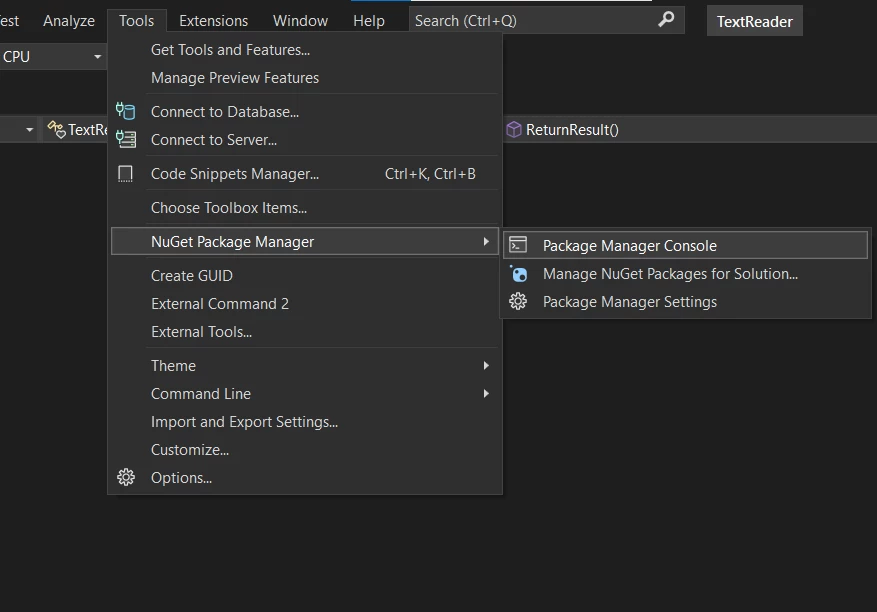
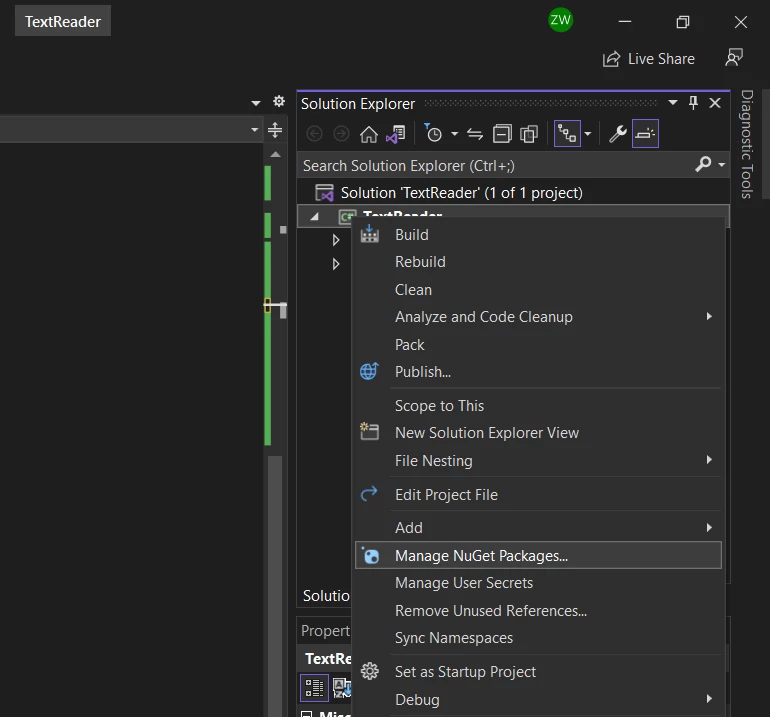
Visual Studio 프로젝트에서 "도구" 메뉴를 선택하거나 솔루션 탐색기에서 프로젝트를 마우스 오른쪽 버튼으로 클릭하고 "NuGet 패키지 관리"를 선택합니다. 이 두 가지 옵션은 아래 스크린샷에 표시됩니다.
<div class="content-img-align-center">
<div class="center-image-wrapper">
<img src="/static-assets/pdf/blog/pdfium-net-core-alternatives/pdfium-net-core-alternatives-1.webp" alt="IronPDF와 PDFium.NET의 비교, 그림 1: 도구 메뉴를 사용하여 NuGet 패키지 관리자에 접근하기" class="img-responsive add-shadow" />
</div>
</div>
<div class="content-img-align-center">
<div class="center-image-wrapper">
<img src="/static-assets/pdf/blog/pdfium-net-core-alternatives/pdfium-net-core-alternatives-2.webp" alt="IronPDF와 PDFium.NET의 비교, 그림 2: 솔루션 탐색기를 사용하여 NuGet 패키지 관리자에 접근하기" class="img-responsive add-shadow" />
</div>
</div>
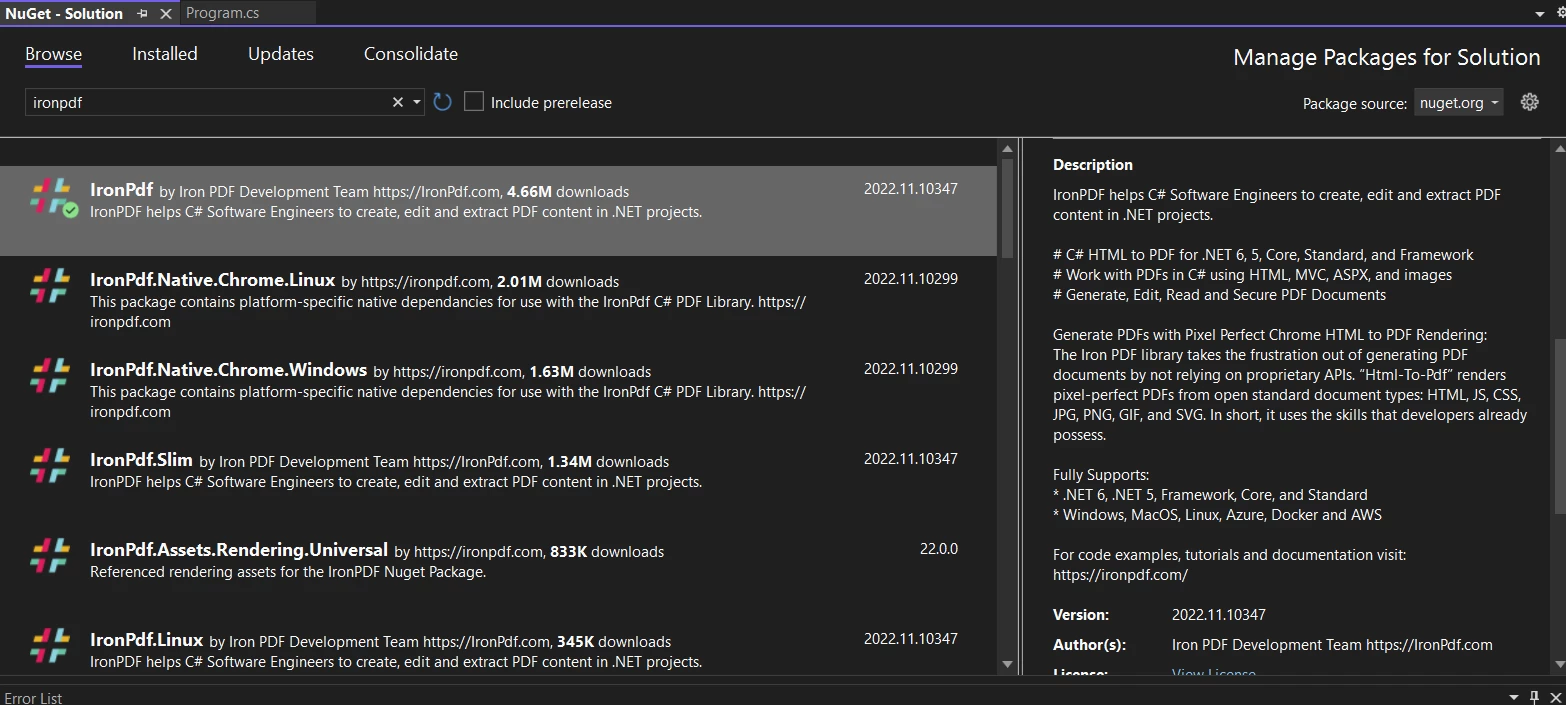
NuGet 패키지 관리자가 열리면,IronPDF패키지를 찾아서 설치합니다. 아래 스크린샷에 나와 있습니다.
<div class="content-img-align-center">
<div class="center-image-wrapper">
<img src="/static-assets/pdf/blog/pdfium-net-core-alternatives/pdfium-net-core-alternatives-3.webp" alt="IronPDF와 PDFium.NET의 비교, 그림 3: NuGet 패키지 관리자를 사용하여IronPDF라이브러리 설치하기" class="img-responsive add-shadow" />
</div>
</div>
### 1.2. 개발자 명령 프롬프트 사용하기
IronPDF는 개발자 명령 프롬프트를 통해서도 다운로드할 수 있습니다. 아래 단계를 따르십시오:
- **도구 메뉴에서 개발자 명령 프롬프트 또는 패키지 매니저 콘솔**을 엽니다.
- 다음 명령을 입력하십시오:
```shell
:ProductInstall
```
- 엔터 키를 누릅니다
- 라이브러리가 다운로드 및 설치됩니다
### 1.3. NuGet 패키지 직접 다운로드하기
IronPDF는 [NuGetIronPDF Package](https://www.nuget.org/packages/IronPdf/)를 방문하여 직접 다운로드할 수도 있습니다. 단계는 다음과 같습니다:
- 다운로드 패키지를 찾고 클릭합니다.
- 패키지가 다운로드 및 설치됩니다.
### 1.4. 라이브러리를 다운로드하여IronPDF설치하기
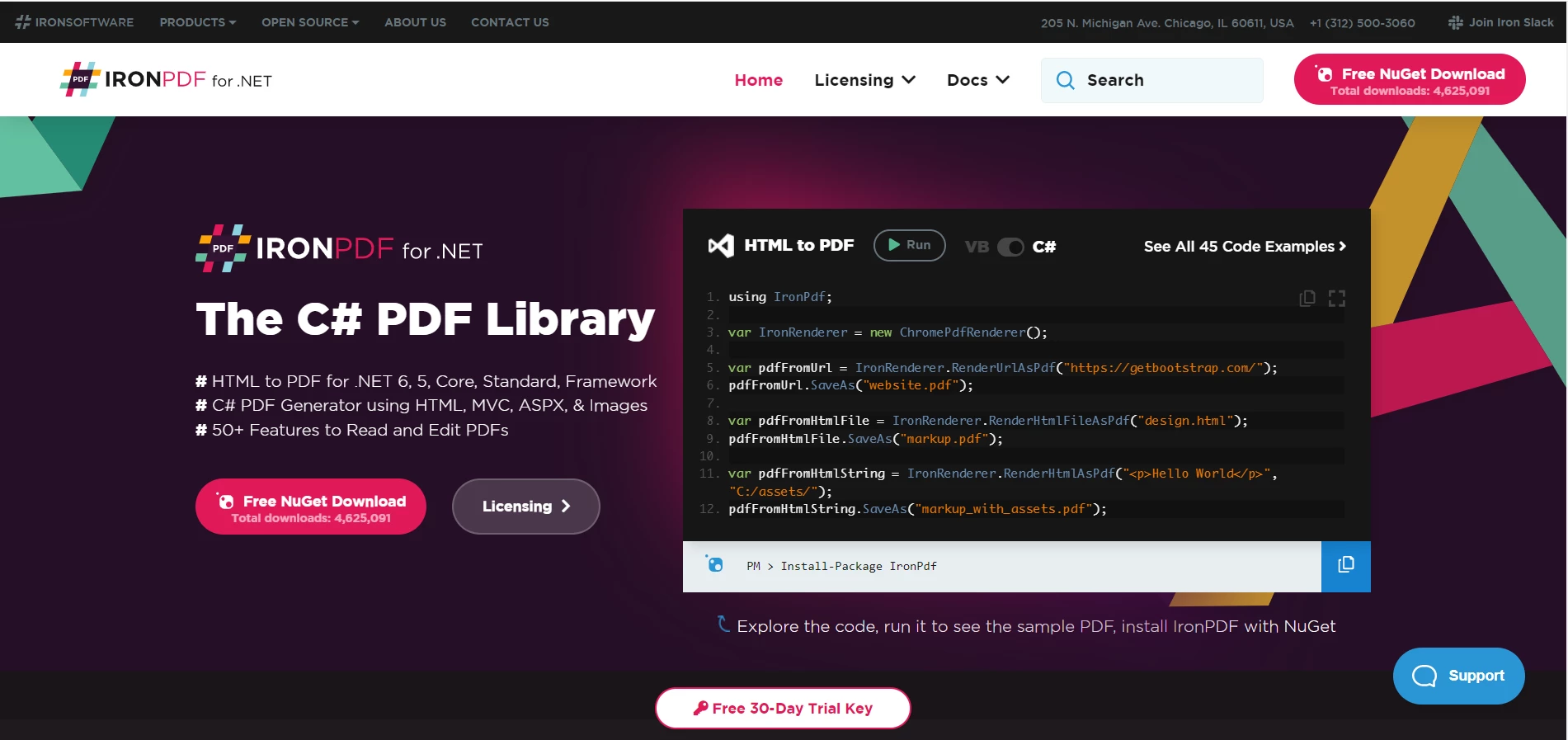
IronPDF의 패키지 페이지에서 직접 IronPdf.DLL 파일을 [다운로드](https://ironpdf.com/packages/IronPdf.Package.pdfsharp.comparison.zip)할 수 있습니다.
<div class="content-img-align-center">
<div class="center-image-wrapper">
<img src="/static-assets/pdf/blog/pdfium-net-core-alternatives/pdfium-net-core-alternatives-4.webp" alt="IronPDF와 PDFium.NET의 비교, 그림 4:IronPDF웹사이트에서IronPDF라이브러리 DLL 다운로드하기" class="img-responsive add-shadow" />
</div>
</div>
다음 단계에 따라 프로젝트에서IronPDF라이브러리를 참조합니다:
- 솔루션 탐색기에서 솔루션을 마우스 오른쪽 버튼으로 클릭하고 참조를 선택합니다
- IronPDF.dll 라이브러리를 찾습니다
- 확인을 클릭하세요!
모두 완료되었습니다! IronPDF가 다운로드 및 설치되었습니다. 이제 PDFium.NET SDK 라이브러리를 설치하겠습니다.
## 2. PDFium.NET 설치
PDFium.NET은 NuGet 패키지 관리자 또는 PDFium Windows 설치 프로그램을 다운로드하여 설치할 수 있습니다.
- IronPDF에서 했던 것처럼 Visual Studio에서 NuGet 패키지를 여십시오.
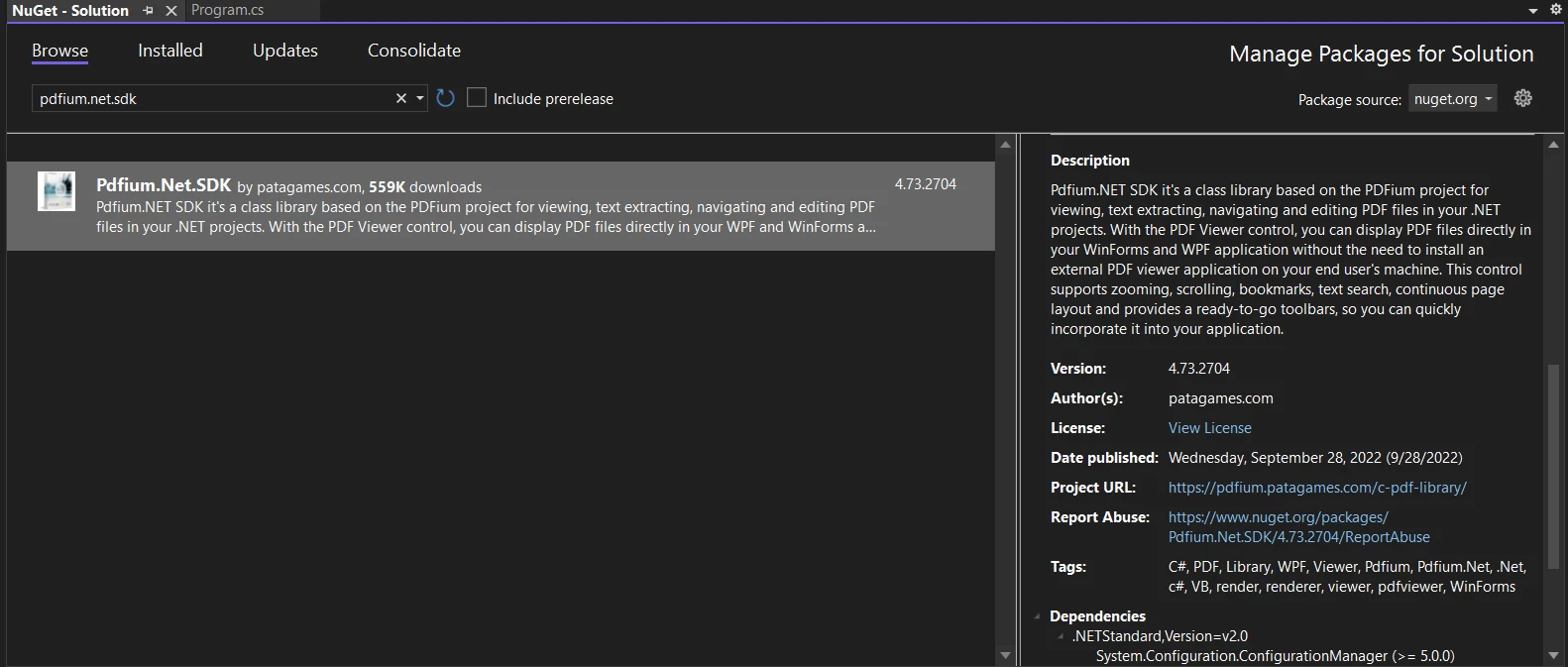
- PDFium.NET.SDK를 검색합니다. 현재 프로젝트에서 설치를 클릭합니다.
<div class="content-img-align-center">
<div class="center-image-wrapper">
<img src="/static-assets/pdf/blog/pdfium-net-core-alternatives/pdfium-net-core-alternatives-5.webp" alt="IronPDF와 PDFium.NET의 비교, 그림 5: PDFium.NET 검색" class="img-responsive add-shadow" />
</div>
</div>
- 패키지 관리자 콘솔을 사용하여 설치할 수도 있습니다. IronPDF에 대해 언급된 "개발자 명령 프롬프트 사용" 단계를 따라 다음 명령어를 입력합니다:
```shell
:InstallCmd Install-Package Pdfium.Net.SDK
```
- Enter를 누릅니다. 이것은 라이브러리를 다운로드 및 설치합니다.
## 3. PDF 문서 만들기
### 3.1.IronPDF사용
IronPDF는 PDF 파일을 생성하는 다양한 방법을 제공합니다. 두 가지 중요한 방법을 살펴보겠습니다.
#### 기존 PDF URL
IronPDF 내장된 Chromium 렌더링 엔진을 사용하여 [기존 URL을 PDF로 직접](/tutorials/html-to-pdf/) 변환합니다.
다음 소스 코드를 고려하십시오.
```csharp
IronPdf.ChromePdfRenderer Renderer = new IronPdf.ChromePdfRenderer();

// Use RenderUrlAsPdf method to convert a given URL to a PDF document
using var Pdf = Renderer.RenderUrlAsPdf("https://ironpdf.com/");

// Save the generated PDF document
Pdf.SaveAs("url.pdf");
```
#### HTML 입력 문자열을 PDF로 변환
다음 코드 스니펫은 HTML 문자열을 사용하여 PDF 페이지를 렌더링하는 방법을 보여줍니다. 간단한 HTML을 사용하거나, CSS, 이미지, [변환 전에 실행되는 JavaScript 콘텐츠](/how-to/javascript-to-pdf/) 와 결합하여 사용할 수 있습니다.
```csharp
var Renderer = new IronPdf.ChromePdfRenderer();
// Render HTML as a PDF
using var PDF = Renderer.RenderHtmlAsPdf("<h1>Html with CSS and Images</h1>");
PDF.SaveAs("pixel-perfect.pdf");
// Load external HTML assets: images, css, and javascript
// An optional BasePath 'C:\site\assets\' is set as the file location to load assets from
using var AdvancedPDF = Renderer.RenderHtmlAsPdf("<img src='logo_square.png'>", @"e:\site\assets\");
AdvancedPDF.SaveAs("html-with-assets.pdf");
```
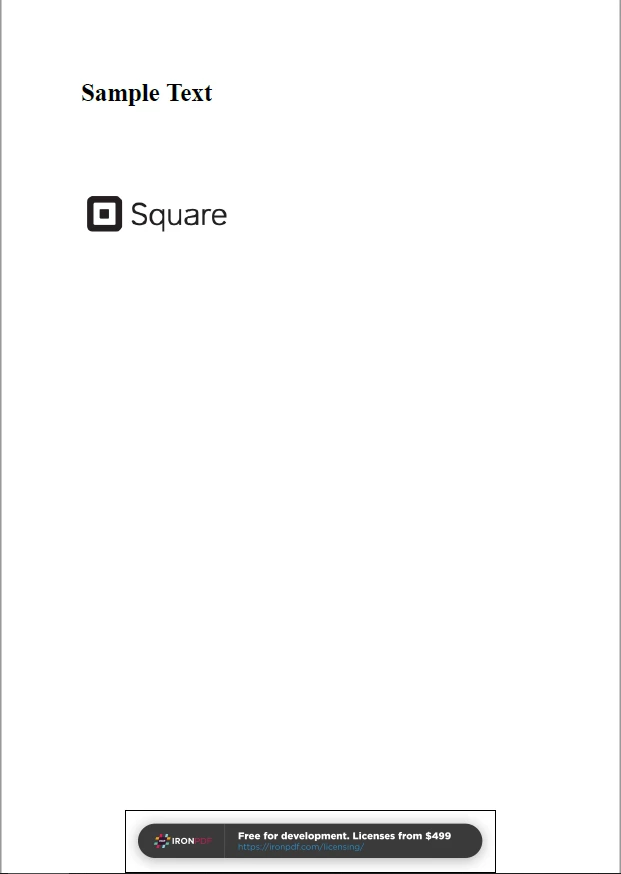
출력 결과는 다음과 같습니다.
<div class="content-img-align-center">
<div class="center-image-wrapper">
<img src="/static-assets/pdf/blog/pdfium-net-core-alternatives/pdfium-net-core-alternatives-6.webp" alt="IronPDF와 PDFium.NET의 비교, 그림 6: IronPDF에서 URL 및 HTML 문자열로부터 PDF 생성하기" class="img-responsive add-shadow" />
</div>
</div>
### 3.2. PDFium.NET 사용
PDFium .NET 은 이미지와 텍스트 객체를 사용하여 PDF 문서를 즉시 생성합니다. 이 시스템의 렌더링 파이프라인은 HTML 기반 변환보다는 저수준 페이지 구성을 중심으로 구축되었으므로 URL 및 HTML 문자열을 PDF로 변환하는 워크플로는 현재 범위에서 제외됩니다.
다음은 PDFium.NET을 사용하여 PDF를 생성하는 예제 코드입니다:
```csharp
public void CreatePDF()
{
// Step 1: Initialize PDF library and create an empty document
PdfCommon.Initialize();
var doc = PdfDocument.CreateNew(); // Create a new PDF document
// Step 2: Add a new page
// Arguments: page width: 8.27", page height: 11.69", Unit of measure: inches
// The PDF unit of measure is a point. There are 72 points in one inch.
var page = doc.Pages.InsertPageAt(doc.Pages.Count, 8.27f * 72, 11.69f * 72);
// Step 3: Add graphics and text contents to the page
// Insert image from file using the standard System.Drawing.Bitmap class
using (PdfBitmap logo = PdfBitmap.FromFile(@"e:\site\assets\logo_square.png"))
{
PdfImageObject imageObject = PdfImageObject.Create(doc, logo, 0, 0);
// Set image resolution to 300 DPI and location to 1.69 x 10.0 inches
imageObject.Matrix = new FS_MATRIX(logo.Width * 72 / 300, 0, 0, logo.Height * 72 / 300, 1.69 * 72, 10.0 * 72);
page.PageObjects.Add(imageObject);
}
// Create fonts for text objects
PdfFont calibryBold = PdfFont.CreateFont(doc, "CalibriBold");
// Insert text objects at 7.69"; 11.02" and font size is 25
PdfTextObject textObject = PdfTextObject.Create("Sample text", 7.69f * 72, 11.02f * 72, calibryBold, 25);
textObject.FillColor = FS_COLOR.Black;
page.PageObjects.Add(textObject);
// Step 5: Generate page content and save PDF file
// Argument: PDF file name
page.GenerateContent();
doc.Save(@"e:\site\sample_document.pdf", SaveFlags.NoIncremental);
}
```
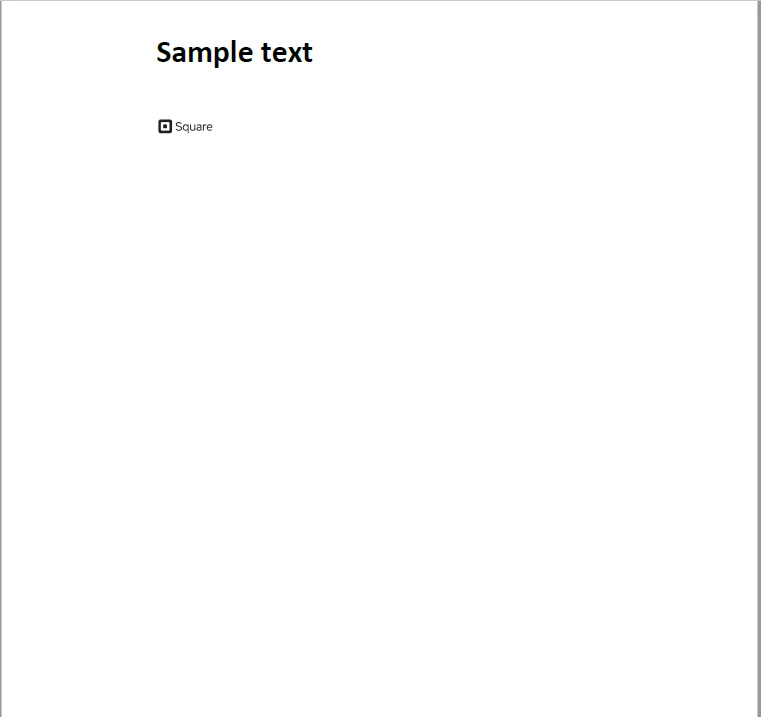
출력 결과는 다음과 같습니다.
<div class="content-img-align-center">
<div class="center-image-wrapper">
<img src="/static-assets/pdf/blog/pdfium-net-core-alternatives/pdfium-net-core-alternatives-7.webp" alt="IronPDF와 PDFium.NET의 비교, 그림 7: PDFium.NET PDF 생성" class="img-responsive add-shadow" />
</div>
</div>
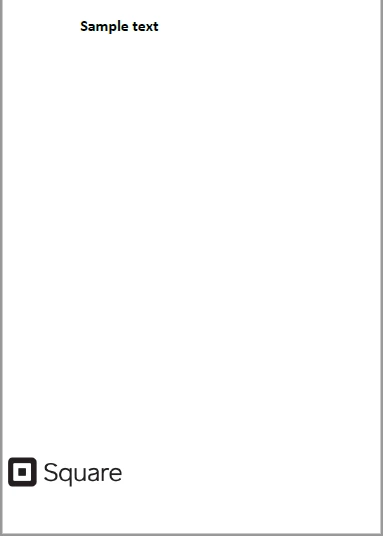
두 출력 방식을 비교해 보면, IronPDF의 HTML 렌더링 방식은 이미지 배치를 자동으로 처리하므로 수동으로 크기를 조정할 필요가 없으며, 필요에 따라 [개별 이미지를 PDF 문서로 직접 변환](/how-to/image-to-pdf/) 할 수도 있습니다. PDFium .NET 도 비슷한 결과를 내지만, 콘텐츠를 올바르게 배치하기 위해 명시적인 이미지 크기 조정 코드를 사용해야 합니다. 코드에서 다음 줄을 건너뛰면:
```csharp
imageObject.Matrix = new FS_MATRIX(logo.Width * 72 / 300, 0, 0, logo.Height * 72 / 300, 1.69 * 72, 10.0 * 72);
```
출력은 다음과 같습니다:
<div class="content-img-align-center">
<div class="center-image-wrapper">
<img src="/static-assets/pdf/blog/pdfium-net-core-alternatives/pdfium-net-core-alternatives-8.webp" alt="IronPDF와 PDFium.NET 비교, 그림 8: 이미지 크기 조정 없는 PDFium.NET 출력 PDF" class="img-responsive add-shadow" />
</div>
</div>
## 4. 여러 이미지에서 PDF 생성
### 4.1.IronPDF사용
IronPDF에서 두 개 이상의 PDF 병합은 쉽습니다. `Merge` 방법을 사용하여 쉼표로 구분된 파일 각각으로 두 개 이상의 PDF를 결합할 수 있습니다. 코드는 다음과 같습니다.
```csharp
using IronPdf;
var html_a = @"<p> [PDF_A] </p>
<p> [PDF_A] 1st Page </p>
<div style = 'page-break-after: always;'></div>
<p> [PDF_A] 2nd Page</p>";
var html_b = @"<p> [PDF_B] </p>
<p> [PDF_B] 1st Page </p>
<div style = 'page-break-after: always;'></div>
<p> [PDF_B] 2nd Page</p>";
var Renderer = new IronPdf.ChromePdfRenderer();
// Render HTML documents as PDFs
var pdfdoc_a = Renderer.RenderHtmlAsPdf(html_a);
var pdfdoc_b = Renderer.RenderHtmlAsPdf(html_b);
// Merge the documents into one PDF
var merged = IronPdf.PdfDocument.Merge(pdfdoc_a, pdfdoc_b);
// Save the merged document
merged.SaveAs("Merged.PDF");
```
### 4.2. PDFium.NET 사용
PDFium.NET을 사용하면 여러 PDF 파일을 하나의 파일로 병합할 수 있을 뿐만 아니라, 소스 파일에서 특정 페이지를 선택하여 하나의 PDF 문서로 결합할 수 있습니다.
아래의 코드는 `ImportPages` 방법을 사용하여 이를 수행하는 방법을 보여줍니다:
```csharp
public void MergePDF()
{
// Initialize the SDK library.
PdfCommon.Initialize();
// Open and load a PDF document into which other files will be merged
using (var mainDoc = PdfDocument.Load(@"c:\test001.pdf")) // Read source PDF File #1
{
// Open one PDF document.
using (var doc = PdfDocument.Load(@"c:\doc1.pdf")) // Read PDF File #2
{
// Import all pages from the document
mainDoc.Pages.ImportPages(
doc,
string.Format("1-{0}", doc.Pages.Count),
mainDoc.Pages.Count
);
}
// Open another PDF document.
using (var doc = PdfDocument.Load(@"c:\doc2.pdf"))
{
// Import all pages from the document
mainDoc.Pages.ImportPages(
doc,
string.Format("1-{0}", doc.Pages.Count),
mainDoc.Pages.Count
);
}
// Save the merged document
mainDoc.Save(@"c:\ResultDocument.pdf", SaveFlags.NoIncremental);
}
}
```
## 5. PDF 디지털 서명하기
### 5.1.IronPDF사용
오늘날 가장 중요한 기능 중 하나는 [PFX 인증서를 사용하여 PDF 문서에 디지털 서명을 하는 것](/how-to/signing/) 입니다. IronPDF는 이 기능을 제공합니다. 코드는 다음과 같습니다.
```csharp
using IronPdf;
// Cryptographically sign an existing PDF in 1 line of code!
new IronPdf.Signing.PdfSignature("Iron.p12", "123456").SignPdfFile("any.pdf");
/***** Advanced example for more control *****/
// Step 1. Create a PDF
var Renderer = new IronPdf.ChromePdfRenderer();
var doc = Renderer.RenderHtmlAsPDF("<h1>Testing 2048 bit digital security</h1>");
// Step 2. Create a Signature.
// You may create a .pfx or .p12 PDF signing certificate using Adobe Acrobat Reader.
var signature = new IronPdf.Signing.PdfSignature("Iron.pfx", "123456");
// Step 3. Handwritten signature graphic
signature.LoadSignatureImageFromFile("handwriting.png");
// Step 4. Sign the PDF with the PDFSignature. Multiple signing certificates may be used
doc.SignPdfWithDigitalSignature(signature);
// Step 4. The PDF is not signed until saved to file, stream, or byte array.
doc.SaveAs("signed.pdf");
```
PDFium.NET은 현재 디지털 서명 기능을 지원하지 않으므로, 이 기능이 필요한 팀은 추가 라이브러리를 통합하거나 디지털 서명 기능을 기본 기능으로 제공하는IronPDF와 같은 도구를 검토해야 합니다.
## 6. 가격 및 라이선스
###IronPDF가격 및 라이선스
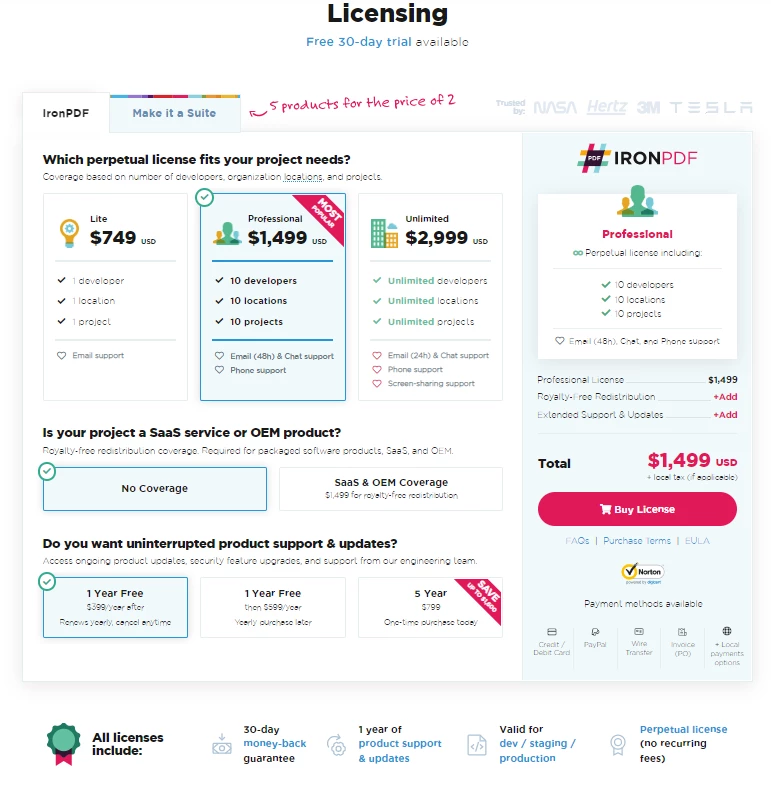
IronPDF는 간단한 애플리케이션 개발에 무료로 사용할 수 있으며, 언제든지 상업적 용도로 라이선스를 구매할 수 있습니다. 이 라이선스는 단일 프로젝트 라이선스, 단일 개발자 라이선스, 대행사 및 다국적 조직 라이선스를 제공합니다. 또한 SaaS 및 OEM 재배포 라이선스 및 지원도 제공합니다.
모든IronPDF라이선스는 30일 환불 보증과 함께 제공되며, 1년간 소프트웨어 지원 및 업그레이드를 제공합니다. 무엇보다도, 이는 영구 라이선스입니다 (일회성 구매). Lite 패키지가 제공됩니다.IronPDF제품에는 반복적인 비용이 전혀 없습니다. 사용 가능한 라이선스에 대한 더 자세한 정보는 [IronPDF Licensing page](/licensing/)에서 확인할 수 있습니다.
<img src="/static-assets/pdf/blog/pdfium-net-core-alternatives/pdfium-net-core-alternatives-9.webp" alt="A Comparison betweenIronPDF and PDFium.NET, Figure 9:IronPDF Licensing" class="img-responsive add-shadow" />
### PDFium.NET 가격 및 라이선스
PDFium.NET은 영구 라이선스를 제공합니다. 등록 키와 함께 지원되는 SDK 버전을 영구적으로 사용할 수 있습니다. 그러나 키는 라이선스를 구매하거나 갱신한 날짜에 따라 특정 SDK 버전에서만 작동합니다. 무료로 새 제품 버전을 설치할 수 있으며, 구매 전이나 구매한 날로부터 1년 이내에 출시된 경우 가능합니다. PDFium.NET은 세 가지 다른 라이선스 패키지를 제공합니다:
- **단일 프로젝트 라이선스**는 단일 개발자 및 한 프로젝트에서 작업하는 작은 팀을 위해 설계되었습니다. $720부터 시작합니다.
- **조직 라이선스**는 여러 프로젝트에서 작업하는 개발 팀을 위해 설계되었습니다.
- **단일 개발자 라이선스**는 여러 클라이언트를 위해 작업하는 단일 개발자 및 프리랜서를 위해 설계되었습니다.
[PDFium.NET 구매 페이지](https://pdfium.patagames.com/Purchase/)를 방문하여 전체 가격 세부 정보를 확인할 수 있습니다.
라이선스 비용 외에도 총 프로젝트 비용에는 좌표 기반 페이지 레이아웃, 수동 이미지 크기 조정, 디지털 서명 및 HTML-PDF 변환과 같은 기능을 위한 별도의 라이브러리 통합에 소요된 개발자 시간이 포함됩니다. 수년에 걸친 프로젝트 수명 주기 동안 비용을 평가하는 팀의 경우, 이러한 통합 및 유지 관리 시간은 두 라이브러리의 정가 차이를 훨씬 능가하는 경우가 많습니다.
## 어떤 라이브러리를 선택해야 합니까?
IronPDF 좌표 기반 레이아웃 코드 없이도 [처음부터 PDF 문서를 생성할](/how-to/create-new-pdfs/) 수 있는 고급 API를 제공합니다. 내장된 크로뮴 엔진은 HTML, JS, CSS, JPG, PNG, GIF 및 SVG 파일을 CSS3 및 최신 레이아웃을 완벽하게 지원하는 PDF로 변환합니다.
PDFium.NET SDK는 매우 저렴한 가격으로 개발자가 필요로 하는 대부분의 일반적인 요구를 충족시키기 위해 설계된 .NET 클래스 라이브러리입니다. PDFium.NET SDK를 사용하면 앱이 PDF 문서를 매력적으로 표시하고 조작할 수 있습니다. 이 라이브러리를 특히 강력하게 만드는 것은 특수한 Page 객체 편집 API입니다.
PDFium.NET 라이선스는 위에서 언급한 세 가지 에디션으로 제공됩니다. 단일 프로젝트 라이선스는 단일 개발자용으로 $720, 최대 세 명의 개발자용으로 $900부터 시작하는 시설을 제공합니다. 이는 낮은 가격으로 시작하는 IronPDF의 Lite 버전보다 약간 저렴합니다.
IronPDF 경쟁력 있는 가격으로 무제한 라이선스를 제공하는 반면, PDFium .NET 은 더 높은 등급에서 무제한 개발자를 위한 조직 라이선스를 제공합니다. 중소 규모 팀의 경우, IronPDF의 Professional 라이선스는 PDFium.NET의 동일 제품 가격의 약 절반 수준으로 최대 10명의 개발자를 지원합니다.
위 예시에서IronPDF PDFium .NET 에 비해 더 적은 코드 라인으로 PDF 문서를 생성하고 수정합니다. 예를 들어 HTML을 PDF로 변환하는 데 IronPDF는 단 3줄의 코드로 가능한 반면, PDFium.NET은 좌표 기반 방식을 사용하여 비슷한 결과를 얻기 위해 약 20줄의 코드가 필요합니다.IronPDF HTML, URL, ASPX 페이지와 같은 다양한 형식을 PDF로 변환하는 여러 가지 방법을 제공합니다. PDFium .NET 은 이미지와 텍스트 기반 구성에 중점을 두어 개발자가 페이지 레이아웃을 더욱 세밀하게 제어할 수 있도록 하지만, 일반적인 변환 작업에는 더 많은 수동 작업이 필요합니다.
[Iron Software의 모든 제품 라이브러리](https://ironsoftware.com/suite/)를 두 개의 가격으로 구매할 수 있습니다. 또한, 기능을 테스트할 수 있는 [무료 체험판](trial-license)이 있습니다.
[[i:(PDFium.NET은 해당 소유자의 등록 상표입니다. 이 사이트는 PDFium.NET과 관련이 없으며, PDFium.NET을 지지하거나 후원하지 않습니다. 모든 제품명, 로고 및 브랜드는 해당 소유자의 자산입니다. 비교는 정보 제공 목적으로만 사용되며, 작성 시점에 공개적으로 이용 가능한 정보를 반영합니다.)]]
이 비교에서는 PDF 생성, 조작 및 렌더링을 위한 두 가지 .NET 라이브러리인IronPDF와 PDFium .NET SDK를 아키텍처, 기능 범위 및 라이선스 측면에서 살펴봅니다. 두 라이브러리 모두 PDF를 생성하고 처리할 수 있지만, 렌더링 모델과 API 인터페이스는 상당히 다릅니다.
PDFium .NET 이란 무엇인가요?
PDFium.NET은 파일을 PDF(이동식 문서 포맷)로 생성, 수정 및 볼 수 있도록 사용됩니다. 웹 서버에서 동적 PDF 생성을 위한 고급 C#/VB.NET API를 제공하며, 기존 데스크톱 또는 웹 애플리케이션에 PDF로 저장 기능을 구현합니다.
PDFium.NET의 탁월한 기능은 다음과 같습니다:
처음부터 또는 스캔한 이미지 모음에서 PDF 생성
편집, 분할, 병합 및 PDF 조작을 위한 준비된 도구 바, 텍스트 추출 포함
단독으로 사용 가능한 Winforms 또는 WPF PDF 뷰어 컨트롤 내장 및 줌 지원
.NET 2.0+, .NET 6, Standard, Core, Mono, Microsoft Azure 지원
또한 Windows XP 및 Mac OS에서 작동
PDF 렌더링 기능 전 범위 지원
고성능 PDF 뷰어 기반의 검색, 인쇄 및 PDF 파일 편집
매우 빠른 텍스트 처리 엔진
IronPDF: 핵심 기능 및 특징
IronPDF .NET PDF 라이브러리는 개발자, 특히 C# 개발자를 위해 설계되었습니다. 이 PDF 라이브러리를 사용하면 .NET 프로젝트에 PDF 보기, 생성 및 조작 기능을 추가할 수 있습니다.
IronPDF HTML을 PDF로 변환하는 Chromium 엔진이 내장되어 있어 단 세 줄의 C# 코드만으로 변환이 가능합니다. 이 방법은 PDF 파일을 조작하기 위해 저수준 좌표 API를 필요로 하지 않습니다. 이 프로그램은 HTML 문서, JavaScript 파일, ASPX 웹 페이지와 같은 HTML 소스 파일을 처리할 수 있으며, 단일 메서드 호출로 모든 HTML 문자열을 PDF로 직접 렌더링 할 수 있습니다.
IronPDF는 사용자 정의 헤더 및 푸터, 워터마크 그리고 기타 다양한 방식으로 PDF를 사용자 정의할 수 있습니다. 또한 개발자가 PDF 텍스트를 읽고 그래픽을 추출하는 작업을 간소화합니다.
IronPDF for .NET의 탁월한 기능은 다음과 같습니다:
HTML4/5, CSS 및 JavaScript를 사용하여 PDF 문서 생성
사용자 지정 네트워크 로그인 자격 증명, 사용자 에이전트, 프록시, 쿠키, HTTP 헤더 및 폼 변수를 사용하여 URL 로딩
IronPdf.ChromePdfRendererRenderer = new IronPdf.ChromePdfRenderer();// Use RenderUrlAsPdf method to convert a given URL to a PDF documentusing varPdf = Renderer.RenderUrlAsPdf("https://ironpdf.com/");// Save the generated PDF documentPdf.SaveAs("url.pdf");
IronPdf.ChromePdfRenderer Renderer = new IronPdf.ChromePdfRenderer();

// Use RenderUrlAsPdf method to convert a given URL to a PDF document
using var Pdf = Renderer.RenderUrlAsPdf("https://ironpdf.com/");

// Save the generated PDF document
Pdf.SaveAs("url.pdf");
DimRendererAs New IronPdf.ChromePdfRenderer()' Use RenderUrlAsPdf method to convert a given URL to a PDF documentDimPdf = Renderer.RenderUrlAsPdf("https://ironpdf.com/")' Save the generated PDF documentPdf.SaveAs("url.pdf")
Dim Renderer As New IronPdf.ChromePdfRenderer()

' Use RenderUrlAsPdf method to convert a given URL to a PDF document
Dim Pdf = Renderer.RenderUrlAsPdf("https://ironpdf.com/")

' Save the generated PDF document
Pdf.SaveAs("url.pdf")
HTML 입력 문자열을 PDF로 변환
다음 코드 스니펫은 HTML 문자열을 사용하여 PDF 페이지를 렌더링하는 방법을 보여줍니다. 간단한 HTML을 사용하거나, CSS, 이미지, 변환 전에 실행되는 JavaScript 콘텐츠 와 결합하여 사용할 수 있습니다.
varRenderer = new IronPdf.ChromePdfRenderer();// Render HTML as a PDFusing varPDF = Renderer.RenderHtmlAsPdf("<h1>Html with CSS and Images</h1>");PDF.SaveAs("pixel-perfect.pdf");// Load external HTML assets: images, css, and javascript// An optional BasePath 'C:\site\assets\' is set as the file location to load assets fromusing varAdvancedPDF = Renderer.RenderHtmlAsPdf("<img src='logo_square.png'>", @"e:\site\assets\");AdvancedPDF.SaveAs("html-with-assets.pdf");
var Renderer = new IronPdf.ChromePdfRenderer();

// Render HTML as a PDF
using var PDF = Renderer.RenderHtmlAsPdf("<h1>Html with CSS and Images</h1>");
PDF.SaveAs("pixel-perfect.pdf");

// Load external HTML assets: images, css, and javascript
// An optional BasePath 'C:\site\assets\' is set as the file location to load assets from
using var AdvancedPDF = Renderer.RenderHtmlAsPdf("<img src='logo_square.png'>", @"e:\site\assets\");
AdvancedPDF.SaveAs("html-with-assets.pdf");
ImportsIronPdfDimRendererAs New ChromePdfRenderer()' Render HTML as a PDFUsingPDF = Renderer.RenderHtmlAsPdf("<h1>Html with CSS and Images</h1>")PDF.SaveAs("pixel-perfect.pdf")EndUsing' Load external HTML assets: images, css, and javascript' An optional BasePath 'C:\site\assets\' is set as the file location to load assets fromUsingAdvancedPDF = Renderer.RenderHtmlAsPdf("<img src='logo_square.png'>", "e:\site\assets\")AdvancedPDF.SaveAs("html-with-assets.pdf")EndUsing
Imports IronPdf

Dim Renderer As New ChromePdfRenderer()

' Render HTML as a PDF
Using PDF = Renderer.RenderHtmlAsPdf("<h1>Html with CSS and Images</h1>")
    PDF.SaveAs("pixel-perfect.pdf")
End Using

' Load external HTML assets: images, css, and javascript
' An optional BasePath 'C:\site\assets\' is set as the file location to load assets from
Using AdvancedPDF = Renderer.RenderHtmlAsPdf("<img src='logo_square.png'>", "e:\site\assets\")
    AdvancedPDF.SaveAs("html-with-assets.pdf")
End Using
출력 결과는 다음과 같습니다.
3.2. PDFium.NET 사용
PDFium .NET 은 이미지와 텍스트 객체를 사용하여 PDF 문서를 즉시 생성합니다. 이 시스템의 렌더링 파이프라인은 HTML 기반 변환보다는 저수준 페이지 구성을 중심으로 구축되었으므로 URL 및 HTML 문자열을 PDF로 변환하는 워크플로는 현재 범위에서 제외됩니다.
다음은 PDFium.NET을 사용하여 PDF를 생성하는 예제 코드입니다:
public voidCreatePDF(){ // Step 1: Initialize PDF library and create an empty documentPdfCommon.Initialize(); var doc = PdfDocument.CreateNew(); // Create a new PDF document // Step 2: Add a new page // Arguments: page width: 8.27", page height: 11.69", Unit of measure: inches // The PDF unit of measure is a point. There are 72 points in one inch. var page = doc.Pages.InsertPageAt(doc.Pages.Count, 8.27f * 72, 11.69f * 72); // Step 3: Add graphics and text contents to the page // Insert image from file using the standard System.Drawing.Bitmap class using (PdfBitmap logo = PdfBitmap.FromFile(@"e:\site\assets\logo_square.png")) { PdfImageObject imageObject = PdfImageObject.Create(doc, logo, 0, 0); // Set image resolution to 300 DPI and location to 1.69 x 10.0 inches imageObject.Matrix = new FS_MATRIX(logo.Width * 72 / 300, 0, 0, logo.Height * 72 / 300, 1.69 * 72, 10.0 * 72); page.PageObjects.Add(imageObject); } // Create fonts for text objects PdfFont calibryBold = PdfFont.CreateFont(doc, "CalibriBold"); // Insert text objects at 7.69"; 11.02" and font size is 25 PdfTextObject textObject = PdfTextObject.Create("Sample text", 7.69f * 72, 11.02f * 72, calibryBold, 25); textObject.FillColor = FS_COLOR.Black; page.PageObjects.Add(textObject); // Step 5: Generate page content and save PDF file // Argument: PDF file name page.GenerateContent(); doc.Save(@"e:\site\sample_document.pdf", SaveFlags.NoIncremental);}
public void CreatePDF()
{
    // Step 1: Initialize PDF library and create an empty document
    PdfCommon.Initialize();
    var doc = PdfDocument.CreateNew();  // Create a new PDF document

    // Step 2: Add a new page
    // Arguments: page width: 8.27", page height: 11.69", Unit of measure: inches
    //  The PDF unit of measure is a point. There are 72 points in one inch.
    var page = doc.Pages.InsertPageAt(doc.Pages.Count, 8.27f * 72, 11.69f * 72);

    // Step 3: Add graphics and text contents to the page
    // Insert image from file using the standard System.Drawing.Bitmap class
    using (PdfBitmap logo = PdfBitmap.FromFile(@"e:\site\assets\logo_square.png"))
    {
        PdfImageObject imageObject = PdfImageObject.Create(doc, logo, 0, 0);
        // Set image resolution to 300 DPI and location to 1.69 x 10.0 inches
        imageObject.Matrix = new FS_MATRIX(logo.Width * 72 / 300, 0, 0, logo.Height * 72 / 300, 1.69 * 72, 10.0 * 72);
        page.PageObjects.Add(imageObject);
    }

    // Create fonts for text objects
    PdfFont calibryBold = PdfFont.CreateFont(doc, "CalibriBold");
    // Insert text objects at 7.69"; 11.02" and font size is 25
    PdfTextObject textObject = PdfTextObject.Create("Sample text", 7.69f * 72, 11.02f * 72, calibryBold, 25);
    textObject.FillColor = FS_COLOR.Black;
    page.PageObjects.Add(textObject);

    // Step 5: Generate page content and save PDF file
    // Argument: PDF file name
    page.GenerateContent();
    doc.Save(@"e:\site\sample_document.pdf", SaveFlags.NoIncremental);
}
Public Sub CreatePDF() ' Step 1: Initialize PDF library and create an empty documentPdfCommon.Initialize() Dim doc = PdfDocument.CreateNew() ' Create a new PDF document ' Step 2: Add a new page ' Arguments: page width: 8.27", page height: 11.69", Unit of measure: inches ' The PDF unit of measure is a point. There are 72 points in one inch. Dim page = doc.Pages.InsertPageAt(doc.Pages.Count, 8.27F * 72, 11.69F * 72) ' Step 3: Add graphics and text contents to the page ' Insert image from file using the standard System.Drawing.Bitmap classUsing logo AsPdfBitmap = PdfBitmap.FromFile("e:\site\assets\logo_square.png") Dim imageObject AsPdfImageObject = PdfImageObject.Create(doc, logo, 0, 0) ' Set image resolution to 300 DPI and location to 1.69 x 10.0 inches imageObject.Matrix = New FS_MATRIX(logo.Width * 72 \ 300, 0, 0, logo.Height * 72 \ 300, 1.69 * 72, 10.0 * 72) page.PageObjects.Add(imageObject)EndUsing ' Create fonts for text objects Dim calibryBold AsPdfFont = PdfFont.CreateFont(doc, "CalibriBold") ' Insert text objects at 7.69"; 11.02" and font size is 25 Dim textObject AsPdfTextObject = PdfTextObject.Create("Sample text", 7.69F * 72, 11.02F * 72, calibryBold, 25) textObject.FillColor = FS_COLOR.Black page.PageObjects.Add(textObject) ' Step 5: Generate page content and save PDF file ' Argument: PDF file name page.GenerateContent() doc.Save("e:\site\sample_document.pdf", SaveFlags.NoIncremental)End Sub
Public Sub CreatePDF()
	' Step 1: Initialize PDF library and create an empty document
	PdfCommon.Initialize()
	Dim doc = PdfDocument.CreateNew() ' Create a new PDF document

	' Step 2: Add a new page
	' Arguments: page width: 8.27", page height: 11.69", Unit of measure: inches
	'  The PDF unit of measure is a point. There are 72 points in one inch.
	Dim page = doc.Pages.InsertPageAt(doc.Pages.Count, 8.27F * 72, 11.69F * 72)

	' Step 3: Add graphics and text contents to the page
	' Insert image from file using the standard System.Drawing.Bitmap class
	Using logo As PdfBitmap = PdfBitmap.FromFile("e:\site\assets\logo_square.png")
		Dim imageObject As PdfImageObject = PdfImageObject.Create(doc, logo, 0, 0)
		' Set image resolution to 300 DPI and location to 1.69 x 10.0 inches
		imageObject.Matrix = New FS_MATRIX(logo.Width * 72 \ 300, 0, 0, logo.Height * 72 \ 300, 1.69 * 72, 10.0 * 72)
		page.PageObjects.Add(imageObject)
	End Using

	' Create fonts for text objects
	Dim calibryBold As PdfFont = PdfFont.CreateFont(doc, "CalibriBold")
	' Insert text objects at 7.69"; 11.02" and font size is 25
	Dim textObject As PdfTextObject = PdfTextObject.Create("Sample text", 7.69F * 72, 11.02F * 72, calibryBold, 25)
	textObject.FillColor = FS_COLOR.Black
	page.PageObjects.Add(textObject)

	' Step 5: Generate page content and save PDF file
	' Argument: PDF file name
	page.GenerateContent()
	doc.Save("e:\site\sample_document.pdf", SaveFlags.NoIncremental)
End Sub
출력 결과는 다음과 같습니다.
두 출력 방식을 비교해 보면, IronPDF의 HTML 렌더링 방식은 이미지 배치를 자동으로 처리하므로 수동으로 크기를 조정할 필요가 없으며, 필요에 따라 개별 이미지를 PDF 문서로 직접 변환 할 수도 있습니다. PDFium .NET 도 비슷한 결과를 내지만, 콘텐츠를 올바르게 배치하기 위해 명시적인 이미지 크기 조정 코드를 사용해야 합니다. 코드에서 다음 줄을 건너뛰면:
IronPDF에서 두 개 이상의 PDF 병합은 쉽습니다. Merge 방법을 사용하여 쉼표로 구분된 파일 각각으로 두 개 이상의 PDF를 결합할 수 있습니다. 코드는 다음과 같습니다.
using IronPdf;var html_a = @"<p> [PDF_A] </p> <p> [PDF_A] 1st Page </p> <div style = 'page-break-after: always;'></div> <p> [PDF_A] 2nd Page</p>";var html_b = @"<p> [PDF_B] </p> <p> [PDF_B] 1st Page </p> <div style = 'page-break-after: always;'></div> <p> [PDF_B] 2nd Page</p>";varRenderer = new IronPdf.ChromePdfRenderer();// Render HTML documents as PDFsvar pdfdoc_a = Renderer.RenderHtmlAsPdf(html_a);var pdfdoc_b = Renderer.RenderHtmlAsPdf(html_b);// Merge the documents into one PDFvar merged = IronPdf.PdfDocument.Merge(pdfdoc_a, pdfdoc_b);// Save the merged documentmerged.SaveAs("Merged.PDF");
using IronPdf;

var html_a = @"<p> [PDF_A] </p>
                <p> [PDF_A] 1st Page </p>
                <div style = 'page-break-after: always;'></div>
                <p> [PDF_A] 2nd Page</p>";

var html_b = @"<p> [PDF_B] </p>
                <p> [PDF_B] 1st Page </p>
                <div style = 'page-break-after: always;'></div>
                <p> [PDF_B] 2nd Page</p>";

var Renderer = new IronPdf.ChromePdfRenderer();

// Render HTML documents as PDFs
var pdfdoc_a = Renderer.RenderHtmlAsPdf(html_a);
var pdfdoc_b = Renderer.RenderHtmlAsPdf(html_b);

// Merge the documents into one PDF
var merged = IronPdf.PdfDocument.Merge(pdfdoc_a, pdfdoc_b);

// Save the merged document
merged.SaveAs("Merged.PDF");
ImportsIronPdfDim html_a = "<p> [PDF_A] </p> <p> [PDF_A] 1st Page </p> <div style = 'page-break-after: always;'></div> <p> [PDF_A] 2nd Page</p>"Dim html_b = "<p> [PDF_B] </p> <p> [PDF_B] 1st Page </p> <div style = 'page-break-after: always;'></div> <p> [PDF_B] 2nd Page</p>"DimRenderer = New IronPdf.ChromePdfRenderer()' Render HTML documents as PDFsDim pdfdoc_a = Renderer.RenderHtmlAsPdf(html_a)Dim pdfdoc_b = Renderer.RenderHtmlAsPdf(html_b)' Merge the documents into one PDFDim merged = IronPdf.PdfDocument.Merge(pdfdoc_a, pdfdoc_b)' Save the merged documentmerged.SaveAs("Merged.PDF")
Imports IronPdf

Dim html_a = "<p> [PDF_A] </p>
                <p> [PDF_A] 1st Page </p>
                <div style = 'page-break-after: always;'></div>
                <p> [PDF_A] 2nd Page</p>"

Dim html_b = "<p> [PDF_B] </p>
                <p> [PDF_B] 1st Page </p>
                <div style = 'page-break-after: always;'></div>
                <p> [PDF_B] 2nd Page</p>"

Dim Renderer = New IronPdf.ChromePdfRenderer()

' Render HTML documents as PDFs
Dim pdfdoc_a = Renderer.RenderHtmlAsPdf(html_a)
Dim pdfdoc_b = Renderer.RenderHtmlAsPdf(html_b)

' Merge the documents into one PDF
Dim merged = IronPdf.PdfDocument.Merge(pdfdoc_a, pdfdoc_b)

' Save the merged document
merged.SaveAs("Merged.PDF")
4.2. PDFium.NET 사용
PDFium.NET을 사용하면 여러 PDF 파일을 하나의 파일로 병합할 수 있을 뿐만 아니라, 소스 파일에서 특정 페이지를 선택하여 하나의 PDF 문서로 결합할 수 있습니다.
아래의 코드는 ImportPages 방법을 사용하여 이를 수행하는 방법을 보여줍니다:
public voidMergePDF(){ // Initialize the SDK library.PdfCommon.Initialize(); // Open and load a PDF document into which other files will be merged using (var mainDoc = PdfDocument.Load(@"c:\test001.pdf")) // Read source PDF File #1 { // Open one PDF document. using (var doc = PdfDocument.Load(@"c:\doc1.pdf")) // Read PDF File #2 { // Import all pages from the document mainDoc.Pages.ImportPages( doc, string.Format("1-{0}", doc.Pages.Count), mainDoc.Pages.Count ); } // Open another PDF document. using (var doc = PdfDocument.Load(@"c:\doc2.pdf")) { // Import all pages from the document mainDoc.Pages.ImportPages( doc, string.Format("1-{0}", doc.Pages.Count), mainDoc.Pages.Count ); } // Save the merged document mainDoc.Save(@"c:\ResultDocument.pdf", SaveFlags.NoIncremental); }}
public void MergePDF()
{
    // Initialize the SDK library.
    PdfCommon.Initialize();

    // Open and load a PDF document into which other files will be merged
    using (var mainDoc = PdfDocument.Load(@"c:\test001.pdf")) // Read source PDF File #1
    {
        // Open one PDF document.
        using (var doc = PdfDocument.Load(@"c:\doc1.pdf")) // Read PDF File #2
        {
            // Import all pages from the document
            mainDoc.Pages.ImportPages(
                doc,
                string.Format("1-{0}", doc.Pages.Count),
                mainDoc.Pages.Count
                );
        }

        // Open another PDF document.
        using (var doc = PdfDocument.Load(@"c:\doc2.pdf"))
        {
            // Import all pages from the document
            mainDoc.Pages.ImportPages(
                doc,
                string.Format("1-{0}", doc.Pages.Count),
                mainDoc.Pages.Count
                );
        }

        // Save the merged document
        mainDoc.Save(@"c:\ResultDocument.pdf", SaveFlags.NoIncremental);
    }
}
Public Sub MergePDF() ' Initialize the SDK library.PdfCommon.Initialize() ' Open and load a PDF document into which other files will be merged Using mainDoc = PdfDocument.Load("c:\test001.pdf") ' Read source PDF File #1 ' Open one PDF document.Using doc = PdfDocument.Load("c:\doc1.pdf") ' Read PDF File #2 ' Import all pages from the document mainDoc.Pages.ImportPages(doc, String.Format("1-{0}", doc.Pages.Count), mainDoc.Pages.Count)EndUsing ' Open another PDF document.Using doc = PdfDocument.Load("c:\doc2.pdf") ' Import all pages from the document mainDoc.Pages.ImportPages(doc, String.Format("1-{0}", doc.Pages.Count), mainDoc.Pages.Count)EndUsing ' Save the merged document mainDoc.Save("c:\ResultDocument.pdf", SaveFlags.NoIncremental)EndUsingEnd Sub
Public Sub MergePDF()
	' Initialize the SDK library.
	PdfCommon.Initialize()

	' Open and load a PDF document into which other files will be merged
	Using mainDoc = PdfDocument.Load("c:\test001.pdf") ' Read source PDF File #1
		' Open one PDF document.
		Using doc = PdfDocument.Load("c:\doc1.pdf") ' Read PDF File #2
			' Import all pages from the document
			mainDoc.Pages.ImportPages(doc, String.Format("1-{0}", doc.Pages.Count), mainDoc.Pages.Count)
		End Using

		' Open another PDF document.
		Using doc = PdfDocument.Load("c:\doc2.pdf")
			' Import all pages from the document
			mainDoc.Pages.ImportPages(doc, String.Format("1-{0}", doc.Pages.Count), mainDoc.Pages.Count)
		End Using

		' Save the merged document
		mainDoc.Save("c:\ResultDocument.pdf", SaveFlags.NoIncremental)
	End Using
End Sub
using IronPdf;// Cryptographically sign an existing PDF in 1 line of code!newIronPdf.Signing.PdfSignature("Iron.p12", "123456").SignPdfFile("any.pdf");/***** Advanced example for more control *****/// Step 1. Create a PDFvarRenderer = new IronPdf.ChromePdfRenderer();var doc = Renderer.RenderHtmlAsPDF("<h1>Testing 2048 bit digital security</h1>");// Step 2. Create a Signature.// You may create a .pfx or .p12 PDF signing certificate using Adobe Acrobat Reader.var signature = new IronPdf.Signing.PdfSignature("Iron.pfx", "123456");// Step 3. Handwritten signature graphicsignature.LoadSignatureImageFromFile("handwriting.png");// Step 4. Sign the PDF with the PDFSignature. Multiple signing certificates may be useddoc.SignPdfWithDigitalSignature(signature);// Step 4. The PDF is not signed until saved to file, stream, or byte array.doc.SaveAs("signed.pdf");
using IronPdf;

// Cryptographically sign an existing PDF in 1 line of code!
new IronPdf.Signing.PdfSignature("Iron.p12", "123456").SignPdfFile("any.pdf");

/***** Advanced example for more control *****/

// Step 1. Create a PDF
var Renderer = new IronPdf.ChromePdfRenderer();
var doc = Renderer.RenderHtmlAsPDF("<h1>Testing 2048 bit digital security</h1>");

// Step 2. Create a Signature.
// You may create a .pfx or .p12 PDF signing certificate using Adobe Acrobat Reader.

var signature = new IronPdf.Signing.PdfSignature("Iron.pfx", "123456");

// Step 3. Handwritten signature graphic
signature.LoadSignatureImageFromFile("handwriting.png");

// Step 4. Sign the PDF with the PDFSignature. Multiple signing certificates may be used
doc.SignPdfWithDigitalSignature(signature);

// Step 4. The PDF is not signed until saved to file, stream, or byte array.
doc.SaveAs("signed.pdf");
ImportsIronPdf' Cryptographically sign an existing PDF in 1 line of code!Call New IronPdf.Signing.PdfSignature("Iron.p12", "123456").SignPdfFile("any.pdf")'***** Advanced example for more control *****' Step 1. Create a PDFDimRenderer = New IronPdf.ChromePdfRenderer()Dim doc = Renderer.RenderHtmlAsPdf("<h1>Testing 2048 bit digital security</h1>")' Step 2. Create a Signature.' You may create a .pfx or .p12 PDF signing certificate using Adobe Acrobat Reader.Dim signature = New IronPdf.Signing.PdfSignature("Iron.pfx", "123456")' Step 3. Handwritten signature graphicsignature.LoadSignatureImageFromFile("handwriting.png")' Step 4. Sign the PDF with the PDFSignature. Multiple signing certificates may be useddoc.SignPdfWithDigitalSignature(signature)' Step 4. The PDF is not signed until saved to file, stream, or byte array.doc.SaveAs("signed.pdf")
Imports IronPdf

' Cryptographically sign an existing PDF in 1 line of code!
Call New IronPdf.Signing.PdfSignature("Iron.p12", "123456").SignPdfFile("any.pdf")

'***** Advanced example for more control *****

' Step 1. Create a PDF
Dim Renderer = New IronPdf.ChromePdfRenderer()
Dim doc = Renderer.RenderHtmlAsPdf("<h1>Testing 2048 bit digital security</h1>")

' Step 2. Create a Signature.
' You may create a .pfx or .p12 PDF signing certificate using Adobe Acrobat Reader.

Dim signature = New IronPdf.Signing.PdfSignature("Iron.pfx", "123456")

' Step 3. Handwritten signature graphic
signature.LoadSignatureImageFromFile("handwriting.png")

' Step 4. Sign the PDF with the PDFSignature. Multiple signing certificates may be used
doc.SignPdfWithDigitalSignature(signature)

' Step 4. The PDF is not signed until saved to file, stream, or byte array.
doc.SaveAs("signed.pdf")
PDFium.NET은 현재 디지털 서명 기능을 지원하지 않으므로, 이 기능이 필요한 팀은 추가 라이브러리를 통합하거나 디지털 서명 기능을 기본 기능으로 제공하는IronPDF와 같은 도구를 검토해야 합니다.
6. 가격 및 라이선스
###IronPDF가격 및 라이선스
IronPDF는 간단한 애플리케이션 개발에 무료로 사용할 수 있으며, 언제든지 상업적 용도로 라이선스를 구매할 수 있습니다. 이 라이선스는 단일 프로젝트 라이선스, 단일 개발자 라이선스, 대행사 및 다국적 조직 라이선스를 제공합니다. 또한 SaaS 및 OEM 재배포 라이선스 및 지원도 제공합니다.
모든IronPDF라이선스는 30일 환불 보증과 함께 제공되며, 1년간 소프트웨어 지원 및 업그레이드를 제공합니다. 무엇보다도, 이는 영구 라이선스입니다 (일회성 구매). Lite 패키지가 제공됩니다.IronPDF제품에는 반복적인 비용이 전혀 없습니다. 사용 가능한 라이선스에 대한 더 자세한 정보는 IronPDF Licensing page에서 확인할 수 있습니다.
PDFium.NET 가격 및 라이선스
PDFium.NET은 영구 라이선스를 제공합니다. 등록 키와 함께 지원되는 SDK 버전을 영구적으로 사용할 수 있습니다. 그러나 키는 라이선스를 구매하거나 갱신한 날짜에 따라 특정 SDK 버전에서만 작동합니다. 무료로 새 제품 버전을 설치할 수 있으며, 구매 전이나 구매한 날로부터 1년 이내에 출시된 경우 가능합니다. PDFium.NET은 세 가지 다른 라이선스 패키지를 제공합니다:
단일 프로젝트 라이선스는 단일 개발자 및 한 프로젝트에서 작업하는 작은 팀을 위해 설계되었습니다. $720부터 시작합니다.
조직 라이선스는 여러 프로젝트에서 작업하는 개발 팀을 위해 설계되었습니다.
단일 개발자 라이선스는 여러 클라이언트를 위해 작업하는 단일 개발자 및 프리랜서를 위해 설계되었습니다.
라이선스 비용 외에도 총 프로젝트 비용에는 좌표 기반 페이지 레이아웃, 수동 이미지 크기 조정, 디지털 서명 및 HTML-PDF 변환과 같은 기능을 위한 별도의 라이브러리 통합에 소요된 개발자 시간이 포함됩니다. 수년에 걸친 프로젝트 수명 주기 동안 비용을 평가하는 팀의 경우, 이러한 통합 및 유지 관리 시간은 두 라이브러리의 정가 차이를 훨씬 능가하는 경우가 많습니다.
어떤 라이브러리를 선택해야 합니까?
IronPDF 좌표 기반 레이아웃 코드 없이도 처음부터 PDF 문서를 생성할 수 있는 고급 API를 제공합니다. 내장된 크로뮴 엔진은 HTML, JS, CSS, JPG, PNG, GIF 및 SVG 파일을 CSS3 및 최신 레이아웃을 완벽하게 지원하는 PDF로 변환합니다.
PDFium.NET SDK는 매우 저렴한 가격으로 개발자가 필요로 하는 대부분의 일반적인 요구를 충족시키기 위해 설계된 .NET 클래스 라이브러리입니다. PDFium.NET SDK를 사용하면 앱이 PDF 문서를 매력적으로 표시하고 조작할 수 있습니다. 이 라이브러리를 특히 강력하게 만드는 것은 특수한 Page 객체 편집 API입니다.
PDFium.NET 라이선스는 위에서 언급한 세 가지 에디션으로 제공됩니다. 단일 프로젝트 라이선스는 단일 개발자용으로 $720, 최대 세 명의 개발자용으로 $900부터 시작하는 시설을 제공합니다. 이는 낮은 가격으로 시작하는 IronPDF의 Lite 버전보다 약간 저렴합니다.
IronPDF 경쟁력 있는 가격으로 무제한 라이선스를 제공하는 반면, PDFium .NET 은 더 높은 등급에서 무제한 개발자를 위한 조직 라이선스를 제공합니다. 중소 규모 팀의 경우, IronPDF의 Professional 라이선스는 PDFium.NET의 동일 제품 가격의 약 절반 수준으로 최대 10명의 개발자를 지원합니다.
위 예시에서IronPDF PDFium .NET 에 비해 더 적은 코드 라인으로 PDF 문서를 생성하고 수정합니다. 예를 들어 HTML을 PDF로 변환하는 데 IronPDF는 단 3줄의 코드로 가능한 반면, PDFium.NET은 좌표 기반 방식을 사용하여 비슷한 결과를 얻기 위해 약 20줄의 코드가 필요합니다.IronPDF HTML, URL, ASPX 페이지와 같은 다양한 형식을 PDF로 변환하는 여러 가지 방법을 제공합니다. PDFium .NET 은 이미지와 텍스트 기반 구성에 중점을 두어 개발자가 페이지 레이아웃을 더욱 세밀하게 제어할 수 있도록 하지만, 일반적인 변환 작업에는 더 많은 수동 작업이 필요합니다.
참고해 주세요: PDFium.NET은 해당 소유자의 등록 상표입니다. 이 사이트는 PDFium.NET과 관련이 없으며, PDFium.NET을 지지하거나 후원하지 않습니다. 모든 제품명, 로고 및 브랜드는 해당 소유자의 자산입니다. 비교는 정보 제공 목적으로만 사용되며, 작성 시점에 공개적으로 이용 가능한 정보를 반영합니다.
커티스 차우는 칼턴 대학교에서 컴퓨터 과학 학사 학위를 취득했으며, Node.js, TypeScript, JavaScript, React를 전문으로 하는 프론트엔드 개발자입니다. 직관적이고 미적으로 뛰어난 사용자 인터페이스를 만드는 데 열정을 가진 그는 최신 프레임워크를 활용하고, 잘 구성되고 시각적으로 매력적인 매뉴얼을 제작하는 것을 즐깁니다.