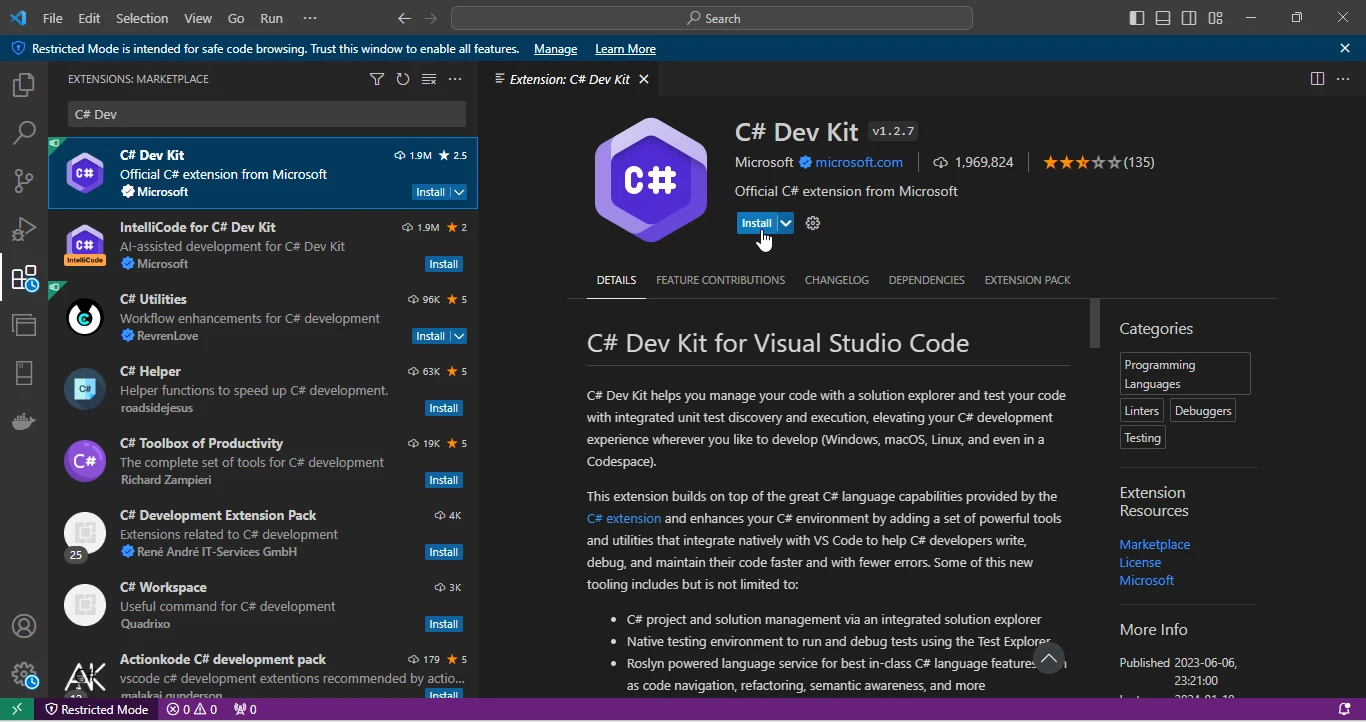
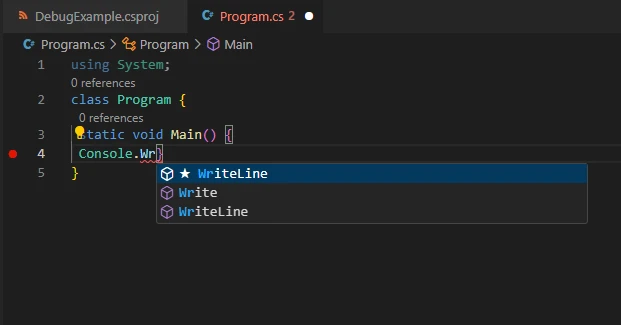
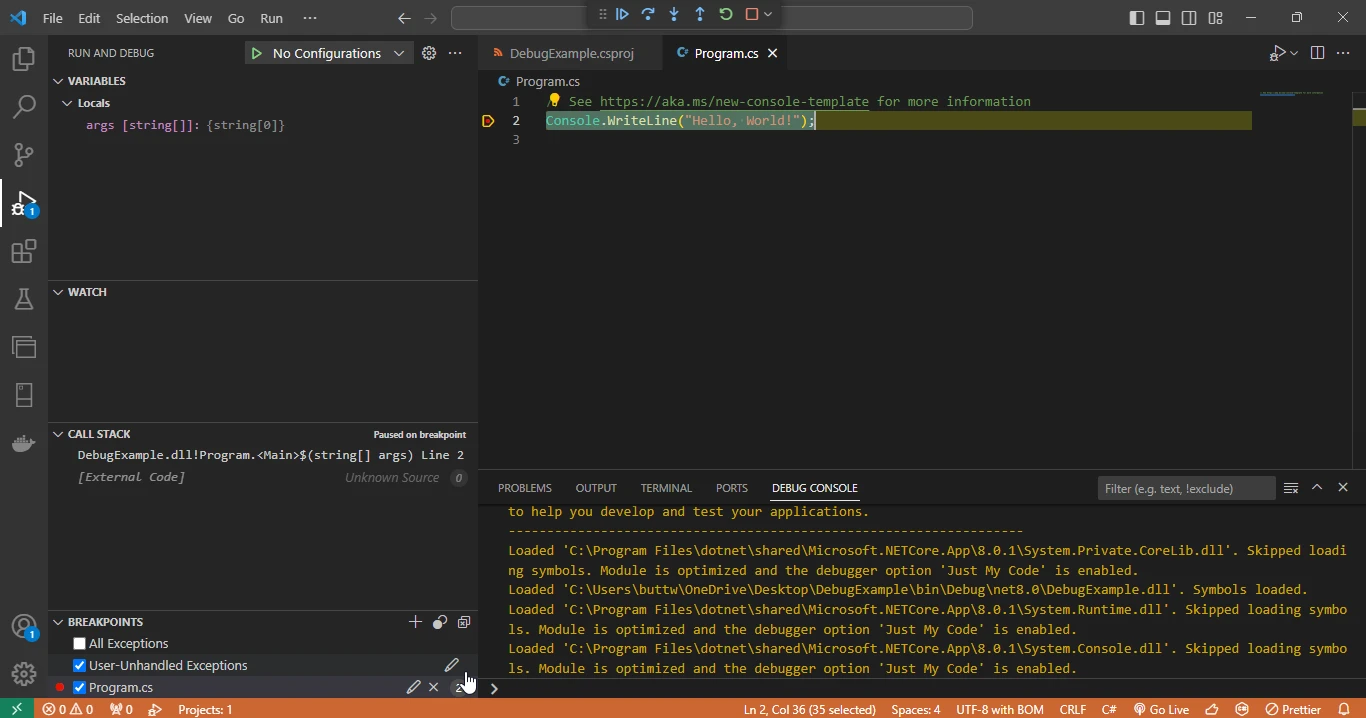
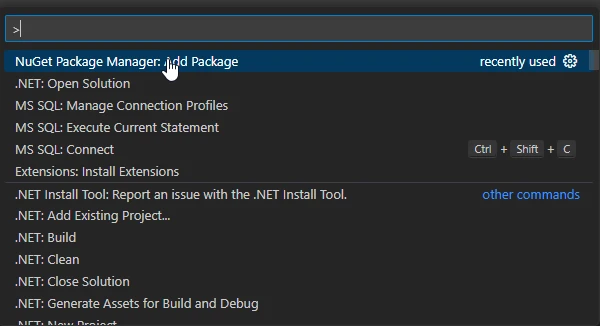
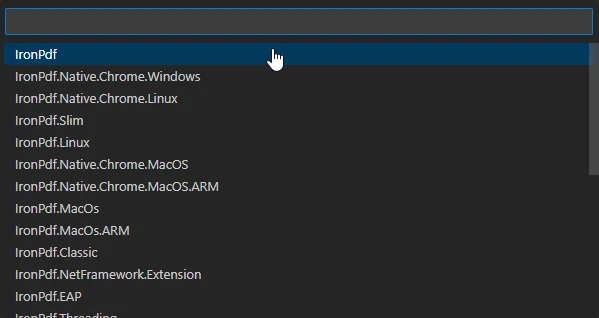
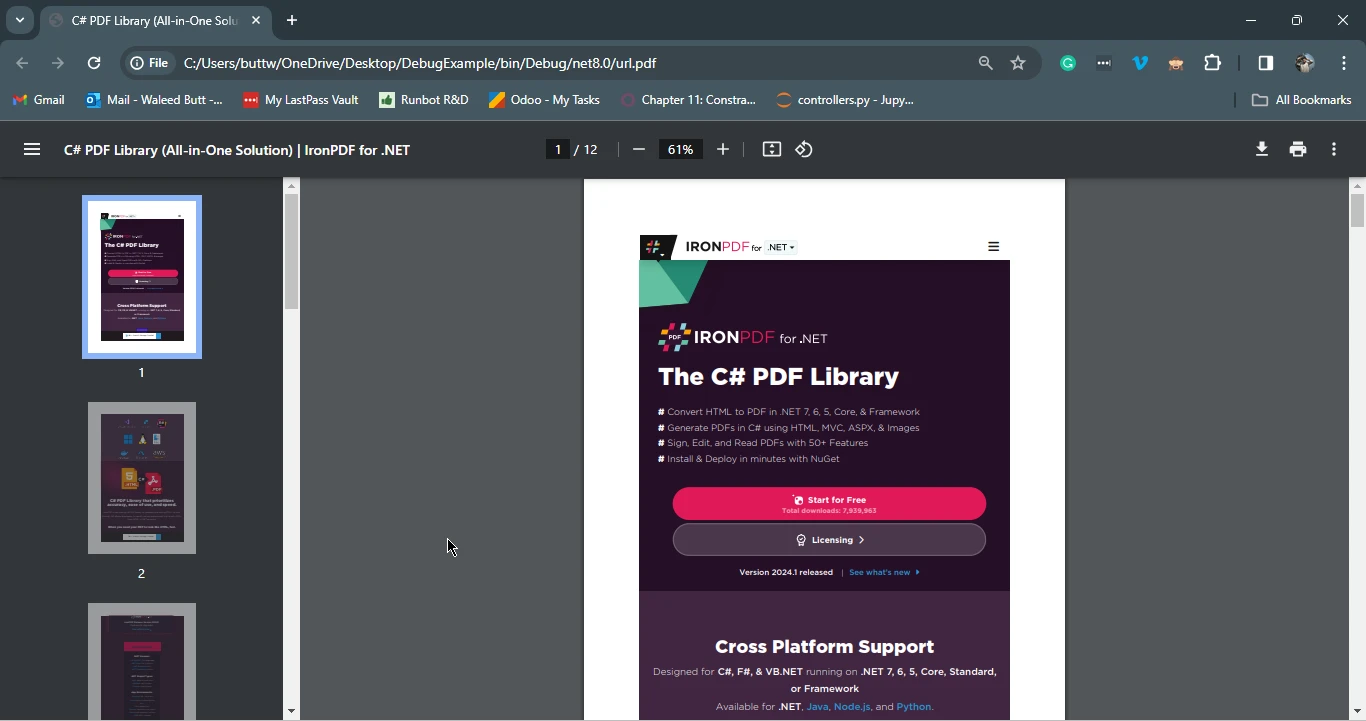
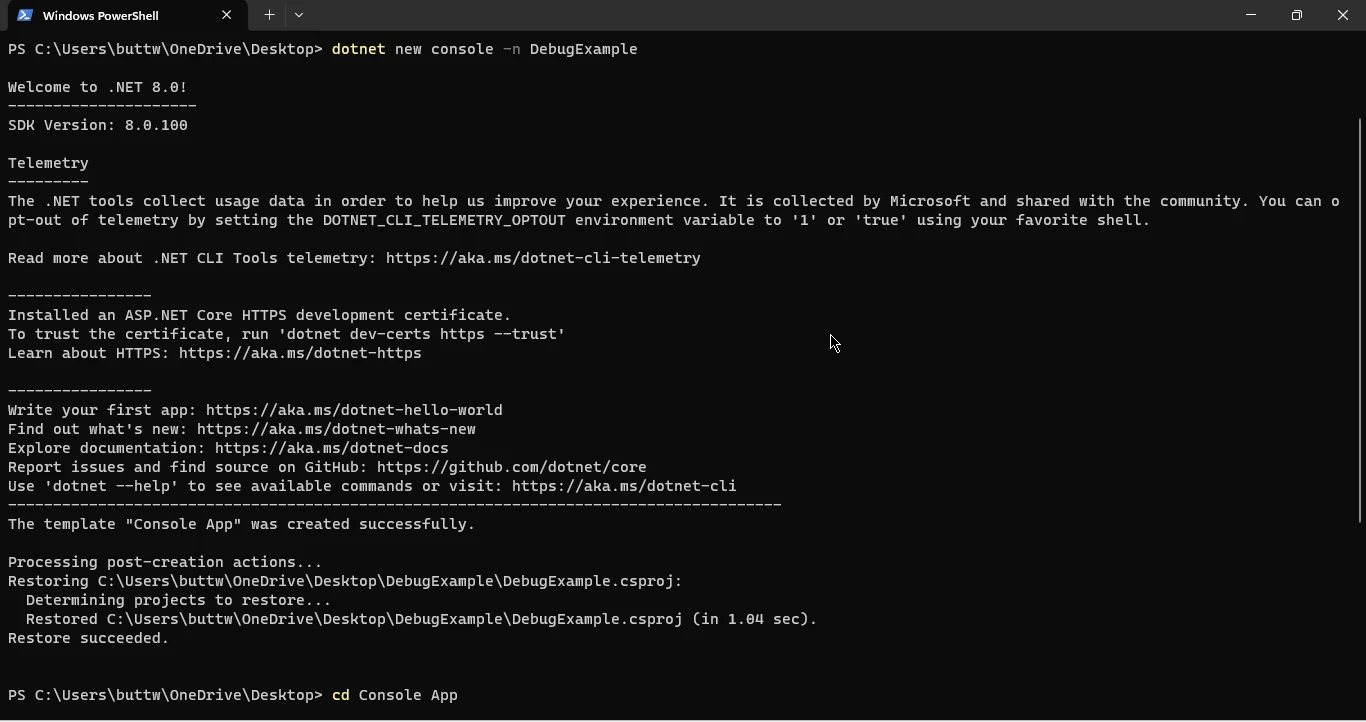
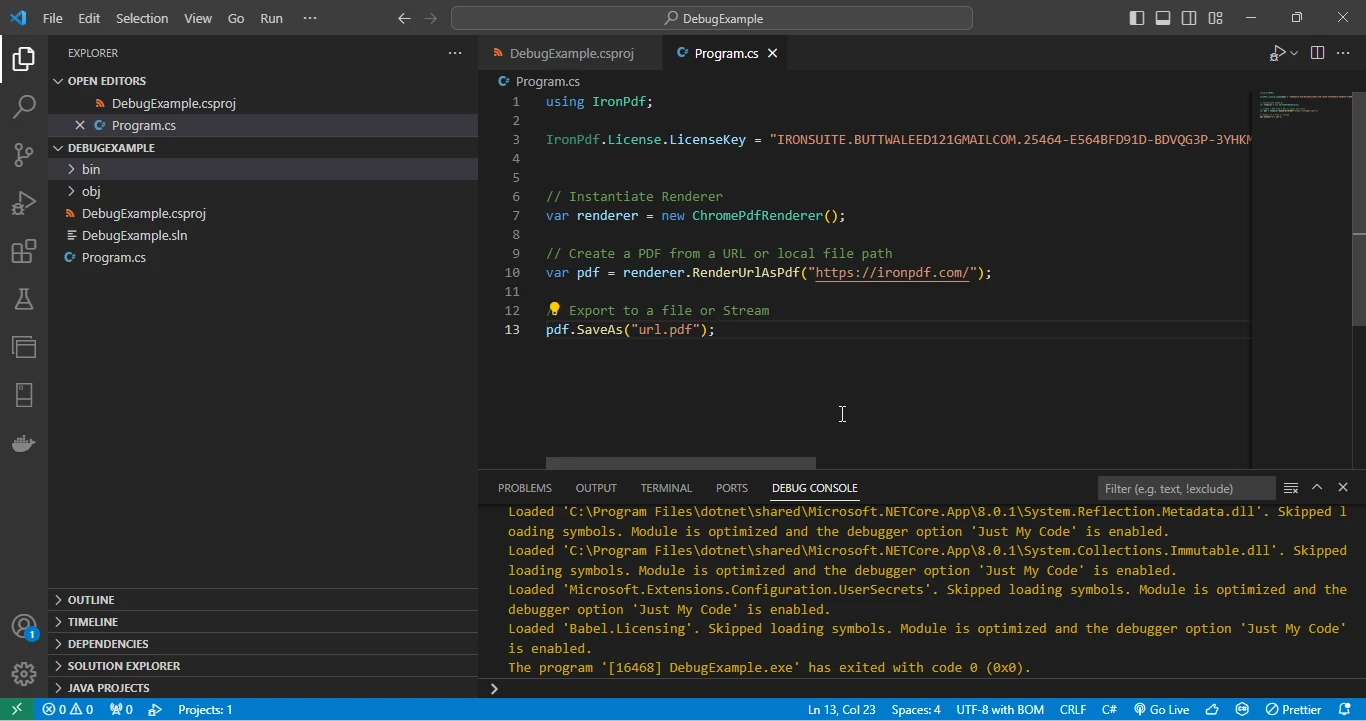
.NET 도움말 C# Dev Kit VS Code Extension (How It Works For Developers) 커티스 차우 업데이트됨:6월 22, 2025 다운로드 IronPDF NuGet 다운로드 DLL 다운로드 윈도우 설치 프로그램 무료 체험 시작하기 LLM용 사본 LLM용 사본 LLM용 마크다운 형식으로 페이지를 복사하세요 ChatGPT에서 열기 ChatGPT에 이 페이지에 대해 문의하세요 제미니에서 열기 제미니에게 이 페이지에 대해 문의하세요 Grok에서 열기 Grok에게 이 페이지에 대해 문의하세요 혼란 속에서 열기 Perplexity에게 이 페이지에 대해 문의하세요 공유하다 페이스북에 공유하기 트위터에 공유하기 LinkedIn에 공유하기 URL 복사 이메일로 기사 보내기 Visual Studio Code (VS Code) has become a popular choice among developers for its fast execution, lightweight, and versatile nature. Its extensibility allows developers to tailor their coding experience, and one of the standout features is the support for various programming languages through extensions. In this article, we'll delve into the realm of C# Development Kit for Visual Studio Code, specifically focusing on the C# development kit extension. We'll explore its features, installation, and usage with practical examples. We will also test the working of C# Dev Kit with an example of creating a PDF in Visual Studio Code using IronPDF. Setting the Stage: Visual Studio Code and C# Visual Studio Code Overview Visual Studio Code is a free, open-source code editor developed by Microsoft. It provides a powerful, cross-platform development environment with support for numerous programming languages. Despite its lightweight footprint, VS Code offers an array of features such as syntax highlighting, debugging support, and an extensive library of extensions. C# in Visual Studio Code C# (pronounced "C sharp") is a popular, modern programming language developed by Microsoft. It is widely used for building Windows applications, web applications, and backend services. While Visual Studio is the most popular integrated development environment (IDE) for C#, VS Code offers a lightweight alternative for C# development. The C# Dev Kit Extension Overview The C# extension for Visual Studio Code, often referred to as the C# development kit, is a vital tool for C# developers using the lightweight editor. It enhances the coding experience for code users by providing features like IntelliSense, debugging, and project management directly within VS Code. This extension bridges the gap between the robust capabilities of Visual Studio Professional and the simplicity of VS Code. Key Features IntelliSense IntelliSense is a code completion and suggestion feature that significantly boosts productivity. The C# extension brings powerful IntelliCode features to VS Code .NET Framework projects, offering context-aware code suggestions, method signatures, and documentation. Debugging Support Debugging is a crucial aspect of software development, and the C# extension makes it seamless within VS Code with expanded Test Explorer capabilities. Developers can set breakpoints, inspect variables, and step through code, all from the comfort of the lightweight editor. Project Management The C# extension facilitates project management tasks directly within VS Code's existing workspace view and solution management view. It can generate project files, handle dependencies, present a structured view, and integrate with build tools, streamlining the central project management development workflow with a new solution explorer view. Installation Installing the C# extension in Visual Studio Code is a straightforward process. Follow these steps: Open Visual Studio Code. Navigate to the Extensions view by clicking on the Extensions icon in the Activity Bar menu on the side of the window or using the keyboard shortcut Ctrl+Shift+X. Search for "C#" in the Extensions view search box. Locate the "C# for Visual Studio Code" extension from Microsoft and click the install button. Once installed, the C# extension is ready to use. However, depending on your project, additional configuration might be necessary. Configuration Configuring the C# extension involves specifying settings like the .NET Core SDK version, project file format, and debugging options. Here are some common configurations: Specify .NET Core SDK Version Open the command palette (Ctrl+Shift+P) and run the command "C# Change Project SDK." Select the desired .NET Core SDK version from the list. Choose Project File Format The C# extension supports both the traditional .csproj format and the new SDK-style format. To switch between them, use the command "C# Change Project File Format" from the command palette. Practical Examples Let's explore the capabilities of the C# extension through a couple of practical examples. Example 1: IntelliSense in Action Create a new C# file (example.cs) and type the following code: using System; class Program { static void Main() { Console.Wr } } using System; class Program { static void Main() { Console.Wr } } $vbLabelText $csharpLabel As you start typing Console.Wr, IntelliSense will kick in, providing suggestions like Write, WriteLine, and more. Select the desired method, and IntelliSense will complete the code snippet. Example 2: Debugging a C# Application Create a new console application using the following commands in the terminal: dotnet new console -n DebugExample cd DebugExample dotnet new console -n DebugExample cd DebugExample SHELL Open the Program.cs file and set a breakpoint at the Console.WriteLine line. Press F5 or use the "Run and Debug" option from the Run view. VS Code will launch the debugger, and the execution will stop at the breakpoint. You can inspect variables, step through code, and utilize all the debugging features provided by the C# extension. Introducing IronPDF IronPDF is a robust C# library designed to simplify and streamline the process of working with PDF documents in .NET applications. With its intuitive and developer-friendly API, IronPDF empowers C# developers to effortlessly create, manipulate, and render PDF files within their applications. Whether it's generating dynamic PDF content, merging or splitting existing PDFs, or converting HTML to PDF, IronPDF provides a comprehensive set of tools, making it a versatile solution for a wide range of PDF-related tasks. Its reliability, performance, and extensive feature set make IronPDF a go-to choice for developers seeking seamless integration of PDF functionality into their C# class library projects, ultimately enhancing the efficiency and functionality of their applications. Installing IronPDF To install IronPDF using the NuGet Package Manager in VS Code, follow these steps. First press (Ctrl+Shift+P) to open the command palette and select "NuGet Package Manager Add Package." Then write the word "IronPDF" in the Search Bar and press enter, and a list will appear. Select the IronPDF package, then select its latest version and press enter. It will add IronPDF to the project. Just restore the project or re-run it to install IronPDF. Creating PDF from URL in VS Code In this section, we will see how to create a PDF file from a URL using IronPDF in Visual Studio Code and the C# Dev Kit. Just write the below code in the program.cs file and run the program in Visual Studio Code. using IronPdf; // Instantiate Renderer var renderer = new ChromePdfRenderer(); // Create a PDF from a URL or local file path var pdf = renderer.RenderUrlAsPdf("https://ironpdf.com/"); // Export to a file or Stream pdf.SaveAs("url.pdf"); using IronPdf; // Instantiate Renderer var renderer = new ChromePdfRenderer(); // Create a PDF from a URL or local file path var pdf = renderer.RenderUrlAsPdf("https://ironpdf.com/"); // Export to a file or Stream pdf.SaveAs("url.pdf"); $vbLabelText $csharpLabel Visual Studio Code View Output Conclusion The C# Dev Kit extension for Visual Studio Code offers a compelling solution for C# developers, seamlessly integrating essential features like IntelliSense, debugging support, and project management into the lightweight VS Code environment. Its user-friendly installation and flexible configuration options enhance adaptability to diverse project needs, providing a streamlined development experience. The practical examples demonstrated the extension's productivity-boosting capabilities. Introducing IronPDF further extends the functionality, allowing for effortless integration of comprehensive PDF tools into C# projects. Together, the C# Dev Kit extension and IronPDF create a powerful toolkit for developers, combining simplicity with robust functionality to enhance the efficiency and capabilities of C# development in Visual Studio Code. To get started and know more about PDF creation in C# using IronPDF, visit the following comprehensive documentation. The detailed tutorial on converting URL to PDF can be found in the URL to PDF tutorial. To get the free trial license of IronPDF, visit the IronPDF Licensing Page. 자주 묻는 질문 Visual Studio Code용 C# 개발자 키트 확장이란 무엇인가요? Visual Studio Code용 C# 개발자 키트 확장 프로그램은 개발자가 경량 에디터 내에서 C# 프로젝트를 더 쉽게 작업할 수 있도록 인텔리센스, 디버깅 및 프로젝트 관리 도구와 같은 기능을 제공하여 코딩 환경을 개선합니다. Visual Studio Code에 C# 개발자 키트 확장 프로그램을 설치하려면 어떻게 해야 하나요? C# 개발자 키트 확장 프로그램을 설치하려면 Visual Studio Code를 열고 확장 프로그램 아이콘을 클릭하거나 Ctrl+Shift+X를 눌러 확장 프로그램 보기로 이동하여 'C# 개발자 키트'를 검색한 다음 Microsoft에서 제공하는 확장 프로그램을 설치합니다. C# 개발자 키트 확장 기능의 주요 기능은 무엇인가요? C# 개발자 키트 확장 프로그램은 코드 완성을 위한 IntelliSense, 테스트 탐색기 기능을 통한 디버깅 지원, 프로젝트 파일 생성 및 종속성 처리를 포함하는 프로젝트 관리 도구를 제공합니다. 프로젝트에 필요한 C# 개발자 키트 확장 프로그램은 어떻게 구성하나요? .NET Core SDK 버전과 같은 설정을 지정하여 C# 개발자 키트 확장을 구성할 수 있습니다. 명령 팔레트를 사용하여 'C# 프로젝트 SDK 변경'과 같은 명령을 실행하여 프로젝트 요구 사항에 맞게 구성을 조정할 수 있습니다. IntelliSense는 VS Code에서 C# 개발을 어떻게 개선하나요? IntelliSense는 컨텍스트 인식 코드 제안, 메서드 서명 및 문서를 제공하여 개발자가 보다 효율적이고 정확하게 코드를 작성할 수 있도록 지원함으로써 생산성을 향상시킵니다. C# 개발자 키트 확장 프로그램에서는 어떤 디버깅 기능을 사용할 수 있나요? C# 개발자 키트 확장 프로그램을 사용하면 중단점을 설정하고, 변수를 검사하고, 코드를 단계별로 살펴볼 수 있습니다. '실행 및 디버그' 옵션을 선택하거나 Visual Studio Code에서 F5를 눌러 디버깅을 시작할 수 있습니다. IronPDF는 VS Code에서 C# 프로젝트와 어떻게 통합되나요? IronPDF는 개발자가 .NET 애플리케이션 내에서 PDF 문서를 처리할 수 있는 라이브러리입니다. NuGet 패키지 관리자를 사용하여 C# 프로젝트에 통합할 수 있으므로 PDF 파일을 원활하게 생성, 조작 및 변환할 수 있습니다. VS Code를 사용하여 C# 프로젝트에 IronPDF를 설치하는 절차는 무엇인가요? IronPDF를 설치하려면 VS Code에서 Ctrl+Shift+P로 명령 팔레트를 열고 'NuGet 패키지 관리자 패키지 추가'를 선택한 후 'IronPDF'를 검색하고 패키지를 선택하여 C# 프로젝트에 추가하세요. Visual Studio Code에서 IronPDF를 사용하여 URL에서 PDF를 생성할 수 있나요? 예, program.cs 파일에 코드를 작성하여 ChromePdfRenderer 인스턴스를 생성하고 RenderUrlAsPdf 메서드를 활용하여 URL을 PDF로 변환함으로써 IronPDF를 사용하여 URL에서 PDF를 생성할 수 있습니다. C#에서 IronPDF를 사용하기 위한 추가 리소스는 어디에서 찾을 수 있나요? 자세한 내용은 URL을 PDF로 변환하는 작업 및 기타 PDF 조작 활동과 같은 작업에 대한 포괄적인 문서와 튜토리얼을 제공하는 IronPDF의 공식 웹사이트를 방문하세요. 커티스 차우 지금 바로 엔지니어링 팀과 채팅하세요 기술 문서 작성자 커티스 차우는 칼턴 대학교에서 컴퓨터 과학 학사 학위를 취득했으며, Node.js, TypeScript, JavaScript, React를 전문으로 하는 프론트엔드 개발자입니다. 직관적이고 미적으로 뛰어난 사용자 인터페이스를 만드는 데 열정을 가진 그는 최신 프레임워크를 활용하고, 잘 구성되고 시각적으로 매력적인 매뉴얼을 제작하는 것을 즐깁니다. 커티스는 개발 분야 외에도 사물 인터넷(IoT)에 깊은 관심을 가지고 있으며, 하드웨어와 소프트웨어를 통합하는 혁신적인 방법을 연구합니다. 여가 시간에는 게임을 즐기거나 디스코드 봇을 만들면서 기술에 대한 애정과 창의성을 결합합니다. 관련 기사 업데이트됨 12월 11, 2025 Bridging CLI Simplicity & .NET : Using Curl DotNet with IronPDF Jacob Mellor has bridged this gap with CurlDotNet, a library created to bring the familiarity of cURL to the .NET ecosystem. 더 읽어보기 업데이트됨 12월 20, 2025 RandomNumberGenerator C# Using the RandomNumberGenerator C# class can help take your PDF generation and editing projects to the next level 더 읽어보기 업데이트됨 12월 20, 2025 C# String Equals (How it Works for Developers) When combined with a powerful PDF library like IronPDF, switch pattern matching allows you to build smarter, cleaner logic for document processing 더 읽어보기 C# Ternary Operator (How It Works For Developers)C# Orderby (How It Works For Developers)
업데이트됨 12월 11, 2025 Bridging CLI Simplicity & .NET : Using Curl DotNet with IronPDF Jacob Mellor has bridged this gap with CurlDotNet, a library created to bring the familiarity of cURL to the .NET ecosystem. 더 읽어보기
업데이트됨 12월 20, 2025 RandomNumberGenerator C# Using the RandomNumberGenerator C# class can help take your PDF generation and editing projects to the next level 더 읽어보기
업데이트됨 12월 20, 2025 C# String Equals (How it Works for Developers) When combined with a powerful PDF library like IronPDF, switch pattern matching allows you to build smarter, cleaner logic for document processing 더 읽어보기