


Dapper C# (개발자를 위한 작동 방식)

현대 소프트웨어 개발에서는 데이터베이스에 효율적으로 액세스하는 것이 애플리케이션 성능 및 확장성에 매우 중요합니다. Dapper는 .NET용 경량 객체-관계 매핑(ORM)으로 데이터베이스 상호작용을 간소화합니다. 이 기사에서는 SQLite 데이터베이스 파일과 함께 Dapper C#을 사용하는 방법을 탐구하며, 코드 예제를 통해 간편함과 효과성을 설명합니다. 또한, Iron Software의 놀라운 PDF 생성 라이브러리 IronPDF를 소개하겠습니다.
Dapper란 무엇인가?
Dapper는 .NET 플랫폼을 위한 객체-관계 매핑(ORM) 프레임워크입니다. 이것은 객체 지향 도메인 모델을 전통적인 관계형 데이터베이스에 매핑할 수 있는 간단한 객체 매퍼입니다. Dapper는 속도와 성능으로 유명하며, 종종 "마이크로 ORM의 왕"으로 불리며, 원시 ADO.NET 데이터 리더의 속도와 일치하며, SQL 데이터베이스 쿼리에 유용한 확장 메서드를 IDbConnection 인터페이스에 추가합니다.
Dapper의 주요 기능
- 성능: Dapper는 경량 설계와 효율적인 객체 매핑 덕분에 우수한 성능으로 유명합니다.
- 단순성: Dapper의 API는 최소한이고 직관적이어서 개발자가 쉽게 이해하고 효과적으로 사용할 수 있습니다.
- 순수 SQL 지원: Dapper는 개발자가 순수 SQL 쿼리를 작성할 수 있게 하여 데이터베이스 상호작용에 대한 완전한 제어를 제공합니다.
- 객체 매핑: Dapper는 쿼리 결과를 C# 객체에 직접 매핑하여 보일러플레이트 코드를 줄이고 코드 가독성을 높입니다.
- 매개변수화된 쿼리: Dapper는 SQL 인젝션 공격으로부터 보호하고 성능을 향상시키는 매개변수화된 쿼리를 지원합니다.
- 멀티 매핑: Dapper는 일대다 및 다대다 관계를 원활하게 처리하여 여러 쿼리를 효율적으로 실행할 수 있게 하여 복잡한 데이터 검색을 단순화합니다.
Dapper를 사용한 비동기 데이터 액세스
Dapper는 개발자가 데이터베이스 쿼리를 비동기적으로 실행할 수 있게 비동기 확장 메서드를 제공합니다. 이 비동기 메서드는 데이터베이스 쿼리와 같은 I/O 바운드 작업에 이상적이며, 메인 스레드는 데이터베이스 작업이 완료되는 동안 다른 작업을 계속 실행할 수 있습니다.
Dapper의 주요 비동기 메서드
QueryAsync: SQL 쿼리를 비동기적으로 실행하고 결과를 동적 객체 또는 강력한 형식의 객체 시퀀스로 반환합니다.QueryFirstOrDefaultAsync: SQL 쿼리를 비동기적으로 실행하고 첫 번째 결과를 반환하거나 결과가 없으면 기본값을 반환합니다.ExecuteAsync: SQL 명령어(예: INSERT, UPDATE, DELETE)를 비동기적으로 실행하고 영향을 받은 행의 수를 반환합니다.
환경 설정: 코드 예제를 시작하기 전에 필요한 도구가 설치되어 있는지 확인하세요:
- Visual Studio 또는 Visual Studio Code.
- .NET SDK.
- .NET용 SQLite 패키지.
SQLite 패키지를 설치하려면 프로젝트 디렉터리에서 다음 명령을 실행하세요:
dotnet add package Microsoft.Data.Sqlitedotnet add package Microsoft.Data.SqliteSQLite 데이터베이스 생성: 시연을 위해 'example.db'라는 이름의 간단한 SQLite 데이터베이스 파일을 만들고 'Id', 'Name', 'Email' 열이 포함된 'Users' 테이블을 만듭니다.
CREATE TABLE Users (
    Id INTEGER PRIMARY KEY,
    Name TEXT,
    Email TEXT
);
SQLite와 함께 Dapper 사용하기
- 먼저 필요한 네임스페이스가 가져와졌는지 확인하세요:
using Microsoft.Data.Sqlite;
using Dapper;
using Microsoft.Data.Sqlite;
using Dapper;Imports Microsoft.Data.Sqlite
Imports Dapper-
SQLite 데이터베이스에 연결을 설정하세요:
string connectionString = "Data Source=example.db"; // SQLite database connection string
using (var connection = new SqliteConnection(connectionString))
{
    connection.Open();
    // Your Dapper queries will go here
}
string connectionString = "Data Source=example.db"; // SQLite database connection string using (var connection = new SqliteConnection(connectionString)) { connection.Open(); // Your Dapper queries will go here }Dim connectionString As String = "Data Source=example.db" ' SQLite database connection string Using connection = New SqliteConnection(connectionString) connection.Open() ' Your Dapper queries will go here End Using$vbLabelText $csharpLabel -
Dapper로 쿼리를 실행하세요:
// Define a class to represent the structure of a user
public class User
{
    public int Id { get; set; }
    public string Name { get; set; }
    public string Email { get; set; }
}

// Query to select all users
string query = "SELECT * FROM Users"; // SQL query
var users = connection.Query<User>(query).ToList();

// Display the results
foreach (var user in users)
{
    Console.WriteLine($"Id: {user.Id}, Name: {user.Name}, Email: {user.Email}");
}
// Define a class to represent the structure of a user public class User { public int Id { get; set; } public string Name { get; set; } public string Email { get; set; } } // Query to select all users string query = "SELECT * FROM Users"; // SQL query var users = connection.Query<User>(query).ToList(); // Display the results foreach (var user in users) { Console.WriteLine($"Id: {user.Id}, Name: {user.Name}, Email: {user.Email}"); }' Define a class to represent the structure of a user Public Class User Public Property Id() As Integer Public Property Name() As String Public Property Email() As String End Class ' Query to select all users Private query As String = "SELECT * FROM Users" ' SQL query Private users = connection.Query(Of User)(query).ToList() ' Display the results For Each user In users Console.WriteLine($"Id: {user.Id}, Name: {user.Name}, Email: {user.Email}") Next user$vbLabelText $csharpLabel -
Dapper를 사용하여 데이터베이스에 데이터를 삽입하세요:
// Define a new user
var newUser = new User { Name = "John Doe", Email = "john@example.com" };

// SQL query/stored procedure to insert a new user
string insertQuery = "INSERT INTO Users (Name, Email) VALUES (@Name, @Email)";

// Execute the query
connection.Execute(insertQuery, newUser);
// Define a new user var newUser = new User { Name = "John Doe", Email = "john@example.com" }; // SQL query/stored procedure to insert a new user string insertQuery = "INSERT INTO Users (Name, Email) VALUES (@Name, @Email)"; // Execute the query connection.Execute(insertQuery, newUser);' Define a new user Dim newUser = New User With { .Name = "John Doe", .Email = "john@example.com" } ' SQL query/stored procedure to insert a new user Dim insertQuery As String = "INSERT INTO Users (Name, Email) VALUES (@Name, @Email)" ' Execute the query connection.Execute(insertQuery, newUser)$vbLabelText $csharpLabel
IronPDF 소개합니다
IronPDF는 Iron Software에서 제공하는 C# 라이브러리로, 개발자가 .NET 애플리케이션 내에서 프로그래밍 방식으로 PDF 문서를 생성, 편집 및 조작할 수 있게 합니다. HTML, 이미지 등 다양한 형식에서 PDF 문서를 생성하고, 기존 PDF 파일에 텍스트, 이미지 및 다양한 요소를 추가하는 기능을 제공합니다. IronPDF는 .NET 개발자를 위해 PDF 생성 및 조작 작업을 쉽게 하기 위한 종합적인 도구 및 API 세트를 제공합니다.
IronPDF는 .NET 애플리케이션 내에서 PDF 생성 및 조작을 위한 다양한 기능을 제공합니다:
- HTML에서 PDF 변환: CSS 스타일을 포함한 HTML 콘텐츠를 PDF 문서로 변환합니다.
- 이미지에서 PDF 변환: 이미지(JPEG, PNG, BMP 등)를 PDF 문서로 변환합니다.
- 텍스트에서 PDF 변환: 일반 텍스트 또는 서식 있는 텍스트(RTF)를 PDF 문서로 변환합니다.
- PDF 생성: 프로그래밍 방식으로 처음부터 PDF 문서를 생성합니다.
- PDF 편집: 기존 PDF 문서에 텍스트, 이미지 및 기타 요소를 추가하거나 수정합니다.
- PDF 병합 및 분할: 여러 PDF 문서를 하나의 문서로 결합하거나, PDF 문서를 여러 파일로 분할합니다.
- PDF 보안: PDF 문서에 암호 보호 및 암호화를 적용하여 접근을 제한하고 민감한 정보를 보호합니다.
- PDF 양식 채우기: 프로그래밍 방식으로 PDF 양식에 데이터를 채웁니다.
- PDF 인쇄: .NET 애플리케이션에서 직접 PDF 문서를 인쇄합니다.
- PDF 변환 설정: 페이지 크기, 방향, 여백, 압축 등 PDF 생성 시 다양한 설정을 사용자 정의합니다.
- PDF 텍스트 추출: 추가 처리 또는 분석을 위해 PDF 문서에서 텍스트 콘텐츠를 추출합니다.
- PDF 메타데이터: PDF 문서의 메타데이터(작성자, 제목, 주제, 키워드)를 설정합니다.
IronPDF와 Dapper로 PDF 문서 생성하기
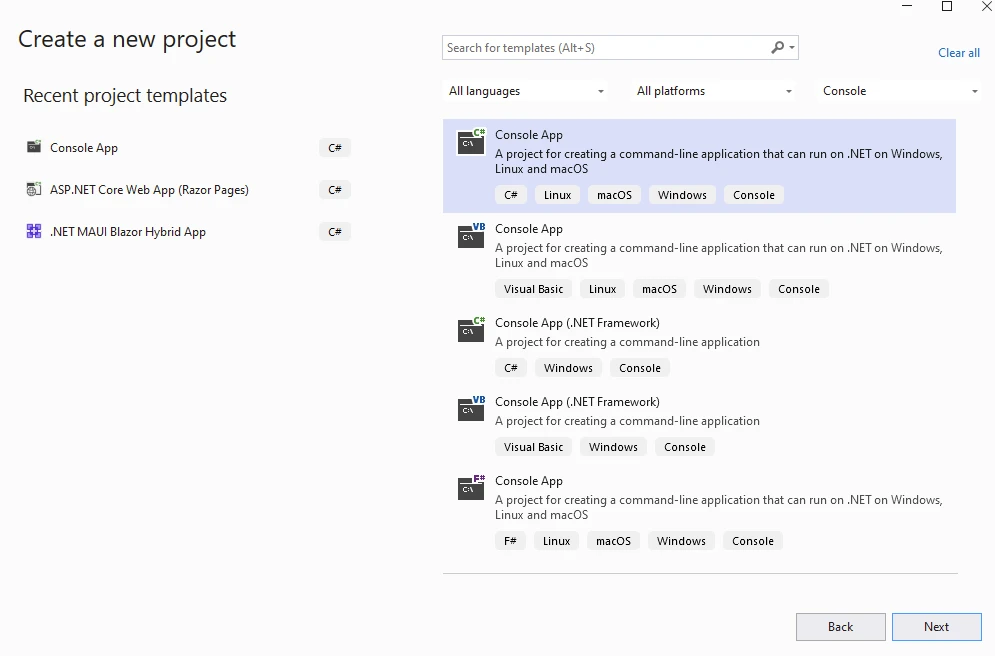
Visual Studio에서 콘솔 애플리케이션 만들기
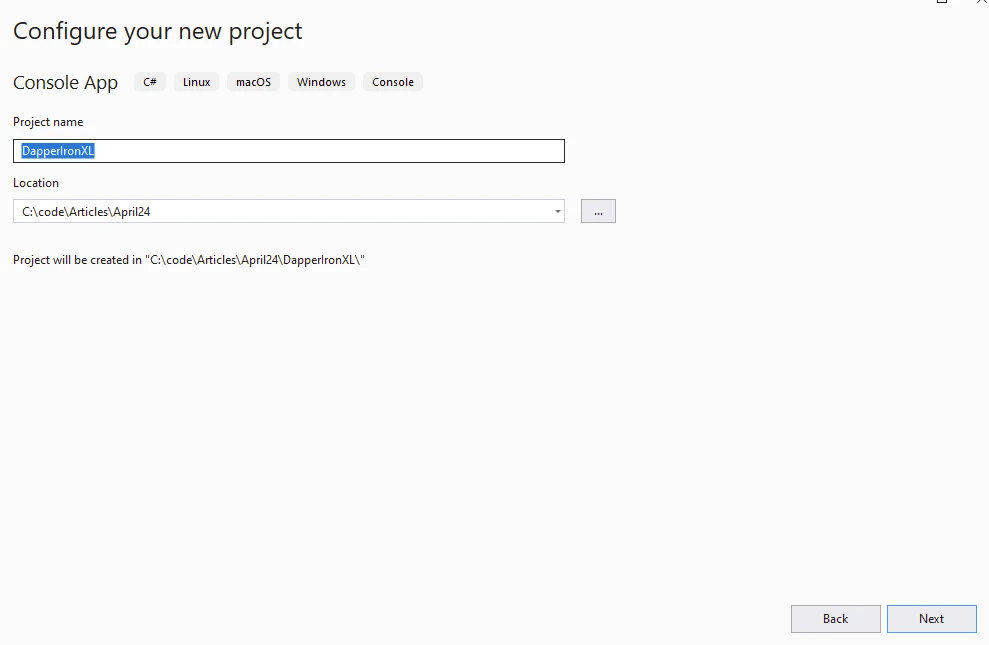
프로젝트 이름과 위치 지정
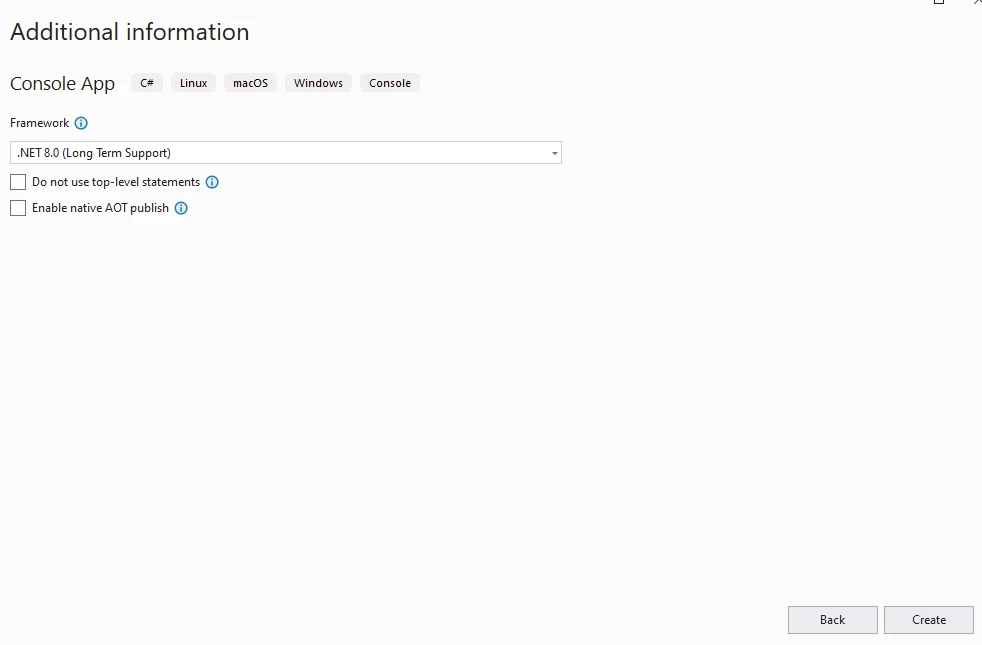
.NET 버전 선택
Visual Studio 패키지 관리자 또는 콘솔에서 다음 패키지를 설치합니다
dotnet add package Microsoft.Data.Sqlitedotnet add package Microsoft.Data.Sqlite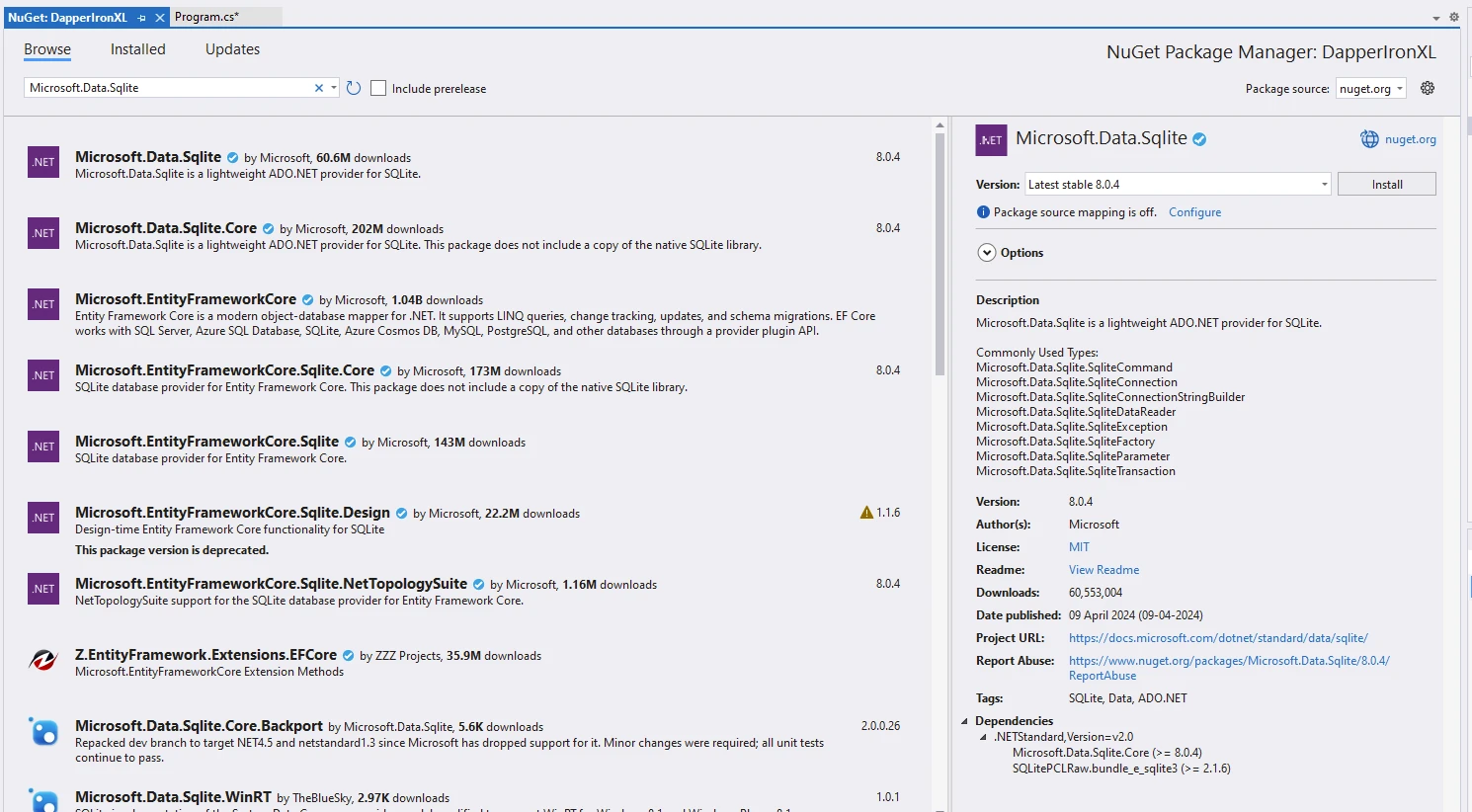
dotnet add package Dapper --version 2.1.35dotnet add package Dapper --version 2.1.35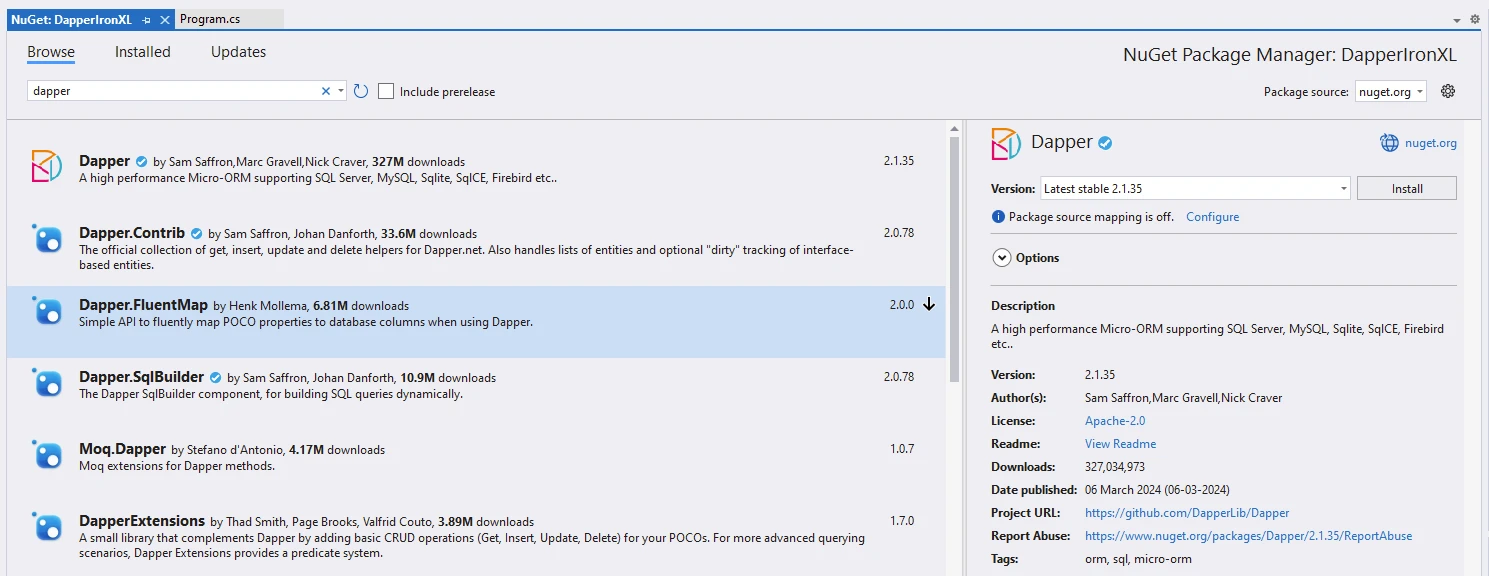
dotnet add package IronPdf --version 2024.4.2dotnet add package IronPdf --version 2024.4.2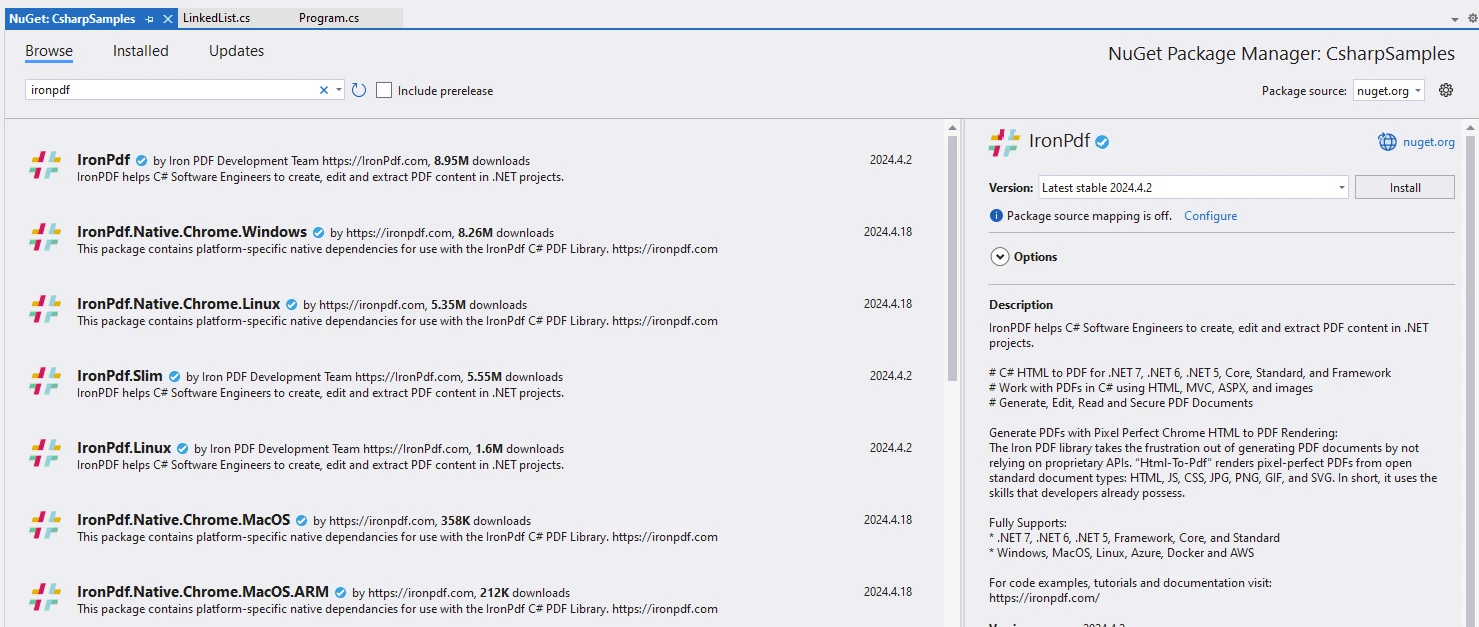
다음 코드를 사용하여 PDF 문서를 생성하세요:
using Dapper; // Import Dapper for ORM functionalities
using IronPdf; // Import IronPDF for PDF generation
using Microsoft.Data.Sqlite; // Import Sqlite for database connection

// Define the connection string for SQLite database
string connectionString = "Data Source=ironPdf.db";

// Create a string to hold the content for the PDF document
var content = "<h1>Demonstrate IronPDF with Dapper</h1>";

// Add HTML content
content += "<h2>Create a new database using Microsoft.Data.Sqlite</h2>";
content += "<p>new SqliteConnection(connectionString) and connection.Open()</p>";

// Open the database connection
using (var connection = new SqliteConnection(connectionString))
{
    connection.Open();

    // Create a Users Table using Dapper
    content += "<h2>Create a Users Table using Dapper and SQL insert query</h2>";
    content += "<p>CREATE TABLE IF NOT EXISTS Users</p>";

    // SQL statement to create a Users table
    string sql = "CREATE TABLE IF NOT EXISTS Users (\n    Id INTEGER PRIMARY KEY,\n    Name TEXT,\n    Email TEXT\n);";
    connection.Execute(sql);

    // Add Users to table using Dapper
    content += "<h2>Add Users to table using Dapper</h2>";
    content += AddUser(connection, new User { Name = "John Doe", Email = "john@example.com" });
    content += AddUser(connection, new User { Name = "Smith William", Email = "Smith@example.com" });
    content += AddUser(connection, new User { Name = "Rock Bill", Email = "Rock@example.com" });
    content += AddUser(connection, new User { Name = "Jack Sparrow", Email = "Jack@example.com" });
    content += AddUser(connection, new User { Name = "Tomus Tibe", Email = "Tomus@example.com" });

    // Retrieve and display users from database
    content += "<h2>Get Users From table using Dapper</h2>";
    string query = "SELECT * FROM Users";
    var users = connection.Query<User>(query).ToList();

    // Display each user detail retrieved from the database
    foreach (var user in users)
    {
        content += $"<p>Id:{user.Id}, Name:{user.Name}, email: {user.Email}</p>";
        Console.WriteLine($"{user.Id}. User Name:{user.Name}, Email:{user.Email}");
    }

    // Create PDF from the accumulated HTML content
    var renderer = new ChromePdfRenderer();
    var pdf = renderer.RenderHtmlAsPdf(content);

    // Save the PDF to a file
    pdf.SaveAs("dapper.pdf");
}

// Method to add user to the database and accumulate HTML content
string AddUser(SqliteConnection sqliteConnection, User user)
{
    string insertQuery = "INSERT INTO Users (Name, Email) VALUES (@Name, @Email)";
    sqliteConnection.Execute(insertQuery, user);
    return $"<p>Name:{user.Name}, email: {user.Email}</p>";
}
using Dapper; // Import Dapper for ORM functionalities
using IronPdf; // Import IronPDF for PDF generation
using Microsoft.Data.Sqlite; // Import Sqlite for database connection
// Define the connection string for SQLite database
string connectionString = "Data Source=ironPdf.db";
// Create a string to hold the content for the PDF document
var content = "<h1>Demonstrate IronPDF with Dapper</h1>";
// Add HTML content
content += "<h2>Create a new database using Microsoft.Data.Sqlite</h2>";
content += "<p>new SqliteConnection(connectionString) and connection.Open()</p>";
// Open the database connection
using (var connection = new SqliteConnection(connectionString))
{
connection.Open();
// Create a Users Table using Dapper
content += "<h2>Create a Users Table using Dapper and SQL insert query</h2>";
content += "<p>CREATE TABLE IF NOT EXISTS Users</p>";
// SQL statement to create a Users table
string sql = "CREATE TABLE IF NOT EXISTS Users (\n Id INTEGER PRIMARY KEY,\n Name TEXT,\n Email TEXT\n);";
connection.Execute(sql);
// Add Users to table using Dapper
content += "<h2>Add Users to table using Dapper</h2>";
content += AddUser(connection, new User { Name = "John Doe", Email = "john@example.com" });
content += AddUser(connection, new User { Name = "Smith William", Email = "Smith@example.com" });
content += AddUser(connection, new User { Name = "Rock Bill", Email = "Rock@example.com" });
content += AddUser(connection, new User { Name = "Jack Sparrow", Email = "Jack@example.com" });
content += AddUser(connection, new User { Name = "Tomus Tibe", Email = "Tomus@example.com" });
// Retrieve and display users from database
content += "<h2>Get Users From table using Dapper</h2>";
string query = "SELECT * FROM Users";
var users = connection.Query<User>(query).ToList();
// Display each user detail retrieved from the database
foreach (var user in users)
{
content += $"<p>Id:{user.Id}, Name:{user.Name}, email: {user.Email}</p>";
Console.WriteLine($"{user.Id}. User Name:{user.Name}, Email:{user.Email}");
}
// Create PDF from the accumulated HTML content
var renderer = new ChromePdfRenderer();
var pdf = renderer.RenderHtmlAsPdf(content);
// Save the PDF to a file
pdf.SaveAs("dapper.pdf");
}
// Method to add user to the database and accumulate HTML content
string AddUser(SqliteConnection sqliteConnection, User user)
{
string insertQuery = "INSERT INTO Users (Name, Email) VALUES (@Name, @Email)";
sqliteConnection.Execute(insertQuery, user);
return $"<p>Name:{user.Name}, email: {user.Email}</p>";
}Imports Microsoft.VisualBasic
Imports Dapper ' Import Dapper for ORM functionalities
Imports IronPdf ' Import IronPDF for PDF generation
Imports Microsoft.Data.Sqlite ' Import Sqlite for database connection
' Define the connection string for SQLite database
Private connectionString As String = "Data Source=ironPdf.db"
' Create a string to hold the content for the PDF document
Private content = "<h1>Demonstrate IronPDF with Dapper</h1>"
' Add HTML content
Private content &= "<h2>Create a new database using Microsoft.Data.Sqlite</h2>"
Private content &= "<p>new SqliteConnection(connectionString) and connection.Open()</p>"
' Open the database connection
Using connection = New SqliteConnection(connectionString)
connection.Open()
' Create a Users Table using Dapper
content &= "<h2>Create a Users Table using Dapper and SQL insert query</h2>"
content &= "<p>CREATE TABLE IF NOT EXISTS Users</p>"
' SQL statement to create a Users table
Dim sql As String = "CREATE TABLE IF NOT EXISTS Users (" & vbLf & " Id INTEGER PRIMARY KEY," & vbLf & " Name TEXT," & vbLf & " Email TEXT" & vbLf & ");"
connection.Execute(sql)
' Add Users to table using Dapper
content &= "<h2>Add Users to table using Dapper</h2>"
content += AddUser(connection, New User With {
.Name = "John Doe",
.Email = "john@example.com"
})
content += AddUser(connection, New User With {
.Name = "Smith William",
.Email = "Smith@example.com"
})
content += AddUser(connection, New User With {
.Name = "Rock Bill",
.Email = "Rock@example.com"
})
content += AddUser(connection, New User With {
.Name = "Jack Sparrow",
.Email = "Jack@example.com"
})
content += AddUser(connection, New User With {
.Name = "Tomus Tibe",
.Email = "Tomus@example.com"
})
' Retrieve and display users from database
content &= "<h2>Get Users From table using Dapper</h2>"
Dim query As String = "SELECT * FROM Users"
Dim users = connection.Query(Of User)(query).ToList()
' Display each user detail retrieved from the database
For Each user In users
content += $"<p>Id:{user.Id}, Name:{user.Name}, email: {user.Email}</p>"
Console.WriteLine($"{user.Id}. User Name:{user.Name}, Email:{user.Email}")
Next user
' Create PDF from the accumulated HTML content
Dim renderer = New ChromePdfRenderer()
Dim pdf = renderer.RenderHtmlAsPdf(content)
' Save the PDF to a file
pdf.SaveAs("dapper.pdf")
End Using
' Method to add user to the database and accumulate HTML content
'INSTANT VB TODO TASK: Local functions are not converted by Instant VB:
'string AddUser(SqliteConnection sqliteConnection, User user)
'{
' string insertQuery = "INSERT INTO Users (Name, Email) VALUES (@Name, @Email)";
' sqliteConnection.Execute(insertQuery, user);
' Return string.Format("<p>Name:{0}, email: {1}</p>", user.Name, user.Email);
'}코드 설명
- PDF 생성을 위한 문자열 콘텐츠 보관소를 만듭니다.
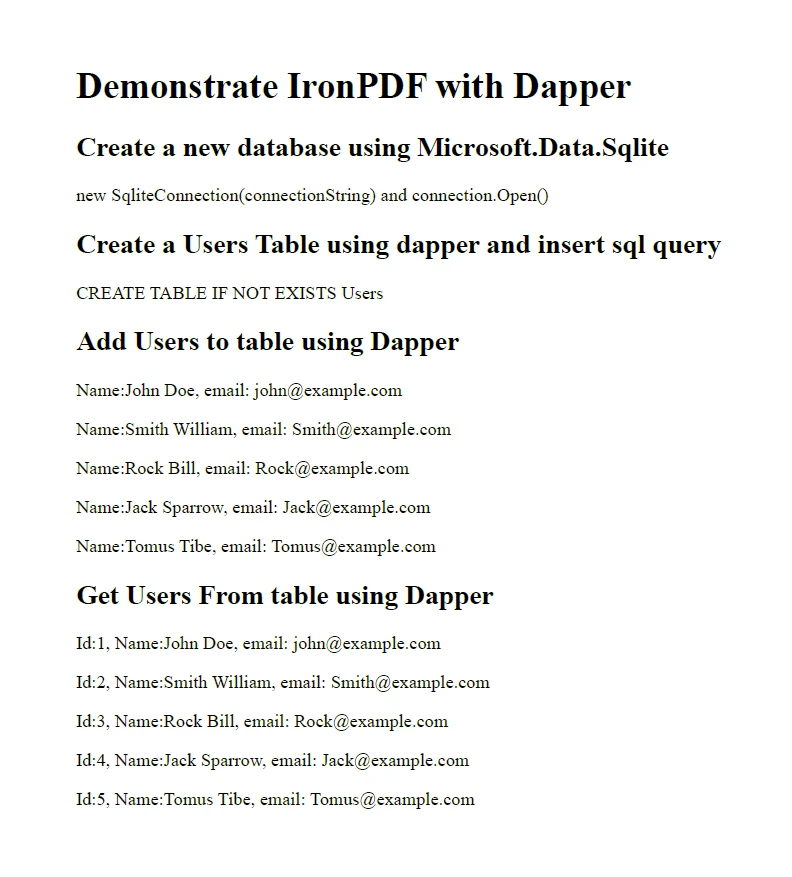
Microsoft.Data.Sqlite을(를) 사용하여 새 데이터베이스를 생성합니다.connection.Open()은(는) 빈 데이터베이스를 생성합니다.- Dapper을 사용하여
Users테이블을 생성하고 삽입을 위한 SQL 쿼리를 실행합니다. - Dapper로 삽입 쿼리를 통해 테이블에 사용자를 추가합니다.
- 데이터베이스에서 모든 사용자를 선택하는 쿼리.
- IronPDF에서 제공하는
ChromePdfRenderer및SaveAs메서드를 사용하여 생성된 콘텐츠를 PDF로 저장합니다.
산출
라이선스 (IronPDF 체험판 사용 가능)
IronPDF의 라이선스 정보는 프로젝트 내 사용 및 준수를 보장하기 위해 사용할 수 있습니다.
개발자는 IronPDF 체험판 라이선스 페이지를 통해 체험판 라이선스를 받을 수 있습니다.
아래에 표시된 appSettings.json 파일에서 키를 교체하세요.
{
  "IronPdf.License.LicenseKey" : "The Key Goes Here"
}
결론
Dapper는 .NET 애플리케이션에서 데이터 접근을 간소화하며, SQLite와 결합하면 데이터베이스를 관리하기 위한 경량 및 효율적인 솔루션을 제공합니다. 이 기사에 설명된 단계를 따르면, Dapper를 활용하여 SQLite 데이터베이스와 원활하게 상호작용할 수 있으며, 견고하고 확장 가능한 애플리케이션을 쉽게 구축할 수 있습니다. IronPDF와 함께, 개발자들은 Dapper와 같은 ORM 데이터베이스 및 IronPDF과 같은 PDF 생성 라이브러리와 관련된 기술을 습득할 수 있습니다.
자주 묻는 질문
C#에서 Dapper란 무엇인가요?
Dapper는 속도와 성능으로 알려진 .NET 플랫폼용 객체-관계 매핑(ORM) 프레임워크입니다. 이는 객체 지향 도메인 모델을 전통적인 관계형 데이터베이스에 매핑할 수 있게 합니다.
Dapper는 데이터베이스 작업에서 어떻게 성능을 개선하나요?
Dapper는 가볍고 객체 매핑을 효율적으로 수행하며, 원시 ADO.NET 데이터 리더의 속도를 맞추고 SQL 데이터베이스 쿼리에 유용한 확장 메서드를 제공하여 IDbConnection 인터페이스를 향상시킵니다.
Dapper로 비동기 데이터 액세스를 어떻게 수행하나요?
Dapper는 QueryAsync, QueryFirstOrDefaultAsync, ExecuteAsync와 같은 비동기 확장 메서드를 제공하여 데이터베이스 쿼리를 비동기로 실행할 수 있게 하며, 이는 I/O-바운드 작업에 이상적입니다.
.NET 애플리케이션에 PDF 생성을 어떻게 통합하나요?
IronPDF를 사용하여 .NET 애플리케이션에 PDF 생성을 통합할 수 있습니다. 이는 HTML, 이미지 및 텍스트를 PDF로 변환하고 기존 PDF를 편집하는 등의 프로그램적 PDF 문서 생성, 편집 및 조작을 허용합니다.
Dapper와 SQLite를 사용하기 위한 환경을 어떻게 설정하나요?
환경을 설정하기 위해서는 Visual Studio 또는 Visual Studio Code가 필요하며, .NET SDK와 .NET용 SQLite 패키지를 포함해야 합니다. 이러한 패키지는 dotnet CLI를 사용하여 설치할 수 있습니다.
데이터베이스 쿼리 결과에서 PDF 보고서를 어떻게 생성하나요?
Dapper에서 데이터를 먼저 검색한 후 IronPDF의 기능을 사용하여 출력을 PDF로 포맷팅하여 IronPDF를 사용해 데이터베이스 쿼리 결과에서 PDF 보고서를 생성하십시오.
C#에서 Dapper를 사용하여 SQLite 데이터베이스를 어떻게 생성하고 쿼리하나요?
SqliteConnection과 연결을 수립하고 Dapper의 Execute 메서드를 사용하여 SQL 쿼리를 실행하여 SQLite 데이터베이스를 생성하십시오. Dapper의 Query 메서드를 사용하여 데이터를 효율적으로 검색하여 데이터베이스를 쿼리할 수 있습니다.
Dapper가 복잡한 데이터 관계를 처리할 수 있나요?
네, Dapper는 복잡한 데이터 검색을 간소화하는 다중 매핑 기능을 사용하여 1:다 및 다:다 관계를 처리할 수 있습니다.
.NET에서 PDF 생성 라이브러리를 사용하는 이점은 무엇인가요?
IronPDF와 같은 PDF 생성 라이브러리는 HTML을 PDF로 변환, PDF 편집, 병합, 분할 및 보안 기능을 제공하여 .NET 애플리케이션을 강화합니다.
IronPDF 체험판 라이센스를 어떻게 얻나요?
IronPDF 체험판 라이센스는 IronPDF 체험판 라이센스 페이지를 통해 얻을 수 있습니다. 라이센스 키는 프로젝트 구성에 포함되어야 합니다.










 무료로 시작하세요
 무료로 시작하세요
 무료 라이브 데모 예약하기





 신용카드나 계정 생성은 필요하지 않습니다.










