


Dapper C# (How It Works For Developers)

In modern software development, accessing databases efficiently is crucial for application performance and scalability. Dapper, a lightweight Object-Relational Mapper (ORM) for .NET, offers a streamlined approach to database interaction. In this article, we'll explore how to use Dapper C# with an SQLite database file, demonstrating its simplicity and effectiveness through code examples. Additionally, I will introduce the remarkable PDF generation library called IronPDF from Iron Software.
What is Dapper?
Dapper is an object-relational mapping (ORM) framework for the .NET platform. It is a simple object mapper that allows you to map an object-oriented domain model to a traditional relational database. Dapper is known for its speed and performance, often referred to as the "King of Micro ORM." It matches the speed of a raw ADO.NET data reader and enhances the IDbConnection interface with useful extension methods for querying SQL databases.
Key Features of Dapper
- Performance: Dapper is known for its excellent performance due to its lightweight design and efficient object mapping.
- Simplicity: Dapper's API is minimalistic and intuitive, making it easy for developers to grasp and use effectively.
- Raw SQL Support: Dapper allows developers to write raw SQL queries, providing full control over database interactions.
- Object Mapping: Dapper maps query results directly to C# objects, reducing boilerplate code and enhancing code readability.
- Parameterized Queries: Dapper supports parameterized queries, protecting against SQL injection attacks and improving performance.
- Multi-Mapping: Dapper seamlessly handles one-to-many and many-to-many relationships, allowing for multiple queries to be executed efficiently, thus simplifying complex data retrieval.
Asynchronous Data Access with Dapper
Dapper offers asynchronous extension methods that mirror its synchronous counterparts, allowing developers to execute database queries asynchronously. These asynchronous methods are ideal for I/O-bound operations, such as database queries, where the main thread can continue executing other tasks while waiting for the database operation to complete.
Key Asynchronous Methods in Dapper
QueryAsync: Executes a SQL query asynchronously and returns the result as a sequence of dynamic objects or strongly typed objects.QueryFirstOrDefaultAsync: Executes a SQL query asynchronously and returns the first result or a default value if no result is found.ExecuteAsync: Executes a SQL command asynchronously (e.g., INSERT, UPDATE, DELETE) and returns the number of affected rows.
Setting Up the Environment: Before diving into code examples, ensure you have the necessary tools installed:
- Visual Studio or Visual Studio Code.
- .NET SDK.
- SQLite package for .NET.
To install the SQLite package, execute the following command in your project directory:
dotnet add package Microsoft.Data.Sqlitedotnet add package Microsoft.Data.SqliteCreating an SQLite Database: For demonstration purposes, let's create a simple SQLite database file named "example.db" with a "Users" table containing columns for "Id," "Name," and "Email."
CREATE TABLE Users (
    Id INTEGER PRIMARY KEY,
    Name TEXT,
    Email TEXT
);
Using Dapper with SQLite
-
First, ensure you have the necessary namespaces imported:
using Microsoft.Data.Sqlite;
using Dapper;
using Microsoft.Data.Sqlite; using Dapper;Imports Microsoft.Data.Sqlite Imports Dapper$vbLabelText $csharpLabel -
Establish a connection to the SQLite database:
string connectionString = "Data Source=example.db"; // SQLite database connection string
using (var connection = new SqliteConnection(connectionString))
{
   connection.Open();
   // Your Dapper queries will go here
}
string connectionString = "Data Source=example.db"; // SQLite database connection string using (var connection = new SqliteConnection(connectionString)) { connection.Open(); // Your Dapper queries will go here }Imports Microsoft.Data.Sqlite Dim connectionString As String = "Data Source=example.db" ' SQLite database connection string Using connection As New SqliteConnection(connectionString) connection.Open() ' Your Dapper queries will go here End Using$vbLabelText $csharpLabel -
Execute a query with Dapper:
// Define a class to represent the structure of a user
public class User
{
   public int Id { get; set; }
   public string Name { get; set; }
   public string Email { get; set; }
}

// Query to select all users
string query = "SELECT * FROM Users"; // SQL query
var users = connection.Query<User>(query).ToList();

// Display the results
foreach (var user in users)
{
   Console.WriteLine($"Id: {user.Id}, Name: {user.Name}, Email: {user.Email}");
}
// Define a class to represent the structure of a user public class User { public int Id { get; set; } public string Name { get; set; } public string Email { get; set; } } // Query to select all users string query = "SELECT * FROM Users"; // SQL query var users = connection.Query<User>(query).ToList(); // Display the results foreach (var user in users) { Console.WriteLine($"Id: {user.Id}, Name: {user.Name}, Email: {user.Email}"); }Imports System Imports System.Collections.Generic Imports System.Linq ' Define a class to represent the structure of a user Public Class User Public Property Id As Integer Public Property Name As String Public Property Email As String End Class ' Query to select all users Dim query As String = "SELECT * FROM Users" ' SQL query Dim users As List(Of User) = connection.Query(Of User)(query).ToList() ' Display the results For Each user In users Console.WriteLine($"Id: {user.Id}, Name: {user.Name}, Email: {user.Email}") Next$vbLabelText $csharpLabel -
Insert data into the database using Dapper:
// Define a new user
var newUser = new User { Name = "John Doe", Email = "john@example.com" };

// SQL query/stored procedure to insert a new user
string insertQuery = "INSERT INTO Users (Name, Email) VALUES (@Name, @Email)";

// Execute the query
connection.Execute(insertQuery, newUser);
// Define a new user var newUser = new User { Name = "John Doe", Email = "john@example.com" }; // SQL query/stored procedure to insert a new user string insertQuery = "INSERT INTO Users (Name, Email) VALUES (@Name, @Email)"; // Execute the query connection.Execute(insertQuery, newUser);' Define a new user Dim newUser = New User With { .Name = "John Doe", .Email = "john@example.com" } ' SQL query/stored procedure to insert a new user Dim insertQuery As String = "INSERT INTO Users (Name, Email) VALUES (@Name, @Email)" ' Execute the query connection.Execute(insertQuery, newUser)$vbLabelText $csharpLabel
Introducing IronPDF
IronPDF is a C# library from Iron Software that allows developers to create, edit, and manipulate PDF documents programmatically within .NET applications. It provides features like generating PDF documents from HTML, images, and other formats, as well as adding text, images, and various elements to existing PDF files. IronPDF aims to simplify PDF generation and manipulation tasks for .NET developers by providing a comprehensive set of tools and APIs.
IronPDF offers a range of features for PDF generation and manipulation within .NET applications:
- HTML to PDF Conversion: Convert HTML content, including CSS styles, into PDF documents.
- Image to PDF Conversion: Convert images (such as JPEG, PNG, BMP) to PDF documents.
- Text to PDF Conversion: Convert plain text or formatted text (RTF) to PDF documents.
- PDF Generation: Create PDF documents from scratch programmatically.
- PDF Editing: Edit existing PDF documents by adding or modifying text, images, and other elements.
- PDF Merging and Splitting: Combine multiple PDF documents into a single document, or split a PDF document into multiple files.
- PDF Security: Apply password protection and encryption to PDF documents to restrict access and protect sensitive information.
- PDF Form Filling: Populate PDF forms with data programmatically.
- PDF Printing: Print PDF documents directly from your .NET application.
- PDF Conversion Settings: Customize various settings such as page size, orientation, margins, compression, and more during PDF generation.
- PDF Text Extraction: Extract text content from PDF documents for further processing or analysis.
- PDF Metadata: Set metadata (author, title, subject, keywords) for PDF documents.
Generating PDF documents with IronPDF and Dapper
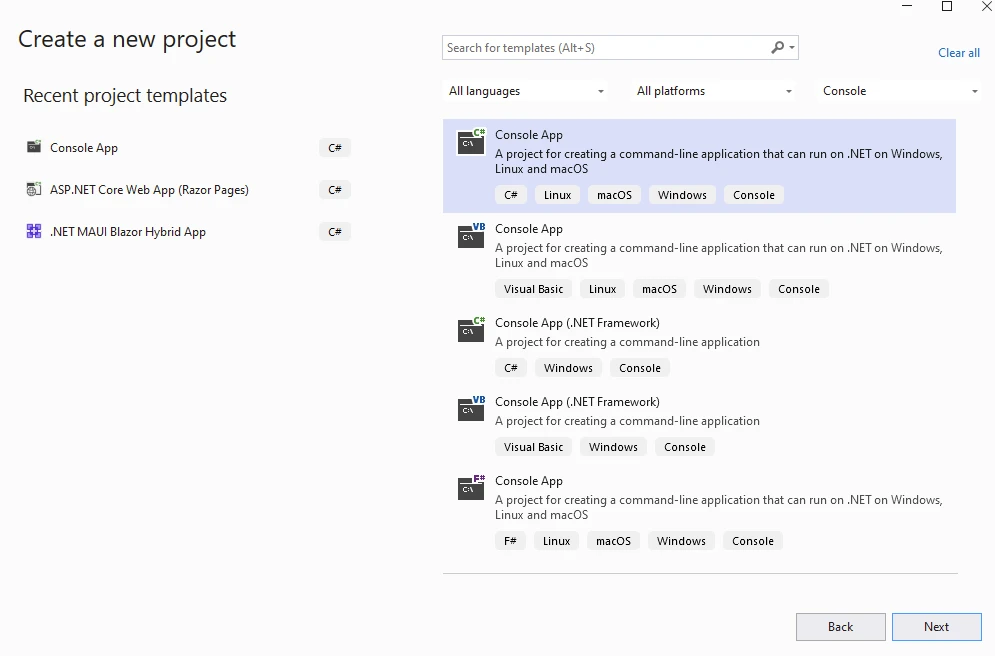
Create a console application in Visual Studio
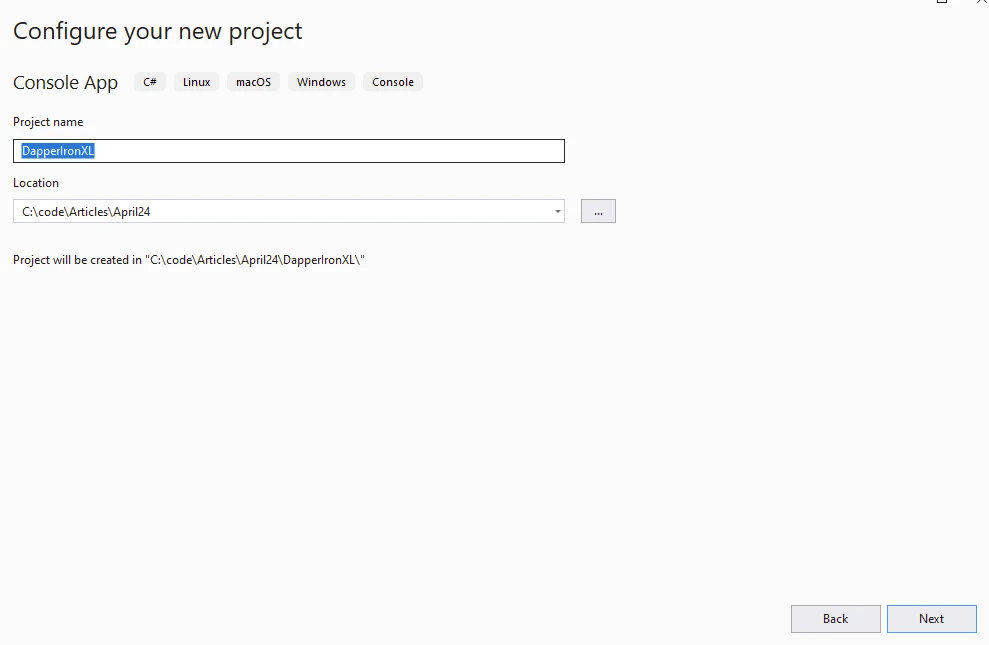
Provide the project name and location
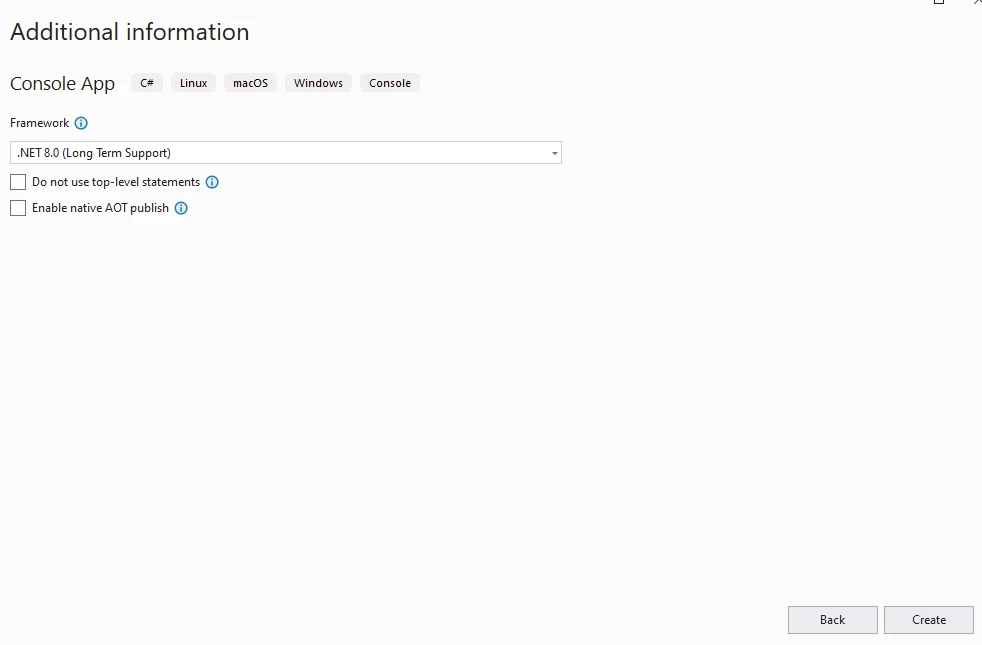
Select .NET version
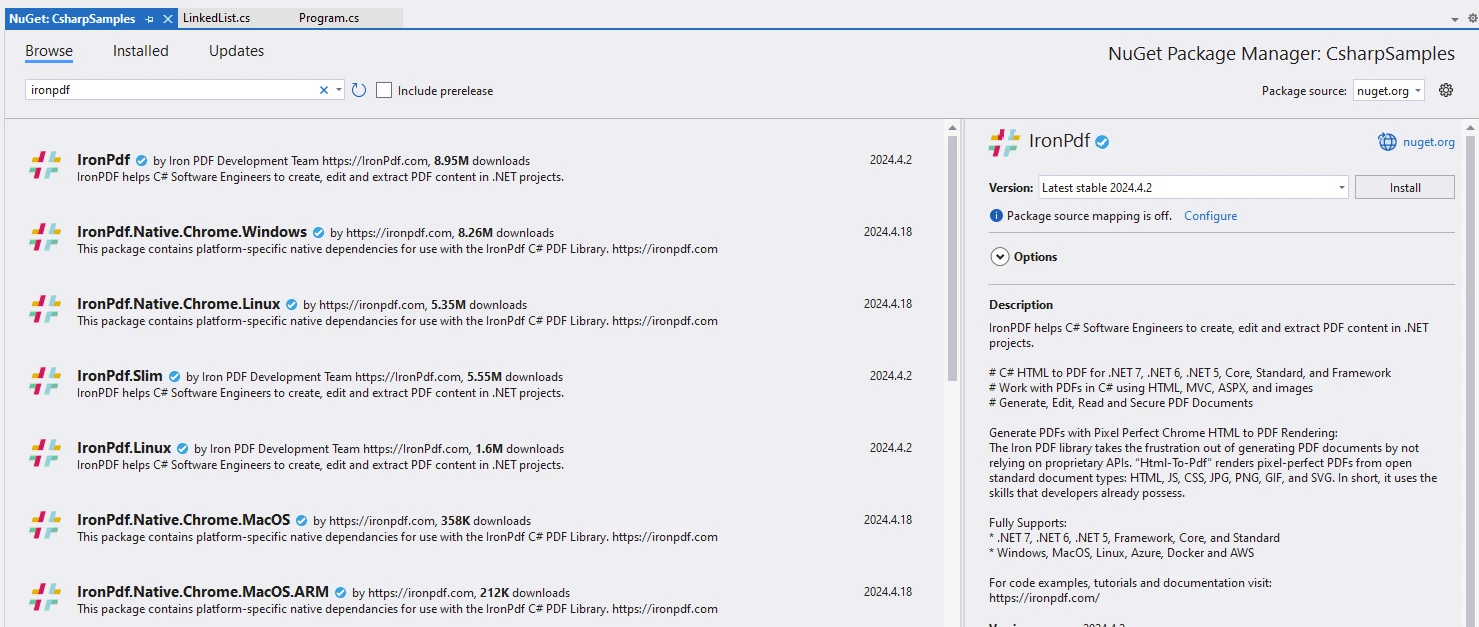
Install the following packages either from Visual Studio Package Manager or the console
dotnet add package Microsoft.Data.Sqlitedotnet add package Microsoft.Data.Sqlite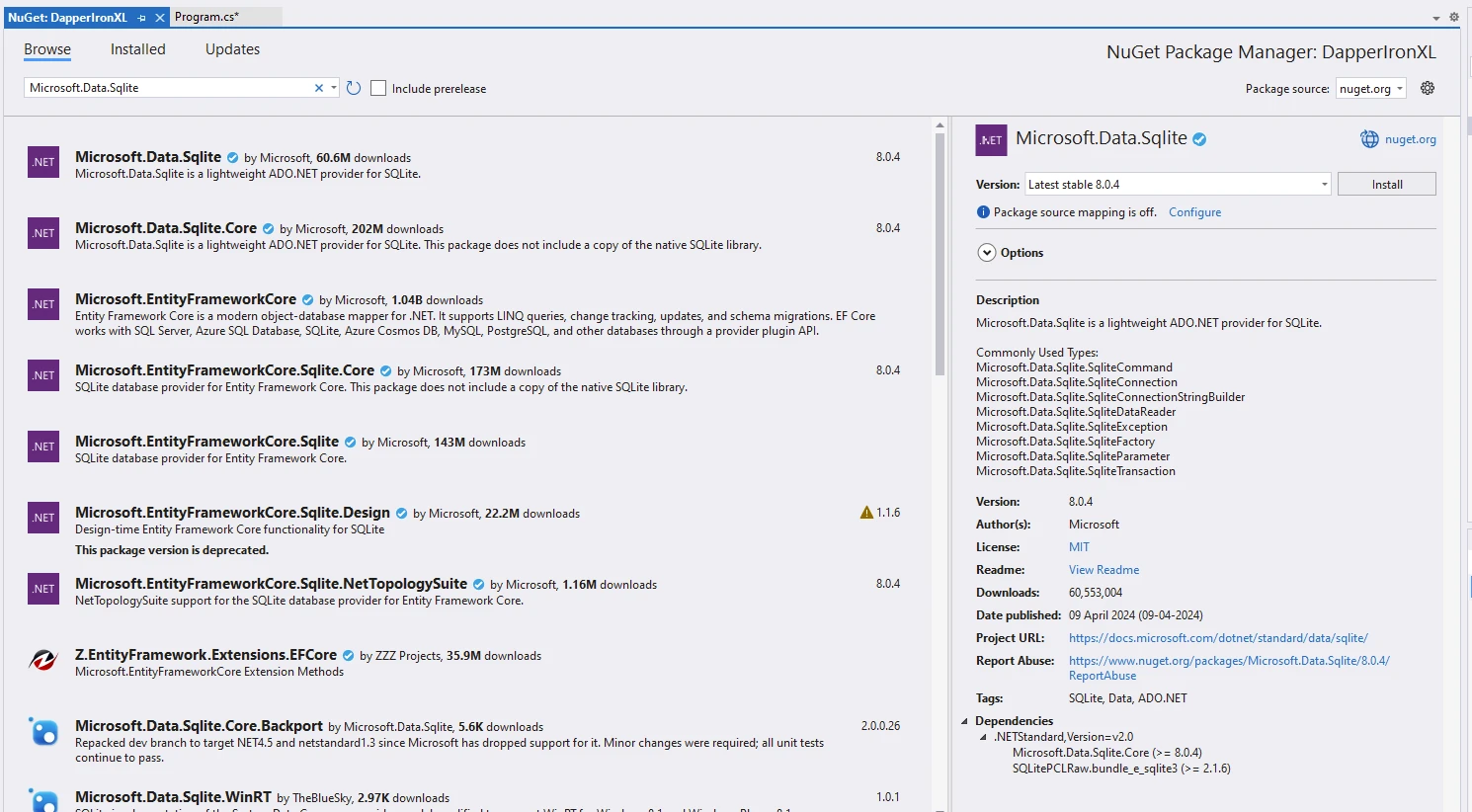
dotnet add package Dapper --version 2.1.35dotnet add package Dapper --version 2.1.35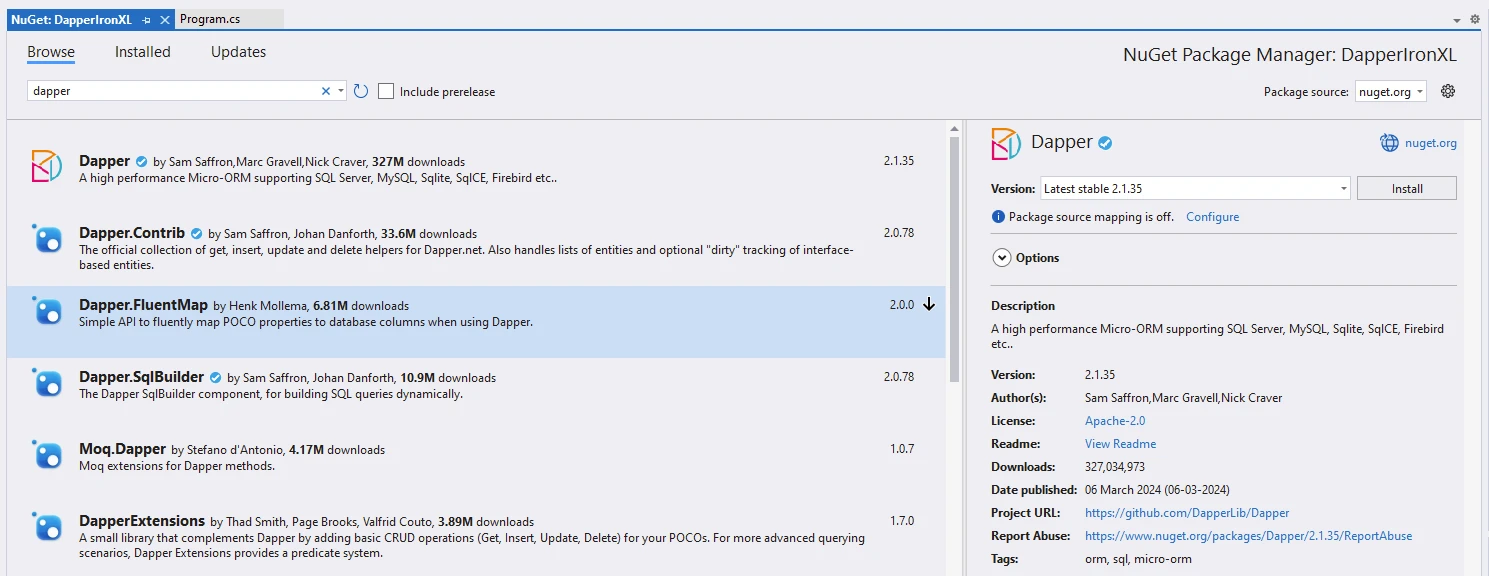
dotnet add package IronPdf --version 2024.4.2
Use the below code to generate a PDF document:
using Dapper; // Import Dapper for ORM functionalities
using IronPdf; // Import IronPDF for PDF generation
using Microsoft.Data.Sqlite; // Import Sqlite for database connection

// Define the connection string for SQLite database
string connectionString = "Data Source=ironPdf.db";

// Create a string to hold the content for the PDF document
var content = "<h1>Demonstrate IronPDF with Dapper</h1>";

// Add HTML content
content += "<h2>Create a new database using Microsoft.Data.Sqlite</h2>";
content += "<p>new SqliteConnection(connectionString) and connection.Open()</p>";

// Open the database connection
using (var connection = new SqliteConnection(connectionString))
{
    connection.Open();

    // Create a Users Table using Dapper
    content += "<h2>Create a Users Table using Dapper and SQL insert query</h2>";
    content += "<p>CREATE TABLE IF NOT EXISTS Users</p>";

    // SQL statement to create a Users table
    string sql = "CREATE TABLE IF NOT EXISTS Users (\n    Id INTEGER PRIMARY KEY,\n    Name TEXT,\n    Email TEXT\n);";
    connection.Execute(sql);

    // Add Users to table using Dapper
    content += "<h2>Add Users to table using Dapper</h2>";
    content += AddUser(connection, new User { Name = "John Doe", Email = "john@example.com" });
    content += AddUser(connection, new User { Name = "Smith William", Email = "Smith@example.com" });
    content += AddUser(connection, new User { Name = "Rock Bill", Email = "Rock@example.com" });
    content += AddUser(connection, new User { Name = "Jack Sparrow", Email = "Jack@example.com" });
    content += AddUser(connection, new User { Name = "Tomus Tibe", Email = "Tomus@example.com" });

    // Retrieve and display users from database
    content += "<h2>Get Users From table using Dapper</h2>";
    string query = "SELECT * FROM Users";
    var users = connection.Query<User>(query).ToList();

    // Display each user detail retrieved from the database
    foreach (var user in users)
    {
        content += $"<p>Id:{user.Id}, Name:{user.Name}, email: {user.Email}</p>";
        Console.WriteLine($"{user.Id}. User Name:{user.Name}, Email:{user.Email}");
    }

    // Create PDF from the accumulated HTML content
    var renderer = new ChromePdfRenderer();
    var pdf = renderer.RenderHtmlAsPdf(content);

    // Save the PDF to a file
    pdf.SaveAs("dapper.pdf");
}

// Method to add user to the database and accumulate HTML content
string AddUser(SqliteConnection sqliteConnection, User user)
{
    string insertQuery = "INSERT INTO Users (Name, Email) VALUES (@Name, @Email)";
    sqliteConnection.Execute(insertQuery, user);
    return $"<p>Name:{user.Name}, email: {user.Email}</p>";
}
using Dapper; // Import Dapper for ORM functionalities
using IronPdf; // Import IronPDF for PDF generation
using Microsoft.Data.Sqlite; // Import Sqlite for database connection
// Define the connection string for SQLite database
string connectionString = "Data Source=ironPdf.db";
// Create a string to hold the content for the PDF document
var content = "<h1>Demonstrate IronPDF with Dapper</h1>";
// Add HTML content
content += "<h2>Create a new database using Microsoft.Data.Sqlite</h2>";
content += "<p>new SqliteConnection(connectionString) and connection.Open()</p>";
// Open the database connection
using (var connection = new SqliteConnection(connectionString))
{
connection.Open();
// Create a Users Table using Dapper
content += "<h2>Create a Users Table using Dapper and SQL insert query</h2>";
content += "<p>CREATE TABLE IF NOT EXISTS Users</p>";
// SQL statement to create a Users table
string sql = "CREATE TABLE IF NOT EXISTS Users (\n Id INTEGER PRIMARY KEY,\n Name TEXT,\n Email TEXT\n);";
connection.Execute(sql);
// Add Users to table using Dapper
content += "<h2>Add Users to table using Dapper</h2>";
content += AddUser(connection, new User { Name = "John Doe", Email = "john@example.com" });
content += AddUser(connection, new User { Name = "Smith William", Email = "Smith@example.com" });
content += AddUser(connection, new User { Name = "Rock Bill", Email = "Rock@example.com" });
content += AddUser(connection, new User { Name = "Jack Sparrow", Email = "Jack@example.com" });
content += AddUser(connection, new User { Name = "Tomus Tibe", Email = "Tomus@example.com" });
// Retrieve and display users from database
content += "<h2>Get Users From table using Dapper</h2>";
string query = "SELECT * FROM Users";
var users = connection.Query<User>(query).ToList();
// Display each user detail retrieved from the database
foreach (var user in users)
{
content += $"<p>Id:{user.Id}, Name:{user.Name}, email: {user.Email}</p>";
Console.WriteLine($"{user.Id}. User Name:{user.Name}, Email:{user.Email}");
}
// Create PDF from the accumulated HTML content
var renderer = new ChromePdfRenderer();
var pdf = renderer.RenderHtmlAsPdf(content);
// Save the PDF to a file
pdf.SaveAs("dapper.pdf");
}
// Method to add user to the database and accumulate HTML content
string AddUser(SqliteConnection sqliteConnection, User user)
{
string insertQuery = "INSERT INTO Users (Name, Email) VALUES (@Name, @Email)";
sqliteConnection.Execute(insertQuery, user);
return $"<p>Name:{user.Name}, email: {user.Email}</p>";
}Imports Microsoft.VisualBasic
Imports Dapper ' Import Dapper for ORM functionalities
Imports IronPdf ' Import IronPDF for PDF generation
Imports Microsoft.Data.Sqlite ' Import Sqlite for database connection
' Define the connection string for SQLite database
Private connectionString As String = "Data Source=ironPdf.db"
' Create a string to hold the content for the PDF document
Private content = "<h1>Demonstrate IronPDF with Dapper</h1>"
' Add HTML content
Private content &= "<h2>Create a new database using Microsoft.Data.Sqlite</h2>"
Private content &= "<p>new SqliteConnection(connectionString) and connection.Open()</p>"
' Open the database connection
Using connection = New SqliteConnection(connectionString)
connection.Open()
' Create a Users Table using Dapper
content &= "<h2>Create a Users Table using Dapper and SQL insert query</h2>"
content &= "<p>CREATE TABLE IF NOT EXISTS Users</p>"
' SQL statement to create a Users table
Dim sql As String = "CREATE TABLE IF NOT EXISTS Users (" & vbLf & " Id INTEGER PRIMARY KEY," & vbLf & " Name TEXT," & vbLf & " Email TEXT" & vbLf & ");"
connection.Execute(sql)
' Add Users to table using Dapper
content &= "<h2>Add Users to table using Dapper</h2>"
content += AddUser(connection, New User With {
.Name = "John Doe",
.Email = "john@example.com"
})
content += AddUser(connection, New User With {
.Name = "Smith William",
.Email = "Smith@example.com"
})
content += AddUser(connection, New User With {
.Name = "Rock Bill",
.Email = "Rock@example.com"
})
content += AddUser(connection, New User With {
.Name = "Jack Sparrow",
.Email = "Jack@example.com"
})
content += AddUser(connection, New User With {
.Name = "Tomus Tibe",
.Email = "Tomus@example.com"
})
' Retrieve and display users from database
content &= "<h2>Get Users From table using Dapper</h2>"
Dim query As String = "SELECT * FROM Users"
Dim users = connection.Query(Of User)(query).ToList()
' Display each user detail retrieved from the database
For Each user In users
content += $"<p>Id:{user.Id}, Name:{user.Name}, email: {user.Email}</p>"
Console.WriteLine($"{user.Id}. User Name:{user.Name}, Email:{user.Email}")
Next user
' Create PDF from the accumulated HTML content
Dim renderer = New ChromePdfRenderer()
Dim pdf = renderer.RenderHtmlAsPdf(content)
' Save the PDF to a file
pdf.SaveAs("dapper.pdf")
End Using
' Method to add user to the database and accumulate HTML content
'INSTANT VB TODO TASK: Local functions are not converted by Instant VB:
'string AddUser(SqliteConnection sqliteConnection, User user)
'{
' string insertQuery = "INSERT INTO Users (Name, Email) VALUES (@Name, @Email)";
' sqliteConnection.Execute(insertQuery, user);
' Return string.Format("<p>Name:{0}, email: {1}</p>", user.Name, user.Email);
'}Code Explanation
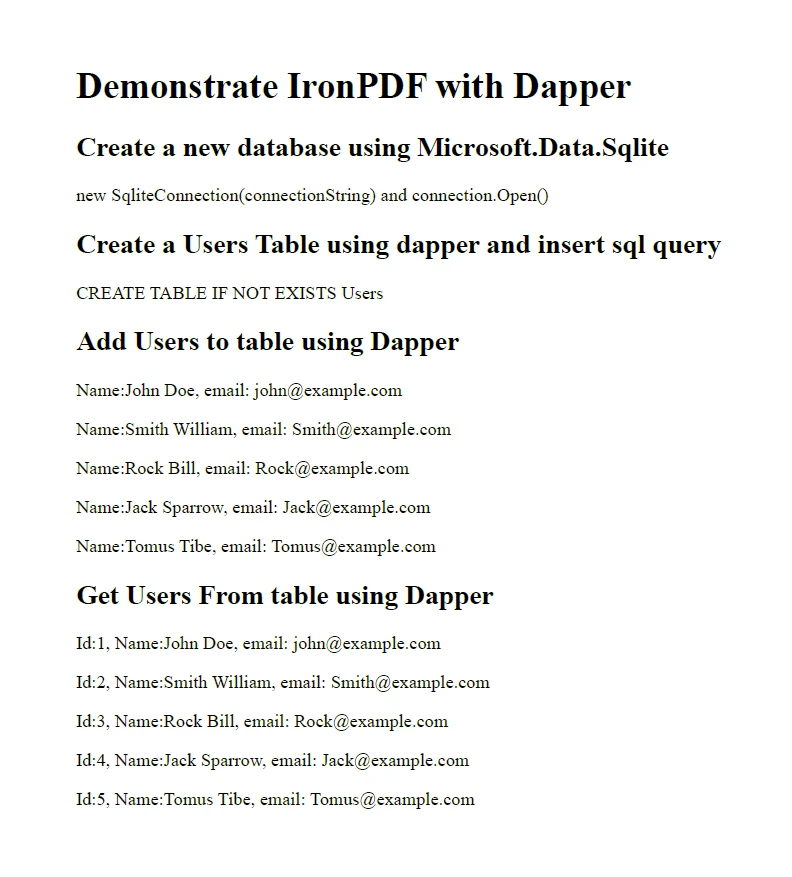
- Start with creating a string content holder for PDF generation.
- Create a new database using
Microsoft.Data.Sqlite,connection.Open()will create an empty database. - Create a
UsersTable using Dapper and execute SQL queries for insertion. - Add users to the table using Dapper with insert queries.
- Query to select all users from the database.
- Save the content generated as a PDF using
ChromePdfRendererandSaveAsmethods provided by IronPDF.
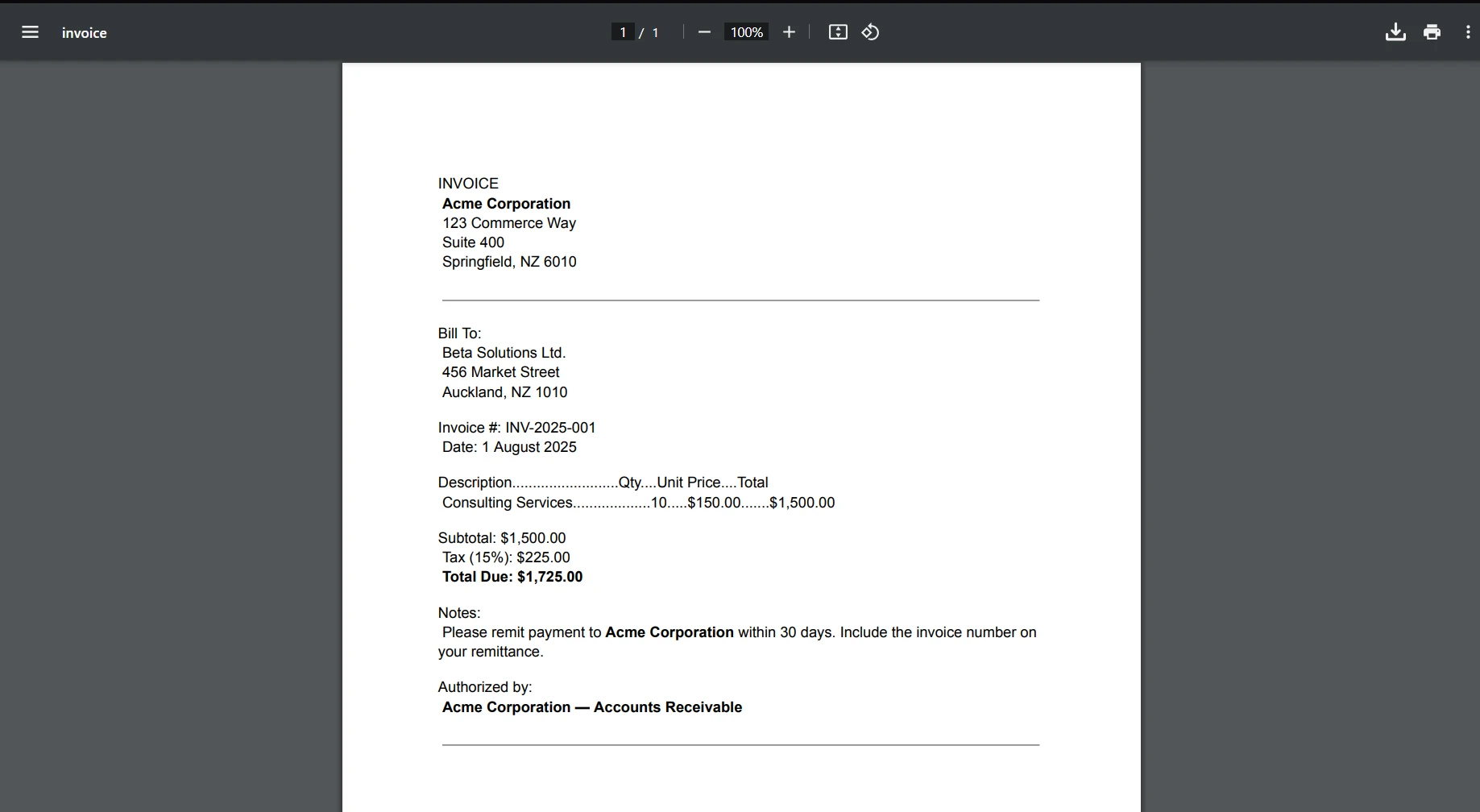
Output
License (Trial Available for IronPDF)
IronPDF's licensing information is available to ensure compliance and usage within your project.
A trial license for developers can be obtained through the IronPDF trial license page.
Please replace the Key in the appSettings.json file shown below:
{
  "IronPdf.License.LicenseKey" : "The Key Goes Here"
}
Conclusion
Dapper simplifies data access in .NET applications, and when combined with SQLite, it provides a lightweight and efficient solution for managing databases. By following the steps outlined in this article, you can leverage Dapper to interact with SQLite databases seamlessly, enabling you to build robust and scalable applications with ease. Along with IronPDF, developers can acquire skills related to ORM databases like Dapper and PDF generation libraries like IronPDF.
Frequently Asked Questions
What is Dapper in C#?
Dapper is an object-relational mapping (ORM) framework for the .NET platform, known for its speed and performance. It allows developers to map an object-oriented domain model to a traditional relational database.
How does Dapper improve performance in database operations?
Dapper improves performance by being lightweight and efficiently mapping objects. It matches the speed of a raw ADO.NET data reader and enhances the IDbConnection interface with useful extension methods for querying SQL databases.
How can I perform asynchronous data access with Dapper?
Dapper offers asynchronous extension methods like QueryAsync, QueryFirstOrDefaultAsync, and ExecuteAsync, which allow developers to execute database queries asynchronously, ideal for I/O-bound operations.
How do I integrate PDF generation into a .NET application?
You can integrate PDF generation into a .NET application using IronPDF. It allows for the creation, editing, and manipulation of PDF documents programmatically, including converting HTML, images, and text into PDFs, and editing existing PDFs.
How do I set up the environment for using Dapper with SQLite?
To set up the environment, you need Visual Studio or Visual Studio Code, .NET SDK, and the SQLite package for .NET. You can install these packages using the dotnet CLI.
How can I generate a PDF report from database query results?
Use IronPDF to generate a PDF report from database query results by first retrieving the data with Dapper and then formatting the output as a PDF using IronPDF's functionalities.
How do I create and query an SQLite database using Dapper in C#?
Create an SQLite database by establishing a connection with SqliteConnection and executing SQL queries using Dapper's Execute method. You can query the database using Dapper's Query method to efficiently retrieve data.
Can Dapper handle complex data relationships?
Yes, Dapper can handle one-to-many and many-to-many relationships using its multi-mapping capabilities, which simplify complex data retrieval.
What are the advantages of using a PDF generation library in .NET?
A PDF generation library like IronPDF enhances .NET applications by enabling seamless PDF generation and manipulation, offering features like HTML to PDF conversion, PDF editing, merging, splitting, and security features.
How do I obtain a trial license for IronPDF?
A trial license for IronPDF can be obtained through the IronPDF trial license page. The license key needs to be included in your project configuration.







 Get started for FREE
 Get started for FREE
 Book Free Live Demo
















