푸터 콘텐츠로 바로가기
.NET 도움말

Install NuGet Powershell (How it Works for Developers Tutorial)

NuGet is a package manager for .NET that simplifies adding third-party libraries, frameworks, and tools to a project. With NuGet, developers can quickly find and install packages from a central repository, manage dependencies, and update packages to their latest versions. NuGet PowerShell is a powerful tool for managing packages and dependencies in .NET projects. With NuGet PowerShell, developers can quickly find and install packages from a central repository, manage dependencies, and update packages to their latest versions using PowerShell commands.

NuGet PowerShell is an extension of NuGet that provides a PowerShell interface for managing packages. PowerShell is a powerful command-line interface that provides a scripting environment for Windows systems. It is built on top of the .NET Framework, making it an ideal choice for .NET developers who want to manage packages and dependencies using a command-line interface.

In this article, we will cover the basics of NuGet PowerShell and provide an overview of the different PowerShell commands available for managing packages and dependencies in .NET projects.

Installing NuGet PowerShell

Before we can use NuGet in PowerShell, we need to install the NuGet provider and module. NuGet PowerShell can be installed via the PowerShell Gallery, which is a public repository of PowerShell modules. Here are the steps to take:

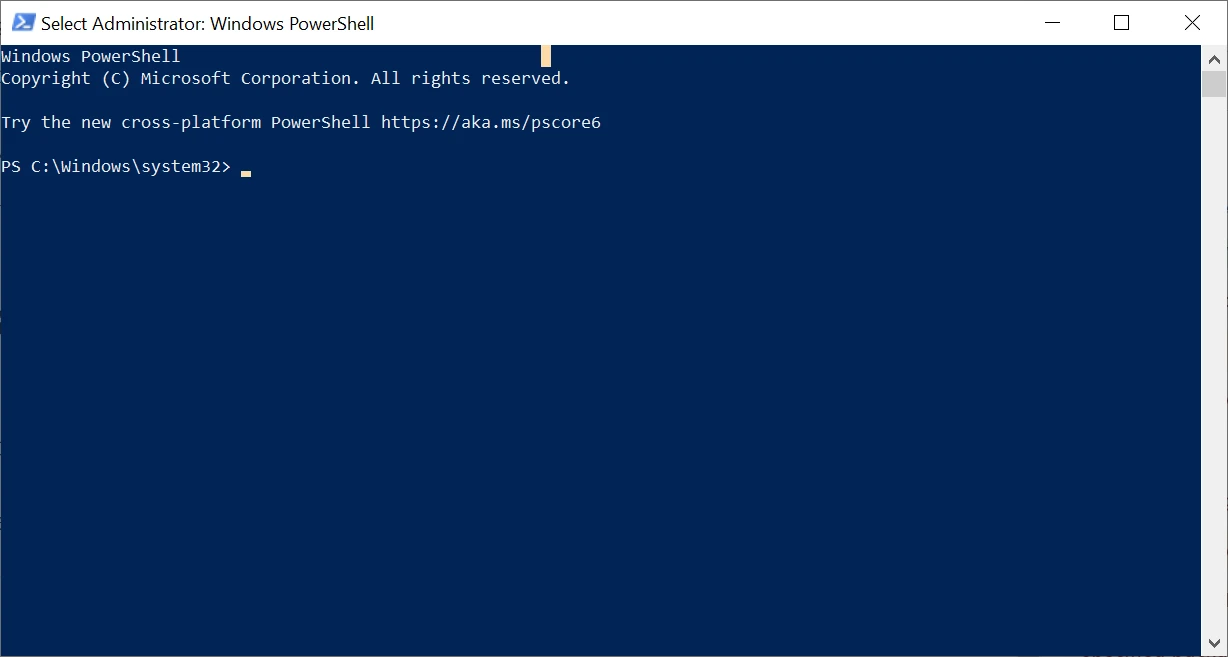
  1. Open PowerShell as an administrator. To do this, right-click on the PowerShell icon and select "Run as administrator."

PDF API C# (Code Example Tutorial): Figure 1 - PowerShell in Admin

Install NuGet Provider

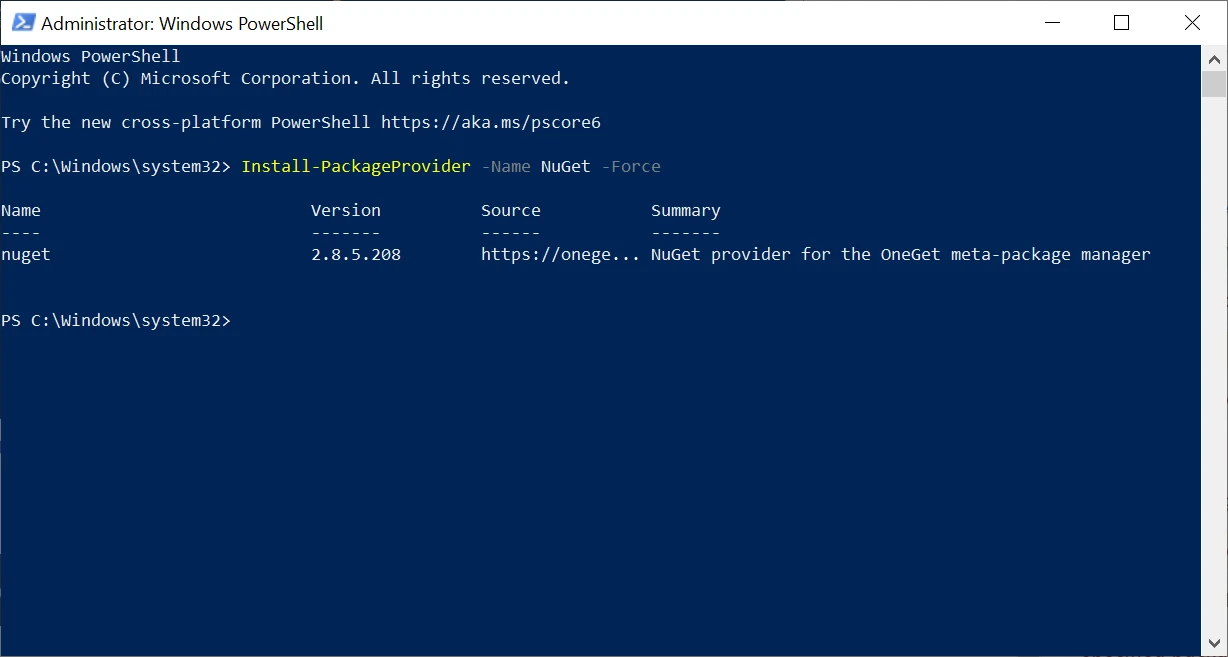
Install the NuGet package provider by running the following command:

Install-PackageProvider -Name NuGet -Force
SHELL

PDF API C# (Code Example Tutorial): Figure 2 - Install NuGet Provider

This command downloads and installs the latest version of the NuGet package provider, which is used to interact with the NuGet repository. NuGet Provider version 2.8.5.208 has been installed in our system. Restarting PowerShell is not required.

Install NuGet PowerShell Module

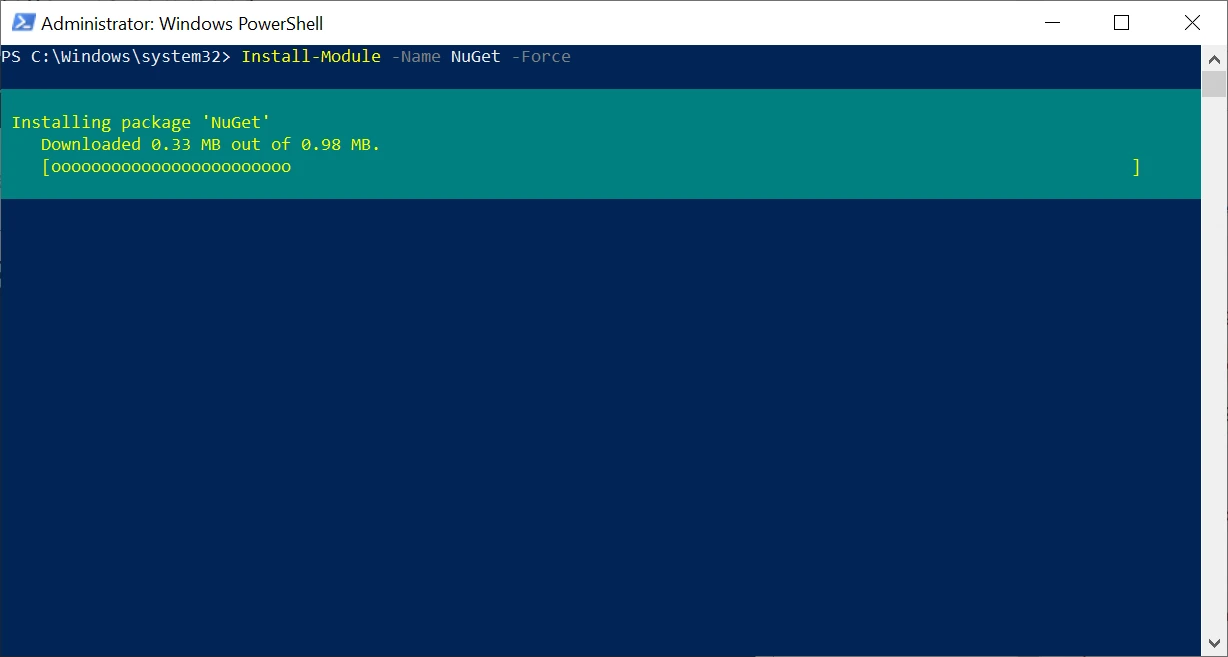
Once the package provider is installed, we need to install the NuGet PowerShell module by running the following command:

Install-Module -Name NuGet -Force
SHELL

PDF API C# (Code Example Tutorial): Figure 3 - Package Provider NuGet

This command downloads and installs the latest version of the NuGet PowerShell module, which provides PowerShell commands for interacting with the NuGet repository.

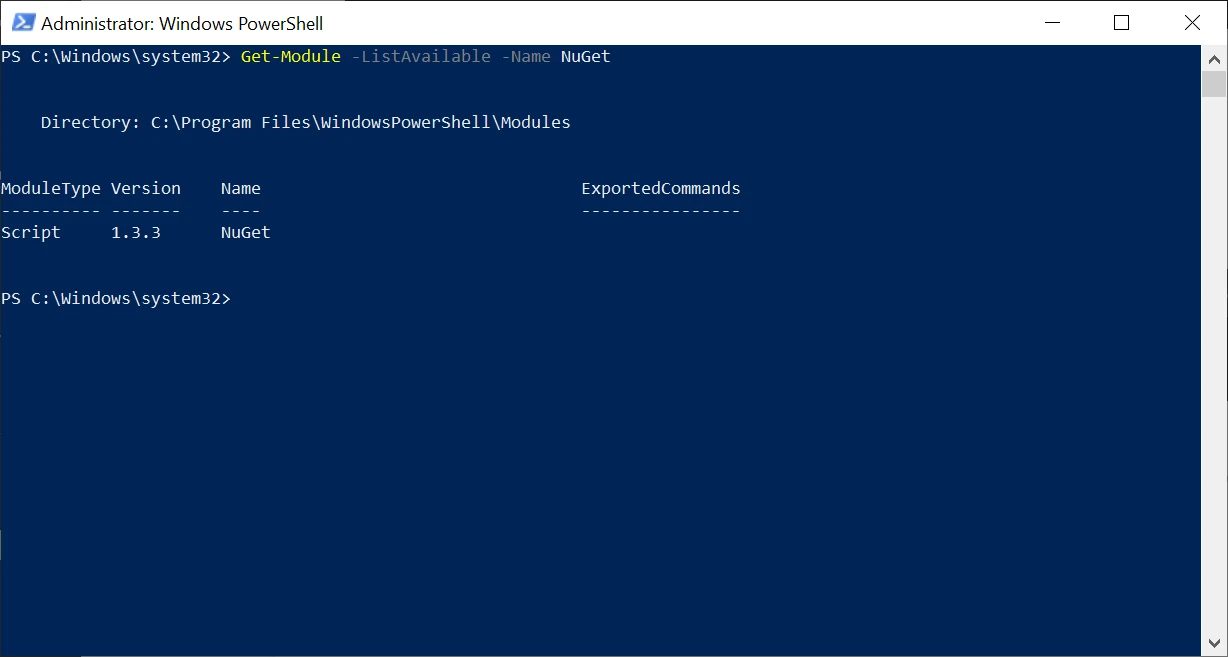
Verify that the module is installed by running the following command:

Get-Module -ListAvailable -Name NuGet
SHELL

PDF API C# (Code Example Tutorial): Figure 4

This command lists all installed modules that match the name "NuGet." If the module is installed correctly, you should see a list of modules that includes "NuGet."

Using NuGet PowerShell

Now that we have NuGet PowerShell installed, we can use it to manage packages and dependencies in our .NET projects. Here are some of the most commonly used PowerShell commands for working with NuGet packages:

Install-Package

The Install-Package cmdlet installs a software package and its dependencies.

Install-Package packageName

One example of a NuGet package that developers might find useful is the IronPDF package on NuGet. IronPDF is a .NET library developed by Iron Software that allows developers to create and manipulate PDF documents from their .NET applications. It provides an easy-to-use API for creating and editing PDF documents, including support for HTML-to-PDF conversion, page manipulation, and document security protocols. IronPDF is a popular choice for developers who want to add PDF generation and manipulation capabilities to their .NET applications. Using NuGet PowerShell, developers can quickly install the IronPDF software packages and start using them in their projects.

Install-Package IronPdf

This command will download and install the latest version of the IronPDF package and its dependencies.

Get-Package

The Get-Package command can be used to view the installed packages. This command displays a list of all the packages installed on the system, along with their version numbers and dependencies. For example, to view the installed version of the IronPDF package, run the following command:

Get-Package IronPDF
Get-Package IronPDF
SHELL

Uninstall-Package

The Uninstall-Package command can be used to uninstall packages from the system. For example, to uninstall the IronPDF package, run the following command:

Uninstall-Package IronPDF
SHELL

This command will remove the IronPDF package and its dependencies from the system.

Update-Package

NuGet PowerShell also provides the ability to update packages to their latest versions. The Update-Package command is used to update a package to the latest version. For example, to update the IronPDF package to its latest version, run the following command:

Update-Package IronPDF
SHELL

This command will update the IronPDF package to its latest version along with its dependencies.

Get-PackageSource

This command lists all configured package sources. For example, to list all configured package sources, run the following command:

Get-PackageSource
Get-PackageSource
SHELL

NuGet Package Manager Console

The NuGet Package Manager Console is a command-line interface (CLI) tool that comes with the NuGet package manager for .NET framework applications. It is designed to provide developers with a powerful way to manage NuGet packages and their dependencies within Visual Studio.

The console allows developers to install, update, and remove NuGet packages from their projects using simple command-line syntax. It also enables users to manage their packages by creating and restoring package references, configuring package sources, and creating package specifications.

One of the significant benefits of using the NuGet Package Manager Console is that it can automate the process of installing and updating packages in a project. Developers can create scripts that automate the installation of packages or set up a build process that uses the console to install required packages before building the project.

Using NuGet Package Manager Console:

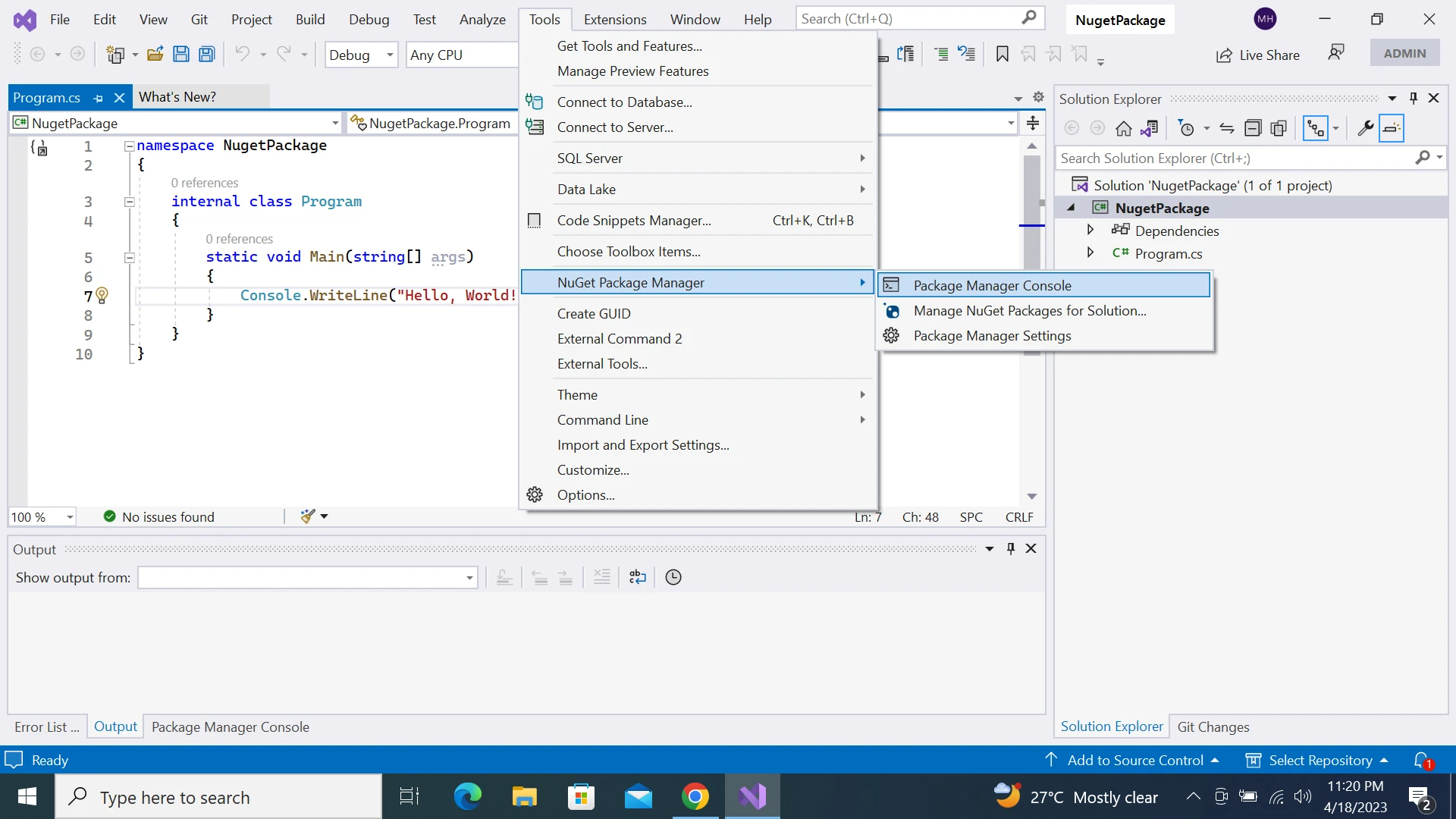
To open the Package Manager Console in Visual Studio, follow these steps:

  1. Open Visual Studio.
  2. Open the project or solution for which you want to manage NuGet packages.
  3. From the menu bar, click on Tools.
  4. In the dropdown menu, select NuGet Package Manager.
  5. From the submenu, select Package Manager Console.

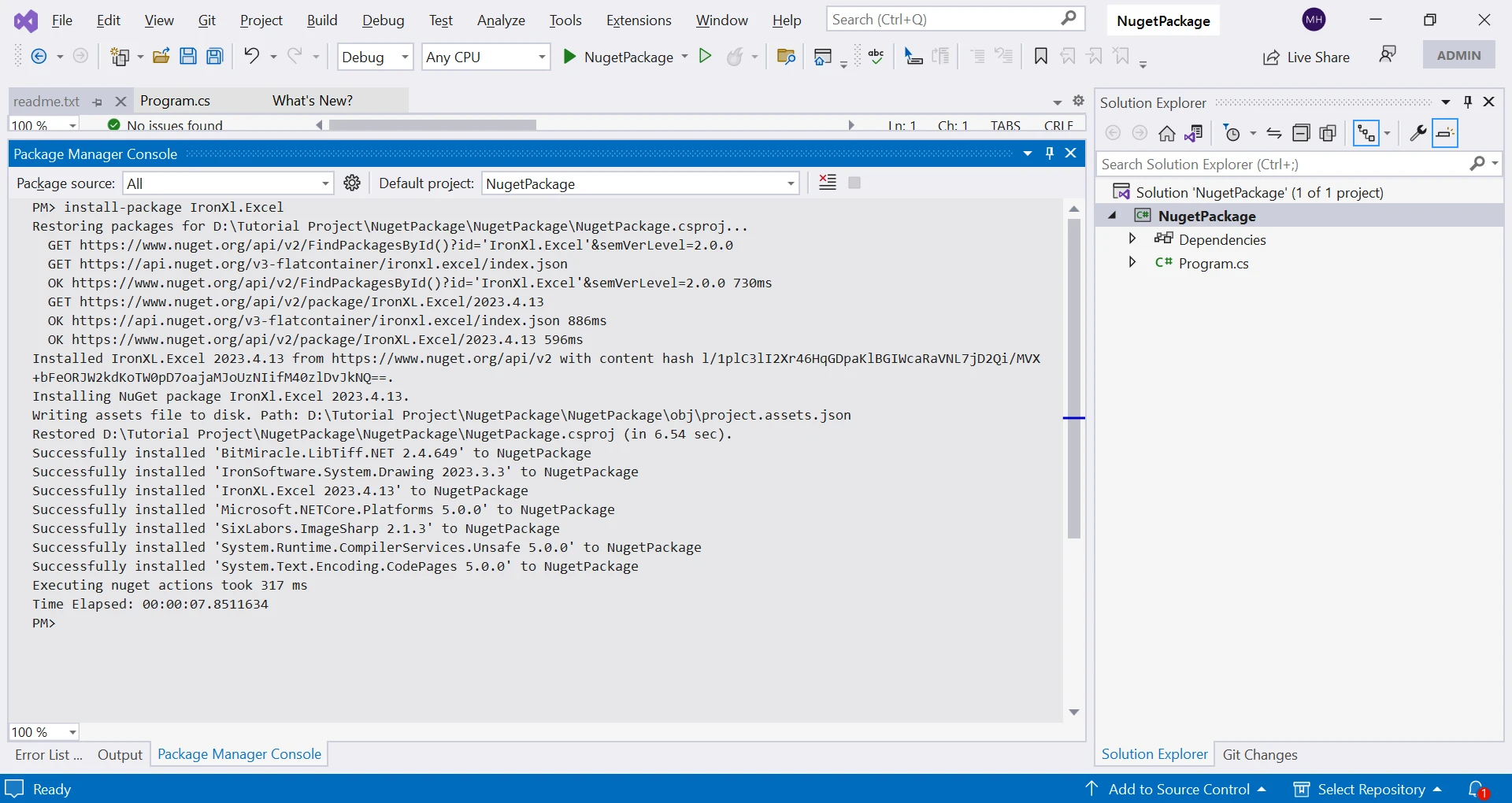
PDF API C# (Code Example Tutorial): Figure 5

Using the Install-Package command:

The Install-Package command, just like NuGet PowerShell, is used to install packages from the NuGet repository. For example, to install the IronXL package on NuGet, run the following command:

Install-Package IronPdf

IronXL is a .NET library that provides a simple and easy-to-use API for reading, writing, and manipulating Excel files. The package supports all Excel file formats, including XLS, XLSX, and CSV, and provides features like cell formatting, formula calculation, data validation, and data filtering. With IronXL, developers can create powerful Excel-based applications quickly, without the need for Microsoft Office or any other third-party software. The package is available on NuGet, supported security protocols, and its documentation provides detailed examples and guides to help developers get started with using the library.

PDF API C# (Code Example Tutorial): Figure 6 - Package Management tool

NuGet PowerShell vs NuGet Package Manager Console

NuGet PowerShell is a command-line tool that allows developers to interact with NuGet packages using PowerShell commands. Unlike the NuGet Package Manager Console, which is a dedicated console tool for package management within Visual Studio, NuGet PowerShell can be used outside of Visual Studio and across different platforms. This makes it an ideal choice for developers who prefer to work outside of Visual Studio or use cross-platform development environments.

Additionally, NuGet PowerShell provides a more extensive range of features, including package creation, repository management, and version control, which gives developers greater flexibility and control over their packages. Overall, while both tools are useful for managing NuGet packages, NuGet PowerShell is a more versatile option that offers advanced features and cross-platform support.

NuGet PowerShell is also extensible, allowing developers to create custom packages and modules. Developers can use NuGet to create packages that include their own libraries and tools and then use NuGet PowerShell to install and manage those packages. This makes it easy for developers to share their code with others and reuse code across multiple projects.

Conclusion

NuGet PowerShell is an essential tool for any .NET developer who wants to manage package installation and dependencies. It provides a simple and powerful command-line interface for interacting with NuGet packages such as IronPDF and IronXL, making it easy to install and update packages. By leveraging NuGet PowerShell, developers can streamline their development processes, automate package management, and improve application stability.

자주 묻는 질문

PowerShell을 사용하여 NuGet을 설치하려면 어떻게 해야 하나요?

PowerShell을 사용하여 NuGet을 설치하려면 관리자로 PowerShell을 열고 다음 명령을 실행합니다: Install-PackageProvider -Name NuGet -Force. 이 명령은 NuGet 공급자를 다운로드하고 설치하여 .NET 프로젝트에서 패키지를 관리할 수 있도록 합니다.

NuGet PowerShell과 NuGet 패키지 관리자 콘솔의 차이점은 무엇인가요?

NuGet PowerShell은 Visual Studio 외부 및 다양한 플랫폼에서 사용할 수 있는 다용도 명령줄 도구로 패키지 생성 및 리포지토리 관리와 같은 기능을 제공합니다. 반면에 NuGet 패키지 관리자 콘솔은 Visual Studio 내에 통합되어 있으며 프로젝트에서 직접 패키지를 관리하는 데 사용됩니다. 두 도구 모두 IronPDF와 같은 패키지를 관리할 수 있습니다.

PowerShell을 사용하여 NuGet 패키지를 업데이트하려면 어떻게 해야 하나요?

PowerShell을 사용하여 NuGet 패키지를 최신 버전으로 업데이트하려면 다음 명령을 사용할 수 있습니다: Update-Package -Name PackageName. 이 명령은 지정된 패키지와 해당 종속성을 업데이트합니다. 예를 들어 이 명령을 사용하여 IronPDF를 최신 버전으로 업데이트할 수 있습니다.

PowerShell을 사용하여 NuGet 패키지를 제거하려면 어떻게 해야 하나요?

다음 명령을 사용하여 PowerShell을 사용하여 NuGet 패키지를 제거할 수 있습니다: Uninstall-Package -Name PackageName. 이 명령은 프로젝트에서 지정된 패키지를 제거합니다. 예를 들어 IronXL과 같은 패키지가 더 이상 필요하지 않은 경우 제거할 수 있습니다.

PowerShell에서 NuGet 패키지를 관리하기 위한 주요 명령은 무엇인가요?

PowerShell에서 NuGet 패키지를 관리하기 위한 주요 명령으로는 패키지를 추가하는 Install-Package, 설치된 패키지를 나열하는 Get-Package, 패키지를 제거하는 Uninstall-Package, 패키지를 최신 버전으로 업데이트하는 Update-Package가 있습니다. 이러한 명령은 .NET 프로젝트에서 패키지 관리 작업을 간소화하는 데 도움이 됩니다.

크로스 플랫폼 개발에서 NuGet PowerShell의 역할은 무엇인가요?

NuGet PowerShell은 Visual Studio 외부에서 사용할 수 있는 유연한 패키지 관리 도구를 제공함으로써 크로스 플랫폼 개발에서 중요한 역할을 합니다. 패키지 생성 및 저장소 관리와 같은 고급 기능을 제공하므로 다양한 환경에서 작업하는 개발자가 IronPDF 및 IronXL과 같은 패키지를 관리하는 데 이상적입니다.

NuGet PowerShell을 사용하여 설치된 패키지를 확인하려면 어떻게 해야 하나요?

NuGet PowerShell을 사용하여 설치된 패키지를 확인하려면 다음 명령을 실행하면 됩니다: Get-Package. 이 명령은 현재 프로젝트에 설치된 모든 패키지를 나열하여 필요에 따라 관리하고 업데이트할 수 있도록 합니다.

커티스 차우
기술 문서 작성자

커티스 차우는 칼턴 대학교에서 컴퓨터 과학 학사 학위를 취득했으며, Node.js, TypeScript, JavaScript, React를 전문으로 하는 프론트엔드 개발자입니다. 직관적이고 미적으로 뛰어난 사용자 인터페이스를 만드는 데 열정을 가진 그는 최신 프레임워크를 활용하고, 잘 구성되고 시각적으로 매력적인 매뉴얼을 제작하는 것을 즐깁니다.

커티스는 개발 분야 외에도 사물 인터넷(IoT)에 깊은 관심을 가지고 있으며, 하드웨어와 소프트웨어를 통합하는 혁신적인 방법을 연구합니다. 여가 시간에는 게임을 즐기거나 디스코드 봇을 만들면서 기술에 대한 애정과 창의성을 결합합니다.