





업데이트됨 2026년 4월 23일
.NET에서 Microsoft.Extensions.AI로 LLM 통합 간소화
AI는 소프트웨어 개발을 변혁하고 있으나, 대규모 언어 모델(LLM)을 .NET에 통합하는 것은 지금까지 복잡했습니다. 현대에는 OpenAI 기반 PDF 파싱, 데이터 추출 및 콘텐츠 요약을 .NET 애플리케이션에 가져오는 IronPdf.AI로 AI 통합을 더욱 확장하세요.
더 읽어보기

이 튜토리얼은 .NET 8 환경에서 웹 애플리케이션을 구축하기 위한 MudBlazor와 IronPDF를 소개합니다. MudBlazor는 Blazor 프로젝트를 위한 컴포넌트 라이브러리입니다. 이는 클라이언트 및 서버 사이드 Blazor 애플리케이션 제작을 위한 다양한 UI 컴포넌트를 제공합니다. IronPDF는 .NET 애플리케이션에서 PDF 문서를 생성, 조작 및 읽을 수 있게 하는 라이브러리입니다.
MudBlazor 설치 방법, 웹 개발을 위한 컴포넌트 사용, 그리고 PDF 기능을 위한 IronPDF 통합에 대해 다룰 것입니다. 이 가이드는 Blazor 및 .NET 초보자를 대상으로 하지만, MudBlazor 및 IronPDF에 대해 배우고자 하는 중급 개발자에게도 유용할 것입니다.
이 튜토리얼이 끝나면 Blazor Server 애플리케이션을 설정하고, MudBlazor 컴포넌트를 통합하며, IronPDF를 사용하여 PDF 파일을 다루는 방법을 알게 됩니다. 주의점은 Visual Studio로 현대 웹 애플리케이션을 구축하기 위한 실용적인 지식입니다. 환경 설정을 시작하고 .NET 8에서 새로운 프로젝트를 생성해 봅시다.
.NET Framework가 설치되어 있음을 확인하고, 클라이언트 프로젝트나 서버 프로젝트에서 MudBlazor를 사용합니다. 호스팅 모델에 따라 클라이언트 레이아웃 폴더 또는 서버 레이아웃에서 새로운 Blazor 프로젝트를 만듭니다. 이를 위해 명령줄이나 Visual Studio를 사용합니다. Visual Studio에서 Blazor App 템플릿을 선택합니다.
다음으로, 프로젝트에 MudBlazor를 추가합니다. 터미널 또는 패키지 관리자 콘솔을 열고 다음 명령을 실행합니다:
이 명령은 프로젝트에 MudBlazor를 추가합니다.
MudBlazor를 설치한 후 _Imports.razor으로 이동하십시오. 다음을 추가합니다:
@using MudBlazor이렇게 하면 프로젝트에서 MudBlazor 컴포넌트를 사용할 수 있게 됩니다.
wwwroot/index.html (또는 서버 프로젝트의 경우 Host.cshtml)에서 MudBlazor의 CSS와 JS를 같은 파일에 추가하여 기본 템플릿 설정으로 대화형 렌더 모드를 지원하도록 합니다. 다음 줄을 포함합니다:
<link href="_content/MudBlazor/MudBlazor.min.css" rel="stylesheet" />또한, 다음을 추가합니다:
<script src="_content/MudBlazor/MudBlazor.min.js"></script>이 단계는 앱에서 MudBlazor 스타일과 기능이 작동하도록 보장합니다.
MudBlazor를 실행하는 예시로, 컴포넌트에 간단한 버튼을 추가해 봅시다. @/Razor 컴포넌트 파일을 열어보세요, 예를 들어 Index.razor. 다음 MudBlazor 버튼 코드를 추가합니다:
<MudButton Variant="Variant.Filled" Color="Color.Primary" OnClick="@ButtonClick">
    Click Me
</MudButton>
@code {
    private void ButtonClick()
    {
        Console.WriteLine("Button clicked!");
    }
}이 코드는 '클릭하세요'라고 표시된 버튼 생성을 시작합니다. 클릭하면 서버 사이드 렌더링을 보여주며 콘솔에 메시지를 기록합니다. Variant와 Color 속성은 버튼의 외관을 사용자 정의합니다.
MudBlazor의 대화상자 컴포넌트는 대화상자를 만들고 관리하는 작업을 단순화합니다. 먼저, 컴포넌트에서 IDialogService을 주입합니다:
@inject IDialogService DialogService그런 다음 대화상자를 열기 위해 다음 방법을 사용합니다:
private void OpenDialog()
{
    DialogService.Show<MyDialog>("My Dialog", new DialogParameters { ["Parameter1"] = "Value1" });
}MyDialog은 대화 상자 내용을 나타내는 Razor 컴포넌트입니다. DialogParameters로 매개변수를 전달할 수 있습니다.
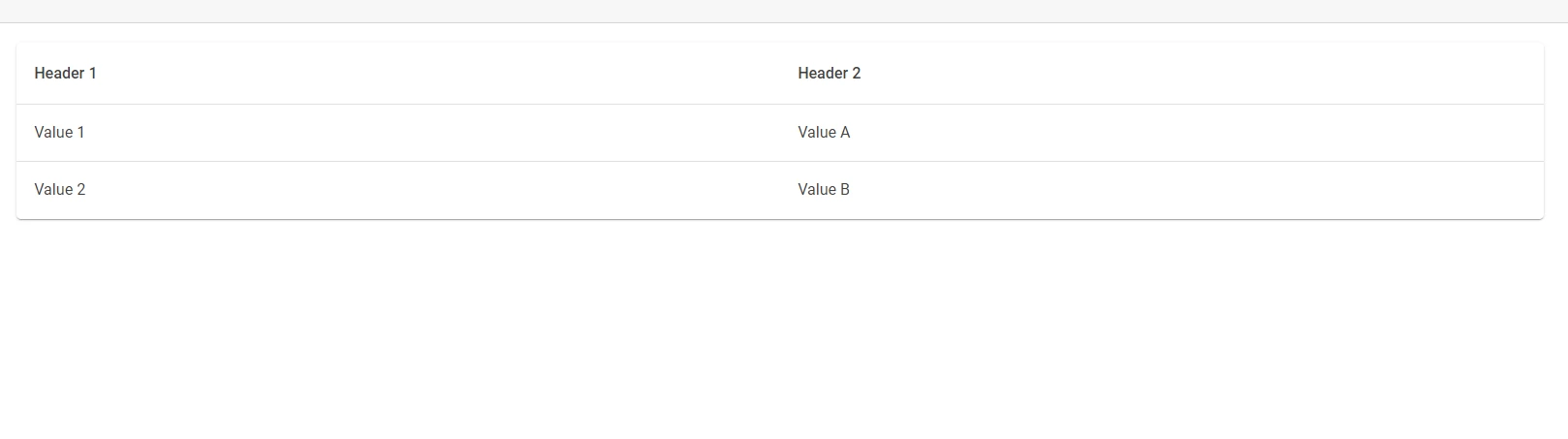
MudBlazor는 컬렉션을 표시하기 위한 데이터 그리드 컴포넌트를 제공합니다. 정렬, 페이징 및 필터링을 지원합니다. 사용하려면 컬렉션을 Items 속성에 바인드하세요:
<MudTable Items="@myItems">
    <HeaderContent>
        <MudTh>Header 1</MudTh>
        <MudTh>Header 2</MudTh>
    </HeaderContent>
    <RowTemplate>
        <MudTd DataLabel="Header 1">@context.Item1</MudTd>
        <MudTd DataLabel="Header 2">@context.Item2</MudTd>
    </RowTemplate>
</MudTable>
@code {
    private List<MyItemType> myItems = /* Fetch or define your items here */;
}
MudBlazor는 양식 입력을 위한 다양한 컴포넌트를 제공합니다. 여기 MudTextField을 사용한 예제가 있습니다:
<MudForm Model="@myModel">
    <MudTextField Label="Enter text" For="@(() => myModel.Text)"></MudTextField>
</MudForm>
@code {
    public class MyModel
    {
        public string Text { get; set; }
    }
    private MyModel myModel = new MyModel();
}탭을 사용하여 콘텐츠를 구성하려면 MudTabs을 사용하십시오. 각 탭을 MudTabPanel으로 정의하십시오:
<MudTabs>
    <MudTabPanel Text="Tab 1">
        Content for Tab 1
    </MudTabPanel>
    <MudTabPanel Text="Tab 2">
        Content for Tab 2
    </MudTabPanel>
</MudTabs>
MudBlazor는 Material Icons와 통합됩니다. 아이콘을 사용하려면 MudIcon 컴포넌트를 추가하십시오:
<MudIcon Icon="@Icons.Material.Filled.Alarm" />이 코드는 알람 아이콘을 표시합니다. 아이콘은 시각적 신호를 제공하여 사용자 인터페이스를 향상시킵니다.
IronPDF는 .NET 애플리케이션 내에서 PDF 파일을 생성, 편집 및 읽는 과정을 간소화하는 C# 라이브러리입니다. HTML을 PDF로 변환할 때 최소한의 설정이 필요하고 매우 직관적이라는 점에서 두드러집니다. 보고서나 송장 등을 동적으로 생성하려는 경우 특히 유용할 수 있습니다.
IronPDF의 가장 좋은 기능은 HTML을 PDF로 변환하면서 원래의 레이아웃과 스타일을 유지한다는 것입니다. 보고서, 송장, 문서화와 같은 웹 콘텐츠에서 PDF를 생성하는 데 탁월합니다. HTML 파일, URL, HTML 문자열 모두 PDF로 변환이 지원됩니다.
using IronPdf;

class Program
{
    static void Main(string[] args)
    {
        var renderer = new ChromePdfRenderer();

        // Convert HTML String to PDF
        var htmlContent = "<h1>Hello, IronPDF!</h1><p>This is a PDF from an HTML string.</p>";
        var pdfFromHtmlString = renderer.RenderHtmlAsPdf(htmlContent);
        pdfFromHtmlString.SaveAs("HTMLStringToPDF.pdf");

        // Convert HTML File to PDF
        var htmlFilePath = "path_to_your_html_file.html"; // Specify the path to your HTML file
        var pdfFromHtmlFile = renderer.RenderHtmlFileAsPdf(htmlFilePath);
        pdfFromHtmlFile.SaveAs("HTMLFileToPDF.pdf");

        // Convert URL to PDF
        var url = "http://ironpdf.com"; // Specify the URL
        var pdfFromUrl = renderer.RenderUrlAsPdf(url);
        pdfFromUrl.SaveAs("URLToPDF.pdf");
    }
}Imports IronPdf
Module Program
Sub Main(args As String())
Dim renderer = New ChromePdfRenderer()
' Convert HTML String to PDF
Dim htmlContent = "<h1>Hello, IronPDF!</h1><p>This is a PDF from an HTML string.</p>"
Dim pdfFromHtmlString = renderer.RenderHtmlAsPdf(htmlContent)
pdfFromHtmlString.SaveAs("HTMLStringToPDF.pdf")
' Convert HTML File to PDF
Dim htmlFilePath = "path_to_your_html_file.html" ' Specify the path to your HTML file
Dim pdfFromHtmlFile = renderer.RenderHtmlFileAsPdf(htmlFilePath)
pdfFromHtmlFile.SaveAs("HTMLFileToPDF.pdf")
' Convert URL to PDF
Dim url = "http://ironpdf.com" ' Specify the URL
Dim pdfFromUrl = renderer.RenderUrlAsPdf(url)
pdfFromUrl.SaveAs("URLToPDF.pdf")
End Sub
End ModuleMudBlazor는 반응형 및 대화형 UI를 구축하기 위한 유용한 위젯과 도구로 가득 찬 Blazor용 컴포넌트 라이브러리입니다. MudBlazor의 UI 기능과 IronPDF의 PDF 생성 기능을 결합하면 강력한 도구 세트를 얻을 수 있습니다. 일반적인 사용 사례로는 사용자가 MudBlazor 구성 요소를 사용하여 문서나 보고서를 디자인하고, 버튼 클릭 한 번으로 이 디자인을 IronPDF를 사용하여 다운로드 가능한 PDF로 변환할 수 있는 웹 애플리케이션이 있을 수 있습니다.
MudBlazor로 UI를 구축한 다음 이 UI를 PDF 문서로 변환하는 IronPDF를 사용하는 기본 예제를 살펴봅시다.
먼저 프로젝트에 MudBlazor와 IronPDF가 설치되어 있는지 확인합니다. 이를 NuGet 패키지 관리자 또는 패키지 관리자 콘솔을 통해 수행할 수 있습니다.
Install-Package MudBlazor
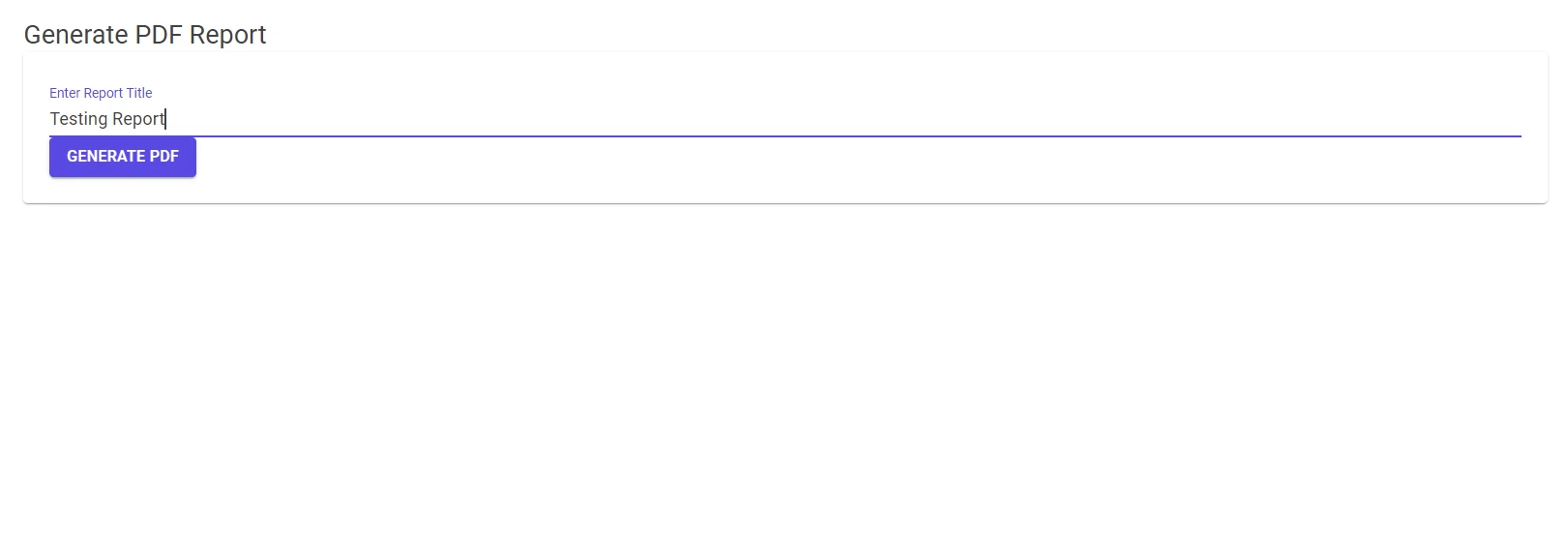
Install-Package IronPdfBlazor 페이지에 MudBlazor 구성 요소를 추가하여 UI를 만들 수 있습니다. 여기 MudBlazor로 만든 간단한 폼이 있습니다:
@page "/report"
<MudText Typo="Typo.h5">Generate PDF Report</MudText>
<MudPaper Class="p-4">
    <MudTextField Label="Enter Report Title" @bind-Value="@reportTitle" />
    <!-- Add more components as needed -->
    <MudButton Variant="Variant.Filled" Color="Color.Primary" OnClick="@GeneratePDF">Generate PDF</MudButton>
</MudPaper>
@code {
    private string reportTitle = "";
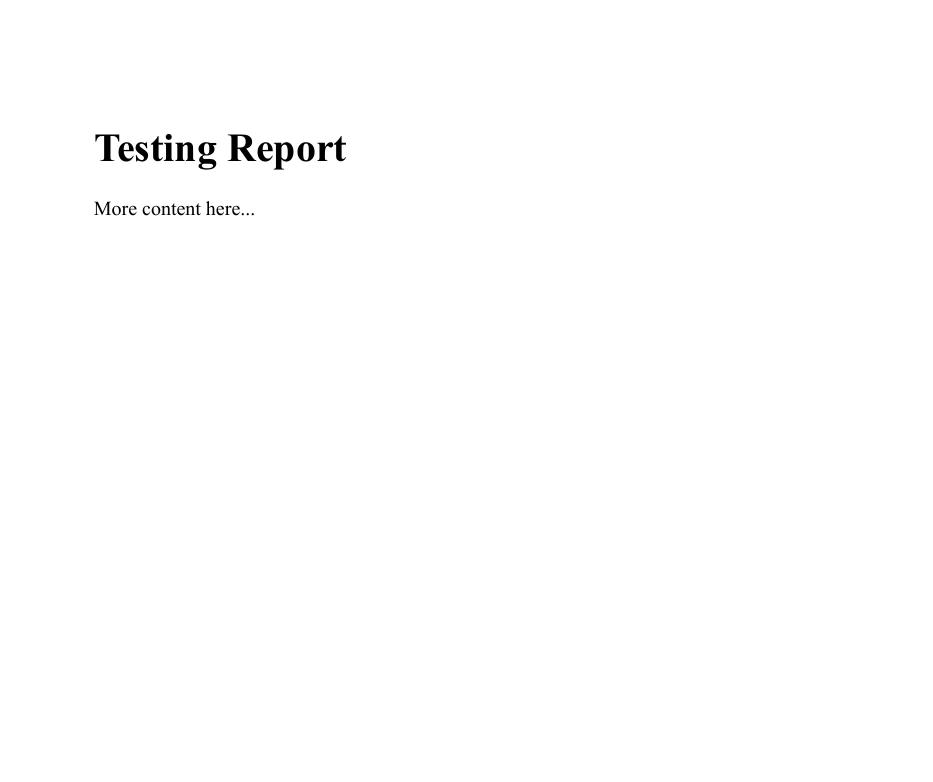
}이제 PDF 생성 기능 통합을 위해 GeneratePDF 메소드를 처리하겠습니다. 이 함수는 우리의 HTML 콘텐츠를 PDF 파일로 변환합니다:
private void GeneratePDF()
{
    var renderer = new ChromePdfRenderer();
    var PDF = renderer.RenderHtmlAsPdf($"<h1>{reportTitle}</h1><p>More content here...</p>");
    PDF.SaveAs("Report.pdf");
}Private Sub GeneratePDF()
Dim renderer = New ChromePdfRenderer()
Dim PDF = renderer.RenderHtmlAsPdf($"<h1>{reportTitle}</h1><p>More content here...</p>")
PDF.SaveAs("Report.pdf")
End Sub이 간단한 예에서는 RenderHtmlAsPdf가 HTML 콘텐츠 문자열을 받아 PDF로 변환합니다. 전체 애플리케이션에서는 사용자 입력이나 다른 데이터 소스를 기반으로 이 HTML 문자열을 동적으로 생성할 수 있습니다.
다음은 코드 실행 결과입니다.
이 가이드는 웹 개발 for .NET 8과 함께 MudBlazor와 IronPDF를 사용하는 방법을 안내합니다. MudBlazor는 최소한의 코드로 Blazor 애플리케이션을 위한 UI 구성 요소를 제공하여 사용자 인터페이스를 향상시킵니다. IronPDF는 .NET 애플리케이션 내에서 문서 관리를 위한 PDF 생성 및 조작이 가능합니다.
단계별 지침을 통해 프로젝트에 MudBlazor를 통합하고, 그 구성 요소를 활용하며, 웹 콘텐츠에서 PDF를 생성하기 위해 IronPDF를 활용하는 방법을 배웁니다. 초보자와 중급 개발자 모두에게 이상적인 이 튜토리얼은 이 라이브러리를 사용하여 현대적인 웹 애플리케이션을 잘 만들 수 있도록 보장합니다. IronPDF에 대해 더 탐색하고 싶은 사람들을 위해, 무료 체험이 $999부터 시작됩니다.
제이콥 멜러는 Iron Software의 최고 기술 책임자(CTO)이자 C# PDF 기술을 개척한 선구적인 엔지니어입니다. Iron Software의 핵심 코드베이스를 최초로 개발한 그는 창립 초기부터 회사의 제품 아키텍처를 설계해 왔으며, CEO인 캐머런 리밍턴과 함께 회사를 NASA, 테슬라, 그리고 전 세계 정부 기관에 서비스를 제공하는 50명 이상의 직원을 보유한 기업으로 성장시켰습니다.



IronPDF는 IRON SUITE 의 일부입니다.
10개의 .NET API 제품, 당신의 사무 문서를 위해

PDF 파일을 HTML처럼 빠르게 변환해야 할 때.


