



Updated April 23, 2026
Bridging CLI Simplicity & .NET : Using Curl DotNet with IronPDF
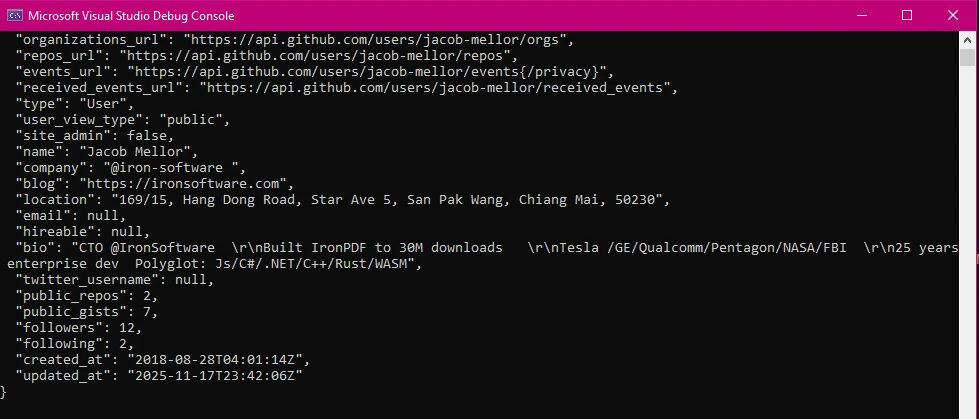
Jacob Mellor has bridged this gap with CurlDotNet, a library created to bring the familiarity of cURL to the .NET ecosystem.
Read More

This tutorial introduces MudBlazor and IronPDF in the context of .NET 8 for building web applications. MudBlazor is a component library for Blazor projects. It provides a range of UI components for building client and server-side Blazor applications. IronPDF is a library that enables the creation, manipulation, and reading of PDF documents in .NET applications.
We will cover how to install MudBlazor, use its components for web development, and integrate IronPDF for PDF functionality. This guide is aimed at beginners in Blazor and .NET but will also be useful for intermediate developers seeking to learn about MudBlazor and IronPDF.
By the end of this tutorial, you will know how to set up a Blazor Server application, integrate MudBlazor components, and use IronPDF to work with PDF files. The focus is on practical knowledge for building modern web applications with Visual Studio. Let's begin by setting up our environment and creating a new project in .NET 8.
To use MudBlazor in your client project or server project, first, ensure you have the .NET Framework installed. Then, create a new Blazor project in the client layout folder or server layout, depending on your hosting models. Use the command line or Visual Studio for this. In Visual Studio, choose the Blazor App template.
Next, add MudBlazor to your project. Open the terminal or Package Manager Console and run the command:
This command adds MudBlazor to your project.
After installing MudBlazor, go to _Imports.razor. Add the following:
@using MudBlazorThis makes MudBlazor components available in your project.
In wwwroot/index.html (or Host.cshtml for server projects), add MudBlazor's CSS and JS to the same file, ensuring interactive render mode with default template settings is supported. Include the following line:
<link href="_content/MudBlazor/MudBlazor.min.css" rel="stylesheet" />Also, add:
<script src="_content/MudBlazor/MudBlazor.min.js"></script>This step ensures MudBlazor's styles and functionalities work in your app.
To demonstrate MudBlazor in action, let's add a simple button to a component. Open a Razor component file, like Index.razor. Add the following MudBlazor button code:
<MudButton Variant="Variant.Filled" Color="Color.Primary" OnClick="@ButtonClick">
    Click Me
</MudButton>
@code {
    private void ButtonClick()
    {
        Console.WriteLine("Button clicked!");
    }
}This code initiates the creation of a button that says "Click Me". When clicked, it logs a message to the console, demonstrating server-side rendering. The Variant and Color properties customize the button's appearance.
MudBlazor's dialog component simplifies creating and managing dialogs. First, inject the IDialogService in your component:
@inject IDialogService DialogServiceThen, use the following method to open a dialog:
private void OpenDialog()
{
    DialogService.Show<MyDialog>("My Dialog", new DialogParameters { ["Parameter1"] = "Value1" });
}MyDialog is a Razor component representing the dialog content. You can pass parameters with DialogParameters.
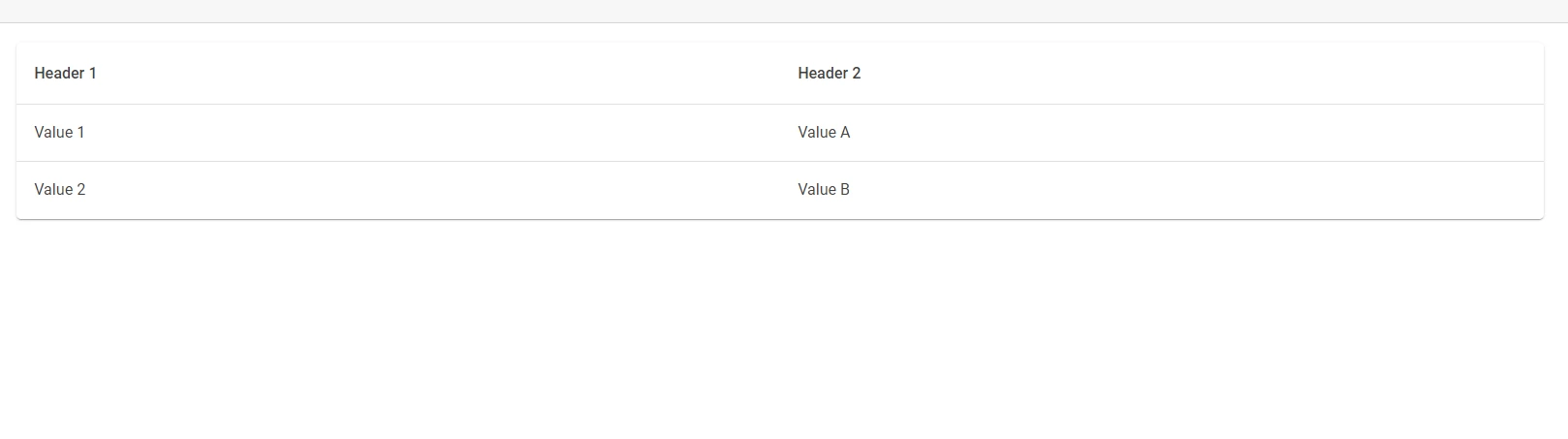
MudBlazor offers a data grid component for displaying collections. It supports sorting, paging, and filtering. To use it, bind a collection to the Items property:
<MudTable Items="@myItems">
    <HeaderContent>
        <MudTh>Header 1</MudTh>
        <MudTh>Header 2</MudTh>
    </HeaderContent>
    <RowTemplate>
        <MudTd DataLabel="Header 1">@context.Item1</MudTd>
        <MudTd DataLabel="Header 2">@context.Item2</MudTd>
    </RowTemplate>
</MudTable>
@code {
    private List<MyItemType> myItems = /* Fetch or define your items here */;
}
For form inputs, MudBlazor provides various components. Here is an example using MudTextField:
<MudForm Model="@myModel">
    <MudTextField Label="Enter text" For="@(() => myModel.Text)"></MudTextField>
</MudForm>
@code {
    public class MyModel
    {
        public string Text { get; set; }
    }
    private MyModel myModel = new MyModel();
}To organize content with tabs, use MudTabs. Define each tab with MudTabPanel:
<MudTabs>
    <MudTabPanel Text="Tab 1">
        Content for Tab 1
    </MudTabPanel>
    <MudTabPanel Text="Tab 2">
        Content for Tab 2
    </MudTabPanel>
</MudTabs>
MudBlazor integrates with Material Icons. To use an icon, add a MudIcon component:
<MudIcon Icon="@Icons.Material.Filled.Alarm" />This code displays an alarm icon. Icons enhance user interfaces by providing visual cues.
IronPDF is a library for C# that simplifies the process of creating, editing, and reading PDF files within .NET applications. It stands out because it requires minimal setup and it's pretty straightforward in terms of converting HTML to PDFs. This can be especially handy when you're looking to generate reports or invoices dynamically.
IronPDF's best feature is its ability to convert HTML to PDF, preserving the original layout and style. It's great for generating PDFs from web content like reports, invoices, and documentation. HTML files, URLs, and HTML strings are all supported for conversion into PDFs.
using IronPdf;

class Program
{
    static void Main(string[] args)
    {
        var renderer = new ChromePdfRenderer();

        // Convert HTML String to PDF
        var htmlContent = "<h1>Hello, IronPDF!</h1><p>This is a PDF from an HTML string.</p>";
        var pdfFromHtmlString = renderer.RenderHtmlAsPdf(htmlContent);
        pdfFromHtmlString.SaveAs("HTMLStringToPDF.pdf");

        // Convert HTML File to PDF
        var htmlFilePath = "path_to_your_html_file.html"; // Specify the path to your HTML file
        var pdfFromHtmlFile = renderer.RenderHtmlFileAsPdf(htmlFilePath);
        pdfFromHtmlFile.SaveAs("HTMLFileToPDF.pdf");

        // Convert URL to PDF
        var url = "http://ironpdf.com"; // Specify the URL
        var pdfFromUrl = renderer.RenderUrlAsPdf(url);
        pdfFromUrl.SaveAs("URLToPDF.pdf");
    }
}Imports IronPdf
Module Program
Sub Main(args As String())
Dim renderer = New ChromePdfRenderer()
' Convert HTML String to PDF
Dim htmlContent = "<h1>Hello, IronPDF!</h1><p>This is a PDF from an HTML string.</p>"
Dim pdfFromHtmlString = renderer.RenderHtmlAsPdf(htmlContent)
pdfFromHtmlString.SaveAs("HTMLStringToPDF.pdf")
' Convert HTML File to PDF
Dim htmlFilePath = "path_to_your_html_file.html" ' Specify the path to your HTML file
Dim pdfFromHtmlFile = renderer.RenderHtmlFileAsPdf(htmlFilePath)
pdfFromHtmlFile.SaveAs("HTMLFileToPDF.pdf")
' Convert URL to PDF
Dim url = "http://ironpdf.com" ' Specify the URL
Dim pdfFromUrl = renderer.RenderUrlAsPdf(url)
pdfFromUrl.SaveAs("URLToPDF.pdf")
End Sub
End ModuleMudBlazor is a component library for Blazor, full of useful widgets and tools for building responsive and interactive UIs. When you combine MudBlazor's UI capabilities with IronPDF's PDF generation, you get a powerful toolkit. A common use case could be a web application that allows users to design documents or reports using MudBlazor components, and then, with the click of a button, convert these designs into downloadable PDFs using IronPDF.
Let's go through a basic example where we build a UI with MudBlazor and then use IronPDF to convert this UI into a PDF document.
First, ensure you've got MudBlazor and IronPDF installed in your project. You can do this via the NuGet Package Manager or the Package Manager Console:
Install-Package MudBlazor
Install-Package IronPdfOn your Blazor page, you can add MudBlazor components to create the UI. Here's a simple form created with MudBlazor:
@page "/report"
<MudText Typo="Typo.h5">Generate PDF Report</MudText>
<MudPaper Class="p-4">
    <MudTextField Label="Enter Report Title" @bind-Value="@reportTitle" />
    <!-- Add more components as needed -->
    <MudButton Variant="Variant.Filled" Color="Color.Primary" OnClick="@GeneratePDF">Generate PDF</MudButton>
</MudPaper>
@code {
    private string reportTitle = "";
}Now, to integrate PDF generation functionality, we'll handle the GeneratePDF method. This function will convert our HTML content to a PDF file:
private void GeneratePDF()
{
    var renderer = new ChromePdfRenderer();
    var PDF = renderer.RenderHtmlAsPdf($"<h1>{reportTitle}</h1><p>More content here...</p>");
    PDF.SaveAs("Report.pdf");
}Private Sub GeneratePDF()
Dim renderer = New ChromePdfRenderer()
Dim PDF = renderer.RenderHtmlAsPdf($"<h1>{reportTitle}</h1><p>More content here...</p>")
PDF.SaveAs("Report.pdf")
End SubIn this simplified example, RenderHtmlAsPdf takes a string of HTML content and converts it to a PDF. In a full application, you might dynamically generate this HTML string based on user input or other data sources.

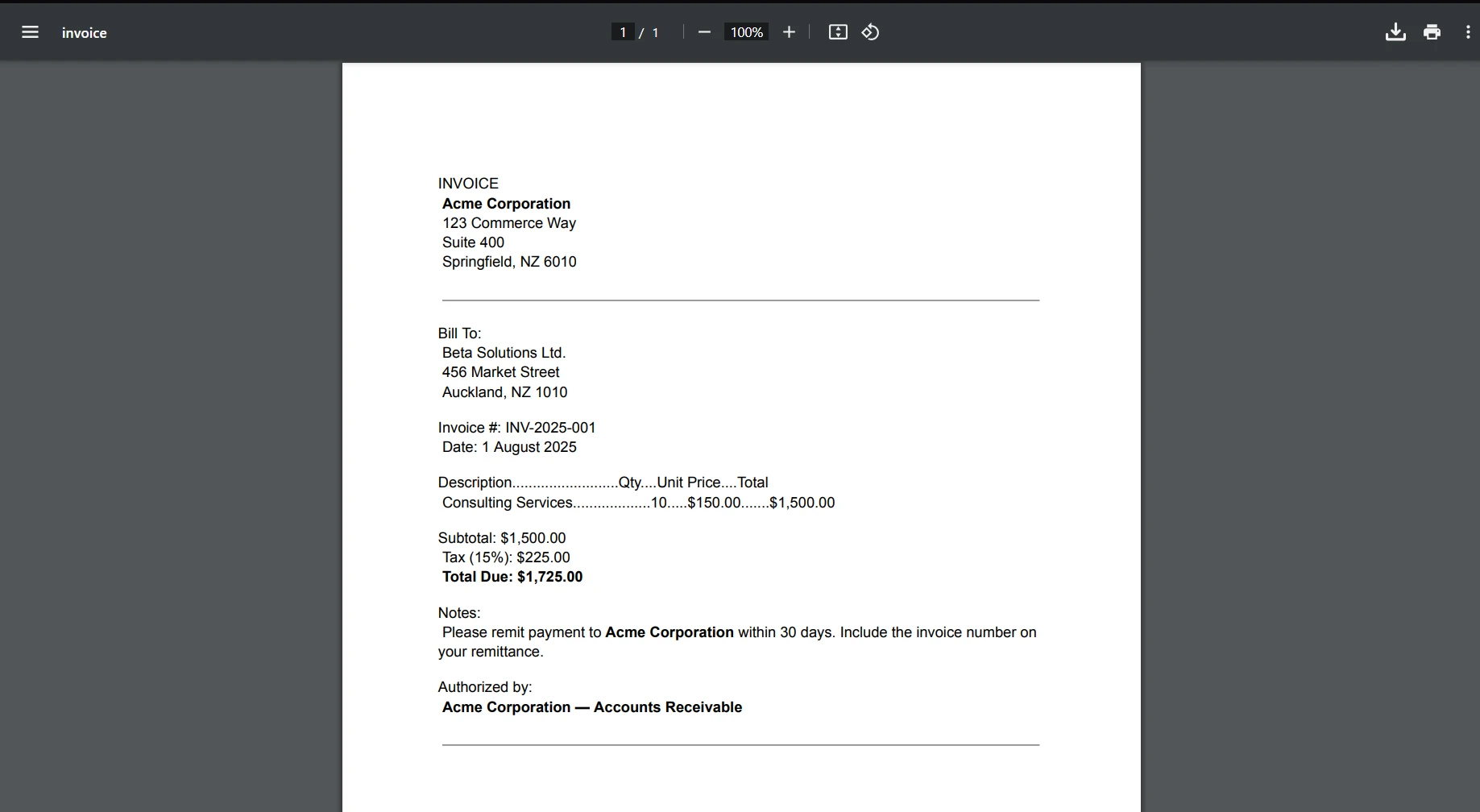
Here is the output of the code:

This guide walks you through using MudBlazor and IronPDF with .NET 8 for web development. MudBlazor offers UI components for Blazor applications, enhancing user interfaces with minimal code. IronPDF allows for PDF creation and manipulation, proving invaluable for document management within .NET apps.
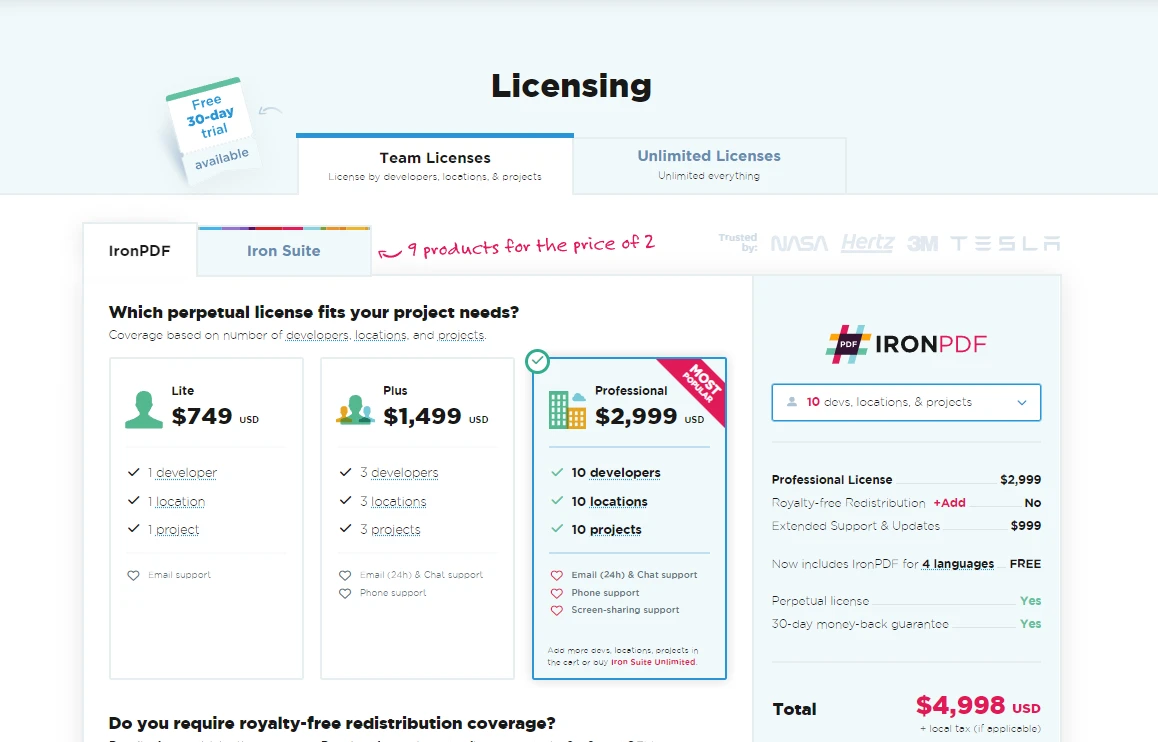
Through step-by-step instructions, you learn to integrate MudBlazor into your projects, utilize its components, and leverage IronPDF to generate PDFs from web content. Ideal for both beginners and intermediate developers, this tutorial ensures you're well-equipped to build modern web applications using these libraries. For those interested in exploring IronPDF further, a free trial starts from $999.

Jacob Mellor is Chief Technology Officer at Iron Software and a visionary engineer pioneering C# PDF technology. As the original developer behind Iron Software's core codebase, he has shaped the company's product architecture since its inception, transforming it alongside CEO Cameron Rimington into a 50+ person company serving NASA, Tesla, and global government agencies.

IronPDF is a part of IRONSUITE
10 .NET API products for your office documents











When you need your PDF to look like HTML, fast.


