




업데이트됨 2026년 4월 23일
.NET에서 Microsoft.Extensions.AI로 LLM 통합 간소화
AI는 소프트웨어 개발을 변혁하고 있으나, 대규모 언어 모델(LLM)을 .NET에 통합하는 것은 지금까지 복잡했습니다. 현대에는 OpenAI 기반 PDF 파싱, 데이터 추출 및 콘텐츠 요약을 .NET 애플리케이션에 가져오는 IronPdf.AI로 AI 통합을 더욱 확장하세요.
더 읽어보기

이 튜토리얼은 강력한 두 개의 라이브러리: NPlot과 IronPDF의 통합을 탐구하고자 하는 초보자를 위해 고안되었습니다. 이들은 함께 C# 응용 프로그램에서 차트를 만들고 내보내는 강력한 도구 세트를 형성합니다.
NPlot은 광범위한 그래프와 플롯을 생성하기에 이상적인 .NET Framework의 다용도 차트 라이브러리입니다. 간단한 선 플롯에서 복잡한 분산 차트에 이르기까지, NPlot은 샘플 기반 데이터를 표시하고 동적 차트를 생성하는 데 탁월합니다. 작은 데이터 세트든 매우 큰 데이터 세트든 상관없이.
IronPDF는 이러한 차트를 PDF 문서로 변환할 수 있게 하여 NPlot을 보완합니다. HTML 이메일 콘텐츠나 특정 플롯 클래스와 작업할 때, IronPDF는 이를 고품질의 PDF로 렌더링할 수 있습니다.
이 기능은 특히 분석 결과 데이터의 보고서 생성이나 문서화가 필요한 응용 프로그램에 유용합니다.
NPlot은 .NET Framework에서 광범위한 데이터 시각화 요구를 충족하도록 설계된 동적 차트 라이브러리입니다. 데스크톱 응용 프로그램이든 웹 기반 솔루션이든 NPlot은 데이터를 그래픽적으로, 명확하게, 효과적으로 나타내는 기능을 제공합니다.
C# 프로젝트에서 NPlot을 사용하기 시작하려면 이를 설치해야 합니다. 다음은 응용 프로그램에 NPlot을 쉽게 추가하는 방법입니다:
NuGet 패키지 관리자 사용:
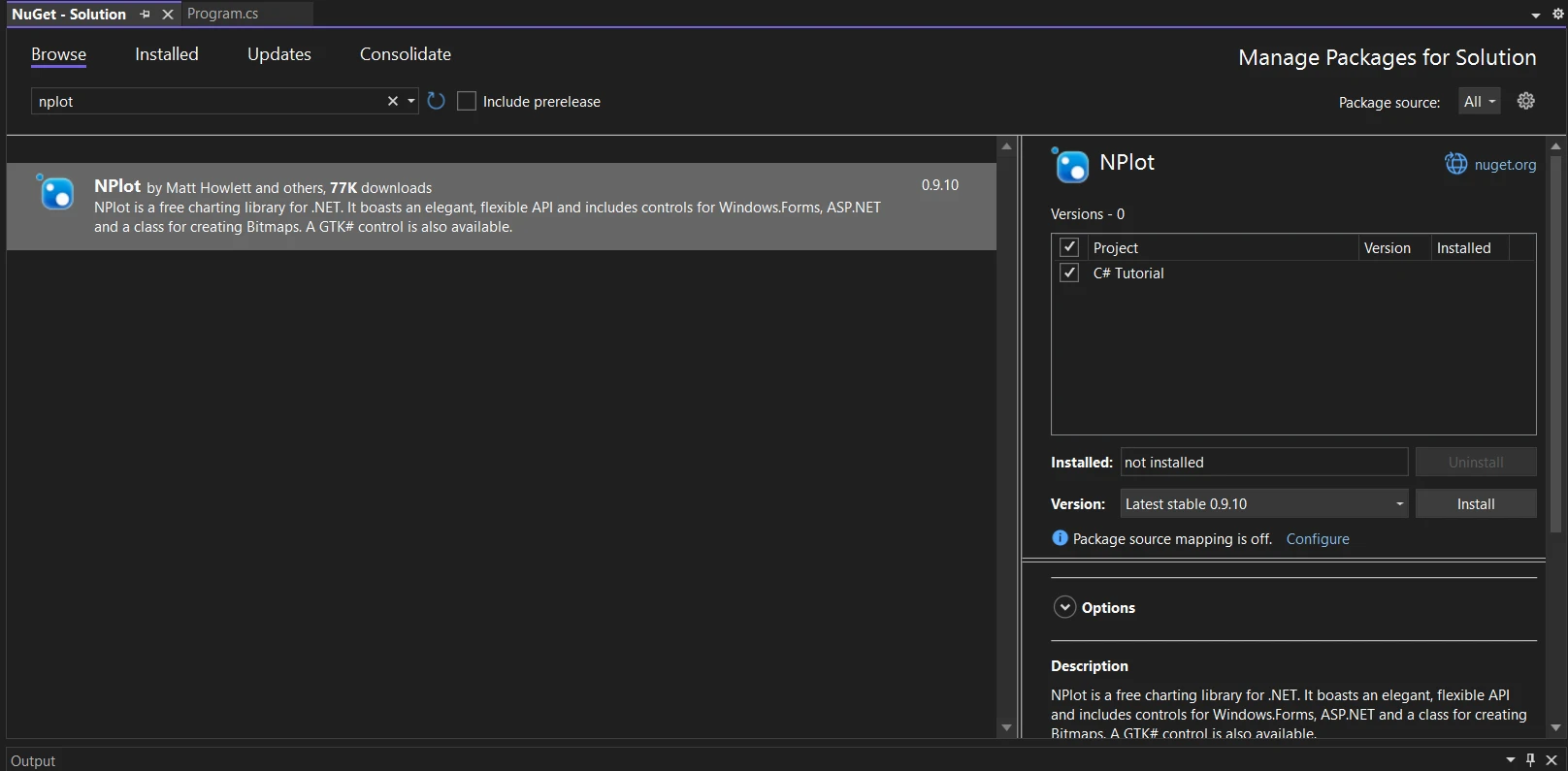
NPlot이 설치되면 차트를 만들기 시작할 수 있습니다. NPlot의 사용 용이성 덕분에 초보자가 몇 줄의 코드로 플롯을 생성할 수 있어 이상적입니다.
첫 번째 차트로 간단한 선 플롯을 만들어 봅시다:
플롯 표면 설정: PlotSurface2D 객체를 만드십시오. 이는 플롯을 위한 캔버스로 작용합니다. 배경색과 제목 같은 몇 가지 표시 속성을 설정하여 외관을 사용자 정의합니다.
플롯에 데이터 추가: NPlot의 LinePlot 클래스를 사용하여 선 그래프를 만드십시오. 하나 이상의 카테고리에 속하는 데이터 값을 추가합니다. 이 데이터 포인트는 그래프에 플롯됩니다.
차트 표시: 선 플롯을 플롯 표면에 추가합니다. 형식 또는 사용자 컨트롤에 플롯 표면을 렌더링하여 표시합니다.
using System;
using NPlot;

class Program
{
    static void Main()
    {
        // Create a new bitmap plot surface
        var plotSurface = new NPlot.Bitmap.PlotSurface2D(800, 600);

        // Create a line plot
        var linePlot = new LinePlot
        {
            AbscissaData = new double[] { 1, 2, 3, 4, 5 },
            OrdinateData = new double[] { 1, 4, 9, 16, 25 }
        };

        // Add the line plot to the plot surface
        plotSurface.Add(linePlot);

        // Customize the plot (e.g., titles, labels)
        plotSurface.Title = "Sample Plot";
        plotSurface.XAxis1.Label = "X-Axis";
        plotSurface.YAxis1.Label = "Y-Axis";

        // Refresh the plot to render it
        plotSurface.Refresh();

        // Save the plot as a PNG image
        plotSurface.Bitmap.Save("c://plot.png", System.Drawing.Imaging.ImageFormat.Png);

        Console.WriteLine("Plot saved as plot.png");
    }
}Imports System
Imports NPlot
Friend Class Program
Shared Sub Main()
' Create a new bitmap plot surface
Dim plotSurface = New NPlot.Bitmap.PlotSurface2D(800, 600)
' Create a line plot
Dim linePlot As New LinePlot With {
.AbscissaData = New Double() { 1, 2, 3, 4, 5 },
.OrdinateData = New Double() { 1, 4, 9, 16, 25 }
}
' Add the line plot to the plot surface
plotSurface.Add(linePlot)
' Customize the plot (e.g., titles, labels)
plotSurface.Title = "Sample Plot"
plotSurface.XAxis1.Label = "X-Axis"
plotSurface.YAxis1.Label = "Y-Axis"
' Refresh the plot to render it
plotSurface.Refresh()
' Save the plot as a PNG image
plotSurface.Bitmap.Save("c://plot.png", System.Drawing.Imaging.ImageFormat.Png)
Console.WriteLine("Plot saved as plot.png")
End Sub
End Class다음은 출력 플롯 이미지입니다:
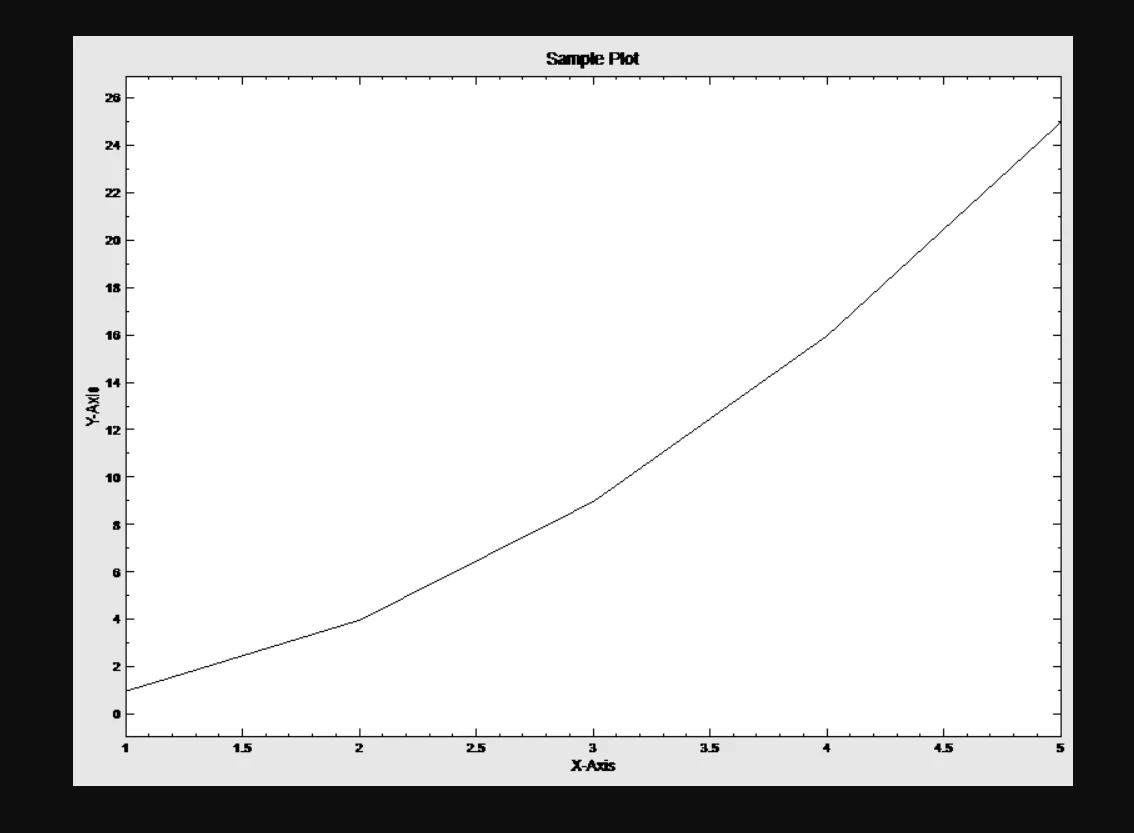
기본 플롯을 마스터한 후, NPlot은 데이터 시각화 능력을 높일 수 있는 더 복잡한 차트 유형을 제공합니다. 여기에는 막대 플롯, 분산 차트, 단계 플롯 등이 포함되어 있으며 각각은 다른 유형의 데이터 표현에 적합합니다.
막대 플롯: 하나 이상의 카테고리에 있는 데이터 값을 표시하는 데 이상적입니다. 각 막대는 데이터 값을 나타내며, 높이는 값의 크기를 나타냅니다.
분산 차트: 각 데이터 포인트가 독립적인 데이터 세트를 시각화하는 데 적합합니다. 이는 데이터를 이차원 그래프에 플롯하여 패턴이나 추세를 분석할 수 있게 합니다.
단계 플롯: 시간 데이터와 같은 연속적인 가로축 값을 포함하는 데이터에 사용됩니다. 계단식 표현을 만들어서 연속적인 데이터 포인트 간의 변화를 명확하게 보여줍니다.
NPlot과 IronPDF의 통합은 차트를 매끄럽게 PDF 문서로 변환할 수 있게 해줍니다. IronPDF는 HTML 콘텐츠와 플롯 클래스를 고품질 PDF 파일로 렌더링할 수 있는 강력한 라이브러리입니다. 이 통합은 보고서 작성이나 분석된 데이터 문서화를 필요로 하는 애플리케이션에 특히 유용합니다.
NuGet 패키지 관리자 사용하여 IronPDF를 NPlot C# 프로젝트에 통합하려면 다음 단계를 따르세요:
패키지 관리 콘솔을 통해 프로젝트에 IronPDF를 포함시키고 싶다면, 패키지 관리 콘솔에서 다음 명령을 실행하세요:
이는 프로젝트에 IronPDF를 가져와 설치합니다.
기능, 호환성, 추가 다운로드 옵션을 포함한 IronPDF의 자세한 개요는 NuGet 웹사이트의 IronPDF 페이지 https://www.nuget.org/packages/IronPdf를 방문하세요.
또는 IronPDF의 dll 파일을 프로젝트에 직접 통합할 수 있습니다. IronPDF 다운로드 페이지에서 DLL이 포함된 ZIP 파일을 다운로드하세요. 압축을 풀고, DLL을 프로젝트에 포함하세요.
NPlot은 C# 애플리케이션 내에서 동적이고 시각적으로 매력적인 차트를 만드는 데 뛰어납니다. 이 섹션에서는 두 변수의 데이터를 표시하는 일반적인 사용 사례인 산점도를 생성하는 방법을 안내합니다.
산점도는 변수 간의 관계를 시각화하는 데 특히 효과적입니다. 산점도를 생성하려면 다음 단계를 따르세요:
PlotSurface2D 인스턴스를 생성하여 시작합니다.PlotSurface2D에 추가할 수 있습니다.PointPlot 또는 ScatterPlot 클래스를 사용하여 플롯 객체로 차트를 만드십시오.using NPlot;
class Program
{
static void Main()
{
var plotSurface = new NPlot.Windows.PlotSurface2D();
// Prepare data for the scatter plot
var scatterPlot = new PointPlot
{
AbscissaData = new double[] { /* x-coordinates */ },
OrdinateData = new double[] { /* y-coordinates */ }
};
// Add the scatter plot to the plot surface
plotSurface.Add(scatterPlot);
// Customize the chart and render the plotSurface
plotSurface.Refresh();
}
}Imports NPlot
Friend Class Program
Shared Sub Main()
Dim plotSurface = New NPlot.Windows.PlotSurface2D()
' Prepare data for the scatter plot
Dim scatterPlot = New PointPlot With {
.AbscissaData = New Double() { },
.OrdinateData = New Double() { }
}
' Add the scatter plot to the plot surface
plotSurface.Add(scatterPlot)
' Customize the chart and render the plotSurface
plotSurface.Refresh()
End Sub
End ClassNPlot로 차트를 생성하고 나면, IronPDF를 사용해 이 차트를 PDF 문서로 변환할 수 있습니다. 이 과정은 차트를 이미지로 렌더링한 다음 IronPDF를 사용해 이 이미지를 PDF에 포함시키는 것을 포함합니다. 차트를 PDF로 변환하려면 다음 단계를 따르십시오:
PlotSurface2D을 비트맵에 그리면 완료할 수 있습니다.using IronPdf;
class Program
{
static void Main()
{
// Assuming 'chartImagePath' is the path to the Bitmap image of your NPlot chart
var imageFiles = new string[] { "chartImagePath" };
// Convert image files to PDF and save the output
ImageToPdfConverter.ImageToPdf(imageFiles).SaveAs("Chart.pdf");
}
}Imports IronPdf
Friend Class Program
Shared Sub Main()
' Assuming 'chartImagePath' is the path to the Bitmap image of your NPlot chart
Dim imageFiles = New String() { "chartImagePath" }
' Convert image files to PDF and save the output
ImageToPdfConverter.ImageToPdf(imageFiles).SaveAs("Chart.pdf")
End Sub
End Class
이 튜토리얼을 통해 우리는 두 강력한 C# 라이브러리의 통합을 탐색했습니다: 데이터 의존 요소에서 동적이고 데이터 중심의 차트를 생성하기 위한 NPlot과 이러한 차트를 PDF 문서로 변환하기 위한 IronPDF.
이 조합은 C# 개발자에게 데이터를 효과적으로 시각화한 다음 그 데이터를 공유 가능하고 아카이브 가능한 형식으로 매끄럽게 전환할 수 있는 포괄적인 도구 모음을 제공합니다.
IronPDF의 무료 체험 라이선스로 시작하세요. $999에서 이용 가능합니다.

제이콥 멜러는 Iron Software의 최고 기술 책임자(CTO)이자 C# PDF 기술을 개척한 선구적인 엔지니어입니다. Iron Software의 핵심 코드베이스를 최초로 개발한 그는 창립 초기부터 회사의 제품 아키텍처를 설계해 왔으며, CEO인 캐머런 리밍턴과 함께 회사를 NASA, 테슬라, 그리고 전 세계 정부 기관에 서비스를 제공하는 50명 이상의 직원을 보유한 기업으로 성장시켰습니다.



IronPDF는 IRON SUITE 의 일부입니다.
10개의 .NET API 제품, 당신의 사무 문서를 위해











PDF 파일을 HTML처럼 빠르게 변환해야 할 때.


