




업데이트됨 2026년 4월 23일
.NET에서 Microsoft.Extensions.AI로 LLM 통합 간소화
AI는 소프트웨어 개발을 변혁하고 있으나, 대규모 언어 모델(LLM)을 .NET에 통합하는 것은 지금까지 복잡했습니다. 현대에는 OpenAI 기반 PDF 파싱, 데이터 추출 및 콘텐츠 요약을 .NET 애플리케이션에 가져오는 IronPdf.AI로 AI 통합을 더욱 확장하세요.
더 읽어보기

Razor는 .NET Core와 .NET Framework를 사용하여 동적 웹 페이지를 생성하는 데 사용되는 서버 측 마크업 언어입니다. 이는 주로 ASP.NET Core와 함께 사용됩니다. Razor Pages는 응용 프로그램 내의 코드를 구조화하는 깨끗하고 간단한 방법을 제공하는 ASP.NET Core의 새로운 측면으로, 코드 중복 문제를 줄여줍니다. Razor는 C# 또는 VB(비주얼 베이직)를 HTML과 결합하여 웹 콘텐츠를 만듭니다.
이 튜토리얼은 Visual Studio에서 C#과 함께 Razor를 사용하여 기본 애플리케이션을 만드는 방법을 안내합니다. 시작해 볼까요!
Razor 세계로 들어가기 전에, 다음 항목이 설치되어 있는지 확인하십시오:
이들은 Razor View Engine과 이번 튜토리얼에서 사용할 프로젝트 템플릿을 제공합니다. 또한, 여러 운영 체제에서 작동할 수 있어 Windows, Linux, 또는 macOS의 어느 환경에서든 따라올 수 있습니다.
Microsoft Visual Studio를 열고 다음 단계를 따르세요:
"파일" > "새로 만들기" > "프로젝트"를 클릭합니다.
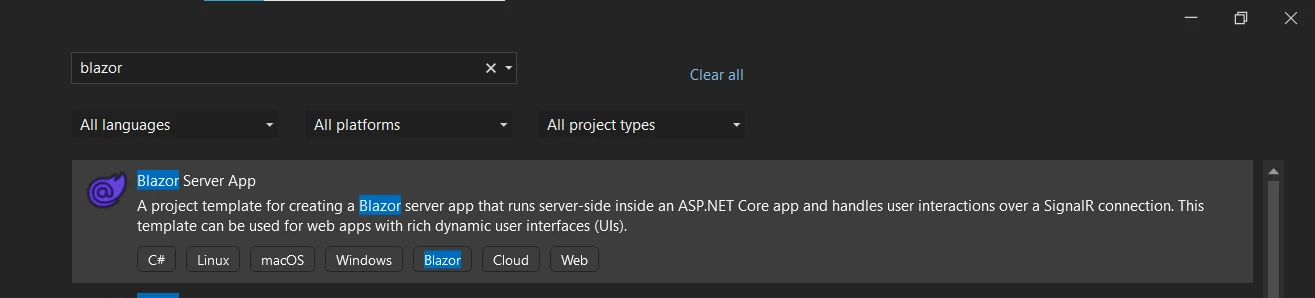
프로젝트 템플릿 선택 화면에서 "Blazor 서버 앱"을 선택합니다.
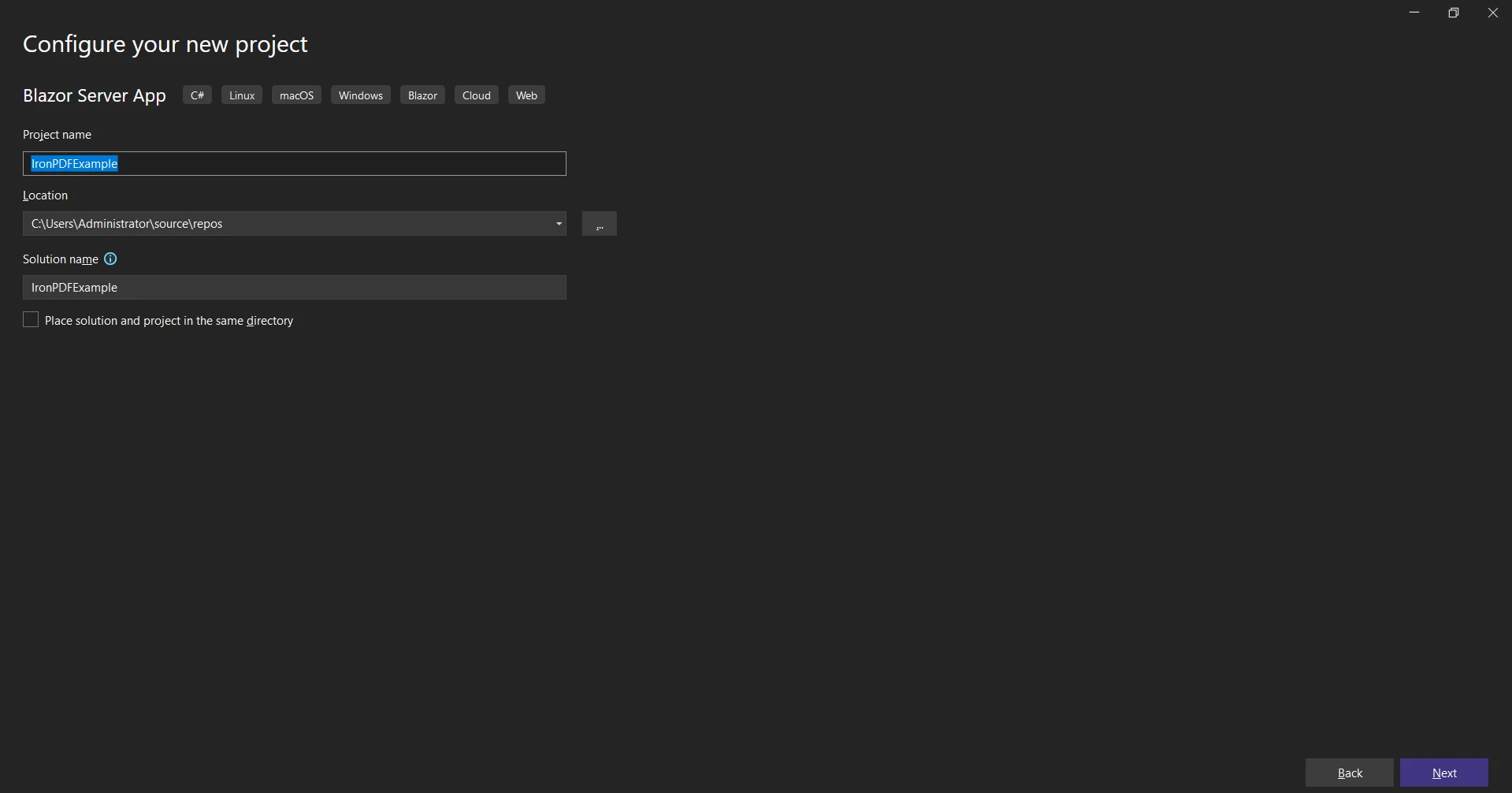
프로젝트 이름을 "IronPDFExample"로 지정하고 "만들기"를 클릭합니다.
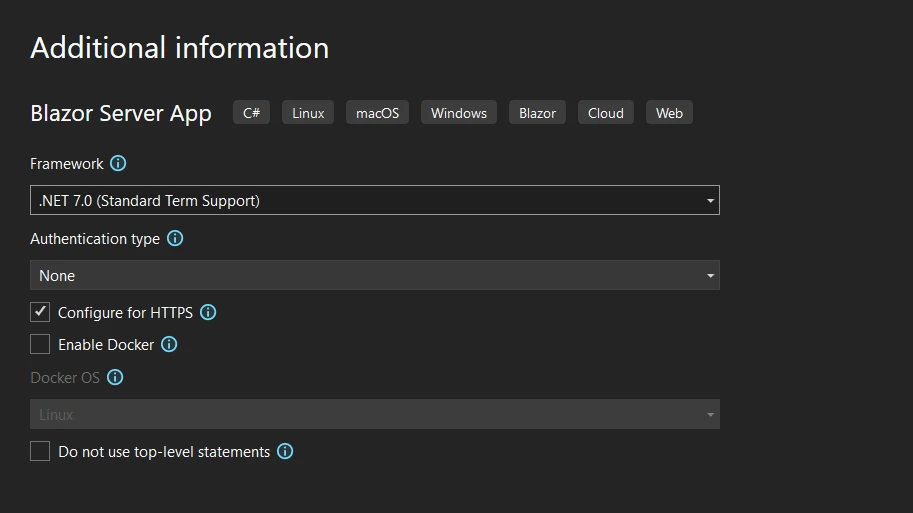
드롭다운에서 ".NET 7.0" 또는 그 이후 버전을 선택합니다.
이제 새로운 Razor Pages 프로젝트가 생겼습니다.
Razor 파일은 .cshtml 파일 확장자를 사용하여 C#과 HTML을 결합합니다. Visual Basic을 사용하고 있다면 파일 확장자는 .vbhtml로 변경됩니다.
솔루션 탐색기에서 'Index.cshtml'이라는 이름의 .cshtml 확장자 파일을 찾아 엽니다. 여기에서 HTML 코드와 C# 코드의 결합을 볼 수 있습니다. 이 결합은 Razor 파서에 의해 가능합니다.
ASP.NET Core에서 Razor 문법은 HTML과 서버 측 코드의 결합입니다. 서버 코드는 C# 또는 VB 코드입니다. Razor 코드는 @ 기호로 표시되며, HTML이 클라이언트에 전송되기 전에 서버에서 실행됩니다.
간단한 Razor 문법의 예:
<p>The current time is @DateTime.Now</p>'INSTANT VB TODO TASK: The following line uses invalid syntax:
'<p> The current time is @DateTime.Now</p>이 코드 예제에서는 @DateTime.Now가 Razor 코드입니다. 이는 서버에서 실행되어, 현재 날짜와 시간으로 대체된 후에 클라이언트로 보내집니다.
Razor에서 "뷰"라는 용어는 사용자에게 정보를 제공하려는 웹 페이지를 의미합니다. Razor View Engine은 사용자에게 HTML 페이지를 렌더링하는 역할을 맡고 있습니다.
@page
@model IndexModel
@{
    ViewData["Title"] = "Home page";
}

<div class="text-center">
    <h1 class="display-4">Welcome</h1>
    <p>Learn about <a href="https://docs.microsoft.com/aspnet/core">building Web apps with ASP.NET Core</a>.</p>
</div>page model ReadOnly Property () As IndexModel
ViewData("Title") = "Home page"
End Property
'INSTANT VB TODO TASK: The following line uses invalid syntax:
'<div class="text-center"> <h1 class="display-4"> Welcome</h1> <p> Learn about <a href="https://docs.microsoft.com/aspnet/core"> building Web apps @with ASP.NET Core</a>.</p> </div>Razor 마크업을 사용하여 HTML 마크업 내에 서버 측 코드를 삽입할 수 있습니다. 코드 블록, 인라인 표현식, HTML 인코딩된 표현식과 같은 다양한 코드 구조를 사용할 수 있습니다.
인라인 표현식은 다음 코드를 사용하여 그 결과를 HTML에 직접 출력합니다:
<p>Hello, my name is @Model.Name</p>'INSTANT VB TODO TASK: The following line uses invalid syntax:
'<p> Hello, my name is @Model.Name</p>여기에서 @Model.Name는 Razor 뷰에 전달된 모델의 Name 속성 값을 출력하는 인라인 표현식입니다.
코드 블록은 서버에서 실행되는 코드 세그먼트입니다:
@{
    var name = "IronPDF";
}
<p>Hello, my name is @name</p>@
If True Then
Dim name = "IronPDF"
End If
'INSTANT VB TODO TASK: The following line uses invalid syntax:
'<p> Hello, my name is @name</p>이 코드 예제에서는 { } 사이의 Razor 코드가 코드 블록입니다.
Razor Pages에서 if 문과 루프와 같은 제어 구조를 사용할 수 있습니다:
@{
    var count = 5;
}

@if (count > 3)
{
    <p>The count is greater than 3.</p>
}@
If True Then
Dim count = 5
End If
'INSTANT VB TODO TASK: Local functions are not converted by Instant VB:
'@if(count > 3)
'{
' <p> The count is greater than 3.</p>
'}위 코드 예제에서 if 문은 서버에서 실행되는 서버측 코드의 일부이며, 그 출력은 결과 HTML 페이지에 삽입됩니다.
Switch 문은 C# 프로그래밍 언어에서 사용되는 일종의 조건부 제어 구조입니다. 이는 코드 블록 내에서 사용할 수 있습니다.
@{
    var fileFormat = "PDF";
    var message = "";

    switch (fileFormat)
    {
        case "PDF":
            message = "You selected PDF.";
            break;
        default:
            message = "Invalid selection.";
            break;
    }
}

<p>@message</p>@
If True Then
Dim fileFormat = "PDF"
Dim message = ""
Select Case fileFormat
Case "PDF"
message = "You selected PDF."
Case Else
message = "Invalid selection."
End Select
End If
'INSTANT VB TODO TASK: The following line uses invalid syntax:
'<p> @message</p>거의 모든 프로그래밍 언어에서 가장 간단한 프로그램 중 하나는 "Hello World"입니다. Razor에서는 아래 예제에 표시된 것처럼 간단한 인라인 표현식을 사용하여 "Hello World"를 표시할 수 있습니다.
<p>@("Hello World")</p>'INSTANT VB TODO TASK: The following line uses invalid syntax:
'<p> @("Hello World")</p>Razor 문법을 사용하면 foreach 문과 같은 루프를 작성할 수 있습니다. 예를 들어 웹 페이지에 표시하려는 이름 목록이 있다고 가정해 봅시다. Razor 문법의 foreach 문을 사용하여 이를 달성할 수 있습니다.
@{
    var names = new List<string> { "John", "Doe", "Smith" };
}

@foreach (var name in names)
{
    <p>@name</p>
}@
If True Then
Dim names = New List(Of String) From {"John", "Doe", "Smith"}
End If
'INSTANT VB TODO TASK: Local functions are not converted by Instant VB:
'@foreach(var name in names)
'{
' <p> @name</p>
'}이 foreach 문은 목록의 각 이름을 루프하여 웹 페이지에 출력합니다.
ASP.NET MVC에서 태그 도우미는 서버 측 코드가 Razor 파일에서 HTML 요소를 생성하고 렌더링할 수 있도록 합니다. 태그 도우미는 HTML 도우미와 비슷하지만 더 HTML 같은 구문을 가집니다. 태그 도우미는 Razor 뷰의 HTML 같은 요소를 클라이언트 브라우저에 보내는 HTML 마크업으로 변환합니다. 다음 앵커 태그 도우미의 코드 예제를 고려해 보세요:
<a asp-controller="Home" asp-action="Index">Home</a>Razor 페이지는 사용자 상호작용을 관리하기 위해 핸들러 메서드를 사용합니다. 예를 들어 폼 제출을 처리하기 위해 Razor Page의 해당 페이지 모델 파일에 OnPostAsync이라는 메서드를 생성할 수 있습니다.
public async Task<IActionResult> OnPostAsync()
{
    if (!ModelState.IsValid)
    {
        return Page();
    }

    // Perform some operation here

    return RedirectToPage("./Index");
}Public Async Function OnPostAsync() As Task(Of IActionResult)
If Not ModelState.IsValid Then
Return Page()
End If
' Perform some operation here
Return RedirectToPage("./Index")
End FunctionRazor는 또한 C# 스타일의 주석을 지원합니다. Razor 주석은 서버 측 주석이므로 브라우저에 보내지지 않음을 기억하세요. Razor 주석은 이렇게 생겼습니다:
@* This is a Razor comment *@'INSTANT VB TODO TASK: The following line uses invalid syntax:
'@* This is a Razor comment *@그리고 이것은 여러 줄로 된 주석입니다:
@*
    This is a multi-line Razor comment.
    It's useful when you have a lot to say.
*@'INSTANT VB TODO TASK: The following line uses invalid syntax:
'@* This is a multi-line Razor comment.It's useful @when you have a lot @to say. *@Razor 뷰와 페이지는 HTML 주석을 포함할 수 있습니다. 이 주석들은 브라우저에 보내는 HTML 출력에서 볼 수 있습니다.
<!-- This is an HTML comment -->Razor는 서버에서 페이지로 모델을 전달할 수 있도록 합니다. @model 지시문은 전달되는 객체의 유형을 지정하는 데 사용됩니다. 아래 예제에 표시된 것처럼 이 모델 속성은 Razor 페이지에서 접근할 수 있습니다.
@page
@model ExampleModel

<h2>@Model.Title</h2>
<p>@Model.Description</p>'INSTANT VB TODO TASK: The following line uses invalid syntax:
'@page @model ExampleModel <h2> @Model.Title</h2> <p> @Model.Description</p>IronPDF .NET용은 개발자가 HTML, 이미지, 심지어 기존 웹 페이지를 .NET에서 PDF로 생성할 수 있게 해주는 인기 있는 라이브러리입니다. 이것은 보고서, 인보이스 및 표준 출력 형식이 필요한 기타 모든 문서를 작성하는 데 훌륭한 도구입니다. IronPDF는 ASP.NET MVC 및 ASP.NET Razor Pages 프레임워크 내에서 완벽하게 작동합니다.
먼저 IronPDF 패키지를 설치해야 합니다. Visual Studio의 NuGet 패키지 관리자 콘솔에서 수행할 수 있습니다. 다음 명령어를 실행하세요:
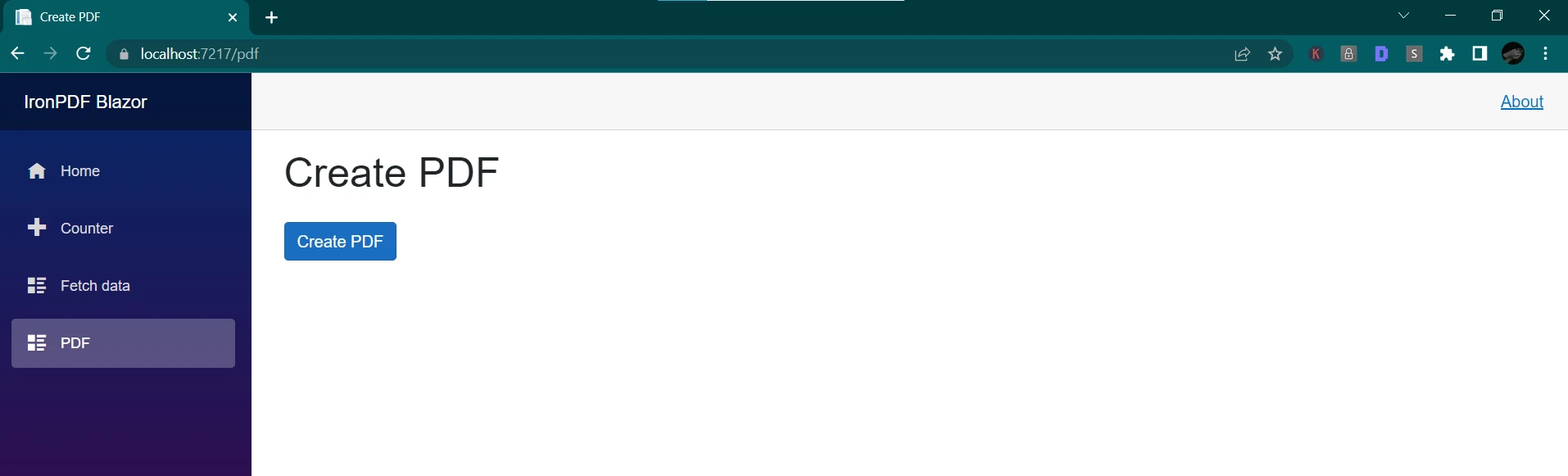
이제 Razor 페이지 내에서 HTML 코드로부터 간단한 PDF를 만들어 봅시다. 먼저 Razor 페이지 상단에 IronPDF 네임스페이스를 가져옵시다.
@using IronPdf;Dim IronPdf As [using]그런 다음 IronPDF를 사용하여 PDF를 생성할 수 있습니다. Razor 페이지에 버튼이 있어 클릭 시 간단한 PDF를 생성한다고 가정합시다.
페이지 모델 파일의 해당 핸들러에 다음 코드를 추가할 수 있습니다:
@page "/pdf"
@using IronPdf;
@inject IJSRuntime JS

<PageTitle>Create PDF</PageTitle>

<h1>Create PDF</h1>

<div class="form-outline">
    <button class="btn btn-primary mt-3" @onclick="CreatePDF">Create PDF</button>
</div>

@code {
    private string htmlString { get; set; }

    private async Task CreatePDF()
    {
        var Renderer = new IronPdf.ChromePdfRenderer();
        Renderer.RenderingOptions.PaperSize = IronPdf.Rendering.PdfPaperSize.A2;

        var doc = Renderer.RenderUrlAsPdf("https://ironpdf.com/");

        using var Content = new DotNetStreamReference(stream: doc.Stream);

        await JS.InvokeVoidAsync("SubmitHTML", "ironpdf.pdf", Content);
    }
}
성공적으로 Razor C#의 기초를 배우고 IronPDF를 통합하여 애플리케이션 내에서 PDF 파일을 생성하는 방법을 발견했습니다. Visual Studio에서 새로운 프로젝트를 생성하는 것으로 시작하여 Razor 구문을 사용하여 동적 웹 페이지를 생성하는 방법을 배웠습니다. HTML 코드와 심지어 Razor 뷰 전체에서 PDF를 생성하는 데 IronPDF를 사용할 수 있는 방법도 탐색했습니다.
이제 더 고급 애플리케이션을 계속 개발하면서 IronPDF가 제공하는 강력한 기능을 활용할 수 있습니다. IronPDF를 무료로 체험해 볼 수 있으며 가치 있다고 판단되면 필요한 요구 사항에 적합한 라이센스를 구매할 수 있습니다.

제이콥 멜러는 Iron Software의 최고 기술 책임자(CTO)이자 C# PDF 기술을 개척한 선구적인 엔지니어입니다. Iron Software의 핵심 코드베이스를 최초로 개발한 그는 창립 초기부터 회사의 제품 아키텍처를 설계해 왔으며, CEO인 캐머런 리밍턴과 함께 회사를 NASA, 테슬라, 그리고 전 세계 정부 기관에 서비스를 제공하는 50명 이상의 직원을 보유한 기업으로 성장시켰습니다.



IronPDF는 IRON SUITE 의 일부입니다.
10개의 .NET API 제품, 당신의 사무 문서를 위해

PDF 파일을 HTML처럼 빠르게 변환해야 할 때.


