푸터 콘텐츠로 바로가기
.NET 도움말

Xceed.Document .NET (How It Works For Developers)

In the robust environment of .NET development, the seamless handling of document generation and conversion tasks is essential for a myriad of applications. Whether it's generating dynamic reports, creating invoices, or converting documents between formats, having the right tools at your disposal can significantly streamline your workflow and enhance productivity.

In this article, we'll explore how Xceed.Document.NET and IronPDF — two powerful libraries for document manipulation in .NET — can simplify these processes and empower developers to create versatile and efficient applications.

Introduction to Xceed.Document.NET

Xceed.Document.NET, developed by Xceed, is a comprehensive .NET assembly that facilitates the creation, manipulation, and formatting of Word documents (DOCX files) programmatically without the need to install Microsoft Word or Office InterOp. Developed with simplicity and versatility in mind, Xceed.Document.NET provides developers with an intuitive API for seamlessly integrating document generation capabilities into their .NET applications.

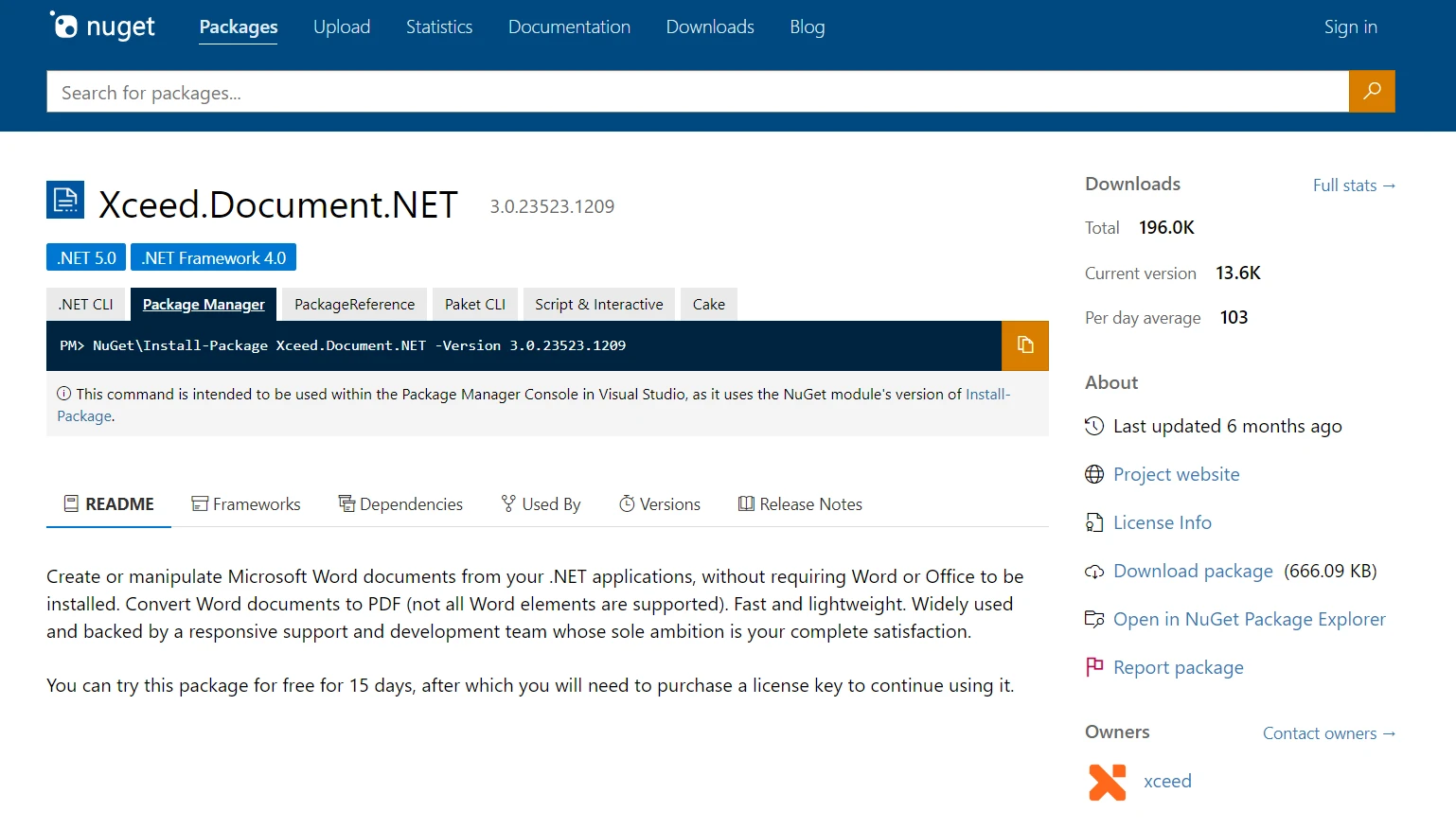
Xceed.Document .NET (How It Works For Developers): Figure 1 - Xceed.Document.NET NuGet package

Leveraging the power of Xceed.Document.NET, developers can effortlessly manipulate various elements of Word documents, including paragraphs, tables, images, and styles, to create rich and customizable documents tailored to their specific requirements. You can also set the document properties, sign digitally, and ensure digital signatures for MS Word document integrity.

Xceed offers various libraries tailored for different document formats such as text documents, various text formats, .NET document to PDF.

Features of Xceed.Document.NET

  1. Powerful Document Manipulation: Xceed.Document.NET allows developers to create, modify, and format Word documents with ease, thanks to its comprehensive set of features and intuitive API.
  2. Versatile Content Management: With Xceed.Document.NET, developers can manipulate various document elements such as paragraphs, tables, images, and styles to create dynamic and visually appealing documents.
  3. Rich Formatting Options: Xceed.Document.NET offers extensive formatting options, allowing developers to customize the appearance of their documents by applying fonts, colors, alignments, and more.
  4. Cross-Platform Compatibility: Xceed.Document.NET is compatible with various .NET platforms, including Windows Forms, WPF, ASP.NET, and .NET Core, making it suitable for a wide range of applications.
  5. Seamless Integration: Xceed.Document.NET seamlessly integrates with other .NET libraries and frameworks, enabling developers to enhance their document-related workflows with ease.

Create C# Visual Studio Project

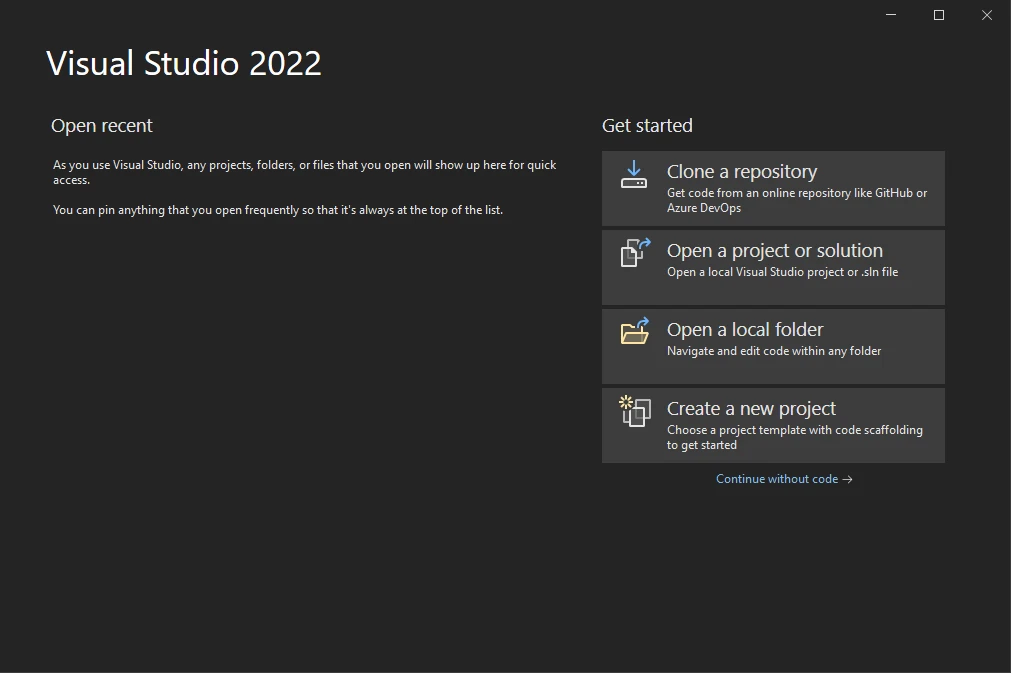
  1. Open Visual Studio and create a new C# project.

    Xceed.Document .NET (How It Works For Developers): Figure 2 - Open Visual Studio and click on the Create a new project option.

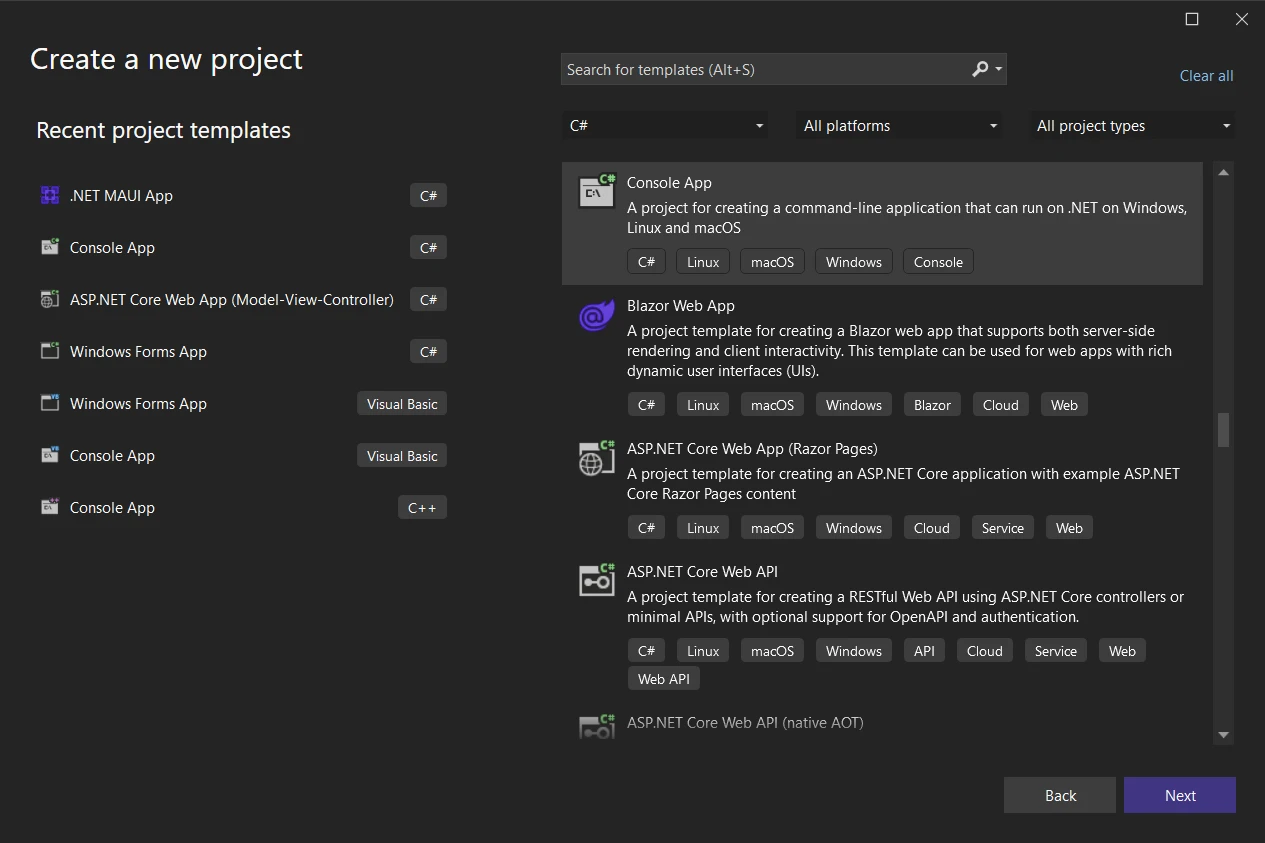
  2. Choose the appropriate project template based on your requirements (e.g., Console Application, Windows Forms Application).

    Xceed.Document .NET (How It Works For Developers): Figure 3 - For the new project, select a Console App in C#.

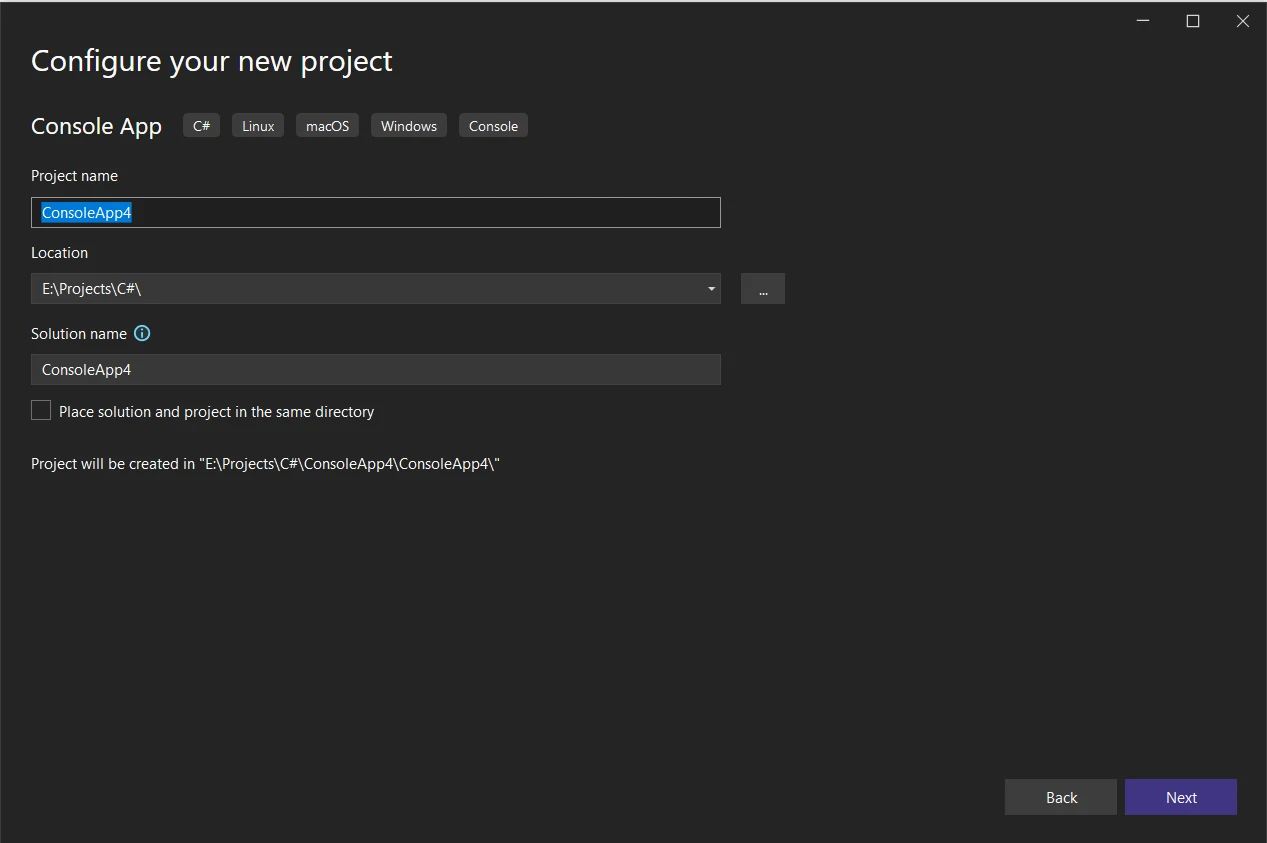
  3. Specify the project name and location, then click "Next".

    Xceed.Document .NET (How It Works For Developers): Figure 4 - Configure your project by specifying the project name, location and solution name. Next, select the .NET Framework and click on Create.

  4. From Additional Information, select the latest .NET Framework. Click "Create" to create the project.

Installation Process

Installing Xceed.Document.NET is a straightforward process:

  1. Open Visual Studio or your preferred IDE.
  2. Create a new or open an existing .NET project.
  3. Navigate to the NuGet Package Manager Console.
  4. Run the following command to install the Xceed.Document.NET package:

    Install-Package Xceed.Document.NET

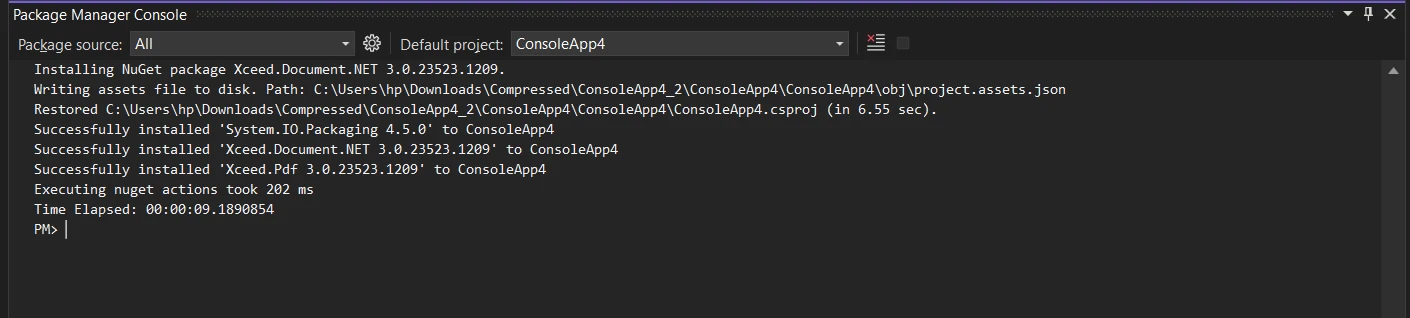
    Xceed.Document .NET (How It Works For Developers): Figure 5 - Install Xceed.Document.NET library using NuGet Package Manager Console and command: Install-Package Xceed.Document.NET

  5. Once the installation is complete, you can start using Xceed.Document.NET in your project.

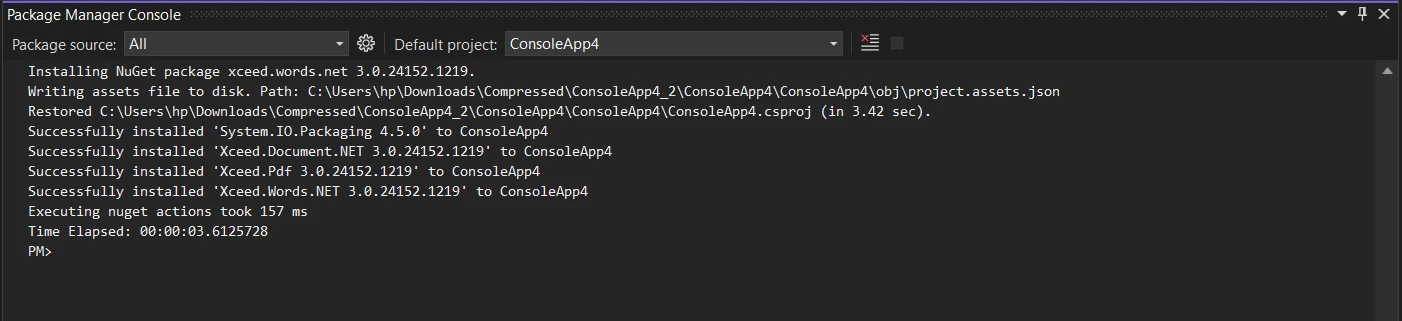
Note: It's essential to understand that Xceed.Words.NET is necessary for creating DOCX formats, utilizing Xceed.Document.NET to incorporate elements into them.

Install-Package Xceed.Words.NET

Xceed.Document .NET (How It Works For Developers): Figure 6 - Install Xceed.Words.NET library using NuGet Package Manager Console and command: Install-Package Xceed.Words.NET

Creating DOCX Files with Xceed.Document.NET

Using Xceed.Document.NET to create DOCX files is simple and intuitive. Here's a basic example of how to create a Word document programmatically:

using Xceed.Words.NET;
using System;

class Program
{
    static void Main(string[] args)
    {
        // Create a new document
        using (DocX document = DocX.Create("SampleDocument.docx"))
        {
            // Add a paragraph with text, styling it with font size, boldness and centered alignment
            document.InsertParagraph("Hello, World!")
                    .FontSize(12)     // Set the font size
                    .Bold()           // Make the text bold
                    .Alignment = Alignment.center; // Center align the text

            // Save the document
            document.Save();
            Console.WriteLine("Document created successfully!");
        }
    }
}
using Xceed.Words.NET;
using System;

class Program
{
    static void Main(string[] args)
    {
        // Create a new document
        using (DocX document = DocX.Create("SampleDocument.docx"))
        {
            // Add a paragraph with text, styling it with font size, boldness and centered alignment
            document.InsertParagraph("Hello, World!")
                    .FontSize(12)     // Set the font size
                    .Bold()           // Make the text bold
                    .Alignment = Alignment.center; // Center align the text

            // Save the document
            document.Save();
            Console.WriteLine("Document created successfully!");
        }
    }
}
$vbLabelText   $csharpLabel

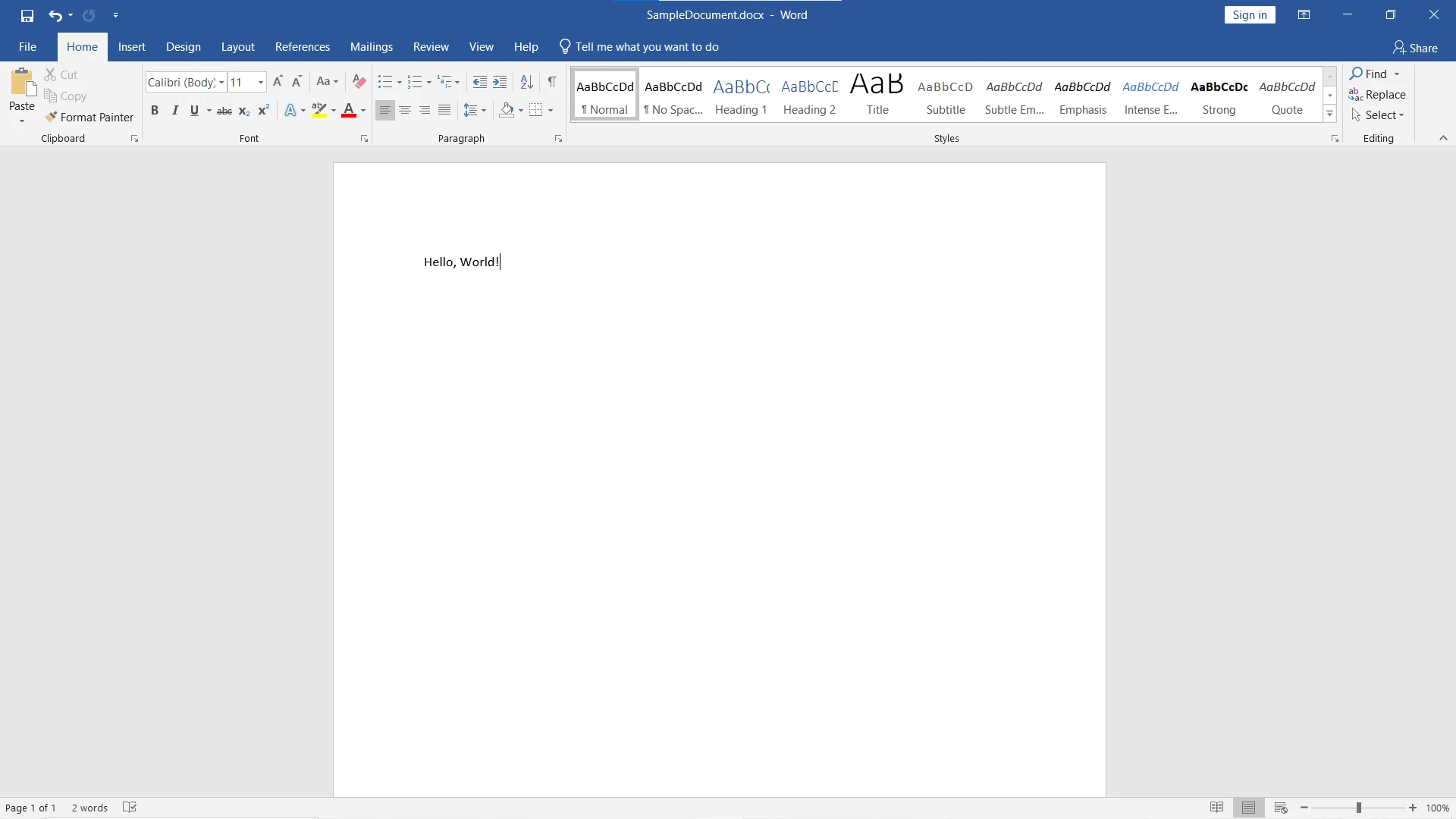
Here is the output of the above code. The DOCX file created can be opened using the Microsoft Office Word application.

Xceed.Document .NET (How It Works For Developers): Figure 7 - Output: A DOCX file created programmatically using the Xceed.Document.NET library.

Integrating Xceed.Document.NET with IronPDF

Integrating Xceed.Document.NET with IronPDF allows developers to seamlessly convert Word documents (DOCX files) generated using Xceed.Document.NET into PDF format.

IronPDF

IronPDF is a robust .NET library designed to simplify PDF generation, manipulation, and rendering tasks within .NET applications. With its comprehensive set of features and intuitive API, IronPDF empowers developers to create, modify, and render PDF files programmatically with ease without the need to install Adobe Acrobat Reader.

IronPDF is a great tool for converting webpages, URLs, and HTML into PDFs that perfectly resemble the original source. This is ideal for generating PDFs of online content such as reports and invoices. If you need to create a PDF from a webpage, IronPDF is the solution for you!

using IronPdf;
using System;

class Program
{
    static void Main(string[] args)
    {
        var renderer = new ChromePdfRenderer();

        // 1. Convert HTML String to PDF
        var htmlContent = "<h1>Hello, IronPDF!</h1><p>This is a PDF from an HTML string.</p>";
        var pdfFromHtmlString = renderer.RenderHtmlAsPdf(htmlContent);
        pdfFromHtmlString.SaveAs("HTMLStringToPDF.pdf");
        Console.WriteLine("HTML string converted to PDF successfully.");

        // 2. Convert HTML File to PDF
        var htmlFilePath = "path_to_your_html_file.html"; // Specify the path to your HTML file
        var pdfFromHtmlFile = renderer.RenderHtmlFileAsPdf(htmlFilePath);
        pdfFromHtmlFile.SaveAs("HTMLFileToPDF.pdf");
        Console.WriteLine("HTML file converted to PDF successfully.");

        // 3. Convert URL to PDF
        var url = "http://ironpdf.com"; // Specify the URL
        var pdfFromUrl = renderer.RenderUrlAsPdf(url);
        pdfFromUrl.SaveAs("URLToPDF.pdf");
        Console.WriteLine("URL converted to PDF successfully.");
    }
}
using IronPdf;
using System;

class Program
{
    static void Main(string[] args)
    {
        var renderer = new ChromePdfRenderer();

        // 1. Convert HTML String to PDF
        var htmlContent = "<h1>Hello, IronPDF!</h1><p>This is a PDF from an HTML string.</p>";
        var pdfFromHtmlString = renderer.RenderHtmlAsPdf(htmlContent);
        pdfFromHtmlString.SaveAs("HTMLStringToPDF.pdf");
        Console.WriteLine("HTML string converted to PDF successfully.");

        // 2. Convert HTML File to PDF
        var htmlFilePath = "path_to_your_html_file.html"; // Specify the path to your HTML file
        var pdfFromHtmlFile = renderer.RenderHtmlFileAsPdf(htmlFilePath);
        pdfFromHtmlFile.SaveAs("HTMLFileToPDF.pdf");
        Console.WriteLine("HTML file converted to PDF successfully.");

        // 3. Convert URL to PDF
        var url = "http://ironpdf.com"; // Specify the URL
        var pdfFromUrl = renderer.RenderUrlAsPdf(url);
        pdfFromUrl.SaveAs("URLToPDF.pdf");
        Console.WriteLine("URL converted to PDF successfully.");
    }
}
$vbLabelText   $csharpLabel

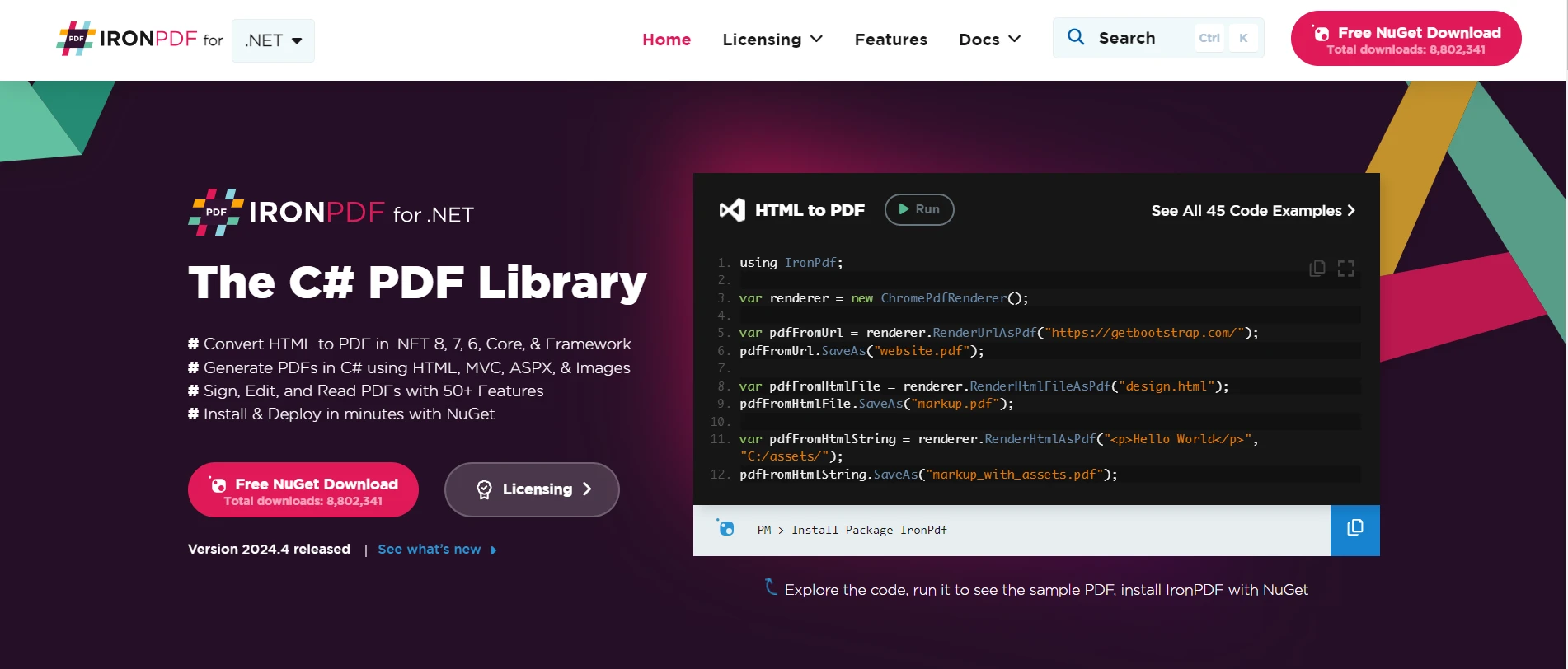
Xceed.Document .NET (How It Works For Developers): Figure 8 - IronPDF for .NET: The C# PDF Library

Some top features of IronPDF include:

  1. PDF Generation: IronPDF allows developers to create PDF documents from various sources such as HTML, images, and XML data. This enables the generation of dynamic and customizable PDFs tailored to specific requirements.
  2. PDF Manipulation: With IronPDF, developers can manipulate existing PDF documents by adding, modifying, or removing pages, text, images, annotations, and other elements. This flexibility enables developers to edit and customize PDF documents according to their needs.
  3. PDF Conversion: IronPDF facilitates the conversion of HTML, Word documents (DOCX), images, and other file formats to PDF format. This provides seamless interoperability between different document types and simplifies the process of working with PDFs in .NET applications.
  4. PDF Rendering: IronPDF offers high-quality PDF rendering capabilities, allowing developers to display PDF documents within their .NET applications using customizable viewer components. This enables users to view PDF content directly within the application interface.
  5. Cross-Platform Compatibility: IronPDF provides vast .NET support. It is compatible with various .NET platforms, including Windows Forms, WPF, ASP.NET, and .NET Core. It is available for Windows, Linux, and macOS. This ensures that developers can use IronPDF in a wide range of applications, regardless of the target platform.
  6. Performance Optimization: IronPDF is optimized for performance and scalability, ensuring fast and efficient PDF generation and rendering even for large documents. This enables developers to create responsive and high-performance applications that handle PDF-related tasks effectively.
  7. Licensing Options: IronPDF offers flexible licensing options to suit the needs of individual developers, small teams, and enterprise-level applications. This provides cost-effective solutions for PDF-related tasks, allowing developers to choose the licensing model that best fits their requirements.

Steps to Integrate Xceed.Document.NET with IronPDF Library

Here are the steps to integrate Xceed.Document.NET with IronPDF:

1. Install IronPDF

  • Open Visual Studio or your preferred IDE.
  • Navigate to the NuGet Package Manager Console.
  • Run the following command to install the IronPDF package:

    Install-Package IronPdf
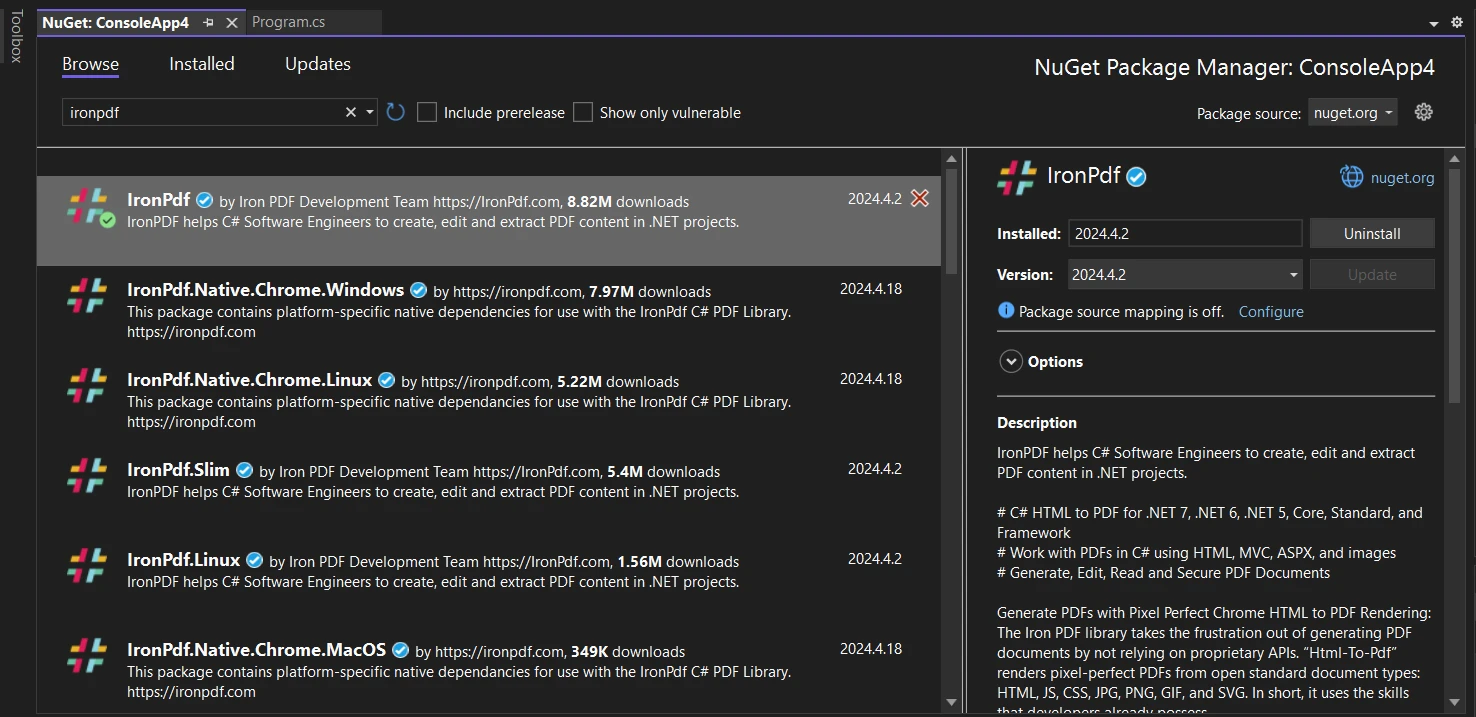
  • Alternatively, you can install it from NuGet Package Manager for Solutions.
  • Select IronPDF from the NuGet browse tab and click install.

    Xceed.Document .NET (How It Works For Developers): Figure 9 - Install IronPDF using the Manage NuGet Package for Solution by searching IronPDF in the search bar of NuGet Package Manager, then select the project and click on the Install button.

2. Implement the Logic to Convert DOCX to PDF using IronPDF

  • Once both Xceed.Document.NET and IronPDF are installed, you can implement the logic to convert DOCX to PDF using IronPDF.
  • Instantiate the DocxToPdfRenderer class from IronPDF.
  • Use the RenderDocxAsPdf method to render the DOCX file generated using Xceed.Document.NET as a PDF document.
  • Save the PDF document using IronPDF.

Here's a sample code snippet demonstrating how to convert a DOCX file to PDF using IronPDF:

using IronPdf;
using System;

class Program
{
    static void Main(string[] args)
    {
        // Instantiate the DOCX to PDF renderer
        DocxToPdfRenderer renderer = new DocxToPdfRenderer();

        // Render from a DOCX file to produce a PDF document
        PdfDocument pdf = renderer.RenderDocxAsPdf("SampleDocument.docx");

        // Save the PDF document
        pdf.SaveAs("SampleDocument.pdf");
        Console.WriteLine("DOCX file converted to PDF successfully.");
    }
}
using IronPdf;
using System;

class Program
{
    static void Main(string[] args)
    {
        // Instantiate the DOCX to PDF renderer
        DocxToPdfRenderer renderer = new DocxToPdfRenderer();

        // Render from a DOCX file to produce a PDF document
        PdfDocument pdf = renderer.RenderDocxAsPdf("SampleDocument.docx");

        // Save the PDF document
        pdf.SaveAs("SampleDocument.pdf");
        Console.WriteLine("DOCX file converted to PDF successfully.");
    }
}
$vbLabelText   $csharpLabel

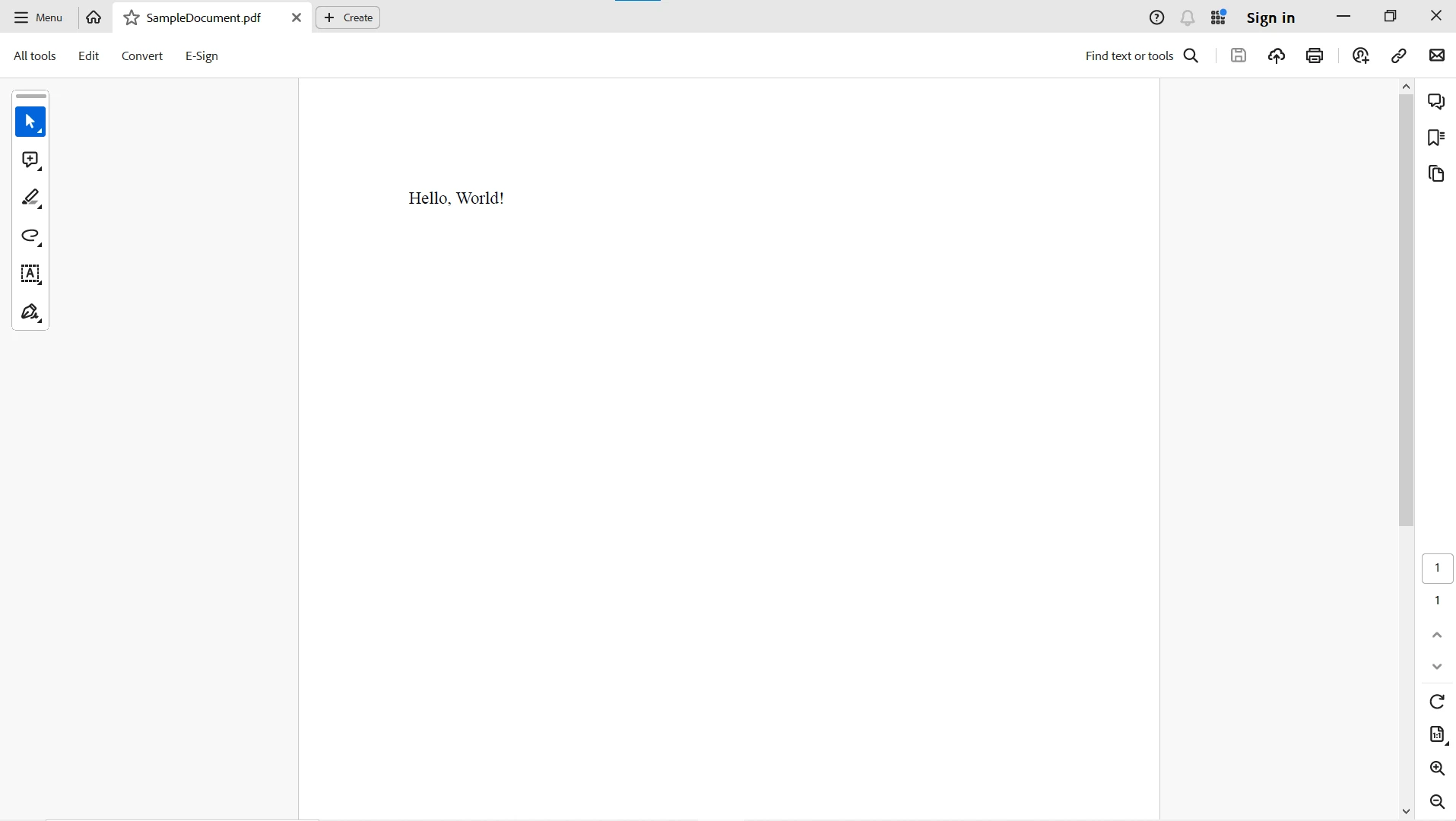
The DOCX file is effortlessly converted to a PDF file to preserve formatted text as it was in the original document.

Output: DOCX to PDF conversion

Xceed.Document .NET (How It Works For Developers): Figure 10 - Output: DOCX to PDF file conversion using IronPDF.

For more information on IronPDF and its capabilities, please visit this IronPDF documentation page. Explore ready-to-use HTML to PDF example and get started with PDF manipulation in your .NET Framework console or web applications.

Conclusion

In conclusion, Xceed.Document.NET and IronPDF offer powerful solutions for document generation and conversion in .NET applications. By leveraging the capabilities of Xceed.Document.NET, developers can create dynamic and visually appealing Word documents with ease. With seamless integration with IronPDF, developers can effortlessly convert these Word documents to PDF format, enhancing the versatility and accessibility of their applications. Whether you're creating reports, generating invoices, or converting documents between formats, Xceed.Document.NET and IronPDF empower developers to streamline document-related workflows and deliver exceptional results in their .NET applications.

IronPDF by Iron Software offers a free trial and is required for deployment in commercial projects. Download the library from the IronPDF download page and give it a try.

자주 묻는 질문

.NET에서 HTML을 PDF로 변환하려면 어떻게 해야 하나요?

.NET에서는 IronPDF를 사용하여 HTML을 PDF로 변환할 수 있습니다. 이 라이브러리는 HTML 문자열 변환을 위한 RenderHtmlAsPdf와 HTML 파일 변환을 위한 RenderHtmlFileAsPdf와 같은 메서드를 제공합니다.

Word 문서 조작에 Xceed.Document.NET을 사용하면 어떤 이점이 있나요?

Xceed.Document.NET은 강력한 문서 조작, 다양한 콘텐츠 관리, 풍부한 서식 지정 옵션, 다른 .NET 라이브러리와의 원활한 통합 등의 이점을 제공하며 Microsoft Word가 없어도 사용할 수 있습니다.

C# 프로젝트에서 Xceed.Document.NET을 설정하려면 어떻게 해야 하나요?

C# 프로젝트에서 Xceed.Document.NET을 설정하려면 Visual Studio를 열고 NuGet 패키지 관리자 콘솔로 이동한 다음 Install-Package Xceed.Document.NET 명령을 실행합니다.

.NET에서 DOCX 파일을 PDF로 변환하는 프로세스는 어떻게 되나요?

.NET에서 DOCX 파일을 PDF로 변환하려면 먼저 Xceed.Document.NET을 사용하여 DOCX를 만들거나 조작한 다음 IronPDF를 사용하여 DOCX 파일을 PDF 형식으로 변환합니다.

.NET의 PDF 라이브러리는 어떤 플랫폼을 지원하나요?

PDF 라이브러리는 Windows Forms, WPF, ASP.NET 및 .NET Core를 비롯한 여러 .NET 플랫폼을 지원하며 Windows, Linux 및 macOS 환경과 호환됩니다.

IronPDF는 이미지를 PDF로 변환하는 작업을 어떻게 처리하나요?

IronPDF는 고성능과 품질을 유지하면서 이미지를 PDF 문서에 통합할 수 있는 RenderImageAsPdf와 같은 메서드를 사용하여 이미지를 PDF로 변환할 수 있습니다.

향상된 문서 워크플로우를 위해 Xceed.Document.NET 및 IronPDF를 .NET 애플리케이션에 통합할 수 있나요?

예, Xceed.Document.NET과 IronPDF를 .NET 애플리케이션에 통합하면 문서 생성, 조작, 형식 변환 등의 작업을 간소화하여 문서 워크플로우를 크게 향상시킬 수 있습니다.

PDF 생성 및 조작을 위한 IronPDF의 주요 기능은 무엇인가요?

IronPDF의 기능에는 HTML, 이미지 또는 XML 데이터에서 PDF를 생성하고, DOCX를 PDF로 변환하며, 여러 플랫폼에서 고성능 렌더링 및 조작 작업을 수행하는 기능이 포함됩니다.

IronPDF에 사용할 수 있는 라이선스 옵션이 있나요?

예, IronPDF는 개인 개발자, 소규모 팀 및 기업에 적합한 유연한 라이선스 옵션과 함께 평가 목적의 무료 평가판을 제공합니다.

커티스 차우
기술 문서 작성자

커티스 차우는 칼턴 대학교에서 컴퓨터 과학 학사 학위를 취득했으며, Node.js, TypeScript, JavaScript, React를 전문으로 하는 프론트엔드 개발자입니다. 직관적이고 미적으로 뛰어난 사용자 인터페이스를 만드는 데 열정을 가진 그는 최신 프레임워크를 활용하고, 잘 구성되고 시각적으로 매력적인 매뉴얼을 제작하는 것을 즐깁니다.

커티스는 개발 분야 외에도 사물 인터넷(IoT)에 깊은 관심을 가지고 있으며, 하드웨어와 소프트웨어를 통합하는 혁신적인 방법을 연구합니다. 여가 시간에는 게임을 즐기거나 디스코드 봇을 만들면서 기술에 대한 애정과 창의성을 결합합니다.