대부분의 iPhone 사용자는 iPhone의 내장 파일 앱을 통해 다양한 PDF 편집을 수행할 수 있다는 것을 인식하지 못합니다. 파일 앱은 iOS 기기에서 PDF 파일 병합, 그림 그리기, 강조 표시, 텍스트 콘텐츠 업로드 및 서명과 같은 일부 구성 요소를 편집할 수 있도록 허용합니다. 파일 앱은 텍스트 콘텐츠를 다시 작성하거나 디자인을 조정할 수 있을 만큼 충분하지는 않지만, 빠르게 소소한 편집을 할 수 있습니다.
파일 앱을 사용하여 PDF 파일 편집하는 방법
파일 앱은 iOS 기기에 기본 설치된 앱입니다. 이름에서 알 수 있듯이 처음에는 파일 조직 도구로 사용되도록 의도되었습니다. 하지만, PDF를 편집할 수 있게 해주는 여러 기능이 있습니다. 타사 앱을 설치할 필요 없이, 편집 프로세스는 간단한 단계를 따릅니다.
유념해야 할 첫 번째 중요한 요소는 iOS 15 요구 사항입니다. 본질적으로, 이는 iPhone을 업데이트해야 한다는 것을 의미합니다. Apple이 iPhone의 이전 버전도 업데이트를 제공한다는 것은 큰 장점입니다. 이는 iPhone 6s 및 iPhone SE(1세대)와 같은 "빈티지"로 분류되는 iPhone 기기도 여전히 업데이트가 가능하다는 것을 의미합니다.
편집하고자 하는 PDF를 iPhone의 파일 앱 내에서 엽니다. iPhone에 이미 설치되어 있는 파일 앱으로 이동하여 PDF를 찾아서 엽니다. 참고로, iPhone을 통해 얻은 모든 PDF는 파일 앱 내에 저장할 수 있습니다.
iPhone 또는 iPad에서 PDF에 강조 표시 및 그림 그리기 방법
iPhone의 파일 앱에서 PDF에 다양한 색상으로 선을 그리거나 텍스트를 강조 표시할 수 있습니다. 직선과 측정을 그리기 위해 사용할 수 있는 눈금자도 있습니다. PDF에 그림을 그리거나 강조 표시하는 방법은 다음과 같습니다:
- 기본 파일 앱을 열고 편집하려는 PDF 파일을 엽니다.
- 화면의 오른쪽 상단 모서리에 있는 마커 아이콘을 클릭합니다. 다양한 도구가 포함된 도구 모음이 나타납니다.
- 첫 번째 마커를 선택하여 선을 그리며, 다음 옵션은 텍스트 강조를 위한 것입니다.
- 상단의 단색 원을 선택하여 선택 가능한 다양한 격자, 스펙트럼 및 슬라이더 옵션에서 원하는 정확한 색상을 선택할 수 있습니다. PDF 내에 기존의 색상 중에서 선택하고자 한다면, 단색 원을 클릭하고 왼쪽 상단에서 스포이드 아이콘을 선택하십시오.
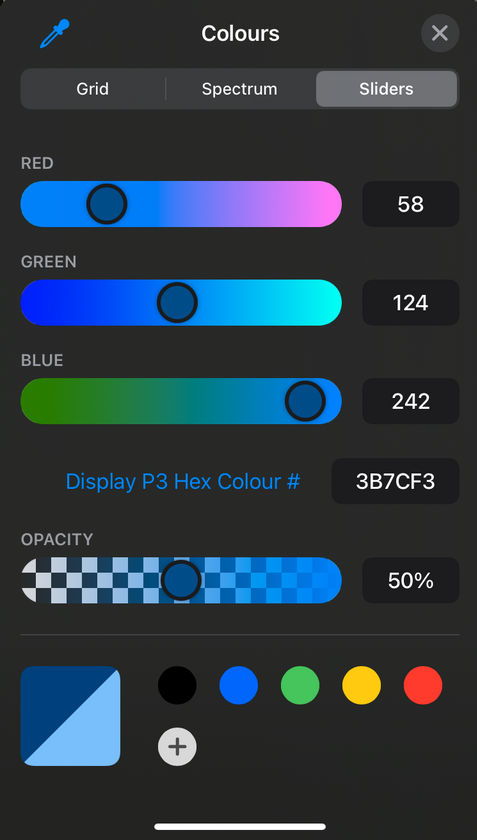
그림 1 - 색상 선택
iPhone 또는 iPad에서 여러 PDF를 결합하는 방법
단일 PDF를 편집하거나 두 개 이상의 PDF를 선택하고 결합하여 하나의 PDF로 합칠 수 있습니다. 파일 애플리케이션에서 화면 오른쪽 상단의 "세 개의 점" 아이콘을 눌러야 합니다. 그런 다음 목록에서 '선택'을 탭하고 병합하려는 PDF 파일을 선택합니다.
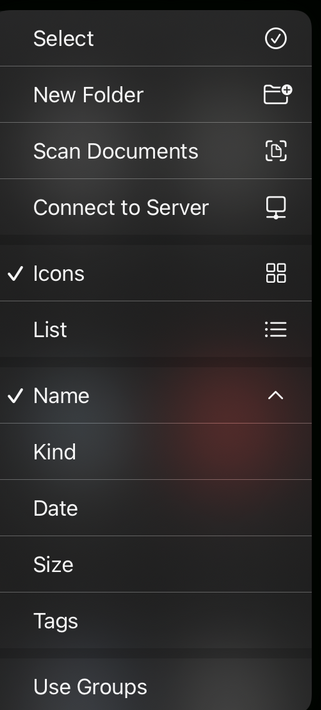
그림 2 - 선택 옵션
파일을 선택한 후 화면 오른쪽 하단에 있는 동일한 '세 점' 아이콘으로 이동해야 합니다. 해당 아이콘을 누르면 'PDF 생성' 옵션을 찾을 수 있습니다. 이 옵션을 선택하면 하나의 PDF 문서만 생성됩니다.
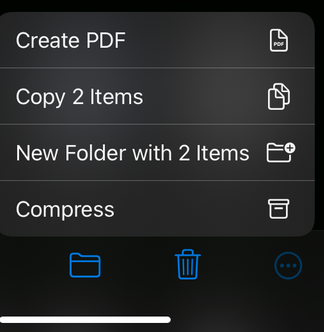
그림 3 - PDF 생성
편집을 완료하면 화면 왼쪽 상단의 '완료'를 눌러 편집된 PDF가 기기에 저장됩니다. 원하는 경우 PDF 이름을 눌러 이름을 변경할 수 있습니다.
iPhone과 iPad에서 PDF에 페이지 삽입 및 방향 변경하는 방법
편집하고자 하는 페이지를 선택한 후 화면 오른쪽 상단의 '마커' 아이콘을 누를 수 있습니다. 또한 사이드바에 있는 페이지의 '세 점'을 탭하면 다섯 가지 새로운 편집 옵션이 제공됩니다. 이러한 옵션에는 페이지 방향 변경 기능이 포함되어 있으며, 목록의 처음 두 옵션을 사용하여 페이지를 왼쪽 또는 오른쪽으로 회전할 수 있습니다.
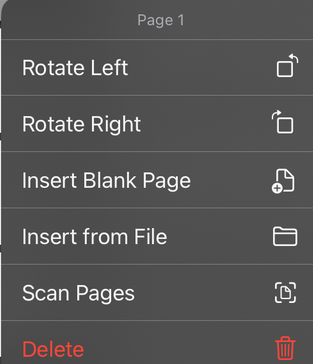
그림 4 - 회전 및 삽입
또한 '빈 페이지 삽입' 옵션을 선택하거나 파일 앱을 사용하여 다른 문서를 선택하여 추가함으로써 PDF 파일에 새로운 빈 페이지를 추가할 수 있습니다. 목록에는 문서를 스캔하여 PDF에 직접 추가하는 옵션도 있습니다.
서드파티 앱
iPhone 및 iPad에서 PDF 파일을 편집하는 데 서드파티 앱을 사용할 수도 있습니다. iPhone 및 iPad에서 PDF를 편집하는 최고의 앱을 아래에서 논의할 것입니다.
1. PDFelement - 무료 PDF 편집기
iPhone 및 iPad용 최고의 PDF 편집 소프트웨어는 iOS용 PDFelement입니다. 이 소프트웨어를 사용하면 iPad와 iPhone에서 PDF 텍스트를 편집하고 다양한 도구로 PDF 문서에 주석을 달고, PDF 파일을 병합 및 나누는 등의 작업이 가능합니다.
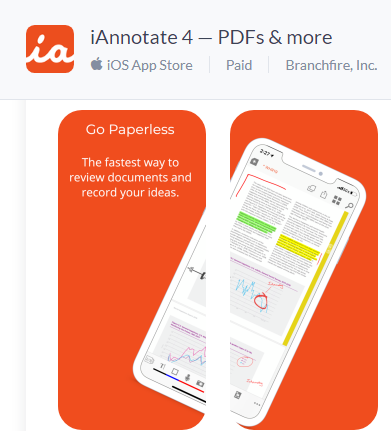
2. iAnnotate
이 애플리케이션은 이름에서 알 수 있듯이 주로 PDF 문서에 주석을 다는 데 유용합니다. PDF는 강조 표시, 밑줄, 취소선 표시, 심지어 그리기도 할 수 있습니다. 두 문서가 모두 열려 있는 동안 앞뒤로 이동할 수 있습니다.
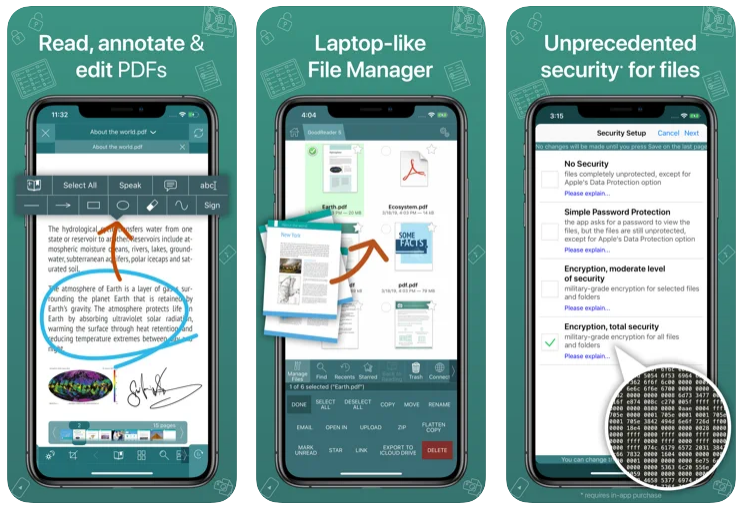
3. GoodReader
GoodReader는 사용자가 매우 간단한 PDF 리더 소프트웨어로 PDF 주석을 보고, 작성하고, 수정할 수 있게 해줍니다. 또한 파일과 폴더를 복사, 이름 변경, 이동, 전송하여 관리할 수 있게 해줍니다. 다른 PDF 리더와 달리 PDF 외에도 Word, Excel, PowerPoint, TXT, HTML도 지원합니다.
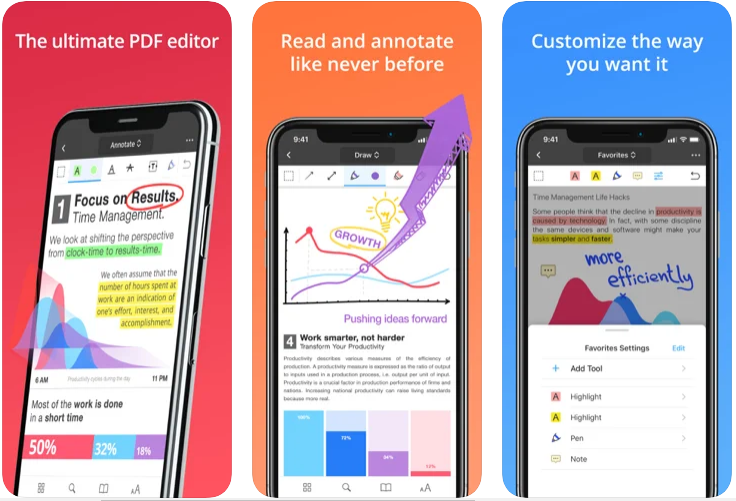
4. PDF Expert
주석 및 분류 뿐만 아니라 뛰어난 읽기 경험을 제공하는 환상적인 모바일 PDF 편집기입니다. 문서에 주석을 달고, 디지털 서명을 추가하고, 심지어 PDF 문서의 텍스트도 수정할 수 있습니다.
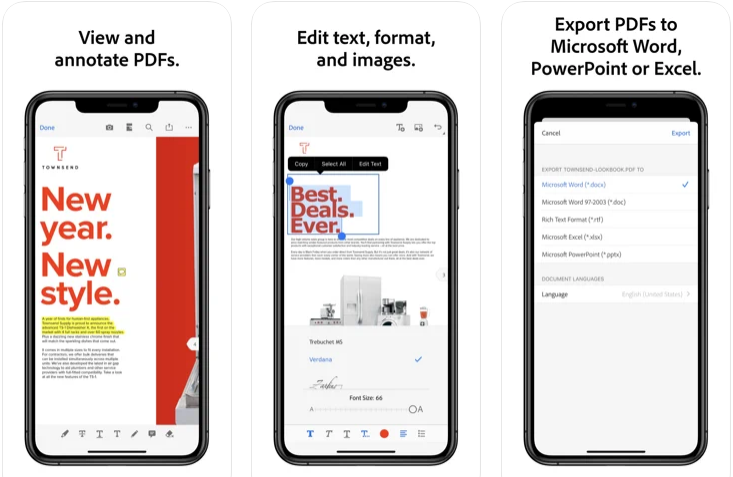
5. Adobe Acrobat Reader
Adobe Reader iOS 앱은 가볍고 기민하며, PDF를 읽는 동안 주석을 달 수 있는 기능을 포함한 유용한 기능을 많이 제공합니다. PDF 파일을 사용하여 텍스트를 강조 표시하거나, 양식을 작성하거나, 문서에 서명을 하거나, 심지어 비밀번호로 보호할 수도 있습니다.
IronPDF - C# 라이브러리를 사용하여 PDF 편집하기
C# 프로그래밍 언어를 사용하여 PDF 문서를 편집하는 방법이 궁금했던 적이 있나요? 그렇다면, 당신은 올바른 장소에 있습니다. 이 섹션에서는 그 방법에 대해 논의할 것입니다.
IronPDF는 모든 PDF 관련 작업을 수행하는 데 사용되는 .NET 라이브러리입니다. 사용자가 PDF 파일을 조작하고 편집할 수 있게 해줍니다.
IronPDF는 개발자가 PDF 페이지를 편집하고 다른 PDF 관련 요구 사항을 쉽게 충족할 수 있도록 만들어줍니다. 그렇게 할 수 있는 방법을 궁금해하는 사람들을 위해, 아래에 Visual Studio를 사용하는 간단한 예제가 있습니다.
환경 설정
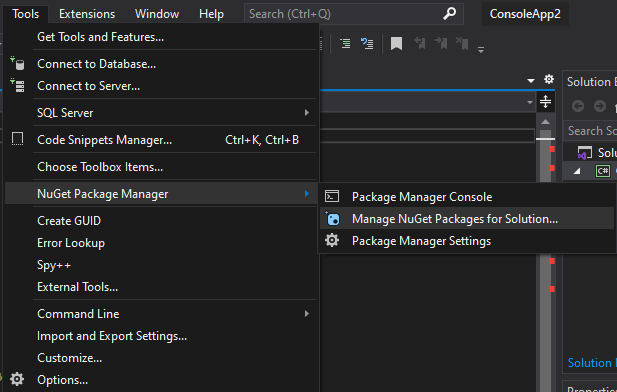
우선, Visual Studio를 열고 도구로 이동합니다. 그런 다음 NuGet 패키지 관리자를 확장하고 아래 그림과 같이 두 번째 옵션을 클릭합니다.
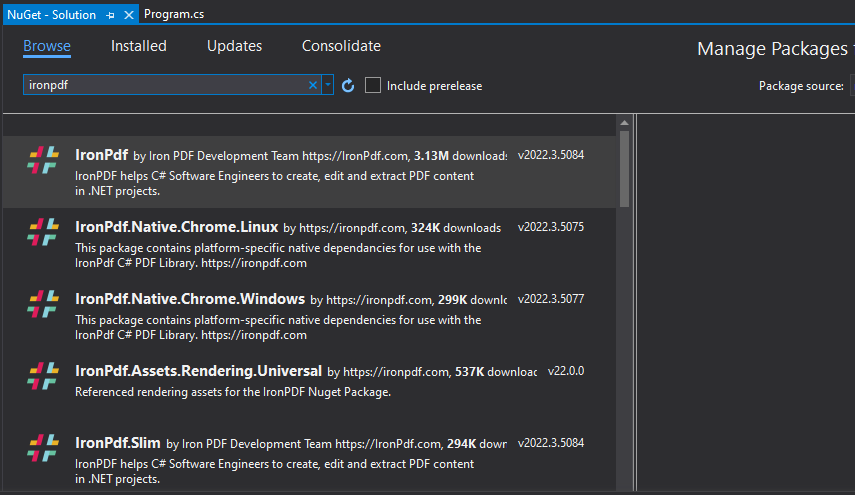
다음에 NuGet 솔루션 창이 나타납니다. 이 창에서 탐색으로 가서 IronPDF를 검색하고 설치하십시오.
IronPDF가 설치되면 간단한 코드로 PDF를 편집할 수 있습니다. 다음은 몇 가지 예시입니다.
// Import required libraries
using IronPdf;
using System.Collections.Generic;

// Initialize a PDF renderer
var Renderer = new IronPdf.ChromePdfRenderer();

// Create a list to hold multiple PDF documents
var PDFs = new List<PdfDocument>();

// Add existing PDFs to the list
PDFs.Add(PdfDocument.FromFile("A.pdf"));
PDFs.Add(PdfDocument.FromFile("B.pdf"));
PDFs.Add(PdfDocument.FromFile("C.pdf"));

// Merge the PDFs into a single document
using PdfDocument PDF = PdfDocument.Merge(PDFs);

// Save the merged PDF
PDF.SaveAs("merged.pdf");

// Add a cover page at the beginning of the PDF
PDF.PrependPdf(Renderer.RenderHtmlAsPdf("<h1>Cover Page</h1><hr>"));

// Remove the last page from the PDF and save again
PDF.RemovePage(PDF.PageCount - 1);
PDF.SaveAs("merged.pdf");

// Copy pages 5-7 and save them as a new document.
PDF.CopyPages(4, 6).SaveAs("excerpt.pdf");

// Dispose of all PDF objects to free resources
foreach (var pdf in PDFs)
{
    pdf.Dispose();
}
// Import required libraries
using IronPdf;
using System.Collections.Generic;

// Initialize a PDF renderer
var Renderer = new IronPdf.ChromePdfRenderer();

// Create a list to hold multiple PDF documents
var PDFs = new List<PdfDocument>();

// Add existing PDFs to the list
PDFs.Add(PdfDocument.FromFile("A.pdf"));
PDFs.Add(PdfDocument.FromFile("B.pdf"));
PDFs.Add(PdfDocument.FromFile("C.pdf"));

// Merge the PDFs into a single document
using PdfDocument PDF = PdfDocument.Merge(PDFs);

// Save the merged PDF
PDF.SaveAs("merged.pdf");

// Add a cover page at the beginning of the PDF
PDF.PrependPdf(Renderer.RenderHtmlAsPdf("<h1>Cover Page</h1><hr>"));

// Remove the last page from the PDF and save again
PDF.RemovePage(PDF.PageCount - 1);
PDF.SaveAs("merged.pdf");

// Copy pages 5-7 and save them as a new document.
PDF.CopyPages(4, 6).SaveAs("excerpt.pdf");

// Dispose of all PDF objects to free resources
foreach (var pdf in PDFs)
{
    pdf.Dispose();
}
' Import required libraries
Imports IronPdf
Imports System.Collections.Generic
' Initialize a PDF renderer
Private Renderer = New IronPdf.ChromePdfRenderer()
' Create a list to hold multiple PDF documents
Private PDFs = New List(Of PdfDocument)()
' Add existing PDFs to the list
PDFs.Add(PdfDocument.FromFile("A.pdf"))
PDFs.Add(PdfDocument.FromFile("B.pdf"))
PDFs.Add(PdfDocument.FromFile("C.pdf"))
' Merge the PDFs into a single document
Using PDF As PdfDocument = PdfDocument.Merge(PDFs)
' Save the merged PDF
PDF.SaveAs("merged.pdf")
' Add a cover page at the beginning of the PDF
PDF.PrependPdf(Renderer.RenderHtmlAsPdf("<h1>Cover Page</h1><hr>"))
' Remove the last page from the PDF and save again
PDF.RemovePage(PDF.PageCount - 1)
PDF.SaveAs("merged.pdf")
' Copy pages 5-7 and save them as a new document.
PDF.CopyPages(4, 6).SaveAs("excerpt.pdf")
' Dispose of all PDF objects to free resources
'INSTANT VB NOTE: The variable pdf was renamed since Visual Basic will not allow local variables with the same name as parameters or other local variables:
For Each Me.pdf_Conflict In PDFs
Me.pdf_Conflict.Dispose()
Next pdf_Conflict
End Using
' Import required libraries
Imports IronPdf
Imports System.Collections.Generic

' Initialize a PDF renderer
Private Renderer = New IronPdf.ChromePdfRenderer()

' Create a list to hold multiple PDF documents
Private PDFs = New List(Of PdfDocument)()

' Add existing PDFs to the list
PDFs.Add(PdfDocument.FromFile("A.pdf"))
PDFs.Add(PdfDocument.FromFile("B.pdf"))
PDFs.Add(PdfDocument.FromFile("C.pdf"))

' Merge the PDFs into a single document
Using PDF As PdfDocument = PdfDocument.Merge(PDFs)

	' Save the merged PDF
	PDF.SaveAs("merged.pdf")

	' Add a cover page at the beginning of the PDF
	PDF.PrependPdf(Renderer.RenderHtmlAsPdf("<h1>Cover Page</h1><hr>"))

	' Remove the last page from the PDF and save again
	PDF.RemovePage(PDF.PageCount - 1)
	PDF.SaveAs("merged.pdf")

	' Copy pages 5-7 and save them as a new document.
	PDF.CopyPages(4, 6).SaveAs("excerpt.pdf")

	' Dispose of all PDF objects to free resources
'INSTANT VB NOTE: The variable pdf was renamed since Visual Basic will not allow local variables with the same name as parameters or other local variables:
	For Each Me.pdf_Conflict In PDFs
		Me.pdf_Conflict.Dispose()
	Next pdf_Conflict
End Using
IronPDF의 편집 기능에 대한 자세한 정보는 IronPDF 예제 페이지를 방문하십시오.
IronPDF 라이브러리 다운로드 페이지에서 IronPDF 라이브러리를 다운로드하십시오.