Word 문서를 PDF로 저장하는 것에 대해 생각해보신 적이 있나요? PDF 문서는 정보 저장, 보고서 레이아웃, 폰트 및 이미지를 유지하는 데 매우 유용합니다. 이러한 정보를 저장하는 것이 오늘날 PDF가 유명한 이유입니다. 현대 사회에서는 많은 사람들이 원격으로 일하고 있습니다. 양식을 작성하고 서명하며, 문서를 보내고 파일을 처리하는 것은 회사가 매일 완료해야 하는 필수적인 작업의 몇 가지 예에 불과합니다. PDF 파일 형식은 가장 휴대하기 쉬운 문서 형식입니다. 그러나 일반 사용자는 PDF 문서를 편집할 수 없다는 점을 주목해야 합니다. PDF 파일을 잘못된 사람들에게 노출되지 않도록 비밀번호로 보호하는 것도 가능합니다.
문서 파일의 유형
많은 유형의 문서 파일이 있으며, 가장 잘 알려진 문서 파일 중 일부는 Microsoft Office의 일부입니다. Microsoft Office는 컴퓨터에서 업무 생산성을 높이고 일상 업무를 완료하도록 설계된 응용 프로그램 모음입니다. 텍스트와 이미지가 포함된 문서를 작성하고 편집하며, 스프레드시트와 데이터베이스에서 정보를 작업하고, 디스플레이와 포스터를 작성할 수 있습니다. 오피스 응용 프로그램의 유형은 다음과 같습니다:
- 워드.
- 엑셀.
- 파워포인트.
- 원노트.
- 아웃룩.
- 액세스.
- 퍼블리셔.
문서 파일을 PDF로 변환하는 방법
여러 도구와 다양한 방법을 사용하여 문서를 PDF로 저장할 수 있습니다. 이 단계를 따르면 모든 오피스 응용 프로그램에서 PDF 문서를 만들 수 있습니다.
1. Microsoft Word 응용 프로그램 사용
Microsoft Word 문서 파일은 가장 유명한 문서 유형이며 일상 생활에서 가장 많이 사용됩니다. 먼저 PDF로 저장하려는 파일을 선택합니다. 파일을 직접 더블 클릭하여 열거나 응용 프로그램을 연 후 다른 문서 열기를 선택하여 파일을 선택합니다.
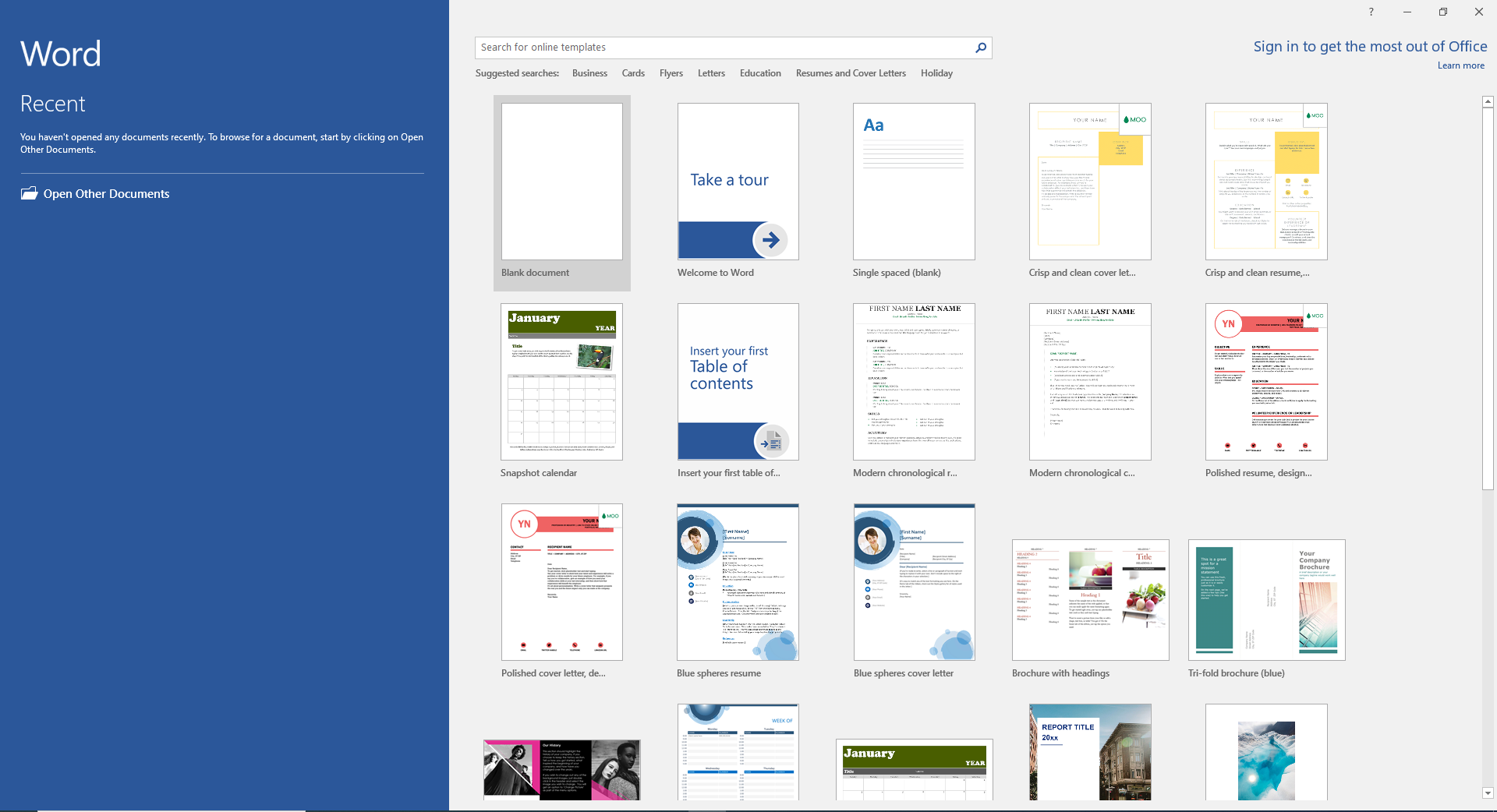
그림 1 - Microsoft Word - 파일 열기
파일을 연 후 왼쪽 상단 모서리에 있는 파일 메뉴로 이동합니다. 메뉴에서 다른 이름으로 저장을 클릭합니다. 다양한 옵션이 표시됩니다. 찾아보기 옵션을 선택합니다. 새 PDF 파일을 저장할 위치를 선택할 수 있는 대화 상자가 나타납니다.
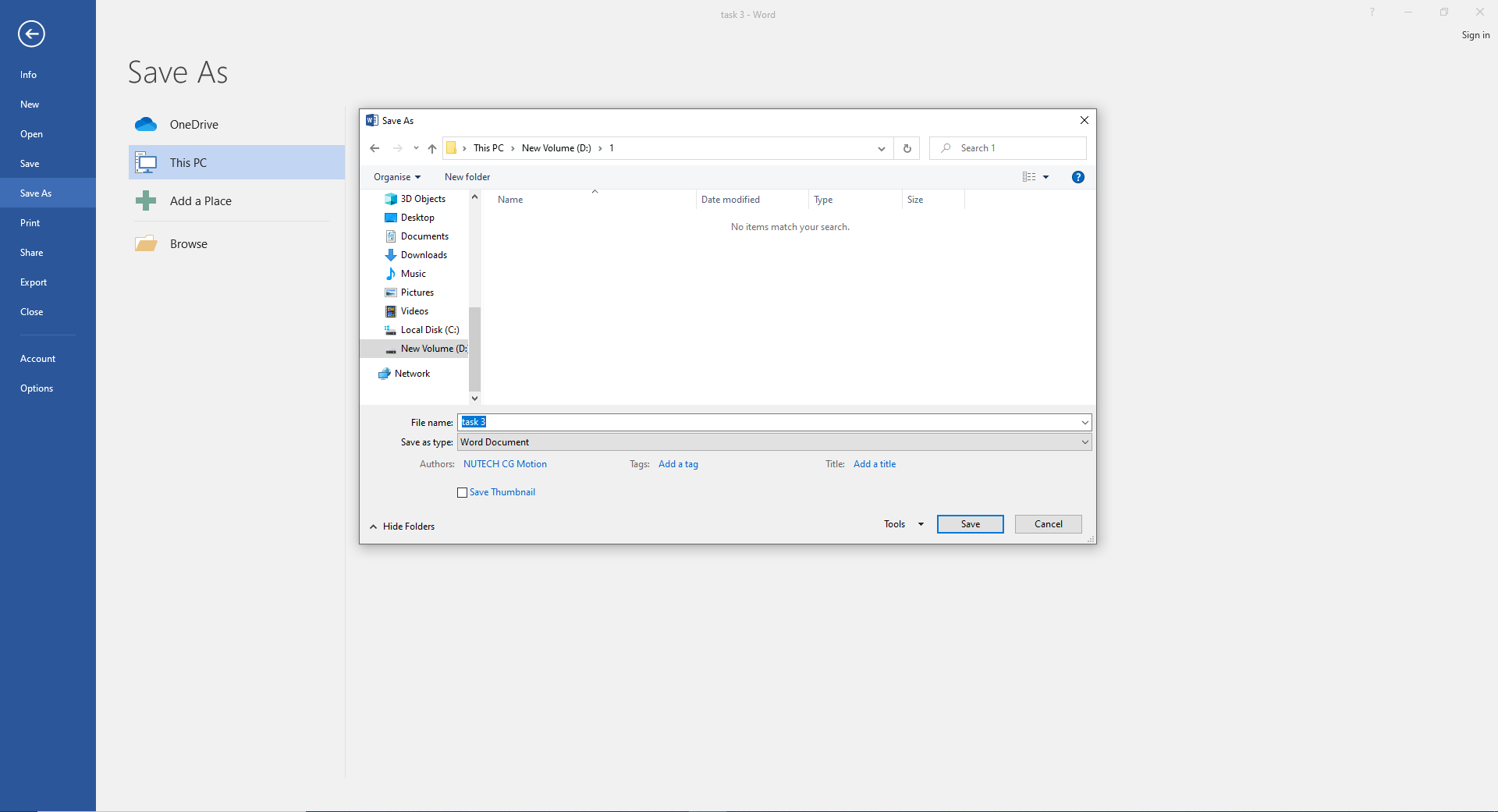
그림 2 - Microsoft Word - 찾아보기 옵션
새 파일 이름을 선택합니다. 그런 다음 '다른 이름으로 저장' 옵션을 선택하고 강하 메뉴가 나타나면 PDF 형식을 선택합니다. 마지막으로 저장 버튼을 클릭하면 파일이 PDF 문서로 저장됩니다.
2. 인쇄 옵션을 사용하여 PDF 파일로 변환
Word, Excel 등과 같은 오피스 응용 프로그램에서 문서 파일을 엽니다. 파일 메뉴를 선택하면 많은 옵션이 표시됩니다. 인쇄 옵션으로 이동합니다.
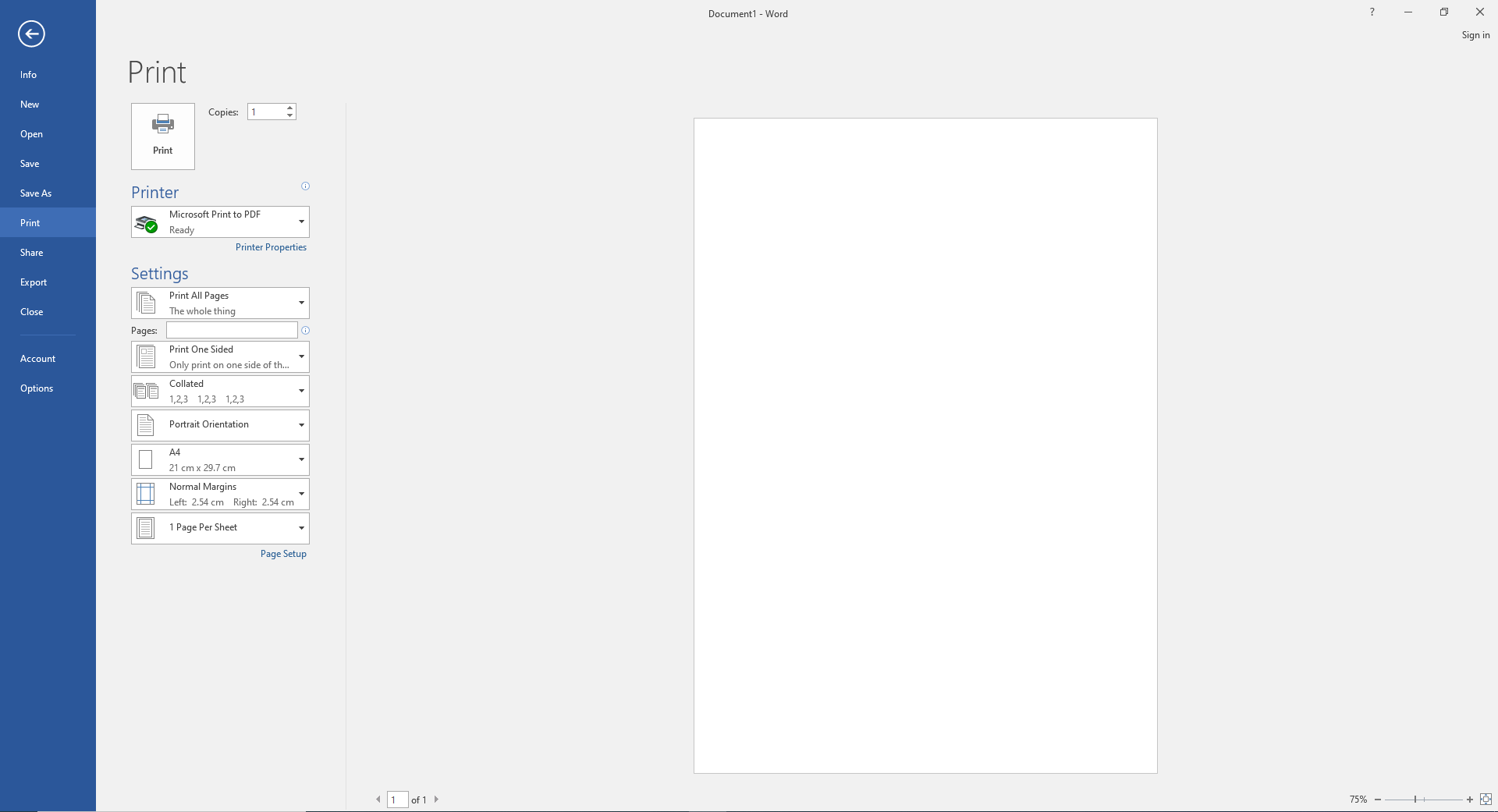
그림 3 - Microsoft Word - 인쇄 옵션
인쇄 메뉴를 선택하면 많은 옵션이 나타납니다. 프린터 메뉴를 열고 Microsoft Print to PDF 옵션을 클릭합니다. 그런 다음 인쇄를 클릭하고 새 대화 상자가 나타납니다. 파일 이름을 추가하고 저장을 클릭합니다. PDF 파일이 선택한 폴더에 저장됩니다.
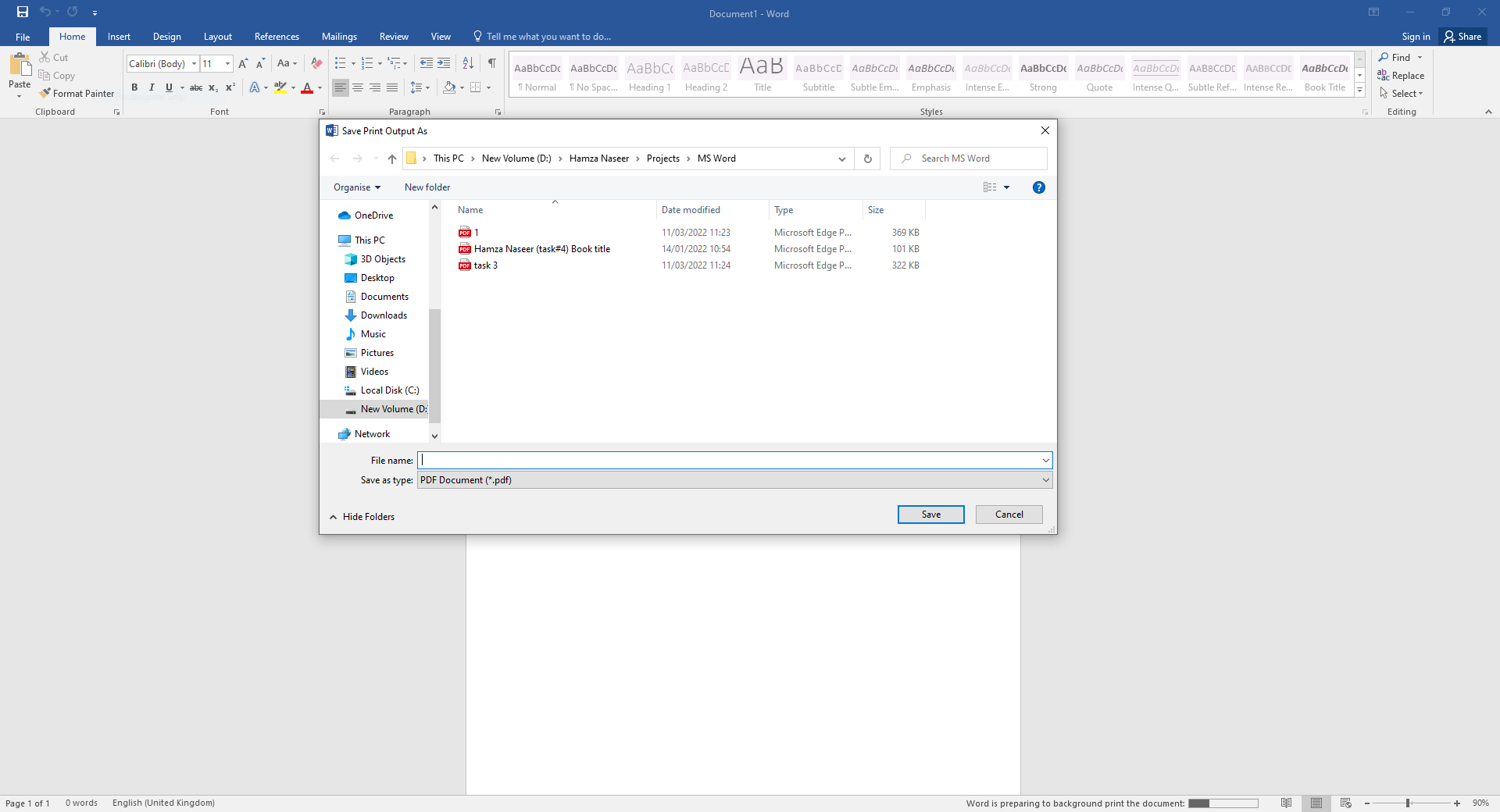
그림 4 - Microsoft Word - 파일 저장
3. macOS에서 문서를 PDF 파일로 변환
웹 페이지에서 여러 문서를 열고 한꺼번에 모두 변경할 수 있습니다. PDF 형식으로 저장할 문서, 파일 또는 웹 페이지를 엽니다. 그런 다음 왼쪽 상단 모서리에서 파일을 클릭합니다. 드롭다운 메뉴에서 인쇄를 클릭합니다.
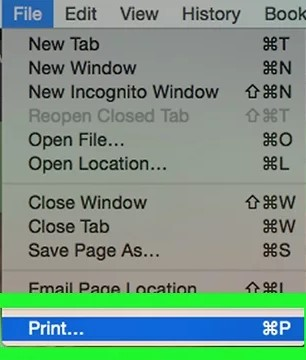
그림 5 - mac OS - 인쇄 옵션
인쇄 대화 상자가 열립니다. 그런 다음 저장할 파일 이름을 설정할 수 있는 새 대화 상자가 나타납니다. 저장할 필드 아래 드롭다운 메뉴를 사용하여 원하는 위치를 설정합니다.
"저장"을 클릭합니다. 이것은 대화 상자의 오른쪽 하단 모서리에 있습니다. 문서가 선택한 폴더에 PDF 파일로 저장됩니다.
4. Adobe Acrobat Reader 온라인 사용
Adobe Acrobat Reader는 주로 PDF 파일을 변환하거나 편집하는 데 사용되는 온라인 웹사이트이며, 문서를 PDF 형식으로 쉽게 변환할 수 있는 간단한 단계들을 제공합니다. 이 단계들은 다음과 같습니다:
- Adobe Acrobat Reader 웹사이트를 엽니다.
- 그런 다음 Word 문서, Excel, PowerPoint 등과 같은 모든 형식의 파일을 선택합니다.
- 파일을 드롭 영역에 끌어다 놓을 수도 있습니다.
- 마지막으로 이 도구는 즉시 파일을 변환합니다.
- 파일을 저장하려면 다운로드 버튼을 클릭합니다.
Adobe 사이트에 로그인하여 더 많은 파일을 변환할 수 있습니다.
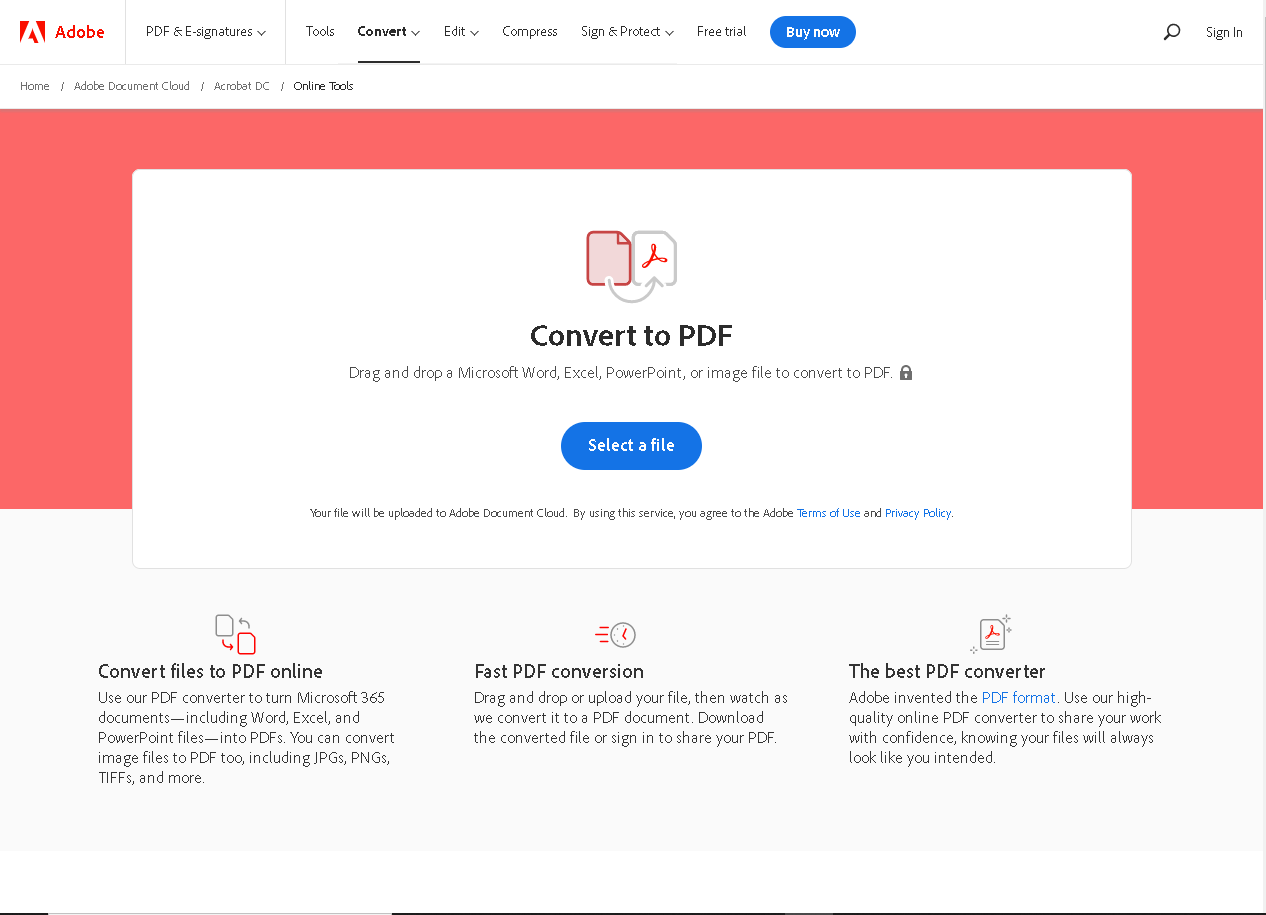
그림 6 - Acrobat Reader - 파일 선택
IronPDF - C# 라이브러리를 사용해 PDF 저장하기
C# 프로그래밍 언어를 사용하여 문서를 PDF 파일로 저장하는 방법에 대해 궁금해한 적이 있나요? 예라고 대답했다면, 올바른 장소에 도착했습니다 - 이 게시물에서 그 방법을 보여드리겠습니다.
IronPDF는 모든 PDF 관련 작업을 수행하는 데 사용되는 .NET 라이브러리입니다. 사용자들에게 문서를 조작하고 PDF 파일로 저장할 수 있게 합니다.
IronPDF는 개발자들이 문서를 PDF 문서로 저장하고 관련 요구 사항을 모두 충족하도록 간편하게 만들어 줍니다. Visual Studio를 사용하여 이 작업을 수행하는 방법을 배우고 싶은 사람들은 아래에 기본 예제를 참조하십시오.
환경 설정
우선, Visual Studio를 열고 도구로 이동합니다. 그런 다음 NuGet 패키지 관리자를 확장하고 아래 그림과 같이 두 번째 옵션을 클릭합니다.
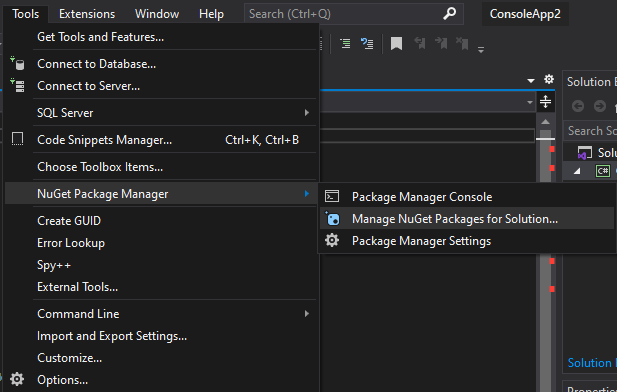
그림 7 - Visual Studio NuGet 패키지 관리자
NuGet 솔루션 창이 나타납니다. 이 창에서 찾아보기를 클릭하고 IronPDF를 검색한 후 설치합니다.
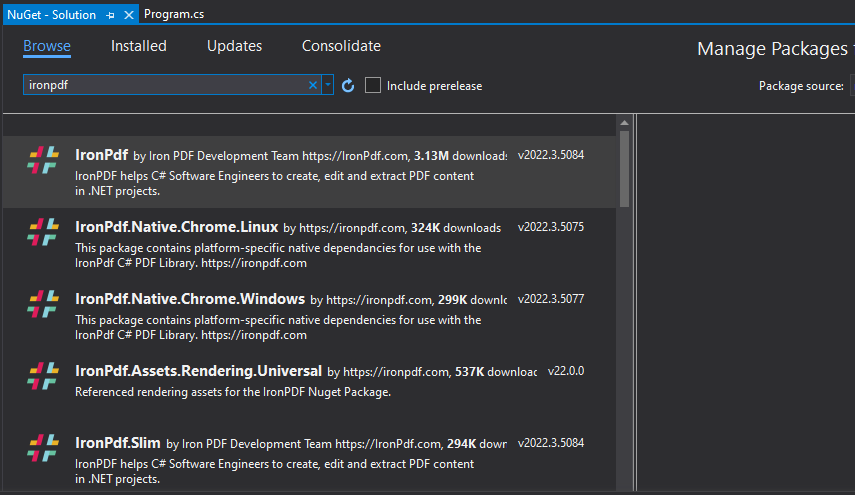
그림 8 - Visual Studio에서 IronPDF 설치
문서를 PDF로 저장하는 코드 예제
IronPDF가 설치되면, 간단한 코드로 PDF를 저장할 수 있습니다. HTML을 변환하여 PDF로 저장하는 코드 예제는 아래와 같습니다.
using IronPdf; // Import the IronPDF library

// Initialize a new instance of the ChromePdfRenderer class
var Renderer = new IronPdf.ChromePdfRenderer();

// Render HTML content as a PDF document
using var PDF = Renderer.RenderHtmlAsPdf("<h1>Html with CSS and Images</h1>");

// Save the rendered PDF document with the specified file name
PDF.SaveAs("pixel-perfect.pdf");
using IronPdf; // Import the IronPDF library

// Initialize a new instance of the ChromePdfRenderer class
var Renderer = new IronPdf.ChromePdfRenderer();

// Render HTML content as a PDF document
using var PDF = Renderer.RenderHtmlAsPdf("<h1>Html with CSS and Images</h1>");

// Save the rendered PDF document with the specified file name
PDF.SaveAs("pixel-perfect.pdf");
Imports IronPdf ' Import the IronPDF library
' Initialize a new instance of the ChromePdfRenderer class
Private Renderer = New IronPdf.ChromePdfRenderer()
' Render HTML content as a PDF document
Private PDF = Renderer.RenderHtmlAsPdf("<h1>Html with CSS and Images</h1>")
' Save the rendered PDF document with the specified file name
PDF.SaveAs("pixel-perfect.pdf")
Imports IronPdf ' Import the IronPDF library

' Initialize a new instance of the ChromePdfRenderer class
Private Renderer = New IronPdf.ChromePdfRenderer()

' Render HTML content as a PDF document
Private PDF = Renderer.RenderHtmlAsPdf("<h1>Html with CSS and Images</h1>")

' Save the rendered PDF document with the specified file name
PDF.SaveAs("pixel-perfect.pdf")
IronPDF 라이브러리를 다운로드할 수 있는 IronPDF 도서관 다운로드 링크입니다.













