using IronPdf;

// Disable local disk access or cross-origin requests
Installation.EnableWebSecurity = true;

// Instantiate Renderer
var renderer = new ChromePdfRenderer();

// Create a PDF from a HTML string using C#
var pdf = renderer.RenderHtmlAsPdf("<h1>Hello World</h1>");

// Export to a file or Stream
pdf.SaveAs("output.pdf");

// Advanced Example with HTML Assets
// Load external html assets: Images, CSS and JavaScript.
// An optional BasePath 'C:\site\assets\' is set as the file location to load assets from
var myAdvancedPdf = renderer.RenderHtmlAsPdf("<img src='icons/iron.png'>", @"C:\site\assets\");
myAdvancedPdf.SaveAs("html-with-assets.pdf");
using IronPdf;// Disable local disk access or cross-origin requestsInstallation.EnableWebSecurity = true;// Instantiate Renderervar renderer = new ChromePdfRenderer();// Create a PDF from a HTML string using C#var pdf = renderer.RenderHtmlAsPdf("<h1>Hello World</h1>");// Export to a file or Streampdf.SaveAs("output.pdf");// Advanced Example with HTML Assets// Load external html assets: Images, CSS and JavaScript.// An optional BasePath 'C:\site\assets\' is set as the file location to load assets fromvar myAdvancedPdf = renderer.RenderHtmlAsPdf("<img src='icons/iron.png'>", @"C:\site\assets\");myAdvancedPdf.SaveAs("html-with-assets.pdf");
웹 페이지를 다운로드하는 것은 사이트의 콘텐츠를 오프라인으로 액세스하는 편리한 방법입니다. 웹 페이지를 PDF 형식으로 저장하면 페이지의 구조를 보존하며 다른 사람과 쉽게 공유할 수 있습니다.
브라우저 자체를 포함하여 웹 페이지를 PDF로 저장할 수 있는 많은 도구가 있지만, 때로는 파일을 더욱 제어해야 할 필요가 있습니다. 이 가이드에서는 기능이 풍부한 C# 라이브러리인 IronPDF를 사용하여 웹 페이지를 PDF 형식으로 변환하는 방법을 설명하고 기본 기능을 제공하는 몇 가지 대안 도구를 추천합니다.
웹 페이지를 PDF로 저장하기 - 시작하기
Visual Studio에서 프로젝트 생성
우선 Visual Studio를 열고 파일 -> 새 프로젝트 -> 콘솔 응용 프로그램으로 이동합니다. 프로젝트 이름을 입력하고 저장할 위치를 선택한 다음 다음 버튼을 누르세요. 최신 .NET Framework를 선택하고 생성합니다. 프로젝트가 실행되면 이제 라이브러리를 추가할 시간입니다.
IronPDF 라이브러리 설치하기
IronPDF는 사용하기 쉽지만 설치는 더욱 쉽습니다. 다음과 같은 몇 가지 방법이 있습니다:
방법 1: NuGet 패키지 관리자 콘솔
Visual Studio의 솔루션 탐색기에서 참조를 마우스 오른쪽 버튼으로 클릭하고 NuGet 패키지 관리 선택합니다. 'IronPDF'를 검색하고 최신 버전을 설치하세요. 이것을 보면 작동하는 것입니다:
또한 도구 -> NuGet 패키지 관리자 -> 패킷 관리자 콘솔로 이동하여 패키지 관리자 탭에 다음 줄을 입력할 수 있습니다:
PM > Install-Package IronPdf
Install-Package IronPdf
마지막으로 NuGet의 공식 웹사이트에서 IronPDF를 직접 얻을 수 있습니다. 플랫폼의 오른쪽 메뉴에서 다운로드 패키지 옵션을 선택하고 다운로드를 두 번 클릭하여 자동으로 설치하고 솔루션을 다시 로드하여 프로젝트에서 사용하기 시작합니다.
IronPDF DLL 파일을 직접 저희로부터 받아 Visual Studio에 수동으로 추가할 수도 있습니다. Windows, macOS, Linux DLL 패키지에 대한 전체 설명서와 링크는 전용 IronPDF 설치 가이드를 확인하세요.
IronPDF 네임스페이스 추가
항상 자신의 코드를 IronPDF 네임스페이스로 시작하는 것을 기억하세요, 예를 들어:
using IronPdf;
using IronPdf;
ImportsIronPdf
Imports IronPdf
IronPDF를 사용하여 웹 페이지를 PDF로 저장하는 방법
Visual Studio를 열고 IronPDF 라이브러리를 추가한 후, PDF 페이지의 레이아웃, 여백, 방향을 포함한 URL 캡처를 사용자 정의할 수 있는 옵션과 함께 ChromePdfRenderer를 인스턴스화합니다. 그런 다음 IronPDF는 RenderUrlAsPdf 메서드를 사용하여 웹페이지를 PDF로 캡처합니다.
여기 있는 모습은 다음과 같습니다:
using IronPdf;// Instantiate the Chrome PDF RendererChromePdfRenderer renderer = new ChromePdfRenderer(){RenderingOptions = new ChromePdfRenderOptions {CssMediaType = IronPdf.Rendering.PdfCssMediaType.Screen, // Set how CSS is renderedPrintHtmlBackgrounds = true, // Enable printing background colors and imagesEnableJavaScript = true, // Enable JavaScript executionGrayScale = false, // Render in colorPaperOrientation = IronPdf.Rendering.PdfPaperOrientation.Portrait, // Page orientationPaperSize = IronPdf.Rendering.PdfPaperSize.A4, // Set paper sizeMarginTop = 0,MarginBottom = 0,MarginLeft = 0,MarginRight = 0,UseMarginsOnHeaderAndFooter = IronPdf.UseMargins.None// Control header/footer margins }};// Use Chrome Default Rendering for sizing contentrenderer.RenderingOptions.PaperFit.UseChromeDefaultRendering();// Convert the webpage to a PDFvar pdf = renderer.RenderUrlAsPdf("https://ironpdf.com/");
using IronPdf;

// Instantiate the Chrome PDF Renderer
ChromePdfRenderer renderer = new ChromePdfRenderer()
{
    RenderingOptions = new ChromePdfRenderOptions
    {
        CssMediaType = IronPdf.Rendering.PdfCssMediaType.Screen, // Set how CSS is rendered
        PrintHtmlBackgrounds = true, // Enable printing background colors and images
        EnableJavaScript = true, // Enable JavaScript execution
        GrayScale = false, // Render in color
        PaperOrientation = IronPdf.Rendering.PdfPaperOrientation.Portrait, // Page orientation
        PaperSize = IronPdf.Rendering.PdfPaperSize.A4, // Set paper size
        MarginTop = 0,
        MarginBottom = 0,
        MarginLeft = 0,
        MarginRight = 0,
        UseMarginsOnHeaderAndFooter = IronPdf.UseMargins.None // Control header/footer margins
    }
};

// Use Chrome Default Rendering for sizing content
renderer.RenderingOptions.PaperFit.UseChromeDefaultRendering();

// Convert the webpage to a PDF
var pdf = renderer.RenderUrlAsPdf("https://ironpdf.com/");
ImportsIronPdf' Instantiate the Chrome PDF RendererPrivate renderer As New ChromePdfRenderer() With { .RenderingOptions = New ChromePdfRenderOptionsWith { .CssMediaType = IronPdf.Rendering.PdfCssMediaType.Screen, .PrintHtmlBackgrounds = True, .EnableJavaScript = True, .GrayScale = False, .PaperOrientation = IronPdf.Rendering.PdfPaperOrientation.Portrait, .PaperSize = IronPdf.Rendering.PdfPaperSize.A4, .MarginTop = 0, .MarginBottom = 0, .MarginLeft = 0, .MarginRight = 0, .UseMarginsOnHeaderAndFooter = IronPdf.UseMargins.None }}' Use Chrome Default Rendering for sizing contentrenderer.RenderingOptions.PaperFit.UseChromeDefaultRendering()' Convert the webpage to a PDFDim pdf = renderer.RenderUrlAsPdf("https://ironpdf.com/")
Imports IronPdf

' Instantiate the Chrome PDF Renderer
Private renderer As New ChromePdfRenderer() With {
	.RenderingOptions = New ChromePdfRenderOptions With {
		.CssMediaType = IronPdf.Rendering.PdfCssMediaType.Screen,
		.PrintHtmlBackgrounds = True,
		.EnableJavaScript = True,
		.GrayScale = False,
		.PaperOrientation = IronPdf.Rendering.PdfPaperOrientation.Portrait,
		.PaperSize = IronPdf.Rendering.PdfPaperSize.A4,
		.MarginTop = 0,
		.MarginBottom = 0,
		.MarginLeft = 0,
		.MarginRight = 0,
		.UseMarginsOnHeaderAndFooter = IronPdf.UseMargins.None
	}
}

' Use Chrome Default Rendering for sizing content
renderer.RenderingOptions.PaperFit.UseChromeDefaultRendering()

' Convert the webpage to a PDF
Dim pdf = renderer.RenderUrlAsPdf("https://ironpdf.com/")
그런 다음 SaveAs 메서드를 사용하여 렌더링된 URL 웹페이지를 PDF로 쉽게 저장할 수 있습니다.
// Save the rendered PDF to a filepdf.SaveAs("example.pdf");
// Save the rendered PDF to a file
pdf.SaveAs("example.pdf");
' Save the rendered PDF to a filepdf.SaveAs("example.pdf")
' Save the rendered PDF to a file
pdf.SaveAs("example.pdf")
결과를 살펴보겠습니다. 'IronPDF 홈페이지'가 Chrome에서 어떻게 보이는지 여기 있습니다:
그리고 여기 우리 출력 PDF 파일이 있습니다. 방향을 가로에서 세로로 변경했음에도 불구하고 웹사이트의 구조는 그대로 유지되어 읽을 수 있습니다:
PDF 문서에 워터마크, 암호 및 헤더 추가하기
그러나 IronPDF의 기능은 거기서 끝나지 않습니다, 우리의 완비된 라이브러리를 사용하여 프레젠테이션을 미세 조정하고 사용자 정의할 수 있습니다.
// Add a watermark using an online imagepdf.ApplyStamp(new ImageStamper("https://ironpdf.com/img/products/ironpdf-logo-text-dotnet.svg"));
// Add a watermark using an online image
pdf.ApplyStamp(new ImageStamper("https://ironpdf.com/img/products/ironpdf-logo-text-dotnet.svg"));
' Add a watermark using an online imagepdf.ApplyStamp(New ImageStamper("https://ironpdf.com/img/products/ironpdf-logo-text-dotnet.svg"))
' Add a watermark using an online image
pdf.ApplyStamp(New ImageStamper("https://ironpdf.com/img/products/ironpdf-logo-text-dotnet.svg"))
IronPDF를 사용하여 PDF에 암호 보호 추가하는 방법
PDF에 비밀번호를 추가하면 무단 접근으로부터 보호할 수 있습니다. 사용자 및 관리자에게 다른 암호를 설정하여 액세스를 사용자 정의할 수 있습니다.
// Set a password for the PDFpdf.Password = "EasyPassword";
// Set a password for the PDF
pdf.Password = "EasyPassword";
' Set a password for the PDFpdf.Password = "EasyPassword"
' Set a password for the PDF
pdf.Password = "EasyPassword"
IronPDF를 사용하여 PDF에 HTML 헤더 추가하는 방법
HtmlHeaderFooter 객체를 사용하여 헤더로 프레젠테이션을 마무리하세요.
// Add an HTML-based header to the PDFrenderer.RenderingOptions.HtmlHeader = new HtmlHeaderFooter(){MaxHeight = 20, // Maximum height in millimetersHtmlFragment = "<h1>Headers are easy with IronPDF!</h1>", // Header HTML content};
// Add an HTML-based header to the PDF
renderer.RenderingOptions.HtmlHeader = new HtmlHeaderFooter()
{
   MaxHeight = 20, // Maximum height in millimeters
   HtmlFragment = "<h1>Headers are easy with IronPDF!</h1>", // Header HTML content
};
' Add an HTML-based header to the PDFrenderer.RenderingOptions.HtmlHeader = New HtmlHeaderFooter() With { .MaxHeight = 20, .HtmlFragment = "<h1>Headers are easy with IronPDF!</h1>"}
' Add an HTML-based header to the PDF
renderer.RenderingOptions.HtmlHeader = New HtmlHeaderFooter() With {
	.MaxHeight = 20,
	.HtmlFragment = "<h1>Headers are easy with IronPDF!</h1>"
}
웹페이지를 PDF로 변환하는 대체 도구
웹 브라우저를 사용하여 페이지를 저장하는 것은 내장된 인쇄 메뉴를 사용하는 것만큼 간단합니다 - 메뉴에서 인쇄를 선택하거나 키보드에서 인쇄 버튼 단축키를 누릅니다. 일부 온라인 도구는 저장 파일을 선택할 때 PDF 옵션을 제공합니다.
그러나 이러한 옵션은 부족한 점이 많습니다 - 웹페이지의 구조가 종종 깨지거나 배경 그래픽이 전혀 나타나지 않습니다. 게다가, IronPDF처럼 사용자 정의 옵션이 없습니다.
Google Chrome
Chrome은 전 세계적으로 약 35억 명의 사용자가 있는 가장 인기 있는 웹 브라우저입니다. 많은 기능을 자랑하며, 웹페이지를 PDF로 내보내는 것도 그중 하나입니다.
페이지를 PDF로 저장할 때, Chrome은 홀수, 짝수 또는 여러 페이지만 저장, 용지 크기 변경, 서식 가로 및 세로 변경 등의 기본 옵션을 제공합니다. 그러나, 사이트의 구조를 유지하는 데 어려움을 겪을 수 있으며, 종종 페이지의 모양이 완전히 바뀔 수 있어 읽기 어렵게 만들 수 있습니다. 아래 이미지에서 볼 수 있는 대로:
Chrome에서 웹페이지가 나타난 모습
Chrome이 PDF로 렌더링한 웹페이지 모습
Google Chrome을 사용하여 웹페이지를 PDF로 변환하는 방법
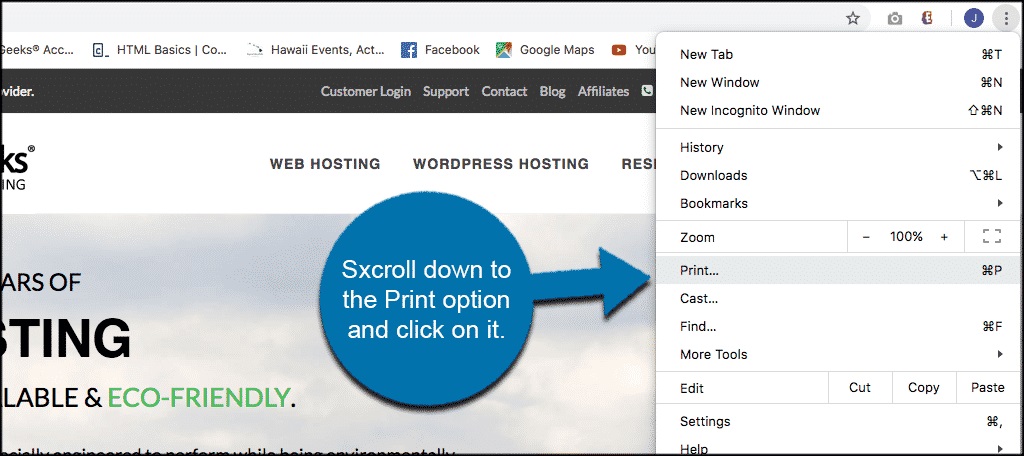
오른쪽 상단 모서리에 있는 세 개의 점을 클릭하여 Google Chrome 드롭다운 메뉴를 엽니다
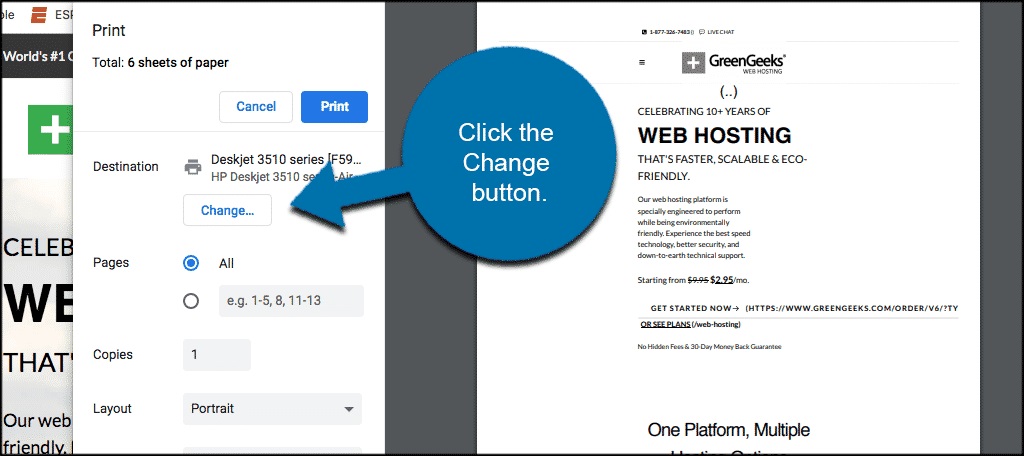
팝업 화면을 열기 위해 인쇄를 클릭합니다
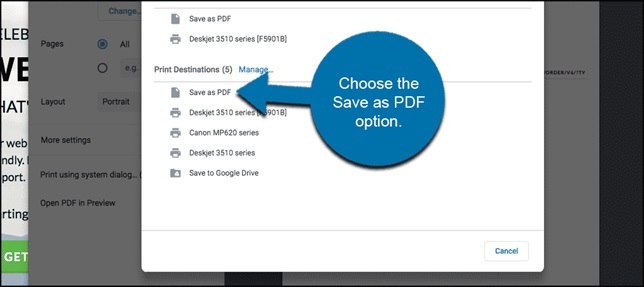
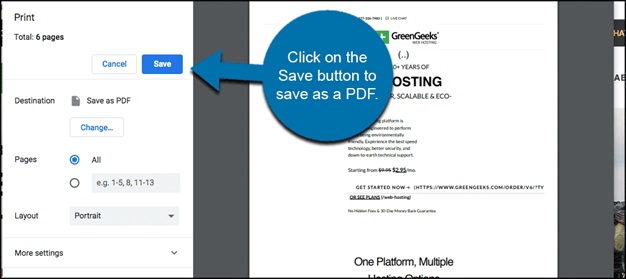
대상이 'PDF로 저장'인지 확인하고 저장을 선택합니다
Microsoft Edge
Microsoft의 클래식 인터넷 익스플로러의 후속작인 Edge는 2018년에 Chromium 엔진을 기반으로 업데이트되어 Google의 Chrome 브라우저와 매우 유사하게 되었습니다. 그래서, 웹페이지를 PDF로 변환하는 것은 거의 동일한 프로세스이며, 똑같은 제한이 있습니다.
Microsoft Edge를 사용하여 웹페이지를 PDF로 저장하는 방법
오른쪽 상단 모서리에 있는 세 개의 점을 클릭하여 Edge 드롭다운 메뉴를 엽니다
인쇄를 클릭하고 프린터로 'PDF로 저장'을 선택합니다
웹페이지를 PDF로 내보내기 위해 저장을 선택합니다
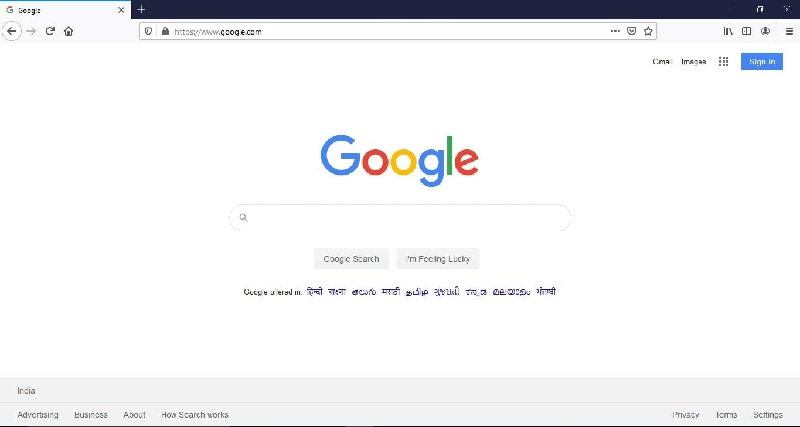
Mozilla Firefox
Firefox는 보안과 사용자 개인정보 보호에 중점을 둔 대체 웹 브라우저입니다. 그것은 Chromium 대신 자체 맞춤형 엔진을 실행하는 것으로 눈에 띕니다. 그러나, 웹페이지를 PDF로 저장할 때, Chrome과 Edge와 매우 유사하게 작동합니다. 그리고 이러한 브라우저처럼, 때때로 페이지의 레이아웃에 문제가 생겨 콘텐츠를 읽을 수 없게 됩니다.
Mozilla Firefox를 사용하여 웹페이지를 PDF로 저장하는 방법
오른쪽 상단 모서리에 있는 햄버거 메뉴 버튼(세 개의 가로선)을 클릭하여 Firefox 드롭다운 메뉴를 엽니다
인쇄를 클릭하고 대상 메뉴에서 'PDF로 저장'을 선택합니다
PDF를 다운로드하기 위해 저장을 선택합니다
Apple Safari
Mozilla와 마찬가지로, Apple은 자체 맞춤형 엔진을 사용하여 브라우저를 실행하며, 다른 옵션과 비교하여 약간의 차이를 제공합니다. 우리의 테스트에서 Safari는 가장 정확한 PDF 문서를 생성했지만 사용자 지정 페이지 인쇄 선택과 같은 기능이 부족했습니다.
Apple Safari를 사용하여 웹 페이지를 PDF로 저장하는 방법
페이지 상단의 파일 메뉴를 열고 'PDF로 내보내기...'를 클릭합니다.
파일을 저장할 위치를 선택하고 '저장'을 클릭합니다.
Soda PDF
Soda PDF는 웹 페이지를 PDF로 변환할 수 있는 무료 온라인 도구이며, 다른 많은 기능들도 제공합니다. 테스트에서는 대부분의 다른 브라우저보다 더 정확했지만, 웹 페이지의 여러 이미지를 불러오지 못했습니다.
웹 브라우저와 온라인 도구는 사용하기 쉽고 다양한 기본 편집 기능을 제공합니다. 하지만 더 강력한 웹 페이지에서 PDF로의 변환 도구가 필요하다면, IronPDF는 맞출 수 없는 유연성을 제공합니다.
웹 페이지에서 PDF로의 변환은 시작일 뿐입니다. PDF 포맷팅, 내장 보안 및 준수 기능 등 다양한 기능을 갖춘 IronPDF는 모든 PDF 문서 요구에 가장 적합한 도구입니다.
IronPDF를 직접 사용해볼 준비가 되었나요? IronPDF의 30일 무료 체험판으로 시작할 수 있습니다. 개발 목적 사용 시 완전히 무료이므로 실제로 어떤 것인지 확인할 수 있습니다. 마음에 드신다면 IronPDF는 $999의 저렴한 가격에서 시작됩니다. 더 큰 절약을 원하신다면, Iron Suite 번들을 확인하세요. 모든 아홉 개의 Iron Software 도구를 두 개의 가격으로 구할 수 있습니다. 즐거운 코딩 되세요!
커티스 차우는 칼턴 대학교에서 컴퓨터 과학 학사 학위를 취득했으며, Node.js, TypeScript, JavaScript, React를 전문으로 하는 프론트엔드 개발자입니다. 직관적이고 미적으로 뛰어난 사용자 인터페이스를 만드는 데 열정을 가진 그는 최신 프레임워크를 활용하고, 잘 구성되고 시각적으로 매력적인 매뉴얼을 제작하는 것을 즐깁니다.