2008년 9월 출시 이후, Google Chrome은 전 세계적으로 35억 명의 사용자가 추정되는 글로벌 기본 인터넷 브라우저가 되었습니다. 그리고 단순히 웹 서핑을 위한 것 이상으로, 기본적인 PDF 보기 기능을 포함한 많은 다른 내장 기능을 갖추고 있습니다.
이 가이드에서는 Chrome 브라우저에서 PDF 파일을 여는 것의 장점과 한계를 살펴보고, PDF에 대한 완전한 제어를 위한 기타 옵션을 비교할 것입니다.
Chrome PDF 뷰어 - 내장 기능
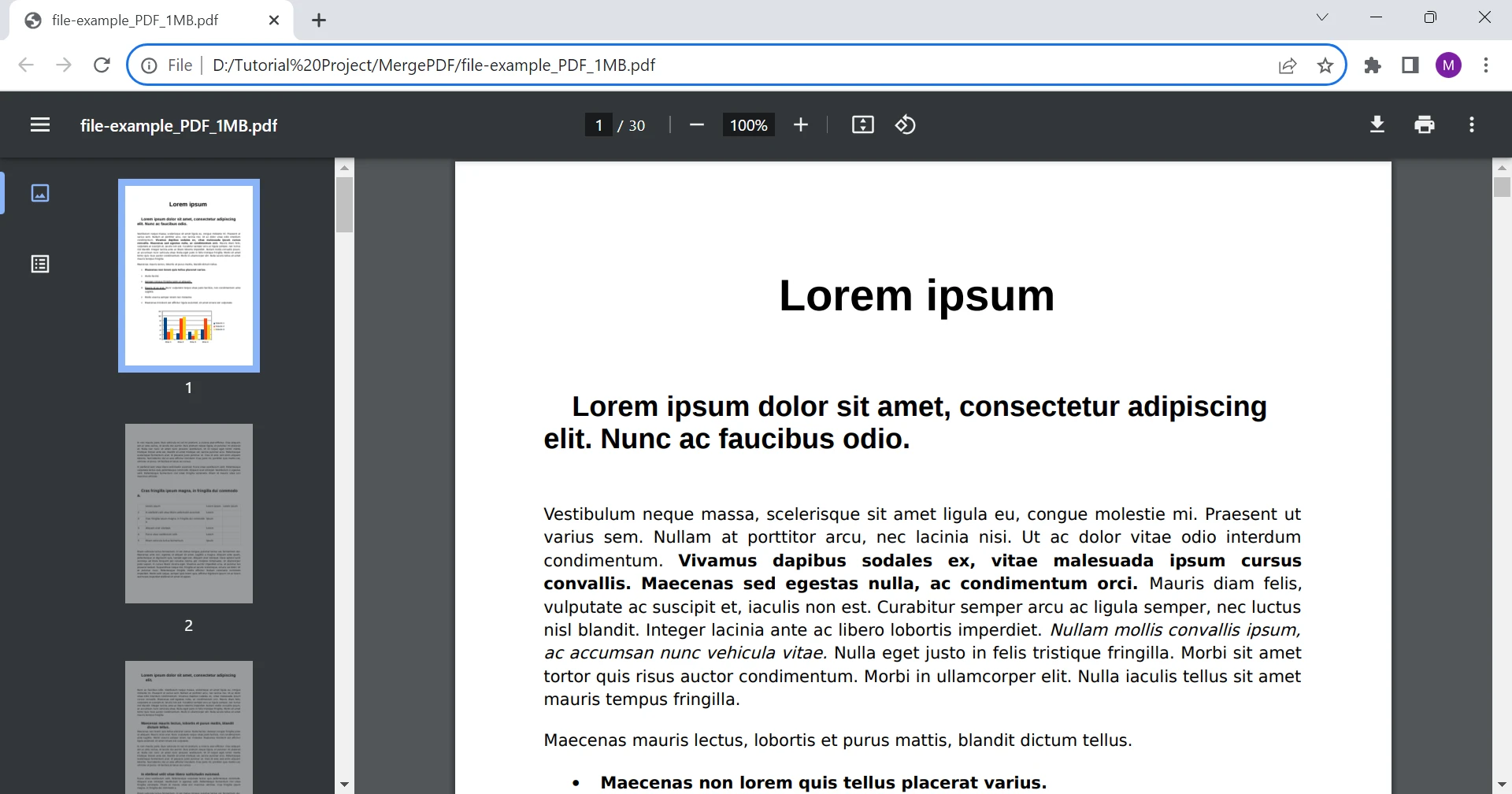
기본적으로 Google Chrome의 PDF 뷰어는 켜져 있어서 PDF 파일을 다운로드할 필요 없이 브라우저 내에서 PDF 파일을 열 수 있습니다. 단순히 PDF 파일 링크를 클릭하면 자동으로 새 탭에서 열립니다. 이렇게 하면 문서에 빠르고 쉽게 접근할 수 있습니다.
거기에서 PDF를 회전, 저장 및 인쇄할 수 있는 기본 옵션을 사용할 수 있습니다. Chrome에서 PDF 파일을 여는 것의 장점을 더욱 자세히 살펴봅시다.
즉각적인 접근성
Chrome PDF 뷰어는 PDF 파일을 다운로드하거나 추가 소프트웨어를 설치하지 않고도 PDF를 열 수 있게 합니다. Chrome 브라우저를 기본 PDF 뷰어로 설정하면 시스템의 PDF를 Chrome에서 열 수 있습니다.
기본 PDF 파일 네비게이션
Chrome은 페이지 확대, 회전 및 특정 페이지로 바로 이동하는 등의 기본적인 PDF 탐색 옵션을 포함하고 있습니다. 포괄적이지는 않지만 그 단순함으로 인해 PDF를 보는 가장 쉬운 방법 중 하나로 만들어줍니다.
텍스트 검색 및 하이라이팅
찾기 도구는 다른 웹 페이지에서와 마찬가지로 PDF에서도 작동하여 내장된 텍스트 검색 기능을 사용하고 찾고자 하는 키워드나 구문으로 바로 이동할 수 있게 합니다.
페이지 네비게이션
페이지가 많은 PDF 파일의 경우, Chrome은 문서를 탐색할 또 다른 방법을 제공합니다. 브라우저 탭의 왼쪽에 문서 내 각 페이지의 썸네일이 표시되며, 쉽게 스크롤하고 클릭하여 탐색할 수 있습니다.
PDF 문서의 인쇄 기능
인쇄 기능을 통해 Chrome은 PDF의 하드 카피를 인쇄하거나 컴퓨터에 PDF 파일로 저장할 수 있습니다. 개인 정보를 입력하는 등 변경이 가능한 PDF 파일에서는 유용합니다.
향상된 보안 및 개인정보 보호
브라우저 환경 내에서 PDF를 포함함으로써, Chrome PDF 뷰어는 파일을 로컬 장치에 다운로드하는 것에 비해 향상된 보안, 사이트 설정 및 개인정보 보호 이점을 제공할 수 있습니다. 이는 알 수 없는 출처에서 PDF 형식 파일을 다운로드하고 여는 것과 관련된 잠재적인 위험을 완화하는 데 도움이 될 수 있습니다.
호환성
Chrome PDF 뷰어는 Google Chrome 브라우저에 원활하게 통합되어 있어 Windows, macOS 및 Linux를 포함한 다양한 운영 체제와 호환됩니다. 이 호환성은 다양한 플랫폼에서 일관된 PDF 보기 환경을 보장합니다.
이것이 Chrome에서 PDF를 여는 방법과 Google이 제공하는 기능들입니다. 그러나 이 기능을 끄고 싶다면 오른쪽 상단의 세 개의 세로 점을 클릭한 다음 설정, 개인정보 및 보안, 사이트 설정을 클릭하여 사용할 수 있습니다. 추가 콘텐츠 설정으로 스크롤하여 PDF 문서 메뉴를 열고 PDF 다운로드를 선택하세요. 이렇게 하면 Chrome에서 클릭한 모든 PDF 파일 링크가 브라우저에서 여는 대신 시스템에 자동으로 다운로드됩니다.
IronPDF: Unleashing Advanced PDF File Viewing with C#
IronPDF는 웹 개발자를 염두에 두고 설계된 가벼운 .NET PDF 라이브러리입니다. PDF 뷰어는 많은 용도 중 하나일 뿐입니다. PDF 읽기, 쓰기 및 조작을 쉽게 해주며 데스크톱 및 웹 for .NET 프로젝트에 사용할 수 있습니다. 가장 좋은 점은 개발 환경에서 무료로 시도해 볼 수 있다는 것입니다.
IronPDF의 주요 장점 중 하나는 유연성입니다. 단독 데스크톱 애플리케이션으로 사용하거나 IronPDF API를 사용하여 웹 애플리케이션에 통합할 수 있습니다. 또한, IronPDF는 Windows 및 Mac 운영 체제와 호환되어 많은 사용자가 접근할 수 있습니다.
IronPDF 의 주요 기능
프로그래밍 제어
IronPDF는 개발자에게 조작 및 편집을 위한 C# 코드를 통해 PDF 파일을 제어할 기회를 제공합니다. 이 기능은 PDF 파일 내에서 동적 맞춤화 및 대화형 향상을 가능하게 하는 가능성의 세계를 열어줍니다.
대화형 요소
Chrome PDF 뷰어와 달리, IronPDF는 양식 필드, 디지털 서명, 주석 및 멀티미디어와 같은 다양한 대화형 요소의 추가를 지원합니다. 개발자는 이러한 기능을 통해 흥미롭고 사용자 친화적인 PDF 경험을 만들 수 있습니다.
고급 편집
IronPDF는 개발자가 프로그램적으로 PDF 콘텐츠를 편집하고 수정할 수 있도록 합니다. 여기에는 텍스트, 이미지 및 기타 문서 요소 업데이트 능력이 포함되며, 정적 문서를 동적이고 최신 리소스로 변환합니다.
크로스 플랫폼 호환성
IronPDF는 Windows, macOS 및 Linux 환경에서 매끄럽게 작동합니다. 이 플랫폼 간 호환성은 개발자가 다양한 운영 체제에 애플리케이션을 배포할 수 있는 유연성을 제공합니다.
시각적 무결성
라이브러리는 상호작용 및 수정 중에 PDF 콘텐츠의 시각적 무결성이 유지되도록 보장합니다. 글꼴, 이미지 및 레이아웃은 일관성을 유지하여 문서의 전문적인 외관을 유지합니다.
보안 기능
IronPDF는 민감한 PDF 파일을 보호하기 위해 암호화, 디지털 서명 및 비밀번호 보호와 같은 고급 보안 기능을 제공합니다. 이 보안 수준은 Chrome PDF 뷰어가 제공하는 기본 보호를 넘어섭니다.
IronPDF가 PDF 보기 기능을 확장하는 방법
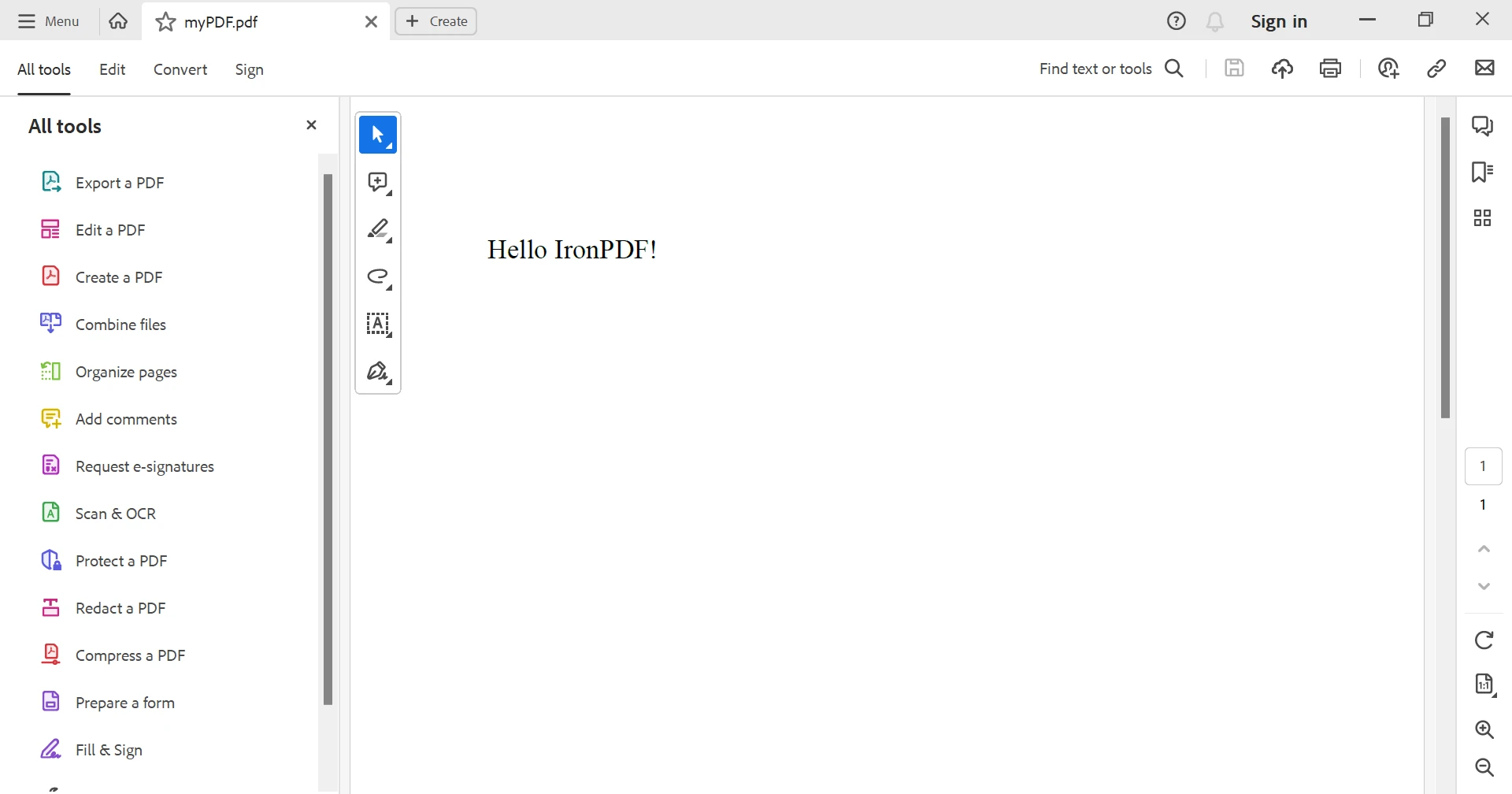
간단한 코드 예제로 IronPDF의 작동을 확인하십시오. 여기에서 사용자가 지정한 텍스트가 포함된 PDF를 생성할 것입니다:
// Define the HTML string with styles
var text = "<p style='font-size:20px;'>Hello IronPDF!</p>";

// Instantiate a ChromePdfRenderer object
var renderer = new ChromePdfRenderer();

// Render the HTML string to a PDF document
var pdfDocument = renderer.RenderHtmlAsPdf(text);

// Save the generated PDF to a specified file path
pdfDocument.SaveAs("myPDF.pdf");
// Define the HTML string with styles
var text = "<p style='font-size:20px;'>Hello IronPDF!</p>";

// Instantiate a ChromePdfRenderer object
var renderer = new ChromePdfRenderer();

// Render the HTML string to a PDF document
var pdfDocument = renderer.RenderHtmlAsPdf(text);

// Save the generated PDF to a specified file path
pdfDocument.SaveAs("myPDF.pdf");
' Define the HTML string with styles
Dim text = "<p style='font-size:20px;'>Hello IronPDF!</p>"
' Instantiate a ChromePdfRenderer object
Dim renderer = New ChromePdfRenderer()
' Render the HTML string to a PDF document
Dim pdfDocument = renderer.RenderHtmlAsPdf(text)
' Save the generated PDF to a specified file path
pdfDocument.SaveAs("myPDF.pdf")
' Define the HTML string with styles
Dim text = "<p style='font-size:20px;'>Hello IronPDF!</p>"

' Instantiate a ChromePdfRenderer object
Dim renderer = New ChromePdfRenderer()

' Render the HTML string to a PDF document
Dim pdfDocument = renderer.RenderHtmlAsPdf(text)

' Save the generated PDF to a specified file path
pdfDocument.SaveAs("myPDF.pdf")
이 예제에서는 HTML 콘텐츠에서 PDF를 생성하고, ChromePdfRenderer를 사용하여 렌더링한 다음 'myPDF.pdf'라는 파일로 저장합니다.
IronPDF로 Chrome PDF Viewer의 한계를 극복하기
Google Chrome은 PDF 파일을 신속하고 쉽게 보고 인쇄하는 데 훌륭하지만 그 외에는 많지 않습니다. IronPDF는 훨씬 더 많은 기능과 개인화 옵션을 제공합니다.
그리고 이것은 시작에 불과합니다. HTML을 PDF로 변환, PDF 형식 도구, 내장된 보안 및 컴플라이언스 기능 등 많은 것들이 포함되어 IronPDF는 모든 PDF 문서 요구 사항의 가장 중요한 도구입니다.
IronPDF를 직접 사용해볼 준비가 되었나요? IronPDF의 30일 무료 체험판으로 시작할 수 있습니다. 개발 목적 사용 시 완전히 무료이므로 실제로 어떤 것인지 확인할 수 있습니다. 그리고 당신이 보고 있는 것이 마음에 든다면, IronPDF는 $999 가격 페이지에서 저렴한 가격으로 시작합니다. 더 큰 절약을 위해, 아홉 가지 Iron Software 도구를 모두 포함한 Iron Suite를 확인해보세요. 이곳에서는 두 가지 가격에 아홉 가지 Iron Software 도구 모두를 얻을 수 있습니다. 즐거운 코딩 되세요!













