PDF 문서를 PNG, JPG, GIF와 같은 이미지 형식으로 변환하는 것은 문서 관리 시스템에서 이미지 처리 소프트웨어에 이르는 다양한 응용 프로그램에서 유용한 기능이 될 수 있습니다. 이 기사에서는 Node.js를 사용하여 PDF를 이미지 파일로 변환하는 방법을 배울 것입니다. 이 작업을 수행하기 위해 pdf-poppler라는 유명한 npm (Node Package Manager) 패키지를 활용할 것입니다.
필수 조건
먼저, 컴퓨터에 Node.js와 npm (Node Package Manager)이 설치되어 있는지 확인하세요. 명령 프롬프트(cmd)에서 다음 명령어를 실행하여 Node 설치를 확인할 수 있습니다:
node --version
npm --version
node --version
npm --version
SHELL
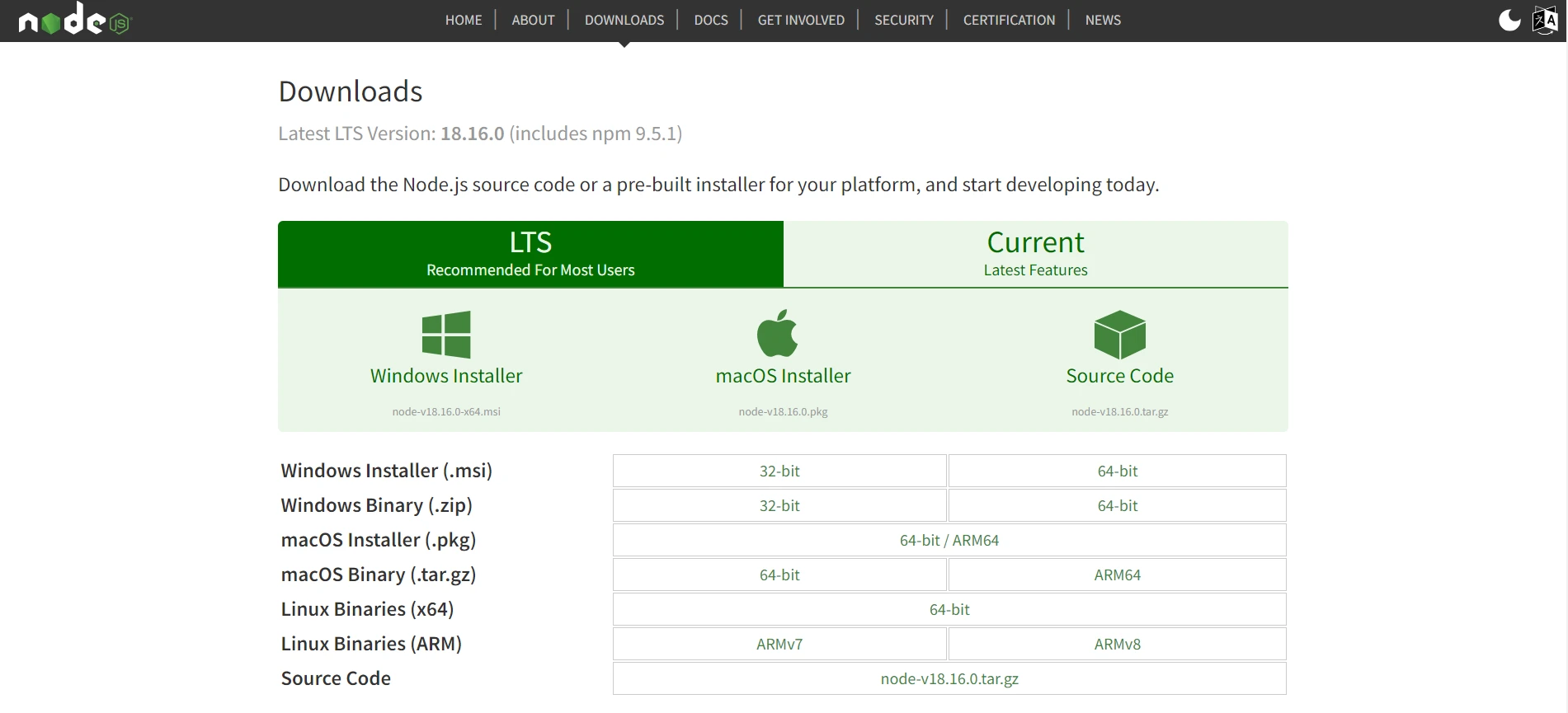
설치되어 있지 않은 경우 Node.js 웹사이트에서 다운로드해야 합니다.
프로젝트 설정
시작하려면 프로젝트를 위한 새 디렉토리를 만드십시오. 이 튜토리얼에서는 이 디렉토리를 Node.js_PDFtoImage라고 명명하고, 명령 프롬프트로 이동하여 다음 명령을 실행하여 새로운 Node.js 프로젝트를 초기화합니다:
위의 명령어를 실행하면 우리의 프로젝트에 필요한 종속성을 설치할 수 있는 package.json 파일이 생성됩니다.
종속성 설치
우리가 사용할 종속성은 PDF를 이미지로 변환하기 위한 사용하기 쉬운 API를 제공하는 패키지 pdf-poppler입니다.
Windows PowerShell 또는 명령 프롬프트에서 다음 명령어를 실행하여 설치합니다:
npm install pdf-poppler
npm install pdf-poppler
SHELL
모두 완료되었습니다! PDF를 이미지로 변환하는 로직을 작성해 봅시다.
PDF를 이미지 파일로 변환
설치가 완료되면 프로젝트의 루트 디렉토리에 새 파일을 만들고 이름을 pdfToImage.js로 설정합니다. 선택한 텍스트 편집기에서 파일을 열고 필요한 모듈을 추가합니다:
const pdfPoppler = require('pdf-poppler');
const pdfPoppler = require('pdf-poppler');
JavaScript
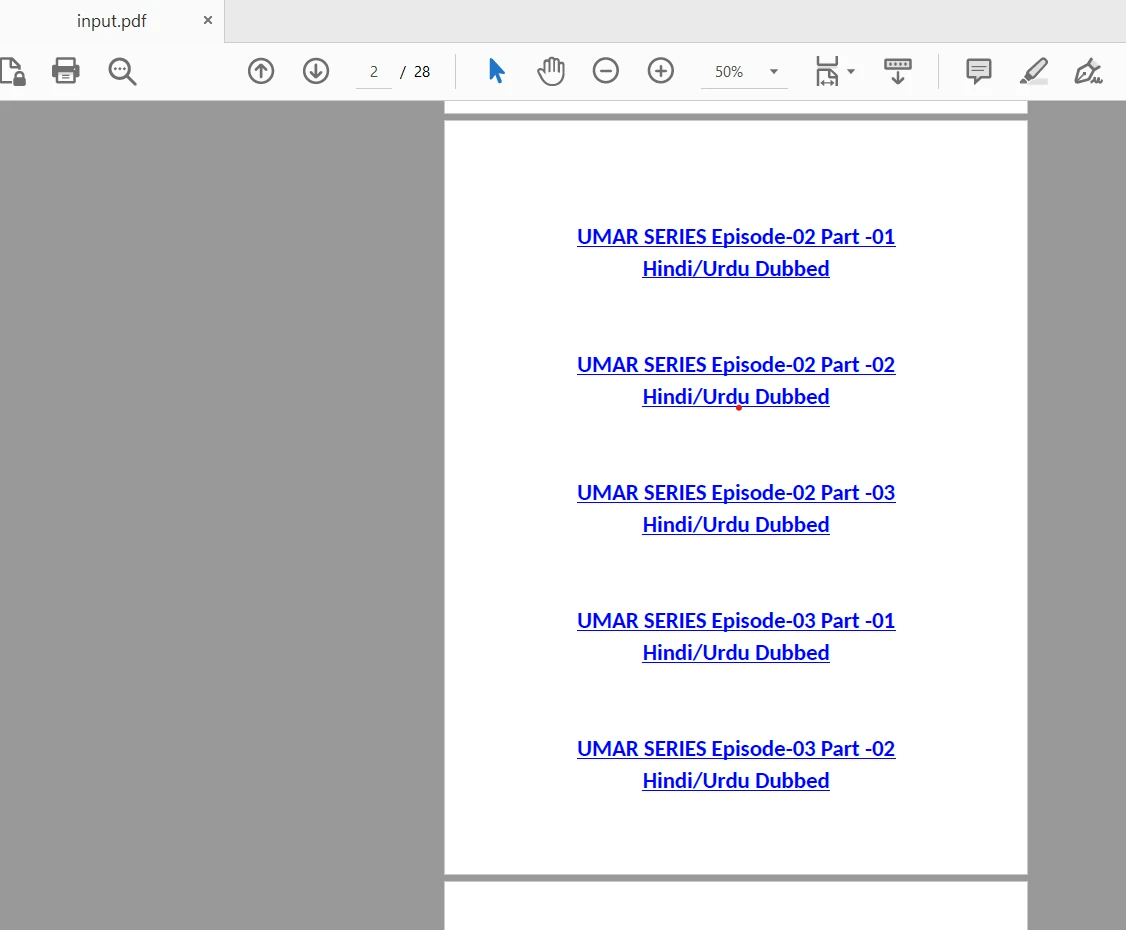
아래는 28페이지로 구성된 PDF 파일의 예입니다.
다음으로, PDF 파일의 경로(pdfPath) 및 출력 디렉토리 경로(outputPath)를 입력으로 받는 convertPdfToImage라는 함수를 정의하세요. 이 함수는 샘플 PDF 문서를 이미지로 변환합니다.
async function convertPdfToImage(pdfPath, outputPath) {
  const options = {
    format: 'jpeg',  // You can choose other formats like png or tiff
    out_dir: outputPath,
    out_prefix: 'page',
    page: null  // Specify the page number here to convert a specific page, otherwise null to convert all pages
  };

  try {
    await pdfPoppler.convert(pdfPath, options);
    console.log('PDF converted to image successfully!');
  } catch (error) {
    console.error('Error converting PDF to image:', error);
  }
}
async function convertPdfToImage(pdfPath, outputPath) {
  const options = {
    format: 'jpeg',  // You can choose other formats like png or tiff
    out_dir: outputPath,
    out_prefix: 'page',
    page: null  // Specify the page number here to convert a specific page, otherwise null to convert all pages
  };

  try {
    await pdfPoppler.convert(pdfPath, options);
    console.log('PDF converted to image successfully!');
  } catch (error) {
    console.error('Error converting PDF to image:', error);
  }
}
JavaScript
이 함수는 pdf-poppler 패키지를 사용하여 PDF를 JPEG 이미지 형식으로 변환합니다. 이 경우 우리는 format 옵션을 'jpeg'로 설정했지만 'png'나 'tiff' 같은 다른 형식을 선택할 수 있습니다. out_dir 옵션은 출력 이미지가 저장될 디렉토리를 지정하고, out_prefix는 출력 이미지 파일의 접두사를 설정합니다. page 옵션을 사용하여 특정 페이지를 변환할 수 있으며, 모든 페이지를 변환하려면 이 값을 null로 남겨둘 수 있습니다.
PDF 파일을 이미지로 변환하기 위해 적절한 파일 경로를 사용하여 convertPdfToImage 함수를 호출할 수 있습니다. 예를 들어:
const pdfPath = '/path/to/input.pdf';
const outputPath = '/path/to/output/folder';

convertPdfToImage(pdfPath, outputPath);
const pdfPath = '/path/to/input.pdf';
const outputPath = '/path/to/output/folder';

convertPdfToImage(pdfPath, outputPath);
JavaScript
참고: pdfPath 값 "/path/to/input.pdf"을 입력 PDF 파일의 실제 경로로, "/path/to/output/folder"을 원하는 출력 디렉토리 경로로 대체하세요.
전체 코드는 다음과 같습니다.
const pdfPoppler = require('pdf-poppler');

const pdfPath = 'C:\\Users\\hp\\Desktop\\Node.js_PDFtoImage\\pdf_files\\input.pdf';
const outputDir = 'C:\\Users\\hp\\Desktop\\Node.js_PDFtoImage\\pdf_images';

async function convertPdfToImage(pdfPath, outputPath) {
  const opts = {
    format: 'jpeg',      // You can choose other formats like png or tiff
    out_dir: outputPath,
    out_prefix: 'page',
    page: null           // Specify the page number here to convert a specific page, otherwise null to convert all pages
  };

  try {
    await pdfPoppler.convert(pdfPath, opts);
    console.log('PDF converted to image successfully!');
  } catch (error) {
    console.error('Error converting PDF to image:', error);
  }
}

convertPdfToImage(pdfPath, outputDir);
const pdfPoppler = require('pdf-poppler');

const pdfPath = 'C:\\Users\\hp\\Desktop\\Node.js_PDFtoImage\\pdf_files\\input.pdf';
const outputDir = 'C:\\Users\\hp\\Desktop\\Node.js_PDFtoImage\\pdf_images';

async function convertPdfToImage(pdfPath, outputPath) {
  const opts = {
    format: 'jpeg',      // You can choose other formats like png or tiff
    out_dir: outputPath,
    out_prefix: 'page',
    page: null           // Specify the page number here to convert a specific page, otherwise null to convert all pages
  };

  try {
    await pdfPoppler.convert(pdfPath, opts);
    console.log('PDF converted to image successfully!');
  } catch (error) {
    console.error('Error converting PDF to image:', error);
  }
}

convertPdfToImage(pdfPath, outputDir);
JavaScript
Node.js 스크립트 실행
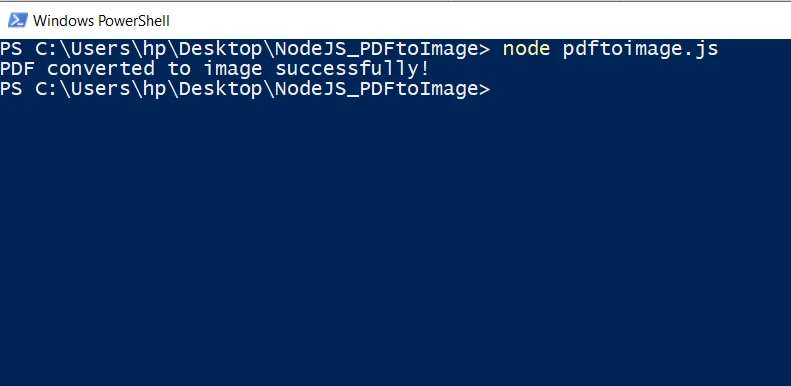
다음 명령어를 실행하여 Node.js 스크립트를 실행합니다:
node pdfToImage.js
node pdfToImage.js
SHELL
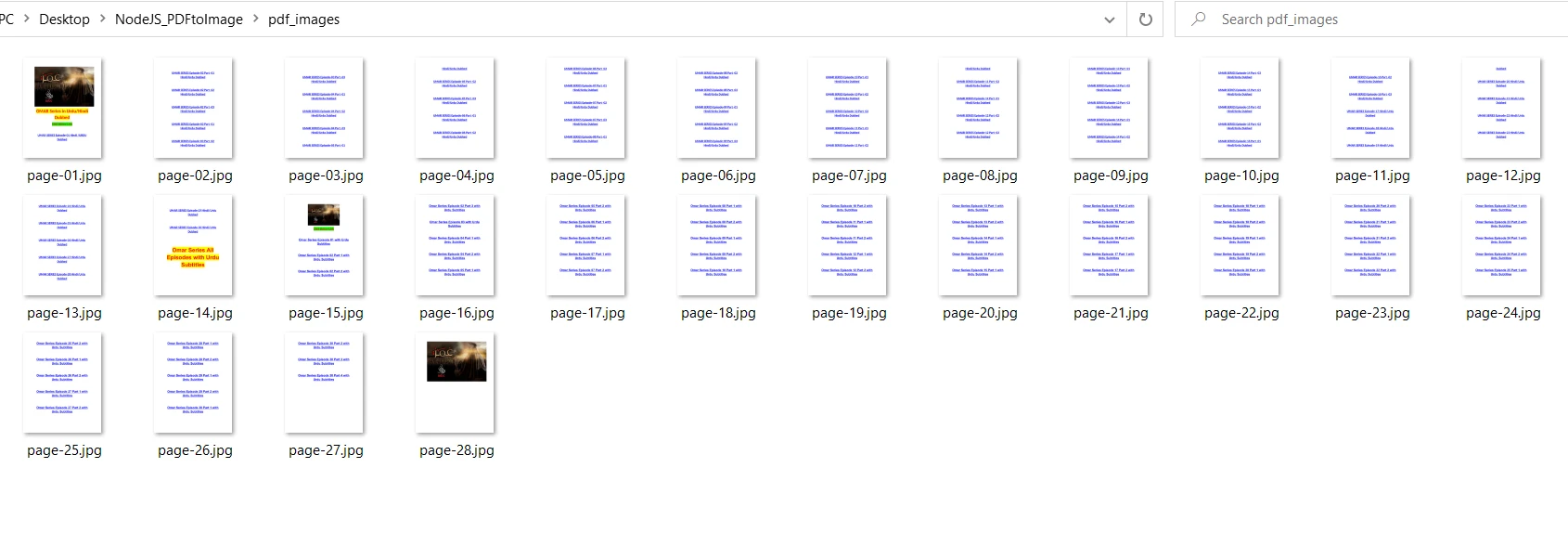
이는 Node.js 스크립트를 실행하고 pdf-poppler을 사용하여 PDF를 이미지 파일로 변환할 것입니다.
출력 폴더
Rasterize PDF File to Image in C#
IronPDF for C# .NET
IronPDF는 C# 개발자가 PDF 문서와 실시간으로 작업할 수 있도록 하는 다용도 .NET 라이브러리입니다. C# 내에서 PDF 파일을 생성, 조작 및 변환하기 위한 포괄적인 기능을 제공합니다.
IronPDF는 C#을 사용하여 PDF 문서를 이미지 파일로 변환하는 편리한 방법을 제공합니다. 이 기능은 특히 이미지 추출이나 PDF 파일에서 이미지 썸네일을 프로그래밍 방식으로 생성해야 할 때 유용합니다.
IronPDF를 사용한 이미지로 변환하려면 아래 코드 스니펫의 단계를 따르십시오:
using IronPdf;
using IronSoftware.Drawing;

var pdf = PdfDocument.FromFile("input.pdf");

// Extract all pages to a folder as image files
pdf.RasterizeToImageFiles(@"C:\image\folder\*.png");

// Dimensions and page ranges may be specified
pdf.RasterizeToImageFiles(@"C:\image\folder\example_pdf_image_*.jpg", 100, 80);

// Extract all pages as AnyBitmap objects
AnyBitmap [] pdfBitmaps = pdf.ToBitmap();
using IronPdf;
using IronSoftware.Drawing;

var pdf = PdfDocument.FromFile("input.pdf");

// Extract all pages to a folder as image files
pdf.RasterizeToImageFiles(@"C:\image\folder\*.png");

// Dimensions and page ranges may be specified
pdf.RasterizeToImageFiles(@"C:\image\folder\example_pdf_image_*.jpg", 100, 80);

// Extract all pages as AnyBitmap objects
AnyBitmap [] pdfBitmaps = pdf.ToBitmap();
Imports IronPdf
Imports IronSoftware.Drawing
Private pdf = PdfDocument.FromFile("input.pdf")
' Extract all pages to a folder as image files
pdf.RasterizeToImageFiles("C:\image\folder\*.png")
' Dimensions and page ranges may be specified
pdf.RasterizeToImageFiles("C:\image\folder\example_pdf_image_*.jpg", 100, 80)
' Extract all pages as AnyBitmap objects
Dim pdfBitmaps() As AnyBitmap = pdf.ToBitmap()
Imports IronPdf
Imports IronSoftware.Drawing

Private pdf = PdfDocument.FromFile("input.pdf")

' Extract all pages to a folder as image files
pdf.RasterizeToImageFiles("C:\image\folder\*.png")

' Dimensions and page ranges may be specified
pdf.RasterizeToImageFiles("C:\image\folder\example_pdf_image_*.jpg", 100, 80)

' Extract all pages as AnyBitmap objects
Dim pdfBitmaps() As AnyBitmap = pdf.ToBitmap()
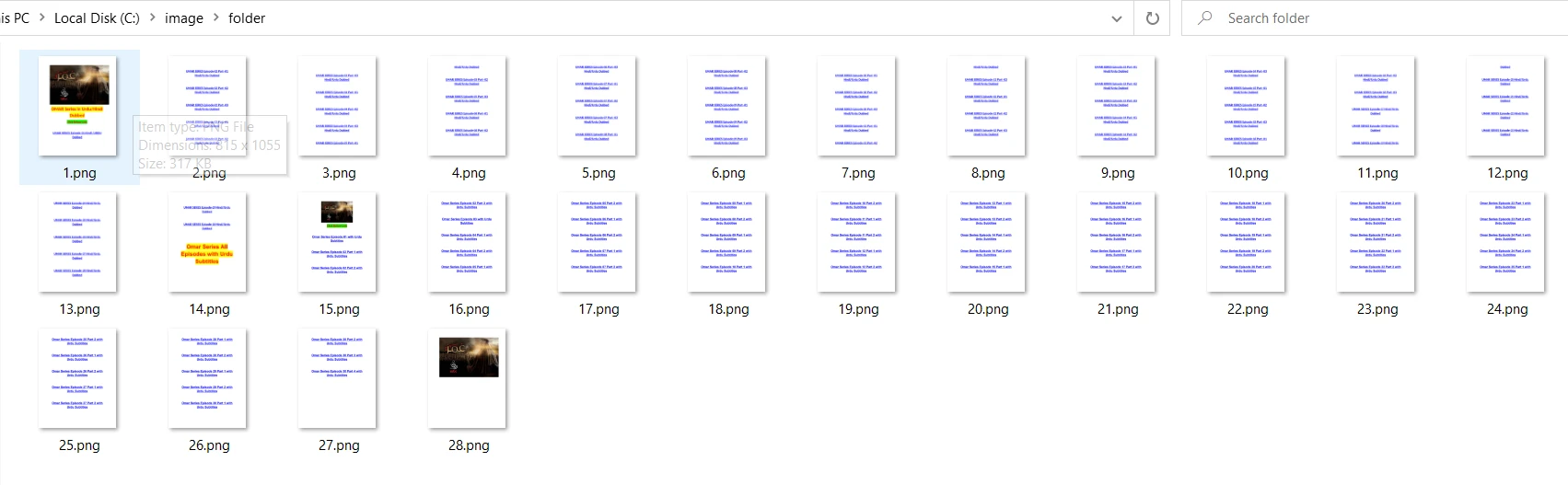
IronPDF를 사용하여 PDF를 이미지 파일로 변환하는 것이 얼마나 쉬운지입니다. PDF를 이미지로 변환하는 것에 대한 자세한 내용은 이 코드 예제 페이지를 방문하십시오.
결론
이 기사에서는 pdf-poppler 패키지를 사용하여 Node.js에서 PDF 파일을 이미지로 변환하는 방법을 탐구했습니다. 언급된 단계를 따라 하면 Node.js 응용 프로그램에 PDF-이미지 변환 기능을 통합할 수 있으며, PDF 문서를 프로그래밍 방식으로 처리하고 조작할 수 있는 다양한 가능성을 제공합니다.
다른 한편으로 IronPDF는 PDF 조작 및 변환 작업을 용이하게 하는 강력한 C# 라이브러리입니다. PDF를 이미지를 변환하는 기능은 PDF 페이지의 이미지를 추출하거나 프로그래밍 방식으로 이미지 표현을 생성하는 편리한 방법을 제공합니다. IronPDF의 기능을 활용하여 개발자는 C# 응용 프로그램에 PDF-이미지 변환 기능을 원활하게 통합할 수 있습니다.
IronPDF 는 개발용으로는 무료이며 상업적 용도로 사용하려면 라이선스를 취득해야 합니다. 또한 무료 체험판을 사용하여 상업 모드에서도 사용할 수 있습니다.













