




업데이트됨 2026년 9월 4일
월별 계정 명세서를 PDF 문서로 생성하기
개발자는 IronPDF C# PDF 라이브러리를 사용하여 외부 서비스에 의존하지 않고도 .NET 프로젝트 내에서 HTML을 신뢰할 수 있는 PDF 파일로 변환할 수 있습니다.
더 읽어보기

PDF 파일은 문서 공유 및 데이터 표시 목적으로 널리 사용됩니다. 웹 애플리케이션에서는 브라우저 내에서 사용자가 직접 PDF 파일을 표시해야 할 때가 많습니다. ASP.NET Core 애플리케이션은 이러한 기능을 달성할 수 있는 다양한 옵션을 제공하며, PDF 파일 작업을 위한 인기 있는 라이브러리는 IronPDF입니다.
IronPDF는 개발자가 PDF를 쉽게 생성, 편집 및 조작할 수 있는 강력한 .NET 라이브러리입니다. 이 글은 ASP.NET Core PDF 뷰어 애플리케이션에서 PDF 파일을 표시하는 데 IronPDF를 사용하는 방법을 탐색할 것입니다. 필요한 구성 요소를 설정하는 단계 및 ASP.NET Core PDF 뷰어 통합을 시연하기 위한 샘플 논리를 다룰 것입니다.
시작하려면 다음 전제 조건을 확인하십시오:
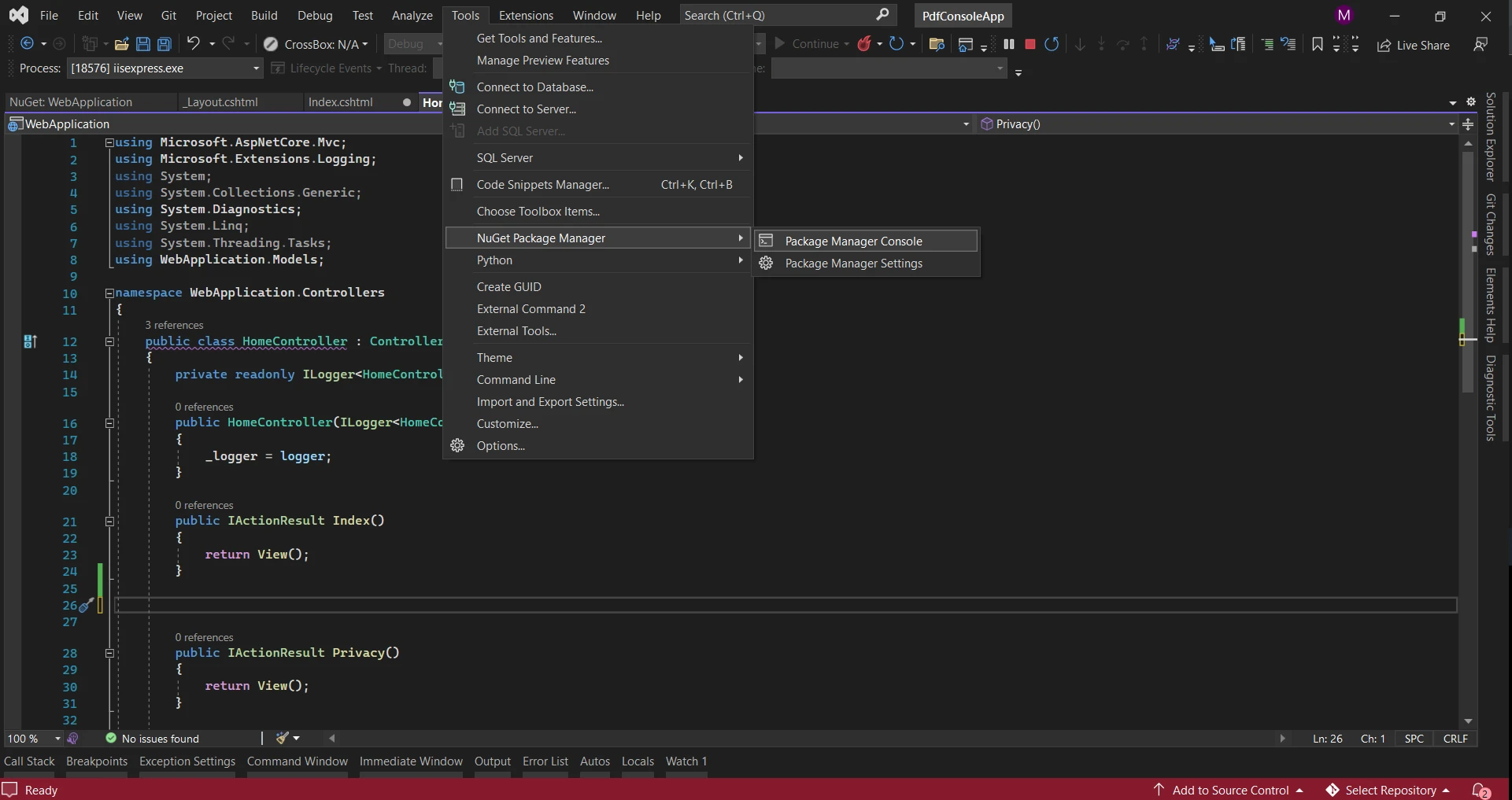 NuGet 패키지 관리자
환경을 설정한 후, ASP.NET Core 애플리케이션에서 IronPDF를 사용하여 PDF 파일을 표시하는 단계로 들어가 봅시다.
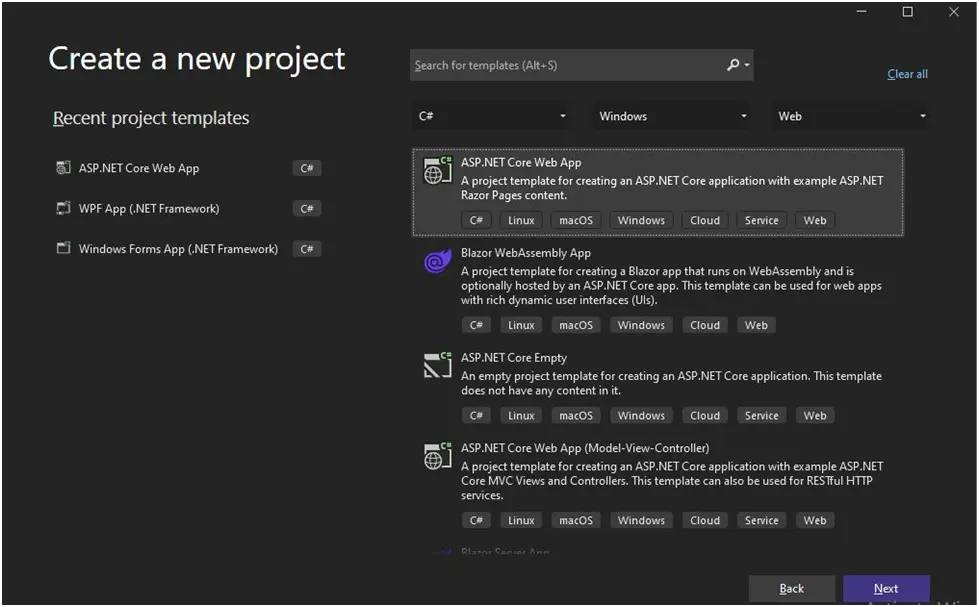 웹 애플리케이션
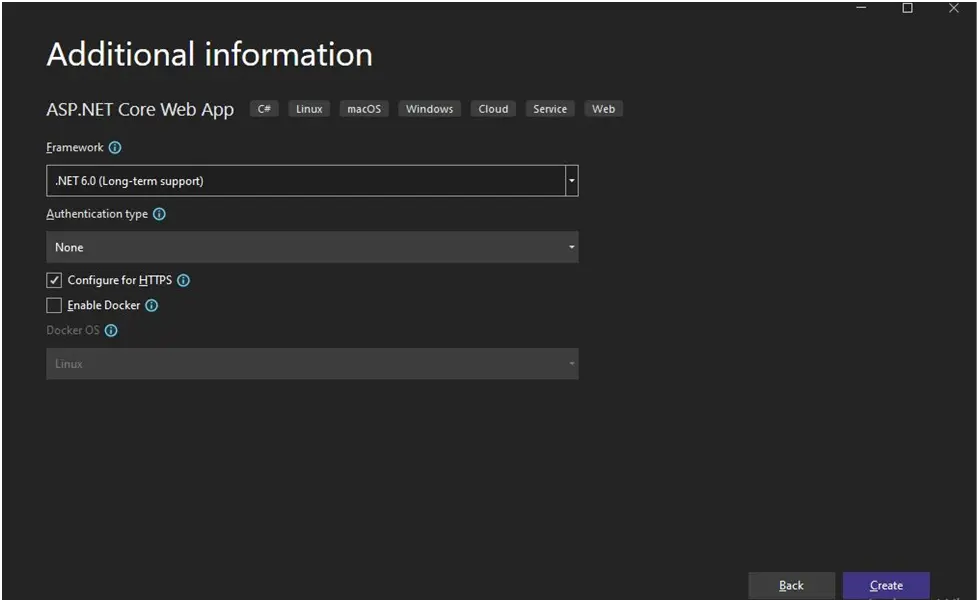 .NET Framework
프로젝트에서 IronPDF를 사용하려면 IronPDF 라이브러리 참조를 추가해야 합니다.
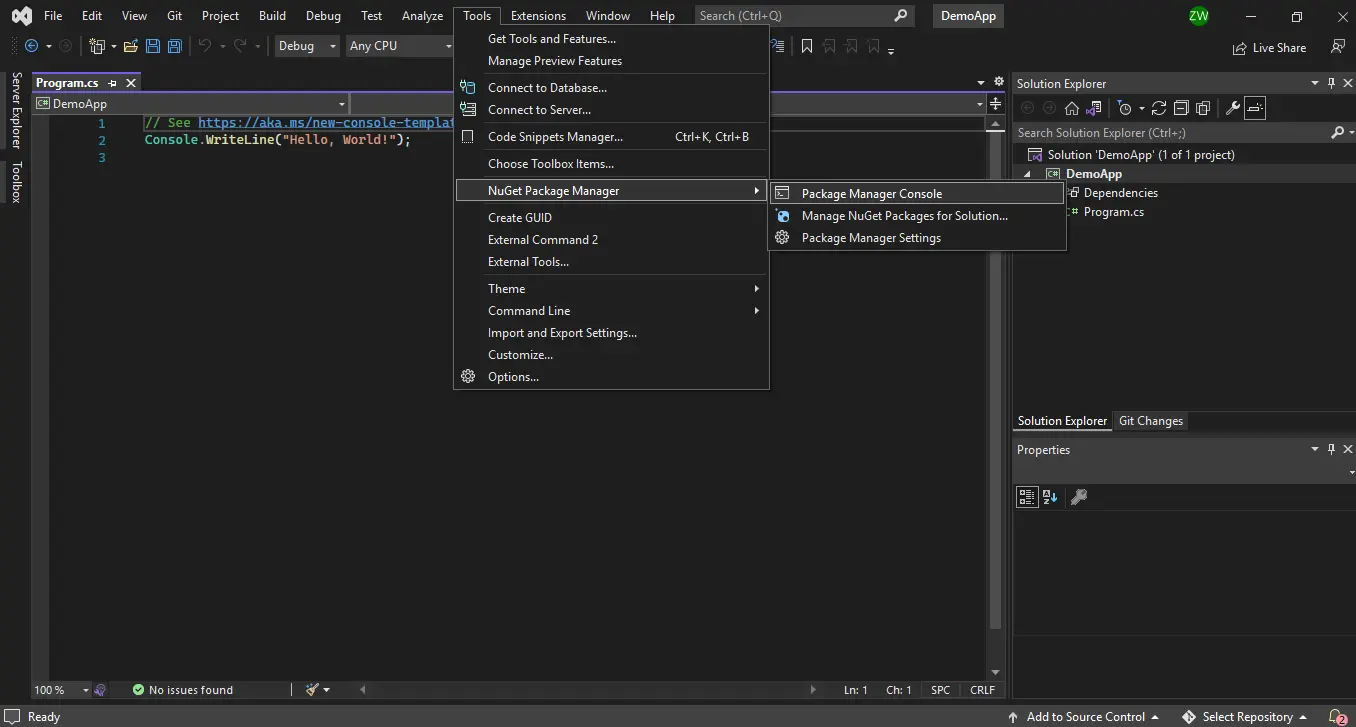 NuGet 패키지 관리자
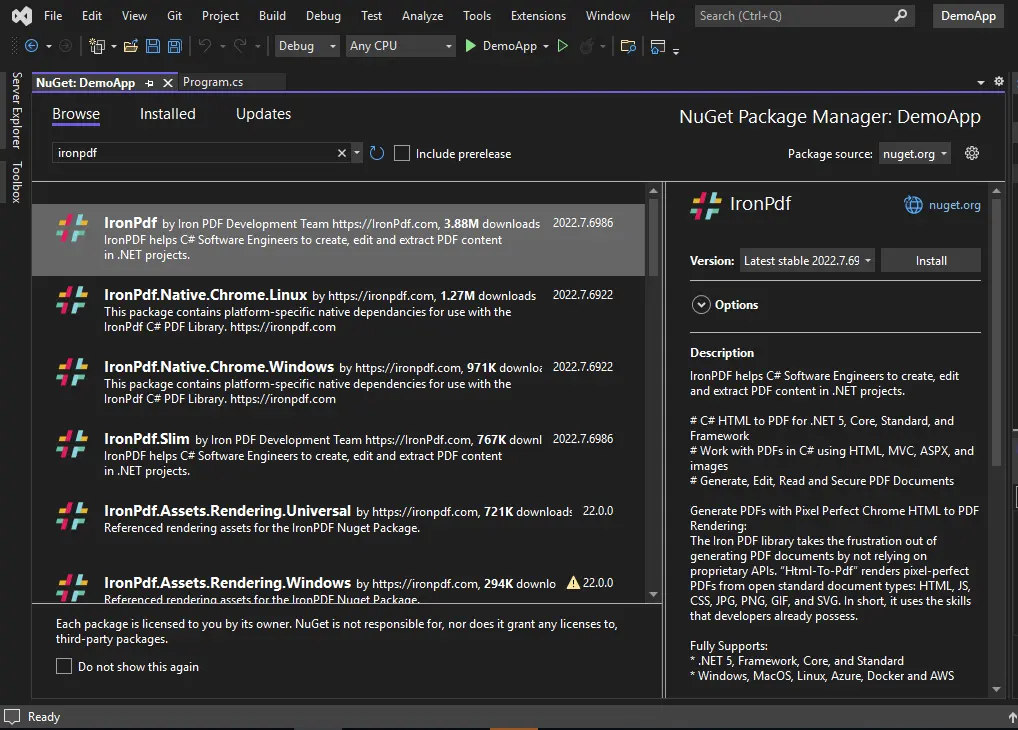 NuGet 패키지 관리자 - 솔루션 탐색기
서버 측에서 ASP.NET Core 웹 페이지에서 PDF를 생성하려면 다음 단계를 따라야 합니다:
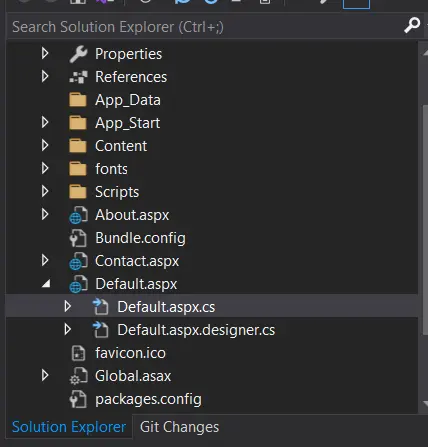 솔루션 탐색기
PDF로 변환하려는 ASP.NET Core 웹 페이지의 소스 파일 경로를 엽니다. 코드 비하인드 파일(Index.cshtml.cs)의 상단에 IronPdf 네임스페이스를 추가하세요:
using IronPdf;Imports IronPdfOnGet 함수 내부에 다음 코드를 추가하세요:
public FileContentResult OnGet()
{
    // Create a new instance of ChromePdfRenderer
    ChromePdfRenderer renderer = new ChromePdfRenderer();

    // Render the current Razor page to a PDF document
    PdfDocument pdf = renderer.RenderRazorToPdf(this);

    // Add HTTP header to display PDF in the browser
    Response.Headers.Add("Content-Disposition", "inline");

    // Return the PDF file to the client
    return File(pdf.BinaryData, "application/pdf");
}Public Function OnGet() As FileContentResult
' Create a new instance of ChromePdfRenderer
Dim renderer As New ChromePdfRenderer()
' Render the current Razor page to a PDF document
Dim pdf As PdfDocument = renderer.RenderRazorToPdf(Me)
' Add HTTP header to display PDF in the browser
Response.Headers.Add("Content-Disposition", "inline")
' Return the PDF file to the client
Return File(pdf.BinaryData, "application/pdf")
End Function단 한 줄의 코드로 Razor 페이지가 RenderRazorToPdf 메소드를 사용하여 PDF 문서로 변환됩니다.
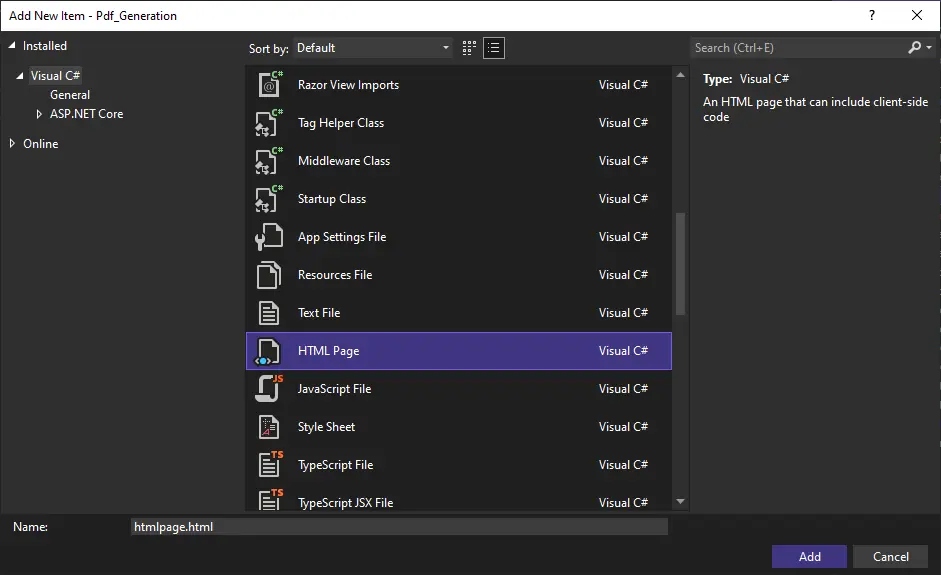
IronPdf.Extensions.Razor NuGet 패키지를 설치해야 합니다.
기본적으로 코드는 브라우저에서 PDF 문서를 표시합니다. 대신 PDF를 다운로드하려면 코드를 다음과 같이 수정하십시오:
return File(pdf.BinaryData, "application/pdf", "razorPageToPDF.pdf");Return File(pdf.BinaryData, "application/pdf", "razorPageToPDF.pdf")이 코드는 ASP.NET 웹 페이지의 PDF 파일을 로컬 '다운로드' 폴더에 다운로드합니다.
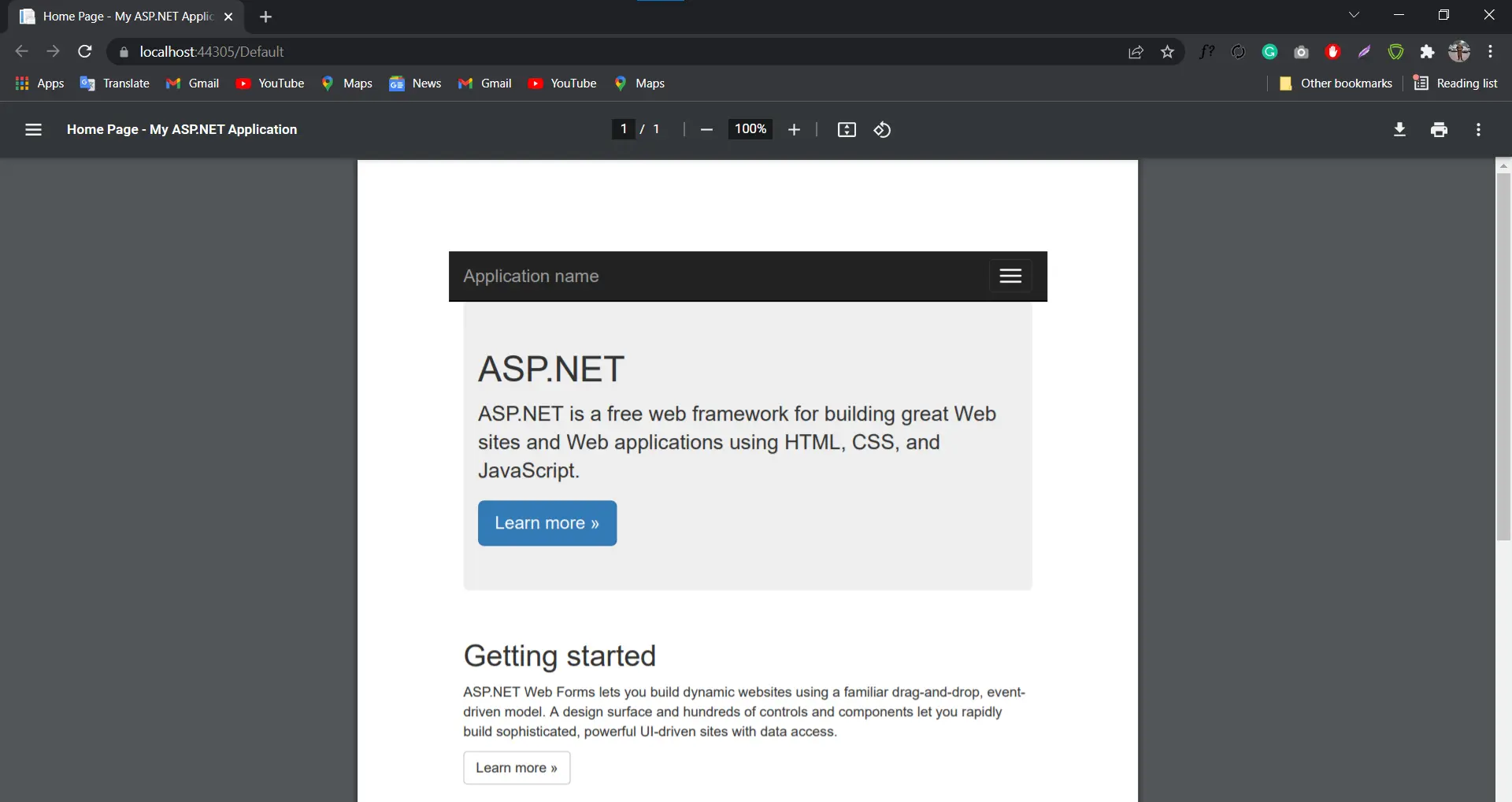 Razor 페이지를 PDF로
다음 섹션에서는 IronPDF를 사용하여 PDF 파일을 생성하고 ASP.NET Core 애플리케이션에서 표시하는 여러 가지 방법을 탐색할 것입니다.
IronPDF는 URL(HTTP 서비스)의 HTML 파일을 생성하고 이를 PDF로 변환하여 PDF 문서를 만드는 과정을 간소화합니다. 다음 코드는 URL에서 PDF 파일을 생성하는 방법을 보여줍니다:
// Render a PDF from a URL
using var pdf = new IronPdf.ChromePdfRenderer().RenderUrlAsPdf("https://www.google.co.in/");

// Read the File as Byte Array
byte[] bytes = pdf.BinaryData;

// Convert File to Base64 string and send to Client
string base64 = Convert.ToBase64String(bytes, 0, bytes.Length);
return Content(base64);' Render a PDF from a URL
Dim pdf = (New IronPdf.ChromePdfRenderer()).RenderUrlAsPdf("https://www.google.co.in/")
' Read the File as Byte Array
Dim bytes() As Byte = pdf.BinaryData
' Convert File to Base64 string and send to Client
Dim base64 As String = Convert.ToBase64String(bytes, 0, bytes.Length)
Return Content(base64)위의 코드에서 IronPDF의 ChromePdfRenderer 클래스가 지정된 URL에서 HTML 콘텐츠를 렌더링하고 PDF 문서로 변환하는 데 사용되었습니다. 그 후 PDF 문서는 바이트 배열로 변환되어 base64 문자열로 클라이언트에게 전송됩니다.
IronPDF는 HTML 문자열을 PDF 문서로 변환하는 효율적인 방법을 제공합니다. 아래 코드 스니펫은 문자열에서 PDF 파일을 생성하는 방법을 보여줍니다:
// Render a PDF from an HTML string
using var pdf = new IronPdf.ChromePdfRenderer().RenderHtmlAsPdf("<h1>Hello world!!</h1>");' Render a PDF from an HTML string
Dim pdf = (New IronPdf.ChromePdfRenderer()).RenderHtmlAsPdf("<h1>Hello world!!</h1>")위의 예에서는 RenderHtmlAsPdf 메소드가 HTML 문자열을 렌더링하고 이를 PDF 문서로 변환하는 데 사용되었습니다. 생성된 PDF는 애플리케이션의 요구 사항에 따라 추가로 처리하거나 저장할 수 있습니다.
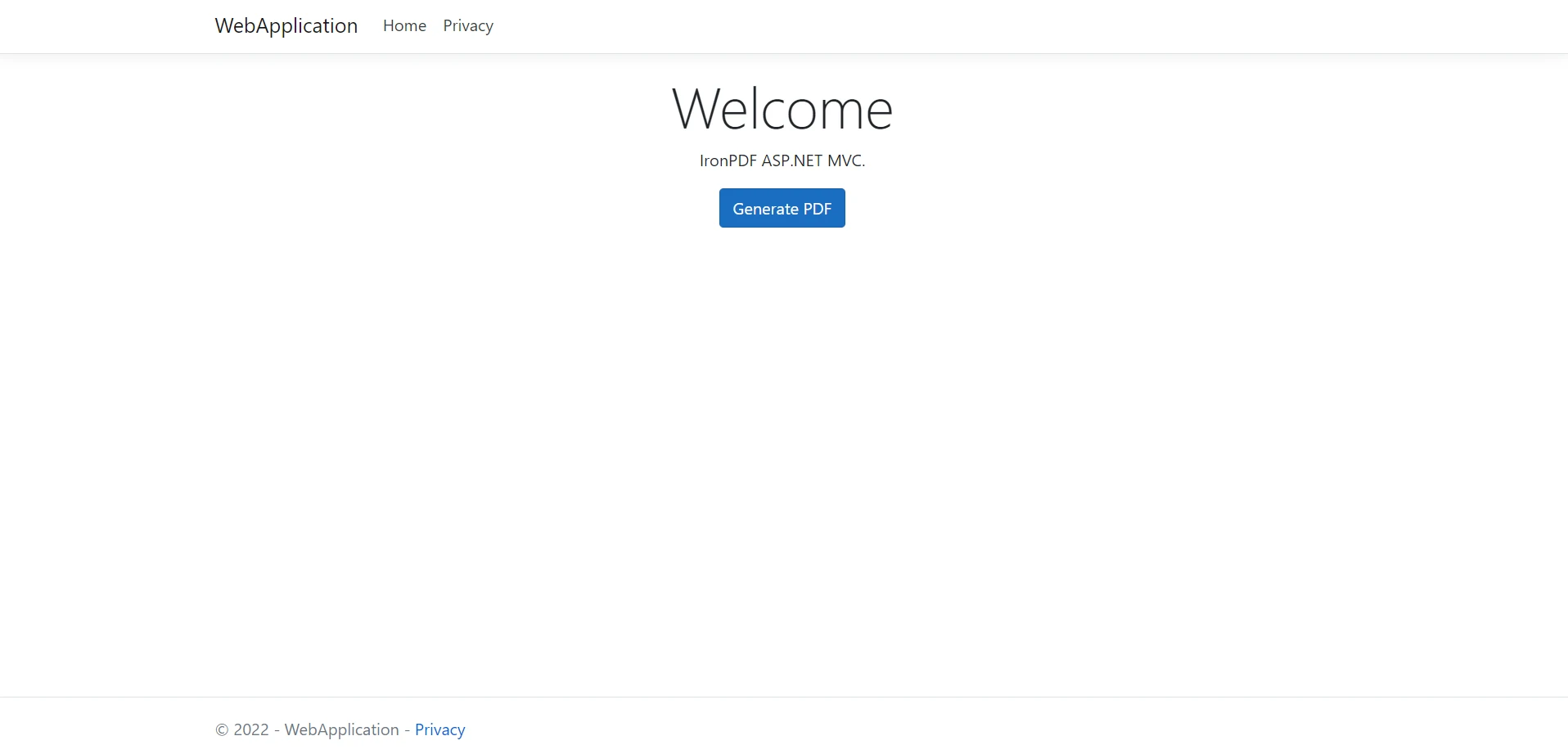 웹 애플리케이션 출력
IronPDF는 또한 HTML 파일이나 CSS 파일을 PDF 문서 예제로 변환하는 것을 지원합니다. 아래 코드는 HTML 파일에서 PDF 파일을 생성하는 방법을 보여줍니다:
// Render a PDF from an HTML file
using var pdf = new IronPdf.ChromePdfRenderer().RenderHtmlFileAsPdf("demo.html");

// Read the file as Byte Array
byte[] bytes = pdf.BinaryData;

// Convert File to Base64 string and send to Client
string base64 = Convert.ToBase64String(bytes, 0, bytes.Length);
return Content(base64);' Render a PDF from an HTML file
Dim pdf = (New IronPdf.ChromePdfRenderer()).RenderHtmlFileAsPdf("demo.html")
' Read the file as Byte Array
Dim bytes() As Byte = pdf.BinaryData
' Convert File to Base64 string and send to Client
Dim base64 As String = Convert.ToBase64String(bytes, 0, bytes.Length)
Return Content(base64)위 코드 스니펫에서는 RenderHtmlFileAsPdf 메소드가 지정된 파일 이름에서 HTML 콘텐츠를 렌더링하고 이를 PDF 문서로 변환하는 데 사용되었습니다. 생성된 PDF는 바이트 배열로 변환되어 base64 문자열로 클라이언트에 전송됩니다.
단 한 줄의 코드로 HTML 대신 PDF 형식으로 ASP.NET 웹 양식을 쉽게 변환할 수 있습니다. 페이지의 코드 비하인드 파일의 Page_Load 메소드에 이 코드를 위치시켜 페이지에 표시하세요.
IronPdf 네임스페이스 가져오기코드 비하인드 파일에서 using 키워드를 사용하여 IronPdf 네임스페이스를 가져오세요.
using IronPdf;
using System;
using System.Web.UI;Imports IronPdf
Imports System
Imports System.Web.UIPDF로 변환하고자 하는 페이지의 코드 비하인드 파일(e.g., Default.aspx.cs)에 다음 코드를 추가하세요:
namespace WebApplication7
{
    public partial class _Default : Page
    {
        protected void Page_Load(object sender, EventArgs e)
        {
            // Convert the ASPX page to a PDF displayed in the browser
            AspxToPdf.RenderThisPageAsPdf(AspxToPdf.FileBehavior.InBrowser);
        }
    }
}Namespace WebApplication7
Partial Public Class _Default
Inherits Page
Protected Sub Page_Load(ByVal sender As Object, ByVal e As EventArgs)
' Convert the ASPX page to a PDF displayed in the browser
AspxToPdf.RenderThisPageAsPdf(AspxToPdf.FileBehavior.InBrowser)
End Sub
End Class
End NamespaceAspxToPdf 클래스의 RenderThisPageAsPdf 메소드는 웹 API로부터 웹 폼을 PDF 문서로 변환합니다.
인트라넷 및 웹사이트 개발자에게 템플릿을 사용한 PDF 생성은 종종 일반적인 요구 사항입니다. IronPDF는 HTML 템플릿을 생성하고 데이터를 채워 넣음으로써 이 과정을 간소화합니다.
HTML 템플릿과 IronPDF를 사용하여 여러 맞춤형 PDF를 생성하는 방법의 예는 다음과 같습니다:
// Define an HTML template with placeholders
string HtmlTemplate = "<p>[[NAME]]</p>";
string[] Names = { "John", "James", "Jenny" };
foreach (var name in Names)
{
    // Replace placeholder in template with actual data
    string HtmlInstance = HtmlTemplate.Replace("[[NAME]]", name);

    // Render HTML to PDF
    using (var Pdf = Renderer.RenderHtmlAsPdf(HtmlInstance))
    {
        // Save the PDF with the name as filename
        Pdf.SaveAs(name + ".pdf");
    }
}' Define an HTML template with placeholders
Dim HtmlTemplate As String = "<p>[[NAME]]</p>"
Dim Names() As String = {"John", "James", "Jenny"}
For Each name As String In Names
' Replace placeholder in template with actual data
Dim HtmlInstance As String = HtmlTemplate.Replace("[[NAME]]", name)
' Render HTML to PDF
Using Pdf = Renderer.RenderHtmlAsPdf(HtmlInstance)
' Save the PDF with the name as filename
Pdf.SaveAs(name & ".pdf")
End Using
NextASP.NET MVC를 사용 중인 경우, 사용자를 쉽게 PDF 파일로 안내할 수 있습니다. 이는 소스 코드가 다음과 같이 작성되어야 합니다:
using IronPdf;
using System;
using System.Web.Mvc;

namespace WebApplication8.Controllers
{
    public class HomeController : Controller
    {
        public IActionResult Index()
        {
            // Create a new instance of ChromePdfRenderer
            ChromePdfRenderer renderer = new ChromePdfRenderer();

            // Render the URL as a PDF
            using (var PDF = renderer.RenderUrlAsPdf(new Uri("https://en.wikipedia.org")))
            {
                // Return the PDF file with a specified filename
                return File(PDF.BinaryData, "application/pdf", "Wiki.Pdf");
            }
        }
        // Other action methods...
    }
}Imports IronPdf
Imports System
Imports System.Web.Mvc
Namespace WebApplication8.Controllers
Public Class HomeController
Inherits Controller
Public Function Index() As ActionResult
' Create a new instance of ChromePdfRenderer
Dim renderer As New ChromePdfRenderer()
' Render the URL as a PDF
Using PDF = renderer.RenderUrlAsPdf(New Uri("https://en.wikipedia.org"))
' Return the PDF file with a specified filename
Return File(PDF.BinaryData, "application/pdf", "Wiki.Pdf")
End Using
End Function
' Other action methods...
End Class
End Namespace기존 PDF 문서에 표지나 뒷장을 추가하려면 IronPDF의 병합 기능을 사용할 수 있습니다. 다음은 예시입니다.
using (var PDF = Renderer.RenderUrlAsPdf("https://www.nuget.org/packages/IronPdf/"))
{
    // Merge the cover page with the main PDF
    using (var Merged = PdfDocument.Merge(new PdfDocument("CoverPage.pdf"), PDF))
    {
        // Save the combined PDF
        Merged.SaveAs("Combined.Pdf");
    }
}Using PDF = Renderer.RenderUrlAsPdf("https://www.nuget.org/packages/IronPdf/")
' Merge the cover page with the main PDF
Using Merged = PdfDocument.Merge(New PdfDocument("CoverPage.pdf"), PDF)
' Save the combined PDF
Merged.SaveAs("Combined.Pdf")
End Using
End UsingC# 코드를 사용하여 PDF 문서에 워터마크를 추가할 수도 있습니다. 다음은 예시입니다.
using IronPdf;

// Create a new instance of ChromePdfRenderer
ChromePdfRenderer renderer = new ChromePdfRenderer();

// Render the URL as a PDF
using (var pdf = renderer.RenderUrlAsPdf("https://www.nuget.org/packages/IronPdf"))
{
    // Add watermark text to all pages
    pdf.WatermarkAllPages("<h2 style='color:red'>SAMPLE</h2>", PdfDocument.WaterMarkLocation.MiddleCenter, 50, -45);

    // Save the watermarked PDF
    pdf.SaveAs(@"C:\PathToWatermarked.pdf");
}Imports IronPdf
' Create a new instance of ChromePdfRenderer
Dim renderer As New ChromePdfRenderer()
' Render the URL as a PDF
Using pdf = renderer.RenderUrlAsPdf("https://www.nuget.org/packages/IronPdf")
' Add watermark text to all pages
pdf.WatermarkAllPages("<h2 style='color:red'>SAMPLE</h2>", PdfDocument.WaterMarkLocation.MiddleCenter, 50, -45)
' Save the watermarked PDF
pdf.SaveAs("C:\PathToWatermarked.pdf")
End UsingIronPDF를 사용하여 PDF 문서를 암호로 암호화하고 보호할 수 있습니다. 다음은 예시입니다.
using IronPdf;

// Create a new instance of ChromePdfRenderer
ChromePdfRenderer renderer = new ChromePdfRenderer();

// Render HTML to PDF
using (var pdfDocument = renderer.RenderHtmlAsPdf("<h1>Hello World<h1>"))
{
    // Set a password to protect the PDF
    pdfDocument.Password = "strong!@#pass&^%word";

    // Save the secured PDF
    pdfDocument.SaveAs("secured.pdf");
}Imports IronPdf
' Create a new instance of ChromePdfRenderer
Dim renderer As New ChromePdfRenderer()
' Render HTML to PDF
Using pdfDocument = renderer.RenderHtmlAsPdf("<h1>Hello World<h1>")
' Set a password to protect the PDF
pdfDocument.Password = "strong!@#pass&^%word"
' Save the secured PDF
pdfDocument.SaveAs("secured.pdf")
End Using위의 기능 외에도 IronPDF는 PDF에서 이미지 및 텍스트를 OCR로 추출, 차트를 PDF로 렌더링, PDF에 바코드 추가, 비밀번호로 문서 보안 강화, 심지어 PDF 폼 처리 및 사용자 정의 등 다양한 기능을 제공합니다. IronPDF를 사용하면 PDF 생성 프로세스를 간소화하고 문서의 전체적인 표현을 개선할 수 있습니다.
IronPDF는 .NET 개발자를 위해 특별히 설계된 탁월한 도구로, .NET 프로젝트 내에서 PDF 조작을 쉽게 처리할 수 있는 다양한 기능을 제공합니다. IronPDF를 사용하면 개발자는 워크플로우를 강화하고 작업 프로세스를 효율화할 수 있습니다. 이 강력한 도구는 PDF 파일 포맷팅, 페이지 삭제, 페이지 추가 등을 원활하게 수행할 수 있는 수많은 기능을 제공합니다. 개발자는 특정 요구 사항에 따라 PDF 문서를 효율적으로 관리하고 사용자 정의할 수 있습니다.
IronPDF는 기능이 뛰어날 뿐만 아니라 개발 목적으로 무료로 제공된다는 이점도 제공합니다. 이는 개발자가 프로젝트의 개발 단계에서 비용을 들이지 않고 기능을 활용할 수 있음을 의미합니다. IronPDF를 활용하면 개발자는 PDF 관련 작업에서 생산성을 향상시키고 .NET 프로젝트 내에서 고품질의 효율적인 솔루션을 제공할 수 있습니다.
PDF 문서 작업을 위한 IronPDF, Excel 문서 작업을 위한 IronXL, OCR 작업을 위한 IronOCR 등 다른 유용한 라이브러리가 많이 있습니다. 현재 Iron Suite 전체를 구매하면 단 두 개의 가격으로 다섯 개의 라이브러리를 모두 얻을 수 있습니다. 자세한 내용은 Iron Software Licensing Information을 방문하십시오.

커티스 차우는 칼턴 대학교에서 컴퓨터 과학 학사 학위를 취득했으며, Node.js, TypeScript, JavaScript, React를 전문으로 하는 프론트엔드 개발자입니다. 직관적이고 미적으로 뛰어난 사용자 인터페이스를 만드는 데 열정을 가진 그는 최신 프레임워크를 활용하고, 잘 구성되고 시각적으로 매력적인 매뉴얼을 제작하는 것을 즐깁니다.



IronPDF는 IRON SUITE 의 일부입니다.
10개의 .NET API 제품, 당신의 사무 문서를 위해

PDF 파일을 HTML처럼 빠르게 변환해야 할 때.


