




업데이트됨 2026년 5월 8일
월별 계정 명세서를 PDF 문서로 생성하기
개발자는 IronPDF C# PDF 라이브러리를 사용하여 외부 서비스에 의존하지 않고도 .NET 프로젝트 내에서 HTML을 신뢰할 수 있는 PDF 파일로 변환할 수 있습니다.
더 읽어보기

IronPDF는 Microsoft Windows .NET Framework 4.x에서 사용할 수 있으며, .NET Core 3.1 및 최신 .NET 버전에 대한 최근 릴리스도 가능합니다.
IronPDF for .NET Core는 공식 NuGet 페이지 NuGet에서의 IronPDF 패키지를 통해 제공됩니다.
현재 .NET Core 릴리스는 리눅스, 유닉스, 그리고 macOS 클라이언트 운영 체제뿐만 아니라 Mono와 MAUI만의 Blazor 호환성을 지원합니다.
기존 및 신규 고객들은 기존의 지원 및 업그레이드 범위 내에서 .NET Core 빌드의 IronPDF로 무료 업그레이드를 받습니다. 이는 모든 상업용 IronPDF 라이선스에서 제공됩니다. 이는 IronPDF에 대한 투자가 미래에도 유효함을 보장합니다.
만료된 지원 및 업데이트 커버를 연장하고자 하는 기존 고객은 IronPDF 라이선스에 대한 연장을 구매할 수 있습니다.
IronPDF는 .NET Core 프로젝트에서 사용할 수 있는 C# PDF 라이브러리입니다. 이는 PDF 문서를 간편하고 직관적으로 조작하기 위한 모든 필요 API를 제공합니다. 시장에서 다른 PDF 생성 라이브러리도 있지만, 이 라이브러리는 혼란을 피하기 위해 가능한 단순하게 설계되었습니다.
이 프로젝트의 주요 목표는 .NET 응용 프로그램을 위한 PDF 라이브러리를 제공하는 것입니다. 이는 HTML 문자열에서 PDF 파일 생성, PDF를 다른 형식으로 변환, 기존 PDF 문서 조작, .NET Core 프로젝트에서 직접 PDF 파일 생성 등 유용한 기능이 많이 포함되어 있습니다. IronPDF 라이브러리는 몇 줄의 코드만으로도 PDF 파일을 인쇄하는 기능을 제공합니다. IronPDF는 PDF 변환기로 사용할 수 있습니다. 그것은 접근 가능한 기능을 사용하여 다중 페이지 스프레드 테이블을 생성할 수 있습니다.
우리 프로젝트에서 IronPDF 라이브러리 사용을 시작합시다.
원활한 사용자 경험을 보장하기 위해 최신 버전의 Visual Studio가 이 .NET 프로젝트 생성에 권장됩니다. IronPDF 라이브러리는 .NET Core 프로젝트와도 호환 가능합니다. 설치와 IronPDF 사용은 모든 .NET Framework에서 동일하므로 사용자가 선택할 수 있습니다. Visual Studio에서 프로젝트를 생성하기 위해 아래 단계를 따르세요.
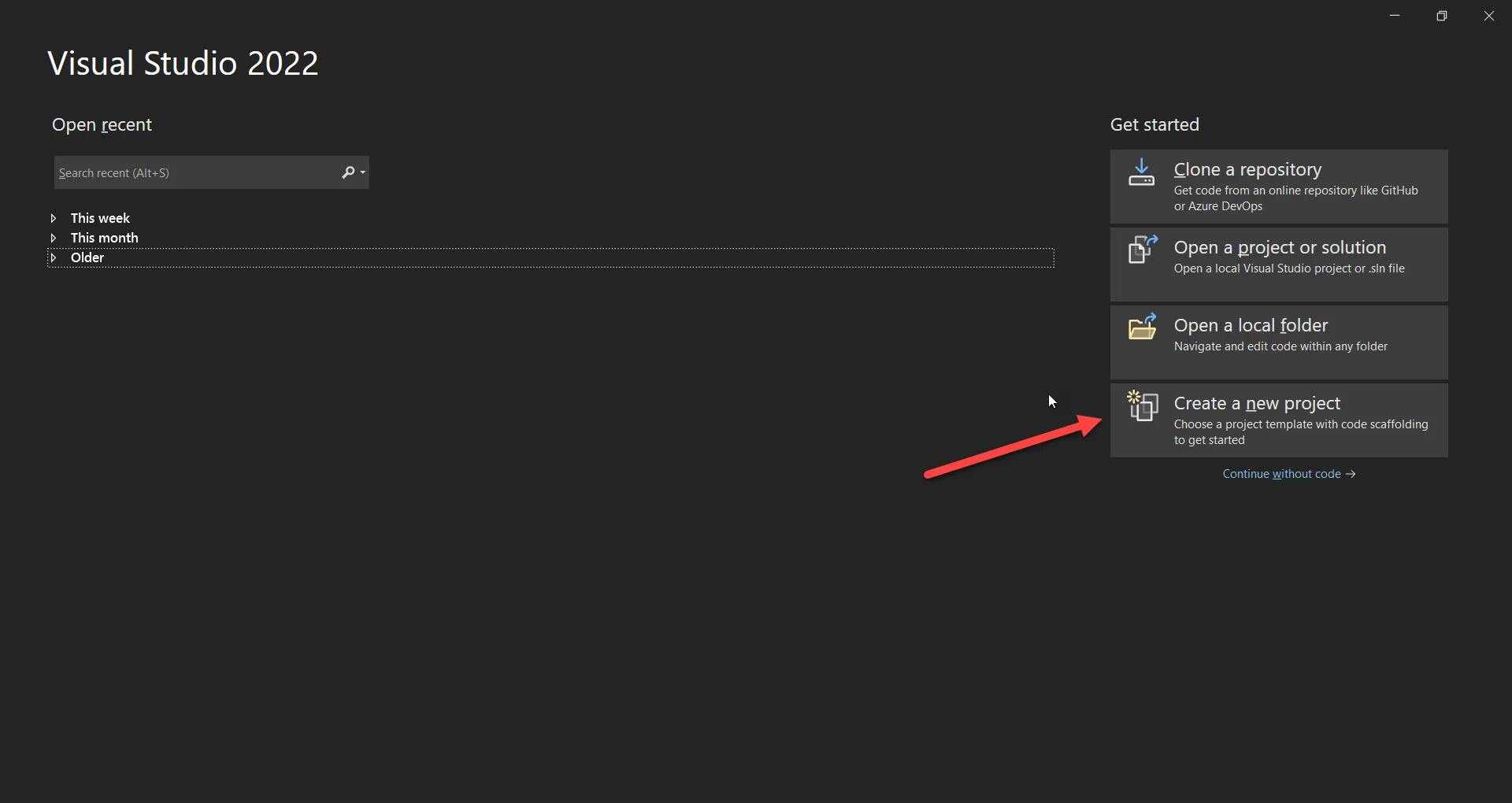 Visual Studio에서 새 프로젝트 생성
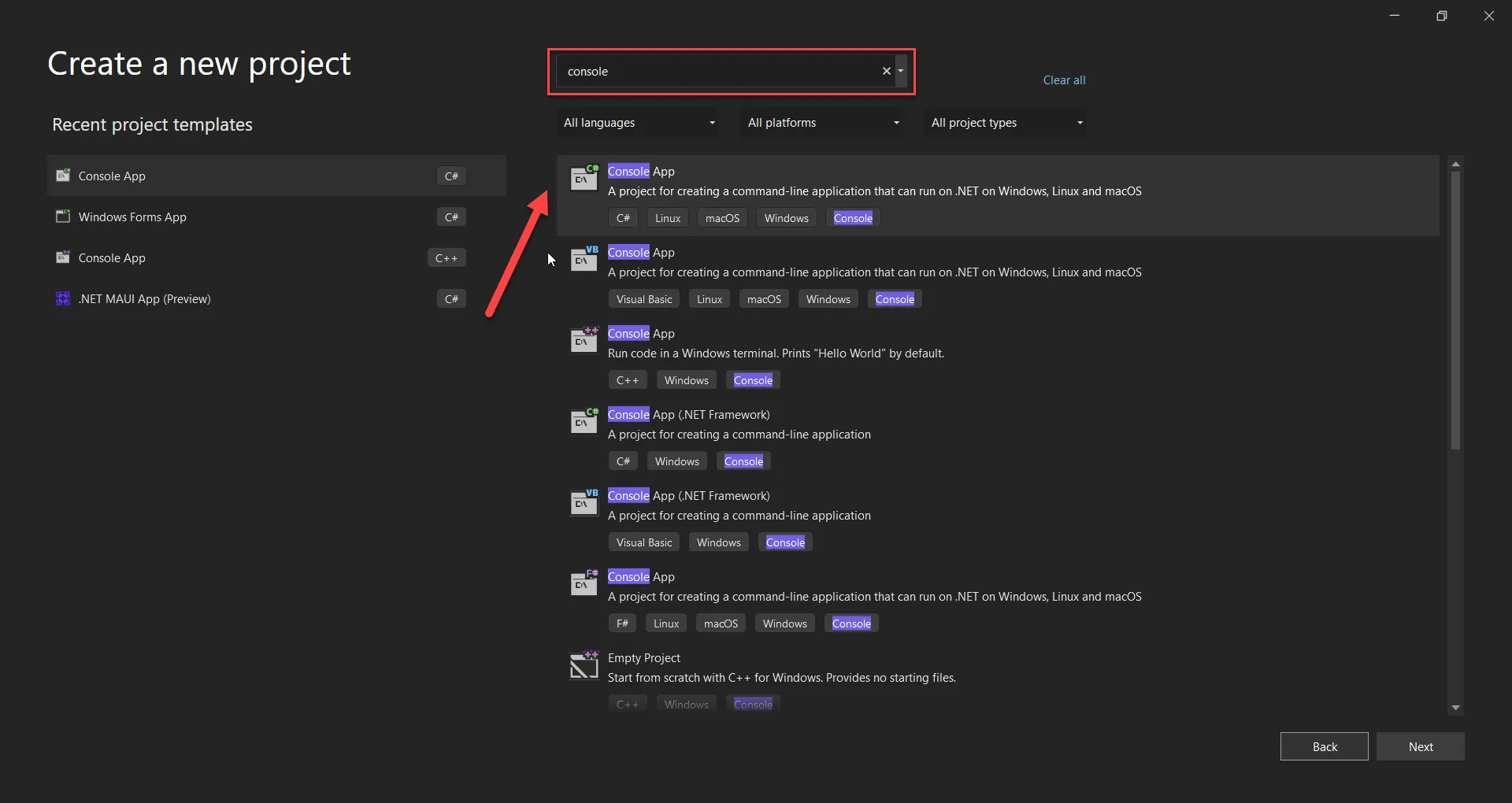 콘솔 앱 선택
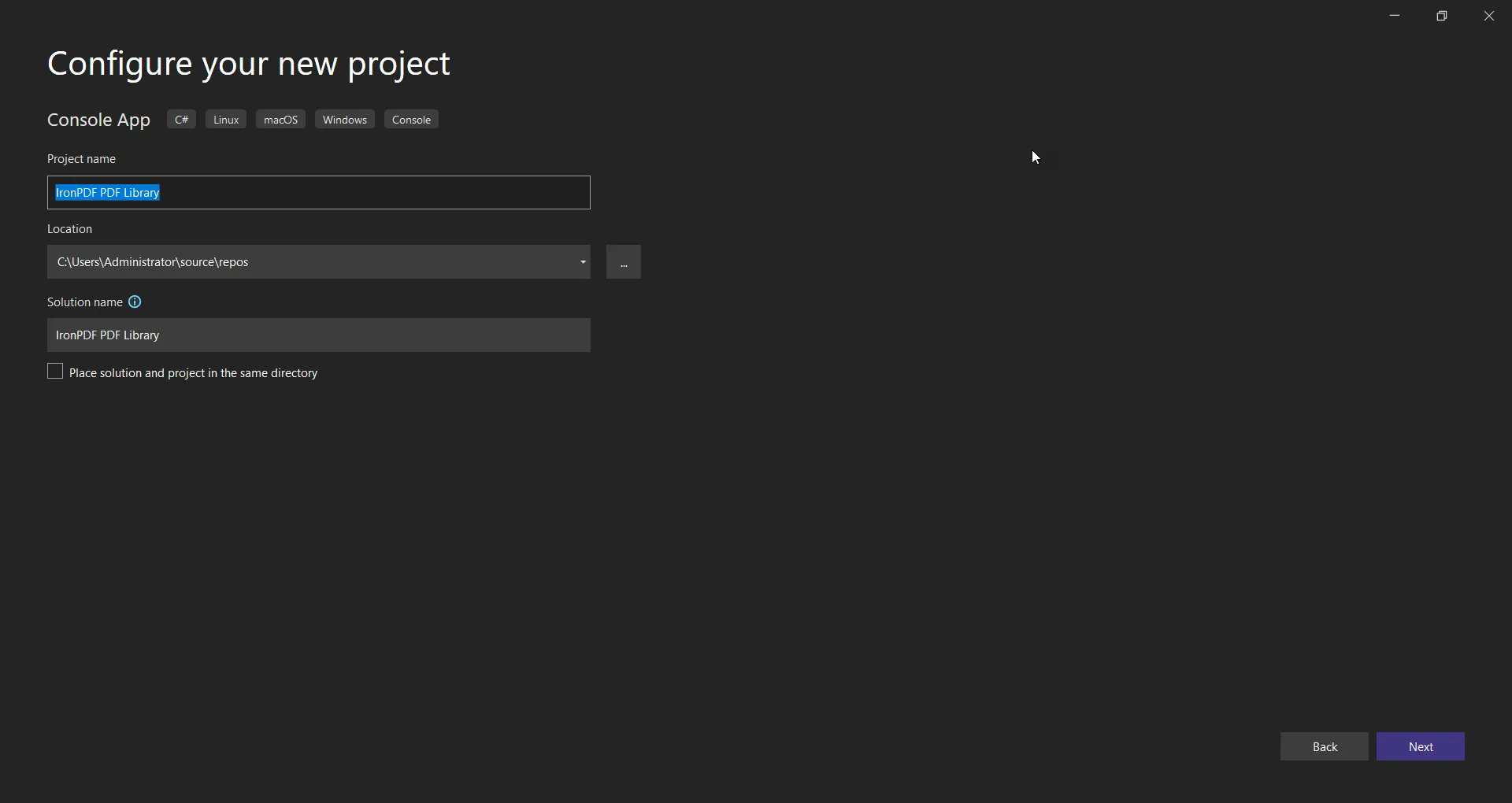 이 새로운 응용 프로그램 구성
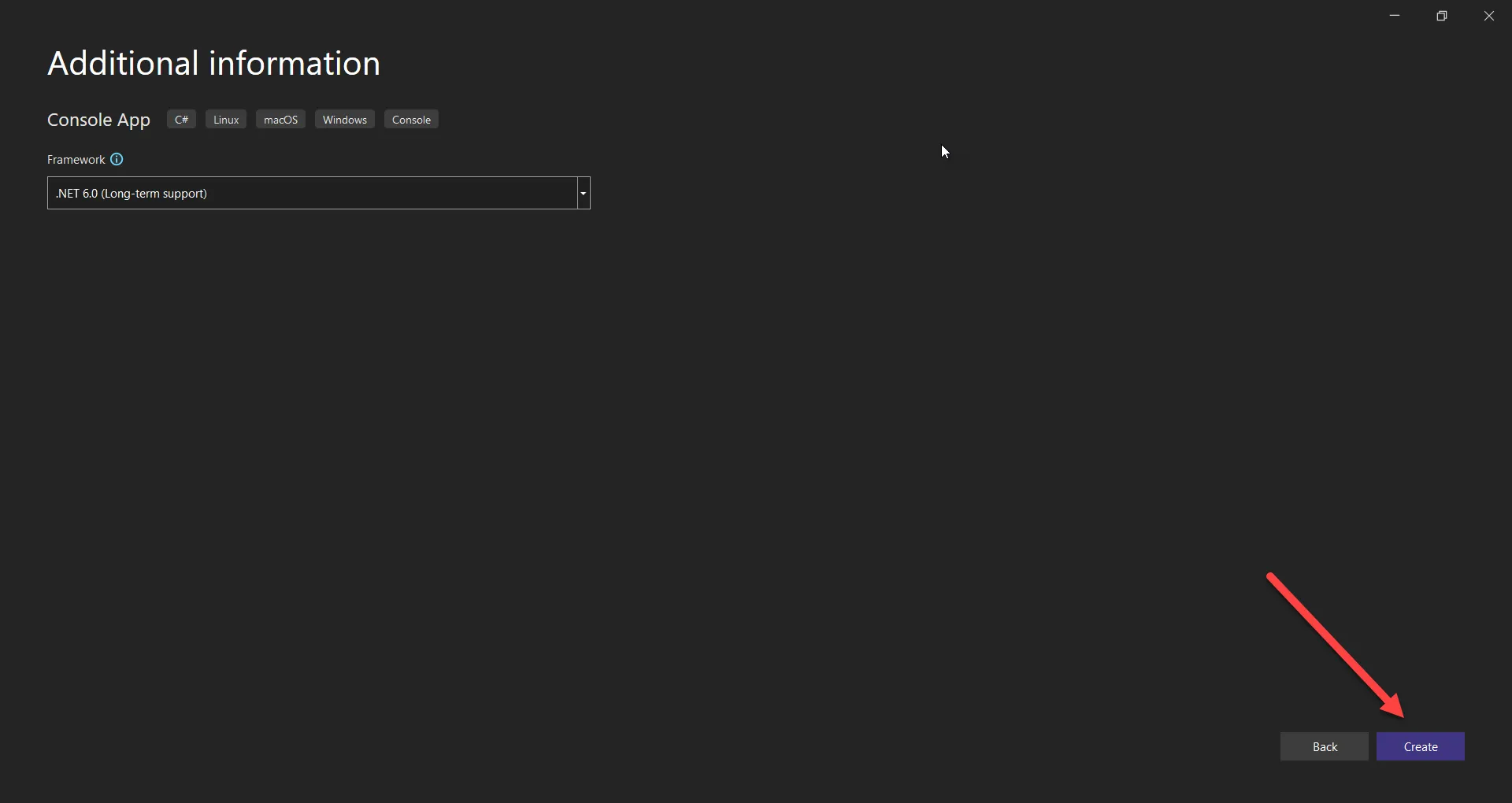 .NET Framework 선택
이제 프로젝트가 생성됩니다. 또한 기존 .NET Core 프로젝트에서 IronPDF를 사용할 수 있습니다. 먼저 라이브러리를 설치해야 합니다. 다음 섹션은 라이브러리 설치 방법을 보여줍니다.
명령 줄에서 IronPDF 라이브러리를 설치하려면 다음 명령을 실행하십시오:
IronPDF 웹사이트 및 IronPDF NuGet 페이지에서 더 많은 정보를 얻을 수 있습니다.
설치 후, .NET 프로젝트에서 사용할 수 있게 됩니다. 설치에 대한 자세한 내용은 IronPDF 설치 가이드를 방문하십시오.
using IronPdf;

var renderer = new ChromePdfRenderer();

// Choose Screen or Print CSS media
renderer.RenderingOptions.CssMediaType = Rendering.PdfCssMediaType.Screen;

// Set the width of the responsive virtual browser window in pixels
renderer.RenderingOptions.ViewPortWidth = 1280;

// Set the paper size of the output PDF
renderer.RenderingOptions.PaperSize = Rendering.PdfPaperSize.A2;

// Render the URL as PDF
var pdf = renderer.RenderUrlAsPdf("https://www.amazon.com/");

// Save the PDF to a local file
pdf.SaveAs("Amazon.pdf");Imports IronPdf
Private renderer = New ChromePdfRenderer()
' Choose Screen or Print CSS media
renderer.RenderingOptions.CssMediaType = Rendering.PdfCssMediaType.Screen
' Set the width of the responsive virtual browser window in pixels
renderer.RenderingOptions.ViewPortWidth = 1280
' Set the paper size of the output PDF
renderer.RenderingOptions.PaperSize = Rendering.PdfPaperSize.A2
' Render the URL as PDF
Dim pdf = renderer.RenderUrlAsPdf("https://www.amazon.com/")
' Save the PDF to a local file
pdf.SaveAs("Amazon.pdf")이 예시는 아마존 웹사이트와 같은 복잡한 웹 UI를 PDF로 변환하는 방법을 다음 단계에 따라 보여줍니다.
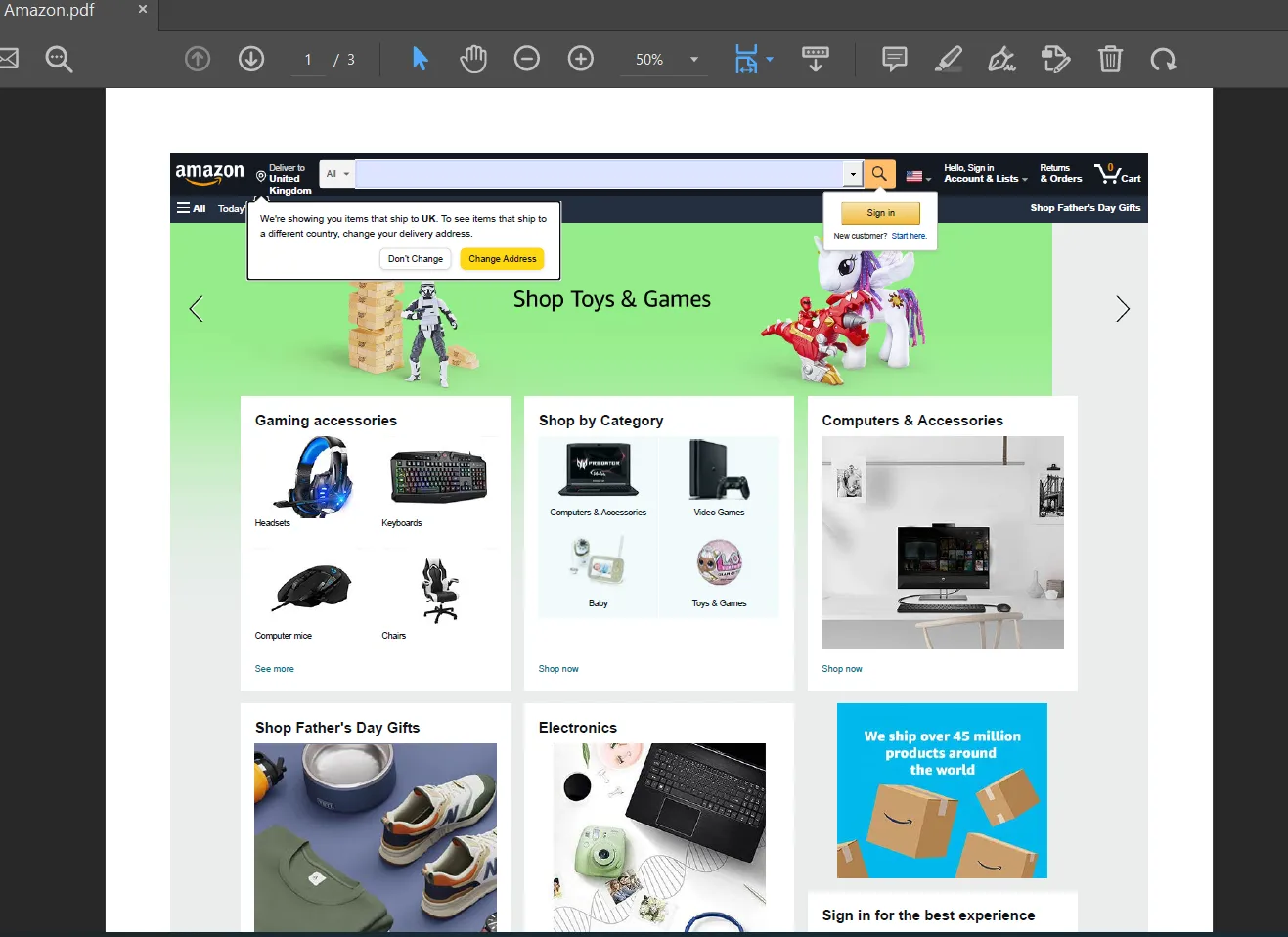 Amazon 웹사이트에서 렌더링된 출력 PDF 파일
using IronPdf;

// Instantiate renderer
var renderer = new IronPdf.ChromePdfRenderer();

// Create a PDF from an HTML string using C#
using var pdf = renderer.RenderHtmlAsPdf("<h1>Hello World</h1>");

// Export to a file or Stream
pdf.SaveAs("output.pdf");

/****** Advanced Example with HTML Assets ******/
// Load external html assets: images, CSS, and JavaScript.
// An optional BasePath 'C:\\site\\assets\\' is set as the file location to load assets from
using var myAdvancedPdf = renderer.RenderHtmlAsPdf("<img src='icons/iron.png'>", @"C:\site\assets\");

// Save the PDF with assets to a file
myAdvancedPdf.SaveAs("html-with-assets.pdf");Imports IronPdf
' Instantiate renderer
Private renderer = New IronPdf.ChromePdfRenderer()
' Create a PDF from an HTML string using C#
Private pdf = renderer.RenderHtmlAsPdf("<h1>Hello World</h1>")
' Export to a file or Stream
pdf.SaveAs("output.pdf")
'''**** Advanced Example with HTML Assets *****
' Load external html assets: images, CSS, and JavaScript.
' An optional BasePath 'C:\\site\\assets\\' is set as the file location to load assets from
Dim myAdvancedPdf = renderer.RenderHtmlAsPdf("<img src='icons/iron.png'>", "C:\site\assets\")
' Save the PDF with assets to a file
myAdvancedPdf.SaveAs("html-with-assets.pdf")위의 코드는 IronPDF의 HTML-to-PDF 기능을 사용하는 방법을 보여줍니다. IronPDF를 사용하려면 네임스페이스 가져오기가 필요합니다. 프로젝트에서 사용하기 위해 프로그램 파일의 맨 위에 using IronPdf;을(를) 작성합니다.
ChromePdfRenderer 객체는 웹 지원용으로 사용할 수 있습니다. RenderHtmlAsPdf 함수는 HTML 문자열을 PDF 파일로 변환하는 데 사용할 수 있습니다. 함수 매개변수는 HTML 문자열을 포함한 다양한 유형의 소스를 허용합니다. 또한 PDF 문서에 사용할 이미지의 기본 경로를 설정하여 이미지를 사용할 수 있습니다. 그 후, SaveAs 함수는 PDF 파일을 로컬에 저장하는 데 사용됩니다. 위와 같은 간단한 HTML을 선택하고 CSS, 이미지, JavaScript를 통합할 수 있습니다.
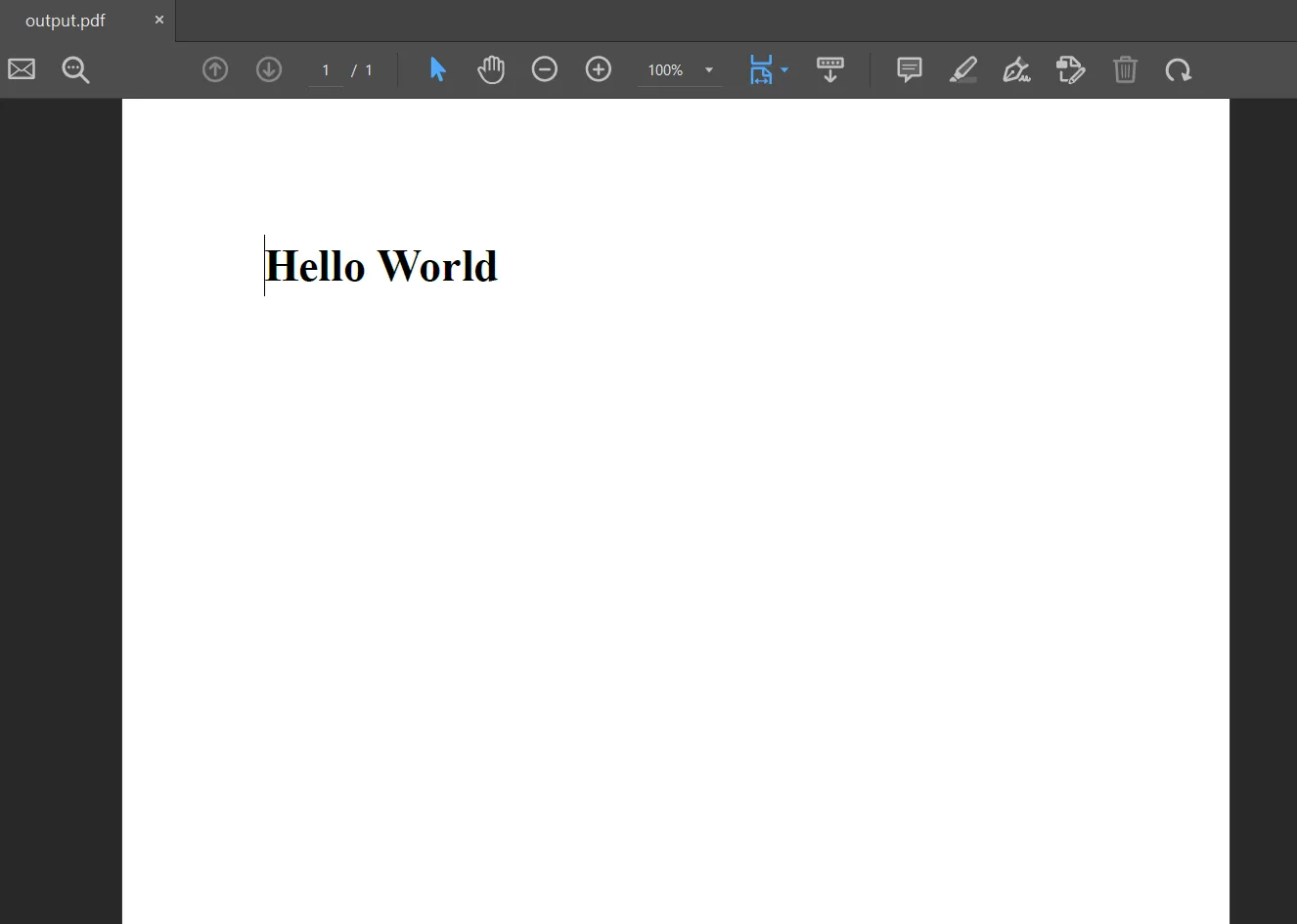 Hello World HTML 텍스트에서 생성된 PDF 파일 출력
// Initialize the first page number
renderer.RenderingOptions.FirstPageNumber = 1; // use 2 if a cover page will be appended

// Set header options
renderer.RenderingOptions.TextHeader.DrawDividerLine = true;
renderer.RenderingOptions.TextHeader.CenterText = "{url}";
renderer.RenderingOptions.TextHeader.Font = IronPdf.Font.FontTypes.Helvetica;
renderer.RenderingOptions.TextHeader.FontSize = 12;' Initialize the first page number
renderer.RenderingOptions.FirstPageNumber = 1 ' use 2 if a cover page will be appended
' Set header options
renderer.RenderingOptions.TextHeader.DrawDividerLine = True
renderer.RenderingOptions.TextHeader.CenterText = "{url}"
renderer.RenderingOptions.TextHeader.Font = IronPdf.Font.FontTypes.Helvetica
renderer.RenderingOptions.TextHeader.FontSize = 12위의 예는 PDF 파일에서 헤더 및 푸터를 설정하는 방법을 보여줍니다. IronPDF는 문서에서 반복되는 헤더를 지원합니다. IronPDF는 TextHeader와 TextFooter 속성을 제공하여 글꼴, 텍스트 위치 등과 같은 다양한 텍스트 속성을 설정할 수 있습니다. 또한 HTML 파일을 PDF 파일로 변환할 수 있습니다. IronPDF를 사용하면 모든 것이 간단합니다. IronPDF를 사용하여 PDF 파일을 효율적으로 병합, 웹페이지를 PDF로 변환, 자동 페이지 번호 매기기를 활성화 및 PDF에 대한 디지털 서명 만들기도 가능합니다. 또한 효율적인 압축을 통해 최소 파일 크기의 PDF 파일을 생성합니다.
IronPDF는 모든 최신 버전의 .NET Core 및 .NET Framework를 지원하는 완전한 PDF 라이브러리입니다. IronPDF는 IronPDF 라이브러리를 사용하여 비즈니스 문서를 안전하게 생성 및 편집할 수 있는 비즈니스 모델에 기반을 두고 있습니다. 고급 기능으로 사용자는 .NET Core 프로젝트에서 동적이고 창의적인 PDF 문서를 만들 수 있습니다. 생산 테스트를 위한 무료 체험판을 시도할 수 있는 옵션이 있습니다.
IronPDF Professional 라이선스
현재 다섯 가지 Iron Software 패키지를 두 개의 가격으로 구매할 수도 있습니다. IronPDF 라이선스 페이지에서 자세한 정보를 얻으세요.

커티스 차우는 칼턴 대학교에서 컴퓨터 과학 학사 학위를 취득했으며, Node.js, TypeScript, JavaScript, React를 전문으로 하는 프론트엔드 개발자입니다. 직관적이고 미적으로 뛰어난 사용자 인터페이스를 만드는 데 열정을 가진 그는 최신 프레임워크를 활용하고, 잘 구성되고 시각적으로 매력적인 매뉴얼을 제작하는 것을 즐깁니다.



IronPDF는 IRON SUITE 의 일부입니다.
10개의 .NET API 제품, 당신의 사무 문서를 위해











PDF 파일을 HTML처럼 빠르게 변환해야 할 때.


