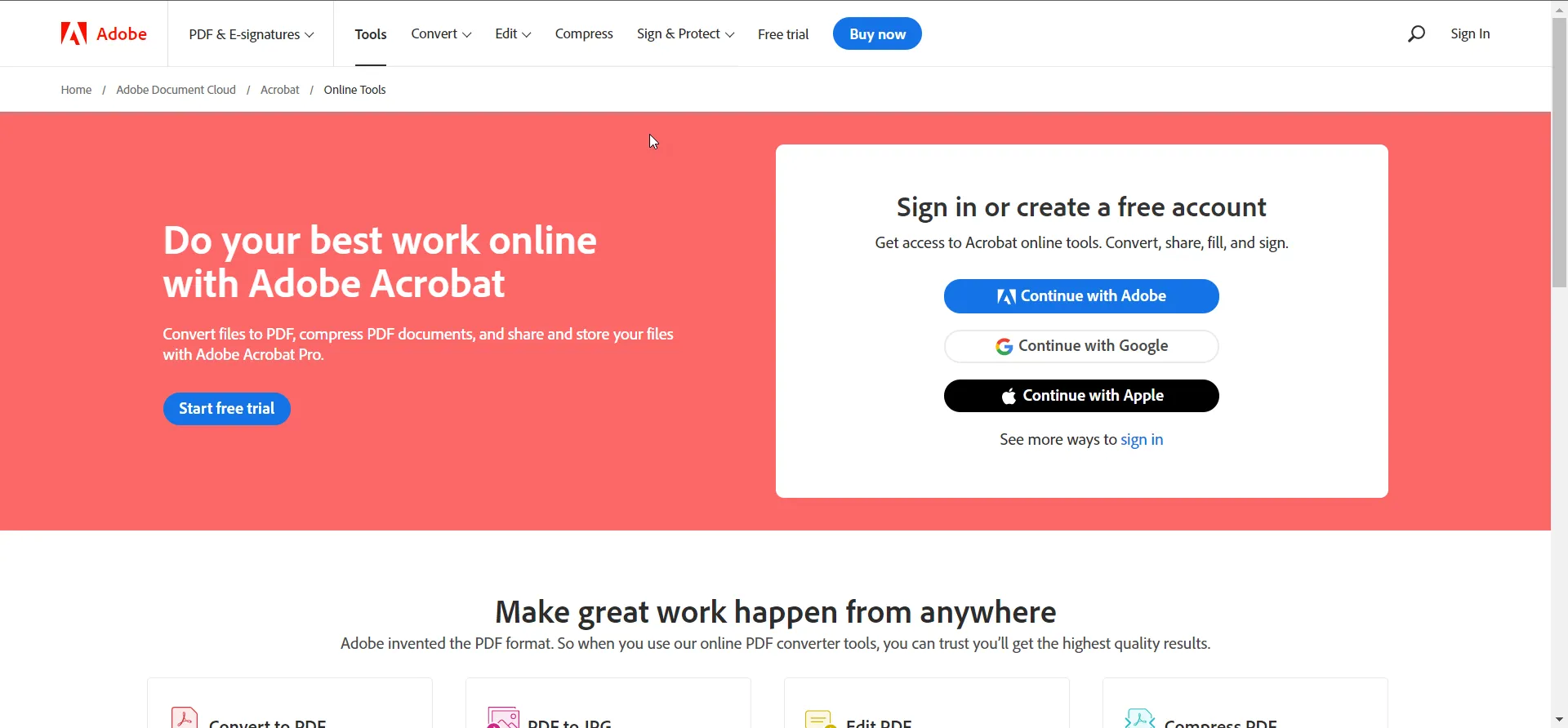
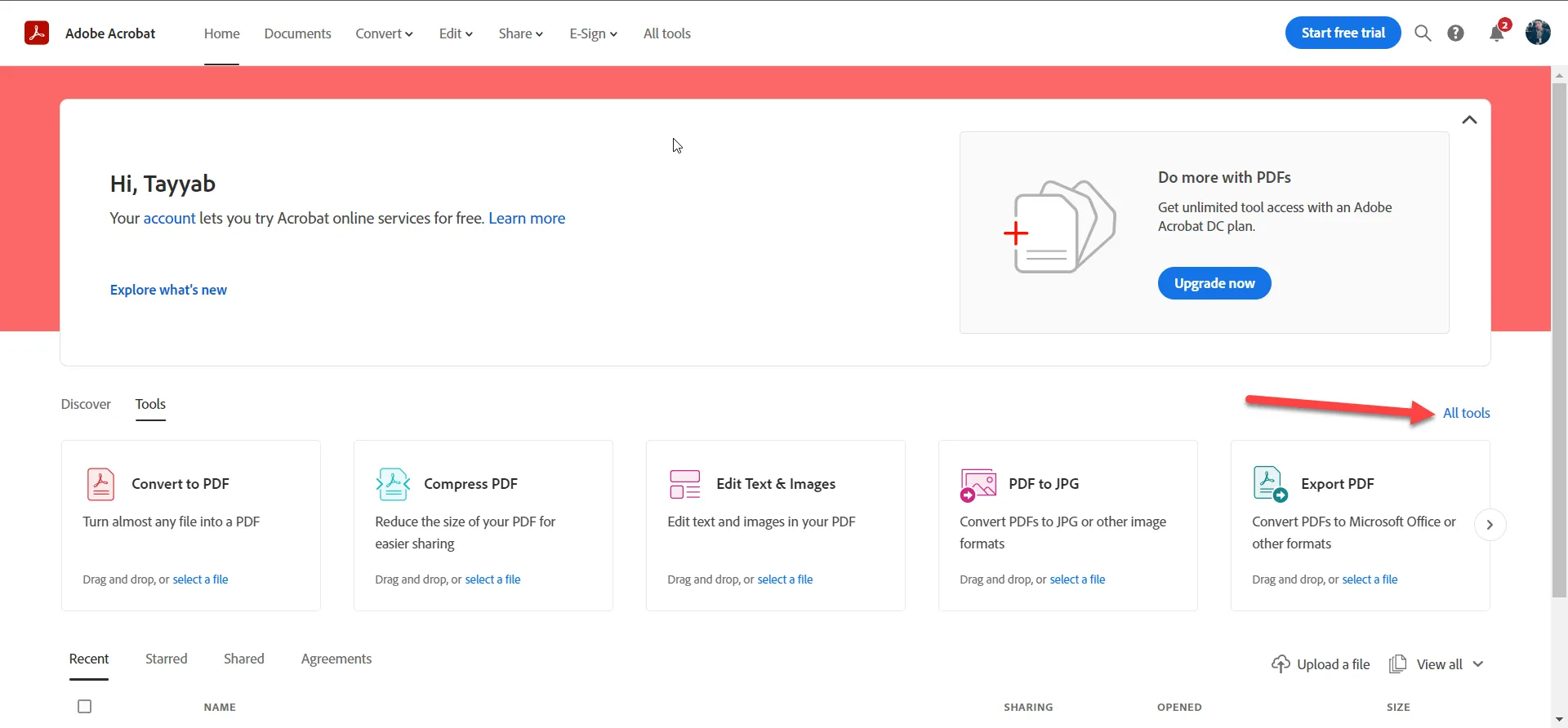
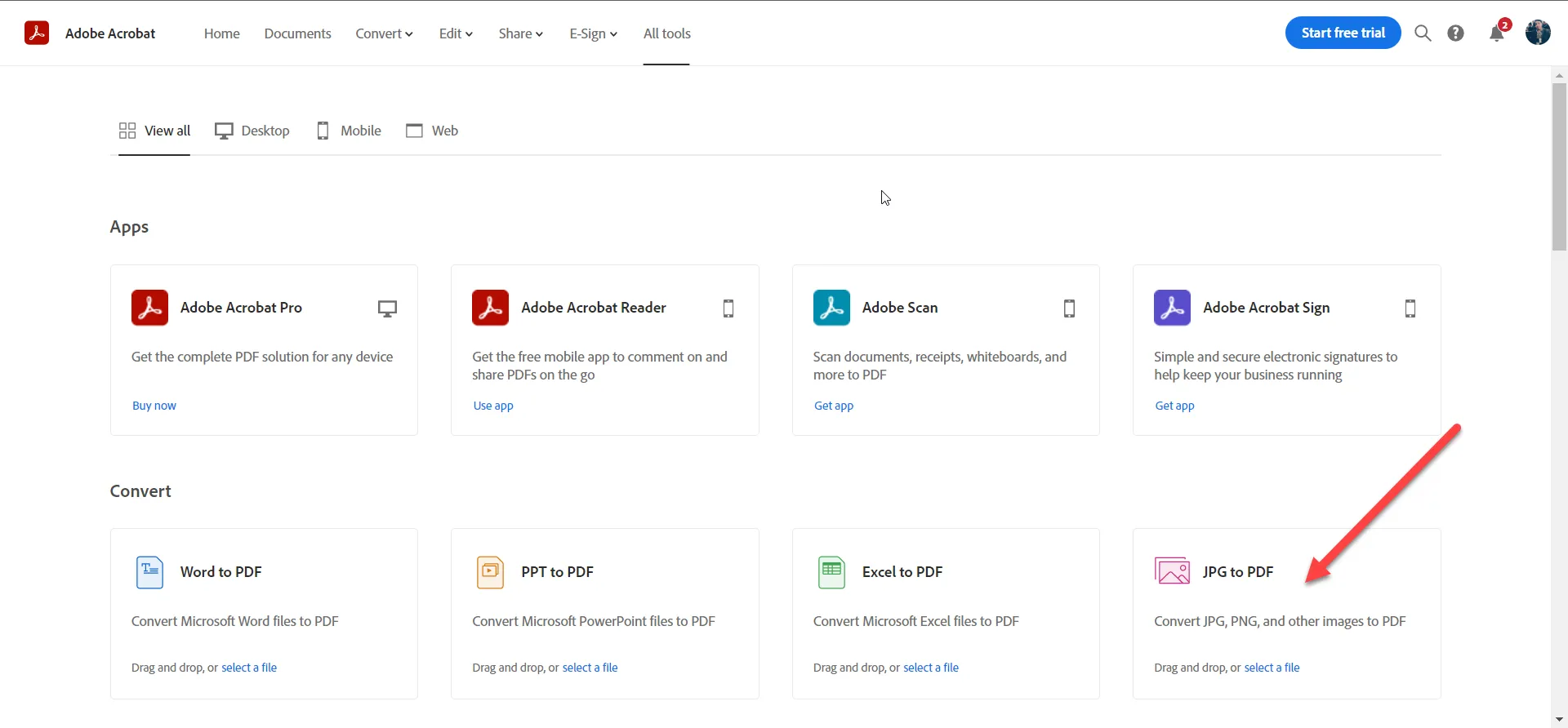
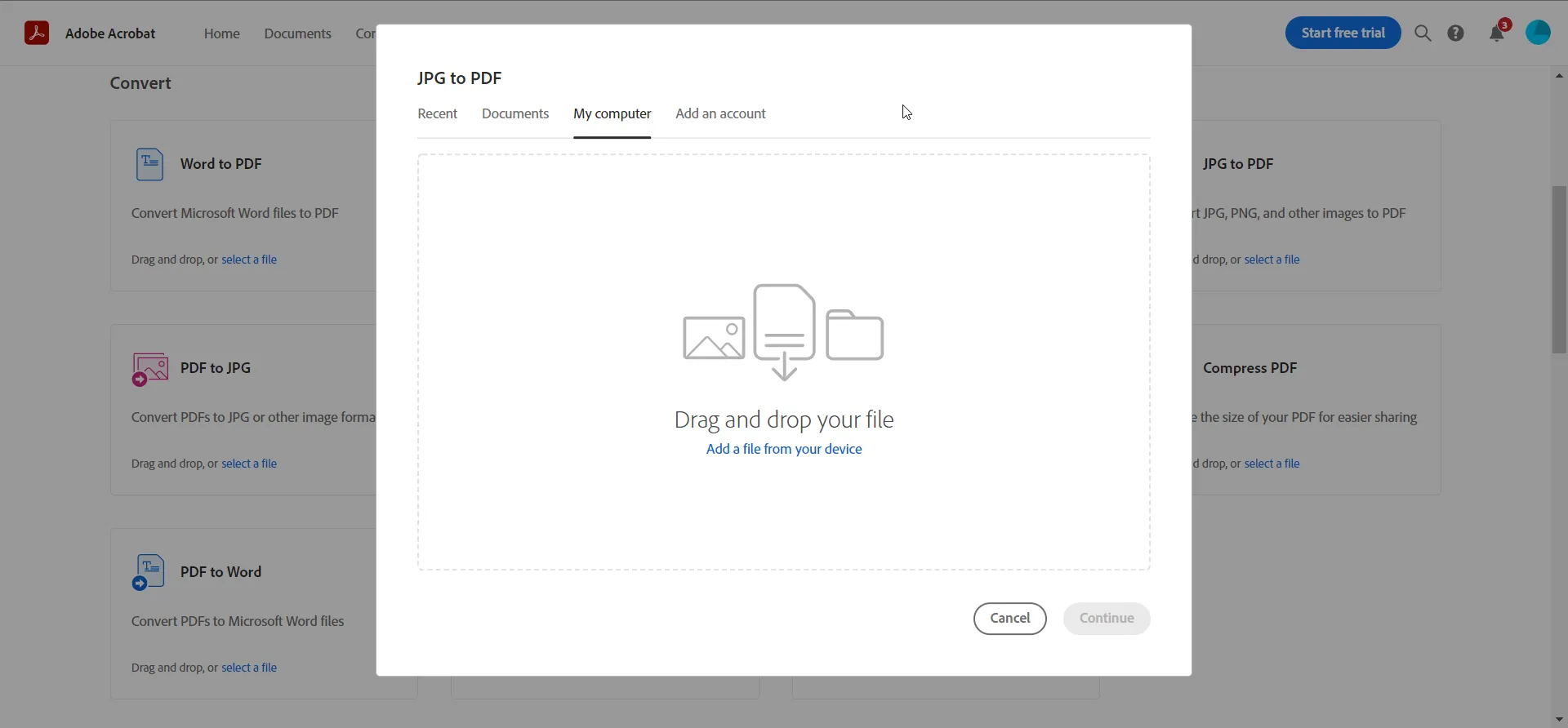
IRONPDF 사용 How to Combine Images Into One PDF 커티스 차우 업데이트됨:7월 28, 2025 다운로드 IronPDF NuGet 다운로드 DLL 다운로드 윈도우 설치 프로그램 무료 체험 시작하기 LLM용 사본 LLM용 사본 LLM용 마크다운 형식으로 페이지를 복사하세요 ChatGPT에서 열기 ChatGPT에 이 페이지에 대해 문의하세요 제미니에서 열기 제미니에게 이 페이지에 대해 문의하세요 Grok에서 열기 Grok에게 이 페이지에 대해 문의하세요 혼란 속에서 열기 Perplexity에게 이 페이지에 대해 문의하세요 공유하다 페이스북에 공유하기 트위터에 공유하기 LinkedIn에 공유하기 URL 복사 이메일로 기사 보내기 This article will demonstrate how to use Adobe Acrobat Online and the IronPDF C# library to create a PDF document from multiple photos and save the newly created PDF file to the local file system. Follow the steps below: Step 1 Open the Adobe Acrobat Online website. Adobe Acrobat website Step 2 You will need to log in to this website. If you don't have an Adobe Account, you need to create one by clicking on the signup button. Once you have signed up, click on the login button and enter your credentials to log in to the Adobe Acrobat website. Step 3 Once you log in, you will see the interface for Adobe Acrobat Online. There will be many options related to PDFs. Next, click on the "All tools" tab. Navigate to Adobe Acrobat Online page Step 4 After that, you will see the list of tools offered by Adobe Acrobat Online and select the "JPG to PDF" tool. Navigate to JPG to PDF tool on the website Step 5 This will now open a popup for the JPG-to-PDF tool. You will see the options to "Drag and Drop files" and "Add a file from your device". You will be able to drag and drop multiple pictures or select all the images from the device from either the same folder or a different folder. Drag-and-drop file modal for JPG to PDF After selecting all the photos, click on the continue button. This will merge multiple images into a single PDF file. The process will merge images without using third-party apps in a single document. Adobe Acrobat processing through uploaded files After conversion, you will see the output PDF in a tab. You can download the PDF to your system by clicking on the download tray button. IronPDF: C# PDF Library The IronPDF C# PDF library is a .NET library for reading, writing, and customizing PDF documents. The IronPDF C# library seeks to provide the most complete, accurate, and cross-platform source of information about PDFs. It offers a high-level API that is designed to be as intuitive as possible. The library provides access to the vast majority of features available in Adobe Acrobat, including those not provided free of charge. The library provides methods and properties that enable you to read and write PDF files using just a few lines of code. You can convert PDFs between different versions, read text from PDFs and metadata from PDFs without extracting them, add pages to existing documents, insert images onto pages at various positions and scales, extract text from pages within documents, create a new PDF from an existing document, and more. The library also includes support for images of various bit depths and formats, including PNGs and convert multi-frame TIFFs to PDFs. You can use the library to create your own PDFs or work with other people's PDFs. The library also provides support for creating and manipulating bookmarks within PDFs, finding text within PDFs, extracting text from PDFs, extracting shapes from documents and adding them to new PDFs, splitting PDF documents into pages and merging them back together again. This section will use the IronPDF library to create a PDF file using multiple images. Let's now examine the code example for doing this. Code Example // Install the IronPdf NuGet package using the command: PM> Install-Package IronPdf using IronPdf; using System.IO; using System.Linq; class Program { static void Main() { // Get enumerable images from a specific folder. var ImageFiles = Directory.EnumerateFiles(@"C:\project\assets") .Where(f => f.EndsWith(".jpg") || f.EndsWith(".jpeg")); // Convert the images to a PDF and save it to the specified location. ImageToPdfConverter.ImageToPdf(ImageFiles).SaveAs(@"C:\project\composite.pdf"); // Note: Use PdfDocument.RasterizeToImageFiles() method // to flatten a PDF into images or thumbnails if needed. } } // Install the IronPdf NuGet package using the command: PM> Install-Package IronPdf using IronPdf; using System.IO; using System.Linq; class Program { static void Main() { // Get enumerable images from a specific folder. var ImageFiles = Directory.EnumerateFiles(@"C:\project\assets") .Where(f => f.EndsWith(".jpg") || f.EndsWith(".jpeg")); // Convert the images to a PDF and save it to the specified location. ImageToPdfConverter.ImageToPdf(ImageFiles).SaveAs(@"C:\project\composite.pdf"); // Note: Use PdfDocument.RasterizeToImageFiles() method // to flatten a PDF into images or thumbnails if needed. } } $vbLabelText $csharpLabel In the above code, it is very easy to convert multiple images to a PDF file with just a few lines of code. This is the power of IronPDF. You don't need to go online and log in to a website. Simply open the editor and write some code — and your PDF converter is ready to use. For more details, please visit the Image to PDF conversion examples. Licensing IronPDF is totally free for development purposes. However, at the production level, payment is required. IronPDF offers three plans. The Lite plan is for individual developers, and the professional plan is for individuals or teams that need powerful PDF software without any limitations. The unlimited plan is designed for large corporations and agencies that need an enterprise-level solution. All three plans are free of charge during the development, evaluation, or testing phases, but if you decide to use IronPDF in production, you'll need to pay the license fee. For new users, there is a free trial with no strings attached! You can also purchase five Iron Software products for the price of two. Visit IronPDF licensing details for more information. 자주 묻는 질문 C#을 사용하여 여러 이미지를 하나의 PDF로 결합하려면 어떻게 해야 하나요? IronPDF의 ImageToPdfConverter 클래스를 사용하여 여러 이미지를 하나의 PDF로 변환할 수 있습니다. 먼저 IronPdf NuGet 패키지를 설치한 다음 이미지 파일을 나열하는 C# 스크립트를 작성하고 변환기를 사용하여 PDF를 생성 및 저장합니다. 온라인 도구를 사용하지 않고 JPG를 PDF로 변환하는 방법은 무엇인가요? IronPDF를 사용하면 프로그래밍 방식으로 JPG 이미지를 PDF로 변환할 수 있으므로 온라인 도구를 우회하여 애플리케이션 내에서 직접 변환을 수행할 수 있습니다. 오프라인에서 이미지를 PDF로 결합할 수 있나요? 예, IronPDF를 사용하면 인터넷 연결 없이도 PDF 문서를 변환하고 조작할 수 있는 기능을 제공하는 포괄적인 C# 라이브러리를 사용하여 오프라인에서 이미지를 PDF로 결합할 수 있습니다. IronPDF는 다양한 이미지 형식을 PDF로 변환하는 기능을 지원하나요? IronPDF는 JPG, PNG, TIFF를 포함한 다양한 이미지 형식을 PDF로 변환할 수 있어 다양한 이미지에서 PDF로 변환해야 할 때 유용하게 사용할 수 있습니다. PDF 라이브러리에 대한 라이선스는 어떻게 처리하나요? IronPDF는 여러 가지 라이선스 옵션을 제공합니다: 개인 개발자를 위한 라이트, 팀을 위한 프로페셔널, 대기업을 위한 무제한이 있습니다. 라이브러리는 개발용으로는 무료이지만 프로덕션용으로 사용하려면 라이선스가 필요합니다. C# 라이브러리를 사용하여 PDF에서 텍스트를 추출할 수 있나요? IronPDF는 PDF 문서에서 텍스트를 추출하는 방법을 제공하여 개발자가 프로그래밍 방식으로 텍스트 콘텐츠에 액세스하고 조작할 수 있도록 합니다. 온라인 서비스보다 PDF 생성에 C# 라이브러리를 사용하면 어떤 이점이 있나요? IronPDF를 사용하면 애플리케이션 내에서 직접 PDF 생성 프로세스를 자동화할 수 있으므로 인터넷 액세스 및 계정 로그인이 필요한 온라인 서비스에 비해 제어, 보안 및 유연성이 향상됩니다. 구매하기 전에 PDF 라이브러리를 사용해 보려면 어떻게 해야 하나요? IronPDF는 구매하기 전에 기능을 평가할 수 있는 무료 평가판을 제공하여 특정 요구 사항을 충족하는지 확인할 수 있습니다. IronPDF는 .NET 10과 결합하여 이미지를 PDF로 결합하는 기능을 지원하나요? 예 - IronPDF는 .NET 10과 완벽하게 호환됩니다. .NET 10 프로젝트에서 동일한 ImageToPdfConverter 접근 방식을 사용하여 추가 구성이나 해결 방법 없이 이미지를 PDF로 결합할 수 있습니다. IronPDF의 크로스 플랫폼 지원에는 지원되는 프레임워크 중 .NET 10이 포함됩니다. 커티스 차우 지금 바로 엔지니어링 팀과 채팅하세요 기술 문서 작성자 커티스 차우는 칼턴 대학교에서 컴퓨터 과학 학사 학위를 취득했으며, Node.js, TypeScript, JavaScript, React를 전문으로 하는 프론트엔드 개발자입니다. 직관적이고 미적으로 뛰어난 사용자 인터페이스를 만드는 데 열정을 가진 그는 최신 프레임워크를 활용하고, 잘 구성되고 시각적으로 매력적인 매뉴얼을 제작하는 것을 즐깁니다. 커티스는 개발 분야 외에도 사물 인터넷(IoT)에 깊은 관심을 가지고 있으며, 하드웨어와 소프트웨어를 통합하는 혁신적인 방법을 연구합니다. 여가 시간에는 게임을 즐기거나 디스코드 봇을 만들면서 기술에 대한 애정과 창의성을 결합합니다. 관련 기사 업데이트됨 1월 22, 2026 How to Create PDF Documents in .NET with IronPDF: Complete Guide Discover effective methods to create PDF files in C# for developers. Enhance your coding skills and streamline your projects. Read the article now! 더 읽어보기 업데이트됨 1월 21, 2026 How to Merge PDF Files in VB.NET: Complete Tutorial Merge PDF VB NET with IronPDF. Learn to combine multiple PDF files into one document using simple VB.NET code. Step-by-step examples included. 더 읽어보기 업데이트됨 1월 21, 2026 C# PDFWriter Tutorial: Create PDF Documents in .NET Learn to create PDFs efficiently using C# PDFWriter with this step-by-step guide for developers. Read the article to enhance your skills today! 더 읽어보기 C# Add Image to PDF (Developer Tutorial)ASPX를 PDF로 변환

업데이트됨 1월 22, 2026 How to Create PDF Documents in .NET with IronPDF: Complete Guide Discover effective methods to create PDF files in C# for developers. Enhance your coding skills and streamline your projects. Read the article now! 더 읽어보기
업데이트됨 1월 21, 2026 How to Merge PDF Files in VB.NET: Complete Tutorial Merge PDF VB NET with IronPDF. Learn to combine multiple PDF files into one document using simple VB.NET code. Step-by-step examples included. 더 읽어보기
업데이트됨 1월 21, 2026 C# PDFWriter Tutorial: Create PDF Documents in .NET Learn to create PDFs efficiently using C# PDFWriter with this step-by-step guide for developers. Read the article to enhance your skills today! 더 읽어보기