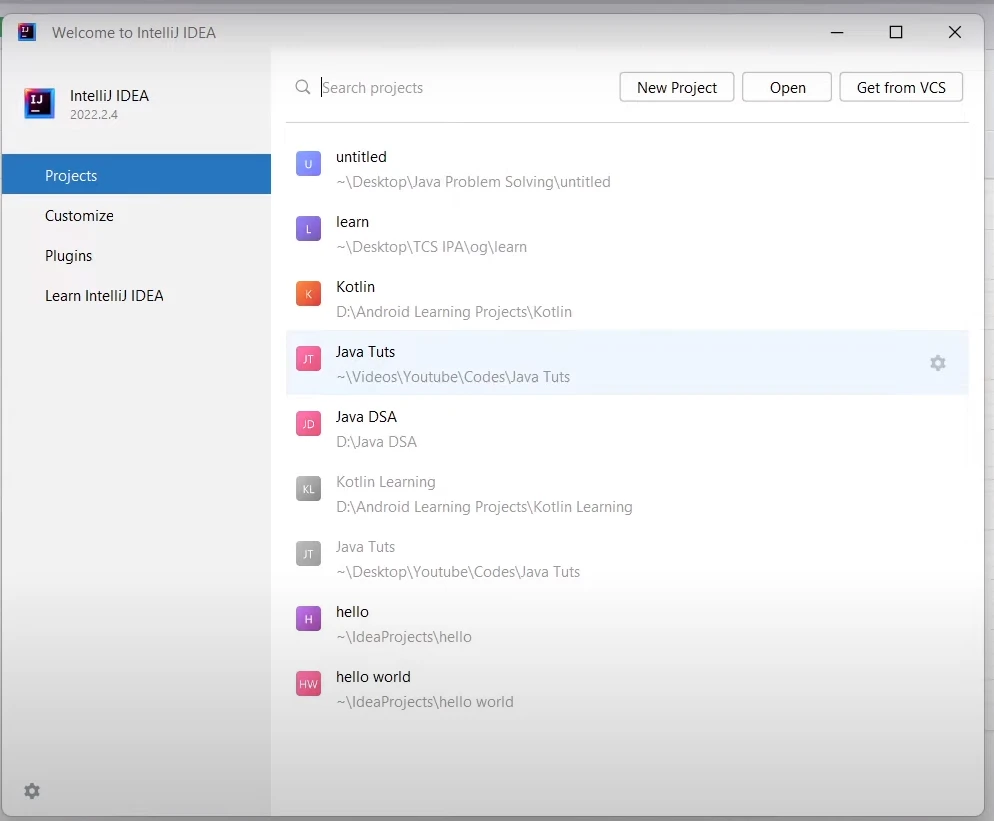
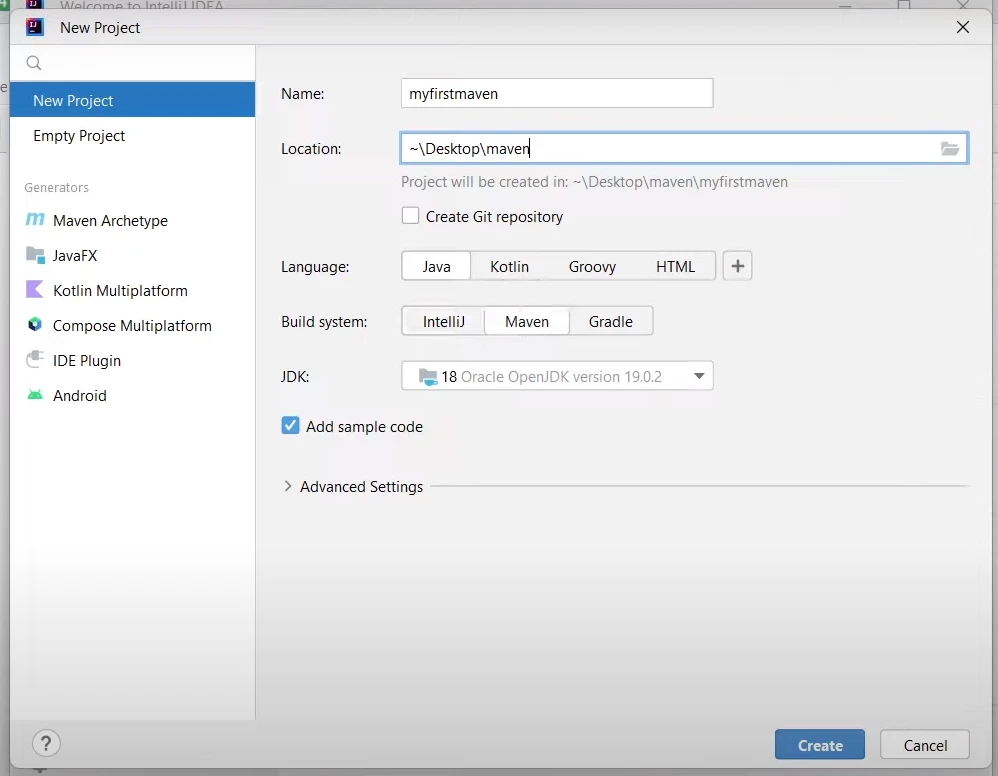
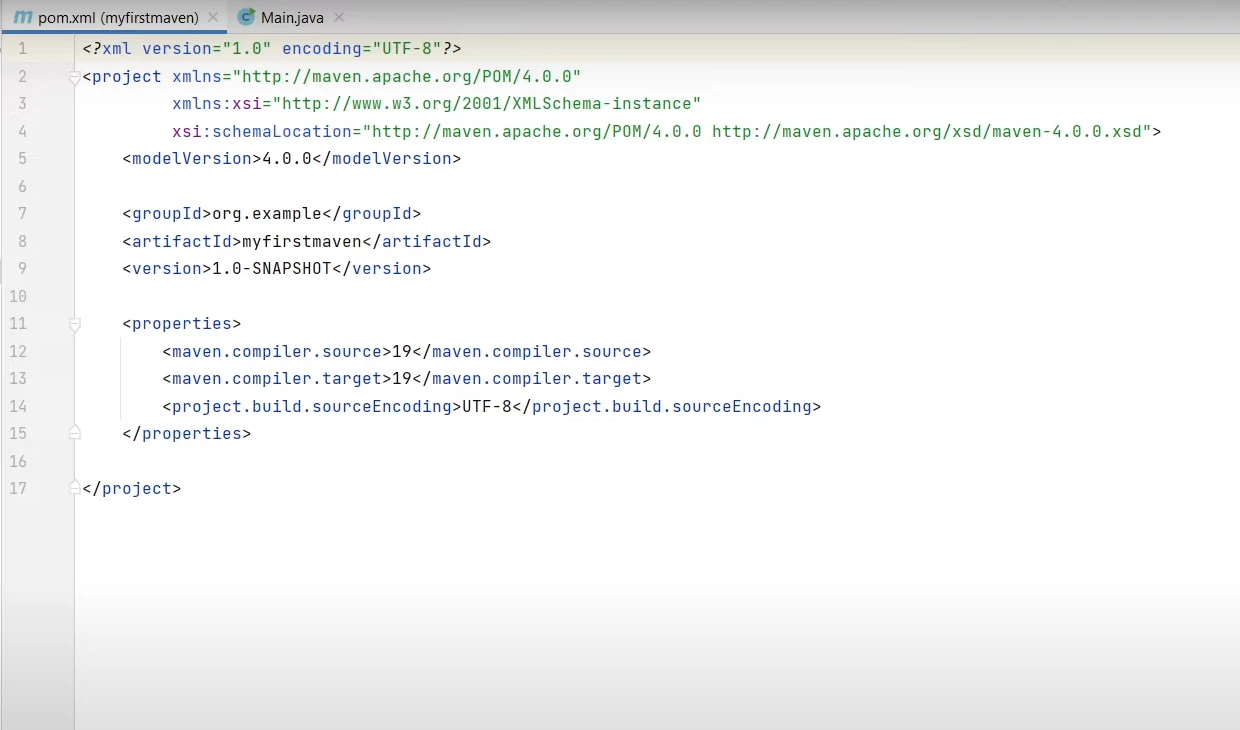
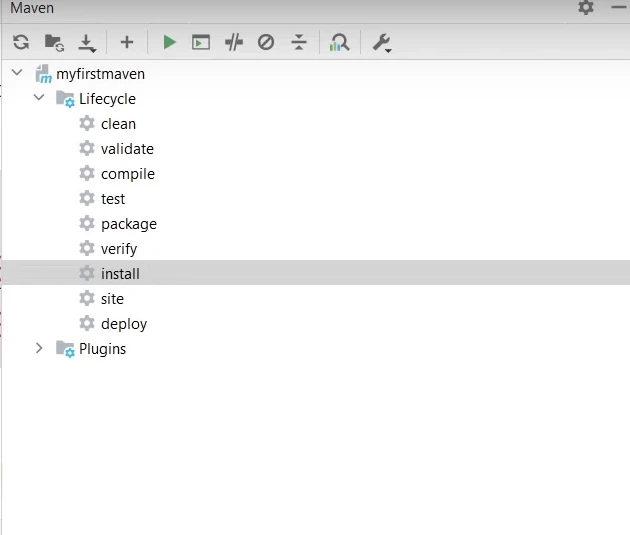
JAVA용 IRONPDF 사용 IntelliJ에서 Maven 프로젝트 작업하기 커티스 차우 업데이트됨:7월 28, 2025 다운로드 IronPDF 메이븐 다운로드 JAR 다운로드 무료 체험 시작하기 LLM용 사본 LLM용 사본 LLM용 마크다운 형식으로 페이지를 복사하세요 ChatGPT에서 열기 ChatGPT에 이 페이지에 대해 문의하세요 제미니에서 열기 제미니에게 이 페이지에 대해 문의하세요 Grok에서 열기 Grok에게 이 페이지에 대해 문의하세요 혼란 속에서 열기 Perplexity에게 이 페이지에 대해 문의하세요 공유하다 페이스북에 공유하기 트위터에 공유하기 LinkedIn에 공유하기 URL 복사 이메일로 기사 보내기 IntelliJ IDEA is a powerful Integrated Development Environment (IDE) widely used for Java project development. Maven is a software project management tool primarily used for managing Java projects. This tutorial will be learning how to create new Maven projects in IntelliJ IDEA, handle dependencies, and work with the Maven tool. 1. Setting up IntelliJ IDEA and JDK Before getting started with creating a Maven project, let's ensure the right setup. Download and install IntelliJ IDEA from the official website if you haven't already. Also, verify that you have the Java Development Kit (JDK) installed on your machine. 1.1 Installing JDK To confirm your JDK version, open the terminal and type java -version. If you see an output with a specific version, that means you have JDK installed. If not, refer to the official Java documentation to download and install the latest JDK. 1.2 Configuring JDK in IntelliJ IDEA To add or configure JDK in IntelliJ IDEA: Open IntelliJ IDEA and go to File > Project Structure. In the dialog that opens, under Platform Settings, click on SDKs. Click the + button and navigate to the location of your installed JDK. Select the JDK folder and click OK. Click Apply and then OK. 2. Creating a New Maven Project Now, let's dive into creating the first Maven project. 2.1 Starting a New Project In IntelliJ IDEA, go to New > Project. IntelliJ IDEA In the dialog that opens, select Maven as the build system. New Project Check the Create from archetype box, which will allow you to select a Maven archetype—a template for your new project. For this example, choose maven-archetype-quickstart. Click Next. 2.2 Setting Project Metadata In the next window: Specify GroupId, ArtifactId, and Version for your project. These properties identify your project in the local Maven repository. Choose a location to store your project files. Click Next, review your Maven settings, then click Finish. Your new Maven project is now created! You'll see the project structure on the left in the tool window. 2.3 Understanding pom.xml Each Maven project has a pom.xml file, short for Project Object Model, located at the root of your project directory. This file describes your project, its dependencies, and other properties. pom.xml file The file might look complicated at first glance, but it's straightforward. Let's break it down: <modelVersion>: This is the version of the project model this POM is using. <groupId>: The ID of the project's group. <artifactId>: The ID of the artifact (project). <version>: The version of the artifact (project). <dependencies>: This section is where you specify all the dependencies your project needs. 3. Working with Dependencies in Maven Dependencies are external Java libraries or modules that your project needs to run correctly. These could be frameworks, utility libraries, or other modules that your project uses. In Maven, these dependencies are managed and configured in the pom.xml file. 3.1 Adding Dependencies Adding dependencies to your Maven project involves specifying them in your pom.xml file. Let's explore this process with an example of adding the IronPDF library, which is a popular Java library for PDF generation and manipulation using HTML to PDF. Steps to Add a Dependency In IntelliJ IDEA, locate and open your pom.xml file. It's typically found in the root directory of your project and listed in the Project tool window. In the pom.xml file, look for the <dependencies> section. This tag encapsulates all the dependencies your project requires. Inside <dependencies>, add a new <dependency> block. In this block, specify the groupId, artifactId, and version of the dependency you wish to add. <dependency> <groupId>com.ironpdf</groupId> <artifactId>ironpdf</artifactId> <version>1.0.0</version> </dependency> <dependency> <groupId>com.ironpdf</groupId> <artifactId>ironpdf</artifactId> <version>1.0.0</version> </dependency> XML After you've added the required information, save your pom.xml file. IntelliJ IDEA, coupled with Maven, will automatically recognize the changes and prompt you to import the updates. Accept this, and Maven will download and store the specified dependency in your local Maven repository. 3.2 Managing Dependencies Managing dependencies in Maven is straightforward. You add, update, or remove dependencies by modifying the <dependencies> section of the pom.xml file. Adding a new dependency: Follow the steps outlined above. Updating a dependency: Change the version in the relevant <dependency> block and save the pom.xml file. Maven will then download the new version and update the project accordingly. Removing a dependency: Simply remove the corresponding <dependency> block and save the pom.xml file. Maven will update the project and the dependency will no longer be available. Remember, whenever you modify the pom.xml file, always import the changes for them to take effect. Through this process, Maven makes it straightforward to manage dependencies, allowing developers to focus more on coding and less on project configuration. 4. Exploring the Maven Tool Window and Goals In IntelliJ IDEA, the Maven tool window is a practical feature that allows you to manage and execute Maven commands. With its help, you can effectively oversee various aspects of your Maven project without needing to remember or type complex Maven commands. 4.1 Opening the Maven Tool Window To access this feature-rich tool window: Navigate to the View menu in the IntelliJ IDEA IDE. Select Tool Windows from the dropdown menu. From the list that appears, click on Maven. Upon completion of these steps, you'll notice the Maven tool window appearing on the right side of the IDE. 4.2 Executing Maven Goals Maven Goals represent tasks that can be carried out on your project. Examples of such goals are clean, compile, test, and install. Goals To execute a Maven goal: Locate the Maven tool window and expand the Lifecycle section. This section houses the most common goals. Right-click on the goal you want to execute, say compile, and select Run Maven Build. IntelliJ IDEA will then execute the selected goal. 5. Compiling and Running Your Maven Project With your Maven project set up, and the essential Maven goals understood, let's move to compiling and running your project. 5.1 Compiling the Project Maven's compile goal is responsible for transforming your Java files (.java) into a format that the Java Virtual Machine (JVM) can execute (.class files). Here's how to do it: Go to the Maven tool window and expand the Lifecycle section. Double-click on compile. Maven will now process your .java files, compiling them into .class files and storing them in the target/classes directory. 5.2 Running the Project Once the project has been compiled, we can run it: In the project's tool window, find the root directory of your project. Right-click on it and navigate to Run > Main. This action will start the execution of your project. Note: The option Main can vary based on your project setup. It refers to the main class serving as the entry point of your application. 6. Importing and Updating Maven Project In the course of working with Maven projects, it's common to modify the pom.xml, like adding or removing a dependency. When you make such modifications, IntelliJ IDEA will prompt you to import the changes. You can also set your IDE to automatically import changes to keep everything synced. 6.1 Manually Importing Changes If you prefer to manually control when your project should reflect the changes, you can: Navigate to the Maven tool window. Locate and click on the Reimport All Maven Projects button (icon with two circular arrows). This action will refresh your project based on the latest pom.xml. 6.2 Enabling Auto-Import If you'd rather have your changes automatically reflected: Go to File > Settings (or IntelliJ IDEA > Preferences for macOS). From the settings, navigate to Build, Execution, Deployment > Build Tools > Maven > Importing. Check the Enable auto-import box and click OK. With auto-import enabled, every change in your pom.xml will trigger an automatic import, keeping your project updated. This feature, especially in large projects, can help in maintaining consistency and avoiding manual repetitive tasks. Conclusion The article has now covered the basics of working with Maven projects in IntelliJ IDEA. Maven is a powerful tool for managing your Java project's structure, dependencies, and build process. Combine that with IntelliJ IDEA, and you get a robust environment that can manage complex applications with ease. If you're interested in using IronPDF, it's worth noting that they offer a free trial. This allows you to explore and understand its capabilities thoroughly before making a purchasing decision. If you decide to proceed with it, licenses start from $799. 자주 묻는 질문 IntelliJ IDEA에서 Maven 프로젝트를 설정하려면 어떻게 해야 하나요? IntelliJ IDEA에서 Maven 프로젝트를 설정하려면 먼저 IntelliJ IDEA를 다운로드하여 설치하세요. JDK(Java 개발 키트)가 설치 및 구성되었는지 확인합니다. 그런 다음 '파일 > 새로 만들기 > 프로젝트'를 선택하고 프로젝트 유형으로 'Maven'을 선택하여 새 Maven 프로젝트를 만듭니다. 메시지에 따라 프로젝트 메타데이터를 구성합니다. Maven 프로젝트에서 pom.xml 파일의 역할은 무엇인가요? Pom.xml 파일은 Maven 프로젝트의 중요한 부분입니다. 이 파일에는 프로젝트의 종속성, 빌드 구성 및 기타 설정이 설명되어 있습니다. IronPDF와 같은 라이브러리는 pom.xml 파일의 섹션에 종속성으로 추가하여 관리할 수 있습니다. 내 Maven 프로젝트에 IronPDF 라이브러리를 추가하려면 어떻게 해야 하나요? Maven 프로젝트에 IronPDF를 추가하려면 IntelliJ IDEA에서 pom.xml 파일을 엽니다. 섹션을 찾아 IronPDF의 groupId, artifactId 및 버전을 지정하는 새 블록을 추가합니다. 이렇게 하면 라이브러리가 프로젝트 종속성의 일부로 관리됩니다. 일반적인 Maven 목표는 무엇이며 IntelliJ IDEA에서 이를 실행하려면 어떻게 해야 하나요? 일반적인 Maven 목표에는 정리, 컴파일, 테스트 및 설치가 포함됩니다. 이러한 목표는 Maven 도구 창을 열고 라이프사이클 섹션으로 이동하여 원하는 작업을 마우스 오른쪽 버튼으로 클릭한 다음 'Maven 빌드 실행'을 선택하여 IntelliJ IDEA에서 실행할 수 있습니다. Pom.xml 파일을 변경한 후 Maven 프로젝트가 최신 상태인지 확인하려면 어떻게 해야 하나요? Pom.xml 파일을 수정한 후에는 Maven 도구 창에서 '모든 Maven 프로젝트 다시 가져오기' 버튼을 사용하여 IntelliJ IDEA에서 Maven 프로젝트를 다시 가져와야 합니다. 이렇게 하면 종속성 또는 프로젝트 설정에 대한 모든 변경 사항이 프로젝트에 반영됩니다. IntelliJ의 Maven 프로젝트에서 종속성 문제를 해결하려면 어떻게 해야 하나요? 종속성 문제를 해결하려면 pom.xml 파일이 올바르게 구성되어 있는지 확인하세요. 종속성 섹션에서 오류가 있는지 확인합니다. Maven 도구 창을 사용하여 클리어 및 설치를 실행하여 문제가 지속되는지 확인합니다. 변경 사항을 반영하기 위해 IntelliJ IDEA가 Maven 프로젝트를 자동 가져오도록 설정되어 있는지 확인합니다. Maven 프로젝트에서 IronPDF를 사용하면 어떤 이점이 있나요? IronPDF는 Java 애플리케이션 내에서 강력한 PDF 생성 및 조작 기능을 제공합니다. IronPDF를 Maven 프로젝트에 통합하면 개발자는 라이브러리의 강력한 기능을 활용하여 Java 코드에서 직접 PDF 문서를 쉽게 생성, 편집 및 관리할 수 있습니다. IntelliJ IDEA에서 Maven 프로젝트의 자동 가져오기를 사용하려면 어떻게 해야 하나요? 자동 가져오기를 사용하려면 '파일 > 설정'(또는 macOS의 경우 '환경설정')으로 이동하여 '빌드, 실행, 배포 > 빌드 도구 > Maven > 가져오기'로 이동한 다음 '자동 가져오기 사용' 상자를 체크합니다. 이렇게 하면 pom.xml 파일의 모든 변경 사항이 프로젝트에 자동으로 반영됩니다. 커티스 차우 지금 바로 엔지니어링 팀과 채팅하세요 기술 문서 작성자 커티스 차우는 칼턴 대학교에서 컴퓨터 과학 학사 학위를 취득했으며, Node.js, TypeScript, JavaScript, React를 전문으로 하는 프론트엔드 개발자입니다. 직관적이고 미적으로 뛰어난 사용자 인터페이스를 만드는 데 열정을 가진 그는 최신 프레임워크를 활용하고, 잘 구성되고 시각적으로 매력적인 매뉴얼을 제작하는 것을 즐깁니다. 커티스는 개발 분야 외에도 사물 인터넷(IoT)에 깊은 관심을 가지고 있으며, 하드웨어와 소프트웨어를 통합하는 혁신적인 방법을 연구합니다. 여가 시간에는 게임을 즐기거나 디스코드 봇을 만들면서 기술에 대한 애정과 창의성을 결합합니다. 관련 기사 업데이트됨 6월 22, 2025 Java에서 TIFF를 PDF로 변환하는 방법 이 포괄적인 가이드는 IronPDF를 사용하여 Java에서 TIFF 이미지를 PDF로 원활하게 변환하는 방법에 대한 단계를 안내합니다. 더 읽어보기 업데이트됨 7월 28, 2025 Java에서 PDF를 PDFA로 변환하는 방법 이 문서에서는 IronPDF를 사용하여 Java에서 PDF 파일을 PDF/A 형식으로 변환하는 방법을 살펴봅니다. 더 읽어보기 업데이트됨 7월 28, 2025 Java로 PDF 문서를 만드는 방법 이 문서에서는 주요 개념, 최고의 라이브러리 및 예제를 다루는 Java에서 PDF 작업에 대한 포괄적인 가이드를 제공합니다. 더 읽어보기 Java에서 PDF 파일을 미리 보는 방법Java에서 PDF를 파싱하는 방...

업데이트됨 6월 22, 2025 Java에서 TIFF를 PDF로 변환하는 방법 이 포괄적인 가이드는 IronPDF를 사용하여 Java에서 TIFF 이미지를 PDF로 원활하게 변환하는 방법에 대한 단계를 안내합니다. 더 읽어보기
업데이트됨 7월 28, 2025 Java에서 PDF를 PDFA로 변환하는 방법 이 문서에서는 IronPDF를 사용하여 Java에서 PDF 파일을 PDF/A 형식으로 변환하는 방법을 살펴봅니다. 더 읽어보기
업데이트됨 7월 28, 2025 Java로 PDF 문서를 만드는 방법 이 문서에서는 주요 개념, 최고의 라이브러리 및 예제를 다루는 Java에서 PDF 작업에 대한 포괄적인 가이드를 제공합니다. 더 읽어보기