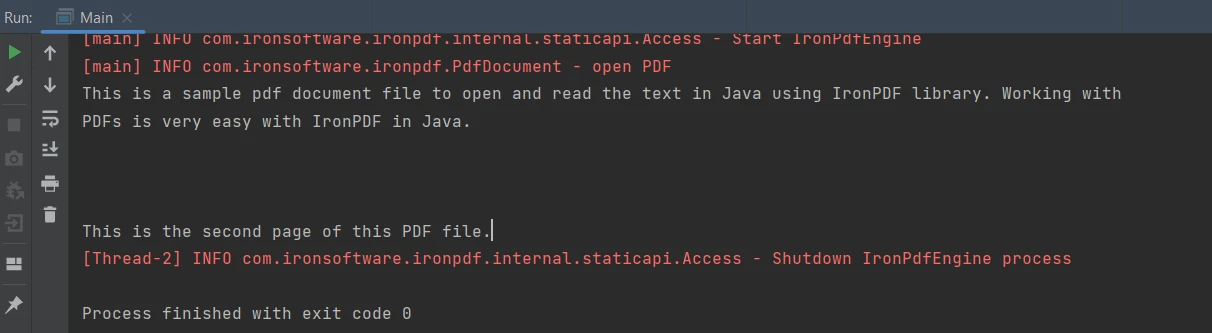
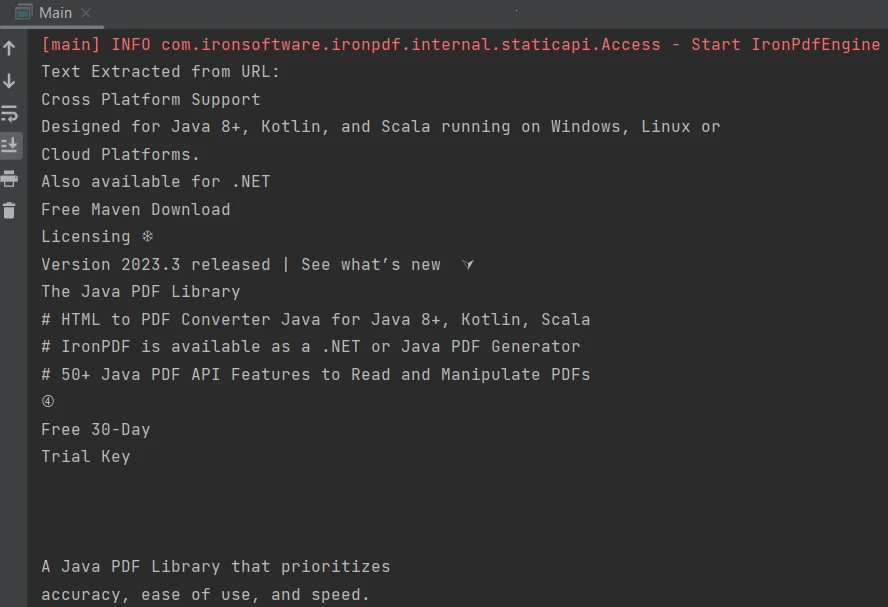
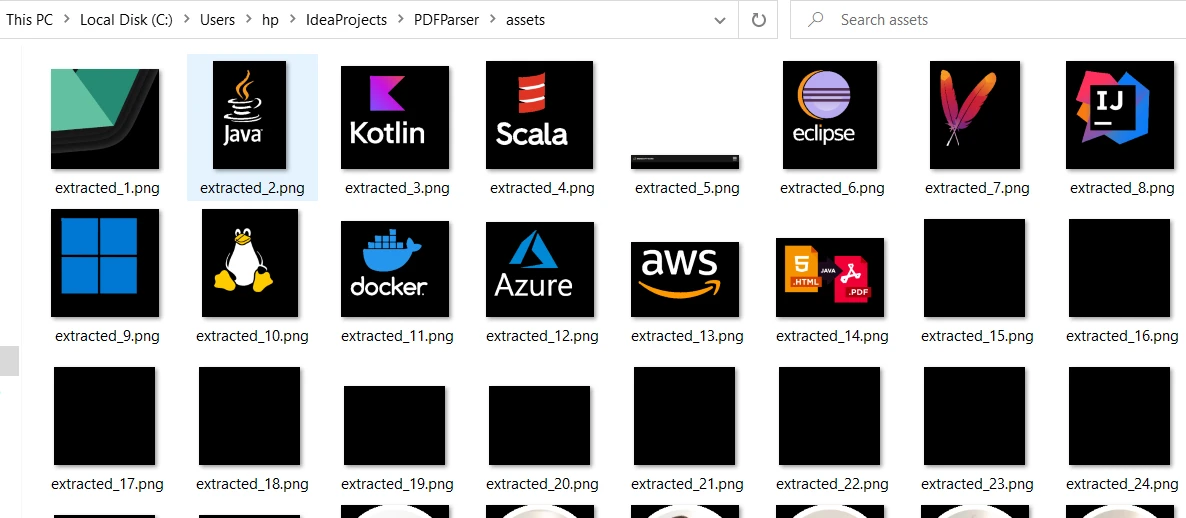
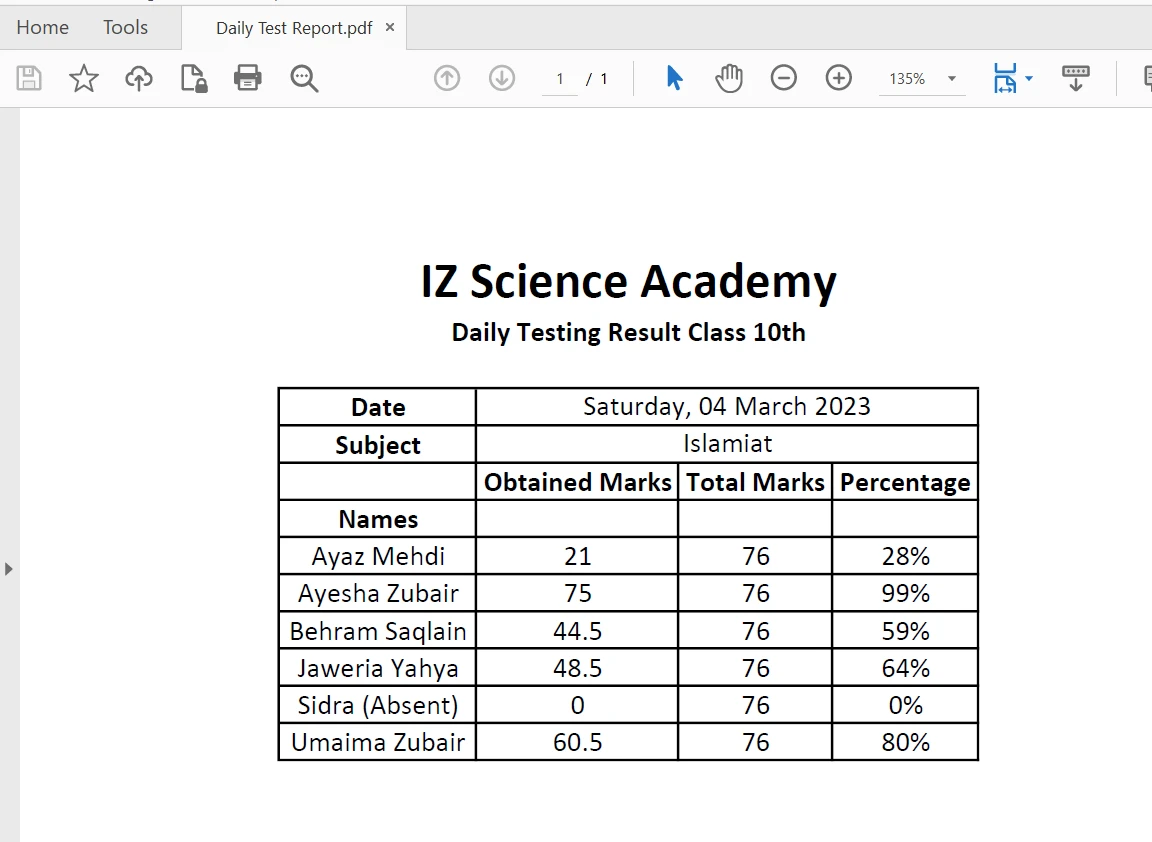
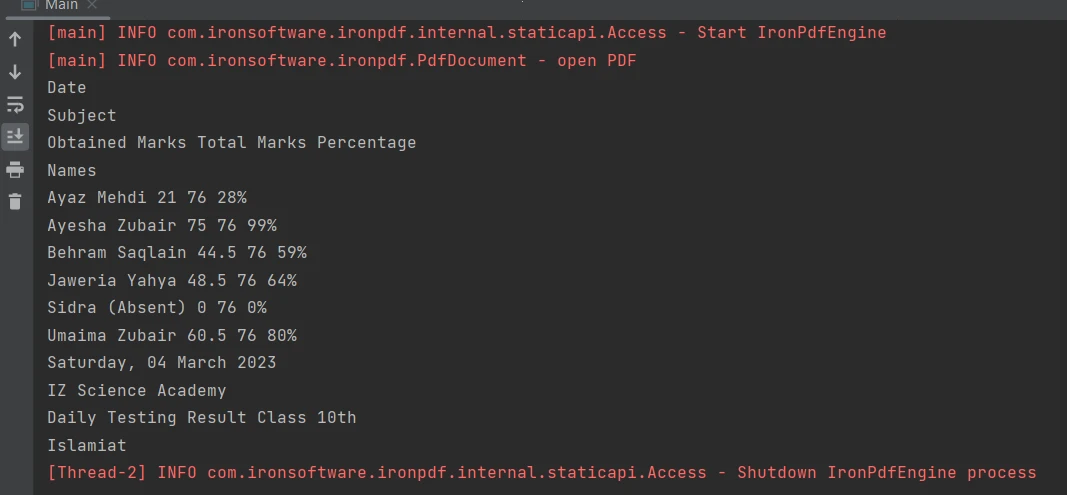
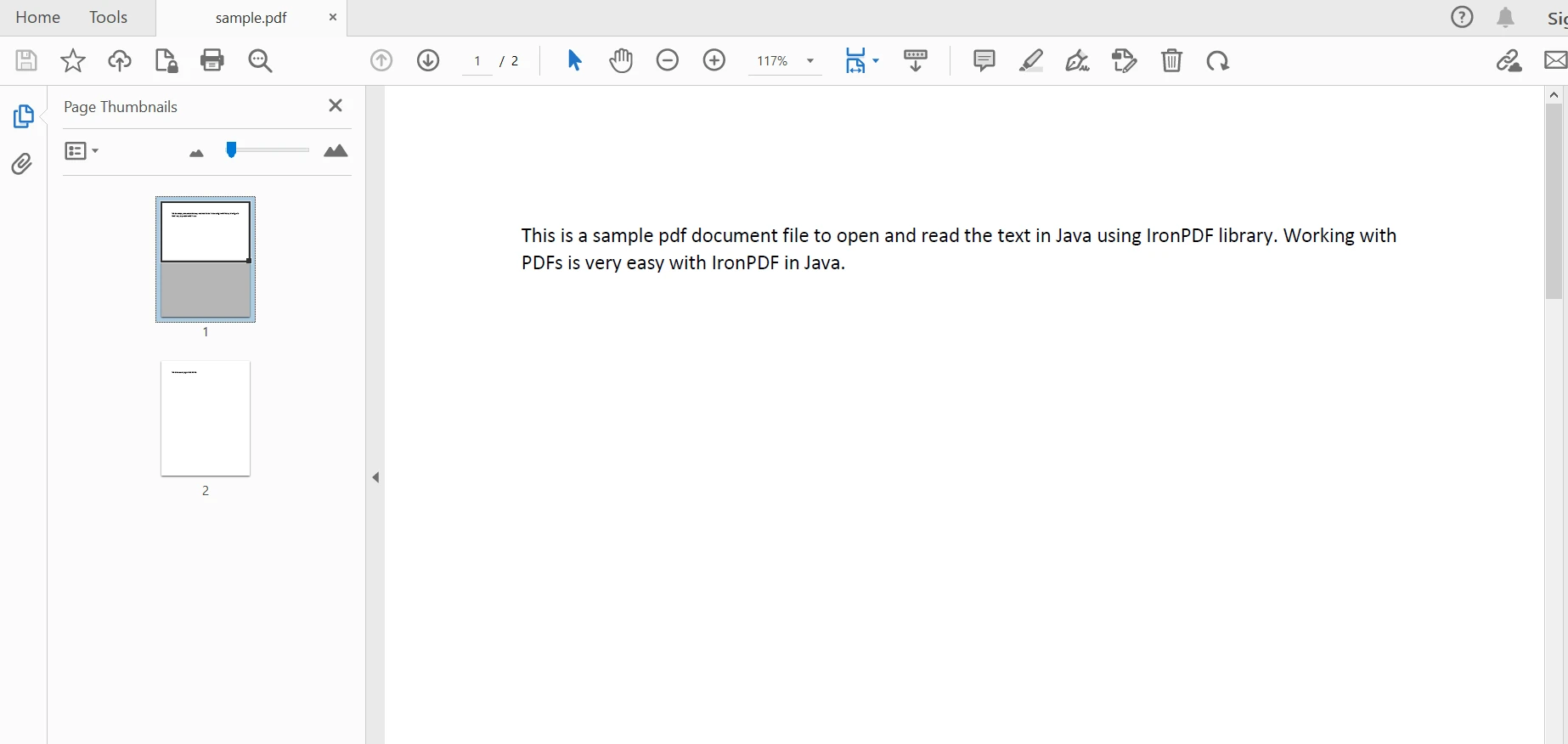
JAVA용 IRONPDF 사용 Java에서 PDF를 파싱하는 방법(개발자 튜토리얼) 커티스 차우 업데이트됨:7월 28, 2025 다운로드 IronPDF 메이븐 다운로드 JAR 다운로드 무료 체험 시작하기 LLM용 사본 LLM용 사본 LLM용 마크다운 형식으로 페이지를 복사하세요 ChatGPT에서 열기 ChatGPT에 이 페이지에 대해 문의하세요 제미니에서 열기 제미니에게 이 페이지에 대해 문의하세요 Grok에서 열기 Grok에게 이 페이지에 대해 문의하세요 혼란 속에서 열기 Perplexity에게 이 페이지에 대해 문의하세요 공유하다 페이스북에 공유하기 트위터에 공유하기 LinkedIn에 공유하기 URL 복사 이메일로 기사 보내기 This article will create a PDF parser in Java using the IronPDF Library in an efficient approach. IronPDF - Java PDF Library IronPDF for Java is a Java PDF library that enables the creation, reading, and manipulation of PDF documents with ease and accuracy. It is built on the success of IronPDF for .NET and provides efficient functionality across different platforms. IronPDF for Java utilizes the IronPdfEngine which is fast and optimized for performance. With IronPDF, you can extract text and images from PDF files and it also enables creating PDFs from various sources including HTML strings, files, URLs, and images. Furthermore, you can easily add new content, insert signatures with IronPDF, and embed metadata into PDF documents. IronPDF is specifically designed for Java 8+, Scala, and Kotlin, and is compatible with Windows, Linux, and Cloud platforms. ## How to Parse a PDF File in Java Download the Java library for parsing a PDF file Load an existing PDF document using the fromFile method Extract all text from the parsed PDF using the extractAllText method Use the renderUrlAsPdf method to render a PDF from a URL Extract images from the parsed PDF using the extractAllImages method Create PDF File Parser using IronPDF in Java Program Prerequisites To make a PDF Parsing project in Java, you will need the following tools: Java IDE: You can use any Java-supported IDE. There are multiple Java IDEs available for development. Here this tutorial will be using IntelliJ IDE. You can use NetBeans, Eclipse, etc. Maven Project: Maven is a dependency manager and allows control over the Java project. Maven for Java can be downloaded from the Maven official website. IntelliJ Java IDE has built-in support for Maven. IronPDF - You can download and install IronPDF for Java in multiple ways. Adding IronPDF dependency in the pom.xml file in a Maven project. <dependency> <groupId>com.ironsoftware</groupId> <artifactId>ironpdf</artifactId> <version>[LATEST_VERSION]</version> </dependency> <dependency> <groupId>com.ironsoftware</groupId> <artifactId>ironpdf</artifactId> <version>[LATEST_VERSION]</version> </dependency> XML Visit the Maven repository website for the latest IronPDF package for Java. A direct download from the Iron Software official download page. Manually install IronPDF using the JAR file in your simple Java Application. Slf4j-Simple: This dependency is also required to stamp content to an existing document. It can be added using the Maven dependencies manager in IntelliJ, or it can be directly downloaded from the Maven website. Add the following dependency to the pom.xml file: <dependency> <groupId>org.slf4j</groupId> <artifactId>slf4j-simple</artifactId> <version>2.0.5</version> </dependency> <dependency> <groupId>org.slf4j</groupId> <artifactId>slf4j-simple</artifactId> <version>2.0.5</version> </dependency> XML Adding the Necessary Imports Once all the prerequisites are installed, the first step is to import the necessary IronPDF packages to work with a PDF document. Add the following code on top of the Main.java file: import com.ironsoftware.ironpdf.*; import java.io.IOException; import java.nio.file.Paths; import com.ironsoftware.ironpdf.*; import java.io.IOException; import java.nio.file.Paths; JAVA License Key Some methods available in IronPDF require a license to be used. You can purchase a license or try IronPDF free in a free trial. You can set the key as follows: License.setLicenseKey("YOUR-KEY"); License.setLicenseKey("YOUR-KEY"); JAVA Step 1: Parse an Existing PDF document To parse an existing document for content extraction, the PdfDocument class is used. Its static fromFile method is used to parse a PDF file from a specific path with a specific file name in a Java program. The code is as follows: PdfDocument parsedDocument = PdfDocument.fromFile(Paths.get("sample.pdf")); PdfDocument parsedDocument = PdfDocument.fromFile(Paths.get("sample.pdf")); JAVA Parsed document Step 2: Extract Text Data from Parsed PDF file IronPDF for Java provides an easy method for extracting text from PDF documents. The following code snippet is for extracting text data from a PDF file is below: String extractedText = parsedDocument.extractAllText(); String extractedText = parsedDocument.extractAllText(); JAVA The above code produces the output given below: Output Step 3: Extract Text Data from URLs or HTML String The capability of IronPDF for Java is not only restricted to existing PDFs, but it can also create and parse a new file to extract content. Here, this tutorial will create a PDF file from a URL and extract content from it. The following example shows how to achieve this task: public class Main { public static void main(String[] args) throws IOException { License.setLicenseKey("YOUR-KEY"); PdfDocument parsedDocument = PdfDocument.renderUrlAsPdf("https://ironpdf.com/java/"); String extractedText = parsedDocument.extractAllText(); System.out.println("Text Extracted from URL:\n" + extractedText); } } public class Main { public static void main(String[] args) throws IOException { License.setLicenseKey("YOUR-KEY"); PdfDocument parsedDocument = PdfDocument.renderUrlAsPdf("https://ironpdf.com/java/"); String extractedText = parsedDocument.extractAllText(); System.out.println("Text Extracted from URL:\n" + extractedText); } } JAVA The output is as follows: Output Step 4: Extract Images from Parsed PDF Document IronPDF also provides an easy option to extract all images from parsed documents. Here the tutorial will use the previous example to see how easily the images are extracted from the PDF files. import com.ironsoftware.ironpdf.*; import javax.imageio.ImageIO; import java.awt.image.BufferedImage; import java.io.IOException; import java.nio.file.Files; import java.nio.file.Paths; import java.util.List; public class Main { public static void main(String[] args) throws IOException { License.setLicenseKey("YOUR-KEY"); PdfDocument parsedDocument = PdfDocument.renderUrlAsPdf("https://ironpdf.com/java/"); try { List<BufferedImage> images = parsedDocument.extractAllImages(); System.out.println("Number of images extracted from the website: " + images.size()); int i = 0; for (BufferedImage image : images) { ImageIO.write(image, "PNG", Files.newOutputStream(Paths.get("assets/extracted_" + ++i + ".png"))); } } catch (Exception exception) { System.out.println("Failed to extract images from the website"); exception.printStackTrace(); } } } import com.ironsoftware.ironpdf.*; import javax.imageio.ImageIO; import java.awt.image.BufferedImage; import java.io.IOException; import java.nio.file.Files; import java.nio.file.Paths; import java.util.List; public class Main { public static void main(String[] args) throws IOException { License.setLicenseKey("YOUR-KEY"); PdfDocument parsedDocument = PdfDocument.renderUrlAsPdf("https://ironpdf.com/java/"); try { List<BufferedImage> images = parsedDocument.extractAllImages(); System.out.println("Number of images extracted from the website: " + images.size()); int i = 0; for (BufferedImage image : images) { ImageIO.write(image, "PNG", Files.newOutputStream(Paths.get("assets/extracted_" + ++i + ".png"))); } } catch (Exception exception) { System.out.println("Failed to extract images from the website"); exception.printStackTrace(); } } } JAVA The [extractAllImages](/java/object-reference/api/com/ironsoftware/ironpdf/PdfDocument.html#extractAllImages()) method returns a list of BufferedImages. Each BufferedImage can then be stored as PNG images on a location using the ImageIO.write method. There are 34 images in the parsed PDF file and every image is perfectly extracted. Extracted images Step 5: Extract Data from Table in PDF Files Extracting content from tabular boundaries in a PDF file is made easy with just a one-line code using the [extractAllText method](/java/object-reference/api/com/ironsoftware/ironpdf/PdfDocument.html#extractAllText()). The following code snippet demonstrates how to extract text from a table in a PDF file: Table in PDF PdfDocument parsedDocument = PdfDocument.fromFile(Paths.get("table.pdf")); String extractedText = parsedDocument.extractAllText(); System.out.println(extractedText); PdfDocument parsedDocument = PdfDocument.fromFile(Paths.get("table.pdf")); String extractedText = parsedDocument.extractAllText(); System.out.println(extractedText); JAVA The output is as follows: Output Conclusion This article demonstrated how to parse an existing PDF document or create a new PDF parser file from a URL to extract data from it in Java using IronPDF. After opening the file, it can extract tabular data, images, and text from the PDF, and can also add the extracted text to a text file for later use. For more detailed information on how to work with PDF files programmatically in Java, please visit these PDF file creation examples. The IronPDF for Java library is free for development purposes with a free trial available. However, for commercial use it can be licensed through IronSoftware, starting at $799. 자주 묻는 질문 Java로 PDF 파서를 만들려면 어떻게 해야 하나요? Java로 PDF 파서를 만들려면 IronPDF 라이브러리를 사용할 수 있습니다. 먼저 IronPDF를 다운로드하여 설치한 다음 에서 파일로 메서드를 사용하여 PDF 문서를 로드하세요. 각각 extractAllText 및 extractAllImages 메서드를 사용하여 텍스트와 이미지를 추출할 수 있습니다. IronPDF를 Java 8+에서 사용할 수 있나요? 예, IronPDF는 Java 8 이상은 물론 Scala 및 Kotlin과도 호환됩니다. Windows, Linux 및 클라우드 환경을 포함한 여러 플랫폼을 지원합니다. Java에서 IronPDF를 사용하여 PDF를 파싱하는 핵심 단계는 무엇인가요? 주요 단계에는 Maven 프로젝트 설정, IronPDF 종속성 추가, fromFile로 PDF 문서 로드, extractAllText로 텍스트 추출, extractAllImages로 이미지 추출이 포함됩니다. Java에서 URL을 PDF로 변환하려면 어떻게 해야 하나요? IronPDF의 renderUrlAsPdf 메서드를 사용하여 Java에서 URL을 PDF로 변환할 수 있습니다. 이를 통해 웹 페이지를 PDF 문서로 효율적으로 렌더링할 수 있습니다. IronPDF는 클라우드 기반 Java 애플리케이션에 적합하나요? 예, IronPDF는 다용도로 설계되었으며 클라우드 기반 환경을 지원하므로 클라우드에서 PDF 기능이 필요한 Java 애플리케이션을 개발하는 데 적합합니다. Java PDF 파싱 프로젝트의 종속성을 관리하려면 어떻게 해야 하나요? Java 프로젝트에서 종속성을 관리하려면 Maven을 사용할 수 있습니다. 프로젝트의 pom.xml 파일에 IronPDF 라이브러리를 추가하여 종속성으로 포함하세요. IronPDF에는 어떤 라이선스 옵션을 사용할 수 있나요? IronPDF는 개발 목적으로 무료 평가판을 제공합니다. 그러나 상업적 용도로 사용하려면 라이선스가 필요합니다. 이를 통해 모든 기능에 액세스하고 우선 지원을 받을 수 있습니다. 커티스 차우 지금 바로 엔지니어링 팀과 채팅하세요 기술 문서 작성자 커티스 차우는 칼턴 대학교에서 컴퓨터 과학 학사 학위를 취득했으며, Node.js, TypeScript, JavaScript, React를 전문으로 하는 프론트엔드 개발자입니다. 직관적이고 미적으로 뛰어난 사용자 인터페이스를 만드는 데 열정을 가진 그는 최신 프레임워크를 활용하고, 잘 구성되고 시각적으로 매력적인 매뉴얼을 제작하는 것을 즐깁니다. 커티스는 개발 분야 외에도 사물 인터넷(IoT)에 깊은 관심을 가지고 있으며, 하드웨어와 소프트웨어를 통합하는 혁신적인 방법을 연구합니다. 여가 시간에는 게임을 즐기거나 디스코드 봇을 만들면서 기술에 대한 애정과 창의성을 결합합니다. 관련 기사 업데이트됨 6월 22, 2025 Java에서 TIFF를 PDF로 변환하는 방법 이 포괄적인 가이드는 IronPDF를 사용하여 Java에서 TIFF 이미지를 PDF로 원활하게 변환하는 방법에 대한 단계를 안내합니다. 더 읽어보기 업데이트됨 7월 28, 2025 Java에서 PDF를 PDFA로 변환하는 방법 이 문서에서는 IronPDF를 사용하여 Java에서 PDF 파일을 PDF/A 형식으로 변환하는 방법을 살펴봅니다. 더 읽어보기 업데이트됨 7월 28, 2025 Java로 PDF 문서를 만드는 방법 이 문서에서는 주요 개념, 최고의 라이브러리 및 예제를 다루는 Java에서 PDF 작업에 대한 포괄적인 가이드를 제공합니다. 더 읽어보기 IntelliJ에서 Maven 프로젝트 작업하기Java로 PDF 보고서를 생성하...

업데이트됨 6월 22, 2025 Java에서 TIFF를 PDF로 변환하는 방법 이 포괄적인 가이드는 IronPDF를 사용하여 Java에서 TIFF 이미지를 PDF로 원활하게 변환하는 방법에 대한 단계를 안내합니다. 더 읽어보기
업데이트됨 7월 28, 2025 Java에서 PDF를 PDFA로 변환하는 방법 이 문서에서는 IronPDF를 사용하여 Java에서 PDF 파일을 PDF/A 형식으로 변환하는 방법을 살펴봅니다. 더 읽어보기
업데이트됨 7월 28, 2025 Java로 PDF 문서를 만드는 방법 이 문서에서는 주요 개념, 최고의 라이브러리 및 예제를 다루는 Java에서 PDF 작업에 대한 포괄적인 가이드를 제공합니다. 더 읽어보기