IronPDF를 사용하여 Python에서 PDF에 쉽게 주석을 다는 방법
If you're interested in learning how to add annotations to PDF files using the IronPDF for Python library, keep reading. This article will guide you through the process step by step.
Understanding PDF Annotations
PDF annotation is the process of adding additional information, notes, highlights, or other visual elements to a PDF document. Annotations serve as a way to provide context, collaborate on documents, and enhance the readability of the content. Common types of annotations include text comments, adding links via link annotation, adding file attachments, highlighting, underlining, strikethrough, shapes, and even adding images or stamps.
IronPDF - A Python PDF Library
IronPDF is a popular Python library that enables developers to work with PDF documents seamlessly. It offers a comprehensive set of features, including PDF creation, manipulation, and annotation. With IronPDF, you can easily integrate PDF generation and modification capabilities into your Python applications, allowing you to automate tasks and streamline document workflows.
IronPDF supports various annotation types, allowing you to create a rich and interactive reading experience for your PDF documents. Whether you want to add textual explanations using text annotation, highlight important sections, attach other PDFs with the file attachment type, or even include stamps to mark documents as "Approved" or "Confidential" using stamp annotation, IronPDF has you covered.
Prerequisites
Before diving into annotating PDFs using IronPDF, ensure you have the following prerequisites in place:
- Python: Ensure that Python is installed on your computer. To download the latest version, visit the official Python website.
- Install an IDE: Before you can start working on your PDFs with IronPDF, you will need to install an IDE. PyCharm is recommended as a popular integrated development environment (IDE) for Python. Alternatively, you can use any IDE of your choice if you don't want to use PyCharm.
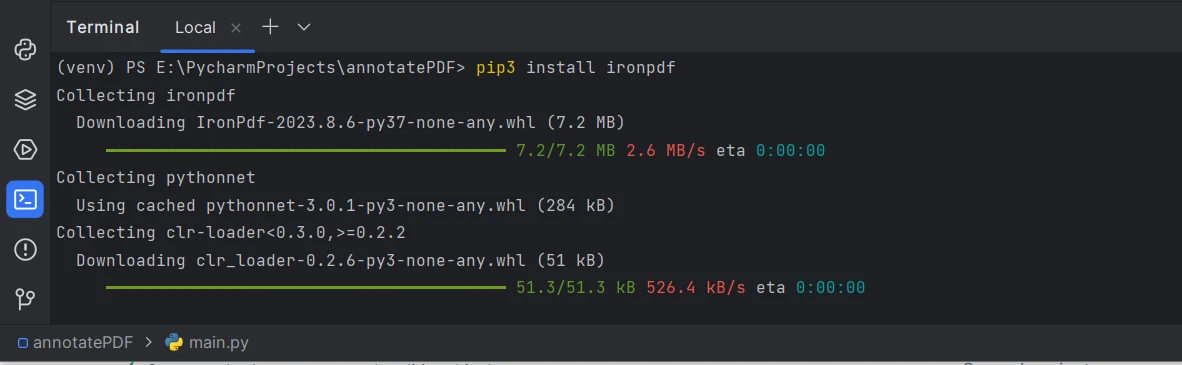
IronPDF Library: Install the IronPDF library using the following command in the terminal:
pip install IronPDFpip install IronPDFSHELL
Install IronPDF package- .NET 6.0 Runtime: IronPDF for Python relies on .NET 6.0 technology to work properly. This means you need to have .NET 6.0 runtime installed on your computer to use IronPDF for Python effectively. Most likely, it will automatically install with IronPDF dependencies at the time of project execution.
Note: When installing IronPDF using pip (Python Package Manager), it is important to ensure that the IronPDF installation path is included in the system's PATH variable. This step is crucial to ensure that pip can locate the IronPDF package and its associated components during installation and usage.
Creating a Project in PyCharm
Let's start by creating a new project in PyCharm:
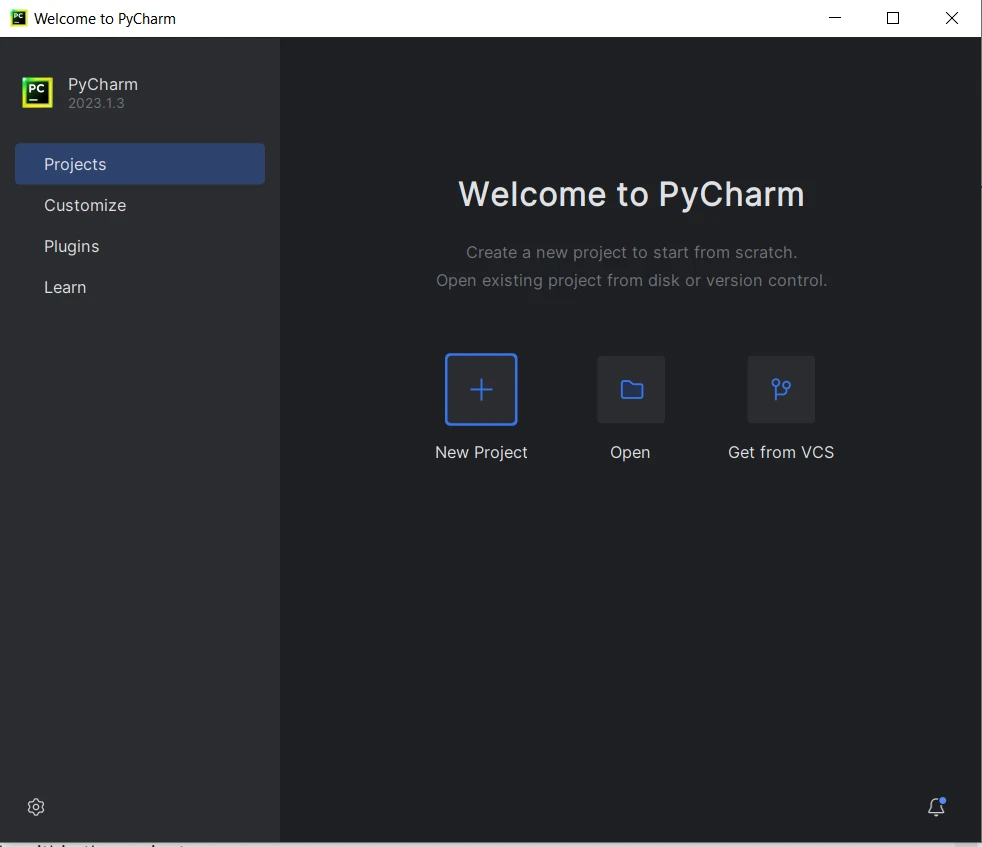
Open PyCharm and click on "Create New Project".
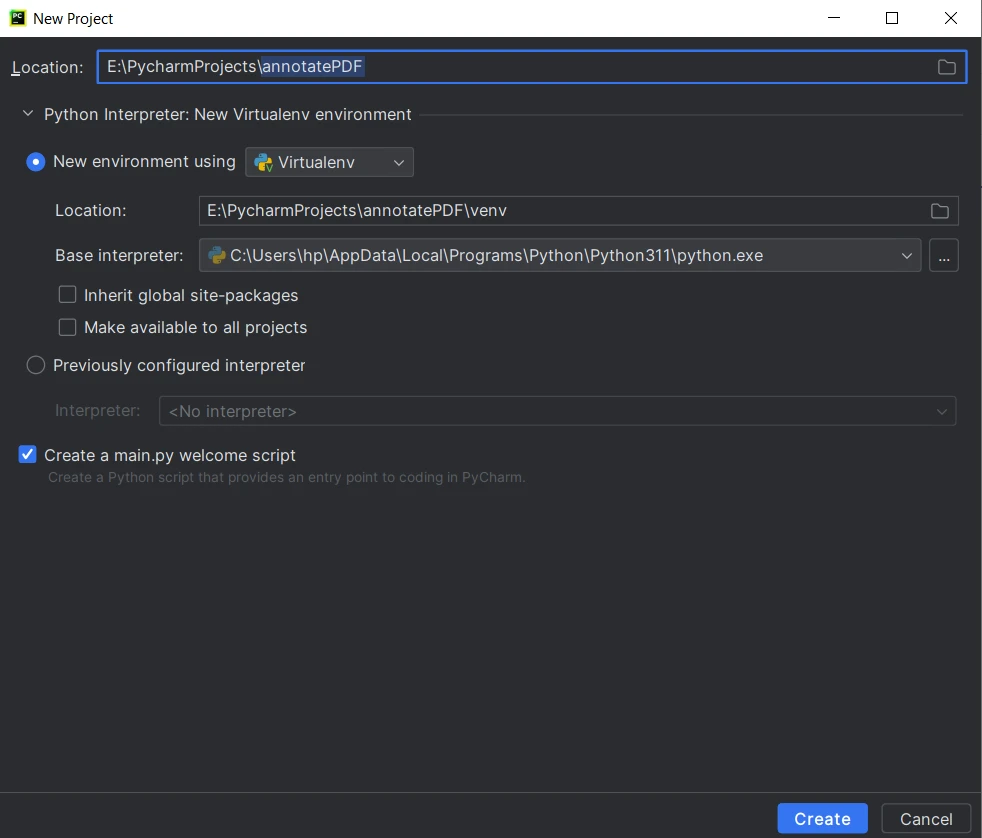
PyCharm IDEChoose a location for your project and select the appropriate interpreter (Python).
Create a new Python project- Click 'Create' and the project is created. The main.py file will also be created to write the code for execution.
Now that the demo project is set up, let's proceed to annotate a PDF using IronPDF.
Steps to Annotate PDF Documents in Python
Step 1: Importing the IronPDF Library
The first line imports the required modules from the IronPDF library, allowing access to the necessary classes and functions for PDF manipulation and annotation.
from ironpdf import PdfDocument, TextAnnotationfrom ironpdf import PdfDocument, TextAnnotationStep 2: Loading an Existing PDF Document
In this step, an existing PDF file named "existing.pdf" is loaded using the PdfDocument class. This document will be used as the base to add annotations. Also, set the page index on which supported annotation types will be added.
# Load the PDF document and set the target page index for annotation
pdf = PdfDocument("existing.pdf")
pageIndex = 0# Load the PDF document and set the target page index for annotation
pdf = PdfDocument("existing.pdf")
pageIndex = 0Step 3: Setting Annotation Parameters
The following lines of code define various properties for text annotation that will be added to the PDF. These properties provide information about the annotation's appearance and behavior:
# Create a text annotation and configure its properties
annotation = TextAnnotation(pageIndex)
annotation.Title = "This is the major title"
annotation.Subject = "This is a subtitle"
annotation.Contents = "This is the long 'sticky note' comment content..."
annotation.Icon = TextAnnotation.AnnotationIcon.Help
annotation.X = 150
annotation.Y = 200
annotation.Width = 200
annotation.Height = 50
annotation.Opacity = 0.9
annotation.Printable = False
annotation.Hidden = False
annotation.OpenByDefault = True
annotation.ReadOnly = False
annotation.Rotatable = True# Create a text annotation and configure its properties
annotation = TextAnnotation(pageIndex)
annotation.Title = "This is the major title"
annotation.Subject = "This is a subtitle"
annotation.Contents = "This is the long 'sticky note' comment content..."
annotation.Icon = TextAnnotation.AnnotationIcon.Help
annotation.X = 150
annotation.Y = 200
annotation.Width = 200
annotation.Height = 50
annotation.Opacity = 0.9
annotation.Printable = False
annotation.Hidden = False
annotation.OpenByDefault = True
annotation.ReadOnly = False
annotation.Rotatable = TrueHere's what each property represents:
- Annotation: Setting up the annotation variable and declaring the annotation type.
- Title: The major title of the new annotation.
- Subject: A subtitle or additional information about the annotation.
- Contents: The main content of the annotation, resembles a "sticky note" comment.
- Icon: The visual icon associated with the annotation (in this case, a help icon).
- X and Y: The coordinates of the annotation's top-left corner on the page.
- Width and Height: The dimensions of the annotation's bounding box.
- Opacity: The opacity level of the annotation (ranging from 0 to 1).
- Printable: Whether the annotation should be printed.
- Hidden: Whether the annotation is initially hidden.
- OpenByDefault: Whether the annotation should be open by default.
- ReadOnly: Whether the annotation is read-only.
- Rotatable: Whether the annotation can be rotated.
For more annotation types and properties visit this code examples page.
Step 4: Adding the Annotation to the PDF
The following line of code adds the created text annotation to a specific page within the PDF document:
# Add the text annotation to the specified page in the PDF document
pdf.Annotations.Add(annotation)# Add the text annotation to the specified page in the PDF document
pdf.Annotations.Add(annotation)Step 5: Saving the Annotated PDF
Finally, the updated PDF document with the added annotation is saved using the SaveAs method:
# Save the PDF document with the new annotations
pdf.SaveAs("annotated.pdf")# Save the PDF document with the new annotations
pdf.SaveAs("annotated.pdf")Step 6: Running the Script
Now, let's put all the code together and run the script in the PyCharm project that was created earlier.
- To run the script within PyCharm, right-click anywhere within the script editor and select Run annotatePDF.
- PyCharm will execute the script, and you will see the output and any potential errors in the Run console at the bottom of the IDE.
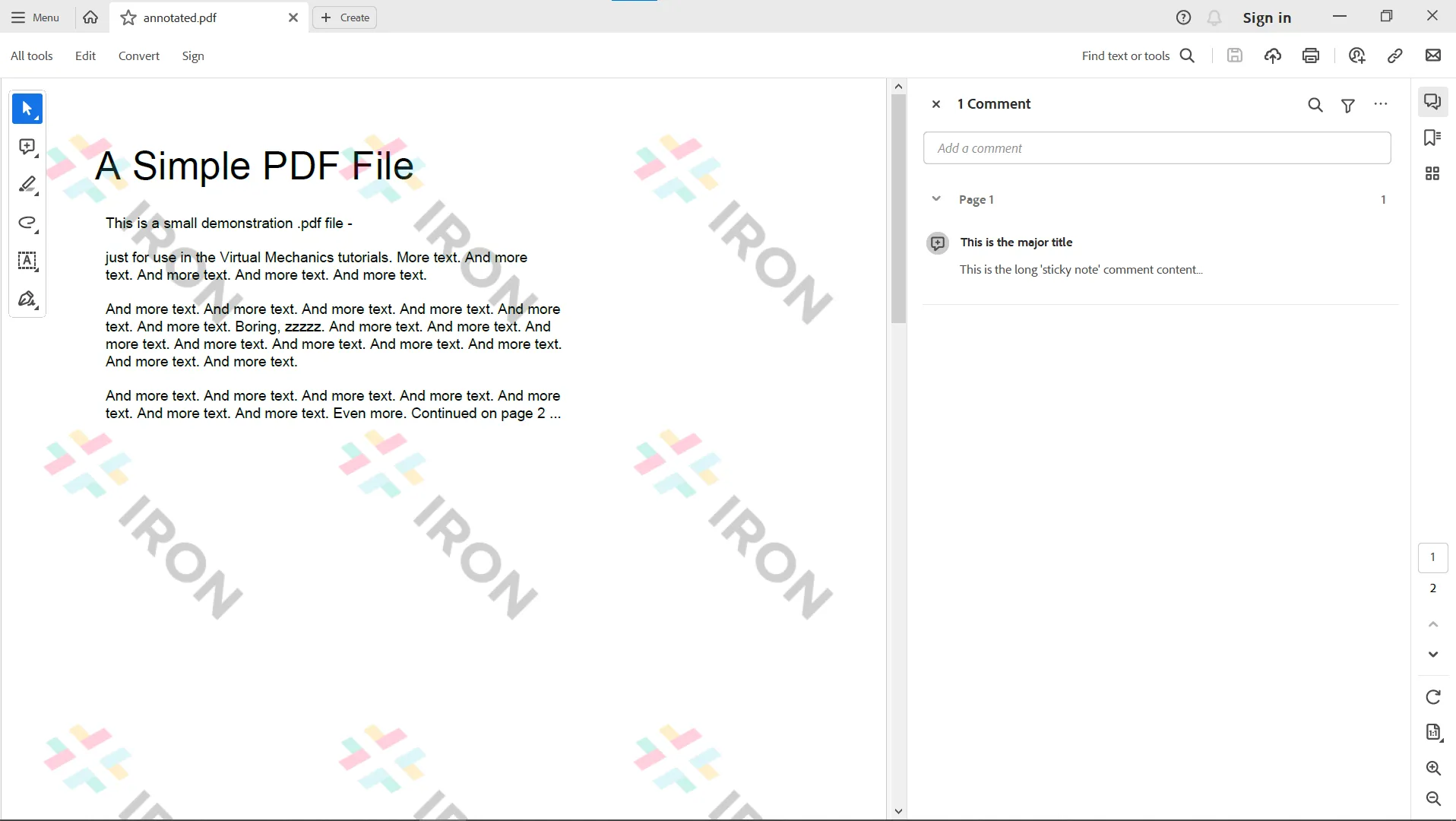
- Once the script is completed, you can find the annotated PDF ("annotated.pdf") in the same directory as your project.
Output:
The output PDF file
Conclusion
By following the steps outlined in this article, you can harness the power of IronPDF to automate your PDF annotation workflows and improve your document management processes. IronPDF simplifies the process of adding link annotations and editing existing annotations in PDF documents that are either spread across different pages or on the same page, and offers a robust set of tools for creating, modifying, and annotating programmatically.
Additionally, IronPDF offers you to build interactive PDF documents, fill out and send interactive forms, split and combine PDF files, extract text and images from PDF files, search for certain words within a PDF file, rasterize PDF pages to images, convert PDF to HTML, and print PDF files.
Start experimenting with IronPDF today, and see how it can transform your document management processes. IronPDF offers a free trial so you can test out its complete functionality before purchasing a license. Licenses start from $799, with the option to add on helpful extras. Download IronPDF for Python from the official website and start elevating your PDF projects today.
자주 묻는 질문
Python을 사용하여 PDF에 주석을 달려면 어떻게 해야 하나요?
라이브러리를 가져오고, PDF를 로드하고, 제목 및 내용과 같은 주석 매개변수를 설정하고, 주석을 추가하고, 업데이트된 PDF를 저장하여 IronPDF를 사용하여 Python으로 PDF에 주석을 달 수 있습니다.
Python과 함께 IronPDF를 사용하기 위한 시스템 요구 사항은 무엇인가요?
Python에서 PDF에 주석을 달기 위해 IronPDF를 사용하려면 Python, PyCharm과 같은 IDE, IronPDF 라이브러리 및 .NET 6.0 런타임이 설치되어 있어야 합니다.
Python에서 PDF 조작을 위한 IronPDF는 어떻게 설치하나요?
Python용 IronPDF를 설치하려면 터미널에서 pip install IronPDF 명령을 실행하세요.
Python에서 IronPDF를 사용하여 어떤 유형의 PDF 주석을 만들 수 있나요?
IronPDF를 사용하면 Python 라이브러리를 사용하여 텍스트 주석, 하이라이트, 링크, 파일 첨부, 도형, 이미지 및 스탬프와 같은 다양한 유형의 주석을 만들 수 있습니다.
Python에서 PDF 주석 작업을 자동화할 수 있나요?
예, IronPDF는 PDF 주석 작업의 자동화를 지원하여 Python 애플리케이션 내에서 PDF를 프로그래밍 방식으로 생성, 수정 및 관리할 수 있습니다.
IronPDF에 대한 평가판이 있나요?
예, IronPDF는 라이선스 구매를 결정하기 전에 기능을 살펴볼 수 있는 무료 평가판을 제공합니다.
IronPDF는 Python에서 PDF 관리를 위해 어떤 추가 기능을 제공하나요?
IronPDF는 대화형 PDF 만들기, 양식 채우기, 문서 분할 및 병합, 텍스트 및 이미지 추출, PDF를 HTML로 변환하는 등의 기능을 제공합니다.
PyCharm에서 PDF에 주석을 달기 위해 Python 스크립트를 실행하려면 어떻게 해야 하나요?
PyCharm에서는 스크립트 편집기 내에서 마우스 오른쪽 버튼을 클릭하고 'annotatePDF 실행'을 선택하여 스크립트를 실행할 수 있으며, 그 후 결과와 오류가 실행 콘솔에 표시됩니다.
Python용 IronPDF는 어디에서 다운로드할 수 있나요?
IronPDF는 IronPDF 공식 웹사이트에서 다운로드할 수 있으며, 여기에서 시작하는 데 필요한 파일과 설명서를 찾을 수 있습니다.
IronPDF로 Python에서 PDF에 텍스트 주석을 추가하는 과정은 어떻게 되나요?
IronPDF를 사용하여 PDF에 텍스트 주석을 추가하려면 PDF 문서를 로드하고 텍스트 내용 및 위치와 같은 주석 매개변수를 설정한 후 주석을 적용하고 업데이트된 문서를 저장합니다.