

Python에서 PDF 보고서를 생성하는 방법

Generating PDF file reports is a common requirement for data analysis and data scientists. IronPDF is a versatile library that enables the creation of PDF table files in Python code applications, similar to the FPDF library in PHP. This tutorial will guide you through using IronPDF to create and write reports in PDF from HTML templates or URLs, which can be time-consuming if not done correctly.
IronPDF: Python PDF Library
IronPDF is a comprehensive library designed for Python applications to create PDFs, edit, and extract content from PDF files. It's a powerful tool that caters to the needs of software engineers who often face the challenge of generating final results for PDF documents from various data sources or templates. With IronPDF, users can effortlessly transform HTML content or URLs into PDF files, manipulate PDF content, and integrate these capabilities into Python code projects, making it an essential library for any Python developer dealing with PDF generation and manipulation tasks.
IronPDF also allows you to build interactive forms, split and combine PDF files, extract text and images from PDF files, search for certain words within a PDF file, rasterize PDF pages to images, as well as print PDF files.
Prerequisites
The first step is to make sure you meet the following prerequisites:
- Python 3.7 or higher installed on your system.
- .NET 6.0 runtime installed since the IronPDF library relies on .NET 6.0 as its underlying technology.
You can install the .NET 6.0 runtime from the official .NET download page.
Installation
To use IronPDF, you need to install the package via pip:
pip install ironpdfpip install ironpdf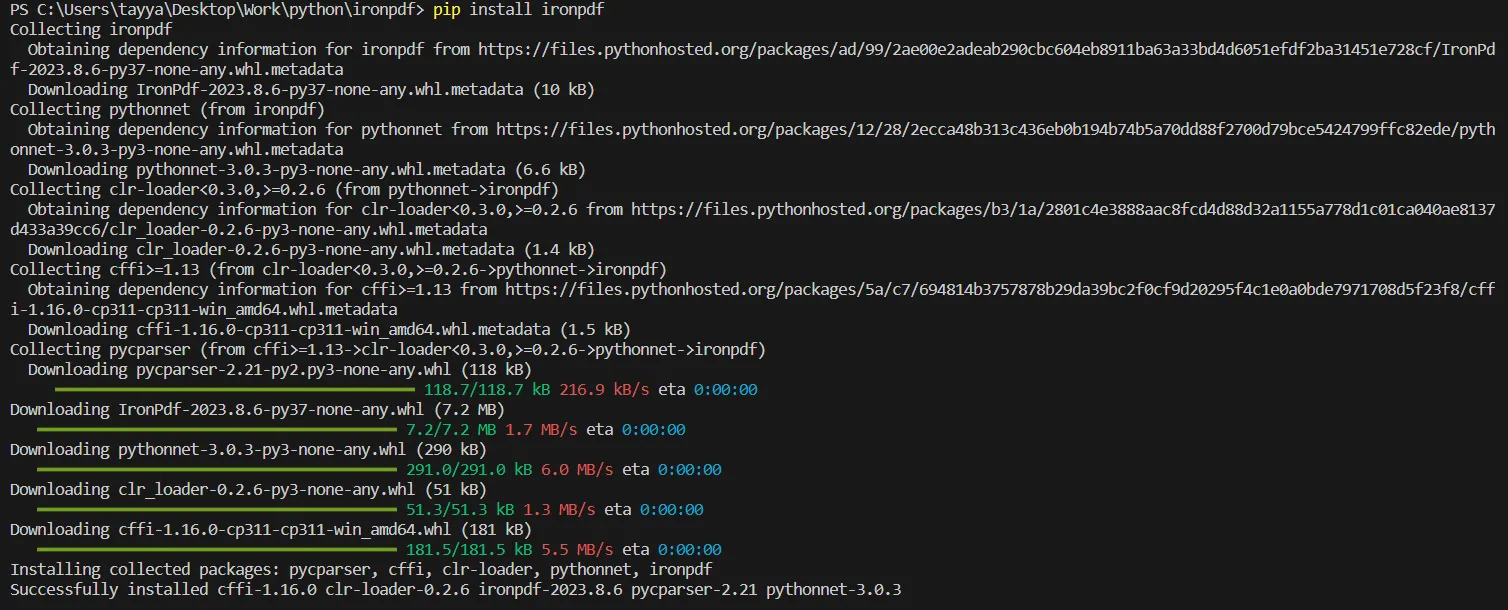 Install IronPDF
IronPDF will automatically download additional dependencies upon its first run.
Creating a Simple PDF Document
Here's a sample code example to generate a simple PDF document using an HTML template:
from ironpdf import ChromePdfRenderer

# Create a PDF renderer using the ChromePdfRenderer class
renderer = ChromePdfRenderer()

# Render an HTML string as a PDF document
pdf = renderer.RenderHtmlAsPdf("<h1>Hello World</h1>")

# Save the rendered PDF to a file
pdf.SaveAs("hello_world.pdf")
from ironpdf import ChromePdfRenderer
# Create a PDF renderer using the ChromePdfRenderer class
renderer = ChromePdfRenderer()
# Render an HTML string as a PDF document
pdf = renderer.RenderHtmlAsPdf("<h1>Hello World</h1>")
# Save the rendered PDF to a file
pdf.SaveAs("hello_world.pdf")This code snippet converts an HTML string into a PDF file and saves it in the same folder as your Python script.
Generating PDF from URL
IronPDF can also create a PDF from a web page URL with the following sample code:
from ironpdf import ChromePdfRenderer
# Create a PDF renderer using the ChromePdfRenderer class
renderer = ChromePdfRenderer()
# Render a URL as a PDF document
pdf = renderer.RenderUrlAsPdf("https://ironpdf.com/python/")
# Save the rendered PDF to a file
pdf.SaveAs("website_snapshot.pdf")from ironpdf import ChromePdfRenderer
# Create a PDF renderer using the ChromePdfRenderer class
renderer = ChromePdfRenderer()
# Render a URL as a PDF document
pdf = renderer.RenderUrlAsPdf("https://ironpdf.com/python/")
# Save the rendered PDF to a file
pdf.SaveAs("website_snapshot.pdf")Generating PDF Reports with Data Frames
Creating professional-looking PDF reports is straightforward with IronPDF and Python. Here's how you can generate an enhanced report using detailed data frames and customized HTML styling:
Step 1: Importing Libraries
First, you need to import the required libraries. ChromePdfRenderer from IronPDF is essential for the PDF generation process. This library enables the conversion of HTML content to PDF documents. Additionally, import pandas, a powerful data manipulation library, to create and manage data frames. Pandas will be used to structure your report data in a tabular format.
from ironpdf import ChromePdfRenderer
import pandas as pdfrom ironpdf import ChromePdfRenderer
import pandas as pdStep 2: License Key Configuration
Activating IronPDF requires setting your license key. This step is crucial as it unlocks all features of IronPDF, allowing you to generate PDFs without any watermarks or limitations. It's a simple yet vital step for professional use of the library.
License.LicenseKey = "Your-License-Key"License.LicenseKey = "Your-License-Key"Step 3: Creating a Data Frame
Here, you'll create a data frame using Pandas. This data frame acts as the data source for your report. The example provided includes detailed employee information, demonstrating Pandas' capability in handling and structuring complex data sets. The data frame can be customized based on the specifics of the report you intend to create.
data = {
'Employee ID': [101, 102, 103, 104],
'Name': ['John Doe', 'Alice Smith', 'Bob Johnson', 'Emily Davis'],
'Age': [28, 34, 45, 29],
'Department': ['Sales', 'HR', 'IT', 'Marketing'],
'City': ['New York', 'London', 'San Francisco', 'Berlin']
}
df = pd.DataFrame(data)data = {
'Employee ID': [101, 102, 103, 104],
'Name': ['John Doe', 'Alice Smith', 'Bob Johnson', 'Emily Davis'],
'Age': [28, 34, 45, 29],
'Department': ['Sales', 'HR', 'IT', 'Marketing'],
'City': ['New York', 'London', 'San Francisco', 'Berlin']
}
df = pd.DataFrame(data)Step 4: Designing the HTML Template
In this step, you'll design an HTML template with CSS styling. This template defines the visual presentation of your PDF report. CSS styling enhances the visual appeal and readability of the data presented in the report. The dynamic insertion of the data frame into this HTML template is handled through Python's string formatting.
# HTML styling for the PDF report
html_style = """
<html>
<head>
<style>
table, th, td {
border: 1px solid black;
border-collapse: collapse;
padding: 5px;
text-align: left;
}
th {
background-color: #f2f2f2;
}
</style>
</head>
<body>
## Company Employee Report
{table}
</body>
</html>
"""
# Replace {table} with the HTML representation of the data frame
html_content = html_style.format(table=df.to_html(index=False, border=0))# HTML styling for the PDF report
html_style = """
<html>
<head>
<style>
table, th, td {
border: 1px solid black;
border-collapse: collapse;
padding: 5px;
text-align: left;
}
th {
background-color: #f2f2f2;
}
</style>
</head>
<body>
## Company Employee Report
{table}
</body>
</html>
"""
# Replace {table} with the HTML representation of the data frame
html_content = html_style.format(table=df.to_html(index=False, border=0))Step 5: Rendering and Saving the PDF
Finally, use IronPDF's ChromePdfRenderer to convert the HTML content into a PDF document. The RenderHtmlAsPdf method processes the HTML and CSS, converting it into a PDF file. The SaveAs function is then used to save this file, resulting in a well-formatted, visually appealing PDF report. This step encapsulates the conversion process, combining the data and template into a final document.
# Render the HTML string to a PDF document
renderer = ChromePdfRenderer()
pdf = renderer.RenderHtmlAsPdf(html_content)
# Save the rendered PDF to a file
pdf.SaveAs("enhanced_employee_report.pdf")# Render the HTML string to a PDF document
renderer = ChromePdfRenderer()
pdf = renderer.RenderHtmlAsPdf(html_content)
# Save the rendered PDF to a file
pdf.SaveAs("enhanced_employee_report.pdf")Output
Here is the output report in PDF:
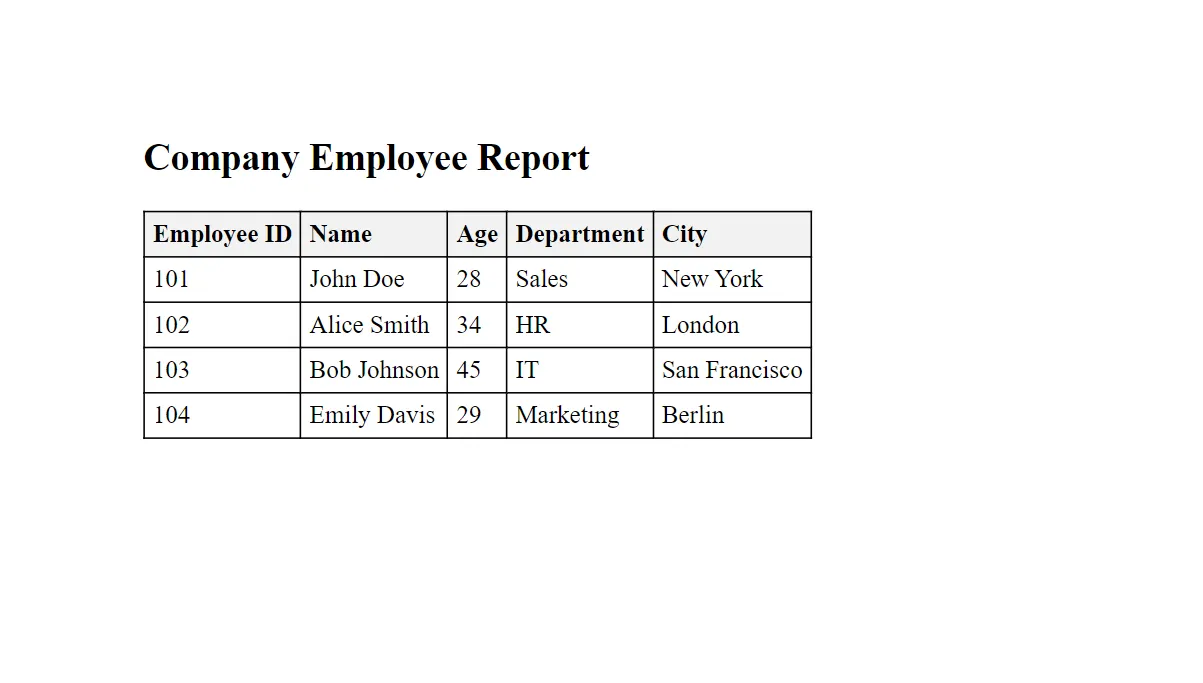 Company Employee Report
Creating a Simple PDF Document
Here's a sample code to generate a simple PDF document using an HTML template:
from ironpdf import ChromePdfRenderer

# Create a PDF renderer using the ChromePdfRenderer class
renderer = ChromePdfRenderer()

# Render an HTML string as a PDF document
pdf = renderer.RenderHtmlAsPdf("<h1>Hello World</h1>")

# Save the rendered PDF to a file
pdf.SaveAs("hello_world.pdf")from ironpdf import ChromePdfRenderer
# Create a PDF renderer using the ChromePdfRenderer class
renderer = ChromePdfRenderer()
# Render an HTML string as a PDF document
pdf = renderer.RenderHtmlAsPdf("<h1>Hello World</h1>")
# Save the rendered PDF to a file
pdf.SaveAs("hello_world.pdf")This code snippet converts an HTML string into a PDF file and saves it in the same folder as your Python script.
Generating PDF from URL
IronPDF can also create a PDF from a web page URL with the following sample code:
from ironpdf import ChromePdfRenderer

# Create a PDF renderer using the ChromePdfRenderer class
renderer = ChromePdfRenderer()

# Render a URL as a PDF document
pdf = renderer.RenderUrlAsPdf("https://ironpdf.com/python/")

# Save the rendered PDF to a file
pdf.SaveAs("website_snapshot.pdf")
from ironpdf import ChromePdfRenderer
# Create a PDF renderer using the ChromePdfRenderer class
renderer = ChromePdfRenderer()
# Render a URL as a PDF document
pdf = renderer.RenderUrlAsPdf("https://ironpdf.com/python/")
# Save the rendered PDF to a file
pdf.SaveAs("website_snapshot.pdf")This will save a PDF snapshot of the specified webpage.
Conclusion
IronPDF is a powerful tool for Python developers and data scientists to generate PDF reports. By following this guide, you can easily integrate PDF generation into your Python projects, whether you're creating PDFs from HTML templates, URLs, or data frames. Remember to explore IronPDF's extensive documentation and examples to leverage its full capabilities for your PDF tasks such as adding a pie chart.
Keep experimenting with different features and options IronPDF provides to create PDF reports that meet your needs. With the right approach, what seems like a time-consuming task can become an efficient and automated part of your workflow.
IronPDF offers a free trial, allowing users to fully explore its features before committing to a purchase. Additionally, it's free for development purposes, providing a cost-effective solution for developers during the development phase. For commercial deployment, licensing for IronPDF starts at $799, catering to professional and enterprise-level needs.
자주 묻는 질문
Python의 HTML 템플릿에서 PDF 보고서를 생성하려면 어떻게 해야 하나요?
IronPDF를 사용하면 ChromePdfRenderer 클래스를 사용하여 HTML 템플릿에서 PDF 보고서를 생성할 수 있습니다. 이 클래스를 사용하면 HTML 콘텐츠를 PDF로 렌더링하고 SaveAs 메서드를 사용하여 저장할 수 있습니다.
Python에서 PDF 생성을 위해 IronPDF를 사용하기 위한 전제 조건은 무엇인가요?
Python에서 PDF 생성을 위해 IronPDF를 사용하려면 공식 .NET 다운로드 페이지에서 다운로드할 수 있는 .NET 6.0 런타임과 함께 Python 3.7 이상이 설치되어 있어야 합니다.
Python 환경에 IronPDF를 설치하려면 어떻게 해야 하나요?
IronPDF는 pip 패키지 관리자를 사용하여 Python 환경에 설치할 수 있습니다. 터미널에서 pip install ironpdf 명령을 실행하면 필요한 패키지가 설치됩니다.
Python의 데이터 프레임에서 PDF를 만들 수 있나요?
예, IronPDF를 사용하여 Python의 데이터 프레임에서 PDF를 만들 수 있습니다. 필요한 라이브러리를 가져오고, 데이터 프레임을 만들고, 데이터를 나타내는 HTML 템플릿을 디자인한 다음 ChromePdfRenderer를 사용하여 PDF를 렌더링하고 저장하세요.
Python에서 URL을 PDF 문서로 변환할 수 있나요?
IronPDF를 사용하면 ChromePdfRenderer 클래스를 사용하여 URL을 PDF 문서로 변환할 수 있습니다. 이 클래스를 사용하면 URL을 PDF로 렌더링하고 문서를 파일로 저장할 수 있습니다.
Python에서 IronPDF 라이브러리의 고급 기능에는 어떤 것이 있나요?
IronPDF는 대화형 양식 작성, PDF 파일 분할 및 결합, 텍스트 및 이미지 추출, PDF 내 검색, 페이지를 이미지로 래스터화, PDF 파일 인쇄와 같은 고급 기능을 제공합니다.
Python에서 IronPDF 무료 평가판을 사용할 수 있나요?
예, IronPDF는 기능을 살펴볼 수 있는 무료 평가판을 제공합니다. 이 평가판은 개발 목적으로도 무료이므로 프로젝트의 초기 단계에서 경제적인 선택이 될 수 있습니다.
Python에서 PDF 생성 관련 문제를 해결하려면 어떻게 해야 하나요?
IronPDF를 사용하여 PDF를 생성할 때 문제가 발생하면 올바른 버전의 Python 및 .NET 런타임이 설치되어 있는지 확인하세요. 또한 필요한 모든 종속성이 올바르게 설치 및 구성되었는지 확인하세요.










 무료로 시작하세요
 무료로 시작하세요
 무료 라이브 데모 예약하기



 신용카드나 계정 생성은 필요하지 않습니다.









