Python에서 PDF 파일을 보는 방법
This article will explore how to view PDF files in Python using the IronPDF library.
IronPDF - Python Library
IronPDF is a powerful Python library that enables developers to work with PDF files programmatically. With IronPDF, you can easily generate, manipulate, and extract data from PDF documents, making it a versatile tool for various PDF-related tasks. Whether you need to create PDFs from scratch, modify existing PDFs, or extract content from PDFs, IronPDF provides a comprehensive set of features to simplify your workflow.
Some features of the IronPDF for Python library include:
- Create new PDF file from scratch using HTML or URL
- Edit existing PDF files
- Rotate PDF pages
- Extract text, metadata, and images from PDF files
- Convert PDF files to other formats
- Secure PDF files with passwords and restrictions
- Split and merge PDFs
Note: IronPDF produces a watermarked PDF data file. To remove the watermark, you need to license IronPDF. If you wish to use a licensed version of IronPDF, visit the IronPDF website to obtain a license key.
Prerequisites
Before working with IronPDF in Python, there are a few prerequisites:
- Python Installation: Ensure that you have Python installed on your system. IronPDF is compatible with Python 3.x versions, so make sure you have a compatible Python installation.
IronPDF Library: Install the IronPDF library to access its functionality. You can install it using the Python package manager (pip) by executing the following command in your command-line interface:
pip install ironpdfpip install ironpdfSHELLTkinter Library: Tkinter is the standard GUI toolkit for Python. It is used for creating the graphical user interface for the PDF viewer in the provided code snippet. Tkinter usually comes pre-installed with Python, but if you encounter any issues, you can install it using the package manager:
pip install tkinterpip install tkinterSHELLPillow Library: The Pillow library is a fork of the Python Imaging Library (PIL) and provides additional image processing capabilities. It is used in the code snippet to load and display the images extracted from the PDF. Install Pillow using the package manager:
pip install pillowpip install pillowSHELL- Integrated Development Environment (IDE): Using an IDE to handle Python projects can greatly enhance your development experience. It provides features like code completion, debugging, and a more streamlined workflow. One popular IDE for Python development is PyCharm. You can download and install PyCharm from the JetBrains website (https://www.jetbrains.com/pycharm/).
- Text Editor: Alternatively, if you prefer to work with a lightweight text editor, you can use any text editor of your choice, such as Visual Studio Code, Sublime Text, or Atom. These editors provide syntax highlighting and other useful features for Python development. You can also use Python's own IDE App for creating Python scripts.
Creating a PDF Viewer Project using PyCharm
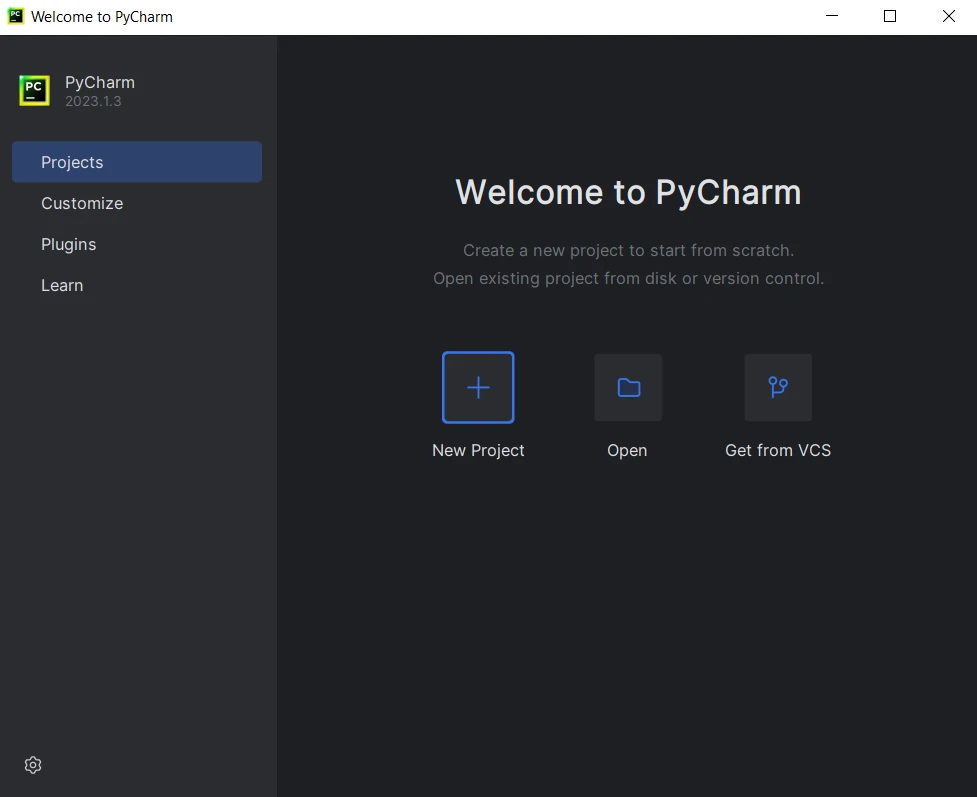
After installing PyCharm IDE, create a PyCharm Python project by following the steps below:
- Launch PyCharm: Open PyCharm from your system's application launcher or desktop shortcut.
Create a New Project: Click on "Create New Project" or open an existing Python project.
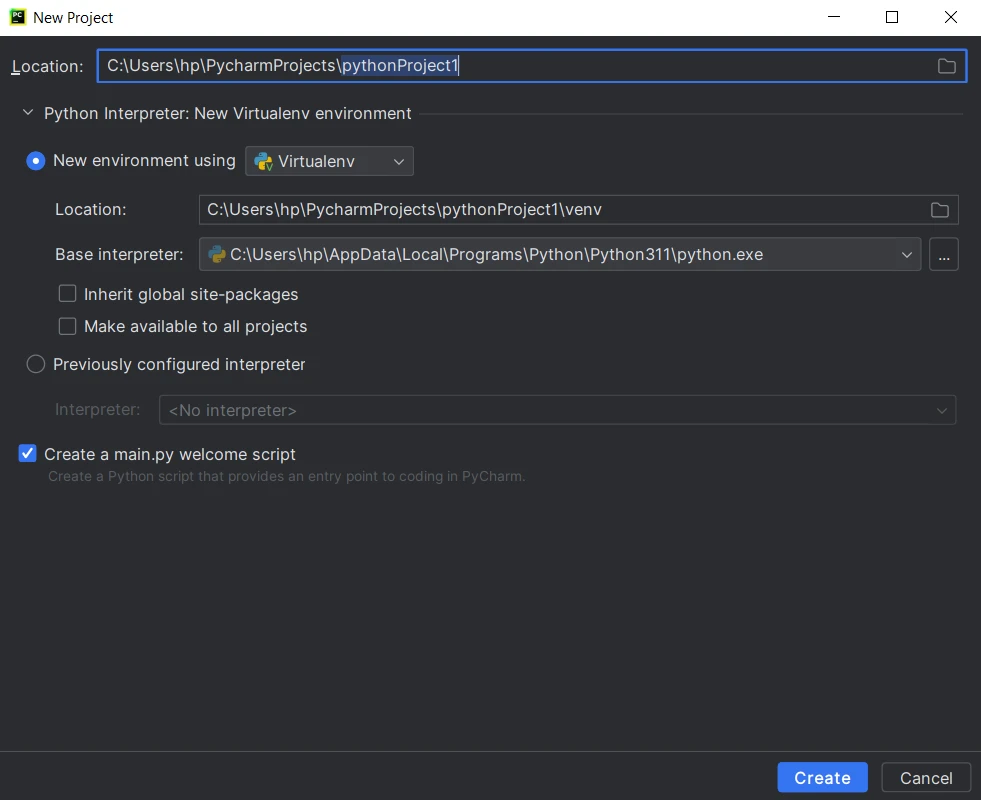
PyCharm IDEConfigure Project Settings: Provide a name for your project and choose the location to create the project directory. Select the Python interpreter for your project. Then click "Create".
Create a new Python project- Create Source Files: PyCharm will create the project structure, including a main Python file and a directory for additional source files. Start writing code and click the run button or press Shift+F10 to execute the script.
Steps to View PDF Files in Python using IronPDF
Import the required libraries
To begin, import the necessary libraries. In this case, the os, shutil, ironpdf, tkinter, and PIL libraries will be needed. The os and shutil libraries are used for file and folder operations, ironpdf is the library for working with PDF files, tkinter is used for creating the graphical user interface (GUI), and PIL is used for image manipulation.
import os
import shutil
import ironpdf
from tkinter import *
from PIL import Image, ImageTkimport os
import shutil
import ironpdf
from tkinter import *
from PIL import Image, ImageTkConvert PDF Document to Images
Next, define a function called convert_pdf_to_images. This function takes the path of the PDF file as input. Inside the function, the IronPDF library is used to load the PDF document from the file. Then, specify a folder path to store the extracted image files. IronPDF's pdf.RasterizeToImageFiles method is used to convert each PDF page of the PDF to an image file and save it in the specified folder. A list is used to store the image paths. The complete code example is as follows:
def convert_pdf_to_images(pdf_file):
"""Convert each page of a PDF file to an image."""
pdf = ironpdf.PdfDocument.FromFile(pdf_file)
# Extract all pages to a folder as image files
folder_path = "images"
pdf.RasterizeToImageFiles(os.path.join(folder_path, "*.png"))
# List to store the image paths
image_paths = []
# Get the list of image files in the folder
for filename in os.listdir(folder_path):
if filename.lower().endswith((".png", ".jpg", ".jpeg", ".gif")):
image_paths.append(os.path.join(folder_path, filename))
return image_pathsdef convert_pdf_to_images(pdf_file):
"""Convert each page of a PDF file to an image."""
pdf = ironpdf.PdfDocument.FromFile(pdf_file)
# Extract all pages to a folder as image files
folder_path = "images"
pdf.RasterizeToImageFiles(os.path.join(folder_path, "*.png"))
# List to store the image paths
image_paths = []
# Get the list of image files in the folder
for filename in os.listdir(folder_path):
if filename.lower().endswith((".png", ".jpg", ".jpeg", ".gif")):
image_paths.append(os.path.join(folder_path, filename))
return image_pathsTo extract text from PDF documents, visit this code examples page.
Handle Window Closure
To clean up the extracted image files when the application window is closed, define an on_closing function. Inside this function, use the shutil.rmtree() method to delete the entire images folder. Next, set this function as the protocol to be executed when the window is closed. The following code helps achieve the task:
def on_closing():
"""Handle the window closing event by cleaning up the images."""
# Delete the images in the 'images' folder
shutil.rmtree("images")
window.destroy()
window.protocol("WM_DELETE_WINDOW", on_closing)def on_closing():
"""Handle the window closing event by cleaning up the images."""
# Delete the images in the 'images' folder
shutil.rmtree("images")
window.destroy()
window.protocol("WM_DELETE_WINDOW", on_closing)Create the GUI Window
Now, let's create the main GUI window using the Tk() constructor, set the window title to "Image Viewer," and set the on_closing() function as the protocol to handle window closure.
window = Tk()
window.title("Image Viewer")
window.protocol("WM_DELETE_WINDOW", on_closing)window = Tk()
window.title("Image Viewer")
window.protocol("WM_DELETE_WINDOW", on_closing)Create a Scrollable Canvas
To display the images and enable scrolling, create a Canvas widget. The Canvas widget is configured to fill the available space and expand in both directions using pack(side=LEFT, fill=BOTH, expand=True). Additionally, create a Scrollbar widget and configure it to control the vertical scrolling of all the pages and canvas.
canvas = Canvas(window)
canvas.pack(side=LEFT, fill=BOTH, expand=True)
scrollbar = Scrollbar(window, command=canvas.yview)
scrollbar.pack(side=RIGHT, fill=Y)
canvas.configure(yscrollcommand=scrollbar.set)
# Update the scrollregion to encompass the entire canvas
canvas.bind("<Configure>", lambda e: canvas.configure(
scrollregion=canvas.bbox("all")))
# Configure the vertical scrolling using mouse wheel
canvas.bind_all("<MouseWheel>", lambda e: canvas.yview_scroll(
int(-1*(e.delta/120)), "units"))canvas = Canvas(window)
canvas.pack(side=LEFT, fill=BOTH, expand=True)
scrollbar = Scrollbar(window, command=canvas.yview)
scrollbar.pack(side=RIGHT, fill=Y)
canvas.configure(yscrollcommand=scrollbar.set)
# Update the scrollregion to encompass the entire canvas
canvas.bind("<Configure>", lambda e: canvas.configure(
scrollregion=canvas.bbox("all")))
# Configure the vertical scrolling using mouse wheel
canvas.bind_all("<MouseWheel>", lambda e: canvas.yview_scroll(
int(-1*(e.delta/120)), "units"))Create a Frame for Images
Next, create a Frame widget inside the canvas to hold the images by using create_window() to place the frame within the canvas. The (0, 0) coordinates and anchor='nw' parameter ensure that the frame starts in the top left corner of the canvas.
frame = Frame(canvas)
canvas.create_window((0, 0), window=frame, anchor="nw")frame = Frame(canvas)
canvas.create_window((0, 0), window=frame, anchor="nw")Convert PDF file to Images and Display
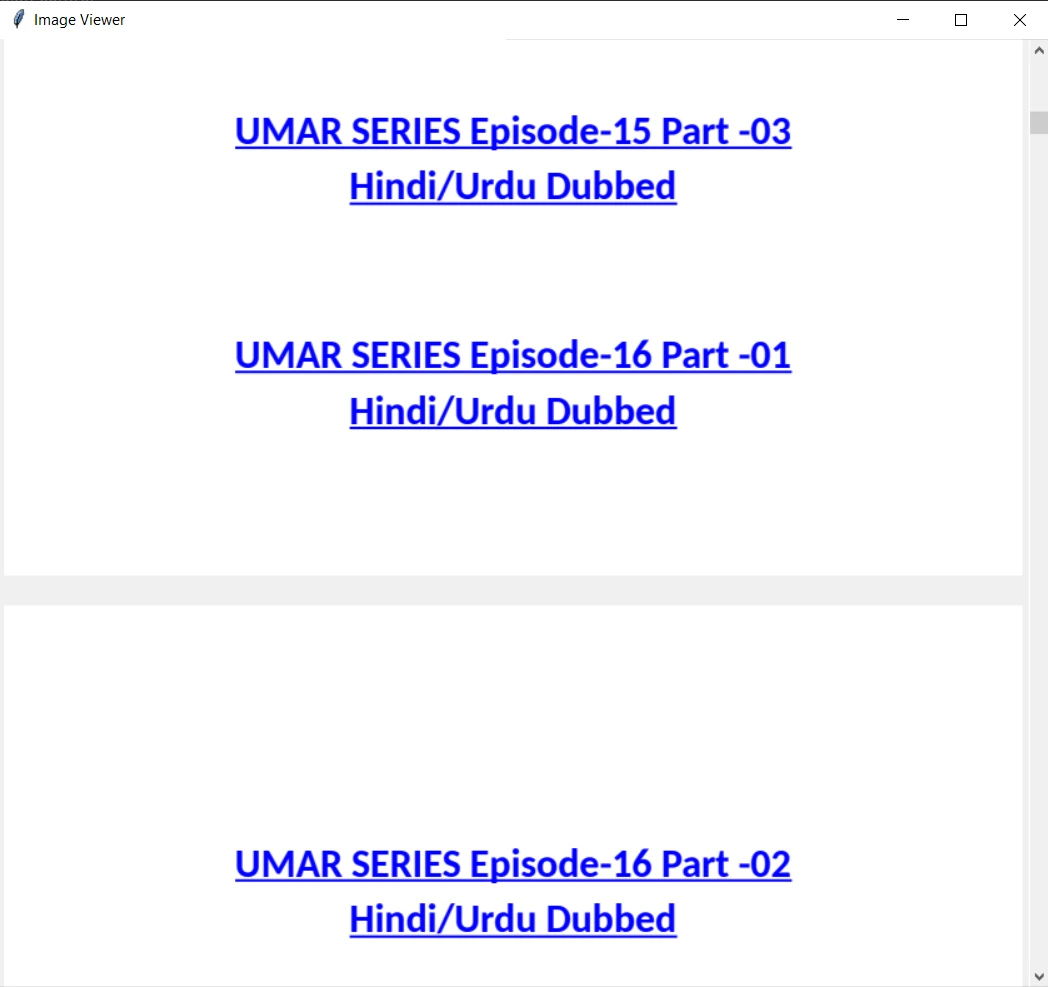
The next step is to call the convert_pdf_to_images() function with the file path name of the input PDF file. This function extracts the PDF pages as images and returns a list of image paths. By iterating through the image paths and loading each image using the Image.open() method from the PIL library, a PhotoImage object is created using ImageTk.PhotoImage(). Then create a Label widget to display the image.
images = convert_pdf_to_images("input.pdf")
# Load and display the images in the Frame
for image_path in images:
image = Image.open(image_path)
photo = ImageTk.PhotoImage(image)
label = Label(frame, image=photo)
label.image = photo # Store a reference to prevent garbage collection
label.pack(pady=10)images = convert_pdf_to_images("input.pdf")
# Load and display the images in the Frame
for image_path in images:
image = Image.open(image_path)
photo = ImageTk.PhotoImage(image)
label = Label(frame, image=photo)
label.image = photo # Store a reference to prevent garbage collection
label.pack(pady=10)
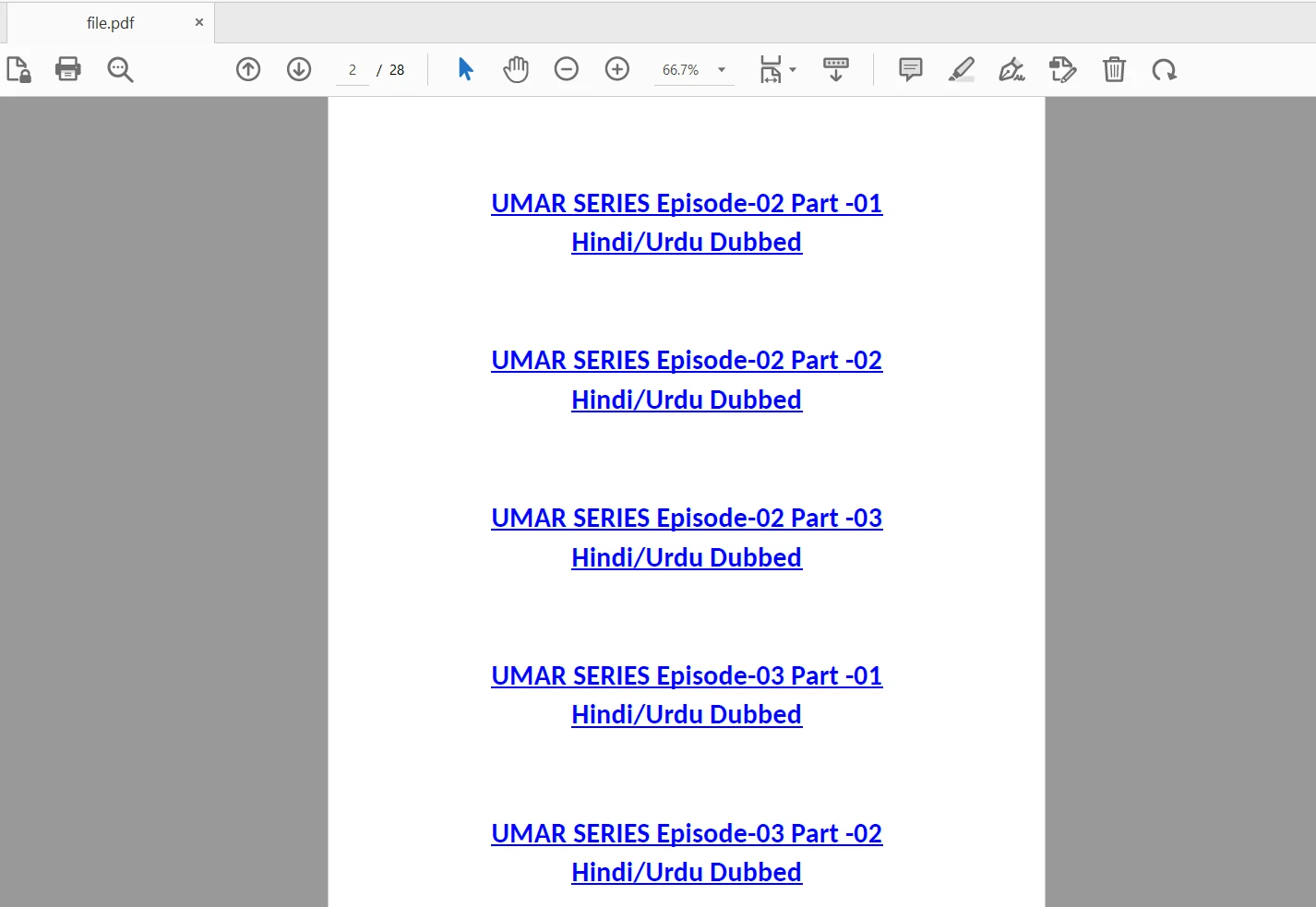
The input file
Run the GUI Main Loop
Finally, let's run the main event loop using window.mainloop(). This ensures that the GUI window remains open and responsive until it is closed by the user.
window.mainloop()window.mainloop()
The UI output
Conclusion
This tutorial explored how to view PDF documents in Python using the IronPDF library. It covered the steps required to open a PDF file and convert it to a series of image files, then display them in a scrollable canvas, and handle the cleanup of extracted images when the application is closed.
For more details on the IronPDF for Python library, please refer to the documentation.
Download and install IronPDF for Python library and also get a free trial to test out its complete functionality in commercial development.
자주 묻는 질문
Python에서 PDF 파일을 보려면 어떻게 해야 하나요?
IronPDF 라이브러리를 사용하여 Python에서 PDF 파일을 볼 수 있습니다. 이 라이브러리를 사용하면 PDF 페이지를 이미지로 변환한 다음 Tkinter를 사용하여 GUI 애플리케이션에 표시할 수 있습니다.
Python에서 PDF 뷰어를 만들려면 어떤 단계가 필요하나요?
Python에서 PDF 뷰어를 만들려면 IronPDF를 설치하고, GUI에는 Tkinter를, 이미지 처리에는 Pillow를 사용해야 합니다. IronPDF를 사용하여 PDF 페이지를 이미지로 변환하고 Tkinter로 만든 스크롤 가능한 캔버스에 표시합니다.
Python 프로젝트에서 사용하기 위해 IronPDF를 설치하려면 어떻게 해야 하나요?
터미널 또는 명령 프롬프트에서 pip install ironpdf 명령을 실행하여 pip를 사용하여 IronPDF를 설치할 수 있습니다.
Python으로 PDF 뷰어 애플리케이션을 구축하려면 어떤 라이브러리가 필요하나요?
PDF 처리를 위한 IronPDF, GUI를 위한 Tkinter, 이미지 처리를 위한 Pillow가 필요합니다.
Python을 사용하여 PDF에서 이미지를 추출할 수 있나요?
예, IronPDF를 사용하면 PDF에서 이미지를 추출한 다음 Pillow 라이브러리를 사용하여 처리하거나 표시할 수 있습니다.
Python에서 PDF 페이지를 이미지로 변환하려면 어떻게 해야 하나요?
IronPDF의 기능을 사용하여 PDF 페이지를 이미지 형식으로 변환한 다음 Python 애플리케이션에서 조작하거나 표시할 수 있습니다.
Python PDF 뷰어 애플리케이션에서 창 닫기를 처리하려면 어떻게 해야 하나요?
PDF 뷰어 애플리케이션에서는 추출된 이미지를 정리하고 모든 리소스가 제대로 해제되었는지 확인하여 창 닫힘을 처리할 수 있는데, 이때 Tkinter의 이벤트 처리 기능을 사용하는 경우가 많습니다.
Python에서 PDF 파일을 보호하려면 어떻게 해야 하나요?
IronPDF는 PDF 파일에 비밀번호와 사용 제한을 추가하여 PDF 보안을 강화할 수 있는 옵션을 제공합니다.
PDF 보기 애플리케이션에서 Tkinter를 사용하면 어떤 이점이 있나요?
Tkinter를 사용하면 PDF 뷰어를 위한 사용자 친화적인 그래픽 인터페이스를 만들 수 있으며, 스크롤 가능한 보기와 같은 기능을 통해 PDF 페이지를 탐색할 수 있습니다.
PDF 프로젝트에서 Pillow를 사용하는 목적은 무엇인가요?
Pillow는 PDF 파일에서 추출한 이미지를 로딩하고 표시하는 등 이미지 처리를 위한 PDF 프로젝트에서 IronPDF를 사용합니다.