


APITemplate io i IronPDF Porównanie bibliotek C# PDF

Jako programista C# często napotykałem trudności podczas generowania i edycji plików PDF w moich projektach. Potrzeba wydajnych, niezawodnych i łatwych do zintegrowania rozwiązań do obsługi plików PDF jest powszechnym problemem w naszej branży. Dlatego postanowiłem przyjrzeć się APITemplate i IronPDF, dwóm popularnym narzędziom, które obiecują uproszczenie zadań związanych z plikami PDF w aplikacjach napisanych w języku C#.
W tym artykule podzielę się moimi praktycznymi doświadczeniami z APITemplate i IronPDF, porównując ich funkcje, wydajność i możliwości integracji. Moim celem jest dostarczenie Państwu jasnej, obiektywnej analizy, która pomoże Państwu podjąć świadomą decyzję dotyczącą kolejnego projektu. Kiedy po raz pierwszy zetknąłem się z APITemplate i IronPDF, zaintrygował mnie ich potencjał w zakresie rozwiązywania problemów związanych z plikami PDF w programowaniu w języku C#. Przyjrzyjmy się, co oferuje każde z tych narzędzi.
APITemplate
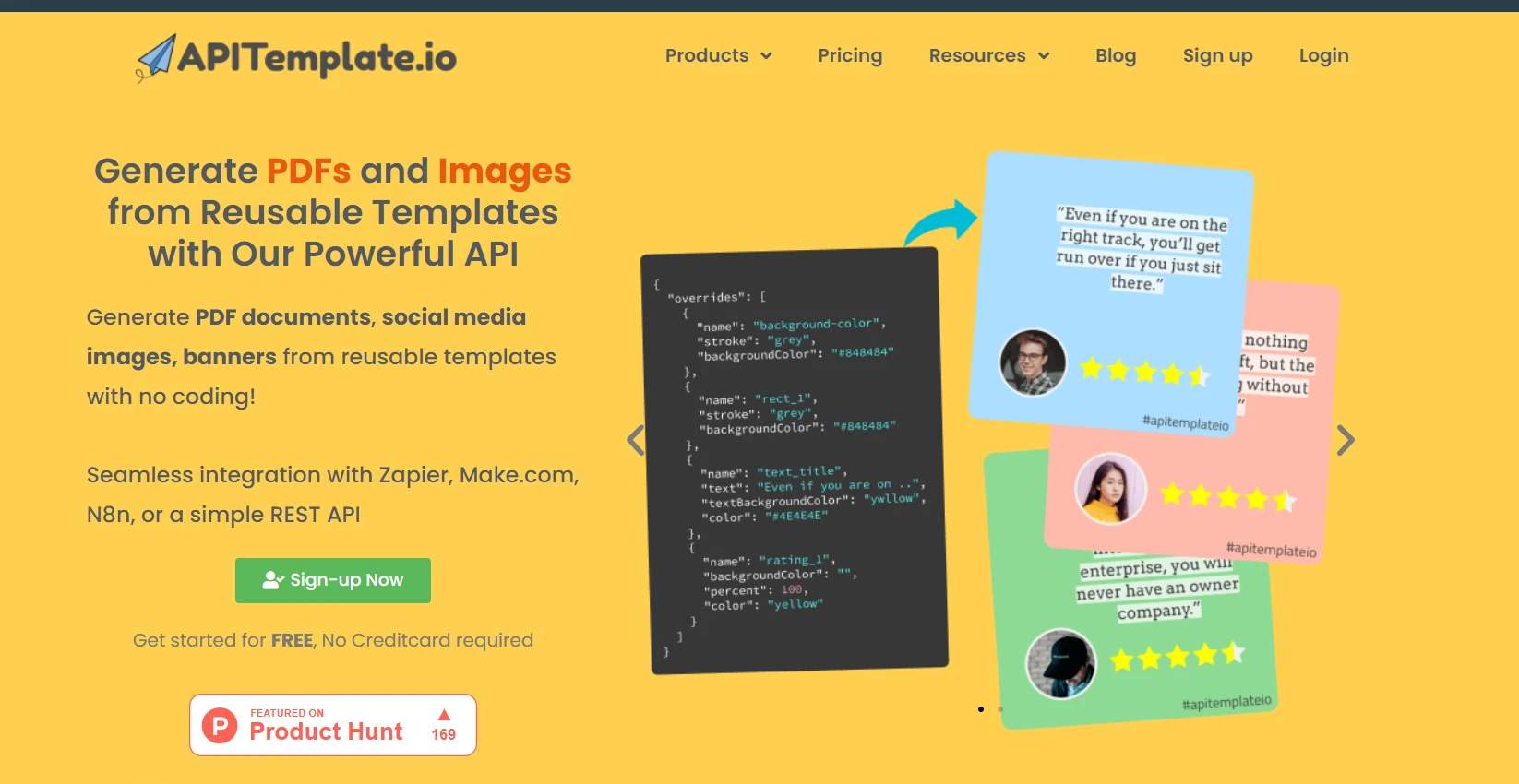
APITemplate to usługa oparta na chmurze, która koncentruje się na generowaniu plików PDF i obrazów na podstawie szablonów. Zapewnia interfejs API, który pozwala programistom tworzyć dokumenty i grafiki poprzez wysyłanie danych JSON do predefiniowanych szablonów. Podczas wstępnych testów stwierdziłem, że APITemplate jest prosty w użyciu. Mogłem utworzyć szablon za pomocą ich interfejsu internetowego, a następnie użyć ich API, aby wypełnić go danymi z mojej aplikacji C#.
Kluczowe cechy APITemplate
Generowanie oparte na szablonach
Główną zaletą APITemplate jest podejście oparte na szablonach. Potrafię tworzyć szablony dokumentów i obrazów, które można ponownie wykorzystać, co pozwala mi zaoszczędzić mnóstwo czasu przy powtarzalnych zadaniach. Oferuje również edytor szablonów Markdown do generowania plików PDF. Możesz generować pliki PDF z gotowych szablonów zintegrowanych z Zapier i innymi narzędziami zewnętrznymi.
Integracja danych JSON
Integracja danych JSON to jedna z funkcji, z której często korzystam. Daje to możliwość wypełniania szablonów danymi JSON. Dzięki temu integracja z moimi aplikacjami C# jest niezwykle łatwa, ponieważ mogę serializować moje obiekty do formatu JSON i wysyłać je do API.
Konsola API
Funkcja konsoli API pozwoliła mi zaoszczędzić sporo czasu. Dzięki temu mogę przeglądać i testować wywołania API bezpośrednio z ich strony internetowej, co pomaga mi debugować i dopracowywać moje żądania przed wdrożeniem ich w moim kodzie C#.
Konfigurowalne nagłówki i stopki
Możliwość dodawania niestandardowych nagłówków i stopek do moich plików PDF okazała się bardzo przydatna, zwłaszcza podczas tworzenia profesjonalnych raportów lub faktur. Mogę z łatwością uwzględnić numery stron, daty lub logo firm.
IronPDF
Z kolei IronPDF to biblioteka .NET zaprojektowana specjalnie do manipulacji plikami PDF w aplikacjach napisanych w języku C#. Oferuje szeroki zakres funkcji, w tym tworzenie, edycję i konwersję plików PDF. Jedną z jego wyróżniających się funkcji jest możliwość generowania plików PDF z HTML, co może być niezwykle przydatne w przypadku aplikacji internetowych.
Moje pierwsze doświadczenie z IronPDF polegało na zainstalowaniu go za pośrednictwem NuGet i zintegrowaniu bezpośrednio z moim projektem C#. Proces integracji API przebiega bardzo płynnie, co oznacza, że mogłem błyskawicznie uruchomić to narzędzie w moich projektach. Byłem pod wrażeniem tego, jak łatwo mogłem tworzyć pliki PDF programowo, bez konieczności korzystania z usług zewnętrznych.
Kluczową różnicą, jaką zauważyłem, jest to, że APITemplate doskonale sprawdza się w tworzeniu dokumentów na podstawie predefiniowanych szablonów, podczas gdy IronPDF oferuje większą elastyczność w zakresie niestandardowej manipulacji plikami PDF w kodzie C#. Dzięki temu, że APITemplate działa w chmurze, nie musisz martwić się o zasoby serwera do generowania plików PDF, ale potrzebujesz połączenia z internetem. IronPDF, jako biblioteka lokalna, może działać w trybie offline, ale wykorzystuje zasoby serwera.
Najważniejsze cechy IronPDF
Tworzenie plików PDF z HTML
IronPDF doskonale sprawdza się w generowaniu plików PDF z treści HTML. Korzystałem z tej funkcji na szeroką skalę do dynamicznego tworzenia raportów i dokumentów. Wystarczy po prostu przekazać do biblioteki ciągi HTML lub nawet adresy URL. Szerokie wsparcie IronPDF dla nowoczesnych standardów internetowych sprawiło, że każdy plik PDF wygenerowany przeze mnie z treści HTML był dokumentem wysokiej jakości.
Manipulacja plikami PDF
Ta funkcja pozwala mi edytować istniejące pliki PDF programowo. Mogę dodawać tekst, obrazy, a nawet nowe strony do dokumentów PDF, co jest niezwykle przydatne przy aktualizowaniu raportów lub formularzy.
Łączenie i dzielenie plików PDF
Ta funkcja okazała się dla mnie szczególnie przydatna podczas pracy z dużymi dokumentami. IronPDF ułatwia łączenie wielu plików PDF w jeden lub dzielenie pojedynczego pliku PDF na kilka plików.
Wyodrębnianie tekstu
Kiedy potrzebuję wyodrębnić treść tekstową z plików PDF w celu analizy lub indeksowania, przydają się funkcje ekstrakcji tekstu programu IronPDF. Dobrze radzi sobie z różnymi układami plików PDF, dzięki czemu wyciąganie danych jest dziecinnie proste.
Wypełnianie formularzy
W przypadku projektów związanych z automatycznym wypełnianiem formularzy bardzo przydatna jest funkcja wypełniania formularzy IronPDF. Mogę wypełniać formularze PDF programowo i zaoszczędzić czas na ręcznym wprowadzaniu danych.
Podpisy cyfrowe
W wielu moich projektach bezpieczeństwo ma kluczowe znaczenie. IronPDF pozwala mi dodawać podpisy cyfrowe do plików PDF, zwiększając autentyczność i bezpieczeństwo dokumentów.
Ochrona hasłem
W przypadku dokumentów wrażliwych używam IronPDF do dodawania ochrony hasłem do plików PDF. Jest to niezwykle pomocne w zapewnieniu bezpieczeństwa moich poufnych informacji.
Konwersja plików PDF na obrazy
Czasami muszę konwertować strony PDF na obrazy w celu wyświetlenia podglądu lub miniatur. IronPDF sprawia, że proces ten jest prosty, wymaga ode mnie tylko kilku linii kodu i obsługuje różne formaty obrazów.
Kompatybilność międzyplatformowa
Jako programista .NET pracujący nad projektami wieloplatformowymi doceniam to, że IronPDF działa płynnie na różnych systemach operacyjnych dzięki obsłudze .NET Standard.
Skonfiguruj IronPDF i APITemplate dla swojego projektu C
Konfiguracja tych narzędzi w projekcie C# jest dość prosta. Opiszę proces zarówno dla IronPDF, jak i APITemplate w oparciu o moje doświadczenie.
IronPDF
Aby skonfigurować IronPDF w moich projektach C#, wykonuję następujące kroki:
-
Otwórz mój projekt w Visual Studio.
-
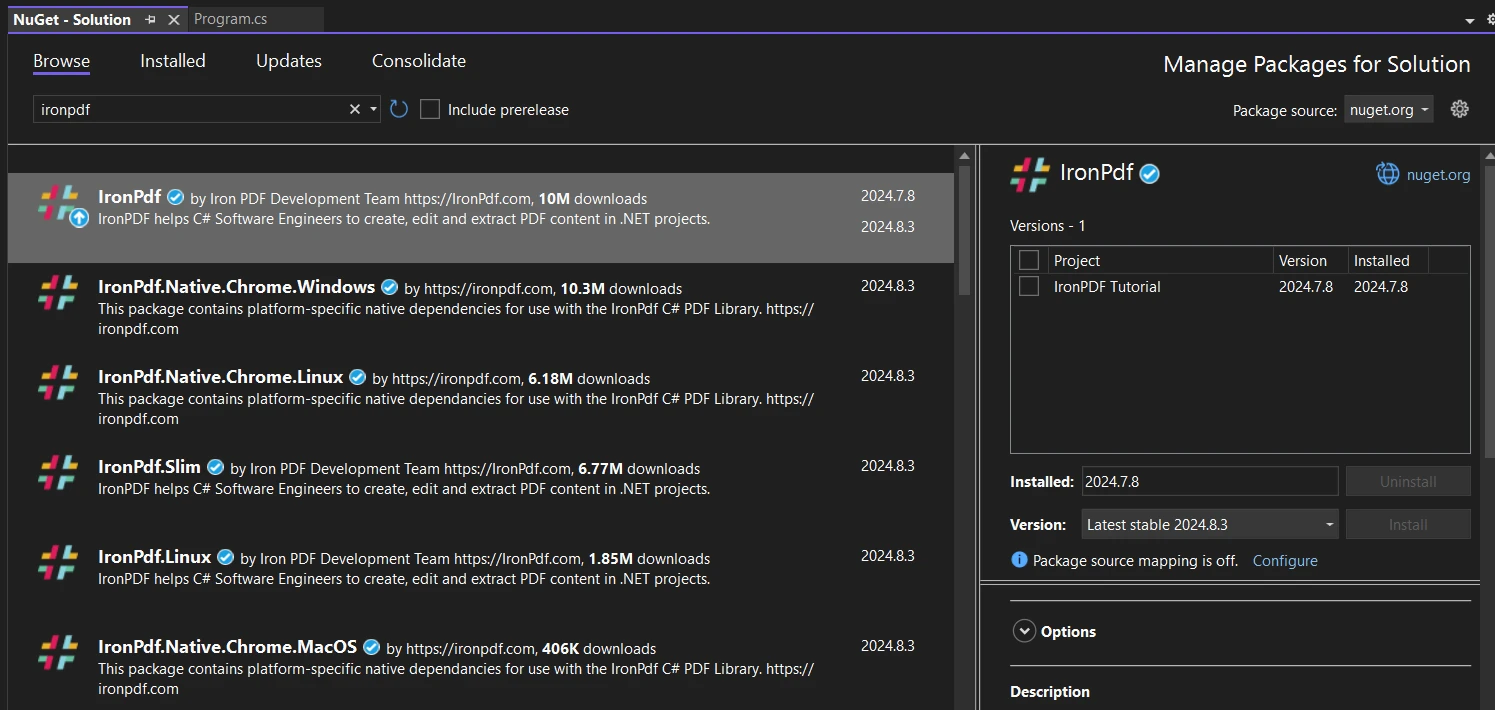
Użyj menedżera pakietów NuGet, aby zainstalować IronPDF. Korzystam albo z menedżera pakietów NuGet, albo z konsoli menedżera pakietów.
- W menedżerze pakietów NuGet wyszukaj IronPDF i zainstaluj go.
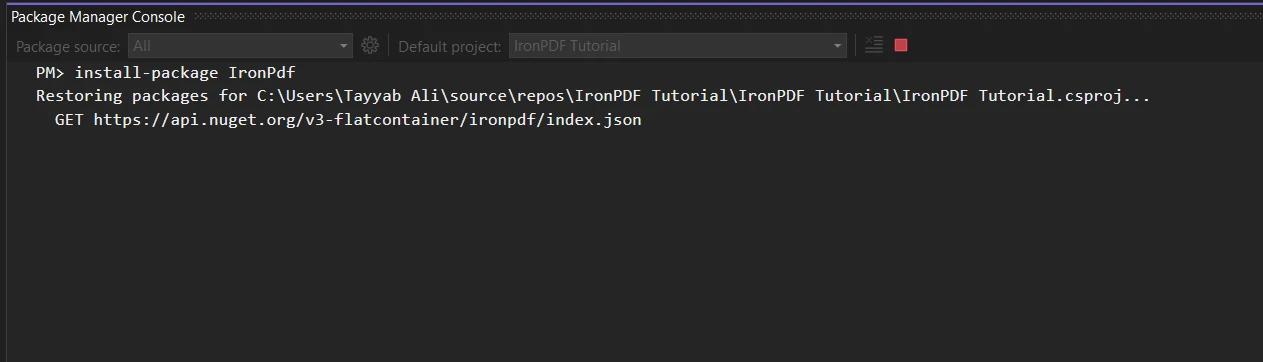
- Alternatywnie, w konsoli menedżera pakietów uruchamiam:
Install-Package IronPdf
-
Po instalacji dodaję niezbędną instrukcję using na początku pliku C#:
using IronPdf;using IronPdf;Imports IronPdf$vbLabelText $csharpLabel -
Aby aktywować licencję, dodaję ten wiersz na początku uruchamiania mojej aplikacji:
IronPdf.License.LicenseKey = "YOUR-LICENSE-KEY-HERE";IronPdf.License.LicenseKey = "YOUR-LICENSE-KEY-HERE";IronPdf.License.LicenseKey = "YOUR-LICENSE-KEY-HERE"$vbLabelText $csharpLabel
To wszystko! Teraz mogę zacząć używać IronPDF w moim kodzie.
APITemplate
W przypadku APITemplate proces konfiguracji jest nieco inny, ponieważ jest to API oparte na sieci WWW:
- Najpierw zakładam konto APITemplate na ich stronie internetowej.
- Po zarejestrowaniu się przechodzę do sekcji API, aby uzyskać swój klucz API.
-
W moim projekcie C# nie muszę instalować żadnego konkretnego pakietu. Zazwyczaj używam wbudowanego HttpClient do wykonywania wywołań API.
-
Przechowuję klucz API w bezpieczny sposób. Podczas pracy mogę używać tajnych danych użytkownika:
dotnet user-secrets set "APITemplate:ApiKey" "YOUR-API-KEY-HERE"dotnet user-secrets set "APITemplate:ApiKey" "YOUR-API-KEY-HERE"SHELL -
W moim kodzie skonfigurowałem HttpClient przy użyciu klucza API:
using System.Net.Http;
using System.Net.Http.Headers;

var client = new HttpClient();
client.DefaultRequestHeaders.Add("X-API-KEY", Configuration["APITemplate:ApiKey"]);
using System.Net.Http; using System.Net.Http.Headers; var client = new HttpClient(); client.DefaultRequestHeaders.Add("X-API-KEY", Configuration["APITemplate:ApiKey"]);Imports System.Net.Http Imports System.Net.Http.Headers Private client = New HttpClient() client.DefaultRequestHeaders.Add("X-API-KEY", Configuration("APITemplate:ApiKey"))$vbLabelText $csharpLabel - Teraz jestem gotowy do wysyłania wywołań API do APITemplate.
W tym projekcie wykorzystam oficjalny przykładowy projekt APITemplate z serwisu GitHub, który jest już skonfigurowany i wystarczy tylko dodać klucz szablonu. Po zakończeniu tych przygotowań mogę zacząć używać zarówno IronPDF, jak i APITemplate w moich projektach C#. IronPDF działa lokalnie w mojej aplikacji, natomiast APITemplate wymaga połączenia z Internetem w celu komunikacji ze swoimi serwerami.
Zaawansowane funkcje w IronPDF w porównaniu z APITemplate
Jako programista C# miałem okazję zapoznać się zarówno z IronPDF, jak i APITemplate. Przyjrzyjmy się niektórym z ich zaawansowanych funkcji, które zrobiły na mnie wrażenie.
Zaawansowane funkcje IronPDF
Konwersja HTML do PDF z obsługą JavaScript
Konwersja HTML na PDF w IronPDF robi wrażenie. Nie tylko renderuje statyczny HTML — obsługuje również JavaScript. Było to dla mnie znaczącą zaletą podczas pracy z dynamiczną treścią internetową.
Oto krótki przykład, jak z tego korzystam:
var Renderer = new ChromePdfRenderer();
string htmlContent = @"
    <html>
    <body>
        <h1>Dynamic Chart</h1>
        <canvas id='myChart'></canvas>
        <script src='https://cdn.jsdelivr.net/npm/chart.js'></script>
        <script>
            var ctx = document.getElementById('myChart').getContext('2d');
            new Chart(ctx, {
                type: 'bar',
                data: {
                    labels: ['Red', 'Blue', 'Yellow', 'Green', 'Purple', 'Orange'],
                    datasets: [{
                        label: '# of Votes',
                        data: [12, 19, 3, 5, 2, 3],
                        backgroundColor: [
                            'rgba(255, 99, 132, 0.2)',
                            'rgba(54, 162, 235, 0.2)',
                            'rgba(255, 206, 86, 0.2)',
                            'rgba(75, 192, 192, 0.2)',
                            'rgba(153, 102, 255, 0.2)',
                            'rgba(255, 159, 64, 0.2)'
                        ],
                        borderColor: [
                            'rgba(255, 99, 132, 1)',
                            'rgba(54, 162, 235, 1)',
                            'rgba(255, 206, 86, 1)',
                            'rgba(75, 192, 192, 1)',
                            'rgba(153, 102, 255, 1)',
                            'rgba(255, 159, 64, 1)'
                        ],
                        borderWidth: 1
                    }]
                },
                options: {
                    scales: {
                        y: {
                            beginAtZero: true
                        }
                    }
                }
            });
        </script>
    </body>
    </html>";
var PDF = Renderer.RenderHtmlAsPdf(htmlContent);
PDF.SaveAs("dynamic_chart.pdf");
var Renderer = new ChromePdfRenderer();
string htmlContent = @"
<html>
<body>
<h1>Dynamic Chart</h1>
<canvas id='myChart'></canvas>
<script src='https://cdn.jsdelivr.net/npm/chart.js'></script>
<script>
var ctx = document.getElementById('myChart').getContext('2d');
new Chart(ctx, {
type: 'bar',
data: {
labels: ['Red', 'Blue', 'Yellow', 'Green', 'Purple', 'Orange'],
datasets: [{
label: '# of Votes',
data: [12, 19, 3, 5, 2, 3],
backgroundColor: [
'rgba(255, 99, 132, 0.2)',
'rgba(54, 162, 235, 0.2)',
'rgba(255, 206, 86, 0.2)',
'rgba(75, 192, 192, 0.2)',
'rgba(153, 102, 255, 0.2)',
'rgba(255, 159, 64, 0.2)'
],
borderColor: [
'rgba(255, 99, 132, 1)',
'rgba(54, 162, 235, 1)',
'rgba(255, 206, 86, 1)',
'rgba(75, 192, 192, 1)',
'rgba(153, 102, 255, 1)',
'rgba(255, 159, 64, 1)'
],
borderWidth: 1
}]
},
options: {
scales: {
y: {
beginAtZero: true
}
}
}
});
</script>
</body>
</html>";
var PDF = Renderer.RenderHtmlAsPdf(htmlContent);
PDF.SaveAs("dynamic_chart.pdf");Dim Renderer = New ChromePdfRenderer()
Dim htmlContent As String = "
<html>
<body>
<h1>Dynamic Chart</h1>
<canvas id='myChart'></canvas>
<script src='https://cdn.jsdelivr.net/npm/chart.js'></script>
<script>
var ctx = document.getElementById('myChart').getContext('2d');
new Chart(ctx, {
type: 'bar',
data: {
labels: ['Red', 'Blue', 'Yellow', 'Green', 'Purple', 'Orange'],
datasets: [{
label: '# of Votes',
data: [12, 19, 3, 5, 2, 3],
backgroundColor: [
'rgba(255, 99, 132, 0.2)',
'rgba(54, 162, 235, 0.2)',
'rgba(255, 206, 86, 0.2)',
'rgba(75, 192, 192, 0.2)',
'rgba(153, 102, 255, 0.2)',
'rgba(255, 159, 64, 0.2)'
],
borderColor: [
'rgba(255, 99, 132, 1)',
'rgba(54, 162, 235, 1)',
'rgba(255, 206, 86, 1)',
'rgba(75, 192, 192, 1)',
'rgba(153, 102, 255, 1)',
'rgba(255, 159, 64, 1)'
],
borderWidth: 1
}]
},
options: {
scales: {
y: {
beginAtZero: true
}
}
}
});
</script>
</body>
</html>"
Dim PDF = Renderer.RenderHtmlAsPdf(htmlContent)
PDF.SaveAs("dynamic_chart.pdf")Ten kod generuje plik PDF z dynamicznym wykresem przy użyciu Chart.js. Kod JavaScript jest wykonywany podczas procesu tworzenia pliku PDF, w wyniku czego powstaje plik PDF zawierający wyrenderowany wykres. Wykorzystałem to do tworzenia dynamicznych raportów, w których dane często się zmieniają, co oszczędza mi ręcznej aktualizacji wykresów i diagramów.
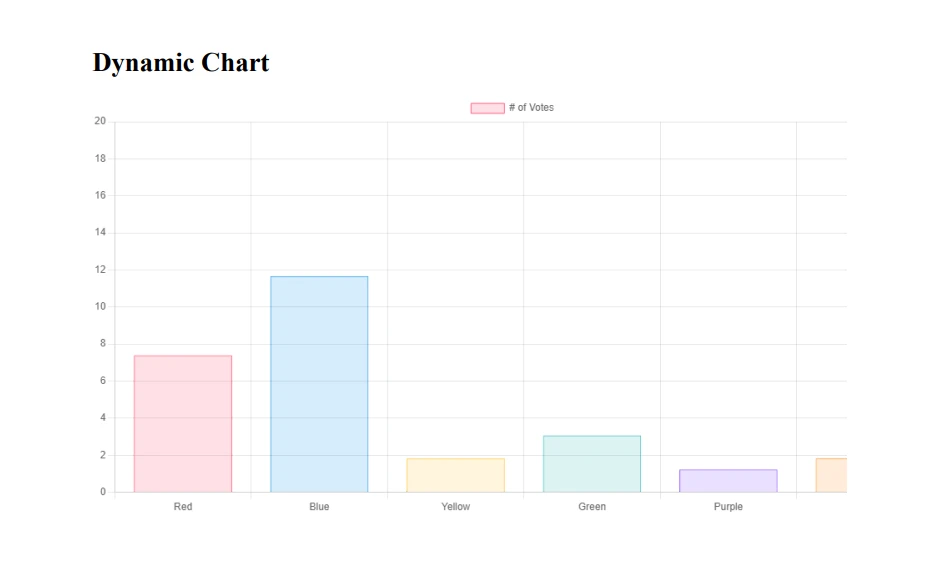
Możliwość dołączania skryptów zewnętrznych, takich jak Chart.js w tym przykładzie, oznacza, że mogę korzystać z potężnych bibliotek JavaScript do tworzenia bogatych, dynamicznych treści w moich plikach PDF. Ponadto ta funkcja pozwala mi na użycie CSS i technik responsywnego projektowania w moim HTML, co gwarantuje, że wynikowy plik PDF będzie wyglądał świetnie na różnych urządzeniach i w różnych formatach PRINT. Wykorzystałem nawet zapytania o media, aby stworzyć pliki PDF zoptymalizowane do wyświetlania na ekranie i drukowania z tego samego źródła HTML.
Szyfrowanie i deszyfrowanie plików PDF
W wielu moich projektach bezpieczeństwo ma kluczowe znaczenie, zwłaszcza w przypadku pracy z poufnymi informacjami. Funkcje szyfrowania i deszyfrowania IronPDF okazały się nieocenione w tych sytuacjach.
var pdf = PdfDocument.FromFile("input.pdf");
// Set user password (for opening the document)
pdf.Password = "user_password";
// Set owner password (for editing, printing, etc.)
pdf.OwnerPassword = "owner_password";
// Set specific permissions
pdf.SecuritySettings.AllowUserPrinting = IronPdf.Security.PdfPrintSecurity.NoPrint;
pdf.SecuritySettings.AllowUserCopyPasteContent = false;
pdf.SecuritySettings.AllowUserEdits = IronPdf.Security.PdfEditSecurity.NoEdit;
pdf.SaveAs("highly_secured.pdf");
var pdf = PdfDocument.FromFile("input.pdf");
// Set user password (for opening the document)
pdf.Password = "user_password";
// Set owner password (for editing, printing, etc.)
pdf.OwnerPassword = "owner_password";
// Set specific permissions
pdf.SecuritySettings.AllowUserPrinting = IronPdf.Security.PdfPrintSecurity.NoPrint;
pdf.SecuritySettings.AllowUserCopyPasteContent = false;
pdf.SecuritySettings.AllowUserEdits = IronPdf.Security.PdfEditSecurity.NoEdit;
pdf.SaveAs("highly_secured.pdf");Dim pdf = PdfDocument.FromFile("input.pdf")
' Set user password (for opening the document)
pdf.Password = "user_password"
' Set owner password (for editing, printing, etc.)
pdf.OwnerPassword = "owner_password"
' Set specific permissions
pdf.SecuritySettings.AllowUserPrinting = IronPdf.Security.PdfPrintSecurity.NoPrint
pdf.SecuritySettings.AllowUserCopyPasteContent = False
pdf.SecuritySettings.AllowUserEdits = IronPdf.Security.PdfEditSecurity.NoEdit
pdf.SaveAs("highly_secured.pdf")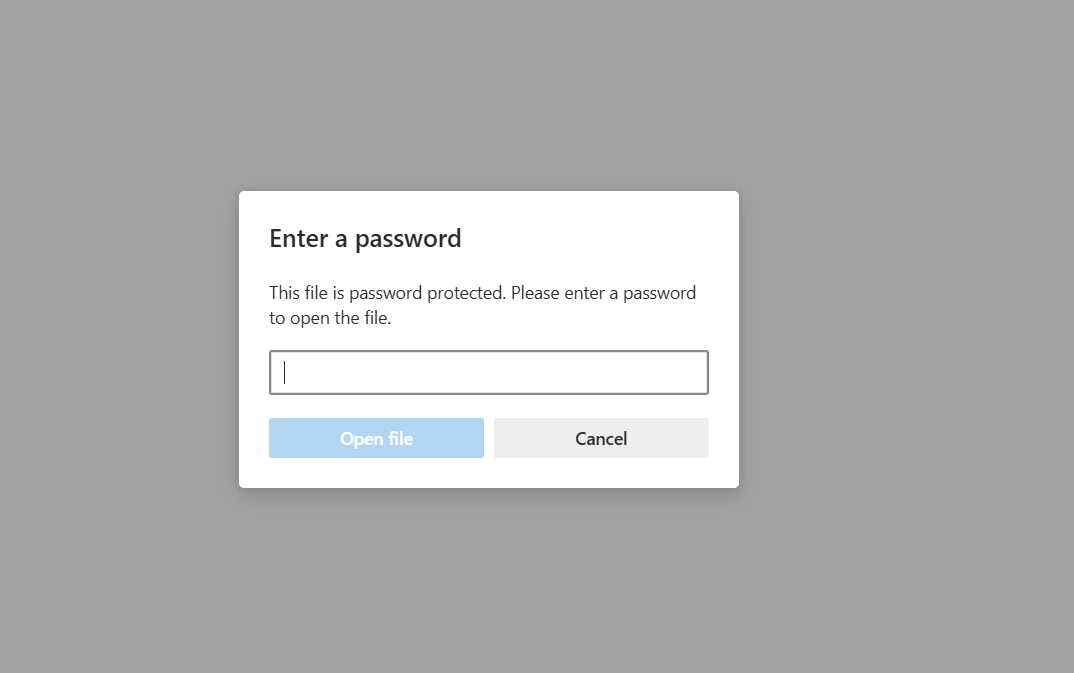
Ten kod nie tylko szyfruje plik PDF za pomocą hasła użytkownika, ale także ustawia hasło właściciela z precyzyjną kontrolą uprawnień. Mogę dokładnie określić, co użytkownicy mogą, a czego nie mogą robić z plikiem PDF, np. drukować lub kopiować zawartość.
Do odszyfrowania często stosuję następujące podejście:
try
{
    var pdf = PdfDocument.FromFile("encrypted.pdf", "user_password");
    pdf.SecuritySettings.RemovePasswordsAndEncryption();
    pdf.SaveAs("decrypted.pdf");
    Console.WriteLine("PDF decrypted successfully!");
}
catch (Exception ex)
{
    Console.WriteLine($"Decryption failed: {ex.Message}");
}
try
{
var pdf = PdfDocument.FromFile("encrypted.pdf", "user_password");
pdf.SecuritySettings.RemovePasswordsAndEncryption();
pdf.SaveAs("decrypted.pdf");
Console.WriteLine("PDF decrypted successfully!");
}
catch (Exception ex)
{
Console.WriteLine($"Decryption failed: {ex.Message}");
}Try
Dim pdf = PdfDocument.FromFile("encrypted.pdf", "user_password")
pdf.SecuritySettings.RemovePasswordsAndEncryption()
pdf.SaveAs("decrypted.pdf")
Console.WriteLine("PDF decrypted successfully!")
Catch ex As Exception
Console.WriteLine($"Decryption failed: {ex.Message}")
End TryTen kod próbuje otworzyć zaszyfrowany plik PDF za pomocą hasła użytkownika, usuwa wszystkie ograniczenia bezpieczeństwa i zapisuje go jako nowy, niezaszyfrowany plik. Blok try-catch pomaga obsłużyć przypadki, w których hasło może być nieprawidłowe.
Korzystałem z tych funkcji w różnych sytuacjach, takich jak tworzenie bezpiecznych systemów zarządzania dokumentami, w których różni użytkownicy mają różne poziomy dostępu do plików PDF. Na przykład w systemie dokumentacji medycznej zadbałem o to, aby poufne informacje o pacjentach były szyfrowane i dostępne wyłącznie dla upoważnionego personelu.
Kompresja plików PDF
W przypadku pracy z dużą liczbą plików PDF kluczowym czynnikiem staje się rozmiar pliku. Funkcja kompresji IronPDF okazała się nieoceniona w zarządzaniu ograniczeniami pamięci masowej i przepustowości.
Oto bardziej zaawansowany przykład tego, jak używam kompresji:
using IronPdf;
using System.IO;
using PdfDocument = IronPdf.PdfDocument;

var PDF = PdfDocument.FromFile(@"F:/Test.pdf");
// Compress images
PDF.CompressImages(80); // 80% quality
// Compress fonts
PDF.CompressStructTree();
// Save the compressed PDF
PDF.SaveAs(@"F:/highly_compressed.pdf");
// Compare file sizes
var originalSize = new FileInfo(@"F:/Test.pdf").Length;
var compressedSize = new FileInfo(@"F:/highly_compressed.pdf").Length;
var compressionRatio = (1 - (double)compressedSize / originalSize) * 100;
Console.WriteLine($"Original size: {originalSize / 1024} KB");
Console.WriteLine($"Compressed size: {compressedSize / 1024} KB");
Console.WriteLine($"Compression ratio: {compressionRatio:F2}%");
using IronPdf;
using System.IO;
using PdfDocument = IronPdf.PdfDocument;
var PDF = PdfDocument.FromFile(@"F:/Test.pdf");
// Compress images
PDF.CompressImages(80); // 80% quality
// Compress fonts
PDF.CompressStructTree();
// Save the compressed PDF
PDF.SaveAs(@"F:/highly_compressed.pdf");
// Compare file sizes
var originalSize = new FileInfo(@"F:/Test.pdf").Length;
var compressedSize = new FileInfo(@"F:/highly_compressed.pdf").Length;
var compressionRatio = (1 - (double)compressedSize / originalSize) * 100;
Console.WriteLine($"Original size: {originalSize / 1024} KB");
Console.WriteLine($"Compressed size: {compressedSize / 1024} KB");
Console.WriteLine($"Compression ratio: {compressionRatio:F2}%");Imports IronPdf
Imports System.IO
Imports PdfDocument = IronPdf.PdfDocument
Private PDF = PdfDocument.FromFile("F:/Test.pdf")
' Compress images
PDF.CompressImages(80) ' 80% quality
' Compress fonts
PDF.CompressStructTree()
' Save the compressed PDF
PDF.SaveAs("F:/highly_compressed.pdf")
' Compare file sizes
Dim originalSize = (New FileInfo("F:/Test.pdf")).Length
Dim compressedSize = (New FileInfo("F:/highly_compressed.pdf")).Length
Dim compressionRatio = (1 - CDbl(compressedSize) / originalSize) * 100
Console.WriteLine($"Original size: {originalSize \ 1024} KB")
Console.WriteLine($"Compressed size: {compressedSize \ 1024} KB")
Console.WriteLine($"Compression ratio: {compressionRatio:F2}%")Oto wynik:
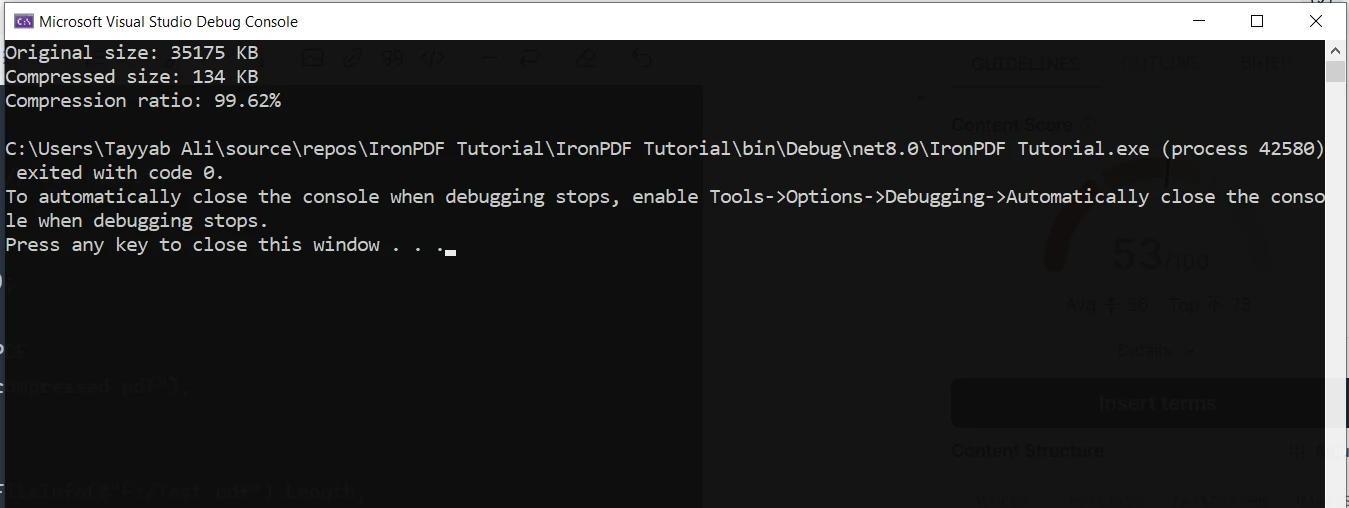
Uważam, że ta kombinacja technik jest bardzo skuteczna w zmniejszaniu rozmiarów plików bez znaczącego wpływu na jakość.
Korzystałem z tej funkcji w różnych sytuacjach:
- Załączniki do wiadomości e-mail: Wysyłając pliki PDF pocztą elektroniczną, kompresuję je, aby nie przekroczyły limitów rozmiaru załączników.
- Aplikacje internetowe: W przypadku plików PDF, które muszą być pobierane przez użytkowników, kompresja pomaga skrócić czas ładowania i zmniejszyć zużycie przepustowości.
- Archiwizacja: W przypadku przechowywania dużej liczby plików PDF w celu długoterminowego przechowywania kompresja znacznie obniża koszty przechowywania.
W ramach jednego z projektów pracowałem nad systemem zarządzania dokumentami dla kancelarii prawnej. Mieli tysiące akt spraw w formacie PDF, z których wiele stanowiły zeskanowane dokumenty o dużych rozmiarach. Dzięki wdrożeniu tej techniki kompresji zmniejszyliśmy ich wymagania dotyczące pamięci masowej o ponad 60%, co doprowadziło do znacznych oszczędności na rachunkach za przechowywanie danych w chmurze.
Podpisy cyfrowe
Adding digital signatures to PDFs is a must-have feature for many business processes to ensure document authenticity and non-repudiation. IronPDF makes this complex task surprisingly straightforward. Here's a more detailed example of how I implement digital signatures:
using IronPdf;
using IronPdf.Signing;

var renderer = new ChromePdfRenderer();
var pdf = PdfDocument.FromFile(@"F:/Contract.pdf");
var signature = new IronPdf.Signing.PdfSignature(@"F:/Iron.pfx", "123")
{
    // Step 3. Optional signing options and a handwritten signature graphic
    SigningContact = "support@ironsoftware.com",
    SigningLocation = "New York, USA",
    SigningReason = "Signing PDF"
};
pdf.Sign(signature);
pdf.SaveAs(@"F:/signed.pdf");
using IronPdf;
using IronPdf.Signing;
var renderer = new ChromePdfRenderer();
var pdf = PdfDocument.FromFile(@"F:/Contract.pdf");
var signature = new IronPdf.Signing.PdfSignature(@"F:/Iron.pfx", "123")
{
// Step 3. Optional signing options and a handwritten signature graphic
SigningContact = "support@ironsoftware.com",
SigningLocation = "New York, USA",
SigningReason = "Signing PDF"
};
pdf.Sign(signature);
pdf.SaveAs(@"F:/signed.pdf");Imports IronPdf
Imports IronPdf.Signing
Private renderer = New ChromePdfRenderer()
Private pdf = PdfDocument.FromFile("F:/Contract.pdf")
Private signature = New IronPdf.Signing.PdfSignature("F:/Iron.pfx", "123") With {
.SigningContact = "support@ironsoftware.com",
.SigningLocation = "New York, USA",
.SigningReason = "Signing PDF"
}
pdf.Sign(signature)
pdf.SaveAs("F:/signed.pdf")I've used this feature in several real-world applications:
- Contract management system: We implemented this for a company that needed to send out and receive signed contracts electronically. The digital signatures ensured the legal validity of the contracts.
- Medical records system: In a healthcare application, we used digital signatures to allow doctors to sign off on patient records and prescriptions.
- Government document processing: For a government agency, we implemented a system where official documents could be digitally signed.
PDF Splitting and Merging
The ability to split and merge PDFs is a fundamental feature that I use frequently in document management systems. IronPDF's implementation of these features is both powerful and flexible. Here's a more advanced example of splitting and merging PDFs:
using IronPdf;
class Program
{
    static void Main(string[] args)
    {
        // Create first PDF with three pages
        const string html_a = @"
            <h1>Document A</h1>
            <p>This is the first page of Document A.</p>
            <div style='page-break-after: always;'></div>
            <h2>Document A - Page 2</h2>
            <p>This is the second page of Document A.</p>
            <div style='page-break-after: always;'></div>
            <h2>Document A - Page 3</h2>
            <p>This is the third and final page of Document A.</p>";
        // Create second PDF with two pages
        const string html_b = @"
            <h1>Document B</h1>
            <p>Welcome to the first page of Document B.</p>
            <div style='page-break-after: always;'></div>
            <h2>Document B - Page 2</h2>
            <p>This is the second and last page of Document B.</p>";
        // Render HTML to PDF
        var renderer = new ChromePdfRenderer();
        var pdfdoc_a = renderer.RenderHtmlAsPdf(html_a);
        var pdfdoc_b = renderer.RenderHtmlAsPdf(html_b);
        // Merge PDFs
        var merged = PdfDocument.Merge(pdfdoc_a, pdfdoc_b);
        merged.SaveAs(@"F:/IronPdf/MergedDocument.pdf");
        Console.WriteLine("Merged PDF created: MergedDocument.pdf");
        // Load the merged PDF
        var pdf = PdfDocument.FromFile(@"F:/IronPdf/MergedDocument.pdf");
        // Extract the first page
        var firstPage = pdf.CopyPage(0);
        firstPage.SaveAs(@"F:/IronPdf/FirstPageOnly.pdf");
        Console.WriteLine("First page extracted: FirstPageOnly.pdf");
        // Extract pages 2 to 4 (note: index starts at 0)
        var middlePages = pdf.CopyPages(1, 3);
        middlePages.SaveAs(@"F:/IronPdf/Pages2to4.pdf");
        Console.WriteLine("Pages 2 to 4 extracted: Pages2to4.pdf");
        Console.WriteLine("Process completed. Press any key to exit.");
        Console.ReadKey();
    }
}
using IronPdf;
class Program
{
static void Main(string[] args)
{
// Create first PDF with three pages
const string html_a = @"
<h1>Document A</h1>
<p>This is the first page of Document A.</p>
<div style='page-break-after: always;'></div>
<h2>Document A - Page 2</h2>
<p>This is the second page of Document A.</p>
<div style='page-break-after: always;'></div>
<h2>Document A - Page 3</h2>
<p>This is the third and final page of Document A.</p>";
// Create second PDF with two pages
const string html_b = @"
<h1>Document B</h1>
<p>Welcome to the first page of Document B.</p>
<div style='page-break-after: always;'></div>
<h2>Document B - Page 2</h2>
<p>This is the second and last page of Document B.</p>";
// Render HTML to PDF
var renderer = new ChromePdfRenderer();
var pdfdoc_a = renderer.RenderHtmlAsPdf(html_a);
var pdfdoc_b = renderer.RenderHtmlAsPdf(html_b);
// Merge PDFs
var merged = PdfDocument.Merge(pdfdoc_a, pdfdoc_b);
merged.SaveAs(@"F:/IronPdf/MergedDocument.pdf");
Console.WriteLine("Merged PDF created: MergedDocument.pdf");
// Load the merged PDF
var pdf = PdfDocument.FromFile(@"F:/IronPdf/MergedDocument.pdf");
// Extract the first page
var firstPage = pdf.CopyPage(0);
firstPage.SaveAs(@"F:/IronPdf/FirstPageOnly.pdf");
Console.WriteLine("First page extracted: FirstPageOnly.pdf");
// Extract pages 2 to 4 (note: index starts at 0)
var middlePages = pdf.CopyPages(1, 3);
middlePages.SaveAs(@"F:/IronPdf/Pages2to4.pdf");
Console.WriteLine("Pages 2 to 4 extracted: Pages2to4.pdf");
Console.WriteLine("Process completed. Press any key to exit.");
Console.ReadKey();
}
}Imports IronPdf
Friend Class Program
Shared Sub Main(ByVal args() As String)
' Create first PDF with three pages
Const html_a As String = "
<h1>Document A</h1>
<p>This is the first page of Document A.</p>
<div style='page-break-after: always;'></div>
<h2>Document A - Page 2</h2>
<p>This is the second page of Document A.</p>
<div style='page-break-after: always;'></div>
<h2>Document A - Page 3</h2>
<p>This is the third and final page of Document A.</p>"
' Create second PDF with two pages
Const html_b As String = "
<h1>Document B</h1>
<p>Welcome to the first page of Document B.</p>
<div style='page-break-after: always;'></div>
<h2>Document B - Page 2</h2>
<p>This is the second and last page of Document B.</p>"
' Render HTML to PDF
Dim renderer = New ChromePdfRenderer()
Dim pdfdoc_a = renderer.RenderHtmlAsPdf(html_a)
Dim pdfdoc_b = renderer.RenderHtmlAsPdf(html_b)
' Merge PDFs
Dim merged = PdfDocument.Merge(pdfdoc_a, pdfdoc_b)
merged.SaveAs("F:/IronPdf/MergedDocument.pdf")
Console.WriteLine("Merged PDF created: MergedDocument.pdf")
' Load the merged PDF
Dim pdf = PdfDocument.FromFile("F:/IronPdf/MergedDocument.pdf")
' Extract the first page
Dim firstPage = pdf.CopyPage(0)
firstPage.SaveAs("F:/IronPdf/FirstPageOnly.pdf")
Console.WriteLine("First page extracted: FirstPageOnly.pdf")
' Extract pages 2 to 4 (note: index starts at 0)
Dim middlePages = pdf.CopyPages(1, 3)
middlePages.SaveAs("F:/IronPdf/Pages2to4.pdf")
Console.WriteLine("Pages 2 to 4 extracted: Pages2to4.pdf")
Console.WriteLine("Process completed. Press any key to exit.")
Console.ReadKey()
End Sub
End Class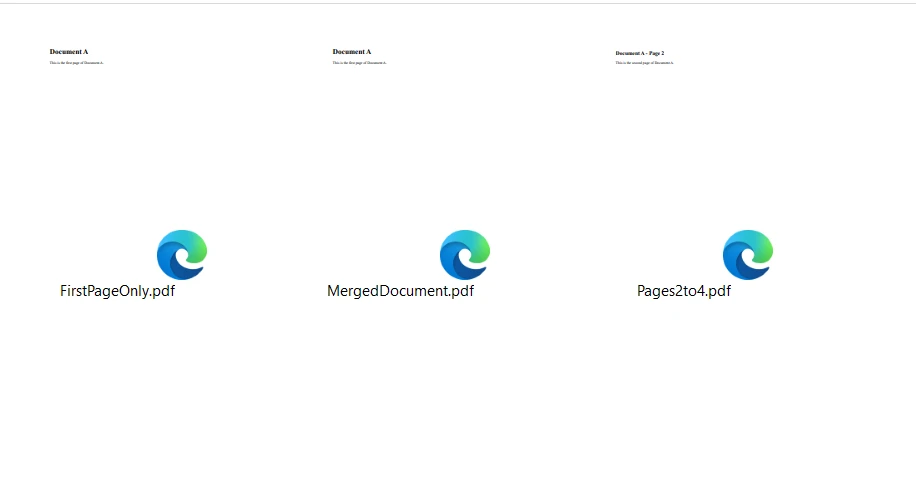
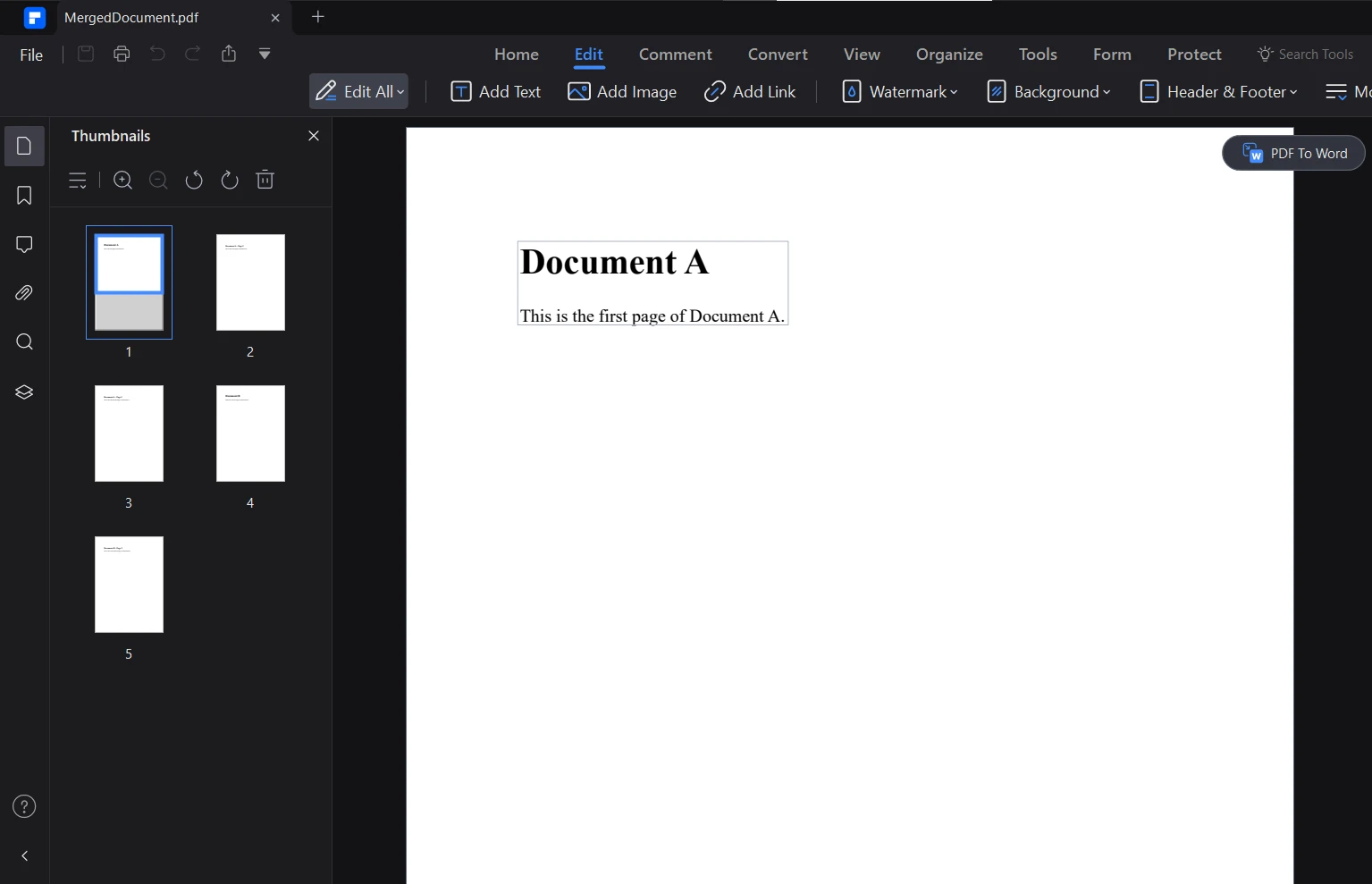
Here is the merged document which is generated by the code:
Wypełnianie formularzy
Automating form filling has been a huge time-saver in many of my projects. IronPDF allows me to programmatically fill PDF forms, which is invaluable for processing large volumes of forms or creating personalized documents. Here's a more comprehensive example of form filling:
using IronPdf;
using System;

// Load the combined form
PdfDocument pdf = PdfDocument.FromFile(@"F:/completeForm.pdf");

// Handle radio buttons
var radioForm = pdf.Form.FindFormField("traveltype");
radioForm.Value = "Airplane";

// Handle checkbox
var checkboxForm = pdf.Form.FindFormField("taskCompleted");
checkboxForm.Value = "Yes";

// Handle combobox
var comboboxForm = pdf.Form.FindFormField("priority");
comboboxForm.Value = "Low";

// Print out all the available choices for combobox
foreach (var choice in comboboxForm.Choices)
{
    Console.WriteLine(choice);
}

// Handle text inputs
pdf.Form.FindFormField("firstname").Value = "John";
pdf.Form.FindFormField("lastname").Value = "Smith";

// Handle text area
pdf.Form.FindFormField("address").Value = "Iron Software\r\n205 N. Michigan Ave.";

// Save the edited PDF
pdf.SaveAs(@"F:/completeFormEdited.pdf");
using IronPdf;
using System;
// Load the combined form
PdfDocument pdf = PdfDocument.FromFile(@"F:/completeForm.pdf");
// Handle radio buttons
var radioForm = pdf.Form.FindFormField("traveltype");
radioForm.Value = "Airplane";
// Handle checkbox
var checkboxForm = pdf.Form.FindFormField("taskCompleted");
checkboxForm.Value = "Yes";
// Handle combobox
var comboboxForm = pdf.Form.FindFormField("priority");
comboboxForm.Value = "Low";
// Print out all the available choices for combobox
foreach (var choice in comboboxForm.Choices)
{
Console.WriteLine(choice);
}
// Handle text inputs
pdf.Form.FindFormField("firstname").Value = "John";
pdf.Form.FindFormField("lastname").Value = "Smith";
// Handle text area
pdf.Form.FindFormField("address").Value = "Iron Software\r\n205 N. Michigan Ave.";
// Save the edited PDF
pdf.SaveAs(@"F:/completeFormEdited.pdf");Imports Microsoft.VisualBasic
Imports IronPdf
Imports System
' Load the combined form
Private pdf As PdfDocument = PdfDocument.FromFile("F:/completeForm.pdf")
' Handle radio buttons
Private radioForm = pdf.Form.FindFormField("traveltype")
radioForm.Value = "Airplane"
' Handle checkbox
Dim checkboxForm = pdf.Form.FindFormField("taskCompleted")
checkboxForm.Value = "Yes"
' Handle combobox
Dim comboboxForm = pdf.Form.FindFormField("priority")
comboboxForm.Value = "Low"
' Print out all the available choices for combobox
For Each choice In comboboxForm.Choices
Console.WriteLine(choice)
Next choice
' Handle text inputs
pdf.Form.FindFormField("firstname").Value = "John"
pdf.Form.FindFormField("lastname").Value = "Smith"
' Handle text area
pdf.Form.FindFormField("address").Value = "Iron Software" & vbCrLf & "205 N. Michigan Ave."
' Save the edited PDF
pdf.SaveAs("F:/completeFormEdited.pdf")I've used this feature in several real-world applications:
-
HR onboarding system: We created a system that automatically filled out new employee paperwork based on information from the HR database, saving hours of manual data entry.
-
Insurance claim processing: For an insurance company, we built a system that pre-filled claim forms with policyholder information, significantly speeding up the claim submission process.
-
School application system: In an education project, we implemented a system that filled out school application forms based on student data, making the application process easier for both students and administrative staff.
- Tax form generation: For an accounting firm, we created a system that automatically filled out tax forms based on client financial data, reducing errors and saving time during tax season.
The ability to programmatically fill forms has been a key factor in automating many business processes, leading to significant time savings and reduced errors from manual data entry.
Watermarking
Adding watermarks to PDFs is often necessary for branding, security, or status indication. IronPDF provides flexible watermarking capabilities that I've found useful in many projects. Here's a more detailed example of how I use watermarking:
using IronPdf;
using IronSoftware.Drawing;
string watermarkHtml = @"
<img style='width: 250px;' src='https://ironsoftware.com/img/products/ironpdf-logo-text-dotnet.svg'>
<h1>Iron Software</h1>";
ChromePdfRenderer renderer = new ChromePdfRenderer();
PdfDocument pdf = renderer.RenderHtmlAsPdf("<h1>Watermark</h1>");
// Apply watermark with 45 degrees rotation and 70% opacity
pdf.ApplyWatermark(watermarkHtml, rotation: 30, opacity: 90);
pdf.SaveAs("watermarkOpacity&Rotation.pdf");using IronPdf;
using IronSoftware.Drawing;
string watermarkHtml = @"
<img style='width: 250px;' src='https://ironsoftware.com/img/products/ironpdf-logo-text-dotnet.svg'>
<h1>Iron Software</h1>";
ChromePdfRenderer renderer = new ChromePdfRenderer();
PdfDocument pdf = renderer.RenderHtmlAsPdf("<h1>Watermark</h1>");
// Apply watermark with 45 degrees rotation and 70% opacity
pdf.ApplyWatermark(watermarkHtml, rotation: 30, opacity: 90);
pdf.SaveAs("watermarkOpacity&Rotation.pdf");Imports IronPdf
Imports IronSoftware.Drawing
Private watermarkHtml As String = "
<img style='width: 250px;' src='https://ironsoftware.com/img/products/ironpdf-logo-text-dotnet.svg'>
<h1>Iron Software</h1>"
Private renderer As New ChromePdfRenderer()
Private pdf As PdfDocument = renderer.RenderHtmlAsPdf("<h1>Watermark</h1>")
' Apply watermark with 45 degrees rotation and 70% opacity
pdf.ApplyWatermark(watermarkHtml, rotation:= 30, opacity:= 90)
pdf.SaveAs("watermarkOpacity&Rotation.pdf")
APITemplate Advanced Features
Dynamic Template Generation
APITemplate's dynamic template generation is a powerful feature that allows for the creation of highly customizable documents using customize JSON data. APITemplate's API support dynamic components. You can get both PDF and image outputs of your code. In the API console, I was able to use the WYSIWYG editor to generate PDF documents easily.
Let's explore how I've used this in my projects.
using System;
using System.IO;
using System.Net.Http;
using System.Text.Json;
using System.Threading.Tasks;

namespace csharp
{
    class ReturnContent
    {
        public string download_url { get; set; }
        public string status { get; set; }
    }

    class Program
    {
        static async Task Main(string[] args)
        {
            var api_key = "a9e4MjA2NTg6MTc3Njk6Uk1ZSzVjTWs1T3d6VE9Mdw=";
            var template_id = "bf077b23b4a407ae";
            var url = $"https://rest.apitemplate.io/v2/create-pdf?template_id={template_id}";
            var data = new
            {
                date = "15/05/2022",
                invoice_no = "435568799",
                sender_address1 = "3244 Jurong Drive",
                sender_address2 = "Falmouth Maine 1703",
                sender_phone = "255-781-6789",
                sender_email = "dev@ironsoftware.com",
                rece_addess1 = "2354 Lakeside Drive",
                rece_addess2 = "New York 234562 ",
                rece_phone = "34333-84-223",
                rece_email = "info@ironsoftware.com",
                items = new[]
                {
                    new { item_name = "Oil", unit = 1, unit_price = 100, total = 100 },
                    new { item_name = "Rice", unit = 2, unit_price = 200, total = 400 },
                    new { item_name = "Orange", unit = 7, unit_price = 20, total = 1400 }
                },
                total = "total",
                footer_email = "info@ironsoftware.com"
            };
            var json_content = JsonSerializer.Serialize(data);
            var buffer = System.Text.Encoding.UTF8.GetBytes(json_content);
            var byteContent = new ByteArrayContent(buffer);
            Console.WriteLine(json_content);
            var client = new HttpClient();
            client.DefaultRequestHeaders.Add("X-API-KEY", api_key);
            var response = await client.PostAsync(url, byteContent);
            var ret = await response.Content.ReadAsStringAsync();
            var returnContent = JsonSerializer.Deserialize<ReturnContent>(ret);
            if (returnContent.status == "success")
            {
                Console.WriteLine($"Downloading {returnContent.download_url}...");
                var download_response = await client.GetAsync(returnContent.download_url);
                using (var stream = await download_response.Content.ReadAsStreamAsync())
                {
                    var fileInfo = new FileInfo(@"F:/generated_document.pdf");
                    using (var fileStream = fileInfo.OpenWrite())
                    {
                        await stream.CopyToAsync(fileStream);
                    }
                }
                Console.WriteLine("PDF file has been downloaded and saved as 'generated_document.pdf'");
            }
        }
    }
}
using System;
using System.IO;
using System.Net.Http;
using System.Text.Json;
using System.Threading.Tasks;
namespace csharp
{
class ReturnContent
{
public string download_url { get; set; }
public string status { get; set; }
}
class Program
{
static async Task Main(string[] args)
{
var api_key = "a9e4MjA2NTg6MTc3Njk6Uk1ZSzVjTWs1T3d6VE9Mdw=";
var template_id = "bf077b23b4a407ae";
var url = $"https://rest.apitemplate.io/v2/create-pdf?template_id={template_id}";
var data = new
{
date = "15/05/2022",
invoice_no = "435568799",
sender_address1 = "3244 Jurong Drive",
sender_address2 = "Falmouth Maine 1703",
sender_phone = "255-781-6789",
sender_email = "dev@ironsoftware.com",
rece_addess1 = "2354 Lakeside Drive",
rece_addess2 = "New York 234562 ",
rece_phone = "34333-84-223",
rece_email = "info@ironsoftware.com",
items = new[]
{
new { item_name = "Oil", unit = 1, unit_price = 100, total = 100 },
new { item_name = "Rice", unit = 2, unit_price = 200, total = 400 },
new { item_name = "Orange", unit = 7, unit_price = 20, total = 1400 }
},
total = "total",
footer_email = "info@ironsoftware.com"
};
var json_content = JsonSerializer.Serialize(data);
var buffer = System.Text.Encoding.UTF8.GetBytes(json_content);
var byteContent = new ByteArrayContent(buffer);
Console.WriteLine(json_content);
var client = new HttpClient();
client.DefaultRequestHeaders.Add("X-API-KEY", api_key);
var response = await client.PostAsync(url, byteContent);
var ret = await response.Content.ReadAsStringAsync();
var returnContent = JsonSerializer.Deserialize<ReturnContent>(ret);
if (returnContent.status == "success")
{
Console.WriteLine($"Downloading {returnContent.download_url}...");
var download_response = await client.GetAsync(returnContent.download_url);
using (var stream = await download_response.Content.ReadAsStreamAsync())
{
var fileInfo = new FileInfo(@"F:/generated_document.pdf");
using (var fileStream = fileInfo.OpenWrite())
{
await stream.CopyToAsync(fileStream);
}
}
Console.WriteLine("PDF file has been downloaded and saved as 'generated_document.pdf'");
}
}
}
}Imports System
Imports System.IO
Imports System.Net.Http
Imports System.Text.Json
Imports System.Threading.Tasks
Namespace csharp
Friend Class ReturnContent
Public Property download_url() As String
Public Property status() As String
End Class
Friend Class Program
Shared Async Function Main(ByVal args() As String) As Task
Dim api_key = "a9e4MjA2NTg6MTc3Njk6Uk1ZSzVjTWs1T3d6VE9Mdw="
Dim template_id = "bf077b23b4a407ae"
Dim url = $"https://rest.apitemplate.io/v2/create-pdf?template_id={template_id}"
Dim data = New With {
Key .date = "15/05/2022",
Key .invoice_no = "435568799",
Key .sender_address1 = "3244 Jurong Drive",
Key .sender_address2 = "Falmouth Maine 1703",
Key .sender_phone = "255-781-6789",
Key .sender_email = "dev@ironsoftware.com",
Key .rece_addess1 = "2354 Lakeside Drive",
Key .rece_addess2 = "New York 234562 ",
Key .rece_phone = "34333-84-223",
Key .rece_email = "info@ironsoftware.com",
Key .items = {
New With {
Key .item_name = "Oil",
Key .unit = 1,
Key .unit_price = 100,
Key .total = 100
},
New With {
Key .item_name = "Rice",
Key .unit = 2,
Key .unit_price = 200,
Key .total = 400
},
New With {
Key .item_name = "Orange",
Key .unit = 7,
Key .unit_price = 20,
Key .total = 1400
}
},
Key .total = "total",
Key .footer_email = "info@ironsoftware.com"
}
Dim json_content = JsonSerializer.Serialize(data)
Dim buffer = System.Text.Encoding.UTF8.GetBytes(json_content)
Dim byteContent = New ByteArrayContent(buffer)
Console.WriteLine(json_content)
Dim client = New HttpClient()
client.DefaultRequestHeaders.Add("X-API-KEY", api_key)
Dim response = Await client.PostAsync(url, byteContent)
Dim ret = Await response.Content.ReadAsStringAsync()
Dim returnContent = JsonSerializer.Deserialize(Of ReturnContent)(ret)
If returnContent.status = "success" Then
Console.WriteLine($"Downloading {returnContent.download_url}...")
Dim download_response = Await client.GetAsync(returnContent.download_url)
Using stream = Await download_response.Content.ReadAsStreamAsync()
Dim fileInfo As New FileInfo("F:/generated_document.pdf")
Using fileStream = fileInfo.OpenWrite()
Await stream.CopyToAsync(fileStream)
End Using
End Using
Console.WriteLine("PDF file has been downloaded and saved as 'generated_document.pdf'")
End If
End Function
End Class
End Namespace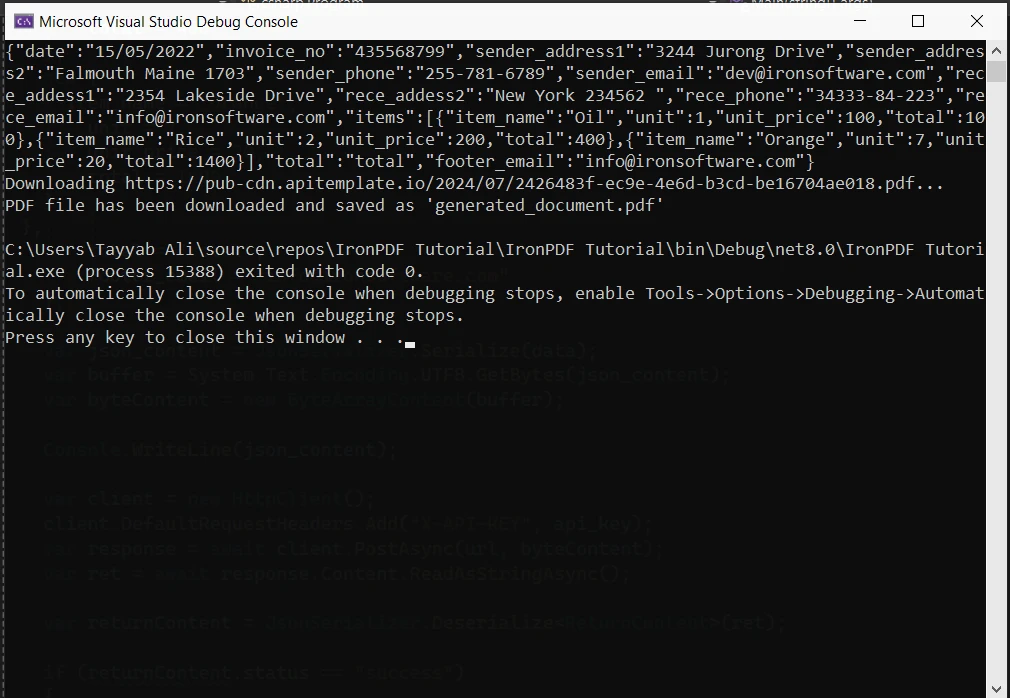
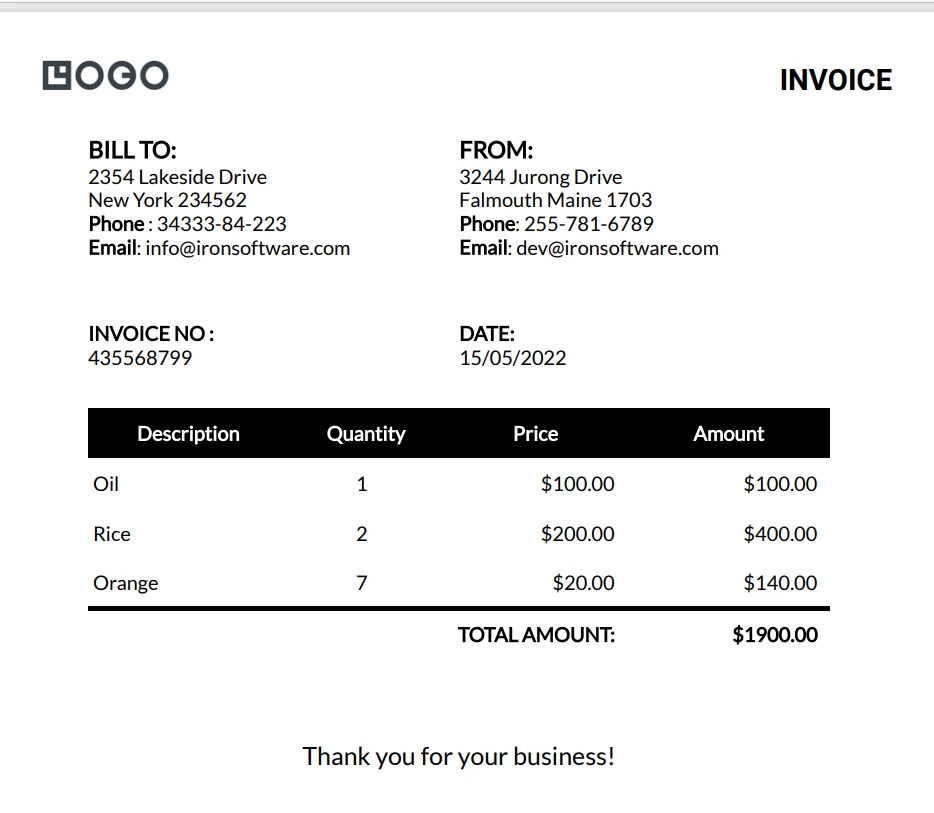
This is the generated PDF document:
Bulk PDF Generation
APITemplate's bulk PDF generation feature is a significant advantage when it comes to creating multiple documents in one API call. Here's a more detailed example of how I've used it:
using System;
using System.IO;
using System.Net.Http;
using System.Text.Json;
using System.Threading.Tasks;
using System.Collections.Generic;

namespace csharp
{
    class ReturnContent
    {
        public string download_url { get; set; }
        public string status { get; set; }
    }

    class Program
    {
        static async Task Main(string[] args)
        {
            var api_key = "a9e4MjA2NTg6MTc3Njk6Uk1ZSzVjTWs1T3d6VE9Mdw=";
            var template_id = "d4f77b23b4ab09fa";
            var url = $"https://rest.apitemplate.io/v2/create-pdf?template_id={template_id}";
            var membershipCards = new List<object>
            {
                new { name = "Iron Dev 1", email = "dev1@ironsoftware.com", membership_id = "M001", expiry_date = "2024-12-31" },
                new { name = "Iron Dev 2", email = "dev2@ironsoftware.com", membership_id = "M002", expiry_date = "2025-06-30" },
                new { name = "Iron Dev 3", email = "dev3@ironsoftware.com", membership_id = "M003", expiry_date = "2024-09-15" }
            };
            var client = new HttpClient();
            client.DefaultRequestHeaders.Add("X-API-KEY", api_key);
            for (int i = 0; i < membershipCards.Count; i++)
            {
                var json_content = JsonSerializer.Serialize(membershipCards[i]);
                var buffer = System.Text.Encoding.UTF8.GetBytes(json_content);
                var byteContent = new ByteArrayContent(buffer);
                Console.WriteLine($"Creating PDF for {((dynamic)membershipCards[i]).name}...");
                var response = await client.PostAsync(url, byteContent);
                var ret = await response.Content.ReadAsStringAsync();
                var returnContent = JsonSerializer.Deserialize<ReturnContent>(ret);
                if (returnContent.status == "success")
                {
                    Console.WriteLine($"Downloading {returnContent.download_url}...");
                    var download_response = await client.GetAsync(returnContent.download_url);
                    using (var stream = await download_response.Content.ReadAsStreamAsync())
                    {
                        var fileInfo = new FileInfo($"F:/membership_card_{i + 1}.pdf");
                        using (var fileStream = fileInfo.OpenWrite())
                        {
                            await stream.CopyToAsync(fileStream);
                        }
                    }
                    Console.WriteLine($"PDF file has been downloaded and saved as 'membership_card_{i + 1}.pdf'");
                }
                else
                {
                    Console.WriteLine($"Failed to create PDF for {((dynamic)membershipCards[i]).name}. Status: {returnContent.status}");
                }
            }
        }
    }
}
using System;
using System.IO;
using System.Net.Http;
using System.Text.Json;
using System.Threading.Tasks;
using System.Collections.Generic;
namespace csharp
{
class ReturnContent
{
public string download_url { get; set; }
public string status { get; set; }
}
class Program
{
static async Task Main(string[] args)
{
var api_key = "a9e4MjA2NTg6MTc3Njk6Uk1ZSzVjTWs1T3d6VE9Mdw=";
var template_id = "d4f77b23b4ab09fa";
var url = $"https://rest.apitemplate.io/v2/create-pdf?template_id={template_id}";
var membershipCards = new List<object>
{
new { name = "Iron Dev 1", email = "dev1@ironsoftware.com", membership_id = "M001", expiry_date = "2024-12-31" },
new { name = "Iron Dev 2", email = "dev2@ironsoftware.com", membership_id = "M002", expiry_date = "2025-06-30" },
new { name = "Iron Dev 3", email = "dev3@ironsoftware.com", membership_id = "M003", expiry_date = "2024-09-15" }
};
var client = new HttpClient();
client.DefaultRequestHeaders.Add("X-API-KEY", api_key);
for (int i = 0; i < membershipCards.Count; i++)
{
var json_content = JsonSerializer.Serialize(membershipCards[i]);
var buffer = System.Text.Encoding.UTF8.GetBytes(json_content);
var byteContent = new ByteArrayContent(buffer);
Console.WriteLine($"Creating PDF for {((dynamic)membershipCards[i]).name}...");
var response = await client.PostAsync(url, byteContent);
var ret = await response.Content.ReadAsStringAsync();
var returnContent = JsonSerializer.Deserialize<ReturnContent>(ret);
if (returnContent.status == "success")
{
Console.WriteLine($"Downloading {returnContent.download_url}...");
var download_response = await client.GetAsync(returnContent.download_url);
using (var stream = await download_response.Content.ReadAsStreamAsync())
{
var fileInfo = new FileInfo($"F:/membership_card_{i + 1}.pdf");
using (var fileStream = fileInfo.OpenWrite())
{
await stream.CopyToAsync(fileStream);
}
}
Console.WriteLine($"PDF file has been downloaded and saved as 'membership_card_{i + 1}.pdf'");
}
else
{
Console.WriteLine($"Failed to create PDF for {((dynamic)membershipCards[i]).name}. Status: {returnContent.status}");
}
}
}
}
}'INSTANT VB NOTE: 'Option Strict Off' is used here since dynamic typing is used:
Option Strict Off
Imports System
Imports System.IO
Imports System.Net.Http
Imports System.Text.Json
Imports System.Threading.Tasks
Imports System.Collections.Generic
Namespace csharp
Friend Class ReturnContent
Public Property download_url() As String
Public Property status() As String
End Class
Friend Class Program
Shared Async Function Main(ByVal args() As String) As Task
Dim api_key = "a9e4MjA2NTg6MTc3Njk6Uk1ZSzVjTWs1T3d6VE9Mdw="
Dim template_id = "d4f77b23b4ab09fa"
Dim url = $"https://rest.apitemplate.io/v2/create-pdf?template_id={template_id}"
Dim membershipCards = New List(Of Object) From {
New With {
Key .name = "Iron Dev 1",
Key .email = "dev1@ironsoftware.com",
Key .membership_id = "M001",
Key .expiry_date = "2024-12-31"
},
New With {
Key .name = "Iron Dev 2",
Key .email = "dev2@ironsoftware.com",
Key .membership_id = "M002",
Key .expiry_date = "2025-06-30"
},
New With {
Key .name = "Iron Dev 3",
Key .email = "dev3@ironsoftware.com",
Key .membership_id = "M003",
Key .expiry_date = "2024-09-15"
}
}
Dim client = New HttpClient()
client.DefaultRequestHeaders.Add("X-API-KEY", api_key)
For i As Integer = 0 To membershipCards.Count - 1
Dim json_content = JsonSerializer.Serialize(membershipCards(i))
Dim buffer = System.Text.Encoding.UTF8.GetBytes(json_content)
Dim byteContent = New ByteArrayContent(buffer)
'INSTANT VB NOTE: In the following line, Instant VB substituted 'Object' for 'dynamic' - this will work in VB with Option Strict Off:
Console.WriteLine($"Creating PDF for {CType(membershipCards(i), Object).name}...")
Dim response = Await client.PostAsync(url, byteContent)
Dim ret = Await response.Content.ReadAsStringAsync()
Dim returnContent = JsonSerializer.Deserialize(Of ReturnContent)(ret)
If returnContent.status = "success" Then
Console.WriteLine($"Downloading {returnContent.download_url}...")
Dim download_response = Await client.GetAsync(returnContent.download_url)
Using stream = Await download_response.Content.ReadAsStreamAsync()
Dim fileInfo As New FileInfo($"F:/membership_card_{i + 1}.pdf")
Using fileStream = fileInfo.OpenWrite()
Await stream.CopyToAsync(fileStream)
End Using
End Using
Console.WriteLine($"PDF file has been downloaded and saved as 'membership_card_{i + 1}.pdf'")
Else
'INSTANT VB NOTE: In the following line, Instant VB substituted 'Object' for 'dynamic' - this will work in VB with Option Strict Off:
Console.WriteLine($"Failed to create PDF for {CType(membershipCards(i), Object).name}. Status: {returnContent.status}")
End If
Next i
End Function
End Class
End NamespaceThis code generates multiple membership cards in a single API call. Each card is customized with individual member information. Here is the one card which is generated by this code:
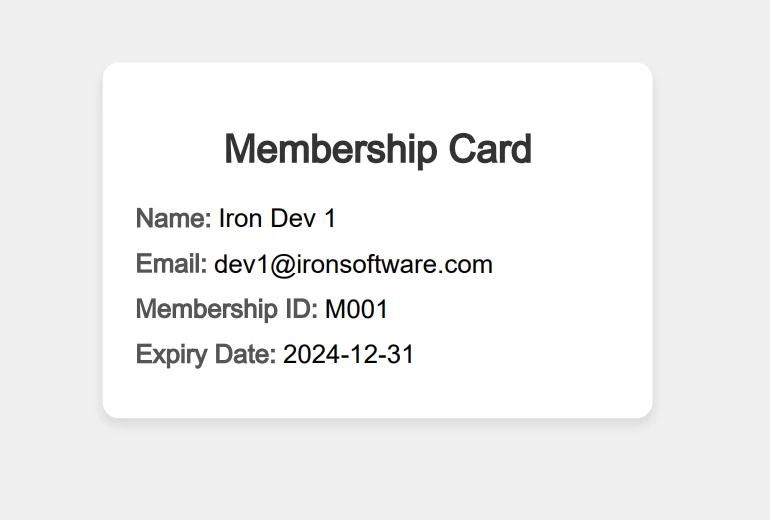
Image Generation
While PDF generation is APITemplate's primary focus, its image generation capabilities are equally impressive. You can generate social media images using image templates in the console. It also offers a responsive image smart crop. The banner generation API is the same as the image API. Here's a more complex example of how I've used it:
using System;
using System.IO;
using System.Net.Http;
using System.Text;
using System.Text.Json;
using System.Threading.Tasks;

namespace csharp
{
    class ReturnContent
    {
        public string download_url { get; set; }
        public string status { get; set; }
    }

    class Program
    {
        static async Task Main(string[] args)
        {
            var api_key = "a9e4MjA2NTg6MTc3Njk6Uk1ZSzVjTWs1T3d6VE9Mdw=";
            var template_id = "f4377b23b4aeeed0";
            var url = $"https://rest.apitemplate.io/v2/create-image?template_id={template_id}";
            var json_content = @"{
    ""overrides"": [
        {
            ""name"": ""rect_image_bg"",
            ""stroke"": ""grey"",
            ""src"": ""https://images.unsplash.com/photo-1542401886-65d6c61db217?crop=entropy&cs=tinysrgb&fit=max&fm=jpg&ixid=MnwxOTc1MDZ8MHwxfHNlYXJjaHwzfHxkZXNlcnR8ZW58MHwwfHx8MTYyMTUxOTI2OA&ixlib=rb-1.2.1&q=80&w=1080""
        },
        {
            ""name"": ""rect_container"",
            ""stroke"": ""grey"",
            ""backgroundColor"": ""rgba(255, 255, 255, 0.62)""
        },
        {
            ""name"": ""text_quote"",
            ""text"": ""Just witnessed the most breathtaking sunset over the Sahara. The way the light dances on the dunes, painting the sky in shades of orange and purple, is truly magical. Nature's artistry at its finest!  #DesertAdventures #SaharaSkies"",
            ""textBackgroundColor"": ""rgba(246, 243, 243, 0)"",
            ""color"": ""#414141""
        },
        {
            ""name"": ""text_footer"",
            ""text"": ""2024-07-30 - Twitter - iPhone 16 Pro"",
            ""textBackgroundColor"": ""rgba(246, 243, 243, 0)"",
            ""color"": ""#666666""
        },
        {
            ""name"": ""circle_profile"",
            ""stroke"": ""grey"",
            ""src"": ""https://images.unsplash.com/photo-1520998116484-6eeb2f72b5b9?crop=entropy&cs=tinysrgb&fit=max&fm=jpg&ixid=MnwxOTc1MDZ8MHwxfHNlYXJjaHw2Mnx8aGFwcHl8ZW58MHwwfHx8MTYyMTY5MjkwNw&ixlib=rb-1.2.1&q=80&w=1080""
        },
        {
            ""name"": ""text_name"",
            ""text"": ""Sarah Wanderlust"",
            ""textBackgroundColor"": ""rgba(246, 243, 243, 0)"",
            ""color"": ""#4E4E4E""
        },
        {
            ""name"": ""text_twitter"",
            ""text"": ""@sarahexplores"",
            ""textBackgroundColor"": ""rgba(246, 243, 243, 0)"",
            ""color"": ""#4E4E4E""
        }
    ]
}";
            var buffer = System.Text.Encoding.UTF8.GetBytes(json_content);
            var byteContent = new ByteArrayContent(buffer);
            Console.WriteLine(json_content);
            var client = new HttpClient();
            client.DefaultRequestHeaders.Add("X-API-KEY", api_key);
            var response = await client.PostAsync(url, byteContent);
            var ret = await response.Content.ReadAsStringAsync();
            var returnContent = JsonSerializer.Deserialize<ReturnContent>(ret);
            if (returnContent.status == "success")
            {
                Console.WriteLine($"Downloading {returnContent.download_url}...");
                var download_response = await client.GetAsync(returnContent.download_url);
                using (var stream = await download_response.Content.ReadAsStreamAsync())
                {
                    var fileInfo = new FileInfo("image.jpeg");
                    using (var fileStream = fileInfo.OpenWrite())
                    {
                        await stream.CopyToAsync(fileStream);
                    }
                }
            }
        }
    }
}
using System;
using System.IO;
using System.Net.Http;
using System.Text;
using System.Text.Json;
using System.Threading.Tasks;
namespace csharp
{
class ReturnContent
{
public string download_url { get; set; }
public string status { get; set; }
}
class Program
{
static async Task Main(string[] args)
{
var api_key = "a9e4MjA2NTg6MTc3Njk6Uk1ZSzVjTWs1T3d6VE9Mdw=";
var template_id = "f4377b23b4aeeed0";
var url = $"https://rest.apitemplate.io/v2/create-image?template_id={template_id}";
var json_content = @"{
""overrides"": [
{
""name"": ""rect_image_bg"",
""stroke"": ""grey"",
""src"": ""https://images.unsplash.com/photo-1542401886-65d6c61db217?crop=entropy&cs=tinysrgb&fit=max&fm=jpg&ixid=MnwxOTc1MDZ8MHwxfHNlYXJjaHwzfHxkZXNlcnR8ZW58MHwwfHx8MTYyMTUxOTI2OA&ixlib=rb-1.2.1&q=80&w=1080""
},
{
""name"": ""rect_container"",
""stroke"": ""grey"",
""backgroundColor"": ""rgba(255, 255, 255, 0.62)""
},
{
""name"": ""text_quote"",
""text"": ""Just witnessed the most breathtaking sunset over the Sahara. The way the light dances on the dunes, painting the sky in shades of orange and purple, is truly magical. Nature's artistry at its finest! #DesertAdventures #SaharaSkies"",
""textBackgroundColor"": ""rgba(246, 243, 243, 0)"",
""color"": ""#414141""
},
{
""name"": ""text_footer"",
""text"": ""2024-07-30 - Twitter - iPhone 16 Pro"",
""textBackgroundColor"": ""rgba(246, 243, 243, 0)"",
""color"": ""#666666""
},
{
""name"": ""circle_profile"",
""stroke"": ""grey"",
""src"": ""https://images.unsplash.com/photo-1520998116484-6eeb2f72b5b9?crop=entropy&cs=tinysrgb&fit=max&fm=jpg&ixid=MnwxOTc1MDZ8MHwxfHNlYXJjaHw2Mnx8aGFwcHl8ZW58MHwwfHx8MTYyMTY5MjkwNw&ixlib=rb-1.2.1&q=80&w=1080""
},
{
""name"": ""text_name"",
""text"": ""Sarah Wanderlust"",
""textBackgroundColor"": ""rgba(246, 243, 243, 0)"",
""color"": ""#4E4E4E""
},
{
""name"": ""text_twitter"",
""text"": ""@sarahexplores"",
""textBackgroundColor"": ""rgba(246, 243, 243, 0)"",
""color"": ""#4E4E4E""
}
]
}";
var buffer = System.Text.Encoding.UTF8.GetBytes(json_content);
var byteContent = new ByteArrayContent(buffer);
Console.WriteLine(json_content);
var client = new HttpClient();
client.DefaultRequestHeaders.Add("X-API-KEY", api_key);
var response = await client.PostAsync(url, byteContent);
var ret = await response.Content.ReadAsStringAsync();
var returnContent = JsonSerializer.Deserialize<ReturnContent>(ret);
if (returnContent.status == "success")
{
Console.WriteLine($"Downloading {returnContent.download_url}...");
var download_response = await client.GetAsync(returnContent.download_url);
using (var stream = await download_response.Content.ReadAsStreamAsync())
{
var fileInfo = new FileInfo("image.jpeg");
using (var fileStream = fileInfo.OpenWrite())
{
await stream.CopyToAsync(fileStream);
}
}
}
}
}
}Imports System
Imports System.IO
Imports System.Net.Http
Imports System.Text
Imports System.Text.Json
Imports System.Threading.Tasks
Namespace csharp
Friend Class ReturnContent
Public Property download_url() As String
Public Property status() As String
End Class
Friend Class Program
Shared Async Function Main(ByVal args() As String) As Task
Dim api_key = "a9e4MjA2NTg6MTc3Njk6Uk1ZSzVjTWs1T3d6VE9Mdw="
Dim template_id = "f4377b23b4aeeed0"
Dim url = $"https://rest.apitemplate.io/v2/create-image?template_id={template_id}"
Dim json_content = "{
""overrides"": [
{
""name"": ""rect_image_bg"",
""stroke"": ""grey"",
""src"": ""https://images.unsplash.com/photo-1542401886-65d6c61db217?crop=entropy&cs=tinysrgb&fit=max&fm=jpg&ixid=MnwxOTc1MDZ8MHwxfHNlYXJjaHwzfHxkZXNlcnR8ZW58MHwwfHx8MTYyMTUxOTI2OA&ixlib=rb-1.2.1&q=80&w=1080""
},
{
""name"": ""rect_container"",
""stroke"": ""grey"",
""backgroundColor"": ""rgba(255, 255, 255, 0.62)""
},
{
""name"": ""text_quote"",
""text"": ""Just witnessed the most breathtaking sunset over the Sahara. The way the light dances on the dunes, painting the sky in shades of orange and purple, is truly magical. Nature's artistry at its finest! #DesertAdventures #SaharaSkies"",
""textBackgroundColor"": ""rgba(246, 243, 243, 0)"",
""color"": ""#414141""
},
{
""name"": ""text_footer"",
""text"": ""2024-07-30 - Twitter - iPhone 16 Pro"",
""textBackgroundColor"": ""rgba(246, 243, 243, 0)"",
""color"": ""#666666""
},
{
""name"": ""circle_profile"",
""stroke"": ""grey"",
""src"": ""https://images.unsplash.com/photo-1520998116484-6eeb2f72b5b9?crop=entropy&cs=tinysrgb&fit=max&fm=jpg&ixid=MnwxOTc1MDZ8MHwxfHNlYXJjaHw2Mnx8aGFwcHl8ZW58MHwwfHx8MTYyMTY5MjkwNw&ixlib=rb-1.2.1&q=80&w=1080""
},
{
""name"": ""text_name"",
""text"": ""Sarah Wanderlust"",
""textBackgroundColor"": ""rgba(246, 243, 243, 0)"",
""color"": ""#4E4E4E""
},
{
""name"": ""text_twitter"",
""text"": ""@sarahexplores"",
""textBackgroundColor"": ""rgba(246, 243, 243, 0)"",
""color"": ""#4E4E4E""
}
]
}"
Dim buffer = System.Text.Encoding.UTF8.GetBytes(json_content)
Dim byteContent = New ByteArrayContent(buffer)
Console.WriteLine(json_content)
Dim client = New HttpClient()
client.DefaultRequestHeaders.Add("X-API-KEY", api_key)
Dim response = Await client.PostAsync(url, byteContent)
Dim ret = Await response.Content.ReadAsStringAsync()
Dim returnContent = JsonSerializer.Deserialize(Of ReturnContent)(ret)
If returnContent.status = "success" Then
Console.WriteLine($"Downloading {returnContent.download_url}...")
Dim download_response = Await client.GetAsync(returnContent.download_url)
Using stream = Await download_response.Content.ReadAsStreamAsync()
Dim fileInfo As New FileInfo("image.jpeg")
Using fileStream = fileInfo.OpenWrite()
Await stream.CopyToAsync(fileStream)
End Using
End Using
End If
End Function
End Class
End Namespace
This example generates a product promotional image with dynamic content, custom background color, and an embedded product image.
QR Code Generation
APITemplate's built-in QR code generation feature has greatly added to many of my projects. You can put data URLs in place of content for QR codes. Here's a more complex example of how I've used it:
using System;
using System.IO;
using System.Net.Http;
using System.Text;
using System.Text.Json;
using System.Threading.Tasks;

namespace csharp
{
    class ReturnContent
    {
        public string download_url { get; set; }
        public string status { get; set; }
    }

    class Program
    {
        static async Task Main(string[] args)
        {
            var api_key = "API-Key";
            var template_id = "Template-Key";
            var url = $"https://rest.apitemplate.io/v2/create-image?template_id={template_id}";
            var json_content = @"{
    ""overrides"": [
        {
            ""name"": ""background-color"",
            ""stroke"": ""grey"",
            ""backgroundColor"": ""#FFFFFF""
        },
        {
            ""name"": ""qr_1"",
            ""content"": ""http://ironpdf.com/"",
            ""backgroundColor"": ""white"",
            ""color"": ""#000000""
        }
    ]
}";
            var buffer = System.Text.Encoding.UTF8.GetBytes(json_content);
            var byteContent = new ByteArrayContent(buffer);
            //Console.WriteLine(json_content);
            var client = new HttpClient();
            client.DefaultRequestHeaders.Add("X-API-KEY", api_key);
            var response = await client.PostAsync(url, byteContent);
            var ret = await response.Content.ReadAsStringAsync();
            var returnContent = JsonSerializer.Deserialize<ReturnContent>(ret);
            Console.WriteLine(returnContent.status);
            if (returnContent.status == "success")
            {
                Console.WriteLine($"Downloading {returnContent.download_url}...");
                var download_response = await client.GetAsync(returnContent.download_url);
                using (var stream = await download_response.Content.ReadAsStreamAsync())
                {
                    var fileInfo = new FileInfo(@"F:/QRimage.jpeg");
                    using (var fileStream = fileInfo.OpenWrite())
                    {
                        await stream.CopyToAsync(fileStream);
                    }
                }
            }
        }
    }
}
using System;
using System.IO;
using System.Net.Http;
using System.Text;
using System.Text.Json;
using System.Threading.Tasks;
namespace csharp
{
class ReturnContent
{
public string download_url { get; set; }
public string status { get; set; }
}
class Program
{
static async Task Main(string[] args)
{
var api_key = "API-Key";
var template_id = "Template-Key";
var url = $"https://rest.apitemplate.io/v2/create-image?template_id={template_id}";
var json_content = @"{
""overrides"": [
{
""name"": ""background-color"",
""stroke"": ""grey"",
""backgroundColor"": ""#FFFFFF""
},
{
""name"": ""qr_1"",
""content"": ""http://ironpdf.com/"",
""backgroundColor"": ""white"",
""color"": ""#000000""
}
]
}";
var buffer = System.Text.Encoding.UTF8.GetBytes(json_content);
var byteContent = new ByteArrayContent(buffer);
//Console.WriteLine(json_content);
var client = new HttpClient();
client.DefaultRequestHeaders.Add("X-API-KEY", api_key);
var response = await client.PostAsync(url, byteContent);
var ret = await response.Content.ReadAsStringAsync();
var returnContent = JsonSerializer.Deserialize<ReturnContent>(ret);
Console.WriteLine(returnContent.status);
if (returnContent.status == "success")
{
Console.WriteLine($"Downloading {returnContent.download_url}...");
var download_response = await client.GetAsync(returnContent.download_url);
using (var stream = await download_response.Content.ReadAsStreamAsync())
{
var fileInfo = new FileInfo(@"F:/QRimage.jpeg");
using (var fileStream = fileInfo.OpenWrite())
{
await stream.CopyToAsync(fileStream);
}
}
}
}
}
}Imports System
Imports System.IO
Imports System.Net.Http
Imports System.Text
Imports System.Text.Json
Imports System.Threading.Tasks
Namespace csharp
Friend Class ReturnContent
Public Property download_url() As String
Public Property status() As String
End Class
Friend Class Program
Shared Async Function Main(ByVal args() As String) As Task
Dim api_key = "API-Key"
Dim template_id = "Template-Key"
Dim url = $"https://rest.apitemplate.io/v2/create-image?template_id={template_id}"
Dim json_content = "{
""overrides"": [
{
""name"": ""background-color"",
""stroke"": ""grey"",
""backgroundColor"": ""#FFFFFF""
},
{
""name"": ""qr_1"",
""content"": ""http://ironpdf.com/"",
""backgroundColor"": ""white"",
""color"": ""#000000""
}
]
}"
Dim buffer = System.Text.Encoding.UTF8.GetBytes(json_content)
Dim byteContent = New ByteArrayContent(buffer)
'Console.WriteLine(json_content);
Dim client = New HttpClient()
client.DefaultRequestHeaders.Add("X-API-KEY", api_key)
Dim response = Await client.PostAsync(url, byteContent)
Dim ret = Await response.Content.ReadAsStringAsync()
Dim returnContent = JsonSerializer.Deserialize(Of ReturnContent)(ret)
Console.WriteLine(returnContent.status)
If returnContent.status = "success" Then
Console.WriteLine($"Downloading {returnContent.download_url}...")
Dim download_response = Await client.GetAsync(returnContent.download_url)
Using stream = Await download_response.Content.ReadAsStreamAsync()
Dim fileInfo As New FileInfo("F:/QRimage.jpeg")
Using fileStream = fileInfo.OpenWrite()
Await stream.CopyToAsync(fileStream)
End Using
End Using
End If
End Function
End Class
End Namespace
Documentation and Support
As a C# developer who frequently works with PDF generation and manipulation, I've found that the quality of documentation and support can make or break a project. Let's explore my experiences with the documentation and support for both IronPDF and APITemplate.
IronPDF
Dokumentacja
IronPDF's documentation is comprehensive and well-structured, which has been a significant help in my projects. Here's a detailed breakdown of my experience: The IronPDF documentation is available at https://ironpdf.com/docs/, and it's quite extensive. Here are some key aspects I've appreciated:
-
Getting Started Guide: The documentation begins with a clear, step-by-step guide on how to install IronPDF via NuGet and create your first PDF. This helped me get up and running quickly in my initial projects.
-
API Reference: The API reference is thorough, covering all classes and methods. Each entry includes C# examples, which I've found invaluable when implementing specific features.
-
Code Examples: Throughout the documentation, there are numerous code snippets and full examples. These have been particularly helpful when I've needed to implement more complex PDF operations.
-
Tutorials and How-To Guides: IronPDF provides detailed tutorials for common tasks like creating PDFs from HTML, adding watermarks, or working with forms. These guided me through more advanced use cases.
- Troubleshooting Section: The documentation includes a troubleshooting section that addresses common issues. This has saved me time when I've encountered errors or unexpected behavior.
Wsparcie
IronPDF's contact has been responsive and the support channels have been extremely helpful in my experience:
-
Email Support: When I've had complex issues, I've used their email support. Response times have typically been within 24 hours, and the support team has been knowledgeable about the product.
-
Community Forum: IronPDF maintains a community forum where developers can ask questions and share solutions. I've both found answers to my questions and contributed solutions based on my experiences.
-
Stack Overflow: The IronPDF team actively monitors the [ironpdf] tag on Stack Overflow. I've received helpful responses to questions I've posted there.
-
Regular Updates: IronPDF frequently releases updates with bug fixes and new features. The changelog is detailed, helping me understand what's new or changed in each version.
- Migration Guides: When there have been breaking changes between major versions, IronPDF has provided migration guides. These have been crucial in updating my projects to newer versions of the library.
APITemplate
APITemplate's documentation and support structure is different from IronPDF's, reflecting its nature as a cloud-based service. Here's my experience:
Dokumentacja
APITemplate's documentation is available at https://docs.apitemplate.io/reference/api-reference.html, and it's focused on API usage. Here are the key points:
-
API Reference: The documentation provides a clear API reference, detailing all available endpoints, required parameters, and response formats. This has been my go-to resource when integrating APITemplate into my C# applications.
- Authentication: There's a dedicated section on authentication, which clearly explains how to use API keys. This was crucial when I first started using the service.
Wsparcie
APITemplate's support structure is more focused on email support:
-
Email Support: When I've had issues or questions, I've used their email support. Response times have generally been within 1-2 business days.
- FAQ Section: The documentation includes a FAQ section that addresses common questions. This has often been my first stop when I've encountered issues.
Using Bootstrap 5 with IronPDF for Analytics Dashboards
IronPDF's Chrome V8 rendering engine excels at rendering modern Bootstrap 5 layouts, making it ideal for generating PDF reports with business metrics and data visualizations. Unlike APITemplate's API-based approach, IronPDF processes HTML directly with full CSS3 support including flexbox, CSS Grid, and custom properties.
using IronPdf;

var renderer = new ChromePdfRenderer();

string analyticsDashboard = @"
<!DOCTYPE html>
<html>
<head>
    <meta charset='utf-8'>
    <meta name='viewport' content='width=device-width, initial-scale=1'>
    <link href='https://cdn.jsdelivr.net/npm/bootstrap@5.3.0/dist/css/bootstrap.min.css' rel='stylesheet'>
    <style>
        .metric-card {
            transition: transform 0.2s;
            border-left: 4px solid #0d6efd;
        }
        .metric-card:hover { transform: translateY(-5px); }
        .trend-up { color: #198754; }
        .trend-down { color: #dc3545; }
        @media print {
            .metric-card { page-break-inside: avoid; }
        }
    </style>
</head>
<body class='bg-light'>
    <div class='container py-5'>
        <div class='row mb-4'>
            <div class='col-12'>
                <div class='card shadow-sm'>
                    <div class='card-body'>
                        <h1 class='display-6 mb-0'>Performance Dashboard</h1>
                        <p class='text-muted mb-0'>Q4 2024 Analytics Overview</p>
                    </div>
                </div>
            </div>
        </div>

        <div class='row g-4 mb-4'>
            <div class='col-md-3'>
                <div class='card metric-card shadow-sm h-100'>
                    <div class='card-body'>
                        <h6 class='text-muted text-uppercase mb-2'>Total Revenue</h6>
                        <h2 class='display-6 mb-3'>$2.4M</h2>
                        <div class='progress' style='height: 6px;'>
                            <div class='progress-bar bg-success' style='width: 85%'></div>
                        </div>
                        <small class='trend-up'>↑ 18% from last quarter</small>
                    </div>
                </div>
            </div>
            <div class='col-md-3'>
                <div class='card metric-card shadow-sm h-100'>
                    <div class='card-body'>
                        <h6 class='text-muted text-uppercase mb-2'>Active Users</h6>
                        <h2 class='display-6 mb-3'>48,592</h2>
                        <div class='progress' style='height: 6px;'>
                            <div class='progress-bar bg-primary' style='width: 72%'></div>
                        </div>
                        <small class='trend-up'>↑ 12% growth rate</small>
                    </div>
                </div>
            </div>
            <div class='col-md-3'>
                <div class='card metric-card shadow-sm h-100'>
                    <div class='card-body'>
                        <h6 class='text-muted text-uppercase mb-2'>Conversion Rate</h6>
                        <h2 class='display-6 mb-3'>3.8%</h2>
                        <div class='progress' style='height: 6px;'>
                            <div class='progress-bar bg-warning' style='width: 38%'></div>
                        </div>
                        <small class='trend-down'>↓ 2% needs attention</small>
                    </div>
                </div>
            </div>
            <div class='col-md-3'>
                <div class='card metric-card shadow-sm h-100'>
                    <div class='card-body'>
                        <h6 class='text-muted text-uppercase mb-2'>Satisfaction</h6>
                        <h2 class='display-6 mb-3'>4.7/5</h2>
                        <div class='progress' style='height: 6px;'>
                            <div class='progress-bar bg-success' style='width: 94%'></div>
                        </div>
                        <small class='trend-up'>↑ Excellent rating</small>
                    </div>
                </div>
            </div>
        </div>

        <div class='card shadow-sm'>
            <div class='card-body'>
                <h5 class='card-title mb-3'>Top Performing Products</h5>
                <div class='table-responsive'>
                    <table class='table table-hover'>
                        <thead class='table-light'>
                            <tr>
                                <th>Product</th>
                                <th>Revenue</th>
                                <th>Units</th>
                                <th>Trend</th>
                            </tr>
                        </thead>
                        <tbody>
                            <tr>
                                <td><strong>Enterprise Suite</strong></td>
                                <td>$1,240,000</td>
                                <td>2,150</td>
                                <td><span class='badge bg-success'>+22%</span></td>
                            </tr>
                            <tr>
                                <td><strong>Professional Plan</strong></td>
                                <td>$820,000</td>
                                <td>4,890</td>
                                <td><span class='badge bg-success'>+15%</span></td>
                            </tr>
                            <tr>
                                <td><strong>Starter Package</strong></td>
                                <td>$340,000</td>
                                <td>8,240</td>
                                <td><span class='badge bg-warning'>+5%</span></td>
                            </tr>
                        </tbody>
                    </table>
                </div>
            </div>
        </div>
    </div>
</body>
</html>";

var pdf = renderer.RenderHtmlAsPdf(analyticsDashboard);
pdf.SaveAs("analytics-dashboard.pdf");
using IronPdf;
var renderer = new ChromePdfRenderer();
string analyticsDashboard = @"
<!DOCTYPE html>
<html>
<head>
<meta charset='utf-8'>
<meta name='viewport' content='width=device-width, initial-scale=1'>
<link href='https://cdn.jsdelivr.net/npm/bootstrap@5.3.0/dist/css/bootstrap.min.css' rel='stylesheet'>
<style>
.metric-card {
transition: transform 0.2s;
border-left: 4px solid #0d6efd;
}
.metric-card:hover { transform: translateY(-5px); }
.trend-up { color: #198754; }
.trend-down { color: #dc3545; }
@media print {
.metric-card { page-break-inside: avoid; }
}
</style>
</head>
<body class='bg-light'>
<div class='container py-5'>
<div class='row mb-4'>
<div class='col-12'>
<div class='card shadow-sm'>
<div class='card-body'>
<h1 class='display-6 mb-0'>Performance Dashboard</h1>
<p class='text-muted mb-0'>Q4 2024 Analytics Overview</p>
</div>
</div>
</div>
</div>
<div class='row g-4 mb-4'>
<div class='col-md-3'>
<div class='card metric-card shadow-sm h-100'>
<div class='card-body'>
<h6 class='text-muted text-uppercase mb-2'>Total Revenue</h6>
<h2 class='display-6 mb-3'>$2.4M</h2>
<div class='progress' style='height: 6px;'>
<div class='progress-bar bg-success' style='width: 85%'></div>
</div>
<small class='trend-up'>↑ 18% from last quarter</small>
</div>
</div>
</div>
<div class='col-md-3'>
<div class='card metric-card shadow-sm h-100'>
<div class='card-body'>
<h6 class='text-muted text-uppercase mb-2'>Active Users</h6>
<h2 class='display-6 mb-3'>48,592</h2>
<div class='progress' style='height: 6px;'>
<div class='progress-bar bg-primary' style='width: 72%'></div>
</div>
<small class='trend-up'>↑ 12% growth rate</small>
</div>
</div>
</div>
<div class='col-md-3'>
<div class='card metric-card shadow-sm h-100'>
<div class='card-body'>
<h6 class='text-muted text-uppercase mb-2'>Conversion Rate</h6>
<h2 class='display-6 mb-3'>3.8%</h2>
<div class='progress' style='height: 6px;'>
<div class='progress-bar bg-warning' style='width: 38%'></div>
</div>
<small class='trend-down'>↓ 2% needs attention</small>
</div>
</div>
</div>
<div class='col-md-3'>
<div class='card metric-card shadow-sm h-100'>
<div class='card-body'>
<h6 class='text-muted text-uppercase mb-2'>Satisfaction</h6>
<h2 class='display-6 mb-3'>4.7/5</h2>
<div class='progress' style='height: 6px;'>
<div class='progress-bar bg-success' style='width: 94%'></div>
</div>
<small class='trend-up'>↑ Excellent rating</small>
</div>
</div>
</div>
</div>
<div class='card shadow-sm'>
<div class='card-body'>
<h5 class='card-title mb-3'>Top Performing Products</h5>
<div class='table-responsive'>
<table class='table table-hover'>
<thead class='table-light'>
<tr>
<th>Product</th>
<th>Revenue</th>
<th>Units</th>
<th>Trend</th>
</tr>
</thead>
<tbody>
<tr>
<td><strong>Enterprise Suite</strong></td>
<td>$1,240,000</td>
<td>2,150</td>
<td><span class='badge bg-success'>+22%</span></td>
</tr>
<tr>
<td><strong>Professional Plan</strong></td>
<td>$820,000</td>
<td>4,890</td>
<td><span class='badge bg-success'>+15%</span></td>
</tr>
<tr>
<td><strong>Starter Package</strong></td>
<td>$340,000</td>
<td>8,240</td>
<td><span class='badge bg-warning'>+5%</span></td>
</tr>
</tbody>
</table>
</div>
</div>
</div>
</div>
</body>
</html>";
var pdf = renderer.RenderHtmlAsPdf(analyticsDashboard);
pdf.SaveAs("analytics-dashboard.pdf");Imports IronPdf
Dim renderer As New ChromePdfRenderer()
Dim analyticsDashboard As String = "
<!DOCTYPE html>
<html>
<head>
<meta charset='utf-8'>
<meta name='viewport' content='width=device-width, initial-scale=1'>
<link href='https://cdn.jsdelivr.net/npm/bootstrap@5.3.0/dist/css/bootstrap.min.css' rel='stylesheet'>
<style>
.metric-card {
transition: transform 0.2s;
border-left: 4px solid #0d6efd;
}
.metric-card:hover { transform: translateY(-5px); }
.trend-up { color: #198754; }
.trend-down { color: #dc3545; }
@media print {
.metric-card { page-break-inside: avoid; }
}
</style>
</head>
<body class='bg-light'>
<div class='container py-5'>
<div class='row mb-4'>
<div class='col-12'>
<div class='card shadow-sm'>
<div class='card-body'>
<h1 class='display-6 mb-0'>Performance Dashboard</h1>
<p class='text-muted mb-0'>Q4 2024 Analytics Overview</p>
</div>
</div>
</div>
</div>
<div class='row g-4 mb-4'>
<div class='col-md-3'>
<div class='card metric-card shadow-sm h-100'>
<div class='card-body'>
<h6 class='text-muted text-uppercase mb-2'>Total Revenue</h6>
<h2 class='display-6 mb-3'>$2.4M</h2>
<div class='progress' style='height: 6px;'>
<div class='progress-bar bg-success' style='width: 85%'></div>
</div>
<small class='trend-up'>↑ 18% from last quarter</small>
</div>
</div>
</div>
<div class='col-md-3'>
<div class='card metric-card shadow-sm h-100'>
<div class='card-body'>
<h6 class='text-muted text-uppercase mb-2'>Active Users</h6>
<h2 class='display-6 mb-3'>48,592</h2>
<div class='progress' style='height: 6px;'>
<div class='progress-bar bg-primary' style='width: 72%'></div>
</div>
<small class='trend-up'>↑ 12% growth rate</small>
</div>
</div>
</div>
<div class='col-md-3'>
<div class='card metric-card shadow-sm h-100'>
<div class='card-body'>
<h6 class='text-muted text-uppercase mb-2'>Conversion Rate</h6>
<h2 class='display-6 mb-3'>3.8%</h2>
<div class='progress' style='height: 6px;'>
<div class='progress-bar bg-warning' style='width: 38%'></div>
</div>
<small class='trend-down'>↓ 2% needs attention</small>
</div>
</div>
</div>
<div class='col-md-3'>
<div class='card metric-card shadow-sm h-100'>
<div class='card-body'>
<h6 class='text-muted text-uppercase mb-2'>Satisfaction</h6>
<h2 class='display-6 mb-3'>4.7/5</h2>
<div class='progress' style='height: 6px;'>
<div class='progress-bar bg-success' style='width: 94%'></div>
</div>
<small class='trend-up'>↑ Excellent rating</small>
</div>
</div>
</div>
</div>
<div class='card shadow-sm'>
<div class='card-body'>
<h5 class='card-title mb-3'>Top Performing Products</h5>
<div class='table-responsive'>
<table class='table table-hover'>
<thead class='table-light'>
<tr>
<th>Product</th>
<th>Revenue</th>
<th>Units</th>
<th>Trend</th>
</tr>
</thead>
<tbody>
<tr>
<td><strong>Enterprise Suite</strong></td>
<td>$1,240,000</td>
<td>2,150</td>
<td><span class='badge bg-success'>+22%</span></td>
</tr>
<tr>
<td><strong>Professional Plan</strong></td>
<td>$820,000</td>
<td>4,890</td>
<td><span class='badge bg-success'>+15%</span></td>
</tr>
<tr>
<td><strong>Starter Package</strong></td>
<td>$340,000</td>
<td>8,240</td>
<td><span class='badge bg-warning'>+5%</span></td>
</tr>
</tbody>
</table>
</div>
</div>
</div>
</div>
</body>
</html>"
Dim pdf = renderer.RenderHtmlAsPdf(analyticsDashboard)
pdf.SaveAs("analytics-dashboard.pdf")This code generates a professional analytics dashboard PDF with metric cards, progress bars, and responsive tables. IronPDF's Chrome engine renders Bootstrap's flexbox layouts, shadows, and hover effects perfectly - features that require significant custom work with API-based services like APITemplate.
Key Advantages vs APITemplate:
- Direct HTML rendering with full Bootstrap support
- No API calls or template configuration needed
- Complete CSS3 compatibility including animations
- Offline processing without external dependencies
For more information on Bootstrap PDF generation, see HTML to PDF Bootstrap Guide.
Licencjonowanie
Ceny i licencje IronPDF
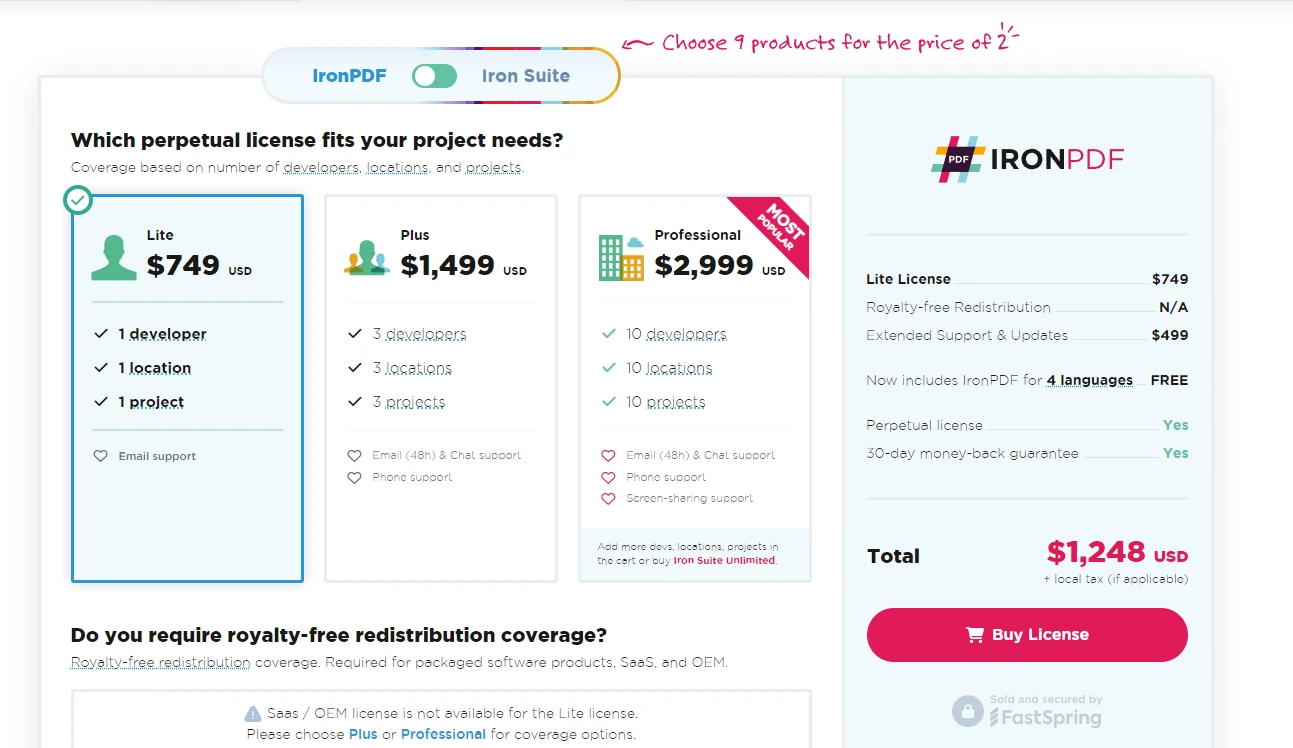
IronPDF offers various pricing tiers to fit different needs:
- Lite: Priced at $799, this tier is suitable for a single developer working on a single project. It's a one-time fee, making it an affordable option for small projects or individual developers.
- Professional: At $1,199, this option supports up to 10 developers, 10 locations, and 10 projects. This tier also includes a one-time fee and provides more flexibility for small to medium-sized teams.
- Unlimited: For $2,399, this tier allows unlimited developers, locations, and projects. This is ideal for larger teams and enterprises needing extensive usage without restrictions.
IronPDF also offers enterprise and OEM redistribution licenses for larger organizations and those needing to integrate PDF functionalities into commercial products. It also offers a free trial to test.
APITemplate Pricing and Licensing
APITemplate offers a different approach with its API-based PDF generation service. Pricing is typically based on the number of API calls, making it more flexible for varying usage patterns:
- Basic Plan: Often starts at a lower price point with a limited number of API calls per month. This is suitable for small projects or businesses with minimal PDF generation needs.
- Standard Plan: This plan includes more API calls and additional features, catering to medium-sized businesses.
- Enterprise Plan: Tailored for high-volume users, this plan provides the most API calls and premium features like priority support and custom integrations.
APITemplate's licensing is straightforward, typically tied to a monthly or yearly subscription model.
Key Differences
- Pricing Model: IronPDF uses a one-time fee model, which can be cost-effective in the long run, especially for continuous, heavy usage. APITemplate, on the other hand, uses a subscription-based model, which can be more flexible and scalable with usage.
- Support and Updates: IronPDF includes one year of support and updates with its purchase, with options to extend this period. APITemplate's subscription plans generally include ongoing support and updates as part of the package.
Why Should You Choose IronPDF?
Both IronPDF and APITemplate offer the ability to generate PDFs from HTML content, but IronPDF's implementation is more robust and flexible. Here's a comparison:
IronPDF
using IronPdf;

var renderer = new ChromePdfRenderer();
var html = @"
<html>
<head>
    <style>
        body { font-family: Arial, sans-serif; }
        .header { color: #0066cc; font-size: 24px; }
        .content { margin-top: 20px; }
    </style>
</head>
<body>
    <div class='header'>Dynamic Report</div>
    <div class='content'>
        <p>This report was generated on: <script>document.write(new Date().toLocaleString());</script></p>
        <p>Lorem ipsum dolor sit amet, consectetur adipiscing elit.</p>
    </div>
</body>
</html>";
var pdf = renderer.RenderHtmlAsPdf(html);
pdf.SaveAs("IronPDF_report.pdf");
using IronPdf;
var renderer = new ChromePdfRenderer();
var html = @"
<html>
<head>
<style>
body { font-family: Arial, sans-serif; }
.header { color: #0066cc; font-size: 24px; }
.content { margin-top: 20px; }
</style>
</head>
<body>
<div class='header'>Dynamic Report</div>
<div class='content'>
<p>This report was generated on: <script>document.write(new Date().toLocaleString());</script></p>
<p>Lorem ipsum dolor sit amet, consectetur adipiscing elit.</p>
</div>
</body>
</html>";
var pdf = renderer.RenderHtmlAsPdf(html);
pdf.SaveAs("IronPDF_report.pdf");Imports IronPdf
Private renderer = New ChromePdfRenderer()
Private html = "
<html>
<head>
<style>
body { font-family: Arial, sans-serif; }
.header { color: #0066cc; font-size: 24px; }
.content { margin-top: 20px; }
</style>
</head>
<body>
<div class='header'>Dynamic Report</div>
<div class='content'>
<p>This report was generated on: <script>document.write(new Date().toLocaleString());</script></p>
<p>Lorem ipsum dolor sit amet, consectetur adipiscing elit.</p>
</div>
</body>
</html>"
Private pdf = renderer.RenderHtmlAsPdf(html)
pdf.SaveAs("IronPDF_report.pdf")APITemplate
using System.Net.Http;
using System.Text.Json;

var apiKey = "your_api_key";
var templateId = "your_template_id";
var url = $"https://rest.apitemplate.io/v2/create-pdf?template_id={templateId}";
var data = new
{
    header = "Dynamic Report",
    content = "Lorem ipsum dolor sit amet, consectetur adipiscing elit.",
    date = DateTime.Now.ToShortDateString()
};
var json = JsonSerializer.Serialize(data);
var content = new StringContent(json, System.Text.Encoding.UTF8, "application/json");
using var client = new HttpClient();
client.DefaultRequestHeaders.Add("X-API-KEY", apiKey);
var response = await client.PostAsync(url, content);
var pdfBytes = await response.Content.ReadAsByteArrayAsync();
File.WriteAllBytes("APITemplate_report.pdf", pdfBytes);
using System.Net.Http;
using System.Text.Json;
var apiKey = "your_api_key";
var templateId = "your_template_id";
var url = $"https://rest.apitemplate.io/v2/create-pdf?template_id={templateId}";
var data = new
{
header = "Dynamic Report",
content = "Lorem ipsum dolor sit amet, consectetur adipiscing elit.",
date = DateTime.Now.ToShortDateString()
};
var json = JsonSerializer.Serialize(data);
var content = new StringContent(json, System.Text.Encoding.UTF8, "application/json");
using var client = new HttpClient();
client.DefaultRequestHeaders.Add("X-API-KEY", apiKey);
var response = await client.PostAsync(url, content);
var pdfBytes = await response.Content.ReadAsByteArrayAsync();
File.WriteAllBytes("APITemplate_report.pdf", pdfBytes);Imports System.Net.Http
Imports System.Text.Json
Private apiKey = "your_api_key"
Private templateId = "your_template_id"
Private url = $"https://rest.apitemplate.io/v2/create-pdf?template_id={templateId}"
Private data = New With {
Key .header = "Dynamic Report",
Key .content = "Lorem ipsum dolor sit amet, consectetur adipiscing elit.",
Key .date = DateTime.Now.ToShortDateString()
}
Private json = JsonSerializer.Serialize(data)
Private content = New StringContent(json, System.Text.Encoding.UTF8, "application/json")
Private client = New HttpClient()
client.DefaultRequestHeaders.Add("X-API-KEY", apiKey)
Dim response = Await client.PostAsync(url, content)
Dim pdfBytes = Await response.Content.ReadAsByteArrayAsync()
File.WriteAllBytes("APITemplate_report.pdf", pdfBytes)Key Differences
- JavaScript Support: IronPDF fully supports JavaScript execution within the HTML, allowing for dynamic content generation (like the current date in the example). APITemplate typically requires all data to be provided upfront.
- CSS Flexibility: With IronPDF, you have full control over CSS styling directly in your HTML. APITemplate often requires predefined templates with limited customization options.
- Performance: IronPDF processes the HTML locally, resulting in faster PDF generation, especially for complex documents. APITemplate's cloud-based approach may introduce latency.
- Offline Capability: IronPDF works offline, which is helpful for applications with limited internet connectivity or high-security requirements. APITemplate always requires an internet connection.
- Dynamic Content: IronPDF allows for more dynamic content generation on the fly, while APITemplate typically requires a predefined template structure.
- Customization: IronPDF offers more fine-grained control over the PDF generation process, including options for page size, margins, and other PDF-specific settings.
- Consistency: IronPDF ensures consistent rendering across different environments, as it uses its rendering engine. APITemplate's output might vary depending on their server configuration.
Wnioski
After extensively working with both IronPDF and APITemplate in various C# projects, I've come to appreciate the unique strengths of each tool. However, for most of my PDF-related tasks, IronPDF has consistently proven to be the superior choice. While APITemplate has its merits, particularly for simple, template-based document generation, I've found that IronPDF's versatility allows it to handle these tasks just as effectively, while also providing the power to tackle more complex PDF operations when needed.
In conclusion, while both tools have their place, IronPDF has consistently proven to be the more powerful, flexible, and cost-effective solution for PDF manipulation in C# development. Its robust feature set, excellent performance, and comprehensive support make it my go-to choice for any PDF-related task, from the simplest document generation to the most complex PDF manipulations.
Często Zadawane Pytania
Jakie są kluczowe różnice między narzędziami do generowania plików PDF opartymi na chmurze a narzędziami opartymi na bibliotekach?
Narzędzia oparte na chmurze, takie jak APITemplate, umożliwiają generowanie plików PDF poprzez wywołania API i wymagają połączenia z Internetem. Natomiast narzędzia oparte na bibliotekach, takie jak IronPDF, są zintegrowane z aplikacją C#, co pozwala na edycję plików PDF w trybie offline i zapewnia większą kontrolę nad tworzeniem i dostosowywaniem plików PDF.
W jaki sposób IronPDF obsługuje konwersję HTML do PDF w aplikacjach C#?
IronPDF umożliwia płynną konwersję HTML do PDF przy użyciu metod takich jak RenderHtmlAsPdf. W pełni obsługuje nowoczesne standardy internetowe, w tym CSS i JavaScript, zapewniając wysokiej jakości renderowanie treści internetowych do plików PDF.
Czy mogę używać IronPDF do dynamicznego generowania treści w plikach PDF?
Tak, IronPDF obsługuje wykonywanie kodu JavaScript, co umożliwia dynamiczne generowanie treści w plikach PDF. Jest to szczególnie przydatne do tworzenia interaktywnych plików PDF bezpośrednio ze stron internetowych zawierających dane dynamiczne.
Jakie są zalety korzystania z IronPDF w porównaniu z usługą opartą na subskrypcji?
IronPDF oferuje jednorazową opłatę licencyjną, zapewniając ekonomiczne rozwiązanie do długoterminowego użytkowania. Umożliwia pracę w trybie offline i zapewnia rozbudowane funkcje edycji plików PDF, które mogą być bardziej elastyczne i niezawodne w porównaniu z usługami opartymi na subskrypcji, takimi jak APITemplate.
Jakie wsparcie jest dostępne dla programistów korzystających z IronPDF?
IronPDF oferuje kompleksowe wsparcie poprzez szczegółową dokumentację, w tym przewodniki, Dokumentację API i przykłady kodu. Programiści mogą również uzyskać pomoc poprzez Wsparcie e-mail, fora społecznościowe oraz monitorowanie na platformach takich jak Stack Overflow.
Czy IronPDF obsługuje tworzenie oprogramowania na wiele platform?
Tak, IronPDF jest kompatybilny z .NET Standard, który obsługuje tworzenie oprogramowania na wiele platform. Dzięki temu programiści mogą płynnie zintegrować IronPDF z projektami działającymi na różnych systemach operacyjnych.
W jaki sposób IronPDF zapewnia bezpieczeństwo generowanych plików PDF?
IronPDF zawiera funkcje szyfrowania i deszyfrowania plików PDF, umożliwiające programistom zabezpieczanie dokumentów hasłami i podpisami cyfrowymi. Funkcje te pomagają w zachowaniu poufności i integralności dokumentów PDF.
Jakie są typowe wskazówki dotyczące rozwiązywania problemów związanych z używaniem IronPDF?
W przypadku problemów z IronPDF upewnij się, że wszystkie zależności są poprawnie zainstalowane i zaktualizowane. Sprawdź dokumentację pod kątem zgodności i ustawień konfiguracyjnych oraz przejrzyj przykładowy kod, aby zweryfikować praktyki wdrożeniowe. Jeśli problemy nadal występują, zespół wsparcia technicznego jest gotowy do pomocy.


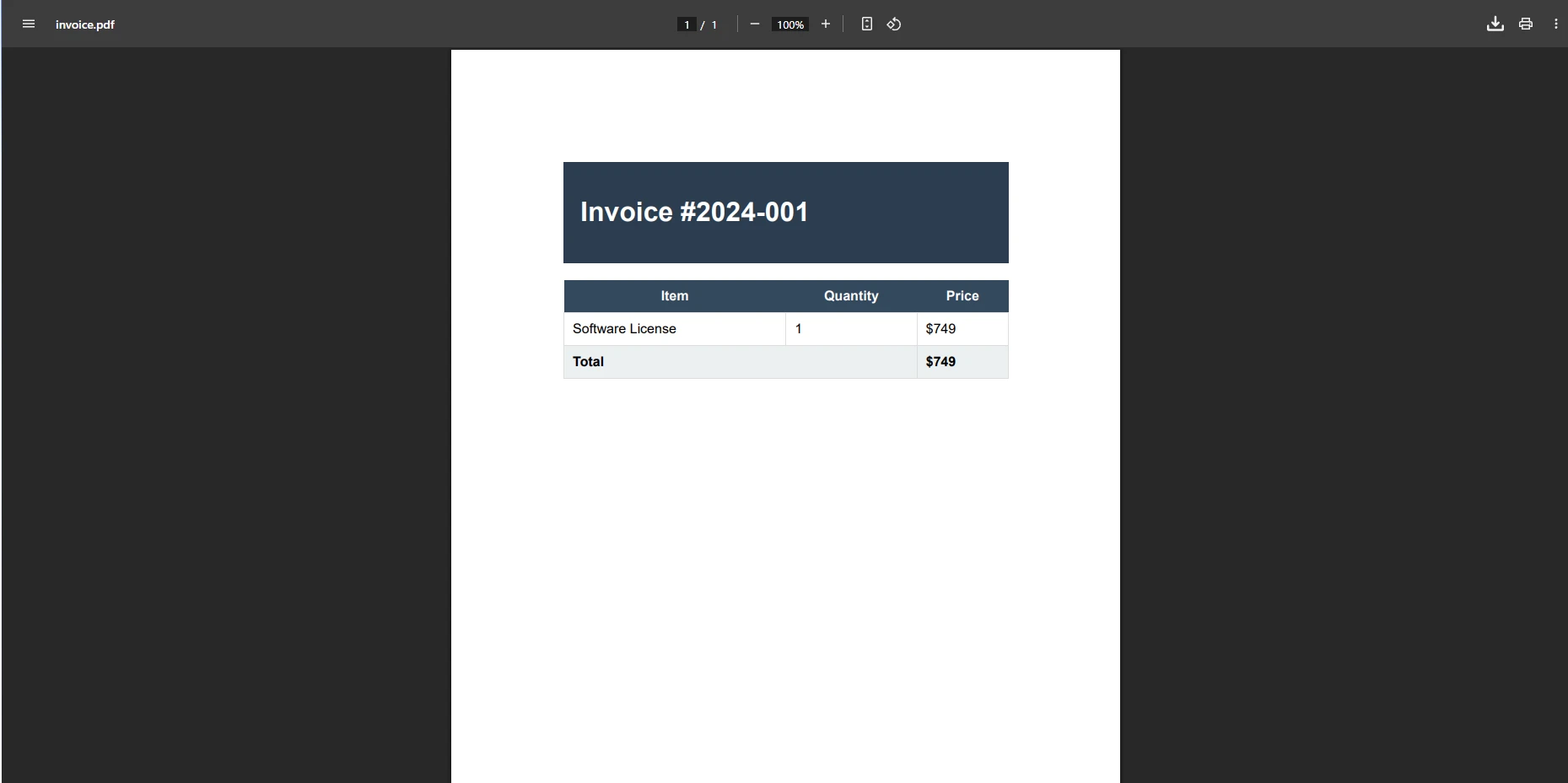






 Rozpocznij za DARMO
 Rozpocznij za DARMO
 Zarezerwuj darmowe Demo na żywo





 Nie wymaga karty kredytowej ani tworzenia konta










