IronPDF vs iText / iText
Kompleksowe porównanie bibliotek PDF .NET - funkcja po funkcji z uzasadnieniem w oparciu o dowody
iText / iText
13
z 20 funkcji
10 Tak7 Złożone3 Nie
IronPDF ✦
20
z 20 funkcji
20 Tak0 Złożone0 Nie
Dane pochodzą z oficjalnej dokumentacji iText, listy PDF Association i odwołań do pakietu NuGet.
iText jest potężny, ale niesie złożoność licencjonowania AGPL i obciążenie przy konfigurowaniu wielu pakietów.
IronPDF zapewnia pełne pokrycie przy prostszej konfiguracji - wypróbuj za darmo przez 30
dni.
Dla programistów pracujących z PDF, posiadanie niezawodnej biblioteki do generowania i manipulacji PDF jest niezbędne. W ekosystemie .NET może być dziesiątki bibliotek PDF w C# do wyboru, więc jak wybrać tę, która najlepiej pasuje do twoich potrzeb?
Wybór odpowiedniej biblioteki jest kluczowy dla efektywnego rozwoju przy pracy z funkcjonalnościami PDF w aplikacjach .NET. Ten artykuł oferuje szczegółowe porównanie pomiędzy dwoma prominentnymi bibliotekami PDF w C#: IronPDF i iText (dawniej iText). Zbadamy ich funkcje, wydajność, licencjonowanie i przydatność do różnych wymagań projektowych, aby pomóc ci w podjęciu świadomej decyzji.
Dlaczego wybrać bibliotekę PDF .NET?
PDF są powszechnie używane w raportach, fakturach i dokumentach prawnych, co sprawia, że generowanie i manipulowanie PDF jest niezbędne dla wielu aplikacji. Podczas wyboru biblioteki, kluczowe czynniki do rozważenia to:
- Łatwość integracji – Jak szybko można zaimplementować funkcje PDF?
- Wsparcie konwersji HTML na PDF – Czy pozwala na łatwą konwersję z treści internetowych?
- Licencjonowanie i koszt – Czy jest bezpłatna, czy wymaga komercyjnej licencji?
- Zestaw funkcji – Czy obsługuje ekstrakcję tekstu, podpisywanie lub edycję?
- Wydajność – Jak szybko generuje lub przetwarza PDF?
Przegląd IronPDF i iText
Wprowadzenie do IronPDF
IronPDF to komercyjna biblioteka PDF zaprojektowana specjalnie dla deweloperów .NET. Upraszcza generowanie, manipulację i konwersję PDF, czyniąc ją jedną z najłatwiejszych bibliotek do użycia w aplikacjach C#.
IronPDF wspiera .NET Core, .NET Framework i .NET Standard, zapewniając kompatybilność w różnych środowiskach .NET. Jej wysoka kompatybilność międzyplatformowa czyni ją idealnym wyborem dla zespołów pracujących w różnych środowiskach aplikacyjnych, a także bezproblemowo integruje się z IDE, takimi jak Visual Studio. Poza swoją wersją dla .NET, IronPDF jest również dostępna w Java, Python i Node.js.
Kluczowe funkcje:
- Wbudowane wsparcie HTML na PDF – Konwertuj strony internetowe, HTML, CSS i JavaScript do PDF bez dodatkowych dodatków.
- Edycja PDF – Modyfikuj istniejące PDF, dodając tekst, obrazy, nagłówki i stopki.
- Bezpieczeństwo PDF – Szyfruj PDF, ustaw ochronę hasłem i zarządzaj uprawnieniami do przeglądania, drukowania lub edytowania.
- Watermark i adnotacje – Łatwo aplikuj tekstowe i obrazowe znaki wodne, pieczęcie lub komentarze na dokumentach.
- Wypełnianie formularzy i ekstrakcja danych – Wypełniaj programowo interaktywne formularze PDF i ekstraktuj dane z formularzy.
Najlepsze dla: deweloperów szukających prostego, kompleksowego rozwiązania bez konieczności stosowania dodatkowych dodatków czy skomplikowanego licencjonowania.
Wprowadzenie do iText
iText to potężna i elastyczna biblioteka PDF, która zapewnia rozbudowane możliwości manipulacji PDF, w tym tworzenie dokumentów, szyfrowanie i podpisywanie. Jednak jego główna biblioteka nie wspiera natywnie konwersji HTML na PDF.
Najważniejsze cechy
- Nisko poziomowa personalizacja PDF – Zapewnia szczegółową kontrolę nad strukturą PDF, metadanymi i renderowaniem.
- Dostępność i zgodność: Generuje PDF/A, PDF/UA i PDF/X dla długoterminowego archiwizowania i zgodności z dostępnością.
- Konwersja HTML na PDF: Płatny dodatek pdfHTML umożliwia konwersję treści HTML do PDF.
- Wsparcie Java i .NET: Głównie zaprojektowany dla Java, z obsługą C# przez iText dla .NET.
- Zarządzanie formularzami PDF: Twórz i edytuj AcroForms i XFA Forms dla interaktywnych formularzy PDF.
Najlepsze dla: deweloperów potrzebujących wysoce konfigurowalnego rozwiązania PDF, którzy są gotowi zakupić dodatkowe dodatki dla rozszerzonych funkcji.
Funkcje i zalety
Zanim przejdziemy do funkcji oraz przykładowego kodu, rzućmy okiem na jedną z największych funkcjonalnych różnic między IronPDF i iText, konwersję HTML na PDF.
- IronPDF natywnie wspiera renderowanie HTML, CSS i JavaScript bez potrzeby dodatkowych komponentów.
- iText, z drugiej strony, wymaga dodatku pdfHTML, który jest płatną funkcją w ramach licencji komercyjnej. To zwiększa koszty dla deweloperów potrzebujących funkcjonalności WWW do PDF.
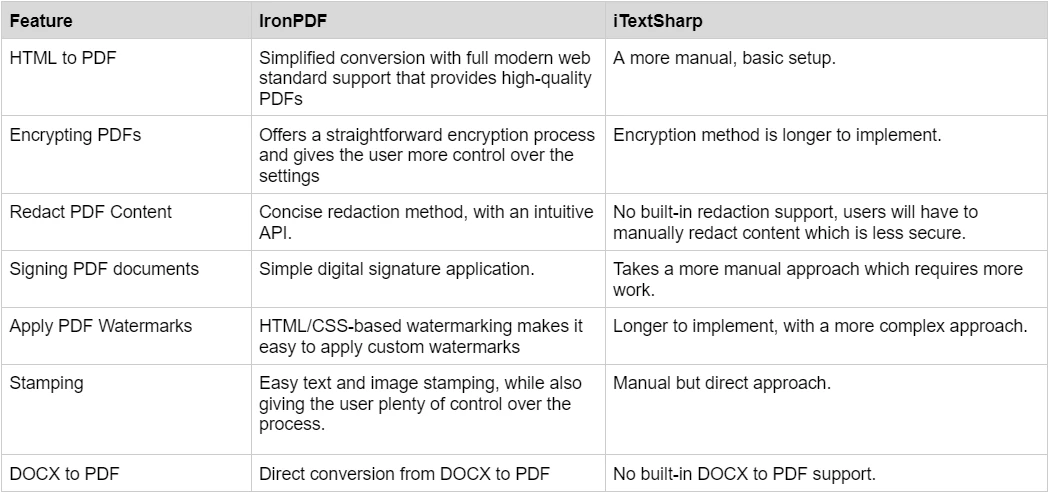
Podsumowanie: Jeśli potrzebujesz konwersji HTML na PDF, IronPDF jest bardziej opłacalnym rozwiązaniem, ponieważ zawiera tę funkcję w standardzie.
Kluczowe funkcje IronPDF (z przykładami kodu)
IronPDF oferuje bogaty zestaw funkcji do pracy z dokumentami PDF. Od tworzenia PDF, do manipulacji PDF i bezpieczeństwa. Aby uzyskać jaśniejszy obraz rozległego zakresu funkcji oferowanych przez tę bibliotekę, przyjrzymy się kilku kluczowym funkcjom.
Konwersja HTML do PDF
Konwertuj treść HTML na dokumenty PDF wysokiej jakości za pomocą potężnego silnika renderowania IronPDF. Silnik renderujący IronPDF nie tylko konwertuje treść HTML; z nim będziesz mógł zachować wszystkie oryginalne style CSS i interaktywność JavaScript.
using IronPdf;

public class Program
{
    static void Main(string[] args)
    {
        // Create a new ChromePdfRenderer instance for rendering HTML to PDF
        ChromePdfRenderer renderer = new ChromePdfRenderer();

        // Render the specified HTML file as a PDF document
        PdfDocument pdf = renderer.RenderHtmlFileAsPdf("example.html");

        // Save the rendered PDF to the specified file path
        pdf.SaveAs("HtmlToPdf.pdf");
    }
}
using IronPdf;

public class Program
{
    static void Main(string[] args)
    {
        // Create a new ChromePdfRenderer instance for rendering HTML to PDF
        ChromePdfRenderer renderer = new ChromePdfRenderer();

        // Render the specified HTML file as a PDF document
        PdfDocument pdf = renderer.RenderHtmlFileAsPdf("example.html");

        // Save the rendered PDF to the specified file path
        pdf.SaveAs("HtmlToPdf.pdf");
    }
}
Imports IronPdf
Public Class Program
Shared Sub Main(ByVal args As String())
' Create a new ChromePdfRenderer instance for rendering HTML to PDF
Dim renderer As New ChromePdfRenderer()
' Render the specified HTML file as a PDF document
Dim pdf As PdfDocument = renderer.RenderHtmlFileAsPdf("example.html")
' Save the rendered PDF to the specified file path
pdf.SaveAs("HtmlToPdf.pdf")
End Sub
End Class
Imports IronPdf

Public Class Program
    Shared Sub Main(ByVal args As String())
        ' Create a new ChromePdfRenderer instance for rendering HTML to PDF
        Dim renderer As New ChromePdfRenderer()

        ' Render the specified HTML file as a PDF document
        Dim pdf As PdfDocument = renderer.RenderHtmlFileAsPdf("example.html")

        ' Save the rendered PDF to the specified file path
        pdf.SaveAs("HtmlToPdf.pdf")
    End Sub
End Class
Input HTML
Output PDF

W tym przykładzie kodu najpierw stworzyliśmy nową instancję ChromePdfRenderer, która daje nam dostęp do potężnego silnika renderującego używanego przez IronPDF do renderowania HTML do PDF. Następnie przekazujemy plik HTML do metody RenderHtmlFileAsPdf(), która z kolei renderuje HTML na PDF, przechowywany w obiekcie PdfDocument. Na końcu zapisujemy PDF na określonej lokalizacji pliku.
URL do pliku PDF
Dla deweloperów szukających konwersji zawartości URL na PDF, nie szukaj dalej niż IronPDF. Z tą biblioteką będziesz mógł tworzyć dokumenty PDF perfekcyjnie oddające piksele za pomocą silnika renderującego ChromePdfRenderer, który zachowa wszystkie oryginalne style i układy podczas renderowania URL do PDF. W tym przykładzie będziemy używać tego URL, aby pokazać, jak IronPDF może obsługiwać bardziej złożone style CSS.
using IronPdf;

public class Program
{
    static void Main(string[] args)
    {
        // Create a new ChromePdfRenderer instance
        ChromePdfRenderer renderer = new ChromePdfRenderer();

        // Render the specified URL as a PDF document
        PdfDocument pdf = renderer.RenderUrlAsPdf("https://www.apple.com");

        // Save the rendered PDF to the specified file path
        pdf.SaveAs("UrlToPdf.pdf");
    }
}
using IronPdf;

public class Program
{
    static void Main(string[] args)
    {
        // Create a new ChromePdfRenderer instance
        ChromePdfRenderer renderer = new ChromePdfRenderer();

        // Render the specified URL as a PDF document
        PdfDocument pdf = renderer.RenderUrlAsPdf("https://www.apple.com");

        // Save the rendered PDF to the specified file path
        pdf.SaveAs("UrlToPdf.pdf");
    }
}
Imports IronPdf
Public Class Program
Shared Sub Main(ByVal args As String())
' Create a new ChromePdfRenderer instance
Dim renderer As New ChromePdfRenderer()
' Render the specified URL as a PDF document
Dim pdf As PdfDocument = renderer.RenderUrlAsPdf("https://www.apple.com")
' Save the rendered PDF to the specified file path
pdf.SaveAs("UrlToPdf.pdf")
End Sub
End Class
Imports IronPdf

Public Class Program
    Shared Sub Main(ByVal args As String())
        ' Create a new ChromePdfRenderer instance
        Dim renderer As New ChromePdfRenderer()

        ' Render the specified URL as a PDF document
        Dim pdf As PdfDocument = renderer.RenderUrlAsPdf("https://www.apple.com")

        ' Save the rendered PDF to the specified file path
        pdf.SaveAs("UrlToPdf.pdf")
    End Sub
End Class
Wyjście PDF:

Podobnie jak w naszym przykładzie HTML do PDF, pierwszym krokiem do konwersji dowolnego URL na PDF za pomocą IronPDF jest najpierw stworzenie nowej instancji ChromePdfRenderer. Po tym jak metoda wyrenderowała zawartość URL w formacie PDF, za pomocą RenderUrlAsPdf, zapisuje wynikowy PDF do nowego obiektu PdfDocument, zanim użyjemy metody SaveAs, aby zapisać PDF.
Podpisy PDF
Zapewnij autentyczność swojego dokumentu PDF, stosując podpis cyfrowy na swoich dokumentach PDF. Istnieją różne metody, które deweloperzy mogą rozważyć przy zastosowaniu podpisów cyfrowych, takie jak cyfrowe podpisanie PDF za pomocą bezpiecznego certyfikatu, dodanie obrazu odręcznego podpisu do PDF lub opieczętowanie obrazu certyfikatu na samym PDF.
using IronPdf;
using IronPdf.Signing;
using System.Security.Cryptography.X509Certificates;
using IronSoftware.Drawing;

public class Program
{
    static void Main(string[] args)
    {
        // Load the certificate used for signing the PDF
        X509Certificate2 cert = new X509Certificate2("IronSoftware.pfx", "your-password", X509KeyStorageFlags.Exportable);

        // Create a PdfSignature instance and set the signature image
        var sig = new PdfSignature(cert);
        sig.SignatureImage = new PdfSignatureImage("IronPdf.png", 0, new Rectangle(150, 100, 350, 250));

        // Sign the existing PDF file and save the signed version
        sig.SignPdfFile("product_report.pdf");
    }
}
using IronPdf;
using IronPdf.Signing;
using System.Security.Cryptography.X509Certificates;
using IronSoftware.Drawing;

public class Program
{
    static void Main(string[] args)
    {
        // Load the certificate used for signing the PDF
        X509Certificate2 cert = new X509Certificate2("IronSoftware.pfx", "your-password", X509KeyStorageFlags.Exportable);

        // Create a PdfSignature instance and set the signature image
        var sig = new PdfSignature(cert);
        sig.SignatureImage = new PdfSignatureImage("IronPdf.png", 0, new Rectangle(150, 100, 350, 250));

        // Sign the existing PDF file and save the signed version
        sig.SignPdfFile("product_report.pdf");
    }
}
Imports IronPdf
Imports IronPdf.Signing
Imports System.Security.Cryptography.X509Certificates
Imports IronSoftware.Drawing
Public Class Program
Shared Sub Main(args As String())
' Load the certificate used for signing the PDF
Dim cert As New X509Certificate2("IronSoftware.pfx", "your-password", X509KeyStorageFlags.Exportable)
' Create a PdfSignature instance and set the signature image
Dim sig As New PdfSignature(cert)
sig.SignatureImage = New PdfSignatureImage("IronPdf.png", 0, New Rectangle(150, 100, 350, 250))
' Sign the existing PDF file and save the signed version
sig.SignPdfFile("product_report.pdf")
End Sub
End Class
Imports IronPdf
Imports IronPdf.Signing
Imports System.Security.Cryptography.X509Certificates
Imports IronSoftware.Drawing

Public Class Program
    Shared Sub Main(args As String())
        ' Load the certificate used for signing the PDF
        Dim cert As New X509Certificate2("IronSoftware.pfx", "your-password", X509KeyStorageFlags.Exportable)

        ' Create a PdfSignature instance and set the signature image
        Dim sig As New PdfSignature(cert)
        sig.SignatureImage = New PdfSignatureImage("IronPdf.png", 0, New Rectangle(150, 100, 350, 250))

        ' Sign the existing PDF file and save the signed version
        sig.SignPdfFile("product_report.pdf")
    End Sub
End Class
Output PDF

W tym przykładzie załadowaliśmy nasz obiekt certyfikatu, stworzyliśmy wizualną reprezentację podpisu lub, w naszym przypadku, obraz IronPDF i stworzyliśmy nowy obiekt PdfSignature, który obsługuje podpisywanie samego dokumentu PDF. Na końcu użyliśmy SignPdfFile, aby podpisać i zapisać nasz dokument PDF.
Jeśli chcesz odkryć więcej funkcji oferowanych przez IronPDF, koniecznie sprawdź jego informacyjną stronę funkcji lub Przewodniki krok po kroku, które zawierają szczegółowe przykłady kodu dla każdej funkcji.
Kluczowe funkcje iText (z przykładami kodu)
iText oferuje szeroki zakres funkcji do dostosowywania i ulepszania twoich dokumentów PDF. Dzięki szerokiemu wsparciu formatów dla różnych standardów PDF i zaawansowanej manipulacji PDF, w tej bibliotece PDF znalazło się wiele możliwości. Jednakże, jak wspomniano wcześniej, iText może wymagać dodatkowych pakietów do przeprowadzania niektórych zadań związanych z PDF, takich jak konwersja HTML na PDF.
Konwersja HTML do PDF
Chociaż iText sam w sobie nie może obsługiwać konwersji HTML na PDF, możemy skorzystać z pdfHTML, płatnego dodatku dostępnego w ramach komercyjnego licencjonowania iText, aby przekonwertować plik HTML, którego używaliśmy w przykładzie IronPDF na dokument PDF.
using iText.Html2pdf;
using System.IO;

public class Program
{
    static void Main(string[] args)
    {
        // Open the HTML file stream
        using (FileStream htmlSource = File.Open("example.html", FileMode.Open))
        // Create the output PDF file stream
        using (FileStream pdf = File.Open("HtmlToPdfOutput.pdf", FileMode.Create))
        {
            // Initialize ConverterProperties for HTML to PDF conversion
            ConverterProperties converterProperties = new ConverterProperties();

            // Convert the HTML source to a PDF document
            HtmlConverter.ConvertToPdf(htmlSource, pdf, converterProperties);

            // Close the PDF file
            pdf.Close();
        }
    }
}
using iText.Html2pdf;
using System.IO;

public class Program
{
    static void Main(string[] args)
    {
        // Open the HTML file stream
        using (FileStream htmlSource = File.Open("example.html", FileMode.Open))
        // Create the output PDF file stream
        using (FileStream pdf = File.Open("HtmlToPdfOutput.pdf", FileMode.Create))
        {
            // Initialize ConverterProperties for HTML to PDF conversion
            ConverterProperties converterProperties = new ConverterProperties();

            // Convert the HTML source to a PDF document
            HtmlConverter.ConvertToPdf(htmlSource, pdf, converterProperties);

            // Close the PDF file
            pdf.Close();
        }
    }
}
Imports iText.Html2pdf
Imports System.IO
Public Class Program
Shared Sub Main(ByVal args As String())
' Open the HTML file stream
Using htmlSource As FileStream = File.Open("example.html", FileMode.Open)
' Create the output PDF file stream
Using pdf As FileStream = File.Open("HtmlToPdfOutput.pdf", FileMode.Create)
' Initialize ConverterProperties for HTML to PDF conversion
Dim converterProperties As New ConverterProperties()
' Convert the HTML source to a PDF document
HtmlConverter.ConvertToPdf(htmlSource, pdf, converterProperties)
' Close the PDF file
pdf.Close()
End Using
End Using
End Sub
End Class
Imports iText.Html2pdf
Imports System.IO

Public Class Program
    Shared Sub Main(ByVal args As String())
        ' Open the HTML file stream
        Using htmlSource As FileStream = File.Open("example.html", FileMode.Open)
            ' Create the output PDF file stream
            Using pdf As FileStream = File.Open("HtmlToPdfOutput.pdf", FileMode.Create)
                ' Initialize ConverterProperties for HTML to PDF conversion
                Dim converterProperties As New ConverterProperties()

                ' Convert the HTML source to a PDF document
                HtmlConverter.ConvertToPdf(htmlSource, pdf, converterProperties)

                ' Close the PDF file
                pdf.Close()
            End Using
        End Using
    End Sub
End Class
Output PDF

W tym przykładzie załadowaliśmy plik HTML i określiliśmy lokalizację pliku, aby zapisać wyrenderowany PDF. Następnie, używając metody ConvertToPdf, możemy łatwo przekonwertować plik HTML na dokument PDF.
URL do pliku PDF
Teraz nadszedł czas, aby porównać, jak iText wypada w porównaniu z IronPDF, jeśli chodzi o konwersję adresów URL na PDF. W tym celu użyjemy dokładnie tego samego adresu URL, co wcześniej, aby zapewnić sprawiedliwe porównanie.
using System;
using System.Net.Http;
using System.IO;
using iText.Html2pdf;

public class Program
{
    public static async System.Threading.Tasks.Task Main(string[] args)
    {
        string url = "https://www.apple.com";  // Replace with your target URL
        string outputPdfPath = "output.pdf";

        try
        {
            // Download HTML content from the URL
            using (HttpClient client = new HttpClient())
            {
                string htmlContent = await client.GetStringAsync(url);

                // Convert HTML to PDF
                using (FileStream pdfStream = new FileStream(outputPdfPath, FileMode.Create))
                {
                    ConverterProperties properties = new ConverterProperties();
                    HtmlConverter.ConvertToPdf(htmlContent, pdfStream, properties);
                }
            }

            Console.WriteLine("PDF created successfully: " + outputPdfPath);
        }
        catch (Exception ex)
        {
            Console.WriteLine("Error: " + ex.Message);
        }
    }
}
using System;
using System.Net.Http;
using System.IO;
using iText.Html2pdf;

public class Program
{
    public static async System.Threading.Tasks.Task Main(string[] args)
    {
        string url = "https://www.apple.com";  // Replace with your target URL
        string outputPdfPath = "output.pdf";

        try
        {
            // Download HTML content from the URL
            using (HttpClient client = new HttpClient())
            {
                string htmlContent = await client.GetStringAsync(url);

                // Convert HTML to PDF
                using (FileStream pdfStream = new FileStream(outputPdfPath, FileMode.Create))
                {
                    ConverterProperties properties = new ConverterProperties();
                    HtmlConverter.ConvertToPdf(htmlContent, pdfStream, properties);
                }
            }

            Console.WriteLine("PDF created successfully: " + outputPdfPath);
        }
        catch (Exception ex)
        {
            Console.WriteLine("Error: " + ex.Message);
        }
    }
}
Imports System
Imports System.Net.Http
Imports System.IO
Imports iText.Html2pdf
Public Class Program
Public Shared Async Function Main(ByVal args() As String) As System.Threading.Tasks.Task
Dim url As String = "https://www.apple.com" ' Replace with your target URL
Dim outputPdfPath As String = "output.pdf"
Try
' Download HTML content from the URL
Using client As New HttpClient()
Dim htmlContent As String = Await client.GetStringAsync(url)
' Convert HTML to PDF
Using pdfStream As New FileStream(outputPdfPath, FileMode.Create)
Dim properties As New ConverterProperties()
HtmlConverter.ConvertToPdf(htmlContent, pdfStream, properties)
End Using
End Using
Console.WriteLine("PDF created successfully: " & outputPdfPath)
Catch ex As Exception
Console.WriteLine("Error: " & ex.Message)
End Try
End Function
End Class
Imports System
Imports System.Net.Http
Imports System.IO
Imports iText.Html2pdf

Public Class Program
	Public Shared Async Function Main(ByVal args() As String) As System.Threading.Tasks.Task
		Dim url As String = "https://www.apple.com" ' Replace with your target URL
		Dim outputPdfPath As String = "output.pdf"

		Try
			' Download HTML content from the URL
			Using client As New HttpClient()
				Dim htmlContent As String = Await client.GetStringAsync(url)

				' Convert HTML to PDF
				Using pdfStream As New FileStream(outputPdfPath, FileMode.Create)
					Dim properties As New ConverterProperties()
					HtmlConverter.ConvertToPdf(htmlContent, pdfStream, properties)
				End Using
			End Using

			Console.WriteLine("PDF created successfully: " & outputPdfPath)
		Catch ex As Exception
			Console.WriteLine("Error: " & ex.Message)
		End Try
	End Function
End Class
Output PDF

Jak widać tutaj, podejście iText do konwersji adresu URL na PDF jest bardziej manualne i złożone. Najpierw musimy pobrać treść HTML z adresu URL, zanim wykonamy podobne kroki, jak w przykładzie HTML na PDF, aby przekształcić naszą treść URL w dokument PDF i go zapisać. Jak widać na obrazie wynikowym, iText nie był w stanie zachować oryginalnego stylu i układu, w przeciwieństwie do IronPDF.
Podpisy PDF
using System.Security.Cryptography.X509Certificates;
using iText.Kernel.Pdf;
using iText.Signatures;
using iText.Bouncycastle.Crypto;
using iText.Commons.Bouncycastle.Cert;
using iText.Commons.Bouncycastle.Crypto;
using Org.BouncyCastle.Pkcs;
using Org.BouncyCastle.Crypto;
using iText.Bouncycastle.X509;
using iText.Kernel.Crypto;
using System.IO;

public class Program
{
    static void Main(string[] args)
    {
        string inputPdf = "input.pdf";       // PDF to be signed
        string outputPdf = "signed_output.pdf";  // Signed PDF output
        string pfxFile = "IronSoftware.pfx";  // Path to your PFX certificate
        string password = "Passw0rd";   // Password for PFX file

        try
        {
            // Load your certificate
            Pkcs12Store ks = new Pkcs12StoreBuilder().Build();
            using (FileStream fs = new FileStream(pfxFile, FileMode.Open, FileAccess.Read))
            {
                ks.Load(fs, password.ToCharArray());
            }

            string alias = null;
            foreach (string al in ks.Aliases)
            {
                if (ks.IsKeyEntry(al))
                {
                    alias = al;
                    break;
                }
            }

            if (alias == null)
            {
                throw new Exception("Alias not found in the PFX file.");
            }

            ICipherParameters pk = ks.GetKey(alias).Key;
            X509CertificateEntry[] chain = ks.GetCertificateChain(alias);

            // Convert BouncyCastle certificates to iText certificates
            var itextCertChain = new IX509Certificate[chain.Length];
            for (int i = 0; i < chain.Length; i++)
            {
                itextCertChain[i] = new X509CertificateBC(chain[i].Certificate);
            }

            // Create output PDF with signed content
            using (PdfReader reader = new PdfReader(inputPdf))
            using (FileStream os = new FileStream(outputPdf, FileMode.Create, FileAccess.Write))
            {
                PdfSigner signer = new PdfSigner(reader, os, new StampingProperties().UseAppendMode());

                // Set up the external signature (private key + digest algorithm)
                IPrivateKey iTextPrivateKey = new PrivateKeyBC(pk);
                IExternalSignature pks = new PrivateKeySignature(iTextPrivateKey, DigestAlgorithms.SHA256);
                IExternalDigest digest = new BouncyCastleDigest();

                // Perform the signing (detached signature)
                signer.SignDetached(digest, pks, itextCertChain, null, null, null, 0, PdfSigner.CryptoStandard.CMS);
            }

            Console.WriteLine($"PDF digitally signed successfully: {outputPdf}");
        }
        catch (Exception ex)
        {
            Console.WriteLine($"Error signing PDF: {ex.Message}");
        }
    }
}
using System.Security.Cryptography.X509Certificates;
using iText.Kernel.Pdf;
using iText.Signatures;
using iText.Bouncycastle.Crypto;
using iText.Commons.Bouncycastle.Cert;
using iText.Commons.Bouncycastle.Crypto;
using Org.BouncyCastle.Pkcs;
using Org.BouncyCastle.Crypto;
using iText.Bouncycastle.X509;
using iText.Kernel.Crypto;
using System.IO;

public class Program
{
    static void Main(string[] args)
    {
        string inputPdf = "input.pdf";       // PDF to be signed
        string outputPdf = "signed_output.pdf";  // Signed PDF output
        string pfxFile = "IronSoftware.pfx";  // Path to your PFX certificate
        string password = "Passw0rd";   // Password for PFX file

        try
        {
            // Load your certificate
            Pkcs12Store ks = new Pkcs12StoreBuilder().Build();
            using (FileStream fs = new FileStream(pfxFile, FileMode.Open, FileAccess.Read))
            {
                ks.Load(fs, password.ToCharArray());
            }

            string alias = null;
            foreach (string al in ks.Aliases)
            {
                if (ks.IsKeyEntry(al))
                {
                    alias = al;
                    break;
                }
            }

            if (alias == null)
            {
                throw new Exception("Alias not found in the PFX file.");
            }

            ICipherParameters pk = ks.GetKey(alias).Key;
            X509CertificateEntry[] chain = ks.GetCertificateChain(alias);

            // Convert BouncyCastle certificates to iText certificates
            var itextCertChain = new IX509Certificate[chain.Length];
            for (int i = 0; i < chain.Length; i++)
            {
                itextCertChain[i] = new X509CertificateBC(chain[i].Certificate);
            }

            // Create output PDF with signed content
            using (PdfReader reader = new PdfReader(inputPdf))
            using (FileStream os = new FileStream(outputPdf, FileMode.Create, FileAccess.Write))
            {
                PdfSigner signer = new PdfSigner(reader, os, new StampingProperties().UseAppendMode());

                // Set up the external signature (private key + digest algorithm)
                IPrivateKey iTextPrivateKey = new PrivateKeyBC(pk);
                IExternalSignature pks = new PrivateKeySignature(iTextPrivateKey, DigestAlgorithms.SHA256);
                IExternalDigest digest = new BouncyCastleDigest();

                // Perform the signing (detached signature)
                signer.SignDetached(digest, pks, itextCertChain, null, null, null, 0, PdfSigner.CryptoStandard.CMS);
            }

            Console.WriteLine($"PDF digitally signed successfully: {outputPdf}");
        }
        catch (Exception ex)
        {
            Console.WriteLine($"Error signing PDF: {ex.Message}");
        }
    }
}
Imports System.Security.Cryptography.X509Certificates
Imports iText.Kernel.Pdf
Imports iText.Signatures
Imports iText.Bouncycastle.Crypto
Imports iText.Commons.Bouncycastle.Cert
Imports iText.Commons.Bouncycastle.Crypto
Imports Org.BouncyCastle.Pkcs
Imports Org.BouncyCastle.Crypto
Imports iText.Bouncycastle.X509
Imports iText.Kernel.Crypto
Imports System.IO
Public Class Program
Shared Sub Main(ByVal args() As String)
Dim inputPdf As String = "input.pdf" ' PDF to be signed
Dim outputPdf As String = "signed_output.pdf" ' Signed PDF output
Dim pfxFile As String = "IronSoftware.pfx" ' Path to your PFX certificate
Dim password As String = "Passw0rd" ' Password for PFX file
Try
' Load your certificate
Dim ks As Pkcs12Store = (New Pkcs12StoreBuilder()).Build()
Using fs As New FileStream(pfxFile, FileMode.Open, FileAccess.Read)
ks.Load(fs, password.ToCharArray())
End Using
Dim [alias] As String = Nothing
For Each al As String In ks.Aliases
If ks.IsKeyEntry(al) Then
[alias] = al
Exit For
End If
Next al
If [alias] Is Nothing Then
Throw New Exception("Alias not found in the PFX file.")
End If
Dim pk As ICipherParameters = ks.GetKey([alias]).Key
Dim chain() As X509CertificateEntry = ks.GetCertificateChain([alias])
' Convert BouncyCastle certificates to iText certificates
Dim itextCertChain = New IX509Certificate(chain.Length - 1){}
For i As Integer = 0 To chain.Length - 1
itextCertChain(i) = New X509CertificateBC(chain(i).Certificate)
Next i
' Create output PDF with signed content
Using reader As New PdfReader(inputPdf)
Using os As New FileStream(outputPdf, FileMode.Create, FileAccess.Write)
Dim signer As New PdfSigner(reader, os, (New StampingProperties()).UseAppendMode())
' Set up the external signature (private key + digest algorithm)
Dim iTextPrivateKey As IPrivateKey = New PrivateKeyBC(pk)
Dim pks As IExternalSignature = New PrivateKeySignature(iTextPrivateKey, DigestAlgorithms.SHA256)
Dim digest As IExternalDigest = New BouncyCastleDigest()
' Perform the signing (detached signature)
signer.SignDetached(digest, pks, itextCertChain, Nothing, Nothing, Nothing, 0, PdfSigner.CryptoStandard.CMS)
End Using
End Using
Console.WriteLine($"PDF digitally signed successfully: {outputPdf}")
Catch ex As Exception
Console.WriteLine($"Error signing PDF: {ex.Message}")
End Try
End Sub
End Class
Imports System.Security.Cryptography.X509Certificates
Imports iText.Kernel.Pdf
Imports iText.Signatures
Imports iText.Bouncycastle.Crypto
Imports iText.Commons.Bouncycastle.Cert
Imports iText.Commons.Bouncycastle.Crypto
Imports Org.BouncyCastle.Pkcs
Imports Org.BouncyCastle.Crypto
Imports iText.Bouncycastle.X509
Imports iText.Kernel.Crypto
Imports System.IO

Public Class Program
	Shared Sub Main(ByVal args() As String)
		Dim inputPdf As String = "input.pdf" ' PDF to be signed
		Dim outputPdf As String = "signed_output.pdf" ' Signed PDF output
		Dim pfxFile As String = "IronSoftware.pfx" ' Path to your PFX certificate
		Dim password As String = "Passw0rd" ' Password for PFX file

		Try
			' Load your certificate
			Dim ks As Pkcs12Store = (New Pkcs12StoreBuilder()).Build()
			Using fs As New FileStream(pfxFile, FileMode.Open, FileAccess.Read)
				ks.Load(fs, password.ToCharArray())
			End Using

			Dim [alias] As String = Nothing
			For Each al As String In ks.Aliases
				If ks.IsKeyEntry(al) Then
					[alias] = al
					Exit For
				End If
			Next al

			If [alias] Is Nothing Then
				Throw New Exception("Alias not found in the PFX file.")
			End If

			Dim pk As ICipherParameters = ks.GetKey([alias]).Key
			Dim chain() As X509CertificateEntry = ks.GetCertificateChain([alias])

			' Convert BouncyCastle certificates to iText certificates
			Dim itextCertChain = New IX509Certificate(chain.Length - 1){}
			For i As Integer = 0 To chain.Length - 1
				itextCertChain(i) = New X509CertificateBC(chain(i).Certificate)
			Next i

			' Create output PDF with signed content
			Using reader As New PdfReader(inputPdf)
			Using os As New FileStream(outputPdf, FileMode.Create, FileAccess.Write)
				Dim signer As New PdfSigner(reader, os, (New StampingProperties()).UseAppendMode())

				' Set up the external signature (private key + digest algorithm)
				Dim iTextPrivateKey As IPrivateKey = New PrivateKeyBC(pk)
				Dim pks As IExternalSignature = New PrivateKeySignature(iTextPrivateKey, DigestAlgorithms.SHA256)
				Dim digest As IExternalDigest = New BouncyCastleDigest()

				' Perform the signing (detached signature)
				signer.SignDetached(digest, pks, itextCertChain, Nothing, Nothing, Nothing, 0, PdfSigner.CryptoStandard.CMS)
			End Using
			End Using

			Console.WriteLine($"PDF digitally signed successfully: {outputPdf}")
		Catch ex As Exception
			Console.WriteLine($"Error signing PDF: {ex.Message}")
		End Try
	End Sub
End Class
Output PDF

Jak widać, podczas gdy iText jest w stanie cyfrowo podpisać dokumenty PDF, proces ten jest znacznie bardziej złożony niż w przypadku IronPDF. Ten kod ładuje certyfikat PFX i używa go do cyfrowego podpisania PDF. Wyodrębnia klucz prywatny i certyfikat, konfiguruje podpisującego oraz dodaje oddzielny podpis do PDF, a następnie zapisuje podpisany dokument.
Analiza Konkurencyjna
Wydajność i Użyteczność
Kluczowe Zalety IronPDF
IronPDF jest znany ze swojej łatwości użytkowania i optymalizacji dla wysokiej wydajności, oferując bardziej bezpośrednie API, które upraszcza typowe zadania, takie jak konwersja HTML na PDF. Oferuje wysokopoziomowe metody, które abstrakcyjnie ukrywają złożone zadania przetwarzania PDF, pozwalając deweloperom generować, edytować i manipulować PDF z minimalnym nakładem kodu. Dla przetwarzania wielowątkowego lub na dużą skalę, IronPDF wspiera równoległe wykonywanie.
- Łatwe w użyciu API – Wysokopoziomowe metody upraszczają typowe zadania, takie jak konwersja HTML na PDF.
- Minimalna konfiguracja wymagana – Łatwie się integruje w projekty .NET.
- Wbudowana obsługa wykonywania równoległego – zoptymalizowana pod kątem generowania i konwersji dużych ilości plików PDF.
- Uproszczony interfejs API – wymaga mniej linii kodu, aby osiągnąć wyniki.
iText - Potężny, ale złożony
Z kolei iText oferuje bardziej szczegółowy i precyzyjny poziom kontroli, co może być korzystne dla deweloperów potrzebujących rozległej personalizacji. Zapewnia solidny interfejs API do pracy z operacjami PDF na niskim poziomie. Jednak ze względu na swoją złożoność, iText często wymaga więcej kodu, aby osiągnąć podobne wyniki w porównaniu do IronPDF.
- Precyzyjna kontrola plików PDF – idealne rozwiązanie dla aplikacji Enterprise wymagających ścisłej zgodności (np. PDF/A, PDF/UA, podpisy cyfrowe).
- Wysoki stopień dostosowania – oferuje zaawansowaną obsługę plików PDF dla zaawansowanych zastosowań.
- Bardziej stroma krzywa uczenia się – wymaga więcej ustawień i konfiguracji w porównaniu z IronPDF.
- Więcej kodu – typowe zadania często wymagają dłuższych implementacji.
Licencjonowanie i koszty
Przy wyborze biblioteki PDF do projektu .NET kluczowe znaczenie mają kwestie licencji i kosztów. Zarówno IronPDF, jak i iText stosują różne modele licencjonowania, a wybór odpowiedniego zależy od wymagań projektu, budżetu i potrzeb zgodności.
Licencjonowanie i koszty IronPDF
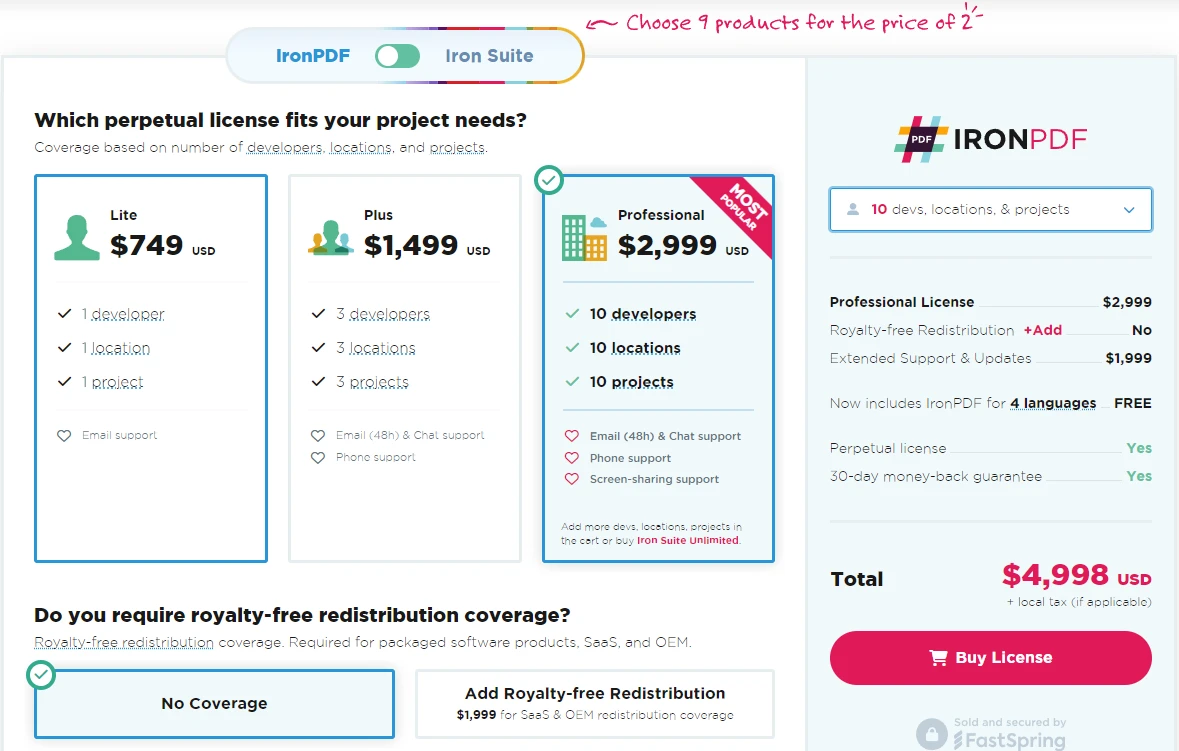
IronPDF działa w modelu licencji komercyjnych, co oznacza, że chociaż oferuje bezpłatną wersję próbną licencji komercyjnej i jest darmowy do celów programistycznych i testowych, to do pełnego wykorzystania w produkcji potrzebna jest płatna licencja. Ceny są przejrzyste i zależą od takich czynników, jak skala użytkowania, liczba programistów oraz rodzaj projektu.
Licencjonowanie IronPDF:
- Komercyjny model licencyjny (bez ograniczeń open source).
- Prosta struktura cenowa oparta na licencjach dla programistów lub Team Licenses.
- Bez dodatkowych kosztów za konwersję HTML do PDF, zabezpieczenia PDF lub inne podstawowe funkcje.
- Najlepsze rozwiązanie dla firm**,** które potrzebują prostego i ekonomicznego rozwiązania do obsługi plików PDF.
Podsumowując: IronPDF zawiera wszystkie najważniejsze funkcje w ramach jednej licencji, co czyni go opłacalnym wyborem dla zespołów i firm.
Licencjonowanie i Koszty iText
iText działa na modelu podwójnego licencjonowania, który obejmuje:
- AGPL (GNU Affero General Public License) – Darmowa dla projektów open-source, ale wymaga, aby cały projekt korzystający z iText był open-source i zgodny z AGPL. Oznacza to, że wszelkie modyfikacje lub uzupełnienia wprowadzone do projektu muszą być również udostępniane publicznie.
- Licencja komercyjna – wymagana w przypadku każdego oprogramowania własnościowego lub aplikacji komercyjnych, których twórcy nie chcą ujawniać kodu źródłowego. Struktura cenowa różni się w zależności od wykorzystania, poziomu wsparcia i skali wdrożenia.
Dla firm chcących zintegrować iText z oprogramowaniem proprietarnym, wymagana jest licencja komercyjna. Koszt może być znaczny, zwłaszcza w przypadku rozwiązań na poziomie Enterprise, ponieważ cena jest ustalana w przeliczeniu na jednego programistę, ale zapewnia to dostęp do profesjonalnego wsparcia i gwarantuje zgodność z przepisami.
Dlaczego iText może być droższy:
- Ceny na programistę – każdy programista potrzebuje osobnej licencji, co zwiększa całkowite koszty dla zespołów.
- Podstawowe funkcje wymagają drogich dodatków:
- pdfHTML (płatny) – Wymagany do konwersji HTML na PDF.
- pdfOCR (płatny) – Potrzebny do rozpoznawania tekstu z obrazów.
- pdfCalligraph (płatny) – poprawia renderowanie tekstu i obsługę czcionek.
- pdfRender (płatny) – dodaje funkcję konwersji plików PDF na obrazy.
- pdf2Data (płatna) – Wyodrębnia dane strukturalne z plików PDF.
- Koszty dla Enterprise mogą szybko wzrosnąć, gdy potrzebnych jest wiele funkcji i programistów.
Podsumowanie: Jeśli Twój zespół wymaga wielu deweloperów i kluczowych funkcji takich jak HTML-to-PDF i OCR, iText może być znacznie droższy niż IronPDF, który dostarcza te funkcje bez dodatkowych kosztów.
Scenariusze zastosowań
Małe projekty a projekty Enterprise
W przypadku małych i średnich projektów, które wymagają szybkiego wdrożenia funkcji PDF przy minimalnej konfiguracji, IronPDF jest atrakcyjnym wyborem ze względu na przyjazny dla użytkownika interfejs API i kompleksowy zestaw funkcji. Projekty na poziomie enterprise, które wymagają rozległej personalizacji i zgodności z określonymi standardami PDF, mogą czerpać korzyści z zaawansowanych możliwości iText, jednakże IronPDF również jest silnym kandydatem w takiej pracy ze względu na swoją wysoką wydajność, opcje licencjonowania i użyteczność.
Wykorzystanie akademickie i komercyjne
W ustawieniach akademickich lub projektach open-source, licencja AGPL iText pozwala na darmowe użytkowanie, pod warunkiem, że licencja projektu jest kompatybilna. Dla aplikacji komercyjnych, zarówno IronPDF, jak i iText wymagają zakupu licencji komercyjnej. Warto zapoznać się z warunkami licencji każdej biblioteki, aby upewnić się, że są one zgodne z celami Twojego projektu.
Wnioski
Wybór odpowiedniej biblioteki PDF do projektu .NET to kluczowa decyzja, która zależy od takich czynników, jak łatwość obsługi, zestaw funkcji i wymagania licencyjne. Zarówno IronPDF, jak i iText oferują potężne możliwości PDF, ale odpowiadają różnym wymaganiom. Oprócz tych dwóch bibliotek, konkurenci tacy jak Aspose, Syncfusion i PDFSharp oferują konkurencyjne biblioteki .NET do obsługi plików PDF. Jednak IronPDF konsekwentnie przoduje w branży PDF dzięki łatwemu w użyciu API, kompleksowemu zestawowi funkcji i opłacalności.
Poniżej przedstawiamy przekonujące argumenty przemawiające za tym, dlaczego IronPDF jest doskonałym wyborem dla wszystkich Twoich potrzeb związanych z biblioteką PDF dla platformy .NET.

Zalety IronPDF
- Łatwość użytkowania: IronPDF został zaprojektowany z naciskiem na prostotę, co czyni go idealnym wyborem dla programistów, którzy potrzebują szybko zintegrować funkcje PDF ze swoimi aplikacjami .NET. Jego intuicyjne API redukuje krzywą uczenia się i przyspiesza czas rozwijania.
- Kompleksowa dokumentacja i wsparcie: IronPDF oferuje szczegółową dokumentację i responsywną obsługę klienta, dzięki czemu programiści mogą szybko opanować obsługę oprogramowania i skutecznie rozwiązywać problemy.
- Płynna konwersja HTML do PDF: IronPDF doskonale radzi sobie z konwersją HTML, w tym CSS i JavaScript, na wysokiej jakości pliki PDF. Jest to szczególnie przydatne w przypadku projektów, które wymagają dynamicznego generowania plików PDF na podstawie treści internetowych.
- Licencjonowanie komercyjne: W przypadku zastosowań komercyjnych IronPDF oferuje elastyczne opcje licencjonowania, zapewniające zgodność z przepisami bez ograniczeń, które mogą wynikać z licencji open source.
Ograniczenia iText
- Złożoność: Podczas gdy iText oferuje zaawansowane funkcje i możliwość personalizacji, jego API może być skomplikowane dla deweloperów nowych w manipulacji PDF. Może to skutkować wydłużeniem czasu realizacji typowych zadań w porównaniu z prostszym podejściem stosowanym w IronPDF.
- Koszty licencjonowania dla użytkowania komercyjnego: Licencja AGPL iText wymaga, aby jakiekolwiek dzieła pochodne były open-source, chyba że zakupisz licencję komercyjną. Może to stanowić ograniczenie dla aplikacji własnościowych, które nie mogą spełnić warunków licencji AGPL.
- Funkcje skoncentrowane na Javie: Chociaż iText jest dostępny dla .NET, jego korzenie w ekosystemie Javy mogą czasami sprawić, że będzie mniej natywny dla deweloperów C#, szczególnie w przypadku problemów związanych z platformą lub integracji z narzędziami opartymi na Javie.
Podsumowanie
Jeśli Twój projekt wymaga szybkiej generacji PDF, zwłaszcza z treści webowych, i szukasz łatwego w użyciu rozwiązania, IronPDF jest prawdopodobnie lepszym wyborem. Jednak jeśli Twoja aplikacja wymaga zaawansowanej manipulacji PDF lub ścisłej zgodności ze standardami PDF i potrzebujesz elastyczności w szerokiej personalizacji, iText może być lepszym rozwiązaniem. Weź pod uwagę konkretne wymagania swojego projektu i ograniczenia licencyjne, aby wybrać bibliotekę najlepiej odpowiadającą Twoim potrzebom.
Wypróbuj IronPDF już dziś: pobierz bezpłatną wersję próbną, aby samodzielnie poznać zaawansowane funkcje IronPDF!
iText jest zarejestrowanym znakiem towarowym jego właściciela. Ta strona nie jest powiązana, wspierana ani sponsorowana przez iText. Wszystkie nazwy produktów, logo i marki są własnością ich odpowiednich właścicieli. Porównania mają charakter wyłącznie informacyjny i odzwierciedlają informacje dostępne publicznie w momencie pisania.













