IronPDF vs iText / iText
綜合 .NET PDF 程式庫的比較 - 根據證據的功能對功能比較
iText / iText
13
20項功能中
10 Yes7 Complex3 No
IronPDF ✦
20
20項功能中
20 Yes0 Complex0 No
資料來源於官方的 iText 文件、PDF 協會清單和 NuGet 包參考。
iText 功能強大但具有 AGPL 許可的復雜性和多包設置開銷。
IronPDF 提供完整覆蓋且設置更簡單 - 免費試用 30
天。
對於處理PDF的開發者來說,擁有一個可靠的PDF生成和操作庫是至關重要的。 在 .NET 生態系統中,可能有數十個 C# PDF 程式庫可供選擇,因此您該如何選擇哪一個最適合您的需求呢?
選擇合適的程式庫對於在 .NET 應用程式中使用 PDF 功能進行有效開發至關重要。 本文提供了兩個著名 C# PDF 程式庫之間的詳細比較: IronPDF 和 iText(前身為 iText)。 我們將探討它們的功能、效能、授權方式及其對各種專案需求的適用性,幫助您做出明智的決策。
為什麼選擇 .NET PDF 程式庫?
PDF 廣泛用於 報告、發票和法律文件,因此 PDF 生成和操作對許多應用程式來說至關重要。 選擇程式庫時,需考慮的關鍵因素包括:
- 整合的便利性 – 您多快能夠實施 PDF 功能?
- 支持 HTML 到 PDF 的轉換 – 是否允許從網路內容進行簡單的轉換?
- 授權和成本 – 是免費的還是需要商業授權?
- 功能集 – 是否支持文字提取、簽名或編輯?
- 效能 – 生成或處理 PDF 的速度如何?
IronPDF 和 iText 的概覽
IronPDF 介紹
IronPDF 是專為 .NET 開發人員設計的商業 PDF 程式庫。 它簡化了 PDF 的生成、操作和轉換,使其成為在 C# 應用程式中使用最簡單的程式庫之一。
IronPDF 支持 .NET Core、.NET Framework 和 .NET Standard,確保在各種 .NET 環境中的相容性。 其高度跨平台的相容性使其成為在不同應用環境中工作的團隊的理想選擇,並與 Visual Studio 等 IDE 無縫整合。 除了其 .NET 版本外,IronPDF 還有 Java、Python 和 Node.js 的版本可用。
主要功能:
- 內建 HTML 到 PDF 支持 – 不需額外附加元件即可將 網頁、HTML、CSS 和 JavaScript 轉換為 PDF。
- PDF 編輯 – 通過新增文字、圖片、頁頭和頁尾來修改現有的 PDF。
- PDF 安全 – 加密 PDF、設置密碼保護和管理查看、列印或編輯的權限。
- 浮水印和註解 – 輕鬆應用文字和圖片浮水印、印章或評論到文件。
- 表單填寫和資料提取 – 程式化地填寫互動式PDF 表單並提取表單資料。
最佳選擇: 尋求一體化解決方案且無需繁瑣附加元件或複雜授權的開發人員。
iText 介紹
iText 是一個功能強大且靈活的 PDF 程式庫,提供廣泛的 PDF 操作能力,包括文件建立、加密和簽名。 然而,其核心程式庫不能原生支持 HTML 到 PDF 的轉換。
主要功能
- 低層次 PDF 自定義 – 提供對 PDF 結構、元資料和呈現的詳細控制。
- 無障礙性和合規性: 生成 PDF/A、PDF/UA 和 PDF/X 以供長期存檔和無障礙合規性使用。
- HTML 到 PDF 轉換: 收費的 pdfHTML 附加元件可將 HTML 內容轉換為 PDF。
- Java 和 .NET 支持: 主要為 Java 設計,透過 iText for .NET 提供 C# 支持。
- PDF 表單管理: 建立和編輯 AcroForms 和 XFA 表單以進行互動式 PDF 表單制作。
最佳選擇:需要高度可自定義的 PDF 解決方案和願意購買額外附加元件以擴展功能的開發人員。
功能與優勢
在介紹功能和相關範例程式碼之前,讓我們先看看 IronPDF 和 iText 之間最大的功能差異之一,HTML 到 PDF 的轉換。
- IronPDF 原生支持 HTML、CSS 和 JavaScript 渲染而無需額外的元件。
- iText 則需要 pdfHTML 附加元件,這是一種 商業授權下的收費功能。 這增加了開發需要網頁到 PDF 功能的成本。
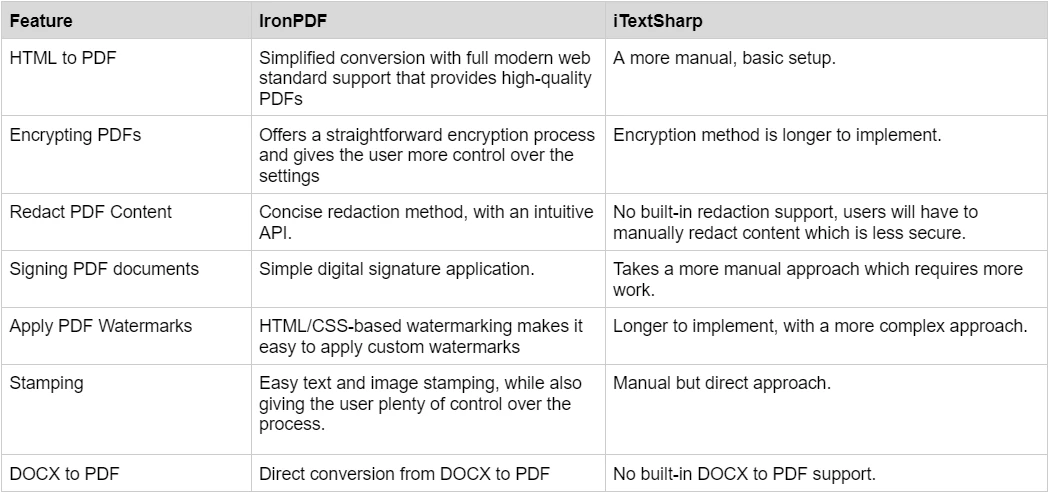
結論: 如果您需要 HTML 到 PDF 轉換,IronPDF 是 更具成本效益的解決方案,因為它預設就包含此功能。
IronPDF 主要功能(含程式碼範例)
IronPDF 擁有豐富的功能集可用於處理 PDF 文件。 這些功能涵蓋從 PDF 建立、到 PDF 操作和安全的各個方面。 為了更清楚地了解此程式庫所提供的豐富功能範疇,我們將選擇一些關鍵功能進行查看。
HTML轉PDF
將 HTML 內容 轉換成高質量的 PDF 文件,利用 IronPDF 強大的渲染引擎。IronPDF 的渲染器不僅僅是轉換 HTML 內容; 藉由它,您將能夠保留所有原始的 CSS 樣式和 JavaScript 的互動性。
using IronPdf;

public class Program
{
    static void Main(string[] args)
    {
        // Create a new ChromePdfRenderer instance for rendering HTML to PDF
        ChromePdfRenderer renderer = new ChromePdfRenderer();

        // Render the specified HTML file as a PDF document
        PdfDocument pdf = renderer.RenderHtmlFileAsPdf("example.html");

        // Save the rendered PDF to the specified file path
        pdf.SaveAs("HtmlToPdf.pdf");
    }
}
using IronPdf;

public class Program
{
    static void Main(string[] args)
    {
        // Create a new ChromePdfRenderer instance for rendering HTML to PDF
        ChromePdfRenderer renderer = new ChromePdfRenderer();

        // Render the specified HTML file as a PDF document
        PdfDocument pdf = renderer.RenderHtmlFileAsPdf("example.html");

        // Save the rendered PDF to the specified file path
        pdf.SaveAs("HtmlToPdf.pdf");
    }
}
Imports IronPdf
Public Class Program
Shared Sub Main(ByVal args As String())
' Create a new ChromePdfRenderer instance for rendering HTML to PDF
Dim renderer As New ChromePdfRenderer()
' Render the specified HTML file as a PDF document
Dim pdf As PdfDocument = renderer.RenderHtmlFileAsPdf("example.html")
' Save the rendered PDF to the specified file path
pdf.SaveAs("HtmlToPdf.pdf")
End Sub
End Class
Imports IronPdf

Public Class Program
    Shared Sub Main(ByVal args As String())
        ' Create a new ChromePdfRenderer instance for rendering HTML to PDF
        Dim renderer As New ChromePdfRenderer()

        ' Render the specified HTML file as a PDF document
        Dim pdf As PdfDocument = renderer.RenderHtmlFileAsPdf("example.html")

        ' Save the rendered PDF to the specified file path
        pdf.SaveAs("HtmlToPdf.pdf")
    End Sub
End Class
輸入 HTML
輸出 PDF

在此程式碼範例中,我們首先建立了一個新的 ChromePdfRenderer 實例,這使我們能夠使用 IronPDF 強大的渲染引擎將 HTML 轉換為 PDF。 接著,我們將 HTML 文件傳遞給 RenderHtmlFileAsPdf() 方法,然後該方法將 HTML 渲染成 PDF,並儲存在 PdfDocument 物件中。 最後,我們將 PDF 保存到指定的文件位置。
URL到PDF
對於想要將 URL 內容轉換成 PDF 的開發人員,選擇 IronPDF 就不用再尋找。 使用此程式庫,您將能夠透過 ChromePdfRenderer 渲染引擎建立像素完美的 PDF 文件,這將保留原有樣式和佈局,當它渲染 URL 到 PDF 時。 在此範例中,我們將使用 此 URL 來展示 IronPDF 如何處理更複雜的 CSS 樣式。
using IronPdf;

public class Program
{
    static void Main(string[] args)
    {
        // Create a new ChromePdfRenderer instance
        ChromePdfRenderer renderer = new ChromePdfRenderer();

        // Render the specified URL as a PDF document
        PdfDocument pdf = renderer.RenderUrlAsPdf("https://www.apple.com");

        // Save the rendered PDF to the specified file path
        pdf.SaveAs("UrlToPdf.pdf");
    }
}
using IronPdf;

public class Program
{
    static void Main(string[] args)
    {
        // Create a new ChromePdfRenderer instance
        ChromePdfRenderer renderer = new ChromePdfRenderer();

        // Render the specified URL as a PDF document
        PdfDocument pdf = renderer.RenderUrlAsPdf("https://www.apple.com");

        // Save the rendered PDF to the specified file path
        pdf.SaveAs("UrlToPdf.pdf");
    }
}
Imports IronPdf
Public Class Program
Shared Sub Main(ByVal args As String())
' Create a new ChromePdfRenderer instance
Dim renderer As New ChromePdfRenderer()
' Render the specified URL as a PDF document
Dim pdf As PdfDocument = renderer.RenderUrlAsPdf("https://www.apple.com")
' Save the rendered PDF to the specified file path
pdf.SaveAs("UrlToPdf.pdf")
End Sub
End Class
Imports IronPdf

Public Class Program
    Shared Sub Main(ByVal args As String())
        ' Create a new ChromePdfRenderer instance
        Dim renderer As New ChromePdfRenderer()

        ' Render the specified URL as a PDF document
        Dim pdf As PdfDocument = renderer.RenderUrlAsPdf("https://www.apple.com")

        ' Save the rendered PDF to the specified file path
        pdf.SaveAs("UrlToPdf.pdf")
    End Sub
End Class
PDF 輸出:

就像我們的 HTML 到 PDF 範例中,使用 IronPDF 將任何 URL 轉換為 PDF 的第一步是首先建立一個新的 ChromePdfRenderer 實例。 一旦該方法使用 RenderUrlAsPdf 已將 URL 內容渲染為 PDF 格式,它會將生成的 PDF 保存至新的 PdfDocument 物件,然後我們使用 SaveAs 方法來保存 PDF。
PDF簽名
通過為您的 PDF 文件新增數位簽名來確保其真實性。 開發人員可能會考慮不同的方法來應用數位簽名,例如使用安全憑證數位簽署 PDF,在 PDF 上新增手寫簽名的圖片,或直接將憑證的圖片蓋在 PDF 上。
using IronPdf;
using IronPdf.Signing;
using System.Security.Cryptography.X509Certificates;
using IronSoftware.Drawing;

public class Program
{
    static void Main(string[] args)
    {
        // Load the certificate used for signing the PDF
        X509Certificate2 cert = new X509Certificate2("IronSoftware.pfx", "your-password", X509KeyStorageFlags.Exportable);

        // Create a PdfSignature instance and set the signature image
        var sig = new PdfSignature(cert);
        sig.SignatureImage = new PdfSignatureImage("IronPdf.png", 0, new Rectangle(150, 100, 350, 250));

        // Sign the existing PDF file and save the signed version
        sig.SignPdfFile("product_report.pdf");
    }
}
using IronPdf;
using IronPdf.Signing;
using System.Security.Cryptography.X509Certificates;
using IronSoftware.Drawing;

public class Program
{
    static void Main(string[] args)
    {
        // Load the certificate used for signing the PDF
        X509Certificate2 cert = new X509Certificate2("IronSoftware.pfx", "your-password", X509KeyStorageFlags.Exportable);

        // Create a PdfSignature instance and set the signature image
        var sig = new PdfSignature(cert);
        sig.SignatureImage = new PdfSignatureImage("IronPdf.png", 0, new Rectangle(150, 100, 350, 250));

        // Sign the existing PDF file and save the signed version
        sig.SignPdfFile("product_report.pdf");
    }
}
Imports IronPdf
Imports IronPdf.Signing
Imports System.Security.Cryptography.X509Certificates
Imports IronSoftware.Drawing
Public Class Program
Shared Sub Main(args As String())
' Load the certificate used for signing the PDF
Dim cert As New X509Certificate2("IronSoftware.pfx", "your-password", X509KeyStorageFlags.Exportable)
' Create a PdfSignature instance and set the signature image
Dim sig As New PdfSignature(cert)
sig.SignatureImage = New PdfSignatureImage("IronPdf.png", 0, New Rectangle(150, 100, 350, 250))
' Sign the existing PDF file and save the signed version
sig.SignPdfFile("product_report.pdf")
End Sub
End Class
Imports IronPdf
Imports IronPdf.Signing
Imports System.Security.Cryptography.X509Certificates
Imports IronSoftware.Drawing

Public Class Program
    Shared Sub Main(args As String())
        ' Load the certificate used for signing the PDF
        Dim cert As New X509Certificate2("IronSoftware.pfx", "your-password", X509KeyStorageFlags.Exportable)

        ' Create a PdfSignature instance and set the signature image
        Dim sig As New PdfSignature(cert)
        sig.SignatureImage = New PdfSignatureImage("IronPdf.png", 0, New Rectangle(150, 100, 350, 250))

        ' Sign the existing PDF file and save the signed version
        sig.SignPdfFile("product_report.pdf")
    End Sub
End Class
輸出 PDF

對於此範例,我們載入了我們的憑證物件,建立了簽名的可視化,其中在我們的例子中是 IronPDF 圖片,並建立了一個新的 PdfSignature 物件,它處理 PDF 文件本身的簽名。 最後,我們使用 SignPdfFile 簽署並保存了我們的 PDF 文件。
如果您想探索IronPDF提供的更多功能,請務必查看它的資訊豐富的功能頁面或其操作指南,這些指南包含每個功能的深入程式碼範例。
iText 主要功能(含程式碼範例)
iText 提供的一系列功能可以用來自定義和增強您的 PDF 文件。 對於各種 PDF 標準和高級處理,這個 PDF 程式庫中充滿了許多功能。 然而,如前所述,iText 可能需要額外的包來執行某些 PDF 相關任務,如 HTML 到 PDF。
HTML轉PDF
雖然 iText 本身無法處理 HTML 到 PDF 轉換,但我們可以利用 pdfHTML,一個在 iText 商業授權下的收費附加元件,將我們在 IronPDF 範例中使用的 HTML 文件轉換為 PDF 文件。
using iText.Html2pdf;
using System.IO;

public class Program
{
    static void Main(string[] args)
    {
        // Open the HTML file stream
        using (FileStream htmlSource = File.Open("example.html", FileMode.Open))
        // Create the output PDF file stream
        using (FileStream pdf = File.Open("HtmlToPdfOutput.pdf", FileMode.Create))
        {
            // Initialize ConverterProperties for HTML to PDF conversion
            ConverterProperties converterProperties = new ConverterProperties();

            // Convert the HTML source to a PDF document
            HtmlConverter.ConvertToPdf(htmlSource, pdf, converterProperties);

            // Close the PDF file
            pdf.Close();
        }
    }
}
using iText.Html2pdf;
using System.IO;

public class Program
{
    static void Main(string[] args)
    {
        // Open the HTML file stream
        using (FileStream htmlSource = File.Open("example.html", FileMode.Open))
        // Create the output PDF file stream
        using (FileStream pdf = File.Open("HtmlToPdfOutput.pdf", FileMode.Create))
        {
            // Initialize ConverterProperties for HTML to PDF conversion
            ConverterProperties converterProperties = new ConverterProperties();

            // Convert the HTML source to a PDF document
            HtmlConverter.ConvertToPdf(htmlSource, pdf, converterProperties);

            // Close the PDF file
            pdf.Close();
        }
    }
}
Imports iText.Html2pdf
Imports System.IO
Public Class Program
Shared Sub Main(ByVal args As String())
' Open the HTML file stream
Using htmlSource As FileStream = File.Open("example.html", FileMode.Open)
' Create the output PDF file stream
Using pdf As FileStream = File.Open("HtmlToPdfOutput.pdf", FileMode.Create)
' Initialize ConverterProperties for HTML to PDF conversion
Dim converterProperties As New ConverterProperties()
' Convert the HTML source to a PDF document
HtmlConverter.ConvertToPdf(htmlSource, pdf, converterProperties)
' Close the PDF file
pdf.Close()
End Using
End Using
End Sub
End Class
Imports iText.Html2pdf
Imports System.IO

Public Class Program
    Shared Sub Main(ByVal args As String())
        ' Open the HTML file stream
        Using htmlSource As FileStream = File.Open("example.html", FileMode.Open)
            ' Create the output PDF file stream
            Using pdf As FileStream = File.Open("HtmlToPdfOutput.pdf", FileMode.Create)
                ' Initialize ConverterProperties for HTML to PDF conversion
                Dim converterProperties As New ConverterProperties()

                ' Convert the HTML source to a PDF document
                HtmlConverter.ConvertToPdf(htmlSource, pdf, converterProperties)

                ' Close the PDF file
                pdf.Close()
            End Using
        End Using
    End Sub
End Class
輸出 PDF

在此範例中,我們載入了 HTML 文件並指定了保存渲染的 PDF 的文件位置。 然後,使用 ConvertToPdf 方法,我們可以輕鬆地將 HTML 文件轉換為 PDF 文件。
URL到PDF
現在,是時候比較 iText 在將 URL 轉換為 PDF 方面如何與 IronPDF 相比了。 為此,我們將使用之前相同的 URL 以確保公正的比較。
using System;
using System.Net.Http;
using System.IO;
using iText.Html2pdf;

public class Program
{
    public static async System.Threading.Tasks.Task Main(string[] args)
    {
        string url = "https://www.apple.com";  // Replace with your target URL
        string outputPdfPath = "output.pdf";

        try
        {
            // Download HTML content from the URL
            using (HttpClient client = new HttpClient())
            {
                string htmlContent = await client.GetStringAsync(url);

                // Convert HTML to PDF
                using (FileStream pdfStream = new FileStream(outputPdfPath, FileMode.Create))
                {
                    ConverterProperties properties = new ConverterProperties();
                    HtmlConverter.ConvertToPdf(htmlContent, pdfStream, properties);
                }
            }

            Console.WriteLine("PDF created successfully: " + outputPdfPath);
        }
        catch (Exception ex)
        {
            Console.WriteLine("Error: " + ex.Message);
        }
    }
}
using System;
using System.Net.Http;
using System.IO;
using iText.Html2pdf;

public class Program
{
    public static async System.Threading.Tasks.Task Main(string[] args)
    {
        string url = "https://www.apple.com";  // Replace with your target URL
        string outputPdfPath = "output.pdf";

        try
        {
            // Download HTML content from the URL
            using (HttpClient client = new HttpClient())
            {
                string htmlContent = await client.GetStringAsync(url);

                // Convert HTML to PDF
                using (FileStream pdfStream = new FileStream(outputPdfPath, FileMode.Create))
                {
                    ConverterProperties properties = new ConverterProperties();
                    HtmlConverter.ConvertToPdf(htmlContent, pdfStream, properties);
                }
            }

            Console.WriteLine("PDF created successfully: " + outputPdfPath);
        }
        catch (Exception ex)
        {
            Console.WriteLine("Error: " + ex.Message);
        }
    }
}
Imports System
Imports System.Net.Http
Imports System.IO
Imports iText.Html2pdf
Public Class Program
Public Shared Async Function Main(ByVal args() As String) As System.Threading.Tasks.Task
Dim url As String = "https://www.apple.com" ' Replace with your target URL
Dim outputPdfPath As String = "output.pdf"
Try
' Download HTML content from the URL
Using client As New HttpClient()
Dim htmlContent As String = Await client.GetStringAsync(url)
' Convert HTML to PDF
Using pdfStream As New FileStream(outputPdfPath, FileMode.Create)
Dim properties As New ConverterProperties()
HtmlConverter.ConvertToPdf(htmlContent, pdfStream, properties)
End Using
End Using
Console.WriteLine("PDF created successfully: " & outputPdfPath)
Catch ex As Exception
Console.WriteLine("Error: " & ex.Message)
End Try
End Function
End Class
Imports System
Imports System.Net.Http
Imports System.IO
Imports iText.Html2pdf

Public Class Program
	Public Shared Async Function Main(ByVal args() As String) As System.Threading.Tasks.Task
		Dim url As String = "https://www.apple.com" ' Replace with your target URL
		Dim outputPdfPath As String = "output.pdf"

		Try
			' Download HTML content from the URL
			Using client As New HttpClient()
				Dim htmlContent As String = Await client.GetStringAsync(url)

				' Convert HTML to PDF
				Using pdfStream As New FileStream(outputPdfPath, FileMode.Create)
					Dim properties As New ConverterProperties()
					HtmlConverter.ConvertToPdf(htmlContent, pdfStream, properties)
				End Using
			End Using

			Console.WriteLine("PDF created successfully: " & outputPdfPath)
		Catch ex As Exception
			Console.WriteLine("Error: " & ex.Message)
		End Try
	End Function
End Class
輸出 PDF

如同在此處所見,iText 對 URL 到 PDF 的轉換方法更為手動且複雜。 首先,我們需要從 URL 下載 HTML 內容,然後遵循 HTML 到 PDF 範例中類似的步驟將我們的 URL 內容渲染為 PDF 文件並保存。 如您在輸出圖像中所見,iText 並不能像 IronPDF 那樣保持原始樣式和佈局。
PDF簽名
using System.Security.Cryptography.X509Certificates;
using iText.Kernel.Pdf;
using iText.Signatures;
using iText.Bouncycastle.Crypto;
using iText.Commons.Bouncycastle.Cert;
using iText.Commons.Bouncycastle.Crypto;
using Org.BouncyCastle.Pkcs;
using Org.BouncyCastle.Crypto;
using iText.Bouncycastle.X509;
using iText.Kernel.Crypto;
using System.IO;

public class Program
{
    static void Main(string[] args)
    {
        string inputPdf = "input.pdf";       // PDF to be signed
        string outputPdf = "signed_output.pdf";  // Signed PDF output
        string pfxFile = "IronSoftware.pfx";  // Path to your PFX certificate
        string password = "Passw0rd";   // Password for PFX file

        try
        {
            // Load your certificate
            Pkcs12Store ks = new Pkcs12StoreBuilder().Build();
            using (FileStream fs = new FileStream(pfxFile, FileMode.Open, FileAccess.Read))
            {
                ks.Load(fs, password.ToCharArray());
            }

            string alias = null;
            foreach (string al in ks.Aliases)
            {
                if (ks.IsKeyEntry(al))
                {
                    alias = al;
                    break;
                }
            }

            if (alias == null)
            {
                throw new Exception("Alias not found in the PFX file.");
            }

            ICipherParameters pk = ks.GetKey(alias).Key;
            X509CertificateEntry[] chain = ks.GetCertificateChain(alias);

            // Convert BouncyCastle certificates to iText certificates
            var itextCertChain = new IX509Certificate[chain.Length];
            for (int i = 0; i < chain.Length; i++)
            {
                itextCertChain[i] = new X509CertificateBC(chain[i].Certificate);
            }

            // Create output PDF with signed content
            using (PdfReader reader = new PdfReader(inputPdf))
            using (FileStream os = new FileStream(outputPdf, FileMode.Create, FileAccess.Write))
            {
                PdfSigner signer = new PdfSigner(reader, os, new StampingProperties().UseAppendMode());

                // Set up the external signature (private key + digest algorithm)
                IPrivateKey iTextPrivateKey = new PrivateKeyBC(pk);
                IExternalSignature pks = new PrivateKeySignature(iTextPrivateKey, DigestAlgorithms.SHA256);
                IExternalDigest digest = new BouncyCastleDigest();

                // Perform the signing (detached signature)
                signer.SignDetached(digest, pks, itextCertChain, null, null, null, 0, PdfSigner.CryptoStandard.CMS);
            }

            Console.WriteLine($"PDF digitally signed successfully: {outputPdf}");
        }
        catch (Exception ex)
        {
            Console.WriteLine($"Error signing PDF: {ex.Message}");
        }
    }
}
using System.Security.Cryptography.X509Certificates;
using iText.Kernel.Pdf;
using iText.Signatures;
using iText.Bouncycastle.Crypto;
using iText.Commons.Bouncycastle.Cert;
using iText.Commons.Bouncycastle.Crypto;
using Org.BouncyCastle.Pkcs;
using Org.BouncyCastle.Crypto;
using iText.Bouncycastle.X509;
using iText.Kernel.Crypto;
using System.IO;

public class Program
{
    static void Main(string[] args)
    {
        string inputPdf = "input.pdf";       // PDF to be signed
        string outputPdf = "signed_output.pdf";  // Signed PDF output
        string pfxFile = "IronSoftware.pfx";  // Path to your PFX certificate
        string password = "Passw0rd";   // Password for PFX file

        try
        {
            // Load your certificate
            Pkcs12Store ks = new Pkcs12StoreBuilder().Build();
            using (FileStream fs = new FileStream(pfxFile, FileMode.Open, FileAccess.Read))
            {
                ks.Load(fs, password.ToCharArray());
            }

            string alias = null;
            foreach (string al in ks.Aliases)
            {
                if (ks.IsKeyEntry(al))
                {
                    alias = al;
                    break;
                }
            }

            if (alias == null)
            {
                throw new Exception("Alias not found in the PFX file.");
            }

            ICipherParameters pk = ks.GetKey(alias).Key;
            X509CertificateEntry[] chain = ks.GetCertificateChain(alias);

            // Convert BouncyCastle certificates to iText certificates
            var itextCertChain = new IX509Certificate[chain.Length];
            for (int i = 0; i < chain.Length; i++)
            {
                itextCertChain[i] = new X509CertificateBC(chain[i].Certificate);
            }

            // Create output PDF with signed content
            using (PdfReader reader = new PdfReader(inputPdf))
            using (FileStream os = new FileStream(outputPdf, FileMode.Create, FileAccess.Write))
            {
                PdfSigner signer = new PdfSigner(reader, os, new StampingProperties().UseAppendMode());

                // Set up the external signature (private key + digest algorithm)
                IPrivateKey iTextPrivateKey = new PrivateKeyBC(pk);
                IExternalSignature pks = new PrivateKeySignature(iTextPrivateKey, DigestAlgorithms.SHA256);
                IExternalDigest digest = new BouncyCastleDigest();

                // Perform the signing (detached signature)
                signer.SignDetached(digest, pks, itextCertChain, null, null, null, 0, PdfSigner.CryptoStandard.CMS);
            }

            Console.WriteLine($"PDF digitally signed successfully: {outputPdf}");
        }
        catch (Exception ex)
        {
            Console.WriteLine($"Error signing PDF: {ex.Message}");
        }
    }
}
Imports System.Security.Cryptography.X509Certificates
Imports iText.Kernel.Pdf
Imports iText.Signatures
Imports iText.Bouncycastle.Crypto
Imports iText.Commons.Bouncycastle.Cert
Imports iText.Commons.Bouncycastle.Crypto
Imports Org.BouncyCastle.Pkcs
Imports Org.BouncyCastle.Crypto
Imports iText.Bouncycastle.X509
Imports iText.Kernel.Crypto
Imports System.IO
Public Class Program
Shared Sub Main(ByVal args() As String)
Dim inputPdf As String = "input.pdf" ' PDF to be signed
Dim outputPdf As String = "signed_output.pdf" ' Signed PDF output
Dim pfxFile As String = "IronSoftware.pfx" ' Path to your PFX certificate
Dim password As String = "Passw0rd" ' Password for PFX file
Try
' Load your certificate
Dim ks As Pkcs12Store = (New Pkcs12StoreBuilder()).Build()
Using fs As New FileStream(pfxFile, FileMode.Open, FileAccess.Read)
ks.Load(fs, password.ToCharArray())
End Using
Dim [alias] As String = Nothing
For Each al As String In ks.Aliases
If ks.IsKeyEntry(al) Then
[alias] = al
Exit For
End If
Next al
If [alias] Is Nothing Then
Throw New Exception("Alias not found in the PFX file.")
End If
Dim pk As ICipherParameters = ks.GetKey([alias]).Key
Dim chain() As X509CertificateEntry = ks.GetCertificateChain([alias])
' Convert BouncyCastle certificates to iText certificates
Dim itextCertChain = New IX509Certificate(chain.Length - 1){}
For i As Integer = 0 To chain.Length - 1
itextCertChain(i) = New X509CertificateBC(chain(i).Certificate)
Next i
' Create output PDF with signed content
Using reader As New PdfReader(inputPdf)
Using os As New FileStream(outputPdf, FileMode.Create, FileAccess.Write)
Dim signer As New PdfSigner(reader, os, (New StampingProperties()).UseAppendMode())
' Set up the external signature (private key + digest algorithm)
Dim iTextPrivateKey As IPrivateKey = New PrivateKeyBC(pk)
Dim pks As IExternalSignature = New PrivateKeySignature(iTextPrivateKey, DigestAlgorithms.SHA256)
Dim digest As IExternalDigest = New BouncyCastleDigest()
' Perform the signing (detached signature)
signer.SignDetached(digest, pks, itextCertChain, Nothing, Nothing, Nothing, 0, PdfSigner.CryptoStandard.CMS)
End Using
End Using
Console.WriteLine($"PDF digitally signed successfully: {outputPdf}")
Catch ex As Exception
Console.WriteLine($"Error signing PDF: {ex.Message}")
End Try
End Sub
End Class
Imports System.Security.Cryptography.X509Certificates
Imports iText.Kernel.Pdf
Imports iText.Signatures
Imports iText.Bouncycastle.Crypto
Imports iText.Commons.Bouncycastle.Cert
Imports iText.Commons.Bouncycastle.Crypto
Imports Org.BouncyCastle.Pkcs
Imports Org.BouncyCastle.Crypto
Imports iText.Bouncycastle.X509
Imports iText.Kernel.Crypto
Imports System.IO

Public Class Program
	Shared Sub Main(ByVal args() As String)
		Dim inputPdf As String = "input.pdf" ' PDF to be signed
		Dim outputPdf As String = "signed_output.pdf" ' Signed PDF output
		Dim pfxFile As String = "IronSoftware.pfx" ' Path to your PFX certificate
		Dim password As String = "Passw0rd" ' Password for PFX file

		Try
			' Load your certificate
			Dim ks As Pkcs12Store = (New Pkcs12StoreBuilder()).Build()
			Using fs As New FileStream(pfxFile, FileMode.Open, FileAccess.Read)
				ks.Load(fs, password.ToCharArray())
			End Using

			Dim [alias] As String = Nothing
			For Each al As String In ks.Aliases
				If ks.IsKeyEntry(al) Then
					[alias] = al
					Exit For
				End If
			Next al

			If [alias] Is Nothing Then
				Throw New Exception("Alias not found in the PFX file.")
			End If

			Dim pk As ICipherParameters = ks.GetKey([alias]).Key
			Dim chain() As X509CertificateEntry = ks.GetCertificateChain([alias])

			' Convert BouncyCastle certificates to iText certificates
			Dim itextCertChain = New IX509Certificate(chain.Length - 1){}
			For i As Integer = 0 To chain.Length - 1
				itextCertChain(i) = New X509CertificateBC(chain(i).Certificate)
			Next i

			' Create output PDF with signed content
			Using reader As New PdfReader(inputPdf)
			Using os As New FileStream(outputPdf, FileMode.Create, FileAccess.Write)
				Dim signer As New PdfSigner(reader, os, (New StampingProperties()).UseAppendMode())

				' Set up the external signature (private key + digest algorithm)
				Dim iTextPrivateKey As IPrivateKey = New PrivateKeyBC(pk)
				Dim pks As IExternalSignature = New PrivateKeySignature(iTextPrivateKey, DigestAlgorithms.SHA256)
				Dim digest As IExternalDigest = New BouncyCastleDigest()

				' Perform the signing (detached signature)
				signer.SignDetached(digest, pks, itextCertChain, Nothing, Nothing, Nothing, 0, PdfSigner.CryptoStandard.CMS)
			End Using
			End Using

			Console.WriteLine($"PDF digitally signed successfully: {outputPdf}")
		Catch ex As Exception
			Console.WriteLine($"Error signing PDF: {ex.Message}")
		End Try
	End Sub
End Class
輸出 PDF

如您所見,雖然 iText 能夠數位簽署 PDF 文件,但該過程往往比使用 IronPDF 更為複雜。 此程式碼載入了一個 PFX 憑證並用它來數位簽署 PDF。 它提取私鑰和憑證,設置簽名者,並新增一個分離的簽名到 PDF,然後保存帶簽名的文件。
競爭分析
效能和可用性
IronPDF 的主要優勢
IronPDF 因其易用性和高效能優化而著稱,提供了更簡單明了的 API,簡化了如 HTML 到 PDF 轉換之類的常見任務。 它提供了高層次的方法來抽象化複雜的 PDF 處理任務,允許開發人員用最少的程式碼生成、編輯和操作 PDF。 對於多執行緒或大規模文件處理,IronPDF 支持平行執行。
- 易於使用的 API – 高層次方法簡化了像 HTML 到 PDF 轉換這樣的常見任務。
- 所需設置最低 – 容易整合到 .NET 專案中。
- 內建平行執行 – 針對批量 PDF 生成和轉換進行優化。
- 簡化的 API – 用較少程式碼行即可達成效果。
iText - 強大但複雜
另一方面,iText 提供了更詳細和顆粒的控制水平,這對需要廣泛定制的開發人員來說是有利的。 它提供了一個強大的 API 來進行低層次的 PDF 操作。 然而,由於其複雜性,iText 通常需要比 IronPDF 更多的程式碼行來達成類似的效果。
- 精細的 PDF 控制 – 適合需要嚴格合規的 企業應用程式(如 PDF/A、PDF/UA、數位簽名)。
- 高度可定制 – 提供 低層次的 PDF 操作,適用於高級用例。
- 學習曲線更陡峭 – 與 IronPDF 相比需要更多的設置和配置。
- 程式碼更密集 – 常見任務通常需要 較長的實施時間。
授權和成本
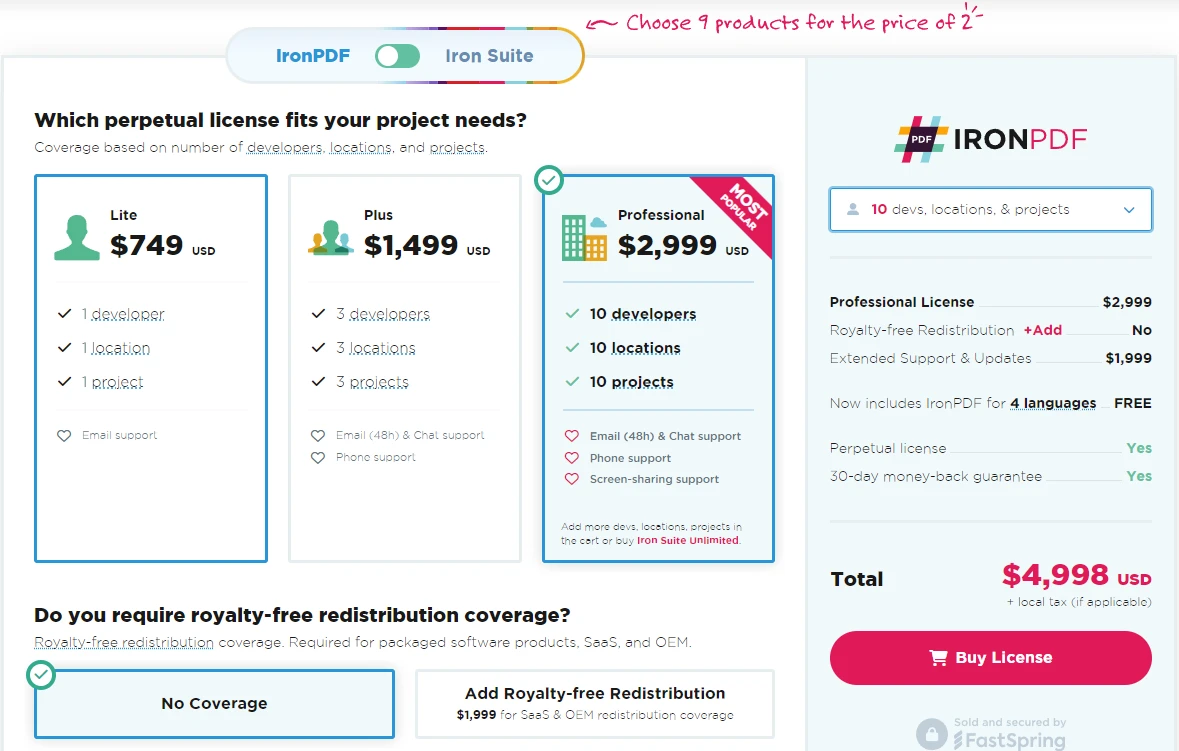
在選擇 .NET 專案的 PDF 程式庫時,授權方式和成本考量是關鍵。 IronPDF 和 iText 遵循不同的授權模式,選擇合適的需視您的專案要求、預算和合規需要而定。
IronPDF 授權和成本
IronPDF 採用商業授權模式,意味著雖然它提供商業授權的免費試用,而且對於開發和評估是免費的,但要用於全面生產則需付費授權。 定價透明,取決於使用規模、開發人員數量和專案型別等因素。
IronPDF 授權:
- 商業授權模式 (無開源限制)。
- 直接的定價 基於 開發者或團隊授權。
- HTML 到 PDF、PDF 安全或其他核心功能無額外成本。
- 適合企業 需要 簡單、具成本效益的 PDF 解決方案。
結論: IronPDF 包含所有主要功能於一個授權中,使其成為團隊和企業選擇的具成本效益選擇。
iText 授權和成本
iText 在 雙授權模式 下運行,其中包括:
- AGPL (GNU Affero 通用公共授權) – 對於開源專案免費,但要求使用 iText 的整個專案也是開源且遵守 AGPL。 這意味著對專案所做的任何修改或新增也必須公開。
- 商業授權 – 必須用於任何不想公開其源程式碼的專有軟體或商業應用。 定價結構依使用、支持級別和部署規模而變化。
對於尋求將 iText 整合都專有軟體的公司,商業授權是必須的。 對於企業級解決方案來說,成本可能相當可觀,因其按每個開發人員計價,但提供專業支持並確保法律合規。
為什麼 iText 可能更昂貴:
- 按開發者定價 – 每個開發者需要單獨授權,增加了團隊的總成本。
- 基本功能需要昂貴的附加元件:
- pdfHTML (收費)– 用於 HTML 到 PDF 轉換。
- pdfOCR (收費)– 用於 從圖像中識別文字。
- pdfCalligraph (收費)– 改善文字渲染和字體支持。
- pdfRender (收費)– 新增 PDF 到圖像轉換。
- pdf2Data (收費)– 提取PDF中的結構化資料。
- 當多個功能和開發人員需要時企業成本可能迅速累積。
結論: 如果您的團隊需要多個開發人員和關鍵功能,如 HTML 到 PDF 和 OCR,那麼 iText 的成本可能比 IronPDF 高許多,後者提供這些功能而無額外成本。
使用案例
小型與大型專案
對於需要快速實現 PDF 功能且配置最少的中小型專案,IronPDF 因其易於使用的 API 和全面的功能集而吸引人。 對要求廣泛自定義和遵循特定 PDF 標準的企業級專案可能從 iText 的高階功能中受益,但 IronPDF 也因其高效能、授權選項和可用性在此等級的工作中證明自己是一個強勁的選擇。
學術和商業用途
在學術環境或開源專案中,iText 的 AGPL 授權允許免費使用,前提是專案的授權與之相容。 對於商業應用,IronPDF 和 iText 都要求購買商業授權。 建議檢查每個程式庫的授權條款,以確保符合專案目的。
結論
為您的 .NET 專案選擇正確的 PDF 程式庫是一項關鍵決策,需要考慮易用性、功能集和授權需求等因素。 IronPDF 和 iText 均提供強大的 PDF 功能,但它們迎合不同的需求。 除了這兩個程式庫以外,Aspose、Syncfusion 和 PDFSharp 等競爭者也提供有競爭力的 .NET PDF 程式庫。 然而,IronPDF 在 PDF 行業中憑藉其簡便使用的 API、全面的功能集和成本效益始終處於領先地位。
下方,我們總結了一個說服力的論點,解釋為何 IronPDF 是滿足所有 .NET PDF 程式庫需求的絕佳選擇。

IronPDF 的優勢
- 易用性: IronPDF 專注於簡單性設計,讓需要在其 .NET 應用中快速整合 PDF 功能的開發人員成為理想選擇。 其直觀的 API 降低了學習曲線並加快了開發時間。
- 全面的文件和支持: IronPDF 提供詳細的文件和靈活的客戶支持,確保開發人員能快速上手並有效地解決問題。
- 無縫 HTML 到 PDF 轉換: IronPDF 擅長於將含有 CSS 和 JavaScript 的 HTML 轉換為高質量的 PDF。 這對於需要從基於網路的內容動態生成 PDF 的專案特別有利。
- 商業授權: 對於商業應用,IronPDF 提供靈活的授權選項,確保合規而無需受到開源授權可能帶來的限制。
iText 的限制
- 複雜性: 雖然 iText 提供先進功能和可自定制性,其 API 對於 PDF 操作新手開發人員可能會顯得複雜。 這可能導致與 IronPDF 更簡單方法相比,常見任務的開發時間更長。
- 商業用途的授權成本: iText 的 AGPL 授權要求任何衍生作品必須開源,否則需購買商業授權。 這對於無法遵守 AGPL 條款的專有應用可能是一個限制。
- 以 Java 為中心的功能: 雖然 iText 適用於 .NET,但其 Java 生態系統的根源有時會使得對 C# 開發人員來說感覺不太自然,特別是在處理跨平臺問題或與基於 Java 工具整合時。
最後想法
如果您的專案需要快速的 PDF 生成,尤其是來自網頁背景內容,並且您正在尋找一種簡單易用的解決方案,IronPDF 可能是更好的選擇。然而,如果您的應用需要高級的 PDF 操作或嚴格遵循 PDF 標準並且您需要靈活地進行廣泛的定制,那麼 iText 可能是更符合需求的選擇。 考慮您的專案具體要求和授權限制,以確定最適合您需求的程式庫。
立即試用 IronPDF: 下載 免費試用 以開始探索 IronPDF 強大的功能!
iText是其各自所有者的註冊商標。 此站點與iText無關,未由其背書或贊助。 所有產品名稱、徽標和品牌均為其各自所有者的財產。 比較僅供資訊參考,並反映了撰寫時的公開可用資訊。













