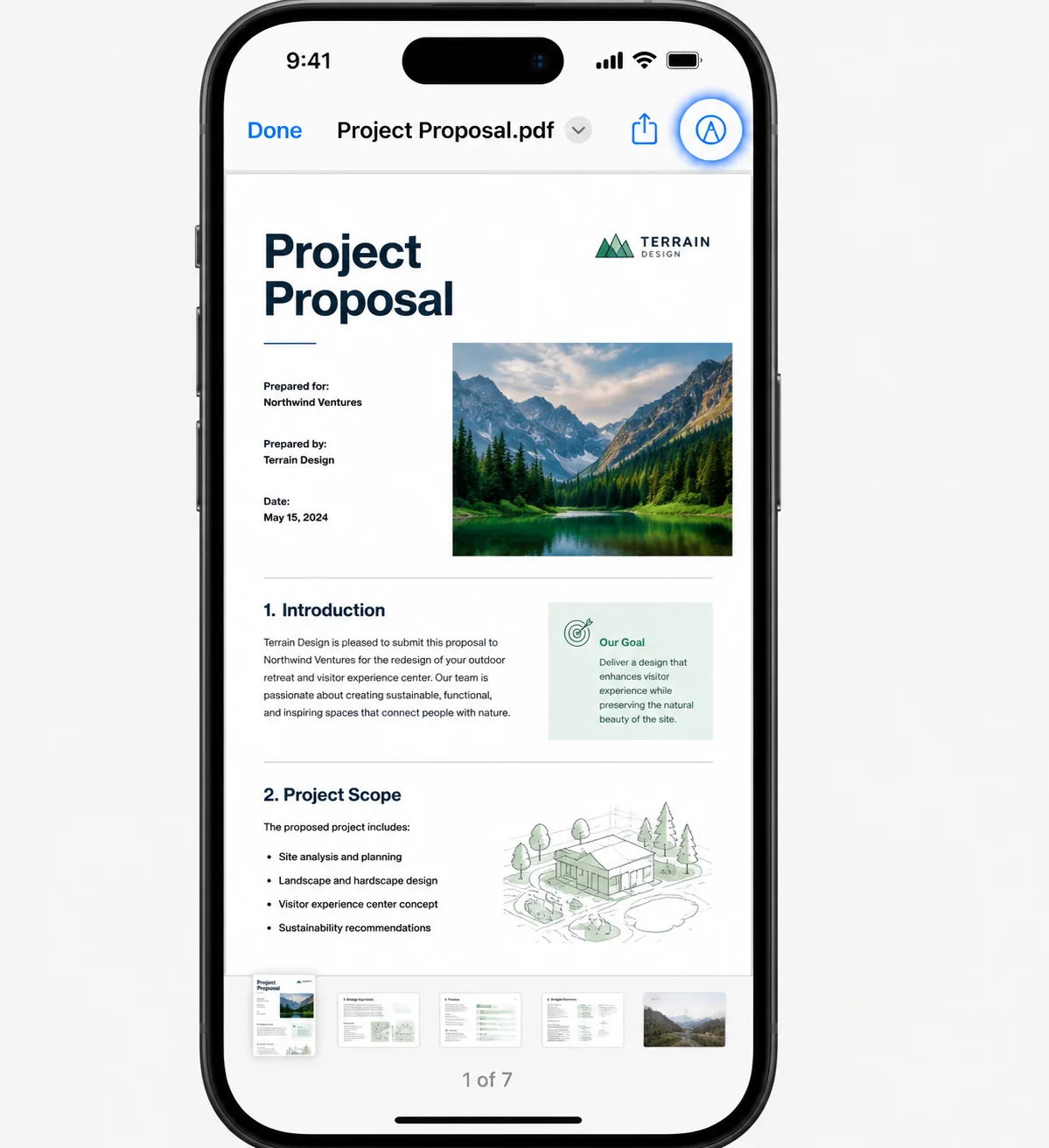
Reading digital documents is standard across academic, legal, and business environments. However, simply reading isn't always enough, you often need to mark important sections, highlight text, and add comments to draw attention to key findings. Knowing how to highlight a PDF efficiently turns a static file into an interactive workspace for collaboration, research, and quick reference.
While highlighting text in a PDF seems straightforward, the exact steps vary depending on whether you are using a web browser, a dedicated desktop PDF editor, or mobile devices. In this guide, we will cover the easiest methods to highlight a PDF across different platforms, troubleshoot common issues like scanned documents, and explore how developers can automate PDF highlighting using C#.
Why Highlight Text in a PDF Document?
Using a highlight tool to emphasize key points in a PDF document does more than make text pop off the page. Effective text highlighting provides distinct advantages for personal study and team collaboration:
- Quick Information Retrieval: Highlighted text allows you to review contracts, research papers, or lengthy manuals without reading every word again.
- Improved Collaboration: When reviewing contracts or team reports, adding a highlighted section alongside notes provides clear feedback for collaborators.
- Organization with Color-Coding: Choosing a preferred color for specific concepts (e.g., green for approvals, yellow for key points, red for urgent items) helps categorize complex information instantly.
- Active Reading: Engaging with the text in a PDF by marking important points boosts retention and reduces misinterpretation during group discussions.
Method 1: Highlighting Text in a Web Browser (Online Editors)
If you need a quick solution without downloading software, modern web browsers (such as Microsoft Edge or Chrome) and online editor tools allow you to highlight PDFs online for free.
Step-by-Step Guide for Web Browsers
-
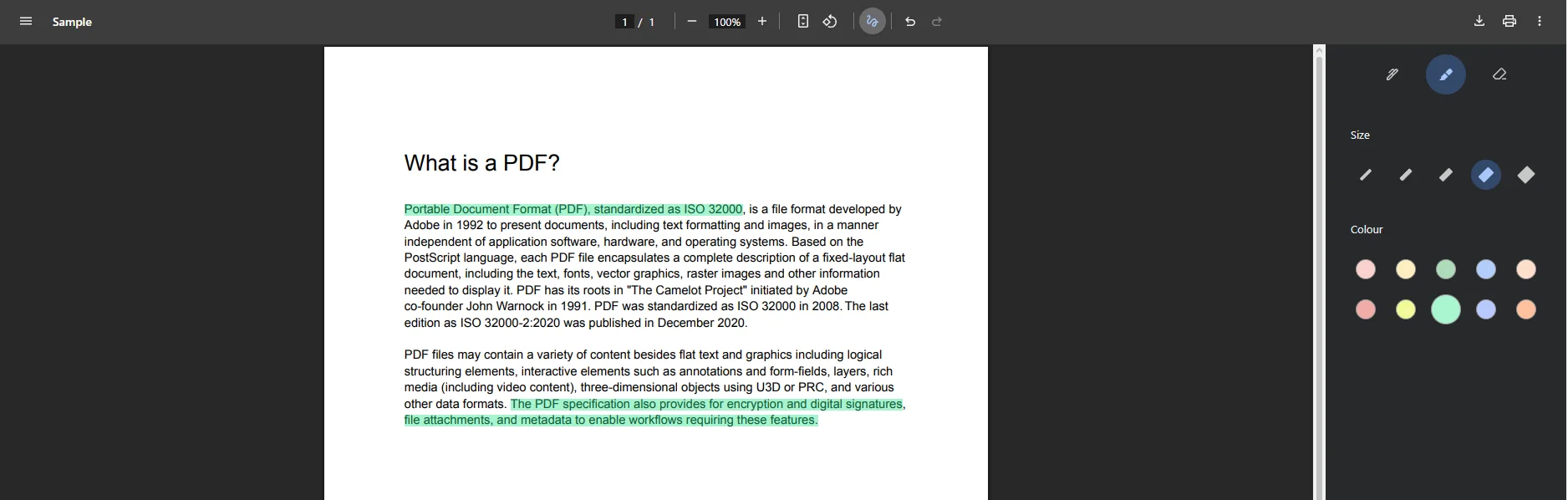
Open the PDF: Right-click your PDF file, choose Open with, and select your web browser. Alternatively, drag and drop the PDF file into an open browser window.
-
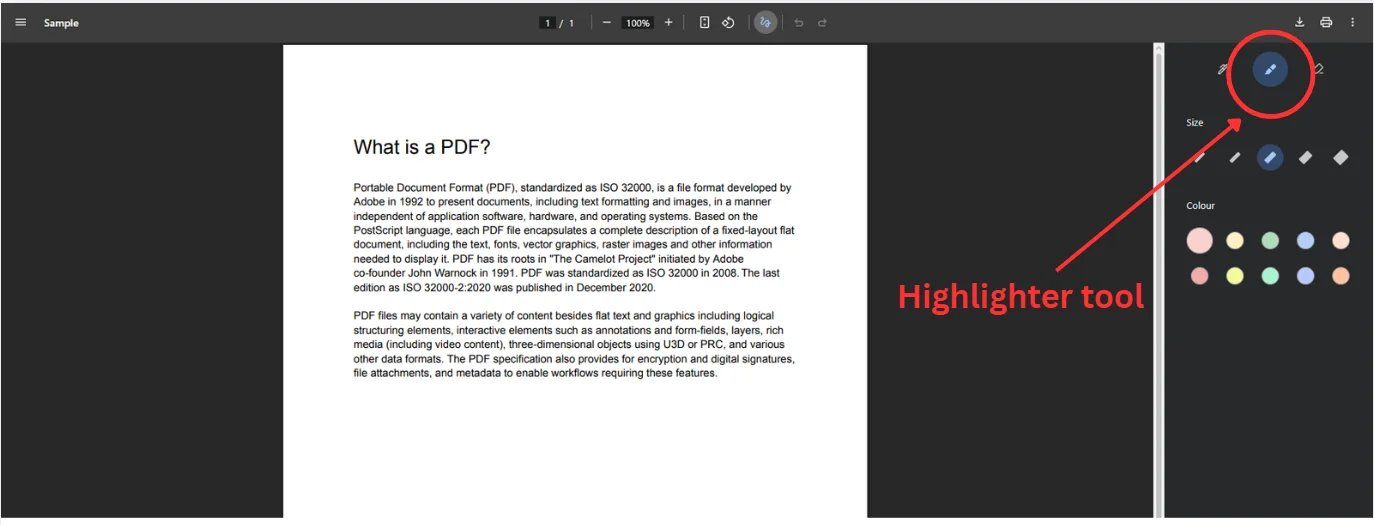
Select the Highlight Tool: Click the Highlight tool (often represented by a pen or marker icon) on the top toolbar.
-
Choose Your Preferred Color: Select a highlight color from the palette if multiple color options are available.
-
Mark the Text: Click and drag your cursor over the selected text. The highlighted area will update immediately.
-
Save the File: Click the save icon or press Ctrl + S (Cmd + S on macOS) to save your annotated PDF.
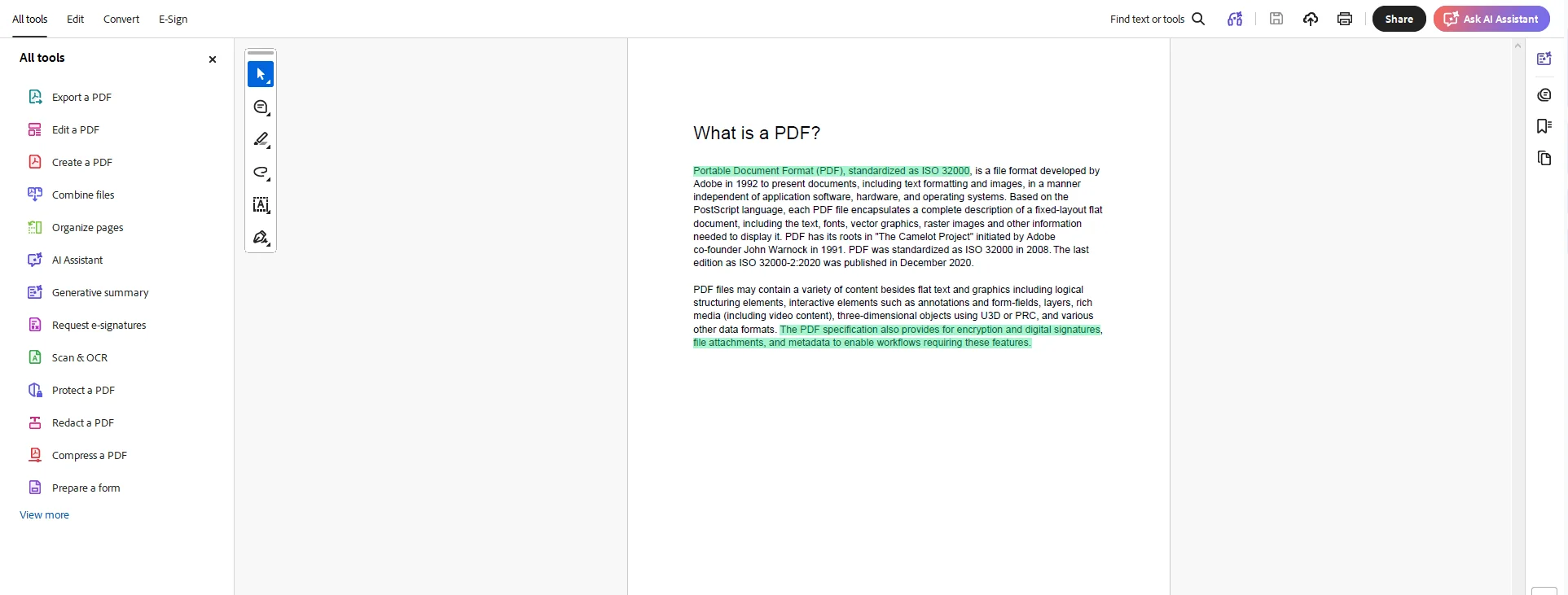
Online PDF editors like pdfFiller or basic browser tools let you freely highlight text without installing software. However, for sensitive documents or heavy batch highlighting, offline desktop tools offer better privacy and performance.
Method 2: Highlighting Text Using Desktop PDF Editors
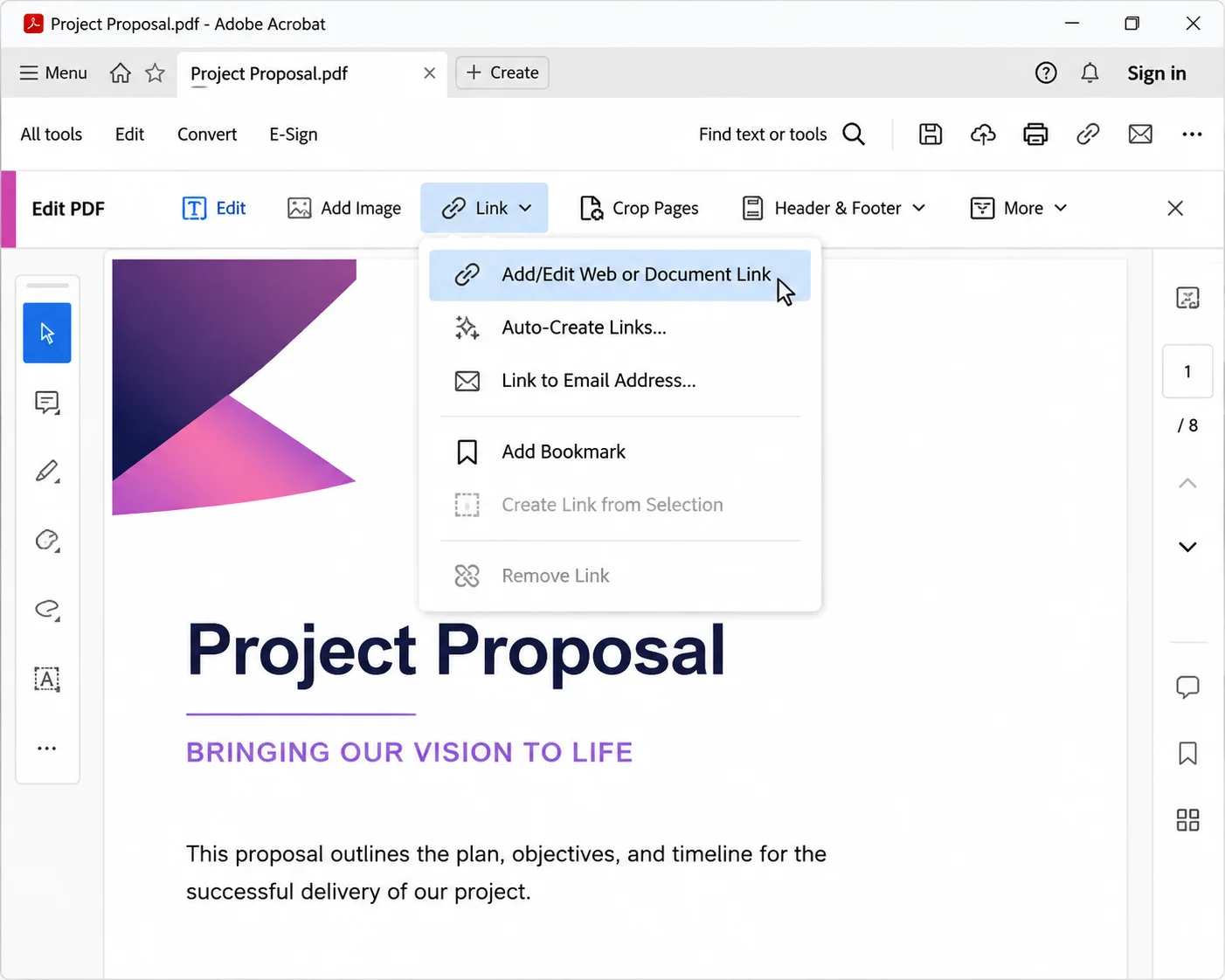
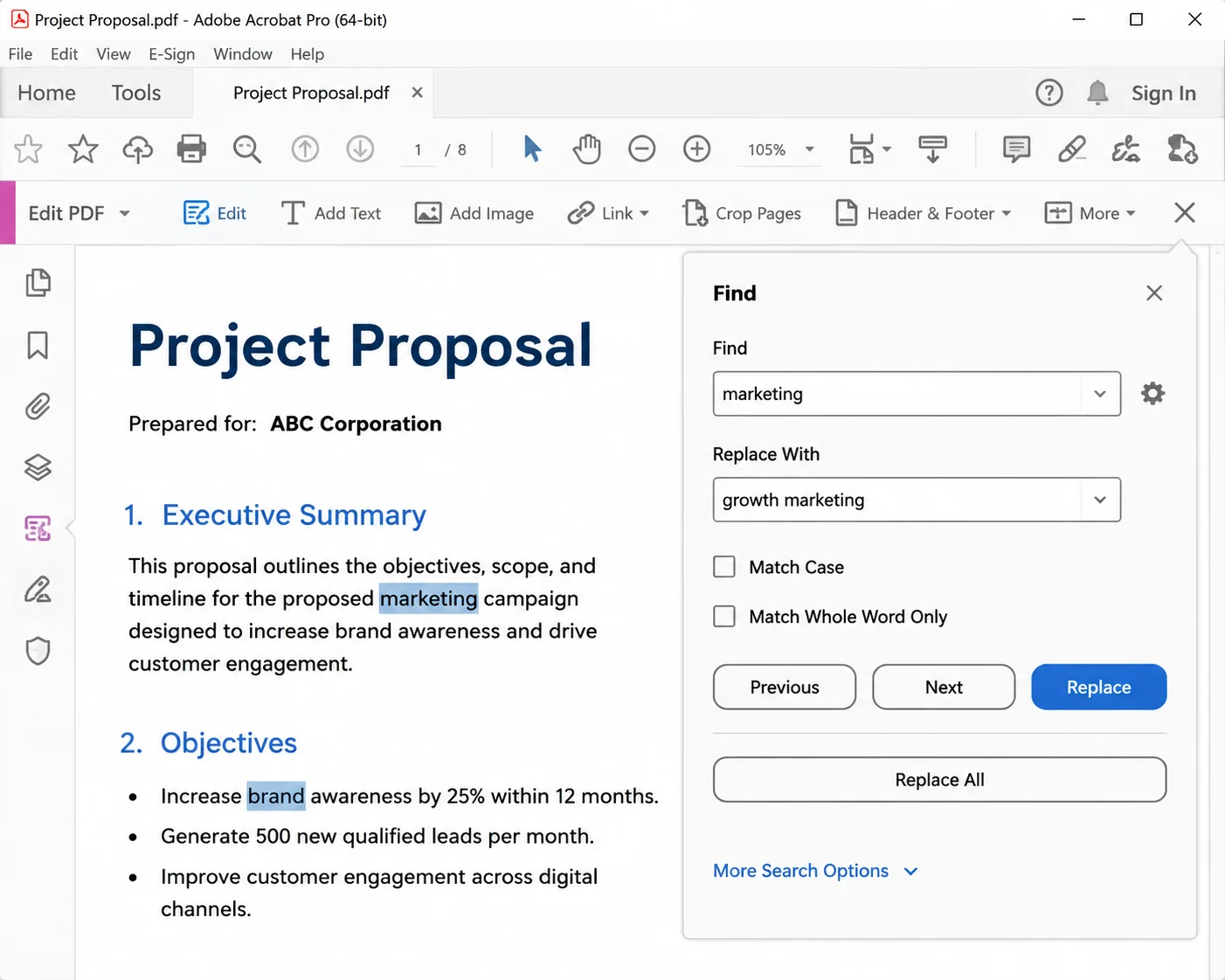
For advanced features like custom colors, area highlight options, and adding detailed annotations, a dedicated desktop PDF editor or PDF app (such as Adobe Acrobat, Foxit PDF Editor, or the PDFgear app) is the best choice.
Standard Desktop Workflow
-
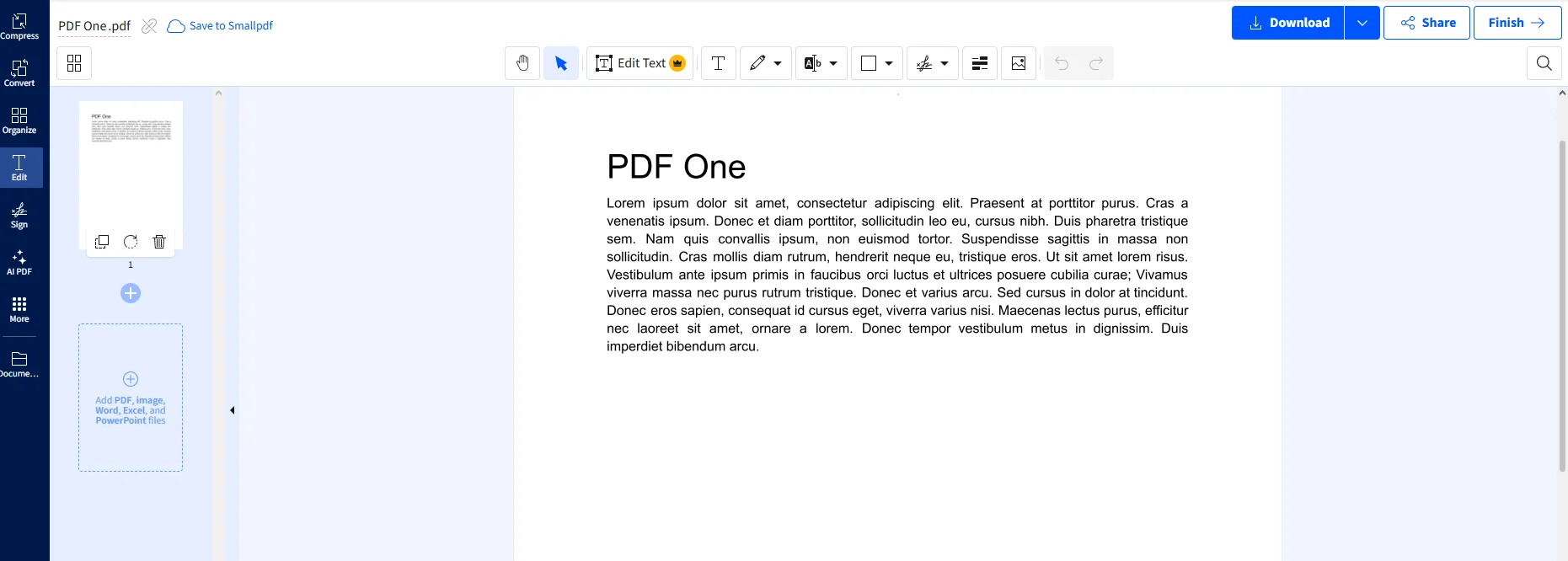
Simply Open the PDF: Launch your preferred PDF editor and open your PDF document.
-
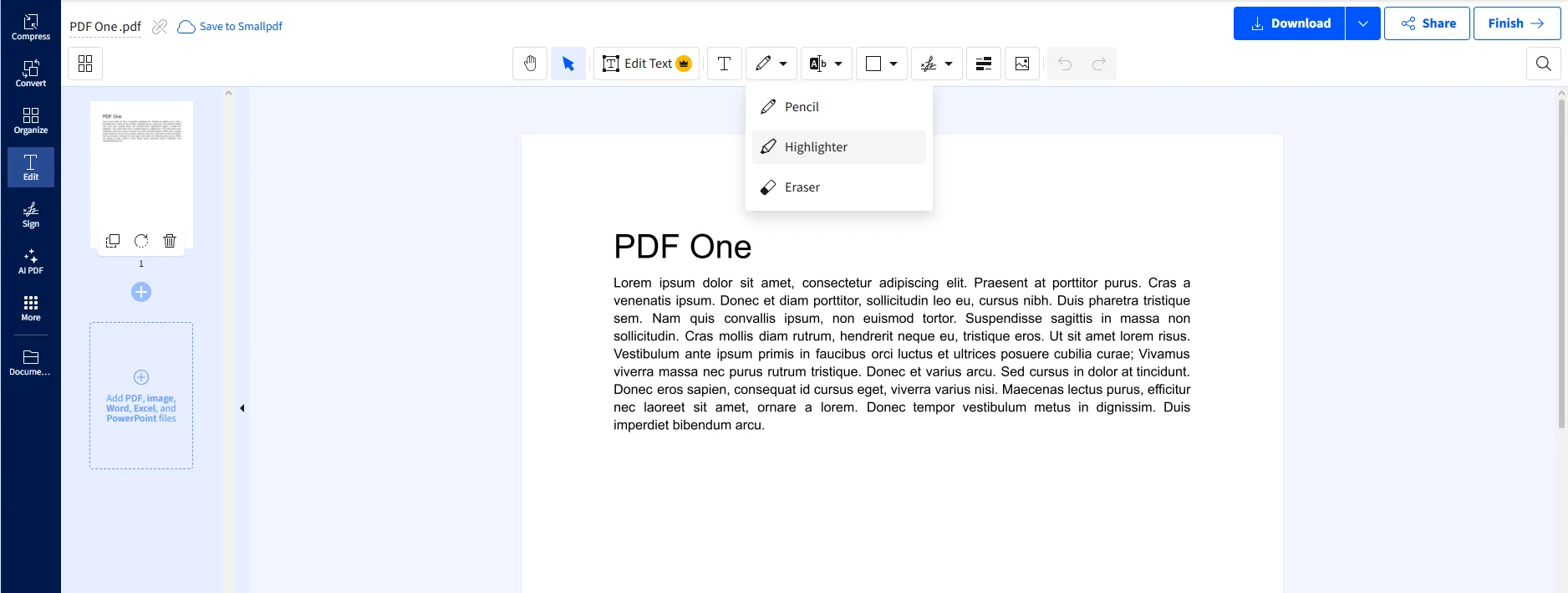
Activate the Highlight Tool: Locate the Highlight text option in the annotation tools or comment toolbar.
-
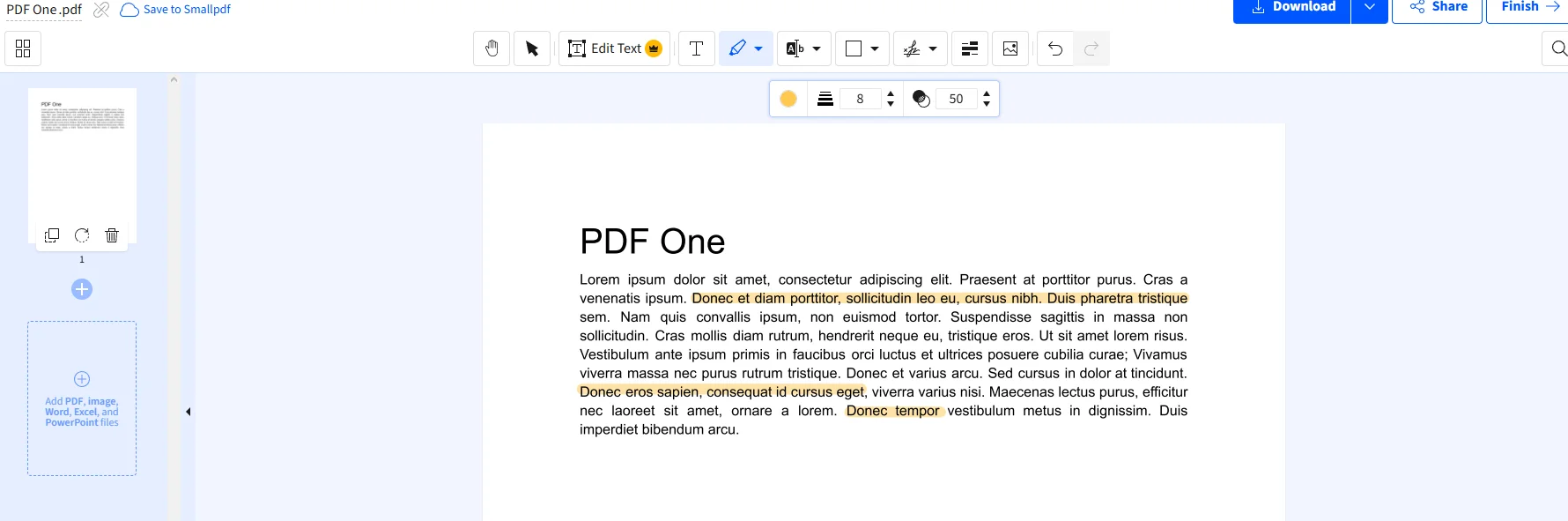
Select and Color-Code: Drag the cursor across the text in a PDF. Desktop editors like Foxit PDF Editor or PDFgear allow you to change the highlight color using over 100 color options or highlight multiple areas simultaneously.
-
Add Notes and Comments: Right-click the highlighted section to add notes or add comments. This is especially useful for providing clear feedback when reviewing contracts with a team.
-
Edit Annotations: If you make a mistake, select the highlighted area to edit annotations, change colors, or remove highlights entirely.
Method 3: How to Highlight a PDF on Mobile Devices
You can easily mark important information on the go using iOS or Android mobile devices.
- Open your PDF document in a mobile app (such as Adobe Acrobat Reader, Foxit, or PDFgear app).
- Tap the annotation tools icon and select the Highlight option.
- Tap and drag your finger or stylus over the selectable text.
- Customize the highlight color or add notes directly from the popup menu.
- Save or share the updated PDF file.
Highlighting Best Practices
To get the most out of text highlighting in PDFs, keep these best practices in mind:
- Read First, Highlight Second: Avoid highlighting text on your first pass. Read through a paragraph first, identify the key findings, and then apply highlights sparingly.
- Establish a Color System: Use multiple color options to categorize information. For example, use yellow for key points, blue for references, and pink for critical warnings.
- Combine Highlights with Notes: Don't rely solely on color. Always add notes or add comments to clarify why a particular section was highlighted.
- Keep It Minimal: Highlighting entire pages defeats the purpose. Focus strictly on important sections to keep the document readable.
Troubleshooting Common PDF Highlighting Issues
Why Can't I Highlight a PDF File?
If you try to select text in a PDF and nothing happens, your document likely falls into one of two categories:
-
Scanned Documents (Image-based PDFs): Scanned PDFs are just images of text. Because there is no underlying selectable text, standard highlight tools won't recognize words.
- The Fix: Run Optical Character Recognition (OCR) in your PDF editor to convert scanned PDFs into selectable text.
-
Permission Restrictions: The file creator may have locked the PDF to prevent editing or annotating.
- The Fix: Check the document security settings under file properties to see if commenting and annotations are allowed.
How to Make a Straight Highlight in a PDF?
Freehand drawing tools can result in messy lines. To create perfectly straight highlights:
- Hold down the Shift key while dragging your mouse/cursor across the PDF text. Most major PDF editors auto-align the highlight tool horizontally when Shift is held.
- Alternatively, ensure you are using the standard Text Highlight tool rather than a freehand marker or area highlight tool.
How Do I Highlight an Entire PDF to Copy?
If you need to select and highlight large amounts of text across multiple pages:
- Press Ctrl + A (Cmd + A on Mac) to select all selectable text in the document.
- Right-click the selected text and choose Highlight.
- To copy, right-click the highlighted text and select Copy, or use Ctrl + C.
Highlighting an entire PDF at once can slow down visual rendering on larger files containing hundreds of pages. Use batch highlighting selectively.
Summary of Highlighting Methods
| Method | Supported Platforms | Best For | Key Feature |
| --- | --- | --- | --- |
| Web Browser | Cross-platform (Windows, Mac, Linux) | Quick reviews without installation | Fast, free, built-in |
| Desktop PDF Editor | Windows, macOS | Heavy annotation, research, legal review | Area highlight, 100+ colors, add comments |
| Mobile App | iOS, Android | Reading and marking on the go | Touch/Stylus support, instant sharing |
| IronPDF (.NET) | Cross-platform (.NET Core, Framework) | Programmatic PDF highlighting & automation | C# automation, programmatic annotations |
Programmatic PDF Highlighting with IronPDF
While manually using a highlight tool works well for individual files, businesses managing thousands of research papers, invoices, or legal contracts require automated solutions.
Developers can programmatically add highlights, edit annotations, and search for key terms across large volumes of PDF files using IronPDF.
IronPDF is a comprehensive .NET library that allows developers to create, edit, extract, and annotate PDF documents in C#, VB.NET, and F#. It provides robust annotation tools to search for specific text patterns, apply custom highlight colors, and extract highlighted text automatically without opening a GUI editor.
Key Benefits of IronPDF for Document Annotation
- Cross-Platform: Operates across Windows, Linux, macOS, and cloud environments like Azure and AWS.
- Automated Text Highlighting: Search for key terms or regex patterns across batch files and highlight text instantly.
- Full Annotation Control: Add comments, edit text, underline, and modify annotation layers programmatically.
- Multiple File Formats: Convert HTML, DOCX, and images into annotatable PDF files with precise layout preservation.
Highlighting Specific Text in C# Using IronPDF
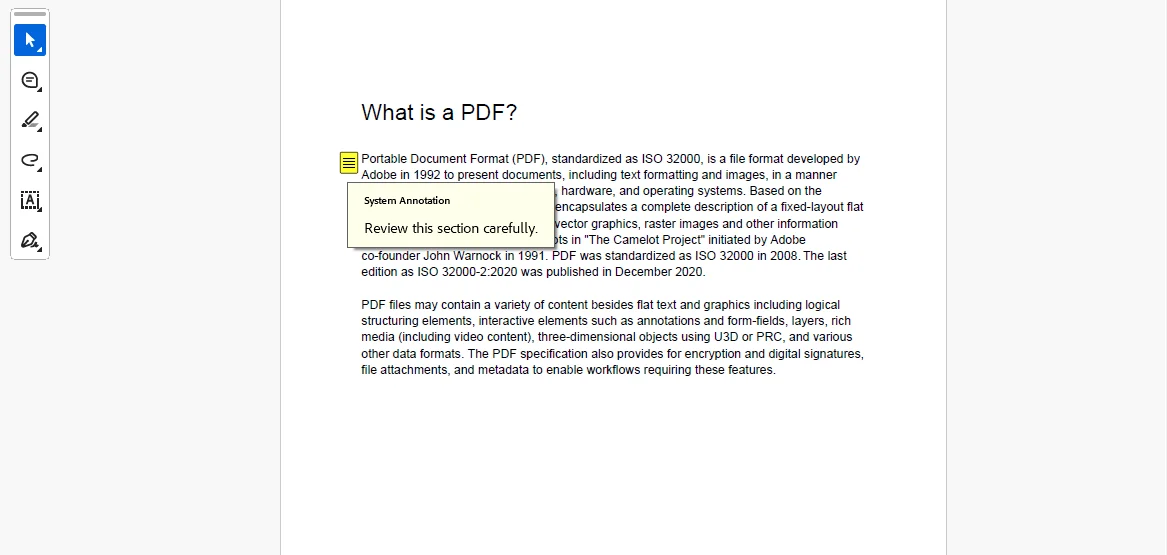
The following example demonstrates how to open a PDF file, search for specific text, and apply a text highlight annotation programmatically:
using IronPdf;
using IronPdf.Annotations;
using IronPdf.Drawing;

// Load an existing PDF document
var pdf = PdfDocument.FromFile("sample_contract.pdf");

// Create a text annotation (sticky note) on page 1 (zero-based index 0)
var annotation = new TextAnnotation(0)
{
    Title = "System Annotation",
    Contents = "Review this section carefully.",
    X = 50,  // X position on the page
    Y = 100, // Y position on the page
    Width = 200,
    Height = 50,
    OpenByDefault = true
};

// Add the annotation to the PDF
pdf.Annotations.Add(annotation);

// Save the annotated PDF document
pdf.SaveAs("annotated_contract.pdf");
using IronPdf;
using IronPdf.Annotations;
using IronPdf.Drawing;

// Load an existing PDF document
var pdf = PdfDocument.FromFile("sample_contract.pdf");

// Create a text annotation (sticky note) on page 1 (zero-based index 0)
var annotation = new TextAnnotation(0)
{
    Title = "System Annotation",
    Contents = "Review this section carefully.",
    X = 50,  // X position on the page
    Y = 100, // Y position on the page
    Width = 200,
    Height = 50,
    OpenByDefault = true
};

// Add the annotation to the PDF
pdf.Annotations.Add(annotation);

// Save the annotated PDF document
pdf.SaveAs("annotated_contract.pdf");
Text
IronPDF Output
Summary
Highlighting text in a PDF document is an essential skill for personal efficiency and team collaboration. Whether you use built-in browser tools for quick edits, feature-packed desktop applications like PDFgear and Foxit, or mobile applications while on the move, marking up documents ensures critical details are never overlooked.
For developers needing to scale these workflows across enterprise applications, IronPDF removes the manual friction entirely. By offering automated search-and-highlight capabilities, custom annotation styling, and cross-platform reliability, IronPDF empowers teams to process batch documents accurately and quickly.
Ready to streamline your document workflows with code? Try the 30-day free trial of IronPDF today to access all premium annotation features with zero watermarks or restrictions.